Bulk Order Processing (LMD)
In this module, we will discuss:-
1. Who are the Last Mile Delivery (LMD) sellers?
2. How can you process orders in bulk?
3. How can you download duplicate copies?
4. How to download the Paytm Mall invoice?
Who are the Last Mile Delivery (LMD) sellers?
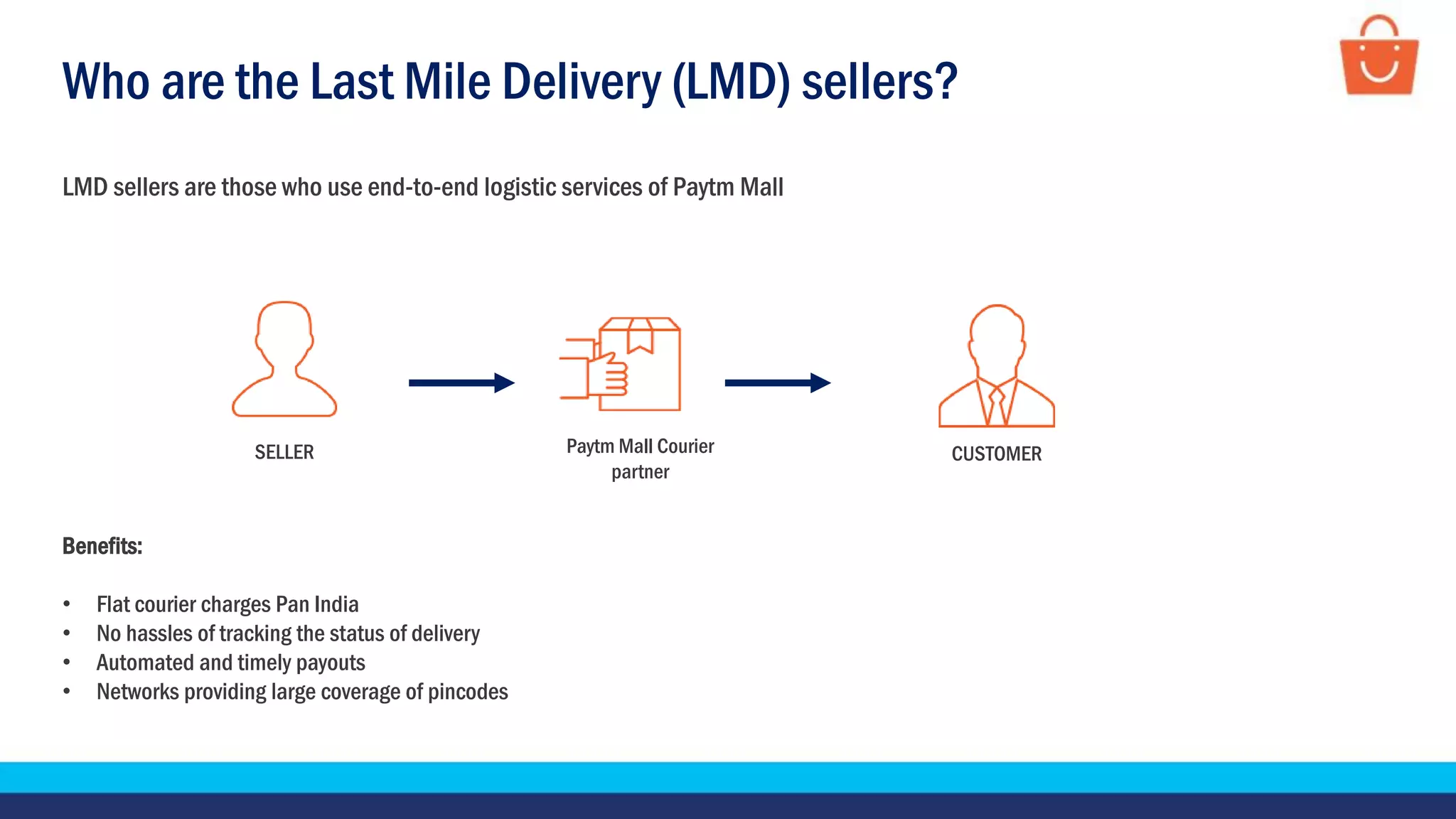
LMD sellers are those who use end-to-end logistic services of Paytm Mall
Benefits:
• Flat courier charges Pan India
• No hassles of tracking the status of delivery
• Automated and timely payouts
• Networks providing large coverage of pincodes
SELLER CUSTOMERPaytm Mall Courier
partner
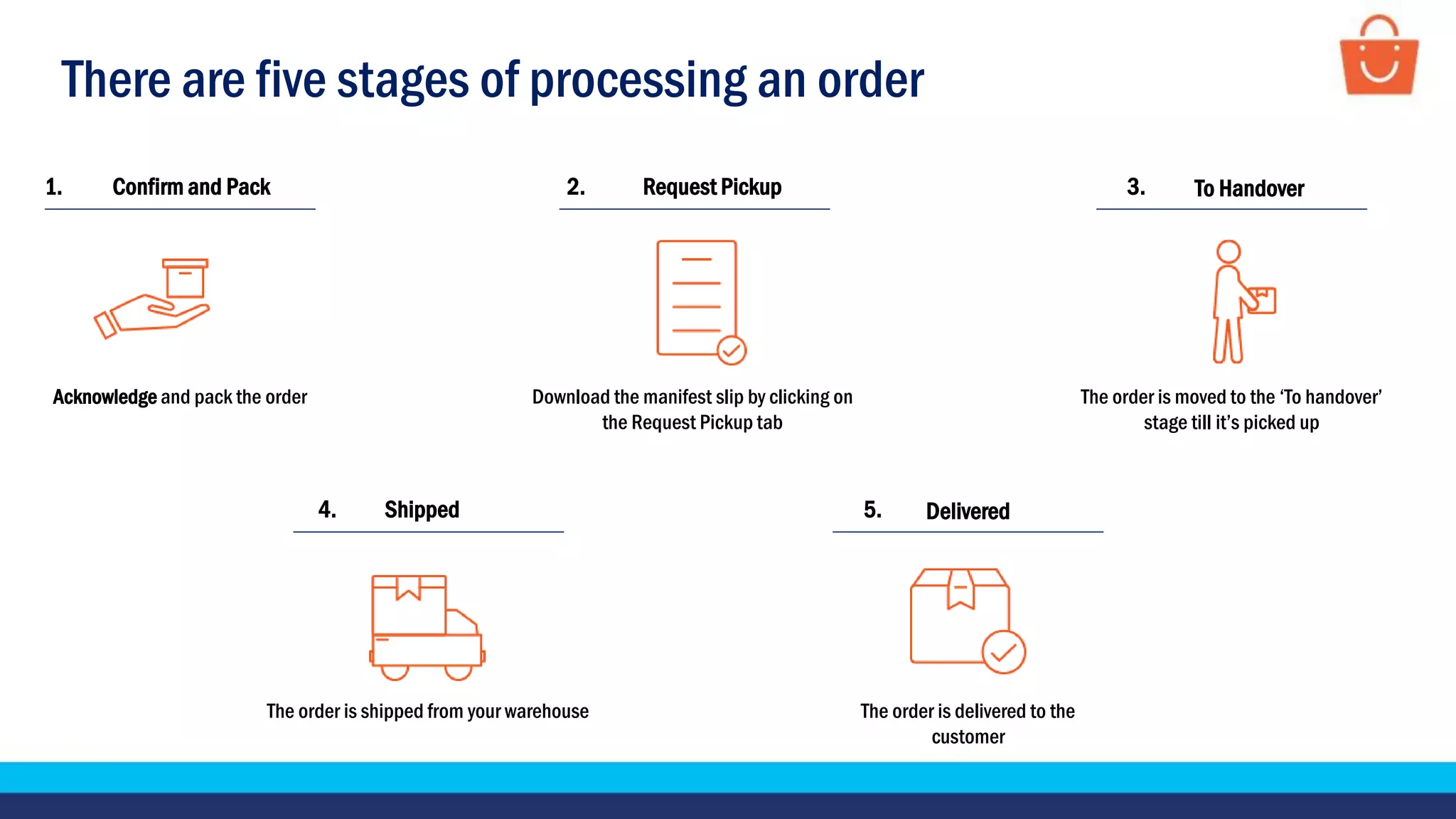
There are five stages of processing an order
The order is shipped from your warehouse
Shipped4.
Acknowledge and pack the order
Confirm and Pack1.
The order is delivered to the
customer
Delivered5.
Download the manifest slip by clicking on
the Request Pickup tab
Request Pickup2.
The order is moved to the ‘To handover’
stage till it’s picked up
To Handover3.
How to process orders in bulk?
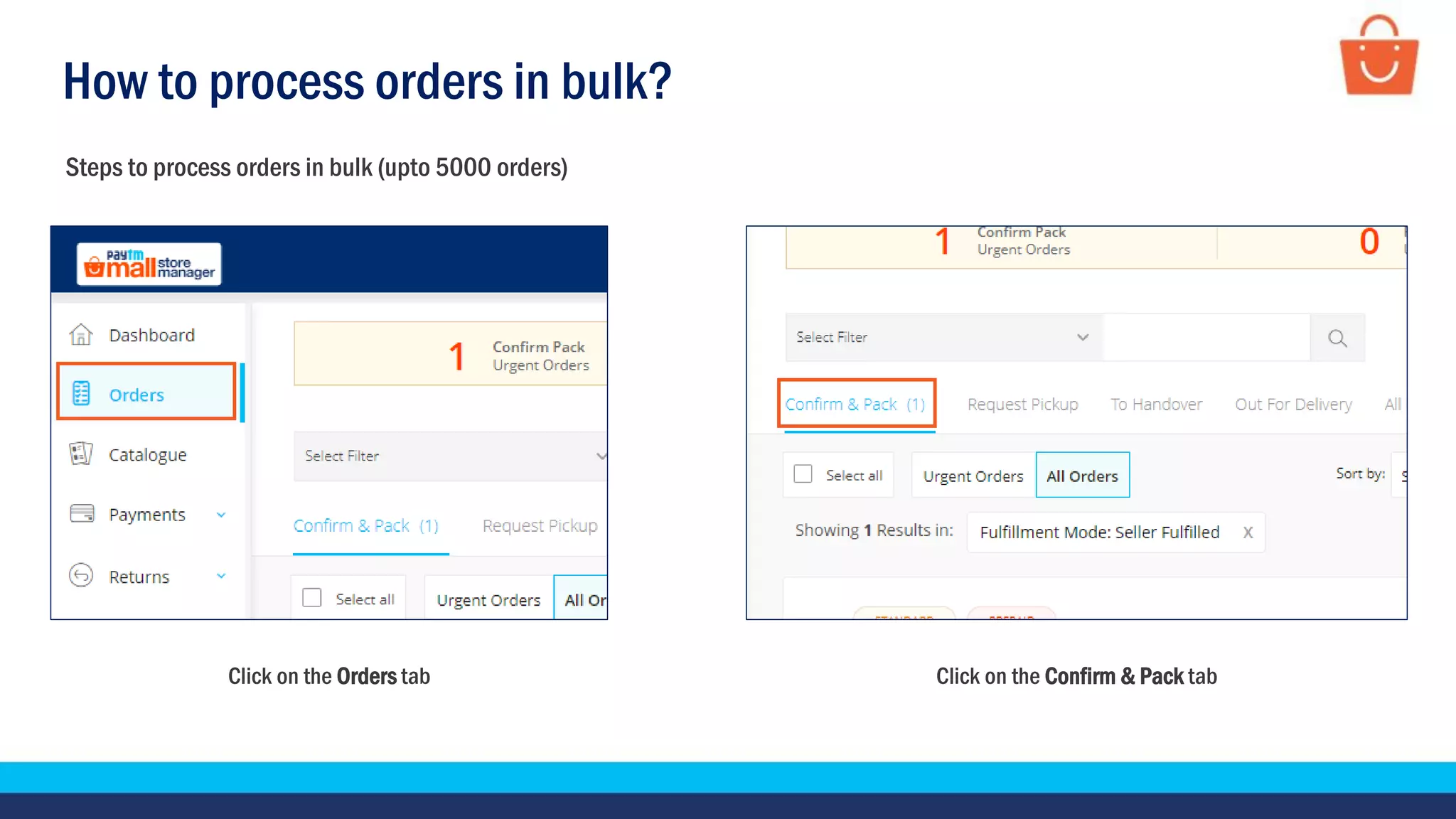
Click on the Orders tab Click on the Confirm & Pack tab
Steps to process orders in bulk (upto 5000 orders)
How to process orders in bulk?
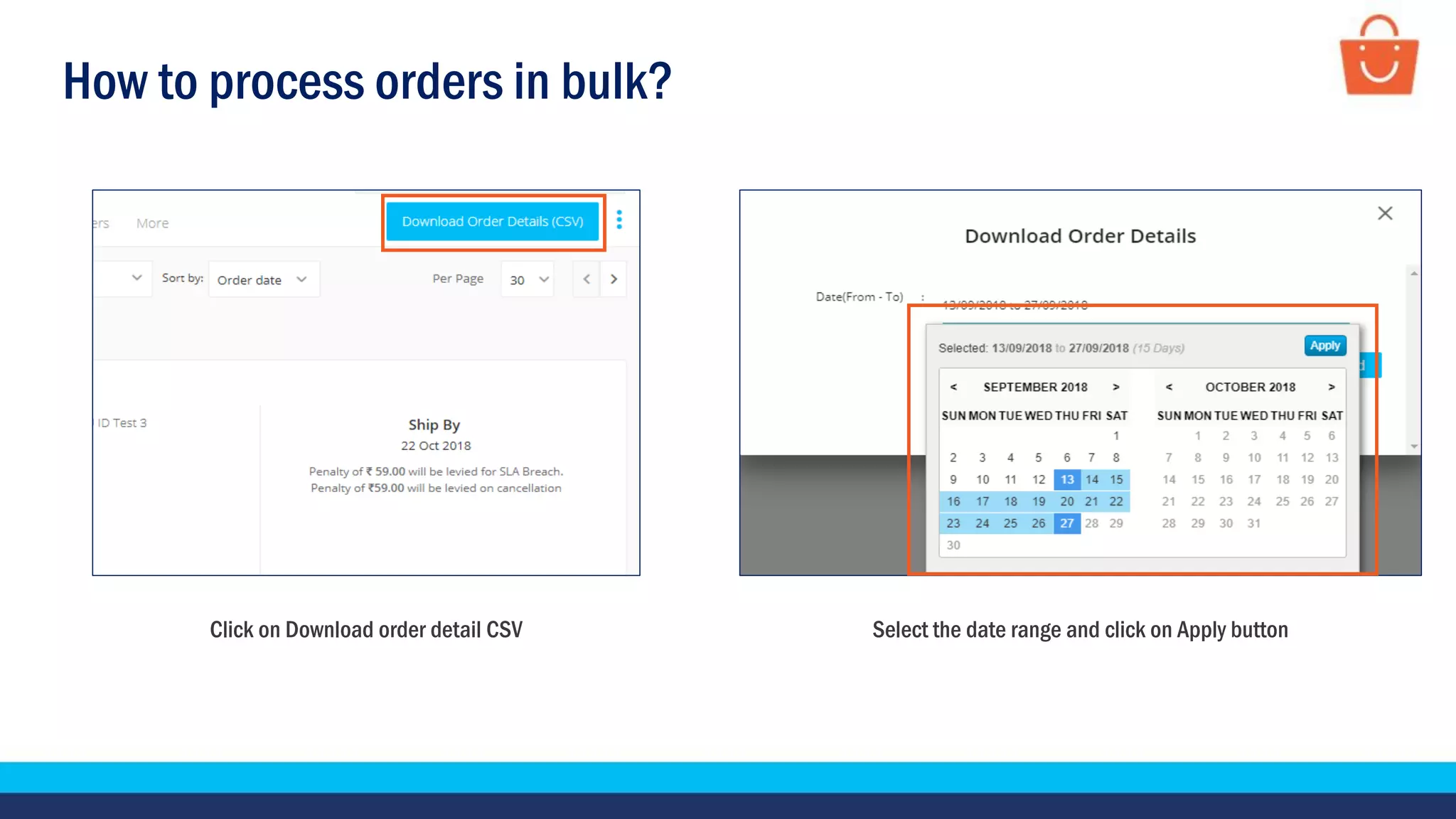
Click on Download order detail CSV Select the date range and click on Apply button
How to process orders in bulk?
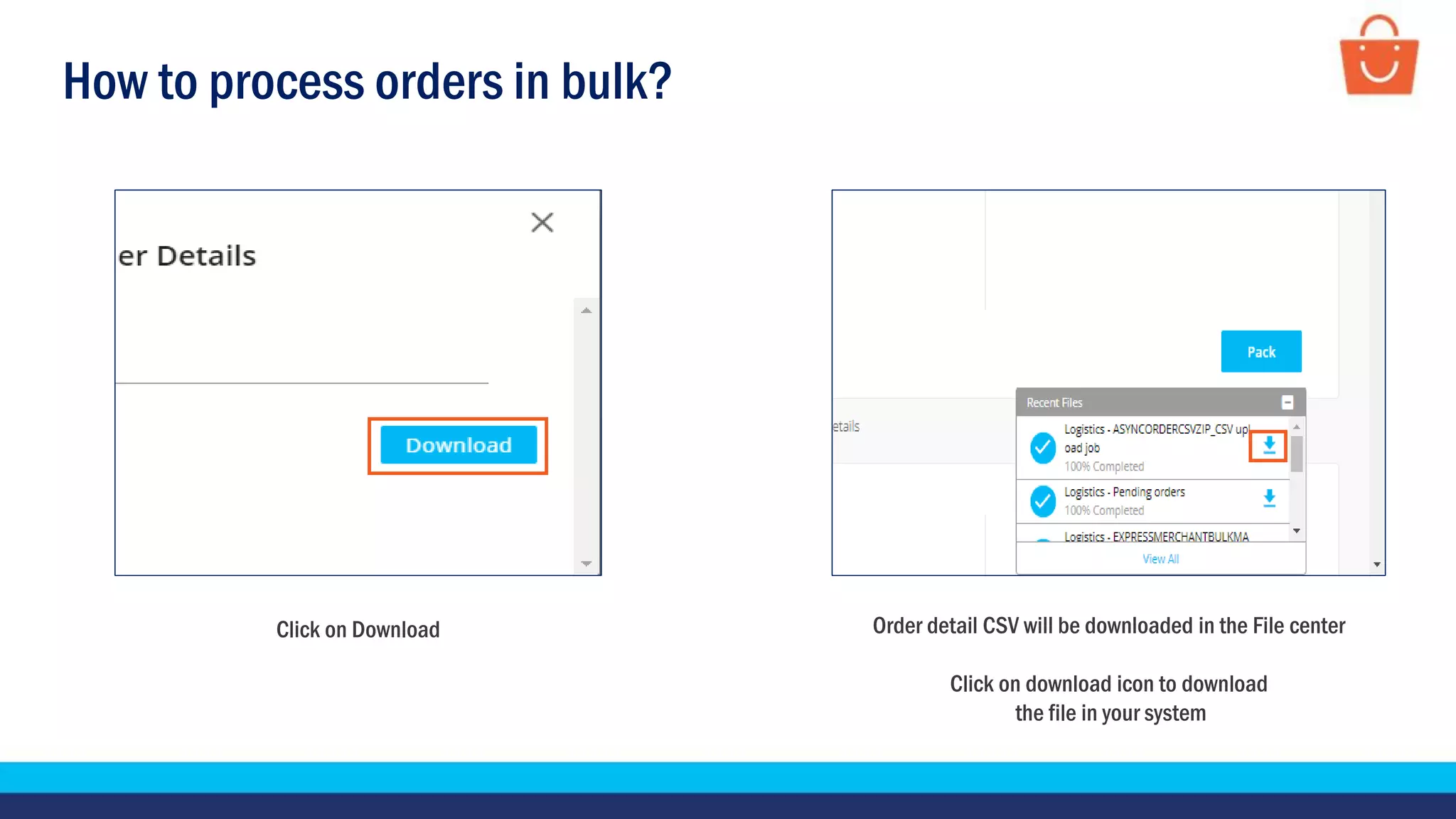
Click on Download Order detail CSV will be downloaded in the File center
Click on download icon to download
the file in your system
How to process orders in bulk?
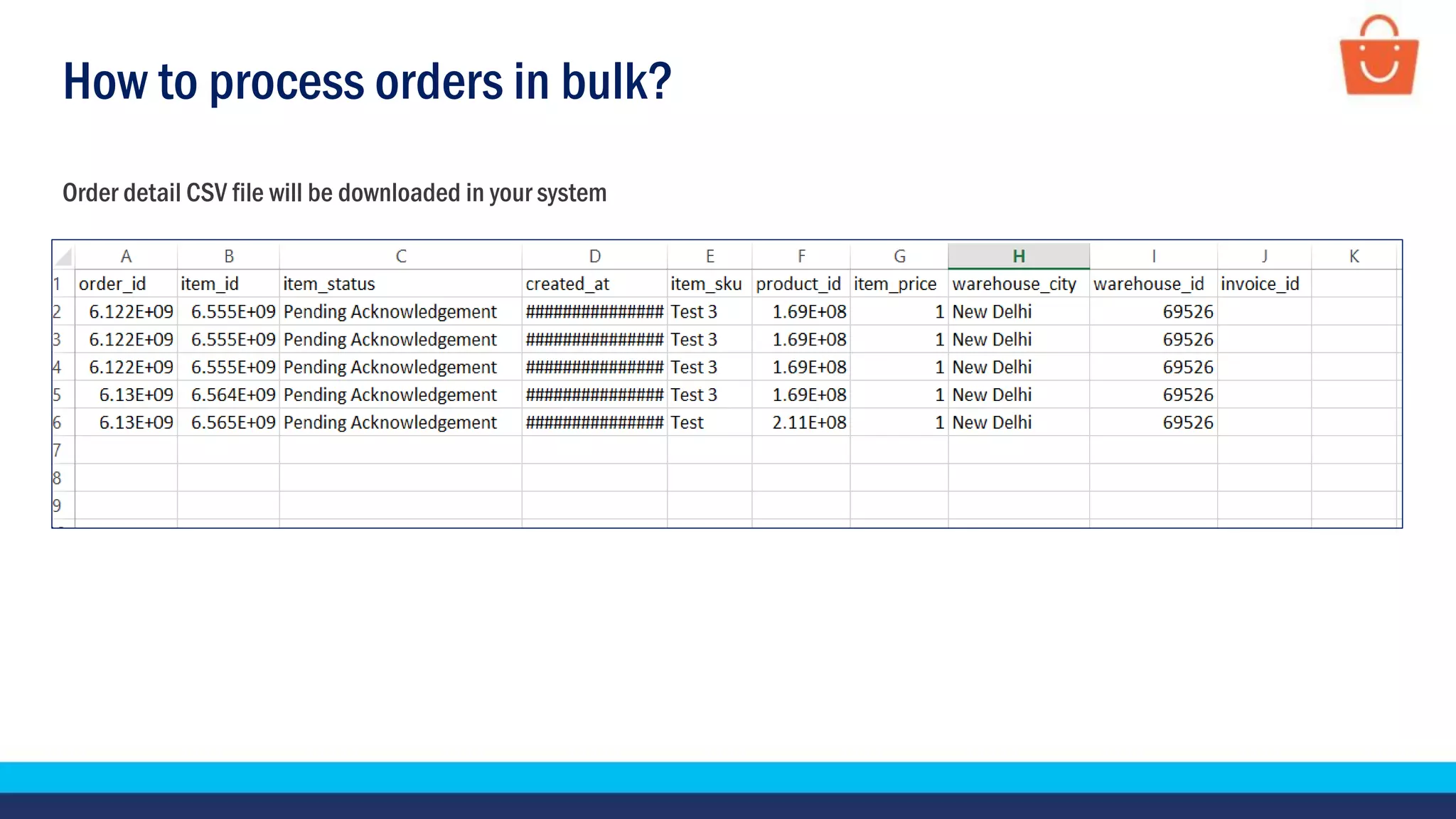
Order detail CSV file will be downloaded in your system
How to process orders in bulk?
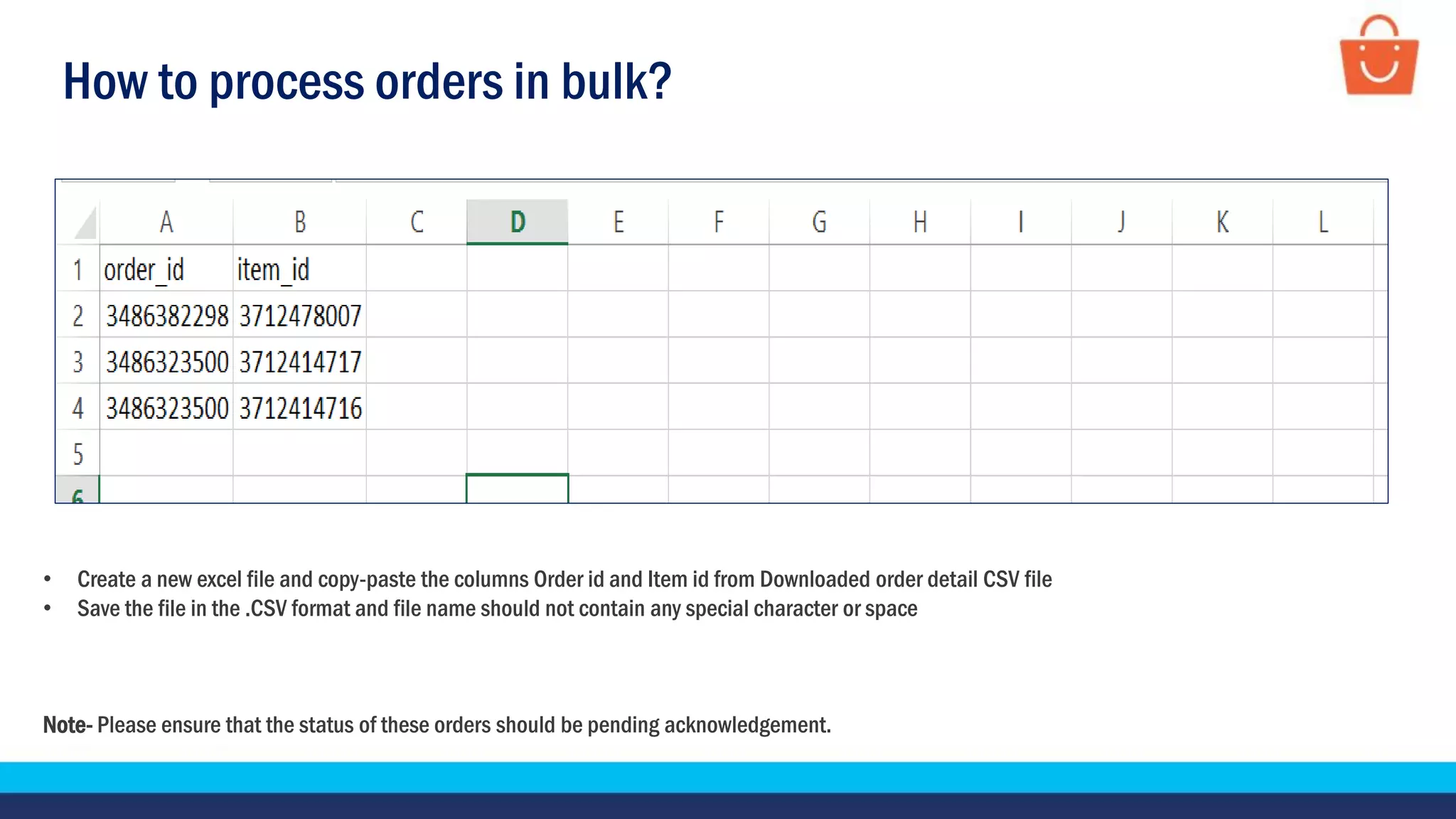
• Create a new excel file and copy-paste the columns Order id and Item id from Downloaded order detail CSV file
• Save the file in the .CSV format and file name should not contain any special character or space
Note- Please ensure that the status of these orders should be pending acknowledgement.
How to process orders in bulk?
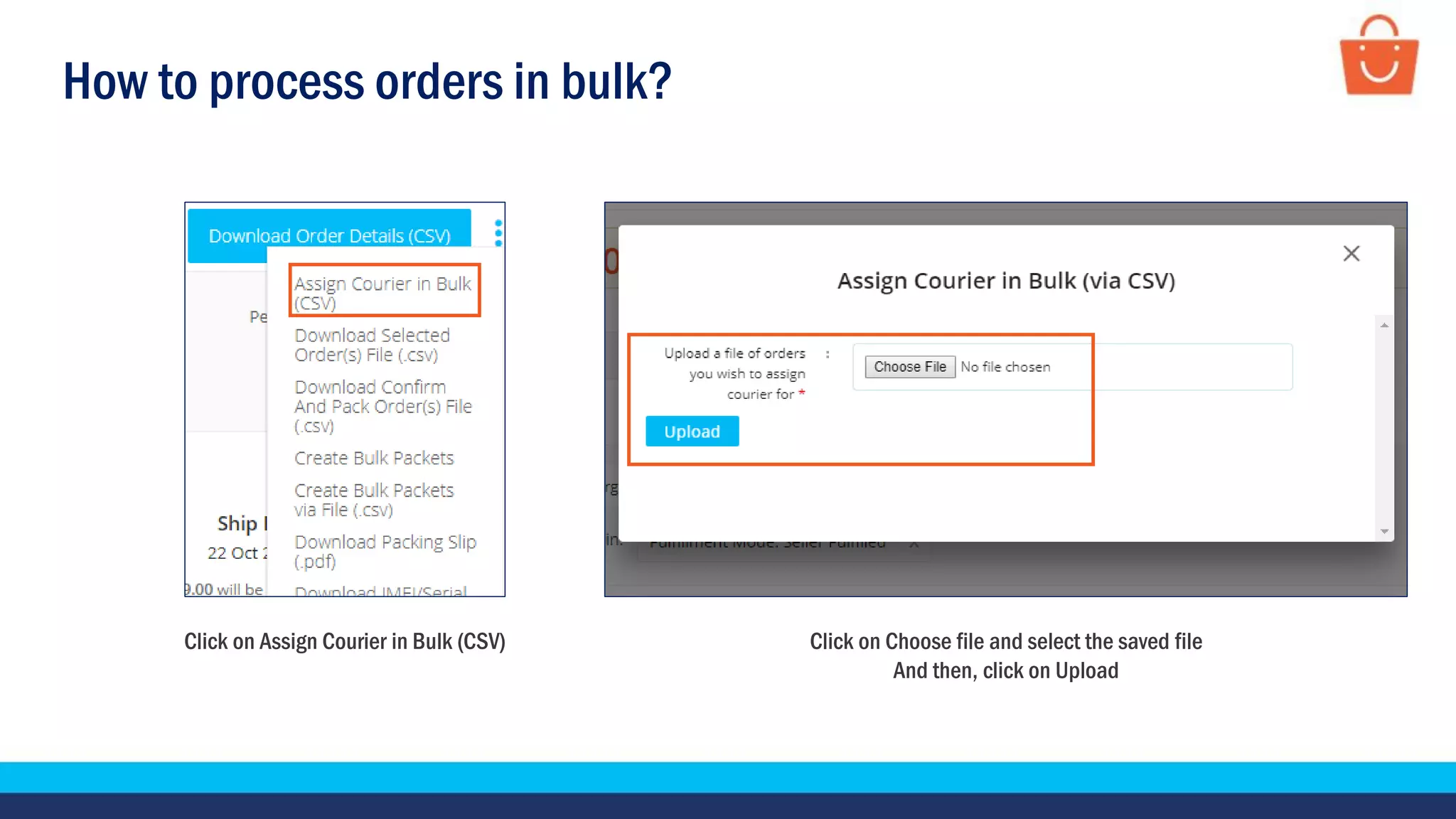
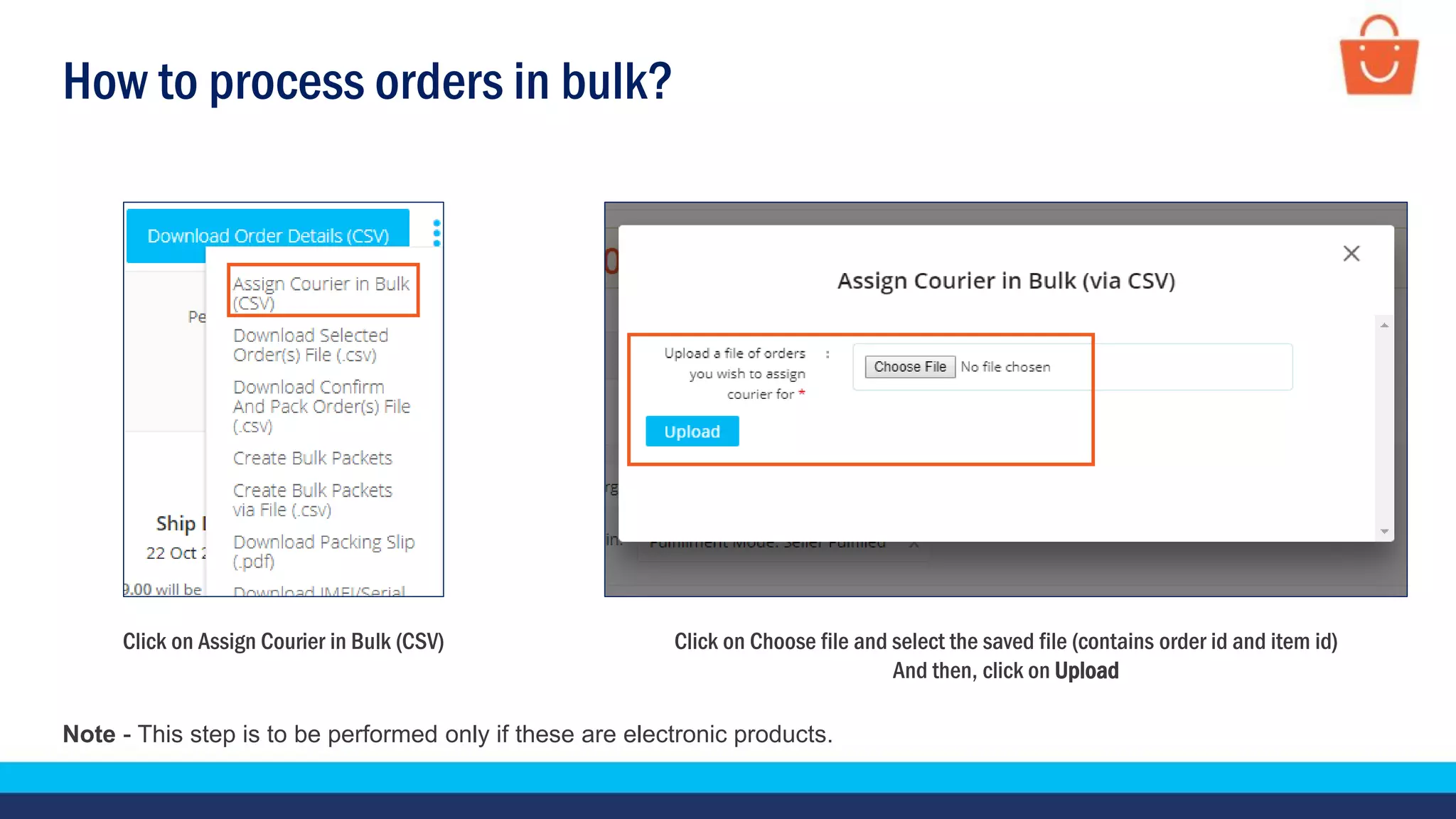
Click on Choose file and select the saved file
And then, click on Upload
Click on Assign Courier in Bulk (CSV)
How to process orders in bulk?
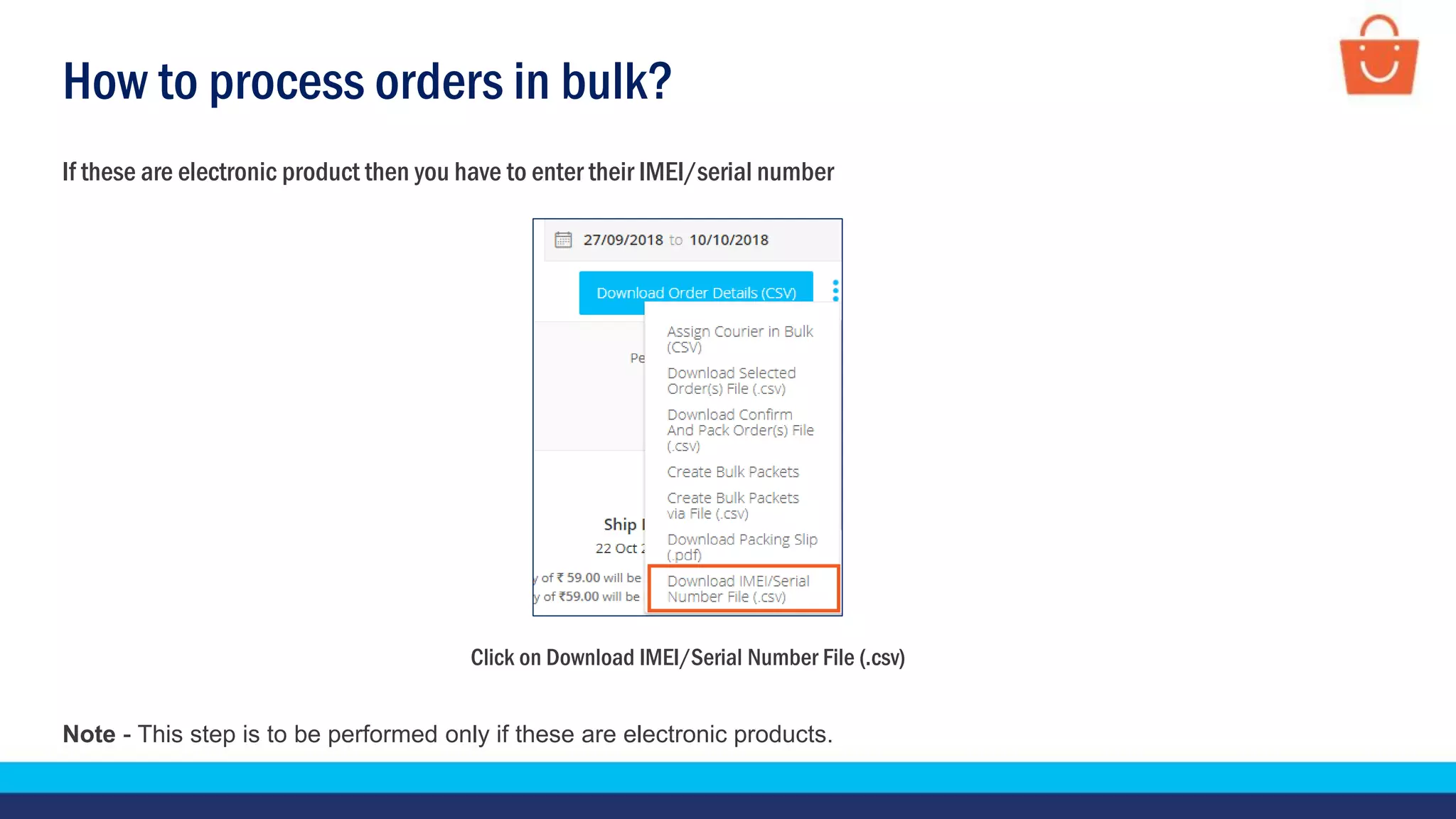
Click on Download IMEI/Serial Number File (.csv)
If these are electronic product then you have to enter their IMEI/serial number
Note - This step is to be performed only if these are electronic products.
How to process orders in bulk?
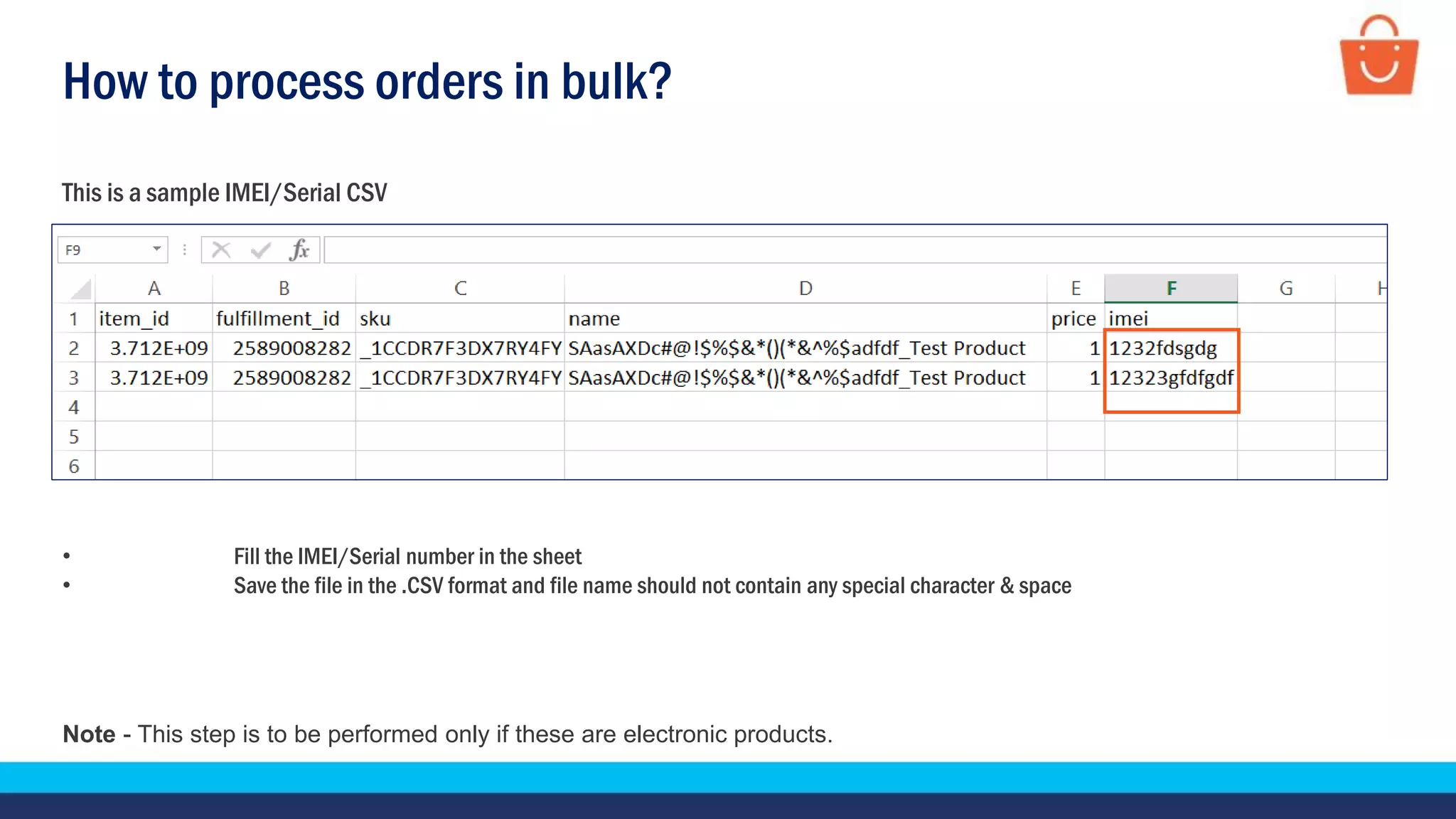
This is a sample IMEI/Serial CSV
• Fill the IMEI/Serial number in the sheet
• Save the file in the .CSV format and file name should not contain any special character & space
Note - This step is to be performed only if these are electronic products.
How to process orders in bulk?
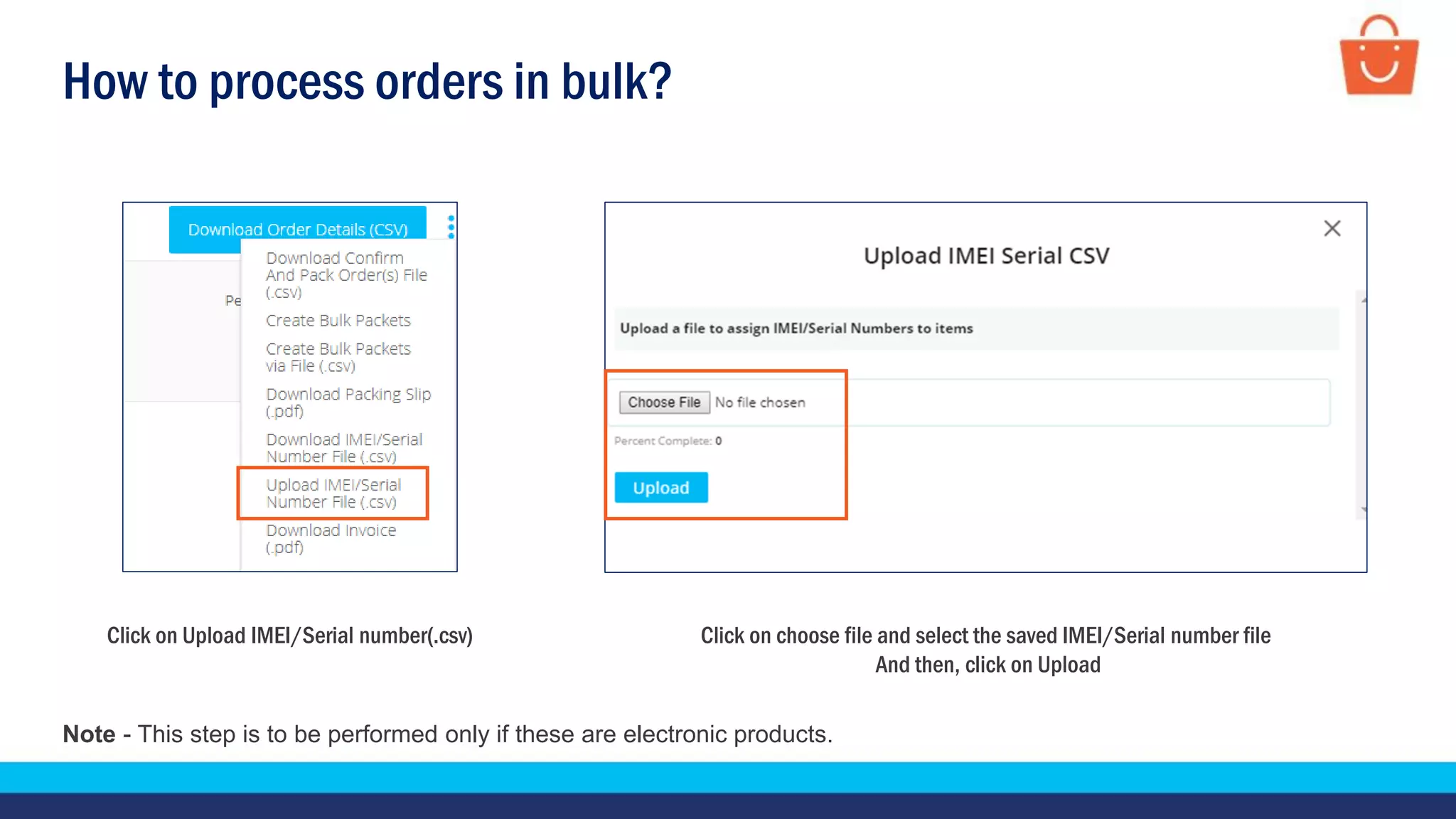
Click on choose file and select the saved IMEI/Serial number file
And then, click on Upload
Click on Upload IMEI/Serial number(.csv)
Note - This step is to be performed only if these are electronic products.
How to process orders in bulk?
Click on Choose file and select the saved file (contains order id and item id)
And then, click on Upload
Click on Assign Courier in Bulk (CSV)
Note - This step is to be performed only if these are electronic products.
How to process orders in bulk?
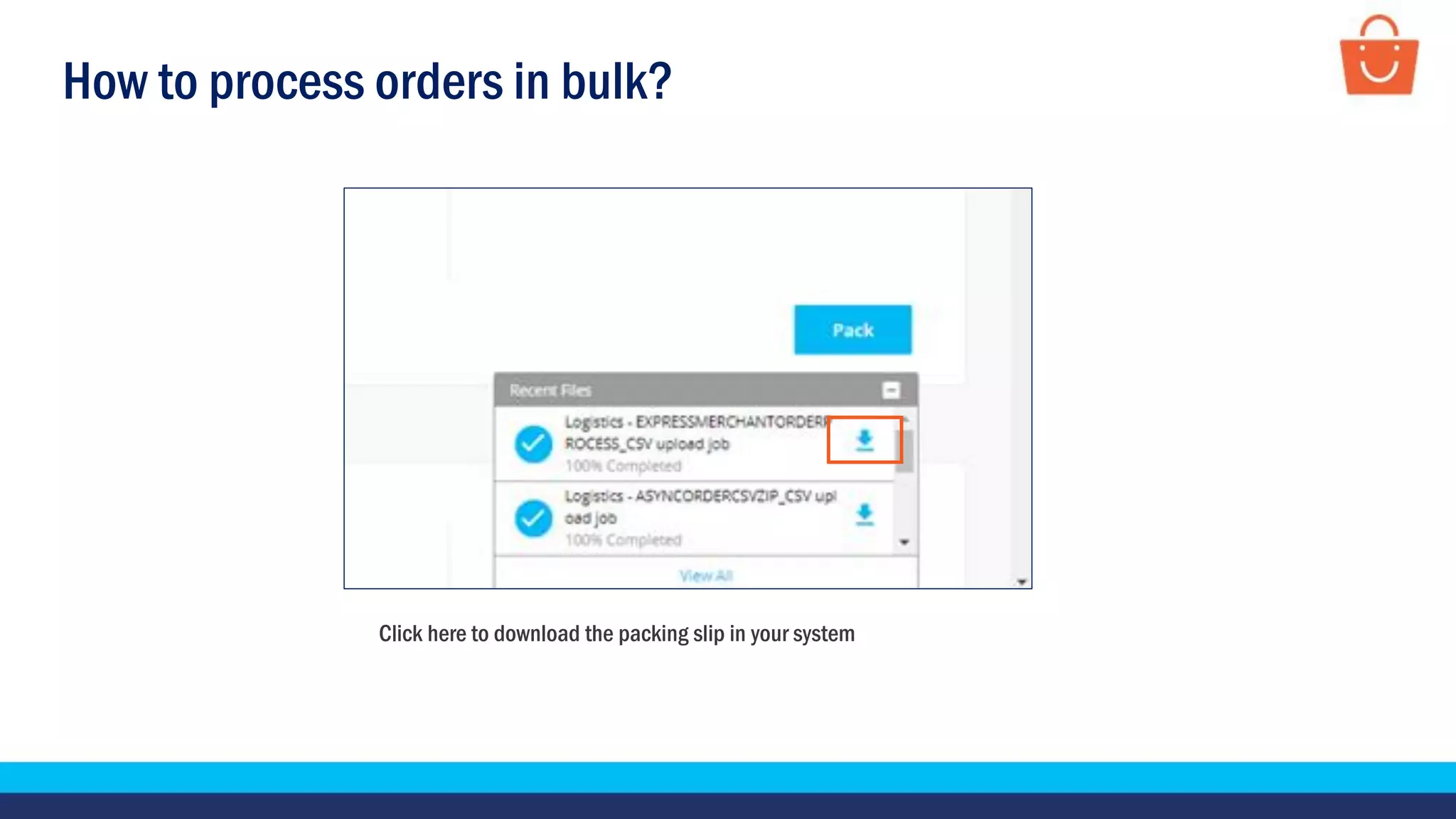
Click here to download the packing slip in your system
How to process orders in bulk?
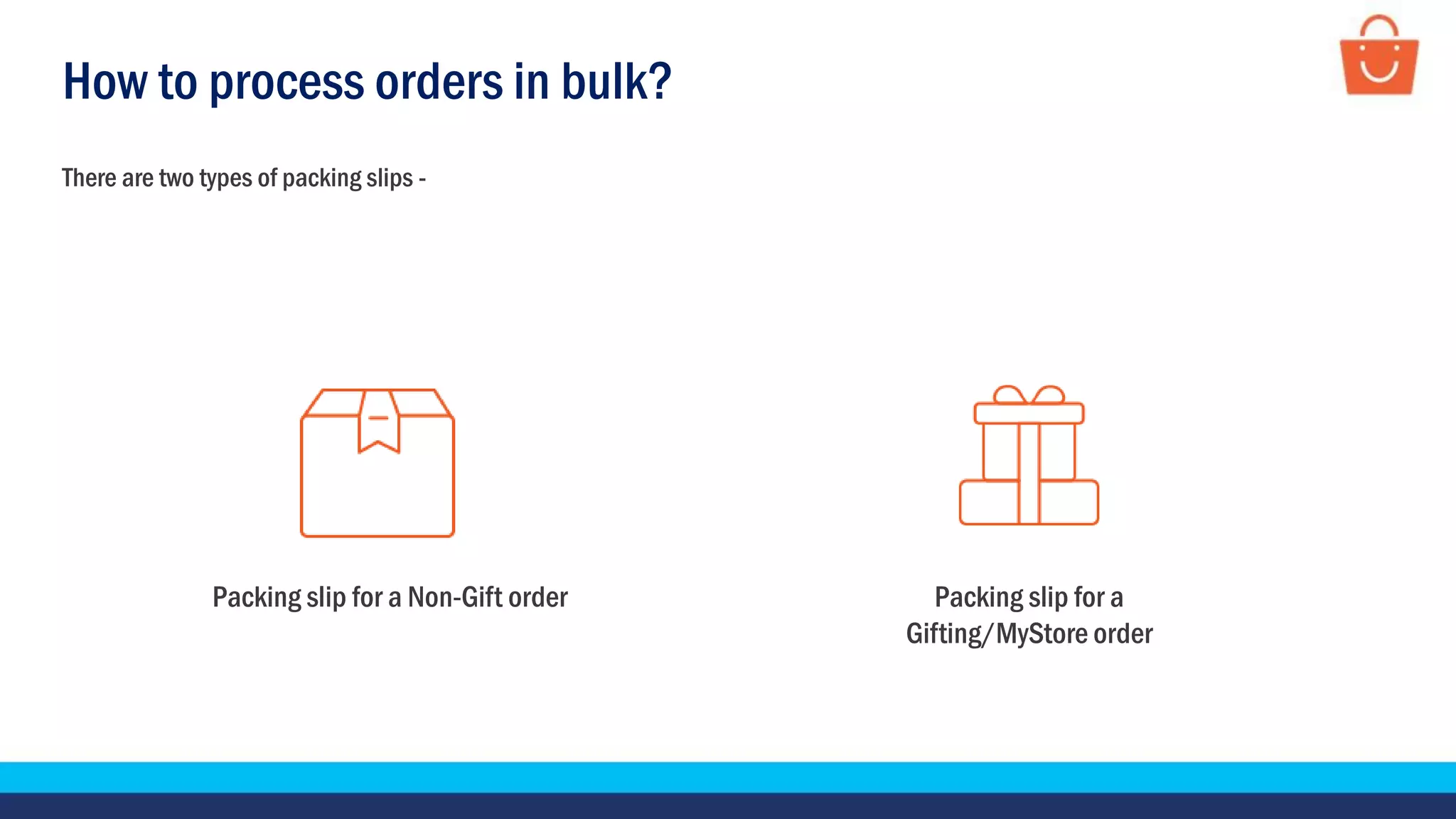
There are two types of packing slips -
Packing slip for a Non-Gift order Packing slip for a
Gifting/MyStore order
How to process orders in bulk?
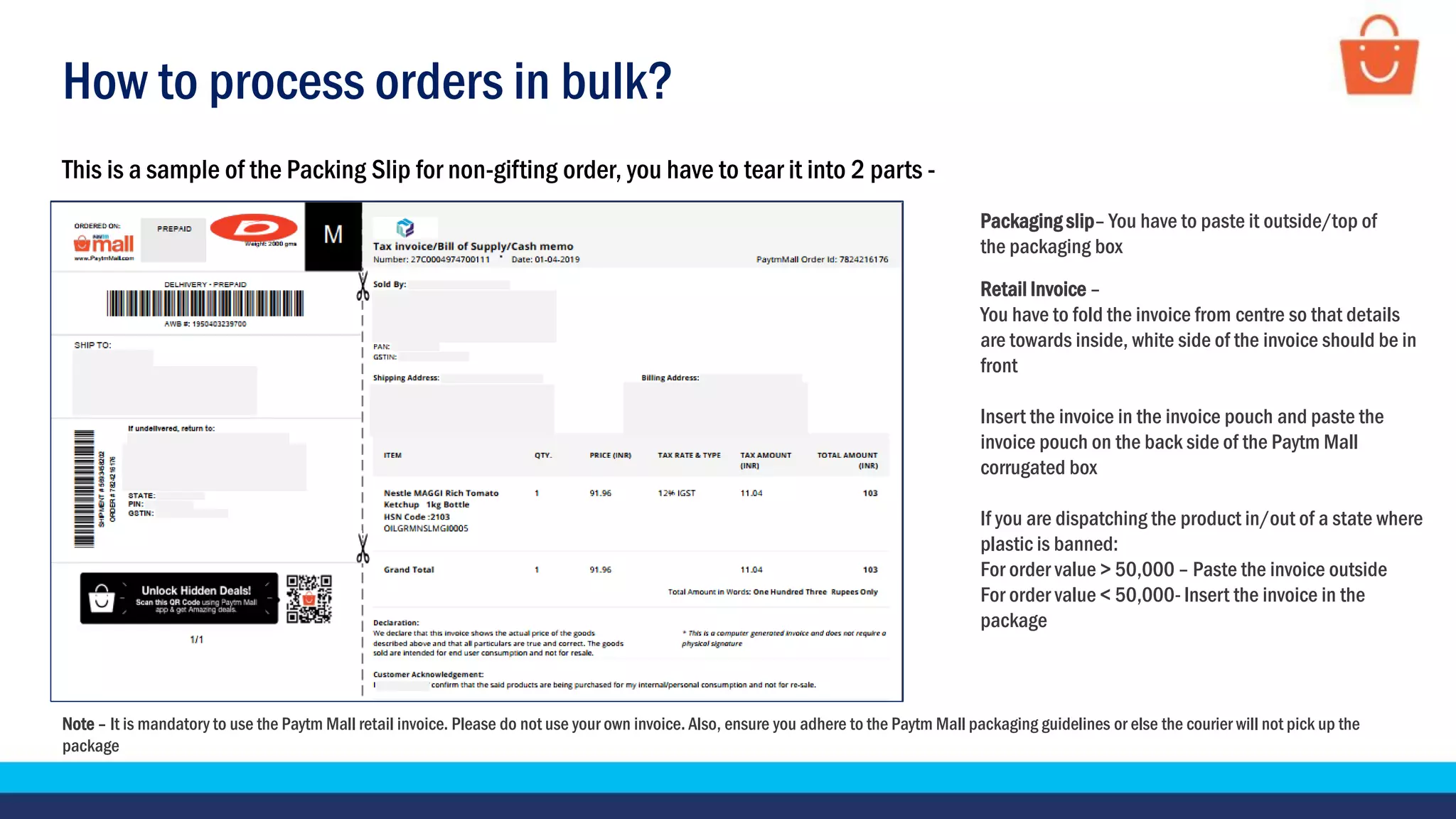
This is a sample of the Packing Slip for non-gifting order, you have to tear it into 2 parts -
Note – It is mandatory to use the Paytm Mall retail invoice. Please do not use your own invoice. Also, ensure you adhere to the Paytm Mall packaging guidelines or else the courier will not pick up the
package
Packaging slip– You have to paste it outside/top of
the packaging box
Retail Invoice –
You have to fold the invoice from centre so that details
are towards inside, white side of the invoice should be in
front
Insert the invoice in the invoice pouch and paste the
invoice pouch on the back side of the Paytm Mall
corrugated box
If you are dispatching the product in/out of a state where
plastic is banned:
For order value > 50,000 – Paste the invoice outside
For order value < 50,000- Insert the invoice in the
package
How to process orders in bulk?
Note – Please do not use your own invoice or Paytm Mall invoice.
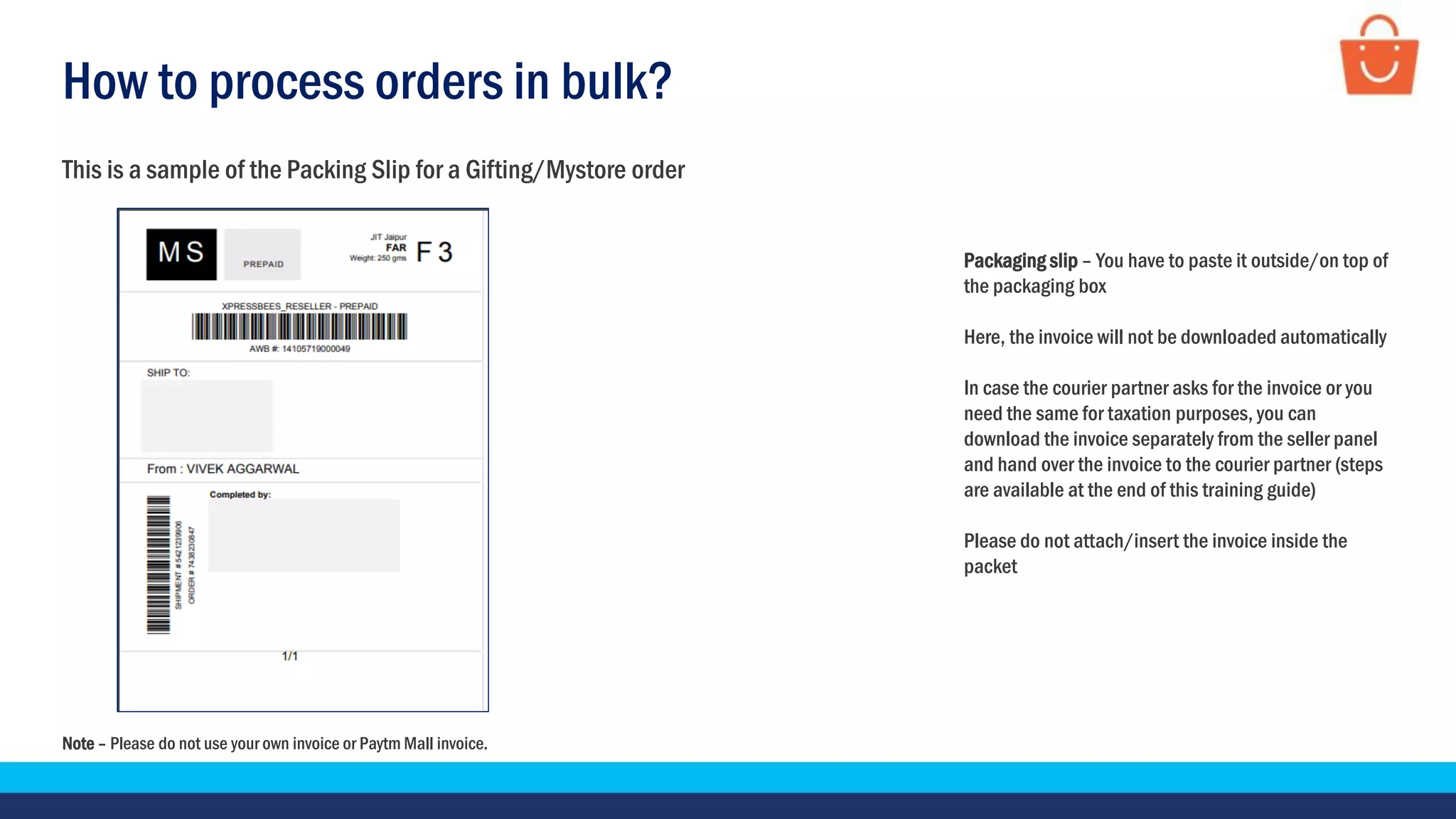
This is a sample of the Packing Slip for a Gifting/Mystore order
Packaging slip – You have to paste it outside/on top of
the packaging box
Here, the invoice will not be downloaded automatically
In case the courier partner asks for the invoice or you
need the same for taxation purposes, you can
download the invoice separately from the seller panel
and hand over the invoice to the courier partner (steps
are available at the end of this training guide)
Please do not attach/insert the invoice inside the
packet
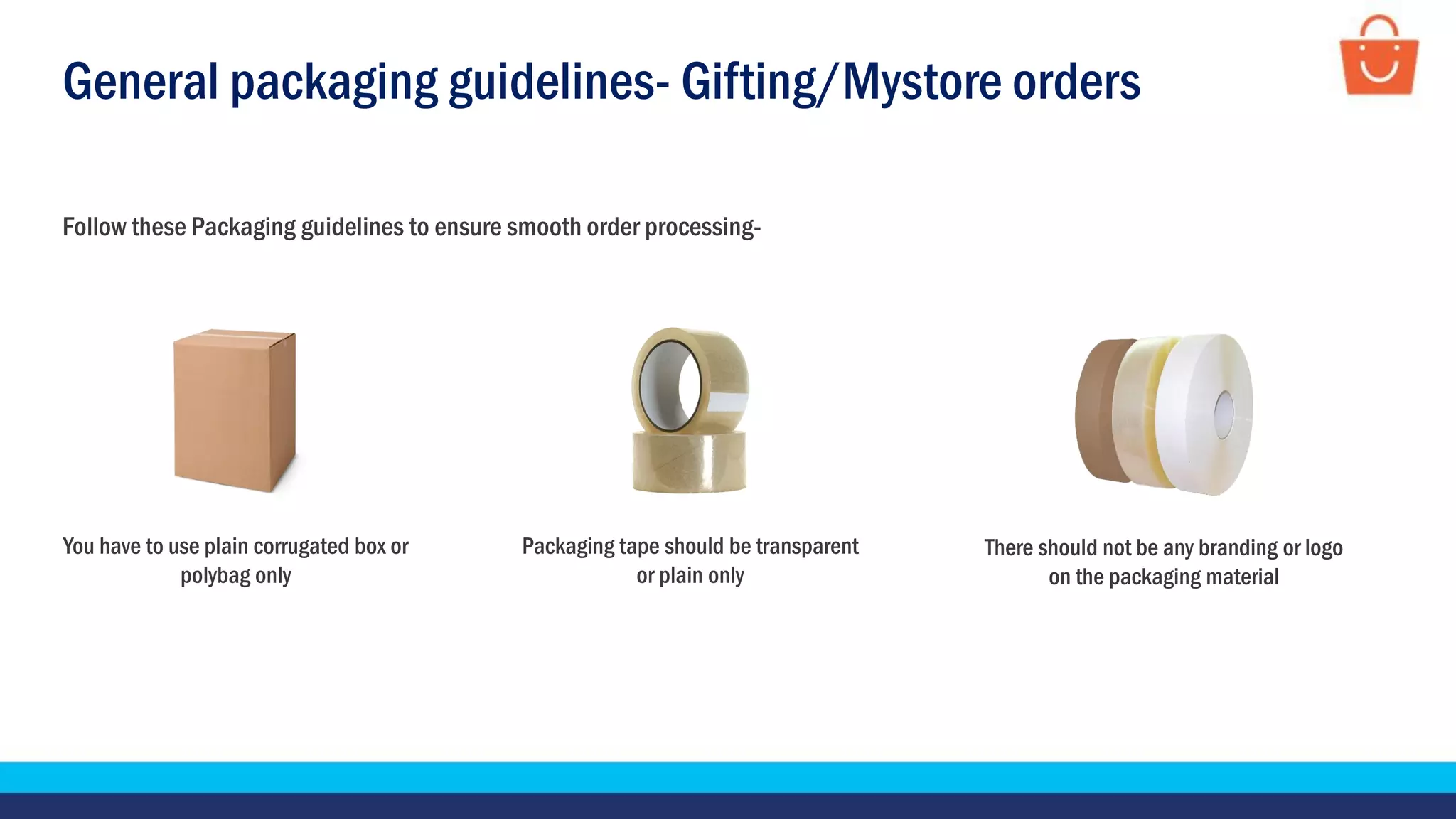
General packaging guidelines- Gifting/Mystore orders
Follow these Packaging guidelines to ensure smooth order processing-
Packaging tape should be transparent
or plain only
You have to use plain corrugated box or
polybag only
There should not be any branding or logo
on the packaging material
How to process orders in bulk?
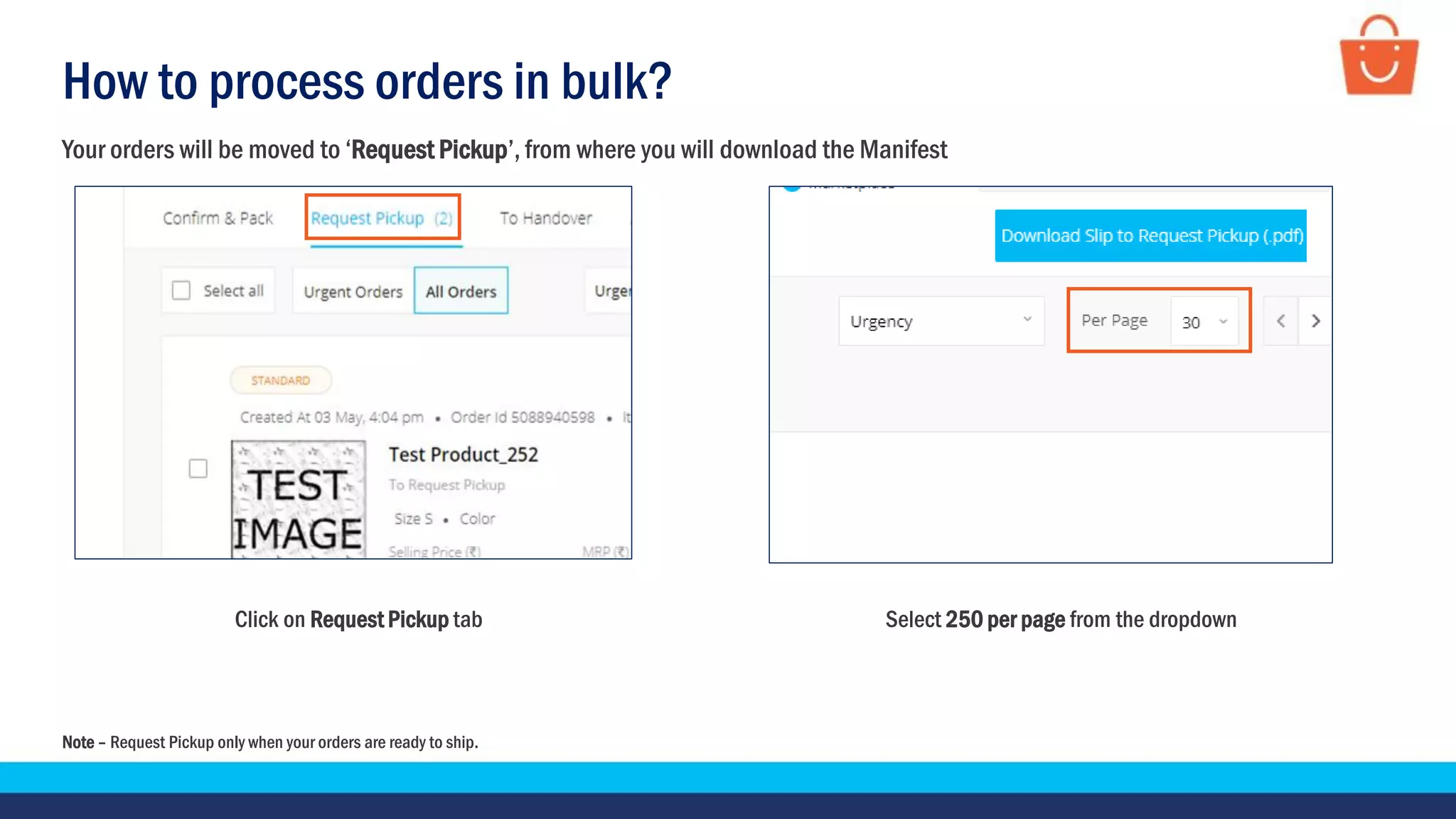
Click on Request Pickup tab Select 250 per page from the dropdown
Your orders will be moved to ‘Request Pickup’, from where you will download the Manifest
Note – Request Pickup only when your orders are ready to ship.
How to process orders in bulk?
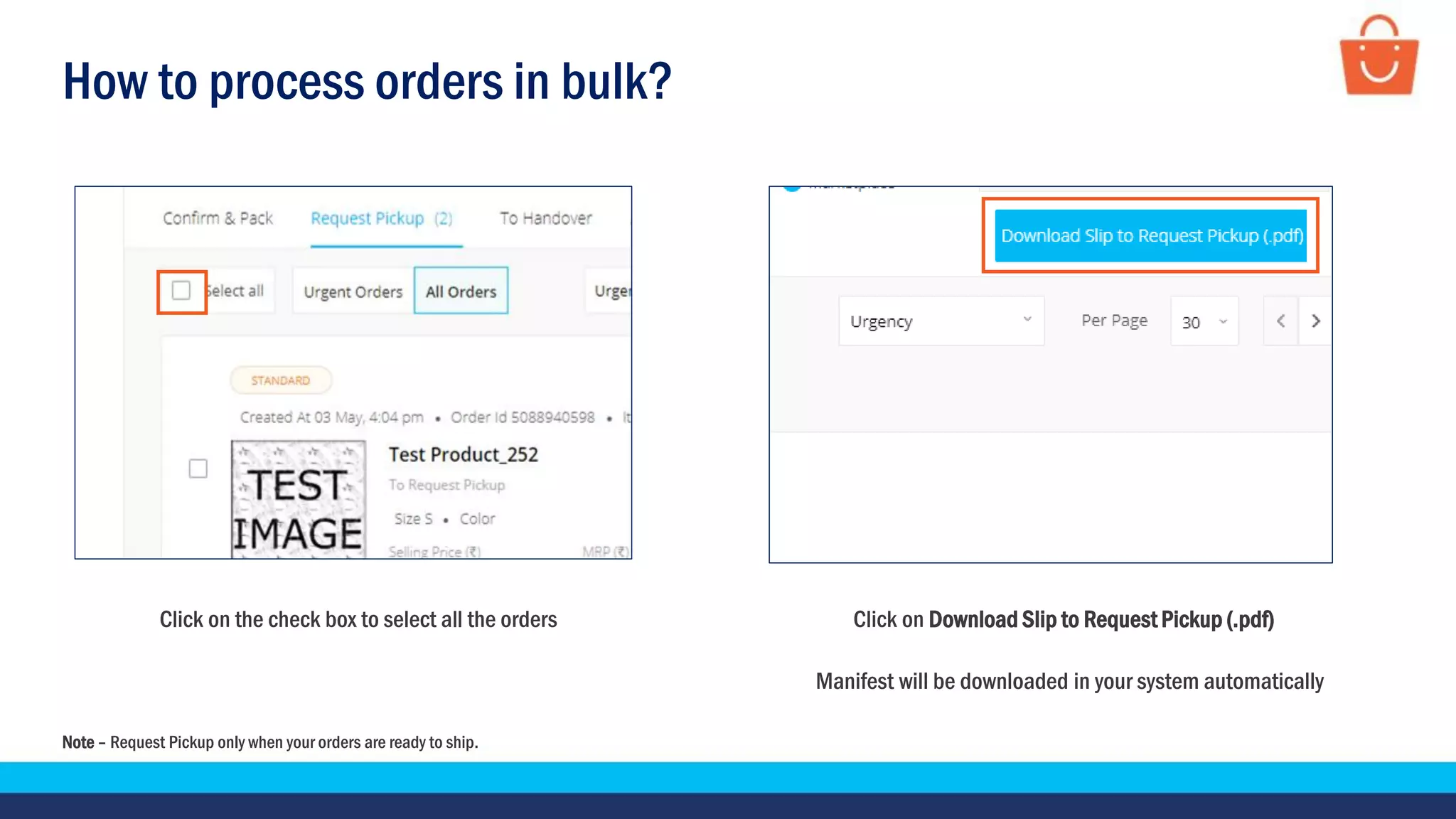
Click on the check box to select all the orders Click on Download Slip to Request Pickup (.pdf)
Manifest will be downloaded in your system automatically
Note – Request Pickup only when your orders are ready to ship.
How to process orders in bulk?
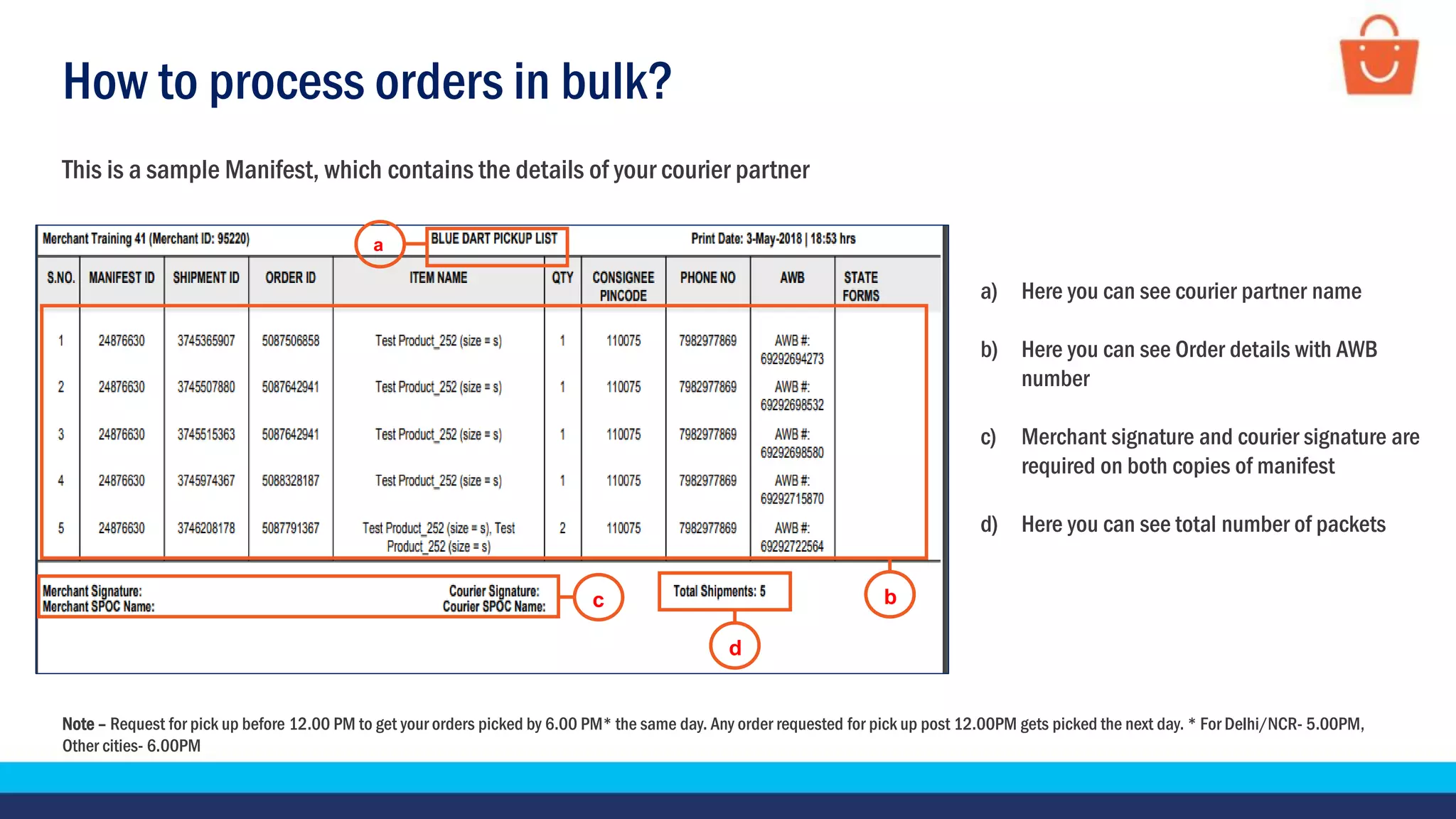
This is a sample Manifest, which contains the details of your courier partner
Note – Request for pick up before 12.00 PM to get your orders picked by 6.00 PM* the same day. Any order requested for pick up post 12.00PM gets picked the next day. * For Delhi/NCR- 5.00PM,
Other cities- 6.00PM
a) Here you can see courier partner name
b) Here you can see Order details with AWB
number
c) Merchant signature and courier signature are
required on both copies of manifest
d) Here you can see total number of packets
c
a
d
b
How to process orders in bulk?
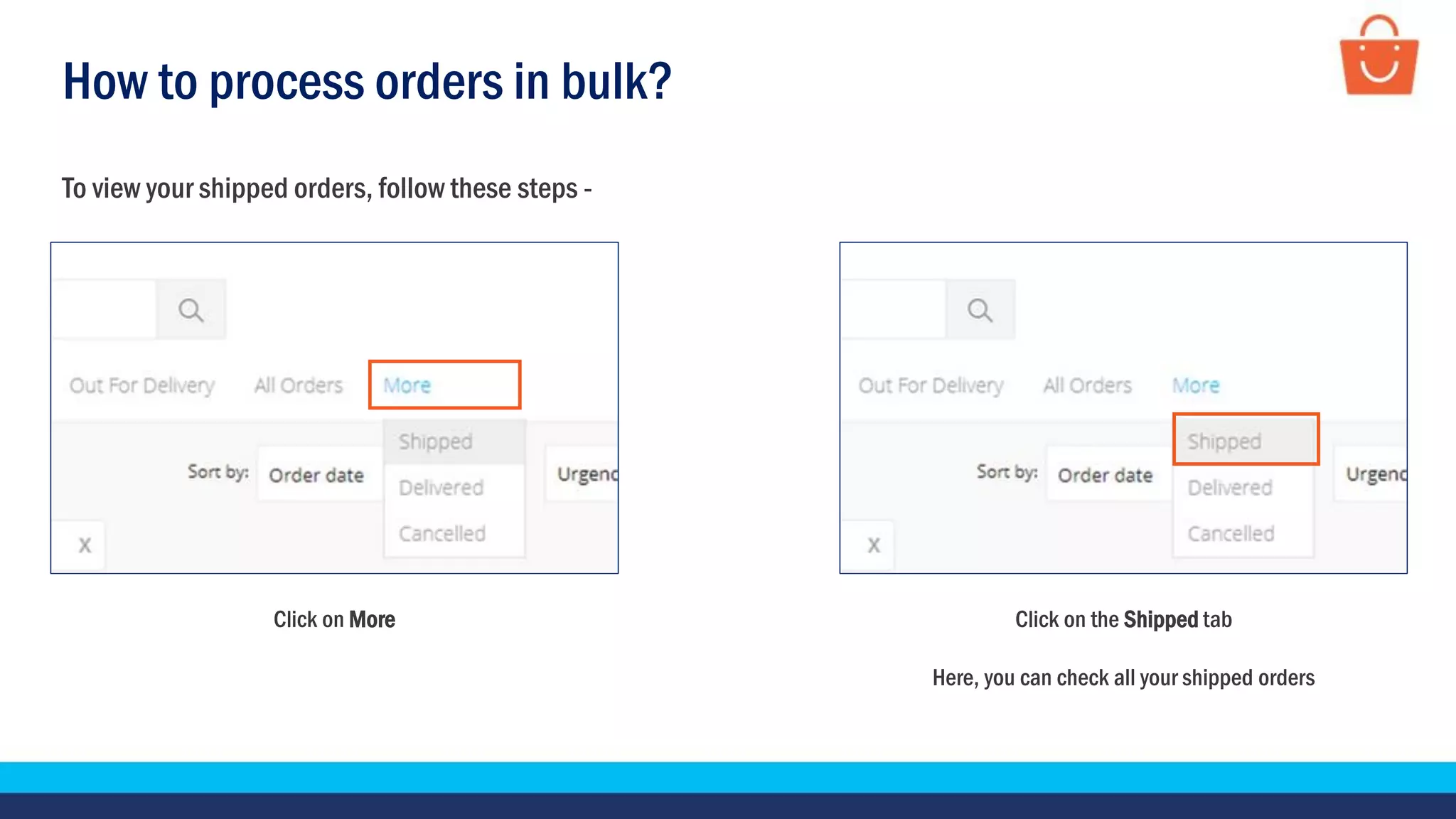
Click on More
To view your shipped orders, follow these steps -
Click on the Shipped tab
Here, you can check all your shipped orders
How to process orders in bulk?
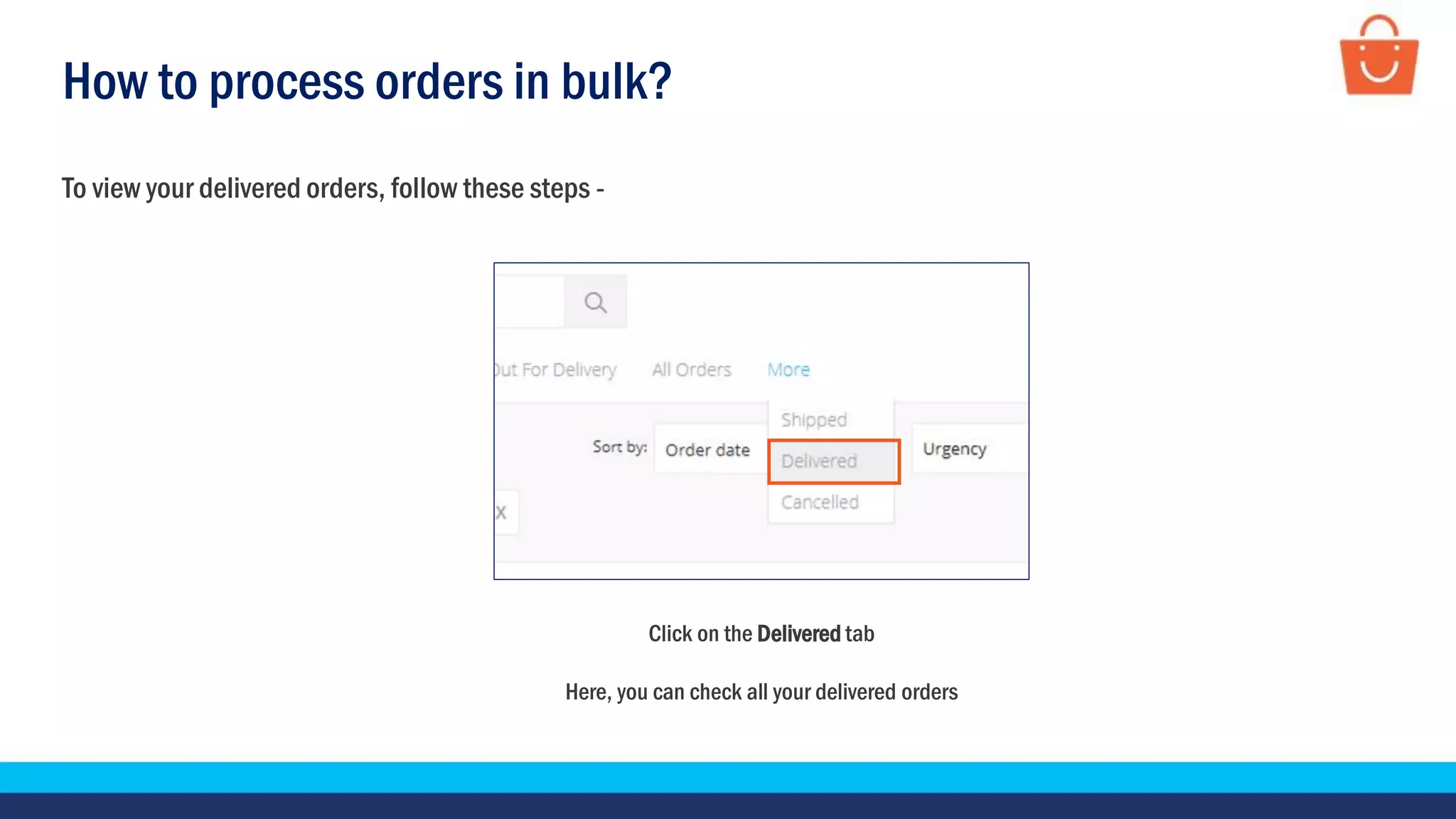
To view your delivered orders, follow these steps -
Click on the Delivered tab
Here, you can check all your delivered orders
How can you download duplicate copies?
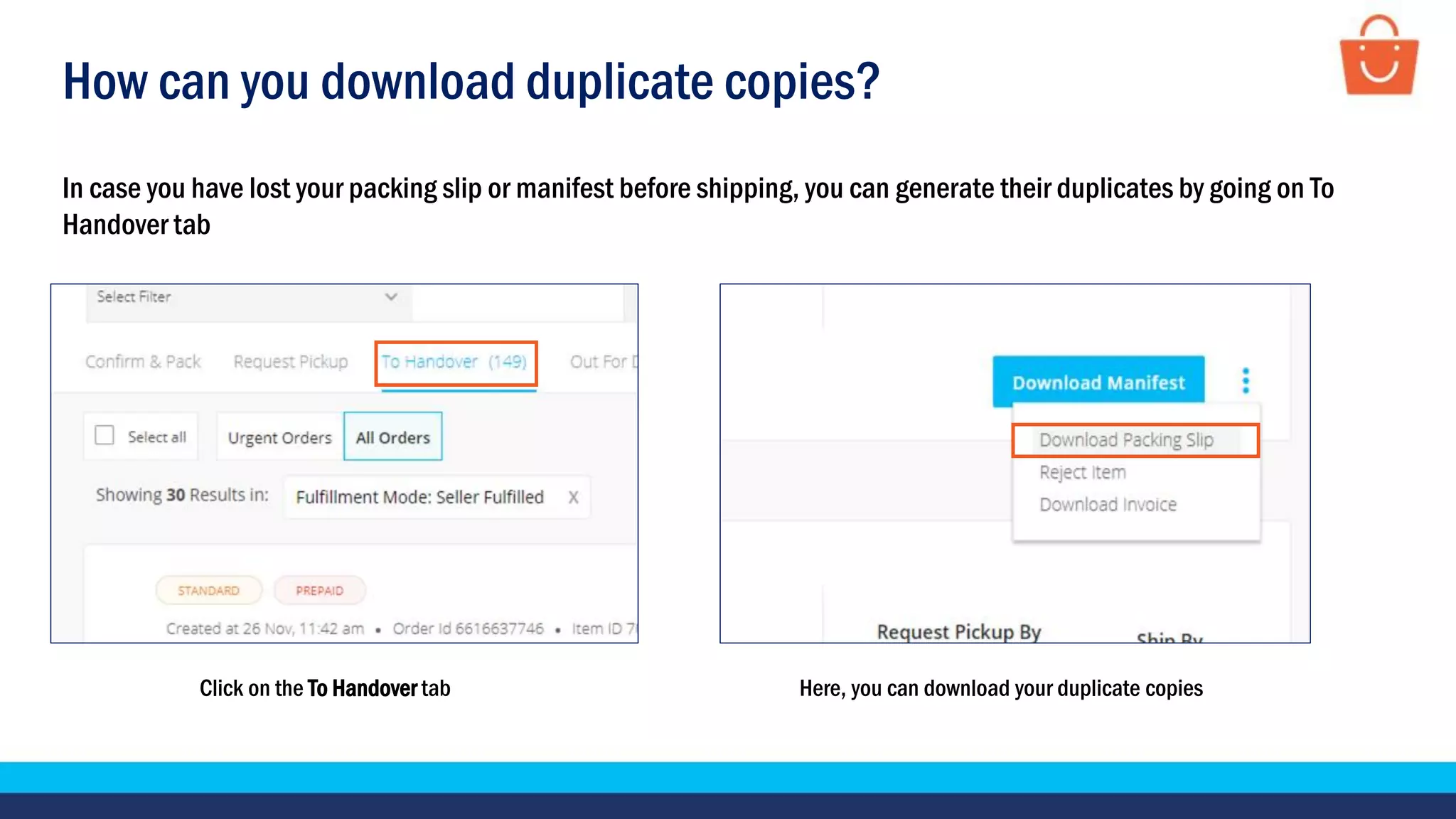
In case you have lost your packing slip or manifest before shipping, you can generate their duplicates by going on To
Handover tab
Click on the To Handover tab Here, you can download your duplicate copies
Download Paytm Mall Invoice
How to download the Paytm Mall invoice?
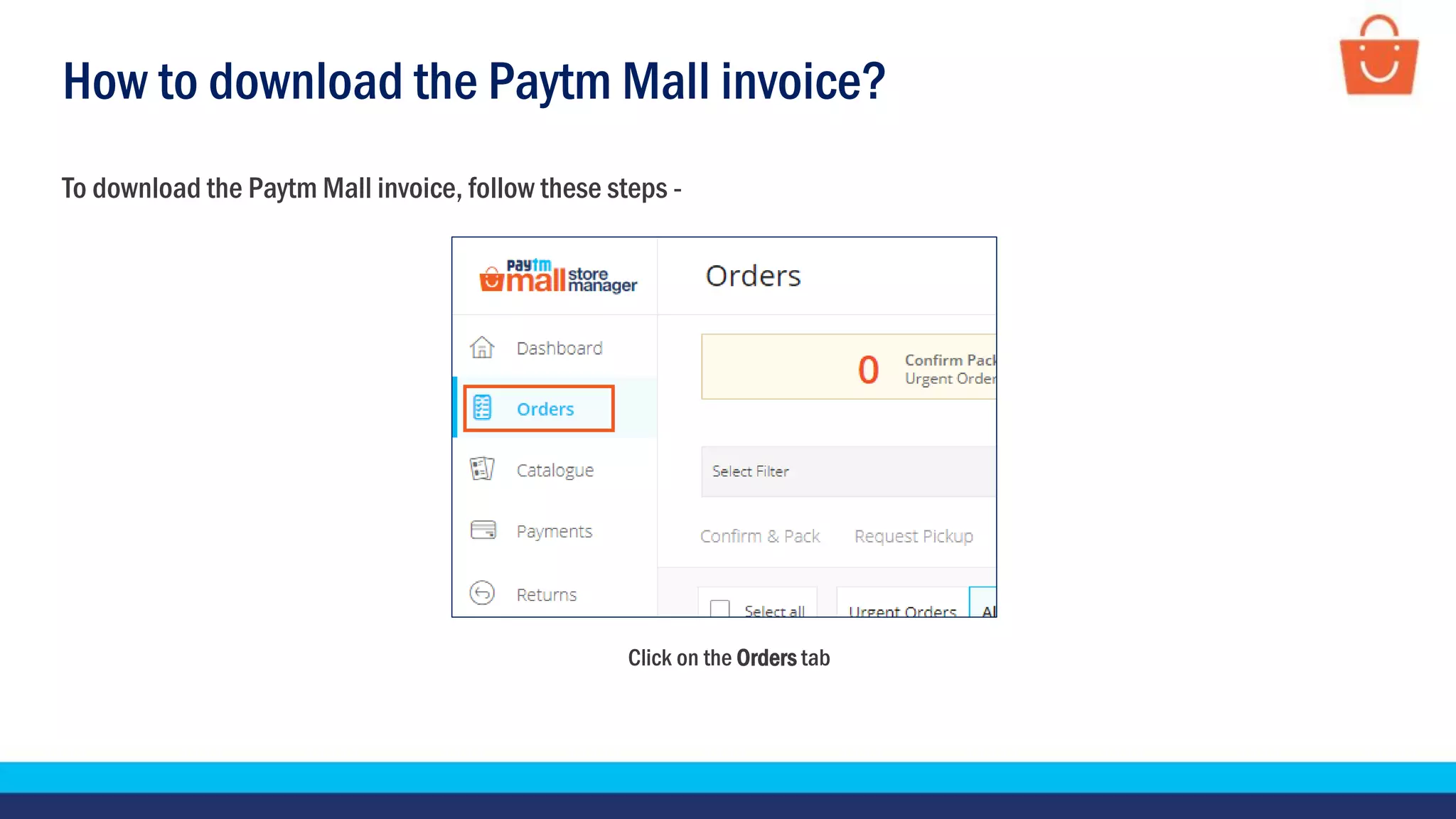
To download the Paytm Mall invoice, follow these steps -
Click on the Orders tab
How to download the Paytm Mall invoice?
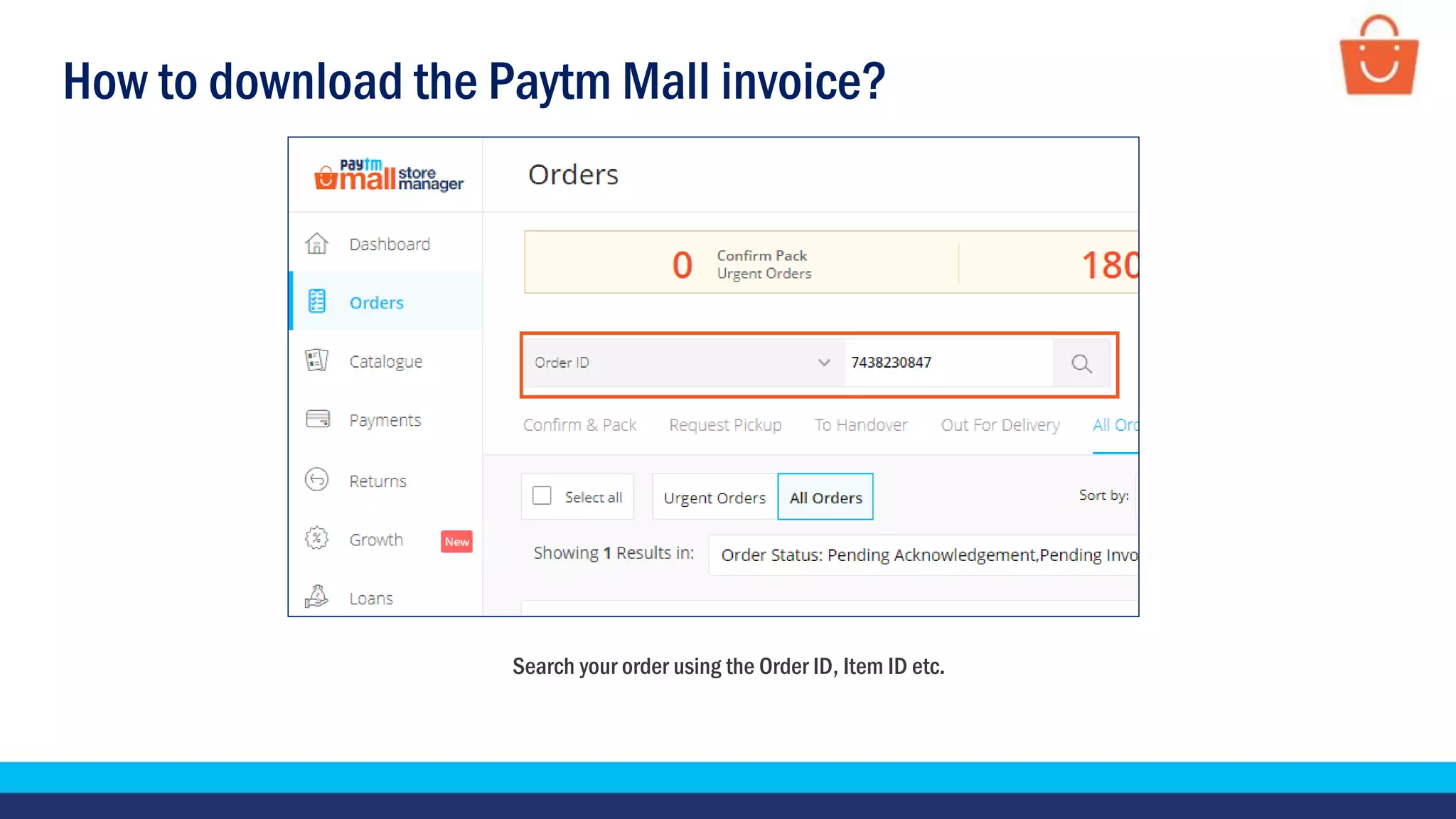
Search your order using the Order ID, Item ID etc.
How to download the Paytm Mall invoice?
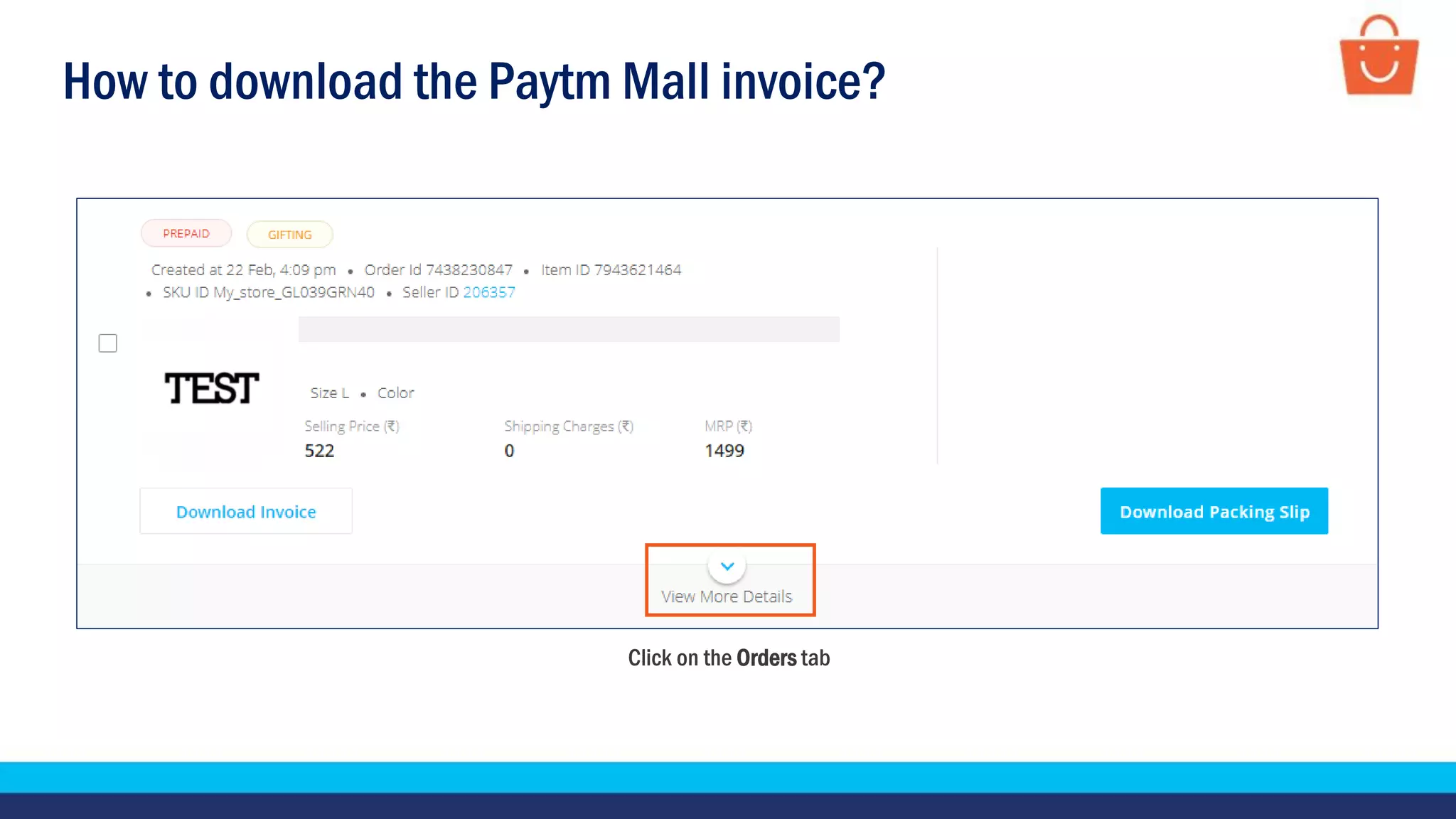
Click on the Orders tab
How to download the Paytm Mall invoice?
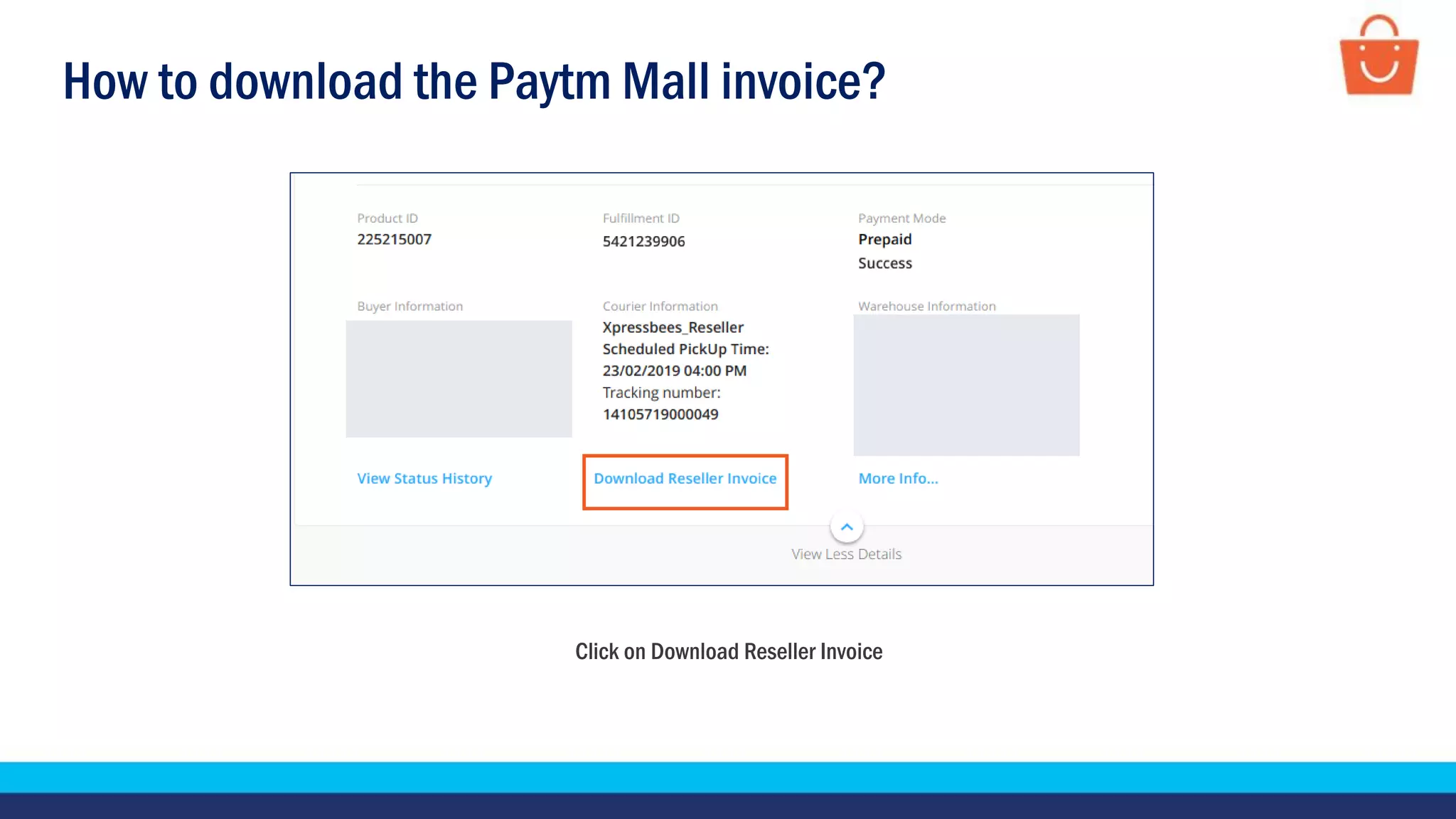
Click on Download Reseller Invoice
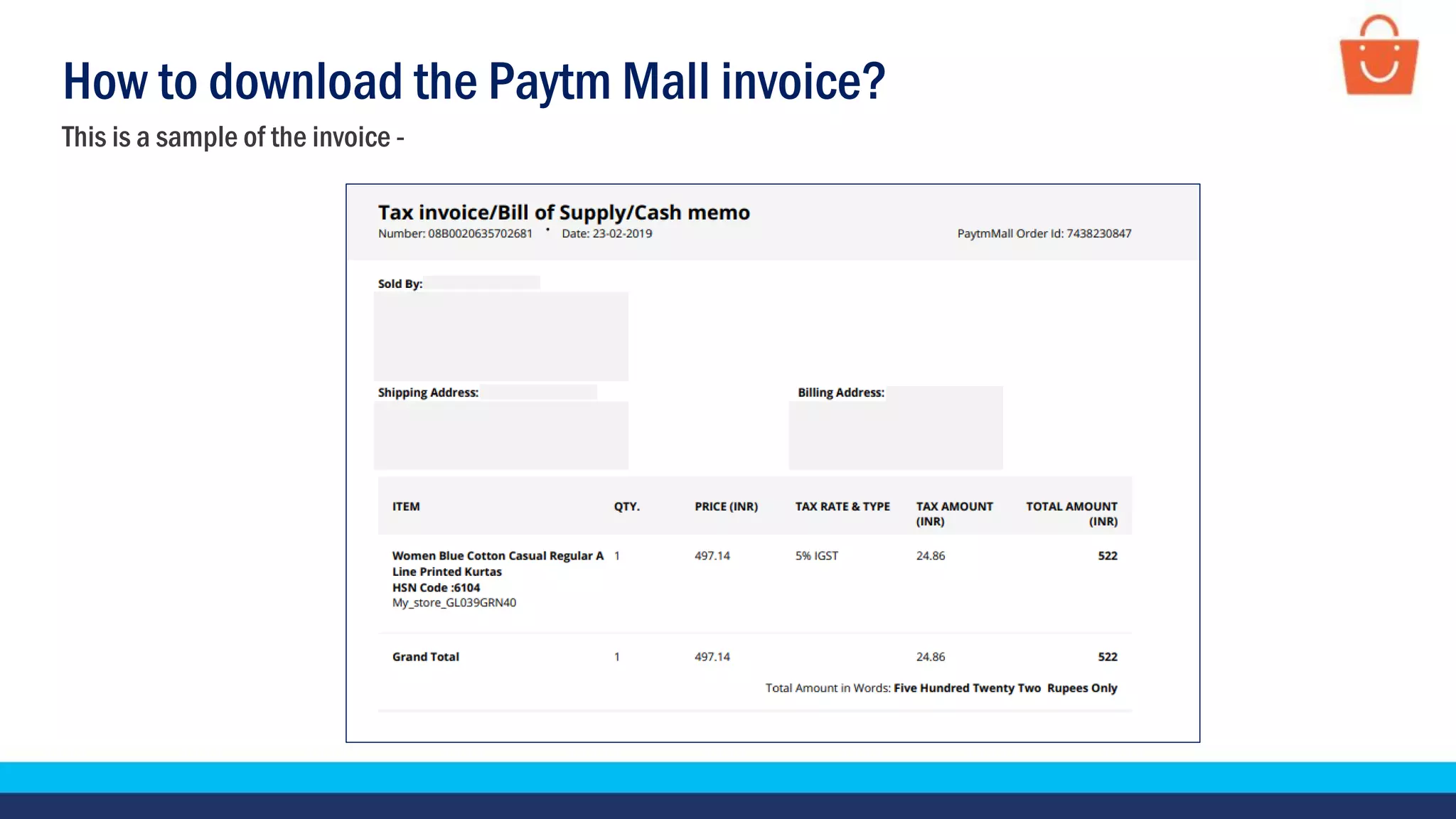
This is a sample of the invoice -
How to download the Paytm Mall invoice?
Thankseveryone!
For any query, please raise a ticket using the Seller Helpdesk tab on your seller panel.

Steps to process orders in bulk - LMD - B2C

  • 1.
    Bulk Order Processing(LMD) In this module, we will discuss:- 1. Who are the Last Mile Delivery (LMD) sellers? 2. How can you process orders in bulk? 3. How can you download duplicate copies? 4. How to download the Paytm Mall invoice?
  • 2.
    Who are theLast Mile Delivery (LMD) sellers? LMD sellers are those who use end-to-end logistic services of Paytm Mall Benefits: • Flat courier charges Pan India • No hassles of tracking the status of delivery • Automated and timely payouts • Networks providing large coverage of pincodes SELLER CUSTOMERPaytm Mall Courier partner
  • 3.
    There are fivestages of processing an order The order is shipped from your warehouse Shipped4. Acknowledge and pack the order Confirm and Pack1. The order is delivered to the customer Delivered5. Download the manifest slip by clicking on the Request Pickup tab Request Pickup2. The order is moved to the ‘To handover’ stage till it’s picked up To Handover3.
  • 4.
    How to processorders in bulk? Click on the Orders tab Click on the Confirm & Pack tab Steps to process orders in bulk (upto 5000 orders)
  • 5.
    How to processorders in bulk? Click on Download order detail CSV Select the date range and click on Apply button
  • 6.
    How to processorders in bulk? Click on Download Order detail CSV will be downloaded in the File center Click on download icon to download the file in your system
  • 7.
    How to processorders in bulk? Order detail CSV file will be downloaded in your system
  • 8.
    How to processorders in bulk? • Create a new excel file and copy-paste the columns Order id and Item id from Downloaded order detail CSV file • Save the file in the .CSV format and file name should not contain any special character or space Note- Please ensure that the status of these orders should be pending acknowledgement.
  • 9.
    How to processorders in bulk? Click on Choose file and select the saved file And then, click on Upload Click on Assign Courier in Bulk (CSV)
  • 10.
    How to processorders in bulk? Click on Download IMEI/Serial Number File (.csv) If these are electronic product then you have to enter their IMEI/serial number Note - This step is to be performed only if these are electronic products.
  • 11.
    How to processorders in bulk? This is a sample IMEI/Serial CSV • Fill the IMEI/Serial number in the sheet • Save the file in the .CSV format and file name should not contain any special character & space Note - This step is to be performed only if these are electronic products.
  • 12.
    How to processorders in bulk? Click on choose file and select the saved IMEI/Serial number file And then, click on Upload Click on Upload IMEI/Serial number(.csv) Note - This step is to be performed only if these are electronic products.
  • 13.
    How to processorders in bulk? Click on Choose file and select the saved file (contains order id and item id) And then, click on Upload Click on Assign Courier in Bulk (CSV) Note - This step is to be performed only if these are electronic products.
  • 14.
    How to processorders in bulk? Click here to download the packing slip in your system
  • 15.
    How to processorders in bulk? There are two types of packing slips - Packing slip for a Non-Gift order Packing slip for a Gifting/MyStore order
  • 16.
    How to processorders in bulk? This is a sample of the Packing Slip for non-gifting order, you have to tear it into 2 parts - Note – It is mandatory to use the Paytm Mall retail invoice. Please do not use your own invoice. Also, ensure you adhere to the Paytm Mall packaging guidelines or else the courier will not pick up the package Packaging slip– You have to paste it outside/top of the packaging box Retail Invoice – You have to fold the invoice from centre so that details are towards inside, white side of the invoice should be in front Insert the invoice in the invoice pouch and paste the invoice pouch on the back side of the Paytm Mall corrugated box If you are dispatching the product in/out of a state where plastic is banned: For order value > 50,000 – Paste the invoice outside For order value < 50,000- Insert the invoice in the package
  • 17.
    How to processorders in bulk? Note – Please do not use your own invoice or Paytm Mall invoice. This is a sample of the Packing Slip for a Gifting/Mystore order Packaging slip – You have to paste it outside/on top of the packaging box Here, the invoice will not be downloaded automatically In case the courier partner asks for the invoice or you need the same for taxation purposes, you can download the invoice separately from the seller panel and hand over the invoice to the courier partner (steps are available at the end of this training guide) Please do not attach/insert the invoice inside the packet
  • 18.
    General packaging guidelines-Gifting/Mystore orders Follow these Packaging guidelines to ensure smooth order processing- Packaging tape should be transparent or plain only You have to use plain corrugated box or polybag only There should not be any branding or logo on the packaging material
  • 19.
    How to processorders in bulk? Click on Request Pickup tab Select 250 per page from the dropdown Your orders will be moved to ‘Request Pickup’, from where you will download the Manifest Note – Request Pickup only when your orders are ready to ship.
  • 20.
    How to processorders in bulk? Click on the check box to select all the orders Click on Download Slip to Request Pickup (.pdf) Manifest will be downloaded in your system automatically Note – Request Pickup only when your orders are ready to ship.
  • 21.
    How to processorders in bulk? This is a sample Manifest, which contains the details of your courier partner Note – Request for pick up before 12.00 PM to get your orders picked by 6.00 PM* the same day. Any order requested for pick up post 12.00PM gets picked the next day. * For Delhi/NCR- 5.00PM, Other cities- 6.00PM a) Here you can see courier partner name b) Here you can see Order details with AWB number c) Merchant signature and courier signature are required on both copies of manifest d) Here you can see total number of packets c a d b
  • 22.
    How to processorders in bulk? Click on More To view your shipped orders, follow these steps - Click on the Shipped tab Here, you can check all your shipped orders
  • 23.
    How to processorders in bulk? To view your delivered orders, follow these steps - Click on the Delivered tab Here, you can check all your delivered orders
  • 24.
    How can youdownload duplicate copies? In case you have lost your packing slip or manifest before shipping, you can generate their duplicates by going on To Handover tab Click on the To Handover tab Here, you can download your duplicate copies
  • 25.
  • 26.
    How to downloadthe Paytm Mall invoice? To download the Paytm Mall invoice, follow these steps - Click on the Orders tab
  • 27.
    How to downloadthe Paytm Mall invoice? Search your order using the Order ID, Item ID etc.
  • 28.
    How to downloadthe Paytm Mall invoice? Click on the Orders tab
  • 29.
    How to downloadthe Paytm Mall invoice? Click on Download Reseller Invoice
  • 30.
    This is asample of the invoice - How to download the Paytm Mall invoice?
  • 31.
    Thankseveryone! For any query,please raise a ticket using the Seller Helpdesk tab on your seller panel.