Binding data with the
AdapterView class
Dr. Gowthami V
• Binding data with the AdapterView class in Android involves
connecting a data source (such as an array, list, or cursor) to a view
that can display multiple items (such as ListView, Spinner, or
GridView).
• The AdapterView class serves as a base class for views that rely on an
Adapter to fill the view with data.
Key Concepts
Adapter:
• An Adapter acts as a bridge between an AdapterView and the
underlying data for that view.
• The Adapter converts the data into viewable items (views) for the
AdapterView.
• Common adapter types include ArrayAdapter, CursorAdapter, and
SimpleAdapter
AdapterView:
• An AdapterView is a view that displays items from an Adapter.
• Examples include ListView, Spinner, GridView, etc.
Binding Process:
• Step 1: Prepare Data: The data could be in the form of an array, list,
or database query.
• Step 2: Create an Adapter: Instantiate an appropriate Adapter (e.g.,
ArrayAdapter, SimpleAdapter, CursorAdapter).
• Step 3: Set the Adapter: Attach the Adapter to the AdapterView using
the setAdapter() method.
• In Android, ListView, Spinner, and GridView are user interface
components that allow you to display a collection of items.
• Each of these components uses an Adapter to manage the data and
populate the view.
1. ListView
• ListView is a view group that displays a vertically scrollable list of
items, where each item is an instance of View.
• It's commonly used for displaying a list of similar items.
Key Features:
• Displays items in a single column.
• Items can be selected or clicked.
• Supports custom layouts for list items.
• Can be enhanced with headers, footers, and sections.
// Step 1: Prepare Data
String[] items = {"Item 1", "Item 2", "Item 3", "Item 4"};
// Step 2: Create an Adapter
ArrayAdapter<String> adapter = new ArrayAdapter<>(this,
android.R.layout.simple_list_item_1, items);
// Step 3: Find the ListView and Set the Adapter
ListView listView = findViewById(R.id.listView);
listView.setAdapter(adapter);
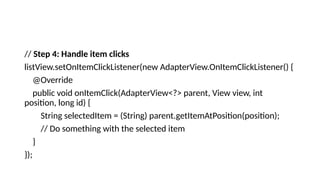
// Step 4: Handle item clicks
listView.setOnItemClickListener(new AdapterView.OnItemClickListener() {
@Override
public void onItemClick(AdapterView<?> parent, View view, int
position, long id) {
String selectedItem = (String) parent.getItemAtPosition(position);
// Do something with the selected item
}
});
2. Spinner
• Spinner is a dropdown list that lets the user select one value from a set.
• It's like a combo box in other UI frameworks.
Key Features:
• Displays a single item when not clicked.
• Expands into a list of options when clicked.
• Allows single selection only.
• Can be customized with different layouts for the dropdown list and the
selected item.
// Step 1: Prepare Data
String[] colors = {"Red", "Green", "Blue", "Yellow"};
// Step 2: Create an Adapter
ArrayAdapter<String> adapter = new ArrayAdapter<>(this,
android.R.layout.simple_spinner_item, colors);
adapter.setDropDownViewResource(android.R.layout.simple_spinner_dropdown_item);
// Step 3: Find the Spinner and Set the Adapter
Spinner spinner = findViewById(R.id.spinner);
spinner.setAdapter(adapter);
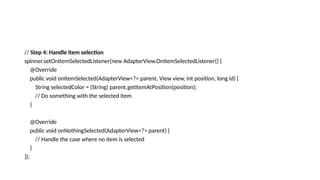
// Step 4: Handle item selection
spinner.setOnItemSelectedListener(new AdapterView.OnItemSelectedListener() {
@Override
public void onItemSelected(AdapterView<?> parent, View view, int position, long id) {
String selectedColor = (String) parent.getItemAtPosition(position);
// Do something with the selected item
}
@Override
public void onNothingSelected(AdapterView<?> parent) {
// Handle the case where no item is selected
}
});
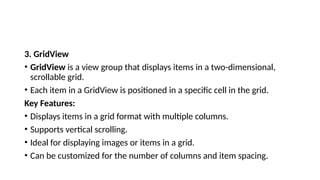
3. GridView
• GridView is a view group that displays items in a two-dimensional,
scrollable grid.
• Each item in a GridView is positioned in a specific cell in the grid.
Key Features:
• Displays items in a grid format with multiple columns.
• Supports vertical scrolling.
• Ideal for displaying images or items in a grid.
• Can be customized for the number of columns and item spacing.
// Step 1: Prepare Data
String[] letters = {"A", "B", "C", "D", "E", "F", "G", "H"};
// Step 2: Create an Adapter
ArrayAdapter<String> adapter = new ArrayAdapter<>(this,
android.R.layout.simple_list_item_1, letters);
// Step 3: Find the GridView and Set the Adapter
GridView gridView = findViewById(R.id.gridView);
gridView.setAdapter(adapter);
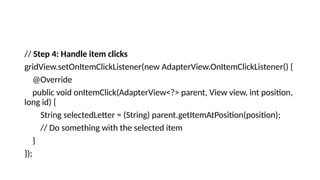
// Step 4: Handle item clicks
gridView.setOnItemClickListener(new AdapterView.OnItemClickListener() {
@Override
public void onItemClick(AdapterView<?> parent, View view, int position,
long id) {
String selectedLetter = (String) parent.getItemAtPosition(position);
// Do something with the selected item
}
});

Binding data with the AdapterView class.pptx

  • 1.
    Binding data withthe AdapterView class Dr. Gowthami V
  • 2.
    • Binding datawith the AdapterView class in Android involves connecting a data source (such as an array, list, or cursor) to a view that can display multiple items (such as ListView, Spinner, or GridView). • The AdapterView class serves as a base class for views that rely on an Adapter to fill the view with data.
  • 3.
    Key Concepts Adapter: • AnAdapter acts as a bridge between an AdapterView and the underlying data for that view. • The Adapter converts the data into viewable items (views) for the AdapterView. • Common adapter types include ArrayAdapter, CursorAdapter, and SimpleAdapter
  • 4.
    AdapterView: • An AdapterViewis a view that displays items from an Adapter. • Examples include ListView, Spinner, GridView, etc.
  • 5.
    Binding Process: • Step1: Prepare Data: The data could be in the form of an array, list, or database query. • Step 2: Create an Adapter: Instantiate an appropriate Adapter (e.g., ArrayAdapter, SimpleAdapter, CursorAdapter). • Step 3: Set the Adapter: Attach the Adapter to the AdapterView using the setAdapter() method.
  • 6.
    • In Android,ListView, Spinner, and GridView are user interface components that allow you to display a collection of items. • Each of these components uses an Adapter to manage the data and populate the view.
  • 7.
    1. ListView • ListViewis a view group that displays a vertically scrollable list of items, where each item is an instance of View. • It's commonly used for displaying a list of similar items. Key Features: • Displays items in a single column. • Items can be selected or clicked. • Supports custom layouts for list items. • Can be enhanced with headers, footers, and sections.
  • 8.
    // Step 1:Prepare Data String[] items = {"Item 1", "Item 2", "Item 3", "Item 4"}; // Step 2: Create an Adapter ArrayAdapter<String> adapter = new ArrayAdapter<>(this, android.R.layout.simple_list_item_1, items); // Step 3: Find the ListView and Set the Adapter ListView listView = findViewById(R.id.listView); listView.setAdapter(adapter);
  • 9.
    // Step 4:Handle item clicks listView.setOnItemClickListener(new AdapterView.OnItemClickListener() { @Override public void onItemClick(AdapterView<?> parent, View view, int position, long id) { String selectedItem = (String) parent.getItemAtPosition(position); // Do something with the selected item } });
  • 10.
    2. Spinner • Spinneris a dropdown list that lets the user select one value from a set. • It's like a combo box in other UI frameworks. Key Features: • Displays a single item when not clicked. • Expands into a list of options when clicked. • Allows single selection only. • Can be customized with different layouts for the dropdown list and the selected item.
  • 11.
    // Step 1:Prepare Data String[] colors = {"Red", "Green", "Blue", "Yellow"}; // Step 2: Create an Adapter ArrayAdapter<String> adapter = new ArrayAdapter<>(this, android.R.layout.simple_spinner_item, colors); adapter.setDropDownViewResource(android.R.layout.simple_spinner_dropdown_item); // Step 3: Find the Spinner and Set the Adapter Spinner spinner = findViewById(R.id.spinner); spinner.setAdapter(adapter);
  • 12.
    // Step 4:Handle item selection spinner.setOnItemSelectedListener(new AdapterView.OnItemSelectedListener() { @Override public void onItemSelected(AdapterView<?> parent, View view, int position, long id) { String selectedColor = (String) parent.getItemAtPosition(position); // Do something with the selected item } @Override public void onNothingSelected(AdapterView<?> parent) { // Handle the case where no item is selected } });
  • 13.
    3. GridView • GridViewis a view group that displays items in a two-dimensional, scrollable grid. • Each item in a GridView is positioned in a specific cell in the grid. Key Features: • Displays items in a grid format with multiple columns. • Supports vertical scrolling. • Ideal for displaying images or items in a grid. • Can be customized for the number of columns and item spacing.
  • 14.
    // Step 1:Prepare Data String[] letters = {"A", "B", "C", "D", "E", "F", "G", "H"}; // Step 2: Create an Adapter ArrayAdapter<String> adapter = new ArrayAdapter<>(this, android.R.layout.simple_list_item_1, letters); // Step 3: Find the GridView and Set the Adapter GridView gridView = findViewById(R.id.gridView); gridView.setAdapter(adapter);
  • 15.
    // Step 4:Handle item clicks gridView.setOnItemClickListener(new AdapterView.OnItemClickListener() { @Override public void onItemClick(AdapterView<?> parent, View view, int position, long id) { String selectedLetter = (String) parent.getItemAtPosition(position); // Do something with the selected item } });