Assignment C: Technical Presentation
Teach A Computer Kitty How to Draw
Shapes
s1240239 Kaori Yuda
Abstract
In this computer science project, you will learn how with a simple (and free)
program called Scratch.
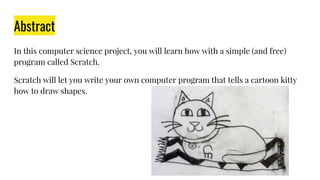
Scratch will let you write your own computer program that tells a cartoon kitty
how to draw shapes.
Objective
To determine how to draw different two-dimensional shapes using the computer
language Scratch.
Materials and Equipment
Personal computer with Internet access and the computer program Scratch
installed; see the Experimental Procedure for details on installing Scratch for
free.
Adult helper
Protractor
Lab notebook
Installing and Getting Started with Scratch
When you first start up Scratch, you'll see your artist cat come up on the screen.
Meow! It's time to program Kitty so that she can draw shapes.
If you want to change the way Kitty looks before you start, read the Variations
section, below the Experimental Procedure, to find out how.
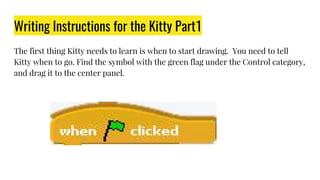
Writing Instructions for the Kitty Part1
The first thing Kitty needs to learn is when to start drawing. You need to tell
Kitty when to go. Find the symbol with the green flag under the Control category,
and drag it to the center panel.
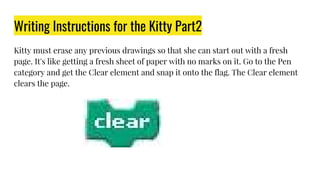
Writing Instructions for the Kitty Part2
Kitty must erase any previous drawings so that she can start out with a fresh
page. It's like getting a fresh sheet of paper with no marks on it. Go to the Pen
category and get the Clear element and snap it onto the flag. The Clear element
clears the page.
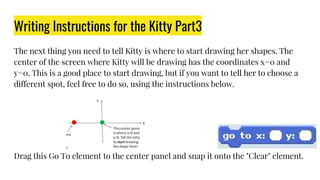
Writing Instructions for the Kitty Part3
The next thing you need to tell Kitty is where to start drawing her shapes. The
center of the screen where Kitty will be drawing has the coordinates x=0 and
y=0. This is a good place to start drawing, but if you want to tell her to choose a
different spot, feel free to do so, using the instructions below.
Drag this Go To element to the center panel and snap it onto the "Clear" element.
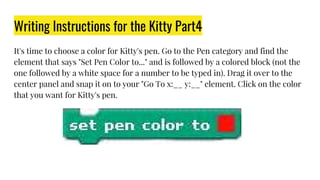
Writing Instructions for the Kitty Part4
It's time to choose a color for Kitty's pen. Go to the Pen category and find the
element that says "Set Pen Color to..." and is followed by a colored block (not the
one followed by a white space for a number to be typed in). Drag it over to the
center panel and snap it on to your "Go To x:__ y:__" element. Click on the color
that you want for Kitty's pen.
Writing Instructions for the Kitty Part5
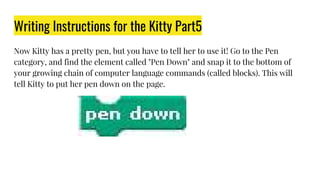
Now Kitty has a pretty pen, but you have to tell her to use it! Go to the Pen
category, and find the element called "Pen Down" and snap it to the bottom of
your growing chain of computer language commands (called blocks). This will
tell Kitty to put her pen down on the page.
Writing Instructions for the Kitty Part6
Now it gets exciting. It's time for Kitty to learn how to draw her first shapes.
Remember from the Introduction how you taught your friend to draw a square
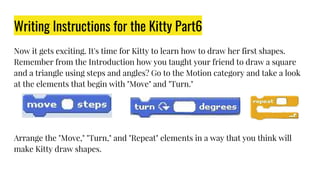
and a triangle using steps and angles? Go to the Motion category and take a look
at the elements that begin with "Move" and "Turn."
Arrange the "Move," "Turn," and "Repeat" elements in a way that you think will
make Kitty draw shapes.
Writing Instructions for the Kitty Part7
It's not time to test just yet. First, you need to make Kitty put the pen away and
move herself out of the way after she is done drawing, so that you can see what
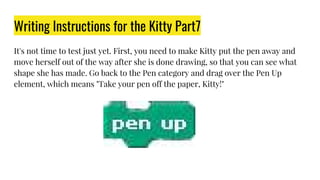
shape she has made. Go back to the Pen category and drag over the Pen Up
element, which means "Take your pen off the paper, Kitty!"
Writing Instructions for the Kitty Part8
To get her to move out of the way, you want to move her to a coordinate that is
away from her drawing, like the red circle shown in the graph several steps
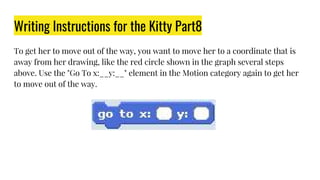
above. Use the "Go To x:__y:__" element in the Motion category again to get her
to move out of the way.
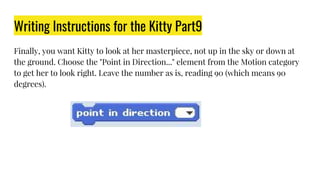
Writing Instructions for the Kitty Part9
Finally, you want Kitty to look at her masterpiece, not up in the sky or down at
the ground. Choose the "Point in Direction..." element from the Motion category
to get her to look right. Leave the number as is, reading 90 (which means 90
degrees).
Finish!!
Now you are little programmer. You can write your own computer program!

Assignment C: Technical Presentation Teach A Computer Kitty How to Draw Shapes

  • 1.
    Assignment C: TechnicalPresentation Teach A Computer Kitty How to Draw Shapes s1240239 Kaori Yuda
  • 2.
    Abstract In this computerscience project, you will learn how with a simple (and free) program called Scratch. Scratch will let you write your own computer program that tells a cartoon kitty how to draw shapes.
  • 3.
    Objective To determine howto draw different two-dimensional shapes using the computer language Scratch.
  • 4.
    Materials and Equipment Personalcomputer with Internet access and the computer program Scratch installed; see the Experimental Procedure for details on installing Scratch for free. Adult helper Protractor Lab notebook
  • 5.
    Installing and GettingStarted with Scratch When you first start up Scratch, you'll see your artist cat come up on the screen. Meow! It's time to program Kitty so that she can draw shapes. If you want to change the way Kitty looks before you start, read the Variations section, below the Experimental Procedure, to find out how.
  • 6.
    Writing Instructions forthe Kitty Part1 The first thing Kitty needs to learn is when to start drawing. You need to tell Kitty when to go. Find the symbol with the green flag under the Control category, and drag it to the center panel.
  • 7.
    Writing Instructions forthe Kitty Part2 Kitty must erase any previous drawings so that she can start out with a fresh page. It's like getting a fresh sheet of paper with no marks on it. Go to the Pen category and get the Clear element and snap it onto the flag. The Clear element clears the page.
  • 8.
    Writing Instructions forthe Kitty Part3 The next thing you need to tell Kitty is where to start drawing her shapes. The center of the screen where Kitty will be drawing has the coordinates x=0 and y=0. This is a good place to start drawing, but if you want to tell her to choose a different spot, feel free to do so, using the instructions below. Drag this Go To element to the center panel and snap it onto the "Clear" element.
  • 9.
    Writing Instructions forthe Kitty Part4 It's time to choose a color for Kitty's pen. Go to the Pen category and find the element that says "Set Pen Color to..." and is followed by a colored block (not the one followed by a white space for a number to be typed in). Drag it over to the center panel and snap it on to your "Go To x:__ y:__" element. Click on the color that you want for Kitty's pen.
  • 10.
    Writing Instructions forthe Kitty Part5 Now Kitty has a pretty pen, but you have to tell her to use it! Go to the Pen category, and find the element called "Pen Down" and snap it to the bottom of your growing chain of computer language commands (called blocks). This will tell Kitty to put her pen down on the page.
  • 11.
    Writing Instructions forthe Kitty Part6 Now it gets exciting. It's time for Kitty to learn how to draw her first shapes. Remember from the Introduction how you taught your friend to draw a square and a triangle using steps and angles? Go to the Motion category and take a look at the elements that begin with "Move" and "Turn." Arrange the "Move," "Turn," and "Repeat" elements in a way that you think will make Kitty draw shapes.
  • 12.
    Writing Instructions forthe Kitty Part7 It's not time to test just yet. First, you need to make Kitty put the pen away and move herself out of the way after she is done drawing, so that you can see what shape she has made. Go back to the Pen category and drag over the Pen Up element, which means "Take your pen off the paper, Kitty!"
  • 13.
    Writing Instructions forthe Kitty Part8 To get her to move out of the way, you want to move her to a coordinate that is away from her drawing, like the red circle shown in the graph several steps above. Use the "Go To x:__y:__" element in the Motion category again to get her to move out of the way.
  • 14.
    Writing Instructions forthe Kitty Part9 Finally, you want Kitty to look at her masterpiece, not up in the sky or down at the ground. Choose the "Point in Direction..." element from the Motion category to get her to look right. Leave the number as is, reading 90 (which means 90 degrees).
  • 15.
    Finish!! Now you arelittle programmer. You can write your own computer program!