Geometry Calculator
Contents
 Reflection
Area Under a Curve and Riemann Sums
Circle Theorems
Angle sum in a triangle
WARNING
Please always save your work in .ggb file
(GeoGebra format) as well as in any other
format of your choice. Saving in GeoGebra
format (.ggb)will enable you to use the same
file every time you want to visualize what you
earlier created without losing your work.
Reflection
Create a polygon with
the following
vertices A(-4, 1), B(-
2, 4), C(3, 1), and D(-1,
-1)
Reflection
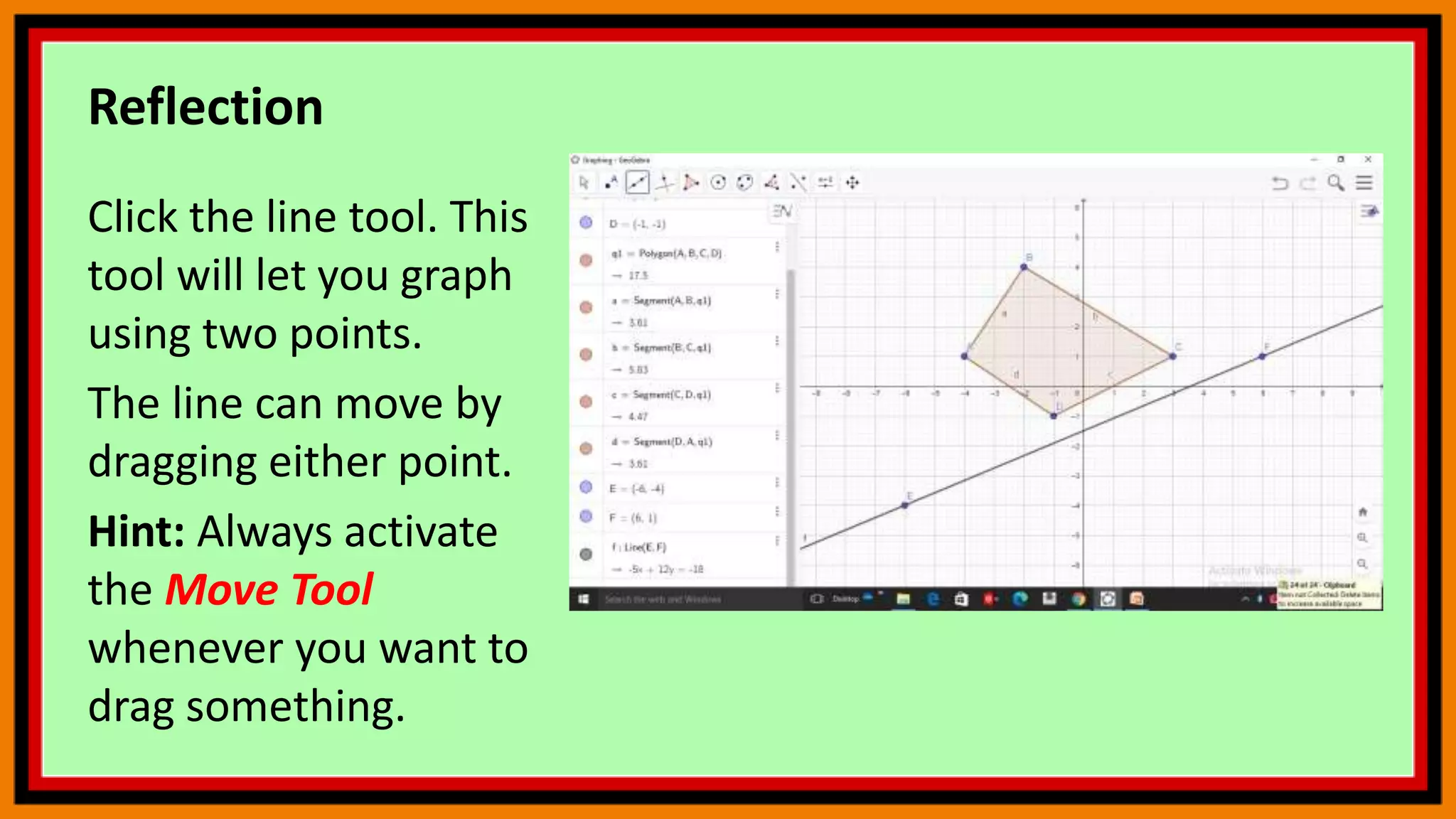
Click the line tool. This
tool will let you graph
using two points.
The line can move by
dragging either point.
Hint: Always activate
the Move Tool
whenever you want to
drag something.
Reflection
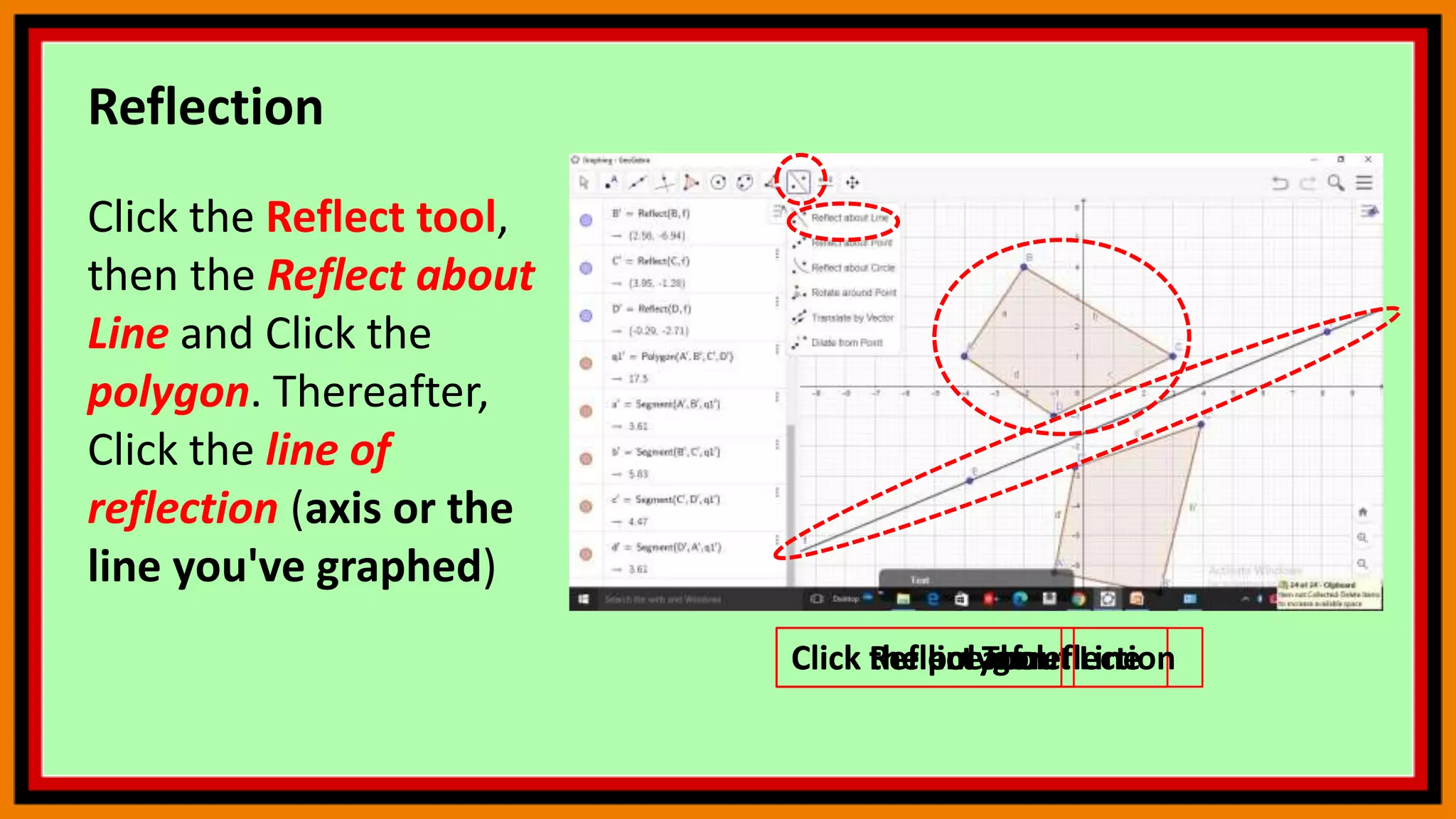
Click the Reflect tool,
then the Reflect about
Line and Click the
polygon. Thereafter,
Click the line of
reflection (axis or the
line you've graphed)
Click Reflect about Line
Click the polygon
Click the line of reflection
Click Reflect Tool
Reflection
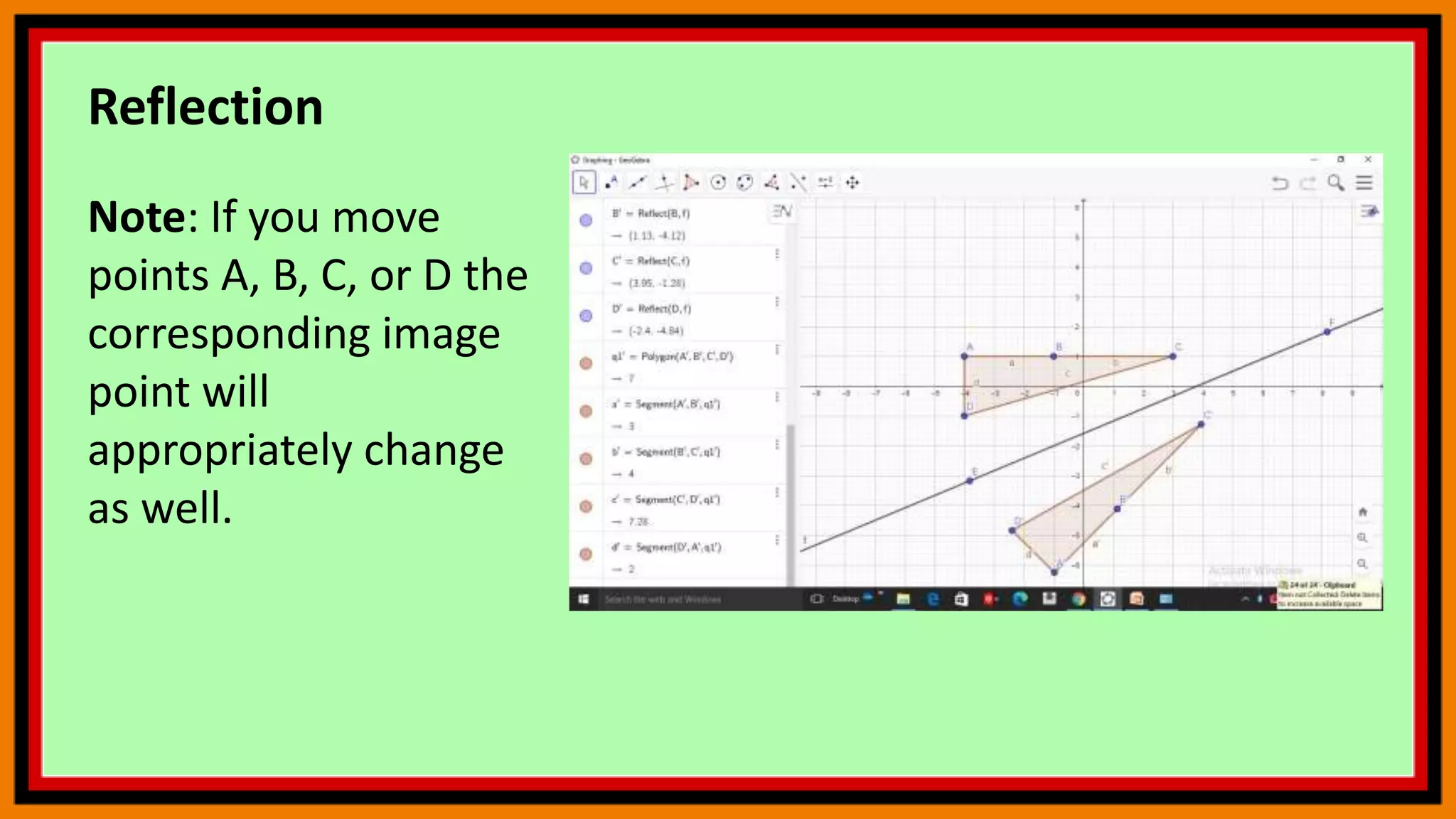
Note: If you move
points A, B, C, or D the
corresponding image
point will
appropriately change
as well.
Reflection
Do It Yourself
Try to plot the polygon
given and reflect
about the following
lines.
1. Line of Reflection:
x-Axis
2. Line of Reflection :
y=-1/2x +4
Area Under a Curve and Riemann Sums
Task
Visualize area under graph and given x-
coordinates
Area Under a Curve and
Riemann Sums
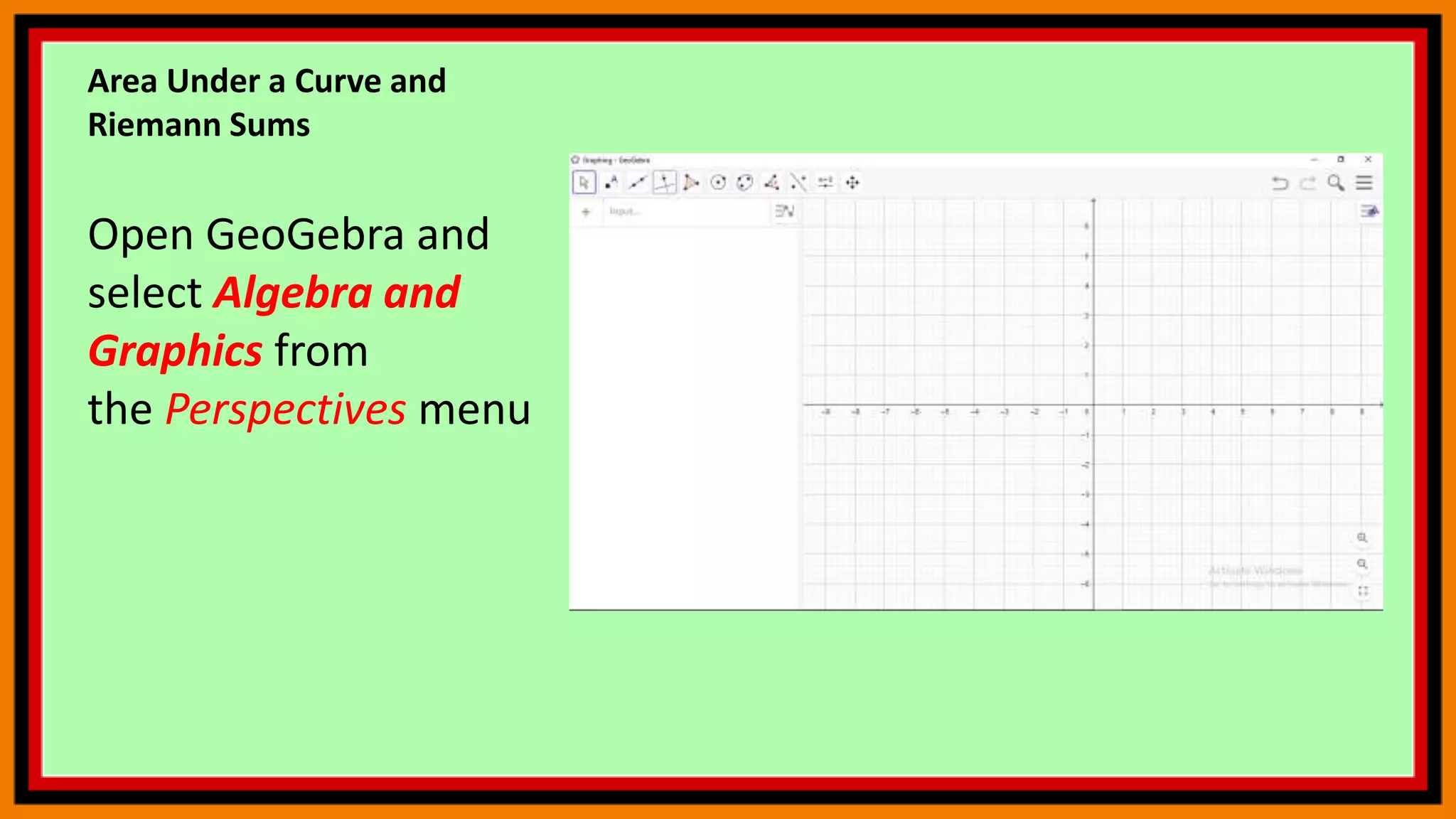
Open GeoGebra and
select Algebra and
Graphics from
the Perspectives menu
Area Under a Curve and
Riemann Sums
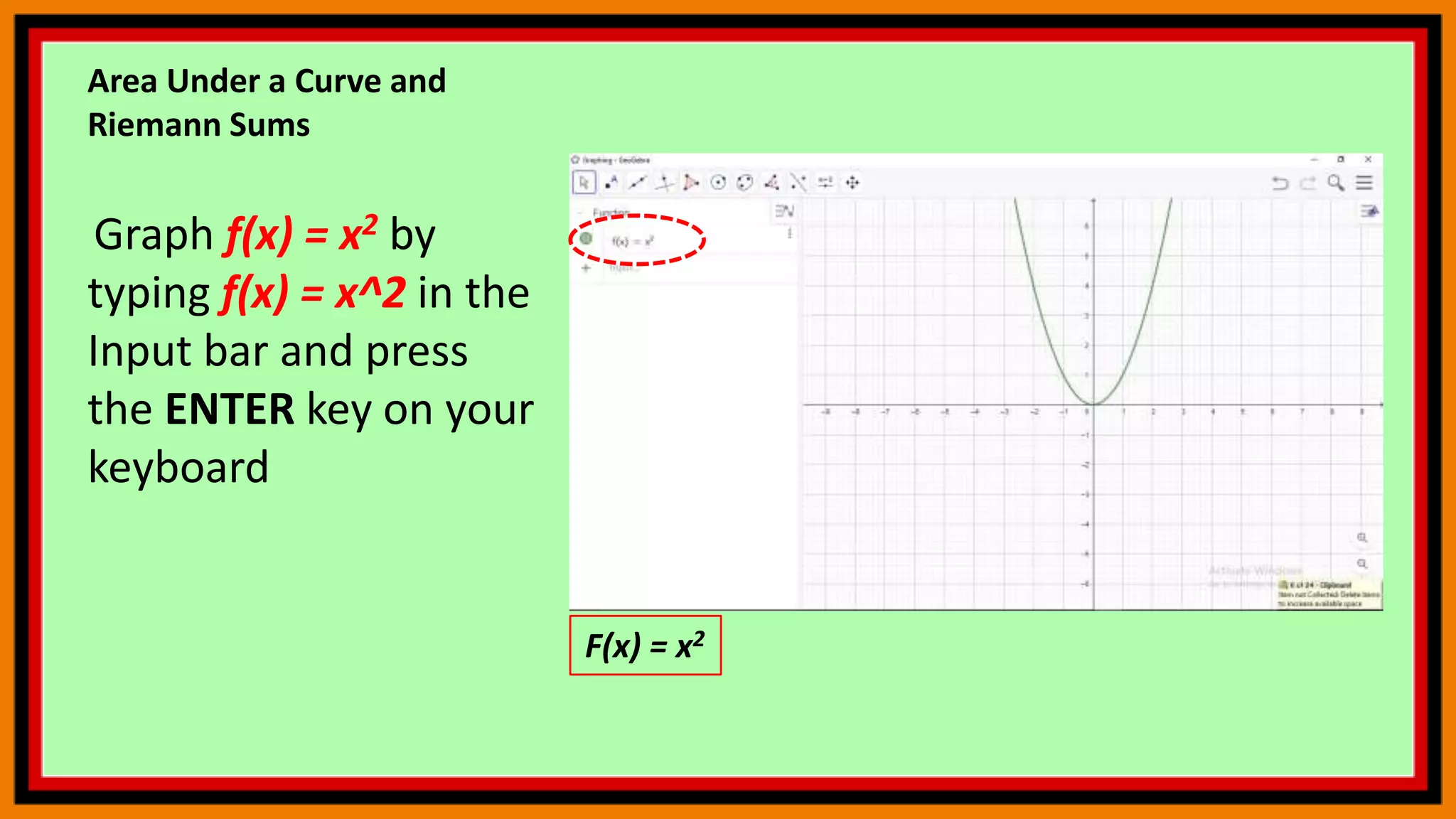
Graph f(x) = x2 by
typing f(x) = x^2 in the
Input bar and press
the ENTER key on your
keyboard
F(x) = x2
Area Under a Curve and
Riemann Sums
We now create a slider for
the number of rectangles.
Select the Slider tool and
click on the Graphics view.
In the Slider dialog box,
change the name to n, set
the minimum to 0,
maximum to 100, and
increment of 1, then click
the OK button. Change name to n
Set minimum to 0
Set maximum to 100
Click the OK button
Increment of 1
Area Under a Curve and
Riemann Sums
To construct the lower sum
(rectangles whose upper
left corners are on the
curve),
type lowersum[f,0,1,n] and
then press the ENTER key
on your keyboard. That is,
the lowersum (sum of the
areas of rectangles) under
the function f from 0 to 1
with n number of
rectangles.
LowerSum(f,0,1,n)
Area Under a Curve and
Riemann Sums
Move Slider n. What
do you observe?
Move n to the
extreme right. What is
the value of the lower
sum or the total area
of the rectangles
under the curve? Total Area = 0.33
Area Under a Curve and
Riemann Sums
To construct the upper
sum,
type uppersum[f,0,1,n
] in the drawing pad,
and press the ENTER
key.
upperSum(f,0,1,n)
Area Under a Curve and
Riemann Sums
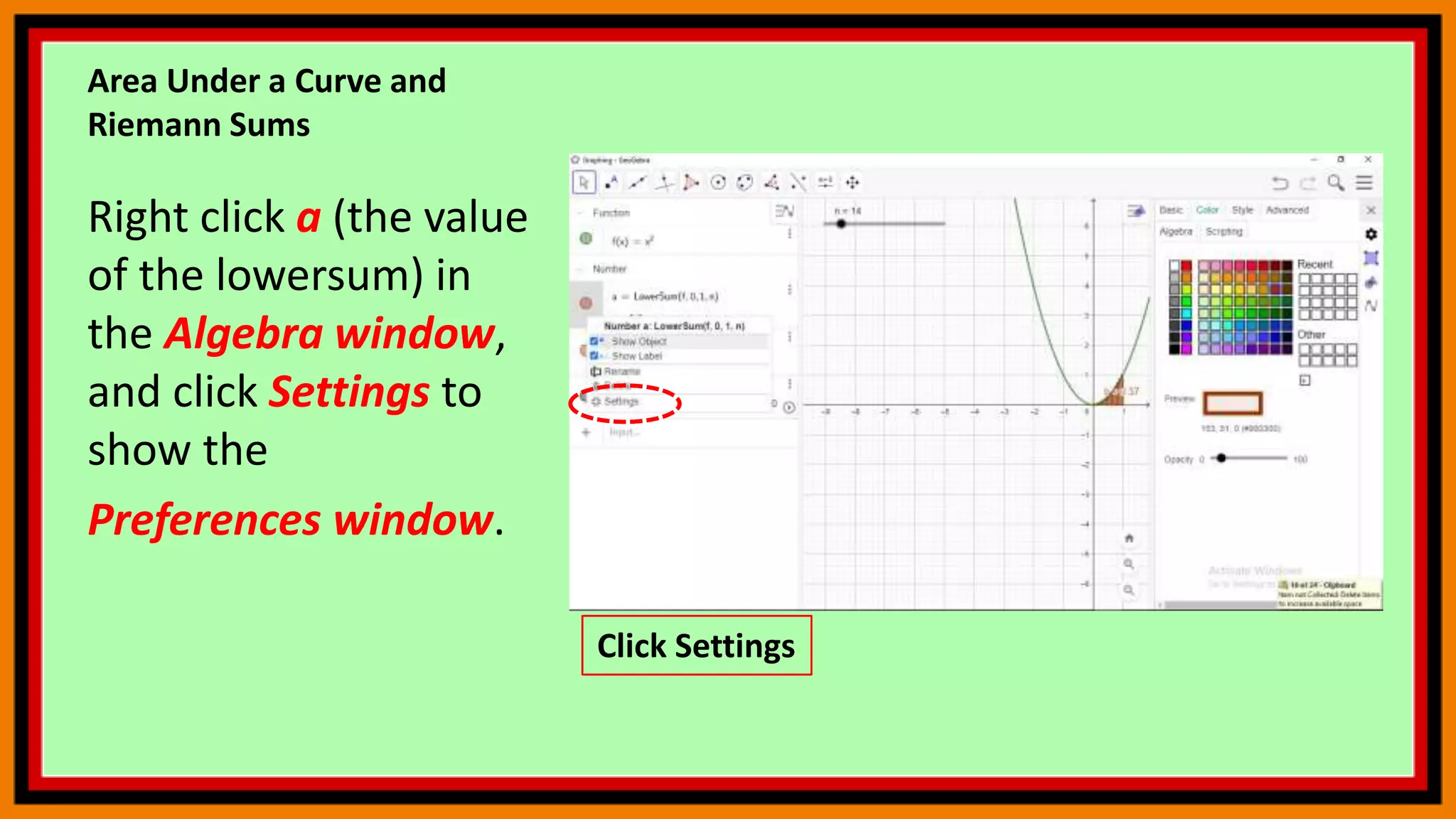
Right click a (the value
of the lowersum) in
the Algebra window,
and click Settings to
show the
Preferences window.
Click Settings
Area Under a Curve and
Riemann Sums
In
the Preferences windo
w, select the Color tab,
choose a different
color, then press
ENTER and close
window. This will
make it easier to
distinguish the two
sums.
Click color tab
Choose a different color
Area Under a Curve and
Riemann Sums
Move the slider to
100. What do you
observe about the
values of the the
upper sum and the
lower sum?
Area Under a Curve and
Riemann Sums
To get the actual area
under the curve, we
need the integral of
the function f from 0
to 1. To do this, type
integral integral[f, 0,
1] in the Input bar,
and press the ENTER
key.
Area under curve
Area Under a Curve and
Riemann Sums
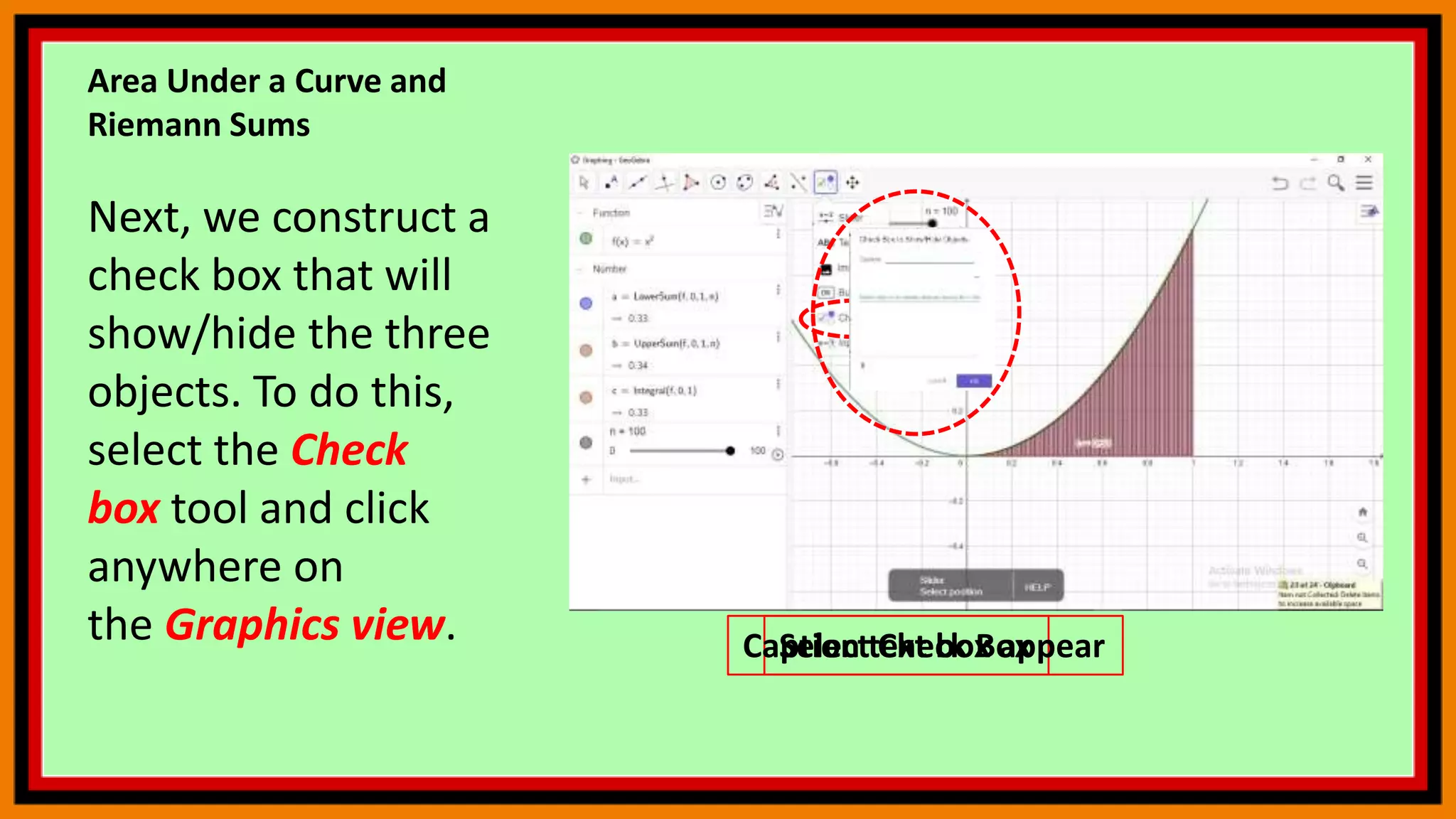
Next, we construct a
check box that will
show/hide the three
objects. To do this,
select the Check
box tool and click
anywhere on
the Graphics view. Select Check Box
Caption text box appear
Area Under a Curve and
Riemann Sums
In the Caption text
box, type Show/Hide
Lower
Sum, select Number a:
Lower Sum[f,0,1,n] in
the Select
objects… box, and
then click the OK
button.
a: Lower Sum[f,0,1,n]
Click the OK button
Area Under a Curve and
Riemann Sums
Next, create two
more Show/Hide
Check boxes for the
Upper Sum and the
actual area (integral of
f from 0 to 1).
Check boxes
Area Under a Curve and
Riemann Sums
Try to change the
values of a: Lower
Sum[f,0,1,n] to a:
Lower Sum[f,0,3,n]
and b: Upper
Sum[f,0,1,n] to b:
Upper Sum[f,0,3,n].
What happens?
Change values here
Circle Theorems
Visualize the theorems shown in the following slides on your
own.
Circle Theorem 1
The angle at the
centre is twice the
angle at the
circumference.
(Note that both angles are
facing the same piece of
arc, CB)
Circle Theorem 2
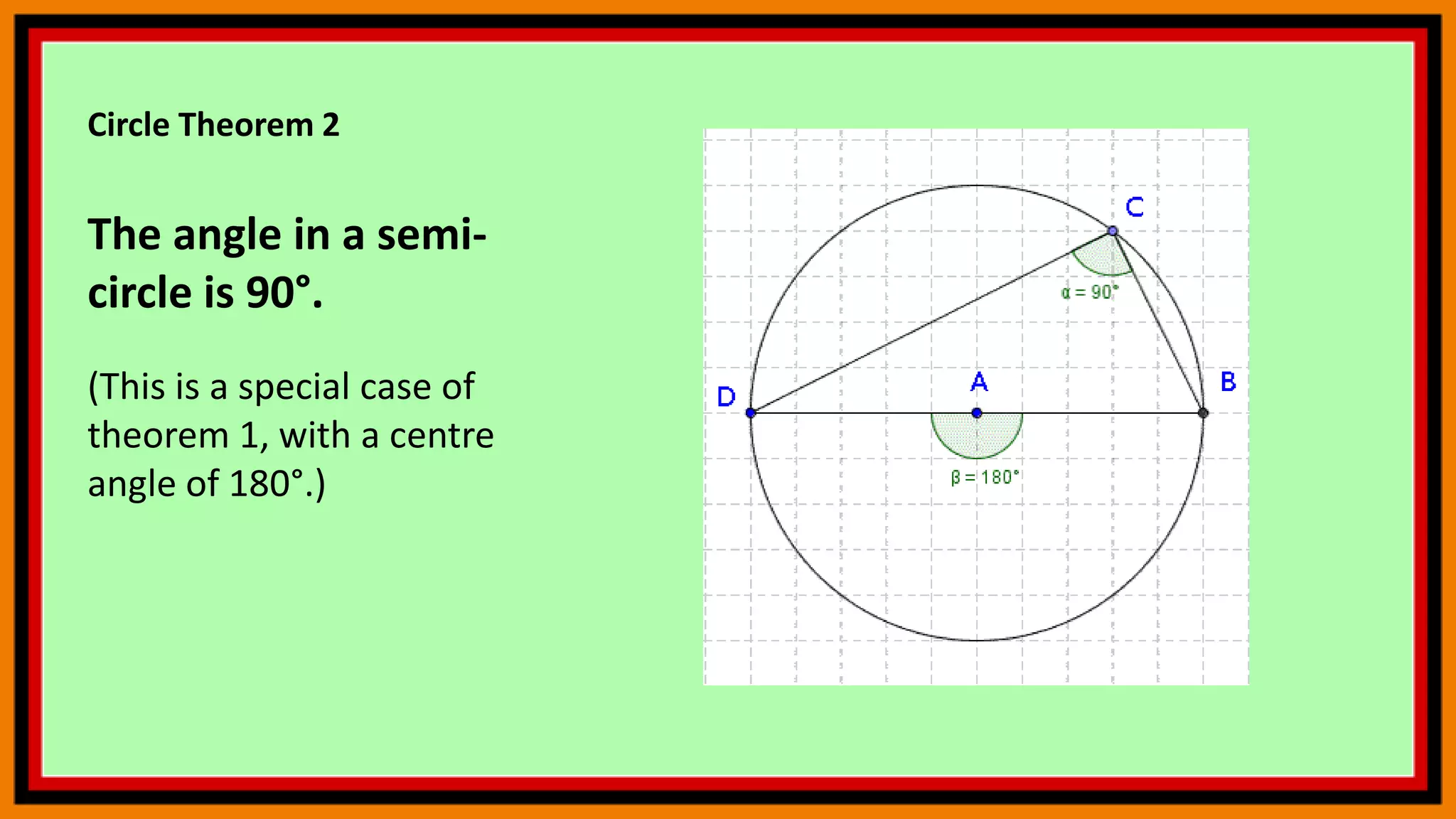
The angle in a semi-
circle is 90°.
(This is a special case of
theorem 1, with a centre
angle of 180°.)
Circle Theorem 3
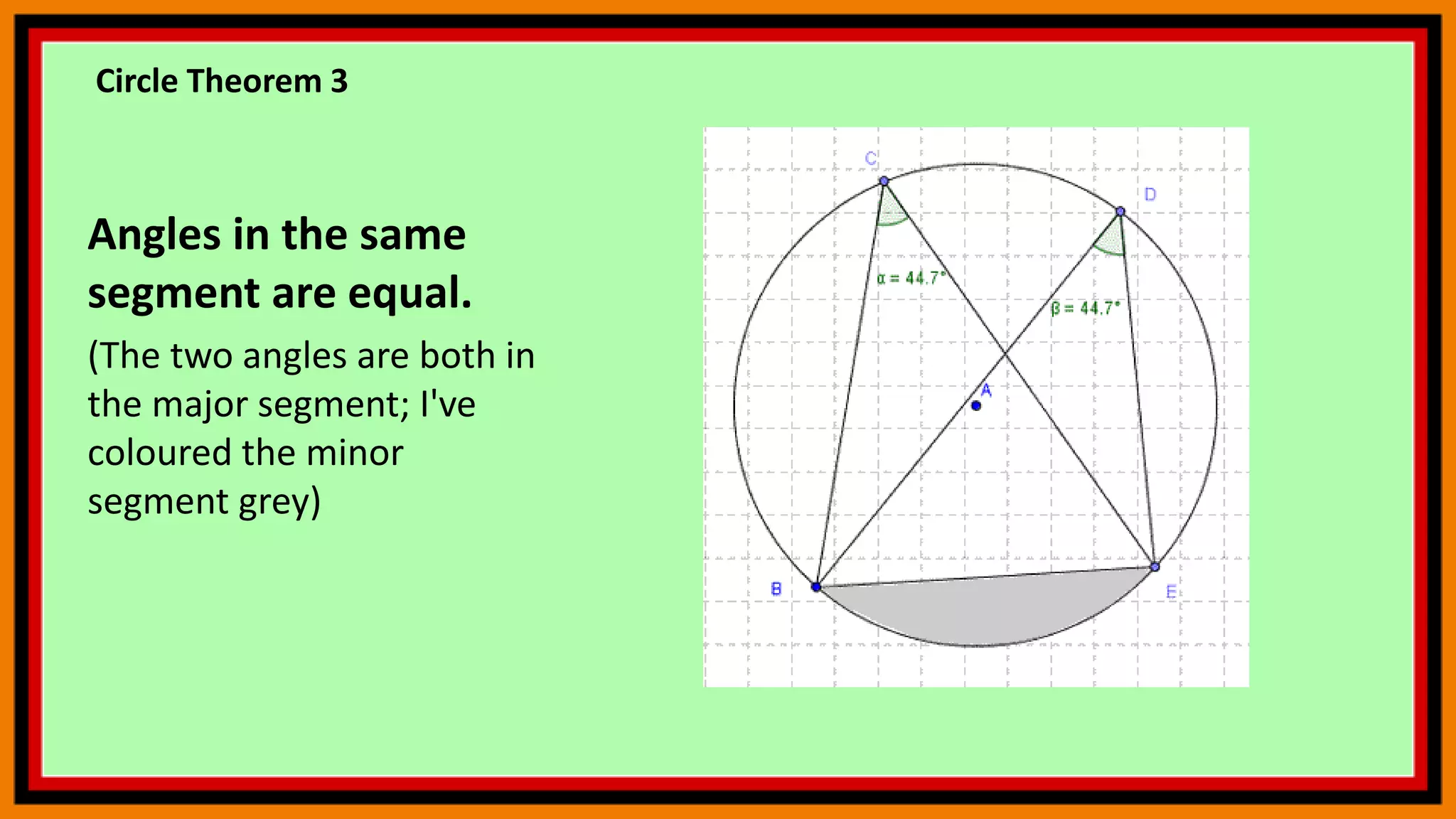
Angles in the same
segment are equal.
(The two angles are both in
the major segment; I've
coloured the minor
segment grey)
Circle Theorem 4
Opposite angles in a
cyclic quadrilateral
add up to 180°.
Circle Theorem 5
The lengths of the
two tangents from a
point to a circle are
equal.
CD = CE
Circle Theorem 6
The angle between a
tangent and a radius
in a circle is 90°.
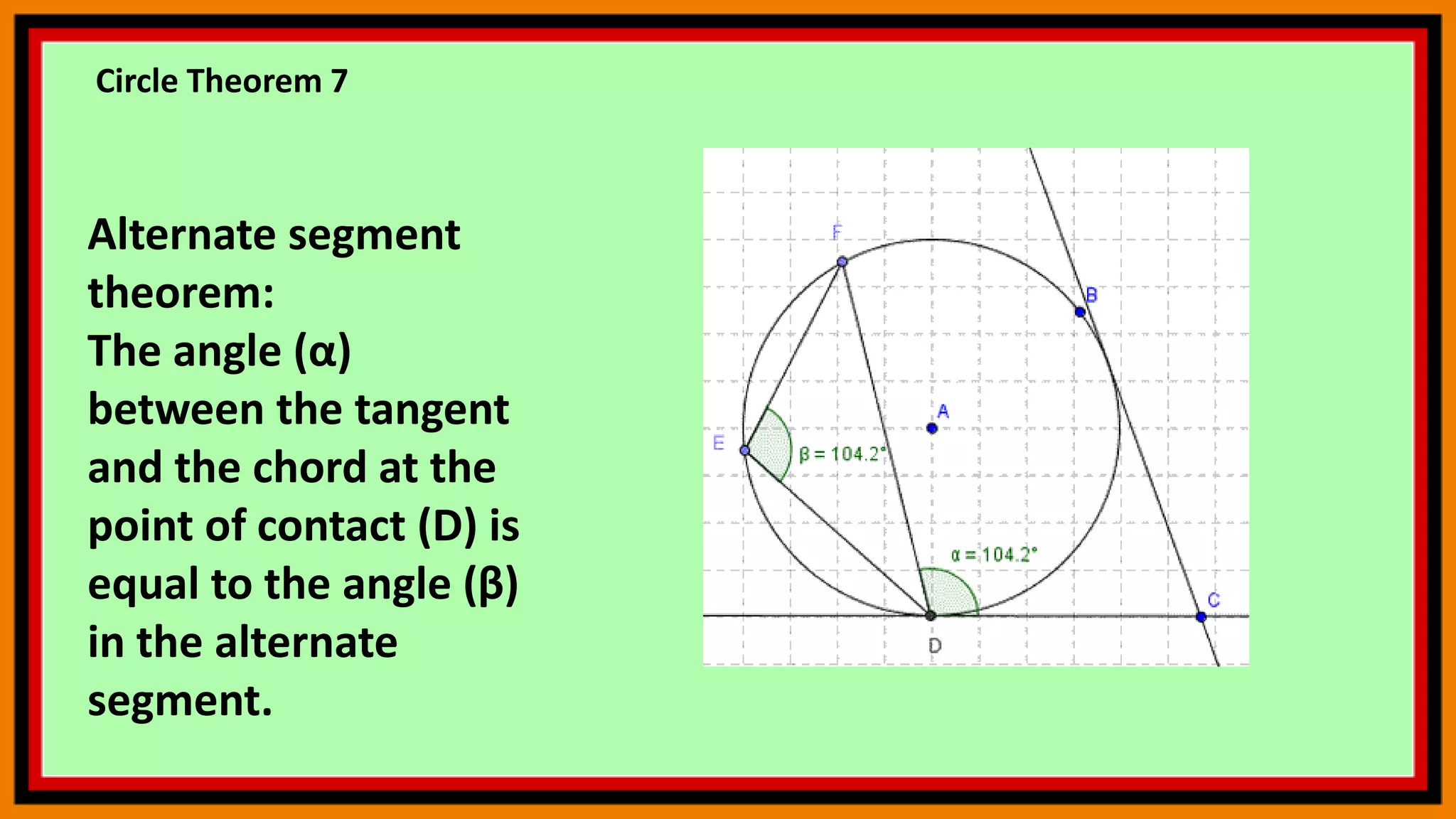
Circle Theorem 7
Alternate segment
theorem:
The angle (α)
between the tangent
and the chord at the
point of contact (D) is
equal to the angle (β)
in the alternate
segment.
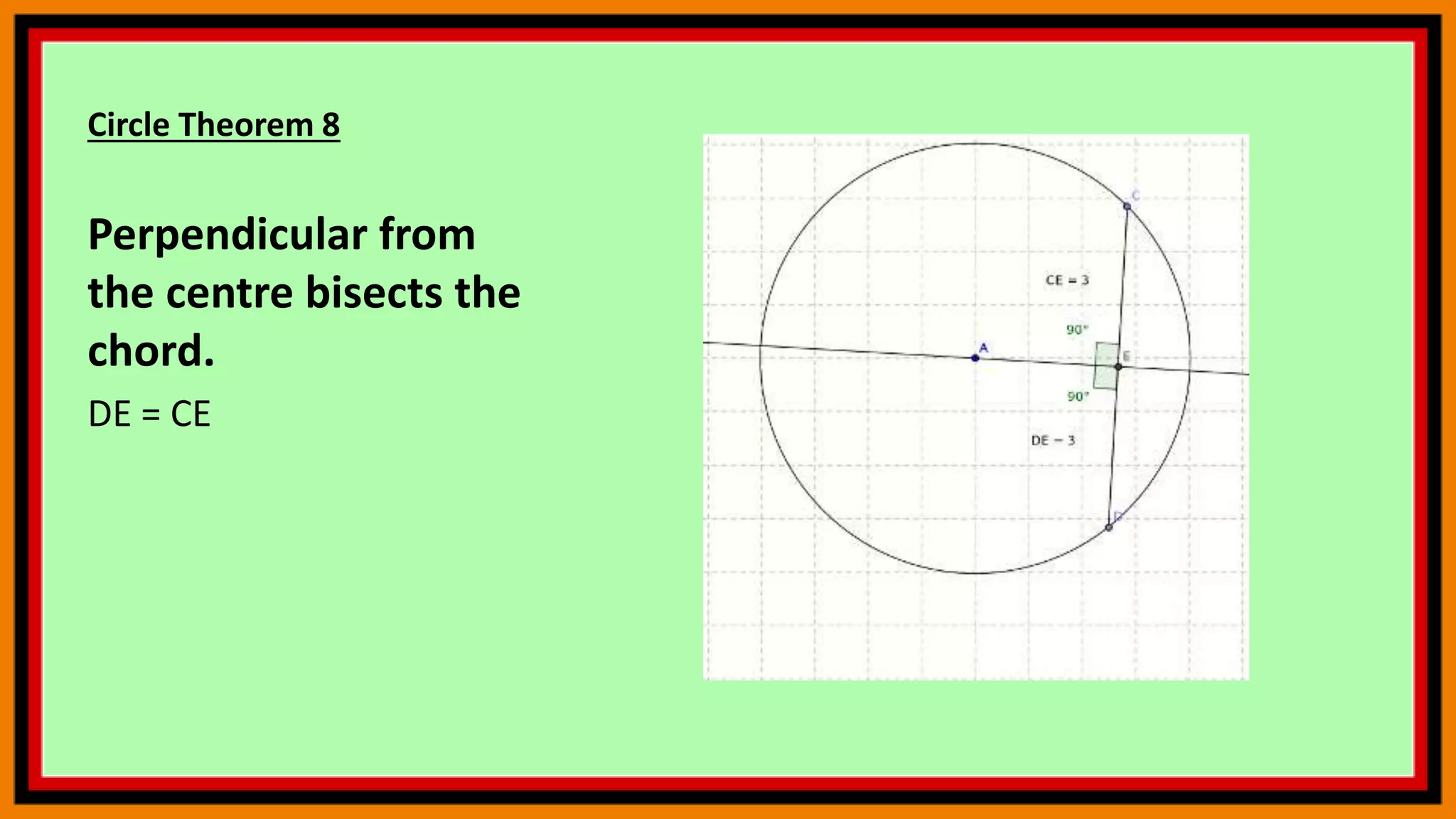
Circle Theorem 8
Perpendicular from
the centre bisects the
chord.
DE = CE
Angle sum in a triangle
Follow the instructions given to construct the given
Triangle
1.Create a triangle ABC with counter clockwise orientation.
2.Create the angles α, β and γ of triangle ABC.
3.Create a slider for angle δ with Interval 0 ̊ to 180 ̊ and
Increment 10 ̊.
4.Create a slider for angle ε with Interval 0 ̊ to 180 ̊ and
Increment 10 ̊.
Follow the instructions given to construct the given
Triangle
5.Create midpoint D of segment AC and midpoint E of segment
AB.
6.Rotate the triangle around point D by angle δ (setting
clockwise). Hint: Enter δ by using the Virtual Keyboard.
7.Rotate the triangle around point E by angle ε (setting counter
clockwise). Hint: Enter ε by using the Virtual Keyboard.
8.Move both sliders δ and ε to show 180 ̊.
Follow the instructions given to construct the given
Triangle
9.Create angle ζ using the points A’C’B’. Hint: To be sure to select
the right vertices change angle δ or use the command
angle(A’, C’, B’) instead.
10.Create angle η using the points C'1B'1A'1. Hint: To be sure to
select the right vertices change angle ε before or use the
command angle(C'1, B'1, A'1) instead.
11.Enhance your construction using the Style Bar. Hint:
Congruent angles should have the same color.
Follow the instructions given to construct the given
Triangle
12.Create dynamic text displaying the interior angles and their
values (e.g. enter α = and select α from the list of objects on
tab of the Advanced section).
13.Calculate the angle sum by entering sum = α + β + γ in the
Input Bar.
Follow the instructions given to construct the given
Triangle
14.Insert the angle sum as a dynamic text: α + β + γ = and select
sum from the list of objects on tab .
15.Match colors of corresponding angles and text using the Style
Bar.
16. Fix all texts that are not supposed to be moved by using the
Style Bar.
END
Try as many problems as possible. Practice
GeoGebra by following commands in the
GeoGebra Manual posted earlier.
Next: .

Geogebra 9

  • 1.
  • 2.
    Contents  Reflection Area Undera Curve and Riemann Sums Circle Theorems Angle sum in a triangle
  • 3.
    WARNING Please always saveyour work in .ggb file (GeoGebra format) as well as in any other format of your choice. Saving in GeoGebra format (.ggb)will enable you to use the same file every time you want to visualize what you earlier created without losing your work.
  • 4.
    Reflection Create a polygonwith the following vertices A(-4, 1), B(- 2, 4), C(3, 1), and D(-1, -1)
  • 5.
    Reflection Click the linetool. This tool will let you graph using two points. The line can move by dragging either point. Hint: Always activate the Move Tool whenever you want to drag something.
  • 6.
    Reflection Click the Reflecttool, then the Reflect about Line and Click the polygon. Thereafter, Click the line of reflection (axis or the line you've graphed) Click Reflect about Line Click the polygon Click the line of reflection Click Reflect Tool
  • 7.
    Reflection Note: If youmove points A, B, C, or D the corresponding image point will appropriately change as well.
  • 8.
    Reflection Do It Yourself Tryto plot the polygon given and reflect about the following lines. 1. Line of Reflection: x-Axis 2. Line of Reflection : y=-1/2x +4
  • 9.
    Area Under aCurve and Riemann Sums Task Visualize area under graph and given x- coordinates
  • 10.
    Area Under aCurve and Riemann Sums Open GeoGebra and select Algebra and Graphics from the Perspectives menu
  • 11.
    Area Under aCurve and Riemann Sums Graph f(x) = x2 by typing f(x) = x^2 in the Input bar and press the ENTER key on your keyboard F(x) = x2
  • 12.
    Area Under aCurve and Riemann Sums We now create a slider for the number of rectangles. Select the Slider tool and click on the Graphics view. In the Slider dialog box, change the name to n, set the minimum to 0, maximum to 100, and increment of 1, then click the OK button. Change name to n Set minimum to 0 Set maximum to 100 Click the OK button Increment of 1
  • 13.
    Area Under aCurve and Riemann Sums To construct the lower sum (rectangles whose upper left corners are on the curve), type lowersum[f,0,1,n] and then press the ENTER key on your keyboard. That is, the lowersum (sum of the areas of rectangles) under the function f from 0 to 1 with n number of rectangles. LowerSum(f,0,1,n)
  • 14.
    Area Under aCurve and Riemann Sums Move Slider n. What do you observe? Move n to the extreme right. What is the value of the lower sum or the total area of the rectangles under the curve? Total Area = 0.33
  • 15.
    Area Under aCurve and Riemann Sums To construct the upper sum, type uppersum[f,0,1,n ] in the drawing pad, and press the ENTER key. upperSum(f,0,1,n)
  • 16.
    Area Under aCurve and Riemann Sums Right click a (the value of the lowersum) in the Algebra window, and click Settings to show the Preferences window. Click Settings
  • 17.
    Area Under aCurve and Riemann Sums In the Preferences windo w, select the Color tab, choose a different color, then press ENTER and close window. This will make it easier to distinguish the two sums. Click color tab Choose a different color
  • 18.
    Area Under aCurve and Riemann Sums Move the slider to 100. What do you observe about the values of the the upper sum and the lower sum?
  • 19.
    Area Under aCurve and Riemann Sums To get the actual area under the curve, we need the integral of the function f from 0 to 1. To do this, type integral integral[f, 0, 1] in the Input bar, and press the ENTER key. Area under curve
  • 20.
    Area Under aCurve and Riemann Sums Next, we construct a check box that will show/hide the three objects. To do this, select the Check box tool and click anywhere on the Graphics view. Select Check Box Caption text box appear
  • 21.
    Area Under aCurve and Riemann Sums In the Caption text box, type Show/Hide Lower Sum, select Number a: Lower Sum[f,0,1,n] in the Select objects… box, and then click the OK button. a: Lower Sum[f,0,1,n] Click the OK button
  • 22.
    Area Under aCurve and Riemann Sums Next, create two more Show/Hide Check boxes for the Upper Sum and the actual area (integral of f from 0 to 1). Check boxes
  • 23.
    Area Under aCurve and Riemann Sums Try to change the values of a: Lower Sum[f,0,1,n] to a: Lower Sum[f,0,3,n] and b: Upper Sum[f,0,1,n] to b: Upper Sum[f,0,3,n]. What happens? Change values here
  • 24.
    Circle Theorems Visualize thetheorems shown in the following slides on your own.
  • 25.
    Circle Theorem 1 Theangle at the centre is twice the angle at the circumference. (Note that both angles are facing the same piece of arc, CB)
  • 26.
    Circle Theorem 2 Theangle in a semi- circle is 90°. (This is a special case of theorem 1, with a centre angle of 180°.)
  • 27.
    Circle Theorem 3 Anglesin the same segment are equal. (The two angles are both in the major segment; I've coloured the minor segment grey)
  • 28.
    Circle Theorem 4 Oppositeangles in a cyclic quadrilateral add up to 180°.
  • 29.
    Circle Theorem 5 Thelengths of the two tangents from a point to a circle are equal. CD = CE
  • 30.
    Circle Theorem 6 Theangle between a tangent and a radius in a circle is 90°.
  • 31.
    Circle Theorem 7 Alternatesegment theorem: The angle (α) between the tangent and the chord at the point of contact (D) is equal to the angle (β) in the alternate segment.
  • 32.
    Circle Theorem 8 Perpendicularfrom the centre bisects the chord. DE = CE
  • 33.
    Angle sum ina triangle
  • 34.
    Follow the instructionsgiven to construct the given Triangle 1.Create a triangle ABC with counter clockwise orientation. 2.Create the angles α, β and γ of triangle ABC. 3.Create a slider for angle δ with Interval 0 ̊ to 180 ̊ and Increment 10 ̊. 4.Create a slider for angle ε with Interval 0 ̊ to 180 ̊ and Increment 10 ̊.
  • 35.
    Follow the instructionsgiven to construct the given Triangle 5.Create midpoint D of segment AC and midpoint E of segment AB. 6.Rotate the triangle around point D by angle δ (setting clockwise). Hint: Enter δ by using the Virtual Keyboard. 7.Rotate the triangle around point E by angle ε (setting counter clockwise). Hint: Enter ε by using the Virtual Keyboard. 8.Move both sliders δ and ε to show 180 ̊.
  • 36.
    Follow the instructionsgiven to construct the given Triangle 9.Create angle ζ using the points A’C’B’. Hint: To be sure to select the right vertices change angle δ or use the command angle(A’, C’, B’) instead. 10.Create angle η using the points C'1B'1A'1. Hint: To be sure to select the right vertices change angle ε before or use the command angle(C'1, B'1, A'1) instead. 11.Enhance your construction using the Style Bar. Hint: Congruent angles should have the same color.
  • 37.
    Follow the instructionsgiven to construct the given Triangle 12.Create dynamic text displaying the interior angles and their values (e.g. enter α = and select α from the list of objects on tab of the Advanced section). 13.Calculate the angle sum by entering sum = α + β + γ in the Input Bar.
  • 38.
    Follow the instructionsgiven to construct the given Triangle 14.Insert the angle sum as a dynamic text: α + β + γ = and select sum from the list of objects on tab . 15.Match colors of corresponding angles and text using the Style Bar. 16. Fix all texts that are not supposed to be moved by using the Style Bar.
  • 39.
    END Try as manyproblems as possible. Practice GeoGebra by following commands in the GeoGebra Manual posted earlier. Next: .