Android Activity
Topics
• What is an Activity?
• Declaration of Activities in manifest file
• Activities and application
• Activity life-cycle
• Activity stack
What is an Activity?
• An activity presents a visual user interface (screen)
for one focused endeavor the user can undertake.
> For example, an activity might present a list of menu
items users can choose from or it might display
photographs along with their captions.
> A text messaging application might have one activity
that shows a list of contacts to send messages to, a
second activity to write the message to the chosen
contact, and other activities to review old messages
or change settings.
Activity and Visual Content
• Visual content of the window is provided by a
hierarchy of views
• Each view controls a particular rectangular space
within the window.
> Parent views contain and organize the layout of their
children.
> Leaf views (those at the bottom of the hierarchy) draw in
the rectangles they control and respond to user actions
directed at that space.
• Views are where the activity's interaction with the
user takes place.
> For example, a view might display a small image or
button and initiate an action when the user taps that
image or button.
How Visual Content is Presented?
• Each activity is given a default window to draw
> Typically, the window fills the screen, but it might be
smaller than the screen and float on top of other
windows.
• A view hierarchy is placed within an activity's
window by the Activity.setContentView() method.
> The content view is the View object at the root of the
hierarchy.
Activities and Application
Application is Made up with Activities
• An application might consist of just one or more
Activities
> What the activities are, and how many there are
depends, of course, on the application and its design.
• Typically, one of the activities is marked as the first
one that should be presented to the user when the
application is launched.
> Specified in the AndroidManifest.xml
• Moving from one activity to another is
accomplished by having the current activity start
the next one
How an Activity Launch Another?
• An activity is launched in two ways
> startActivity(Intent intent) - Used when launching
activity (calling activity) does not expect a result
> startActivityForResult(Intent intent) - Used when
launching activity expects a result
• The responding activity can look at the initial intent
that caused it to be launched by calling its
getIntent() method
> (We have not learned Intent yet but think of Intent as
a message that gets passed around between
Activities)
Declaration of Activities in the
Manifest fileanifest file
What is Manifest File?
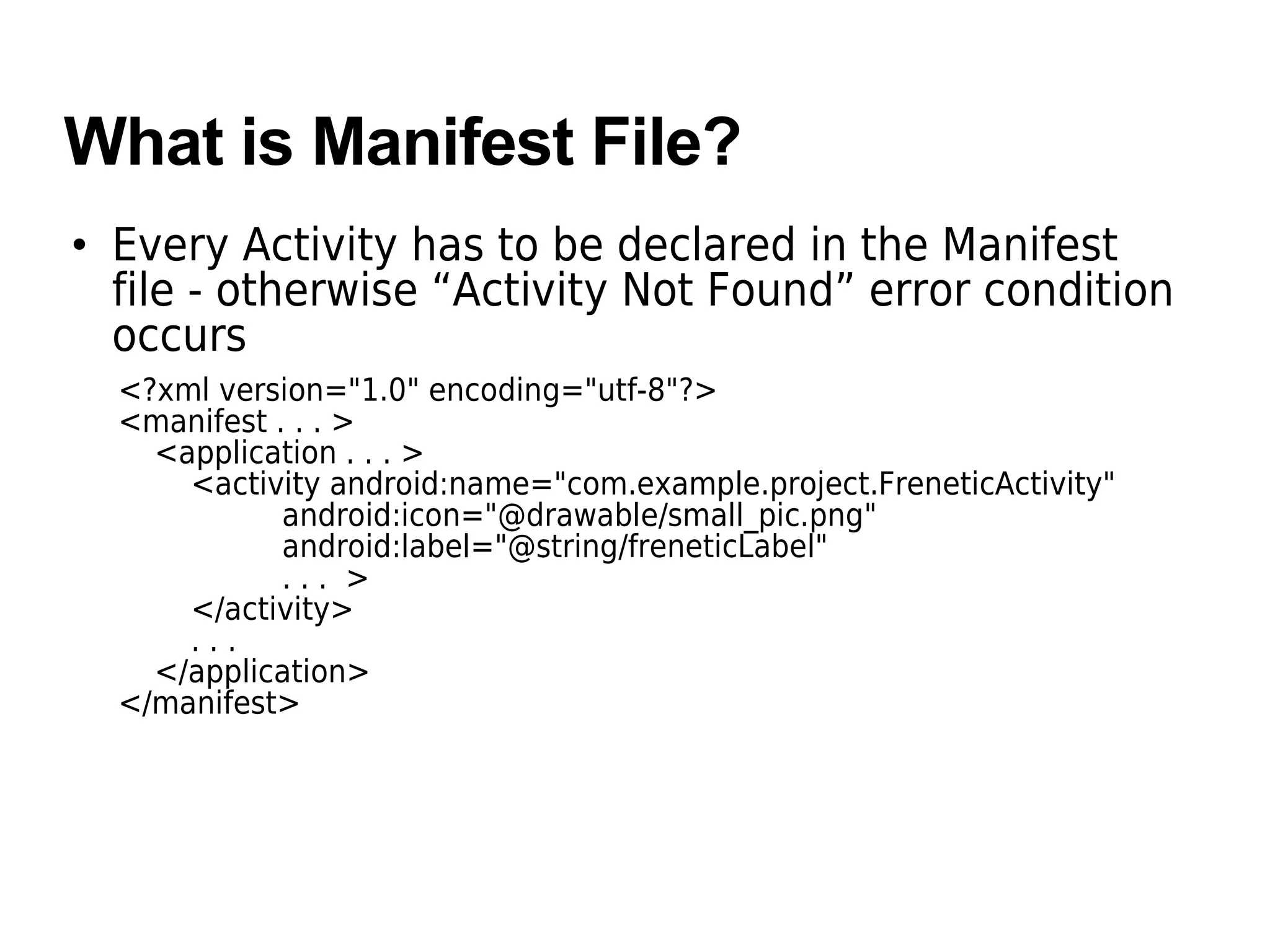
• Every Activity has to be declared in the Manifest
file - otherwise “Activity Not Found” error condition
occurs
<?xml version="1.0" encoding="utf-8"?>
<manifest . . . >
<application . . . >
<activity android:name="com.example.project.FreneticActivity"
android:icon="@drawable/small_pic.png"
android:label="@string/freneticLabel"
. . . >
</activity>
. . .
</application>
</manifest>
Activity Lifecyclectivity Li
An Activity has three states
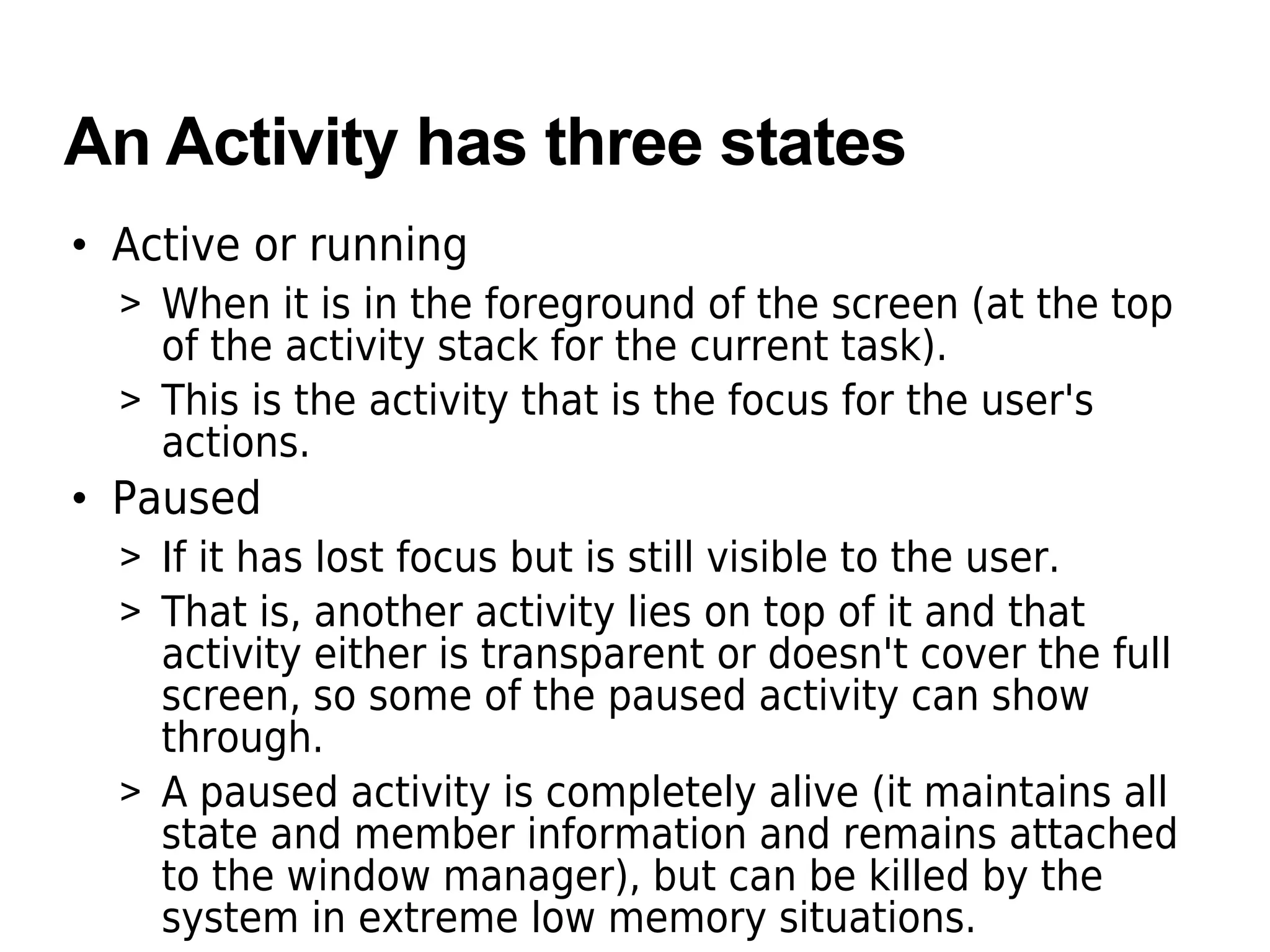
• Active or running
> When it is in the foreground of the screen (at the top
of the activity stack for the current task).
> This is the activity that is the focus for the user's
actions.
• Paused
> If it has lost focus but is still visible to the user.
> That is, another activity lies on top of it and that
activity either is transparent or doesn't cover the full
screen, so some of the paused activity can show
through.
> A paused activity is completely alive (it maintains all
state and member information and remains attached
to the window manager), but can be killed by the
system in extreme low memory situations.
An Activity has three states
• Stopped
> If it is completely obscured by another activity.
> It still retains all state and member information.
> However, it is no longer visible to the user so its
window is hidden and it will often be killed by the
system when memory is needed elsewhere.
State Transition Callback Methods
• As an activity transitions from state to state, it is
notified of the change by calls to the following
protected methods:
> void onCreate(Bundle savedInstanceState)
> void onStart()
> void onRestart()
> void onResume()
> void onPause()
> void onStop()
> void onDestroy()
• All activities must implement onCreate() to do the
initial setup when the object is first instantiated
onCreate()
• Called when the activity is first created.
• This is where you should do all of your normal
static set up
> Create views, bind data to lists, and so on.
• This method is passed a Bundle object containing
the activity's previous state, if that state was
captured
• Always followed by onStart().
Lifecycle Lifetime
• Entire lifetime
> Between the first call to onCreate() through to a
single final call to onDestroy().
• Visible lifetime
> Between a call to onStart() until a corresponding call
to onStop()
• Foreground lifetime
> Between a call to onResume() until a corresponding
call to onPause()
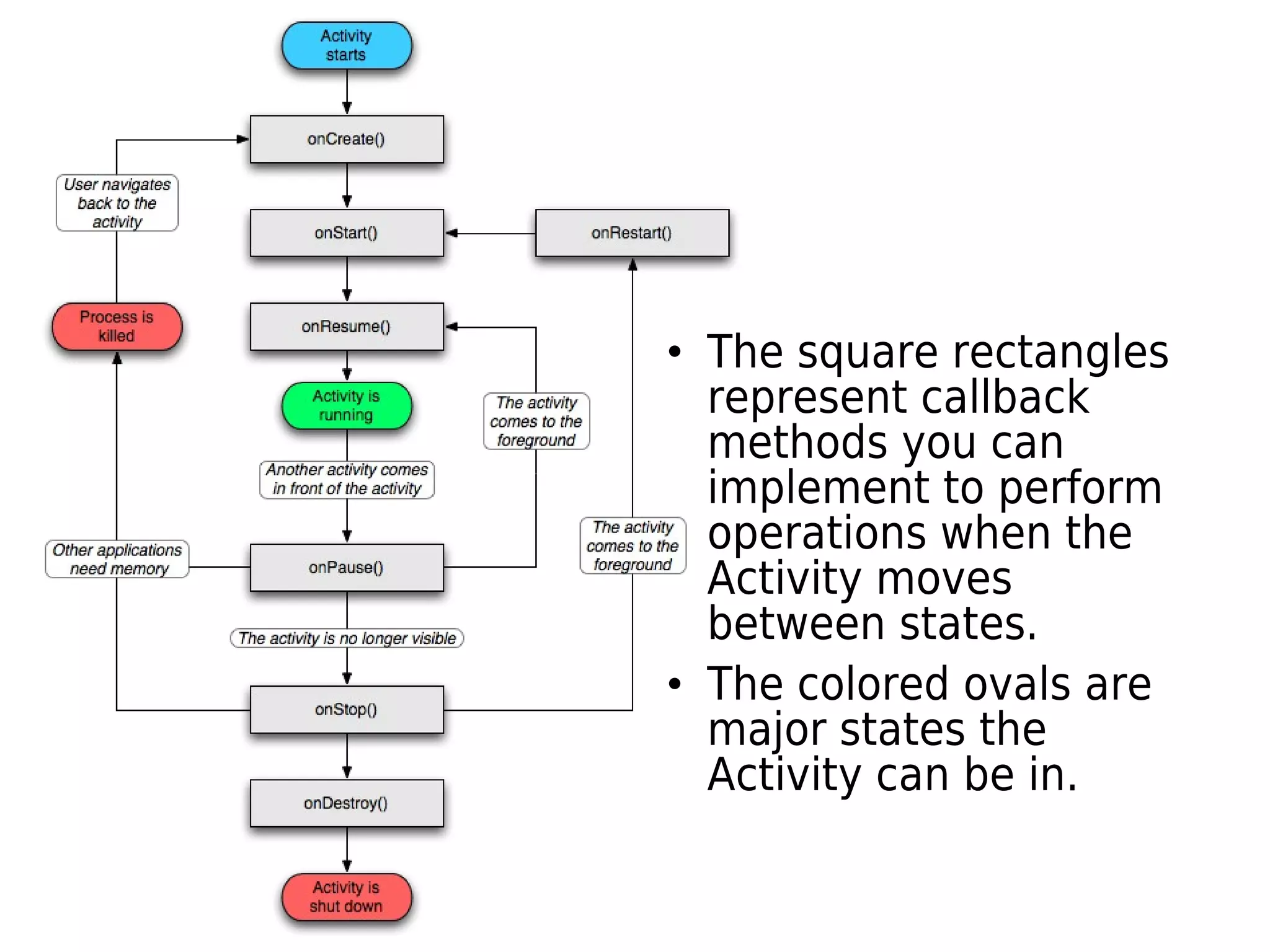
• The square rectangles
represent callback
methods you can
implement to perform
operations when the
Activity moves
between states.
• The colored ovals are
major states the
Activity can be in.
Activity Stackctivity Sta
Activity Stack
• Activities in the system are managed as an activity
stack.
• When a new activity is started, it is placed on the
top of the stack and becomes the running activity
> The previous activity always remains below it in the
stack, and will not come to the foreground again
until the new activity exits.
Thank you

Android activity

  • 1.
  • 2.
    Topics • What isan Activity? • Declaration of Activities in manifest file • Activities and application • Activity life-cycle • Activity stack
  • 3.
    What is anActivity?
  • 4.
    What is anActivity? • An activity presents a visual user interface (screen) for one focused endeavor the user can undertake. > For example, an activity might present a list of menu items users can choose from or it might display photographs along with their captions. > A text messaging application might have one activity that shows a list of contacts to send messages to, a second activity to write the message to the chosen contact, and other activities to review old messages or change settings.
  • 5.
    Activity and VisualContent • Visual content of the window is provided by a hierarchy of views • Each view controls a particular rectangular space within the window. > Parent views contain and organize the layout of their children. > Leaf views (those at the bottom of the hierarchy) draw in the rectangles they control and respond to user actions directed at that space. • Views are where the activity's interaction with the user takes place. > For example, a view might display a small image or button and initiate an action when the user taps that image or button.
  • 6.
    How Visual Contentis Presented? • Each activity is given a default window to draw > Typically, the window fills the screen, but it might be smaller than the screen and float on top of other windows. • A view hierarchy is placed within an activity's window by the Activity.setContentView() method. > The content view is the View object at the root of the hierarchy.
  • 7.
  • 8.
    Application is Madeup with Activities • An application might consist of just one or more Activities > What the activities are, and how many there are depends, of course, on the application and its design. • Typically, one of the activities is marked as the first one that should be presented to the user when the application is launched. > Specified in the AndroidManifest.xml • Moving from one activity to another is accomplished by having the current activity start the next one
  • 9.
    How an ActivityLaunch Another? • An activity is launched in two ways > startActivity(Intent intent) - Used when launching activity (calling activity) does not expect a result > startActivityForResult(Intent intent) - Used when launching activity expects a result • The responding activity can look at the initial intent that caused it to be launched by calling its getIntent() method > (We have not learned Intent yet but think of Intent as a message that gets passed around between Activities)
  • 10.
    Declaration of Activitiesin the Manifest fileanifest file
  • 11.
    What is ManifestFile? • Every Activity has to be declared in the Manifest file - otherwise “Activity Not Found” error condition occurs <?xml version="1.0" encoding="utf-8"?> <manifest . . . > <application . . . > <activity android:name="com.example.project.FreneticActivity" android:icon="@drawable/small_pic.png" android:label="@string/freneticLabel" . . . > </activity> . . . </application> </manifest>
  • 12.
  • 13.
    An Activity hasthree states • Active or running > When it is in the foreground of the screen (at the top of the activity stack for the current task). > This is the activity that is the focus for the user's actions. • Paused > If it has lost focus but is still visible to the user. > That is, another activity lies on top of it and that activity either is transparent or doesn't cover the full screen, so some of the paused activity can show through. > A paused activity is completely alive (it maintains all state and member information and remains attached to the window manager), but can be killed by the system in extreme low memory situations.
  • 14.
    An Activity hasthree states • Stopped > If it is completely obscured by another activity. > It still retains all state and member information. > However, it is no longer visible to the user so its window is hidden and it will often be killed by the system when memory is needed elsewhere.
  • 15.
    State Transition CallbackMethods • As an activity transitions from state to state, it is notified of the change by calls to the following protected methods: > void onCreate(Bundle savedInstanceState) > void onStart() > void onRestart() > void onResume() > void onPause() > void onStop() > void onDestroy() • All activities must implement onCreate() to do the initial setup when the object is first instantiated
  • 16.
    onCreate() • Called whenthe activity is first created. • This is where you should do all of your normal static set up > Create views, bind data to lists, and so on. • This method is passed a Bundle object containing the activity's previous state, if that state was captured • Always followed by onStart().
  • 17.
    Lifecycle Lifetime • Entirelifetime > Between the first call to onCreate() through to a single final call to onDestroy(). • Visible lifetime > Between a call to onStart() until a corresponding call to onStop() • Foreground lifetime > Between a call to onResume() until a corresponding call to onPause()
  • 18.
    • The squarerectangles represent callback methods you can implement to perform operations when the Activity moves between states. • The colored ovals are major states the Activity can be in.
  • 19.
  • 20.
    Activity Stack • Activitiesin the system are managed as an activity stack. • When a new activity is started, it is placed on the top of the stack and becomes the running activity > The previous activity always remains below it in the stack, and will not come to the foreground again until the new activity exits.
  • 21.