Unit - 2
Activity and Fragment Management in Android
Prepared By :- Prof. Japan M. Mavani
Introduction to Activity
• The Activity class is a crucial component of an Android app, and the way activities
are launched and put together is a fundamental part of the platform's application
model. Unlike programming paradigms in which apps are launched with a main()
method, the Android system initiates code in an Activity instance by invoking
specific callback methods that correspond to specific stages of its lifecycle.
• So it can be said that An activity is the entry point for interacting with the user. Every
activity contains the layout, which has a user interface to interact with the user. As
we know that every activity contains a layout associated with it, so it can be said
that the activity class is the gateway, through which a user can interact
programmatically with the UI.
Introduction to Activity
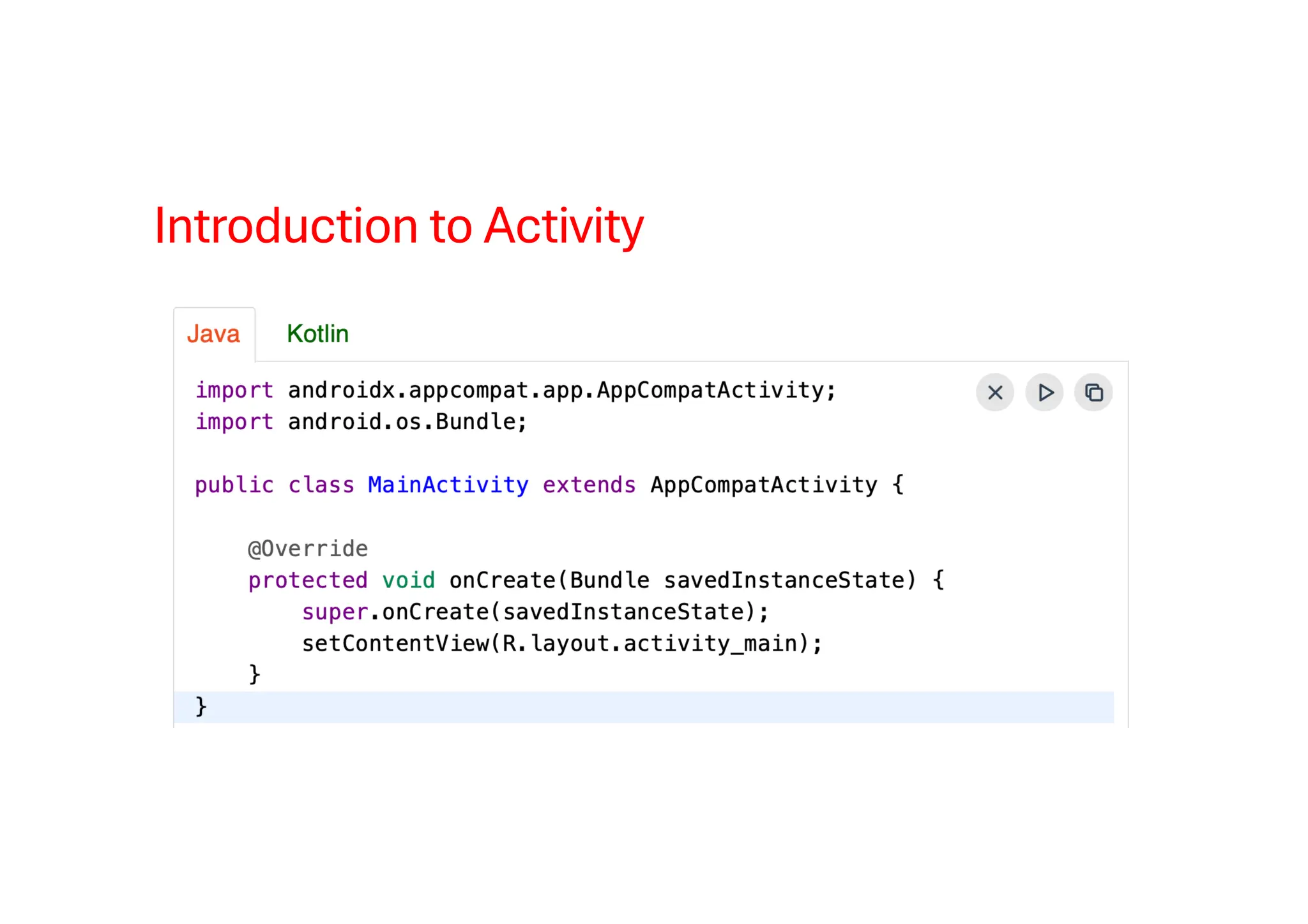
• Layout for a particular activity is set with the help of setContentView()
.setContentView() is a function that takes View as a parameter. The view parameter
basically contains the layout file for that activity. The code has been given in both
Java and Kotlin Programming Language for Android.
Introduction to Activity
Activity Lifecycle
• In Android, an activity is referred to as one screen in an application. It is very similar
to a single window of any desktop application. An Android app consists of one or
more screens or activities.
• Each activity goes through various stages or a lifecycle and is managed by activity
stacks.
• So when a new activity starts, the previous one always remains below it. There are
four stages of an activity.
• If an activity is in the foreground of the screen i.e at the top of the stack, then it is
said to be active or running. This is usually the activity that the user is currently
interacting with.
• If an activity has lost focus and a non-full-sized or transparent activity has focused
on top of your activity. In such a case either another activity has a higher position in
multi-window mode or the activity itself is not focusable in the current window
mode. Such activity is completely alive.
Activity Lifecycle
• If an activity is completely hidden by another activity, it is stopped or hidden. It still
retains all the information, and as its window is hidden thus it will often be killed by
the system when memory is needed elsewhere.
• The system can destroy the activity from memory by either asking it to finish or
simply killing its process. When it is displayed again to the user, it must be
completely restarted and restored to its previous state.
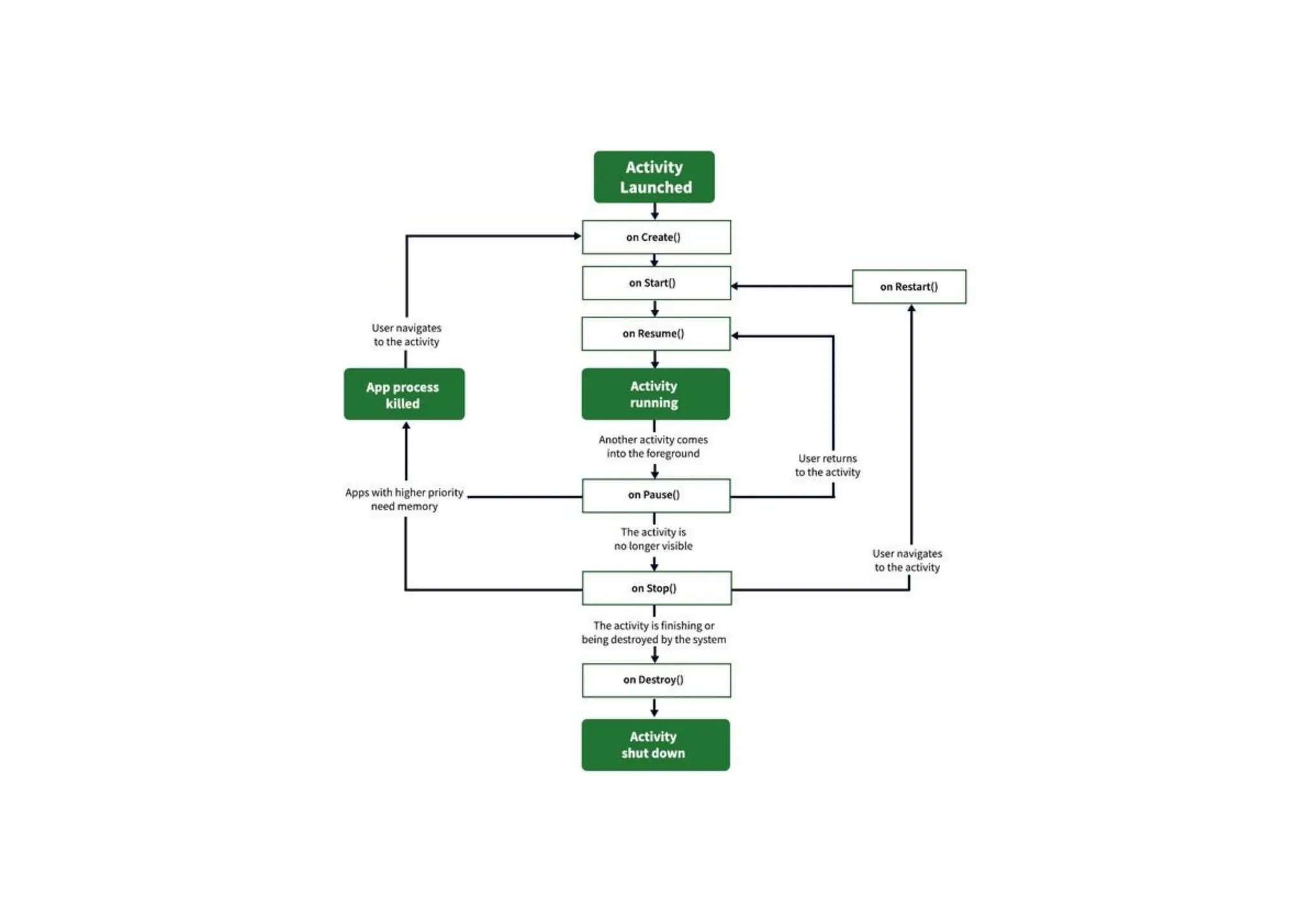
• For each stage, android provides us with a set of 7 methods that have their own
significance for each stage in the life cycle. The image shows a path of migration
whenever an app switches from one state to another.
Activity Lifecycle
• onCreate() :- It is called when the activity is first created. This is where all the static
work is done like creating views, binding data to lists, etc. This method also provides
a Bundle containing its previous frozen state, if there was one.
• onStart() :- It is invoked when the activity is visible to the user. It is followed by
onResume() if the activity is invoked from the background. It is also invoked after
onCreate() when the activity is first started.
• onRestart() :- It is invoked after the activity has been stopped and prior to its starting
stage and thus is always followed by onStart() when any activity is revived from
background to on-screen.
• onResume() :- It is invoked when the activity starts interacting with the user. At this
point, the activity is at the top of the activity stack, with a user interacting with it.
Always followed by onPause() when the activity goes into the background or is
closed by the user.
Activity Lifecycle
• onPause() :- It is invoked when an activity is going into the background but has not
yet been killed. It is a counterpart to onResume(). When an activity is launched in
front of another activity, this callback will be invoked on the top activity (currently on
screen). The activity, under the active activity, will not be created until the active
activity’s onPause() returns, so it is recommended that heavy processing should not
be done in this part.
• onStop() :- It is invoked when the activity is not visible to the user. It is followed
by onRestart() when the activity is revoked from the background, followed by
onDestroy() when the activity is closed or finished, and nothing when the activity
remains on the background only. Note that this method may never be called, in low
memory situations where the system does not have enough memory to keep the
activity’s process running after its onPause() method is called.
Activity Lifecycle
• onDestroy() :- The final call received before the activity is destroyed. This can
happen either because the activity is finishing (when finish() is invoked) or because
the system is temporarily destroying this instance of the activity to save space. To
distinguish between these scenarios, check it with isFinishing() method.
Activity
Lifecycle
Creating and Managing Activities
• Every app project must have an AndroidManifest.xml file, with precisely that name,
at the root of the project source set. The manifest file describes essential
information about your app to the Android build tools, the Android operating system,
and Google Play.
• Among many other things, the manifest file is required to declare the following:
• The components of the app, including all activities, services, broadcast receivers,
and content providers. Each component must define basic properties, such as the
name of its Kotlin or Java class. It can also declare capabilities, such as which
device configurations it can handle, and intent filters that describe how the
component can be started. Read more about app components in a following
section.
Creating and Managing Activities
• The permissions that the app needs in order to access protected parts of the system
or other apps. It also declares any permissions that other apps must have if they
want to access content from this app.
• The hardware and software features the app requires, which affects which devices
can install the app from Google Play.
• If you're using Android Studio to build your app, the manifest file is created for you
and most of the essential manifest elements are added as you build your app,
especially when using code templates.
Navigation between Activity
• When making your Android apps you may get to the point where you need to create
multiple Activities for different screens within your app. When you have multiple
Activities you will need a way to transition between them in a way that doesn’t break
the back button functionality.
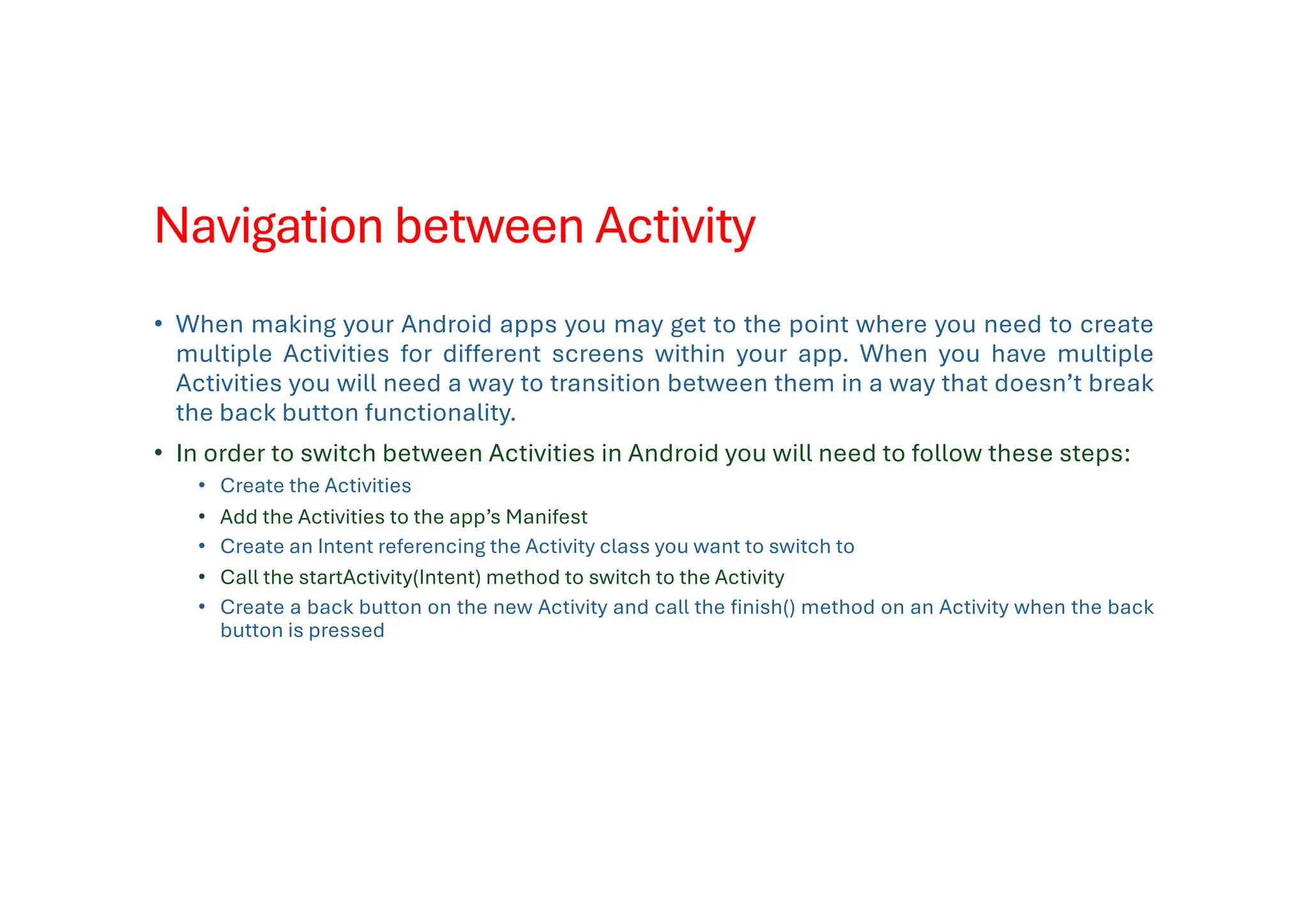
• In order to switch between Activities in Android you will need to follow these steps:
• Create the Activities
• Add the Activities to the app’s Manifest
• Create an Intent referencing the Activity class you want to switch to
• Call the startActivity(Intent) method to switch to the Activity
• Create a back button on the new Activity and call the finish() method on an Activity when the back
button is pressed
What is a Fragment?
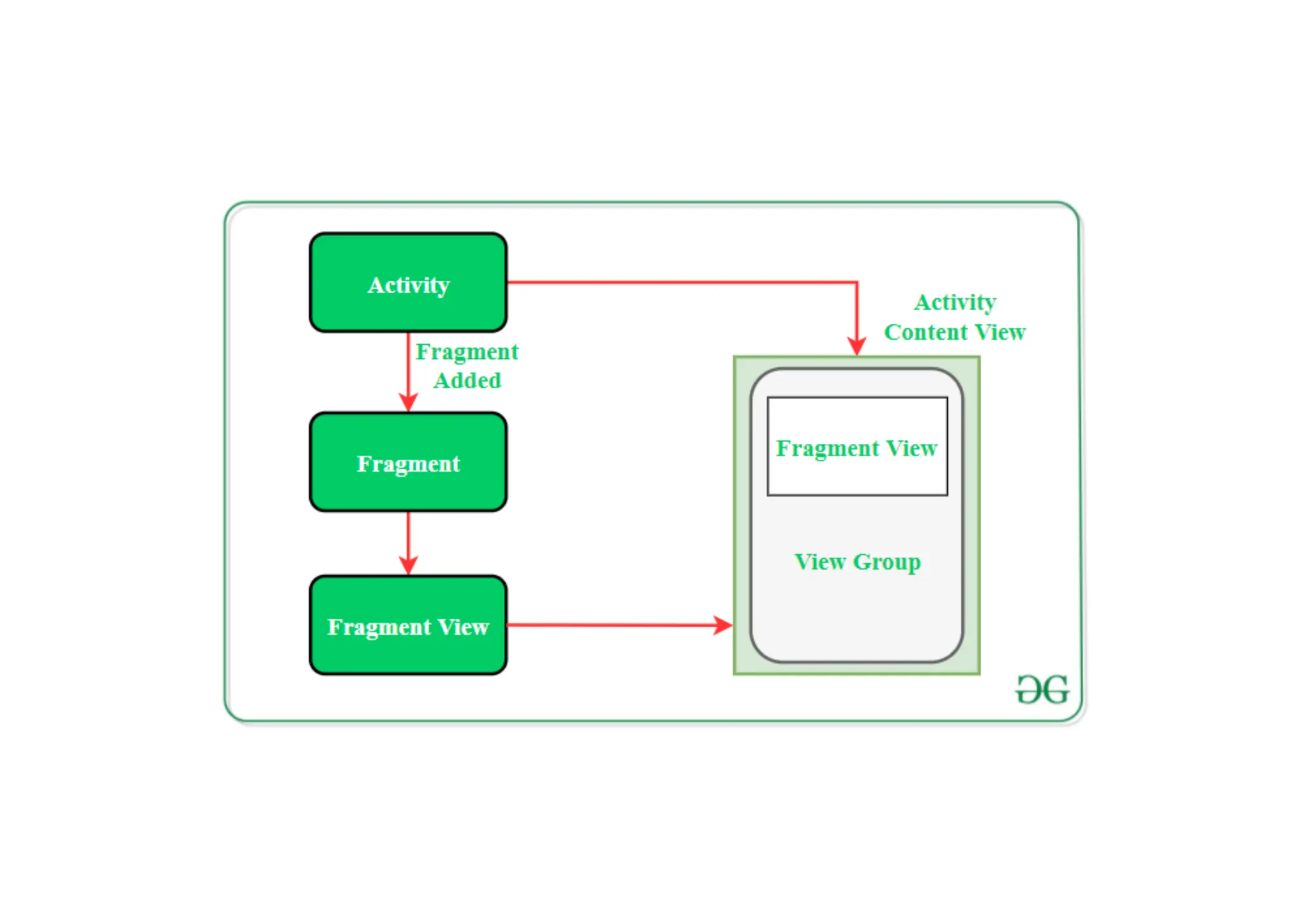
• In Android, the fragment is the part of the Activity that represents a portion of the
User Interface(UI) on the screen. It is the modular section of the Android activity that
is very helpful in creating UI designs that are flexible in nature and auto-adjustable
based on the device screen size.
• For example, if the host activity is paused, then all the methods and operations of
the fragment related to that activity will stop functioning, the fragment is also
termed a sub-activity. Fragments in Android can be added, removed, or replaced
dynamically i.e., while the activity is running.
What is a Fragment?
• Types of Android Fragments
• Single Fragment: Display only one single view on the device screen. This type of
fragment in android is mostly used for mobile phones.
• List Fragment: This Fragment is used to display a list-view from which the user can
select the desired sub-activity. The menu drawer of apps like Gmail is the best
example of this kind of android fragment.
• Fragment Transaction: This kind of fragments in android supports the transition from
one fragment in android to another at run time. Users can switch between multiple
fragments like switching tabs.
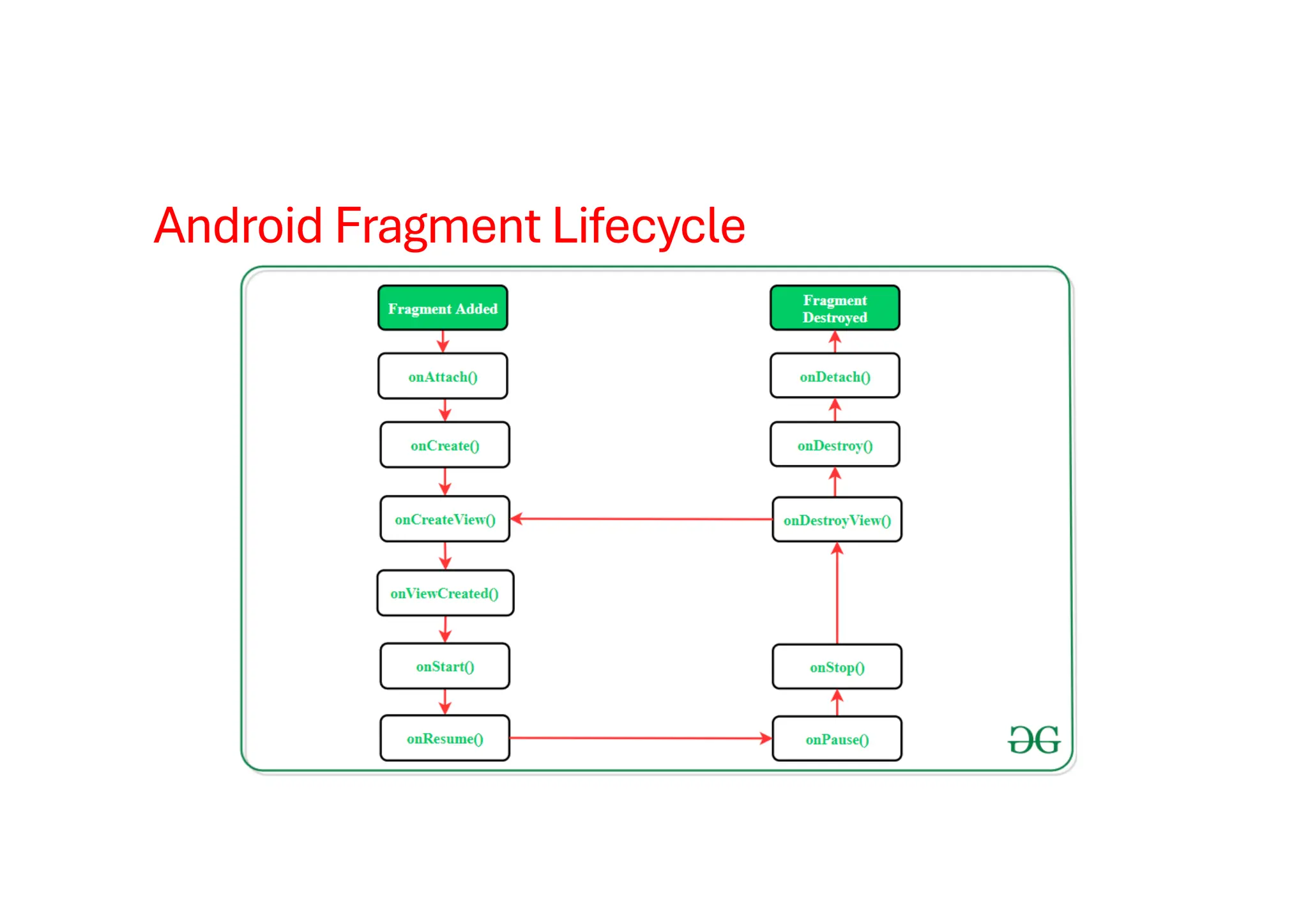
Android Fragment Lifecycle
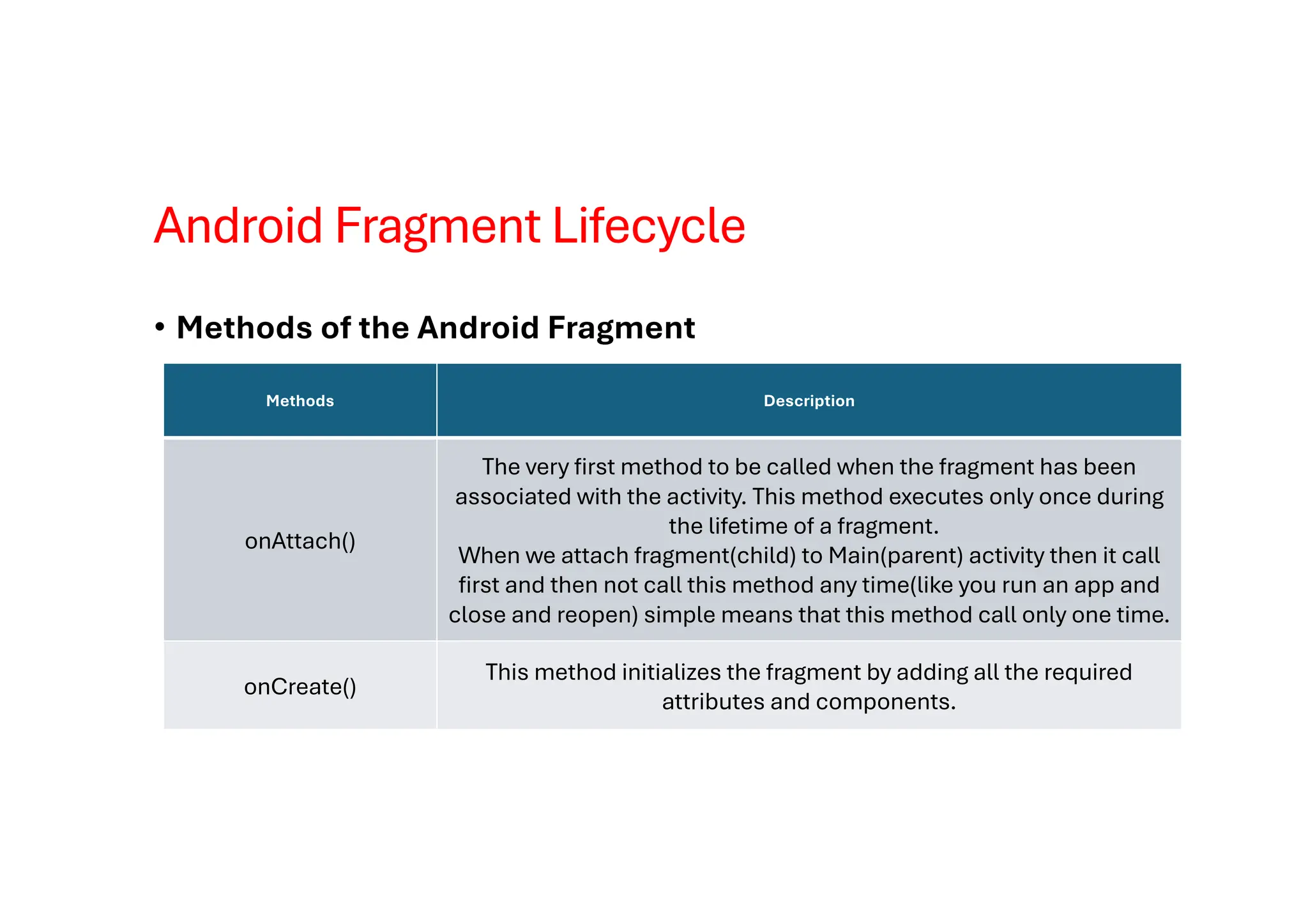
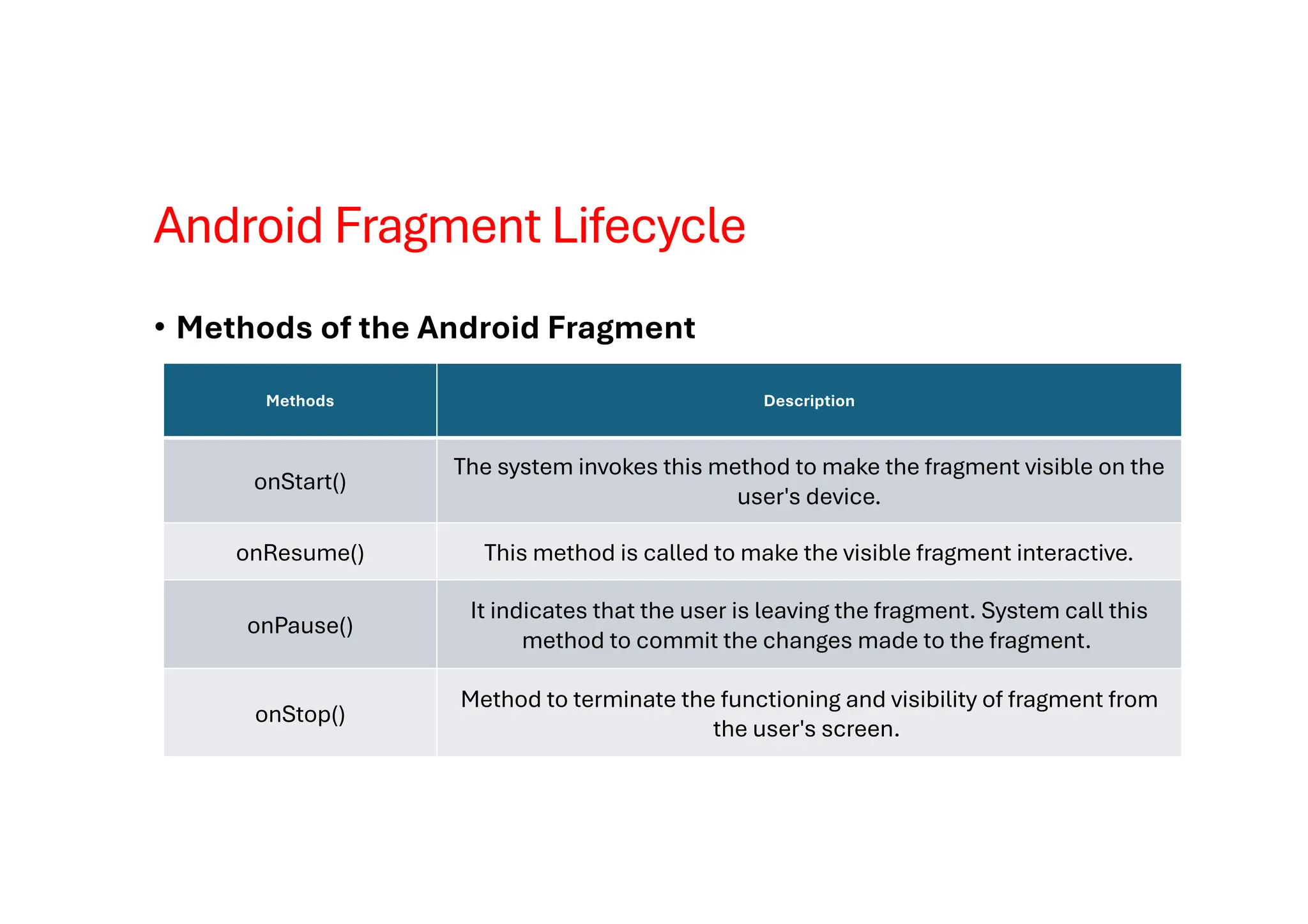
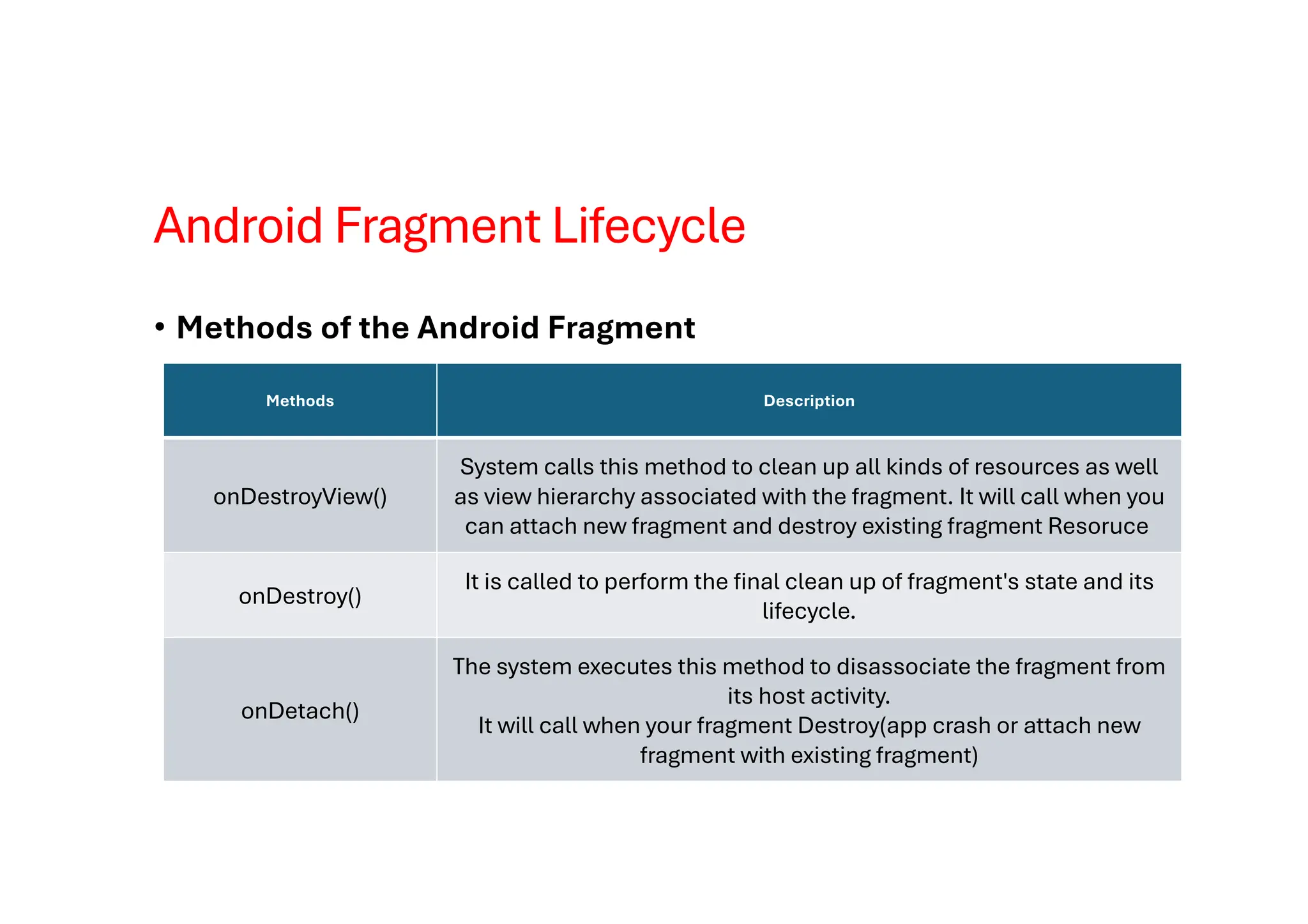
• Methods of the Android Fragment
Methods Description
onAttach()
The very first method to be called when the fragment has been
associated with the activity. This method executes only once during
the lifetime of a fragment.
When we attach fragment(child) to Main(parent) activity then it call
first and then not call this method any time(like you run an app and
close and reopen) simple means that this method call only one time.
onCreate()
This method initializes the fragment by adding all the required
attributes and components.
Android Fragment Lifecycle
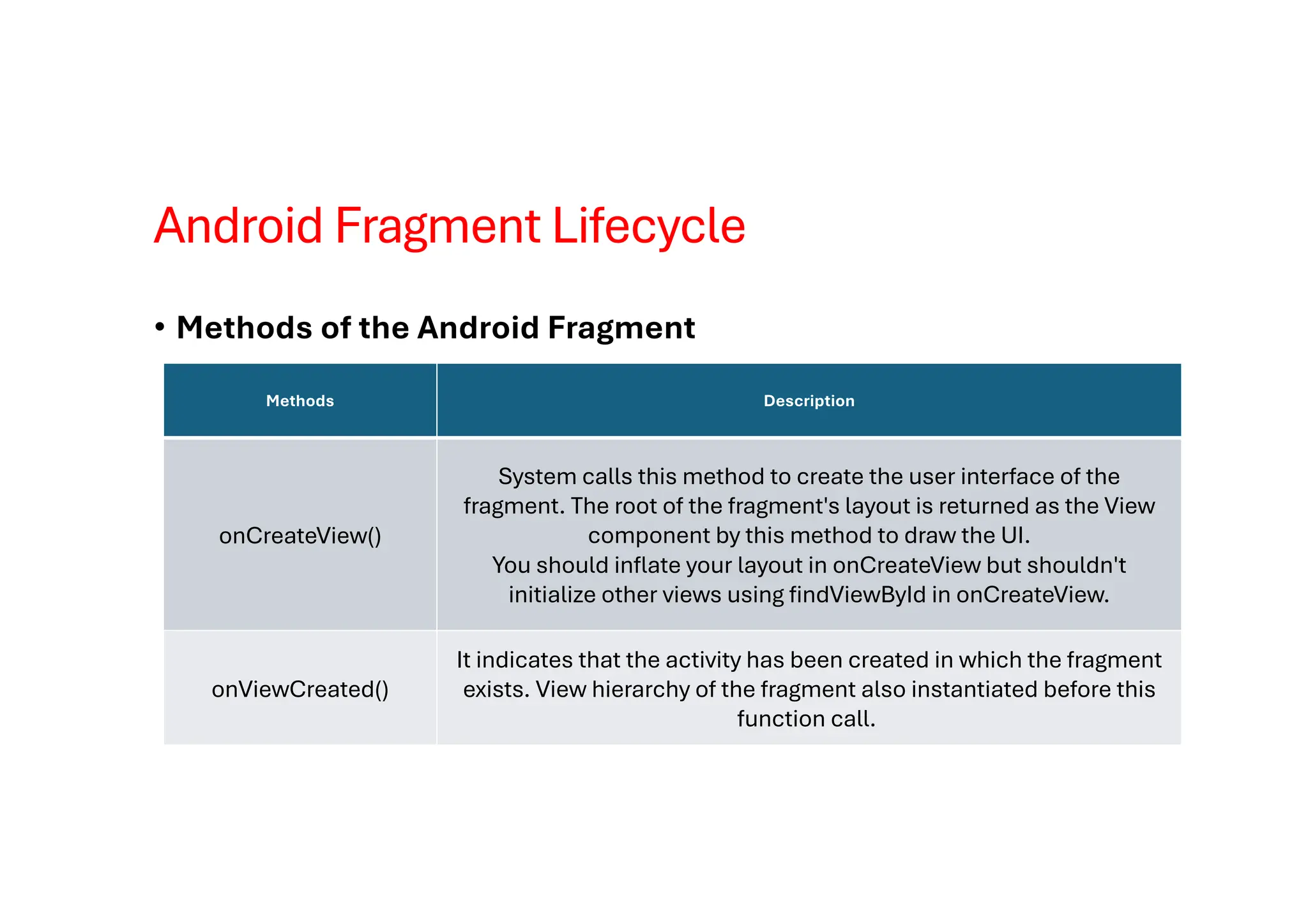
• Methods of the Android Fragment
Methods Description
onCreateView()
System calls this method to create the user interface of the
fragment. The root of the fragment's layout is returned as the View
component by this method to draw the UI.
You should inflate your layout in onCreateView but shouldn't
initialize other views using findViewById in onCreateView.
onViewCreated()
It indicates that the activity has been created in which the fragment
exists. View hierarchy of the fragment also instantiated before this
function call.
Android Fragment Lifecycle
• Methods of the Android Fragment
Methods Description
onStart()
The system invokes this method to make the fragment visible on the
user's device.
onResume() This method is called to make the visible fragment interactive.
onPause()
It indicates that the user is leaving the fragment. System call this
method to commit the changes made to the fragment.
onStop()
Method to terminate the functioning and visibility of fragment from
the user's screen.
Android Fragment Lifecycle
• Methods of the Android Fragment
Methods Description
onDestroyView()
System calls this method to clean up all kinds of resources as well
as view hierarchy associated with the fragment. It will call when you
can attach new fragment and destroy existing fragment Resoruce
onDestroy()
It is called to perform the final clean up of fragment's state and its
lifecycle.
onDetach()
The system executes this method to disassociate the fragment from
its host activity.
It will call when your fragment Destroy(app crash or attach new
fragment with existing fragment)
Android Fragment Lifecycle
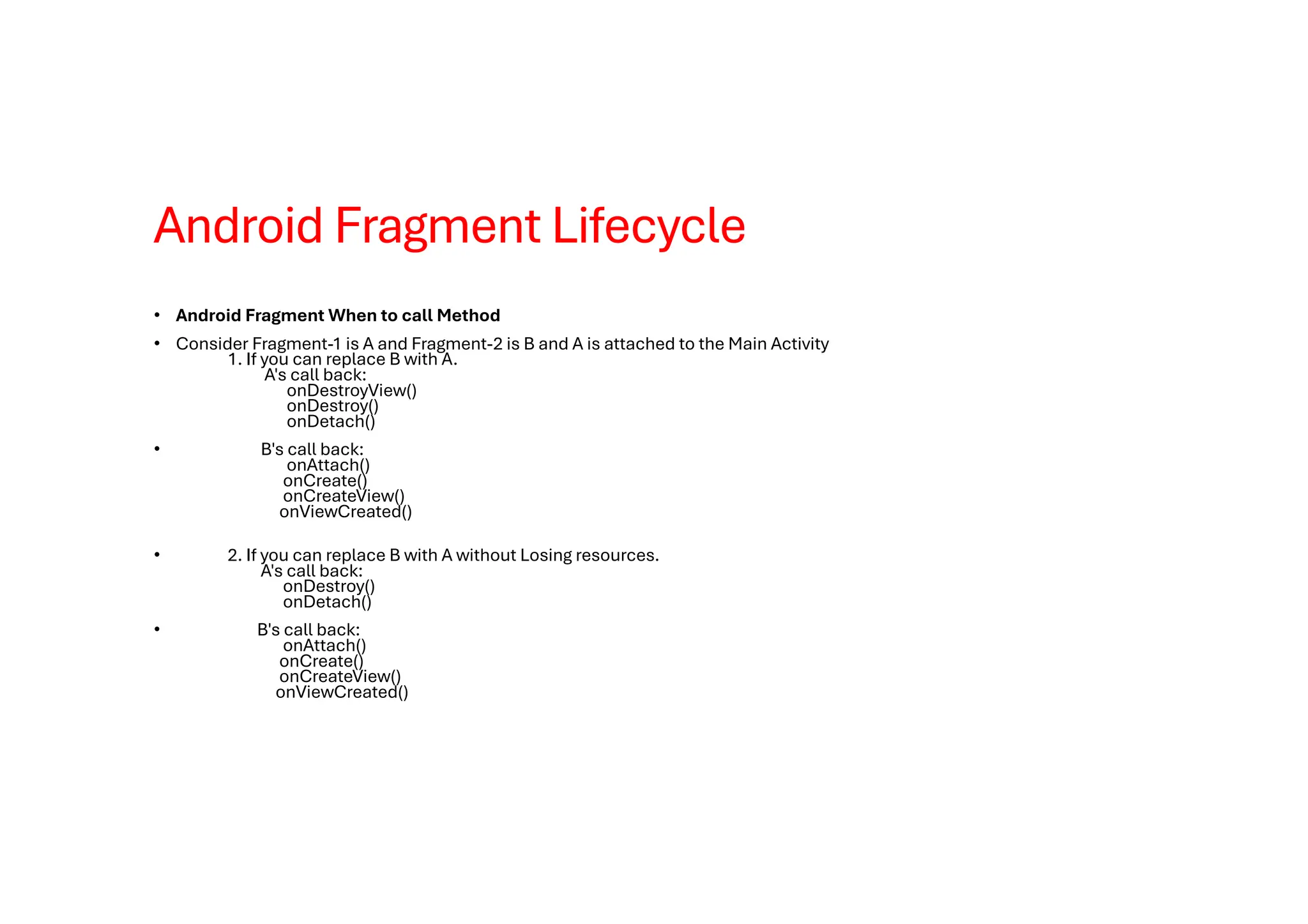
• Android Fragment When to call Method
• Consider Fragment-1 is A and Fragment-2 is B and A is attached to the Main Activity
1. If you can replace B with A.
A's call back:
onDestroyView()
onDestroy()
onDetach()
• B's call back:
onAttach()
onCreate()
onCreateView()
onViewCreated()
• 2. If you can replace B with A without Losing resources.
A's call back:
onDestroy()
onDetach()
• B's call back:
onAttach()
onCreate()
onCreateView()
onViewCreated()
Adding and Managing Fragment
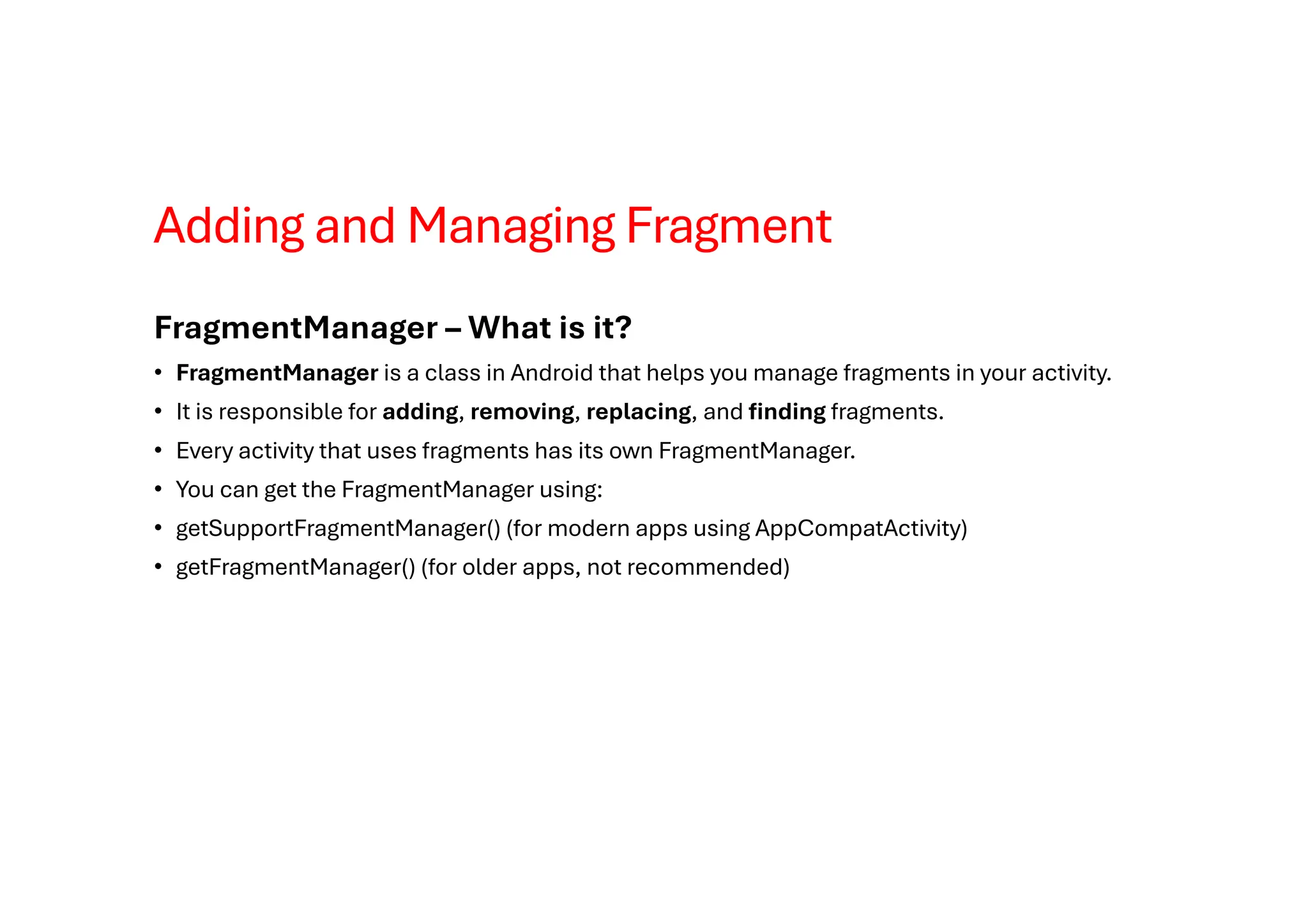
FragmentManager – What is it?
• FragmentManager is a class in Android that helps you manage fragments in your activity.
• It is responsible for adding, removing, replacing, and finding fragments.
• Every activity that uses fragments has its own FragmentManager.
• You can get the FragmentManager using:
• getSupportFragmentManager() (for modern apps using AppCompatActivity)
• getFragmentManager() (for older apps, not recommended)
Adding and Managing Fragment
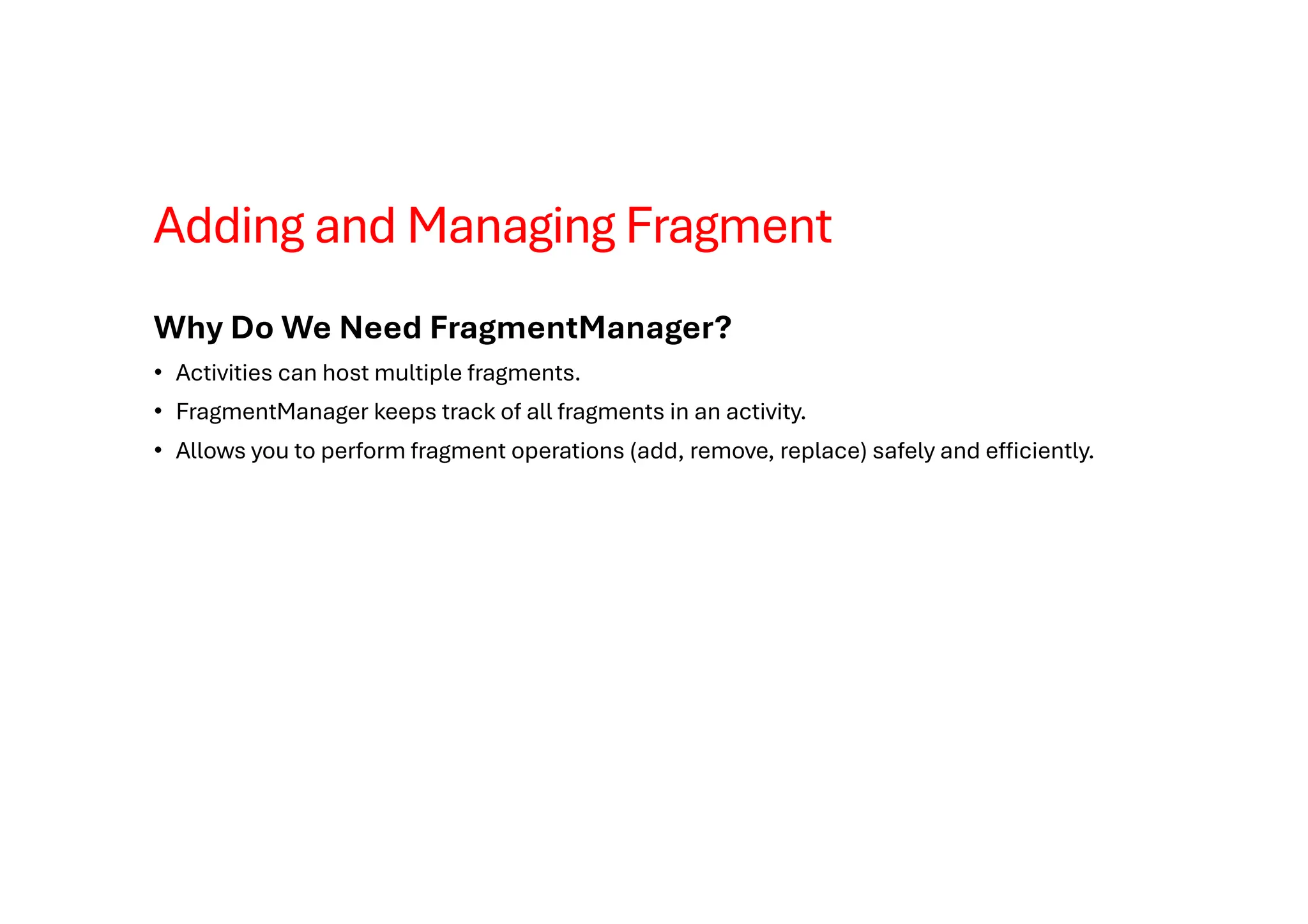
Why Do We Need FragmentManager?
• Activities can host multiple fragments.
• FragmentManager keeps track of all fragments in an activity.
• Allows you to perform fragment operations (add, remove, replace) safely and efficiently.
Adding and Managing Fragment
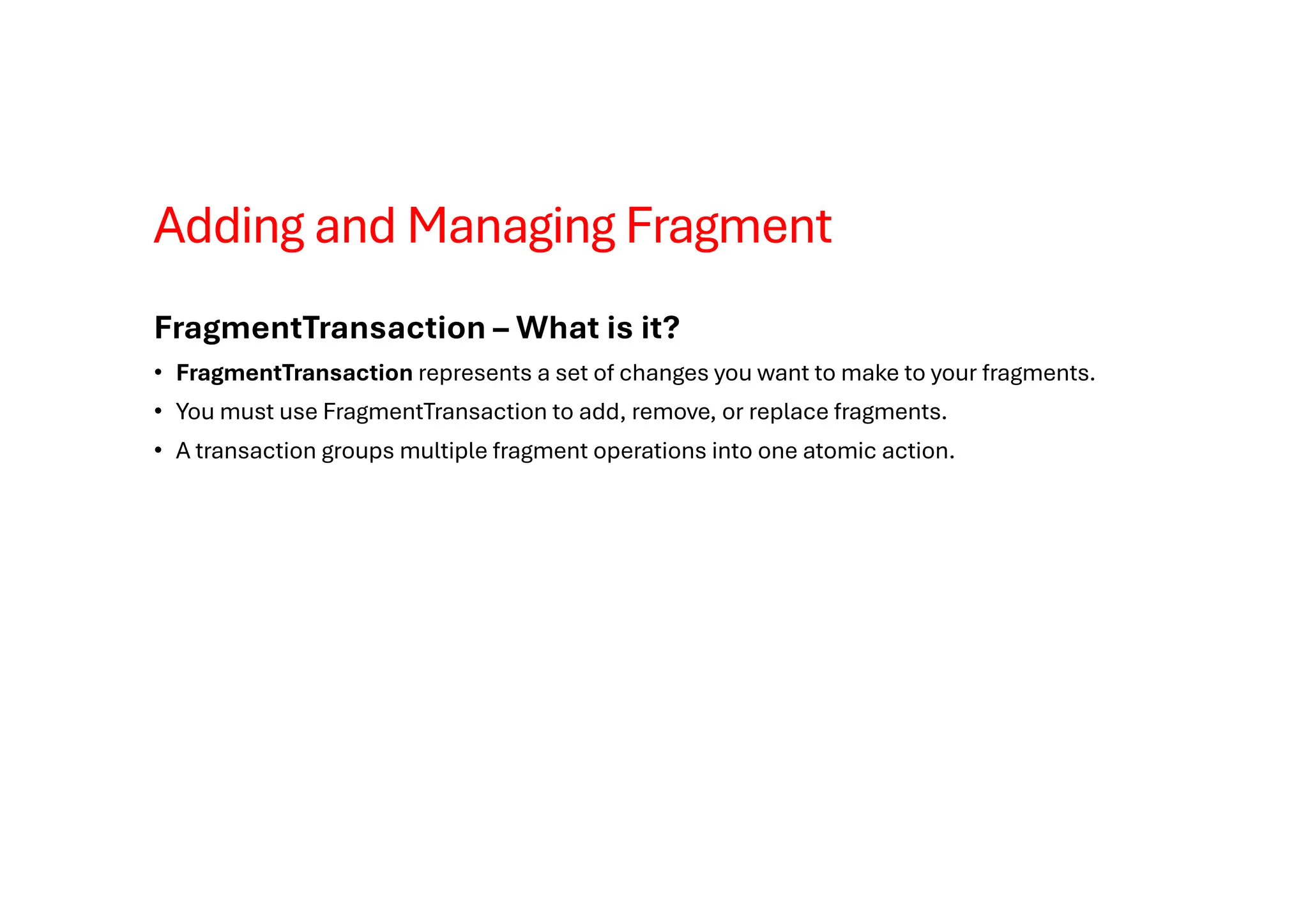
FragmentTransaction – What is it?
• FragmentTransaction represents a set of changes you want to make to your fragments.
• You must use FragmentTransaction to add, remove, or replace fragments.
• A transaction groups multiple fragment operations into one atomic action.
Adding and Managing Fragment
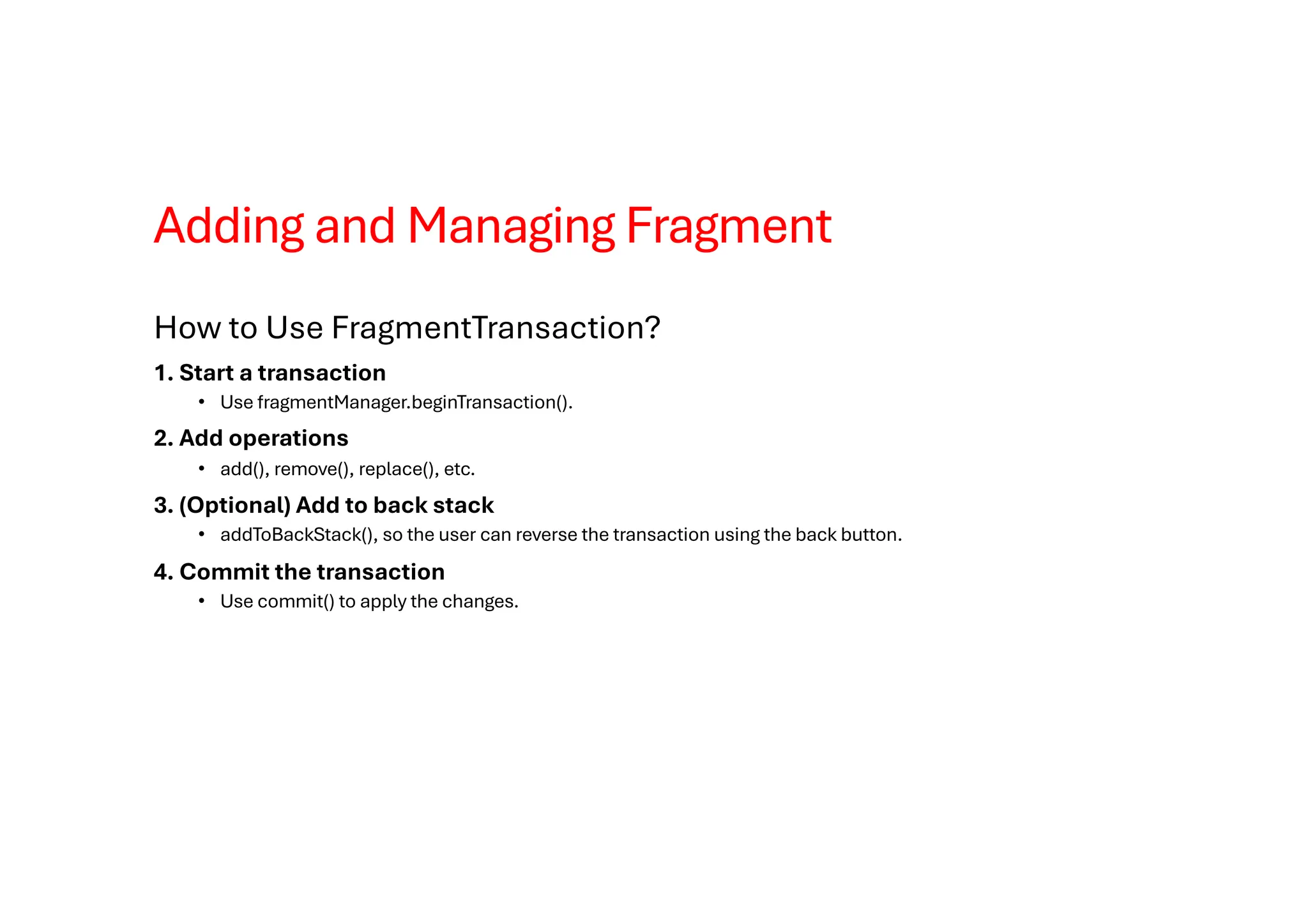
How to Use FragmentTransaction?
1. Start a transaction
• Use fragmentManager.beginTransaction().
2. Add operations
• add(), remove(), replace(), etc.
3. (Optional) Add to back stack
• addToBackStack(), so the user can reverse the transaction using the back button.
4. Commit the transaction
• Use commit() to apply the changes.
Adding and Managing Fragment
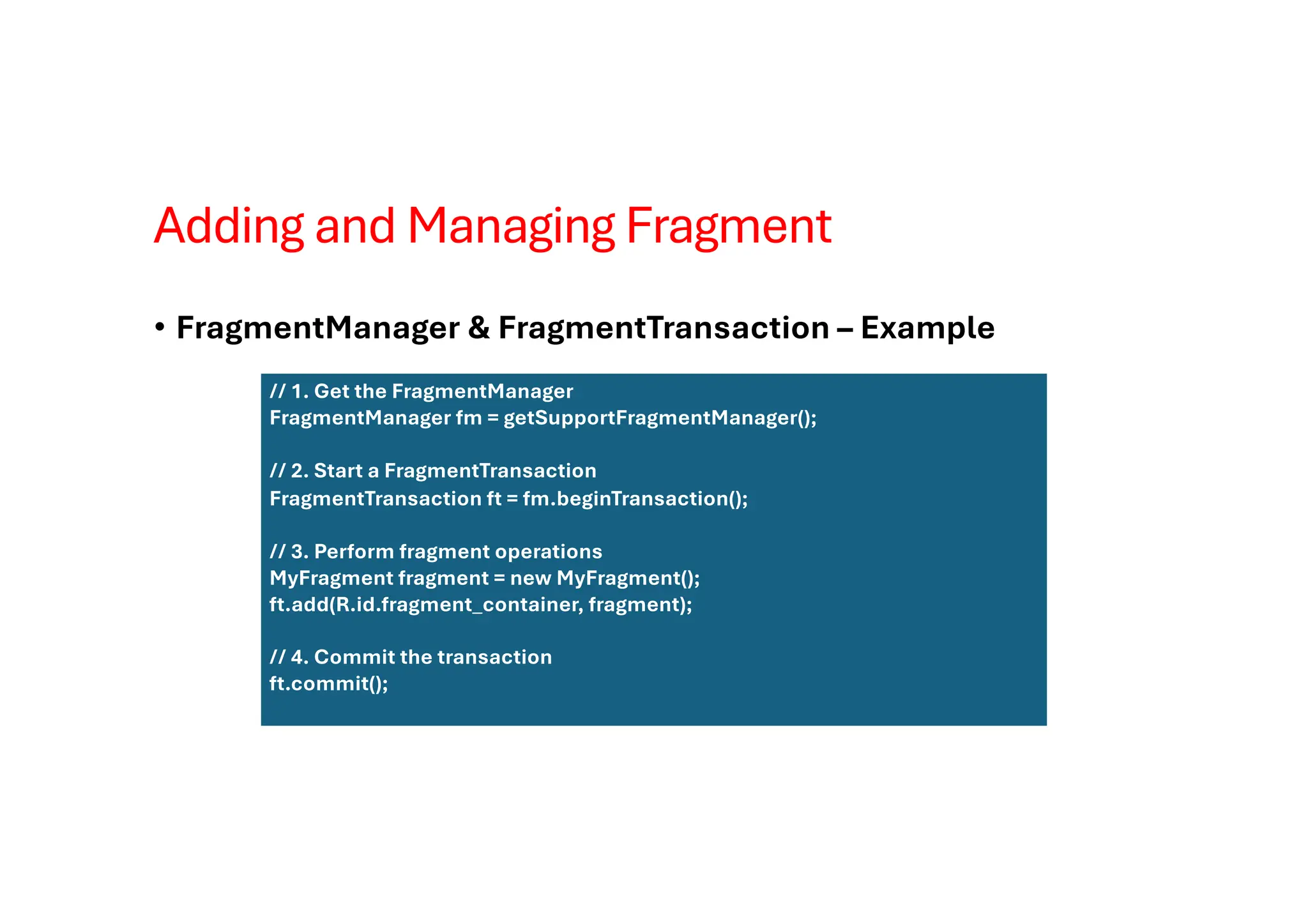
• FragmentManager & FragmentTransaction – Example
// 1. Get the FragmentManager
FragmentManager fm = getSupportFragmentManager();
// 2. Start a FragmentTransaction
FragmentTransaction ft = fm.beginTransaction();
// 3. Perform fragment operations
MyFragment fragment = new MyFragment();
ft.add(R.id.fragment_container, fragment);
// 4. Commit the transaction
ft.commit();
Interaction between Fragments
• When talking about Android Apps, the first thing that comes to mind is variety. There are so
many varieties of Android apps providing the user with a beautiful dynamic UI. One such
feature is to navigate our Android Apps using left and right swipes as opposed to clicking on
buttons. Not only does it look more simple and more elegant but also provides ease of
access to the user.
• There are many apps that use this swipe feature to swipe through different activities in the
app. For example, the popular chatting app, Snapchat, uses it to swipe through lenses,
chats, and stories. Here, we will learn how to implement swipe views in our own Android app.
Interaction between Fragments
• We can implement this by use of two features:
• Fragments:A fragment is just a part of an activity. We can have a fragment that takes up part
of a screen or a whole screen. Or we can show multiple fragments at the same time to make
up a whole screen. Within an activity, we can also swap out different fragments with each
other.
• ViewPager2: ViewPager2 is a class in Java that is used in conjunction with Fragments. It is
mostly used for designing the UI of the app.
Interaction between Fragments
• How Does it Work?
• First, we need to set an adapter on the ViewPager2 using the setAdapter() method. The
adapter which we set is called FragmentStateAdapter which is an abstract class in Java.
Hence, we create our own SampleFragmentStateAdapter which extends
from FragmentStateAdapter and displays our Fragments on the screen.
• When we launch the app in our device, the ViewPager2 asks the
SampleFragmentPagerAdapter how many pages are there to swipe through.
The getItemCount() method of the adapter returns this answer to the ViewPager2.
• Then the ViewPager2 asks for the Fragment which is at the 0th position and the adapter
returns that particular fragment which is then displayed by ViewPager2 on our screen. When
we swipe left, ViewPager2 asks the adapter for the Fragment at 1st position and similarly, it is
displayed on the screen and it continues so on.
Interaction between Fragments
• How Does it Work?
• First, we need to set an adapter on the ViewPager2 using the setAdapter() method. The
adapter which we set is called FragmentStateAdapter which is an abstract class in Java.
Hence, we create our own SampleFragmentStateAdapter which extends
from FragmentStateAdapter and displays our Fragments on the screen.
• When we launch the app in our device, the ViewPager2 asks the
SampleFragmentPagerAdapter how many pages are there to swipe through.
The getItemCount() method of the adapter returns this answer to the ViewPager2.
• Then the ViewPager2 asks for the Fragment which is at the 0th position and the adapter
returns that particular fragment which is then displayed by ViewPager2 on our screen. When
we swipe left, ViewPager2 asks the adapter for the Fragment at 1st position and similarly, it is
displayed on the screen and it continues so on.
Understanding and using Intent
• What is intent in Android?
• The intent is a messaging object which passes between components like services, content
providers, activities, etc. Normally startActivity() method is used for invoking any activity.
Some of the general functions of intent are:
• Start service
• Launch Activity
• Display web page
• Display contact list
• Message broadcasting
Understanding and using Intent
Methods Description
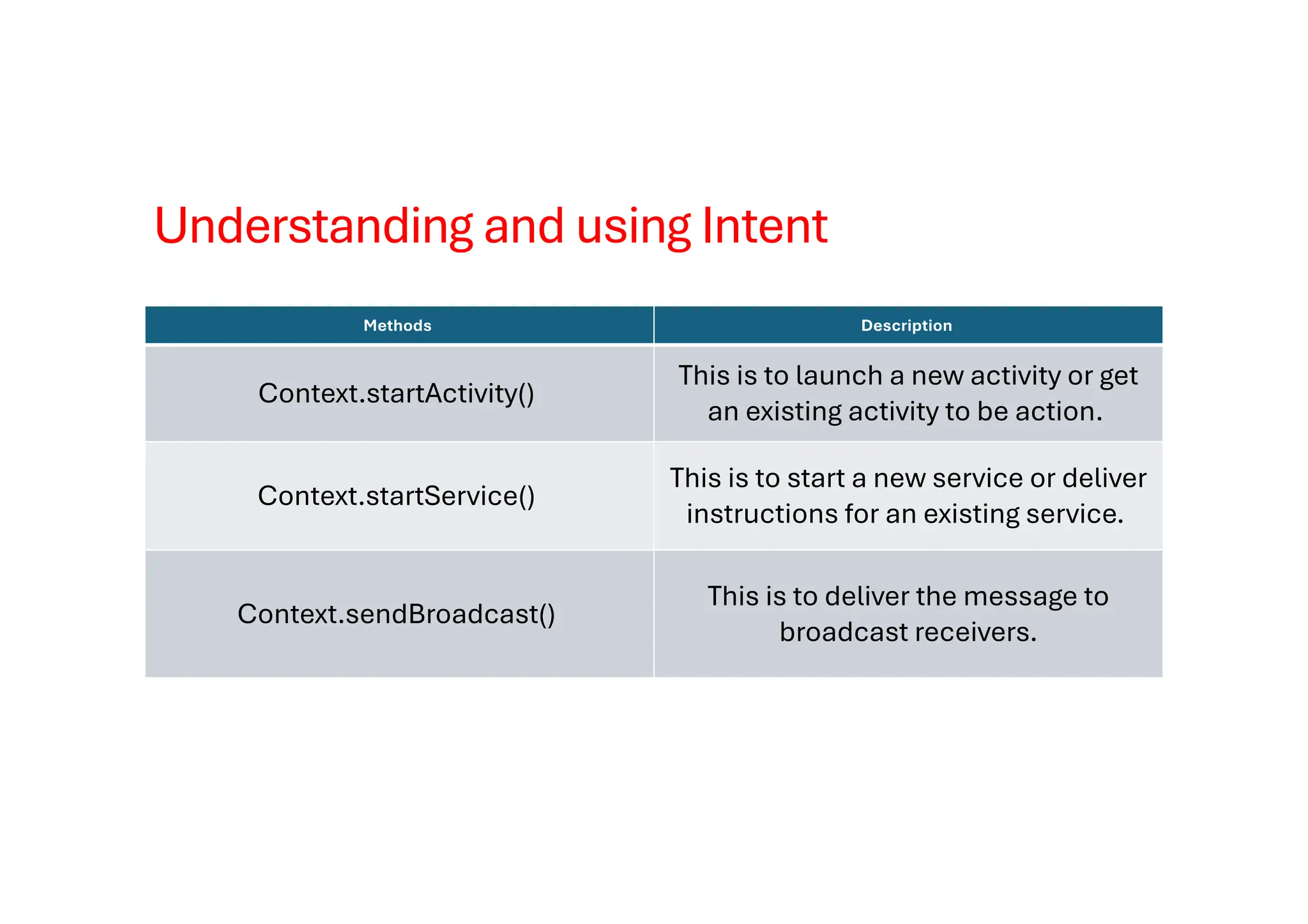
Context.startActivity()
This is to launch a new activity or get
an existing activity to be action.
Context.startService()
This is to start a new service or deliver
instructions for an existing service.
Context.sendBroadcast()
This is to deliver the message to
broadcast receivers.
Understanding and using Intent
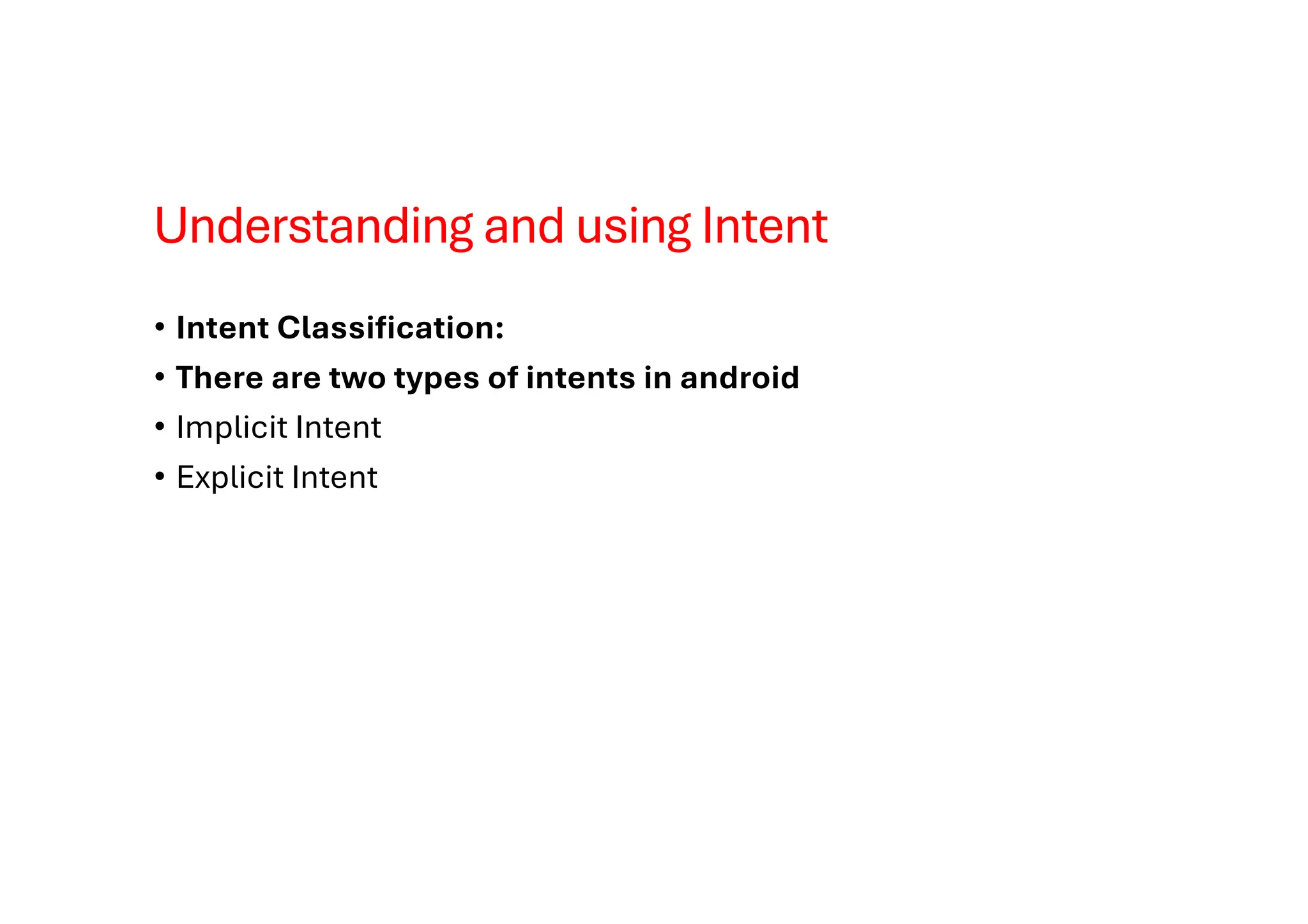
• Intent Classification:
• There are two types of intents in android
• Implicit Intent
• Explicit Intent
Understanding and using Intent
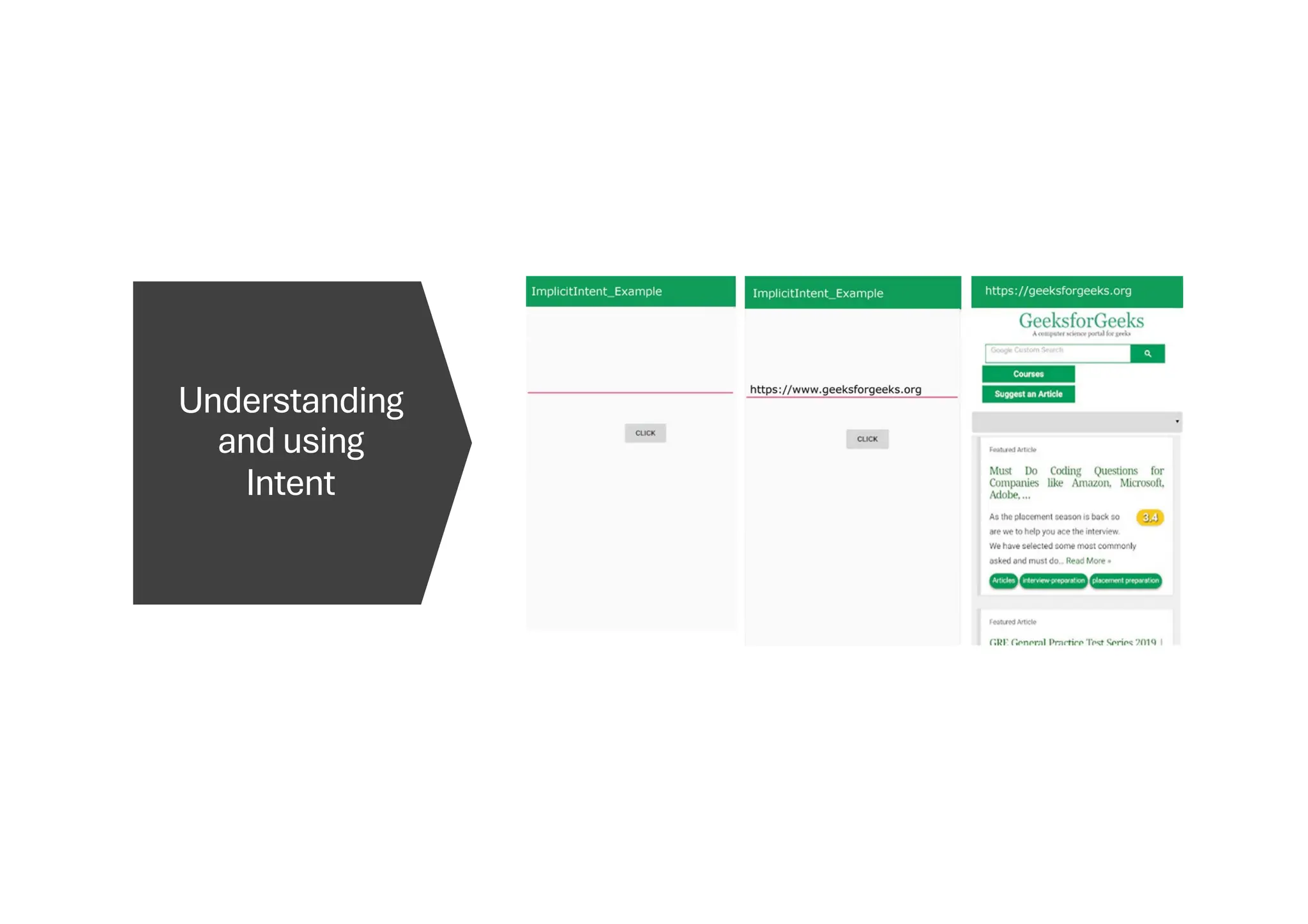
• Implicit Intent
• Using implicit Intent, components can’t be specified. An action to be performed is declared
by implicit intent. Then android operating system will filter out components that will respond
to the action.
Understanding
and using
Intent
Understanding and using Intent
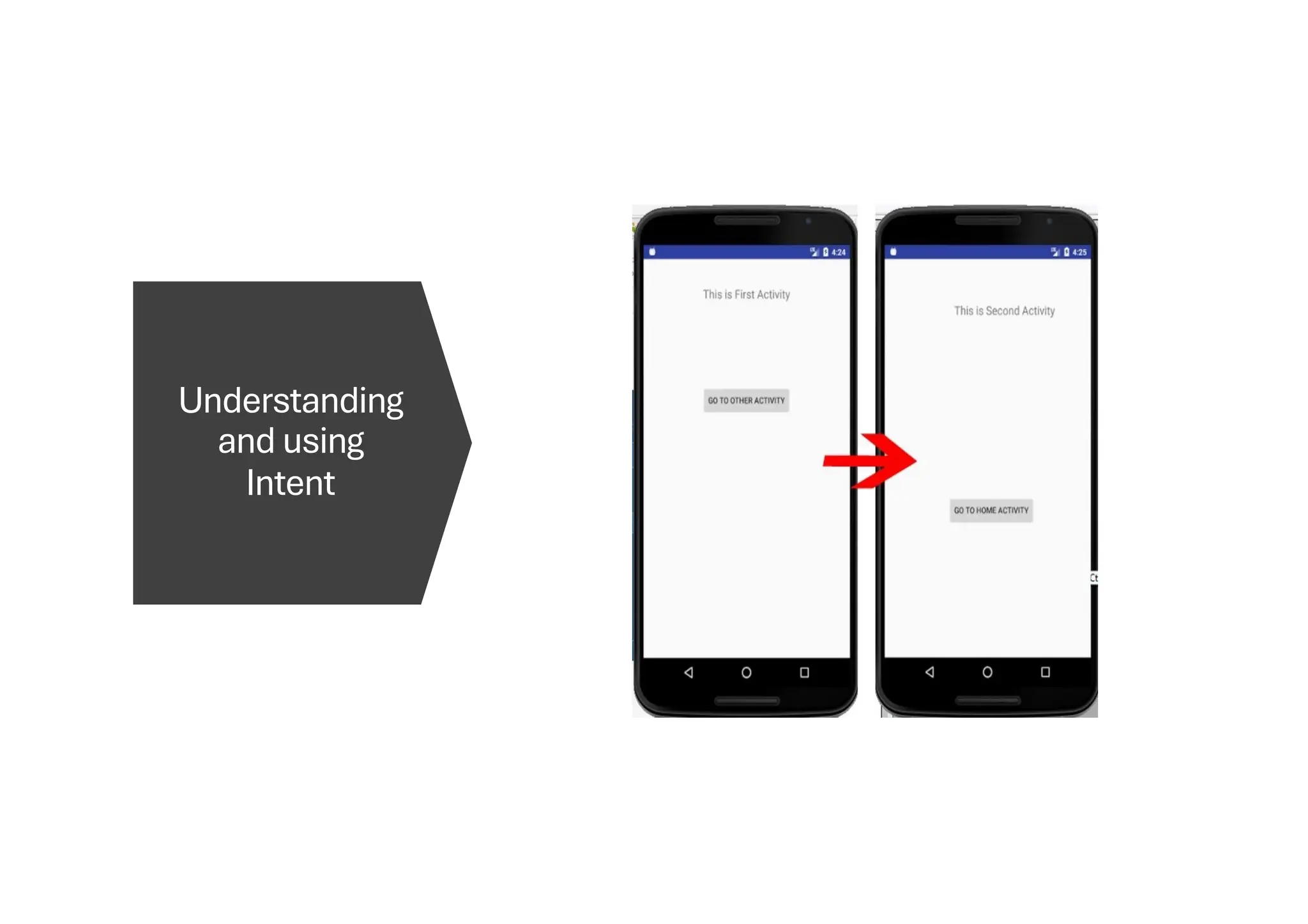
• Explicit Intent
• Using explicit intent any other component can be specified. In other words, the targeted
component is specified by explicit intent. So only the specified target component will be
invoked.
Understanding
and using
Intent
Event Handling
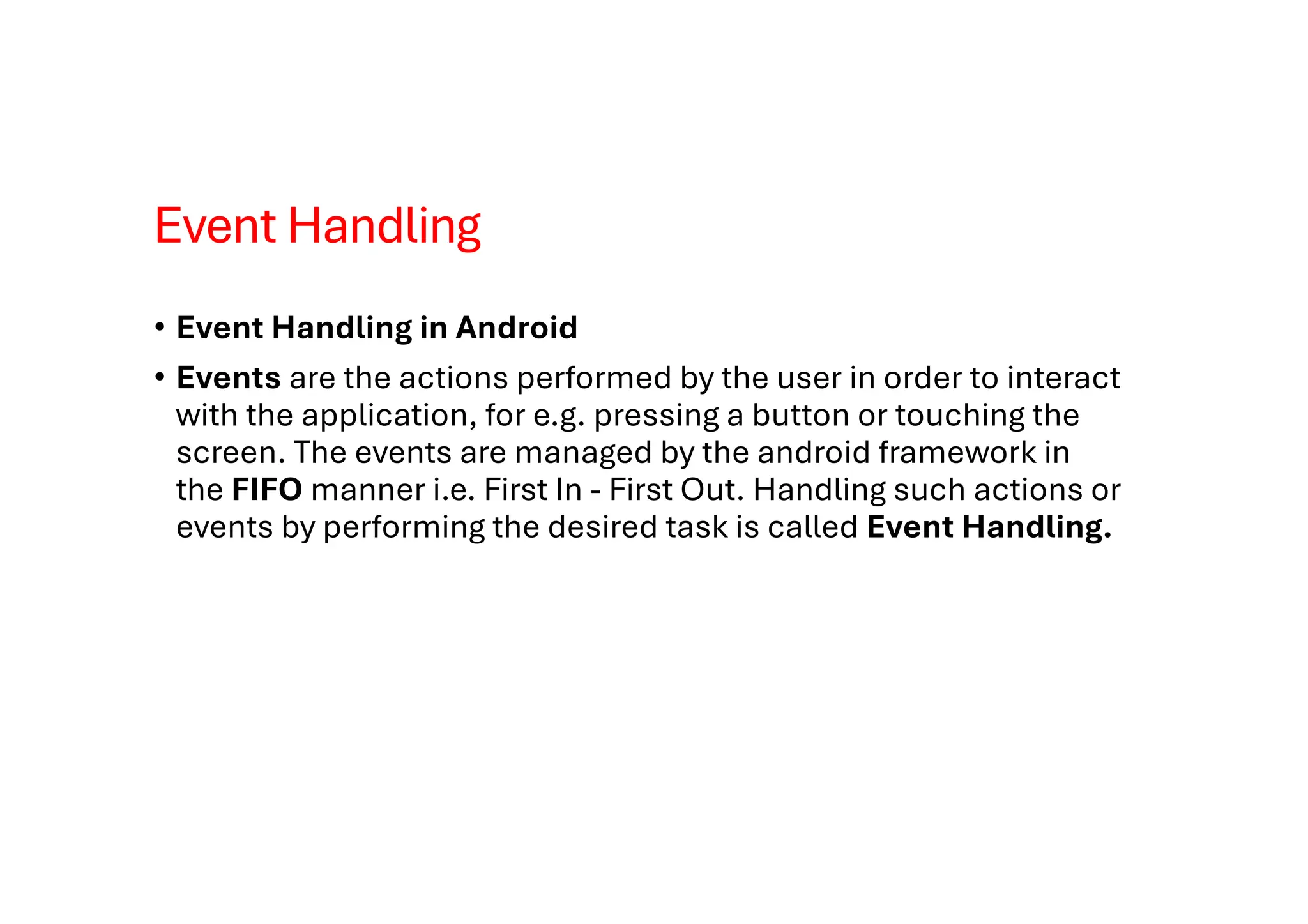
• Event Handling in Android
• Events are the actions performed by the user in order to interact
with the application, for e.g. pressing a button or touching the
screen. The events are managed by the android framework in
the FIFO manner i.e. First In - First Out. Handling such actions or
events by performing the desired task is called Event Handling.
Event Handling
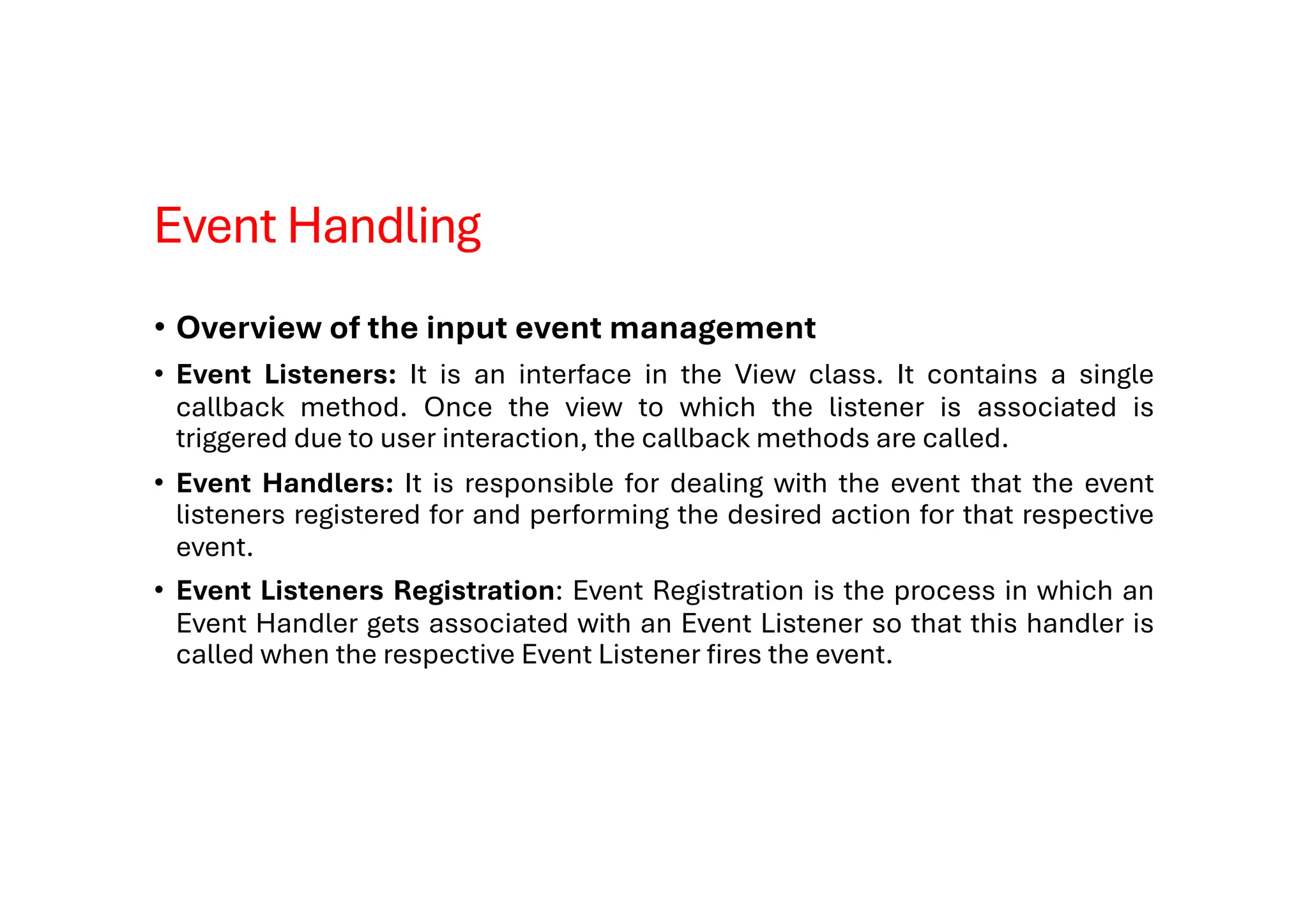
• Overview of the input event management
• Event Listeners: It is an interface in the View class. It contains a single
callback method. Once the view to which the listener is associated is
triggered due to user interaction, the callback methods are called.
• Event Handlers: It is responsible for dealing with the event that the event
listeners registered for and performing the desired action for that respective
event.
• Event Listeners Registration: Event Registration is the process in which an
Event Handler gets associated with an Event Listener so that this handler is
called when the respective Event Listener fires the event.
Event Handling
• Overview of the input event management
• Touch Mode: When using an app with physical keys it becomes necessary to give focus to
buttons on which the user wants to perform the action but if the device is touch-enabled and
the user interacts with the interface by touching it, then it is no longer necessary to highlight
items or give focus to particular View. In such cases, the device enters touch mode and in
such scenarios, only those views for which the isFocusableInTouchMode() is true will be
focusable, e.g. plain text widget.
Event Handling
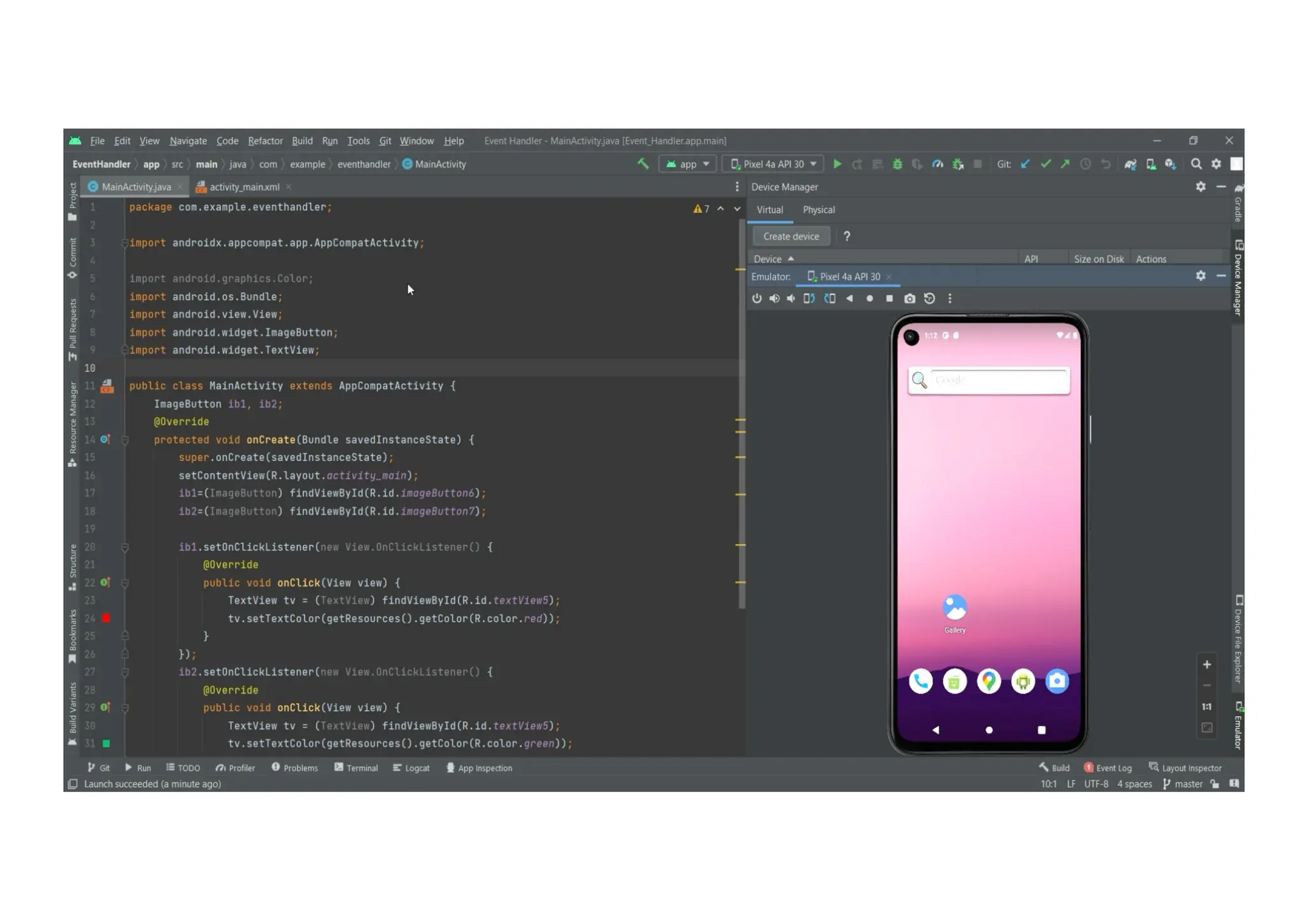
• Event Listeners and their respective event handlers
• OnClickListener() - This method is called when the user clicks, touches, or focuses
on any view (widget) like Button, ImageButton, Image, etc. Event handler used for
this is onClick().
• OnLongClickListener() - This method is called when the user presses and holds a
particular widget for one or more seconds. Event handler used for this is
onLongClick().
• OnMenuItemClickListener() - This method is called when the user selects a menu
item. Event handler used for this is onMenuItemClick().
• OnTouch() - This method is called either for a movement gesture on the screen or a
press and release of an on-screen key. Event handler used for this is onTouch().
Event Handling

MAD Unit - 2 Activity and Fragment Management in Android (Diploma IT)

  • 1.
    Unit - 2 Activityand Fragment Management in Android Prepared By :- Prof. Japan M. Mavani
  • 2.
    Introduction to Activity •The Activity class is a crucial component of an Android app, and the way activities are launched and put together is a fundamental part of the platform's application model. Unlike programming paradigms in which apps are launched with a main() method, the Android system initiates code in an Activity instance by invoking specific callback methods that correspond to specific stages of its lifecycle. • So it can be said that An activity is the entry point for interacting with the user. Every activity contains the layout, which has a user interface to interact with the user. As we know that every activity contains a layout associated with it, so it can be said that the activity class is the gateway, through which a user can interact programmatically with the UI.
  • 3.
    Introduction to Activity •Layout for a particular activity is set with the help of setContentView() .setContentView() is a function that takes View as a parameter. The view parameter basically contains the layout file for that activity. The code has been given in both Java and Kotlin Programming Language for Android.
  • 4.
  • 5.
    Activity Lifecycle • InAndroid, an activity is referred to as one screen in an application. It is very similar to a single window of any desktop application. An Android app consists of one or more screens or activities. • Each activity goes through various stages or a lifecycle and is managed by activity stacks. • So when a new activity starts, the previous one always remains below it. There are four stages of an activity. • If an activity is in the foreground of the screen i.e at the top of the stack, then it is said to be active or running. This is usually the activity that the user is currently interacting with. • If an activity has lost focus and a non-full-sized or transparent activity has focused on top of your activity. In such a case either another activity has a higher position in multi-window mode or the activity itself is not focusable in the current window mode. Such activity is completely alive.
  • 6.
    Activity Lifecycle • Ifan activity is completely hidden by another activity, it is stopped or hidden. It still retains all the information, and as its window is hidden thus it will often be killed by the system when memory is needed elsewhere. • The system can destroy the activity from memory by either asking it to finish or simply killing its process. When it is displayed again to the user, it must be completely restarted and restored to its previous state. • For each stage, android provides us with a set of 7 methods that have their own significance for each stage in the life cycle. The image shows a path of migration whenever an app switches from one state to another.
  • 8.
    Activity Lifecycle • onCreate():- It is called when the activity is first created. This is where all the static work is done like creating views, binding data to lists, etc. This method also provides a Bundle containing its previous frozen state, if there was one. • onStart() :- It is invoked when the activity is visible to the user. It is followed by onResume() if the activity is invoked from the background. It is also invoked after onCreate() when the activity is first started. • onRestart() :- It is invoked after the activity has been stopped and prior to its starting stage and thus is always followed by onStart() when any activity is revived from background to on-screen. • onResume() :- It is invoked when the activity starts interacting with the user. At this point, the activity is at the top of the activity stack, with a user interacting with it. Always followed by onPause() when the activity goes into the background or is closed by the user.
  • 9.
    Activity Lifecycle • onPause():- It is invoked when an activity is going into the background but has not yet been killed. It is a counterpart to onResume(). When an activity is launched in front of another activity, this callback will be invoked on the top activity (currently on screen). The activity, under the active activity, will not be created until the active activity’s onPause() returns, so it is recommended that heavy processing should not be done in this part. • onStop() :- It is invoked when the activity is not visible to the user. It is followed by onRestart() when the activity is revoked from the background, followed by onDestroy() when the activity is closed or finished, and nothing when the activity remains on the background only. Note that this method may never be called, in low memory situations where the system does not have enough memory to keep the activity’s process running after its onPause() method is called.
  • 10.
    Activity Lifecycle • onDestroy():- The final call received before the activity is destroyed. This can happen either because the activity is finishing (when finish() is invoked) or because the system is temporarily destroying this instance of the activity to save space. To distinguish between these scenarios, check it with isFinishing() method.
  • 11.
  • 12.
    Creating and ManagingActivities • Every app project must have an AndroidManifest.xml file, with precisely that name, at the root of the project source set. The manifest file describes essential information about your app to the Android build tools, the Android operating system, and Google Play. • Among many other things, the manifest file is required to declare the following: • The components of the app, including all activities, services, broadcast receivers, and content providers. Each component must define basic properties, such as the name of its Kotlin or Java class. It can also declare capabilities, such as which device configurations it can handle, and intent filters that describe how the component can be started. Read more about app components in a following section.
  • 13.
    Creating and ManagingActivities • The permissions that the app needs in order to access protected parts of the system or other apps. It also declares any permissions that other apps must have if they want to access content from this app. • The hardware and software features the app requires, which affects which devices can install the app from Google Play. • If you're using Android Studio to build your app, the manifest file is created for you and most of the essential manifest elements are added as you build your app, especially when using code templates.
  • 14.
    Navigation between Activity •When making your Android apps you may get to the point where you need to create multiple Activities for different screens within your app. When you have multiple Activities you will need a way to transition between them in a way that doesn’t break the back button functionality. • In order to switch between Activities in Android you will need to follow these steps: • Create the Activities • Add the Activities to the app’s Manifest • Create an Intent referencing the Activity class you want to switch to • Call the startActivity(Intent) method to switch to the Activity • Create a back button on the new Activity and call the finish() method on an Activity when the back button is pressed
  • 15.
    What is aFragment? • In Android, the fragment is the part of the Activity that represents a portion of the User Interface(UI) on the screen. It is the modular section of the Android activity that is very helpful in creating UI designs that are flexible in nature and auto-adjustable based on the device screen size. • For example, if the host activity is paused, then all the methods and operations of the fragment related to that activity will stop functioning, the fragment is also termed a sub-activity. Fragments in Android can be added, removed, or replaced dynamically i.e., while the activity is running.
  • 17.
    What is aFragment? • Types of Android Fragments • Single Fragment: Display only one single view on the device screen. This type of fragment in android is mostly used for mobile phones. • List Fragment: This Fragment is used to display a list-view from which the user can select the desired sub-activity. The menu drawer of apps like Gmail is the best example of this kind of android fragment. • Fragment Transaction: This kind of fragments in android supports the transition from one fragment in android to another at run time. Users can switch between multiple fragments like switching tabs.
  • 18.
  • 19.
    Android Fragment Lifecycle •Methods of the Android Fragment Methods Description onAttach() The very first method to be called when the fragment has been associated with the activity. This method executes only once during the lifetime of a fragment. When we attach fragment(child) to Main(parent) activity then it call first and then not call this method any time(like you run an app and close and reopen) simple means that this method call only one time. onCreate() This method initializes the fragment by adding all the required attributes and components.
  • 20.
    Android Fragment Lifecycle •Methods of the Android Fragment Methods Description onCreateView() System calls this method to create the user interface of the fragment. The root of the fragment's layout is returned as the View component by this method to draw the UI. You should inflate your layout in onCreateView but shouldn't initialize other views using findViewById in onCreateView. onViewCreated() It indicates that the activity has been created in which the fragment exists. View hierarchy of the fragment also instantiated before this function call.
  • 21.
    Android Fragment Lifecycle •Methods of the Android Fragment Methods Description onStart() The system invokes this method to make the fragment visible on the user's device. onResume() This method is called to make the visible fragment interactive. onPause() It indicates that the user is leaving the fragment. System call this method to commit the changes made to the fragment. onStop() Method to terminate the functioning and visibility of fragment from the user's screen.
  • 22.
    Android Fragment Lifecycle •Methods of the Android Fragment Methods Description onDestroyView() System calls this method to clean up all kinds of resources as well as view hierarchy associated with the fragment. It will call when you can attach new fragment and destroy existing fragment Resoruce onDestroy() It is called to perform the final clean up of fragment's state and its lifecycle. onDetach() The system executes this method to disassociate the fragment from its host activity. It will call when your fragment Destroy(app crash or attach new fragment with existing fragment)
  • 23.
    Android Fragment Lifecycle •Android Fragment When to call Method • Consider Fragment-1 is A and Fragment-2 is B and A is attached to the Main Activity 1. If you can replace B with A. A's call back: onDestroyView() onDestroy() onDetach() • B's call back: onAttach() onCreate() onCreateView() onViewCreated() • 2. If you can replace B with A without Losing resources. A's call back: onDestroy() onDetach() • B's call back: onAttach() onCreate() onCreateView() onViewCreated()
  • 24.
    Adding and ManagingFragment FragmentManager – What is it? • FragmentManager is a class in Android that helps you manage fragments in your activity. • It is responsible for adding, removing, replacing, and finding fragments. • Every activity that uses fragments has its own FragmentManager. • You can get the FragmentManager using: • getSupportFragmentManager() (for modern apps using AppCompatActivity) • getFragmentManager() (for older apps, not recommended)
  • 25.
    Adding and ManagingFragment Why Do We Need FragmentManager? • Activities can host multiple fragments. • FragmentManager keeps track of all fragments in an activity. • Allows you to perform fragment operations (add, remove, replace) safely and efficiently.
  • 26.
    Adding and ManagingFragment FragmentTransaction – What is it? • FragmentTransaction represents a set of changes you want to make to your fragments. • You must use FragmentTransaction to add, remove, or replace fragments. • A transaction groups multiple fragment operations into one atomic action.
  • 27.
    Adding and ManagingFragment How to Use FragmentTransaction? 1. Start a transaction • Use fragmentManager.beginTransaction(). 2. Add operations • add(), remove(), replace(), etc. 3. (Optional) Add to back stack • addToBackStack(), so the user can reverse the transaction using the back button. 4. Commit the transaction • Use commit() to apply the changes.
  • 28.
    Adding and ManagingFragment • FragmentManager & FragmentTransaction – Example // 1. Get the FragmentManager FragmentManager fm = getSupportFragmentManager(); // 2. Start a FragmentTransaction FragmentTransaction ft = fm.beginTransaction(); // 3. Perform fragment operations MyFragment fragment = new MyFragment(); ft.add(R.id.fragment_container, fragment); // 4. Commit the transaction ft.commit();
  • 29.
    Interaction between Fragments •When talking about Android Apps, the first thing that comes to mind is variety. There are so many varieties of Android apps providing the user with a beautiful dynamic UI. One such feature is to navigate our Android Apps using left and right swipes as opposed to clicking on buttons. Not only does it look more simple and more elegant but also provides ease of access to the user. • There are many apps that use this swipe feature to swipe through different activities in the app. For example, the popular chatting app, Snapchat, uses it to swipe through lenses, chats, and stories. Here, we will learn how to implement swipe views in our own Android app.
  • 30.
    Interaction between Fragments •We can implement this by use of two features: • Fragments:A fragment is just a part of an activity. We can have a fragment that takes up part of a screen or a whole screen. Or we can show multiple fragments at the same time to make up a whole screen. Within an activity, we can also swap out different fragments with each other. • ViewPager2: ViewPager2 is a class in Java that is used in conjunction with Fragments. It is mostly used for designing the UI of the app.
  • 31.
    Interaction between Fragments •How Does it Work? • First, we need to set an adapter on the ViewPager2 using the setAdapter() method. The adapter which we set is called FragmentStateAdapter which is an abstract class in Java. Hence, we create our own SampleFragmentStateAdapter which extends from FragmentStateAdapter and displays our Fragments on the screen. • When we launch the app in our device, the ViewPager2 asks the SampleFragmentPagerAdapter how many pages are there to swipe through. The getItemCount() method of the adapter returns this answer to the ViewPager2. • Then the ViewPager2 asks for the Fragment which is at the 0th position and the adapter returns that particular fragment which is then displayed by ViewPager2 on our screen. When we swipe left, ViewPager2 asks the adapter for the Fragment at 1st position and similarly, it is displayed on the screen and it continues so on.
  • 32.
    Interaction between Fragments •How Does it Work? • First, we need to set an adapter on the ViewPager2 using the setAdapter() method. The adapter which we set is called FragmentStateAdapter which is an abstract class in Java. Hence, we create our own SampleFragmentStateAdapter which extends from FragmentStateAdapter and displays our Fragments on the screen. • When we launch the app in our device, the ViewPager2 asks the SampleFragmentPagerAdapter how many pages are there to swipe through. The getItemCount() method of the adapter returns this answer to the ViewPager2. • Then the ViewPager2 asks for the Fragment which is at the 0th position and the adapter returns that particular fragment which is then displayed by ViewPager2 on our screen. When we swipe left, ViewPager2 asks the adapter for the Fragment at 1st position and similarly, it is displayed on the screen and it continues so on.
  • 33.
    Understanding and usingIntent • What is intent in Android? • The intent is a messaging object which passes between components like services, content providers, activities, etc. Normally startActivity() method is used for invoking any activity. Some of the general functions of intent are: • Start service • Launch Activity • Display web page • Display contact list • Message broadcasting
  • 34.
    Understanding and usingIntent Methods Description Context.startActivity() This is to launch a new activity or get an existing activity to be action. Context.startService() This is to start a new service or deliver instructions for an existing service. Context.sendBroadcast() This is to deliver the message to broadcast receivers.
  • 35.
    Understanding and usingIntent • Intent Classification: • There are two types of intents in android • Implicit Intent • Explicit Intent
  • 36.
    Understanding and usingIntent • Implicit Intent • Using implicit Intent, components can’t be specified. An action to be performed is declared by implicit intent. Then android operating system will filter out components that will respond to the action.
  • 37.
  • 38.
    Understanding and usingIntent • Explicit Intent • Using explicit intent any other component can be specified. In other words, the targeted component is specified by explicit intent. So only the specified target component will be invoked.
  • 39.
  • 40.
    Event Handling • EventHandling in Android • Events are the actions performed by the user in order to interact with the application, for e.g. pressing a button or touching the screen. The events are managed by the android framework in the FIFO manner i.e. First In - First Out. Handling such actions or events by performing the desired task is called Event Handling.
  • 41.
    Event Handling • Overviewof the input event management • Event Listeners: It is an interface in the View class. It contains a single callback method. Once the view to which the listener is associated is triggered due to user interaction, the callback methods are called. • Event Handlers: It is responsible for dealing with the event that the event listeners registered for and performing the desired action for that respective event. • Event Listeners Registration: Event Registration is the process in which an Event Handler gets associated with an Event Listener so that this handler is called when the respective Event Listener fires the event.
  • 42.
    Event Handling • Overviewof the input event management • Touch Mode: When using an app with physical keys it becomes necessary to give focus to buttons on which the user wants to perform the action but if the device is touch-enabled and the user interacts with the interface by touching it, then it is no longer necessary to highlight items or give focus to particular View. In such cases, the device enters touch mode and in such scenarios, only those views for which the isFocusableInTouchMode() is true will be focusable, e.g. plain text widget.
  • 43.
    Event Handling • EventListeners and their respective event handlers • OnClickListener() - This method is called when the user clicks, touches, or focuses on any view (widget) like Button, ImageButton, Image, etc. Event handler used for this is onClick(). • OnLongClickListener() - This method is called when the user presses and holds a particular widget for one or more seconds. Event handler used for this is onLongClick(). • OnMenuItemClickListener() - This method is called when the user selects a menu item. Event handler used for this is onMenuItemClick(). • OnTouch() - This method is called either for a movement gesture on the screen or a press and release of an on-screen key. Event handler used for this is onTouch().
  • 44.