Activity 1: Scenery Drawing
Open MS Word and create a simple drawing of a
scenery or a person using the available shapes in
MS Word. Be creative. Your work should be
printed in a short bond paper. Refer to the scoring
rubric below for your grading.
ADVANCED WORD PROCESSING SKILLS
What is word processing?
Word Processing refers to the act of using a computer to create, edit, save
and print documents. In order to perform word processing, specialized
software (known as a Word Processor) is needed. One example of a Word
Processor is Microsoft Word, but other word processing applications are also
widely used. Examples include: Microsoft Works Word Processor, Open Office
Writer, Word Perfect and Google Drive Document.
Word processor is a software program capable of creating, storing, and
printing typed documents. Today, the word processor is one of the most
frequently used software programs on a computer, with Microsoft Word being
the most popular word processor.
ADVANCED WORD PROCESSING SKILLS
What is word processing?
Word Processing refers to the act of using a computer to create, edit, save
and print documents. In order to perform word processing, specialized
software (known as a Word Processor) is needed. One example of a Word
Processor is Microsoft Word, but other word processing applications are also
widely used. Examples include: Microsoft Works Word Processor, Open Office
Writer, Word Perfect and Google Drive Document.
Word processor is a software program capable of creating, storing, and
printing typed documents. Today, the word processor is one of the most
frequently used software programs on a computer, with Microsoft Word being
the most popular word processor.
Examples and Top Uses of a Word Processor
A word processor is one of the most used computer programs because of its
versatility in creating a document. Below is a list of the top examples of how you
could use a word processor.
1. Book - Write a book.
2. Document - Any text document that requires formatting.
3. Help documentation - Support documentation for a product or service.
4. Journal - Keep a digital version of your daily, weekly, or monthly journal.
5. Letter - Write a letter to one or more people. Mail merge could also be
used to automatically fill in the name, address, and other fields of the letter.
6. Marketing plan - An overview of a plan to help market a new product or
service.
7. Memo - Create a memo for employees.
8. Report - A status report or book report.
9. Résumé - Create or maintain your résumé.
Example of Word Processor Programs
Although Microsoft Word is the most popular word processor available, other
options are available. Below is a listing of some popular word processors in
alphabetical order.
1. Abiword. 9. Microsoft WordPad.
2. Apple iWork - Pages. 10. Microsoft Works (discontinued).
3. Apple TextEdit - Apple macOS 11. SoftMaker FreeOffice -> TextMaker (free).
included word processor. 12. OpenOffice -> Writer (free).
4. Corel WordPerfect. 13. SSuite -> WordGraph (free).
5. Dropbox Paper (online and free). 14. Sun StarOffice (discontinued).
6. Google Docs (online and free). 15. Textilus (iPad and iPhone).
7. LibreOffice -> Writer (free). 16. Kingsoft WPS Office -> Writer (free).
8. Microsoft Office -> Microsoft Word
6
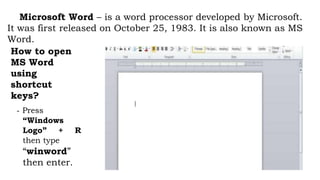
Microsoft Word – is a word processor developed by Microsoft.
It was first released on October 25, 1983. It is also known as MS
Word.
How to open
MS Word
using
shortcut
keys?
- Press
“Windows
Logo” + R
then type
“winword”
then enter.
Features of a word processor
Unlike a basic plaintext editor, a word processor offers several additional
features that can give your document or other text a more professional
appearance. Below is a listing of some of the most popular features of a
word processor.
Adjust the layout - Capable of modifying the margins, size, and layout of a document.
AutoCorretct – corrects common spelling errors well as capitalization
AutoFormat – applies formatting to text, e.g. number listing, bullet,
hyperlinks. Collaboration - More modern word processors help multiple
people work on the
same document at the same time.
Copying, cutting, and pasting - Once text is entered into a document, it can be copied or
cut and pasted in the current document or another document.
Find - Word processors give you the ability to quickly find any word or text
in any size of the document.
Grammar Checker – proofreads documents for grammar, writing styles,
sentence structure errors and reading statistics.
Grammar Checker – proofreads documents for grammar, writing styles, sentence structure
errors and reading statistics.
Headers and footers - Being able to adjust and change text in the header and footer of a
document. The headers and footers of a document can be customized to contain page
numbers, dates, footnotes, or text for all pages or specific pages of the document.
Indentation and lists - Set and format tabs, bullet lists, and number lists.
Insert tables - Add tables to a document.
Import data - Import and format data from CSV, database, or another source. Template – a
document that contains the formatting necessary for a specific
document type
Text formatting - Changing the font, font size, font color, bold, italicizing, underline,
etc.
Tables – organize information into rows and columns
Text Wrap – adjusts how the image behaves around other objects or text.
Thesaurus - Look up alternatives to a word without leaving the program.
Macros - Setup macros to perform common tasks.
Mail Merge – a feature that allows you to create document and merge the them with
another document or data file.
Mailers and labels - Create mailers or print labels.
Multimedia - Insert clip art, charts, images, pictures, and video into a document. Multiple windows -
While working on a document, you can have additional
windows with other documents for comparison or move text between documents.
Search and Replace - You can use the Search and Replace feature to replace any text throughout a
document.
Spelling and Grammar - Checks for spelling and grammar errors in a document. Word wrap - Word
processors can detect the edges of a page or container and
automatically wrap the text using word wrap.
Keyboard Shortcuts
Functions
Ctrl + A Select All Ctrl + M Tab
Ctrl + B Bold Text Ctrl + N Create a new document
Ctrl + C Copy Text Ctrl + O Open a document
Ctrl + D Show Font Dialog Box Ctrl + P Display Print dialog box
Ctrl – E Align Text to Center Ctrl + R Align Text to Right
Ctrl + F Display Find Dialog Box Ctrl + S Save a document
Ctrl + G Display Go To Dialog Box Ctrl + U Underline Text
Ctrl + H Display Replace Dialog Box Ctrl + V Paste a copied text
Ctrl + I Italize Text Ctrl + X Cut a selected Text
Ctrl + J Justify Text Ctrl + Y Redo the last undone action
Ctrl + L Align Text Left Ctrl + Z Undo the last action
Source: https://www.computerhope.com/jargon/w/word-processor.htm

Activity 1.pptx

  • 1.
    Activity 1: SceneryDrawing Open MS Word and create a simple drawing of a scenery or a person using the available shapes in MS Word. Be creative. Your work should be printed in a short bond paper. Refer to the scoring rubric below for your grading.
  • 3.
    ADVANCED WORD PROCESSINGSKILLS What is word processing? Word Processing refers to the act of using a computer to create, edit, save and print documents. In order to perform word processing, specialized software (known as a Word Processor) is needed. One example of a Word Processor is Microsoft Word, but other word processing applications are also widely used. Examples include: Microsoft Works Word Processor, Open Office Writer, Word Perfect and Google Drive Document. Word processor is a software program capable of creating, storing, and printing typed documents. Today, the word processor is one of the most frequently used software programs on a computer, with Microsoft Word being the most popular word processor.
  • 4.
    ADVANCED WORD PROCESSINGSKILLS What is word processing? Word Processing refers to the act of using a computer to create, edit, save and print documents. In order to perform word processing, specialized software (known as a Word Processor) is needed. One example of a Word Processor is Microsoft Word, but other word processing applications are also widely used. Examples include: Microsoft Works Word Processor, Open Office Writer, Word Perfect and Google Drive Document. Word processor is a software program capable of creating, storing, and printing typed documents. Today, the word processor is one of the most frequently used software programs on a computer, with Microsoft Word being the most popular word processor.
  • 5.
    Examples and TopUses of a Word Processor A word processor is one of the most used computer programs because of its versatility in creating a document. Below is a list of the top examples of how you could use a word processor. 1. Book - Write a book. 2. Document - Any text document that requires formatting. 3. Help documentation - Support documentation for a product or service. 4. Journal - Keep a digital version of your daily, weekly, or monthly journal. 5. Letter - Write a letter to one or more people. Mail merge could also be used to automatically fill in the name, address, and other fields of the letter. 6. Marketing plan - An overview of a plan to help market a new product or service. 7. Memo - Create a memo for employees. 8. Report - A status report or book report. 9. Résumé - Create or maintain your résumé.
  • 6.
    Example of WordProcessor Programs Although Microsoft Word is the most popular word processor available, other options are available. Below is a listing of some popular word processors in alphabetical order. 1. Abiword. 9. Microsoft WordPad. 2. Apple iWork - Pages. 10. Microsoft Works (discontinued). 3. Apple TextEdit - Apple macOS 11. SoftMaker FreeOffice -> TextMaker (free). included word processor. 12. OpenOffice -> Writer (free). 4. Corel WordPerfect. 13. SSuite -> WordGraph (free). 5. Dropbox Paper (online and free). 14. Sun StarOffice (discontinued). 6. Google Docs (online and free). 15. Textilus (iPad and iPhone). 7. LibreOffice -> Writer (free). 16. Kingsoft WPS Office -> Writer (free). 8. Microsoft Office -> Microsoft Word 6
  • 7.
    Microsoft Word –is a word processor developed by Microsoft. It was first released on October 25, 1983. It is also known as MS Word. How to open MS Word using shortcut keys? - Press “Windows Logo” + R then type “winword” then enter.
  • 8.
    Features of aword processor Unlike a basic plaintext editor, a word processor offers several additional features that can give your document or other text a more professional appearance. Below is a listing of some of the most popular features of a word processor. Adjust the layout - Capable of modifying the margins, size, and layout of a document. AutoCorretct – corrects common spelling errors well as capitalization AutoFormat – applies formatting to text, e.g. number listing, bullet, hyperlinks. Collaboration - More modern word processors help multiple people work on the same document at the same time. Copying, cutting, and pasting - Once text is entered into a document, it can be copied or cut and pasted in the current document or another document. Find - Word processors give you the ability to quickly find any word or text in any size of the document. Grammar Checker – proofreads documents for grammar, writing styles, sentence structure errors and reading statistics.
  • 9.
    Grammar Checker –proofreads documents for grammar, writing styles, sentence structure errors and reading statistics. Headers and footers - Being able to adjust and change text in the header and footer of a document. The headers and footers of a document can be customized to contain page numbers, dates, footnotes, or text for all pages or specific pages of the document. Indentation and lists - Set and format tabs, bullet lists, and number lists. Insert tables - Add tables to a document. Import data - Import and format data from CSV, database, or another source. Template – a document that contains the formatting necessary for a specific document type Text formatting - Changing the font, font size, font color, bold, italicizing, underline, etc. Tables – organize information into rows and columns Text Wrap – adjusts how the image behaves around other objects or text. Thesaurus - Look up alternatives to a word without leaving the program. Macros - Setup macros to perform common tasks. Mail Merge – a feature that allows you to create document and merge the them with another document or data file. Mailers and labels - Create mailers or print labels. Multimedia - Insert clip art, charts, images, pictures, and video into a document. Multiple windows - While working on a document, you can have additional windows with other documents for comparison or move text between documents.
  • 10.
    Search and Replace- You can use the Search and Replace feature to replace any text throughout a document. Spelling and Grammar - Checks for spelling and grammar errors in a document. Word wrap - Word processors can detect the edges of a page or container and automatically wrap the text using word wrap. Keyboard Shortcuts Functions Ctrl + A Select All Ctrl + M Tab Ctrl + B Bold Text Ctrl + N Create a new document Ctrl + C Copy Text Ctrl + O Open a document Ctrl + D Show Font Dialog Box Ctrl + P Display Print dialog box Ctrl – E Align Text to Center Ctrl + R Align Text to Right Ctrl + F Display Find Dialog Box Ctrl + S Save a document Ctrl + G Display Go To Dialog Box Ctrl + U Underline Text Ctrl + H Display Replace Dialog Box Ctrl + V Paste a copied text Ctrl + I Italize Text Ctrl + X Cut a selected Text Ctrl + J Justify Text Ctrl + Y Redo the last undone action Ctrl + L Align Text Left Ctrl + Z Undo the last action
  • 12.