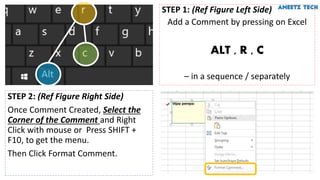
STEP 2: (Ref Figure Right Side)
Once Comment Created, Select the
Corner of the Comment and Right
Click with mouse or Press SHIFT +
F10, to get the menu.
Then Click Format Comment.
STEP 1: (Ref Figure Left Side)
Add a Comment by pressing on Excel
ALT , R , C
– in a sequence / separately
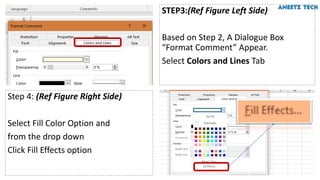
Step 4: (Ref Figure Right Side)
Select Fill Color Option and
from the drop down
Click Fill Effects option
STEP3:(Ref Figure Left Side)
Based on Step 2, A Dialogue Box
“Format Comment” Appear.
Select Colors and Lines Tab
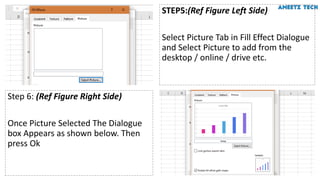
Step 6: (Ref Figure Right Side)
Once Picture Selected The Dialogue
box Appears as shown below. Then
press Ok
STEP5:(Ref Figure Left Side)
Select Picture Tab in Fill Effect Dialogue
and Select Picture to add from the
desktop / online / drive etc.
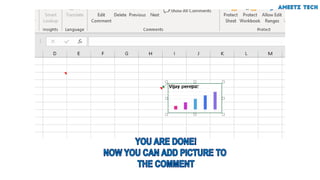
Add picture to comment

Add picture to comment

  • 2.
    STEP 2: (RefFigure Right Side) Once Comment Created, Select the Corner of the Comment and Right Click with mouse or Press SHIFT + F10, to get the menu. Then Click Format Comment. STEP 1: (Ref Figure Left Side) Add a Comment by pressing on Excel ALT , R , C – in a sequence / separately
  • 3.
    Step 4: (RefFigure Right Side) Select Fill Color Option and from the drop down Click Fill Effects option STEP3:(Ref Figure Left Side) Based on Step 2, A Dialogue Box “Format Comment” Appear. Select Colors and Lines Tab
  • 4.
    Step 6: (RefFigure Right Side) Once Picture Selected The Dialogue box Appears as shown below. Then press Ok STEP5:(Ref Figure Left Side) Select Picture Tab in Fill Effect Dialogue and Select Picture to add from the desktop / online / drive etc.