Practical Malware Analysis
Ch 9: OllyDbg
Updated 9-14-21
History
• OllyDbg was developed more than a
decade ago


• First used to crack software and to
develop exploits


• The OllyDbg 1.1 source code was
purchased by Immunity and rebranded as
Immunity Debugger


• The two products are very similar
Loading Malware
Ways to Debug Malware
• You can load EXEs or DLLs directly into
OllyDbg


• If the malware is already running, you can
attach OllyDbg to the running process
Opening an EXE
• File, Open


• Add command-line arguments if needed


• OllyDbg will stop at the entry point,
WinMain, if it can be determined


• Otherwise it will break at the entry point
defined in the PE Header


– Configurable in Options, Debugging Options
Attaching to a Running Process
• File, Attach


• OllyDbg breaks in and pauses the program
and all threads


– If you catch it in DLL, set a breakpoint on
access to the entire code section to get to
the interesting code
Reloading a File
• Ctrl+F2 reloads the current executable


• F2 sets a breakpoint
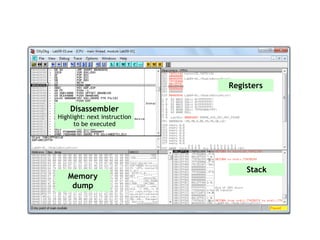
The OllyDbg Interface
Disassembler


Highlight: next instruction
to be executed
Registers
Stack
Memory


dump
Modifying Data
• Disassembler window


– Press spacebar


• Registers or Stack


– Right-click, modify


• Memory dump


– Right-click, Binary, Edit


– Ctrl+G to go to a memory location


– Right-click a memory address in another pane
and click "Follow in dump"
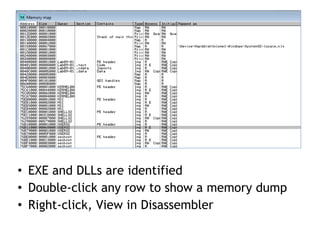
Memory Map
View, Memory Map
• EXE and DLLs are identified


• Double-click any row to show a memory dump


• Right-click, View in Disassembler
Rebasing
• Rebasing occurs when a module is not loaded
at its preferred base address


• PE files have a preferred base address


– The image base in the PE header


– Usually the file is loaded at that address


– Most EXEs are designed to be loaded at
0x00400000


• EXEs that support Address Space Layout
Randomization (ASLR) will often be relocated
DLL Rebasing
• DLLs are more commonly relocated


– Because a single application may import many
DLLs


– Windows DLLs have different base addresses
to avoid this


– Third-party DLLs often have the same
preferred base address
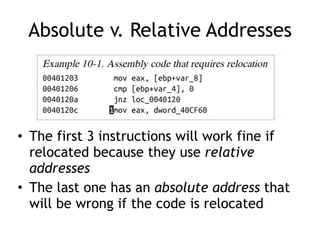
Absolute v. Relative Addresses
• The first 3 instructions will work fine if
relocated because they use relative
addresses


• The last one has an absolute address that
will be wrong if the code is relocated
Fix-up Locations
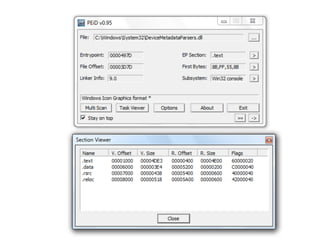
• Most DLLS have a list of fix-up locations in
the .reloc section of the PE header


– These are instructions that must be changed
when code is relocated


• DLLs are loaded after the EXE and in any
order


• You cannot predict where DLLs will be
located in memory if they are rebased


• Example .reloc section on next slide
DLL Rebasing
• DLLS can have their .reloc removed


– Such a DLL cannot be relocated


– Must load at its preferred base address


• Relocating DLLs is bad for performance


– Adds to load time


– So good programmers specify non-default
base addresses when compiling DLLs
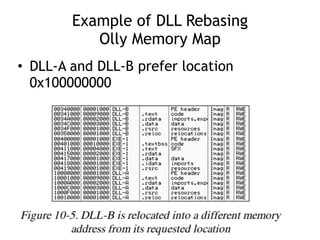
Example of DLL Rebasing


Olly Memory Map
• DLL-A and DLL-B prefer location
0x100000000
IDA Pro
• IDA Pro is not attached to a real running
process


• It doesn't know about rebasing


• If you use OllyDbg and IDA Pro at the same
time, you may get different results


– To avoid this, use the "Manual Load" option in
IDA Pro


– Specify the virtual base address manually
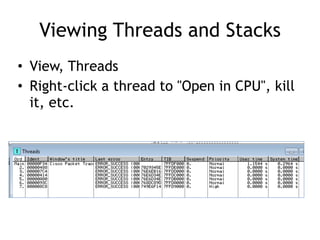
Viewing Threads and Stacks
• View, Threads


• Right-click a thread to "Open in CPU", kill
it, etc.
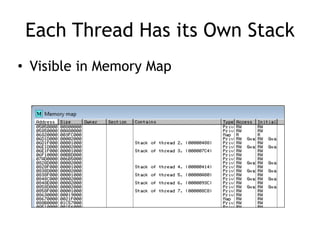
Each Thread Has its Own Stack
• Visible in Memory Map
ASLR is Fading
• Address Space Layout Randomization


• "ASLR is fundamentally flawed in
sandboxed environments such as
JavaScript and future defenses should
not rely on randomized virtual
addresses as a building block."


• https://www.theregister.com/
2021/02/26/chrome_aslr_bypass/
Executing Code
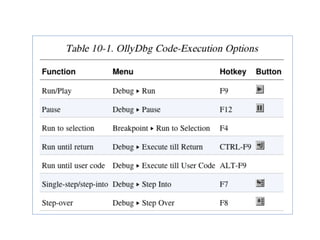
Run and Pause
• You could Run a program and click Pause
when it's where you want it to be


• But that's sloppy and might leave you
somewhere uninteresting, such as inside
library code


• Setting breakpoints is much better
Run and Run to Selection
• Run is useful to resume execution after
hitting a breakpoint


• Run to Selection will execute until just
before the selected instruction is
executed


– If the selection is never executed, it will run
indefinitely
Execute till Return
• Pauses execution until just before the
current function is set to return


• Can be useful if you want to finish the
current function and stop


• But if the function never ends, the
program will continue to run indefinitely
Execute till User Code
• Useful if you get lost in library code
during debugging


• Program will continue to run until it hit
compiled malware code


– Typically the .text section
Stepping Through Code
• F7 -- Single-step (also called step-into)


• F8 -- Step-over


– Stepping-over means all the code is executed,
but you don't see it happen


• Some malware is designed to fool you, by
calling routines and never returning, so
stepping over will miss the most
important part
9a
Breakpoints
Types of Breakpoints
• Software breakpoints


• Hardware breakpoints


• Conditional breakpoints


• Breakpoints on memory


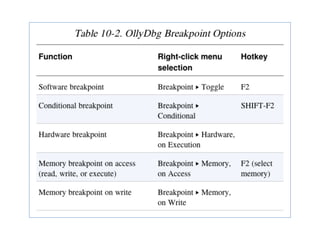
• F2 – Add or remove a breakpoint
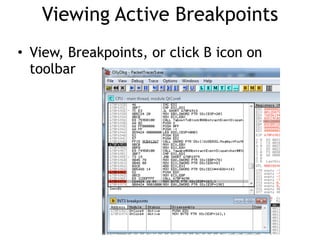
Viewing Active Breakpoints
• View, Breakpoints, or click B icon on
toolbar
Saving Breakpoints
• When you close OllyDbg, it saves your
breakpoints


• If you open the same file again, the
breakpoints are still available
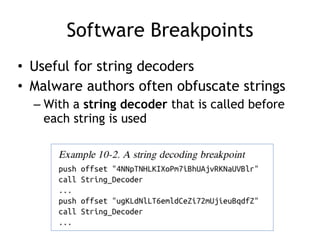
Software Breakpoints
• Useful for string decoders


• Malware authors often obfuscate strings


– With a string decoder that is called before
each string is used
String Decoders
• Put a breakpoint at the end of the
decoder routine


• The string becomes readable on the stack


Each time you press Play in OllyDbg, the
program will execute and will break when
a string is decoded for use


• This method will only reveal strings as
they are used
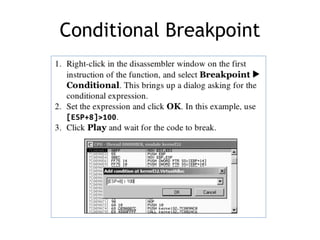
Conditional Breakpoints
• Breaks only when a condition is true


• Ex: Poison Ivy backdoor


– Poison Ivy allocates memory to house the
shellcode it receives from Command and
Control (C&C) servers


– Most memory allocations are for other
purposes and uninteresting


– Set a conditional breakpoint at the
VirtualAlloc function in Kernel32.dll
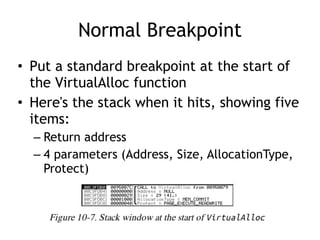
Normal Breakpoint
• Put a standard breakpoint at the start of
the VirtualAlloc function


• Here's the stack when it hits, showing five
items:


– Return address


– 4 parameters (Address, Size, AllocationType,
Protect)
Conditional Breakpoint
Hardware Breakpoints
• Don't alter code, stack, or any target
resource


• Don't slow down execution


• But you can only set 4 at a time


• Click Breakpoint, "Hardware, on Execution"


• You can set OllyDbg to use hardware
breakpoints by default in Debugging Options


– Useful if malware uses anti-debugging
techniques
Memory Breakpoints
• Code breaks on access to specified
memory location


• OllyDbg supports software and hardware
memory breakpoints


• Can break on read, write, execute, or any
access


• Right-click memory location, click
Breakpoint, "Memory, on Access"
Memory Breakpoints
• You can only set one memory breakpoint
at a time


• OllyDbg implements memory breakpoints
by changing the attributes of memory
blocks


• This technique is not reliable and has
considerable overhead


• Use memory breakpoints sparingly
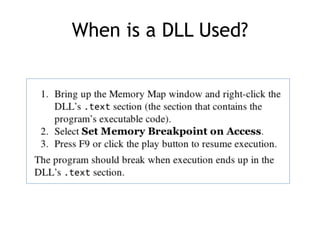
When is a DLL Used?
9b
Loading DLLs
loaddll.exe
• DLLs cannot be executed directly


• OllyDbg uses a dummy loaddll.exe
program to load them


• Breaks at the DLL entry point DLLMain
once the DLL is loaded


• Press Play to run DLLMain and initialize
the DLL for use
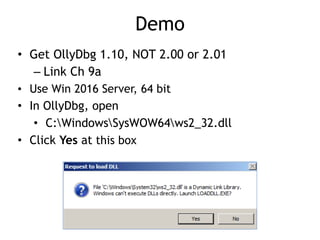
Demo
• Get OllyDbg 1.10, NOT 2.00 or 2.01


– Link Ch 9a


• Use Win 2016 Server, 64 bit


• In OllyDbg, open


• C:WindowsSysWOW64ws2_32.dll


• Click Yes at this box
Demo: Calling DLL Exports
• Click Debug, Call DLL Export – it fails
because DLLMain has not yet been run


• Reload the DLL (Ctrl+F2), click Run
button once


• Click Debug, Call DLL Export – now it
works


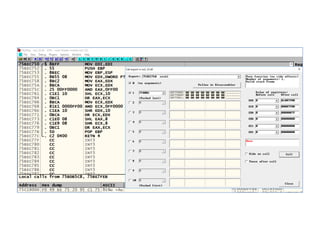
• Image on next slide
Demo: Running ntohl
• Converts a 32-bit number from network to
host byte order


• Click argument 1, type in 7f000001


– 127.0.0.1 in "network" byte order


• Click "Follow in Disassembler" to see the
code


• Click "Call" to run the function


• Answer in EAX
Tracing
Tracing
• Powerful debugging technique


• Records detailed execution information


• Types of Tracing


– Standard Back Trace


– Call Stack Trace


– Run Trace
Standard Back Trace
• You move through the disassembler with
the Step Into and Step Over buttons


• OllyDbg is recording your movement


• Use minus key on keyboard to see previous
instructions


– But you won't see previous register values


• Plus key takes you forward


– If you used Step Over, you cannot go back and
decide to step into
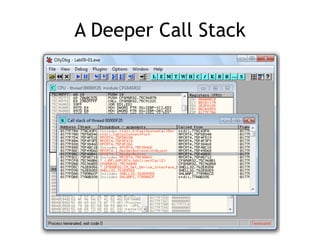
Call Stack Trace
• Views the execution path to a given
function


• Click View, Call Stack


• Displays the sequence of calls to reach
your current location
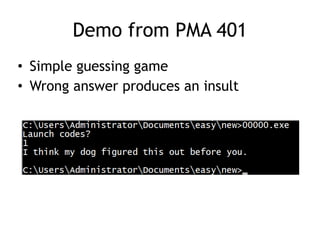
Demo from PMA 401
• Simple guessing game


• Wrong answer produces an insult
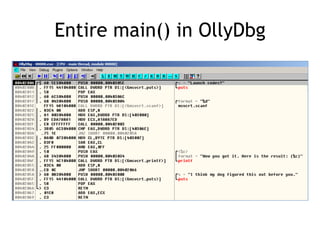
Entire main() in OllyDbg
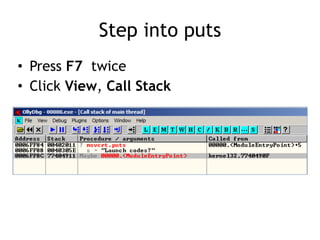
Step into puts
• Press F7 twice


• Click View, Call Stack
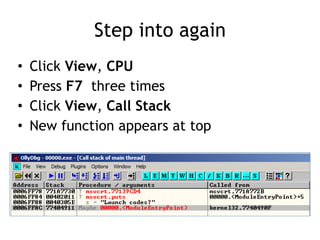
Step into again
• Click View, CPU


• Press F7 three times


• Click View, Call Stack


• New function appears at top
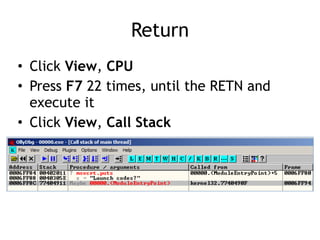
Return
• Click View, CPU


• Press F7 22 times, until the RETN and
execute it


• Click View, Call Stack
A Deeper Call Stack
Run Trace
• Code runs, and OllyDbg saves every
executed instruction and all changes to
registers and flags


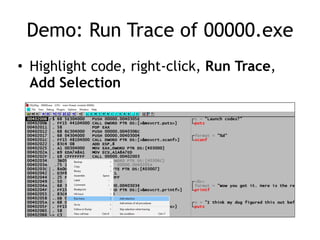
• Highlight code, right-click, Run Trace,
Add Selection


• After code executes, View, Run Trace


– To see instructions that were executed


– + and - keys to step forward and backwards
Demo: Run Trace of 00000.exe
• Highlight code, right-click, Run Trace,
Add Selection
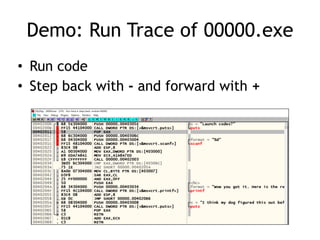
• Run code


• Step back with - and forward with +
Demo: Run Trace of 00000.exe
Trace Into and Trace Over
• Buttons below "Options"


• Easier to use than Add Selection


• If you don't set breakpoints, OllyDbg will
attempt to trace the entire program,
which could take a long time and a lot of
memory
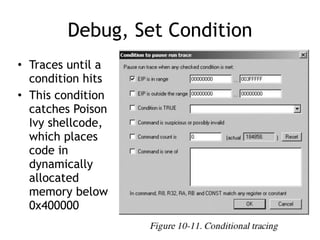
Debug, Set Condition
• Traces until a
condition hits


• This condition
catches Poison
Ivy shellcode,
which places
code in
dynamically
allocated
memory below
0x400000
Exception Handling
When an Exception Occurs
• OllyDbg will stop the program


• You have these options to pass the
exception into the program:


– Shift+F7 Step into exception


– Shift+F8: Step over exception


– Shift+F9: Run exception handler


• Often you just ignore all exceptions in
malware analysis


– We aren't trying to fix problems in code
Patching
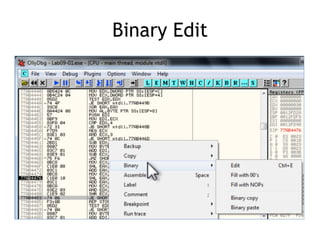
Binary Edit
Fill
• Fill with 00


• Fill with NOP (0x90)


– Used to skip instructions


– e.g. to force a branch
Saving Patched Code
• Right-click disassembler window after
patching


– Copy To Executable, All Modifications, Save
File


– Copy All


• Right-click in new window


– Save File
Analyzing Shellcode
Undocumented technique
Easy Way to Analyze Shellcode
• Copy shellcode from a hex editor to
clipboard


• Within memory map, select a region of
type "Priv" (Private memory)


• Double-click rows in memory map to show a
hex dump


– Find a region of hundreds of consecutive zeroes


• Right-click chosen region in Memory Map,
Set Access, Full Access (to clear NX bit)
Analyzing Shellcode
• Highlight a region of zeroes, Binary, Binary
Paste


• Set EIP to location of shellcode


– Right-click first instruction, New Origin Here
Assistance Features
Log
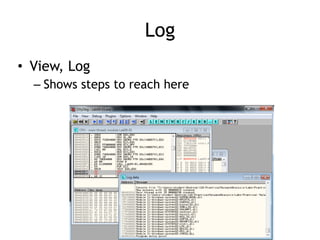
• View, Log


– Shows steps to reach here
Watches Window
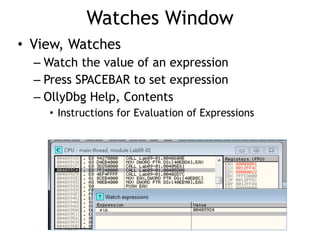
• View, Watches


– Watch the value of an expression


– Press SPACEBAR to set expression


– OllyDbg Help, Contents


• Instructions for Evaluation of Expressions
Labeling
• Label subroutines and loops


– Right-click an address, Label
Plug-ins
Recommended Plugins
• OllyDump


– Dumps debugged process to a PE file


– Used for unpacking


• Hide Debugger


– Hides OllyDbg from debugger detection


• Command Line


– Control OllyDbg from the command line


– Simpler to just use WinDbg


• Bookmarks


– Included by default in OllyDbg


– Bookmarks memory locations
Scriptable Debugging
Immunity Debugger (ImmDbg)
• Unlike OllyDbg, ImmDbg employs Python
scripts and has an easy-to-use API


• Scripts are located in the PyCommands
subdirectory under the install directory of
ImmDbg


• Easy to create custom scripts for ImmDbg
9c

9: OllyDbg

  • 1.
    Practical Malware Analysis Ch9: OllyDbg Updated 9-14-21
  • 2.
    History • OllyDbg wasdeveloped more than a decade ago • First used to crack software and to develop exploits • The OllyDbg 1.1 source code was purchased by Immunity and rebranded as Immunity Debugger • The two products are very similar
  • 3.
  • 4.
    Ways to DebugMalware • You can load EXEs or DLLs directly into OllyDbg • If the malware is already running, you can attach OllyDbg to the running process
  • 5.
    Opening an EXE •File, Open • Add command-line arguments if needed • OllyDbg will stop at the entry point, WinMain, if it can be determined • Otherwise it will break at the entry point defined in the PE Header – Configurable in Options, Debugging Options
  • 6.
    Attaching to aRunning Process • File, Attach • OllyDbg breaks in and pauses the program and all threads – If you catch it in DLL, set a breakpoint on access to the entire code section to get to the interesting code
  • 7.
    Reloading a File •Ctrl+F2 reloads the current executable • F2 sets a breakpoint
  • 8.
  • 9.
    Disassembler Highlight: next instruction tobe executed Registers Stack Memory dump
  • 10.
    Modifying Data • Disassemblerwindow – Press spacebar • Registers or Stack – Right-click, modify • Memory dump – Right-click, Binary, Edit – Ctrl+G to go to a memory location – Right-click a memory address in another pane and click "Follow in dump"
  • 11.
  • 12.
    • EXE andDLLs are identified • Double-click any row to show a memory dump • Right-click, View in Disassembler
  • 13.
    Rebasing • Rebasing occurswhen a module is not loaded at its preferred base address • PE files have a preferred base address – The image base in the PE header – Usually the file is loaded at that address – Most EXEs are designed to be loaded at 0x00400000 • EXEs that support Address Space Layout Randomization (ASLR) will often be relocated
  • 14.
    DLL Rebasing • DLLsare more commonly relocated – Because a single application may import many DLLs – Windows DLLs have different base addresses to avoid this – Third-party DLLs often have the same preferred base address
  • 15.
    Absolute v. RelativeAddresses • The first 3 instructions will work fine if relocated because they use relative addresses • The last one has an absolute address that will be wrong if the code is relocated
  • 16.
    Fix-up Locations • MostDLLS have a list of fix-up locations in the .reloc section of the PE header – These are instructions that must be changed when code is relocated • DLLs are loaded after the EXE and in any order • You cannot predict where DLLs will be located in memory if they are rebased • Example .reloc section on next slide
  • 18.
    DLL Rebasing • DLLScan have their .reloc removed – Such a DLL cannot be relocated – Must load at its preferred base address • Relocating DLLs is bad for performance – Adds to load time – So good programmers specify non-default base addresses when compiling DLLs
  • 19.
    Example of DLLRebasing 
 Olly Memory Map • DLL-A and DLL-B prefer location 0x100000000
  • 20.
    IDA Pro • IDAPro is not attached to a real running process • It doesn't know about rebasing • If you use OllyDbg and IDA Pro at the same time, you may get different results – To avoid this, use the "Manual Load" option in IDA Pro – Specify the virtual base address manually
  • 21.
    Viewing Threads andStacks • View, Threads • Right-click a thread to "Open in CPU", kill it, etc.
  • 22.
    Each Thread Hasits Own Stack • Visible in Memory Map
  • 23.
    ASLR is Fading •Address Space Layout Randomization • "ASLR is fundamentally flawed in sandboxed environments such as JavaScript and future defenses should not rely on randomized virtual addresses as a building block." • https://www.theregister.com/ 2021/02/26/chrome_aslr_bypass/
  • 24.
  • 26.
    Run and Pause •You could Run a program and click Pause when it's where you want it to be • But that's sloppy and might leave you somewhere uninteresting, such as inside library code • Setting breakpoints is much better
  • 27.
    Run and Runto Selection • Run is useful to resume execution after hitting a breakpoint • Run to Selection will execute until just before the selected instruction is executed – If the selection is never executed, it will run indefinitely
  • 28.
    Execute till Return •Pauses execution until just before the current function is set to return • Can be useful if you want to finish the current function and stop • But if the function never ends, the program will continue to run indefinitely
  • 29.
    Execute till UserCode • Useful if you get lost in library code during debugging • Program will continue to run until it hit compiled malware code – Typically the .text section
  • 30.
    Stepping Through Code •F7 -- Single-step (also called step-into) • F8 -- Step-over – Stepping-over means all the code is executed, but you don't see it happen • Some malware is designed to fool you, by calling routines and never returning, so stepping over will miss the most important part
  • 31.
  • 32.
  • 33.
    Types of Breakpoints •Software breakpoints • Hardware breakpoints • Conditional breakpoints • Breakpoints on memory • F2 – Add or remove a breakpoint
  • 34.
    Viewing Active Breakpoints •View, Breakpoints, or click B icon on toolbar
  • 36.
    Saving Breakpoints • Whenyou close OllyDbg, it saves your breakpoints • If you open the same file again, the breakpoints are still available
  • 37.
    Software Breakpoints • Usefulfor string decoders • Malware authors often obfuscate strings – With a string decoder that is called before each string is used
  • 38.
    String Decoders • Puta breakpoint at the end of the decoder routine • The string becomes readable on the stack 
 Each time you press Play in OllyDbg, the program will execute and will break when a string is decoded for use • This method will only reveal strings as they are used
  • 39.
    Conditional Breakpoints • Breaksonly when a condition is true • Ex: Poison Ivy backdoor – Poison Ivy allocates memory to house the shellcode it receives from Command and Control (C&C) servers – Most memory allocations are for other purposes and uninteresting – Set a conditional breakpoint at the VirtualAlloc function in Kernel32.dll
  • 40.
    Normal Breakpoint • Puta standard breakpoint at the start of the VirtualAlloc function • Here's the stack when it hits, showing five items: – Return address – 4 parameters (Address, Size, AllocationType, Protect)
  • 41.
  • 42.
    Hardware Breakpoints • Don'talter code, stack, or any target resource • Don't slow down execution • But you can only set 4 at a time • Click Breakpoint, "Hardware, on Execution" • You can set OllyDbg to use hardware breakpoints by default in Debugging Options – Useful if malware uses anti-debugging techniques
  • 43.
    Memory Breakpoints • Codebreaks on access to specified memory location • OllyDbg supports software and hardware memory breakpoints • Can break on read, write, execute, or any access • Right-click memory location, click Breakpoint, "Memory, on Access"
  • 44.
    Memory Breakpoints • Youcan only set one memory breakpoint at a time • OllyDbg implements memory breakpoints by changing the attributes of memory blocks • This technique is not reliable and has considerable overhead • Use memory breakpoints sparingly
  • 45.
    When is aDLL Used?
  • 46.
  • 47.
  • 48.
    loaddll.exe • DLLs cannotbe executed directly • OllyDbg uses a dummy loaddll.exe program to load them • Breaks at the DLL entry point DLLMain once the DLL is loaded • Press Play to run DLLMain and initialize the DLL for use
  • 49.
    Demo • Get OllyDbg1.10, NOT 2.00 or 2.01 – Link Ch 9a • Use Win 2016 Server, 64 bit • In OllyDbg, open • C:WindowsSysWOW64ws2_32.dll • Click Yes at this box
  • 50.
    Demo: Calling DLLExports • Click Debug, Call DLL Export – it fails because DLLMain has not yet been run • Reload the DLL (Ctrl+F2), click Run button once • Click Debug, Call DLL Export – now it works • Image on next slide
  • 52.
    Demo: Running ntohl •Converts a 32-bit number from network to host byte order • Click argument 1, type in 7f000001 – 127.0.0.1 in "network" byte order • Click "Follow in Disassembler" to see the code • Click "Call" to run the function • Answer in EAX
  • 53.
  • 54.
    Tracing • Powerful debuggingtechnique • Records detailed execution information • Types of Tracing – Standard Back Trace – Call Stack Trace – Run Trace
  • 55.
    Standard Back Trace •You move through the disassembler with the Step Into and Step Over buttons • OllyDbg is recording your movement • Use minus key on keyboard to see previous instructions – But you won't see previous register values • Plus key takes you forward – If you used Step Over, you cannot go back and decide to step into
  • 56.
    Call Stack Trace •Views the execution path to a given function • Click View, Call Stack • Displays the sequence of calls to reach your current location
  • 57.
    Demo from PMA401 • Simple guessing game • Wrong answer produces an insult
  • 58.
  • 59.
    Step into puts •Press F7 twice • Click View, Call Stack
  • 60.
    Step into again •Click View, CPU • Press F7 three times • Click View, Call Stack • New function appears at top
  • 61.
    Return • Click View,CPU • Press F7 22 times, until the RETN and execute it • Click View, Call Stack
  • 62.
  • 63.
    Run Trace • Coderuns, and OllyDbg saves every executed instruction and all changes to registers and flags • Highlight code, right-click, Run Trace, Add Selection • After code executes, View, Run Trace – To see instructions that were executed – + and - keys to step forward and backwards
  • 64.
    Demo: Run Traceof 00000.exe • Highlight code, right-click, Run Trace, Add Selection
  • 65.
    • Run code •Step back with - and forward with + Demo: Run Trace of 00000.exe
  • 66.
    Trace Into andTrace Over • Buttons below "Options" • Easier to use than Add Selection • If you don't set breakpoints, OllyDbg will attempt to trace the entire program, which could take a long time and a lot of memory
  • 67.
    Debug, Set Condition •Traces until a condition hits • This condition catches Poison Ivy shellcode, which places code in dynamically allocated memory below 0x400000
  • 68.
  • 69.
    When an ExceptionOccurs • OllyDbg will stop the program • You have these options to pass the exception into the program: – Shift+F7 Step into exception – Shift+F8: Step over exception – Shift+F9: Run exception handler • Often you just ignore all exceptions in malware analysis – We aren't trying to fix problems in code
  • 70.
  • 71.
  • 72.
    Fill • Fill with00 • Fill with NOP (0x90) – Used to skip instructions – e.g. to force a branch
  • 73.
    Saving Patched Code •Right-click disassembler window after patching – Copy To Executable, All Modifications, Save File – Copy All • Right-click in new window – Save File
  • 74.
  • 75.
    Easy Way toAnalyze Shellcode • Copy shellcode from a hex editor to clipboard • Within memory map, select a region of type "Priv" (Private memory) • Double-click rows in memory map to show a hex dump – Find a region of hundreds of consecutive zeroes • Right-click chosen region in Memory Map, Set Access, Full Access (to clear NX bit)
  • 76.
    Analyzing Shellcode • Highlighta region of zeroes, Binary, Binary Paste • Set EIP to location of shellcode – Right-click first instruction, New Origin Here
  • 77.
  • 78.
    Log • View, Log –Shows steps to reach here
  • 79.
    Watches Window • View,Watches – Watch the value of an expression – Press SPACEBAR to set expression – OllyDbg Help, Contents • Instructions for Evaluation of Expressions
  • 80.
    Labeling • Label subroutinesand loops – Right-click an address, Label
  • 81.
  • 82.
    Recommended Plugins • OllyDump –Dumps debugged process to a PE file – Used for unpacking • Hide Debugger – Hides OllyDbg from debugger detection • Command Line – Control OllyDbg from the command line – Simpler to just use WinDbg • Bookmarks – Included by default in OllyDbg – Bookmarks memory locations
  • 83.
  • 84.
    Immunity Debugger (ImmDbg) •Unlike OllyDbg, ImmDbg employs Python scripts and has an easy-to-use API • Scripts are located in the PyCommands subdirectory under the install directory of ImmDbg • Easy to create custom scripts for ImmDbg
  • 85.