Malware Analysis
The Goals of Malware Analysis
Incident Response
• Case history
– A medical clinic with 10 offices found malware on
one of their workstations
– Hired a consultant to clean & re-image that
machine
• All done—case closed?
Incident Response
• After malware is found, you need to know
– Did an attacker implant a rootkit or trojan on your
systems?
– Is the attacker really gone?
– What did the attacker steal or add?
– How did the attack get in
• Root-cause analysis
Malware Analysis
• Dissecting malware to understand
– How it works
– How to identify it
– How to defeat or eliminate it
• A critical part of incident response
The Goals of Malware Analysis
• Information required to respond to a network
intrusion
– Exactly what happened
– Ensure you’ve located all infected machines and
files
– How to measure and contain the damage
– Find signatures for intrusion detection systems
Signatures
• Host-based signatures
– Identify files or registry keys on a victim computer
that indicate an infection
– Focus on what the malware did to the system, not
the malware itself
• Different from antivirus signature
• Network signatures
– Detect malware by analyzing network traffic
– More effective when made using malware analysis
False Positives
Malware Analysis Techniques
Static v. Dynamic Analysis
• Static Analysis
– Examines malware without running it
– Tools: VirusTotal, strings, a disassembler like IDA Pro
• Dynamic Analysis
– Run the malware and monitor its effect
– Use a virtual machine and take snapshots
– Tools: RegShot, Process Monitor, Process Hacker,
CaptureBAT
– RAM Analysis: Mandant Redline and Volatility
Basic Analysis
• Basic static analysis
– View malware without looking at instructions
– Tools: VirusTotal, strings
– Quick and easy but fails for advanced malware and
can miss important behavior
• Basic dynamic analysis
– Easy but requires a safe test environment
– Not effective on all malware
Advanced Analysis
• Advanced static analysis
– Reverse-engineering with a disassembler
– Complex, requires understanding of assembly
code
• Advanced Dynamic Analysis
– Run code in a debugger
– Examines internal state of a running malicious
executable
Types of Malware
Types of Malware
• Backdoor
– Allows attacker to control the system
• Botnet
– All infected computers receive instructions from
the same Command-and-Control (C&C) server
• Downloader
– Malicious code that exists only to download other
malicious code
– Used when attacker first gains access
Types of Malware
• Information-stealing malware
– Sniffers, keyloggers, password hash grabbers
• Launcher
– Malicious program used to launch other malicious
programs
– Often uses nontraditional techniques to ensure stealth or
greater access to a system
• Rootkit
– Malware that conceals the existence of other code
– Usually paired with a backdoor
Types of Malware
• Scareware
– Frightens user into buying something
Types of Malware
• Spam-sending malware
– Attacker rents machine to spammers
• Worms or viruses
– Malicious code that can copy itself and infect
additional computers
Mass v. Targeted Malware
• Mass malware
– Intended to infect as many machines as possible
– Most common type
• Targeted malware
– Tailored to a specific target
– Very difficult to detect, prevent, and remove
– Requires advanced analysis
– Ex: Stuxnet
General Rules for Malware
Analysis
General Rules for Malware Analysis
• Don’t Get Caught in Details
– You don’t need to understand 100% of the code
– Focus on key features
• Try Several Tools
– If one tool fails, try another
– Don’t get stuck on a hard issue, move along
• Malware authors are constantly raising the bar
Ch 2: Basic Static Analysis
Techniques
• Antivirus scanning
• Hashes
• A file’s strings, functions, and headers
Antivirus Scanning
Only a First Step
• Malware can easily change its signature and
fool the antivirus
• VirusTotal is convenient, but using it may alert
attackers that they’ve been caught
Hashing
A fingerprint for malware
Hashes
• MD5 or SHA-1
• Condenses a file of any size down to a fixed-
length fingerprint
• Uniquely identifies a file well in practice
– There are MD5 collisions but they are not
common
– Collision: two different files with the same hash
HashCalc
Hash Uses
• Label a malware file
• Share the hash with other analysts to identify
malware
• Search the hash online to see if someone else
has already identified the file
Finding Strings
Strings
• Any sequence of printable characters is a
string
• Strings are terminated by a null (0x00)
• ASCII characters are 8 bits long
– Now called ANSI
• Unicode characters are 16 bits long
– Microsoft calls them "wide characters"
The strings Command
• Native in Linux, also available for Windows
• Finds all strings in a file 3 or more characters
long
The strings Command
• Bold items can be ignored
• GetLayout and SetLayout are Windows
functions
• GDI32.DLL
is a
Dynamic
Link
Library
Packed and Obfuscated Malware
Packing Files
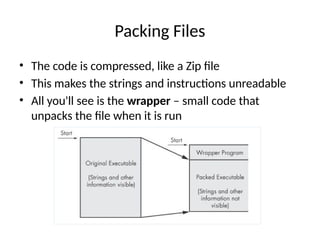
• The code is compressed, like a Zip file
• This makes the strings and instructions unreadable
• All you'll see is the wrapper – small code that
unpacks the file when it is run
Detecting Packers with PEiD
Demo: UPX
Packing Obfuscates Strings
• EXE files are standalone programs that
can be loaded as a new independent
process.
• DLL files that need to be loaded into a
process and cannot be ran
independently. Contains functionalities
that are needed to accomplish a task or
action.
• When creating an exe file, as an example
using the C programming language — you
need to specify the “main()” function.
• “Main function is a starting point of
program execution”
• The main function is called by the OS loader
when a process initialization is completed.
When called, the program executes.
• For a DLL file, OS does not create a new process.
• The execution of a DLL file is dependent on the OS loader
having to have created a process that requires to use some
functions contained in the dll file.
• The OS loader will then reserve some memory address space
within the process and loads the DLL file into this new
memory space.
• The loader then calls a dllmain function that is responsible
for initializing the library (dllmain points to an entry point of a
DLL file) to be able to finally execute the functions contained
within the DLL file.
Differences
• EXE (Executable) Files:
• Primary Function: An EXE file is a standalone application that the operating system
can directly execute. It typically contains the main code and resources needed to run
an application.
• Execution: When you double-click an EXE file, it launches a program or process that
runs independently.
• Entry Point: EXE files have an entry point, usually the main() function, where
execution starts.
• DLL (Dynamic Link Library) Files:
• Primary Function: A DLL file is a library that contains code, data, and resources that
can be used by multiple programs simultaneously. It is not an independent application
but rather a modular component that other applications can load and call functions
from.
• Execution: DLL files cannot be executed on their own. They must be loaded by an
EXE or another DLL during runtime.
• Entry Point: DLLs do not have a conventional entry point like EXE files. Instead, they
contain exported functions that other modules can call.
• EXE Files:
• Standalone Applications: EXE files are used to create executable
programs that run on their own. Examples include text editors
(e.g., notepad.exe), web browsers (e.g., chrome.exe), and games.
• Process Creation: When an EXE is run, it creates a new process
in the operating system with its own memory space.
• DLL Files:
• Shared Libraries: DLLs are used to package reusable code that
can be shared across multiple applications. For example,
user32.dll provides user interface functions used by many
Windows applications.
• No Process Creation: DLLs do not create their own process; they
run within the process of the calling EXE.
• EXE Files:
• Dedicated Memory Space: Each EXE runs in its
own dedicated memory space (process), isolated
from other processes. This isolation helps prevent
one application from affecting another.
• DLL Files:
• Shared Memory: Multiple processes can load the
same DLL into memory. However, each process gets
its own instance of the DLL’s global variables (unless
the DLL is explicitly designed to share data between
processes).
Portable Executable File Format
EXE Files
PE Files
• Used by Windows executable files, object
code, and DLLs
• A data structure that contains the information
necessary for Windows to load the file
• Almost every file executed on Windows is in
PE format
PE Header
• Information about the code
• Type of application
• Required library functions
• Space requirements
LordPE Demo
Main Sections
There are
a lot more
sections
• But the
main ones
are enough
for now
• Link Ch 2c
Linked Libraries and Functions
Imports
• Functions used by a program that are stored in
a different program, such as library
• Connected to the main EXE by Linking
• Can be linked three ways
– Statically
– At Runtime
– Dynamically
Static Linking
• Rarely used for Windows executables
• Common in Unix and Linux
• All code from the library is copied into the
executable
• Makes executable large in size
Runtime Linking
• Unpopular in friendly programs
• Common in malware, especially packed or
obfuscated malware
• Connect to libraries only when needed, not
when the program starts
• Most commonly done with the LoadLibrary
and GetProcAddress functions
Dynamic Linking
• Most common method
• Host OS searches for necessary libraries when
the program is loaded
Clues in Libraries
• The PE header lists every library and function
that will be loaded
• Their names can reveal what the program
does
• URLDownloadToFile indicates that the
program downloads something
Dependency Walker
Shows Dynamically Linked Functions
• Normal programs have a lot of DLLs
• Malware often has very few DLLs
Services.exe
Services.ex_ (malware)
Imports
&
Exports
in
Dependency
Walker
Exports
• DLLs export functions
• EXEs import functions
• Both exports and imports are listed in the PE
header
• Like imports, DLLs and EXEs export functions to interact with
other programs and code. Typically, a DLL implements one or
more functions and exports them for use by an executable
that can then import and use them.
• The PE file contains information about which functions a file
exports. Because DLLs are specifically implemented to provide
functionality used by EXEs, exported functions are most
common in DLLs. EXEs are not designed to provide
functionality for other EXEs, and exported functions are rare.
If you discover exports in an executable, they often will
provide useful information.
Example: Keylogger
• Imports User32.dll and uses the function
SetWindowsHookEx which is a popular way
keyloggers receive keyboard inputs
• It exports LowLevelKeyboardProc and
LowLevelMouseProc to send the data
elsewhere
• It uses RegisterHotKey to define a special
keystroke like Ctrl+Shift+P to harvest the
collected data
Ex: A Packed Program
• Very few
functions
• All you
see is the
unpacker
The PE File Headers and Sections
Important PE Sections
• .text -- instructions for the CPU to execute
• .rdata -- imports & exports
• .data – global data
• .rsrc – strings, icons, images, menus
PEView (Link Ch 2e)
Time Date Stamp
• Shows when this executable was compiled
• Older programs are more likely to be known to
antivirus software
• But sometimes the date is wrong
– All Delphi programs show June 19, 1992
– Date can also be faked
IMAGE_SECTION_HEADER
• Virtual Size – RAM
• Size of Raw Data – DISK
• For .text section, normally equal, or nearly
equal
• Packed executables show Virtual Size much
larger than Size of Raw Data for .text section
Not Packed
Resource Hacker
• Lets you browse the .rsrc section
• Strings, icons, and menus
• Link Ch 2f
Resource Hacker in Windows XP
Resource Hacker in Windows 7

MALWARE ANALYSIS CH-01 DTU PRESENTATION PPT

  • 1.
  • 2.
    The Goals ofMalware Analysis
  • 3.
    Incident Response • Casehistory – A medical clinic with 10 offices found malware on one of their workstations – Hired a consultant to clean & re-image that machine • All done—case closed?
  • 4.
    Incident Response • Aftermalware is found, you need to know – Did an attacker implant a rootkit or trojan on your systems? – Is the attacker really gone? – What did the attacker steal or add? – How did the attack get in • Root-cause analysis
  • 6.
    Malware Analysis • Dissectingmalware to understand – How it works – How to identify it – How to defeat or eliminate it • A critical part of incident response
  • 7.
    The Goals ofMalware Analysis • Information required to respond to a network intrusion – Exactly what happened – Ensure you’ve located all infected machines and files – How to measure and contain the damage – Find signatures for intrusion detection systems
  • 8.
    Signatures • Host-based signatures –Identify files or registry keys on a victim computer that indicate an infection – Focus on what the malware did to the system, not the malware itself • Different from antivirus signature • Network signatures – Detect malware by analyzing network traffic – More effective when made using malware analysis
  • 9.
  • 10.
  • 11.
    Static v. DynamicAnalysis • Static Analysis – Examines malware without running it – Tools: VirusTotal, strings, a disassembler like IDA Pro • Dynamic Analysis – Run the malware and monitor its effect – Use a virtual machine and take snapshots – Tools: RegShot, Process Monitor, Process Hacker, CaptureBAT – RAM Analysis: Mandant Redline and Volatility
  • 12.
    Basic Analysis • Basicstatic analysis – View malware without looking at instructions – Tools: VirusTotal, strings – Quick and easy but fails for advanced malware and can miss important behavior • Basic dynamic analysis – Easy but requires a safe test environment – Not effective on all malware
  • 13.
    Advanced Analysis • Advancedstatic analysis – Reverse-engineering with a disassembler – Complex, requires understanding of assembly code • Advanced Dynamic Analysis – Run code in a debugger – Examines internal state of a running malicious executable
  • 14.
  • 15.
    Types of Malware •Backdoor – Allows attacker to control the system • Botnet – All infected computers receive instructions from the same Command-and-Control (C&C) server • Downloader – Malicious code that exists only to download other malicious code – Used when attacker first gains access
  • 16.
    Types of Malware •Information-stealing malware – Sniffers, keyloggers, password hash grabbers • Launcher – Malicious program used to launch other malicious programs – Often uses nontraditional techniques to ensure stealth or greater access to a system • Rootkit – Malware that conceals the existence of other code – Usually paired with a backdoor
  • 17.
    Types of Malware •Scareware – Frightens user into buying something
  • 18.
    Types of Malware •Spam-sending malware – Attacker rents machine to spammers • Worms or viruses – Malicious code that can copy itself and infect additional computers
  • 19.
    Mass v. TargetedMalware • Mass malware – Intended to infect as many machines as possible – Most common type • Targeted malware – Tailored to a specific target – Very difficult to detect, prevent, and remove – Requires advanced analysis – Ex: Stuxnet
  • 20.
    General Rules forMalware Analysis
  • 21.
    General Rules forMalware Analysis • Don’t Get Caught in Details – You don’t need to understand 100% of the code – Focus on key features • Try Several Tools – If one tool fails, try another – Don’t get stuck on a hard issue, move along • Malware authors are constantly raising the bar
  • 22.
    Ch 2: BasicStatic Analysis
  • 23.
    Techniques • Antivirus scanning •Hashes • A file’s strings, functions, and headers
  • 24.
  • 25.
    Only a FirstStep • Malware can easily change its signature and fool the antivirus • VirusTotal is convenient, but using it may alert attackers that they’ve been caught
  • 26.
  • 27.
    Hashes • MD5 orSHA-1 • Condenses a file of any size down to a fixed- length fingerprint • Uniquely identifies a file well in practice – There are MD5 collisions but they are not common – Collision: two different files with the same hash
  • 28.
  • 29.
    Hash Uses • Labela malware file • Share the hash with other analysts to identify malware • Search the hash online to see if someone else has already identified the file
  • 30.
  • 31.
    Strings • Any sequenceof printable characters is a string • Strings are terminated by a null (0x00) • ASCII characters are 8 bits long – Now called ANSI • Unicode characters are 16 bits long – Microsoft calls them "wide characters"
  • 33.
    The strings Command •Native in Linux, also available for Windows • Finds all strings in a file 3 or more characters long
  • 34.
    The strings Command •Bold items can be ignored • GetLayout and SetLayout are Windows functions • GDI32.DLL is a Dynamic Link Library
  • 35.
  • 36.
    Packing Files • Thecode is compressed, like a Zip file • This makes the strings and instructions unreadable • All you'll see is the wrapper – small code that unpacks the file when it is run
  • 37.
  • 38.
  • 39.
  • 41.
    • EXE filesare standalone programs that can be loaded as a new independent process. • DLL files that need to be loaded into a process and cannot be ran independently. Contains functionalities that are needed to accomplish a task or action.
  • 42.
    • When creatingan exe file, as an example using the C programming language — you need to specify the “main()” function. • “Main function is a starting point of program execution” • The main function is called by the OS loader when a process initialization is completed. When called, the program executes.
  • 43.
    • For aDLL file, OS does not create a new process. • The execution of a DLL file is dependent on the OS loader having to have created a process that requires to use some functions contained in the dll file. • The OS loader will then reserve some memory address space within the process and loads the DLL file into this new memory space. • The loader then calls a dllmain function that is responsible for initializing the library (dllmain points to an entry point of a DLL file) to be able to finally execute the functions contained within the DLL file.
  • 44.
    Differences • EXE (Executable)Files: • Primary Function: An EXE file is a standalone application that the operating system can directly execute. It typically contains the main code and resources needed to run an application. • Execution: When you double-click an EXE file, it launches a program or process that runs independently. • Entry Point: EXE files have an entry point, usually the main() function, where execution starts. • DLL (Dynamic Link Library) Files: • Primary Function: A DLL file is a library that contains code, data, and resources that can be used by multiple programs simultaneously. It is not an independent application but rather a modular component that other applications can load and call functions from. • Execution: DLL files cannot be executed on their own. They must be loaded by an EXE or another DLL during runtime. • Entry Point: DLLs do not have a conventional entry point like EXE files. Instead, they contain exported functions that other modules can call.
  • 45.
    • EXE Files: •Standalone Applications: EXE files are used to create executable programs that run on their own. Examples include text editors (e.g., notepad.exe), web browsers (e.g., chrome.exe), and games. • Process Creation: When an EXE is run, it creates a new process in the operating system with its own memory space. • DLL Files: • Shared Libraries: DLLs are used to package reusable code that can be shared across multiple applications. For example, user32.dll provides user interface functions used by many Windows applications. • No Process Creation: DLLs do not create their own process; they run within the process of the calling EXE.
  • 46.
    • EXE Files: •Dedicated Memory Space: Each EXE runs in its own dedicated memory space (process), isolated from other processes. This isolation helps prevent one application from affecting another. • DLL Files: • Shared Memory: Multiple processes can load the same DLL into memory. However, each process gets its own instance of the DLL’s global variables (unless the DLL is explicitly designed to share data between processes).
  • 47.
    Portable Executable FileFormat EXE Files
  • 48.
    PE Files • Usedby Windows executable files, object code, and DLLs • A data structure that contains the information necessary for Windows to load the file • Almost every file executed on Windows is in PE format
  • 49.
    PE Header • Informationabout the code • Type of application • Required library functions • Space requirements
  • 50.
  • 51.
  • 52.
    There are a lotmore sections • But the main ones are enough for now • Link Ch 2c
  • 53.
  • 54.
    Imports • Functions usedby a program that are stored in a different program, such as library • Connected to the main EXE by Linking • Can be linked three ways – Statically – At Runtime – Dynamically
  • 55.
    Static Linking • Rarelyused for Windows executables • Common in Unix and Linux • All code from the library is copied into the executable • Makes executable large in size
  • 56.
    Runtime Linking • Unpopularin friendly programs • Common in malware, especially packed or obfuscated malware • Connect to libraries only when needed, not when the program starts • Most commonly done with the LoadLibrary and GetProcAddress functions
  • 57.
    Dynamic Linking • Mostcommon method • Host OS searches for necessary libraries when the program is loaded
  • 58.
    Clues in Libraries •The PE header lists every library and function that will be loaded • Their names can reveal what the program does • URLDownloadToFile indicates that the program downloads something
  • 59.
  • 60.
    Shows Dynamically LinkedFunctions • Normal programs have a lot of DLLs • Malware often has very few DLLs
  • 61.
  • 62.
  • 63.
  • 66.
    Exports • DLLs exportfunctions • EXEs import functions • Both exports and imports are listed in the PE header
  • 67.
    • Like imports,DLLs and EXEs export functions to interact with other programs and code. Typically, a DLL implements one or more functions and exports them for use by an executable that can then import and use them. • The PE file contains information about which functions a file exports. Because DLLs are specifically implemented to provide functionality used by EXEs, exported functions are most common in DLLs. EXEs are not designed to provide functionality for other EXEs, and exported functions are rare. If you discover exports in an executable, they often will provide useful information.
  • 68.
    Example: Keylogger • ImportsUser32.dll and uses the function SetWindowsHookEx which is a popular way keyloggers receive keyboard inputs • It exports LowLevelKeyboardProc and LowLevelMouseProc to send the data elsewhere • It uses RegisterHotKey to define a special keystroke like Ctrl+Shift+P to harvest the collected data
  • 69.
    Ex: A PackedProgram • Very few functions • All you see is the unpacker
  • 70.
    The PE FileHeaders and Sections
  • 71.
    Important PE Sections •.text -- instructions for the CPU to execute • .rdata -- imports & exports • .data – global data • .rsrc – strings, icons, images, menus
  • 72.
  • 73.
    Time Date Stamp •Shows when this executable was compiled • Older programs are more likely to be known to antivirus software • But sometimes the date is wrong – All Delphi programs show June 19, 1992 – Date can also be faked
  • 74.
    IMAGE_SECTION_HEADER • Virtual Size– RAM • Size of Raw Data – DISK • For .text section, normally equal, or nearly equal • Packed executables show Virtual Size much larger than Size of Raw Data for .text section
  • 75.
  • 77.
    Resource Hacker • Letsyou browse the .rsrc section • Strings, icons, and menus • Link Ch 2f
  • 78.
  • 79.