Microsoft® Small BasicIntroduction to Small BasicEstimated time to complete this lesson: 30 minutes
Introduction to Small BasicIn this lesson, you will learn how to:Describe Small Basic.Explore the Small Basic environment.Write a Small Basic program.Use IntelliSense® technology.Save your program.
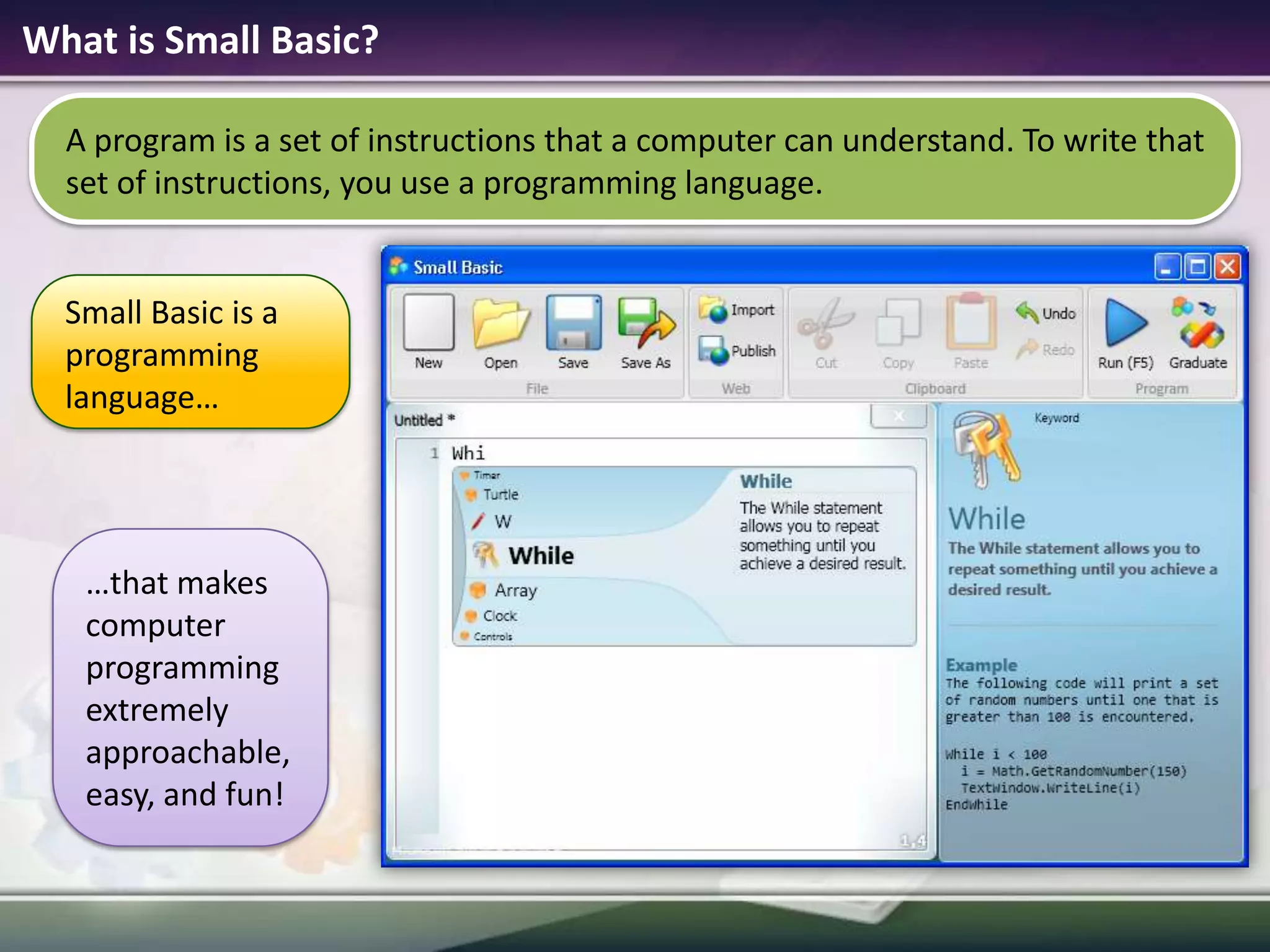
What is Small Basic?Small Basic is a programming language……that makes computer programming extremely approachable, easy, and fun! A program is a set of instructions that a computer can understand. To write that set of instructions, you use a programming language.
Small Basic  A Programming Language for BeginnersIn the beginning, only a few programming languages existed, and they were easy to learn. However, these languages became more and more complex, such as the Microsoft Visual C#® development tool, the MicrosoftVisual Basic® development environment, and Java.This complexity discouraged people who wanted to learn how to program computers.Small Basic removes this complexity barrier and serves as a stepping stone for all beginners to the world of programming!
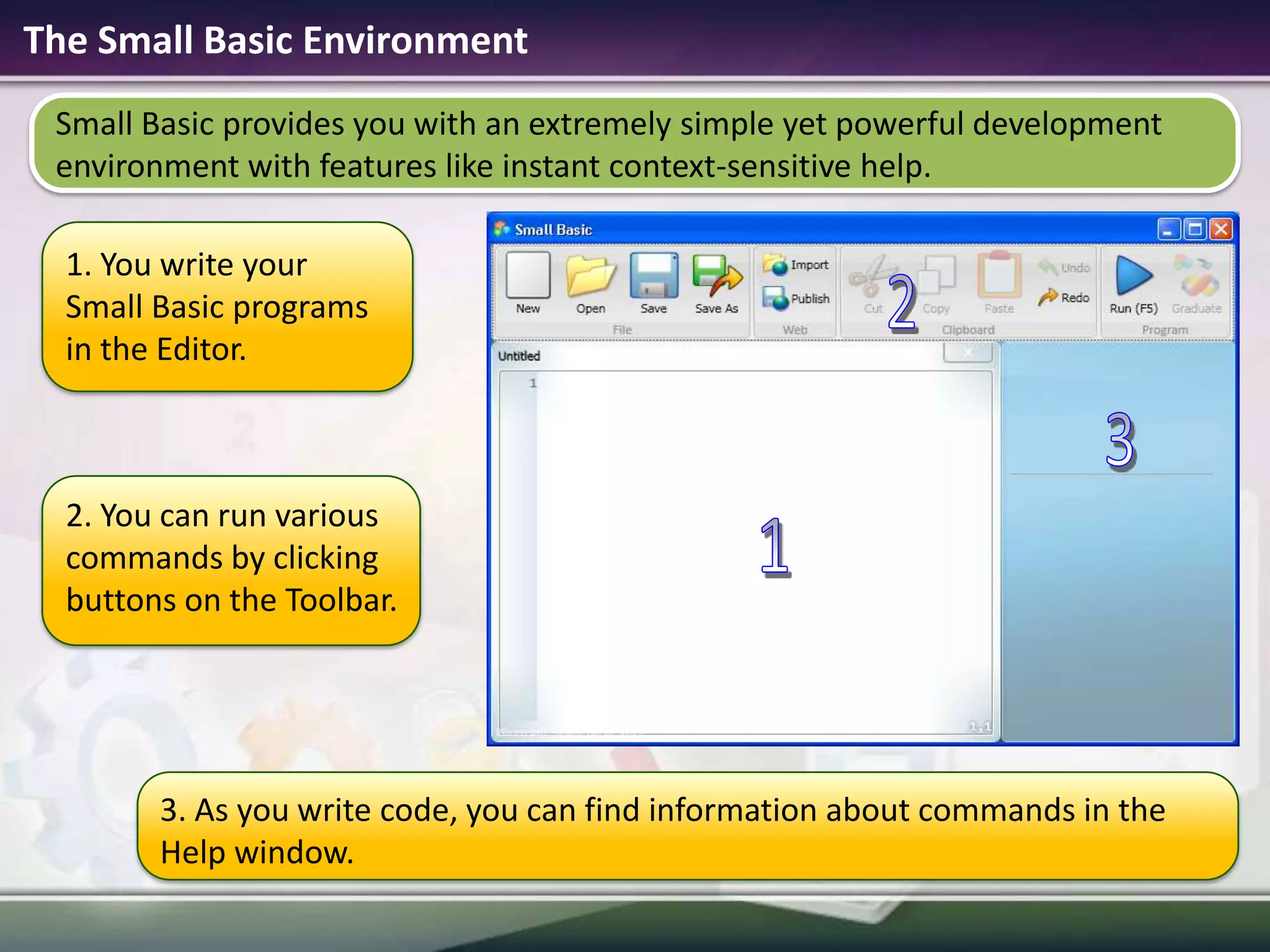
The Small Basic EnvironmentSmall Basic provides you with an extremely simple yet powerful development environment with features like instant context-sensitive help.21. You write your Small Basic programs in the Editor. 32. You can run various commands by clicking buttons on the Toolbar.13. As you write code, you can find information about commands in the Help window.
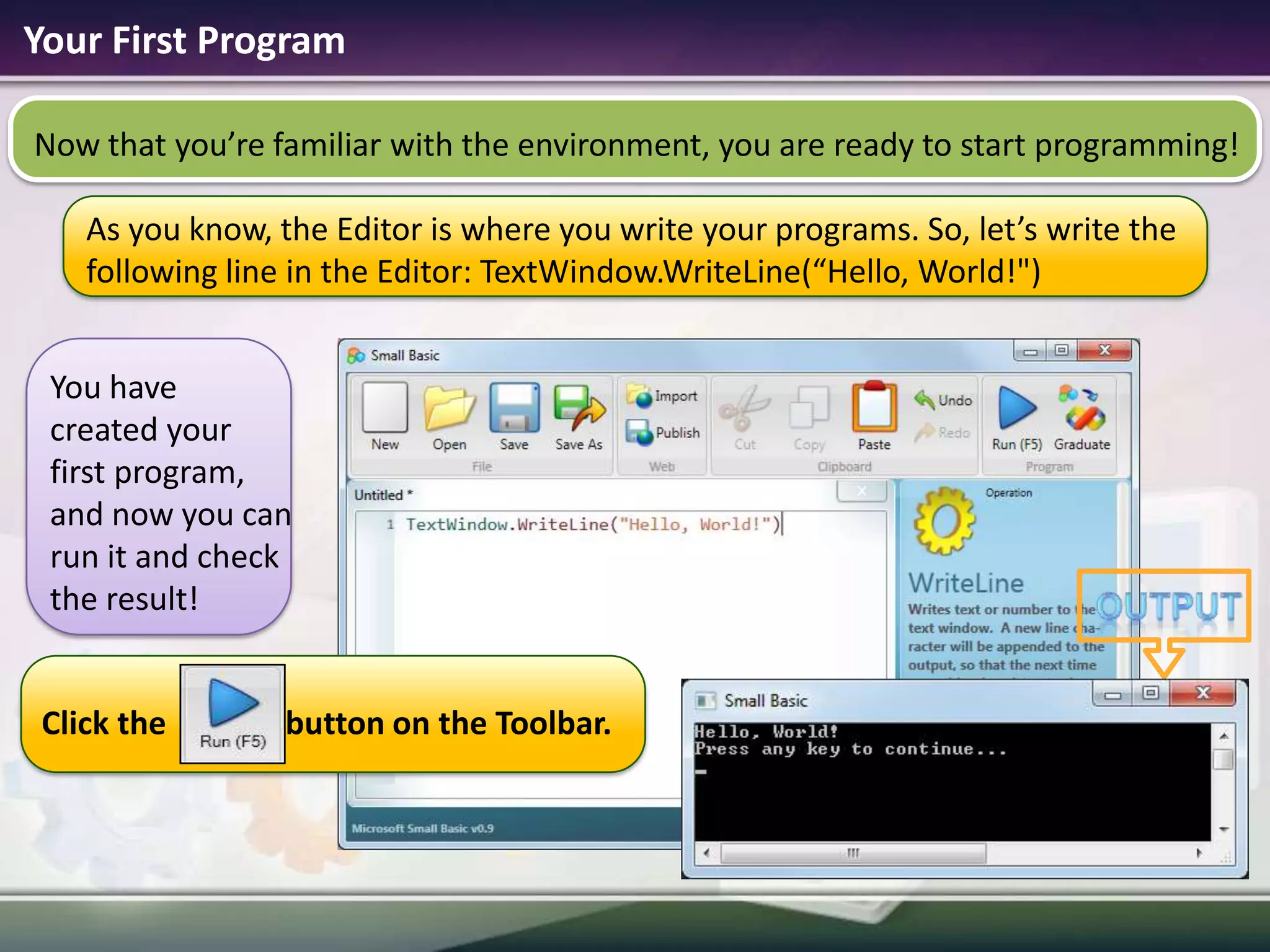
Your First ProgramAs you know, the Editor is where you write your programs. So, let’s write the following line in the Editor: TextWindow.WriteLine(“Hello, World!")outputNow that you’re familiar with the environment, you are ready to start programming!You have created your first program, and now you can run it and check the result!Click the               button on the Toolbar.
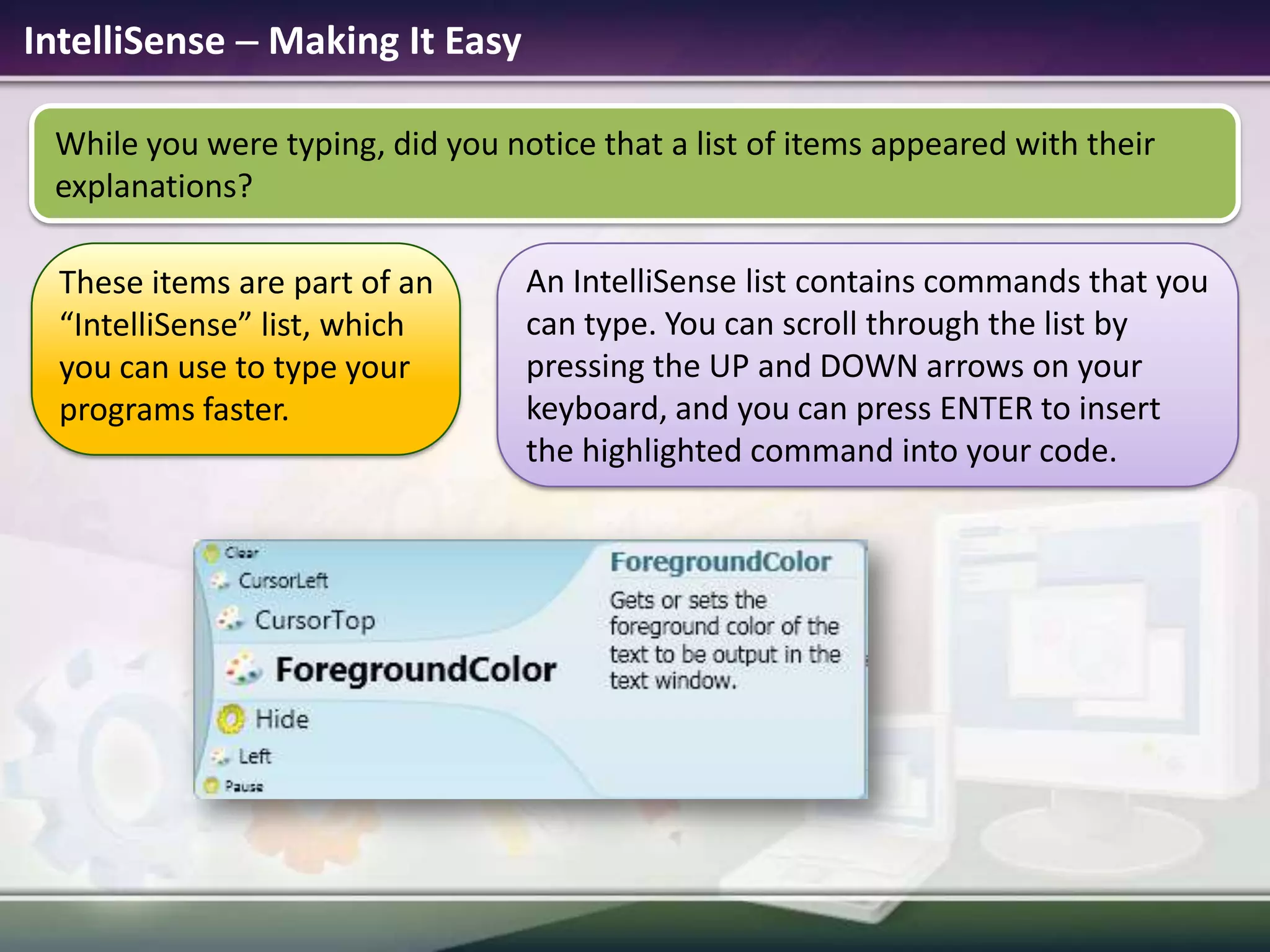
IntelliSense  Making It EasyWhile you were typing, did you notice that a list of items appeared with their explanations? An IntelliSense list contains commands that you can type. You can scroll through the list by pressing the UP and DOWN arrows on your keyboard, and you can press ENTER to insert the highlighted command into your code.These items are part of an “IntelliSense” list, which you can use to type your programs faster.
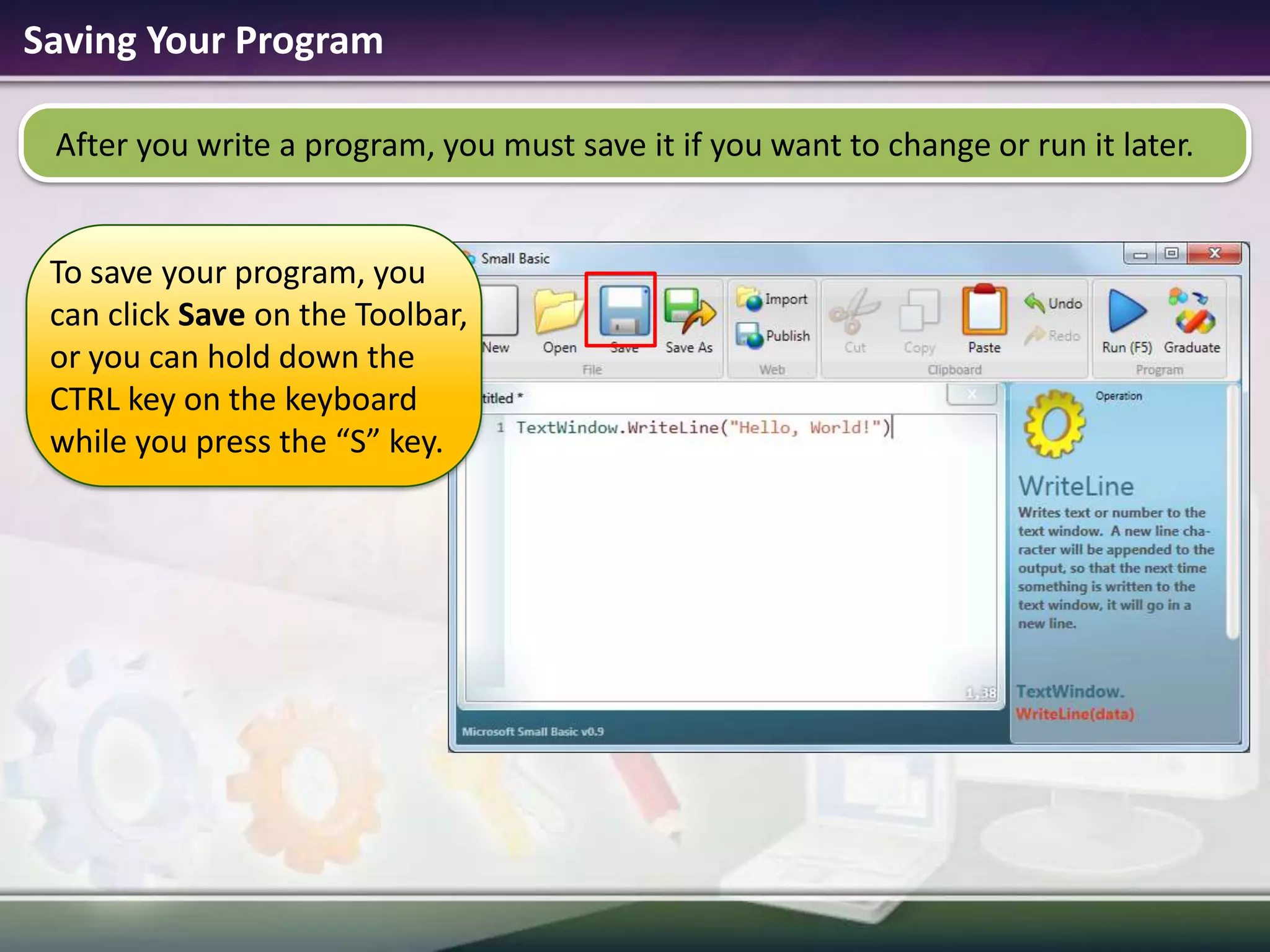
Saving Your ProgramAfter you write a program, you must save it if you want to change or run it later.To save your program, you can click Saveon the Toolbar, or you can hold down the CTRL key on the keyboard while you press the “S” key.
Let’s Summarize…Congratulations!Now you know how to:Define Small Basic. Explore the Small Basic environment. Write a Small Basic program. Use IntelliSense. Save your program.
Show What You KnowNow that you know some facts about Small Basic, you can demonstrate what you’ve learned by answering the following questions:What is Small Basic?

1.1 introduction to small basic

  • 1.
    Microsoft® Small BasicIntroductionto Small BasicEstimated time to complete this lesson: 30 minutes
  • 2.
    Introduction to SmallBasicIn this lesson, you will learn how to:Describe Small Basic.Explore the Small Basic environment.Write a Small Basic program.Use IntelliSense® technology.Save your program.
  • 3.
    What is SmallBasic?Small Basic is a programming language……that makes computer programming extremely approachable, easy, and fun! A program is a set of instructions that a computer can understand. To write that set of instructions, you use a programming language.
  • 4.
    Small Basic A Programming Language for BeginnersIn the beginning, only a few programming languages existed, and they were easy to learn. However, these languages became more and more complex, such as the Microsoft Visual C#® development tool, the MicrosoftVisual Basic® development environment, and Java.This complexity discouraged people who wanted to learn how to program computers.Small Basic removes this complexity barrier and serves as a stepping stone for all beginners to the world of programming!
  • 5.
    The Small BasicEnvironmentSmall Basic provides you with an extremely simple yet powerful development environment with features like instant context-sensitive help.21. You write your Small Basic programs in the Editor. 32. You can run various commands by clicking buttons on the Toolbar.13. As you write code, you can find information about commands in the Help window.
  • 6.
    Your First ProgramAsyou know, the Editor is where you write your programs. So, let’s write the following line in the Editor: TextWindow.WriteLine(“Hello, World!")outputNow that you’re familiar with the environment, you are ready to start programming!You have created your first program, and now you can run it and check the result!Click the button on the Toolbar.
  • 7.
    IntelliSense  MakingIt EasyWhile you were typing, did you notice that a list of items appeared with their explanations? An IntelliSense list contains commands that you can type. You can scroll through the list by pressing the UP and DOWN arrows on your keyboard, and you can press ENTER to insert the highlighted command into your code.These items are part of an “IntelliSense” list, which you can use to type your programs faster.
  • 8.
    Saving Your ProgramAfteryou write a program, you must save it if you want to change or run it later.To save your program, you can click Saveon the Toolbar, or you can hold down the CTRL key on the keyboard while you press the “S” key.
  • 9.
    Let’s Summarize…Congratulations!Now youknow how to:Define Small Basic. Explore the Small Basic environment. Write a Small Basic program. Use IntelliSense. Save your program.
  • 10.
    Show What YouKnowNow that you know some facts about Small Basic, you can demonstrate what you’ve learned by answering the following questions:What is Small Basic?
  • 11.
    Which feature ofSmall Basic helps you type your program faster?
  • 12.
    How do yourun your Small Basic program?

Editor's Notes

  • #11 Answers:A programming language.IntelliSense.By clicking Runon the Toolbar or by pressing F5 on the keyboard.