What is Scratch?
• Scratch is a simple environment designed by the Kindergarden
Lifelong Learning Group at MIT.
• In Scratch, sprites (objects) are manipulated on the stage
(background) using various scripts (small program segments).
Each sprite has its own set of scripts to control its behaviors and
how it interacts with other sprites and events.
What is Programming
• Programming
• A computer program is simply to
• It is like a recipe: a set of instructions to tell a cook how to make a dish.
is the art of making a computer do what you want it to do
a set of instructions Tell computer how to perform a task.
Why Scratch
•Help kids become fluent with
Digital media
Express themselves creatively
Make connections to powerful ideas.
Learn important computational ideas.
Reason systematically.
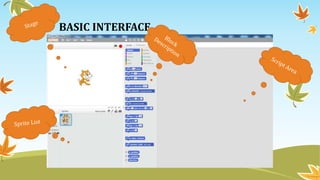
BASIC INTERFACE
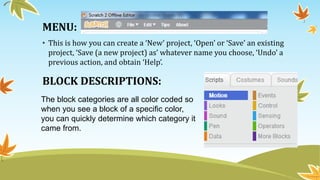
MENU:
• This is how you can create a ‘New’ project, ‘Open’ or ‘Save’ an existing
project, ‘Save (a new project) as’ whatever name you choose, ‘Undo’ a
previous action, and obtain ‘Help’.
BLOCK DESCRIPTIONS:
The block categories are all color coded so
when you see a block of a specific color,
you can quickly determine which category it
came from.
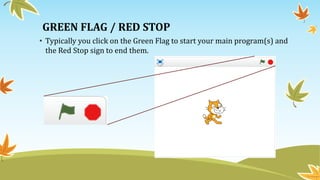
GREEN FLAG / RED STOP
• Typically you click on the Green Flag to start your main program(s) and
the Red Stop sign to end them.
LEARNING TO SCRATCH
• The best way to learn Scratch is through experimentation. As it is an
interactive environment, feel free to stop and experiment as you work
through this tutorial.
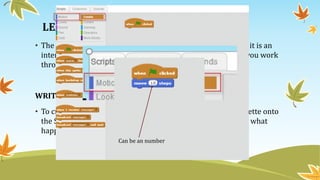
WRITING SIMPLE SCRIPTS
• To create a script, we simply drag a block from the Blocks Palette onto
the Scripts Area. To run it, we can double-click it and observe what
happens on the stage. Let’s try…
Can be an number
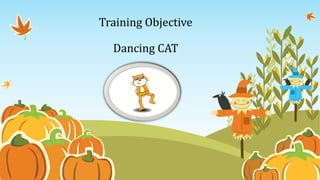
Training Objective
Dancing CAT
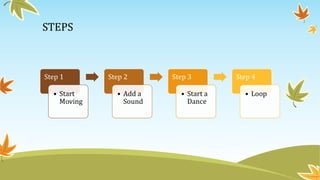
STEPS
Step 1
• Start
Moving
Step 2
• Add a
Sound
Step 3
• Start a
Dance
Step 4
• Loop
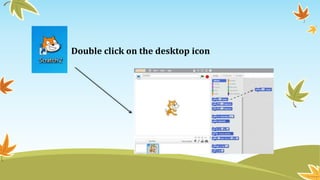
Double click on the desktop icon
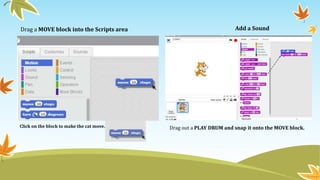
Drag a MOVE block into the Scripts area Add a Sound
Drag out a PLAY DRUM and snap it onto the MOVE block.
Click on the block to make the cat move.
Behind the code
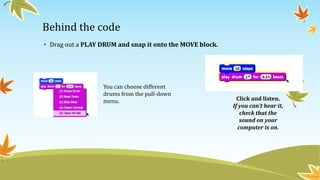
• Drag out a PLAY DRUM and snap it onto the MOVE block.
Click and listen.
If you can’t hear it,
check that the
sound on your
computer is on.
You can choose different
drums from the pull-down
menu.
Start a Dance
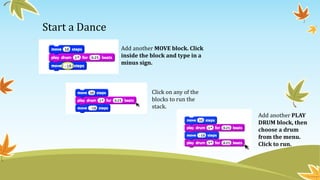
Add another MOVE block. Click
inside the block and type in a
minus sign.
Click on any of the
blocks to run the
stack.
Add another PLAY
DRUM block, then
choose a drum
from the menu.
Click to run.
Again and Again
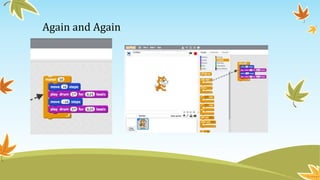
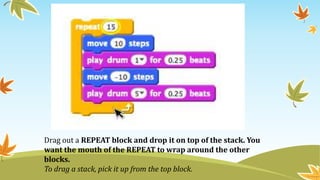
Drag out a REPEAT block and drop it on top of the stack. You
want the mouth of the REPEAT to wrap around the other
blocks.
To drag a stack, pick it up from the top block.
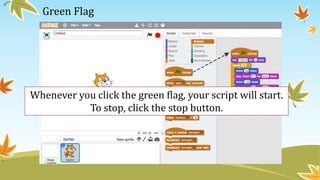
Green Flag
Whenever you click the green flag, your script will start.
To stop, click the stop button.
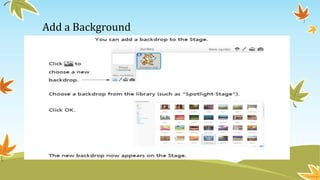
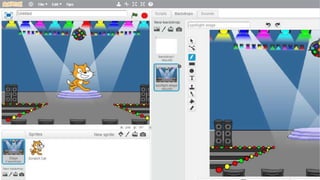
Add a Background
Scratch for kids language in Program.pptx

Scratch for kids language in Program.pptx

  • 1.
    What is Scratch? •Scratch is a simple environment designed by the Kindergarden Lifelong Learning Group at MIT. • In Scratch, sprites (objects) are manipulated on the stage (background) using various scripts (small program segments). Each sprite has its own set of scripts to control its behaviors and how it interacts with other sprites and events.
  • 2.
    What is Programming •Programming • A computer program is simply to • It is like a recipe: a set of instructions to tell a cook how to make a dish. is the art of making a computer do what you want it to do a set of instructions Tell computer how to perform a task.
  • 3.
    Why Scratch •Help kidsbecome fluent with Digital media Express themselves creatively Make connections to powerful ideas. Learn important computational ideas. Reason systematically.
  • 4.
  • 5.
    MENU: • This ishow you can create a ‘New’ project, ‘Open’ or ‘Save’ an existing project, ‘Save (a new project) as’ whatever name you choose, ‘Undo’ a previous action, and obtain ‘Help’. BLOCK DESCRIPTIONS: The block categories are all color coded so when you see a block of a specific color, you can quickly determine which category it came from.
  • 6.
    GREEN FLAG /RED STOP • Typically you click on the Green Flag to start your main program(s) and the Red Stop sign to end them.
  • 7.
    LEARNING TO SCRATCH •The best way to learn Scratch is through experimentation. As it is an interactive environment, feel free to stop and experiment as you work through this tutorial. WRITING SIMPLE SCRIPTS • To create a script, we simply drag a block from the Blocks Palette onto the Scripts Area. To run it, we can double-click it and observe what happens on the stage. Let’s try… Can be an number
  • 8.
  • 9.
    STEPS Step 1 • Start Moving Step2 • Add a Sound Step 3 • Start a Dance Step 4 • Loop
  • 10.
    Double click onthe desktop icon
  • 11.
    Drag a MOVEblock into the Scripts area Add a Sound Drag out a PLAY DRUM and snap it onto the MOVE block. Click on the block to make the cat move.
  • 12.
    Behind the code •Drag out a PLAY DRUM and snap it onto the MOVE block. Click and listen. If you can’t hear it, check that the sound on your computer is on. You can choose different drums from the pull-down menu.
  • 13.
    Start a Dance Addanother MOVE block. Click inside the block and type in a minus sign. Click on any of the blocks to run the stack. Add another PLAY DRUM block, then choose a drum from the menu. Click to run.
  • 14.
  • 15.
    Drag out aREPEAT block and drop it on top of the stack. You want the mouth of the REPEAT to wrap around the other blocks. To drag a stack, pick it up from the top block.
  • 16.
    Green Flag Whenever youclick the green flag, your script will start. To stop, click the stop button.
  • 17.