User Manual
TEACHER’S GUIDES
USER MANUAL
Contents:
1. What to do first ?
2. Start the Lessons/ Tutorial
a) Logo Introduction
b) Getting Started on MSWLogo
c) Basic LOGO Commands
d) Drawing Basic Shape in MSWLogo
e) Drawing Using The ‘REPEAT’ Commands.
3. Lesson Plans
4. Scheme Of Work
5. Student Progress Report
6. Resources
1) WHAT TO DO FIRST?
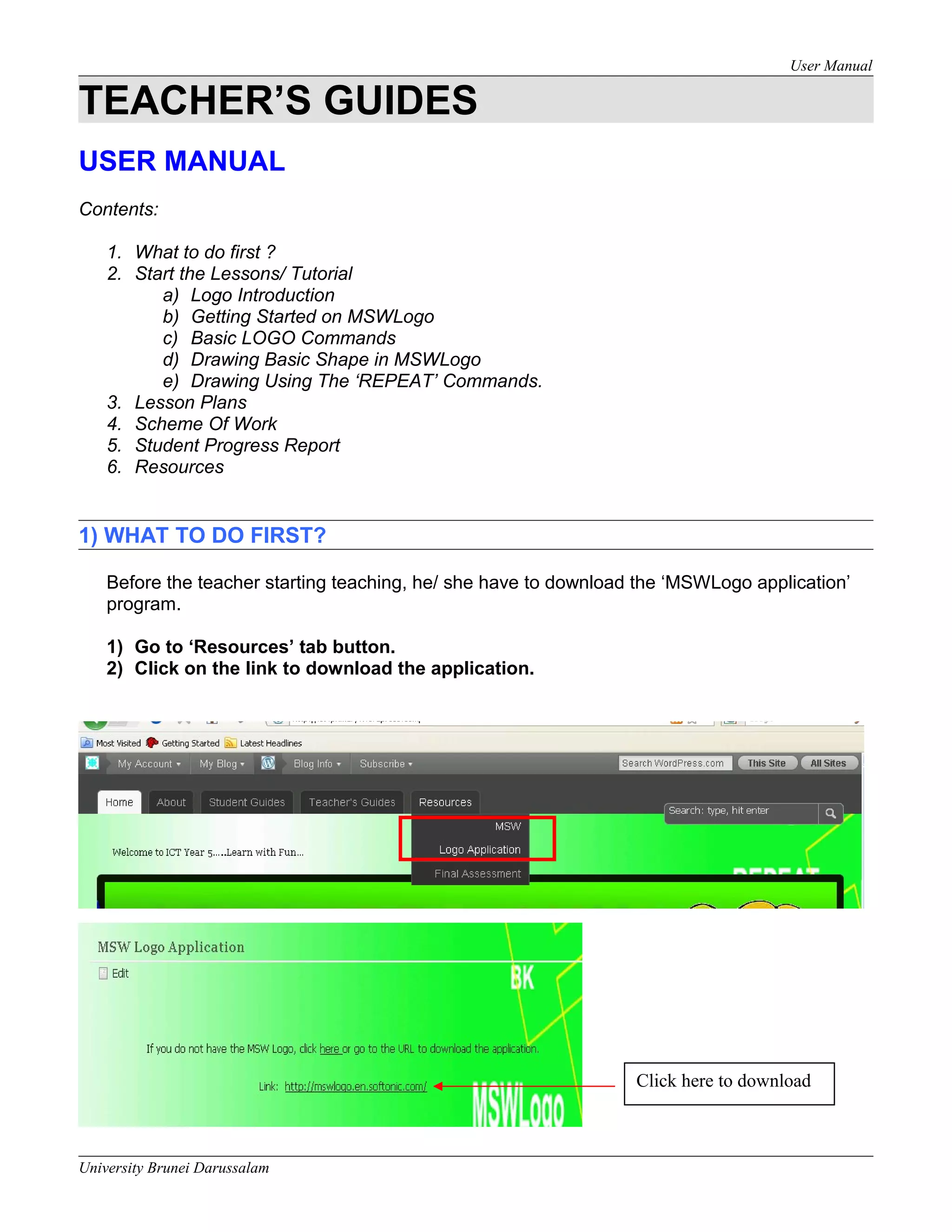
Before the teacher starting teaching, he/ she have to download the ‘MSWLogo application’
program.
1) Go to ‘Resources’ tab button.
2) Click on the link to download the application.
University Brunei Darussalam
Click here to download
User Manual
2) START THE LESSONS/ TUTORIAL
The teacher have to start the lesson follow the MSWLogo topics sequence.
a) Logo introduction
b) Getting started on MSWLogo
c) Basic logo commands.
d) Drawing basic shape in MSWLogo
e) Drawing using the ‘REPEAT’ commands.
Steps :
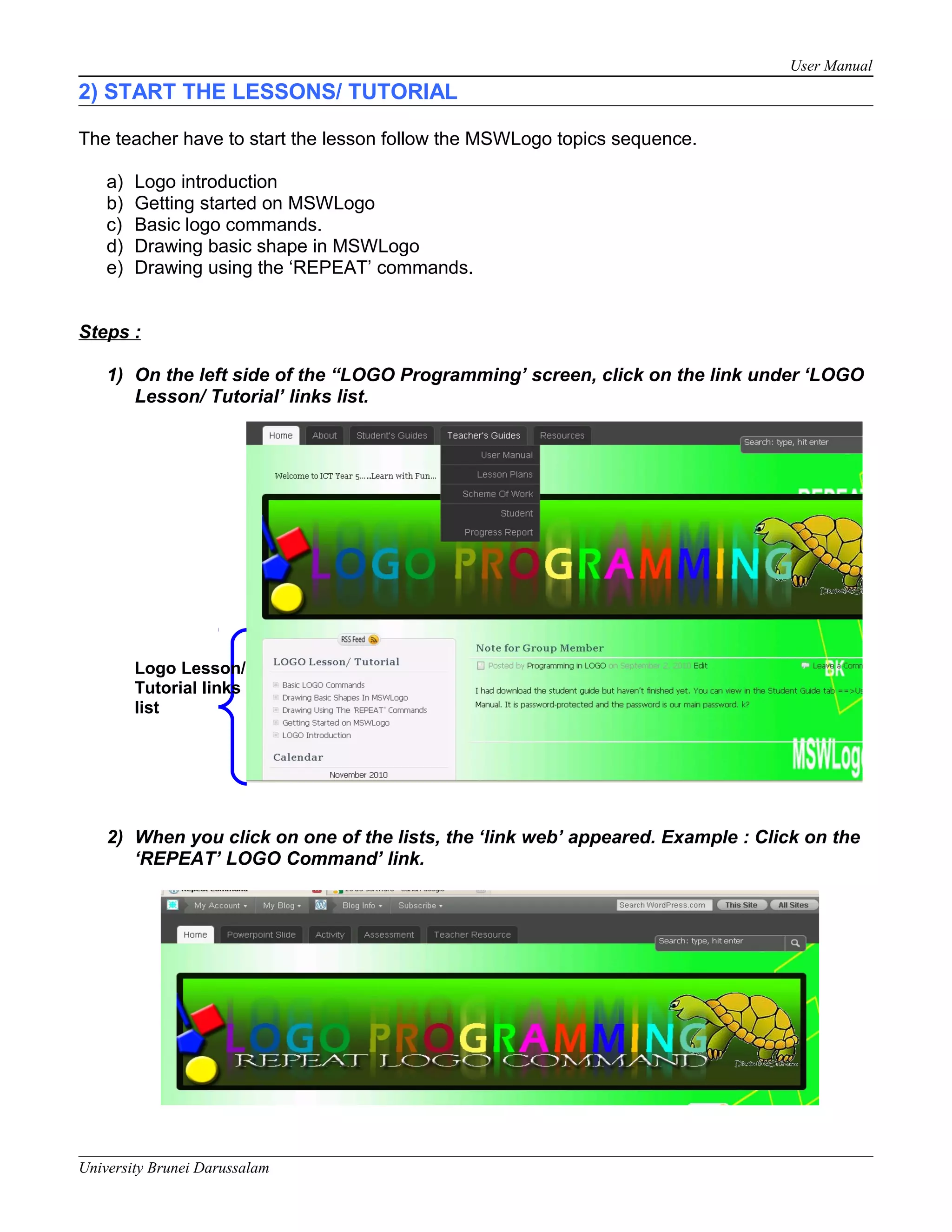
1) On the left side of the “LOGO Programming’ screen, click on the link under ‘LOGO
Lesson/ Tutorial’ links list.
2) When you click on one of the lists, the ‘link web’ appeared. Example : Click on the
‘REPEAT’ LOGO Command’ link.
University Brunei Darussalam
Logo Lesson/
Tutorial links
list
User Manual
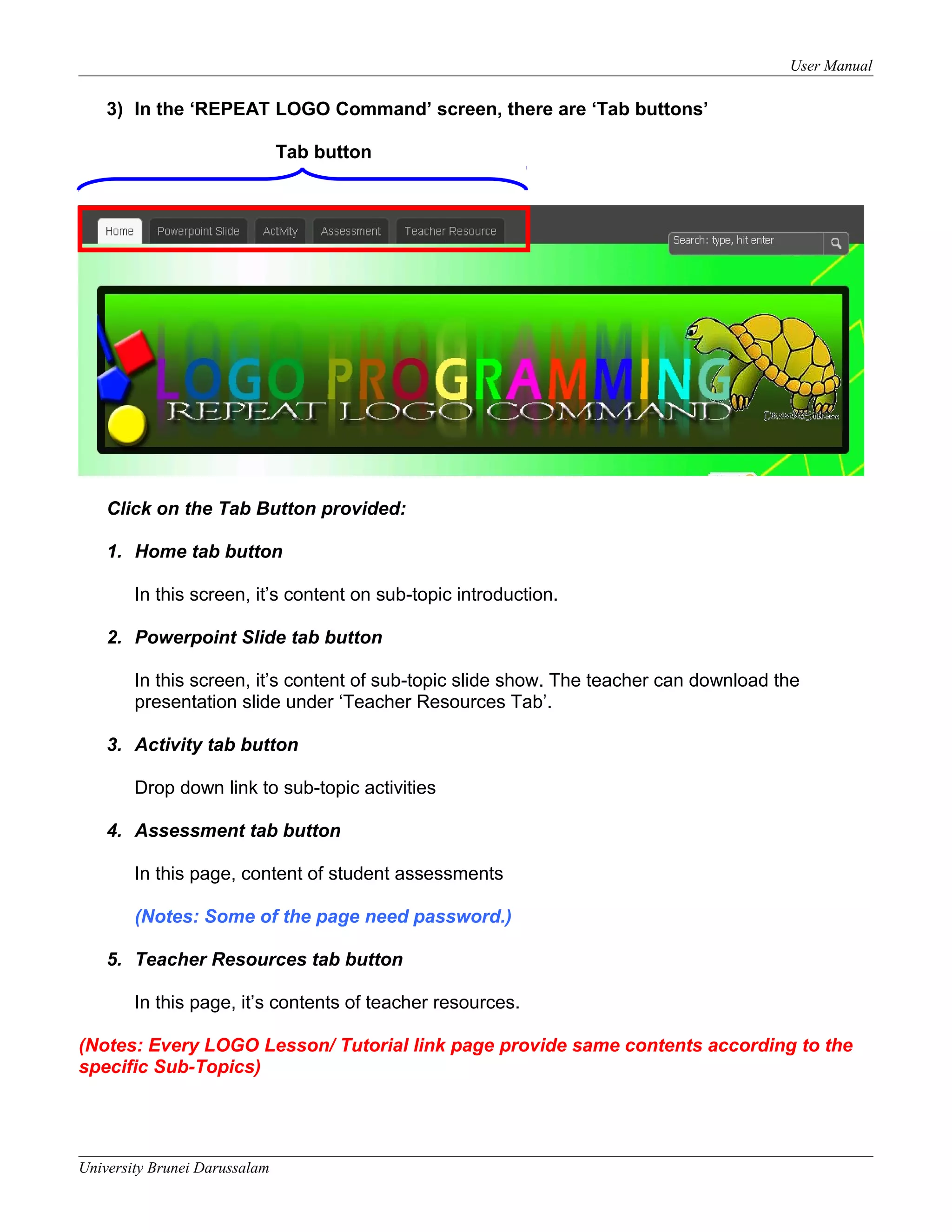
3) In the ‘REPEAT LOGO Command’ screen, there are ‘Tab buttons’
Tab button
Click on the Tab Button provided:
1. Home tab button
In this screen, it’s content on sub-topic introduction.
2. Powerpoint Slide tab button
In this screen, it’s content of sub-topic slide show. The teacher can download the
presentation slide under ‘Teacher Resources Tab’.
3. Activity tab button
Drop down link to sub-topic activities
4. Assessment tab button
In this page, content of student assessments
(Notes: Some of the page need password.)
5. Teacher Resources tab button
In this page, it’s contents of teacher resources.
(Notes: Every LOGO Lesson/ Tutorial link page provide same contents according to the
specific Sub-Topics)
University Brunei Darussalam
User Manual
3) LESSON PLANS
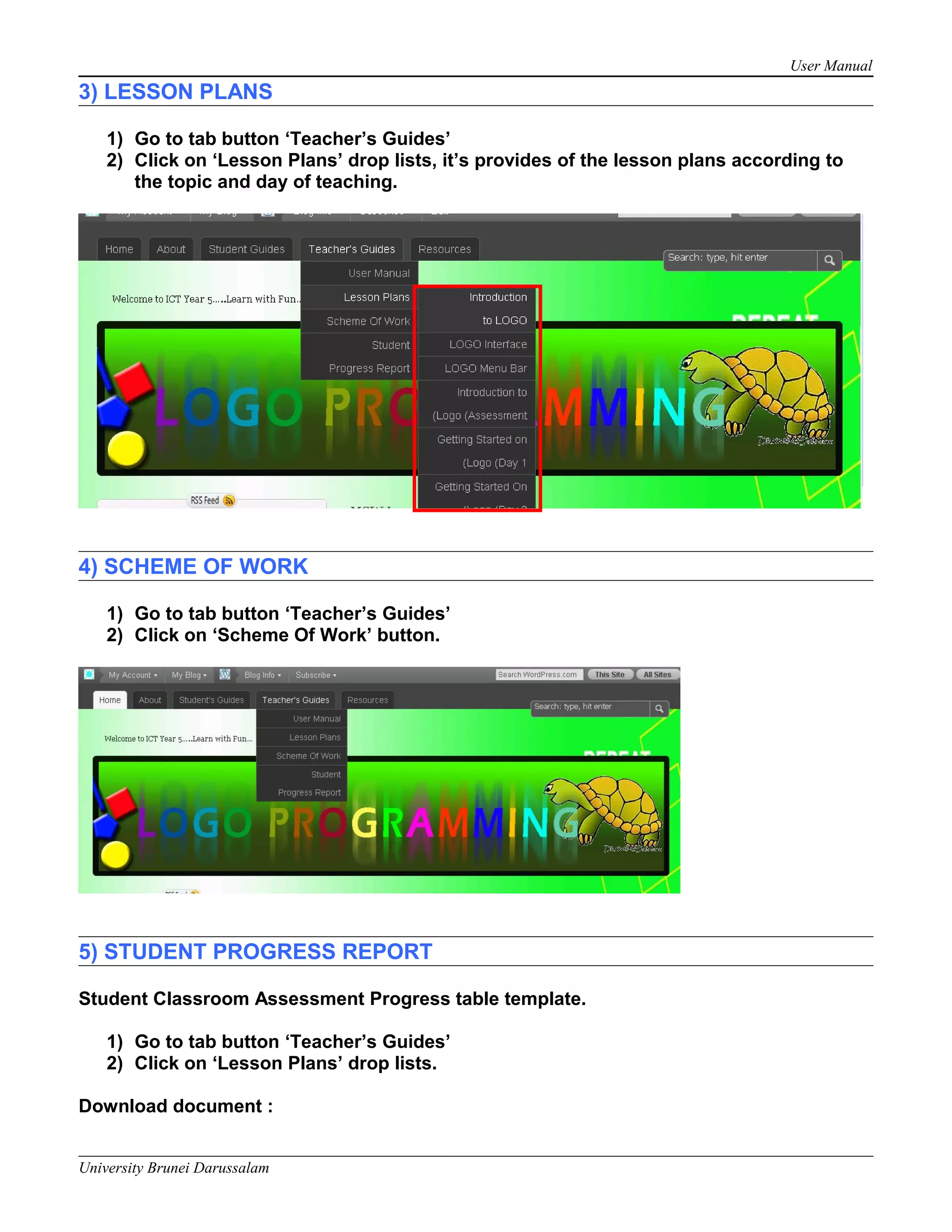
1) Go to tab button ‘Teacher’s Guides’
2) Click on ‘Lesson Plans’ drop lists, it’s provides of the lesson plans according to
the topic and day of teaching.
4) SCHEME OF WORK
1) Go to tab button ‘Teacher’s Guides’
2) Click on ‘Scheme Of Work’ button.
5) STUDENT PROGRESS REPORT
Student Classroom Assessment Progress table template.
1) Go to tab button ‘Teacher’s Guides’
2) Click on ‘Lesson Plans’ drop lists.
Download document :
University Brunei Darussalam
User Manual
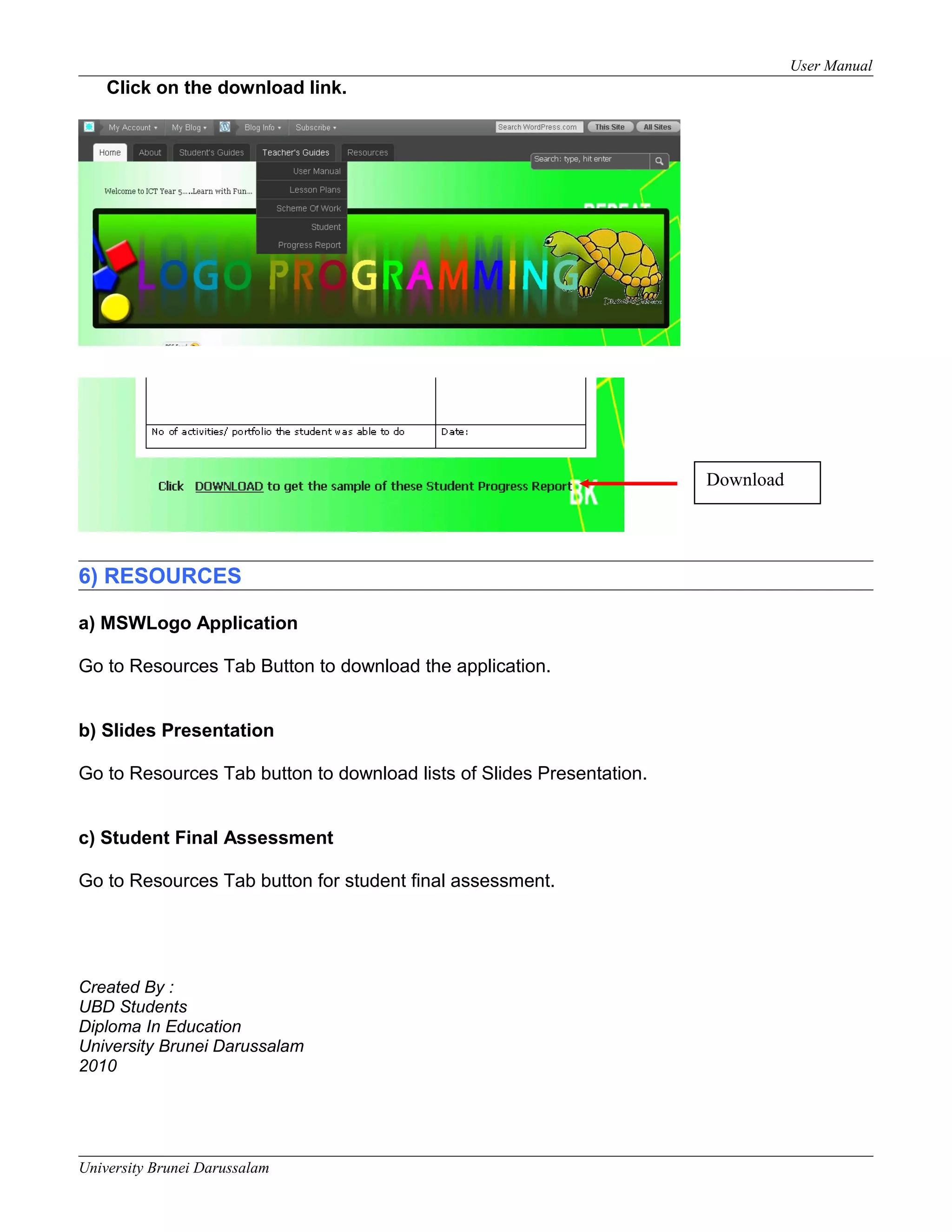
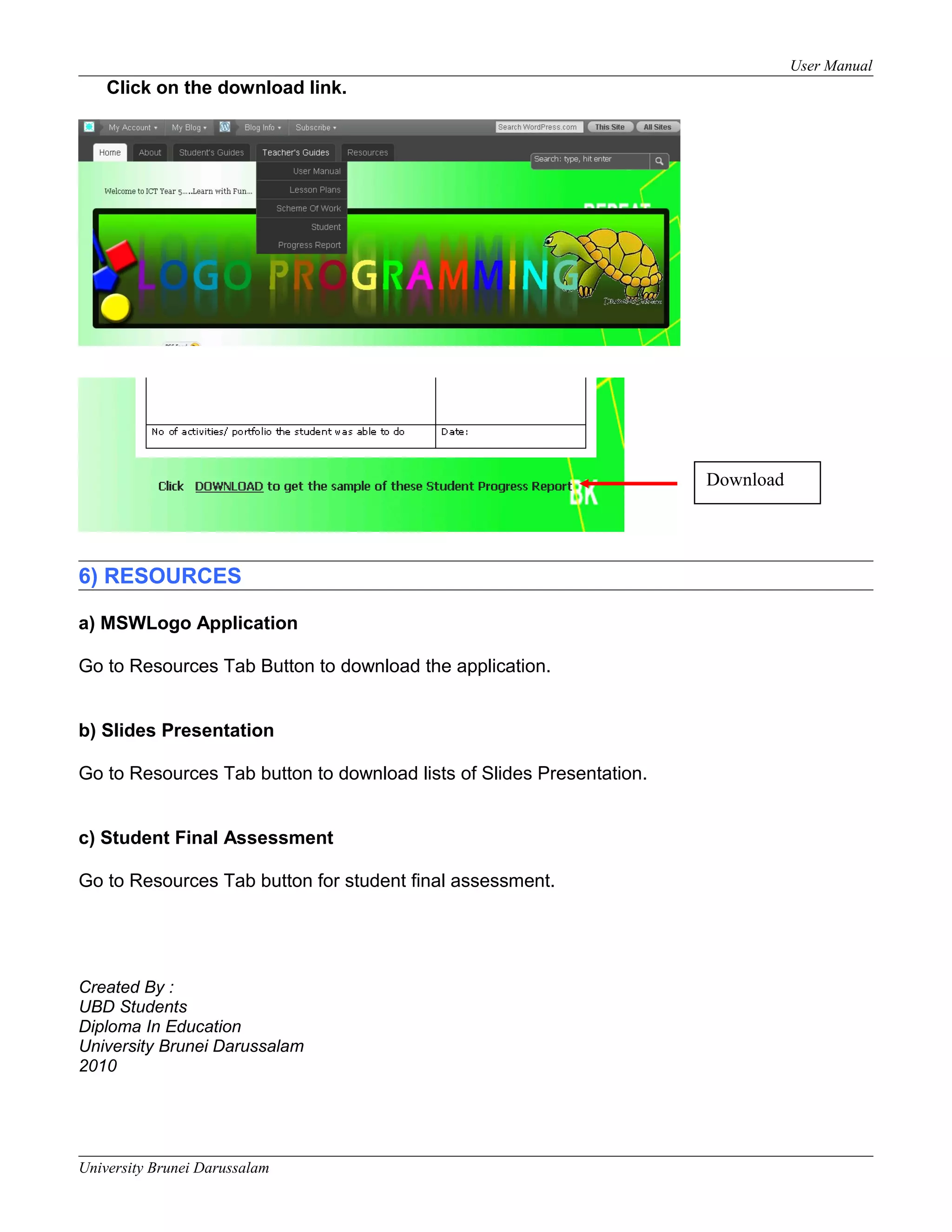
Click on the download link.
6) RESOURCES
a) MSWLogo Application
Go to Resources Tab Button to download the application.
b) Slides Presentation
Go to Resources Tab button to download lists of Slides Presentation.
c) Student Final Assessment
Go to Resources Tab button for student final assessment.
Created By :
UBD Students
Diploma In Education
University Brunei Darussalam
2010
University Brunei Darussalam
Download
User Manual
Click on the download link.
6) RESOURCES
a) MSWLogo Application
Go to Resources Tab Button to download the application.
b) Slides Presentation
Go to Resources Tab button to download lists of Slides Presentation.
c) Student Final Assessment
Go to Resources Tab button for student final assessment.
Created By :
UBD Students
Diploma In Education
University Brunei Darussalam
2010
University Brunei Darussalam
Download

Msw logo application user manual for teacher

  • 1.
    User Manual TEACHER’S GUIDES USERMANUAL Contents: 1. What to do first ? 2. Start the Lessons/ Tutorial a) Logo Introduction b) Getting Started on MSWLogo c) Basic LOGO Commands d) Drawing Basic Shape in MSWLogo e) Drawing Using The ‘REPEAT’ Commands. 3. Lesson Plans 4. Scheme Of Work 5. Student Progress Report 6. Resources 1) WHAT TO DO FIRST? Before the teacher starting teaching, he/ she have to download the ‘MSWLogo application’ program. 1) Go to ‘Resources’ tab button. 2) Click on the link to download the application. University Brunei Darussalam Click here to download
  • 2.
    User Manual 2) STARTTHE LESSONS/ TUTORIAL The teacher have to start the lesson follow the MSWLogo topics sequence. a) Logo introduction b) Getting started on MSWLogo c) Basic logo commands. d) Drawing basic shape in MSWLogo e) Drawing using the ‘REPEAT’ commands. Steps : 1) On the left side of the “LOGO Programming’ screen, click on the link under ‘LOGO Lesson/ Tutorial’ links list. 2) When you click on one of the lists, the ‘link web’ appeared. Example : Click on the ‘REPEAT’ LOGO Command’ link. University Brunei Darussalam Logo Lesson/ Tutorial links list
  • 3.
    User Manual 3) Inthe ‘REPEAT LOGO Command’ screen, there are ‘Tab buttons’ Tab button Click on the Tab Button provided: 1. Home tab button In this screen, it’s content on sub-topic introduction. 2. Powerpoint Slide tab button In this screen, it’s content of sub-topic slide show. The teacher can download the presentation slide under ‘Teacher Resources Tab’. 3. Activity tab button Drop down link to sub-topic activities 4. Assessment tab button In this page, content of student assessments (Notes: Some of the page need password.) 5. Teacher Resources tab button In this page, it’s contents of teacher resources. (Notes: Every LOGO Lesson/ Tutorial link page provide same contents according to the specific Sub-Topics) University Brunei Darussalam
  • 4.
    User Manual 3) LESSONPLANS 1) Go to tab button ‘Teacher’s Guides’ 2) Click on ‘Lesson Plans’ drop lists, it’s provides of the lesson plans according to the topic and day of teaching. 4) SCHEME OF WORK 1) Go to tab button ‘Teacher’s Guides’ 2) Click on ‘Scheme Of Work’ button. 5) STUDENT PROGRESS REPORT Student Classroom Assessment Progress table template. 1) Go to tab button ‘Teacher’s Guides’ 2) Click on ‘Lesson Plans’ drop lists. Download document : University Brunei Darussalam
  • 5.
    User Manual Click onthe download link. 6) RESOURCES a) MSWLogo Application Go to Resources Tab Button to download the application. b) Slides Presentation Go to Resources Tab button to download lists of Slides Presentation. c) Student Final Assessment Go to Resources Tab button for student final assessment. Created By : UBD Students Diploma In Education University Brunei Darussalam 2010 University Brunei Darussalam Download
  • 6.
    User Manual Click onthe download link. 6) RESOURCES a) MSWLogo Application Go to Resources Tab Button to download the application. b) Slides Presentation Go to Resources Tab button to download lists of Slides Presentation. c) Student Final Assessment Go to Resources Tab button for student final assessment. Created By : UBD Students Diploma In Education University Brunei Darussalam 2010 University Brunei Darussalam Download