Microsoft® Small BasicAdvanced GamesEstimated time to complete this lesson: 1 hour
Advanced GamesIn this lesson, you will learn how to:Create advanced games by using basic elements, objects, and other advanced concepts of Small Basic.
Advanced Games in Small Basic Let’s see how we can use all these concepts in Small Basic to create advanced games.Congratulations! You are now well acquainted with programming fundamentals as well as advanced concepts of Small Basic.You have learned to use basic programming concepts in Small Basic. You have also been introduced to Small Basic objects and advanced concepts.
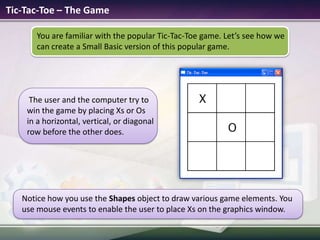
Tic-Tac-Toe – The GameYou are familiar with the popular Tic-Tac-Toe game. Let’s see how we can create a Small Basic version of this popular game.Notice how you use the Shapes object to draw various game elements. You use mouse events to enable the user to place Xs on the graphics window.The user and the computer try to win the game by placing Xs or Os in a horizontal, vertical, or diagonal row before the other does.
Tic-Tac-Toe – How to PlaySo how do you play this game?Steps to play the game:This game involves 2 players, the user and the computer. Each player takes a turn placing an X or an O on the 3x3 playing area. The game starts with the user placing an X on the board.
The players alternately place Xs and Os and on the playing area.
The player who first places three Xs or three Os in a horizontal, vertical, or diagonal line wins the game.Tic-Tac-Toe – The CodeNow let’s understand the code for the game in detail…Use the GraphicsWindowto create the game interface.
Use the Shapes object to create the playing area for the Xs and Os on the graphics window.

4.4 advanced games

  • 1.
    Microsoft® Small BasicAdvancedGamesEstimated time to complete this lesson: 1 hour
  • 2.
    Advanced GamesIn thislesson, you will learn how to:Create advanced games by using basic elements, objects, and other advanced concepts of Small Basic.
  • 3.
    Advanced Games inSmall Basic Let’s see how we can use all these concepts in Small Basic to create advanced games.Congratulations! You are now well acquainted with programming fundamentals as well as advanced concepts of Small Basic.You have learned to use basic programming concepts in Small Basic. You have also been introduced to Small Basic objects and advanced concepts.
  • 4.
    Tic-Tac-Toe – TheGameYou are familiar with the popular Tic-Tac-Toe game. Let’s see how we can create a Small Basic version of this popular game.Notice how you use the Shapes object to draw various game elements. You use mouse events to enable the user to place Xs on the graphics window.The user and the computer try to win the game by placing Xs or Os in a horizontal, vertical, or diagonal row before the other does.
  • 5.
    Tic-Tac-Toe – Howto PlaySo how do you play this game?Steps to play the game:This game involves 2 players, the user and the computer. Each player takes a turn placing an X or an O on the 3x3 playing area. The game starts with the user placing an X on the board.
  • 6.
    The players alternatelyplace Xs and Os and on the playing area.
  • 7.
    The player whofirst places three Xs or three Os in a horizontal, vertical, or diagonal line wins the game.Tic-Tac-Toe – The CodeNow let’s understand the code for the game in detail…Use the GraphicsWindowto create the game interface.
  • 8.
    Use the Shapesobject to create the playing area for the Xs and Os on the graphics window.

Editor's Notes

  • #9 Solution:' Copyright (c) Microsoft Corporation. All rights reserved.GraphicsWindow.Hide()GraphicsWindow.Height = 450GraphicsWindow.Width = 600GraphicsWindow.Top = ( Desktop.Height - 450 ) / 2GraphicsWindow.Left = ( Desktop.Width - 600 ) / 2GraphicsWindow.CanResize = "False"GraphicsWindow.Show()paddleImage = Program.Directory + " ectangle.png"ballImage = Program.Directory + "circle.png"Left = 42bStartY = 35CreatUI()hitCount = 0GraphicsWindow.MouseMove = MouseActionFor index = 0 To 15Array.SetValue("PinkBricks", Index, 1)Array.SetValue("VioletBricks", Index, 1)Array.SetValue("AquaBricks", Index, 1)EndforInitBricks()score = 0ShowScore()gw = GraphicsWindow.Widthgh = GraphicsWindow.Heighty = gh - 28Shapes.Move(ball, x, y)dX= 1dY =-2Loop:x = x + dXy = y + dYIf x >= gw - 16 Or x <= 0 ThendX= -dXEndIfIf y <= 0 ThendY = -dYEndIfpadX = Shapes.GetLeft(paddle)If y >= gh - 28 + 2 And x >= padX And x <= padX + 70 Then y = gh - 28 + 2 hitCount = hitCount + 1If Math.Remainder(hitCount, 3) = 0 Then For Index = 0 To 15HidePinkBrick()HideVioletBrick()HideAquaBrick()EndforbStartY = bStartY + 20InitBricks()EndIfTestAqua:For Index = 0 To 15If Array.GetValue("AquaBricks", Index) = 1 ThenIf bStartY > gh - 160 ThenGotoEndGameEndIfEndIfEndForTestViolet:For Index = 0 To 15If Array.GetValue("VioletBricks", Index) = 1 ThenIf bStartY > gh - 100 ThenGotoEndGameEndIfEndIfEndForTestPink:For Index = 0 To 15If Array.GetValue("PinkBricks", Index) = 1 ThenIf bStartY > gh - 40 ThenGotoEndGameEndIfEndIfEndForEndTest:dX= dX- 2 + (x - padX) / 30 If score = oldScore ThenIf score <> 0 Then score = score - 1EndIfEndIfoldScore = scoreShowScore()dY = -dYEndIfShapes.Move(ball, x, y) Program.Delay(5)If y > bStartY - 16 And y < bStartY + 20 Then Index = (x+8) / 40 Index = Math.Floor(Index)If Array.GetValue("PinkBricks", Index) = 1 Then If Index=8 ThenElseArray.SetValue("PinkBricks", Index, 0)HidePinkBrick() Left = Left - 1 score = score + 15ShowScore()EndIfdY = -dYgameFinish() EndIfEndIfIf y > bStartY + 44 And y < bStartY + 80 Then Index = (x + 8) / 40 Index = Math.Floor(Index) If Array.GetValue("VioletBricks", Index) = 1 ThenIf Index=4 Or Index=11 ThenElse Array.SetValue("VioletBricks", Index, 0)HideVioletBrick() Left = Left - 1 score = score + 10ShowScore()EndIfdY = -dYgameFinish() EndIfEndIfIf y > bStartY + 104 And y < bStartY + 140 Then Index = (x + 8) / 40 Index = Math.Floor(Index) If Array.GetValue("AquaBricks", Index) = 1 ThenIf Index = 2 Or Index = 7 Or Index = 13 ThenElse Array.SetValue("AquaBricks", Index, 0)HideAquaBrick() score = score + 5ShowScore() Left = Left - 1EndIfdY = -dYgameFinish()EndIfEndIfIf y < gh Then Goto LoopEndIfEndGame:GraphicsWindow.ShowMessage("Your score is: " + score, "Game Over")Program.End()Sub CreatUIGraphicsWindow.Title = "Paddle Game"GraphicsWindow.FontSize = 14 paddle = Shapes.AddImage(paddleimage) ball = Shapes.AddImage(ballimage)EndSubSub MouseActionpaddleX = GraphicsWindow.MouseXShapes.Move(paddle, paddleX - 10, GraphicsWindow.Height - 14)EndSubSub ShowScoreGraphicsWindow.BrushColor = "White"GraphicsWindow.FillRectangle(520, 10, 200, 20)GraphicsWindow.BrushColor = "Black"GraphicsWindow.DrawText(500, 10, "Score: " + score)EndSubSub InitBricksFor Index = 0 To 15 If Index = 8 ThenGraphicsWindow.PenColor = "Black"GraphicsWindow.BrushColor = "Gray"ElseIf Array.GetValue("PinkBricks", Index) = 1 ThenGraphicsWindow.PenColor = "Black"GraphicsWindow.BrushColor = "Pink"ElseGraphicsWindow.PenColor = "White"GraphicsWindow.BrushColor = "White"EndIfEndIfGraphicsWindow.FillRectangle(Index * 40, bStartY, 40, 20)GraphicsWindow.DrawRectangle(Index * 40, bStartY, 40, 20)GraphicsWindow.BrushColor = "Violet"If Index = 4 Or Index=11 ThenGraphicsWindow.PenColor = "Black"GraphicsWindow.BrushColor = "Gray"ElseIf Array.GetValue("VioletBricks", Index) = 1 ThenGraphicsWindow.PenColor = "Black"GraphicsWindow.BrushColor = "Violet"ElseGraphicsWindow.PenColor = "White"GraphicsWindow.BrushColor = "White"EndIfEndIfGraphicsWindow.FillRectangle(Index * 40, bStartY + 60, 40, 20)GraphicsWindow.DrawRectangle(Index * 40, bStartY + 60, 40, 20)GraphicsWindow.BrushColor = "Aqua"If Index = 2 Or Index = 7 Or Index = 13 ThenGraphicsWindow.PenColor = "Black"GraphicsWindow.BrushColor = "Gray"ElseIf Array.GetValue("AquaBricks", Index) = 1 ThenGraphicsWindow.PenColor = "Black"GraphicsWindow.BrushColor = "Aqua"ElseGraphicsWindow.PenColor = "White"GraphicsWindow.BrushColor = "White"EndIfEndIfGraphicsWindow.FillRectangle(Index * 40, bStartY + 120, 40, 20)GraphicsWindow.DrawRectangle(Index * 40, bStartY + 120, 40, 20)EndForEndSubSub HidePinkBrickGraphicsWindow.PenColor = "White"GraphicsWindow.BrushColor = "White"GraphicsWindow.FillRectangle(Index * 40, bStartY, 40, 20)GraphicsWindow.DrawRectangle(Index * 40, bStartY, 40, 20)EndSubSub HideVioletBrickGraphicsWindow.PenColor = "White"GraphicsWindow.BrushColor = "White"GraphicsWindow.FillRectangle(Index * 40, bStartY + 60, 40, 20)GraphicsWindow.DrawRectangle(Index * 40, bStartY + 60, 40, 20)EndSubSub HideAquaBrickGraphicsWindow.PenColor = "White"GraphicsWindow.BrushColor = "White"GraphicsWindow.FillRectangle(Index * 40, bStartY + 120, 40, 20)GraphicsWindow.DrawRectangle(Index * 40, bStartY + 120, 40, 20)EndSubSub gameFinishIf Left = 0 ThenGraphicsWindow.ShowMessage("Well Done! Your score is: " + score, "Game Over") Program.End() EndIfEndSub