Creating & Running a Program 
Using Emulator
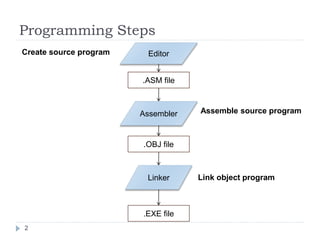
Programming Steps 
2 
Assemble source program 
Editor 
.ASM file 
Assembler 
.OBJ file 
Linker 
.EXE file 
Create source program 
Link object program
How to Open? 
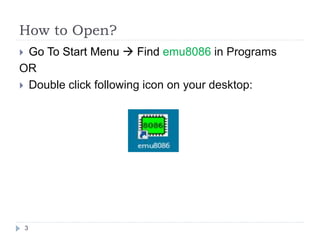
 Go To Start Menu  Find emu8086 in Programs 
OR 
 Double click following icon on your desktop: 
3
4 
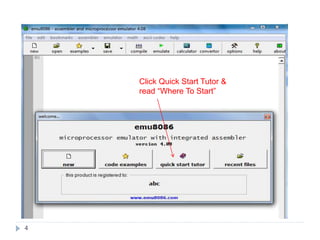
Click Quick Start Tutor & 
read “Where To Start”
5 
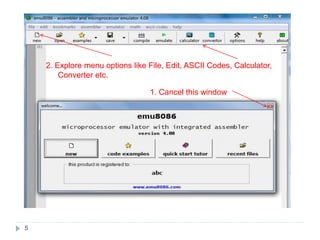
2. Explore menu options like File, Edit, ASCII Codes, Calculator, 
Converter etc. 
1. Cancel this window
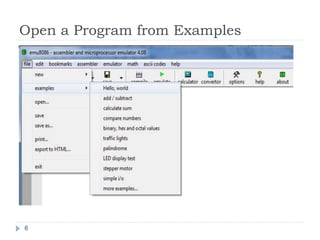
Open a Program from Examples 
6
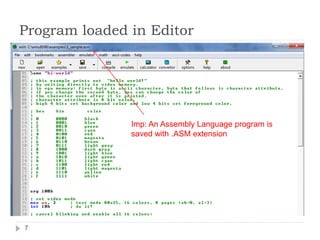
Program loaded in Editor 
7 
Imp: An Assembly Language program is 
saved with .ASM extension
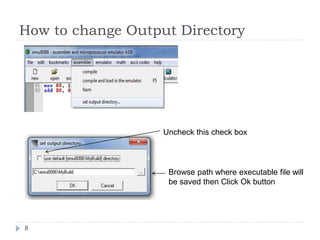
How to change Output Directory 
8 
Uncheck this check box 
Browse path where executable file will 
be saved then Click Ok button
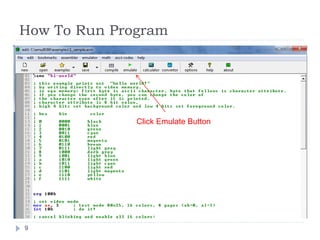
How To Run Program 
9 
Click Emulate Button
10
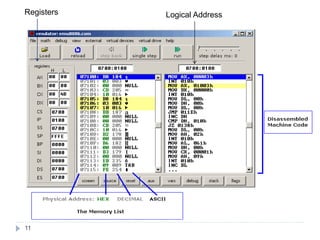
Registers Logical Address 
11
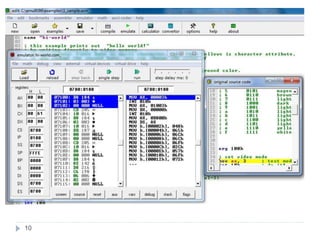
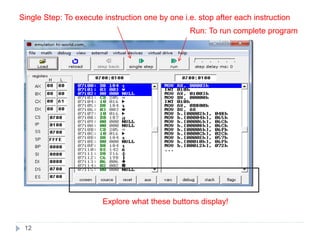
Single Step: To execute instruction one by one i.e. stop after each instruction 
12 
Run: To run complete program 
Explore what these buttons display!
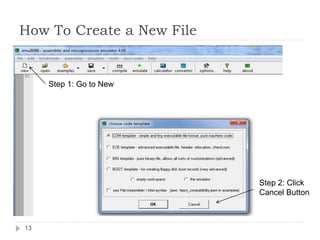
How To Create a New File 
13 
Step 1: Go to New 
Step 2: Click 
Cancel Button
14 
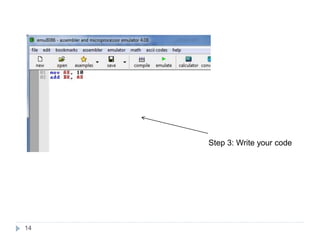
Step 3: Write your code
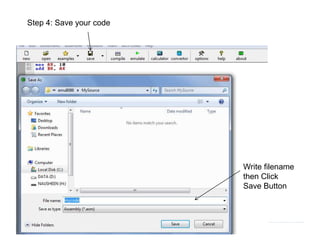
Step 4: Save your code 
15 
Write filename 
then Click 
Save Button
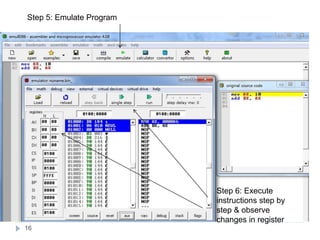
Step 5: Emulate Program 
16 
Step 6: Execute 
instructions step by 
step & observe 
changes in register
Introduction To EMU

Introduction To EMU

  • 1.
    Creating & Runninga Program Using Emulator
  • 2.
    Programming Steps 2 Assemble source program Editor .ASM file Assembler .OBJ file Linker .EXE file Create source program Link object program
  • 3.
    How to Open?  Go To Start Menu  Find emu8086 in Programs OR  Double click following icon on your desktop: 3
  • 4.
    4 Click QuickStart Tutor & read “Where To Start”
  • 5.
    5 2. Exploremenu options like File, Edit, ASCII Codes, Calculator, Converter etc. 1. Cancel this window
  • 6.
    Open a Programfrom Examples 6
  • 7.
    Program loaded inEditor 7 Imp: An Assembly Language program is saved with .ASM extension
  • 8.
    How to changeOutput Directory 8 Uncheck this check box Browse path where executable file will be saved then Click Ok button
  • 9.
    How To RunProgram 9 Click Emulate Button
  • 10.
  • 11.
  • 12.
    Single Step: Toexecute instruction one by one i.e. stop after each instruction 12 Run: To run complete program Explore what these buttons display!
  • 13.
    How To Createa New File 13 Step 1: Go to New Step 2: Click Cancel Button
  • 14.
    14 Step 3:Write your code
  • 15.
    Step 4: Saveyour code 15 Write filename then Click Save Button
  • 16.
    Step 5: EmulateProgram 16 Step 6: Execute instructions step by step & observe changes in register