Introduction to
MATLAB
Variables
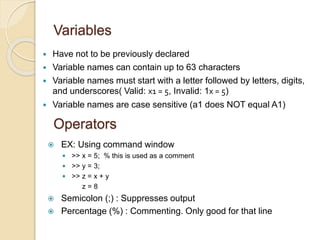
 Have not to be previously declared
 Variable names can contain up to 63 characters
 Variable names must start with a letter followed by letters, digits,
and underscores( Valid: x1 = 5, Invalid: 1x = 5)
 Variable names are case sensitive (a1 does NOT equal A1)
 EX: Using command window
 >> x = 5; % this is used as a comment
 >> y = 3;
 >> z = x + y
z = 8
 Semicolon (;) : Suppresses output
 Percentage (%) : Commenting. Only good for that line
Operators
MATLAB Special Variables
ans Default variable name for results
pi Value of pi number (3.14)
eps Smallest incremental number
inf Infinity
NaN Not a number e.g. 0/0
realmin The smallest usable positive real number
realmax The largest usable positive real number
i,j Imaginary unit
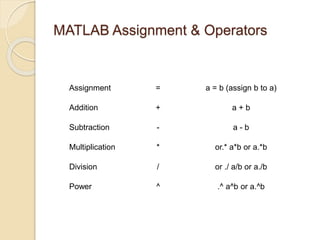
MATLAB Assignment & Operators
Assignment = a = b (assign b to a)
Addition + a + b
Subtraction - a - b
Multiplication * or.* a*b or a.*b
Division / or ./ a/b or a./b
Power ^ .^ a^b or a.^b
MATLAB Matrices
 MATLAB treats all variables as matrices. For our purposes a
matrix can be thought of as an array, in fact, that is how it is
stored.
 Vectors are special forms of matrices and contain only one
row OR one column.
 Scalars are matrices with only one row AND one column
MATLAB Matrices
 A matrix with only one row is called a row vector. A row vector can be
created in MATLAB as follows (note the commas):
» rowvec = [12 , 14 , 63]
rowvec =
12 14 63
 A matrix with only one column is called a column vector. A column
vector can be created in MATLAB as follows (note the semicolons):
» colvec = [13 ; 45; -2]
colvec =
13
45
-2
MATLAB Matrices
 A matrix can be created in MATLAB as follows (note the commas
AND semicolons):
» matrix = [1 , 2 , 3 ; 4 , 5 ,6 ; 7 , 8 , 9]
matrix =
1 2 3
4 5 6
7 8 9
Index
 MATLAB index starts with 1, NOT 0!
 Vector Index:
◦ a = [22 17 7 4 42]
 a(1) = 22
 a(3) = 7
 Matrix Index:
◦ a = [7 12 42; 5 1 23; 4 9 10];
 a(1, 3) = 42
 a(3, 2) = 9
Some matrix functions in MATLAB
X = ones(r,c) Creates matrix full with ones
X = zeros(r,c) Creates matrix full with zeros
A = diag(x) Creates squared matrix with vector x in diagonal
[r,c] = size(A) Return dimensions of matrix A
X = A’ Transposed matrix
X = inv(A) Inverse matrix squared matrix
X = pinv(A) Pseudo inverse
d = det(A) Determinant
[X,D] = eig(A) Eigenvalues and eigenvectors
[U,D,V] = svd(A) singular value decomposition
Dot Operator
 For scalar operations, nothing new is needed. Example:
a = 5; b = 3; ==> c = a*b %c = 15
 For element operations, a dot must be used before the operator.
 Note: Dot operator not the same as dot product!
 Example:
◦ a = [1 2 3 4];
◦ b = [5 6 7 8];
◦ c = a*b
◦ Result: ??? Error using ==> mtimes
inner matrix dimensions must agree
 Now, try:
◦ c = a.*b %notice the dot!
◦ Result: c=[5 12 21 32]
 Notice what it is doing: a(1)*b(1), a(2)*b(2), etc.
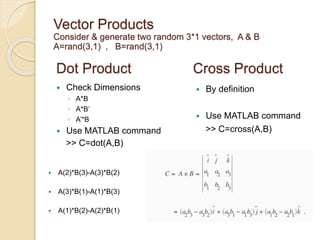
Dot Product
 Check Dimensions
◦ A*B
◦ A*B’
◦ A’*B
 Use MATLAB command
>> C=dot(A,B)
Cross Product
 By definition
 Use MATLAB command
>> C=cross(A,B)
Vector Products
Consider & generate two random 3*1 vectors, A & B
A=rand(3,1) , B=rand(3,1)
 A(2)*B(3)-A(3)*B(2)
 A(3)*B(1)-A(1)*B(3)
 A(1)*B(2)-A(2)*B(1)
Loops
 Loop statements do not need parenthesis. The statements
are recognized via tabs.
 3 general types of loops:
◦ If/else/elseif loops
◦ For loops
◦ While loops
 There is a 4th type, called nested loop, that can be any of the
above 3 (and any combinations of them).
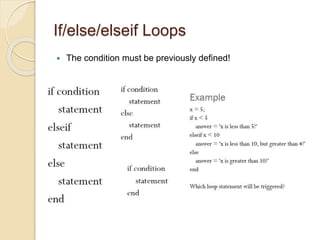
If/else/elseif Loops
 The condition must be previously defined!
For Loops
 Counter variable does not have to be i; it can be any variable
 Iterations can be tightly controlled with min:stepsize:max.
 No need to pre-define the counter because you are declaring in
the for loop itself!
for i=1:10
statement
end
While Loops
 As long as output of condition is a logic true, it will continue
looping until the condition becomes false.
 BE CAREFUL OF INFINITE LOOPS.
while condition
statement
end
Nested Loops
 Can use a mix of the different types of loops.
 Very useful for performing algorithm/operations on vectors
and matrices.
Examples
 Write a code to print out integer numbers from 5 to 36
 Write a code to print out integers between 45 to 109 which are divisible
to 3
 Write a code to print out integers between 45 to 109 which are divisible
to 5
 Write a code :
◦ If n is divisible to 3 print “divisible to 3”
◦ elseIf n is divisible to 5 print “divisible to 5”
◦ Elseif n is divisible by 5 and 3 print “divisible by 15”
Section II
Feb 6st, 2016
◦ Graphing & Plots
◦ Scripts and Functions
◦ Linear & System of Equations Solving
Plots
 plot –plot(x,y,linespec)
◦ x and y vectors must be same length!
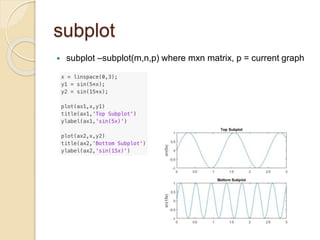
 subplot –subplot(m,n,p) where mxn matrix,
p = current graph
 figure –creates new window for graph
 title –creates text label at top of graph
 xlabel/ylabel–horizontal and vertical labels
for graph
Example
 x=0:pi/100:2*pi;
 y=sin(x);
 figure;
 plot(x,y)
◦ xlabel
◦ ylabel
◦ title
◦ figure
example
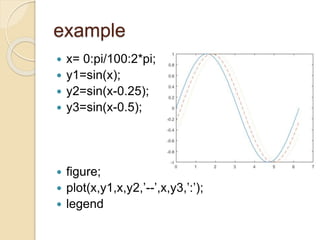
 x= 0:pi/100:2*pi;
 y1=sin(x);
 y2=sin(x-0.25);
 y3=sin(x-0.5);
 figure;
 plot(x,y1,x,y2,’--’,x,y3,’:’);
 legend
subplot
 subplot –subplot(m,n,p) where mxn matrix, p = current graph
Axis-specific
 Helps focus on what is important on the graph.
 Change only the x or y axis limits:
◦ xlim([xminxmax]) or ylim([yminymax])
◦ min and max can be positive or negative.
 example
Some useful commands
 Grid on
 Hold on
 Legend
 Plot3 : example
◦ t=0:pi/50:10*pi;
◦ st=sin(t);
◦ ct=cos(t)
◦ figure;
◦ plot3(st,ct,t)
plotyy
 2D line plots with y-axis on both left and right side
◦ [AX,H1,H2]=plotyy(x1,y1,x2,y2)
Scripts & functions
 Two kind of M-files:
◦ Scripts
◦ Functions:
 With parameters and returning values
 Only visible variables defined inside the
function or parameters
 Usually one file for each function defined
 Structure:
Function example
 In function:
◦ function y=average(x)
◦ y=sum(x)/length(x);
◦ end
 In script:
◦ z=1:99;
◦ average(z)
Polynomials
 We can use an array to represent a polynomial. To do so we
use list the coefficients in decreasing order of the powers. For
example x3+4x+15 will look like [1 0 4 15]
 To find roots of this polynomial we use roots command. roots
([1 0 4 15])
 To create a polynomial from its roots poly command is used.
poly([1 2 3]) where r1=1, r2=2, r3=3
 To evaluate the new polynomial at x =5 we can use polyval
command. polyval([ 1 -6 11 -6], 5)
Systems of Equations
 Consider the following system of equations
◦ x+5y+15z=7
◦ x-3y+13z=3
◦ 3x-4y-15z=11
 One way to solve this system of equations is to use matrices.
First, define matrix A:
◦ A=[1 5 15; 1 -3 13; 3 -4 15];
 Second, matrix b:
◦ b=[7;3;11];
 Third, we solve the equation Ax=b for x, taking the inverse of A
and multiply it by b:
◦ x=inv(A)*b
 Note that we cannot solve equation Ax=b by dividing b by A
because vectors A and b have different dimensions!
Section 3
MATLAB
February 20th, 2016
◦ Symbolic Solving
◦ Systems of Equations
◦ ODE Solving
Farhad Goodarzi
Systems of Equations
 Consider the following system of equations
◦ x+5y+15z=7
◦ x-3y+13z=3
◦ 3x-4y-15z=11
 One way to solve this system of equations is to use matrices.
First, define matrix A:
◦ A=[1 5 15; 1 -3 13; 3 -4 15];
 Second, matrix b:
◦ b=[7;3;11];
 Third, we solve the equation Ax=b for x, taking the inverse of A
and multiply it by b:
◦ x=inv(A)*b
 Note that we cannot solve equation Ax=b by dividing b by A
because vectors A and b have different dimensions!
Symbolic toolbox
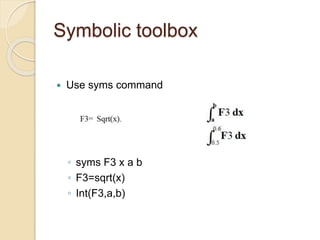
 Use syms command
◦ syms F3 x a b
◦ F3=sqrt(x)
◦ Int(F3,a,b)
Symbolic toolbox example
 Define functions
F1=6x3-4x2+bx-5, F2= Sin (y),
and
F3= Sqrt(x).
Use int() function to determine:
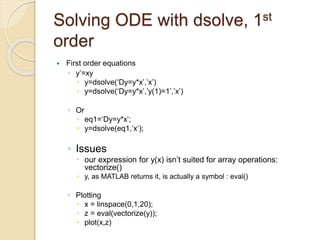
Solving ODE with dsolve, 1st
order
 First order equations
◦ y’=xy
 y=dsolve(‘Dy=y*x’,’x’)
 y=dsolve(‘Dy=y*x’,’y(1)=1’,’x’)
◦ Or
 eq1=‘Dy=y*x’;
 y=dsolve(eq1,’x’);
◦ Issues
 our expression for y(x) isn’t suited for array operations:
vectorize()
 y, as MATLAB returns it, is actually a symbol : eval()
◦ Plotting
 x = linspace(0,1,20);
 z = eval(vectorize(y));
 plot(x,z)
Solving ODE with dsolve, 2nd
order
 Second order equations
◦ EQ:
 eqn2 = ’D2y + 8*Dy + 2*y =cos(x)’;
 inits2 = ’y(0)=0 , Dy(0)=1’;
 y=dsolve(eqn2,inits2,’x’)
◦ Plotting
 x = linspace(0,1,20);
 z = eval(vectorize(y));
 plot(x,z)
Solving ODE with dsolve,
systems
 Systems of equations
◦ EQs:
 [x,y,z]=dsolve(’Dx=x+2*y-z’,’Dy=x+z’,’Dz=4*x-4*y+5*z’)
 inits=’x(0)=1,y(0)=2,z(0)=3’;
 [x,y,z]=dsolve(’Dx=x+2*y-z’,’Dy=x+z’,’Dz=4*x-4*y+5*z’,inits)
 Notice that since no independent variable was specified,
MATLAB used its default, t.
◦ Plotting
 t=linspace(0,.5,25);
 xx=eval(vectorize(x));
 yy=eval(vectorize(y));
 zz=eval(vectorize(z));
 plot(t, xx, t, yy, t, zz)
Solving ODE with dsolve,
systems
 solve the given differential equations symbolically.
ODE Solving Numerically
 Defining an ODE function in an M-file
 Solving First-Order ODEs
 Solving Systems of First-Order ODEs
 Solving higher order ODEs
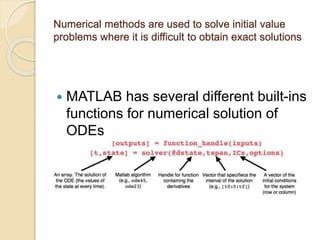
Numerical methods are used to solve initial value
problems where it is difficult to obtain exact solutions
 MATLAB has several different built-ins
functions for numerical solution of
ODEs
Solvers
Solving first-order ODEs
 Define the function M-file
 function y_dot=EOM(y,t)
 global alpha gamma
 y_dot=alpha * y - gamma * y^2;
 end
 Make a script M-file
 global alpha gamma
 alpha=0.15;
 gamma=3.5;

 y0=1;
 [y t]=ode45(@EOM,[0 10],y0);
 plot(t,y);
Solving systems of ODEs
 Example
 Create function containing the equations
 Change the error tolerance using odeset
 Plotting the columns of returned vector
Solving a Stiff system
 Equations
 Create the function
 Ode and plotting
Example
 Use “ode45” to solve the following differential
equation and plot y(x) in the interval of [0,6π]. Put
your name in the plot title.
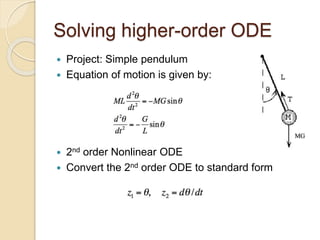
Solving higher-order ODE
 Project: Simple pendulum
 Equation of motion is given by:
 2nd order Nonlinear ODE
 Convert the 2nd order ODE to standard form
Simple Pendulum
 Initial conditions and constants
 Coding
◦ Make a function M-file for equation of motion
 function z_dot=EOM_pendulum(t,z)
 global G L
 theta=z(1);
 theta_dot=z(2);
 theta_dot2=-(G/L)*sin(theta);
 z_dot=[theta_dot;theta_dot2];
 end
◦ Make a script M-file to run the code
 global G L
 G=9.8;
 L=2;
 tspan=[0 2*pi];
 inits=[pi/3 0];
 [t, y]=ode45(@EOM_pendulum,tspan,inits);
Lorenz Equations
 Initials and constants, T=[0 20]
 Plot x vs. z , check if you
get same results as
Section 4
March 5th, 2016
◦ Simulink
Simulink
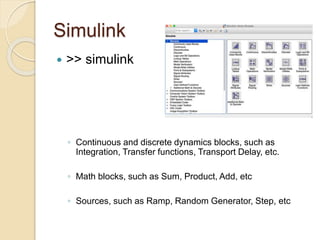
 >> simulink
◦ Continuous and discrete dynamics blocks, such as
Integration, Transfer functions, Transport Delay, etc.
◦ Math blocks, such as Sum, Product, Add, etc
◦ Sources, such as Ramp, Random Generator, Step, etc
Useful blocks
 Math and Control
 inputs and outputs
Example
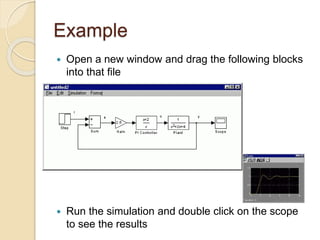
 Open a new window and drag the following blocks
into that file
 Run the simulation and double click on the scope
to see the results
Example
 Open a new window and drag the following blocks
into that file
 Run the simulation and double click on the scope
to see the results
Example
 Open a new window and drag the following blocks
into that file
 Run the simulation and double click on the scope
to see the results
simple model
 Build a Simulink model that solves the differential
equation
 Initial condition
 First, sketch a simulation diagram of this mathematical
model (equation)
 Input is the forcing function 3sin(2t)
 Output is the solution of the differential equation x(t)
 
t
x 2
sin
3


simple model
 Build a Simulink model that solves the differential
equation
Double-click on
the Sine Wave
block to set
amplitude = 3
and freq = 2.
This produces the
desired input of
3sin(2t)
simple model
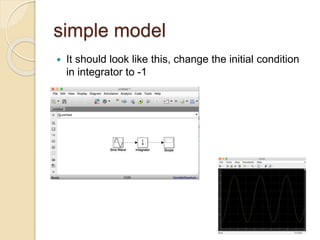
 It should look like this, change the initial condition
in integrator to -1
Example – Toy Train
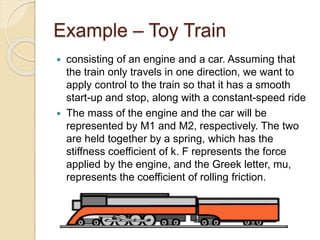
 consisting of an engine and a car. Assuming that
the train only travels in one direction, we want to
apply control to the train so that it has a smooth
start-up and stop, along with a constant-speed ride
 The mass of the engine and the car will be
represented by M1 and M2, respectively. The two
are held together by a spring, which has the
stiffness coefficient of k. F represents the force
applied by the engine, and the Greek letter, mu,
represents the coefficient of rolling friction.
Example – Toy Train
 System
Example – Toy Train
 System
Example – Toy Train
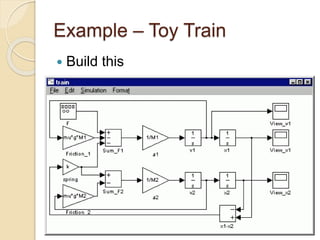
 Build this
Example – Toy Train
 Before running the model, we need to assign numerical
values to each of the variables used in the model.
Create an new m-file and enter the following
commands.
 M1=1;
 M2=0.5;
 k=1;
 F=1;
 mu=0.002;
 g=9.8;
 Execute your m-file to define these values. Simulink will
recognize MATLAB variables for use in the model.
Pendulum Example
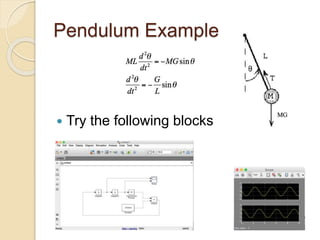
 Try the following blocks

INTRODUCTION TO MATLAB presentation.pptx

  • 1.
  • 2.
    Variables  Have notto be previously declared  Variable names can contain up to 63 characters  Variable names must start with a letter followed by letters, digits, and underscores( Valid: x1 = 5, Invalid: 1x = 5)  Variable names are case sensitive (a1 does NOT equal A1)  EX: Using command window  >> x = 5; % this is used as a comment  >> y = 3;  >> z = x + y z = 8  Semicolon (;) : Suppresses output  Percentage (%) : Commenting. Only good for that line Operators
  • 3.
    MATLAB Special Variables ansDefault variable name for results pi Value of pi number (3.14) eps Smallest incremental number inf Infinity NaN Not a number e.g. 0/0 realmin The smallest usable positive real number realmax The largest usable positive real number i,j Imaginary unit
  • 4.
    MATLAB Assignment &Operators Assignment = a = b (assign b to a) Addition + a + b Subtraction - a - b Multiplication * or.* a*b or a.*b Division / or ./ a/b or a./b Power ^ .^ a^b or a.^b
  • 5.
    MATLAB Matrices  MATLABtreats all variables as matrices. For our purposes a matrix can be thought of as an array, in fact, that is how it is stored.  Vectors are special forms of matrices and contain only one row OR one column.  Scalars are matrices with only one row AND one column
  • 6.
    MATLAB Matrices  Amatrix with only one row is called a row vector. A row vector can be created in MATLAB as follows (note the commas): » rowvec = [12 , 14 , 63] rowvec = 12 14 63  A matrix with only one column is called a column vector. A column vector can be created in MATLAB as follows (note the semicolons): » colvec = [13 ; 45; -2] colvec = 13 45 -2
  • 7.
    MATLAB Matrices  Amatrix can be created in MATLAB as follows (note the commas AND semicolons): » matrix = [1 , 2 , 3 ; 4 , 5 ,6 ; 7 , 8 , 9] matrix = 1 2 3 4 5 6 7 8 9
  • 8.
    Index  MATLAB indexstarts with 1, NOT 0!  Vector Index: ◦ a = [22 17 7 4 42]  a(1) = 22  a(3) = 7  Matrix Index: ◦ a = [7 12 42; 5 1 23; 4 9 10];  a(1, 3) = 42  a(3, 2) = 9
  • 9.
    Some matrix functionsin MATLAB X = ones(r,c) Creates matrix full with ones X = zeros(r,c) Creates matrix full with zeros A = diag(x) Creates squared matrix with vector x in diagonal [r,c] = size(A) Return dimensions of matrix A X = A’ Transposed matrix X = inv(A) Inverse matrix squared matrix X = pinv(A) Pseudo inverse d = det(A) Determinant [X,D] = eig(A) Eigenvalues and eigenvectors [U,D,V] = svd(A) singular value decomposition
  • 10.
    Dot Operator  Forscalar operations, nothing new is needed. Example: a = 5; b = 3; ==> c = a*b %c = 15  For element operations, a dot must be used before the operator.  Note: Dot operator not the same as dot product!  Example: ◦ a = [1 2 3 4]; ◦ b = [5 6 7 8]; ◦ c = a*b ◦ Result: ??? Error using ==> mtimes inner matrix dimensions must agree  Now, try: ◦ c = a.*b %notice the dot! ◦ Result: c=[5 12 21 32]  Notice what it is doing: a(1)*b(1), a(2)*b(2), etc.
  • 11.
    Dot Product  CheckDimensions ◦ A*B ◦ A*B’ ◦ A’*B  Use MATLAB command >> C=dot(A,B) Cross Product  By definition  Use MATLAB command >> C=cross(A,B) Vector Products Consider & generate two random 3*1 vectors, A & B A=rand(3,1) , B=rand(3,1)  A(2)*B(3)-A(3)*B(2)  A(3)*B(1)-A(1)*B(3)  A(1)*B(2)-A(2)*B(1)
  • 12.
    Loops  Loop statementsdo not need parenthesis. The statements are recognized via tabs.  3 general types of loops: ◦ If/else/elseif loops ◦ For loops ◦ While loops  There is a 4th type, called nested loop, that can be any of the above 3 (and any combinations of them).
  • 13.
    If/else/elseif Loops  Thecondition must be previously defined!
  • 14.
    For Loops  Countervariable does not have to be i; it can be any variable  Iterations can be tightly controlled with min:stepsize:max.  No need to pre-define the counter because you are declaring in the for loop itself! for i=1:10 statement end
  • 15.
    While Loops  Aslong as output of condition is a logic true, it will continue looping until the condition becomes false.  BE CAREFUL OF INFINITE LOOPS. while condition statement end
  • 16.
    Nested Loops  Canuse a mix of the different types of loops.  Very useful for performing algorithm/operations on vectors and matrices.
  • 17.
    Examples  Write acode to print out integer numbers from 5 to 36  Write a code to print out integers between 45 to 109 which are divisible to 3  Write a code to print out integers between 45 to 109 which are divisible to 5  Write a code : ◦ If n is divisible to 3 print “divisible to 3” ◦ elseIf n is divisible to 5 print “divisible to 5” ◦ Elseif n is divisible by 5 and 3 print “divisible by 15”
  • 18.
    Section II Feb 6st,2016 ◦ Graphing & Plots ◦ Scripts and Functions ◦ Linear & System of Equations Solving
  • 19.
    Plots  plot –plot(x,y,linespec) ◦x and y vectors must be same length!  subplot –subplot(m,n,p) where mxn matrix, p = current graph  figure –creates new window for graph  title –creates text label at top of graph  xlabel/ylabel–horizontal and vertical labels for graph
  • 20.
    Example  x=0:pi/100:2*pi;  y=sin(x); figure;  plot(x,y) ◦ xlabel ◦ ylabel ◦ title ◦ figure
  • 21.
    example  x= 0:pi/100:2*pi; y1=sin(x);  y2=sin(x-0.25);  y3=sin(x-0.5);  figure;  plot(x,y1,x,y2,’--’,x,y3,’:’);  legend
  • 22.
    subplot  subplot –subplot(m,n,p)where mxn matrix, p = current graph
  • 23.
    Axis-specific  Helps focuson what is important on the graph.  Change only the x or y axis limits: ◦ xlim([xminxmax]) or ylim([yminymax]) ◦ min and max can be positive or negative.  example
  • 24.
    Some useful commands Grid on  Hold on  Legend  Plot3 : example ◦ t=0:pi/50:10*pi; ◦ st=sin(t); ◦ ct=cos(t) ◦ figure; ◦ plot3(st,ct,t)
  • 25.
    plotyy  2D lineplots with y-axis on both left and right side ◦ [AX,H1,H2]=plotyy(x1,y1,x2,y2)
  • 26.
    Scripts & functions Two kind of M-files: ◦ Scripts ◦ Functions:  With parameters and returning values  Only visible variables defined inside the function or parameters  Usually one file for each function defined  Structure:
  • 27.
    Function example  Infunction: ◦ function y=average(x) ◦ y=sum(x)/length(x); ◦ end  In script: ◦ z=1:99; ◦ average(z)
  • 28.
    Polynomials  We canuse an array to represent a polynomial. To do so we use list the coefficients in decreasing order of the powers. For example x3+4x+15 will look like [1 0 4 15]  To find roots of this polynomial we use roots command. roots ([1 0 4 15])  To create a polynomial from its roots poly command is used. poly([1 2 3]) where r1=1, r2=2, r3=3  To evaluate the new polynomial at x =5 we can use polyval command. polyval([ 1 -6 11 -6], 5)
  • 29.
    Systems of Equations Consider the following system of equations ◦ x+5y+15z=7 ◦ x-3y+13z=3 ◦ 3x-4y-15z=11  One way to solve this system of equations is to use matrices. First, define matrix A: ◦ A=[1 5 15; 1 -3 13; 3 -4 15];  Second, matrix b: ◦ b=[7;3;11];  Third, we solve the equation Ax=b for x, taking the inverse of A and multiply it by b: ◦ x=inv(A)*b  Note that we cannot solve equation Ax=b by dividing b by A because vectors A and b have different dimensions!
  • 30.
    Section 3 MATLAB February 20th,2016 ◦ Symbolic Solving ◦ Systems of Equations ◦ ODE Solving Farhad Goodarzi
  • 31.
    Systems of Equations Consider the following system of equations ◦ x+5y+15z=7 ◦ x-3y+13z=3 ◦ 3x-4y-15z=11  One way to solve this system of equations is to use matrices. First, define matrix A: ◦ A=[1 5 15; 1 -3 13; 3 -4 15];  Second, matrix b: ◦ b=[7;3;11];  Third, we solve the equation Ax=b for x, taking the inverse of A and multiply it by b: ◦ x=inv(A)*b  Note that we cannot solve equation Ax=b by dividing b by A because vectors A and b have different dimensions!
  • 32.
    Symbolic toolbox  Usesyms command ◦ syms F3 x a b ◦ F3=sqrt(x) ◦ Int(F3,a,b)
  • 33.
    Symbolic toolbox example Define functions F1=6x3-4x2+bx-5, F2= Sin (y), and F3= Sqrt(x). Use int() function to determine:
  • 34.
    Solving ODE withdsolve, 1st order  First order equations ◦ y’=xy  y=dsolve(‘Dy=y*x’,’x’)  y=dsolve(‘Dy=y*x’,’y(1)=1’,’x’) ◦ Or  eq1=‘Dy=y*x’;  y=dsolve(eq1,’x’); ◦ Issues  our expression for y(x) isn’t suited for array operations: vectorize()  y, as MATLAB returns it, is actually a symbol : eval() ◦ Plotting  x = linspace(0,1,20);  z = eval(vectorize(y));  plot(x,z)
  • 35.
    Solving ODE withdsolve, 2nd order  Second order equations ◦ EQ:  eqn2 = ’D2y + 8*Dy + 2*y =cos(x)’;  inits2 = ’y(0)=0 , Dy(0)=1’;  y=dsolve(eqn2,inits2,’x’) ◦ Plotting  x = linspace(0,1,20);  z = eval(vectorize(y));  plot(x,z)
  • 36.
    Solving ODE withdsolve, systems  Systems of equations ◦ EQs:  [x,y,z]=dsolve(’Dx=x+2*y-z’,’Dy=x+z’,’Dz=4*x-4*y+5*z’)  inits=’x(0)=1,y(0)=2,z(0)=3’;  [x,y,z]=dsolve(’Dx=x+2*y-z’,’Dy=x+z’,’Dz=4*x-4*y+5*z’,inits)  Notice that since no independent variable was specified, MATLAB used its default, t. ◦ Plotting  t=linspace(0,.5,25);  xx=eval(vectorize(x));  yy=eval(vectorize(y));  zz=eval(vectorize(z));  plot(t, xx, t, yy, t, zz)
  • 37.
    Solving ODE withdsolve, systems  solve the given differential equations symbolically.
  • 38.
    ODE Solving Numerically Defining an ODE function in an M-file  Solving First-Order ODEs  Solving Systems of First-Order ODEs  Solving higher order ODEs
  • 39.
    Numerical methods areused to solve initial value problems where it is difficult to obtain exact solutions  MATLAB has several different built-ins functions for numerical solution of ODEs
  • 40.
  • 41.
    Solving first-order ODEs Define the function M-file  function y_dot=EOM(y,t)  global alpha gamma  y_dot=alpha * y - gamma * y^2;  end  Make a script M-file  global alpha gamma  alpha=0.15;  gamma=3.5;   y0=1;  [y t]=ode45(@EOM,[0 10],y0);  plot(t,y);
  • 42.
    Solving systems ofODEs  Example  Create function containing the equations  Change the error tolerance using odeset  Plotting the columns of returned vector
  • 43.
    Solving a Stiffsystem  Equations  Create the function  Ode and plotting
  • 44.
    Example  Use “ode45”to solve the following differential equation and plot y(x) in the interval of [0,6π]. Put your name in the plot title.
  • 45.
    Solving higher-order ODE Project: Simple pendulum  Equation of motion is given by:  2nd order Nonlinear ODE  Convert the 2nd order ODE to standard form
  • 46.
    Simple Pendulum  Initialconditions and constants  Coding ◦ Make a function M-file for equation of motion  function z_dot=EOM_pendulum(t,z)  global G L  theta=z(1);  theta_dot=z(2);  theta_dot2=-(G/L)*sin(theta);  z_dot=[theta_dot;theta_dot2];  end ◦ Make a script M-file to run the code  global G L  G=9.8;  L=2;  tspan=[0 2*pi];  inits=[pi/3 0];  [t, y]=ode45(@EOM_pendulum,tspan,inits);
  • 47.
    Lorenz Equations  Initialsand constants, T=[0 20]  Plot x vs. z , check if you get same results as
  • 48.
    Section 4 March 5th,2016 ◦ Simulink
  • 49.
    Simulink  >> simulink ◦Continuous and discrete dynamics blocks, such as Integration, Transfer functions, Transport Delay, etc. ◦ Math blocks, such as Sum, Product, Add, etc ◦ Sources, such as Ramp, Random Generator, Step, etc
  • 50.
    Useful blocks  Mathand Control  inputs and outputs
  • 51.
    Example  Open anew window and drag the following blocks into that file  Run the simulation and double click on the scope to see the results
  • 52.
    Example  Open anew window and drag the following blocks into that file  Run the simulation and double click on the scope to see the results
  • 53.
    Example  Open anew window and drag the following blocks into that file  Run the simulation and double click on the scope to see the results
  • 54.
    simple model  Builda Simulink model that solves the differential equation  Initial condition  First, sketch a simulation diagram of this mathematical model (equation)  Input is the forcing function 3sin(2t)  Output is the solution of the differential equation x(t)   t x 2 sin 3  
  • 55.
    simple model  Builda Simulink model that solves the differential equation Double-click on the Sine Wave block to set amplitude = 3 and freq = 2. This produces the desired input of 3sin(2t)
  • 56.
    simple model  Itshould look like this, change the initial condition in integrator to -1
  • 57.
    Example – ToyTrain  consisting of an engine and a car. Assuming that the train only travels in one direction, we want to apply control to the train so that it has a smooth start-up and stop, along with a constant-speed ride  The mass of the engine and the car will be represented by M1 and M2, respectively. The two are held together by a spring, which has the stiffness coefficient of k. F represents the force applied by the engine, and the Greek letter, mu, represents the coefficient of rolling friction.
  • 58.
    Example – ToyTrain  System
  • 59.
    Example – ToyTrain  System
  • 60.
    Example – ToyTrain  Build this
  • 61.
    Example – ToyTrain  Before running the model, we need to assign numerical values to each of the variables used in the model. Create an new m-file and enter the following commands.  M1=1;  M2=0.5;  k=1;  F=1;  mu=0.002;  g=9.8;  Execute your m-file to define these values. Simulink will recognize MATLAB variables for use in the model.
  • 62.
    Pendulum Example  Trythe following blocks