Excel Chapter 8Formula Auditing, Data Validation, and Complex Problem Solving
ObjectivesUse formula auditing techniques to analyze a worksheetTrace precedents and dependentsAdd data validation rules to cellsUse trial and error to solve a problem on a worksheetUse goal seeking to solve a problemCircle invalid data on a worksheet© OpenCastLabs Consulting. www.opencast-labs.com
ObjectivesUse Excel’s Solver to solve a complex problemPassword-protect a workbook fileUse Excel’s Scenario Manager to record and save different sets of what-if assumptionsCreate a Scenario Summary of scenariosCreate a Scenario PivotTableSave a workbook for use in a previous version of Excel© OpenCastLabs Consulting. www.opencast-labs.com
Plan AheadAnalyze the formulas in the workbook to learn about the workbookEstablish data validation rules for changing cellsPropose strategies for solving a complex problemConsider which cells in the worksheet constitute a scenarioEvaluate the steps to take in finalizing a workbook© OpenCastLabs Consulting. www.opencast-labs.com
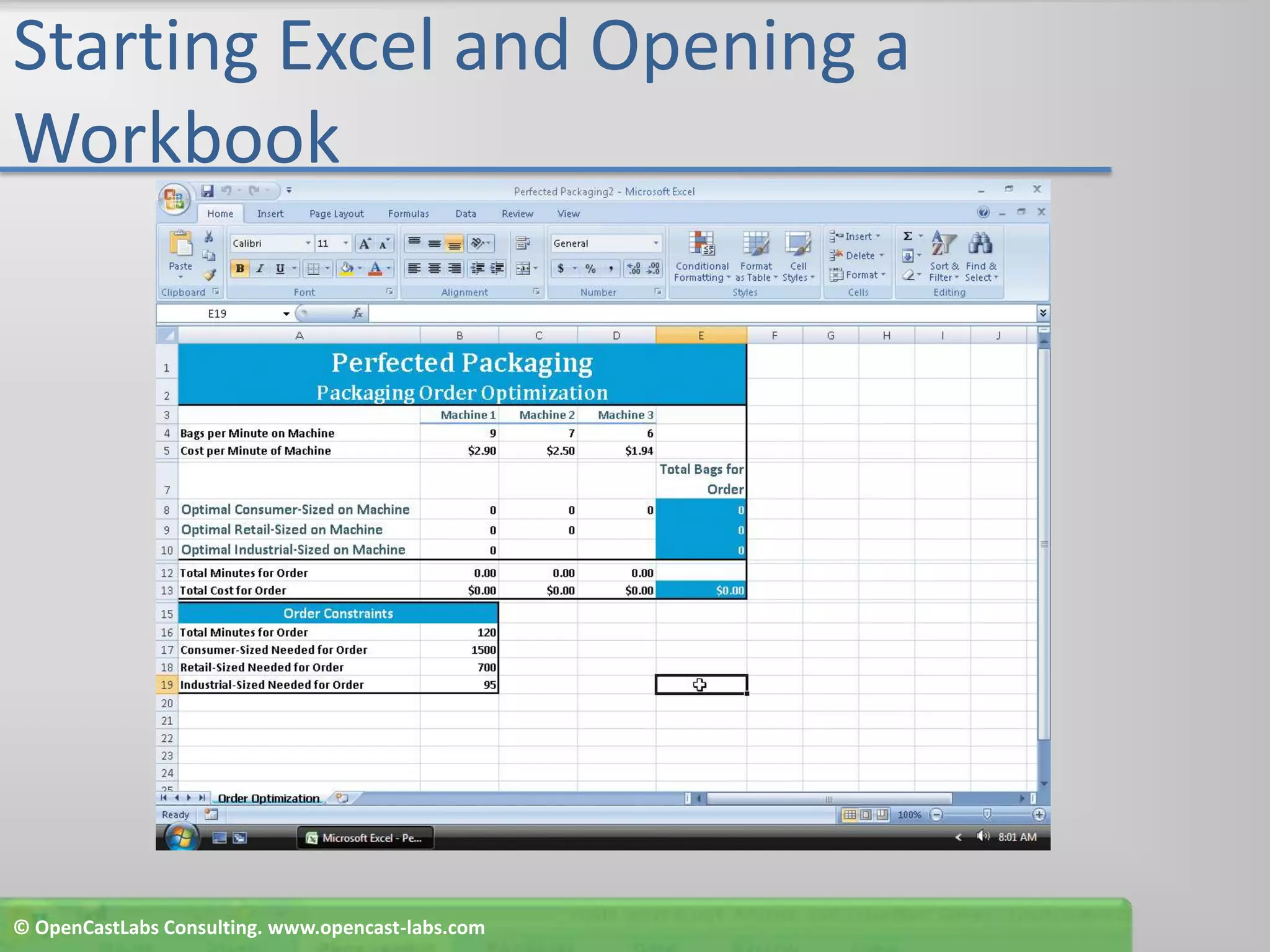
Starting Excel and Opening a WorkbookStart ExcelOpen the file Perfected Packaging from the Data Files for Students and then save the workbook using the file name, Perfected Packaging2If the Excel window is not maximized, double-click its title bar to maximize itIf the worksheet window in Excel is not maximized, click the Maximize button next to the Close button on its title bar to maximize the worksheet within Excel© OpenCastLabs Consulting. www.opencast-labs.com
Starting Excel and Opening a Workbook© OpenCastLabs Consulting. www.opencast-labs.com
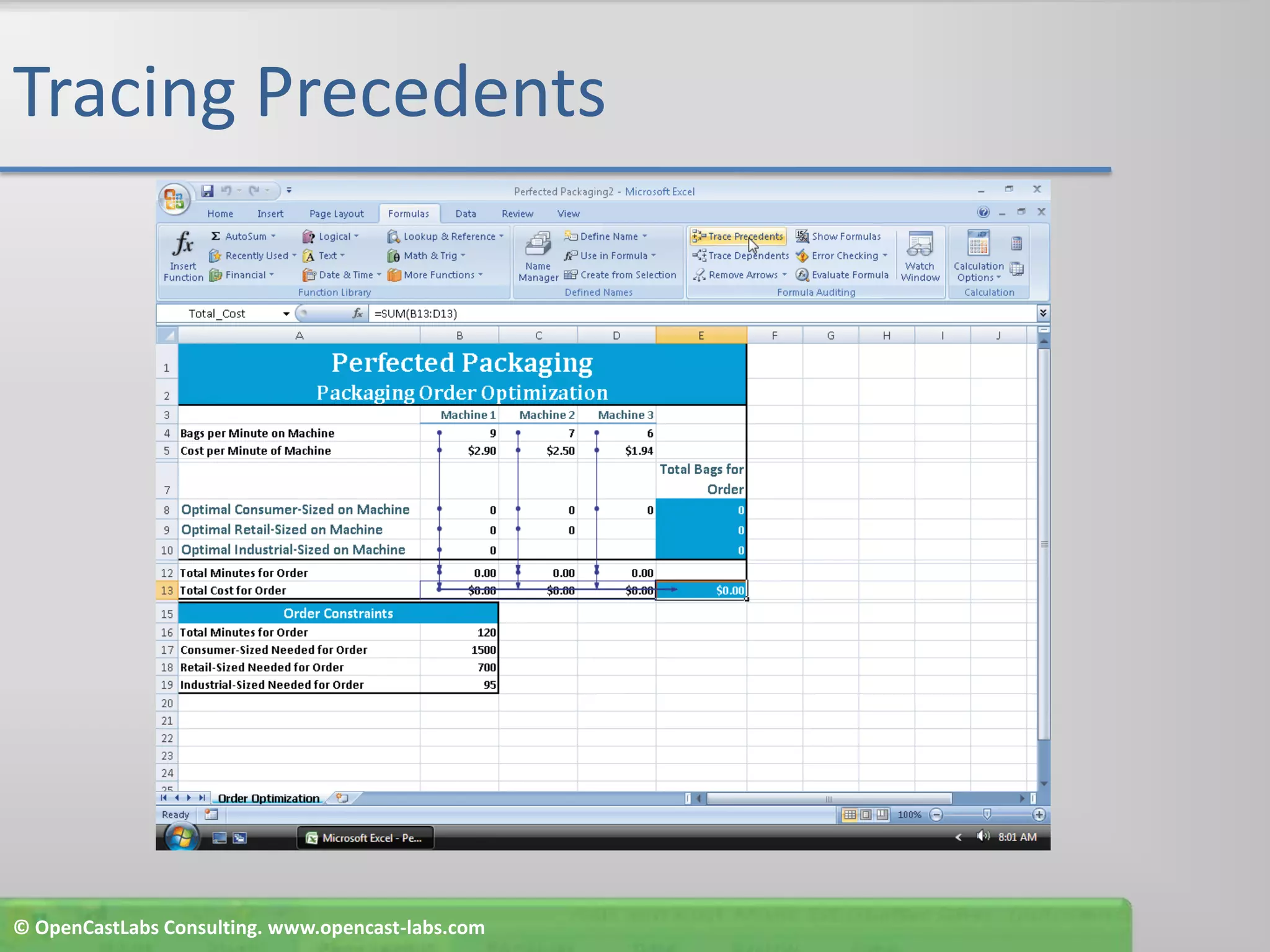
Tracing PrecedentsClick the Formulas tab on the RibbonClick cell E13 and then click the Trace Precedents button on the Ribbon to draw an arrow across the range B13:E13Click the TracePrecedents button two more times to draw arrows indicating precedents of cells B13:D13 and the precedents of B12:D12© OpenCastLabs Consulting. www.opencast-labs.com
Tracing Precedents© OpenCastLabs Consulting. www.opencast-labs.com
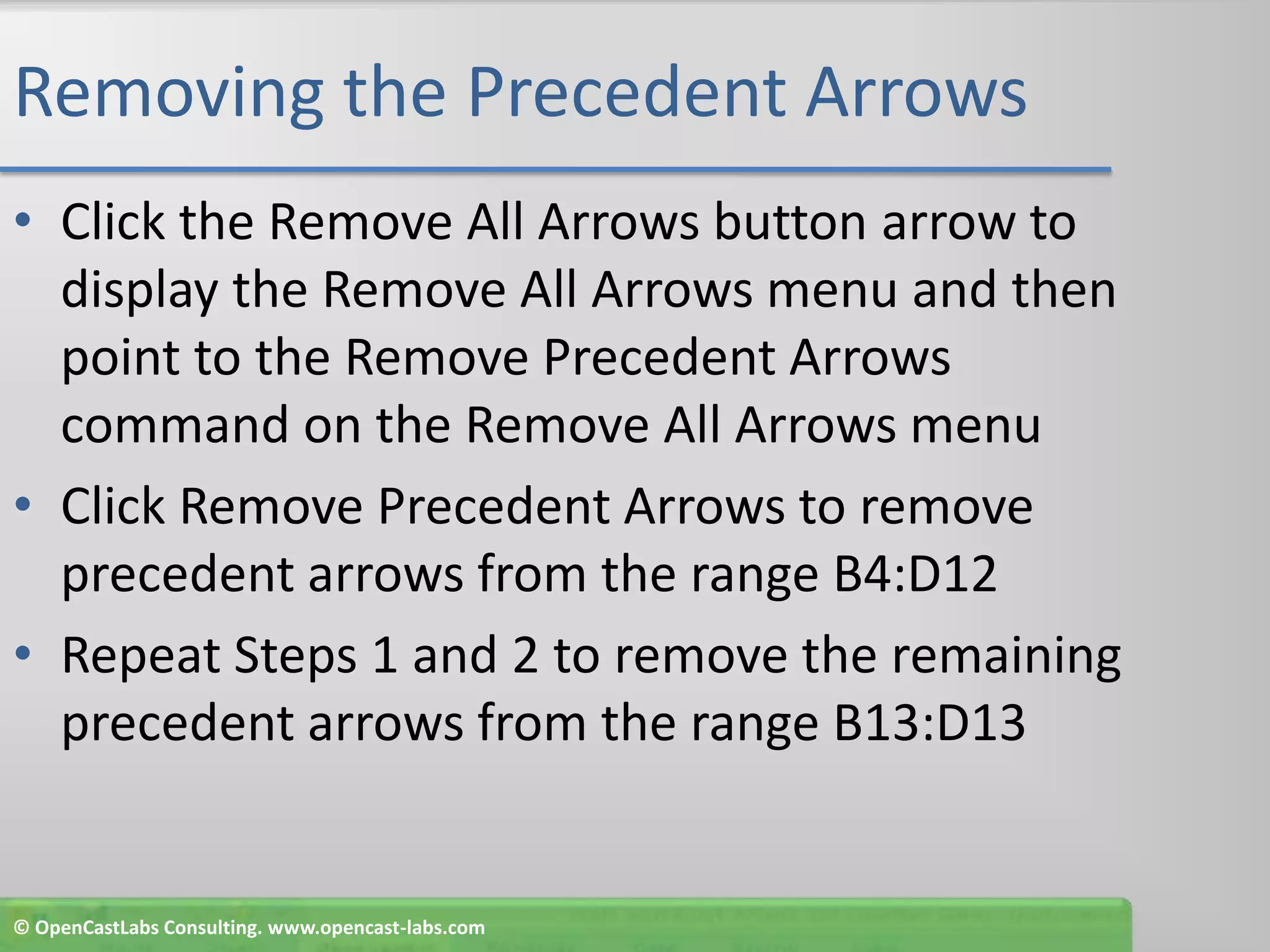
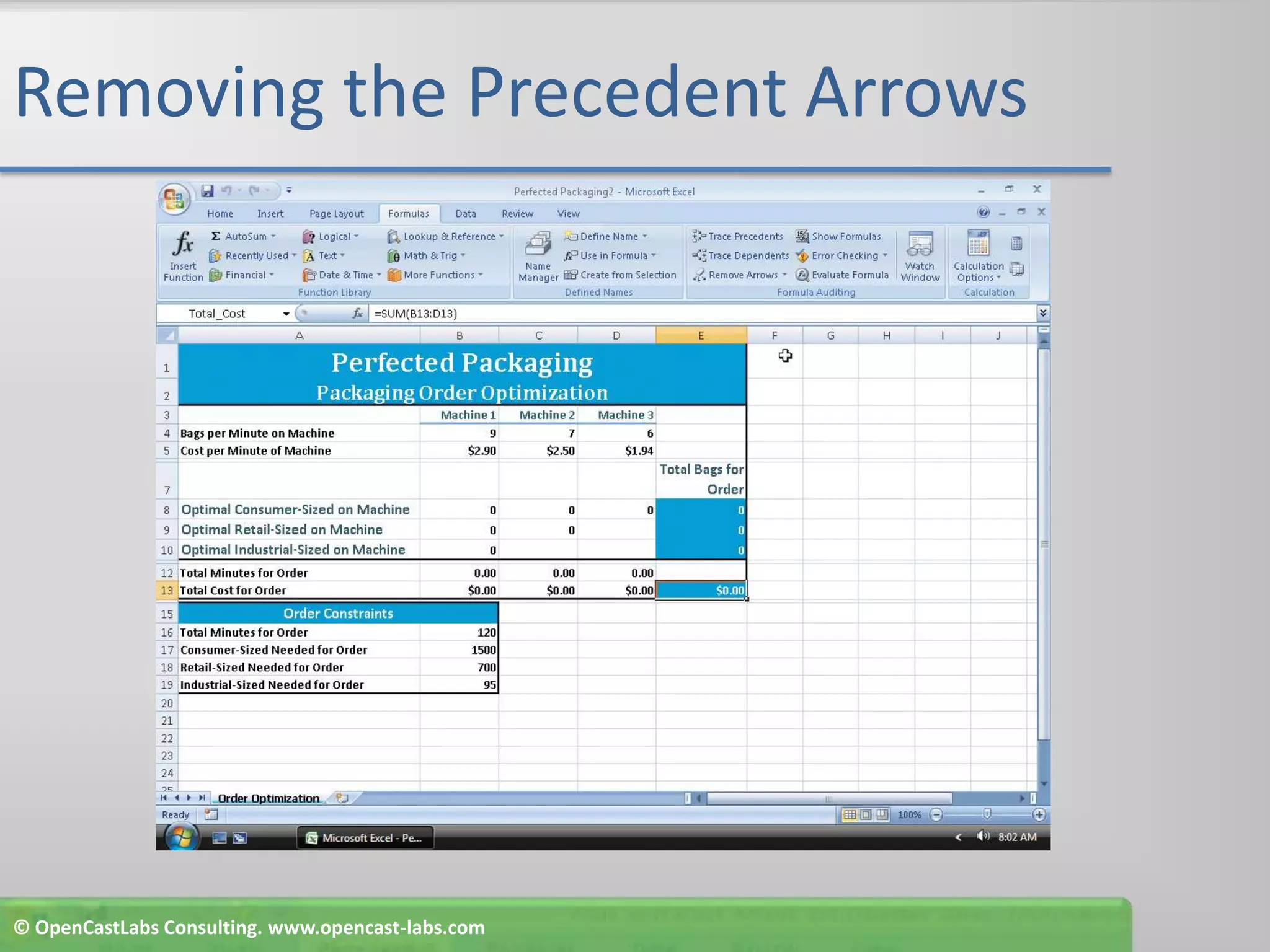
Removing the Precedent ArrowsClick the Remove All Arrows button arrow to display the Remove All Arrows menu and then point to the Remove Precedent Arrows command on the Remove All Arrows menuClick Remove Precedent Arrows to remove precedent arrows from the range B4:D12Repeat Steps 1 and 2 to remove the remaining precedent arrows from the range B13:D13© OpenCastLabs Consulting. www.opencast-labs.com
Removing the Precedent Arrows© OpenCastLabs Consulting. www.opencast-labs.com
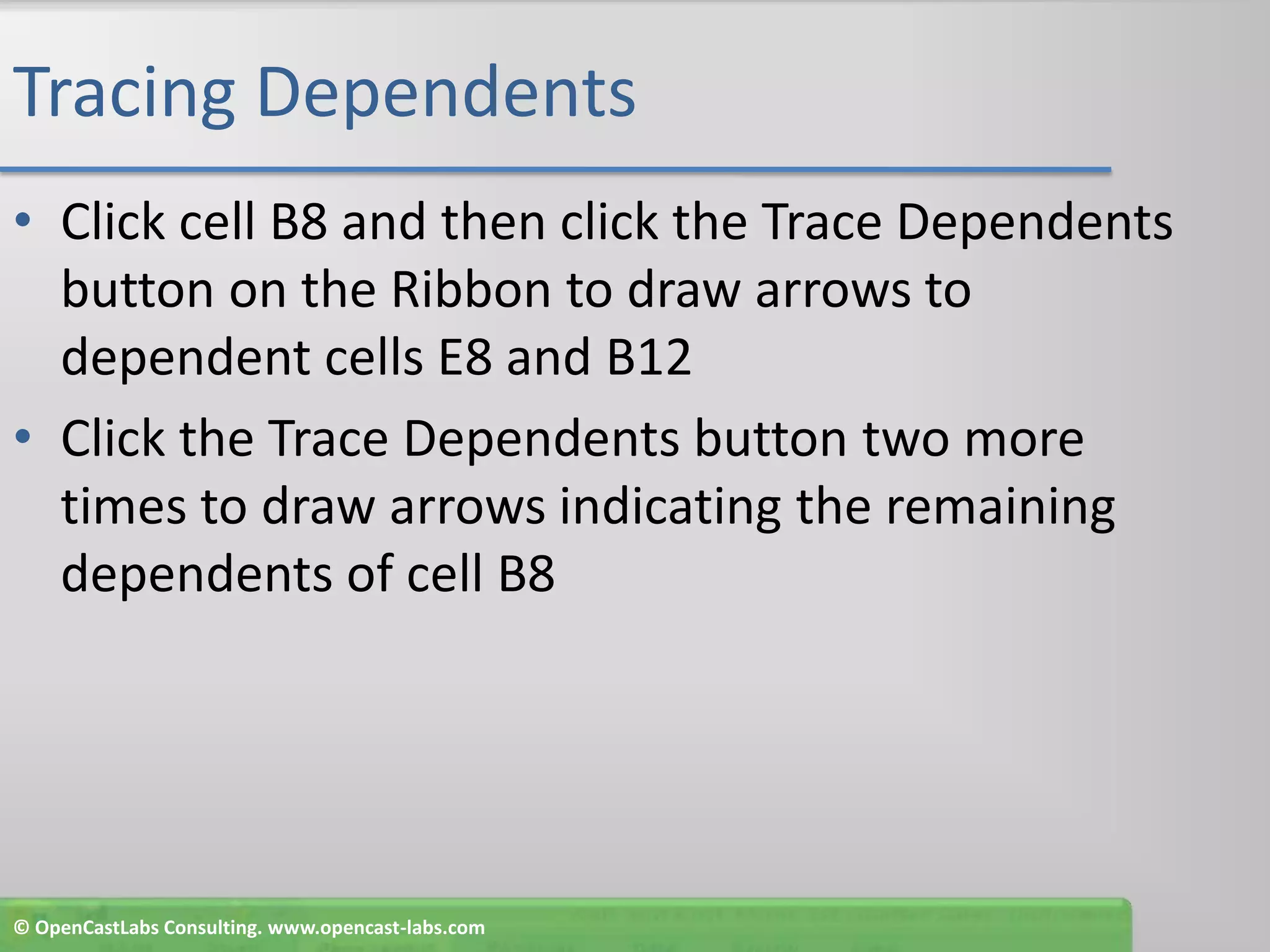
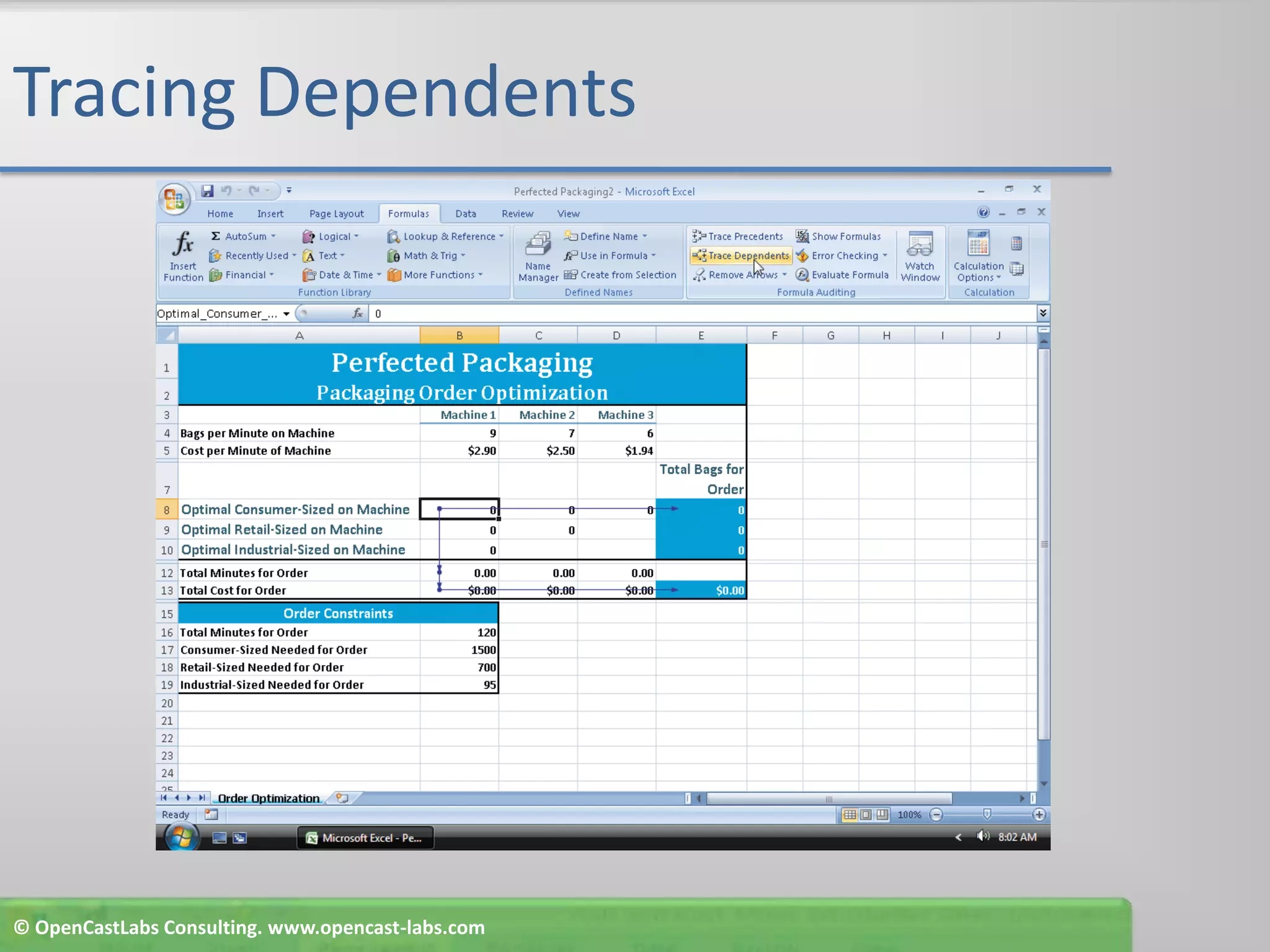
Tracing DependentsClick cell B8 and then click the Trace Dependents button on the Ribbon to draw arrows to dependent cells E8 and B12Click the Trace Dependents button two more times to draw arrows indicating the remaining dependents of cell B8© OpenCastLabs Consulting. www.opencast-labs.com
Tracing Dependents© OpenCastLabs Consulting. www.opencast-labs.com
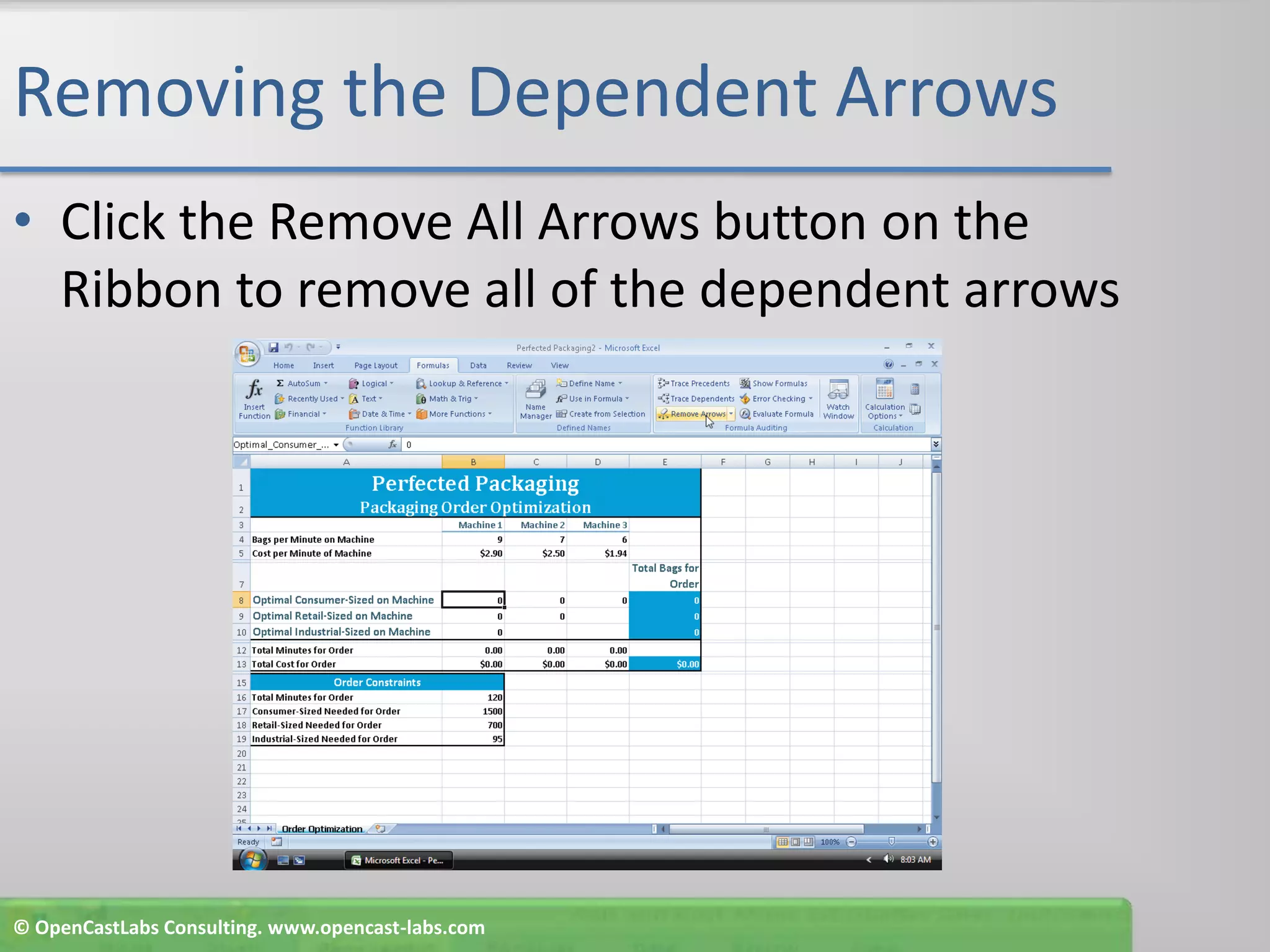
Removing the Dependent ArrowsClick the Remove All Arrows button on the Ribbon to remove all of the dependent arrows© OpenCastLabs Consulting. www.opencast-labs.com
Adding Data Validation to CellsSelect the range B8:B10While holding down the CTRL key, select the range C8:C9While holding down the CTRL key, select the cell D8Click the Data tab on the RibbonClick the Data Validation button on the Ribbon to display the Data Validation dialog box© OpenCastLabs Consulting. www.opencast-labs.com
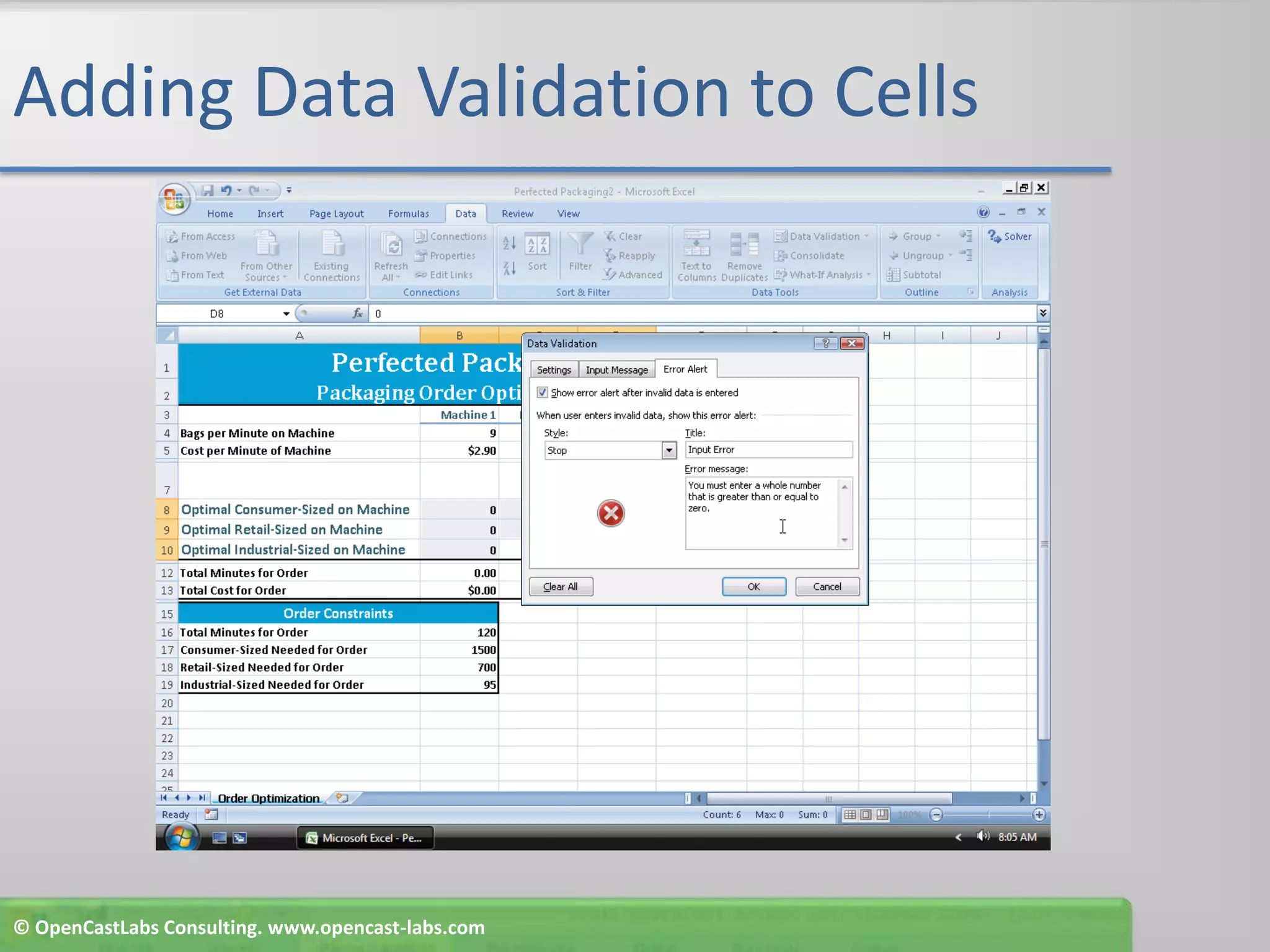
Adding Data Validation to CellsWhen Excel displays the Data Validation dialog box, click the Allow box arrow and then click Whole number in the Allow listClick the Data box arrow and then click ‘greater than or equal to’ in the Data listType 0 in the Minimum box Click the Input Message tab and then type Bags to Fill in the Title text boxType Enter the number of bags to fill on the machine. The number must be a whole number that is greater than or equal to zero. in the Input message box© OpenCastLabs Consulting. www.opencast-labs.com
Adding Data Validation to CellsClick the Error Alert tab and then type Input Error in the Title text boxType You must enter a whole number that is greater than or equal to zero. in the Error message boxClick the OK buttonClick cell E21© OpenCastLabs Consulting. www.opencast-labs.com
Adding Data Validation to Cells© OpenCastLabs Consulting. www.opencast-labs.com
Opening the Watch Window and Adding Cells WatchesClick the Formulas tab on the RibbonClick the Watch Window button on the Ribbon to open the Watch WindowClick the Add Watch button on the Watch Window toolbar to display the Add Watch dialog boxIf necessary, move the Add Watch dialog box so that rows 8 through 10 of column E are not hiddenSelect the range E8:E10Hold down the CTRL key and then click cell E13© OpenCastLabs Consulting. www.opencast-labs.com
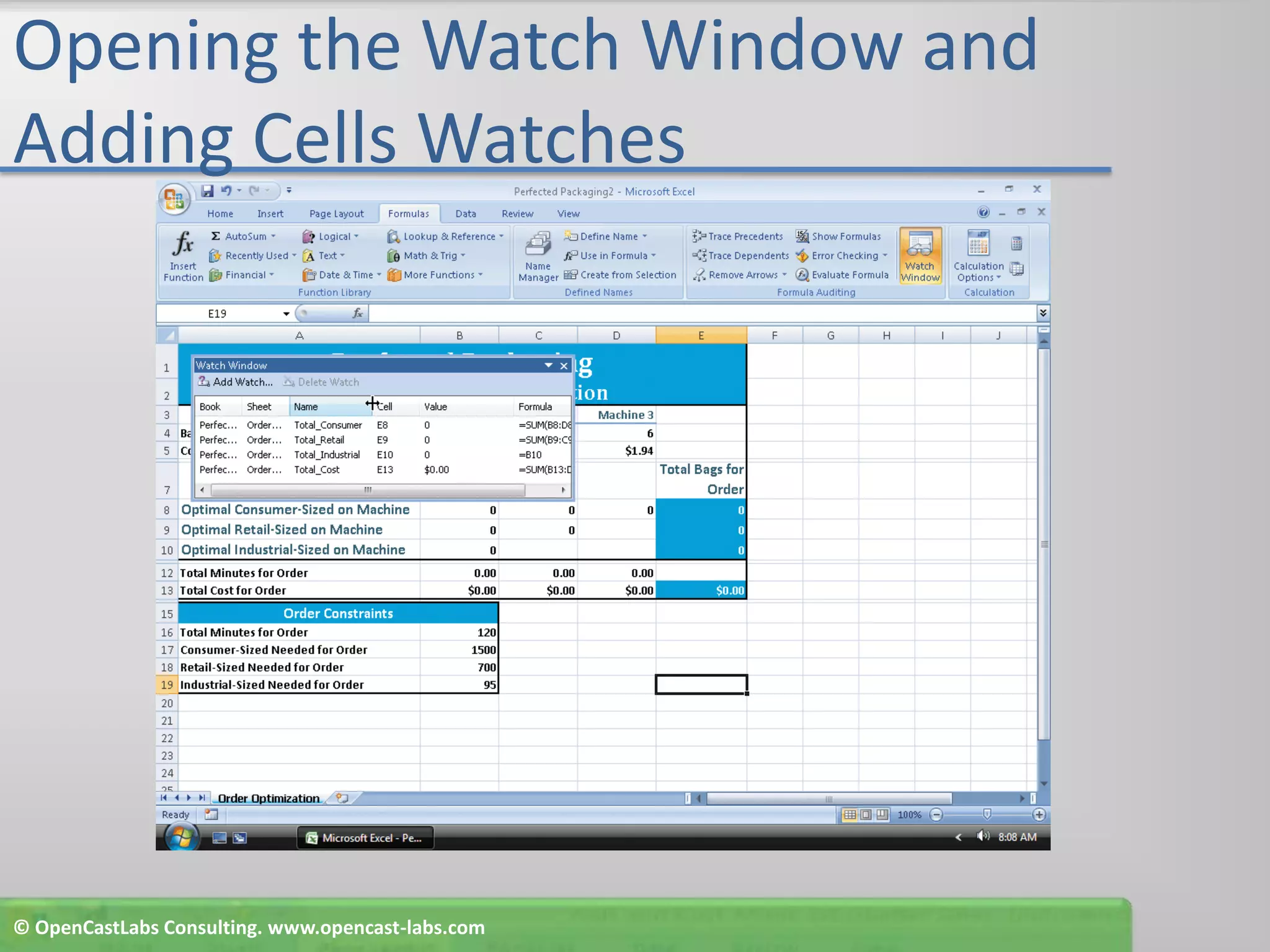
Opening the Watch Window and Adding Cells WatchesClick the Add button in the Add Watch dialog boxIf necessary, expand the Name column to view the cell names in the third column and information about the four watched cells© OpenCastLabs Consulting. www.opencast-labs.com
Opening the Watch Window and Adding Cells Watches© OpenCastLabs Consulting. www.opencast-labs.com
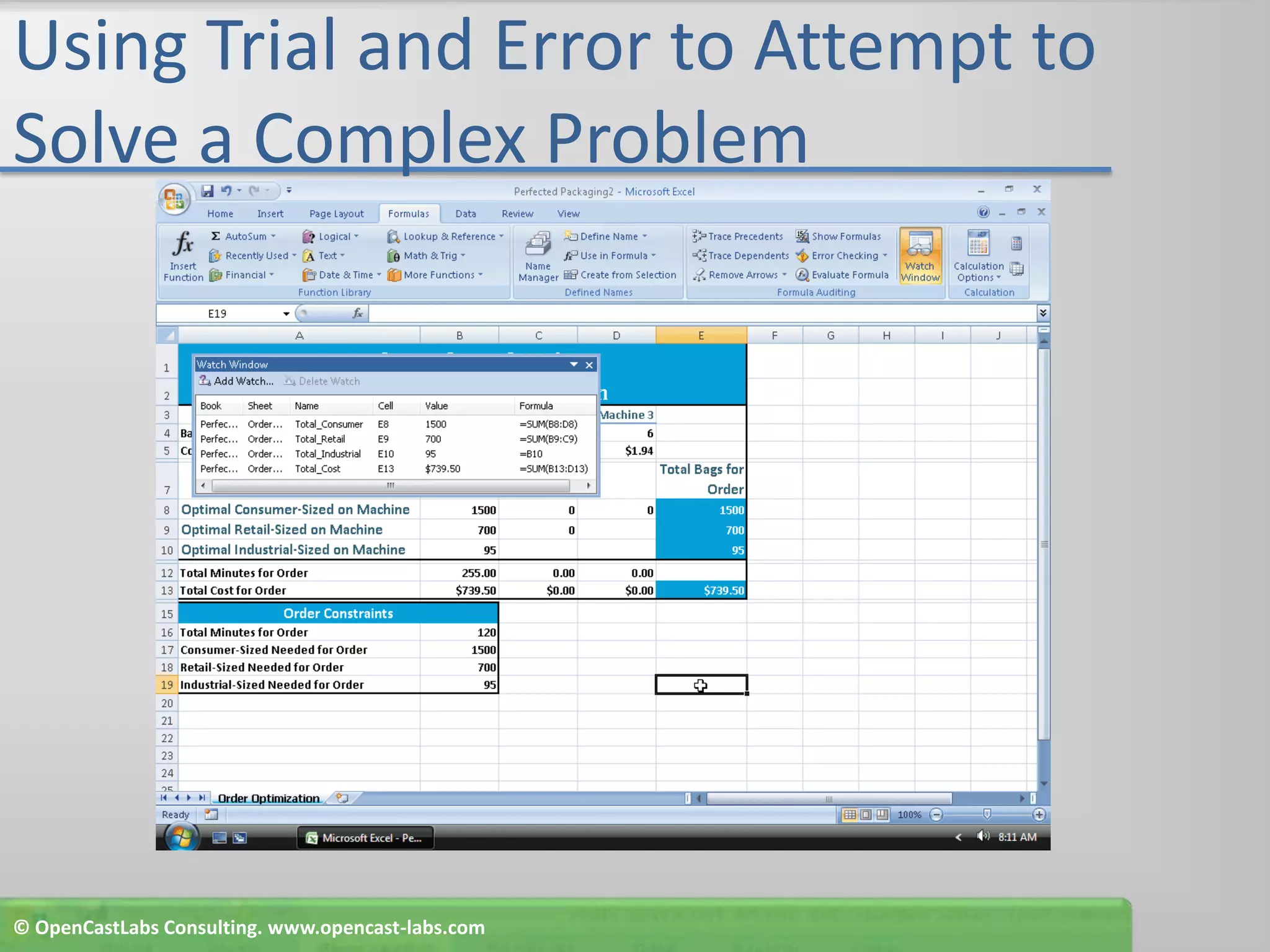
Using Trial and Error to Attempt to Solve a Complex ProblemIf necessary, resize the Watch Window so that only the cell watches appearClick cell B8 and type 82.5 as the number of retail-sized bags to fill on Machine 1 and then press the ENTER keyClick the Retry buttonType 700 as the number of retail sized bags to fill on Machine 1 in cell B9Click cell B10 and type 95 as the number of industrial- sized bags to fill on Machine 1© OpenCastLabs Consulting. www.opencast-labs.com
Using Trial and Error to Attempt to Solve a Complex ProblemClick cell D8 and type 1500 as the number of consumer-sized bags to fill on Machine 3 and then press the ENTER key to display the new values and update the totals in the range B12:D13 and column EClick cell B8 and type 1500 as the number of consumer sized bags to fill on Machine 1Click cell D8, type 0 as the number of consumer-sized bags to fill on Machine 3, and then press the ENTER key. Select cell E19© OpenCastLabs Consulting. www.opencast-labs.com
Using Trial and Error to Attempt to Solve a Complex Problem© OpenCastLabs Consulting. www.opencast-labs.com
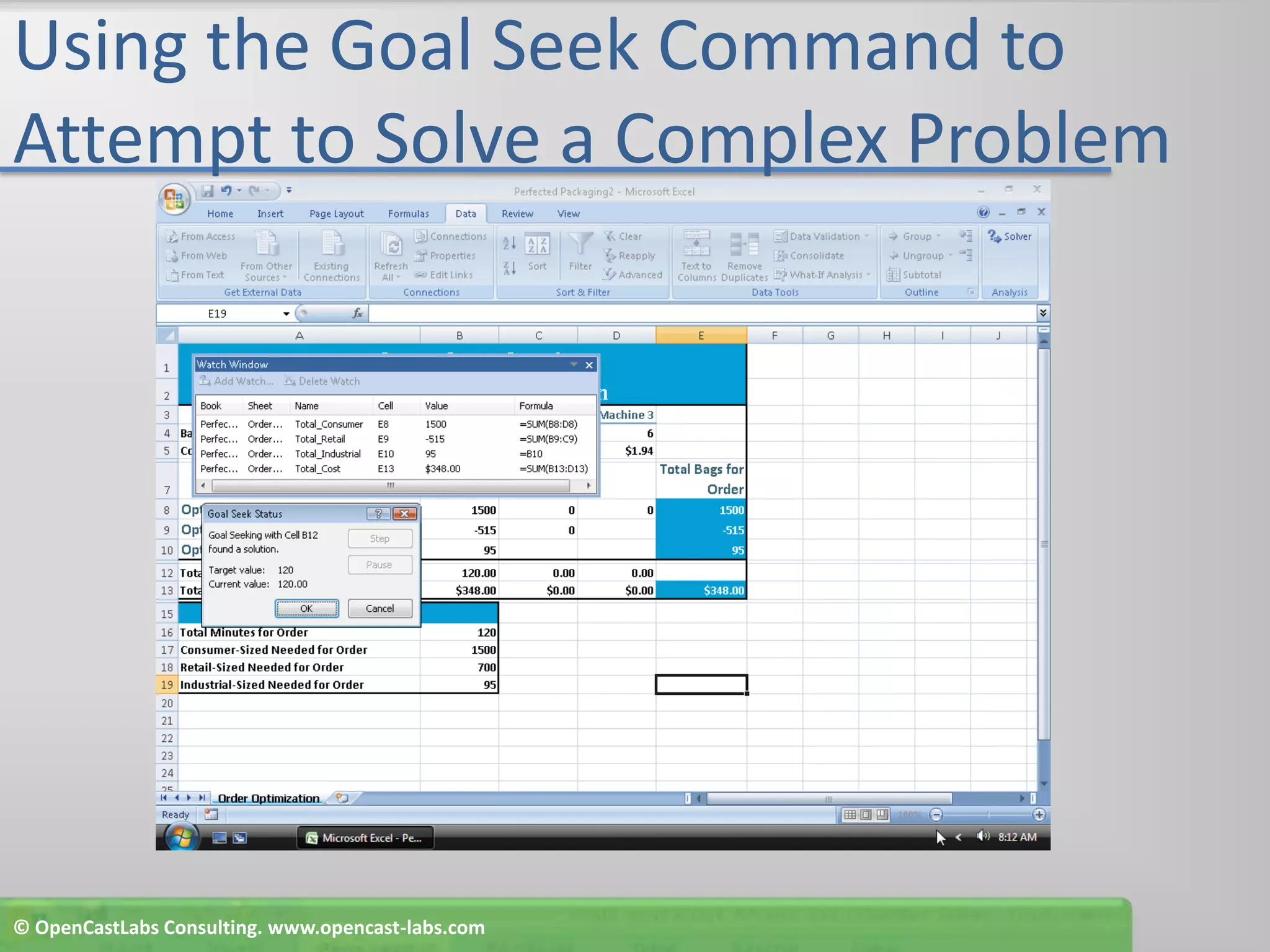
Using the Goal Seek Command to Attempt to Solve a Complex ProblemClick the Data tab on the Ribbon and then click the What- If Analysis button on the Ribbon to display the What-If Analysis menuClick Goal Seek to display the Goal Seek dialog boxType $B$12 in the Set cell text boxClick the To value text boxType 120 and then click the ‘By changing cell’ text box© OpenCastLabs Consulting. www.opencast-labs.com
Using the Goal Seek Command to Attempt to Solve a Complex ProblemClick cell B9 on the worksheetIf necessary, move the Goal Seek dialog boxClick the OK button to seek the goal of 120 minutes in cell B12Click the OK button to close the Goal Seek Status dialog-box and display the updated worksheet.Click cell E19 to deselect cell B12© OpenCastLabs Consulting. www.opencast-labs.com
Using the Goal Seek Command to Attempt to Solve a Complex Problem© OpenCastLabs Consulting. www.opencast-labs.com
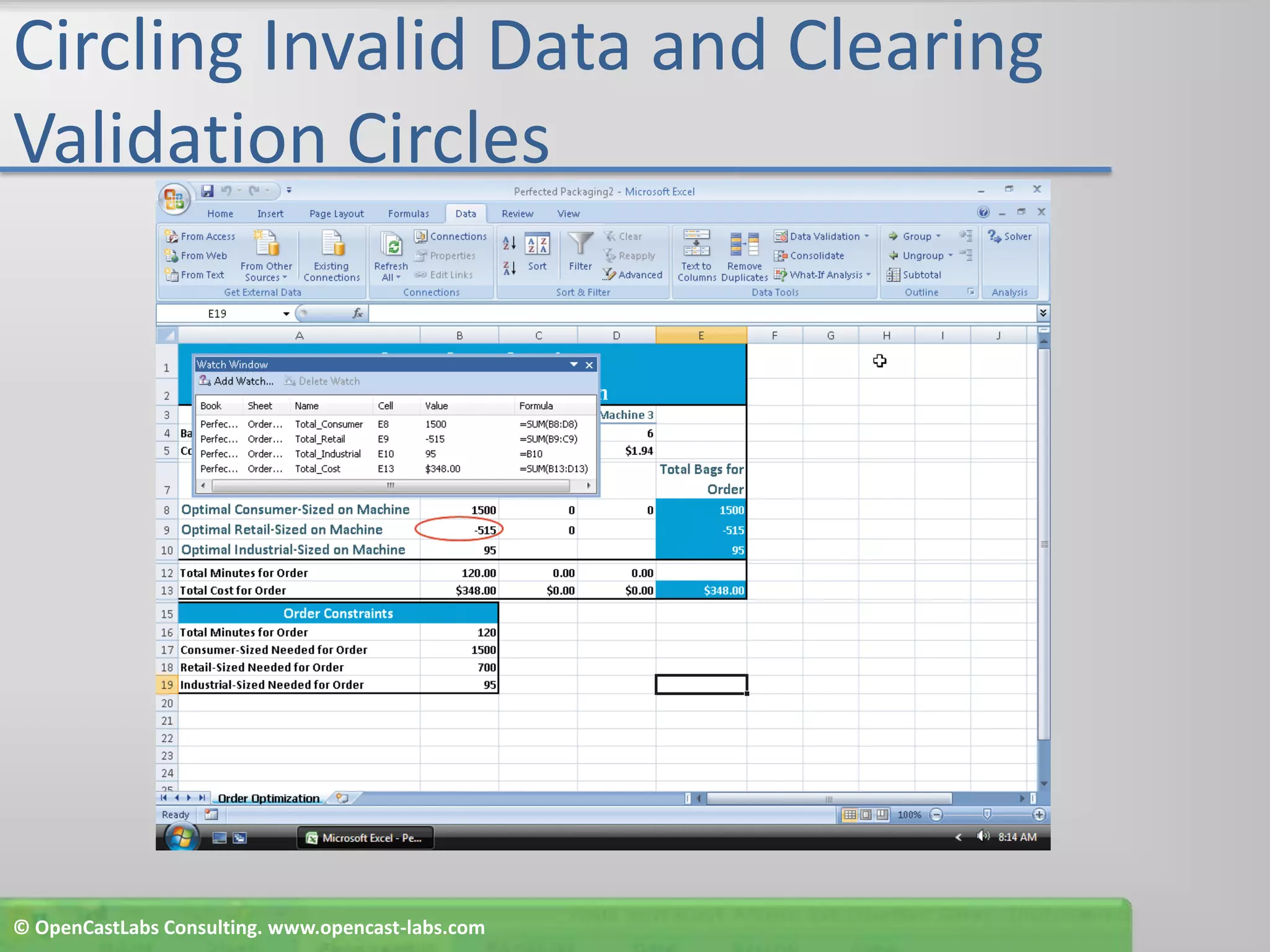
Circling Invalid Data and Clearing Validation CirclesClick the Data Validation button arrow on the Ribbon to display the Data Validation menuClick Circle Invalid Data on the Data Validation menu to place a red validation circle around cell B9Click the Data Validation button arrow on the Ribbon to display the Data Validation menuClick Clear Validation Circles on the Data Validation menu to clear the red validation circlesIf necessary, select cell E19Click the Close button on the Watch Window title bar to close the Watch Window© OpenCastLabs Consulting. www.opencast-labs.com
Circling Invalid Data and Clearing Validation Circles© OpenCastLabs Consulting. www.opencast-labs.com
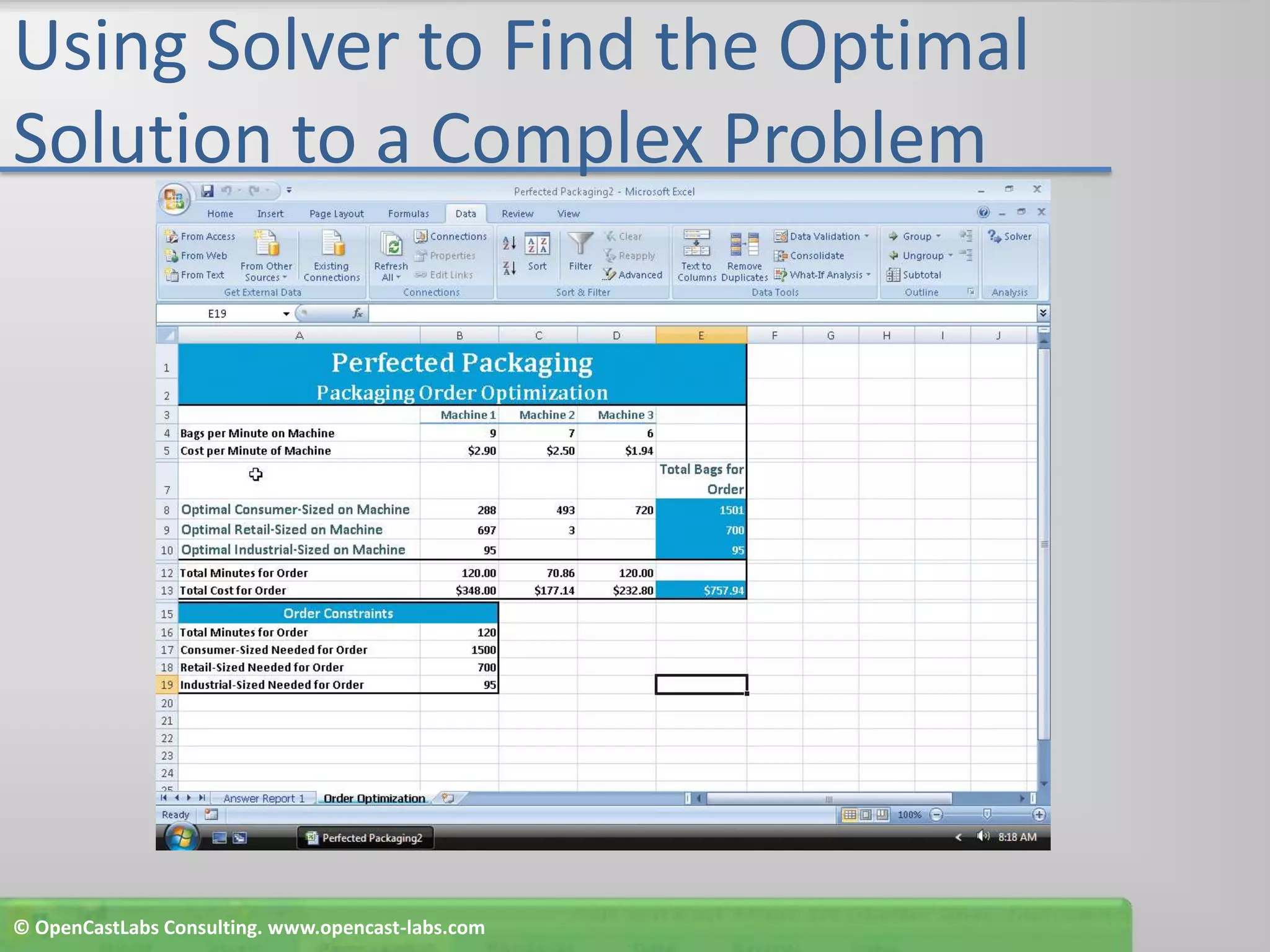
Using Solver to Find the Optimal Solution to a Complex ProblemIf necessary, click the Data tab on the RibbonClick the Solver button on the Ribbon to display the Solver Parameters dialog boxWhen Excel displays the Solver Parameters dialog box, click cell E13 to set the target cell to the name of cell E13, Total_CostClick Min in the Equal To areaClick theCollapse Dialog button in the By Changing Cells area to minimize the Solver Parameters dialog box© OpenCastLabs Consulting. www.opencast-labs.com
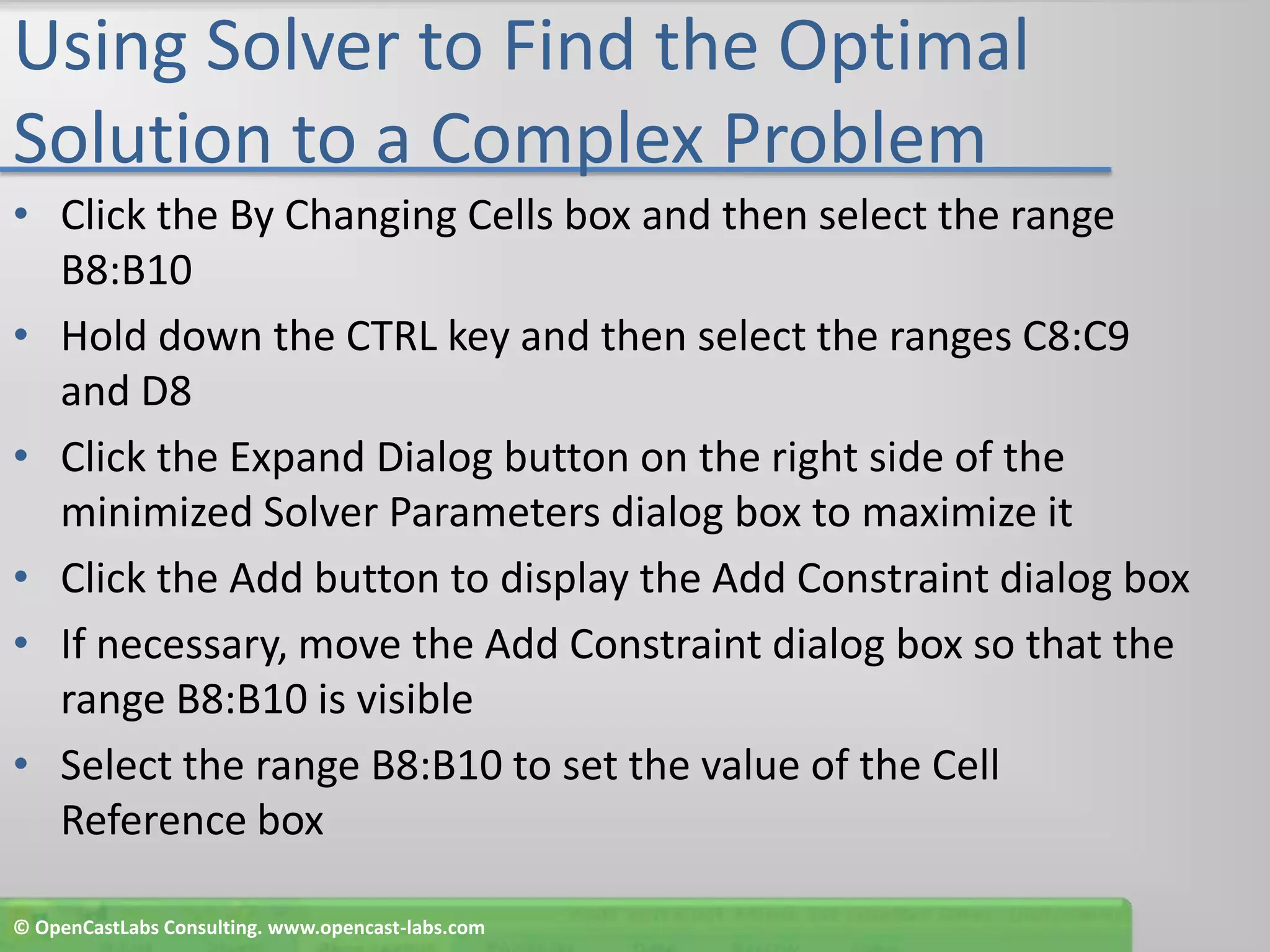
Using Solver to Find the Optimal Solution to a Complex ProblemClick the By Changing Cells box and then select the range B8:B10Hold down the CTRL key and then select the ranges C8:C9 and D8Click the Expand Dialog button on the right side of the minimized Solver Parameters dialog box to maximize itClick the Add button to display the Add Constraint dialog boxIf necessary, move the Add Constraint dialog box so that the range B8:B10 is visibleSelect the range B8:B10 to set the value of the Cell Reference box© OpenCastLabs Consulting. www.opencast-labs.com
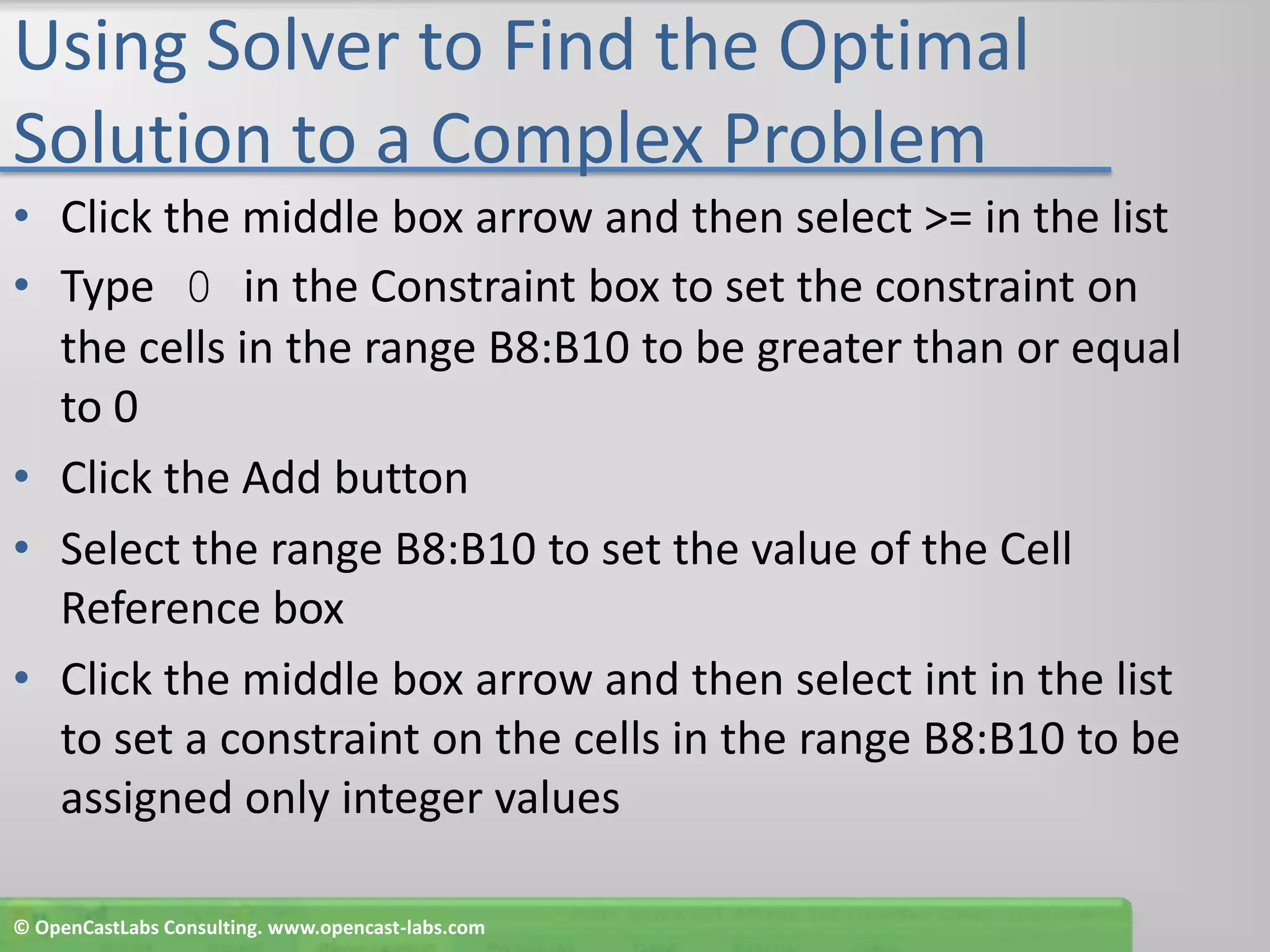
Using Solver to Find the Optimal Solution to a Complex ProblemClick the middle box arrow and then select >= in the listType 0 in the Constraint box to set the constraint on the cells in the range B8:B10 to be greater than or equal to 0Click the Add buttonSelect the range B8:B10 to set the value of the Cell Reference boxClick the middle box arrow and then select int in the list to set a constraint on the cells in the range B8:B10 to be assigned only integer values© OpenCastLabs Consulting. www.opencast-labs.com
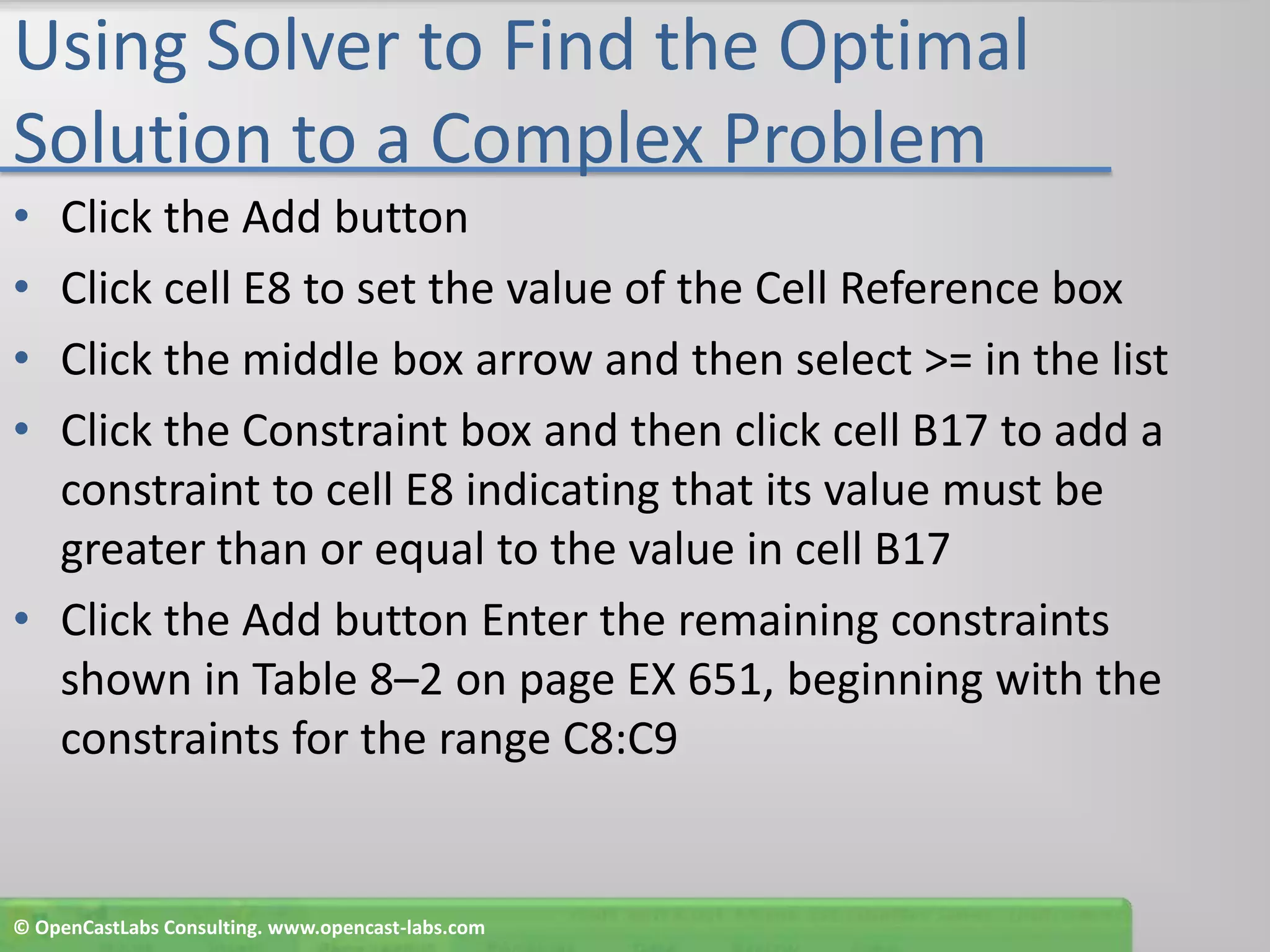
Using Solver to Find the Optimal Solution to a Complex ProblemClick the Add buttonClick cell E8 to set the value of the Cell Reference boxClick the middle box arrow and then select >= in the listClick the Constraint box and then click cell B17 to add a constraint to cell E8 indicating that its value must be greater than or equal to the value in cell B17Click the Add button Enter the remaining constraints shown in Table 8–2 on page EX 651, beginning with the constraints for the range C8:C9© OpenCastLabs Consulting. www.opencast-labs.com
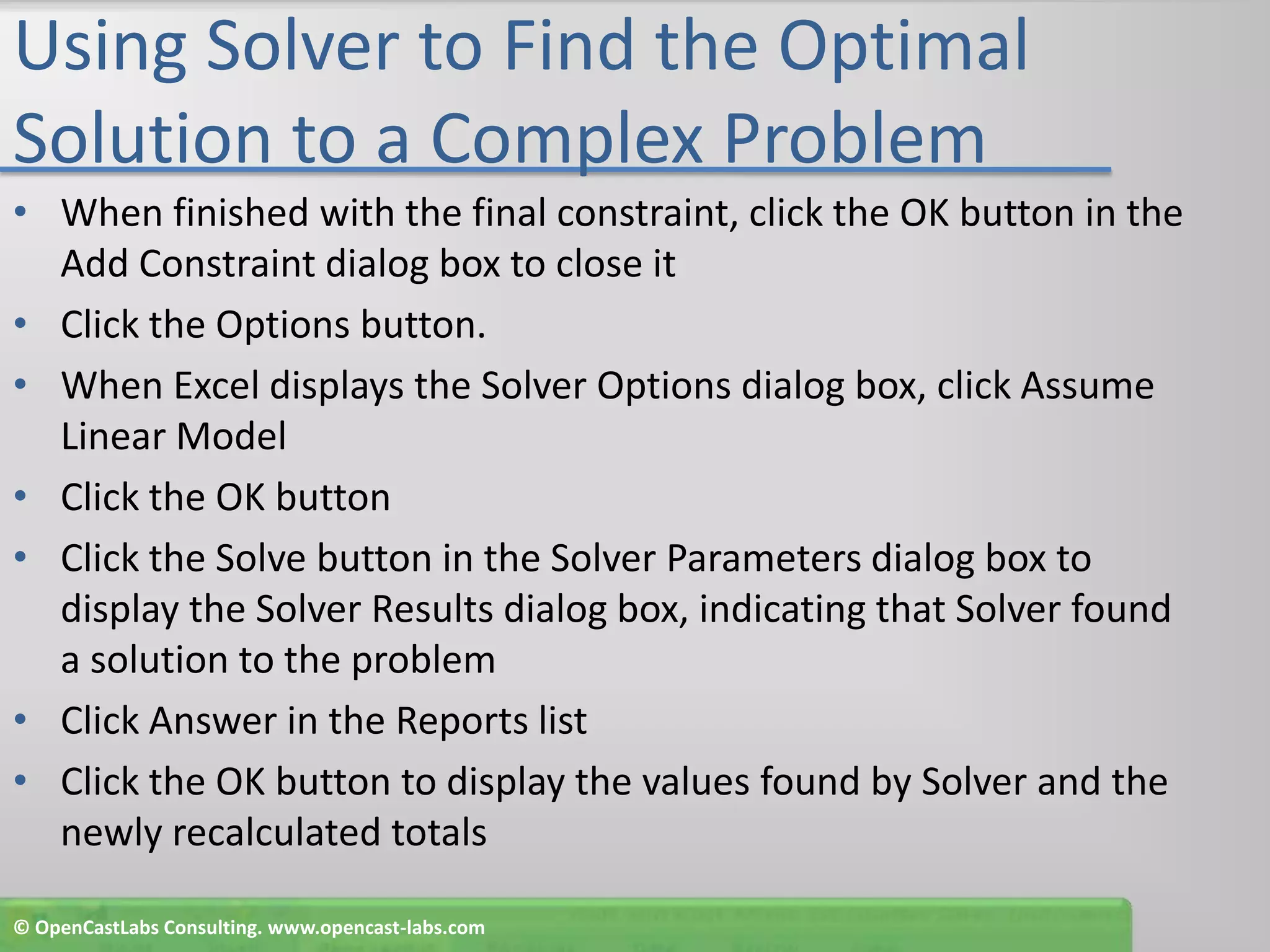
Using Solver to Find the Optimal Solution to a Complex ProblemWhen finished with the final constraint, click the OK button in the Add Constraint dialog box to close itClick the Options button.When Excel displays the Solver Options dialog box, click Assume Linear ModelClick the OK buttonClick the Solve button in the Solver Parameters dialog box to display the Solver Results dialog box, indicating that Solver found a solution to the problemClick Answer in the Reports listClick the OK button to display the values found by Solver and the newly recalculated totals© OpenCastLabs Consulting. www.opencast-labs.com
Using Solver to Find the Optimal Solution to a Complex Problem© OpenCastLabs Consulting. www.opencast-labs.com
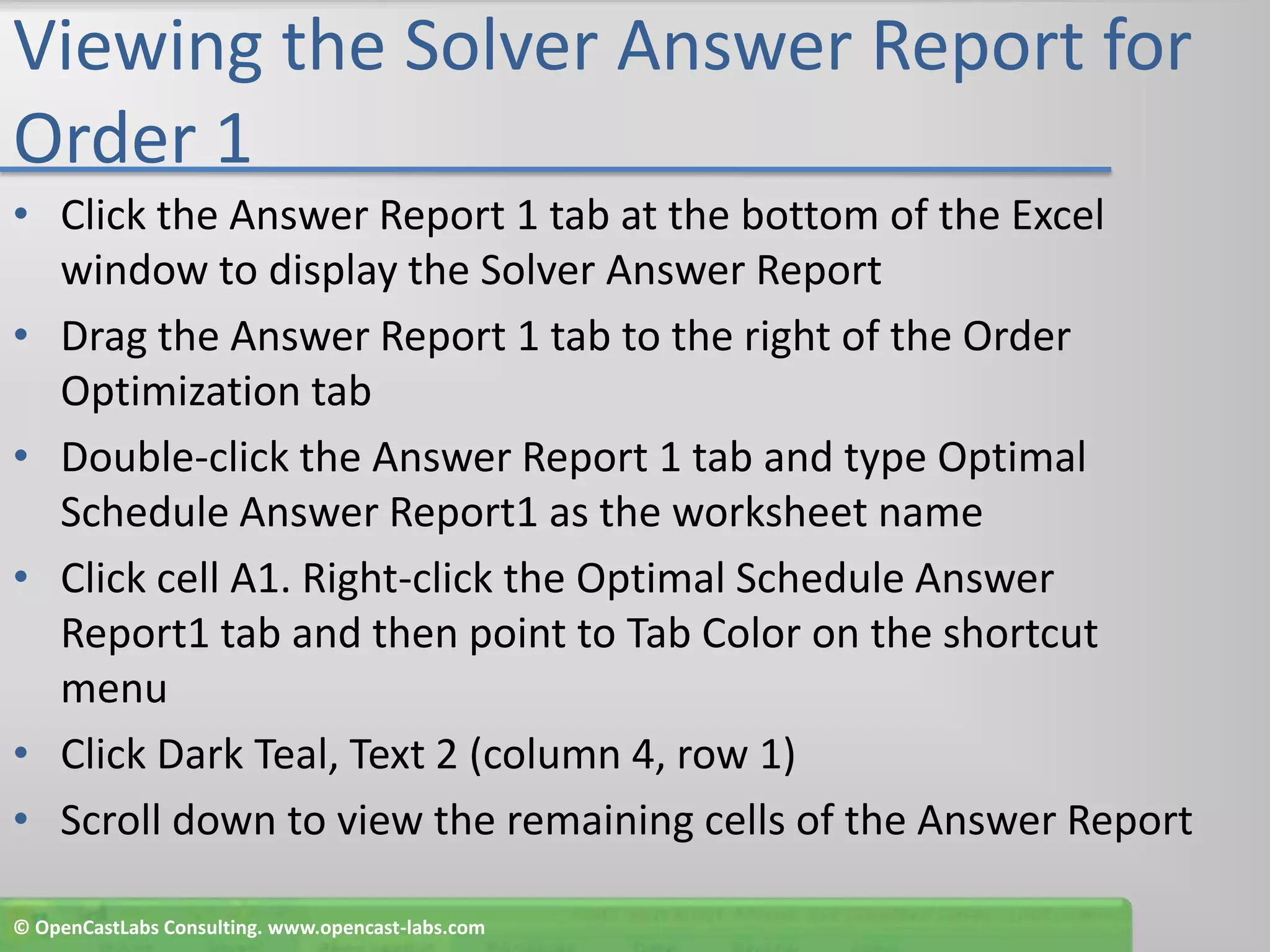
Viewing the Solver Answer Report for Order 1Click the Answer Report 1 tab at the bottom of the Excel window to display the Solver Answer ReportDrag the Answer Report 1 tab to the right of the Order Optimization tabDouble-click the Answer Report 1 tab and type Optimal Schedule Answer Report1 as the worksheet nameClick cell A1. Right-click the Optimal Schedule Answer Report1 tab and then point to Tab Color on the shortcut menuClick Dark Teal, Text 2 (column 4, row 1)Scroll down to view the remaining cells of the Answer Report© OpenCastLabs Consulting. www.opencast-labs.com
Viewing the Solver Answer Report for Order 1© OpenCastLabs Consulting. www.opencast-labs.com
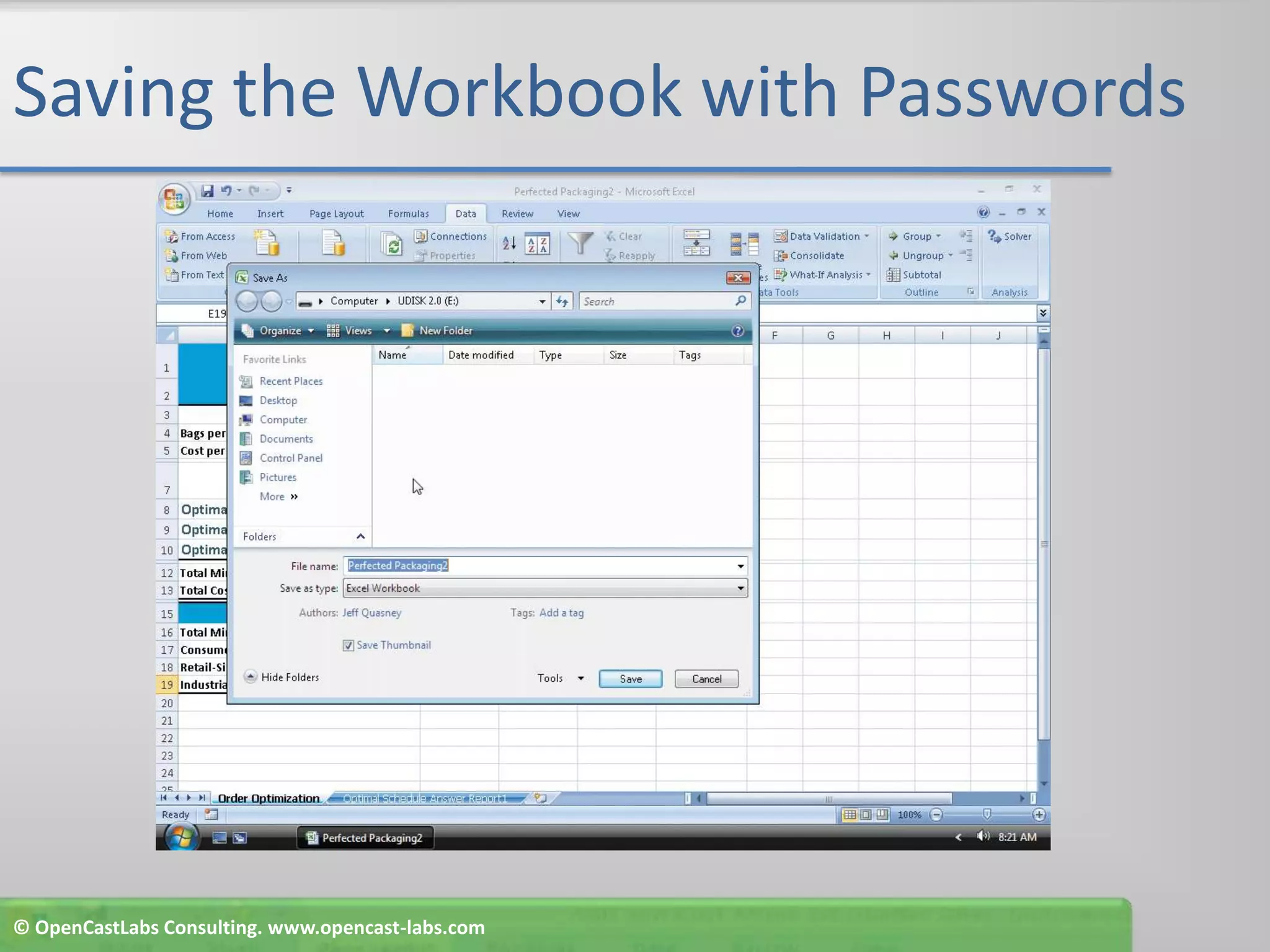
Saving the Workbook with PasswordsClick the Order Optimization tab at the bottom of the windowClick the Office Button and then click Save AsClick the Tools button in the Save As dialog boxClick General Options on the Tools menu to display the General Options dialog boxType mincost in the ‘Password to open’ text boxType mincostin the ‘Password to modify’ text box© OpenCastLabs Consulting. www.opencast-labs.com
Saving the Workbook with PasswordsClick the OK buttonWhen Excel displays the Confirm Password dialog box, type mincost in the ‘Reenter password to proceed’ text boxClick the OK buttonWhen Excel displays the Confirm Password dialog box, type mincost in the ‘Reenter password to modify’ text boxClick the OK buttonClick the Save button in the Save As dialog box to save the file to the UDISK 2.0 (E:) drive with the file name, Perfected Packaging2. If the Microsoft Office Excel dialog box appears, click the OK button to close it© OpenCastLabs Consulting. www.opencast-labs.com
Saving the Workbook with Passwords© OpenCastLabs Consulting. www.opencast-labs.com
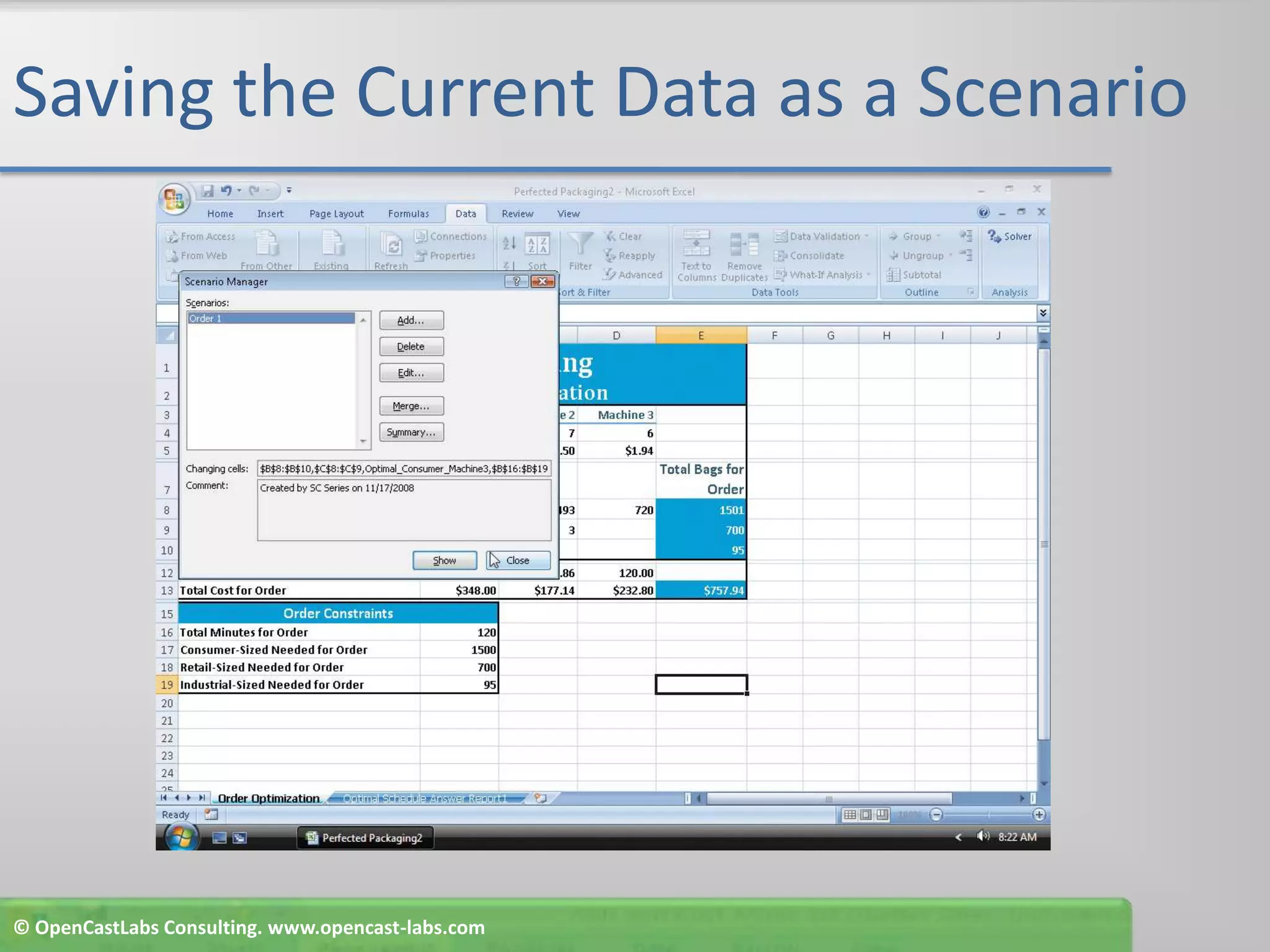
Saving the Current Data as a ScenarioWith the Data tab active, click the What-If Analysis button on the RibbonClick Scenario Manager on the What-If Analysis menu to display the Scenario Manager dialog box, which indicates that no scenarios are definedClick the Add buttonWhen Excel displays the Add Scenario dialog box, type Order 1 in the Scenario name text boxClick the Collapse Dialog button© OpenCastLabs Consulting. www.opencast-labs.com
Saving the Current Data as a ScenarioWhen Excel displays the Add Scenario - Changing cells dialog box, select the range B8:B10, hold down the CTRL key, and then select the ranges C8:C9, D8, and B16:B19Release the CTRL key to display a marquee around the selected cells and assign the cells to the Changing cells text boxClick the Expand Dialog button to change the Add Scenario dialog box to the Edit Scenario dialog boxClick the OK buttonClick the OK button to display the Order 1 scenario in the scenarios listClick the Close button in the Scenario Manager dialog box© OpenCastLabs Consulting. www.opencast-labs.com
Saving the Current Data as a Scenario© OpenCastLabs Consulting. www.opencast-labs.com
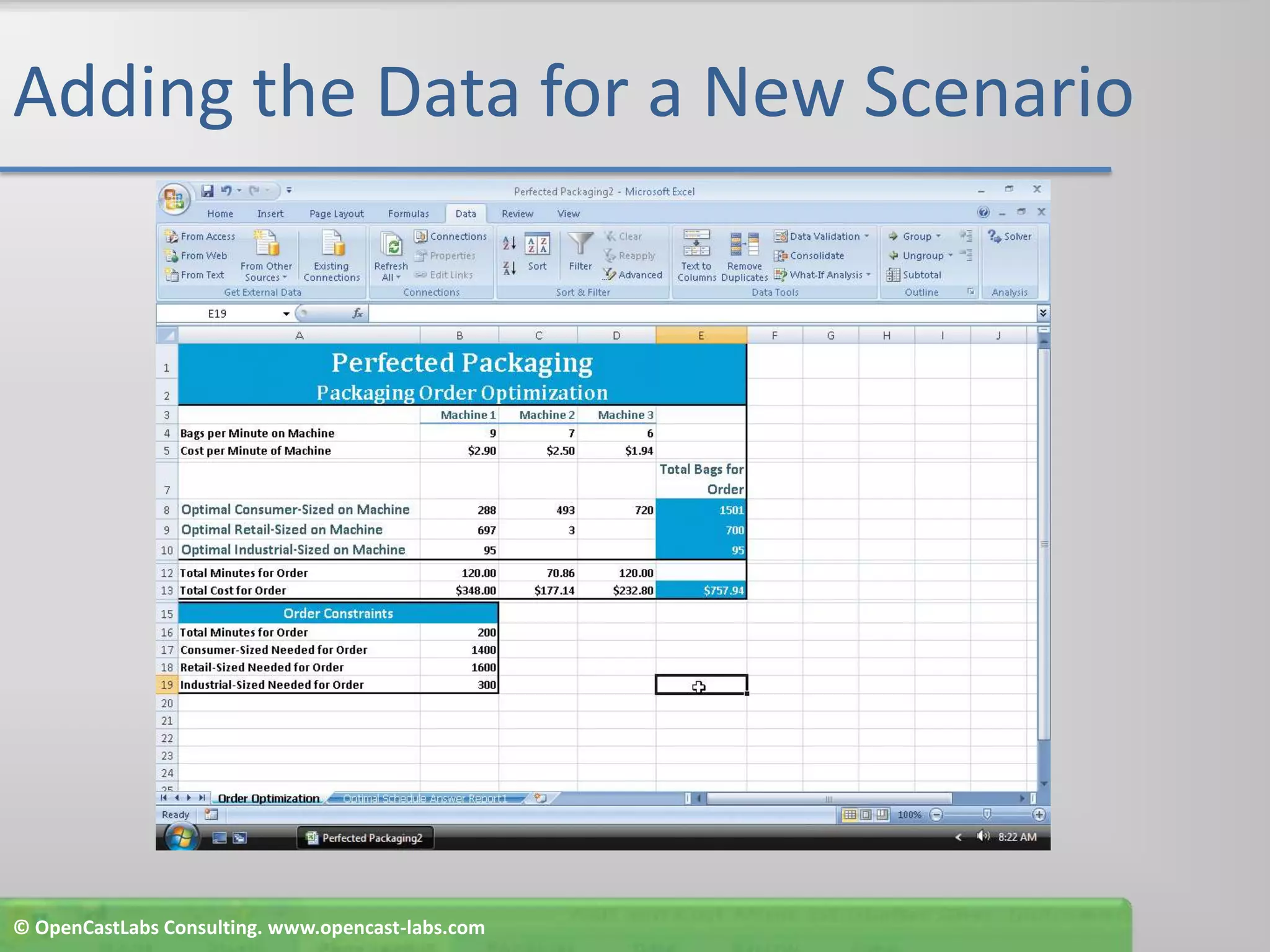
Adding the Data for a New ScenarioClick cell B16 and type 200 as the maximum minutes for the orderClick cell B17 and type 1400 as the number of consumer-sized bagsClick cell B18 and type 1600 as the number of retail-sized bagsClick cell B19, type 300 as the number of industrial-sized bags, and then click cell E19© OpenCastLabs Consulting. www.opencast-labs.com
Adding the Data for a New Scenario© OpenCastLabs Consulting. www.opencast-labs.com
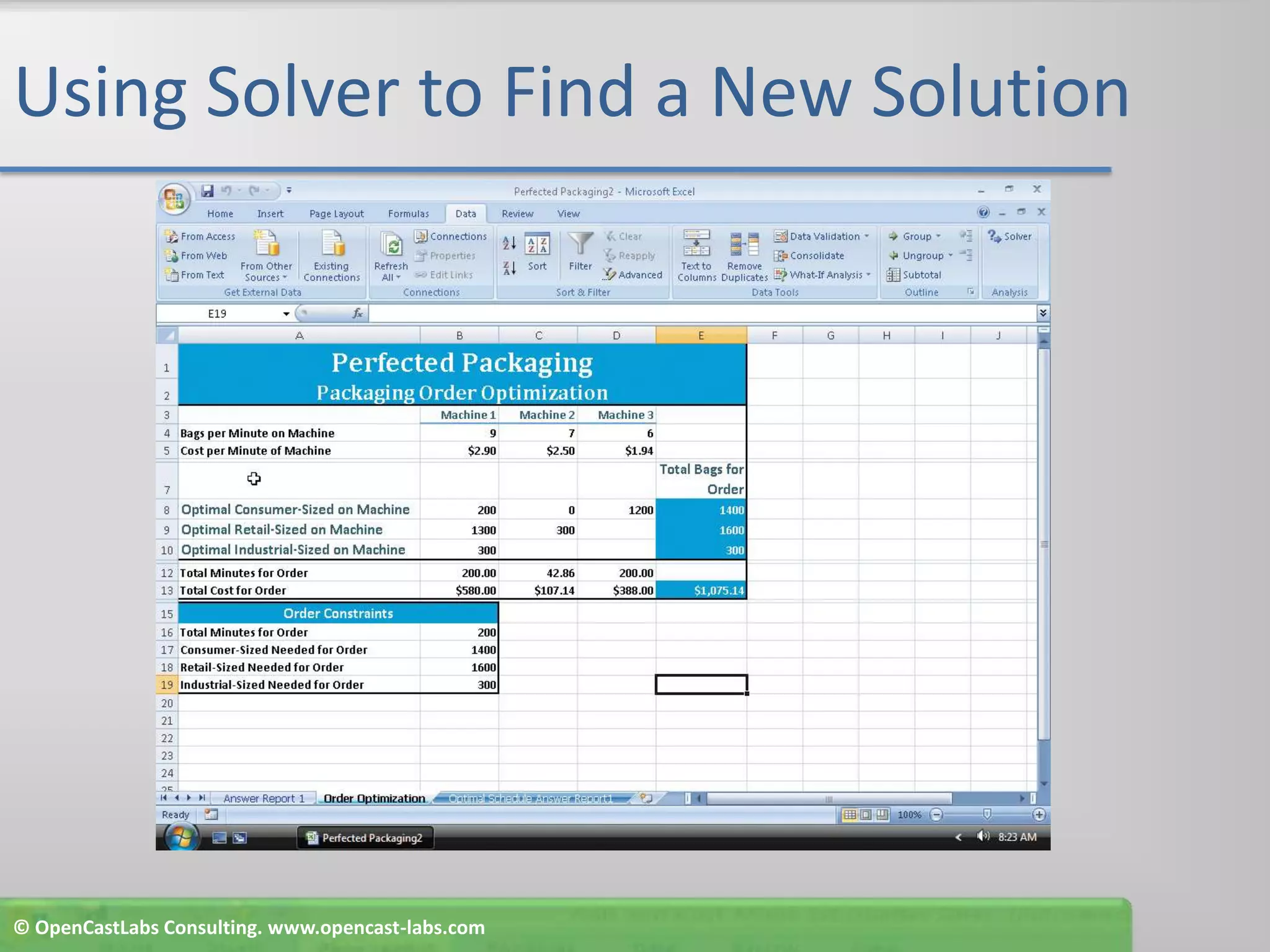
Using Solver to Find a New SolutionClick the Solver button on the Data tab on the Ribbon to display the Solver Parameters dialog box with the target cell, changing cells, and constraints used with Order 1Click the Solve button to solve the problem using SolverClick Answer in the Reports listClick the OK button to display the values found by Solver© OpenCastLabs Consulting. www.opencast-labs.com
Using Solver to Find a New Solution© OpenCastLabs Consulting. www.opencast-labs.com
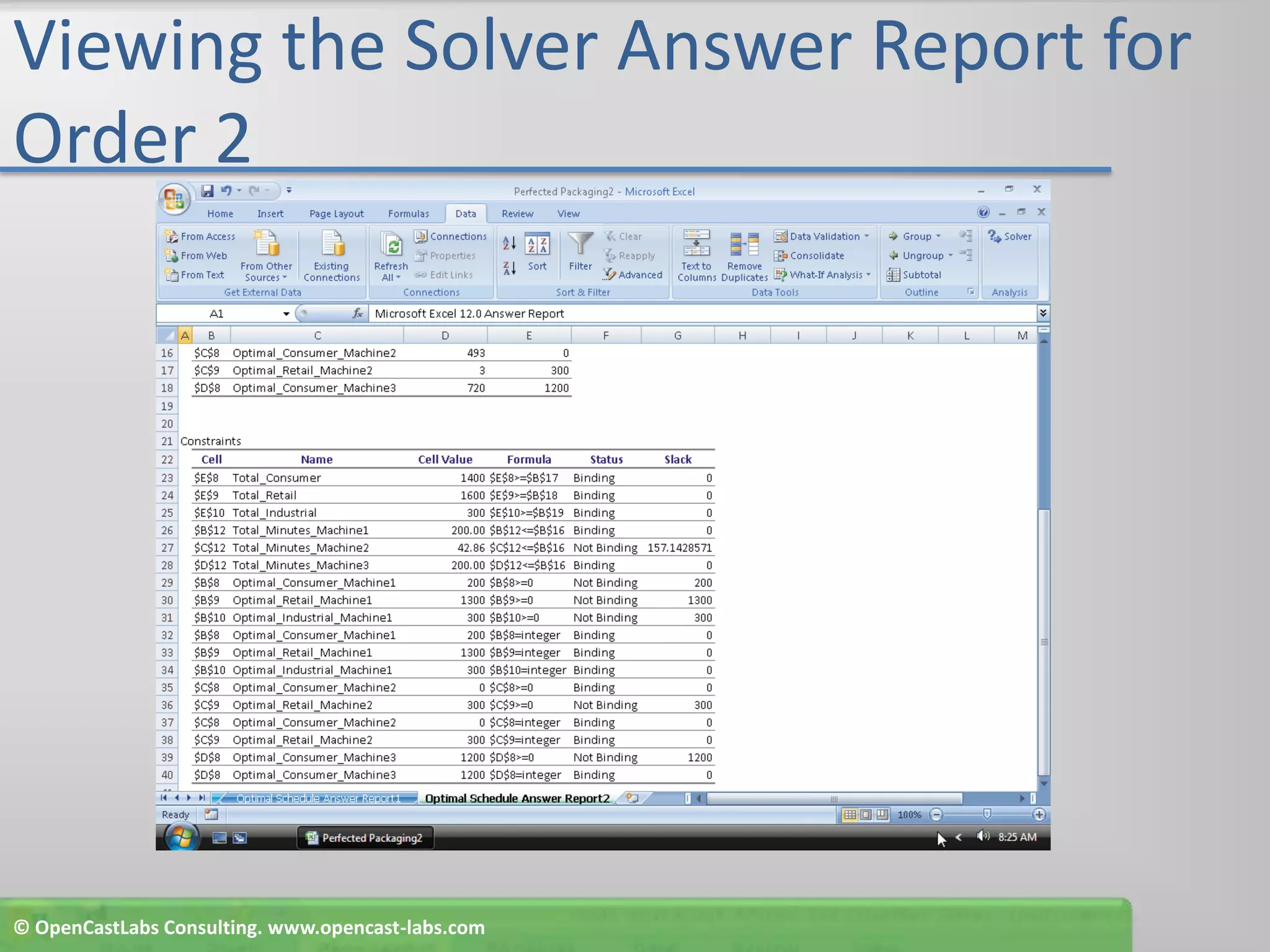
Viewing the Solver Answer Report for Order 2Click the Answer Report 1 tab at the bottom of the Excel windowDrag the Answer Report 1 tab to the right of the Optimal Schedule Answer Report1 tabDouble-click the Answer Report 1 tab and type Optimal Schedule Answer Report2 as the worksheet nameClick cell A1Right-click the Optimal Schedule Answer Report2 tab and then point to Tab Color on the shortcut menuClick Bright Green, Accent 4 (column 8, row 1)Scroll down to view the remaining cells of the Order 2 Answer Report© OpenCastLabs Consulting. www.opencast-labs.com
Viewing the Solver Answer Report for Order 2© OpenCastLabs Consulting. www.opencast-labs.com
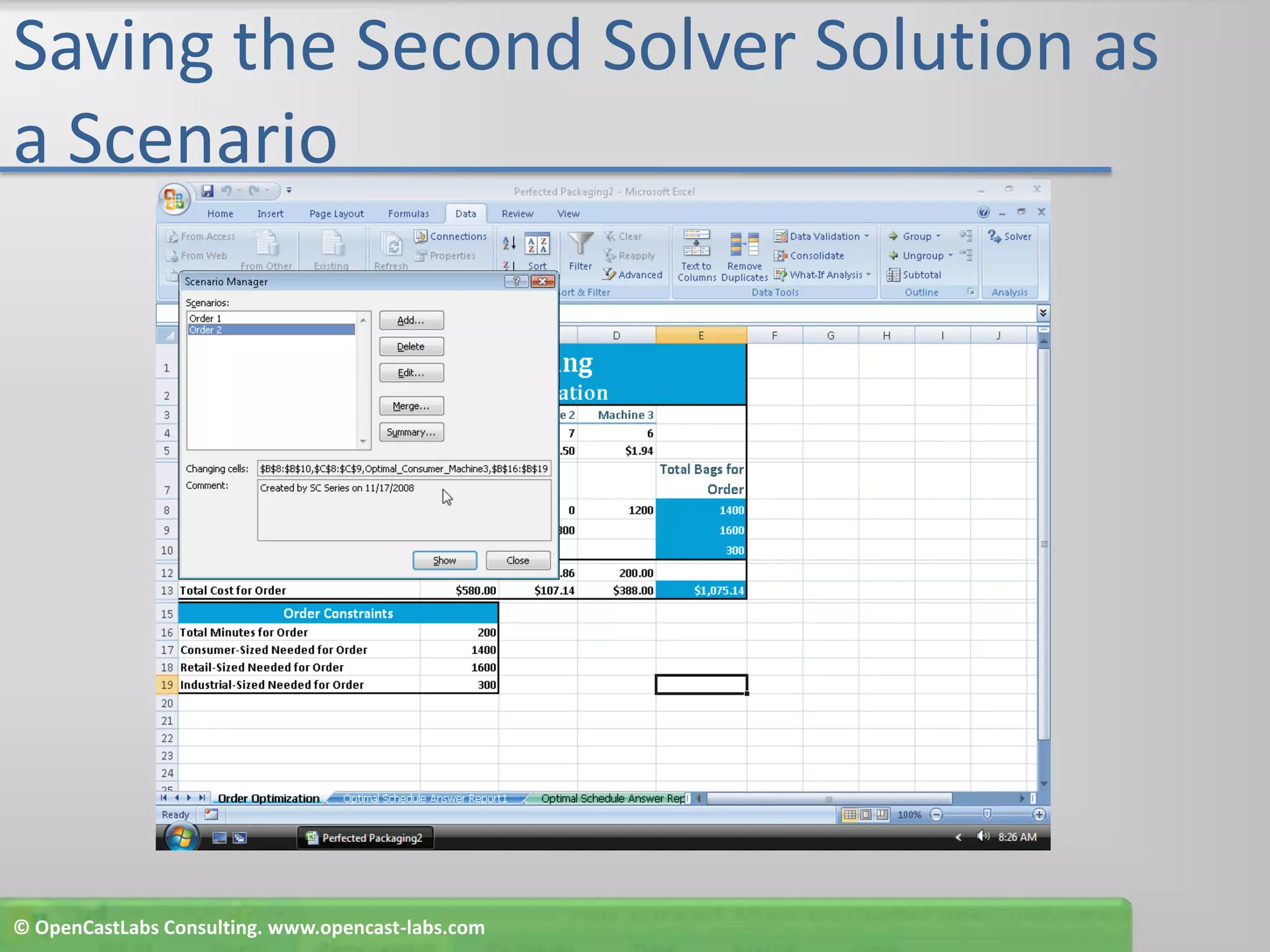
Saving the Second Solver Solution as a ScenarioClick the Order Optimization tab at the bottom of the windowClick the What-If Analysis button on the RibbonClick Scenario Manager on the What-If Analysis menu to display the Scenario Manager dialog boxClick the Add buttonType Order 2 in the Scenario name text box© OpenCastLabs Consulting. www.opencast-labs.com
Saving the Second Solver Solution as a ScenarioClick the OK button to display the Scenario Values dialog box with the current values from the worksheetClick the OK button to display Order 2 along with Order 1 in the Scenarios listClick the Close button© OpenCastLabs Consulting. www.opencast-labs.com
Saving the Second Solver Solution as a Scenario© OpenCastLabs Consulting. www.opencast-labs.com
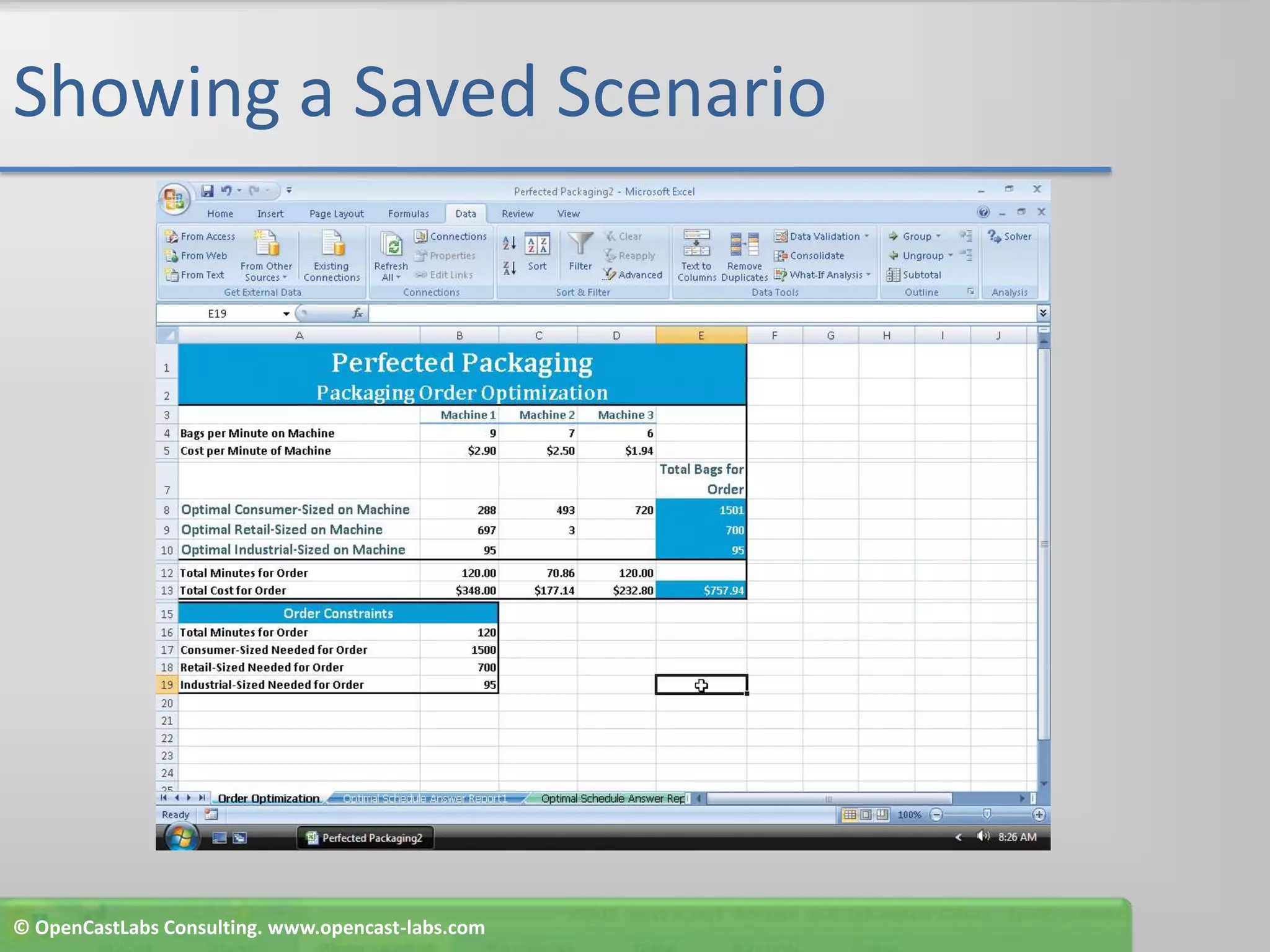
Showing a Saved ScenarioClick the What-If Analysis button on the RibbonClick Scenario Manager on the What-If Analysis menuIf necessary, in the Scenario Manager dialog box, select Order 1 in the Scenarios listClick the Show button and then click the Close button to display the data for the Order 1 scenario in the worksheet© OpenCastLabs Consulting. www.opencast-labs.com
Showing a Saved Scenario© OpenCastLabs Consulting. www.opencast-labs.com
Creating a Scenario Summary WorksheetClick the What-If Analysis button on the RibbonClick Scenario Manager on the What-If Analysis menu to display the Scenario Manager dialog boxIf necessary, in the Scenario Manager dialog box, select Order 1Click the Summary button to display the Scenario Summary dialog boxClick the OK button© OpenCastLabs Consulting. www.opencast-labs.com
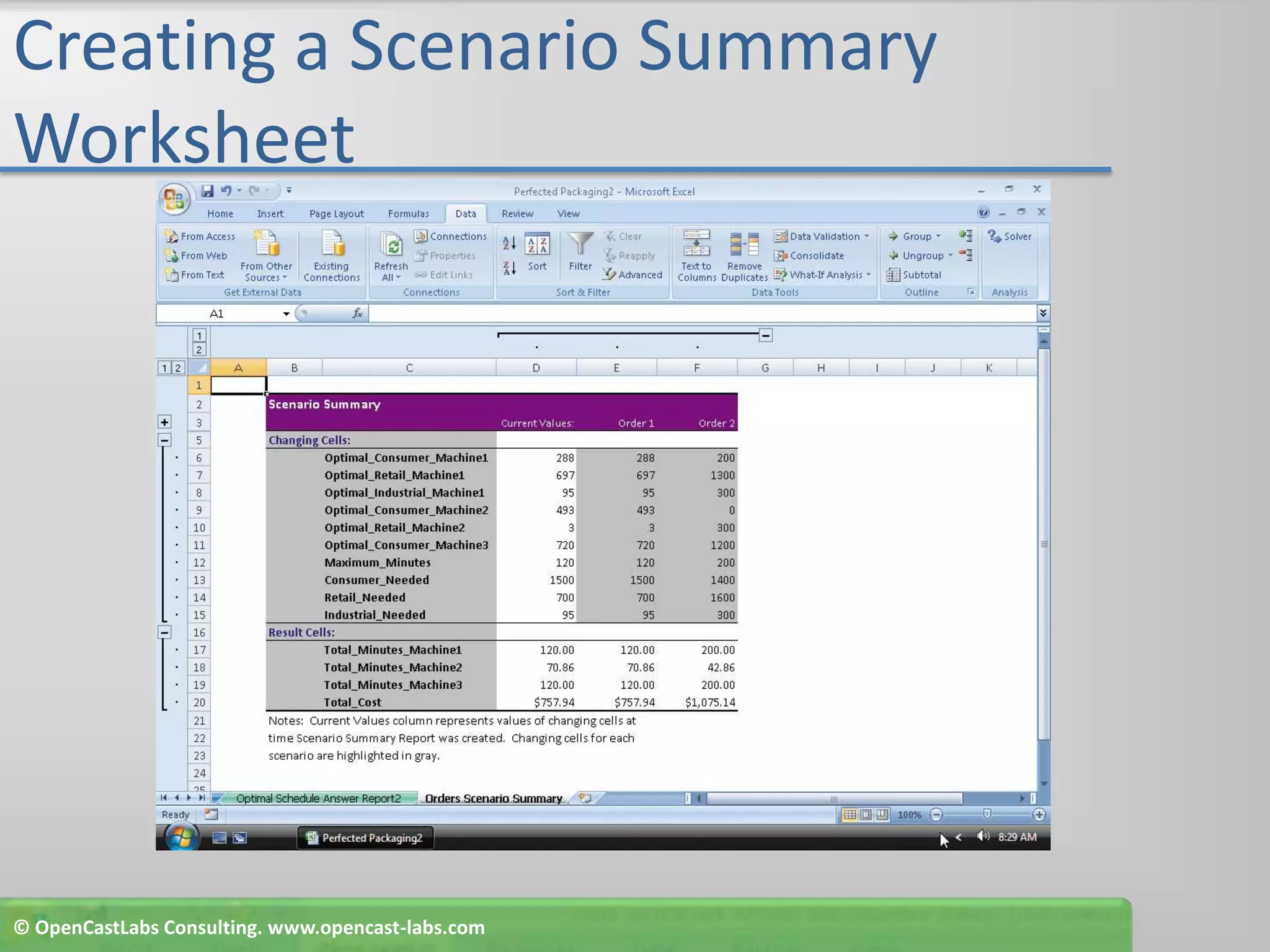
Creating a Scenario Summary WorksheetWhen Excel displays the Scenario Summary, double-click the Scenario Summary tab, type Orders Scenario Summary as the new worksheet name, and then press the ENTER keyRight-click the Orders Scenario Summary tab and then point to Tab Color on the shortcut menuClick Black, Text 1, Lighter 50% (column 2, row 2)Drag the Orders Scenario Summary tab to the right of the Optimal Schedule Answer Report2 tab© OpenCastLabs Consulting. www.opencast-labs.com
Creating a Scenario Summary Worksheet© OpenCastLabs Consulting. www.opencast-labs.com
Creating a Scenario PivotTable WorksheetScroll to the Order Optimization tab and then click the Order Optimization tab at the bottom of the windowClick the What-If Analysis button on the Ribbon and then click Scenario Manager to display the Scenario Manager dialog boxIf necessary, when Excel displays the Scenario Manager dialog box, select Order 1Click the Summary button to display the Scenario Summary dialog boxIn the Scenario Summary dialog box, click Scenario PivotTable report in the Report type area© OpenCastLabs Consulting. www.opencast-labs.com
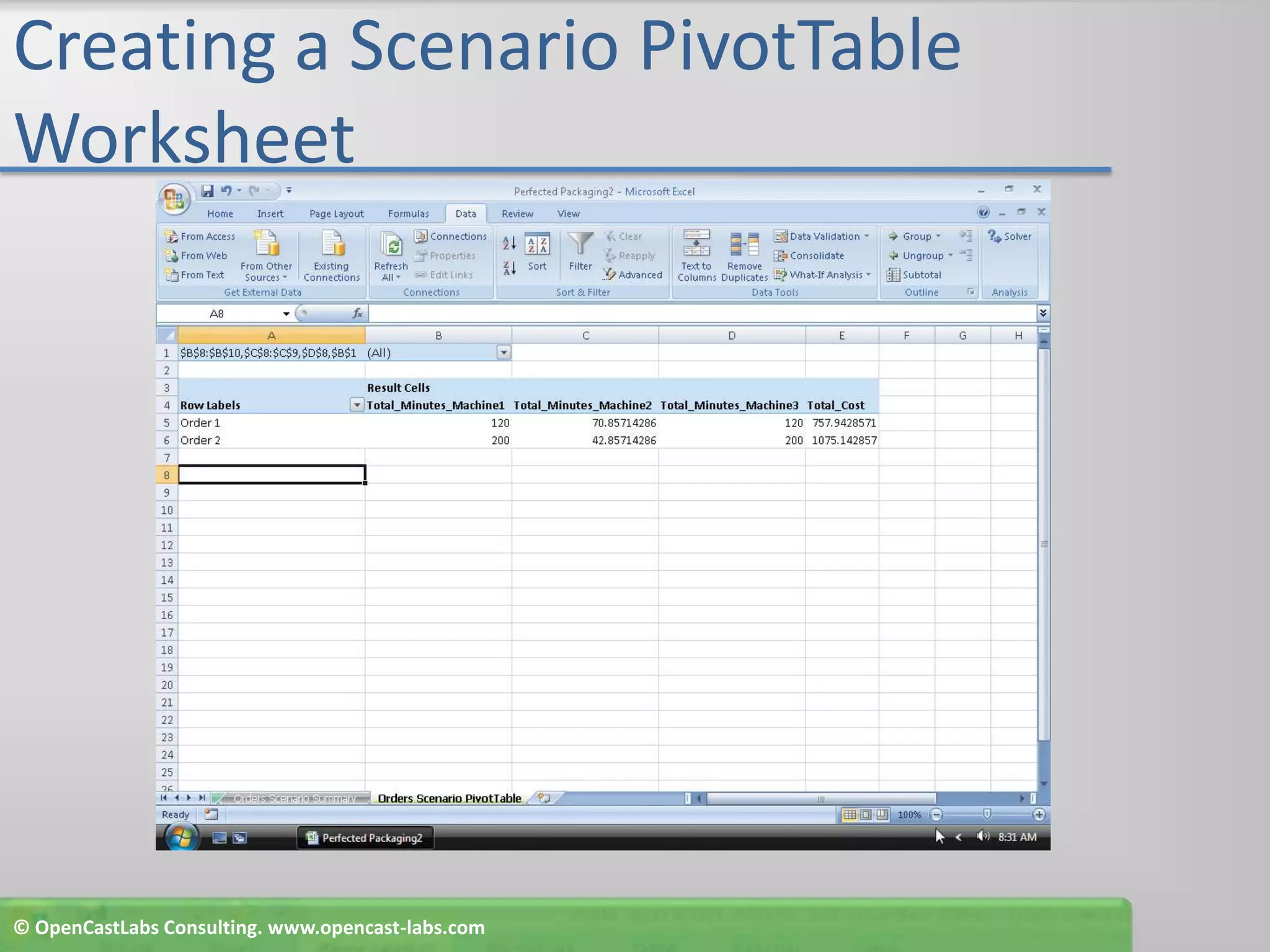
Creating a Scenario PivotTable WorksheetClick the OK button Double-click the Scenario PivotTable tab and type Order Scenario PivotTable as the worksheet nameClick cell A8Right-click the Order Scenario PivotTable tab and then point to Tab Color on the shortcut menuClick Lime, Accent 6 (column 10, row 1)Drag the tab to the right of the Orders Scenario Summary tab© OpenCastLabs Consulting. www.opencast-labs.com
Creating a Scenario PivotTable Worksheet© OpenCastLabs Consulting. www.opencast-labs.com
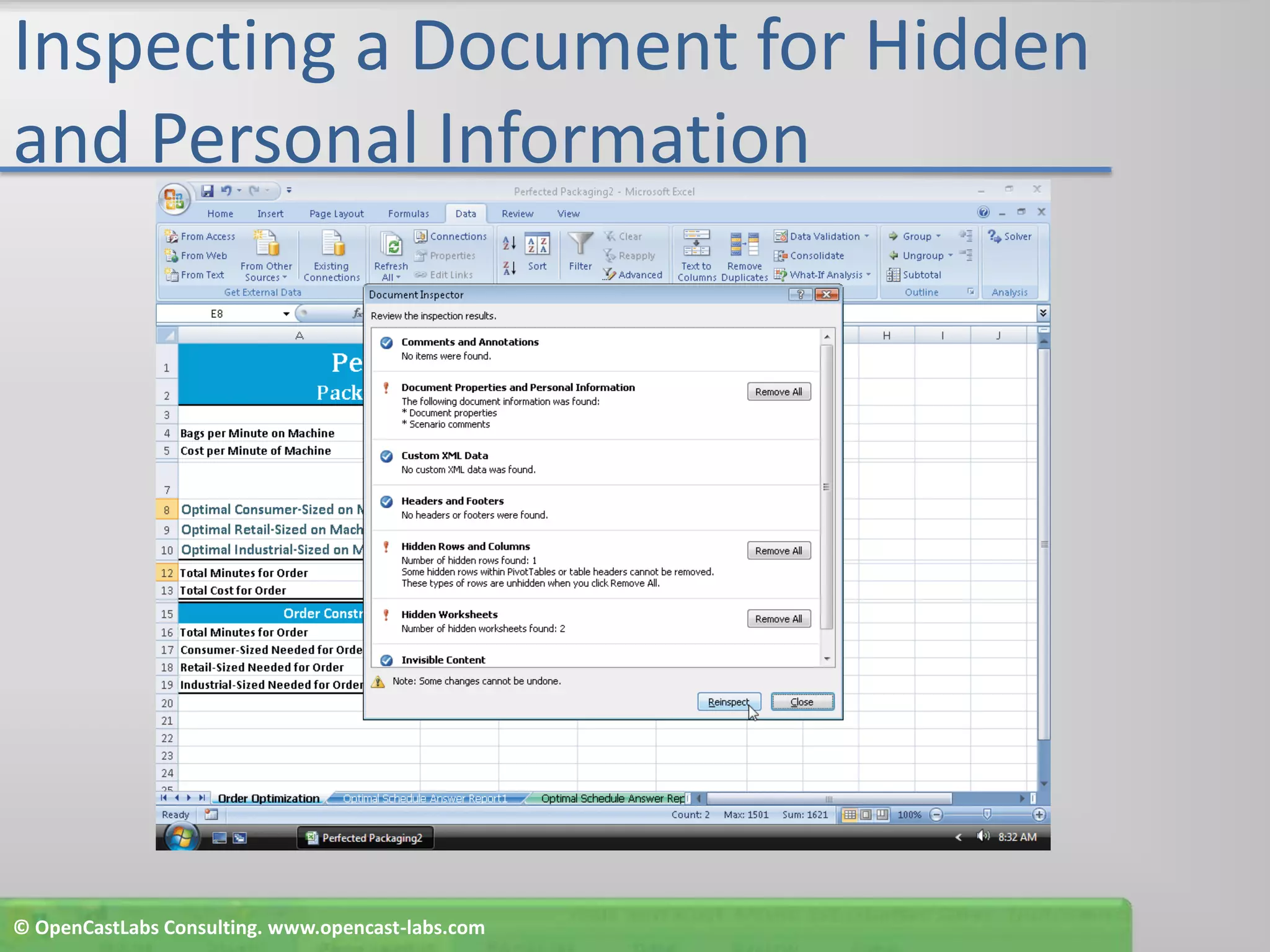
Inspecting a Document for Hidden and Personal InformationClick the Order Optimization tab at the bottom of the Excel windowClick the Office Button and then point to the Prepare command on the Office Button menuClick Inspect Document on the Prepare submenu to display the Document Inspector dialog boxClick the Inspect button in the Document Inspector dialog box to run the Document InspectorClick the Close button in the Document Inspector dialog box© OpenCastLabs Consulting. www.opencast-labs.com
Inspecting a Document for Hidden and Personal Information© OpenCastLabs Consulting. www.opencast-labs.com
Checking Compatibility and Saving a Workbook Using the Excel 97-2003 Workbook File Format and Marking a Workbook as FinalClick the Office Button and then click the Save As button arrow on the Office Button menu to display the Save As submenuClick Excel 97-2003 Workbook on the Save As submenu to display the Save As dialog boxClick the Save button in the Save As dialog box to display the Microsoft Office Excel dialog boxClick the No button in the Microsoft Office Excel dialog box to display the Microsoft Office Excel – Compatibility Checker dialog boxClick the Continue button in the Microsoft Office Excel – Compatibility Checker dialog box to save the workbook in the Excel 97-2003 Workbook file format© OpenCastLabs Consulting. www.opencast-labs.com
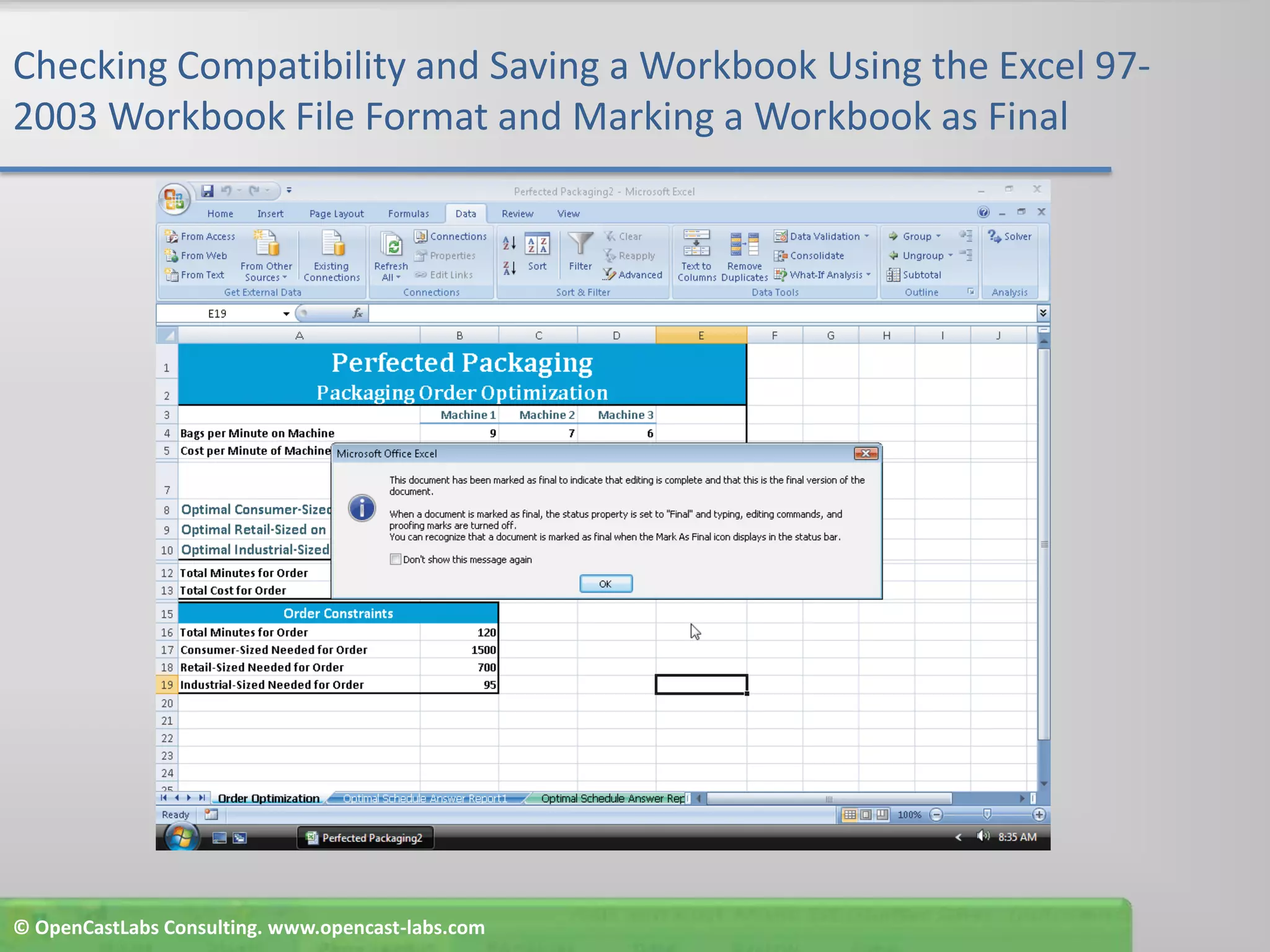
Checking Compatibility and Saving a Workbook Using the Excel 97-2003 Workbook File Format and Marking a Workbook as FinalClick the Office Button, point to the Prepare command on the Office Button menu, and then point to the Mark as Final command on the Prepare submenuClick Mark as Final to display the Microsoft Excel dialog boxClick the OK button and then click the OK button if the Compatibility Checker dialog box is displayed to display the Microsoft Office Excel dialog boxClick the OK button to close the Microsoft Office Excel dialog box© OpenCastLabs Consulting. www.opencast-labs.com
Checking Compatibility and Saving a Workbook Using the Excel 97-2003 Workbook File Format and Marking a Workbook as Final© OpenCastLabs Consulting. www.opencast-labs.com
Quitting ExcelClick the Close button on the right side of the title barIf Excel displays a Microsoft Office Excel dialog box, click the No button© OpenCastLabs Consulting. www.opencast-labs.com
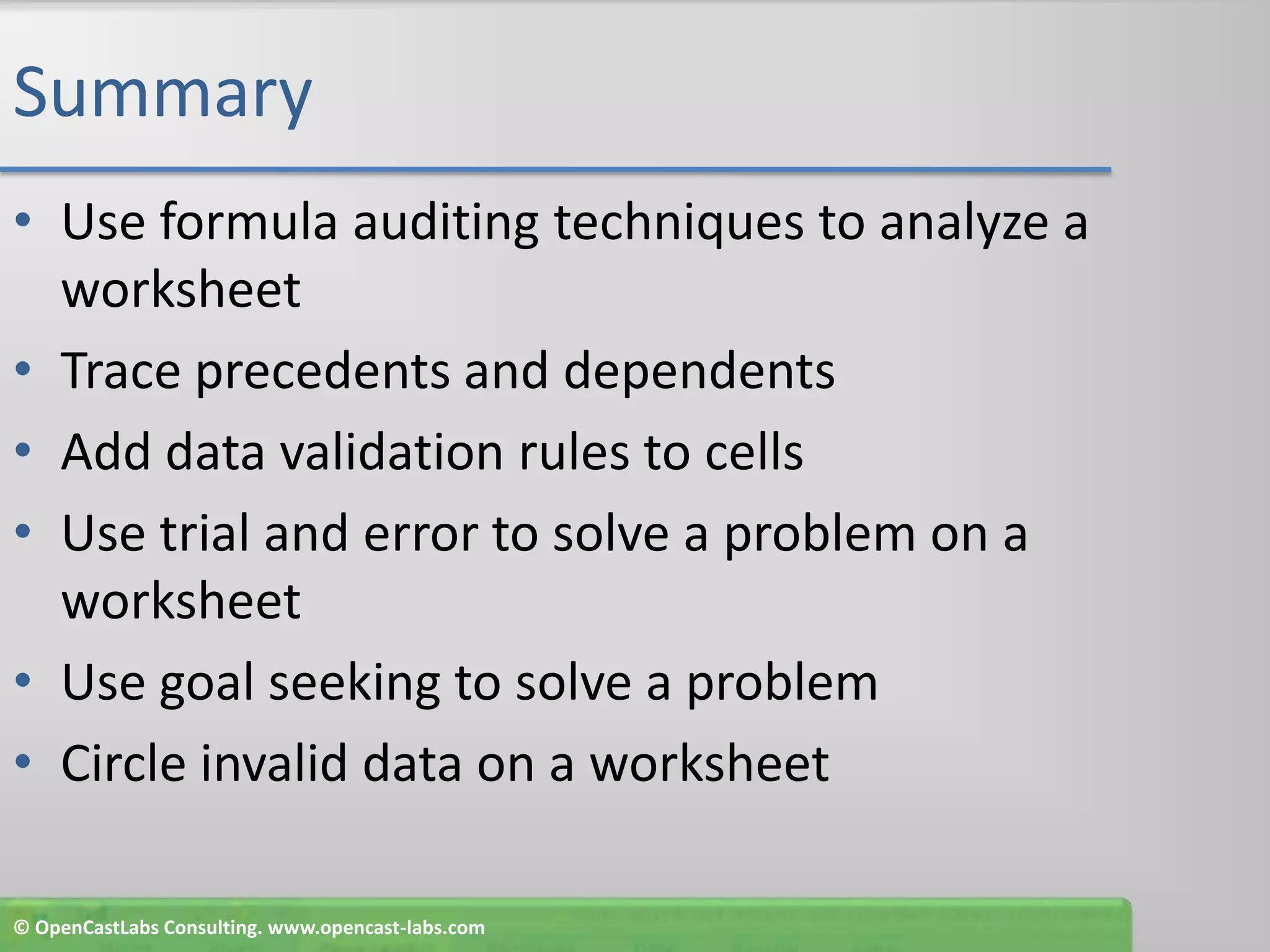
SummaryUse formula auditing techniques to analyze a worksheetTrace precedents and dependentsAdd data validation rules to cellsUse trial and error to solve a problem on a worksheetUse goal seeking to solve a problemCircle invalid data on a worksheet© OpenCastLabs Consulting. www.opencast-labs.com
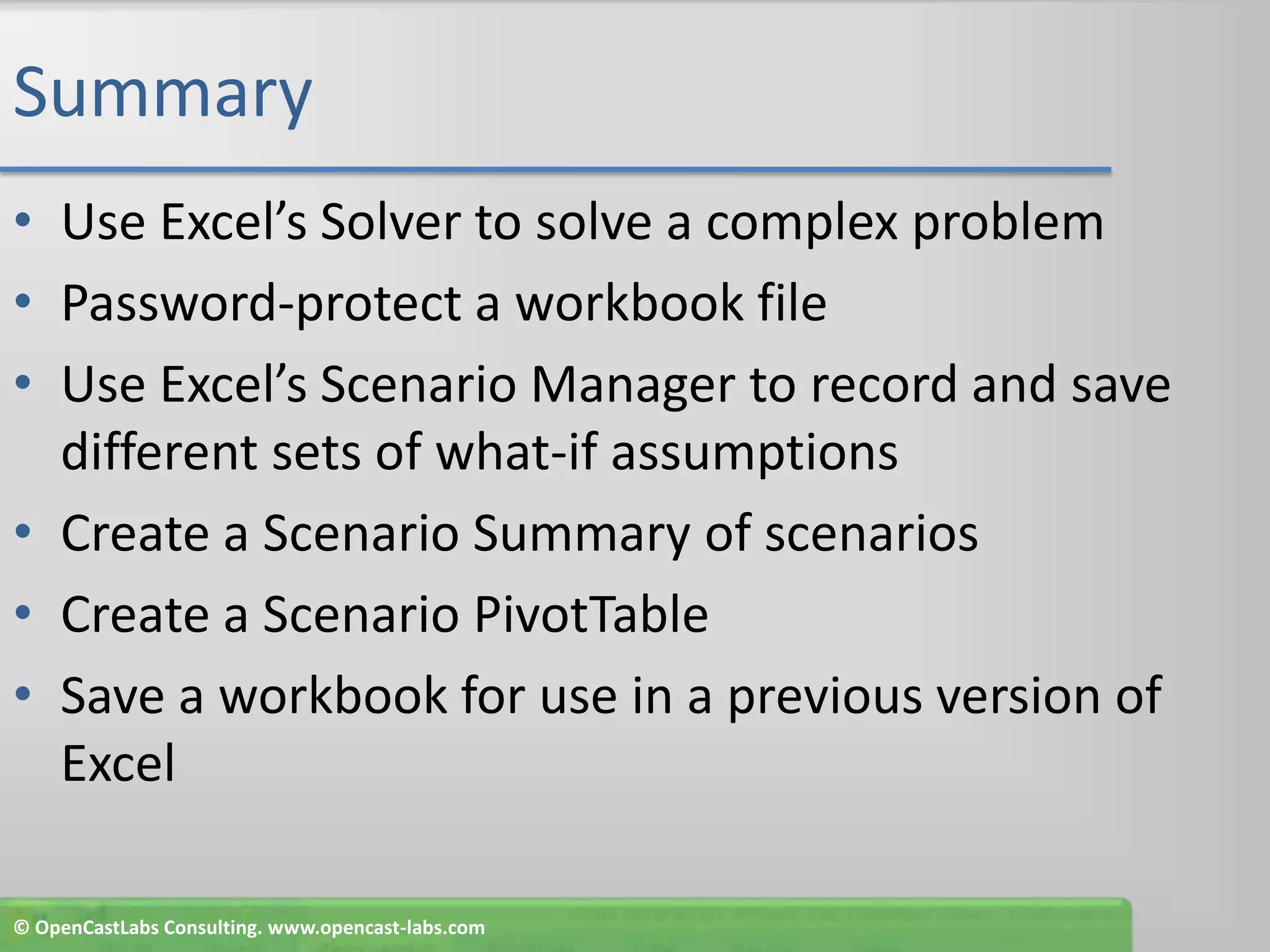
SummaryUse Excel’s Solver to solve a complex problemPassword-protect a workbook fileUse Excel’s Scenario Manager to record and save different sets of what-if assumptionsCreate a Scenario Summary of scenariosCreate a Scenario PivotTableSave a workbook for use in a previous version of Excel© OpenCastLabs Consulting. www.opencast-labs.com
Excel Chapter 8 Complete

Excel chapter-8

  • 1.
    Excel Chapter 8FormulaAuditing, Data Validation, and Complex Problem Solving
  • 2.
    ObjectivesUse formula auditingtechniques to analyze a worksheetTrace precedents and dependentsAdd data validation rules to cellsUse trial and error to solve a problem on a worksheetUse goal seeking to solve a problemCircle invalid data on a worksheet© OpenCastLabs Consulting. www.opencast-labs.com
  • 3.
    ObjectivesUse Excel’s Solverto solve a complex problemPassword-protect a workbook fileUse Excel’s Scenario Manager to record and save different sets of what-if assumptionsCreate a Scenario Summary of scenariosCreate a Scenario PivotTableSave a workbook for use in a previous version of Excel© OpenCastLabs Consulting. www.opencast-labs.com
  • 4.
    Plan AheadAnalyze theformulas in the workbook to learn about the workbookEstablish data validation rules for changing cellsPropose strategies for solving a complex problemConsider which cells in the worksheet constitute a scenarioEvaluate the steps to take in finalizing a workbook© OpenCastLabs Consulting. www.opencast-labs.com
  • 5.
    Starting Excel andOpening a WorkbookStart ExcelOpen the file Perfected Packaging from the Data Files for Students and then save the workbook using the file name, Perfected Packaging2If the Excel window is not maximized, double-click its title bar to maximize itIf the worksheet window in Excel is not maximized, click the Maximize button next to the Close button on its title bar to maximize the worksheet within Excel© OpenCastLabs Consulting. www.opencast-labs.com
  • 6.
    Starting Excel andOpening a Workbook© OpenCastLabs Consulting. www.opencast-labs.com
  • 7.
    Tracing PrecedentsClick theFormulas tab on the RibbonClick cell E13 and then click the Trace Precedents button on the Ribbon to draw an arrow across the range B13:E13Click the TracePrecedents button two more times to draw arrows indicating precedents of cells B13:D13 and the precedents of B12:D12© OpenCastLabs Consulting. www.opencast-labs.com
  • 8.
    Tracing Precedents© OpenCastLabsConsulting. www.opencast-labs.com
  • 9.
    Removing the PrecedentArrowsClick the Remove All Arrows button arrow to display the Remove All Arrows menu and then point to the Remove Precedent Arrows command on the Remove All Arrows menuClick Remove Precedent Arrows to remove precedent arrows from the range B4:D12Repeat Steps 1 and 2 to remove the remaining precedent arrows from the range B13:D13© OpenCastLabs Consulting. www.opencast-labs.com
  • 10.
    Removing the PrecedentArrows© OpenCastLabs Consulting. www.opencast-labs.com
  • 11.
    Tracing DependentsClick cellB8 and then click the Trace Dependents button on the Ribbon to draw arrows to dependent cells E8 and B12Click the Trace Dependents button two more times to draw arrows indicating the remaining dependents of cell B8© OpenCastLabs Consulting. www.opencast-labs.com
  • 12.
    Tracing Dependents© OpenCastLabsConsulting. www.opencast-labs.com
  • 13.
    Removing the DependentArrowsClick the Remove All Arrows button on the Ribbon to remove all of the dependent arrows© OpenCastLabs Consulting. www.opencast-labs.com
  • 14.
    Adding Data Validationto CellsSelect the range B8:B10While holding down the CTRL key, select the range C8:C9While holding down the CTRL key, select the cell D8Click the Data tab on the RibbonClick the Data Validation button on the Ribbon to display the Data Validation dialog box© OpenCastLabs Consulting. www.opencast-labs.com
  • 15.
    Adding Data Validationto CellsWhen Excel displays the Data Validation dialog box, click the Allow box arrow and then click Whole number in the Allow listClick the Data box arrow and then click ‘greater than or equal to’ in the Data listType 0 in the Minimum box Click the Input Message tab and then type Bags to Fill in the Title text boxType Enter the number of bags to fill on the machine. The number must be a whole number that is greater than or equal to zero. in the Input message box© OpenCastLabs Consulting. www.opencast-labs.com
  • 16.
    Adding Data Validationto CellsClick the Error Alert tab and then type Input Error in the Title text boxType You must enter a whole number that is greater than or equal to zero. in the Error message boxClick the OK buttonClick cell E21© OpenCastLabs Consulting. www.opencast-labs.com
  • 17.
    Adding Data Validationto Cells© OpenCastLabs Consulting. www.opencast-labs.com
  • 18.
    Opening the WatchWindow and Adding Cells WatchesClick the Formulas tab on the RibbonClick the Watch Window button on the Ribbon to open the Watch WindowClick the Add Watch button on the Watch Window toolbar to display the Add Watch dialog boxIf necessary, move the Add Watch dialog box so that rows 8 through 10 of column E are not hiddenSelect the range E8:E10Hold down the CTRL key and then click cell E13© OpenCastLabs Consulting. www.opencast-labs.com
  • 19.
    Opening the WatchWindow and Adding Cells WatchesClick the Add button in the Add Watch dialog boxIf necessary, expand the Name column to view the cell names in the third column and information about the four watched cells© OpenCastLabs Consulting. www.opencast-labs.com
  • 20.
    Opening the WatchWindow and Adding Cells Watches© OpenCastLabs Consulting. www.opencast-labs.com
  • 21.
    Using Trial andError to Attempt to Solve a Complex ProblemIf necessary, resize the Watch Window so that only the cell watches appearClick cell B8 and type 82.5 as the number of retail-sized bags to fill on Machine 1 and then press the ENTER keyClick the Retry buttonType 700 as the number of retail sized bags to fill on Machine 1 in cell B9Click cell B10 and type 95 as the number of industrial- sized bags to fill on Machine 1© OpenCastLabs Consulting. www.opencast-labs.com
  • 22.
    Using Trial andError to Attempt to Solve a Complex ProblemClick cell D8 and type 1500 as the number of consumer-sized bags to fill on Machine 3 and then press the ENTER key to display the new values and update the totals in the range B12:D13 and column EClick cell B8 and type 1500 as the number of consumer sized bags to fill on Machine 1Click cell D8, type 0 as the number of consumer-sized bags to fill on Machine 3, and then press the ENTER key. Select cell E19© OpenCastLabs Consulting. www.opencast-labs.com
  • 23.
    Using Trial andError to Attempt to Solve a Complex Problem© OpenCastLabs Consulting. www.opencast-labs.com
  • 24.
    Using the GoalSeek Command to Attempt to Solve a Complex ProblemClick the Data tab on the Ribbon and then click the What- If Analysis button on the Ribbon to display the What-If Analysis menuClick Goal Seek to display the Goal Seek dialog boxType $B$12 in the Set cell text boxClick the To value text boxType 120 and then click the ‘By changing cell’ text box© OpenCastLabs Consulting. www.opencast-labs.com
  • 25.
    Using the GoalSeek Command to Attempt to Solve a Complex ProblemClick cell B9 on the worksheetIf necessary, move the Goal Seek dialog boxClick the OK button to seek the goal of 120 minutes in cell B12Click the OK button to close the Goal Seek Status dialog-box and display the updated worksheet.Click cell E19 to deselect cell B12© OpenCastLabs Consulting. www.opencast-labs.com
  • 26.
    Using the GoalSeek Command to Attempt to Solve a Complex Problem© OpenCastLabs Consulting. www.opencast-labs.com
  • 27.
    Circling Invalid Dataand Clearing Validation CirclesClick the Data Validation button arrow on the Ribbon to display the Data Validation menuClick Circle Invalid Data on the Data Validation menu to place a red validation circle around cell B9Click the Data Validation button arrow on the Ribbon to display the Data Validation menuClick Clear Validation Circles on the Data Validation menu to clear the red validation circlesIf necessary, select cell E19Click the Close button on the Watch Window title bar to close the Watch Window© OpenCastLabs Consulting. www.opencast-labs.com
  • 28.
    Circling Invalid Dataand Clearing Validation Circles© OpenCastLabs Consulting. www.opencast-labs.com
  • 29.
    Using Solver toFind the Optimal Solution to a Complex ProblemIf necessary, click the Data tab on the RibbonClick the Solver button on the Ribbon to display the Solver Parameters dialog boxWhen Excel displays the Solver Parameters dialog box, click cell E13 to set the target cell to the name of cell E13, Total_CostClick Min in the Equal To areaClick theCollapse Dialog button in the By Changing Cells area to minimize the Solver Parameters dialog box© OpenCastLabs Consulting. www.opencast-labs.com
  • 30.
    Using Solver toFind the Optimal Solution to a Complex ProblemClick the By Changing Cells box and then select the range B8:B10Hold down the CTRL key and then select the ranges C8:C9 and D8Click the Expand Dialog button on the right side of the minimized Solver Parameters dialog box to maximize itClick the Add button to display the Add Constraint dialog boxIf necessary, move the Add Constraint dialog box so that the range B8:B10 is visibleSelect the range B8:B10 to set the value of the Cell Reference box© OpenCastLabs Consulting. www.opencast-labs.com
  • 31.
    Using Solver toFind the Optimal Solution to a Complex ProblemClick the middle box arrow and then select >= in the listType 0 in the Constraint box to set the constraint on the cells in the range B8:B10 to be greater than or equal to 0Click the Add buttonSelect the range B8:B10 to set the value of the Cell Reference boxClick the middle box arrow and then select int in the list to set a constraint on the cells in the range B8:B10 to be assigned only integer values© OpenCastLabs Consulting. www.opencast-labs.com
  • 32.
    Using Solver toFind the Optimal Solution to a Complex ProblemClick the Add buttonClick cell E8 to set the value of the Cell Reference boxClick the middle box arrow and then select >= in the listClick the Constraint box and then click cell B17 to add a constraint to cell E8 indicating that its value must be greater than or equal to the value in cell B17Click the Add button Enter the remaining constraints shown in Table 8–2 on page EX 651, beginning with the constraints for the range C8:C9© OpenCastLabs Consulting. www.opencast-labs.com
  • 33.
    Using Solver toFind the Optimal Solution to a Complex ProblemWhen finished with the final constraint, click the OK button in the Add Constraint dialog box to close itClick the Options button.When Excel displays the Solver Options dialog box, click Assume Linear ModelClick the OK buttonClick the Solve button in the Solver Parameters dialog box to display the Solver Results dialog box, indicating that Solver found a solution to the problemClick Answer in the Reports listClick the OK button to display the values found by Solver and the newly recalculated totals© OpenCastLabs Consulting. www.opencast-labs.com
  • 34.
    Using Solver toFind the Optimal Solution to a Complex Problem© OpenCastLabs Consulting. www.opencast-labs.com
  • 35.
    Viewing the SolverAnswer Report for Order 1Click the Answer Report 1 tab at the bottom of the Excel window to display the Solver Answer ReportDrag the Answer Report 1 tab to the right of the Order Optimization tabDouble-click the Answer Report 1 tab and type Optimal Schedule Answer Report1 as the worksheet nameClick cell A1. Right-click the Optimal Schedule Answer Report1 tab and then point to Tab Color on the shortcut menuClick Dark Teal, Text 2 (column 4, row 1)Scroll down to view the remaining cells of the Answer Report© OpenCastLabs Consulting. www.opencast-labs.com
  • 36.
    Viewing the SolverAnswer Report for Order 1© OpenCastLabs Consulting. www.opencast-labs.com
  • 37.
    Saving the Workbookwith PasswordsClick the Order Optimization tab at the bottom of the windowClick the Office Button and then click Save AsClick the Tools button in the Save As dialog boxClick General Options on the Tools menu to display the General Options dialog boxType mincost in the ‘Password to open’ text boxType mincostin the ‘Password to modify’ text box© OpenCastLabs Consulting. www.opencast-labs.com
  • 38.
    Saving the Workbookwith PasswordsClick the OK buttonWhen Excel displays the Confirm Password dialog box, type mincost in the ‘Reenter password to proceed’ text boxClick the OK buttonWhen Excel displays the Confirm Password dialog box, type mincost in the ‘Reenter password to modify’ text boxClick the OK buttonClick the Save button in the Save As dialog box to save the file to the UDISK 2.0 (E:) drive with the file name, Perfected Packaging2. If the Microsoft Office Excel dialog box appears, click the OK button to close it© OpenCastLabs Consulting. www.opencast-labs.com
  • 39.
    Saving the Workbookwith Passwords© OpenCastLabs Consulting. www.opencast-labs.com
  • 40.
    Saving the CurrentData as a ScenarioWith the Data tab active, click the What-If Analysis button on the RibbonClick Scenario Manager on the What-If Analysis menu to display the Scenario Manager dialog box, which indicates that no scenarios are definedClick the Add buttonWhen Excel displays the Add Scenario dialog box, type Order 1 in the Scenario name text boxClick the Collapse Dialog button© OpenCastLabs Consulting. www.opencast-labs.com
  • 41.
    Saving the CurrentData as a ScenarioWhen Excel displays the Add Scenario - Changing cells dialog box, select the range B8:B10, hold down the CTRL key, and then select the ranges C8:C9, D8, and B16:B19Release the CTRL key to display a marquee around the selected cells and assign the cells to the Changing cells text boxClick the Expand Dialog button to change the Add Scenario dialog box to the Edit Scenario dialog boxClick the OK buttonClick the OK button to display the Order 1 scenario in the scenarios listClick the Close button in the Scenario Manager dialog box© OpenCastLabs Consulting. www.opencast-labs.com
  • 42.
    Saving the CurrentData as a Scenario© OpenCastLabs Consulting. www.opencast-labs.com
  • 43.
    Adding the Datafor a New ScenarioClick cell B16 and type 200 as the maximum minutes for the orderClick cell B17 and type 1400 as the number of consumer-sized bagsClick cell B18 and type 1600 as the number of retail-sized bagsClick cell B19, type 300 as the number of industrial-sized bags, and then click cell E19© OpenCastLabs Consulting. www.opencast-labs.com
  • 44.
    Adding the Datafor a New Scenario© OpenCastLabs Consulting. www.opencast-labs.com
  • 45.
    Using Solver toFind a New SolutionClick the Solver button on the Data tab on the Ribbon to display the Solver Parameters dialog box with the target cell, changing cells, and constraints used with Order 1Click the Solve button to solve the problem using SolverClick Answer in the Reports listClick the OK button to display the values found by Solver© OpenCastLabs Consulting. www.opencast-labs.com
  • 46.
    Using Solver toFind a New Solution© OpenCastLabs Consulting. www.opencast-labs.com
  • 47.
    Viewing the SolverAnswer Report for Order 2Click the Answer Report 1 tab at the bottom of the Excel windowDrag the Answer Report 1 tab to the right of the Optimal Schedule Answer Report1 tabDouble-click the Answer Report 1 tab and type Optimal Schedule Answer Report2 as the worksheet nameClick cell A1Right-click the Optimal Schedule Answer Report2 tab and then point to Tab Color on the shortcut menuClick Bright Green, Accent 4 (column 8, row 1)Scroll down to view the remaining cells of the Order 2 Answer Report© OpenCastLabs Consulting. www.opencast-labs.com
  • 48.
    Viewing the SolverAnswer Report for Order 2© OpenCastLabs Consulting. www.opencast-labs.com
  • 49.
    Saving the SecondSolver Solution as a ScenarioClick the Order Optimization tab at the bottom of the windowClick the What-If Analysis button on the RibbonClick Scenario Manager on the What-If Analysis menu to display the Scenario Manager dialog boxClick the Add buttonType Order 2 in the Scenario name text box© OpenCastLabs Consulting. www.opencast-labs.com
  • 50.
    Saving the SecondSolver Solution as a ScenarioClick the OK button to display the Scenario Values dialog box with the current values from the worksheetClick the OK button to display Order 2 along with Order 1 in the Scenarios listClick the Close button© OpenCastLabs Consulting. www.opencast-labs.com
  • 51.
    Saving the SecondSolver Solution as a Scenario© OpenCastLabs Consulting. www.opencast-labs.com
  • 52.
    Showing a SavedScenarioClick the What-If Analysis button on the RibbonClick Scenario Manager on the What-If Analysis menuIf necessary, in the Scenario Manager dialog box, select Order 1 in the Scenarios listClick the Show button and then click the Close button to display the data for the Order 1 scenario in the worksheet© OpenCastLabs Consulting. www.opencast-labs.com
  • 53.
    Showing a SavedScenario© OpenCastLabs Consulting. www.opencast-labs.com
  • 54.
    Creating a ScenarioSummary WorksheetClick the What-If Analysis button on the RibbonClick Scenario Manager on the What-If Analysis menu to display the Scenario Manager dialog boxIf necessary, in the Scenario Manager dialog box, select Order 1Click the Summary button to display the Scenario Summary dialog boxClick the OK button© OpenCastLabs Consulting. www.opencast-labs.com
  • 55.
    Creating a ScenarioSummary WorksheetWhen Excel displays the Scenario Summary, double-click the Scenario Summary tab, type Orders Scenario Summary as the new worksheet name, and then press the ENTER keyRight-click the Orders Scenario Summary tab and then point to Tab Color on the shortcut menuClick Black, Text 1, Lighter 50% (column 2, row 2)Drag the Orders Scenario Summary tab to the right of the Optimal Schedule Answer Report2 tab© OpenCastLabs Consulting. www.opencast-labs.com
  • 56.
    Creating a ScenarioSummary Worksheet© OpenCastLabs Consulting. www.opencast-labs.com
  • 57.
    Creating a ScenarioPivotTable WorksheetScroll to the Order Optimization tab and then click the Order Optimization tab at the bottom of the windowClick the What-If Analysis button on the Ribbon and then click Scenario Manager to display the Scenario Manager dialog boxIf necessary, when Excel displays the Scenario Manager dialog box, select Order 1Click the Summary button to display the Scenario Summary dialog boxIn the Scenario Summary dialog box, click Scenario PivotTable report in the Report type area© OpenCastLabs Consulting. www.opencast-labs.com
  • 58.
    Creating a ScenarioPivotTable WorksheetClick the OK button Double-click the Scenario PivotTable tab and type Order Scenario PivotTable as the worksheet nameClick cell A8Right-click the Order Scenario PivotTable tab and then point to Tab Color on the shortcut menuClick Lime, Accent 6 (column 10, row 1)Drag the tab to the right of the Orders Scenario Summary tab© OpenCastLabs Consulting. www.opencast-labs.com
  • 59.
    Creating a ScenarioPivotTable Worksheet© OpenCastLabs Consulting. www.opencast-labs.com
  • 60.
    Inspecting a Documentfor Hidden and Personal InformationClick the Order Optimization tab at the bottom of the Excel windowClick the Office Button and then point to the Prepare command on the Office Button menuClick Inspect Document on the Prepare submenu to display the Document Inspector dialog boxClick the Inspect button in the Document Inspector dialog box to run the Document InspectorClick the Close button in the Document Inspector dialog box© OpenCastLabs Consulting. www.opencast-labs.com
  • 61.
    Inspecting a Documentfor Hidden and Personal Information© OpenCastLabs Consulting. www.opencast-labs.com
  • 62.
    Checking Compatibility andSaving a Workbook Using the Excel 97-2003 Workbook File Format and Marking a Workbook as FinalClick the Office Button and then click the Save As button arrow on the Office Button menu to display the Save As submenuClick Excel 97-2003 Workbook on the Save As submenu to display the Save As dialog boxClick the Save button in the Save As dialog box to display the Microsoft Office Excel dialog boxClick the No button in the Microsoft Office Excel dialog box to display the Microsoft Office Excel – Compatibility Checker dialog boxClick the Continue button in the Microsoft Office Excel – Compatibility Checker dialog box to save the workbook in the Excel 97-2003 Workbook file format© OpenCastLabs Consulting. www.opencast-labs.com
  • 63.
    Checking Compatibility andSaving a Workbook Using the Excel 97-2003 Workbook File Format and Marking a Workbook as FinalClick the Office Button, point to the Prepare command on the Office Button menu, and then point to the Mark as Final command on the Prepare submenuClick Mark as Final to display the Microsoft Excel dialog boxClick the OK button and then click the OK button if the Compatibility Checker dialog box is displayed to display the Microsoft Office Excel dialog boxClick the OK button to close the Microsoft Office Excel dialog box© OpenCastLabs Consulting. www.opencast-labs.com
  • 64.
    Checking Compatibility andSaving a Workbook Using the Excel 97-2003 Workbook File Format and Marking a Workbook as Final© OpenCastLabs Consulting. www.opencast-labs.com
  • 65.
    Quitting ExcelClick theClose button on the right side of the title barIf Excel displays a Microsoft Office Excel dialog box, click the No button© OpenCastLabs Consulting. www.opencast-labs.com
  • 66.
    SummaryUse formula auditingtechniques to analyze a worksheetTrace precedents and dependentsAdd data validation rules to cellsUse trial and error to solve a problem on a worksheetUse goal seeking to solve a problemCircle invalid data on a worksheet© OpenCastLabs Consulting. www.opencast-labs.com
  • 67.
    SummaryUse Excel’s Solverto solve a complex problemPassword-protect a workbook fileUse Excel’s Scenario Manager to record and save different sets of what-if assumptionsCreate a Scenario Summary of scenariosCreate a Scenario PivotTableSave a workbook for use in a previous version of Excel© OpenCastLabs Consulting. www.opencast-labs.com
  • 68.