Types and Components of
Computers
Chapter 1
Hardware, Software, Difference
Hardware
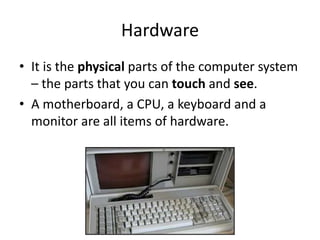
• It is the physical parts of the computer system
– the parts that you can touch and see.
• A motherboard, a CPU, a keyboard and a
monitor are all items of hardware.
An Analogy…
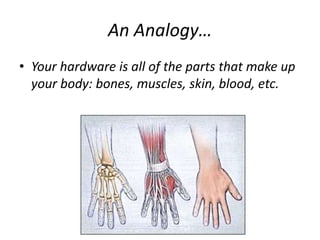
• Your hardware is all of the parts that make up
your body: bones, muscles, skin, blood, etc.
Software
• It is a collection of instructions that can be
‘run’ on a computer. These instructions tell
the computer what to do.
• It is not a physical thing (but it can of course
be stored on a physical medium such as a CD-
ROM), it is just a bunch of codes.
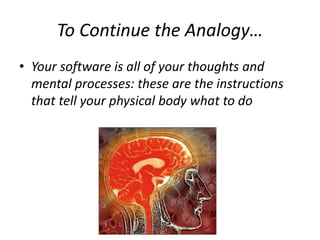
To Continue the Analogy…
• Your software is all of your thoughts and
mental processes: these are the instructions
that tell your physical body what to do
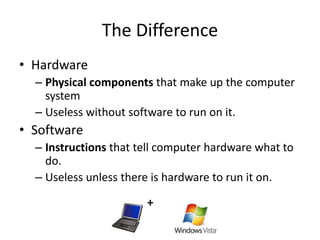
The Difference
• Hardware
– Physical components that make up the computer
system
– Useless without software to run on it.
• Software
– Instructions that tell computer hardware what to
do.
– Useless unless there is hardware to run it on.
+
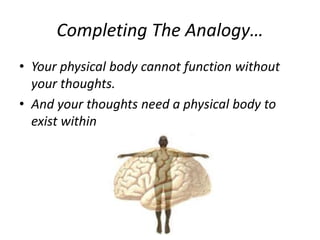
Completing The Analogy…
• Your physical body cannot function without
your thoughts.
• And your thoughts need a physical body to
exist within
Main Components
Central Processing Unit (CPU)
• It is the 'brain' of the computer
• It is the device that carries out software
instructions.
– The Pentium processor made by Intel
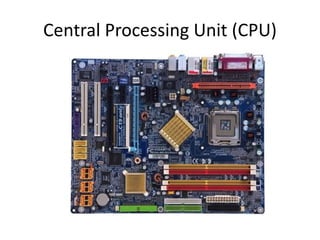
• It usually plug into a large socket on the main
circuit board (the motherboard) of a
computer.
• They get very hot when they are operating so
usually have a large fan attached to their top
to keep them cool.
Central Processing Unit (CPU)
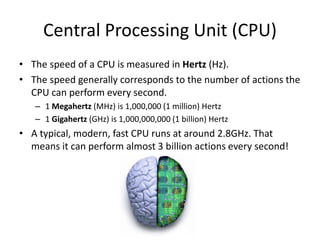
• The speed of a CPU is measured in Hertz (Hz).
• The speed generally corresponds to the number of actions the
CPU can perform every second.
– 1 Megahertz (MHz) is 1,000,000 (1 million) Hertz
– 1 Gigahertz (GHz) is 1,000,000,000 (1 billion) Hertz
• A typical, modern, fast CPU runs at around 2.8GHz. That
means it can perform almost 3 billion actions every second!
Central Processing Unit (CPU)
Main Memory
• Any data or instructions that are to
be processed by the CPU must be placed
into main memory (sometimes known
as primary storage).
Random Access Memory (RAM)
• It is the part of the computer that temporarily
stores the instructions that the computer is
running, and the data it is processing.
• Volatile
– If the computer’s power is turned off the contents of
RAM disappear and are lost
• When a computer is in use, its RAM will contain:
– The operating system software
– The application software currently being used
– Any data that is being processed
Random Access Memory (RAM)
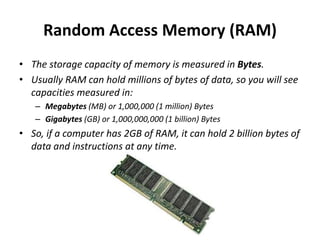
• The storage capacity of memory is measured in Bytes.
• Usually RAM can hold millions of bytes of data, so you will see
capacities measured in:
– Megabytes (MB) or 1,000,000 (1 million) Bytes
– Gigabytes (GB) or 1,000,000,000 (1 billion) Bytes
• So, if a computer has 2GB of RAM, it can hold 2 billion bytes of
data and instructions at any time.
Read-Only Memory (ROM)
• It is used in most computers to hold a small,
special piece of software: The 'boot up'
program.
• Non-Volatile
– The data it contains is never lost, even if the
power is switched off.
• This 'boot up' software is known as
the BIOS (Basic Input Output System)
Peripheral Devices
• The general name for these extra devices
– Input
– Output
– Storage
• 'Peripheral' literally means 'around the
edge'. In other words these devices are not
part of the central core of the computer.
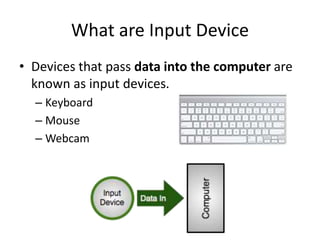
What are Input Device
• Devices that pass data into the computer are
known as input devices.
– Keyboard
– Mouse
– Webcam
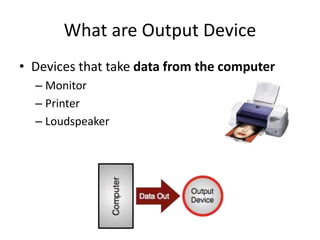
What are Output Device
• Devices that take data from the computer
– Monitor
– Printer
– Loudspeaker
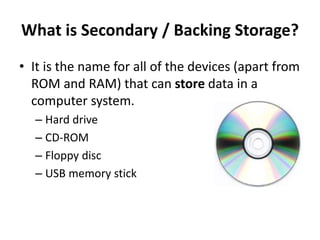
What is Secondary / Backing Storage?
• It is the name for all of the devices (apart from
ROM and RAM) that can store data in a
computer system.
– Hard drive
– CD-ROM
– Floppy disc
– USB memory stick
What is Secondary / Backing Storage?
• When we talk about 'saving' a file, what we
mean is moving data from volatile RAM to
non-volatile secondary storage.
– e.g. If we are typing a letter using Word, the data
for the letter is in RAM (if the power goes off we
lose it all).
• When we save the letter, the data is copied
from RAM to a storage device such as a
memory stick or hard-drive for safe-keeping.
Operating System
What is an Operating System?
• It is a special piece of software that manages the general
operation of a computer system:
– It provides a user interface so that we can interact with the
computer
– It manages applications that are running on the computer,
starting them when the user requests, and stopping them when
they are no longer needed
– It manages files, helping us save our work, organize our files,
find files that we have saved and load files
– It manages the computers memory, deciding what should be
loaded into memory and what should be removed
– It looks after computer security, preventing unauthorized access
to the system
– It manages the computer’s input and output hardware such as
printers, etc.
What is an Operating System?
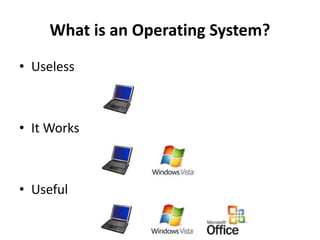
• Useless
• It Works
• Useful
• Operating systems that you may have heard
of:
– Windows XP
– Windows Vista
– Mac OS X
– Linux
User Interfaces
• The system that people use to interact with
a computer (to give it commands, to see the
results of those commands, etc.) is known as
the user interface.
– Graphical User Interface (GUI)
– Command-Line Interface (CLI)
Graphical User Interface (GUI)
• A GUI is an interface built around visual
(graphical) things:
– Windows are regions of the screen used to display
information
– Icons are small pictures that are used to represent
folders, software, etc.
– Menus are lists of options the user can select from
– A pointer is an arrow that can be moved around
the screen and is used to select things
Graphical User Interface (GUI)
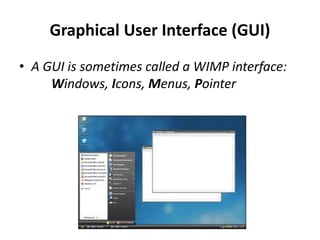
• A GUI is sometimes called a WIMP interface:
Windows, Icons, Menus, Pointer
Command Line Interface (CLI)
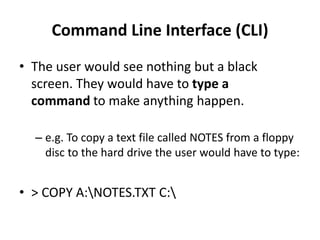
• The user would see nothing but a black
screen. They would have to type a
command to make anything happen.
– e.g. To copy a text file called NOTES from a floppy
disc to the hard drive the user would have to type:
• > COPY A:NOTES.TXT C:
Command Line Interface (CLI)
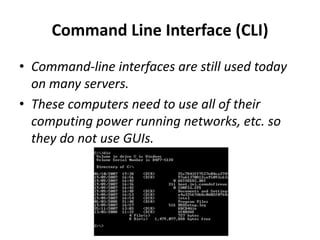
• Command-line interfaces are still used today
on many servers.
• These computers need to use all of their
computing power running networks, etc. so
they do not use GUIs.
Types of Computers
Types of Computer
• Computers come in all sorts of shapes and
sizes. You are all familiar desktop PCs and
laptops, but did you know that computers can
be as small as your mobile phone (in fact your
phone is a computer!) and as large as a
room?!
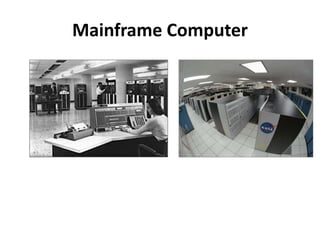
Mainframe Computer
• It computer is a large computer, often used by
large businesses, in government offices, or by
universities.
• Mainframe computers are typically:
– Powerful - they can process vast amounts of data,
very quickly
– Large - they are often kept in special, air-conditioned
rooms
– Multi-user - they allow several users (sometimes
hundreds) to use the computer at the same time,
connected via remote terminals (screens and
keyboards)
Mainframe Computer
• From their invention back in the 1940s until the
late 1960s, computers were large, very expensive
machines that took up the whole of a room
(sometimes several!) These were the only
computers available.
• The circuit-boards of these computers were
attached to large, metal racks or frames. This
gave them the nickname 'mainframe'computers.
• Some of the most powerful mainframe computers
can process so much data in such a sort time, that
they are referred to as 'supercomputers'
Mainframe Computer
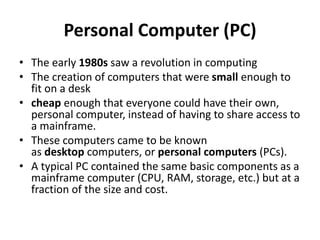
Personal Computer (PC)
• The early 1980s saw a revolution in computing
• The creation of computers that were small enough to
fit on a desk
• cheap enough that everyone could have their own,
personal computer, instead of having to share access to
a mainframe.
• These computers came to be known
as desktop computers, or personal computers (PCs).
• A typical PC contained the same basic components as a
mainframe computer (CPU, RAM, storage, etc.) but at a
fraction of the size and cost.
Personal Computer (PC)
• Early PCs were quite unlike the PCs that we all use
today:
– Displays were black and white, and only displayed text
(no graphics)
– No hard-drives (way too expensive)
– Just a few 100 kB of RAM (not MB or GB!)
– Slow - a typical speed would be 5MHz (not GHz!)
– No mouse (no pointer to move!)
– Light brown case (for some reason every early PC was
brown!)
• Because PCs were so much smaller than
mainframe computers, they were called
'microcomputers' for a while
Personal Computer (PC)
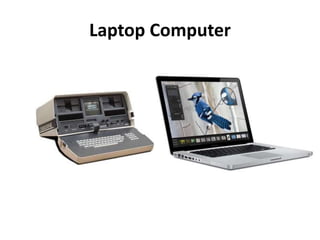
Laptop Computer
• It is a light, compact and portable PC.
– Rechargeable battery
– LCD monitor
• Early portable computers were far from being
'laptops' - you would have crushed your legs if
you'd tried to put these beasts on your lap!
Laptop Computer
Palmtop Computer
• It is similar to a laptop computer, but smaller.
It's small enough to fit in the palm of your
hand (hence the name!)
– Not very powerful
– Very small keyboard
– touchscreen or tiny joystick
– extremely portable
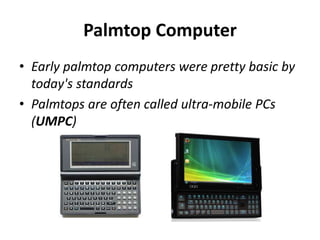
Palmtop Computer
• Early palmtop computers were pretty basic by
today's standards
• Palmtops are often called ultra-mobile PCs
(UMPC)
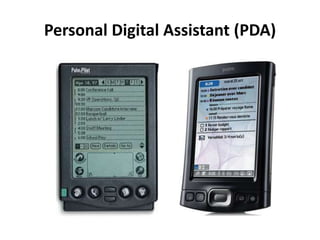
Personal Digital Assistant (PDA)
• More compact than Palmtop Computers
– No keyboard, use touch screen
– Stylus pen
– Handwriting-recognition
– E-mail, documents, appointments
• Early PDAs, like early palmtops, were pretty basic.
But they were a revolutionary way to take digital
data with you on the move.
• PDAs are often called Pocket-PCs (for obvious
reasons!)
Personal Digital Assistant (PDA)
End of Chapter 1

Chapter 1 Types and components of a computer system

  • 1.
    Types and Componentsof Computers Chapter 1
  • 2.
  • 3.
    Hardware • It isthe physical parts of the computer system – the parts that you can touch and see. • A motherboard, a CPU, a keyboard and a monitor are all items of hardware.
  • 4.
    An Analogy… • Yourhardware is all of the parts that make up your body: bones, muscles, skin, blood, etc.
  • 5.
    Software • It isa collection of instructions that can be ‘run’ on a computer. These instructions tell the computer what to do. • It is not a physical thing (but it can of course be stored on a physical medium such as a CD- ROM), it is just a bunch of codes.
  • 6.
    To Continue theAnalogy… • Your software is all of your thoughts and mental processes: these are the instructions that tell your physical body what to do
  • 7.
    The Difference • Hardware –Physical components that make up the computer system – Useless without software to run on it. • Software – Instructions that tell computer hardware what to do. – Useless unless there is hardware to run it on. +
  • 8.
    Completing The Analogy… •Your physical body cannot function without your thoughts. • And your thoughts need a physical body to exist within
  • 9.
  • 10.
    Central Processing Unit(CPU) • It is the 'brain' of the computer • It is the device that carries out software instructions. – The Pentium processor made by Intel • It usually plug into a large socket on the main circuit board (the motherboard) of a computer. • They get very hot when they are operating so usually have a large fan attached to their top to keep them cool.
  • 11.
    Central Processing Unit(CPU) • The speed of a CPU is measured in Hertz (Hz). • The speed generally corresponds to the number of actions the CPU can perform every second. – 1 Megahertz (MHz) is 1,000,000 (1 million) Hertz – 1 Gigahertz (GHz) is 1,000,000,000 (1 billion) Hertz • A typical, modern, fast CPU runs at around 2.8GHz. That means it can perform almost 3 billion actions every second!
  • 12.
  • 13.
    Main Memory • Anydata or instructions that are to be processed by the CPU must be placed into main memory (sometimes known as primary storage).
  • 14.
    Random Access Memory(RAM) • It is the part of the computer that temporarily stores the instructions that the computer is running, and the data it is processing. • Volatile – If the computer’s power is turned off the contents of RAM disappear and are lost • When a computer is in use, its RAM will contain: – The operating system software – The application software currently being used – Any data that is being processed
  • 15.
    Random Access Memory(RAM) • The storage capacity of memory is measured in Bytes. • Usually RAM can hold millions of bytes of data, so you will see capacities measured in: – Megabytes (MB) or 1,000,000 (1 million) Bytes – Gigabytes (GB) or 1,000,000,000 (1 billion) Bytes • So, if a computer has 2GB of RAM, it can hold 2 billion bytes of data and instructions at any time.
  • 16.
    Read-Only Memory (ROM) •It is used in most computers to hold a small, special piece of software: The 'boot up' program. • Non-Volatile – The data it contains is never lost, even if the power is switched off. • This 'boot up' software is known as the BIOS (Basic Input Output System)
  • 17.
    Peripheral Devices • Thegeneral name for these extra devices – Input – Output – Storage • 'Peripheral' literally means 'around the edge'. In other words these devices are not part of the central core of the computer.
  • 18.
    What are InputDevice • Devices that pass data into the computer are known as input devices. – Keyboard – Mouse – Webcam
  • 19.
    What are OutputDevice • Devices that take data from the computer – Monitor – Printer – Loudspeaker
  • 20.
    What is Secondary/ Backing Storage? • It is the name for all of the devices (apart from ROM and RAM) that can store data in a computer system. – Hard drive – CD-ROM – Floppy disc – USB memory stick
  • 21.
    What is Secondary/ Backing Storage? • When we talk about 'saving' a file, what we mean is moving data from volatile RAM to non-volatile secondary storage. – e.g. If we are typing a letter using Word, the data for the letter is in RAM (if the power goes off we lose it all). • When we save the letter, the data is copied from RAM to a storage device such as a memory stick or hard-drive for safe-keeping.
  • 22.
  • 23.
    What is anOperating System? • It is a special piece of software that manages the general operation of a computer system: – It provides a user interface so that we can interact with the computer – It manages applications that are running on the computer, starting them when the user requests, and stopping them when they are no longer needed – It manages files, helping us save our work, organize our files, find files that we have saved and load files – It manages the computers memory, deciding what should be loaded into memory and what should be removed – It looks after computer security, preventing unauthorized access to the system – It manages the computer’s input and output hardware such as printers, etc.
  • 24.
    What is anOperating System? • Useless • It Works • Useful
  • 25.
    • Operating systemsthat you may have heard of: – Windows XP – Windows Vista – Mac OS X – Linux
  • 26.
    User Interfaces • Thesystem that people use to interact with a computer (to give it commands, to see the results of those commands, etc.) is known as the user interface. – Graphical User Interface (GUI) – Command-Line Interface (CLI)
  • 27.
    Graphical User Interface(GUI) • A GUI is an interface built around visual (graphical) things: – Windows are regions of the screen used to display information – Icons are small pictures that are used to represent folders, software, etc. – Menus are lists of options the user can select from – A pointer is an arrow that can be moved around the screen and is used to select things
  • 28.
    Graphical User Interface(GUI) • A GUI is sometimes called a WIMP interface: Windows, Icons, Menus, Pointer
  • 29.
    Command Line Interface(CLI) • The user would see nothing but a black screen. They would have to type a command to make anything happen. – e.g. To copy a text file called NOTES from a floppy disc to the hard drive the user would have to type: • > COPY A:NOTES.TXT C:
  • 30.
    Command Line Interface(CLI) • Command-line interfaces are still used today on many servers. • These computers need to use all of their computing power running networks, etc. so they do not use GUIs.
  • 31.
  • 32.
    Types of Computer •Computers come in all sorts of shapes and sizes. You are all familiar desktop PCs and laptops, but did you know that computers can be as small as your mobile phone (in fact your phone is a computer!) and as large as a room?!
  • 33.
    Mainframe Computer • Itcomputer is a large computer, often used by large businesses, in government offices, or by universities. • Mainframe computers are typically: – Powerful - they can process vast amounts of data, very quickly – Large - they are often kept in special, air-conditioned rooms – Multi-user - they allow several users (sometimes hundreds) to use the computer at the same time, connected via remote terminals (screens and keyboards)
  • 34.
    Mainframe Computer • Fromtheir invention back in the 1940s until the late 1960s, computers were large, very expensive machines that took up the whole of a room (sometimes several!) These were the only computers available. • The circuit-boards of these computers were attached to large, metal racks or frames. This gave them the nickname 'mainframe'computers. • Some of the most powerful mainframe computers can process so much data in such a sort time, that they are referred to as 'supercomputers'
  • 35.
  • 36.
    Personal Computer (PC) •The early 1980s saw a revolution in computing • The creation of computers that were small enough to fit on a desk • cheap enough that everyone could have their own, personal computer, instead of having to share access to a mainframe. • These computers came to be known as desktop computers, or personal computers (PCs). • A typical PC contained the same basic components as a mainframe computer (CPU, RAM, storage, etc.) but at a fraction of the size and cost.
  • 37.
    Personal Computer (PC) •Early PCs were quite unlike the PCs that we all use today: – Displays were black and white, and only displayed text (no graphics) – No hard-drives (way too expensive) – Just a few 100 kB of RAM (not MB or GB!) – Slow - a typical speed would be 5MHz (not GHz!) – No mouse (no pointer to move!) – Light brown case (for some reason every early PC was brown!) • Because PCs were so much smaller than mainframe computers, they were called 'microcomputers' for a while
  • 38.
  • 39.
    Laptop Computer • Itis a light, compact and portable PC. – Rechargeable battery – LCD monitor • Early portable computers were far from being 'laptops' - you would have crushed your legs if you'd tried to put these beasts on your lap!
  • 40.
  • 41.
    Palmtop Computer • Itis similar to a laptop computer, but smaller. It's small enough to fit in the palm of your hand (hence the name!) – Not very powerful – Very small keyboard – touchscreen or tiny joystick – extremely portable
  • 42.
    Palmtop Computer • Earlypalmtop computers were pretty basic by today's standards • Palmtops are often called ultra-mobile PCs (UMPC)
  • 43.
    Personal Digital Assistant(PDA) • More compact than Palmtop Computers – No keyboard, use touch screen – Stylus pen – Handwriting-recognition – E-mail, documents, appointments • Early PDAs, like early palmtops, were pretty basic. But they were a revolutionary way to take digital data with you on the move. • PDAs are often called Pocket-PCs (for obvious reasons!)
  • 44.
  • 45.