What is a Computer?
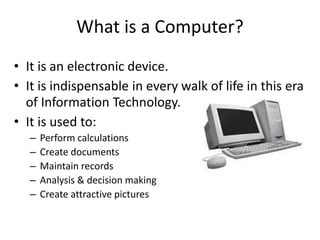
• It is an electronic device.
• It is indispensable in every walk of life in this era
of Information Technology.
• It is used to:
– Perform calculations
– Create documents
– Maintain records
– Analysis & decision making
– Create attractive pictures
Benefits and Limitations of Computers
Benefits of Computers
• High Speed
– Ability to perform tasks at a greater speed than
human beings.
– Perform complex calculations in seconds.
• Accuracy
– Perform tasks with accuracy.
– Input given to the computer determines the
output received.
Benefits and Limitations of Computers
(Contd..)
• Storage
– Can store large amounts of information.
– Retrieve information whenever required.
• Automation
– Can be instructed to perform tasks automatically.
• Diligence
– Can perform the same task repeatedly, without
getting tired.
– Can do the same job with the same accuracy for hours
or longer.
Benefits and Limitations of Computers
(Contd..)
• Versatility
– Can be used to perform simple as well as complex
tasks.
• Cost effective
– Reduce the amount of paperwork and human
effort, thereby reducing costs.
Benefits and Limitations of Computers
(Contd..)
Limitations of Computers
• Computers cannot work independently.
• They need clear and complete instructions to
perform a task accurately.
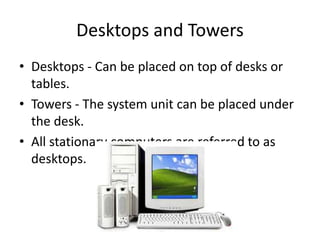
Desktops and Towers
• Desktops - Can be placed on top of desks or
tables.
• Towers - The system unit can be placed under
the desk.
• All stationary computers are referred to as
desktops.
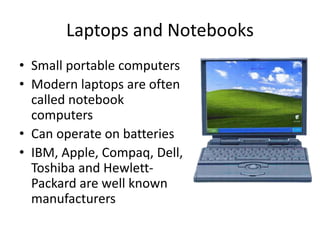
Laptops and Notebooks
• Small portable computers
• Modern laptops are often
called notebook
computers
• Can operate on batteries
• IBM, Apple, Compaq, Dell,
Toshiba and Hewlett-
Packard are well known
manufacturers
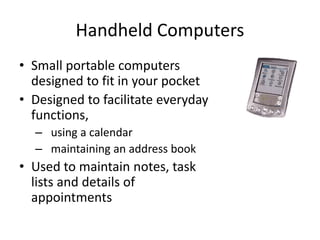
Handheld Computers
• Small portable computers
designed to fit in your pocket
• Designed to facilitate everyday
functions,
– using a calendar
– maintaining an address book
• Used to maintain notes, task
lists and details of
appointments
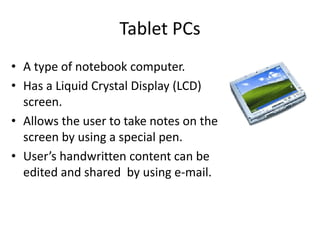
Tablet PCs
• A type of notebook computer.
• Has a Liquid Crystal Display (LCD)
screen.
• Allows the user to take notes on the
screen by using a special pen.
• User’s handwritten content can be
edited and shared by using e-mail.
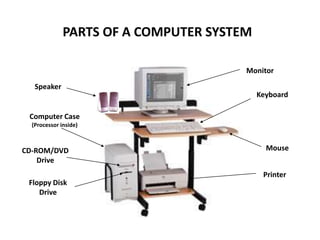
Monitor
Keyboard
Mouse
Printer
Speaker
Computer Case
(Processor inside)
Floppy Disk
Drive
CD-ROM/DVD
Drive
PARTS OF A COMPUTER SYSTEM
Connecting the PC
The followings are the ways in which the parts
of a PC are connected to each other through
cables:
• The system unit is connected to the power
outlet
• The monitor is connected to the system unit
and to the power outlet
• The keyboard is connected to the power
outlet
Connecting the PC (Contd..)
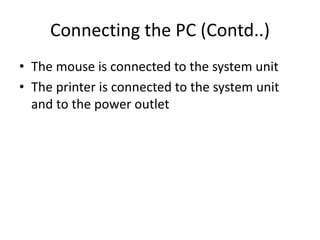
• The mouse is connected to the system unit
• The printer is connected to the system unit
and to the power outlet
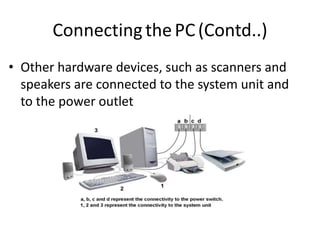
ConnectingthePC(Contd..)
• Other hardware devices, such as scanners and
speakers are connected to the system unit and
to the power outlet
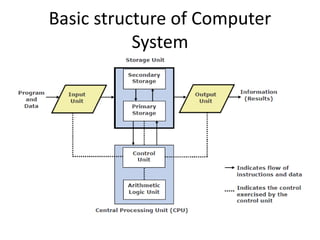
Basic structure of Computer
System
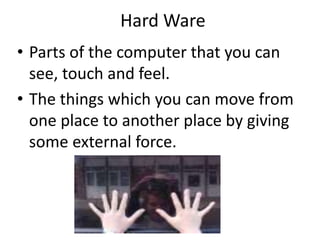
Hard Ware
• Parts of the computer that you can
see, touch and feel.
• The things which you can move from
one place to another place by giving
some external force.
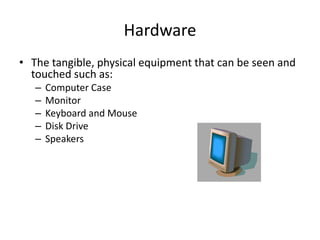
Hardware
• The tangible, physical equipment that can be seen and
touched such as:
– Computer Case
– Monitor
– Keyboard and Mouse
– Disk Drive
– Speakers
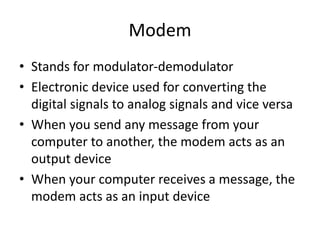
Modem
• Stands for modulator-demodulator
• Electronic device used for converting the
digital signals to analog signals and vice versa
• When you send any message from your
computer to another, the modem acts as an
output device
• When your computer receives a message, the
modem acts as an input device
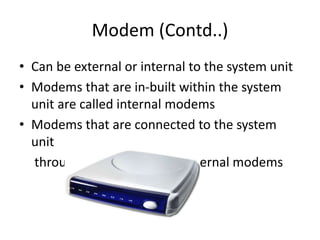
Modem (Contd..)
• Can be external or internal to the system unit
• Modems that are in-built within the system
unit are called internal modems
• Modems that are connected to the system
unit
through cables are called external modems
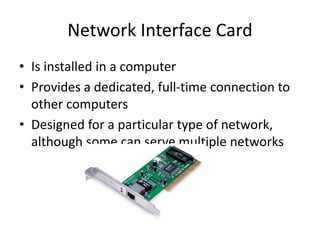
Network Interface Card
• Is installed in a computer
• Provides a dedicated, full-time connection to
other computers
• Designed for a particular type of network,
although some can serve multiple networks
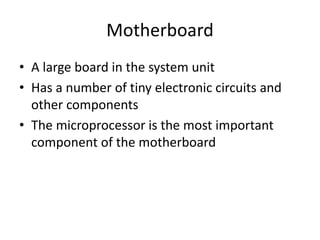
Motherboard
• A large board in the system unit
• Has a number of tiny electronic circuits and
other components
• The microprocessor is the most important
component of the motherboard
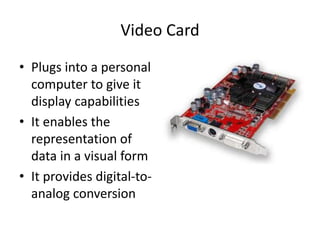
Video Card
• Plugs into a personal
computer to give it
display capabilities
• It enables the
representation of
data in a visual form
• It provides digital-to-
analog conversion
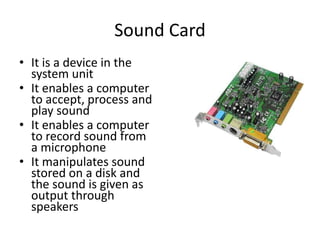
Sound Card
• It is a device in the
system unit
• It enables a computer
to accept, process and
play sound
• It enables a computer
to record sound from
a microphone
• It manipulates sound
stored on a disk and
the sound is given as
output through
speakers
Input vs. Output
Input: Information goes into the computer
though it
Output: Information comes out of the computer
to it
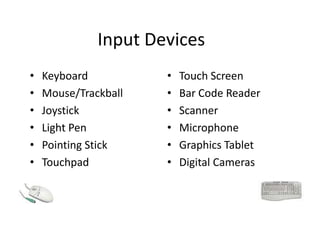
Input Devices
• Keyboard
• Mouse/Trackball
• Joystick
• Light Pen
• Pointing Stick
• Touchpad
• Touch Screen
• Bar Code Reader
• Scanner
• Microphone
• Graphics Tablet
• Digital Cameras
Output Devices
• Monitor: screen that displays information such as
text, numbers, and
• Printer: gives you information pictures.
– Softcopy
– from the computer in printed form.
– Hardcopy
• Speakers: allow you to hear voice, music, and other
sounds from your computer.
Processing Device
• Central Processing Unit (CPU) –
known as the heart or “brain” of
the computer and is responsible
for processing the information
that has been entered into the
computer
Storage Devices
• Hard Disk Drive: used to store
data inside of the computer.
– Magnetic platter that holds
a large amount of
information in a form the
computer can understand.
– Floppy Disk: flat circles of
iron oxide-coated plastic
enclosed in a hard plastic
case.
– Most are 3 ½ inches and have
a capacity to hold 1.44 MB or
more of data.
• CD ROM Drive: a compact disk
that reads only memory.
• CD-RW: a device that allows
you to read and write to a
compact disk
Storage Devices (Con.)
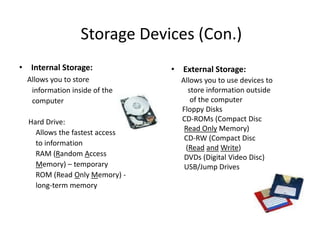
• Internal Storage:
Allows you to store
information inside of the
computer
Hard Drive:
Allows the fastest access
to information
RAM (Random Access
Memory) – temporary
ROM (Read Only Memory) -
long-term memory
• External Storage:
Allows you to use devices to
store information outside
of the computer
Floppy Disks
CD-ROMs (Compact Disc
Read Only Memory)
CD-RW (Compact Disc
(Read and Write)
DVDs (Digital Video Disc)
USB/Jump Drives
Software
• Program
– Is a set of instructions
• Software
– The intangible interlinked set of instructions that
tells the computer what to do; known as software
programs.
Types of Software
• System software / Operating System Software
– Sets the rules for how computer hardware and
application software work together, controls the
operation of the computer.
– Provides basic functions of the computer
• Example: Windows
• Application Software
– Lets you accomplish specific tasks based on your
needs.
– Is employed by users, such as teachers and
students, to accomplish specific tasks
• Examples: MS Word, Excel, Access, MS Works, Paint
Introduction to Operating Systems
Operating System (OS)
– Is a software
– Manages and controls the working of a computer
– Checks that all of the computer’s internal devices, such as
RAM, ROM and peripheral devices, such as printer and
monitor, are functioning properly
– Loads after these checks are successful
Examples of Operating Systems are:
– Unix
– Mac
– Windows
– Linux
– Sun solaries
Software and Data (Contd..)
Software can be broadly classified into:
– Provides basic functions of the computer
– For example, Windows XP is a system software
• Application software
– Is employed by users, such as teachers and students, to
accomplish specific tasks
– For example, Paint is an application software
Introduction to Operating Systems (Contd..)
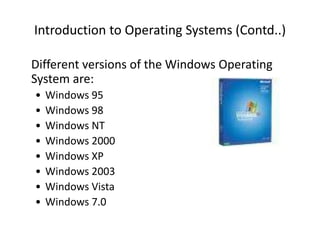
Different versions of the Windows Operating
System are:
• Windows 95
• Windows 98
• Windows NT
• Windows 2000
• Windows XP
• Windows 2003
• Windows Vista
• Windows 7.0
Introduction to Operating Systems (Contd..)
User Interface
– Is provided by the Operating System
– Is the means of communication between a computer and a
person or other device
Introduction to Operating Systems (Contd..)
User Interface is of two types:
• Text-based
– Are less intuitive
– Depend on text commands made up of various words and
symbols, which the user has to memorise
– Example MS-DOS
• Graphical
– Uses visual components rather than text
– Provides menus and toolbars that contain commands to
perform specific tasks
– Example Windows-XP
Introduction to Operating Systems (Contd..)
Functions of an Operating System are:
– Boots (starts up) the computer
– Receives inputs, Translates and processes
– The processed results are converted into a form that the user
can understand
– Acts as an intermediary between the user and the computer
hardware
– Handles data transfer
– Manages storage space
– Ensures that the system resources are utilised by authorised
users only
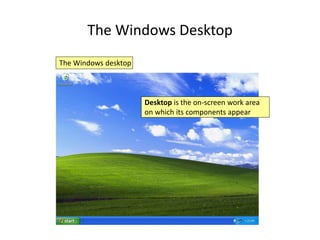
The Windows Desktop
The Windows desktop
Desktop is the on-screen work area
on which its components appear
The Windows Desktop (Contd..)
The components of the Desktop are:
• Icons
• Taskbar
• Background
• Screen saver
The Windows Desktop (Contd..)
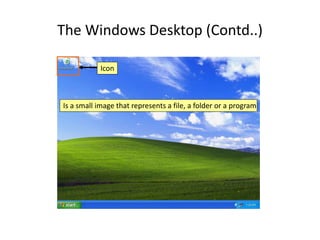
Icon
Is a small image that represents a file, a folder or a program
The Windows Desktop (Contd..)
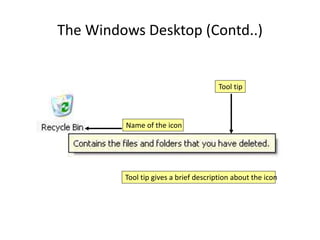
Name of the icon
Tool tip
Tool tip gives a brief description about the icon
The Windows Desktop (Contd..)
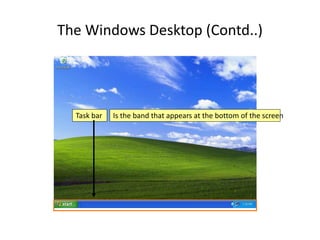
Task bar Is the band that appears at the bottom of the screen
The Windows Desktop (Contd..)
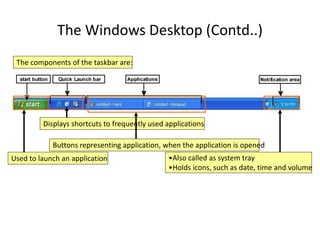
Used to launch an application •Also called as system tray
•Holds icons, such as date, time and volume
Displays shortcuts to frequently used applications
Buttons representing application, when the application is opened
The components of the taskbar are:
The Windows Desktop (Contd..)
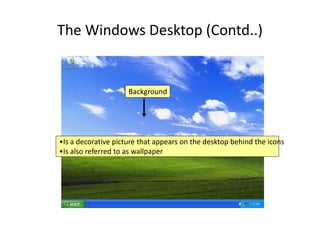
•Is a decorative picture that appears on the desktop behind the icons
•Is also referred to as wallpaper
Background
The Windows Desktop (Contd..)
Screen saver
– Is a moving picture or a pattern
– Appears on the screen when the mouse or the keyboard is
not used for a specified period of time
The Windows Desktop (Contd..)
A sample screen saver
Arranging Icons
Icons can be created or arranged on the desktop by:
• Dragging the icons
• Auto Arrange
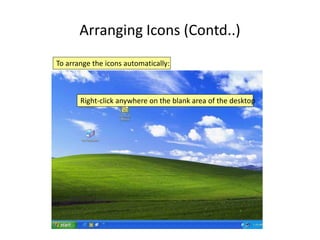
Arranging Icons (Contd..)
Right-click anywhere on the blank area of the desktop
To arrange the icons automatically:
Arranging Icons (Contd..)
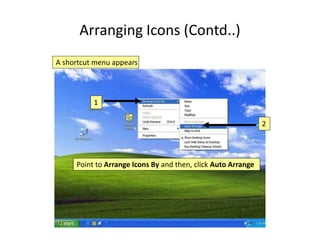
A shortcut menu appears
Point to Arrange Icons By and then, click Auto Arrange
1
2
Arranging Icons (Contd..)
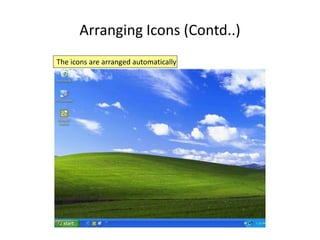
The icons are arranged automatically
Arranging Icons (Contd..)
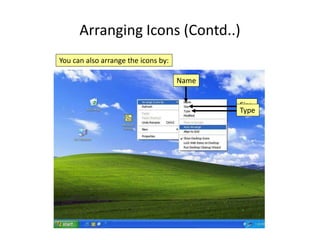
You can also arrange the icons by:
Name
Size
Type
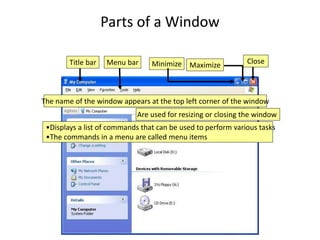
Parts of a Window
The name of the window appears at the top left corner of the window
Title bar
Are used for resizing or closing the window
Minimize Close
Maximize
•Displays a list of commands that can be used to perform various tasks
•The commands in a menu are called menu items
Menu bar
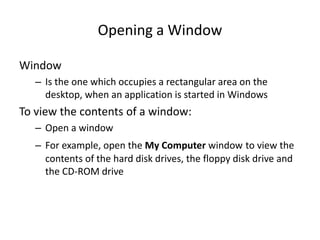
Opening a Window
Window
– Is the one which occupies a rectangular area on the
desktop, when an application is started in Windows
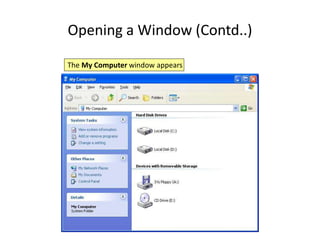
To view the contents of a window:
– Open a window
– For example, open the My Computer window to view the
contents of the hard disk drives, the floppy disk drive and
the CD-ROM drive
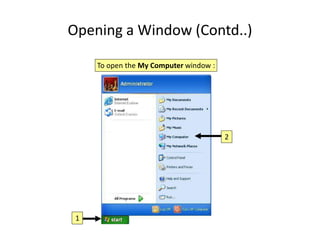
Opening a Window (Contd..)
To open the My Computer window :
1
2
Opening a Window (Contd..)
The My Computer window appears
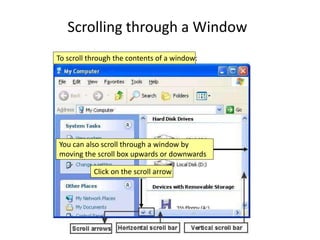
Scrolling through a Window
To scroll through the contents of a window:
Click on the scroll arrow
You can also scroll through a window by
moving the scroll box upwards or downwards
Moving a Window
To move a window:
• Click anywhere on its title bar
• Drag it to the location where you want to place it
Maximising a Window
To maximise a window:
• Click the Maximize button on the title bar
– The Maximize button acts as a toggle between the normal
size and the full screen
– When the window is in the maximised state, the Maximize
button changes to a Restore Down
button
Minimising a Window
To minimise a window:
• Click the Minimize button on the title bar
– When you minimise a window, it reduces to a button on
the taskbar
– You can restore the window by clicking that button on the
taskbar
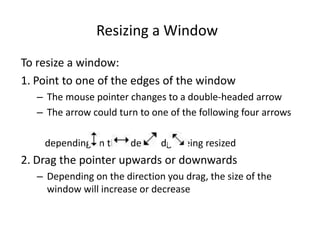
Resizing a Window
To resize a window:
1. Point to one of the edges of the window
– The mouse pointer changes to a double-headed arrow
– The arrow could turn to one of the following four arrows
depending on the side or edge being resized
2. Drag the pointer upwards or downwards
– Depending on the direction you drag, the size of the
window will increase or decrease
Closing a Window
To close a window:
Click the Close button on the title bar
Using the Start Menu
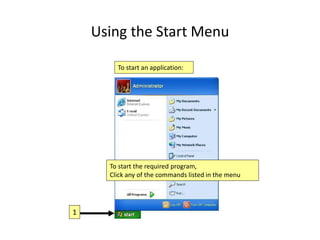
To start an application:
To start the required program,
Click any of the commands listed in the menu
1
Commands on the Start menu
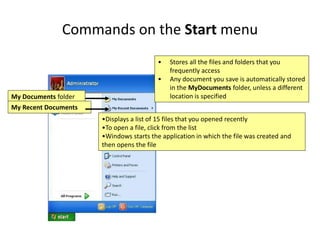
• Stores all the files and folders that you
frequently access
• Any document you save is automatically stored
in the MyDocuments folder, unless a different
location is specified
My Documents folder
•Displays a list of 15 files that you opened recently
•To open a file, click from the list
•Windows starts the application in which the file was created and
then opens the file
My Recent Documents
Commands on the Start menu (Contd..)
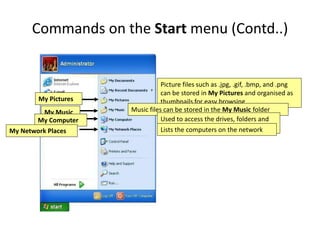
Picture files such as .jpg, .gif, .bmp, and .png
can be stored in My Pictures and organised as
thumbnails for easy browsing
Music files can be stored in the My Music folder
Used to access the drives, folders and
files on the computer
Lists the computers on the network
My Pictures
My Music
My Computer
My Network Places
Commands on the Start menu (Contd..)
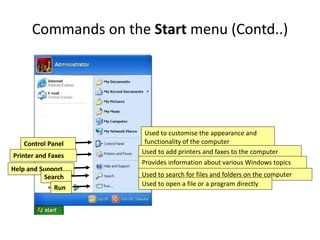
Used to customise the appearance and
functionality of the computer
Used to add printers and faxes to the computer
Provides information about various Windows topics
Used to search for files and folders on the computer
Used to open a file or a program directly
Control Panel
Printer and Faxes
Help and Support
Search
Run
The Input-Process-Output Cycle
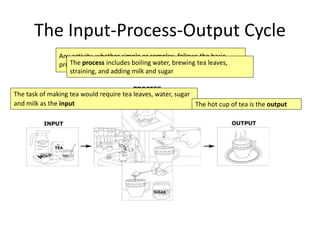
Any activity, whether simple or complex, follows the basic
principle of Input-Process-Output (I-P-O)
The task of making tea would require tea leaves, water, sugar
and milk as the input
The process includes boiling water, brewing tea leaves,
straining, and adding milk and sugar
The hot cup of tea is the output
The Input-Process-Output Cycle
(Contd..)
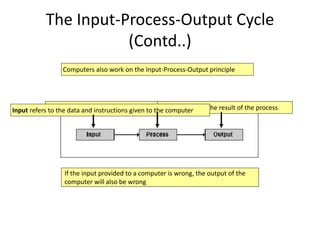
Computers also work on the Input-Process-Output principle
If the input provided to a computer is wrong, the output of the
computer will also be wrong
Process refers to what the computer does with the information
Output refers to the result of the process
Input refers to the data and instructions given to the computer
Terms to Remember
• Input
– Data and instructions given to the computer
• Process
– What the computer does with the information it
receives
• Output
– Result produced by a computer when it has
processed information
Input Devices
• Some of the important computer input
devices are:
• Mouse
• Keyboard
• Scanner
• Microphone
• Web camera
Mouse
• Used to point to and select options displayed
on the monitor
• Connected to the system unit by means of a
long wire
• May have two or three buttons
• Left button is the most frequently used button
Mouse (Contd..)
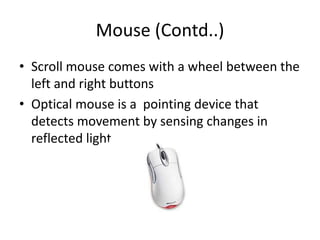
• Scroll mouse comes with a wheel between the
left and right buttons
• Optical mouse is a pointing device that
detects movement by sensing changes in
reflected light
Mouse (Contd..)
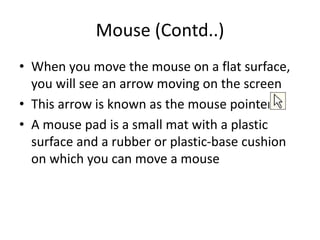
• When you move the mouse on a flat surface,
you will see an arrow moving on the screen
• This arrow is known as the mouse pointer
• A mouse pad is a small mat with a plastic
surface and a rubber or plastic-base cushion
on which you can move a mouse
Keyboard
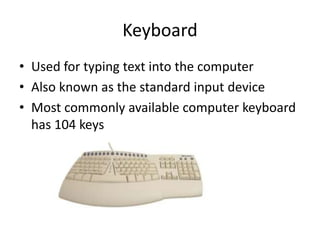
• Used for typing text into the computer
• Also known as the standard input device
• Most commonly available computer keyboard
has 104 keys
Keyboard (Contd..)
There are different types of keys on the keyboard:
• Alphanumeric keys
– They include letters and numbers
• Punctuation keys
– They are the colon (:), the semicolon (;), the question
mark (?), single quotes (‘) and double quotes (“)
• Special keys
– They are Arrow keys, Control keys and Function keys
(F1 to F12)
Keyboard (Contd..)
• Function keys
– They are special keys that are used to perform
specific functions
– They are labelled as F1, F2, F3 and so on till F12
– The F1 key in most software is to provide help on
the software
Keyboard (Contd..)
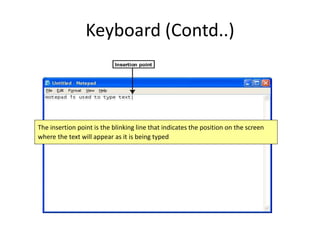
The insertion point is the blinking line that indicates the position on the screen
where the text will appear as it is being typed
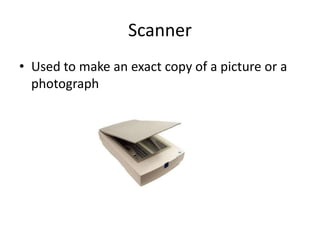
Scanner
• Used to make an exact copy of a picture or a
photograph
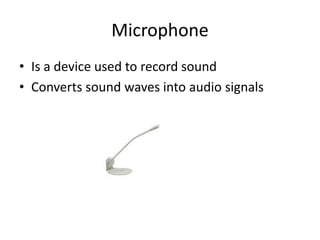
Microphone
• Is a device used to record sound
• Converts sound waves into audio signals
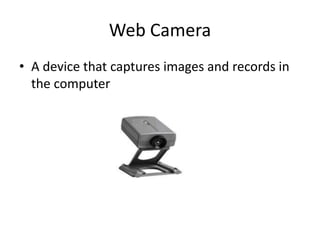
Web Camera
• A device that captures images and records in
the computer
Output Devices
• Device that is capable of representing
information from a computer is called an
output device
There are three important output devices
connected to the system unit:
• Monitor
• Printer
• Speakers
Monitor
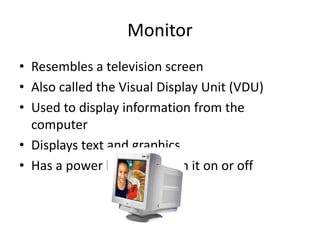
• Resembles a television screen
• Also called the Visual Display Unit (VDU)
• Used to display information from the
computer
• Displays text and graphics
• Has a power button to turn it on or off
Printer
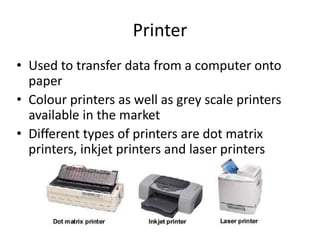
• Used to transfer data from a computer onto
paper
• Colour printers as well as grey scale printers
available in the market
• Different types of printers are dot matrix
printers, inkjet printers and laser printers
Speakers
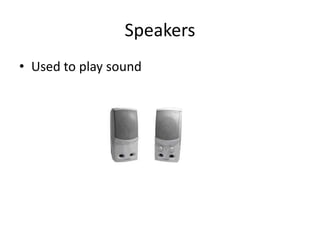
• Used to play sound
Storage
• Computer Storage
– Refers to the data stored in an electromagnetic
form to be used by the processor
• Storage Capacity
– Is the number of characters that can be stored on
a computer
Storage (Contd..)
Computer
– Stores a variety of data and information in its
memory
– Stores numbers (0-9), letters (A-Z) and symbols
and other characters (#, {}, ‘, ~, ^)
– Uses the binary system to represent these
characters
Storage (Contd..)
• The 0s and 1s in the binary system are known
as bits (binary digits)
• A bit is the smallest unit of measurement of
storage capacity
• A set of eight bits is called a byte
• Kilobytes, megabytes, gigabytes and terabytes
are higher units for measuring the storage
capacity of a computer
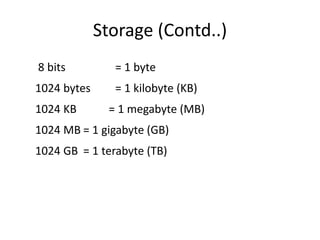
Storage (Contd..)
8 bits = 1 byte
1024 bytes = 1 kilobyte (KB)
1024 KB = 1 megabyte (MB)
1024 MB = 1 gigabyte (GB)
1024 GB = 1 terabyte (TB)
Storage (Contd..)
Computers use two types of storage:
• Internal storage
• External storage
Internal Storage
• It is one of the main components of the
system unit
• Also known as the main memory
• Stores data and instructions on the computer
• Stores the output data temporarily before it is
sent to the output device
• It is volatile and its capacity is also limited
Internal Storage (Contd..)
• The act of retrieving existing data from
memory is called reading
• The process of storing data in memory is
called writing
• There are two types of internal storage:
– Random Access Memory (RAM)
– Read Only Memory (ROM)
Internal Storage (Contd..)
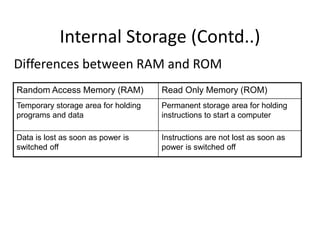
Differences between RAM and ROM
Random Access Memory (RAM) Read Only Memory (ROM)
Temporary storage area for holding
programs and data
Permanent storage area for holding
instructions to start a computer
Data is lost as soon as power is
switched off
Instructions are not lost as soon as
power is switched off
External Storage
• It is a permanent storage area
• Stores data and programs that are not needed
immediately by the computer
• Also known as secondary storage
• Data stored in this medium is permanent
• It is inexpensive and has a large storage capacity
• You need a storage device called a drive to write
to and read from a storage medium
External Storage (Contd..)
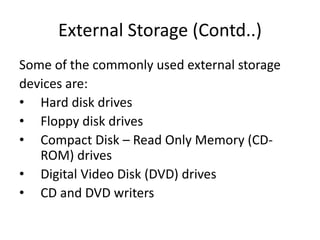
Some of the commonly used external storage
devices are:
• Hard disk drives
• Floppy disk drives
• Compact Disk – Read Only Memory (CD-
ROM) drives
• Digital Video Disk (DVD) drives
• CD and DVD writers
External Storage (Contd..)
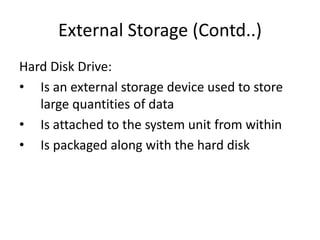
Hard Disk Drive:
• Is an external storage device used to store
large quantities of data
• Is attached to the system unit from within
• Is packaged along with the hard disk
External Storage (Contd..)
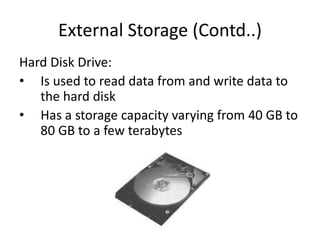
Hard Disk Drive:
• Is used to read data from and write data to
the hard disk
• Has a storage capacity varying from 40 GB to
80 GB to a few terabytes
External Storage (Contd..)
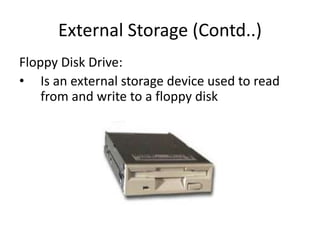
Floppy Disk Drive:
• Is an external storage device used to read
from and write to a floppy disk
External Storage (Contd..)
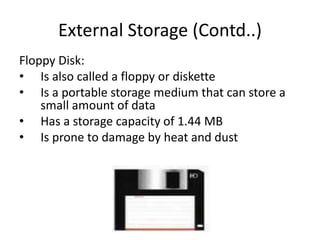
Floppy Disk:
• Is also called a floppy or diskette
• Is a portable storage medium that can store a
small amount of data
• Has a storage capacity of 1.44 MB
• Is prone to damage by heat and dust
External Storage (Contd..)
Compact Disk -Read Only Memory (CD-ROM)
Drive
• Is used to read from a CD-ROM
External Storage (Contd..)
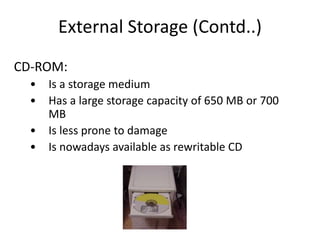
CD-ROM:
• Is a storage medium
• Has a large storage capacity of 650 MB or 700
MB
• Is less prone to damage
• Is nowadays available as rewritable CD
External Storage (Contd..)
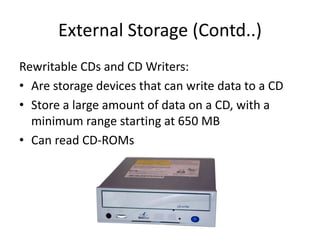
Rewritable CDs and CD Writers:
• Are storage devices that can write data to a CD
• Store a large amount of data on a CD, with a
minimum range starting at 650 MB
• Can read CD-ROMs
External Storage (Contd..)
Digital Video Disk (DVD) Drive:
• Is an external storage device
• Used to read from a DVD-ROM
External Storage (Contd..)
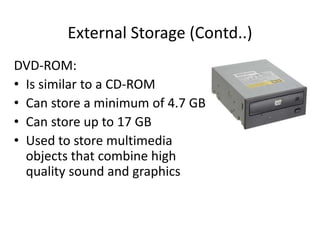
DVD-ROM:
• Is similar to a CD-ROM
• Can store a minimum of 4.7 GB
• Can store up to 17 GB
• Used to store multimedia
objects that combine high
quality sound and graphics
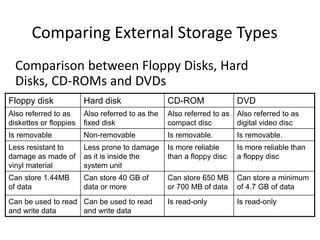
Comparing External Storage Types
Comparison between Floppy Disks, Hard
Disks, CD-ROMs and DVDs
Floppy disk Hard disk CD-ROM DVD
Also referred to as
diskettes or floppies
Also referred to as the
fixed disk
Also referred to as
compact disc
Also referred to as
digital video disc
Is removable Non-removable Is removable. Is removable.
Less resistant to
damage as made of
vinyl material
Less prone to damage
as it is inside the
system unit
Is more reliable
than a floppy disc
Is more reliable than
a floppy disc
Can store 1.44MB
of data
Can store 40 GB of
data or more
Can store 650 MB
or 700 MB of data
Can store a minimum
of 4.7 GB of data
Can be used to read
and write data
Can be used to read
and write data
Is read-only Is read-only
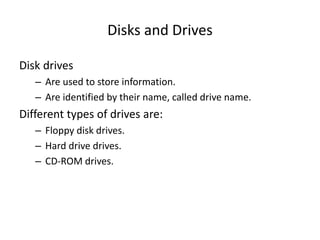
Disks and Drives
Disk drives
– Are used to store information.
– Are identified by their name, called drive name.
Different types of drives are:
– Floppy disk drives.
– Hard drive drives.
– CD-ROM drives.
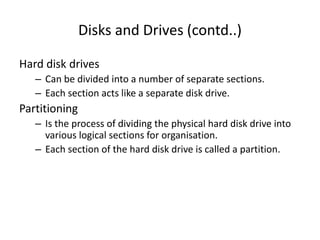
Disks and Drives (contd..)
Hard disk drives
– Can be divided into a number of separate sections.
– Each section acts like a separate disk drive.
Partitioning
– Is the process of dividing the physical hard disk drive into
various logical sections for organisation.
– Each section of the hard disk drive is called a partition.
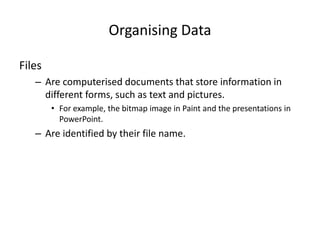
Organising Data
Files
– Are computerised documents that store information in
different forms, such as text and pictures.
• For example, the bitmap image in Paint and the presentations in
PowerPoint.
– Are identified by their file name.
Organising Data (Contd..)
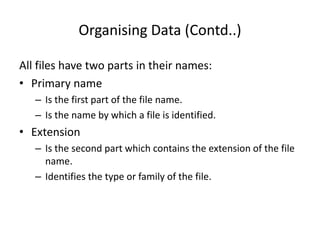
All files have two parts in their names:
• Primary name
– Is the first part of the file name.
– Is the name by which a file is identified.
• Extension
– Is the second part which contains the extension of the file
name.
– Identifies the type or family of the file.
Organising Data (Contd..)
Example for file name:
Lesson1.doc
A file name can contain:
– Letters
– Numbers
– Spaces
– Special characters, such as [ ] { } , ! $ ~ ` % @
Primary name Extension
Organising Data (Contd..)
• Folder
– Acts as a storage container for files.
– Contain files and folders.
– Icon is yellow in colour.
• Subfolder
– Is a folder within a folder.
Organising Data (Contd..)
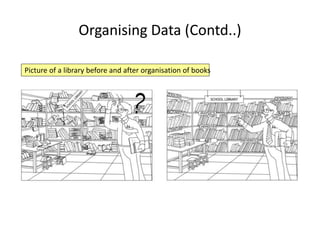
Picture of a library before and after organisation of books
Viewing Contents of Your Computer
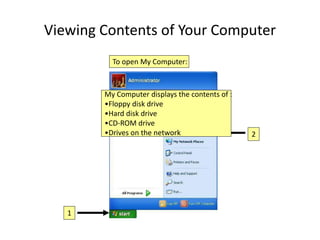
1
2
My Computer displays the contents of :
•Floppy disk drive
•Hard disk drive
•CD-ROM drive
•Drives on the network
To open My Computer:
Viewing Contents of Your Computer (Contd..)
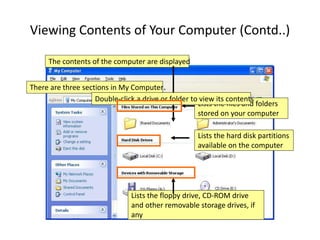
The contents of the computer are displayed
There are three sections in My Computer
Lists the files and folders
stored on your computer
Lists the hard disk partitions
available on the computer
Lists the floppy drive, CD-ROM drive
and other removable storage drives, if
any
Double-click a drive or folder to view its contents
Using Windows Explorer to View the File
Structure
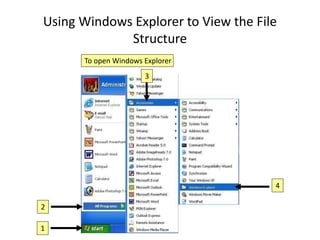
1
2
3
4
To open Windows Explorer
Using Windows Explorer to View the File
Structure (Contd..)
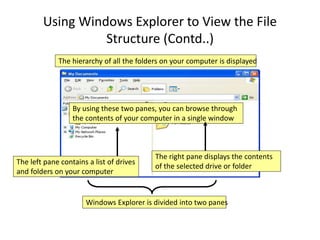
The hierarchy of all the folders on your computer is displayed
Windows Explorer is divided into two panes
The left pane contains a list of drives
and folders on your computer
The right pane displays the contents
of the selected drive or folder
By using these two panes, you can browse through
the contents of your computer in a single window
Using Windows Explorer to View the File
Structure (Contd..)
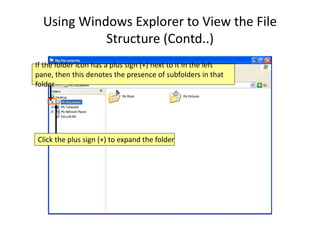
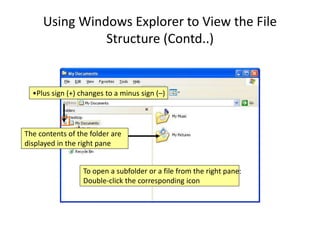
Click the plus sign (+) to expand the folder
If the folder icon has a plus sign (+) next to it in the left
pane, then this denotes the presence of subfolders in that
folder
Using Windows Explorer to View the File
Structure (Contd..)
•Plus sign (+) changes to a minus sign (–)
The contents of the folder are
displayed in the right pane
To open a subfolder or a file from the right pane:
Double-click the corresponding icon
Using Windows Explorer to View the File
Structure (Contd..)
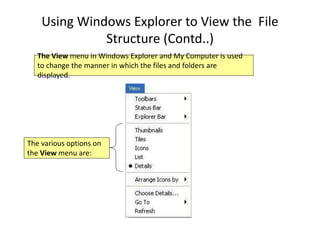
The View menu in Windows Explorer and My Computer is used
to change the manner in which the files and folders are
displayed.
The various options on
the View menu are:
Using Windows Explorer to View the File
Structure (Contd..)
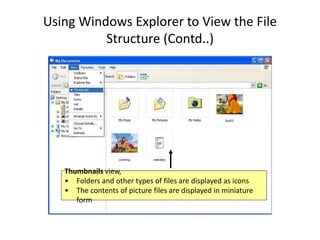
Thumbnails view,
• Folders and other types of files are displayed as icons
• The contents of picture files are displayed in miniature
form
Using Windows Explorer to View the File
Structure (Contd..)
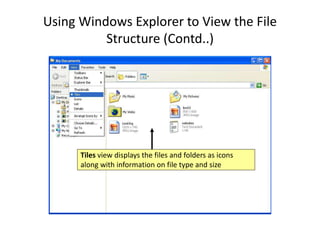
Tiles view displays the files and folders as icons
along with information on file type and size
Using Windows Explorer to View the File
Structure (Contd..)
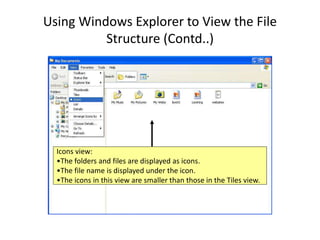
Icons view:
•The folders and files are displayed as icons.
•The file name is displayed under the icon.
•The icons in this view are smaller than those in the Tiles view.
Using Windows Explorer to View the File
Structure (Contd..)
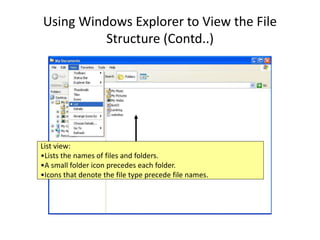
List view:
•Lists the names of files and folders.
•A small folder icon precedes each folder.
•Icons that denote the file type precede file names.
Using Windows Explorer to View the File
Structure (Contd..)
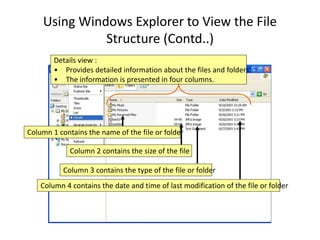
Details view :
• Provides detailed information about the files and folders.
• The information is presented in four columns.
Column 1 contains the name of the file or folder
Column 2 contains the size of the file
Column 3 contains the type of the file or folder
Column 4 contains the date and time of last modification of the file or folder

ict101_unit-1.ppt

  • 1.
    What is aComputer? • It is an electronic device. • It is indispensable in every walk of life in this era of Information Technology. • It is used to: – Perform calculations – Create documents – Maintain records – Analysis & decision making – Create attractive pictures
  • 2.
    Benefits and Limitationsof Computers Benefits of Computers • High Speed – Ability to perform tasks at a greater speed than human beings. – Perform complex calculations in seconds. • Accuracy – Perform tasks with accuracy. – Input given to the computer determines the output received.
  • 3.
    Benefits and Limitationsof Computers (Contd..) • Storage – Can store large amounts of information. – Retrieve information whenever required. • Automation – Can be instructed to perform tasks automatically. • Diligence – Can perform the same task repeatedly, without getting tired. – Can do the same job with the same accuracy for hours or longer.
  • 4.
    Benefits and Limitationsof Computers (Contd..) • Versatility – Can be used to perform simple as well as complex tasks. • Cost effective – Reduce the amount of paperwork and human effort, thereby reducing costs.
  • 5.
    Benefits and Limitationsof Computers (Contd..) Limitations of Computers • Computers cannot work independently. • They need clear and complete instructions to perform a task accurately.
  • 6.
    Desktops and Towers •Desktops - Can be placed on top of desks or tables. • Towers - The system unit can be placed under the desk. • All stationary computers are referred to as desktops.
  • 7.
    Laptops and Notebooks •Small portable computers • Modern laptops are often called notebook computers • Can operate on batteries • IBM, Apple, Compaq, Dell, Toshiba and Hewlett- Packard are well known manufacturers
  • 8.
    Handheld Computers • Smallportable computers designed to fit in your pocket • Designed to facilitate everyday functions, – using a calendar – maintaining an address book • Used to maintain notes, task lists and details of appointments
  • 9.
    Tablet PCs • Atype of notebook computer. • Has a Liquid Crystal Display (LCD) screen. • Allows the user to take notes on the screen by using a special pen. • User’s handwritten content can be edited and shared by using e-mail.
  • 10.
    Monitor Keyboard Mouse Printer Speaker Computer Case (Processor inside) FloppyDisk Drive CD-ROM/DVD Drive PARTS OF A COMPUTER SYSTEM
  • 11.
    Connecting the PC Thefollowings are the ways in which the parts of a PC are connected to each other through cables: • The system unit is connected to the power outlet • The monitor is connected to the system unit and to the power outlet • The keyboard is connected to the power outlet
  • 12.
    Connecting the PC(Contd..) • The mouse is connected to the system unit • The printer is connected to the system unit and to the power outlet
  • 13.
    ConnectingthePC(Contd..) • Other hardwaredevices, such as scanners and speakers are connected to the system unit and to the power outlet
  • 14.
    Basic structure ofComputer System
  • 15.
    Hard Ware • Partsof the computer that you can see, touch and feel. • The things which you can move from one place to another place by giving some external force.
  • 16.
    Hardware • The tangible,physical equipment that can be seen and touched such as: – Computer Case – Monitor – Keyboard and Mouse – Disk Drive – Speakers
  • 17.
    Modem • Stands formodulator-demodulator • Electronic device used for converting the digital signals to analog signals and vice versa • When you send any message from your computer to another, the modem acts as an output device • When your computer receives a message, the modem acts as an input device
  • 18.
    Modem (Contd..) • Canbe external or internal to the system unit • Modems that are in-built within the system unit are called internal modems • Modems that are connected to the system unit through cables are called external modems
  • 19.
    Network Interface Card •Is installed in a computer • Provides a dedicated, full-time connection to other computers • Designed for a particular type of network, although some can serve multiple networks
  • 20.
    Motherboard • A largeboard in the system unit • Has a number of tiny electronic circuits and other components • The microprocessor is the most important component of the motherboard
  • 21.
    Video Card • Plugsinto a personal computer to give it display capabilities • It enables the representation of data in a visual form • It provides digital-to- analog conversion
  • 22.
    Sound Card • Itis a device in the system unit • It enables a computer to accept, process and play sound • It enables a computer to record sound from a microphone • It manipulates sound stored on a disk and the sound is given as output through speakers
  • 23.
    Input vs. Output Input:Information goes into the computer though it Output: Information comes out of the computer to it
  • 24.
    Input Devices • Keyboard •Mouse/Trackball • Joystick • Light Pen • Pointing Stick • Touchpad • Touch Screen • Bar Code Reader • Scanner • Microphone • Graphics Tablet • Digital Cameras
  • 25.
    Output Devices • Monitor:screen that displays information such as text, numbers, and • Printer: gives you information pictures. – Softcopy – from the computer in printed form. – Hardcopy • Speakers: allow you to hear voice, music, and other sounds from your computer.
  • 26.
    Processing Device • CentralProcessing Unit (CPU) – known as the heart or “brain” of the computer and is responsible for processing the information that has been entered into the computer
  • 27.
    Storage Devices • HardDisk Drive: used to store data inside of the computer. – Magnetic platter that holds a large amount of information in a form the computer can understand. – Floppy Disk: flat circles of iron oxide-coated plastic enclosed in a hard plastic case. – Most are 3 ½ inches and have a capacity to hold 1.44 MB or more of data. • CD ROM Drive: a compact disk that reads only memory. • CD-RW: a device that allows you to read and write to a compact disk
  • 28.
    Storage Devices (Con.) •Internal Storage: Allows you to store information inside of the computer Hard Drive: Allows the fastest access to information RAM (Random Access Memory) – temporary ROM (Read Only Memory) - long-term memory • External Storage: Allows you to use devices to store information outside of the computer Floppy Disks CD-ROMs (Compact Disc Read Only Memory) CD-RW (Compact Disc (Read and Write) DVDs (Digital Video Disc) USB/Jump Drives
  • 29.
    Software • Program – Isa set of instructions • Software – The intangible interlinked set of instructions that tells the computer what to do; known as software programs.
  • 30.
    Types of Software •System software / Operating System Software – Sets the rules for how computer hardware and application software work together, controls the operation of the computer. – Provides basic functions of the computer • Example: Windows • Application Software – Lets you accomplish specific tasks based on your needs. – Is employed by users, such as teachers and students, to accomplish specific tasks • Examples: MS Word, Excel, Access, MS Works, Paint
  • 31.
    Introduction to OperatingSystems Operating System (OS) – Is a software – Manages and controls the working of a computer – Checks that all of the computer’s internal devices, such as RAM, ROM and peripheral devices, such as printer and monitor, are functioning properly – Loads after these checks are successful Examples of Operating Systems are: – Unix – Mac – Windows – Linux – Sun solaries
  • 32.
    Software and Data(Contd..) Software can be broadly classified into: – Provides basic functions of the computer – For example, Windows XP is a system software • Application software – Is employed by users, such as teachers and students, to accomplish specific tasks – For example, Paint is an application software
  • 33.
    Introduction to OperatingSystems (Contd..) Different versions of the Windows Operating System are: • Windows 95 • Windows 98 • Windows NT • Windows 2000 • Windows XP • Windows 2003 • Windows Vista • Windows 7.0
  • 34.
    Introduction to OperatingSystems (Contd..) User Interface – Is provided by the Operating System – Is the means of communication between a computer and a person or other device
  • 35.
    Introduction to OperatingSystems (Contd..) User Interface is of two types: • Text-based – Are less intuitive – Depend on text commands made up of various words and symbols, which the user has to memorise – Example MS-DOS • Graphical – Uses visual components rather than text – Provides menus and toolbars that contain commands to perform specific tasks – Example Windows-XP
  • 36.
    Introduction to OperatingSystems (Contd..) Functions of an Operating System are: – Boots (starts up) the computer – Receives inputs, Translates and processes – The processed results are converted into a form that the user can understand – Acts as an intermediary between the user and the computer hardware – Handles data transfer – Manages storage space – Ensures that the system resources are utilised by authorised users only
  • 37.
    The Windows Desktop TheWindows desktop Desktop is the on-screen work area on which its components appear
  • 38.
    The Windows Desktop(Contd..) The components of the Desktop are: • Icons • Taskbar • Background • Screen saver
  • 39.
    The Windows Desktop(Contd..) Icon Is a small image that represents a file, a folder or a program
  • 40.
    The Windows Desktop(Contd..) Name of the icon Tool tip Tool tip gives a brief description about the icon
  • 41.
    The Windows Desktop(Contd..) Task bar Is the band that appears at the bottom of the screen
  • 42.
    The Windows Desktop(Contd..) Used to launch an application •Also called as system tray •Holds icons, such as date, time and volume Displays shortcuts to frequently used applications Buttons representing application, when the application is opened The components of the taskbar are:
  • 43.
    The Windows Desktop(Contd..) •Is a decorative picture that appears on the desktop behind the icons •Is also referred to as wallpaper Background
  • 44.
    The Windows Desktop(Contd..) Screen saver – Is a moving picture or a pattern – Appears on the screen when the mouse or the keyboard is not used for a specified period of time
  • 45.
    The Windows Desktop(Contd..) A sample screen saver
  • 46.
    Arranging Icons Icons canbe created or arranged on the desktop by: • Dragging the icons • Auto Arrange
  • 47.
    Arranging Icons (Contd..) Right-clickanywhere on the blank area of the desktop To arrange the icons automatically:
  • 48.
    Arranging Icons (Contd..) Ashortcut menu appears Point to Arrange Icons By and then, click Auto Arrange 1 2
  • 49.
    Arranging Icons (Contd..) Theicons are arranged automatically
  • 50.
    Arranging Icons (Contd..) Youcan also arrange the icons by: Name Size Type
  • 51.
    Parts of aWindow The name of the window appears at the top left corner of the window Title bar Are used for resizing or closing the window Minimize Close Maximize •Displays a list of commands that can be used to perform various tasks •The commands in a menu are called menu items Menu bar
  • 52.
    Opening a Window Window –Is the one which occupies a rectangular area on the desktop, when an application is started in Windows To view the contents of a window: – Open a window – For example, open the My Computer window to view the contents of the hard disk drives, the floppy disk drive and the CD-ROM drive
  • 53.
    Opening a Window(Contd..) To open the My Computer window : 1 2
  • 54.
    Opening a Window(Contd..) The My Computer window appears
  • 55.
    Scrolling through aWindow To scroll through the contents of a window: Click on the scroll arrow You can also scroll through a window by moving the scroll box upwards or downwards
  • 56.
    Moving a Window Tomove a window: • Click anywhere on its title bar • Drag it to the location where you want to place it
  • 57.
    Maximising a Window Tomaximise a window: • Click the Maximize button on the title bar – The Maximize button acts as a toggle between the normal size and the full screen – When the window is in the maximised state, the Maximize button changes to a Restore Down button
  • 58.
    Minimising a Window Tominimise a window: • Click the Minimize button on the title bar – When you minimise a window, it reduces to a button on the taskbar – You can restore the window by clicking that button on the taskbar
  • 59.
    Resizing a Window Toresize a window: 1. Point to one of the edges of the window – The mouse pointer changes to a double-headed arrow – The arrow could turn to one of the following four arrows depending on the side or edge being resized 2. Drag the pointer upwards or downwards – Depending on the direction you drag, the size of the window will increase or decrease
  • 60.
    Closing a Window Toclose a window: Click the Close button on the title bar
  • 61.
    Using the StartMenu To start an application: To start the required program, Click any of the commands listed in the menu 1
  • 62.
    Commands on theStart menu • Stores all the files and folders that you frequently access • Any document you save is automatically stored in the MyDocuments folder, unless a different location is specified My Documents folder •Displays a list of 15 files that you opened recently •To open a file, click from the list •Windows starts the application in which the file was created and then opens the file My Recent Documents
  • 63.
    Commands on theStart menu (Contd..) Picture files such as .jpg, .gif, .bmp, and .png can be stored in My Pictures and organised as thumbnails for easy browsing Music files can be stored in the My Music folder Used to access the drives, folders and files on the computer Lists the computers on the network My Pictures My Music My Computer My Network Places
  • 64.
    Commands on theStart menu (Contd..) Used to customise the appearance and functionality of the computer Used to add printers and faxes to the computer Provides information about various Windows topics Used to search for files and folders on the computer Used to open a file or a program directly Control Panel Printer and Faxes Help and Support Search Run
  • 65.
    The Input-Process-Output Cycle Anyactivity, whether simple or complex, follows the basic principle of Input-Process-Output (I-P-O) The task of making tea would require tea leaves, water, sugar and milk as the input The process includes boiling water, brewing tea leaves, straining, and adding milk and sugar The hot cup of tea is the output
  • 66.
    The Input-Process-Output Cycle (Contd..) Computersalso work on the Input-Process-Output principle If the input provided to a computer is wrong, the output of the computer will also be wrong Process refers to what the computer does with the information Output refers to the result of the process Input refers to the data and instructions given to the computer
  • 67.
    Terms to Remember •Input – Data and instructions given to the computer • Process – What the computer does with the information it receives • Output – Result produced by a computer when it has processed information
  • 68.
    Input Devices • Someof the important computer input devices are: • Mouse • Keyboard • Scanner • Microphone • Web camera
  • 69.
    Mouse • Used topoint to and select options displayed on the monitor • Connected to the system unit by means of a long wire • May have two or three buttons • Left button is the most frequently used button
  • 70.
    Mouse (Contd..) • Scrollmouse comes with a wheel between the left and right buttons • Optical mouse is a pointing device that detects movement by sensing changes in reflected light
  • 71.
    Mouse (Contd..) • Whenyou move the mouse on a flat surface, you will see an arrow moving on the screen • This arrow is known as the mouse pointer • A mouse pad is a small mat with a plastic surface and a rubber or plastic-base cushion on which you can move a mouse
  • 72.
    Keyboard • Used fortyping text into the computer • Also known as the standard input device • Most commonly available computer keyboard has 104 keys
  • 73.
    Keyboard (Contd..) There aredifferent types of keys on the keyboard: • Alphanumeric keys – They include letters and numbers • Punctuation keys – They are the colon (:), the semicolon (;), the question mark (?), single quotes (‘) and double quotes (“) • Special keys – They are Arrow keys, Control keys and Function keys (F1 to F12)
  • 74.
    Keyboard (Contd..) • Functionkeys – They are special keys that are used to perform specific functions – They are labelled as F1, F2, F3 and so on till F12 – The F1 key in most software is to provide help on the software
  • 75.
    Keyboard (Contd..) The insertionpoint is the blinking line that indicates the position on the screen where the text will appear as it is being typed
  • 76.
    Scanner • Used tomake an exact copy of a picture or a photograph
  • 77.
    Microphone • Is adevice used to record sound • Converts sound waves into audio signals
  • 78.
    Web Camera • Adevice that captures images and records in the computer
  • 79.
    Output Devices • Devicethat is capable of representing information from a computer is called an output device There are three important output devices connected to the system unit: • Monitor • Printer • Speakers
  • 80.
    Monitor • Resembles atelevision screen • Also called the Visual Display Unit (VDU) • Used to display information from the computer • Displays text and graphics • Has a power button to turn it on or off
  • 81.
    Printer • Used totransfer data from a computer onto paper • Colour printers as well as grey scale printers available in the market • Different types of printers are dot matrix printers, inkjet printers and laser printers
  • 82.
  • 83.
    Storage • Computer Storage –Refers to the data stored in an electromagnetic form to be used by the processor • Storage Capacity – Is the number of characters that can be stored on a computer
  • 84.
    Storage (Contd..) Computer – Storesa variety of data and information in its memory – Stores numbers (0-9), letters (A-Z) and symbols and other characters (#, {}, ‘, ~, ^) – Uses the binary system to represent these characters
  • 85.
    Storage (Contd..) • The0s and 1s in the binary system are known as bits (binary digits) • A bit is the smallest unit of measurement of storage capacity • A set of eight bits is called a byte • Kilobytes, megabytes, gigabytes and terabytes are higher units for measuring the storage capacity of a computer
  • 86.
    Storage (Contd..) 8 bits= 1 byte 1024 bytes = 1 kilobyte (KB) 1024 KB = 1 megabyte (MB) 1024 MB = 1 gigabyte (GB) 1024 GB = 1 terabyte (TB)
  • 87.
    Storage (Contd..) Computers usetwo types of storage: • Internal storage • External storage
  • 88.
    Internal Storage • Itis one of the main components of the system unit • Also known as the main memory • Stores data and instructions on the computer • Stores the output data temporarily before it is sent to the output device • It is volatile and its capacity is also limited
  • 89.
    Internal Storage (Contd..) •The act of retrieving existing data from memory is called reading • The process of storing data in memory is called writing • There are two types of internal storage: – Random Access Memory (RAM) – Read Only Memory (ROM)
  • 90.
    Internal Storage (Contd..) Differencesbetween RAM and ROM Random Access Memory (RAM) Read Only Memory (ROM) Temporary storage area for holding programs and data Permanent storage area for holding instructions to start a computer Data is lost as soon as power is switched off Instructions are not lost as soon as power is switched off
  • 91.
    External Storage • Itis a permanent storage area • Stores data and programs that are not needed immediately by the computer • Also known as secondary storage • Data stored in this medium is permanent • It is inexpensive and has a large storage capacity • You need a storage device called a drive to write to and read from a storage medium
  • 92.
    External Storage (Contd..) Someof the commonly used external storage devices are: • Hard disk drives • Floppy disk drives • Compact Disk – Read Only Memory (CD- ROM) drives • Digital Video Disk (DVD) drives • CD and DVD writers
  • 93.
    External Storage (Contd..) HardDisk Drive: • Is an external storage device used to store large quantities of data • Is attached to the system unit from within • Is packaged along with the hard disk
  • 94.
    External Storage (Contd..) HardDisk Drive: • Is used to read data from and write data to the hard disk • Has a storage capacity varying from 40 GB to 80 GB to a few terabytes
  • 95.
    External Storage (Contd..) FloppyDisk Drive: • Is an external storage device used to read from and write to a floppy disk
  • 96.
    External Storage (Contd..) FloppyDisk: • Is also called a floppy or diskette • Is a portable storage medium that can store a small amount of data • Has a storage capacity of 1.44 MB • Is prone to damage by heat and dust
  • 97.
    External Storage (Contd..) CompactDisk -Read Only Memory (CD-ROM) Drive • Is used to read from a CD-ROM
  • 98.
    External Storage (Contd..) CD-ROM: •Is a storage medium • Has a large storage capacity of 650 MB or 700 MB • Is less prone to damage • Is nowadays available as rewritable CD
  • 99.
    External Storage (Contd..) RewritableCDs and CD Writers: • Are storage devices that can write data to a CD • Store a large amount of data on a CD, with a minimum range starting at 650 MB • Can read CD-ROMs
  • 100.
    External Storage (Contd..) DigitalVideo Disk (DVD) Drive: • Is an external storage device • Used to read from a DVD-ROM
  • 101.
    External Storage (Contd..) DVD-ROM: •Is similar to a CD-ROM • Can store a minimum of 4.7 GB • Can store up to 17 GB • Used to store multimedia objects that combine high quality sound and graphics
  • 102.
    Comparing External StorageTypes Comparison between Floppy Disks, Hard Disks, CD-ROMs and DVDs Floppy disk Hard disk CD-ROM DVD Also referred to as diskettes or floppies Also referred to as the fixed disk Also referred to as compact disc Also referred to as digital video disc Is removable Non-removable Is removable. Is removable. Less resistant to damage as made of vinyl material Less prone to damage as it is inside the system unit Is more reliable than a floppy disc Is more reliable than a floppy disc Can store 1.44MB of data Can store 40 GB of data or more Can store 650 MB or 700 MB of data Can store a minimum of 4.7 GB of data Can be used to read and write data Can be used to read and write data Is read-only Is read-only
  • 103.
    Disks and Drives Diskdrives – Are used to store information. – Are identified by their name, called drive name. Different types of drives are: – Floppy disk drives. – Hard drive drives. – CD-ROM drives.
  • 104.
    Disks and Drives(contd..) Hard disk drives – Can be divided into a number of separate sections. – Each section acts like a separate disk drive. Partitioning – Is the process of dividing the physical hard disk drive into various logical sections for organisation. – Each section of the hard disk drive is called a partition.
  • 105.
    Organising Data Files – Arecomputerised documents that store information in different forms, such as text and pictures. • For example, the bitmap image in Paint and the presentations in PowerPoint. – Are identified by their file name.
  • 106.
    Organising Data (Contd..) Allfiles have two parts in their names: • Primary name – Is the first part of the file name. – Is the name by which a file is identified. • Extension – Is the second part which contains the extension of the file name. – Identifies the type or family of the file.
  • 107.
    Organising Data (Contd..) Examplefor file name: Lesson1.doc A file name can contain: – Letters – Numbers – Spaces – Special characters, such as [ ] { } , ! $ ~ ` % @ Primary name Extension
  • 108.
    Organising Data (Contd..) •Folder – Acts as a storage container for files. – Contain files and folders. – Icon is yellow in colour. • Subfolder – Is a folder within a folder.
  • 109.
    Organising Data (Contd..) Pictureof a library before and after organisation of books
  • 110.
    Viewing Contents ofYour Computer 1 2 My Computer displays the contents of : •Floppy disk drive •Hard disk drive •CD-ROM drive •Drives on the network To open My Computer:
  • 111.
    Viewing Contents ofYour Computer (Contd..) The contents of the computer are displayed There are three sections in My Computer Lists the files and folders stored on your computer Lists the hard disk partitions available on the computer Lists the floppy drive, CD-ROM drive and other removable storage drives, if any Double-click a drive or folder to view its contents
  • 112.
    Using Windows Explorerto View the File Structure 1 2 3 4 To open Windows Explorer
  • 113.
    Using Windows Explorerto View the File Structure (Contd..) The hierarchy of all the folders on your computer is displayed Windows Explorer is divided into two panes The left pane contains a list of drives and folders on your computer The right pane displays the contents of the selected drive or folder By using these two panes, you can browse through the contents of your computer in a single window
  • 114.
    Using Windows Explorerto View the File Structure (Contd..) Click the plus sign (+) to expand the folder If the folder icon has a plus sign (+) next to it in the left pane, then this denotes the presence of subfolders in that folder
  • 115.
    Using Windows Explorerto View the File Structure (Contd..) •Plus sign (+) changes to a minus sign (–) The contents of the folder are displayed in the right pane To open a subfolder or a file from the right pane: Double-click the corresponding icon
  • 116.
    Using Windows Explorerto View the File Structure (Contd..) The View menu in Windows Explorer and My Computer is used to change the manner in which the files and folders are displayed. The various options on the View menu are:
  • 117.
    Using Windows Explorerto View the File Structure (Contd..) Thumbnails view, • Folders and other types of files are displayed as icons • The contents of picture files are displayed in miniature form
  • 118.
    Using Windows Explorerto View the File Structure (Contd..) Tiles view displays the files and folders as icons along with information on file type and size
  • 119.
    Using Windows Explorerto View the File Structure (Contd..) Icons view: •The folders and files are displayed as icons. •The file name is displayed under the icon. •The icons in this view are smaller than those in the Tiles view.
  • 120.
    Using Windows Explorerto View the File Structure (Contd..) List view: •Lists the names of files and folders. •A small folder icon precedes each folder. •Icons that denote the file type precede file names.
  • 121.
    Using Windows Explorerto View the File Structure (Contd..) Details view : • Provides detailed information about the files and folders. • The information is presented in four columns. Column 1 contains the name of the file or folder Column 2 contains the size of the file Column 3 contains the type of the file or folder Column 4 contains the date and time of last modification of the file or folder