A07_ Use standard ways of working to work safely, keep information secure and manage personal information  Michael Haddon
Health and safety Companies have to abide by the health and safety guidelines set out by the Health and Safety act of 1974.
Health and safety Ways companies protect employees from physical problems: PAT (electrical checks) No overhanging sockets Health and safety rules Having health and safety training Identifying trip hazards No food or drink near machines.
Health and safety Ways to protect Personal health: Positioning of furniture Posture Regular breaks Eye sight checks Health and safety training
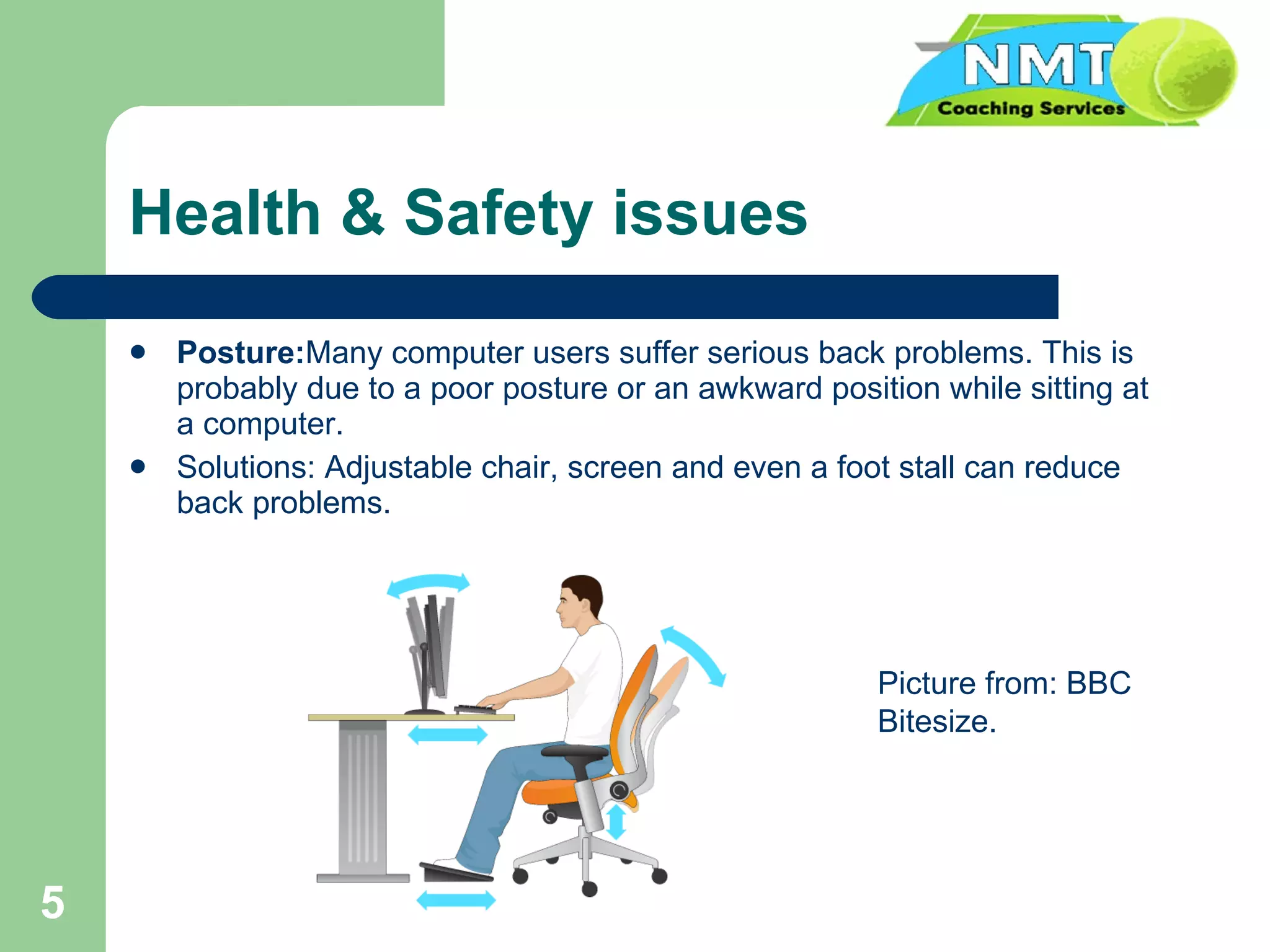
Health & Safety issues Posture: Many computer users suffer serious back problems. This is probably due to a poor posture or an awkward position while sitting at a computer. Solutions: Adjustable chair, screen and even a foot stall can reduce back problems. Picture from: BBC Bitesize.
Health & Safety issues Eye strain:   Eyes can become strained after staring at a computer screen for a long time, particularly if working in bad light, in glare or with a flickering screen e.g. watching videos online. Solutions: screen filters, take regular breaks, work in suitable light conditions.
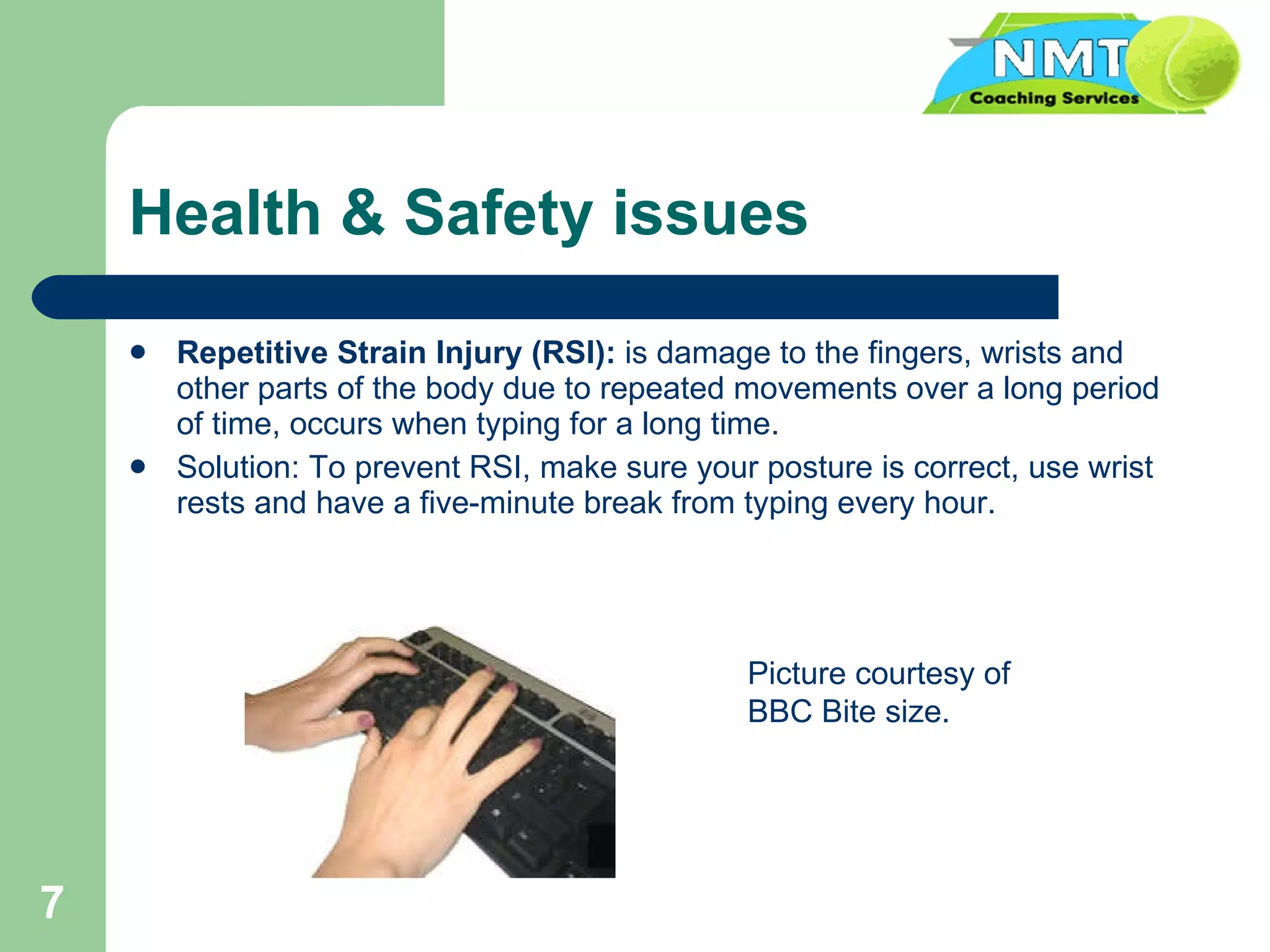
Health & Safety issues Repetitive Strain Injury (RSI):  is damage to the fingers, wrists and other parts of the body due to repeated movements over a long period of time, occurs when typing for a long time. Solution: To prevent RSI, make sure your posture is correct, use wrist rests and have a five-minute break from typing every hour. Picture courtesy of BBC Bite size.
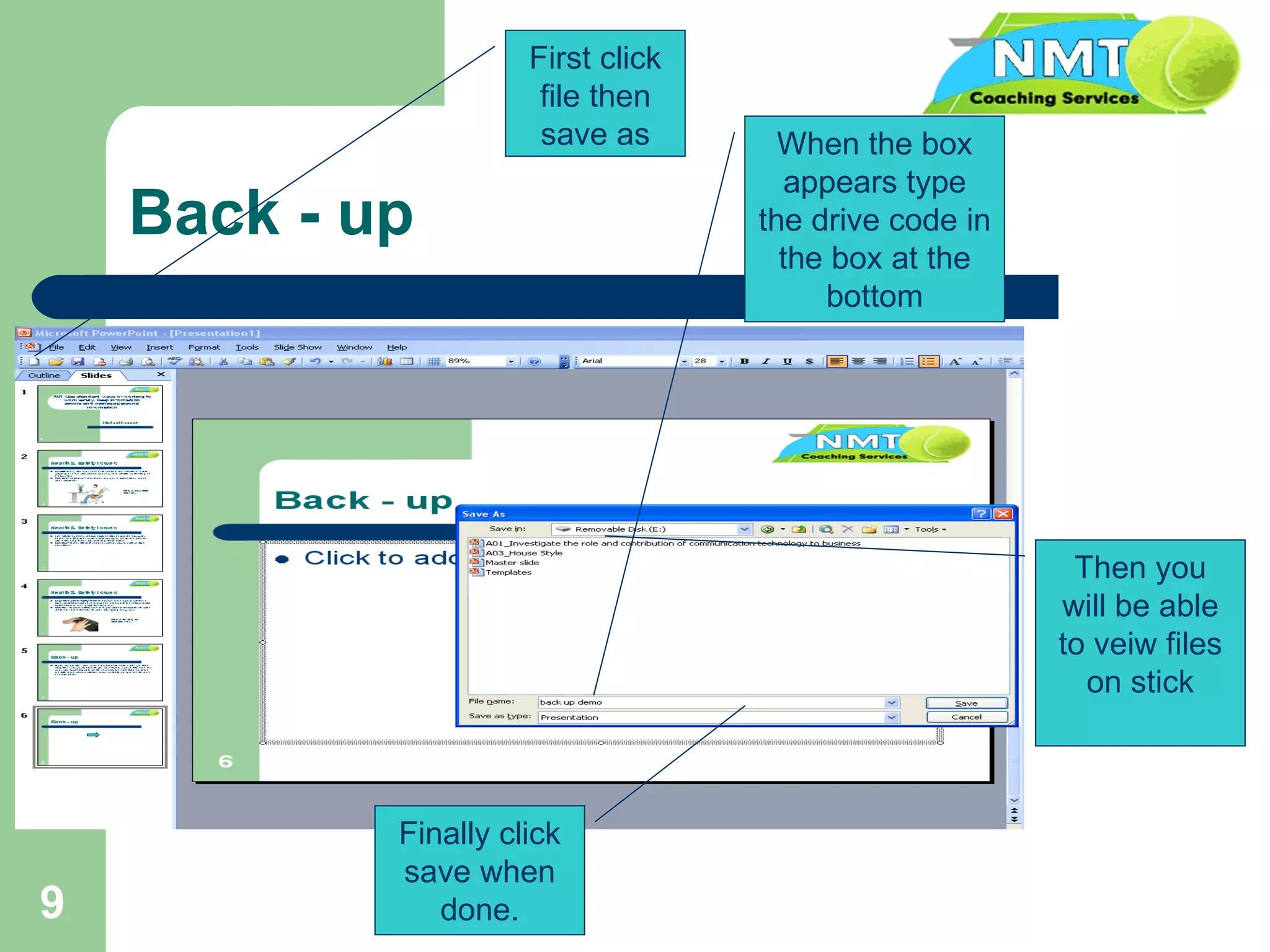
Back - up If you want to back work up on a removerable medium then you first plug it in. Then you find the file you want to back up, and click save as, when box appears type in the file name box the drive code e.g. j: and the files in the medium will then show up, finally you type the file name and click save.  This is away of backing files up because you can then move them to other storage devices.
Back - up First click file then save as When the box appears type the drive code in the box at the bottom Then you will be able to veiw files on stick Finally click save when done.
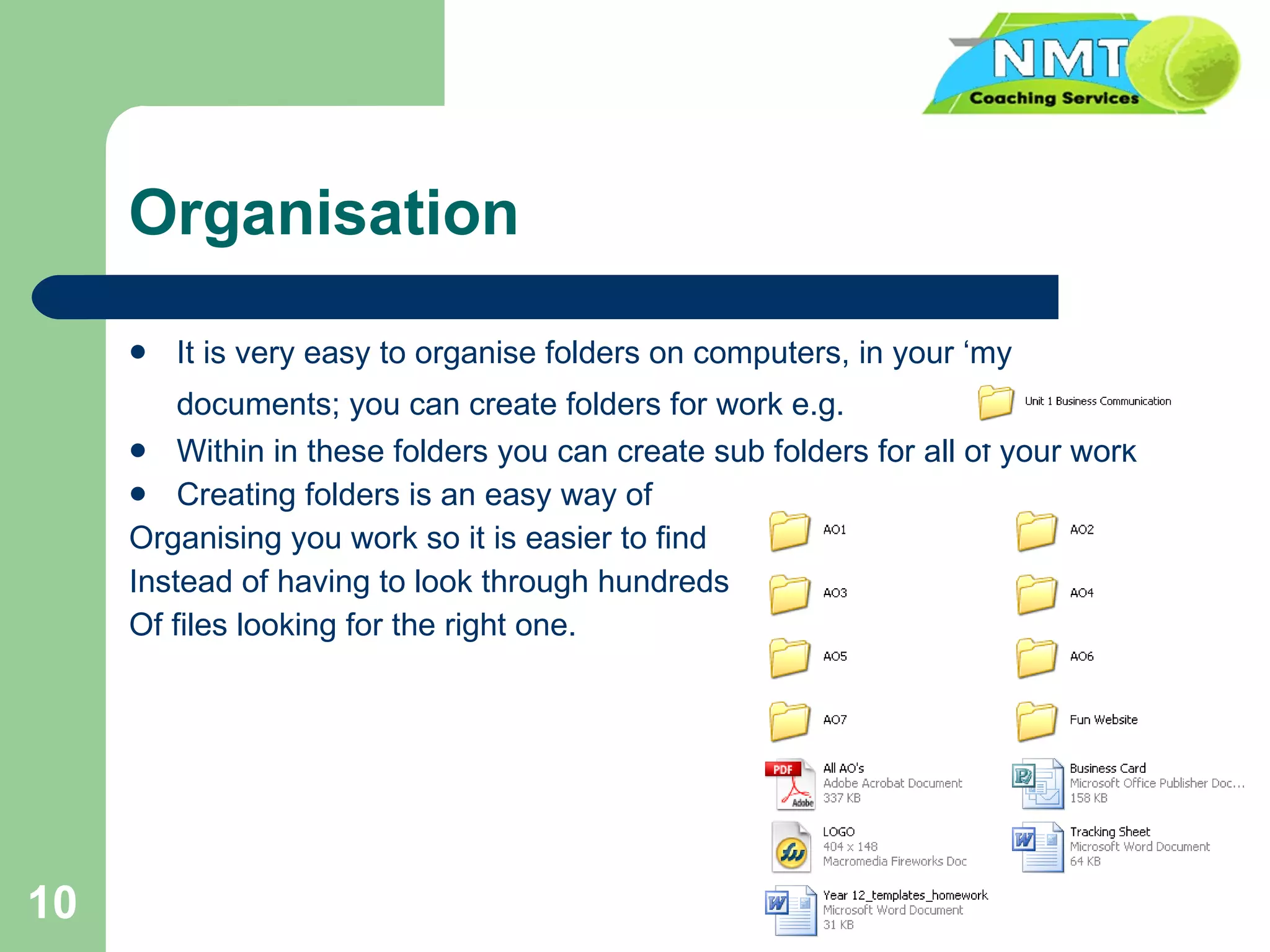
Organisation It is very easy to organise folders on computers, in your ‘my documents; you can create folders for work e.g.   Within in these folders you can create sub folders for all of your work Creating folders is an easy way of Organising you work so it is easier to find  Instead of having to look through hundreds Of files looking for the right one.
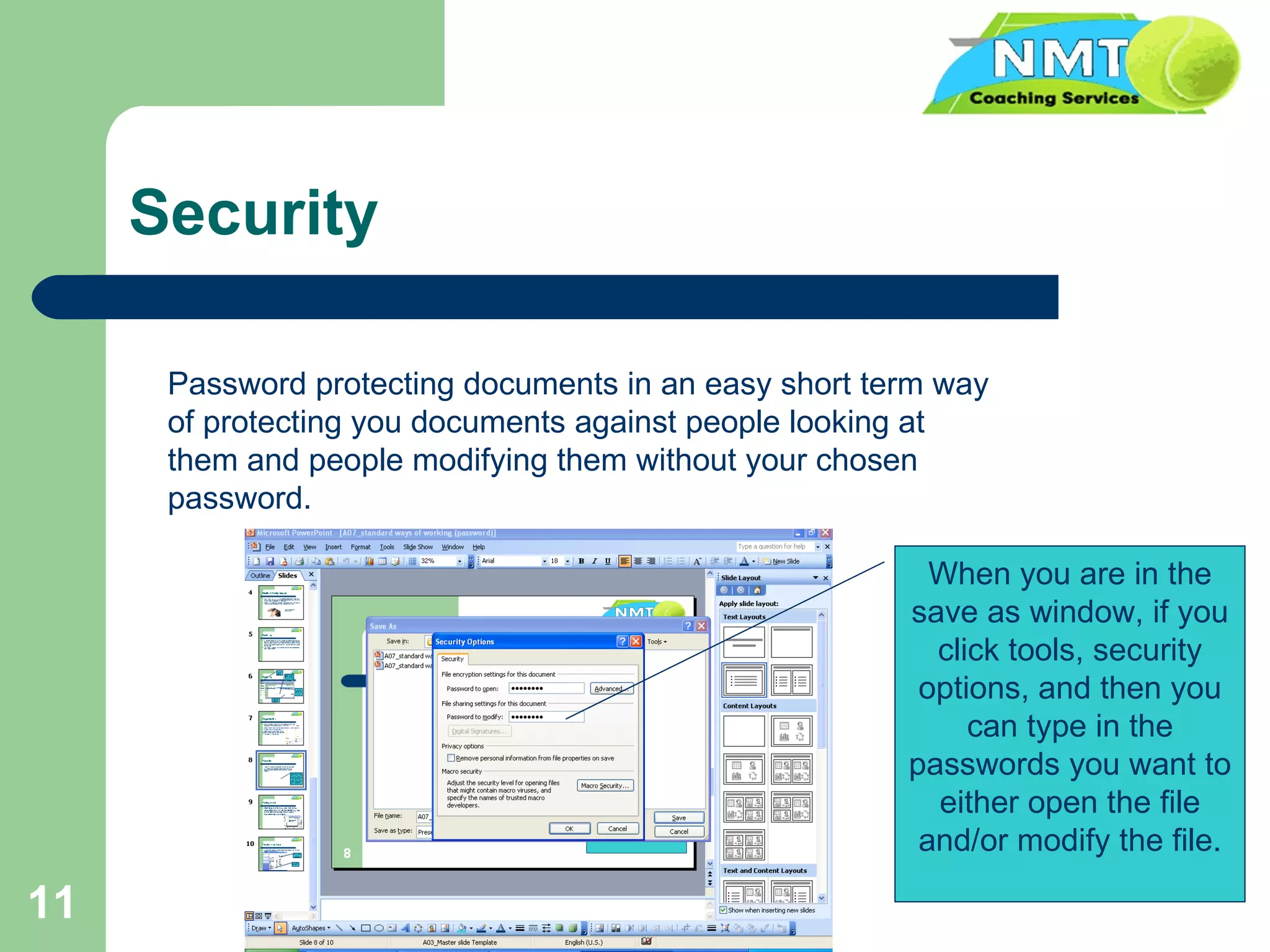
Security Password protecting documents in an easy short term way of protecting you documents against people looking at them and people modifying them without your chosen password. When you are in the save as window, if you click tools, security options, and then you can type in the passwords you want to either open the file and/or modify the file.
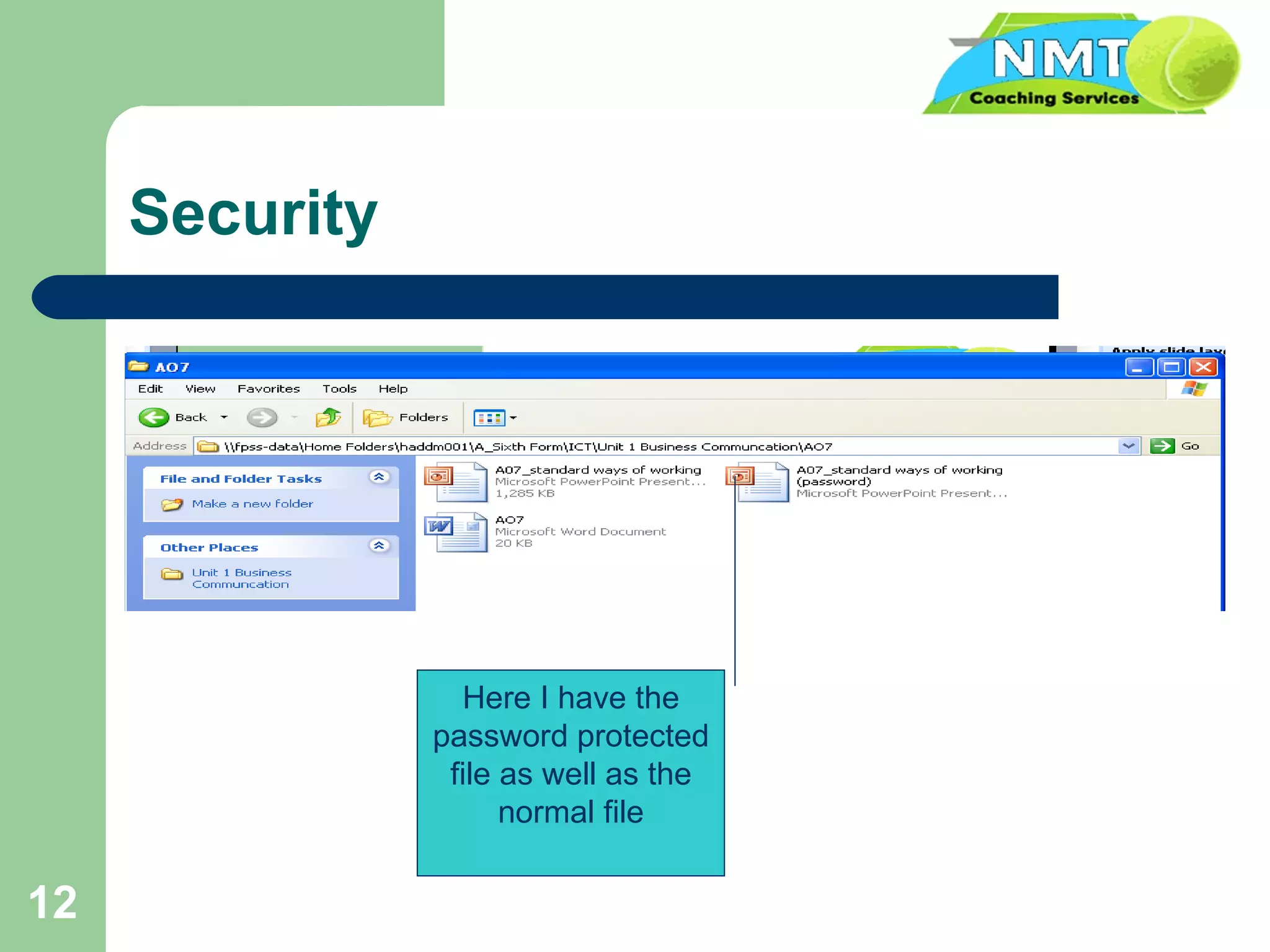
Security Here I have the password protected file as well as the normal file
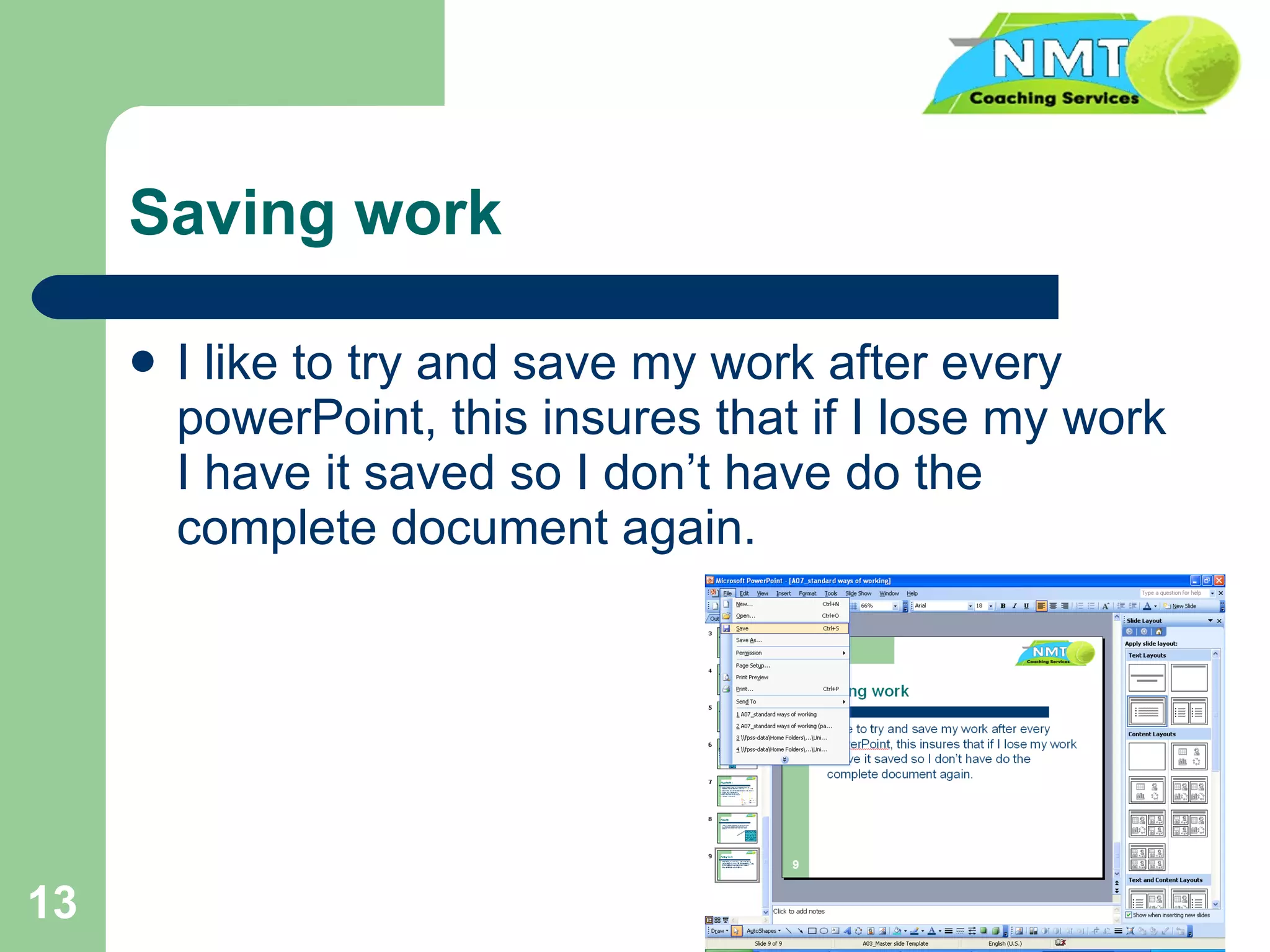
Saving work I like to try and save my work after every powerPoint, this insures that if I lose my work I have it saved so I don’t have do the complete document again.
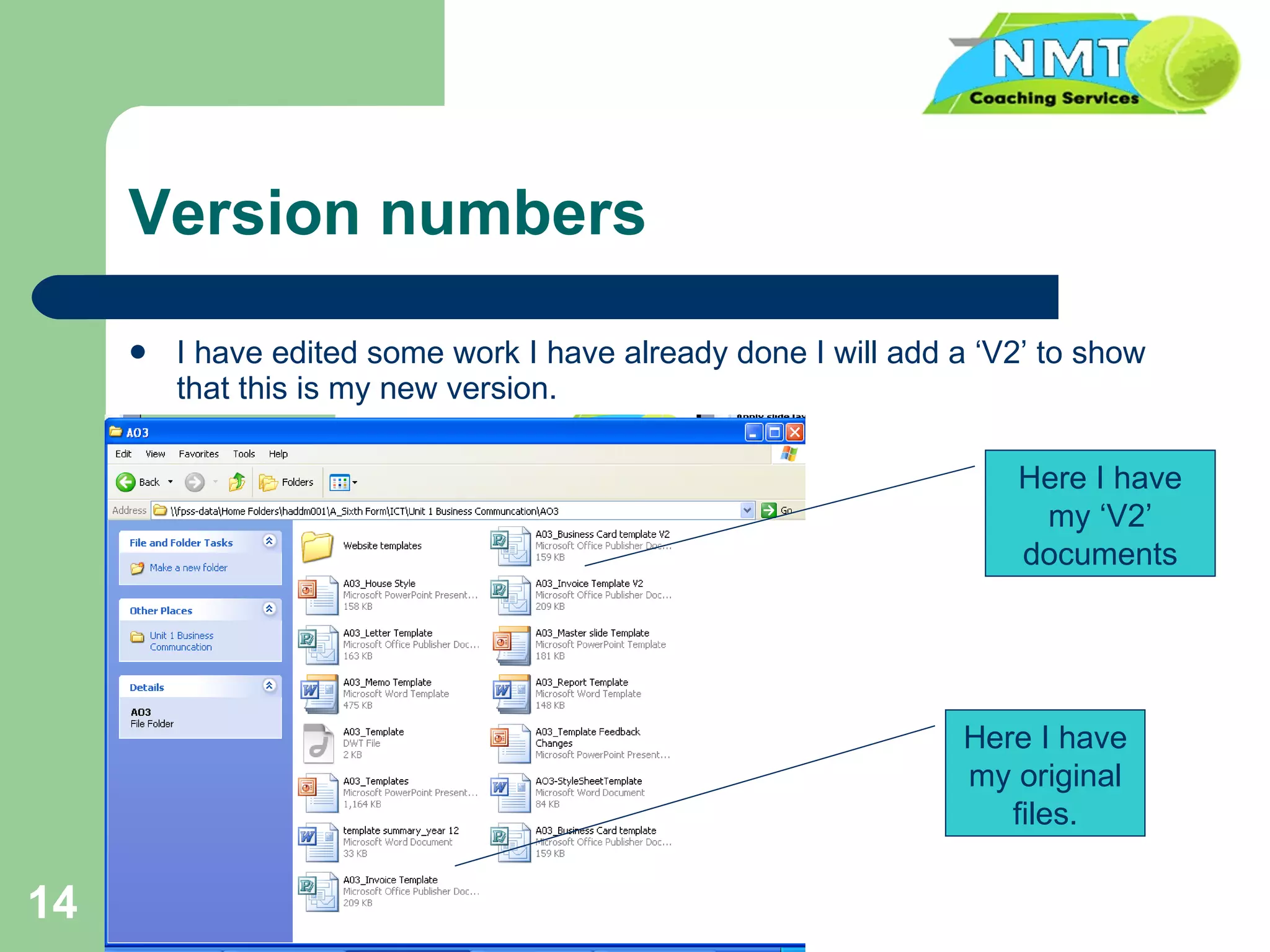
Version numbers I have edited some work I have already done I will add a ‘V2’ to show that this is my new version. Here I have my ‘V2’ documents Here I have my original files.

Computer Safety

  • 1.
    A07_ Use standardways of working to work safely, keep information secure and manage personal information Michael Haddon
  • 2.
    Health and safetyCompanies have to abide by the health and safety guidelines set out by the Health and Safety act of 1974.
  • 3.
    Health and safetyWays companies protect employees from physical problems: PAT (electrical checks) No overhanging sockets Health and safety rules Having health and safety training Identifying trip hazards No food or drink near machines.
  • 4.
    Health and safetyWays to protect Personal health: Positioning of furniture Posture Regular breaks Eye sight checks Health and safety training
  • 5.
    Health & Safetyissues Posture: Many computer users suffer serious back problems. This is probably due to a poor posture or an awkward position while sitting at a computer. Solutions: Adjustable chair, screen and even a foot stall can reduce back problems. Picture from: BBC Bitesize.
  • 6.
    Health & Safetyissues Eye strain: Eyes can become strained after staring at a computer screen for a long time, particularly if working in bad light, in glare or with a flickering screen e.g. watching videos online. Solutions: screen filters, take regular breaks, work in suitable light conditions.
  • 7.
    Health & Safetyissues Repetitive Strain Injury (RSI): is damage to the fingers, wrists and other parts of the body due to repeated movements over a long period of time, occurs when typing for a long time. Solution: To prevent RSI, make sure your posture is correct, use wrist rests and have a five-minute break from typing every hour. Picture courtesy of BBC Bite size.
  • 8.
    Back - upIf you want to back work up on a removerable medium then you first plug it in. Then you find the file you want to back up, and click save as, when box appears type in the file name box the drive code e.g. j: and the files in the medium will then show up, finally you type the file name and click save. This is away of backing files up because you can then move them to other storage devices.
  • 9.
    Back - upFirst click file then save as When the box appears type the drive code in the box at the bottom Then you will be able to veiw files on stick Finally click save when done.
  • 10.
    Organisation It isvery easy to organise folders on computers, in your ‘my documents; you can create folders for work e.g. Within in these folders you can create sub folders for all of your work Creating folders is an easy way of Organising you work so it is easier to find Instead of having to look through hundreds Of files looking for the right one.
  • 11.
    Security Password protectingdocuments in an easy short term way of protecting you documents against people looking at them and people modifying them without your chosen password. When you are in the save as window, if you click tools, security options, and then you can type in the passwords you want to either open the file and/or modify the file.
  • 12.
    Security Here Ihave the password protected file as well as the normal file
  • 13.
    Saving work Ilike to try and save my work after every powerPoint, this insures that if I lose my work I have it saved so I don’t have do the complete document again.
  • 14.
    Version numbers Ihave edited some work I have already done I will add a ‘V2’ to show that this is my new version. Here I have my ‘V2’ documents Here I have my original files.