


Adobe Photoshop
                            Processing and Exporting Images


Ivan Zhekov
Front-end Developer
http://joneff.info
Telerik Web Design Course
html5course.telerik.com
Table of Contents
 Adobe Photoshop

 Photoshop Toolboxes

 Must know in Slicing

 Image Formats

 Exporting Images

 Feathering


                                             2
Adobe PhotoShop
  Like paint, but better
Adobe Photoshop
 What is Adobe Photoshop?

  Image processing tool
    Maybe the most powerful and used
  A 'Must have' for any kind of Front-end
   Developer or Designer
 What can PS do?

  Crop, resize, optimize and correct the colors of
   digital images
    And it's done easy
Adobe Photoshop (2)
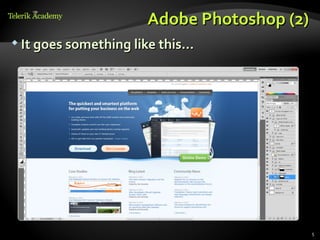
 It goes something like this…


                                            5
Let’s Look Closer
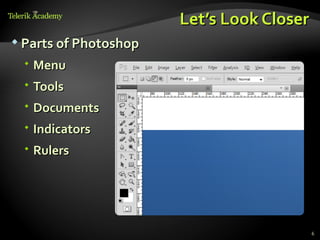
 Parts of Photoshop

  Menu
  Tools
  Documents
  Indicators
  Rulers


                                           6
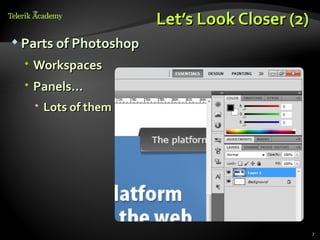
Let’s Look Closer (2)
 Parts of Photoshop

  Workspaces
  Panels…
    Lots of them


                                               7
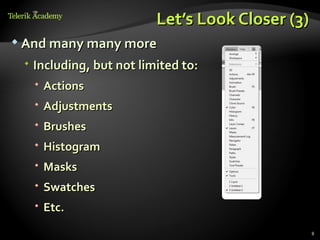
Let’s Look Closer (3)
 And many many more

  Including, but not limited to:
    Actions
    Adjustments
    Brushes
    Histogram
    Masks
    Swatches
    Etc.

                                                 8
Sweating Already?
 80% of the time you need just:

   Tools toolbox
   Layers and groups toolbox
   History toolbox
   Type toolbox
 19% of the time you need practice

 1 out of 100 times you’ll need a designer

 It’s always useful to know shortcuts

   Like CTRL+N to open a new file, etc.
                                               9
Adobe Photoshop
    Live Demo
Photoshop
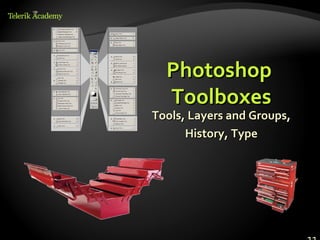
  Toolboxes
Tools, Layers and Groups,
      History, Type
Tools Toolbox
 The important part of PhotoShop

 But you’ll hang out mainly with:

     Move to click around
     Marquee to select
     Crop to reduce size
     Hand to pan around
     Zoom to zoom


                                           12
Selectors
How to select things in PS
Selectors in Photoshop
 Three types of selectors

   Marquee Tool
    Select circles, ellipses and lines
   Lasso Tool
    Select not predefined shapes
    Just draw on the image and select the drawn
   Magic Want
    Select by Color
Selectors
 Live Demo
Layers and Groups
Layers and Groups Toolbox
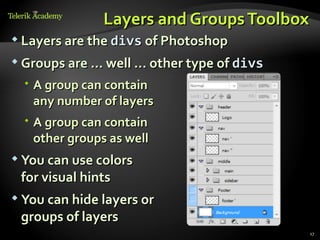
 Layers are the divs of Photoshop

 Groups are … well … other type of divs

   A group can contain
    any number of layers
   A group can contain
    other groups as well
 You can use colors
 for visual hints
 You can hide layers or
 groups of layers
                                           17
Layers and Groups
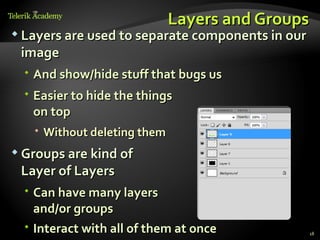
 Layers are used to separate components in our
 image
   And show/hide stuff that bugs us
   Easier to hide the things
    on top
    Without deleting them
 Groups are kind of
 Layer of Layers
   Can have many layers
    and/or groups
   Interact with all of them at once             18
Layers and Groups
     Live Demo
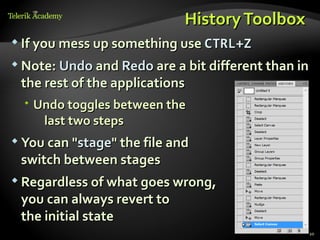
History Toolbox
 If you mess up something use CTRL+Z

 Note: Undo and Redo are a bit different than in
 the rest of the applications
   Undo toggles between the
     last two steps
 You can "stage" the file and
 switch between stages
 Regardless of what goes wrong,
 you can always revert to
 the initial state
                                                20
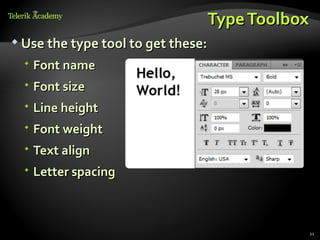
Type Toolbox
 Use the type tool to get these:

   Font name
   Font size
   Line height
   Font weight
   Text align
   Letter spacing


                                           21
Photoshop Toolboxes
      Live Demo
Slicing
Not like a piece of pie
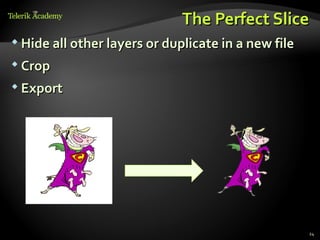
The Perfect Slice
 Hide all other layers or duplicate in a new file

 Crop

 Export


                                                     24
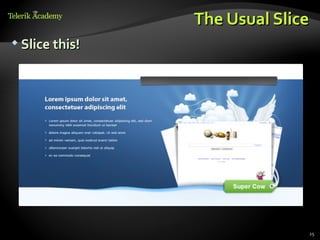
The Usual Slice
 Slice this!


                              25
Slicing 101
 Types of images

  Backgrounds and Tiles
    Backgrounds do not repeat in any direction
    Tiles repeat in at least one direction
  With and without transparency
  Trivial and Tricky


                                                  26
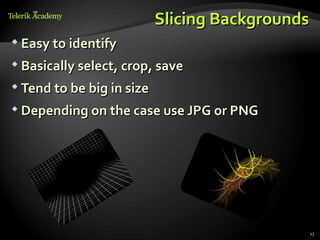
Slicing Backgrounds
 Easy to identify

 Basically select, crop, save

 Tend to be big in size

 Depending on the case use JPG or PNG


                                             27
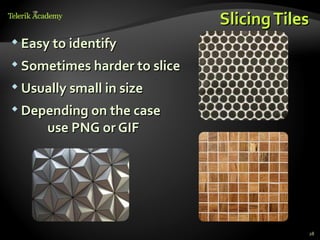
Slicing Tiles
 Easy to identify

 Sometimes harder to slice

 Usually small in size

 Depending on the case
      use PNG or GIF


                                          28
Slicing
Live Demo
Image Formats
When to use PNG, GIF and JPEG
JPEG Format
 JPEG is the type of compression, not the
 format itself
   JPEG compression has high level of
    compression (almost 1:10)
   A little percentage of quality loss
   Useful with big images
 Formats using JPEG

   jpg, jpeg, jpe, jif, jfif, jfi
 Disadvantages

   JPEG does not support transparency
   Loss of image quality
GIF Format
 Graphics Interchange Format (GIF)

  Rarely used
  Supports only 8-bit colors
    An image can have no more than 256 different
     colors
  Supports animations
    PNG and JPEG doesn't
  Uses lossless compression
PNG
 PNG is the descendant of GIF

  PNG supports 24 and 36 bit colors
 PNG is high quality image format

  Supports transparency due to the so called
   'alpha channel'
  The compression is lossless
 Disadvantages of PNG

  When the image is with high resolution the
   image size gets a lot bigger compared to JPEG
   images                                          33
Image Formats
   Live Demo
Exporting Images
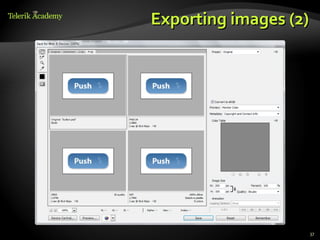
Exporting images
 Save as: not recommended

   Less options
   No preview
 Save for web (and devices): preferred way

   Much more options
   Preview
   More than one preview


                                              36
Exporting images (2)


                       37
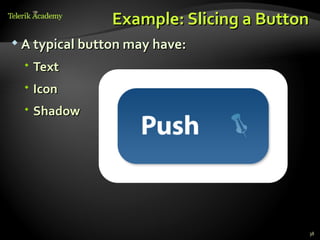
Example: Slicing a Button
 A typical button may have:

  Text
  Icon
  Shadow


                                        38
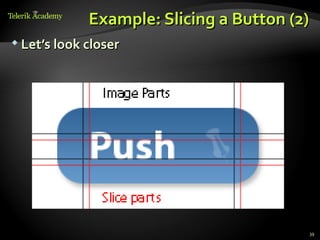
Example: Slicing a Button (2)
 Let’s look closer


                                         39
Example: Slicing a Button (3)
 Image parts

   One own tile or background
   Four corner parts
 Shadow parts

   Two own tiles side and bottom
   Three corner parts
 Note: not all buttons have all parts.
 Some have less, and some have more

                                          40
Exporting
 Live Demo
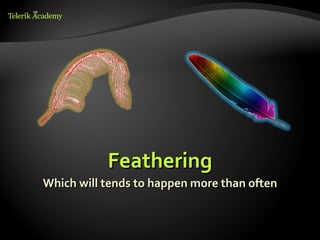
Feathering
Which will tends to happen more than often
Beware of Feathering
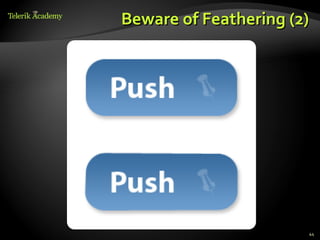
 Not birdy feathers, but shape feathering

 Quote:


    Feathering is a technique used in
    computer graphics software to smooth
    or blur the edges of a feature. The
    term is inherited from a technique of
    fine retouching using fine feathers.


                                             43
Beware of Feathering (2)


                       44
Feathering
  Live Demo
Adobe Photoshop


   http://html5course.telerik.com
Exercises
(       Given the file button.psd create a Web page (HTML
        + CSS + images) that displays two buttons and a
        hyperlink:
         [OK]
         [Cancel]
         View More Information
    The buttons and the hyperlink should look like in the
       Photoshop file.


                                                            47
Exercises (2)
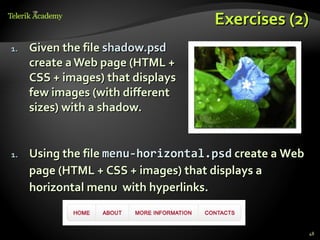
1.   Given the file shadow.psd
     create a Web page (HTML +
     CSS + images) that displays
     few images (with different
     sizes) with a shadow.


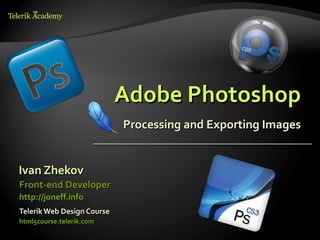
1.   Using the file menu-horizontal.psd create a Web
     page (HTML + CSS + images) that displays a
     horizontal menu with hyperlinks.


                                                       48

Adobe Photoshop

  • 1.
    Adobe Photoshop Processing and Exporting Images Ivan Zhekov Front-end Developer http://joneff.info Telerik Web Design Course html5course.telerik.com
  • 2.
    Table of Contents Adobe Photoshop  Photoshop Toolboxes  Must know in Slicing  Image Formats  Exporting Images  Feathering 2
  • 3.
    Adobe PhotoShop Like paint, but better
  • 4.
    Adobe Photoshop  Whatis Adobe Photoshop?  Image processing tool  Maybe the most powerful and used  A 'Must have' for any kind of Front-end Developer or Designer  What can PS do?  Crop, resize, optimize and correct the colors of digital images  And it's done easy
  • 5.
    Adobe Photoshop (2) It goes something like this… 5
  • 6.
    Let’s Look Closer Parts of Photoshop  Menu  Tools  Documents  Indicators  Rulers 6
  • 7.
    Let’s Look Closer(2)  Parts of Photoshop  Workspaces  Panels…  Lots of them 7
  • 8.
    Let’s Look Closer(3)  And many many more  Including, but not limited to:  Actions  Adjustments  Brushes  Histogram  Masks  Swatches  Etc. 8
  • 9.
    Sweating Already?  80%of the time you need just:  Tools toolbox  Layers and groups toolbox  History toolbox  Type toolbox  19% of the time you need practice  1 out of 100 times you’ll need a designer  It’s always useful to know shortcuts  Like CTRL+N to open a new file, etc. 9
  • 10.
  • 11.
    Photoshop Toolboxes Tools,Layers and Groups, History, Type
  • 12.
    Tools Toolbox  Theimportant part of PhotoShop  But you’ll hang out mainly with:  Move to click around  Marquee to select  Crop to reduce size  Hand to pan around  Zoom to zoom 12
  • 13.
  • 14.
    Selectors in Photoshop Three types of selectors  Marquee Tool  Select circles, ellipses and lines  Lasso Tool  Select not predefined shapes  Just draw on the image and select the drawn  Magic Want  Select by Color
  • 15.
  • 16.
  • 17.
    Layers and GroupsToolbox  Layers are the divs of Photoshop  Groups are … well … other type of divs  A group can contain any number of layers  A group can contain other groups as well  You can use colors for visual hints  You can hide layers or groups of layers 17
  • 18.
    Layers and Groups Layers are used to separate components in our image  And show/hide stuff that bugs us  Easier to hide the things on top  Without deleting them  Groups are kind of Layer of Layers  Can have many layers and/or groups  Interact with all of them at once 18
  • 19.
  • 20.
    History Toolbox  Ifyou mess up something use CTRL+Z  Note: Undo and Redo are a bit different than in the rest of the applications  Undo toggles between the last two steps  You can "stage" the file and switch between stages  Regardless of what goes wrong, you can always revert to the initial state 20
  • 21.
    Type Toolbox  Usethe type tool to get these:  Font name  Font size  Line height  Font weight  Text align  Letter spacing 21
  • 22.
  • 23.
    Slicing Not like apiece of pie
  • 24.
    The Perfect Slice Hide all other layers or duplicate in a new file  Crop  Export 24
  • 25.
    The Usual Slice Slice this! 25
  • 26.
    Slicing 101  Typesof images  Backgrounds and Tiles  Backgrounds do not repeat in any direction  Tiles repeat in at least one direction  With and without transparency  Trivial and Tricky 26
  • 27.
    Slicing Backgrounds  Easyto identify  Basically select, crop, save  Tend to be big in size  Depending on the case use JPG or PNG 27
  • 28.
    Slicing Tiles  Easyto identify  Sometimes harder to slice  Usually small in size  Depending on the case use PNG or GIF 28
  • 29.
  • 30.
    Image Formats When touse PNG, GIF and JPEG
  • 31.
    JPEG Format  JPEGis the type of compression, not the format itself  JPEG compression has high level of compression (almost 1:10)  A little percentage of quality loss  Useful with big images  Formats using JPEG  jpg, jpeg, jpe, jif, jfif, jfi  Disadvantages  JPEG does not support transparency  Loss of image quality
  • 32.
    GIF Format  GraphicsInterchange Format (GIF)  Rarely used  Supports only 8-bit colors  An image can have no more than 256 different colors  Supports animations  PNG and JPEG doesn't  Uses lossless compression
  • 33.
    PNG  PNG isthe descendant of GIF  PNG supports 24 and 36 bit colors  PNG is high quality image format  Supports transparency due to the so called 'alpha channel'  The compression is lossless  Disadvantages of PNG  When the image is with high resolution the image size gets a lot bigger compared to JPEG images 33
  • 34.
    Image Formats Live Demo
  • 35.
  • 36.
    Exporting images  Saveas: not recommended  Less options  No preview  Save for web (and devices): preferred way  Much more options  Preview  More than one preview 36
  • 37.
  • 38.
    Example: Slicing aButton  A typical button may have:  Text  Icon  Shadow 38
  • 39.
    Example: Slicing aButton (2)  Let’s look closer 39
  • 40.
    Example: Slicing aButton (3)  Image parts  One own tile or background  Four corner parts  Shadow parts  Two own tiles side and bottom  Three corner parts  Note: not all buttons have all parts. Some have less, and some have more 40
  • 41.
  • 42.
    Feathering Which will tendsto happen more than often
  • 43.
    Beware of Feathering Not birdy feathers, but shape feathering  Quote: Feathering is a technique used in computer graphics software to smooth or blur the edges of a feature. The term is inherited from a technique of fine retouching using fine feathers. 43
  • 44.
  • 45.
  • 46.
    Adobe Photoshop http://html5course.telerik.com
  • 47.
    Exercises ( Given the file button.psd create a Web page (HTML + CSS + images) that displays two buttons and a hyperlink:  [OK]  [Cancel]  View More Information The buttons and the hyperlink should look like in the Photoshop file. 47
  • 48.
    Exercises (2) 1. Given the file shadow.psd create a Web page (HTML + CSS + images) that displays few images (with different sizes) with a shadow. 1. Using the file menu-horizontal.psd create a Web page (HTML + CSS + images) that displays a horizontal menu with hyperlinks. 48