













Binding Lists in WPF Doncho Minkov Telerik School Academy http://schoolacademy.telerik.com   Technical Trainer http://www.minkov.it
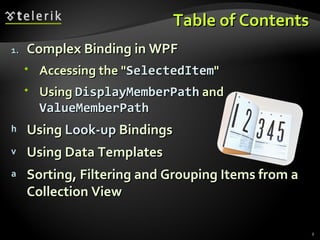
Table of Contents Complex Binding in WPF Accessing the " SelectedItem " Using  DisplayMemberPath  and  ValueMemberPath Using  Look-up  Bindings Using Data Templates Sorting, Filtering and Grouping Items from a Collection View
Table of Contents (2) Data Source Providers Object Relational XML Master-detail Binding Hierarchical Binding
Complex Data Binding Binding to a Collection of Items
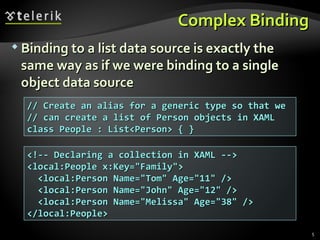
Complex  B inding Binding to a list data source is exactly the same way as if we were binding to a single object data source // Create an alias for a generic type so that we // can create a list of Person objects in XAML class People : List<Person> { } <!-- Declaring a collection in XAML -->  <local:People x:Key=&quot;Family&quot;> <local:Person Name=&quot;Tom&quot; Age=&quot;11&quot; /> <local:Person Name=&quot;John&quot; Age=&quot;12&quot; /> <local:Person Name=&quot;Melissa&quot; Age=&quot;38&quot; /> </local:People>
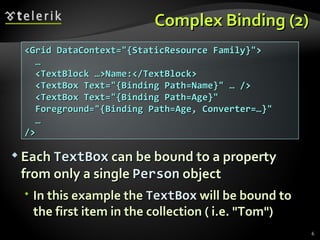
Complex  B inding  (2) Each   TextBox   can be bound to a property from only a single  Person   object In this example the  TextBox   will be bound to the first item in the collection ( i.e. &quot;Tom&quot;) <Grid DataContext=&quot;{StaticResource Family}&quot;> … <TextBlock …>Name:</TextBlock> <TextBox Text=&quot;{Binding Path=Name}&quot; … /> <TextBox Text=&quot;{Binding Path=Age}&quot; Foreground=&quot;{Binding Path=Age, Converter=…}&quot; … />
Complex Data Binding Live Demo
Accessing the &quot;Current Item&quot;
Accessing the &quot;Current Item&quot; The text box properties can be bound to only a single object at a time The binding engine is giving them the current item in the list of objects
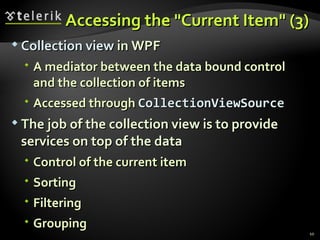
Accessing the &quot;Current Item&quot; (3) Collection view  in WPF A mediator between the data bound control and the collection of items Accessed through  CollectionViewSource The job of the collection view is to provide services on top of the data Control of the current item Sorting Filtering Grouping
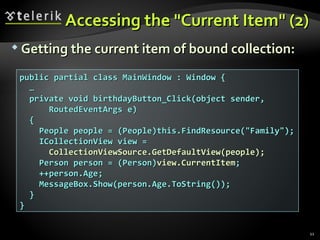
Accessing the &quot;Current Item&quot; (2) Getting the current item of bound collection: public partial class MainWindow : Window { … private void birthdayButton_Click(object sender, RoutedEventArgs e) { People people = (People)this.FindResource(&quot;Family&quot;); ICollectionView view = CollectionViewSource.GetDefaultView(people); Person person = (Person) view.CurrentItem ; ++person.Age; MessageBox.Show(person.Age.ToString()); } }
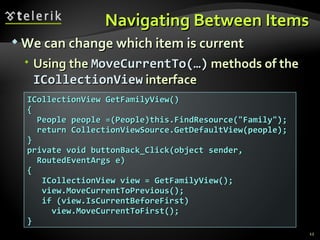
Navigating Between Items We can change which item is current  Using the  MoveCurrentTo(…)  methods of the  ICollectionView  interface ICollectionView GetFamilyView() { People people =(People)this.FindResource(&quot;Family&quot;); return CollectionViewSource.GetDefaultView(people); } private void buttonBack_Click(object sender, RoutedEventArgs e) { ICollectionView view = GetFamilyView(); view.MoveCurrentToPrevious(); if (view.IsCurrentBeforeFirst)  view.MoveCurrentToFirst(); }
Navigating Between Items Live Demo
Binding List Controls DisplayMemberPath  and  SelectedValuePath
Binding List Controls List controls like  ListBox  and  ComboBox  display multiple items at a time Can be bound to a collection in the  DataContext Can keep track of the current item When binding the  DisplayMemberPath  specifies the property to be displayed The  SelectedValuePath  specifies the property to be used as selected value (some ID)
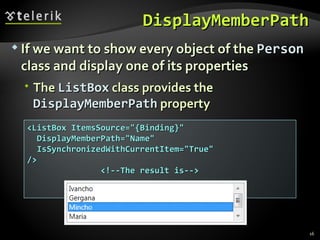
DisplayMemberPath If we want to show every object of the  Person  class and display one of its properties T he  ListBox  class   provides the  DisplayMemberPath  property <ListBox ItemsSource=&quot;{Binding}&quot; DisplayMemberPath=&quot;Name&quot; IsSynchronizedWithCurrentItem=&quot;True&quot; /> <!--The result is-->
SelectedValuePath The  ItemsControl  class provides a path to describe the selected value of a piece of data Data which is often used when the selection changes or an item is double-clicked <ListBox Name=&quot;ListBoxPeople&quot; ItemsSource=&quot;{Binding}&quot; DisplayMemberPath=&quot;Name&quot; SelectedValuePath=&quot;Age&quot; /> private void ListBoxPeople_SelectionChanged( object sender, SelectionChangedEventArgs e) { int index = ListBoxPerson.SelectedIndex; if (index < 0) { return; } Person item = (Person) ListBoxPerson.SelectedItem; int value = (int) ListBoxPerson.SelectedValue; … }
DisplayMemberPath  and  SelectedValuePath Live Demo
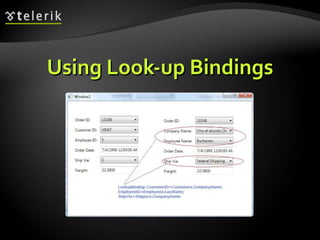
Using Look-up Bindings
Using Look-up Bindings We want to provide a UI that maps numbers to their textual representation in English We must construct a  NamedAge  type for use in  populat ing a look-up table public class NamedAge { public string NameForAge { get; set; } public int AgeId { get; set; } } class NamedAges : List<NamedAge> { }
Using Look-up Bindings (2) Populate the table for looking up The final step is the bit of binding that tells the  ComboBox  control where to get the currently selected value <local:NamedAges x:Key=&quot;NamedAgeLookup&quot;> <local:NamedAge NameForAge=&quot;zero&quot; AgeId=&quot;0&quot; /> <local:NamedAge NameForAge=&quot;one&quot; AgeId=&quot;1&quot; /> </local:NamedAges> <ComboBox Name=&quot;ComboBoxNumbers&quot; ItemsSource= &quot;{Binding Source={StaticResource NamedAgeLookup}}&quot; DisplayMemberPath=&quot;NameForAge&quot; SelectedValuePath=&quot;AgeId&quot; SelectedValue=&quot;{Binding Path=Age}&quot; />
Using Look-up Bindings Live Demo
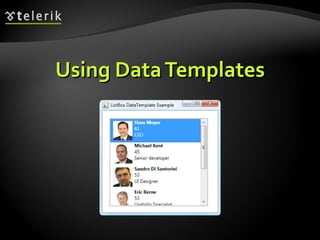
Using Data Templates
Using Data Templates Data templates  allow displaying more than one property from a custom class A data template is a tree of elements to expand in a particular context For example, for each  Person  object, you might like to be able to concatenate the  name  and  age  together This is a logical template that looks like this Name   (age:Age)
Using Data Templates (2) To define this template for items in the  ListBox , we create a  DataTemplate  element <ListBox ItemsSource=&quot;{Binding}&quot;> <ListBox.ItemTemplate> <DataTemplate> <TextBlock> <TextBlock Text=&quot;{Binding Path=Name}&quot; /> (age:  <TextBlock Text=&quot;{Binding Path=Age}&quot; Foreground=&quot;{Binding Path=Age, Converter={StaticResource ageConverter}}&quot; />) </TextBlock> </DataTemplate> </ListBox.ItemTemplate> </ListBox>
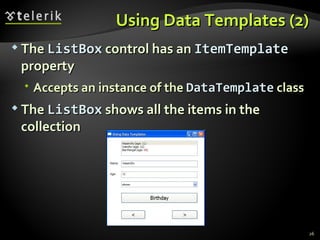
Using Data Templates (2) The  ListBox  control has an  ItemTemplate  property Accepts an instance of the  DataTemplate  class The  ListBox  shows all the items in the collection
Sorting Items
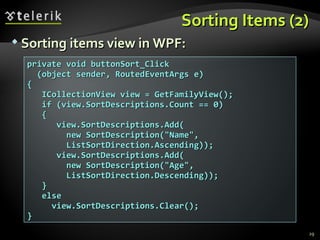
Sorting Items The view allows us to do a number of things to the data before it’s displayed Including changing the order in which  the data is shown The simplest way to sort is by manipulating the  SortDescriptions  property of the view Also   we   can   provide   the view with a custom sorting by implementing  IComparer
Sorting Items (2) Sorting items view in WPF: private void buttonSort_Click (object sender, RoutedEventArgs e)  { ICollectionView view = GetFamilyView(); if (view.SortDescriptions.Count == 0) { view.SortDescriptions.Add( new SortDescription(&quot;Name&quot;, ListSortDirection.Ascending)); view.SortDescriptions.Add( new SortDescription(&quot;Age&quot;, ListSortDirection.Descending)); } else view.SortDescriptions.Clear(); }
Sorting Items Live Demo
Filtering
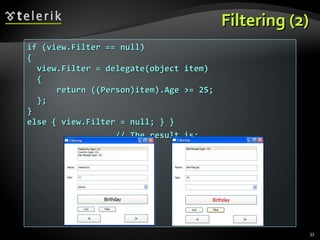
Filtering If we want to filter the objects from the view by some criteria We need to feed the view an implementation of the  Predicate<object>  delegate Takes a single object parameter and returns a  Boolean private void buttonFilter_Click(object sender, RoutedEventArgs e) { ICollectionView view = GetFamilyView();  // the example continues
Filtering (2) if (view.Filter == null)  { view.Filter = delegate(object item) { return ((Person)item).Age >= 25; }; } else { view.Filter = null; } }  // The result is:
Grouping
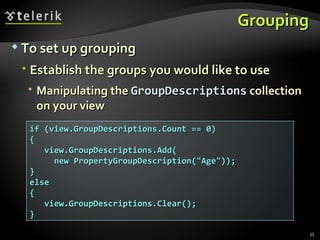
Grouping To set up grouping Establish the groups you would  like to use Manipulating the  GroupDescriptions  collection on your view if (view.GroupDescriptions.Count == 0)  { view.GroupDescriptions.Add( new PropertyGroupDescription(&quot;Age&quot;)); } else  { view.GroupDescriptions.Clear(); }
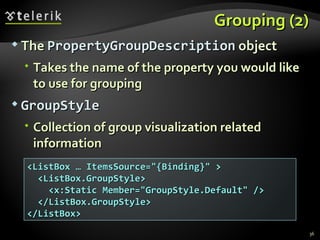
Grouping (2) The  PropertyGroupDescription  object Takes the name of the property you would like to use for grouping GroupStyle Collection of group visualization related information <ListBox … ItemsSource=&quot;{Binding}&quot; > <ListBox.GroupStyle> <x:Static Member=&quot;GroupStyle.Default&quot; /> </ListBox.GroupStyle> </ListBox>
Filtering and Grouping Live Demo
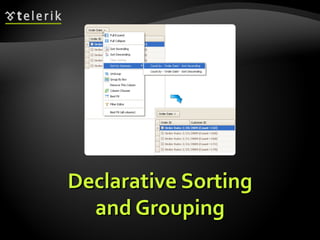
Declarative Sorting and Grouping
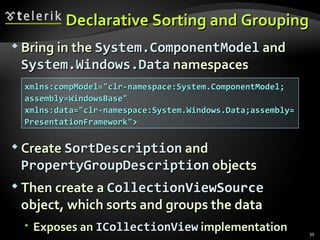
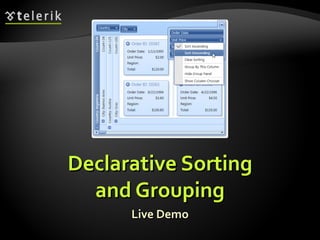
Declarative Sorting and Grouping Bring in the  System.ComponentModel  and  System.Windows.Data  namespaces Create  SortDescription  and  PropertyGroupDescription  objects Then create a  CollectionViewSource  object, which sorts and groups the data E xposes an  ICollectionView  implementation xmlns:compModel=&quot;clr-namespace:System.ComponentModel; assembly=WindowsBase&quot;  xmlns:data=&quot;clr-namespace:System.Windows.Data;assembly= PresentationFramework&quot;>
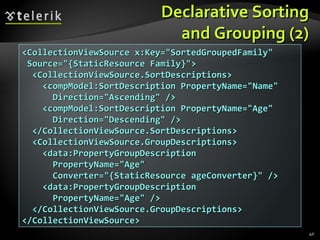
Declarative Sorting and Grouping (2) <CollectionViewSource x:Key=&quot;SortedGroupedFamily&quot; Source=&quot;{StaticResource Family}&quot;> <CollectionViewSource.SortDescriptions> <compModel:SortDescription PropertyName=&quot;Name&quot; Direction=&quot;Ascending&quot; /> <compModel:SortDescription PropertyName=&quot;Age&quot; Direction=&quot;Descending&quot; /> </CollectionViewSource.SortDescriptions> <CollectionViewSource.GroupDescriptions> <data:PropertyGroupDescription PropertyName=&quot;Age&quot; Converter=&quot;{StaticResource ageConverter}&quot; /> <data:PropertyGroupDescription PropertyName=&quot;Age&quot; /> </CollectionViewSource.GroupDescriptions> </CollectionViewSource>
Declarative Sorting and Grouping Live Demo
Data Source Providers
Object Data Provider Data Providers are wrappers around existing data models (relational data, XML, …) Used to simplify data binding with DB or XML WPF works with two data source providers ObjectDataProvider XmlDataProvider Both derive from  DataSourceProvider Data source providers create a layer of indirection for any kind of operation
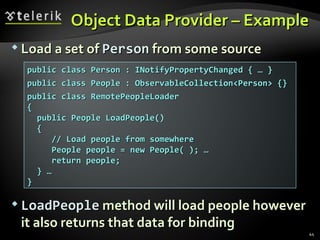
Object Data Provider  – Example Load a set of  Person  from some source LoadPeople  method will load people however it also returns that data for binding public class Person : INotifyPropertyChanged { … } public class People : ObservableCollection<Person> {} public class RemotePeopleLoader  { public People LoadPeople() { // Load people from somewhere People people = new People( ); … return people; } … }
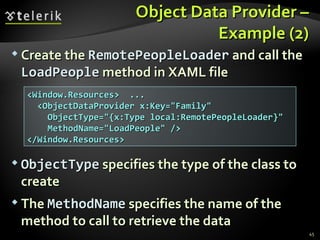
Object Data Provider  – Example (2) Create the  RemotePeopleLoader  and call the  LoadPeople  method in XAML file ObjectType  specifies the type of the class to create The  MethodName  specifies the name of the method to call to retrieve the data <Window.Resources>  ... <ObjectDataProvider x:Key=&quot;Family&quot; ObjectType=&quot;{x:Type local:RemotePeopleLoader}&quot; MethodName=&quot;LoadPeople&quot; /> </Window.Resources>
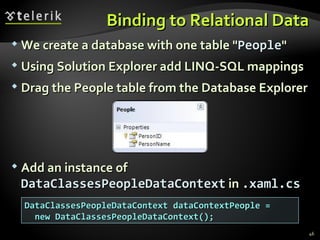
Binding to Relational Data We create a database with one table &quot; People &quot; Using Solution Explorer add LINQ-SQL mappings Drag the People table from the Database Explorer Add an instance of  DataClassesPeopleDataContext  in  .xaml.cs DataClassesPeopleDataContext dataContextPeople =  new DataClassesPeopleDataContext();
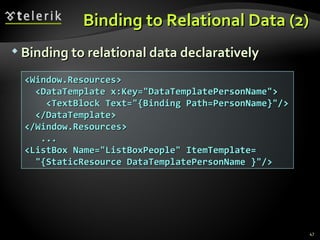
Binding to Relational Data (2) Binding to relational data declaratively <Window.Resources> <DataTemplate x:Key=&quot;DataTemplatePersonName&quot;> <TextBlock Text=&quot;{Binding Path=PersonName}&quot;/> </DataTemplate> </Window.Resources> ... <ListBox Name=&quot;ListBoxPeople&quot; ItemTemplate= &quot;{StaticResource DataTemplatePersonName }&quot;/>
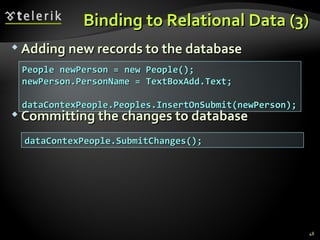
Binding to Relational Data (3) Adding  n ew  r ecords to the  d atabase Committing the  c hanges to  d atabase People newPerson = new People(); newPerson.PersonName = TextBoxAdd.Text;  dataContexPeople.Peoples.InsertOnSubmit(newPerson); dataContexPeople.SubmitChanges();
Binding to Relational Data Live Demo
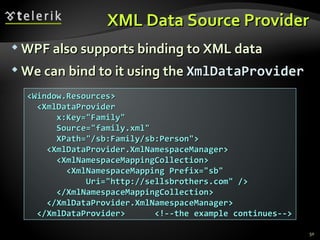
XML Data Source Provider WPF also supports binding to XML data We can bind to it using the  XmlDataProvider <Window.Resources> <XmlDataProvider x:Key=&quot;Family&quot; Source=&quot;family.xml&quot; XPath=&quot;/sb:Family/sb:Person&quot;> <XmlDataProvider.XmlNamespaceManager> <XmlNamespaceMappingCollection> <XmlNamespaceMapping Prefix=&quot;sb&quot;  Uri=&quot;http://sellsbrothers.com&quot; /> </XmlNamespaceMappingCollection> </XmlDataProvider.XmlNamespaceManager> </XmlDataProvider>  <!--the example continues-->
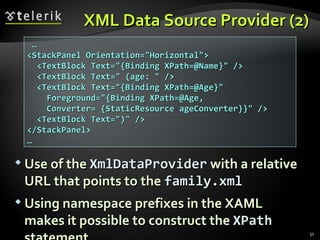
XML Data Source Provider (2) Use of the  XmlDataProvider  with a relative URL that points to the  family.xml   Using namespace prefixes in the XAML makes it possible to construct the  XPath  statement  … <StackPanel Orientation=&quot;Horizontal&quot;> <TextBlock Text=&quot;{Binding XPath=@Name}&quot; /> <TextBlock Text=&quot; (age: &quot; /> <TextBlock Text=&quot;{Binding XPath=@Age}&quot; Foreground=&quot;{Binding XPath=@Age, Converter= {StaticResource ageConverter}}&quot; /> <TextBlock Text=&quot;)&quot; /> </StackPanel> …
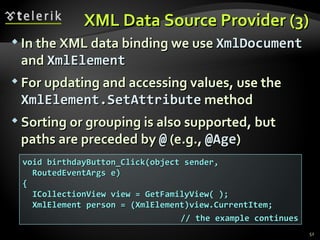
XML Data Source Provider (3) In the XML data binding we use  XmlDocument  and  XmlElement For updating and accessing values, use the  XmlElement . SetAttribute  method Sorting or grouping is also supported, but paths are preceded by  @  (e.g.,  @Age ) void birthdayButton_Click(object sender, RoutedEventArgs e) { ICollectionView view = GetFamilyView( ); XmlElement person = (XmlElement)view.CurrentItem; // the example continues
XML Data Source Provider (4) person.SetAttribute(&quot;Age&quot;, (int.Parse( person.Attributes[&quot;Age&quot;].Value) + 1).ToString( ));  MessageBox.Show( string.Format(&quot;Happy Birthday, {0}, age {1}!&quot;, person.Attributes[&quot;Name&quot;].Value, person.Attributes[&quot;Age&quot;].Value), &quot;Birthday&quot;); } … void groupButton_Click(object sender, RoutedEventArgs e) { ICollectionView view = GetFamilyView( ); if( view.GroupDescriptions.Count == 0 )  { view.GroupDescriptions.Add(new PropertyGroupDescription(&quot;@Age&quot;)); } else { view.GroupDescriptions.Clear(); } }
XML Data Source Provider Live Demo
Master-Detail Binding
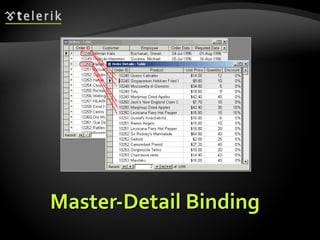
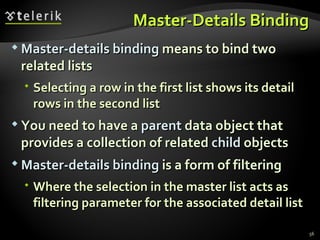
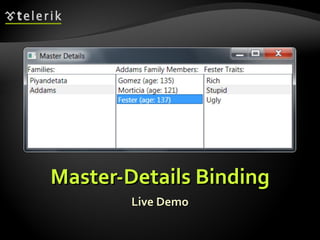
Master-Details Binding Master-details binding  means to bind two related lists Selecting a row in the first list shows its detail rows in the second list You need to have a  parent  data object that provides a collection of related  child  objects Master-details binding  is a form of filtering Where the selection in the master list acts as filtering parameter for the associated detail list
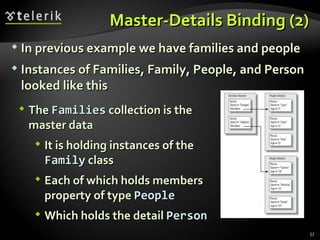
Master-Details Binding (2) In previous example we have families and people Instances of Families, Family, People, and Person looked like this The  Families  collection is the master data It is holding instances of the  Family  class Each of which holds members property of type  People Which holds the detail  Person
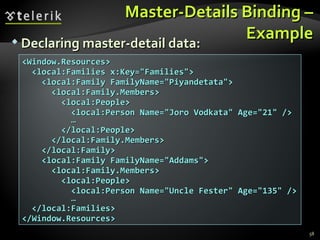
Master-Details Binding – Example Declaring master-detail data: <Window.Resources> <local:Families x:Key=&quot;Families&quot;> <local:Family FamilyName=&quot;Piyandetata&quot;> <local:Family.Members> <local:People> <local:Person Name=&quot;Joro Vodkata&quot; Age=&quot;21&quot; /> … </local:People> </local:Family.Members> </local:Family> <local:Family FamilyName=&quot;Addams&quot;> <local:Family.Members> <local:People> <local:Person Name=&quot;Uncle Fester&quot; Age=&quot;135&quot; /> … </local:Families> </Window.Resources>
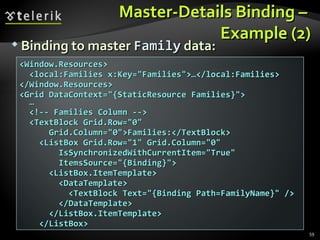
Master-Details Binding –  Example (2) Binding to master  Family  data: <Window.Resources> <local:Families x:Key=&quot;Families&quot;>…</local:Families> </Window.Resources> <Grid DataContext=&quot;{StaticResource Families}&quot;> … <!-- Families Column --> <TextBlock Grid.Row=&quot;0&quot; Grid.Column=&quot;0&quot;>Families:</TextBlock> <ListBox Grid.Row=&quot;1&quot; Grid.Column=&quot;0&quot; IsSynchronizedWithCurrentItem=&quot;True&quot; ItemsSource=&quot;{Binding}&quot;> <ListBox.ItemTemplate> <DataTemplate> <TextBlock Text=&quot;{Binding Path=FamilyName}&quot; /> </DataTemplate> </ListBox.ItemTemplate> </ListBox>
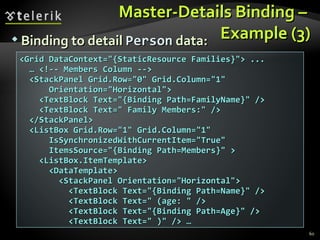
Master-Details Binding –  Example (3) Binding to detail  Person  data: <Grid DataContext=&quot;{StaticResource Families}&quot;> ... …  <!-- Members Column --> <StackPanel Grid.Row=&quot;0&quot; Grid.Column=&quot;1&quot;  Orientation=&quot;Horizontal&quot;> <TextBlock Text=&quot;{Binding Path=FamilyName}&quot; /> <TextBlock Text=&quot; Family Members:&quot; /> </StackPanel> <ListBox Grid.Row=&quot;1&quot; Grid.Column=&quot;1&quot; IsSynchronizedWithCurrentItem=&quot;True&quot; ItemsSource=&quot;{Binding Path=Members}&quot; > <ListBox.ItemTemplate> <DataTemplate> <StackPanel Orientation=&quot;Horizontal&quot;> <TextBlock Text=&quot;{Binding Path=Name}&quot; /> <TextBlock Text=&quot; (age: &quot; /> <TextBlock Text=&quot;{Binding Path=Age}&quot; /> <TextBlock Text=&quot; )&quot; /> …
Master-Details Binding Live Demo
Hierarchical Binding
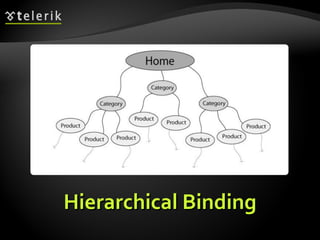
Hierarchical Binding Hierarchical binding  generally involves some number of levels, unknown until runtime E.g. a tree of items, each with few child items Control that can expand itself as appropriate, like a menu or a tree needs hierarchical binding WPF has built-in support for hierarchical binding using a special kind of data template Knows both how to display the current level of data and where to go for the next level
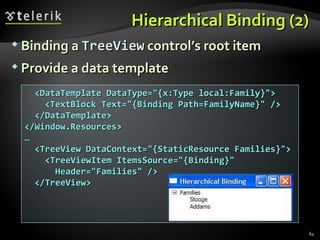
Hierarchical Binding (2) Binding a  TreeView  control’s root item P rovide a data template <DataTemplate DataType=&quot;{x:Type local:Family}&quot;> <TextBlock Text=&quot;{Binding Path=FamilyName}&quot; /> </DataTemplate> </Window.Resources> … <TreeView DataContext=&quot;{StaticResource Families}&quot;> <TreeViewItem ItemsSource=&quot;{Binding}&quot;  Header=&quot;Families&quot; /> </TreeView>
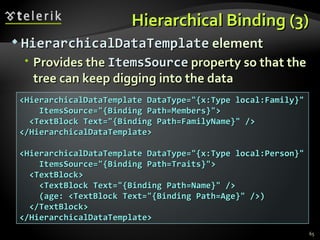
Hierarchical Binding (3) HierarchicalDataTemplate  element Provides the  ItemsSource  property so that the tree can keep digging into the data <HierarchicalDataTemplate DataType=&quot;{x:Type local:Family}&quot; ItemsSource=&quot;{Binding Path=Members}&quot;> <TextBlock Text=&quot;{Binding Path=FamilyName}&quot; /> </HierarchicalDataTemplate> <HierarchicalDataTemplate DataType=&quot;{x:Type local:Person}&quot; ItemsSource=&quot;{Binding Path=Traits}&quot;> <TextBlock> <TextBlock Text=&quot;{Binding Path=Name}&quot; /> (age: <TextBlock Text=&quot;{Binding Path=Age}&quot; />) </TextBlock> </HierarchicalDataTemplate>
Binding Lists Questions? http://academy.telerik.com
Exercises Write a program to manage a simple system with information about towns and countries. Each country is described by name, language, national flag and list of towns. Each town is described by name, population and country. You should create navigation over the towns and countries. Enable editing the information about them. Don't use  list   controls  but only  text boxes   and simple binding Rewrite the previous exercise using  list controls .
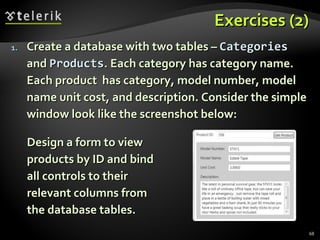
Exercises (2) Create a database with two tables –  Categories  and  Products . Each category has category name. Each product  has category, model number, model name unit cost, and description. Consider the simple window look like the screenshot below: Design a form to view products by ID and bind all controls to their relevant columns from the database tables.
Exercises (3) Using complex data binding create a system, resembling the system from the first exercise (towns and countries). Add to the system a set of continents – each country is in one of them. Display data and enable navigation. Load and save the data in a XML file. Add s orting ,  filtering and grouping  functions. Use master-details bindings. Rewrite the previous exercise to use database and LINQ-to-SQL. Ensure all entities can be added / edited / deleted (continents, countries and towns).

Complex Data Binding

  • 1.
    Binding Lists inWPF Doncho Minkov Telerik School Academy http://schoolacademy.telerik.com Technical Trainer http://www.minkov.it
  • 2.
    Table of ContentsComplex Binding in WPF Accessing the &quot; SelectedItem &quot; Using DisplayMemberPath and ValueMemberPath Using Look-up Bindings Using Data Templates Sorting, Filtering and Grouping Items from a Collection View
  • 3.
    Table of Contents(2) Data Source Providers Object Relational XML Master-detail Binding Hierarchical Binding
  • 4.
    Complex Data BindingBinding to a Collection of Items
  • 5.
    Complex Binding Binding to a list data source is exactly the same way as if we were binding to a single object data source // Create an alias for a generic type so that we // can create a list of Person objects in XAML class People : List<Person> { } <!-- Declaring a collection in XAML --> <local:People x:Key=&quot;Family&quot;> <local:Person Name=&quot;Tom&quot; Age=&quot;11&quot; /> <local:Person Name=&quot;John&quot; Age=&quot;12&quot; /> <local:Person Name=&quot;Melissa&quot; Age=&quot;38&quot; /> </local:People>
  • 6.
    Complex Binding (2) Each TextBox can be bound to a property from only a single Person object In this example the TextBox will be bound to the first item in the collection ( i.e. &quot;Tom&quot;) <Grid DataContext=&quot;{StaticResource Family}&quot;> … <TextBlock …>Name:</TextBlock> <TextBox Text=&quot;{Binding Path=Name}&quot; … /> <TextBox Text=&quot;{Binding Path=Age}&quot; Foreground=&quot;{Binding Path=Age, Converter=…}&quot; … />
  • 7.
  • 8.
  • 9.
    Accessing the &quot;CurrentItem&quot; The text box properties can be bound to only a single object at a time The binding engine is giving them the current item in the list of objects
  • 10.
    Accessing the &quot;CurrentItem&quot; (3) Collection view in WPF A mediator between the data bound control and the collection of items Accessed through CollectionViewSource The job of the collection view is to provide services on top of the data Control of the current item Sorting Filtering Grouping
  • 11.
    Accessing the &quot;CurrentItem&quot; (2) Getting the current item of bound collection: public partial class MainWindow : Window { … private void birthdayButton_Click(object sender, RoutedEventArgs e) { People people = (People)this.FindResource(&quot;Family&quot;); ICollectionView view = CollectionViewSource.GetDefaultView(people); Person person = (Person) view.CurrentItem ; ++person.Age; MessageBox.Show(person.Age.ToString()); } }
  • 12.
    Navigating Between ItemsWe can change which item is current Using the MoveCurrentTo(…) methods of the ICollectionView interface ICollectionView GetFamilyView() { People people =(People)this.FindResource(&quot;Family&quot;); return CollectionViewSource.GetDefaultView(people); } private void buttonBack_Click(object sender, RoutedEventArgs e) { ICollectionView view = GetFamilyView(); view.MoveCurrentToPrevious(); if (view.IsCurrentBeforeFirst) view.MoveCurrentToFirst(); }
  • 13.
  • 14.
    Binding List ControlsDisplayMemberPath and SelectedValuePath
  • 15.
    Binding List ControlsList controls like ListBox and ComboBox display multiple items at a time Can be bound to a collection in the DataContext Can keep track of the current item When binding the DisplayMemberPath specifies the property to be displayed The SelectedValuePath specifies the property to be used as selected value (some ID)
  • 16.
    DisplayMemberPath If wewant to show every object of the Person class and display one of its properties T he ListBox class provides the DisplayMemberPath property <ListBox ItemsSource=&quot;{Binding}&quot; DisplayMemberPath=&quot;Name&quot; IsSynchronizedWithCurrentItem=&quot;True&quot; /> <!--The result is-->
  • 17.
    SelectedValuePath The ItemsControl class provides a path to describe the selected value of a piece of data Data which is often used when the selection changes or an item is double-clicked <ListBox Name=&quot;ListBoxPeople&quot; ItemsSource=&quot;{Binding}&quot; DisplayMemberPath=&quot;Name&quot; SelectedValuePath=&quot;Age&quot; /> private void ListBoxPeople_SelectionChanged( object sender, SelectionChangedEventArgs e) { int index = ListBoxPerson.SelectedIndex; if (index < 0) { return; } Person item = (Person) ListBoxPerson.SelectedItem; int value = (int) ListBoxPerson.SelectedValue; … }
  • 18.
    DisplayMemberPath and SelectedValuePath Live Demo
  • 19.
  • 20.
    Using Look-up BindingsWe want to provide a UI that maps numbers to their textual representation in English We must construct a NamedAge type for use in populat ing a look-up table public class NamedAge { public string NameForAge { get; set; } public int AgeId { get; set; } } class NamedAges : List<NamedAge> { }
  • 21.
    Using Look-up Bindings(2) Populate the table for looking up The final step is the bit of binding that tells the ComboBox control where to get the currently selected value <local:NamedAges x:Key=&quot;NamedAgeLookup&quot;> <local:NamedAge NameForAge=&quot;zero&quot; AgeId=&quot;0&quot; /> <local:NamedAge NameForAge=&quot;one&quot; AgeId=&quot;1&quot; /> </local:NamedAges> <ComboBox Name=&quot;ComboBoxNumbers&quot; ItemsSource= &quot;{Binding Source={StaticResource NamedAgeLookup}}&quot; DisplayMemberPath=&quot;NameForAge&quot; SelectedValuePath=&quot;AgeId&quot; SelectedValue=&quot;{Binding Path=Age}&quot; />
  • 22.
  • 23.
  • 24.
    Using Data TemplatesData templates allow displaying more than one property from a custom class A data template is a tree of elements to expand in a particular context For example, for each Person object, you might like to be able to concatenate the name and age together This is a logical template that looks like this Name (age:Age)
  • 25.
    Using Data Templates(2) To define this template for items in the ListBox , we create a DataTemplate element <ListBox ItemsSource=&quot;{Binding}&quot;> <ListBox.ItemTemplate> <DataTemplate> <TextBlock> <TextBlock Text=&quot;{Binding Path=Name}&quot; /> (age: <TextBlock Text=&quot;{Binding Path=Age}&quot; Foreground=&quot;{Binding Path=Age, Converter={StaticResource ageConverter}}&quot; />) </TextBlock> </DataTemplate> </ListBox.ItemTemplate> </ListBox>
  • 26.
    Using Data Templates(2) The ListBox control has an ItemTemplate property Accepts an instance of the DataTemplate class The ListBox shows all the items in the collection
  • 27.
  • 28.
    Sorting Items Theview allows us to do a number of things to the data before it’s displayed Including changing the order in which the data is shown The simplest way to sort is by manipulating the SortDescriptions property of the view Also we can provide the view with a custom sorting by implementing IComparer
  • 29.
    Sorting Items (2)Sorting items view in WPF: private void buttonSort_Click (object sender, RoutedEventArgs e) { ICollectionView view = GetFamilyView(); if (view.SortDescriptions.Count == 0) { view.SortDescriptions.Add( new SortDescription(&quot;Name&quot;, ListSortDirection.Ascending)); view.SortDescriptions.Add( new SortDescription(&quot;Age&quot;, ListSortDirection.Descending)); } else view.SortDescriptions.Clear(); }
  • 30.
  • 31.
  • 32.
    Filtering If wewant to filter the objects from the view by some criteria We need to feed the view an implementation of the Predicate<object> delegate Takes a single object parameter and returns a Boolean private void buttonFilter_Click(object sender, RoutedEventArgs e) { ICollectionView view = GetFamilyView(); // the example continues
  • 33.
    Filtering (2) if(view.Filter == null) { view.Filter = delegate(object item) { return ((Person)item).Age >= 25; }; } else { view.Filter = null; } } // The result is:
  • 34.
  • 35.
    Grouping To setup grouping Establish the groups you would like to use Manipulating the GroupDescriptions collection on your view if (view.GroupDescriptions.Count == 0) { view.GroupDescriptions.Add( new PropertyGroupDescription(&quot;Age&quot;)); } else { view.GroupDescriptions.Clear(); }
  • 36.
    Grouping (2) The PropertyGroupDescription object Takes the name of the property you would like to use for grouping GroupStyle Collection of group visualization related information <ListBox … ItemsSource=&quot;{Binding}&quot; > <ListBox.GroupStyle> <x:Static Member=&quot;GroupStyle.Default&quot; /> </ListBox.GroupStyle> </ListBox>
  • 37.
  • 38.
  • 39.
    Declarative Sorting andGrouping Bring in the System.ComponentModel and System.Windows.Data namespaces Create SortDescription and PropertyGroupDescription objects Then create a CollectionViewSource object, which sorts and groups the data E xposes an ICollectionView implementation xmlns:compModel=&quot;clr-namespace:System.ComponentModel; assembly=WindowsBase&quot; xmlns:data=&quot;clr-namespace:System.Windows.Data;assembly= PresentationFramework&quot;>
  • 40.
    Declarative Sorting andGrouping (2) <CollectionViewSource x:Key=&quot;SortedGroupedFamily&quot; Source=&quot;{StaticResource Family}&quot;> <CollectionViewSource.SortDescriptions> <compModel:SortDescription PropertyName=&quot;Name&quot; Direction=&quot;Ascending&quot; /> <compModel:SortDescription PropertyName=&quot;Age&quot; Direction=&quot;Descending&quot; /> </CollectionViewSource.SortDescriptions> <CollectionViewSource.GroupDescriptions> <data:PropertyGroupDescription PropertyName=&quot;Age&quot; Converter=&quot;{StaticResource ageConverter}&quot; /> <data:PropertyGroupDescription PropertyName=&quot;Age&quot; /> </CollectionViewSource.GroupDescriptions> </CollectionViewSource>
  • 41.
    Declarative Sorting andGrouping Live Demo
  • 42.
  • 43.
    Object Data ProviderData Providers are wrappers around existing data models (relational data, XML, …) Used to simplify data binding with DB or XML WPF works with two data source providers ObjectDataProvider XmlDataProvider Both derive from DataSourceProvider Data source providers create a layer of indirection for any kind of operation
  • 44.
    Object Data Provider – Example Load a set of Person from some source LoadPeople method will load people however it also returns that data for binding public class Person : INotifyPropertyChanged { … } public class People : ObservableCollection<Person> {} public class RemotePeopleLoader { public People LoadPeople() { // Load people from somewhere People people = new People( ); … return people; } … }
  • 45.
    Object Data Provider – Example (2) Create the RemotePeopleLoader and call the LoadPeople method in XAML file ObjectType specifies the type of the class to create The MethodName specifies the name of the method to call to retrieve the data <Window.Resources> ... <ObjectDataProvider x:Key=&quot;Family&quot; ObjectType=&quot;{x:Type local:RemotePeopleLoader}&quot; MethodName=&quot;LoadPeople&quot; /> </Window.Resources>
  • 46.
    Binding to RelationalData We create a database with one table &quot; People &quot; Using Solution Explorer add LINQ-SQL mappings Drag the People table from the Database Explorer Add an instance of DataClassesPeopleDataContext in .xaml.cs DataClassesPeopleDataContext dataContextPeople = new DataClassesPeopleDataContext();
  • 47.
    Binding to RelationalData (2) Binding to relational data declaratively <Window.Resources> <DataTemplate x:Key=&quot;DataTemplatePersonName&quot;> <TextBlock Text=&quot;{Binding Path=PersonName}&quot;/> </DataTemplate> </Window.Resources> ... <ListBox Name=&quot;ListBoxPeople&quot; ItemTemplate= &quot;{StaticResource DataTemplatePersonName }&quot;/>
  • 48.
    Binding to RelationalData (3) Adding n ew r ecords to the d atabase Committing the c hanges to d atabase People newPerson = new People(); newPerson.PersonName = TextBoxAdd.Text; dataContexPeople.Peoples.InsertOnSubmit(newPerson); dataContexPeople.SubmitChanges();
  • 49.
    Binding to RelationalData Live Demo
  • 50.
    XML Data SourceProvider WPF also supports binding to XML data We can bind to it using the XmlDataProvider <Window.Resources> <XmlDataProvider x:Key=&quot;Family&quot; Source=&quot;family.xml&quot; XPath=&quot;/sb:Family/sb:Person&quot;> <XmlDataProvider.XmlNamespaceManager> <XmlNamespaceMappingCollection> <XmlNamespaceMapping Prefix=&quot;sb&quot; Uri=&quot;http://sellsbrothers.com&quot; /> </XmlNamespaceMappingCollection> </XmlDataProvider.XmlNamespaceManager> </XmlDataProvider> <!--the example continues-->
  • 51.
    XML Data SourceProvider (2) Use of the XmlDataProvider with a relative URL that points to the family.xml Using namespace prefixes in the XAML makes it possible to construct the XPath statement … <StackPanel Orientation=&quot;Horizontal&quot;> <TextBlock Text=&quot;{Binding XPath=@Name}&quot; /> <TextBlock Text=&quot; (age: &quot; /> <TextBlock Text=&quot;{Binding XPath=@Age}&quot; Foreground=&quot;{Binding XPath=@Age, Converter= {StaticResource ageConverter}}&quot; /> <TextBlock Text=&quot;)&quot; /> </StackPanel> …
  • 52.
    XML Data SourceProvider (3) In the XML data binding we use XmlDocument and XmlElement For updating and accessing values, use the XmlElement . SetAttribute method Sorting or grouping is also supported, but paths are preceded by @ (e.g., @Age ) void birthdayButton_Click(object sender, RoutedEventArgs e) { ICollectionView view = GetFamilyView( ); XmlElement person = (XmlElement)view.CurrentItem; // the example continues
  • 53.
    XML Data SourceProvider (4) person.SetAttribute(&quot;Age&quot;, (int.Parse( person.Attributes[&quot;Age&quot;].Value) + 1).ToString( )); MessageBox.Show( string.Format(&quot;Happy Birthday, {0}, age {1}!&quot;, person.Attributes[&quot;Name&quot;].Value, person.Attributes[&quot;Age&quot;].Value), &quot;Birthday&quot;); } … void groupButton_Click(object sender, RoutedEventArgs e) { ICollectionView view = GetFamilyView( ); if( view.GroupDescriptions.Count == 0 ) { view.GroupDescriptions.Add(new PropertyGroupDescription(&quot;@Age&quot;)); } else { view.GroupDescriptions.Clear(); } }
  • 54.
    XML Data SourceProvider Live Demo
  • 55.
  • 56.
    Master-Details Binding Master-detailsbinding means to bind two related lists Selecting a row in the first list shows its detail rows in the second list You need to have a parent data object that provides a collection of related child objects Master-details binding is a form of filtering Where the selection in the master list acts as filtering parameter for the associated detail list
  • 57.
    Master-Details Binding (2)In previous example we have families and people Instances of Families, Family, People, and Person looked like this The Families collection is the master data It is holding instances of the Family class Each of which holds members property of type People Which holds the detail Person
  • 58.
    Master-Details Binding –Example Declaring master-detail data: <Window.Resources> <local:Families x:Key=&quot;Families&quot;> <local:Family FamilyName=&quot;Piyandetata&quot;> <local:Family.Members> <local:People> <local:Person Name=&quot;Joro Vodkata&quot; Age=&quot;21&quot; /> … </local:People> </local:Family.Members> </local:Family> <local:Family FamilyName=&quot;Addams&quot;> <local:Family.Members> <local:People> <local:Person Name=&quot;Uncle Fester&quot; Age=&quot;135&quot; /> … </local:Families> </Window.Resources>
  • 59.
    Master-Details Binding – Example (2) Binding to master Family data: <Window.Resources> <local:Families x:Key=&quot;Families&quot;>…</local:Families> </Window.Resources> <Grid DataContext=&quot;{StaticResource Families}&quot;> … <!-- Families Column --> <TextBlock Grid.Row=&quot;0&quot; Grid.Column=&quot;0&quot;>Families:</TextBlock> <ListBox Grid.Row=&quot;1&quot; Grid.Column=&quot;0&quot; IsSynchronizedWithCurrentItem=&quot;True&quot; ItemsSource=&quot;{Binding}&quot;> <ListBox.ItemTemplate> <DataTemplate> <TextBlock Text=&quot;{Binding Path=FamilyName}&quot; /> </DataTemplate> </ListBox.ItemTemplate> </ListBox>
  • 60.
    Master-Details Binding – Example (3) Binding to detail Person data: <Grid DataContext=&quot;{StaticResource Families}&quot;> ... … <!-- Members Column --> <StackPanel Grid.Row=&quot;0&quot; Grid.Column=&quot;1&quot; Orientation=&quot;Horizontal&quot;> <TextBlock Text=&quot;{Binding Path=FamilyName}&quot; /> <TextBlock Text=&quot; Family Members:&quot; /> </StackPanel> <ListBox Grid.Row=&quot;1&quot; Grid.Column=&quot;1&quot; IsSynchronizedWithCurrentItem=&quot;True&quot; ItemsSource=&quot;{Binding Path=Members}&quot; > <ListBox.ItemTemplate> <DataTemplate> <StackPanel Orientation=&quot;Horizontal&quot;> <TextBlock Text=&quot;{Binding Path=Name}&quot; /> <TextBlock Text=&quot; (age: &quot; /> <TextBlock Text=&quot;{Binding Path=Age}&quot; /> <TextBlock Text=&quot; )&quot; /> …
  • 61.
  • 62.
  • 63.
    Hierarchical Binding Hierarchicalbinding generally involves some number of levels, unknown until runtime E.g. a tree of items, each with few child items Control that can expand itself as appropriate, like a menu or a tree needs hierarchical binding WPF has built-in support for hierarchical binding using a special kind of data template Knows both how to display the current level of data and where to go for the next level
  • 64.
    Hierarchical Binding (2)Binding a TreeView control’s root item P rovide a data template <DataTemplate DataType=&quot;{x:Type local:Family}&quot;> <TextBlock Text=&quot;{Binding Path=FamilyName}&quot; /> </DataTemplate> </Window.Resources> … <TreeView DataContext=&quot;{StaticResource Families}&quot;> <TreeViewItem ItemsSource=&quot;{Binding}&quot; Header=&quot;Families&quot; /> </TreeView>
  • 65.
    Hierarchical Binding (3)HierarchicalDataTemplate element Provides the ItemsSource property so that the tree can keep digging into the data <HierarchicalDataTemplate DataType=&quot;{x:Type local:Family}&quot; ItemsSource=&quot;{Binding Path=Members}&quot;> <TextBlock Text=&quot;{Binding Path=FamilyName}&quot; /> </HierarchicalDataTemplate> <HierarchicalDataTemplate DataType=&quot;{x:Type local:Person}&quot; ItemsSource=&quot;{Binding Path=Traits}&quot;> <TextBlock> <TextBlock Text=&quot;{Binding Path=Name}&quot; /> (age: <TextBlock Text=&quot;{Binding Path=Age}&quot; />) </TextBlock> </HierarchicalDataTemplate>
  • 66.
    Binding Lists Questions?http://academy.telerik.com
  • 67.
    Exercises Write aprogram to manage a simple system with information about towns and countries. Each country is described by name, language, national flag and list of towns. Each town is described by name, population and country. You should create navigation over the towns and countries. Enable editing the information about them. Don't use list controls but only text boxes and simple binding Rewrite the previous exercise using list controls .
  • 68.
    Exercises (2) Createa database with two tables – Categories and Products . Each category has category name. Each product has category, model number, model name unit cost, and description. Consider the simple window look like the screenshot below: Design a form to view products by ID and bind all controls to their relevant columns from the database tables.
  • 69.
    Exercises (3) Usingcomplex data binding create a system, resembling the system from the first exercise (towns and countries). Add to the system a set of continents – each country is in one of them. Display data and enable navigation. Load and save the data in a XML file. Add s orting , filtering and grouping functions. Use master-details bindings. Rewrite the previous exercise to use database and LINQ-to-SQL. Ensure all entities can be added / edited / deleted (continents, countries and towns).

Editor's Notes

  • #2 * 02/25/12 07/16/96 (c) 2005 National Academy for Software Development - http://academy.devbg.org. All rights reserved. Unauthorized copying or re-distribution is strictly prohibited.* ##
  • #3 * 02/25/12 07/16/96 (c) 2005 National Academy for Software Development - http://academy.devbg.org. All rights reserved. Unauthorized copying or re-distribution is strictly prohibited.* ##
  • #4 * 02/25/12 07/16/96 (c) 2005 National Academy for Software Development - http://academy.devbg.org. All rights reserved. Unauthorized copying or re-distribution is strictly prohibited.* ##
  • #5 * 02/25/12 07/16/96 (c) 2005 National Academy for Software Development - http://academy.devbg.org. All rights reserved. Unauthorized copying or re-distribution is strictly prohibited.* ##
  • #8 * 02/25/12 07/16/96 (c) 2005 National Academy for Software Development - http://academy.devbg.org. All rights reserved. Unauthorized copying or re-distribution is strictly prohibited.* ##
  • #9 * 02/25/12 07/16/96 (c) 2005 National Academy for Software Development - http://academy.devbg.org. All rights reserved. Unauthorized copying or re-distribution is strictly prohibited.* ##
  • #14 * 02/25/12 07/16/96 (c) 2005 National Academy for Software Development - http://academy.devbg.org. All rights reserved. Unauthorized copying or re-distribution is strictly prohibited.* ##
  • #15 * 02/25/12 07/16/96 (c) 2005 National Academy for Software Development - http://academy.devbg.org. All rights reserved. Unauthorized copying or re-distribution is strictly prohibited.* ##
  • #19 * 02/25/12 07/16/96 (c) 2005 National Academy for Software Development - http://academy.devbg.org. All rights reserved. Unauthorized copying or re-distribution is strictly prohibited.* ##
  • #20 * 02/25/12 07/16/96 (c) 2005 National Academy for Software Development - http://academy.devbg.org. All rights reserved. Unauthorized copying or re-distribution is strictly prohibited.* ##
  • #23 * 02/25/12 07/16/96 (c) 2005 National Academy for Software Development - http://academy.devbg.org. All rights reserved. Unauthorized copying or re-distribution is strictly prohibited.* ##
  • #24 * 02/25/12 07/16/96 (c) 2005 National Academy for Software Development - http://academy.devbg.org. All rights reserved. Unauthorized copying or re-distribution is strictly prohibited.* ##
  • #28 * 02/25/12 07/16/96 (c) 2005 National Academy for Software Development - http://academy.devbg.org. All rights reserved. Unauthorized copying or re-distribution is strictly prohibited.* ##
  • #31 * 02/25/12 07/16/96 (c) 2005 National Academy for Software Development - http://academy.devbg.org. All rights reserved. Unauthorized copying or re-distribution is strictly prohibited.* ##
  • #32 * 02/25/12 07/16/96 (c) 2005 National Academy for Software Development - http://academy.devbg.org. All rights reserved. Unauthorized copying or re-distribution is strictly prohibited.* ##
  • #35 * 02/25/12 07/16/96 (c) 2005 National Academy for Software Development - http://academy.devbg.org. All rights reserved. Unauthorized copying or re-distribution is strictly prohibited.* ##
  • #38 * 02/25/12 07/16/96 (c) 2005 National Academy for Software Development - http://academy.devbg.org. All rights reserved. Unauthorized copying or re-distribution is strictly prohibited.* ##
  • #39 * 02/25/12 07/16/96 (c) 2005 National Academy for Software Development - http://academy.devbg.org. All rights reserved. Unauthorized copying or re-distribution is strictly prohibited.* ##
  • #42 * 02/25/12 07/16/96 (c) 2005 National Academy for Software Development - http://academy.devbg.org. All rights reserved. Unauthorized copying or re-distribution is strictly prohibited.* ##
  • #43 * 02/25/12 07/16/96 (c) 2005 National Academy for Software Development - http://academy.devbg.org. All rights reserved. Unauthorized copying or re-distribution is strictly prohibited.* ##
  • #50 * 02/25/12 07/16/96 (c) 2005 National Academy for Software Development - http://academy.devbg.org. All rights reserved. Unauthorized copying or re-distribution is strictly prohibited.* ##
  • #55 * 02/25/12 07/16/96 (c) 2005 National Academy for Software Development - http://academy.devbg.org. All rights reserved. Unauthorized copying or re-distribution is strictly prohibited.* ##
  • #56 * 02/25/12 07/16/96 (c) 2005 National Academy for Software Development - http://academy.devbg.org. All rights reserved. Unauthorized copying or re-distribution is strictly prohibited.* ##
  • #62 * 02/25/12 07/16/96 (c) 2005 National Academy for Software Development - http://academy.devbg.org. All rights reserved. Unauthorized copying or re-distribution is strictly prohibited.* ##
  • #63 * 02/25/12 07/16/96 (c) 2005 National Academy for Software Development - http://academy.devbg.org. All rights reserved. Unauthorized copying or re-distribution is strictly prohibited.* ##
  • #68 * 02/25/12 07/16/96 (c) 2005 National Academy for Software Development - http://academy.devbg.org. All rights reserved. Unauthorized copying or re-distribution is strictly prohibited.* ##
  • #69 * 02/25/12 07/16/96 (c) 2005 National Academy for Software Development - http://academy.devbg.org. All rights reserved. Unauthorized copying or re-distribution is strictly prohibited.* ##
  • #70 * 02/25/12 07/16/96 (c) 2005 National Academy for Software Development - http://academy.devbg.org. All rights reserved. Unauthorized copying or re-distribution is strictly prohibited.* ##