Introduction to
Bootstrap
Ron Reiter
Agenda
1. Web development 101
2. Twitter Bootstrap
3. Resources
Web development 101
● HTML
○ Defines the data and structure of the page using elements
● CSS
○ Defines how the data and the elements actually look, and how they
behave when interacting with them
● JavaScript
○ The programming language of the web
How to start
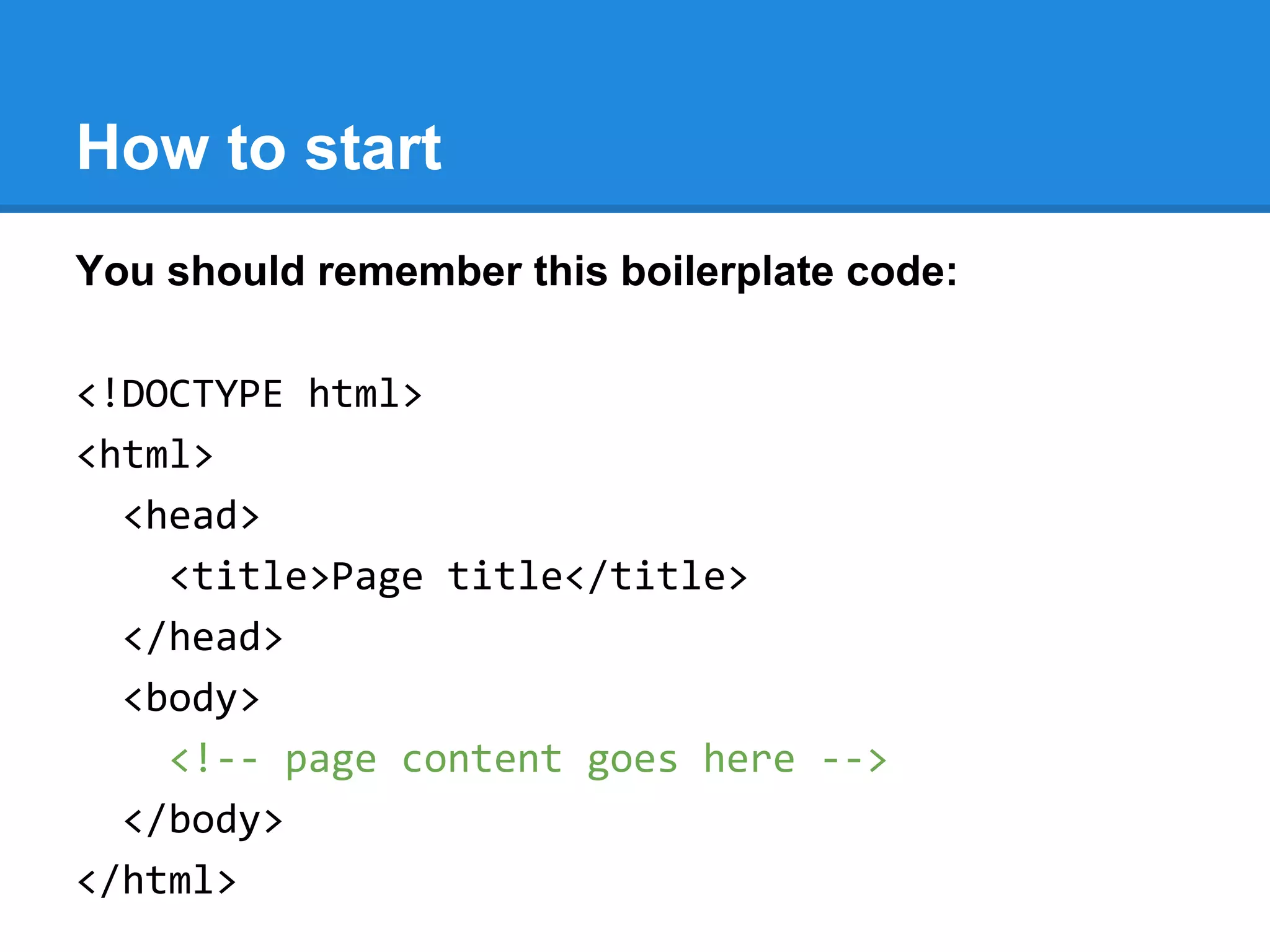
You should remember this boilerplate code:
<!DOCTYPE html>
<html>
<head>
<title>Page title</title>
</head>
<body>
<!-- page content goes here -->
</body>
</html>
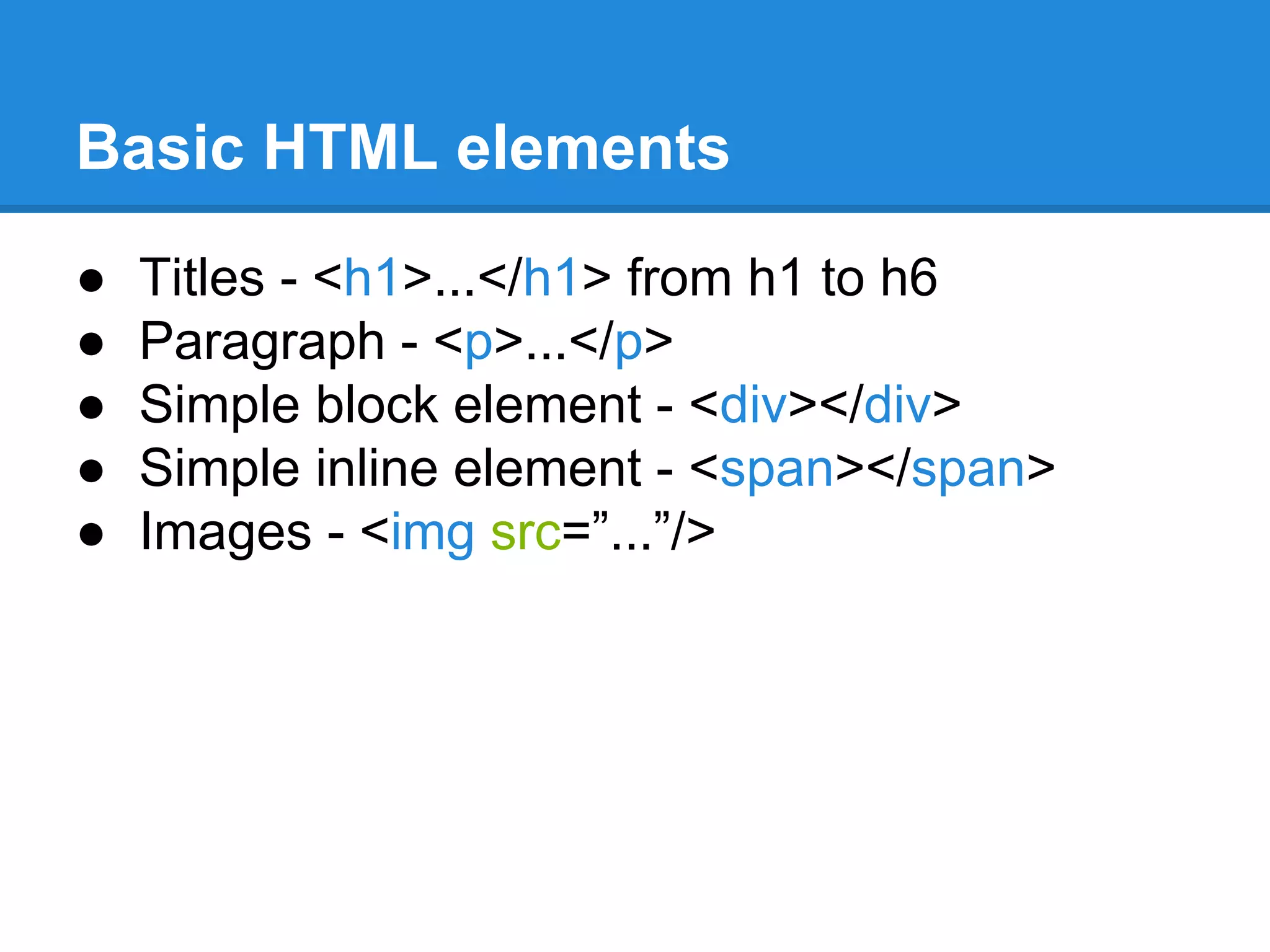
Basic HTML elements
● Titles - <h1>...</h1> from h1 to h6
● Paragraph - <p>...</p>
● Simple block element - <div></div>
● Simple inline element - <span></span>
● Images - <img src=”...”/>
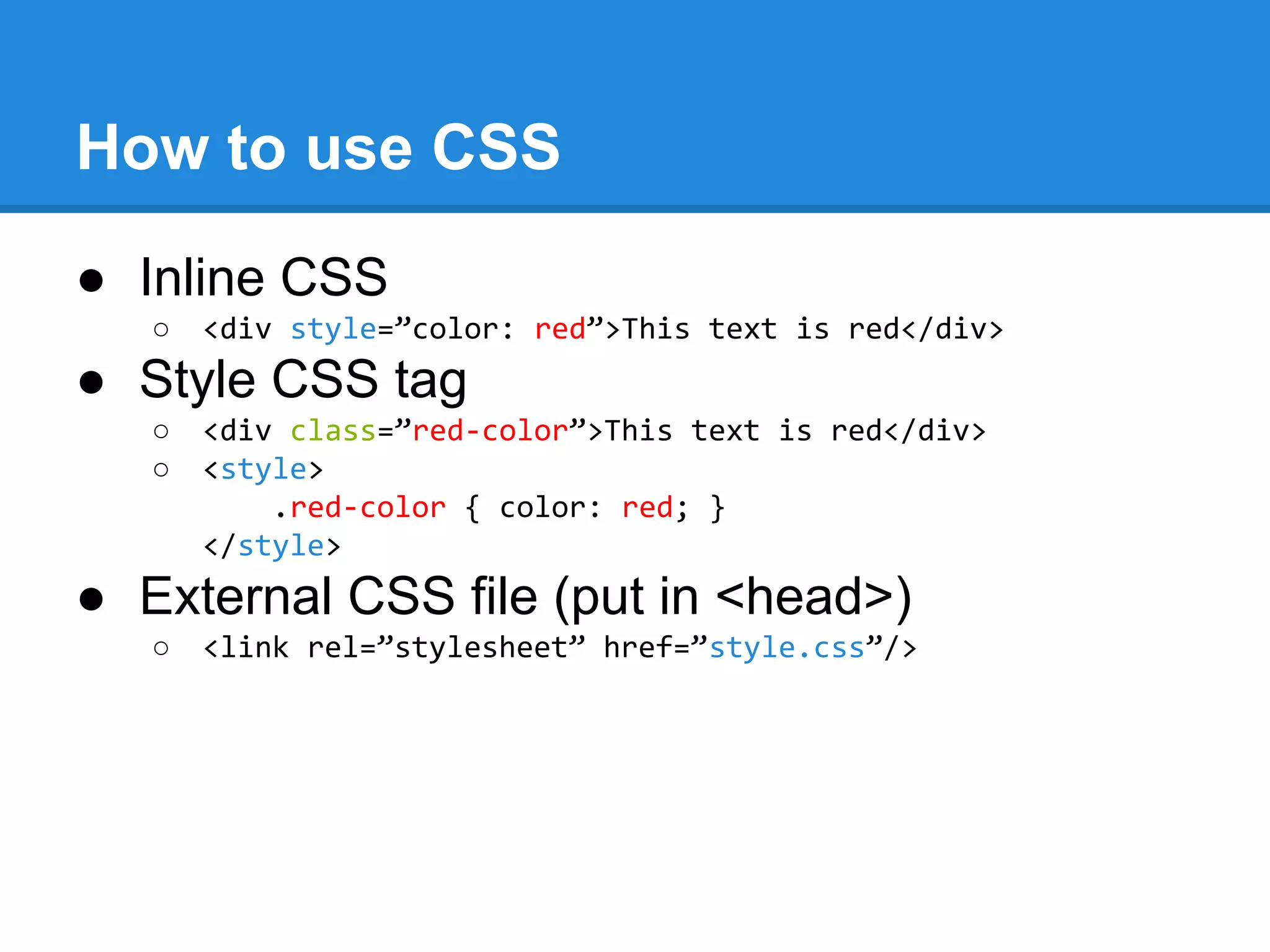
How to use CSS
● Inline CSS
○ <div style=”color: red”>This text is red</div>
● Style CSS tag
○ <div class=”red-color”>This text is red</div>
○ <style>
.red-color { color: red; }
</style>
● External CSS file (put in <head>)
○ <link rel=”stylesheet” href=”style.css”/>
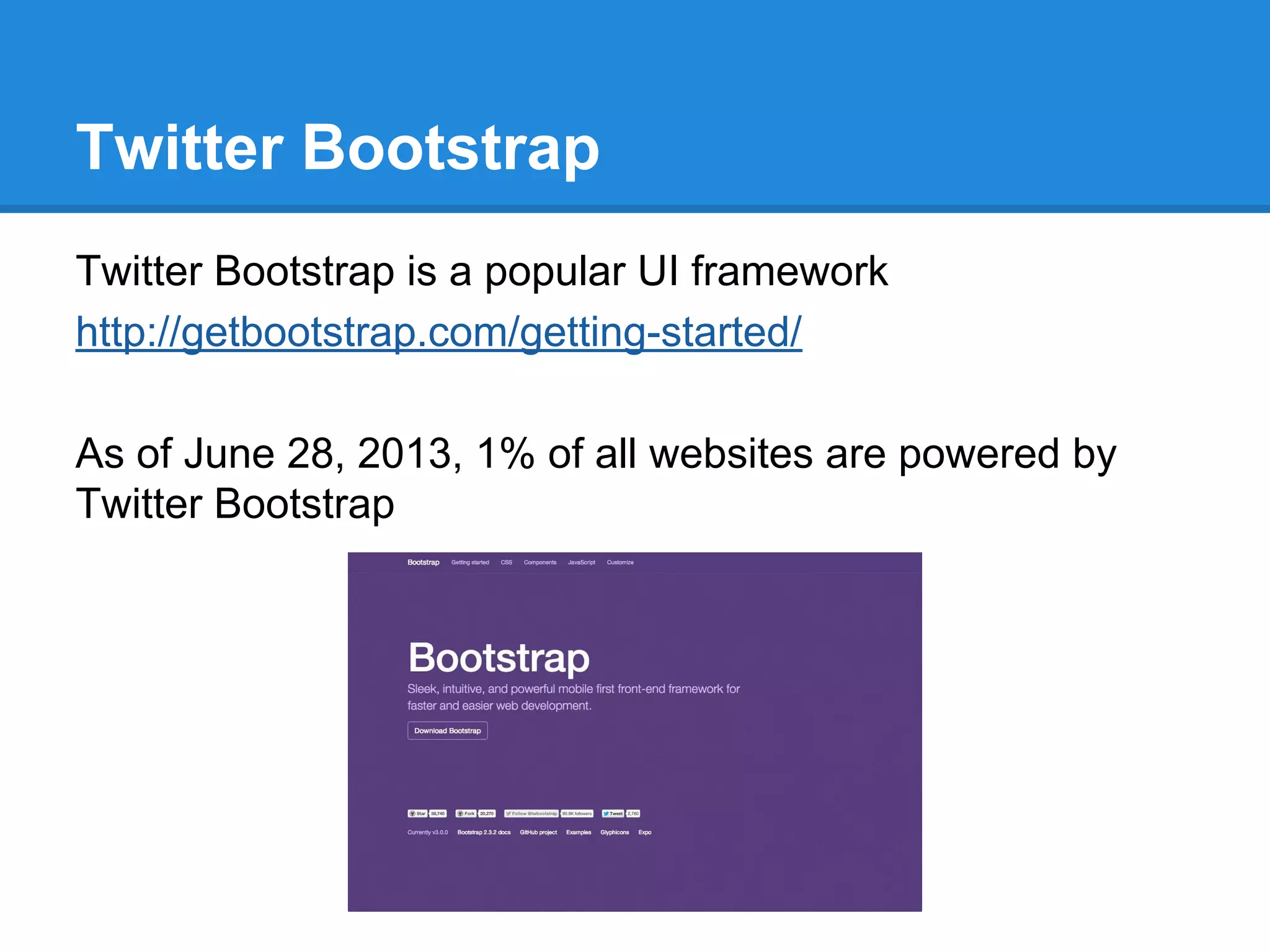
Twitter Bootstrap
Twitter Bootstrap is a popular UI framework
http://getbootstrap.com/getting-started/
As of June 28, 2013, 1% of all websites are powered by
Twitter Bootstrap
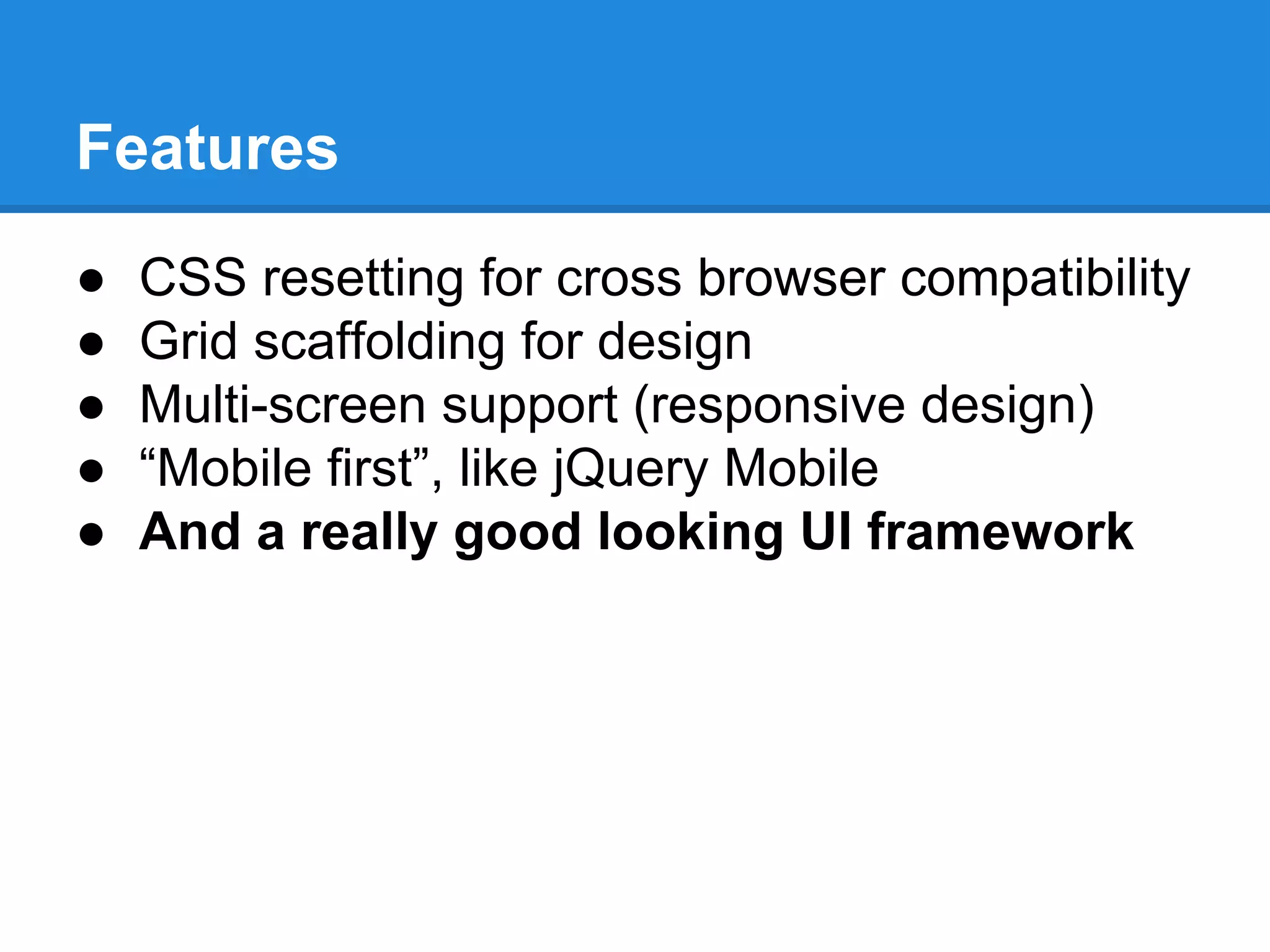
Features
● CSS resetting for cross browser compatibility
● Grid scaffolding for design
● Multi-screen support (responsive design)
● “Mobile first”, like jQuery Mobile
● And a really good looking UI framework
Features (cont.)
● JavaScript plugins
○ Dialogs
○ Tabs
○ Alerts
○ Carousel
○ Tooltips
○ … and more.
Customization
1. You can customize the CSS yourself (not
recommended)
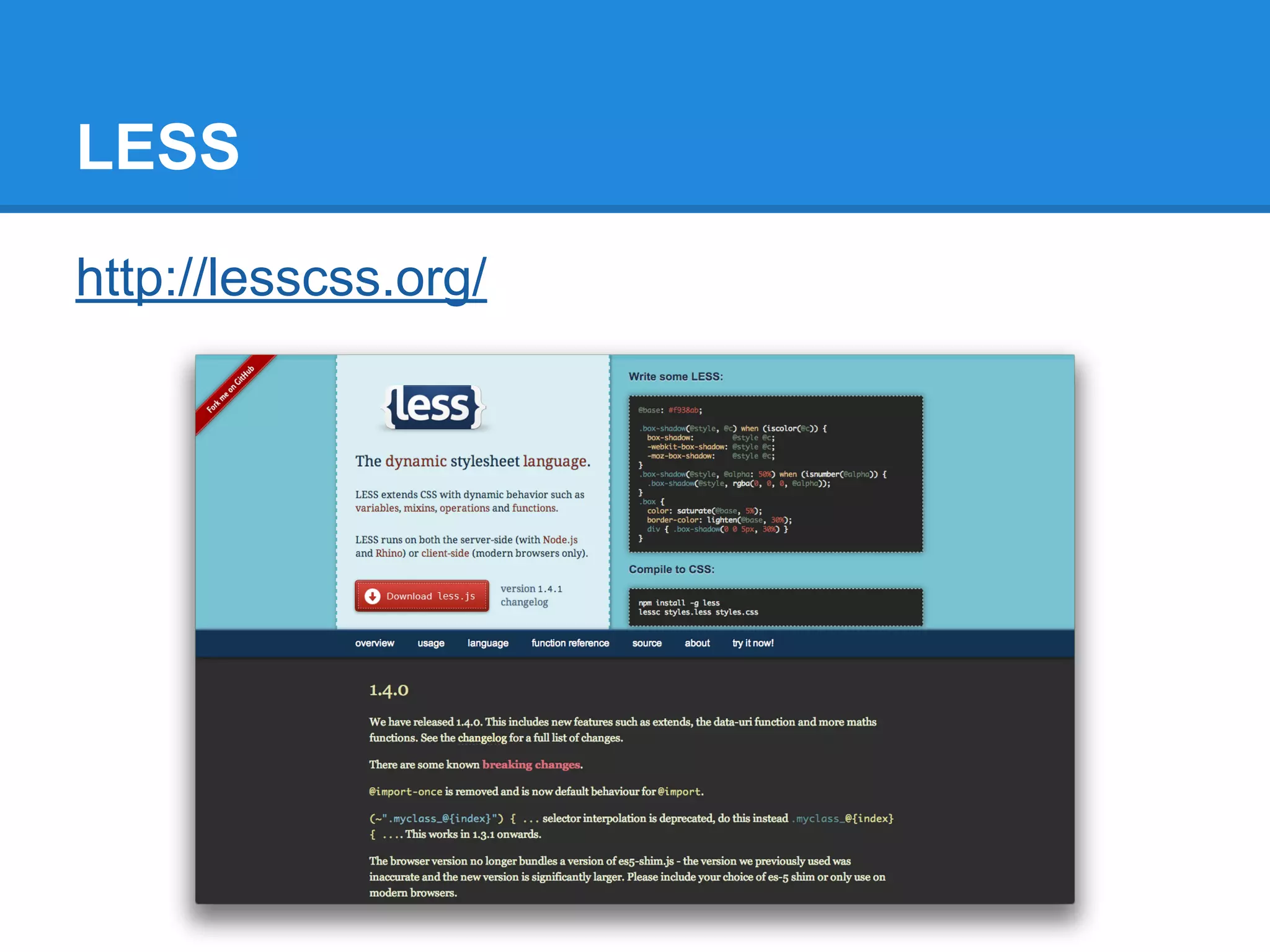
2. You can use LESS to compile a Bootstrap
CSS version on your own
3. You can just download a customized version
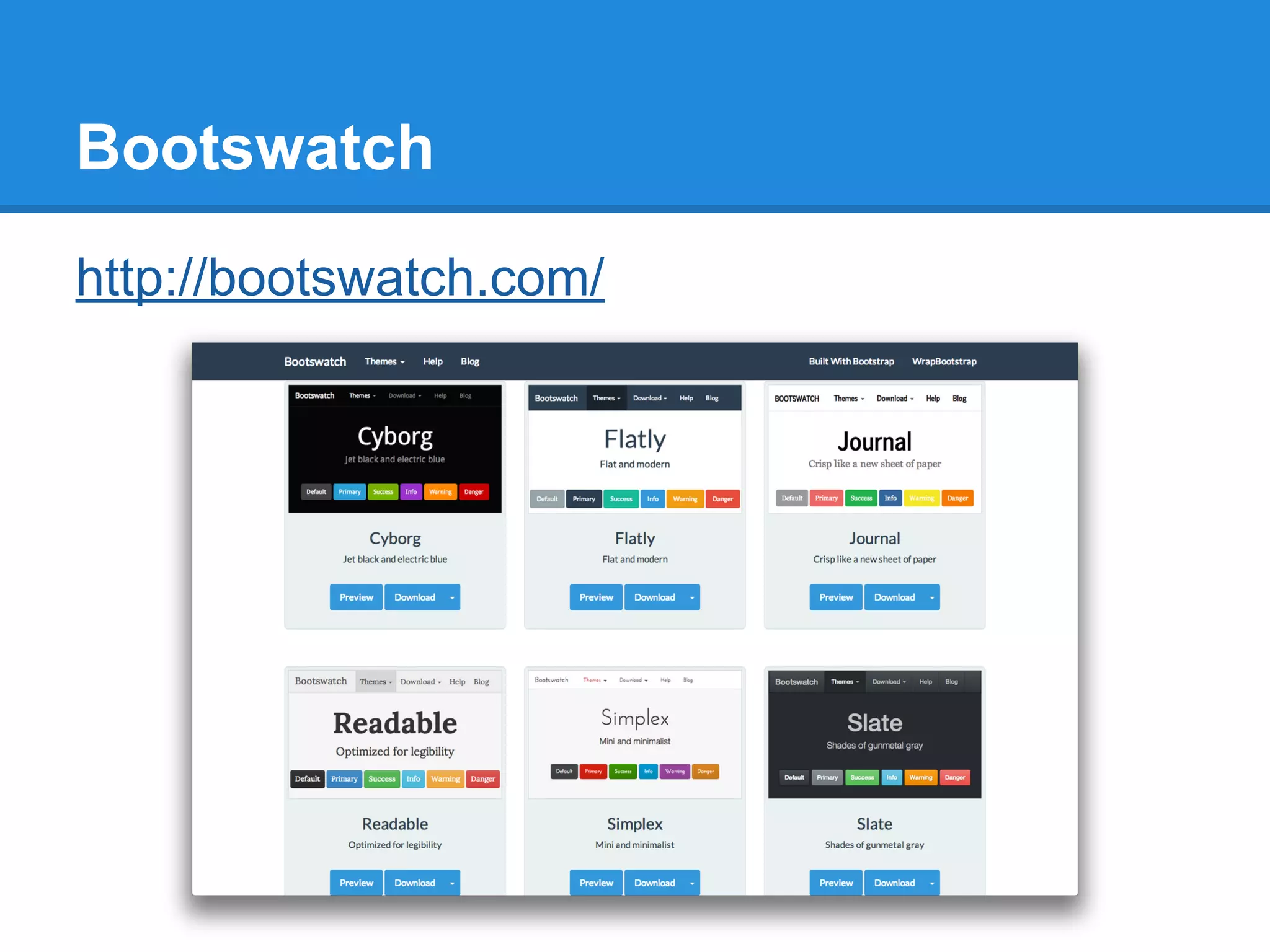
http://bootswatch.com/
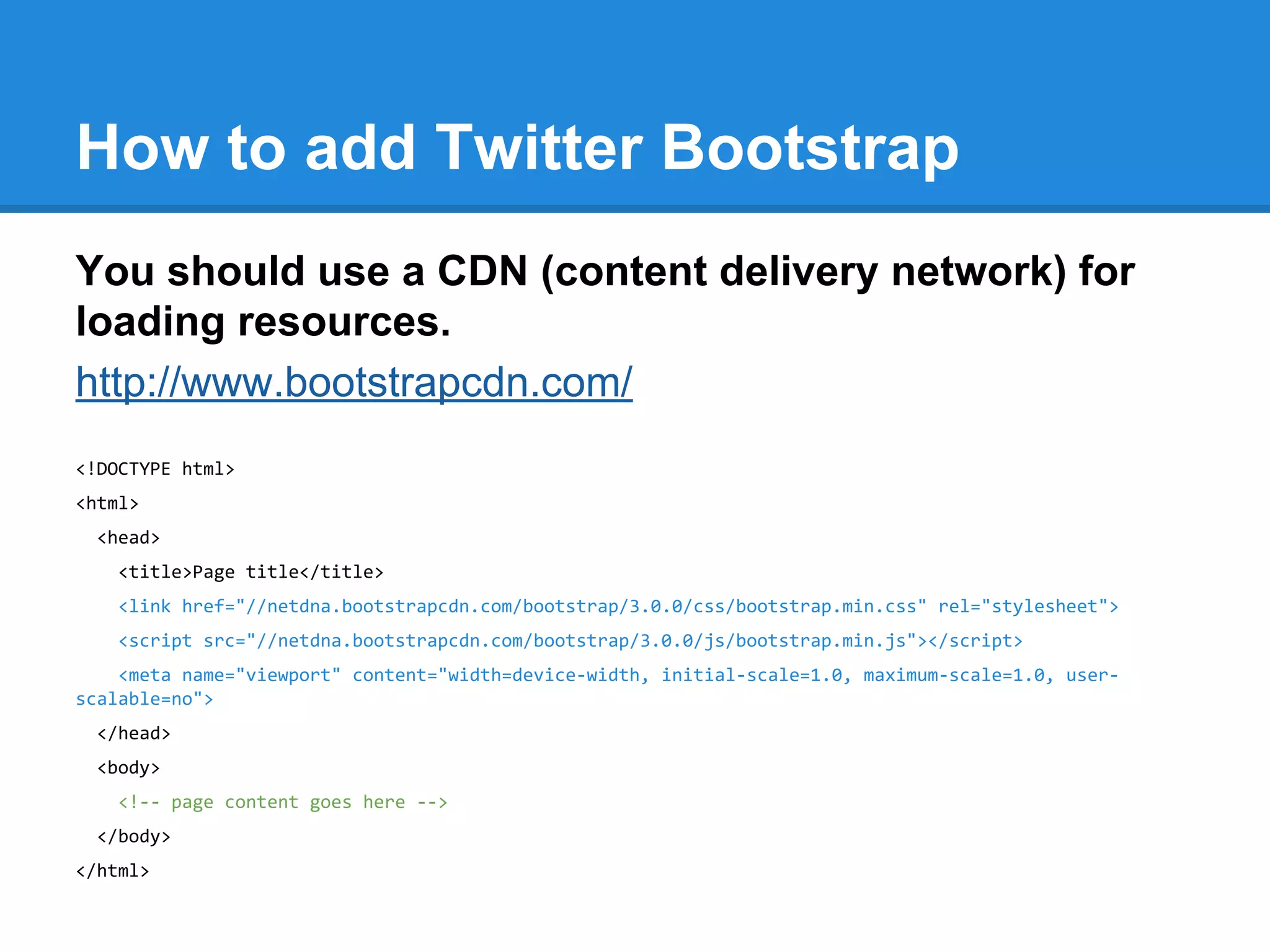
How to add Twitter Bootstrap
You should use a CDN (content delivery network) for
loading resources.
http://www.bootstrapcdn.com/
<!DOCTYPE html>
<html>
<head>
<title>Page title</title>
<link href="//netdna.bootstrapcdn.com/bootstrap/3.0.0/css/bootstrap.min.css" rel="stylesheet">
<script src="//netdna.bootstrapcdn.com/bootstrap/3.0.0/js/bootstrap.min.js"></script>
<meta name="viewport" content="width=device-width, initial-scale=1.0, maximum-scale=1.0, user-
scalable=no">
</head>
<body>
<!-- page content goes here -->
</body>
</html>
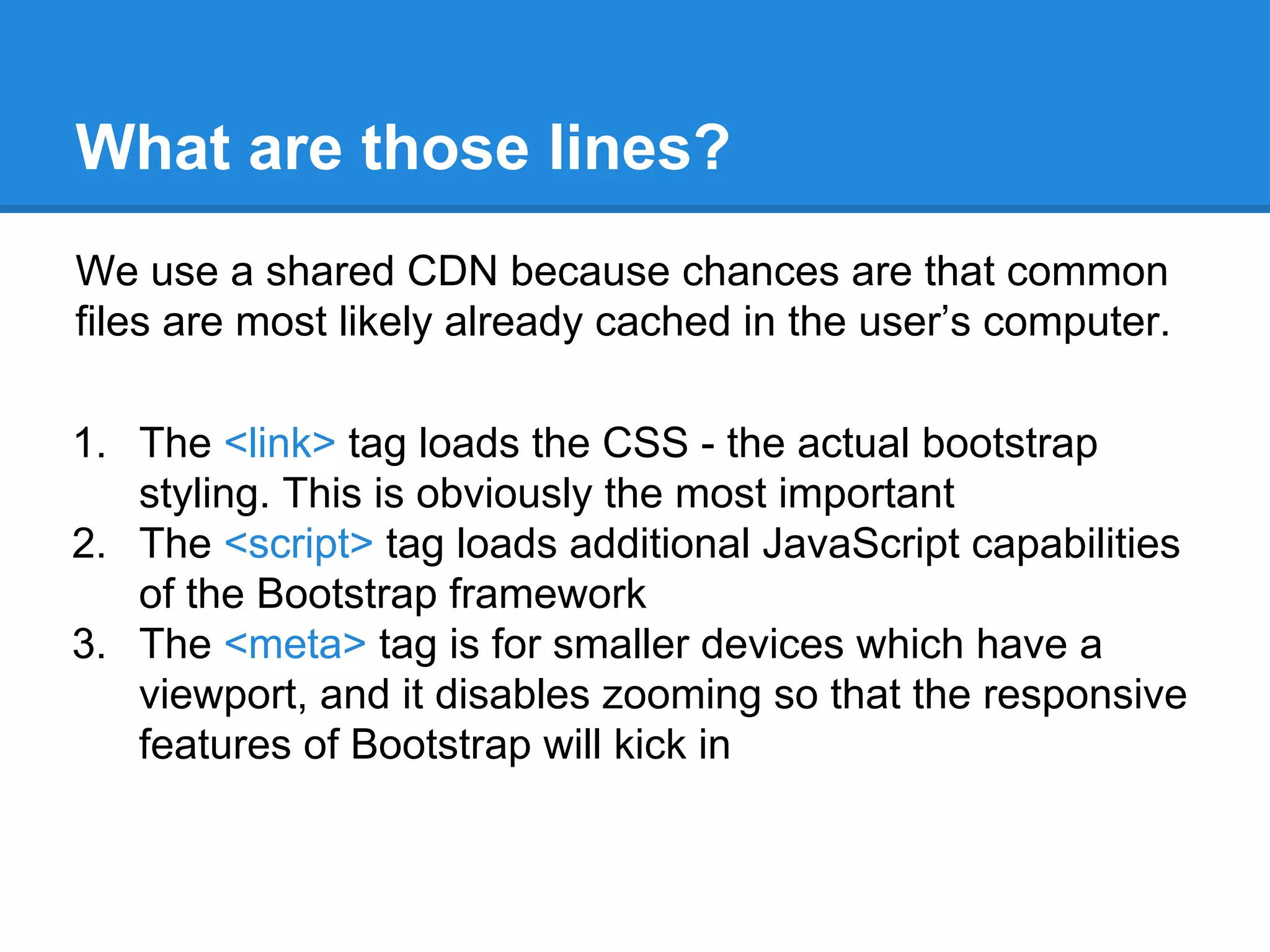
What are those lines?
We use a shared CDN because chances are that common
files are most likely already cached in the user’s computer.
1. The <link> tag loads the CSS - the actual bootstrap
styling. This is obviously the most important
2. The <script> tag loads additional JavaScript capabilities
of the Bootstrap framework
3. The <meta> tag is for smaller devices which have a
viewport, and it disables zooming so that the responsive
features of Bootstrap will kick in
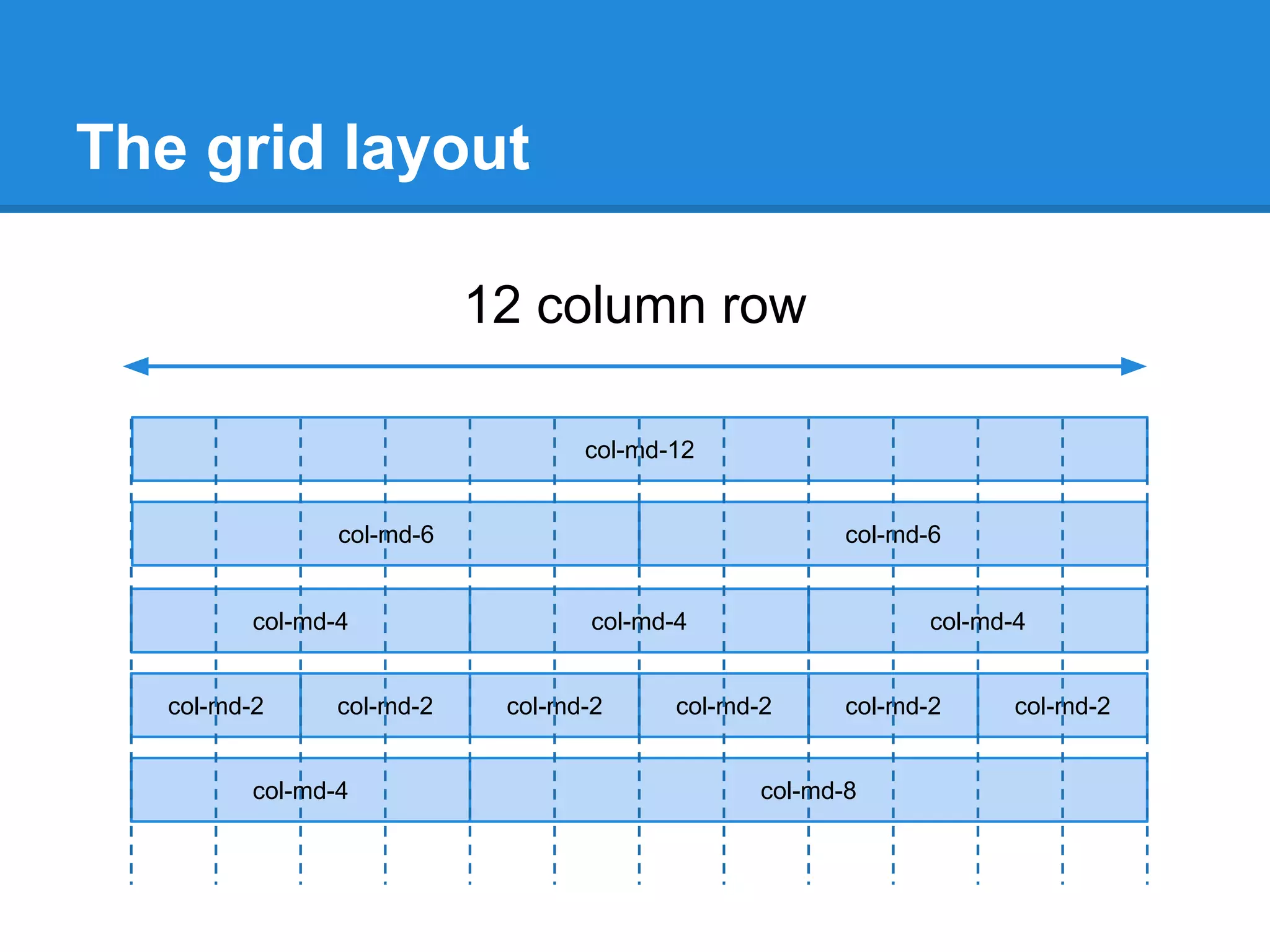
The grid layout
12 column row
col-md-12
col-md-6 col-md-6
col-md-4 col-md-4 col-md-4
col-md-2 col-md-2 col-md-2 col-md-2 col-md-2 col-md-2
col-md-4 col-md-8
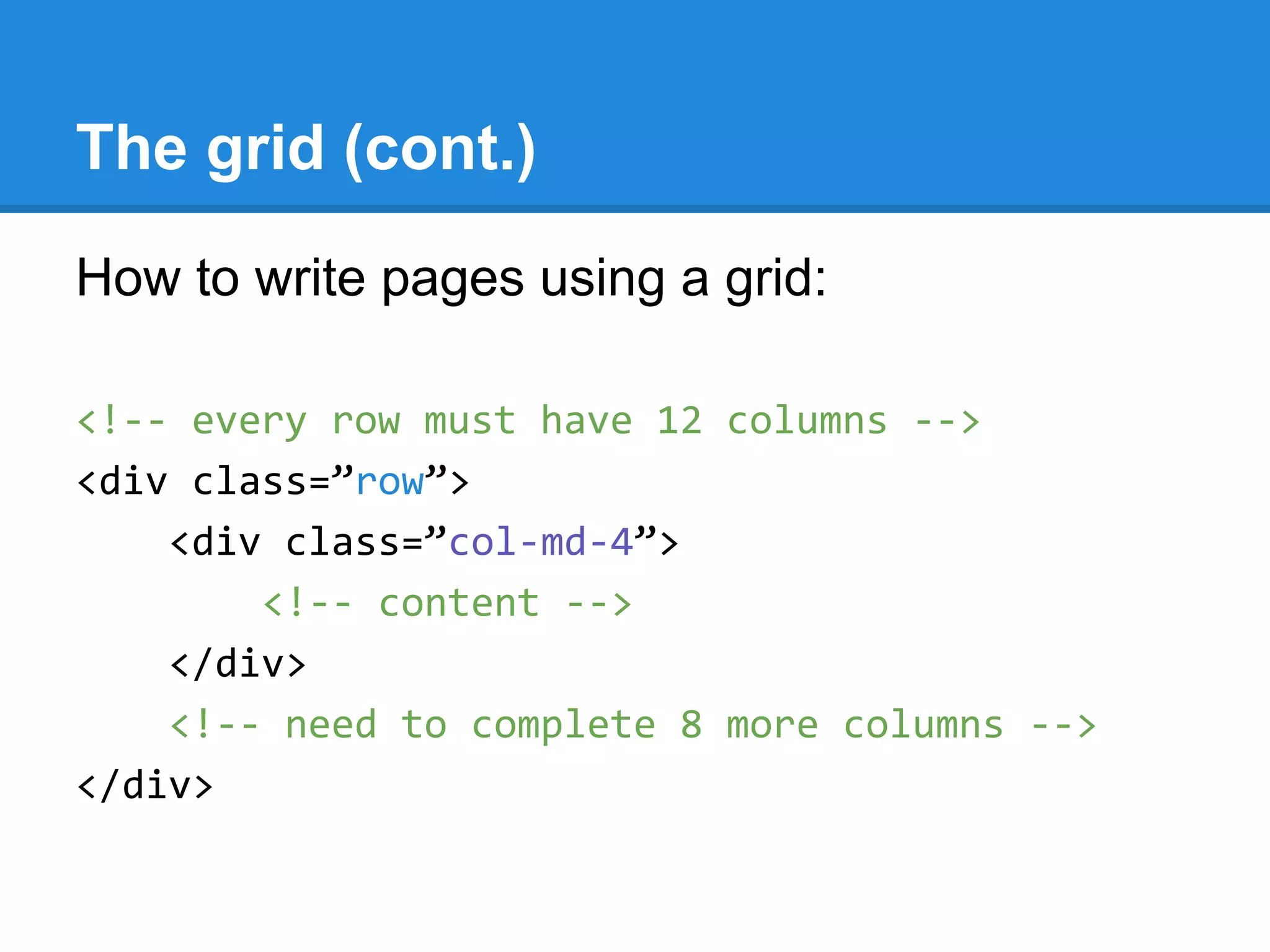
The grid (cont.)
How to write pages using a grid:
<!-- every row must have 12 columns -->
<div class=”row”>
<div class=”col-md-4”>
<!-- content -->
</div>
<!-- need to complete 8 more columns -->
</div>
The grid (cont.)
Bootstrap 3 features an always-responsive grid with a
maximum size:
1. col-xs-[num] grids have no maximum size (fluid)
2. col-sm-[num] grids resize up to 750px
3. col-md-[num] grids resize up to 970px
4. col-lg-[num] grids resize up to 1170px
You should choose col-md or col-lg for desktop sites.
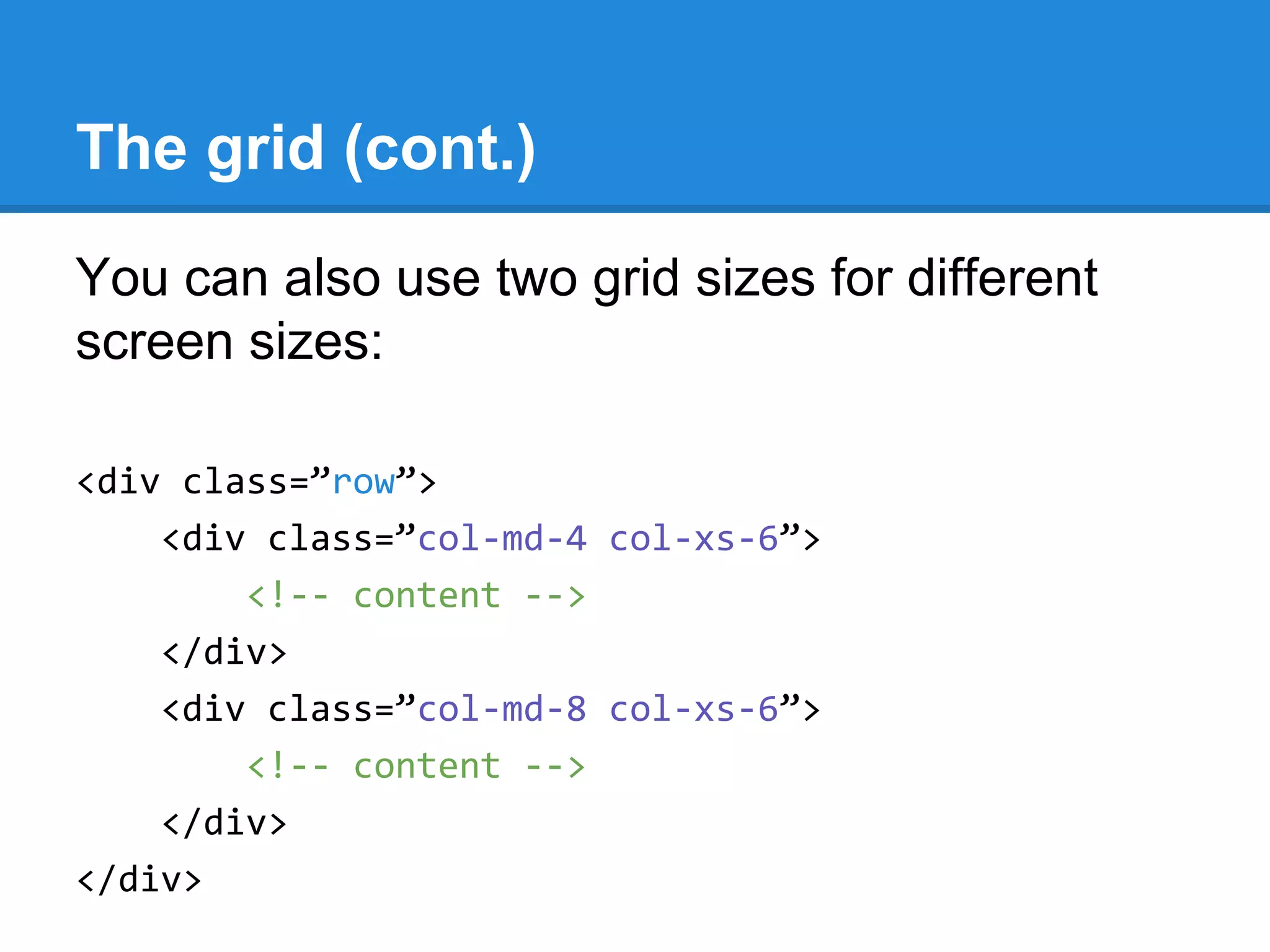
The grid (cont.)
You can also use two grid sizes for different
screen sizes:
<div class=”row”>
<div class=”col-md-4 col-xs-6”>
<!-- content -->
</div>
<div class=”col-md-8 col-xs-6”>
<!-- content -->
</div>
</div>
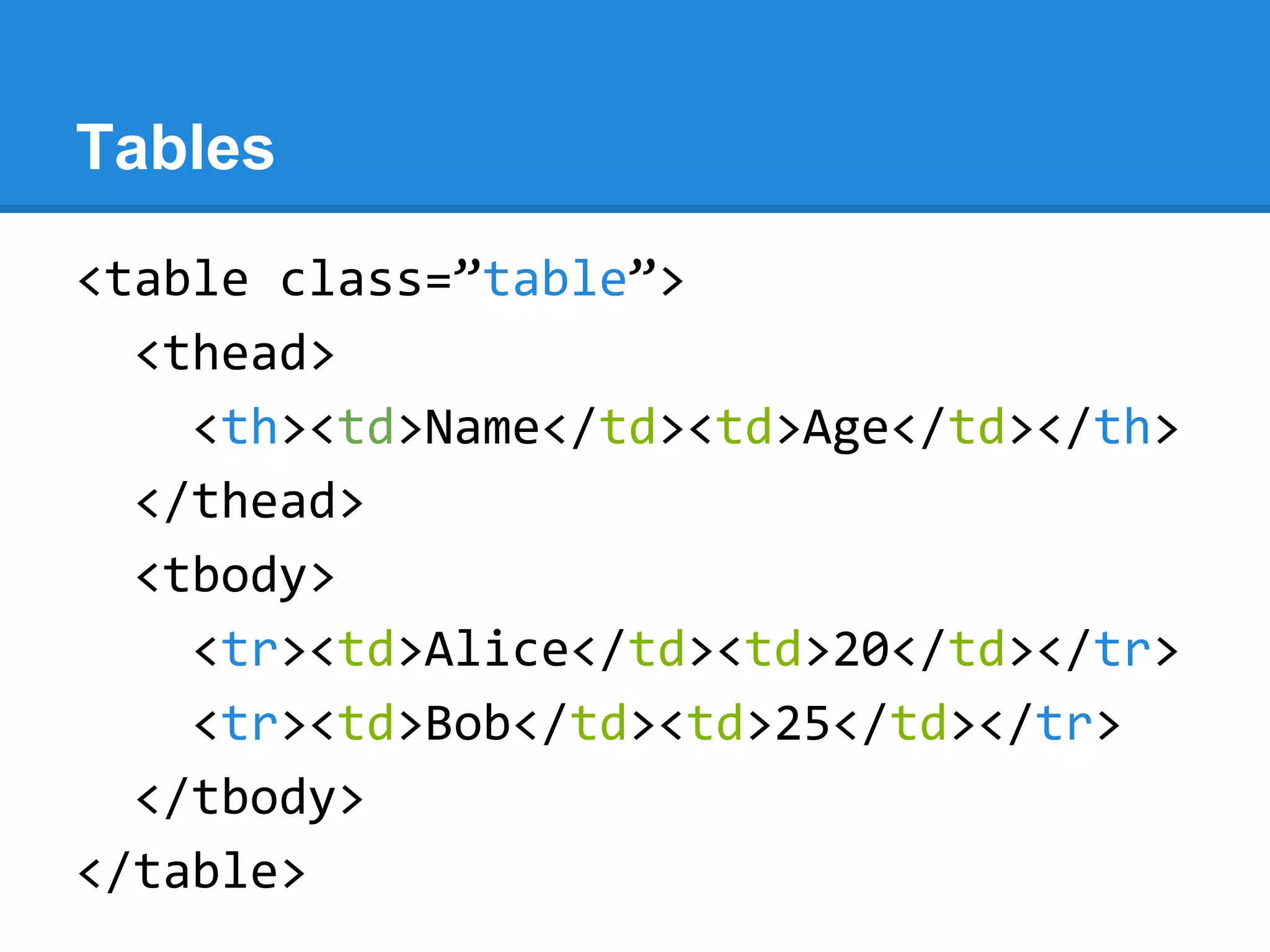
Tables
<table class=”table”>
<thead>
<th><td>Name</td><td>Age</td></th>
</thead>
<tbody>
<tr><td>Alice</td><td>20</td></tr>
<tr><td>Bob</td><td>25</td></tr>
</tbody>
</table>
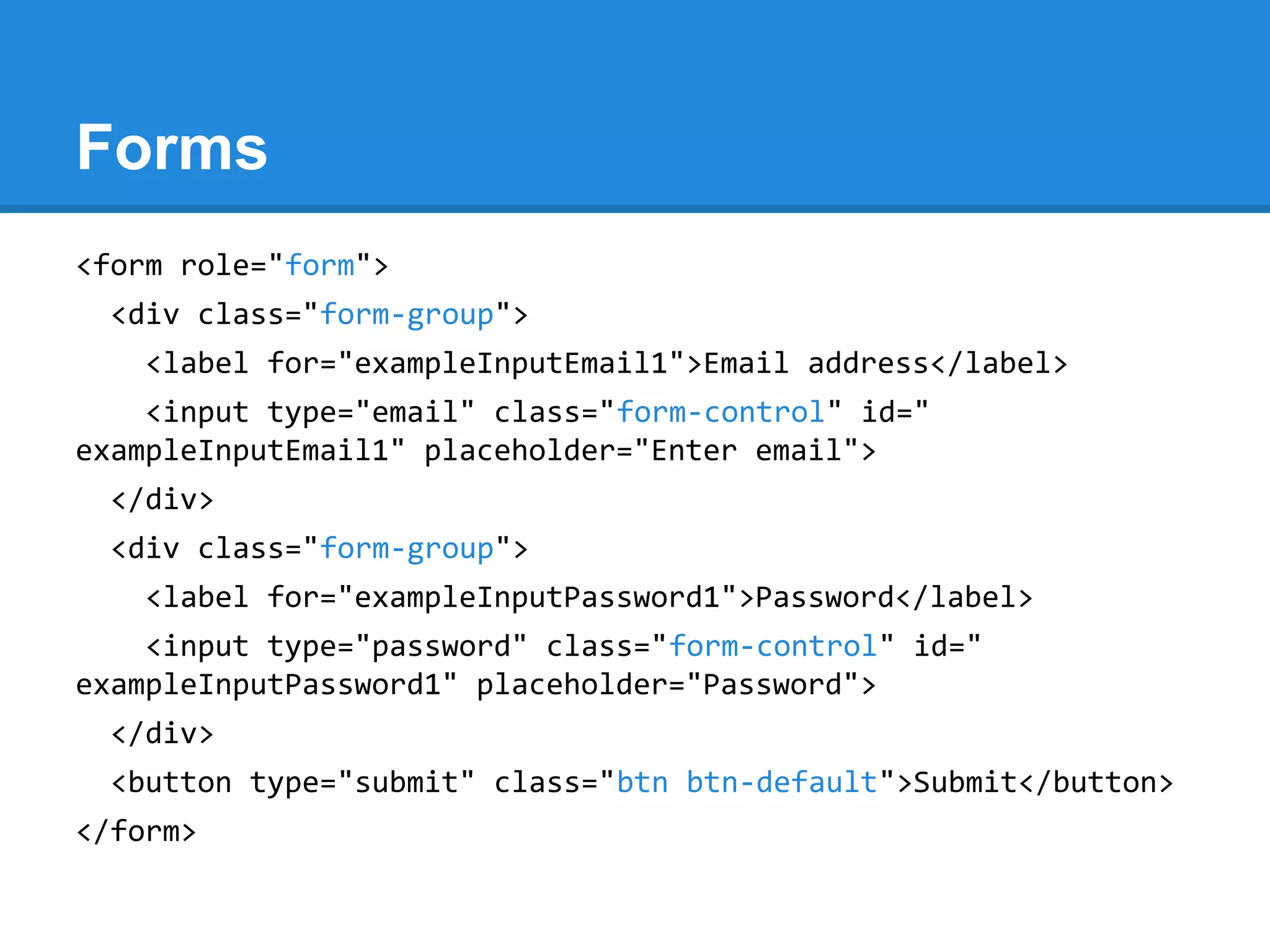
Forms
<form role="form">
<div class="form-group">
<label for="exampleInputEmail1">Email address</label>
<input type="email" class="form-control" id="
exampleInputEmail1" placeholder="Enter email">
</div>
<div class="form-group">
<label for="exampleInputPassword1">Password</label>
<input type="password" class="form-control" id="
exampleInputPassword1" placeholder="Password">
</div>
<button type="submit" class="btn btn-default">Submit</button>
</form>
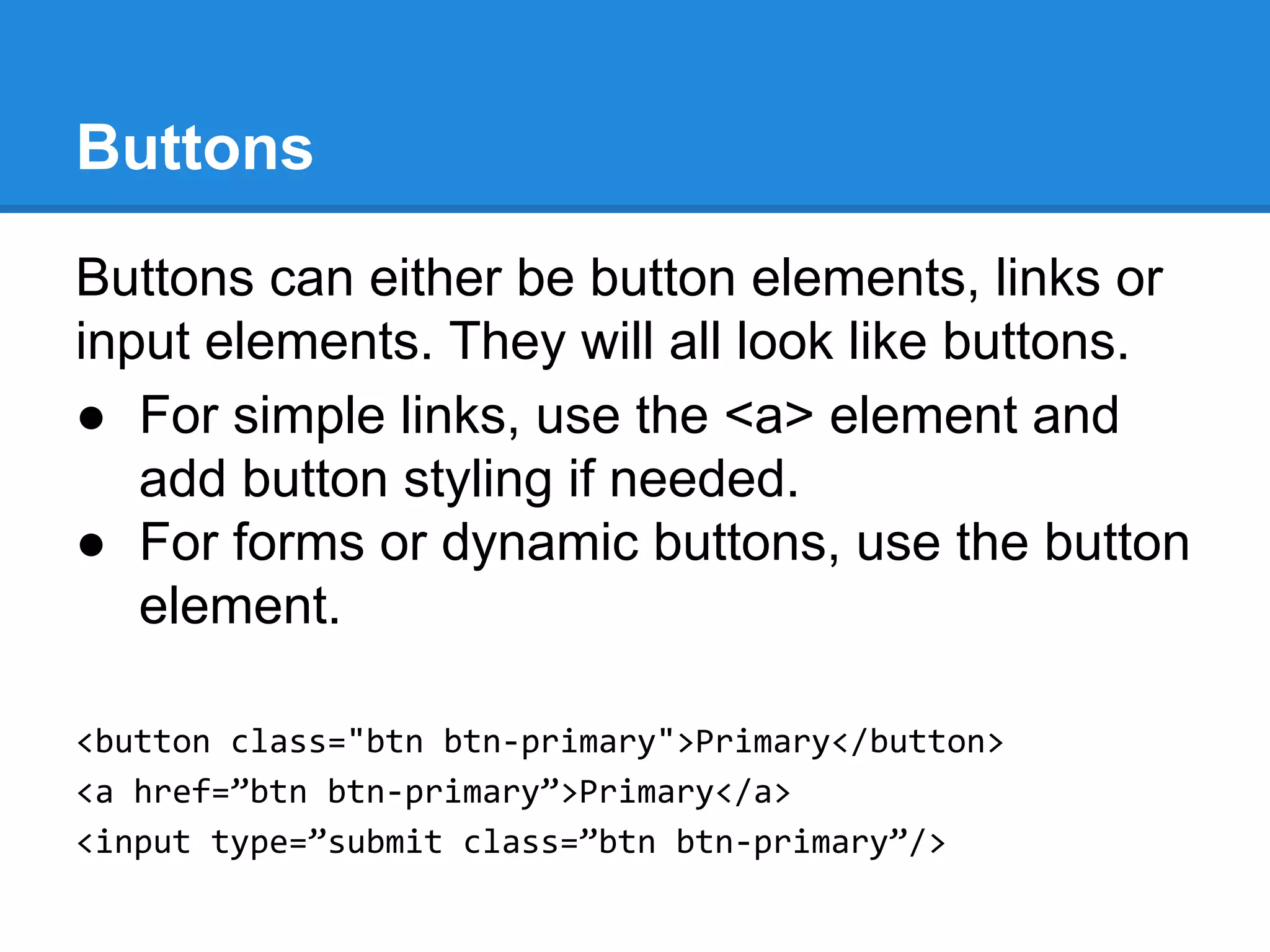
Buttons can either be button elements, links or
input elements. They will all look like buttons.
● For simple links, use the <a> element and
add button styling if needed.
● For forms or dynamic buttons, use the button
element.
<button class="btn btn-primary">Primary</button>
<a href=”btn btn-primary”>Primary</a>
<input type=”submit class=”btn btn-primary”/>
Buttons
Bootstrap elements
● Dropdowns
● Tabs
● Pills
● Navbars
● Alerts
● Lists
Check out the Bootstrap reference for more:
http://getbootstrap.com/components/
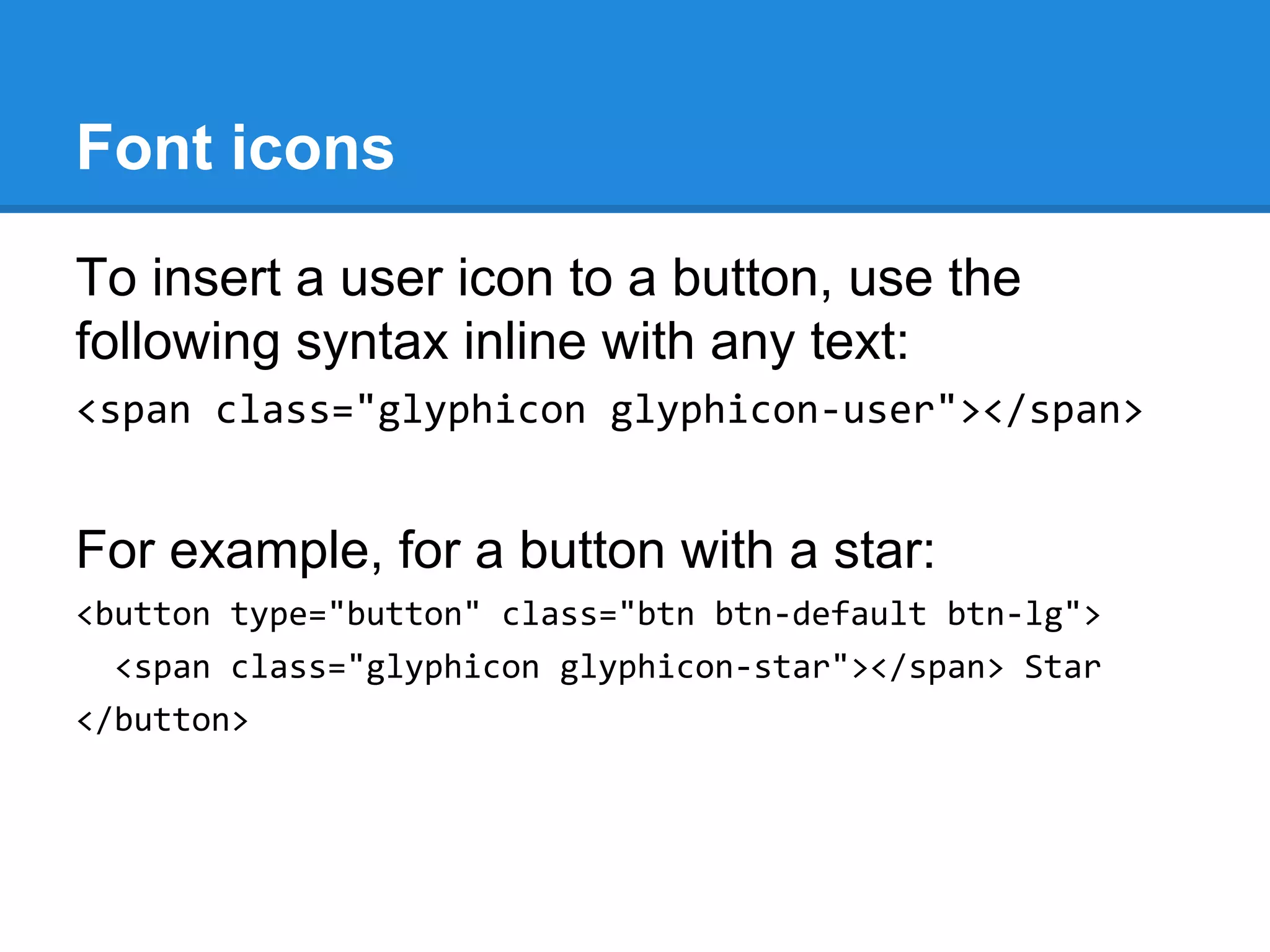
Font icons
To insert a user icon to a button, use the
following syntax inline with any text:
<span class="glyphicon glyphicon-user"></span>
For example, for a button with a star:
<button type="button" class="btn btn-default btn-lg">
<span class="glyphicon glyphicon-star"></span> Star
</button>
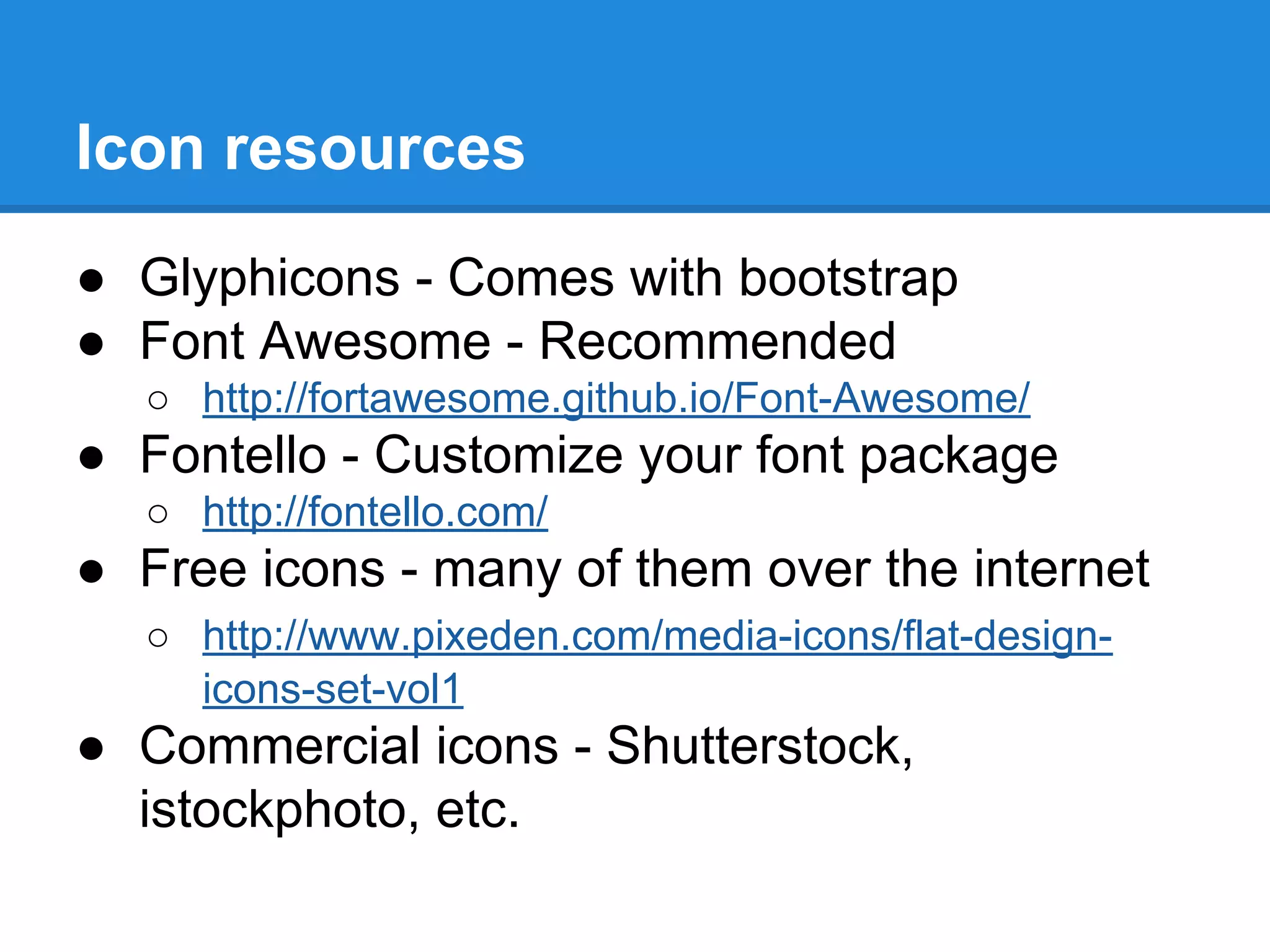
Icon resources
● Glyphicons - Comes with bootstrap
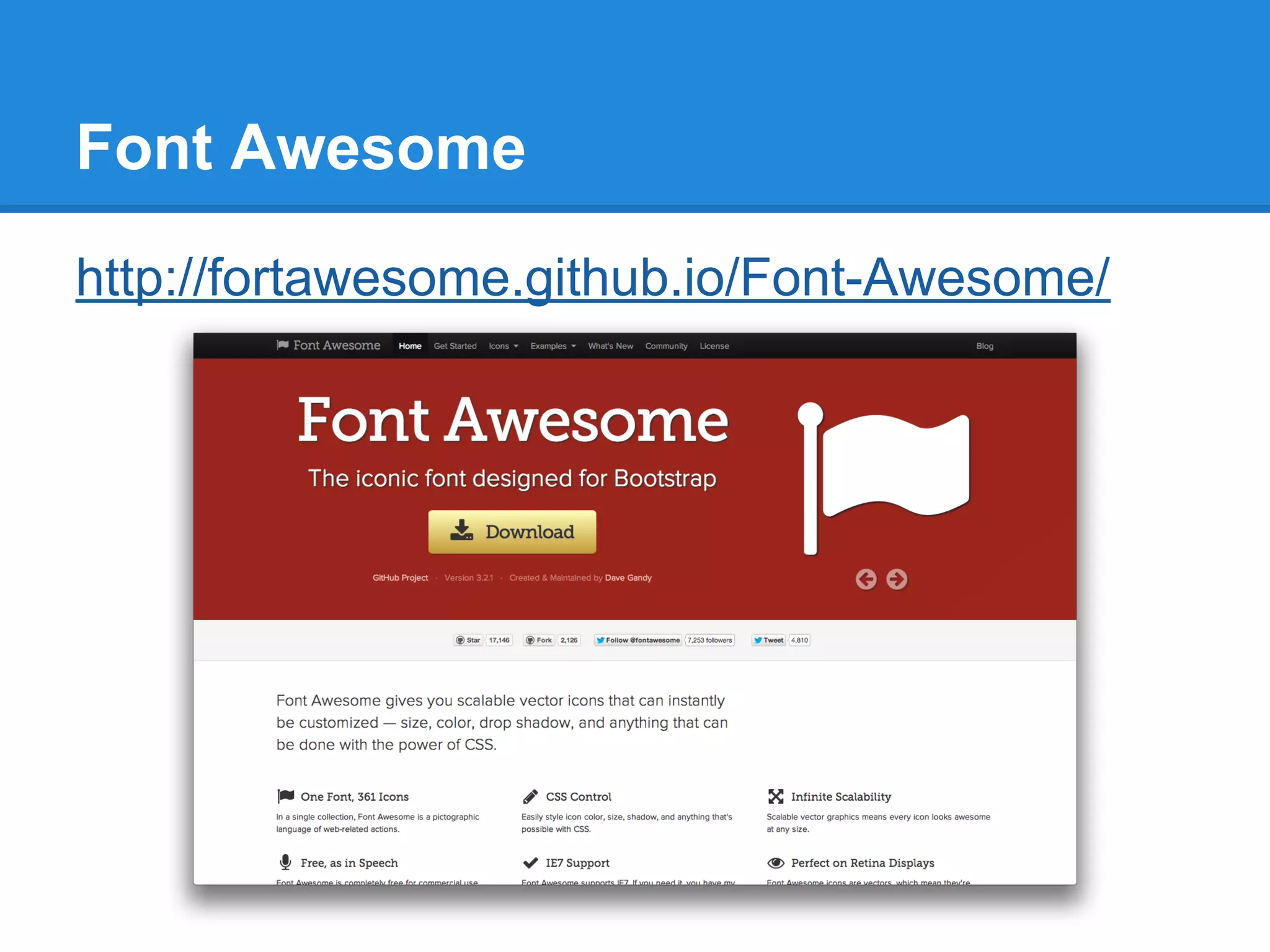
● Font Awesome - Recommended
○ http://fortawesome.github.io/Font-Awesome/
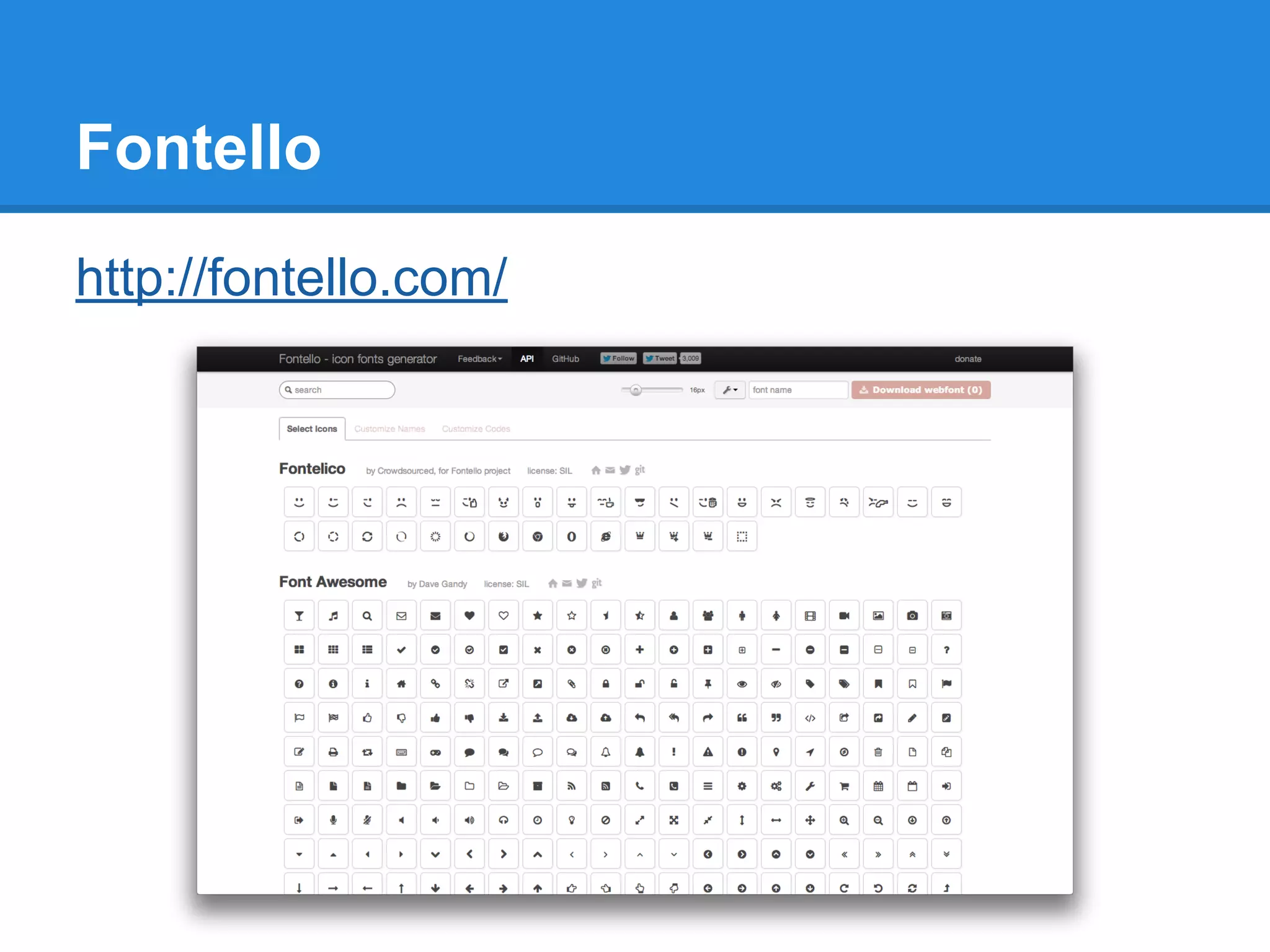
● Fontello - Customize your font package
○ http://fontello.com/
● Free icons - many of them over the internet
○ http://www.pixeden.com/media-icons/flat-design-
icons-set-vol1
● Commercial icons - Shutterstock,
istockphoto, etc.
Resources
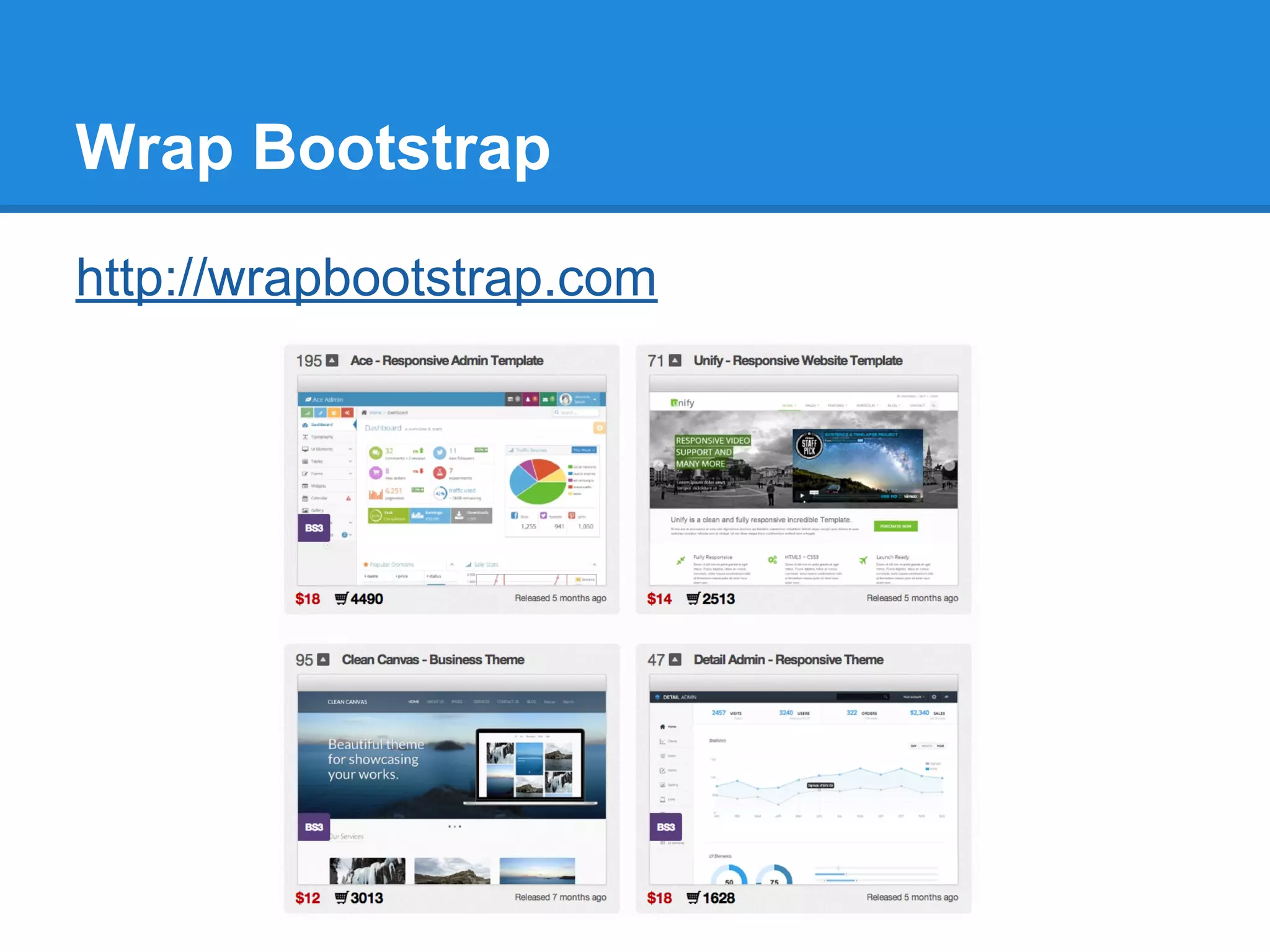
Wrap Bootstrap
http://wrapbootstrap.com
Bootswatch
http://bootswatch.com/
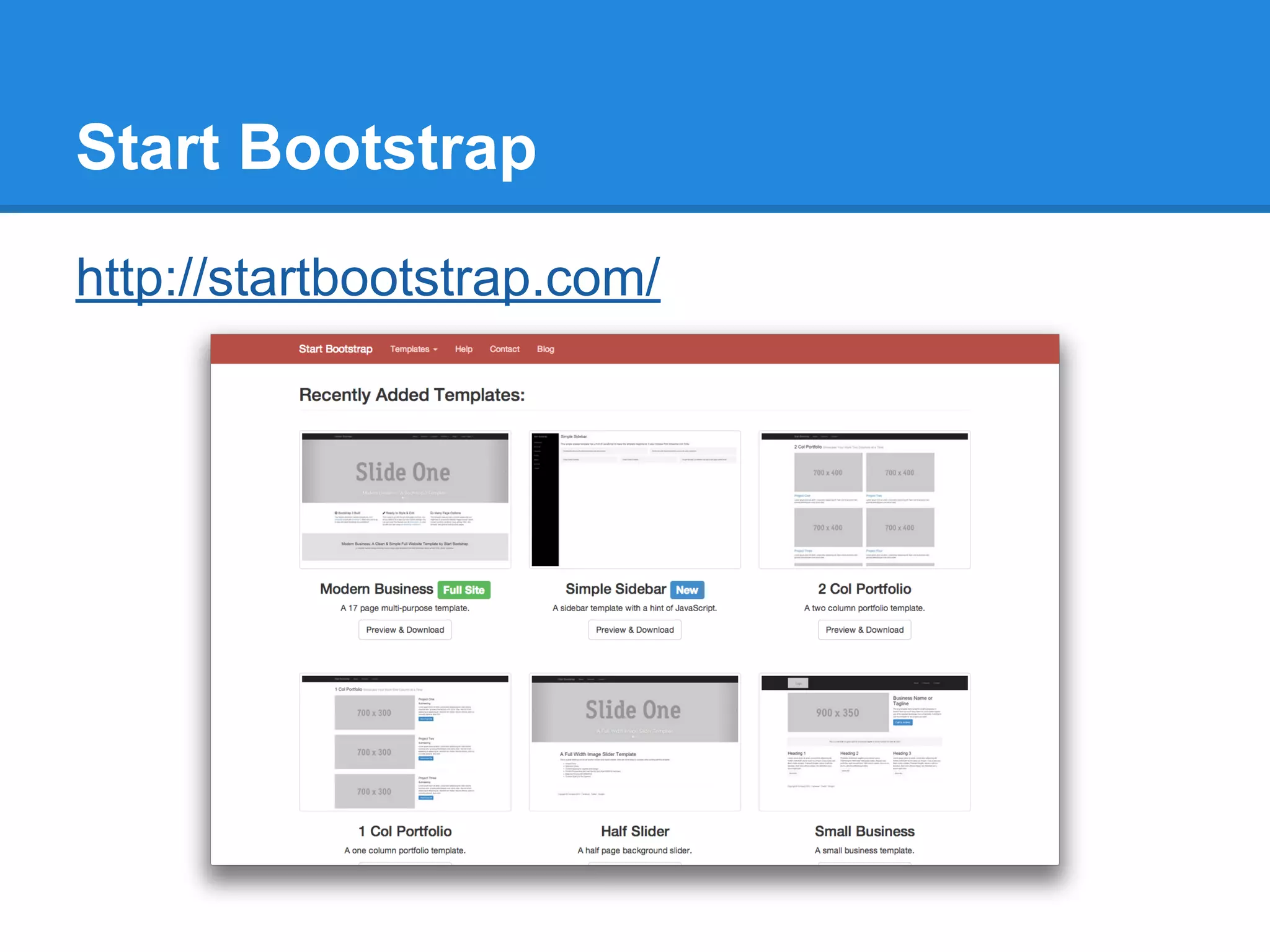
Start Bootstrap
http://startbootstrap.com/
LESS
http://lesscss.org/
Font Awesome
http://fortawesome.github.io/Font-Awesome/
Fontello
http://fontello.com/
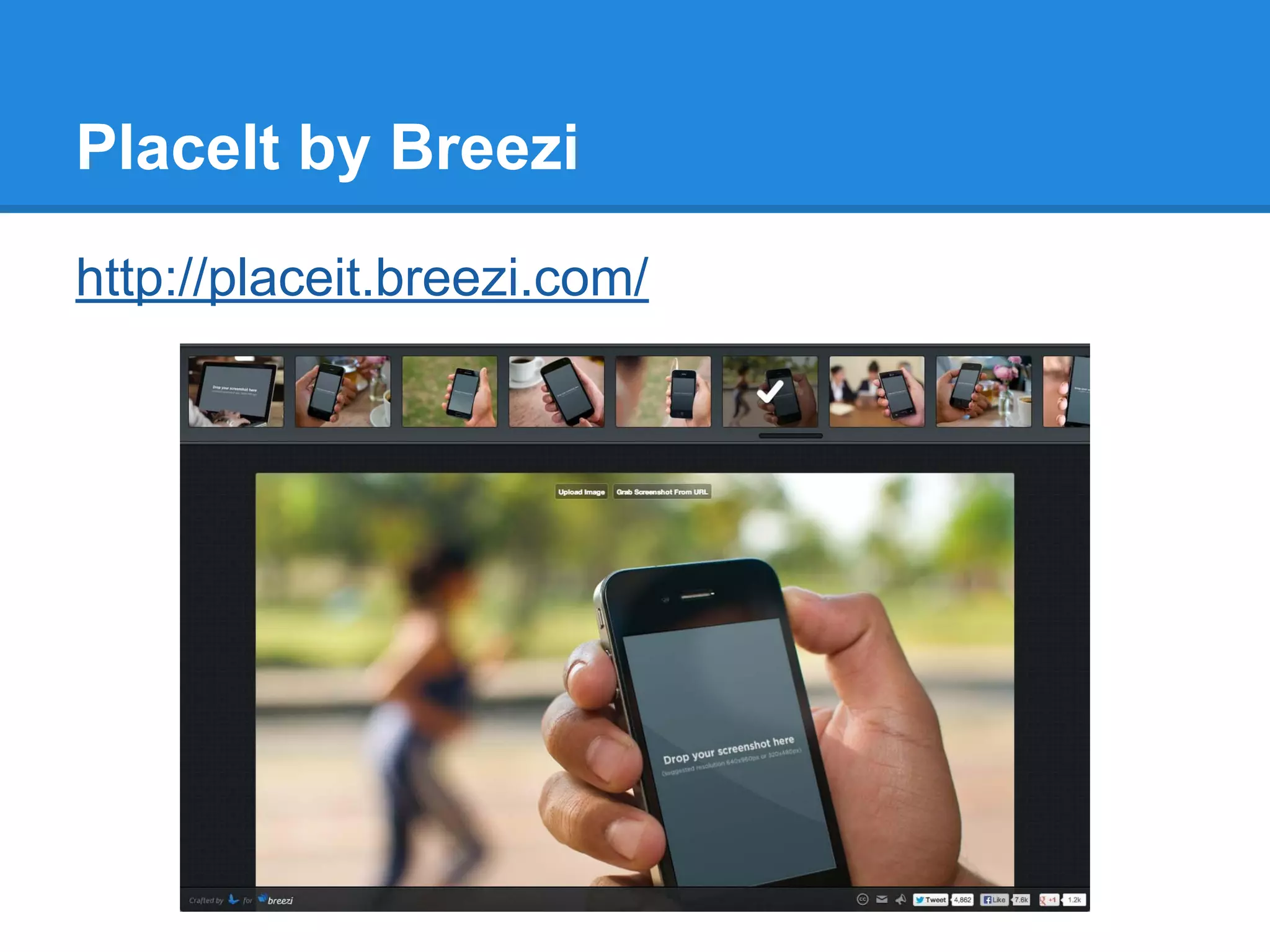
PlaceIt by Breezi
http://placeit.breezi.com/
Exercise
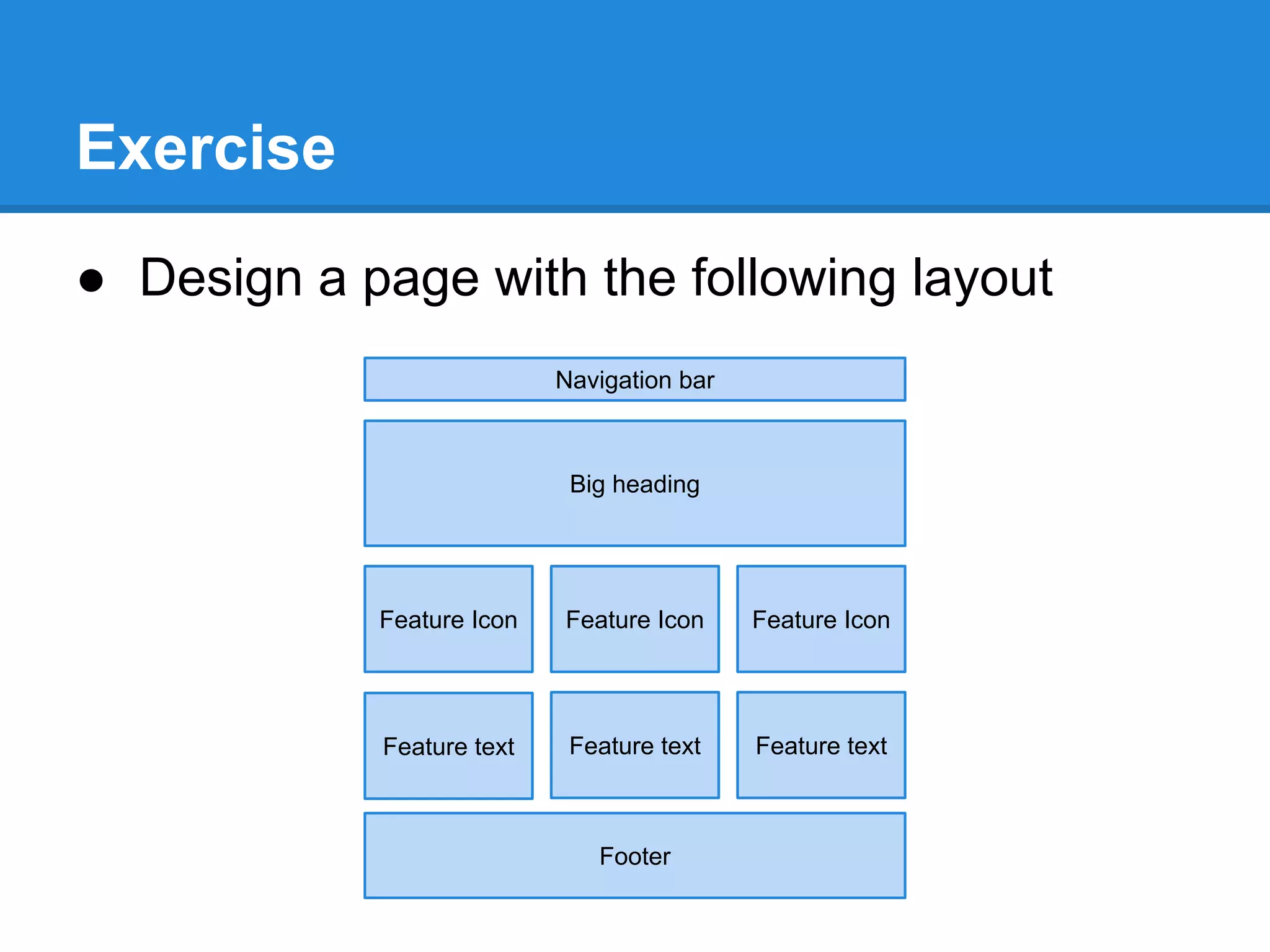
● Design a page with the following layout
Navigation bar
Big heading
Feature Icon Feature Icon Feature Icon
Feature text Feature text Feature text
Footer
Thank You!

Introduction to Bootstrap

  • 1.
  • 2.
    Agenda 1. Web development101 2. Twitter Bootstrap 3. Resources
  • 3.
    Web development 101 ●HTML ○ Defines the data and structure of the page using elements ● CSS ○ Defines how the data and the elements actually look, and how they behave when interacting with them ● JavaScript ○ The programming language of the web
  • 4.
    How to start Youshould remember this boilerplate code: <!DOCTYPE html> <html> <head> <title>Page title</title> </head> <body> <!-- page content goes here --> </body> </html>
  • 5.
    Basic HTML elements ●Titles - <h1>...</h1> from h1 to h6 ● Paragraph - <p>...</p> ● Simple block element - <div></div> ● Simple inline element - <span></span> ● Images - <img src=”...”/>
  • 6.
    How to useCSS ● Inline CSS ○ <div style=”color: red”>This text is red</div> ● Style CSS tag ○ <div class=”red-color”>This text is red</div> ○ <style> .red-color { color: red; } </style> ● External CSS file (put in <head>) ○ <link rel=”stylesheet” href=”style.css”/>
  • 7.
    Twitter Bootstrap Twitter Bootstrapis a popular UI framework http://getbootstrap.com/getting-started/ As of June 28, 2013, 1% of all websites are powered by Twitter Bootstrap
  • 8.
    Features ● CSS resettingfor cross browser compatibility ● Grid scaffolding for design ● Multi-screen support (responsive design) ● “Mobile first”, like jQuery Mobile ● And a really good looking UI framework
  • 9.
    Features (cont.) ● JavaScriptplugins ○ Dialogs ○ Tabs ○ Alerts ○ Carousel ○ Tooltips ○ … and more.
  • 10.
    Customization 1. You cancustomize the CSS yourself (not recommended) 2. You can use LESS to compile a Bootstrap CSS version on your own 3. You can just download a customized version http://bootswatch.com/
  • 11.
    How to addTwitter Bootstrap You should use a CDN (content delivery network) for loading resources. http://www.bootstrapcdn.com/ <!DOCTYPE html> <html> <head> <title>Page title</title> <link href="//netdna.bootstrapcdn.com/bootstrap/3.0.0/css/bootstrap.min.css" rel="stylesheet"> <script src="//netdna.bootstrapcdn.com/bootstrap/3.0.0/js/bootstrap.min.js"></script> <meta name="viewport" content="width=device-width, initial-scale=1.0, maximum-scale=1.0, user- scalable=no"> </head> <body> <!-- page content goes here --> </body> </html>
  • 12.
    What are thoselines? We use a shared CDN because chances are that common files are most likely already cached in the user’s computer. 1. The <link> tag loads the CSS - the actual bootstrap styling. This is obviously the most important 2. The <script> tag loads additional JavaScript capabilities of the Bootstrap framework 3. The <meta> tag is for smaller devices which have a viewport, and it disables zooming so that the responsive features of Bootstrap will kick in
  • 13.
    The grid layout 12column row col-md-12 col-md-6 col-md-6 col-md-4 col-md-4 col-md-4 col-md-2 col-md-2 col-md-2 col-md-2 col-md-2 col-md-2 col-md-4 col-md-8
  • 14.
    The grid (cont.) Howto write pages using a grid: <!-- every row must have 12 columns --> <div class=”row”> <div class=”col-md-4”> <!-- content --> </div> <!-- need to complete 8 more columns --> </div>
  • 15.
    The grid (cont.) Bootstrap3 features an always-responsive grid with a maximum size: 1. col-xs-[num] grids have no maximum size (fluid) 2. col-sm-[num] grids resize up to 750px 3. col-md-[num] grids resize up to 970px 4. col-lg-[num] grids resize up to 1170px You should choose col-md or col-lg for desktop sites.
  • 16.
    The grid (cont.) Youcan also use two grid sizes for different screen sizes: <div class=”row”> <div class=”col-md-4 col-xs-6”> <!-- content --> </div> <div class=”col-md-8 col-xs-6”> <!-- content --> </div> </div>
  • 17.
  • 18.
    Forms <form role="form"> <div class="form-group"> <labelfor="exampleInputEmail1">Email address</label> <input type="email" class="form-control" id=" exampleInputEmail1" placeholder="Enter email"> </div> <div class="form-group"> <label for="exampleInputPassword1">Password</label> <input type="password" class="form-control" id=" exampleInputPassword1" placeholder="Password"> </div> <button type="submit" class="btn btn-default">Submit</button> </form>
  • 19.
    Buttons can eitherbe button elements, links or input elements. They will all look like buttons. ● For simple links, use the <a> element and add button styling if needed. ● For forms or dynamic buttons, use the button element. <button class="btn btn-primary">Primary</button> <a href=”btn btn-primary”>Primary</a> <input type=”submit class=”btn btn-primary”/> Buttons
  • 20.
    Bootstrap elements ● Dropdowns ●Tabs ● Pills ● Navbars ● Alerts ● Lists Check out the Bootstrap reference for more: http://getbootstrap.com/components/
  • 21.
    Font icons To inserta user icon to a button, use the following syntax inline with any text: <span class="glyphicon glyphicon-user"></span> For example, for a button with a star: <button type="button" class="btn btn-default btn-lg"> <span class="glyphicon glyphicon-star"></span> Star </button>
  • 22.
    Icon resources ● Glyphicons- Comes with bootstrap ● Font Awesome - Recommended ○ http://fortawesome.github.io/Font-Awesome/ ● Fontello - Customize your font package ○ http://fontello.com/ ● Free icons - many of them over the internet ○ http://www.pixeden.com/media-icons/flat-design- icons-set-vol1 ● Commercial icons - Shutterstock, istockphoto, etc.
  • 23.
  • 24.
  • 25.
  • 26.
  • 27.
  • 28.
  • 29.
  • 30.
  • 31.
    Exercise ● Design apage with the following layout Navigation bar Big heading Feature Icon Feature Icon Feature Icon Feature text Feature text Feature text Footer
  • 32.