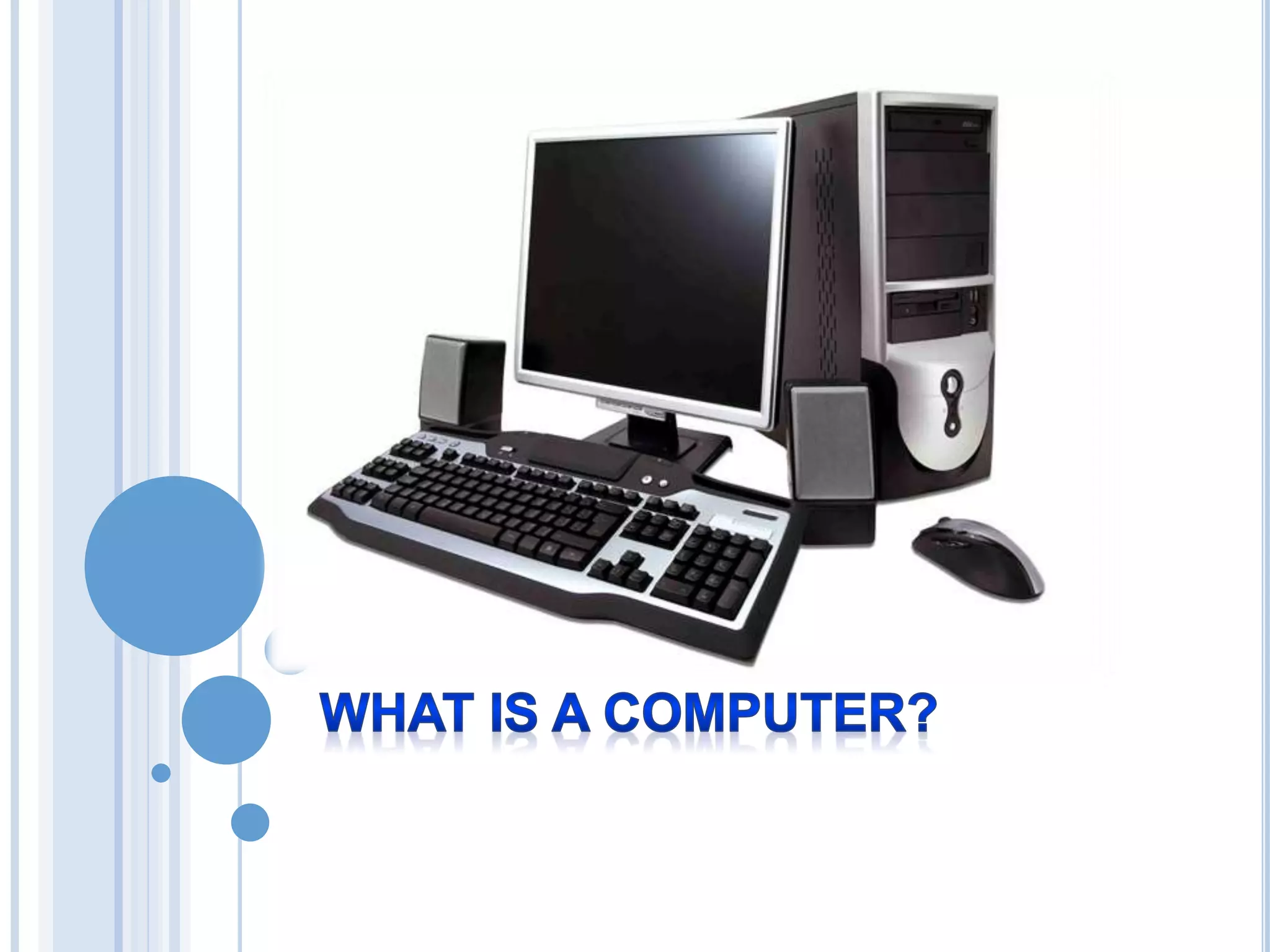
WHAT IS A COMPUTER?
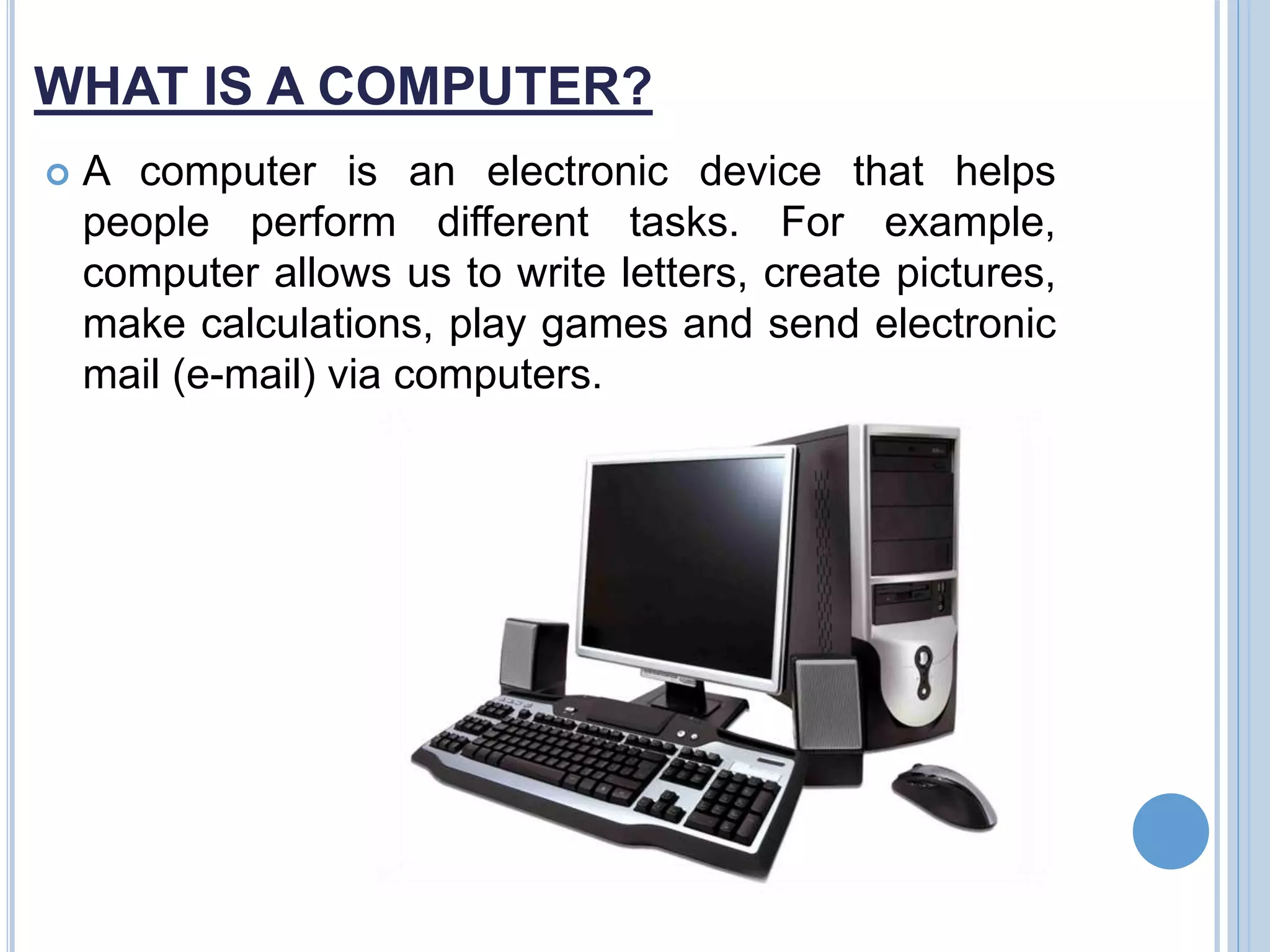
 A computer is an electronic device that helps
people perform different tasks. For example,
computer allows us to write letters, create pictures,
make calculations, play games and send electronic
mail (e-mail) via computers.
THREE ELEMENTS OF COMPUTER
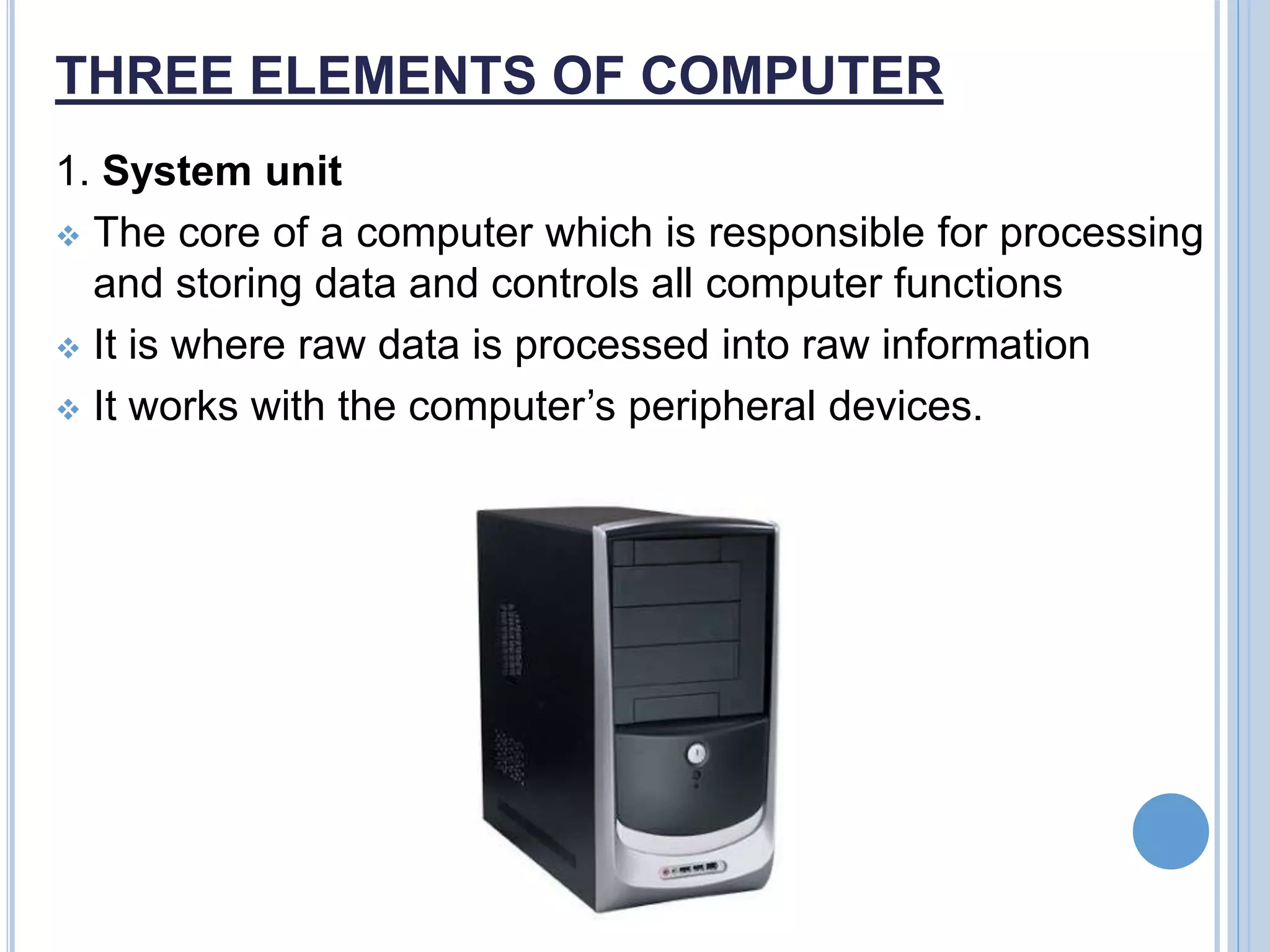
1. System unit
 The core of a computer which is responsible for processing
and storing data and controls all computer functions
 It is where raw data is processed into raw information
 It works with the computer’s peripheral devices.
THREE ELEMENTS OF COMPUTER
 Central Processing Unit (CPU)
-main thing that makes the computer operate
-is located inside the computer
- “brain of the computer”
 Parts of the Case
1. Cover – The case has a cover which protects the CPU,
motherboard, and other internal parts. It is removed by either
undoing the screws at the back, or pressing together clips
that release it.
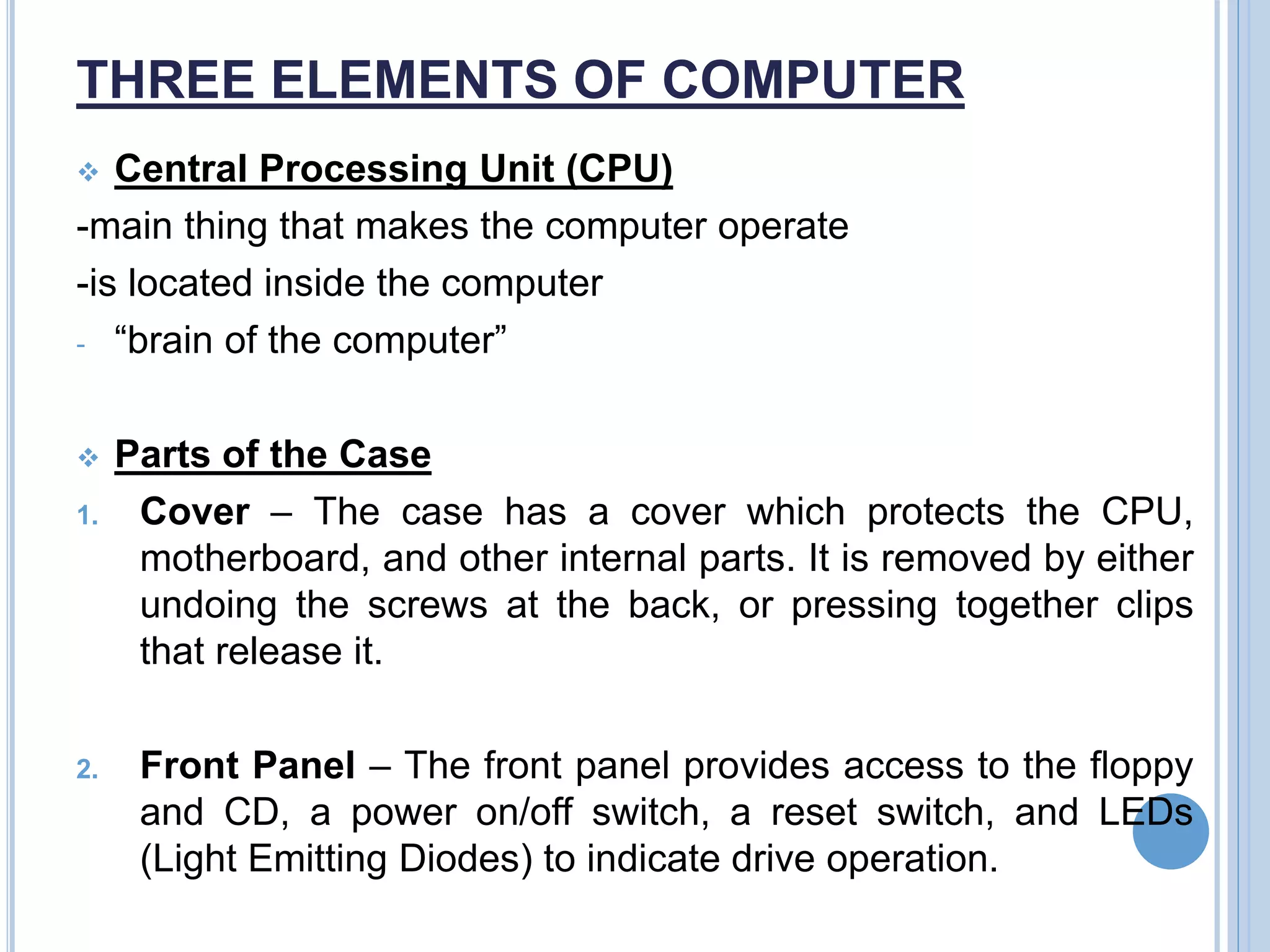
2. Front Panel – The front panel provides access to the floppy
and CD, a power on/off switch, a reset switch, and LEDs
(Light Emitting Diodes) to indicate drive operation.
THREE ELEMENTS OF COMPUTER
2. Output device
 Any peripheral device that presents, displays, alters, or records output
after it has left a computer’s system unit.
 When a computer completes a computation, the resulting data is sent
to an output device.
 Output device data can appear in various forms such as graphics,
laser light, sound or text.
 Examples:
a. Monitor
-most popular output device
-receives signals from a video card inside of the computer and gives the
user a graphical or textural display.
b. Printer
-creates images on paper, plastic, cloth and other print media using
technologies like ink transfer, heat transfer, chemical reactions, and
physical force.
THREE ELEMENTS OF COMPUTER
c. Speaker
-converts output data into sound
3. Input device
 Any peripheral appliance that generates input for the computer and
allows users to enter information into the computer to be processed.
 Allows users to provide a computer with commands, software,
instructions, and information
 Serves as pathway through which information enters a computer’s
system unit
 Examples:
a.Keyboard
-set of typewriter-like keys that enables you to enter data into
computer
THREE ELEMENTS OF COMPUTER
-Keys on computer keyboards are often classified as:
A. Alphanumeric keys-letters and numbers
B. Punctuation keys-comma, period, semicolon and so on.
C. Special keys-function keys, control keys, arrow keys, Caps Lock
key, etc.
b. Mouse
-Invented by Douglas Engelbart of Standford Research Center in 1963,
and pioneered by Xerox in 1970s.
-Device that controls the movement of the cursor or pointer on a
display screen
-Three types of mouse connectors include Serial Mouse, PS/2 and
USB.
THREE ELEMENTS OF COMPUTER
c. Scanner
-Input device that takes in an optical image and digitizes it into an
electronic image represented as binary data.
-The four types of scanners are Flatbed scanner, Handheld scanner,
Paper Feed scanner, and Drum scanner.
d. Digital camera
-Takes pictures without film and stores your snapshots as digital files in
its memory or on a SD card.
e. Graphic tablet
-input device that helps you draw objects o the screen using a pen.
OTHER PERIPHERAL DEVICES
 Hardware devices connected to a computer are commonly known as
peripheral. Peripheral devices serve specific purposes, enhance a
computer’s functions, or add a new service or an additional resource.
 Examples:
a. CD ROM drive- drive that is connected to a computer and on
which a CD-ROM can be played.
b. Modem- device for transmitting data between computers over
telephone lines.
c. External Drive Unit- drive with its own power supply and fan
mounted outside the computer system enclosure and connected to
the computer by a cable.
d. Flask disk/ Drive- like external drive, this drive holds data that you
can connect to different computers. It depends on the computer for
power source.
PROPER KEYBOARD TYPING
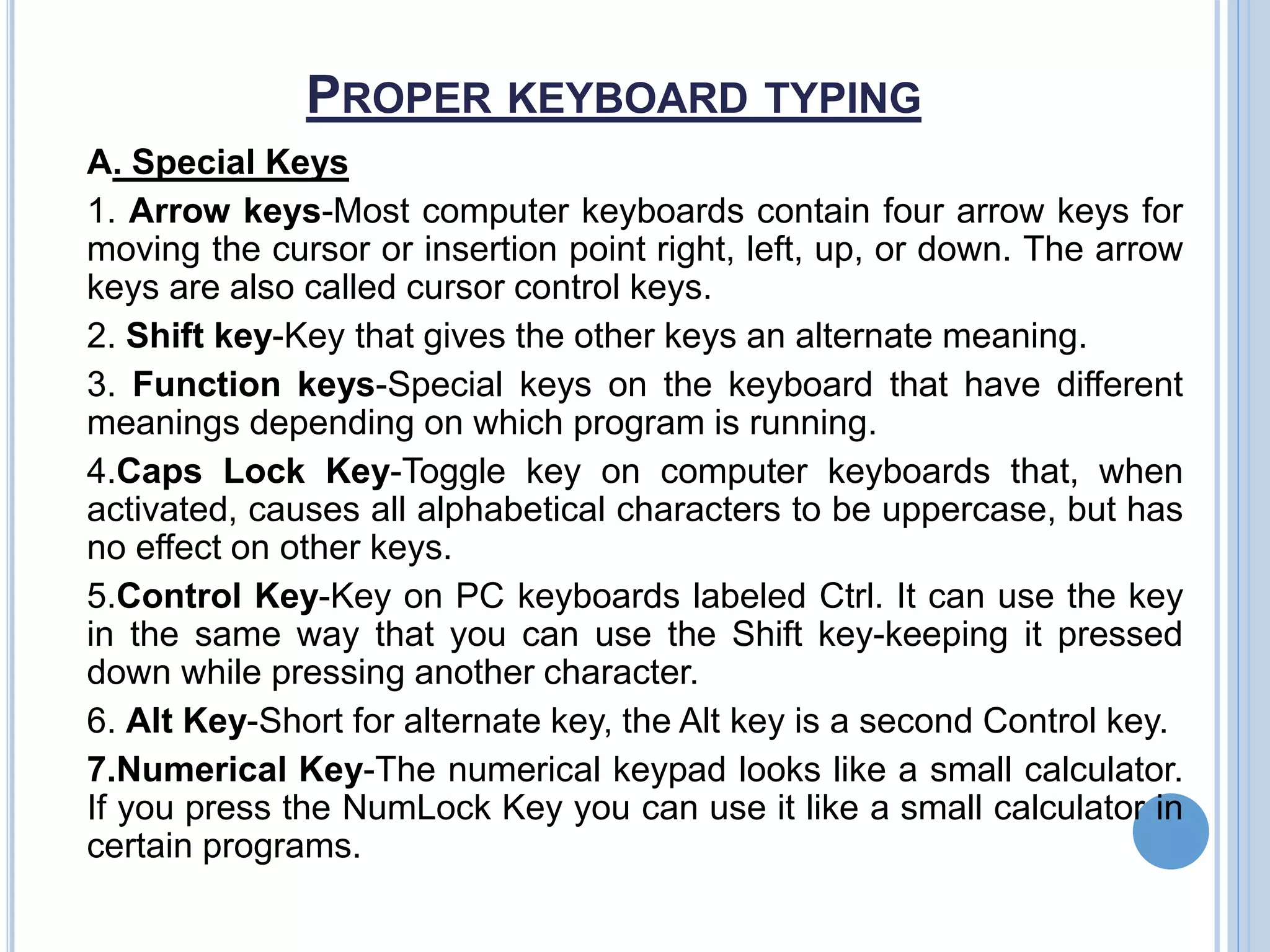
The Standard QWERTY Keyboard
 To easily learn how to type fast in the keyboard, you
should take note on the grouped or categorized keys and
its assigned finger in your hands.
PROPER KEYBOARD TYPING
A. Special Keys
1. Arrow keys-Most computer keyboards contain four arrow keys for
moving the cursor or insertion point right, left, up, or down. The arrow
keys are also called cursor control keys.
2. Shift key-Key that gives the other keys an alternate meaning.
3. Function keys-Special keys on the keyboard that have different
meanings depending on which program is running.
4.Caps Lock Key-Toggle key on computer keyboards that, when
activated, causes all alphabetical characters to be uppercase, but has
no effect on other keys.
5.Control Key-Key on PC keyboards labeled Ctrl. It can use the key
in the same way that you can use the Shift key-keeping it pressed
down while pressing another character.
6. Alt Key-Short for alternate key, the Alt key is a second Control key.
7.Numerical Key-The numerical keypad looks like a small calculator.
If you press the NumLock Key you can use it like a small calculator in
certain programs.
PROPER KEYBOARD TYPING
8. Space bar- Key used to create spaces between character (letters,
numbers, or symbols).
B. Alphabetical Keys
1. Home Row Keys- Keys at the middle row of the alphabetical keys
in the keyboard. The colon/semicolon is added for proper
placement of the pinky finger to the keyboard.
 Left Hand:
4th finger (pinky)-Letter A
3rd finger (ring)-Letter S
2nd finger (middle)-Letter D
1st finger (index)-Letter F
Left thumb-space bar
PROPER KEYBOARD TYPING
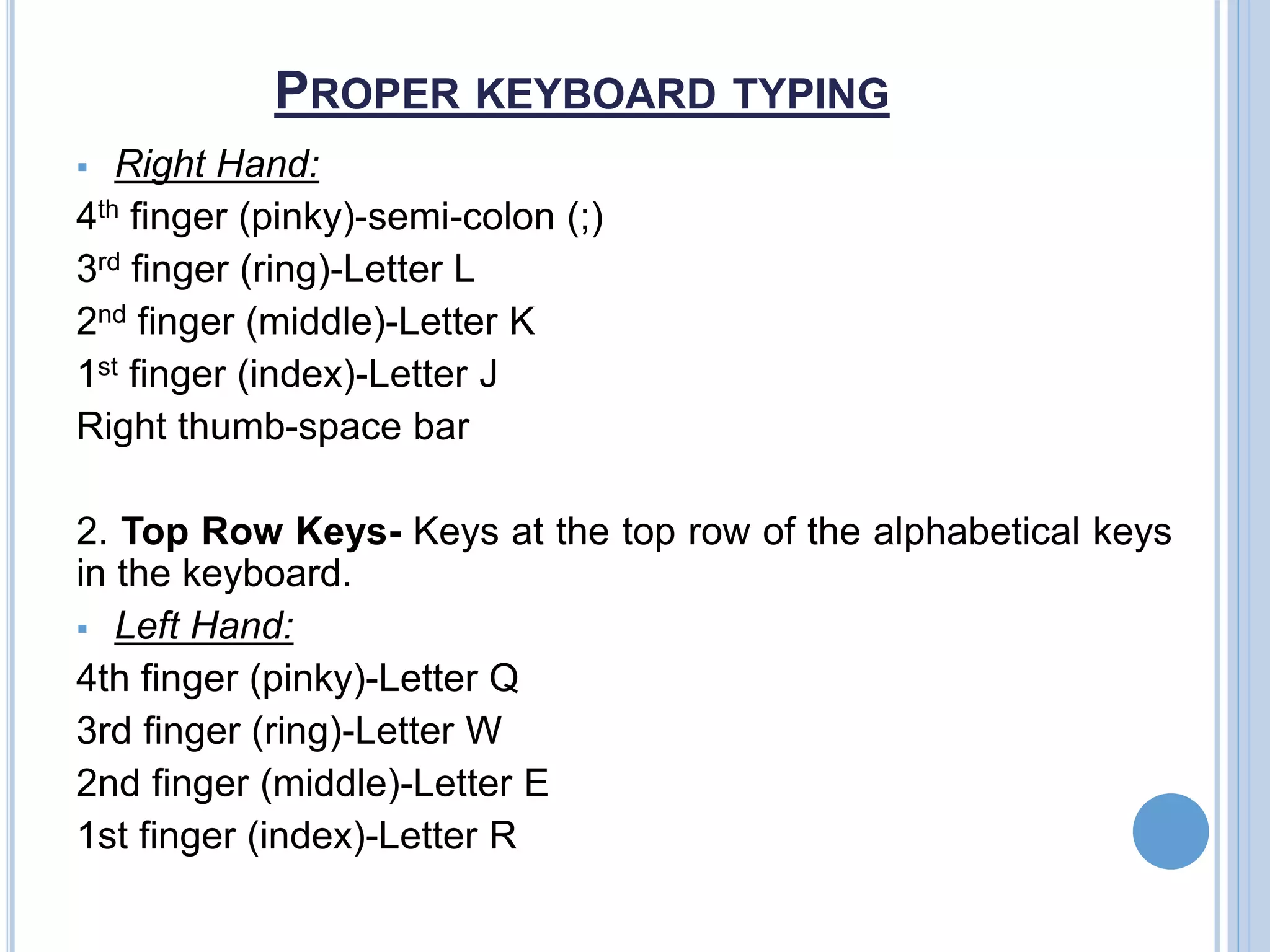
 Right Hand:
4th finger (pinky)-semi-colon (;)
3rd finger (ring)-Letter L
2nd finger (middle)-Letter K
1st finger (index)-Letter J
Right thumb-space bar
2. Top Row Keys- Keys at the top row of the alphabetical keys
in the keyboard.
 Left Hand:
4th finger (pinky)-Letter Q
3rd finger (ring)-Letter W
2nd finger (middle)-Letter E
1st finger (index)-Letter R
PROPER KEYBOARD TYPING
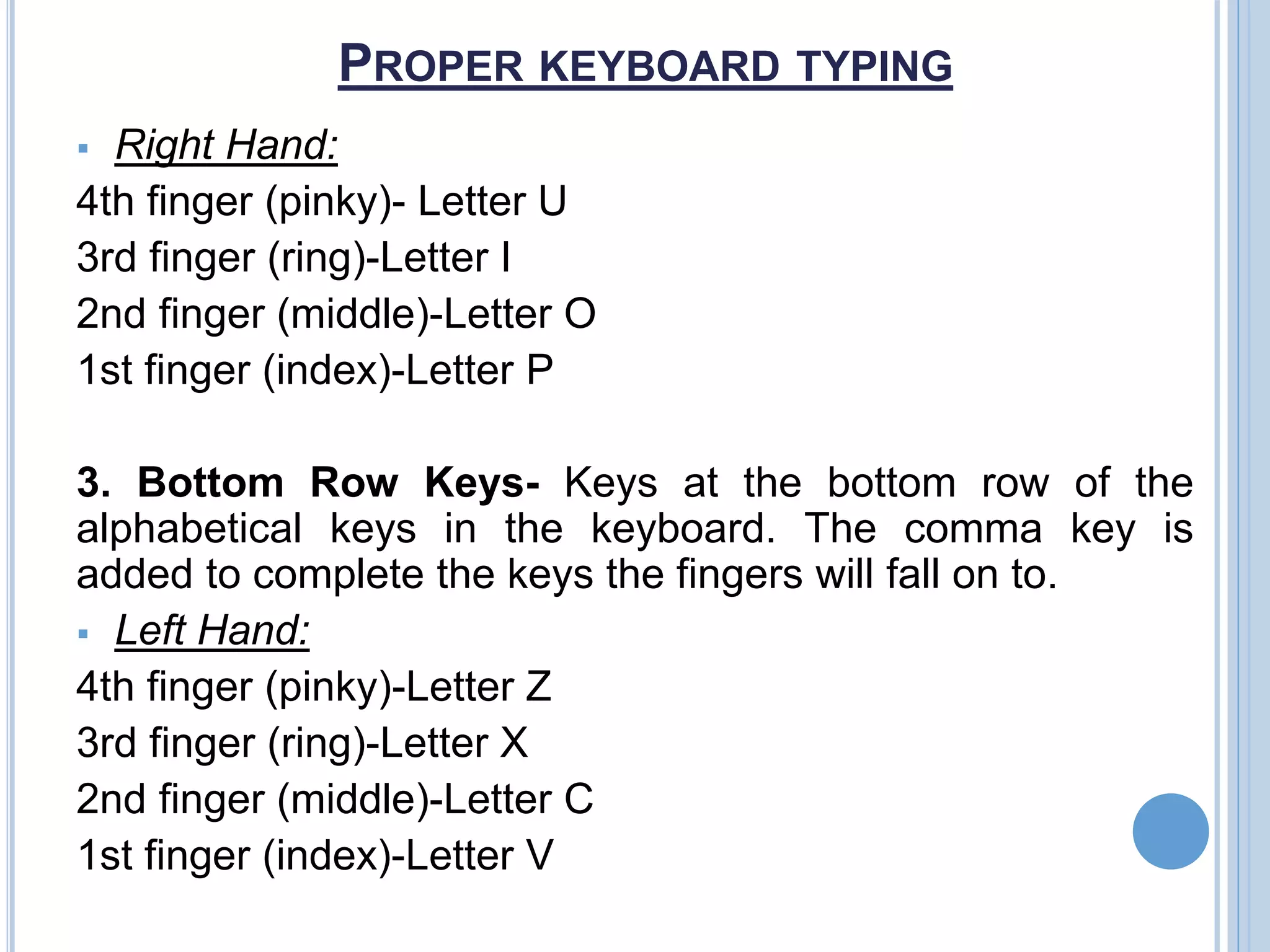
 Right Hand:
4th finger (pinky)- Letter U
3rd finger (ring)-Letter I
2nd finger (middle)-Letter O
1st finger (index)-Letter P
3. Bottom Row Keys- Keys at the bottom row of the
alphabetical keys in the keyboard. The comma key is
added to complete the keys the fingers will fall on to.
 Left Hand:
4th finger (pinky)-Letter Z
3rd finger (ring)-Letter X
2nd finger (middle)-Letter C
1st finger (index)-Letter V
PROPER KEYBOARD TYPING
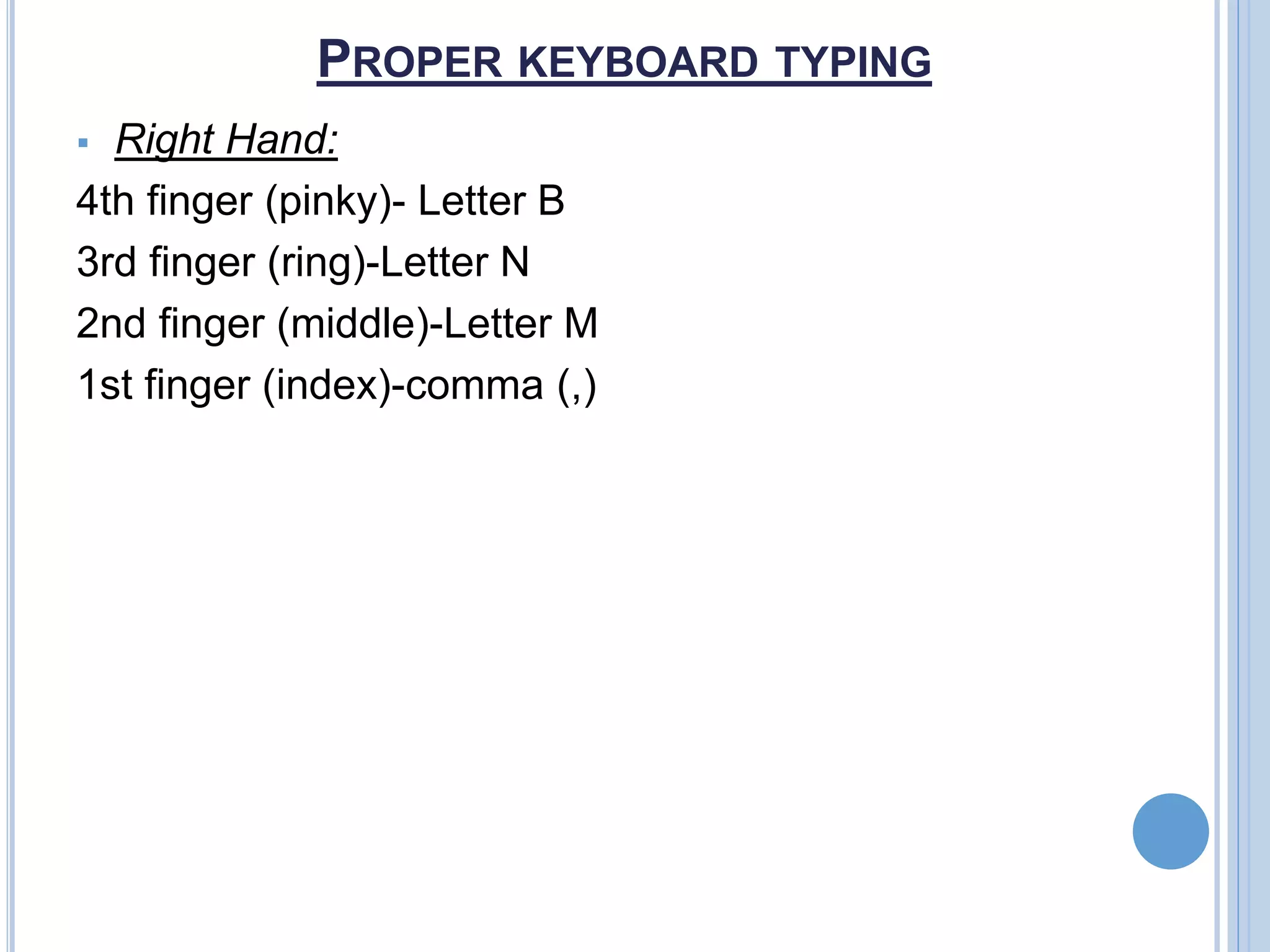
 Right Hand:
4th finger (pinky)- Letter B
3rd finger (ring)-Letter N
2nd finger (middle)-Letter M
1st finger (index)-comma (,)
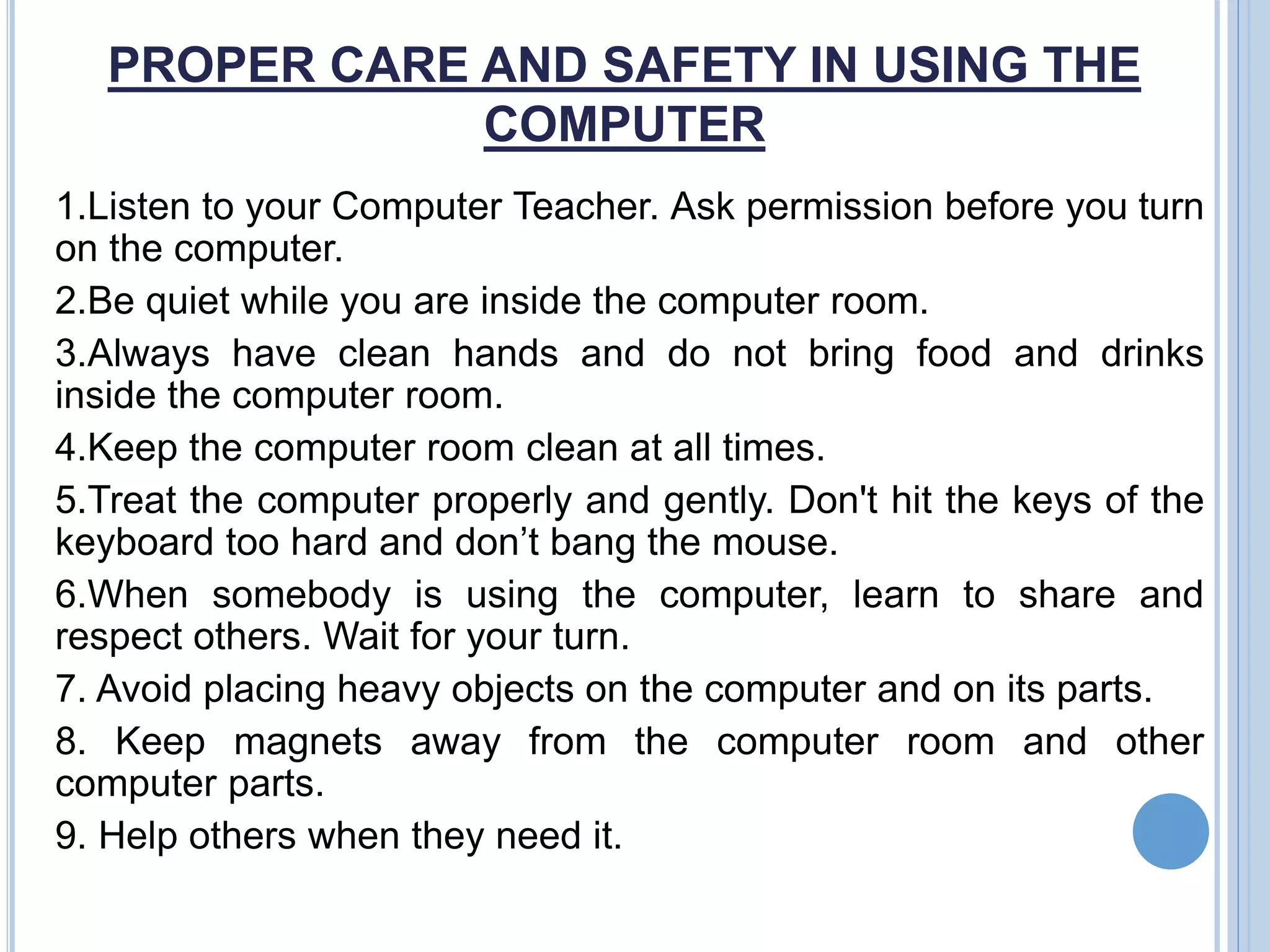
PROPER CARE AND SAFETY IN USING THE
COMPUTER
1.Listen to your Computer Teacher. Ask permission before you turn
on the computer.
2.Be quiet while you are inside the computer room.
3.Always have clean hands and do not bring food and drinks
inside the computer room.
4.Keep the computer room clean at all times.
5.Treat the computer properly and gently. Don't hit the keys of the
keyboard too hard and don’t bang the mouse.
6.When somebody is using the computer, learn to share and
respect others. Wait for your turn.
7. Avoid placing heavy objects on the computer and on its parts.
8. Keep magnets away from the computer room and other
computer parts.
9. Help others when they need it.
PROPER CARE AND SAFETY IN USING
THE COMPUTER
10. Always use your computer class time wisely. Getting
assignments or projects done on time will help you get high
grades.
11. Turn the computer off when not in use. After using the
computer, if possible, cover it with a piece of cloth. Leave
your area neat, clean and organized.

What is a Computer?

  • 2.
    WHAT IS ACOMPUTER?  A computer is an electronic device that helps people perform different tasks. For example, computer allows us to write letters, create pictures, make calculations, play games and send electronic mail (e-mail) via computers.
  • 3.
    THREE ELEMENTS OFCOMPUTER 1. System unit  The core of a computer which is responsible for processing and storing data and controls all computer functions  It is where raw data is processed into raw information  It works with the computer’s peripheral devices.
  • 4.
    THREE ELEMENTS OFCOMPUTER  Central Processing Unit (CPU) -main thing that makes the computer operate -is located inside the computer - “brain of the computer”  Parts of the Case 1. Cover – The case has a cover which protects the CPU, motherboard, and other internal parts. It is removed by either undoing the screws at the back, or pressing together clips that release it. 2. Front Panel – The front panel provides access to the floppy and CD, a power on/off switch, a reset switch, and LEDs (Light Emitting Diodes) to indicate drive operation.
  • 5.
    THREE ELEMENTS OFCOMPUTER 2. Output device  Any peripheral device that presents, displays, alters, or records output after it has left a computer’s system unit.  When a computer completes a computation, the resulting data is sent to an output device.  Output device data can appear in various forms such as graphics, laser light, sound or text.  Examples: a. Monitor -most popular output device -receives signals from a video card inside of the computer and gives the user a graphical or textural display. b. Printer -creates images on paper, plastic, cloth and other print media using technologies like ink transfer, heat transfer, chemical reactions, and physical force.
  • 6.
    THREE ELEMENTS OFCOMPUTER c. Speaker -converts output data into sound 3. Input device  Any peripheral appliance that generates input for the computer and allows users to enter information into the computer to be processed.  Allows users to provide a computer with commands, software, instructions, and information  Serves as pathway through which information enters a computer’s system unit  Examples: a.Keyboard -set of typewriter-like keys that enables you to enter data into computer
  • 7.
    THREE ELEMENTS OFCOMPUTER -Keys on computer keyboards are often classified as: A. Alphanumeric keys-letters and numbers B. Punctuation keys-comma, period, semicolon and so on. C. Special keys-function keys, control keys, arrow keys, Caps Lock key, etc. b. Mouse -Invented by Douglas Engelbart of Standford Research Center in 1963, and pioneered by Xerox in 1970s. -Device that controls the movement of the cursor or pointer on a display screen -Three types of mouse connectors include Serial Mouse, PS/2 and USB.
  • 8.
    THREE ELEMENTS OFCOMPUTER c. Scanner -Input device that takes in an optical image and digitizes it into an electronic image represented as binary data. -The four types of scanners are Flatbed scanner, Handheld scanner, Paper Feed scanner, and Drum scanner. d. Digital camera -Takes pictures without film and stores your snapshots as digital files in its memory or on a SD card. e. Graphic tablet -input device that helps you draw objects o the screen using a pen.
  • 9.
    OTHER PERIPHERAL DEVICES Hardware devices connected to a computer are commonly known as peripheral. Peripheral devices serve specific purposes, enhance a computer’s functions, or add a new service or an additional resource.  Examples: a. CD ROM drive- drive that is connected to a computer and on which a CD-ROM can be played. b. Modem- device for transmitting data between computers over telephone lines. c. External Drive Unit- drive with its own power supply and fan mounted outside the computer system enclosure and connected to the computer by a cable. d. Flask disk/ Drive- like external drive, this drive holds data that you can connect to different computers. It depends on the computer for power source.
  • 10.
    PROPER KEYBOARD TYPING TheStandard QWERTY Keyboard  To easily learn how to type fast in the keyboard, you should take note on the grouped or categorized keys and its assigned finger in your hands.
  • 11.
    PROPER KEYBOARD TYPING A.Special Keys 1. Arrow keys-Most computer keyboards contain four arrow keys for moving the cursor or insertion point right, left, up, or down. The arrow keys are also called cursor control keys. 2. Shift key-Key that gives the other keys an alternate meaning. 3. Function keys-Special keys on the keyboard that have different meanings depending on which program is running. 4.Caps Lock Key-Toggle key on computer keyboards that, when activated, causes all alphabetical characters to be uppercase, but has no effect on other keys. 5.Control Key-Key on PC keyboards labeled Ctrl. It can use the key in the same way that you can use the Shift key-keeping it pressed down while pressing another character. 6. Alt Key-Short for alternate key, the Alt key is a second Control key. 7.Numerical Key-The numerical keypad looks like a small calculator. If you press the NumLock Key you can use it like a small calculator in certain programs.
  • 12.
    PROPER KEYBOARD TYPING 8.Space bar- Key used to create spaces between character (letters, numbers, or symbols). B. Alphabetical Keys 1. Home Row Keys- Keys at the middle row of the alphabetical keys in the keyboard. The colon/semicolon is added for proper placement of the pinky finger to the keyboard.  Left Hand: 4th finger (pinky)-Letter A 3rd finger (ring)-Letter S 2nd finger (middle)-Letter D 1st finger (index)-Letter F Left thumb-space bar
  • 13.
    PROPER KEYBOARD TYPING Right Hand: 4th finger (pinky)-semi-colon (;) 3rd finger (ring)-Letter L 2nd finger (middle)-Letter K 1st finger (index)-Letter J Right thumb-space bar 2. Top Row Keys- Keys at the top row of the alphabetical keys in the keyboard.  Left Hand: 4th finger (pinky)-Letter Q 3rd finger (ring)-Letter W 2nd finger (middle)-Letter E 1st finger (index)-Letter R
  • 14.
    PROPER KEYBOARD TYPING Right Hand: 4th finger (pinky)- Letter U 3rd finger (ring)-Letter I 2nd finger (middle)-Letter O 1st finger (index)-Letter P 3. Bottom Row Keys- Keys at the bottom row of the alphabetical keys in the keyboard. The comma key is added to complete the keys the fingers will fall on to.  Left Hand: 4th finger (pinky)-Letter Z 3rd finger (ring)-Letter X 2nd finger (middle)-Letter C 1st finger (index)-Letter V
  • 15.
    PROPER KEYBOARD TYPING Right Hand: 4th finger (pinky)- Letter B 3rd finger (ring)-Letter N 2nd finger (middle)-Letter M 1st finger (index)-comma (,)
  • 16.
    PROPER CARE ANDSAFETY IN USING THE COMPUTER 1.Listen to your Computer Teacher. Ask permission before you turn on the computer. 2.Be quiet while you are inside the computer room. 3.Always have clean hands and do not bring food and drinks inside the computer room. 4.Keep the computer room clean at all times. 5.Treat the computer properly and gently. Don't hit the keys of the keyboard too hard and don’t bang the mouse. 6.When somebody is using the computer, learn to share and respect others. Wait for your turn. 7. Avoid placing heavy objects on the computer and on its parts. 8. Keep magnets away from the computer room and other computer parts. 9. Help others when they need it.
  • 17.
    PROPER CARE ANDSAFETY IN USING THE COMPUTER 10. Always use your computer class time wisely. Getting assignments or projects done on time will help you get high grades. 11. Turn the computer off when not in use. After using the computer, if possible, cover it with a piece of cloth. Leave your area neat, clean and organized.