3/31/2015
1
©2014 Net@Work Inc.
Abila MIP
Budgeting with MIP
Webinar Start Time: 1:00 pm CT (2:00 pm ET)
Webinar Audio:
You can dial the telephone numbers
located on your webinar panel, or
listen in using your microphone or
computer speakers.
We will begin shortly.
Technical Difficulties
Call: (805) 617-7000 (Option 1)
©2014 Net@Work Inc.
Today’s Presenter
3/31/2015
2
©2014 Net@Work Inc.
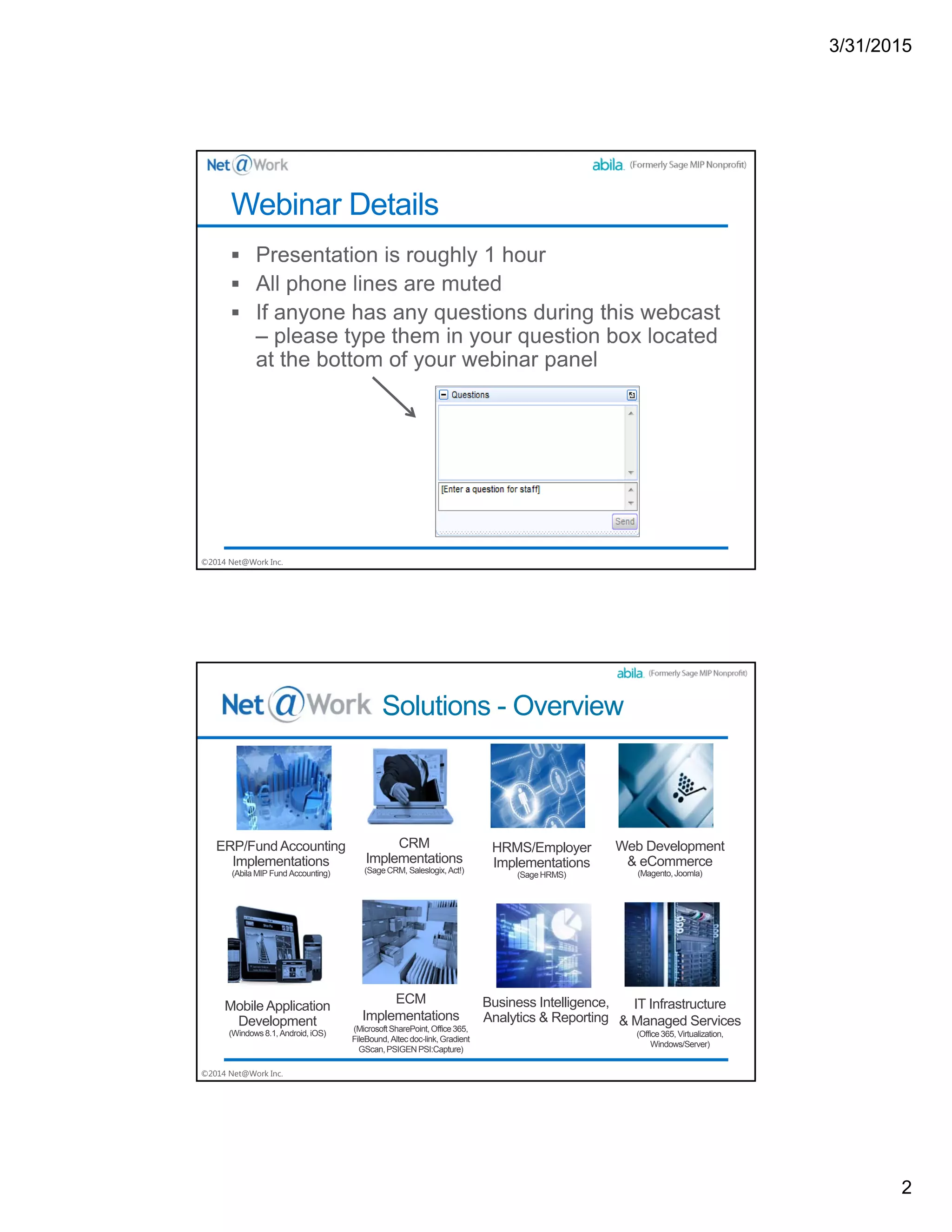
Webinar Details
©2014 Net@Work Inc.
Solutions - Overview
ERP/FundAccounting
Implementations
(Abila MIP Fund Accounting)
CRM
Implementations
(SageCRM, Saleslogix,Act!)
HRMS/Employer
Implementations
(SageHRMS)
Web Development
& eCommerce
(Magento,Joomla)
Mobile Application
Development
(Windows 8.1,Android,iOS)
ECM
Implementations
(MicrosoftSharePoint,Office365,
FileBound, Altec doc-link,Gradient
GScan,PSIGENPSI:Capture)
Business Intelligence,
Analytics & Reporting
IT Infrastructure
& Managed Services
(Office365, Virtualization,
Windows/Server)
3/31/2015
3
©2014 Net@Work Inc.
Today’s Conversation – Budgets
The Budget Management module appears to be a bit of
a mystery to too many folks –
• So – we need to concentrate some time on this one as
well so that organizations can clearly see where they are
against the budget throughout the year!
• Simple budget entry and ultimate comparisons can be
handled without the budget module --- complex
budgeting needs the module.
©2014 Net@Work Inc.
Here are the Areas of Concentration in the budgeting
area Today
• The business rules relating to budget entry
• How to input and review in the most efficient and easy
manner
• Budget comparison report configuration
• Budget Management, and impact (or need for) multiple
budget version capabilities
• Should I simply enter the data, or use the Budget
Worksheet to create and transfer, with How To’s for
Worksheet creation
3/31/2015
4
©2014 Net@Work Inc.
From Solely General Ledger?
 Input your Budget via the following menu:
 Transactions | Enter Budget
 To check your data entry: Use Reports | Transaction Reports | Unposted
Budget Transactions
 Go through your normal validation processes
 Then Post , or first look at your Budget Comparison Report with Unposted Entries
included
 Your Budget Comparison Reports are General Ledger Functions
 Statement of Revenue and Expenditures
 With Content Tab set to include whatever fields you wish
What Budget Capabilities come from solely GL, and what from
the Budget Management Module
©2014 Net@Work Inc.
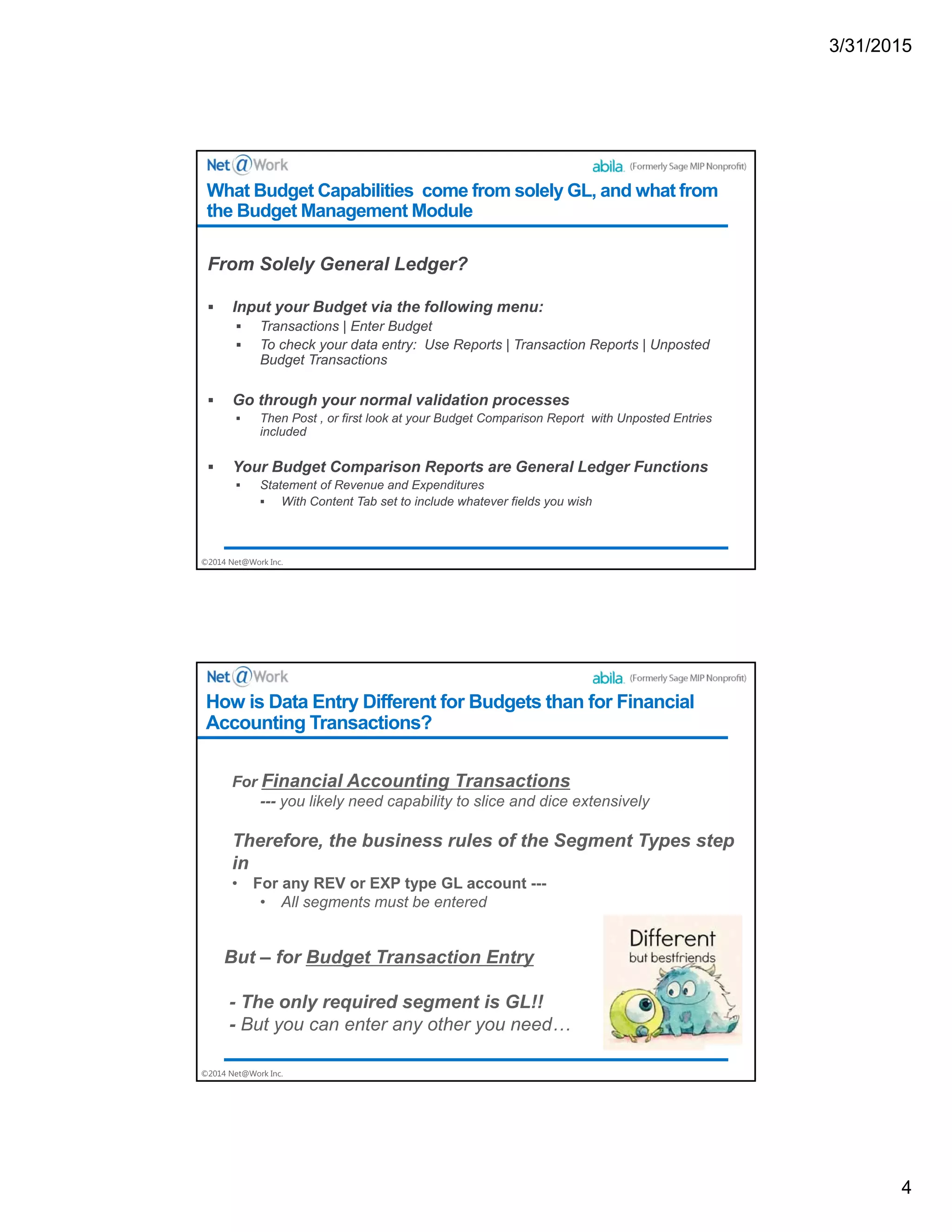
How is Data Entry Different for Budgets than for Financial
Accounting Transactions?
3/31/2015
5
©2014 Net@Work Inc.
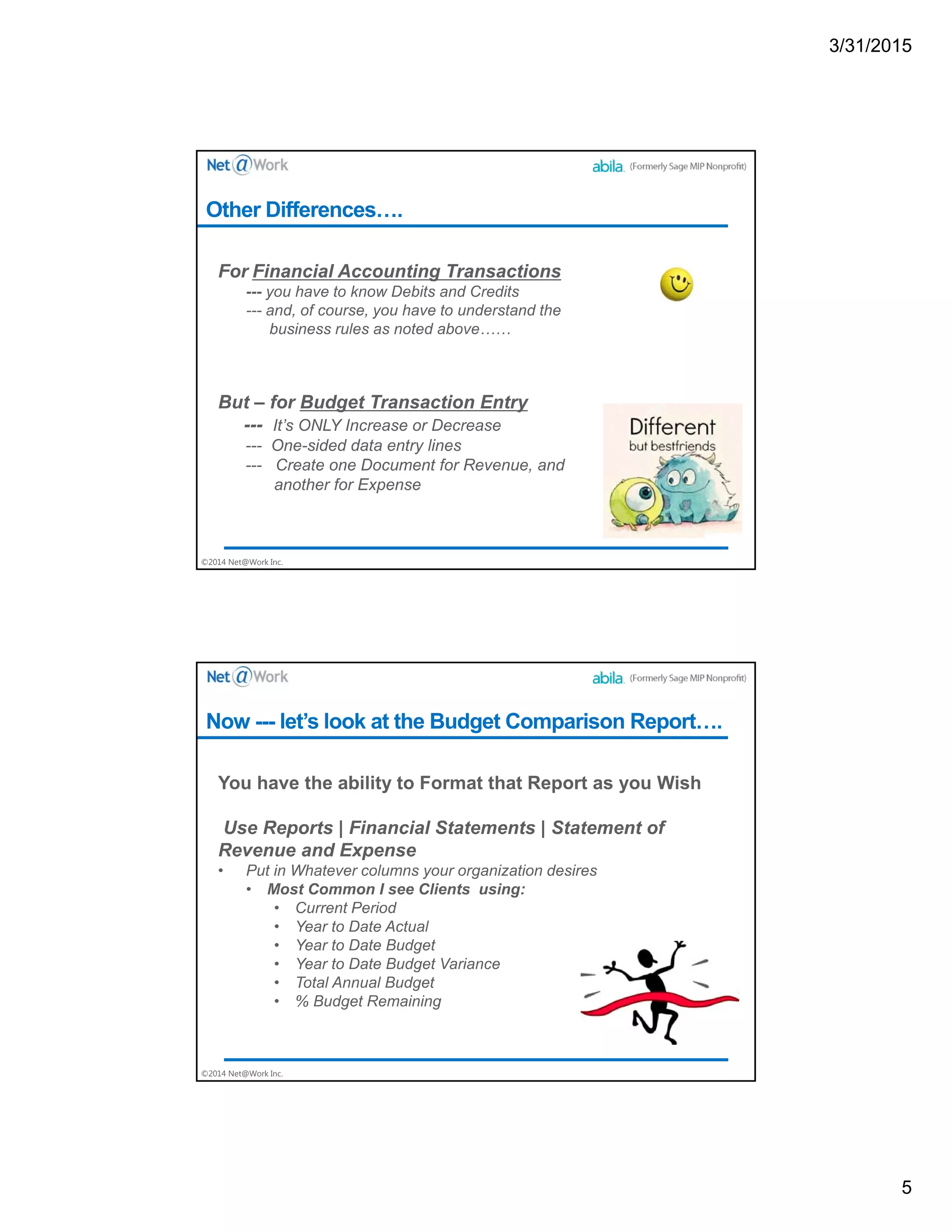
Other Differences….
©2014 Net@Work Inc.
Now --- let’s look at the Budget Comparison Report….
3/31/2015
6
©2014 Net@Work Inc.
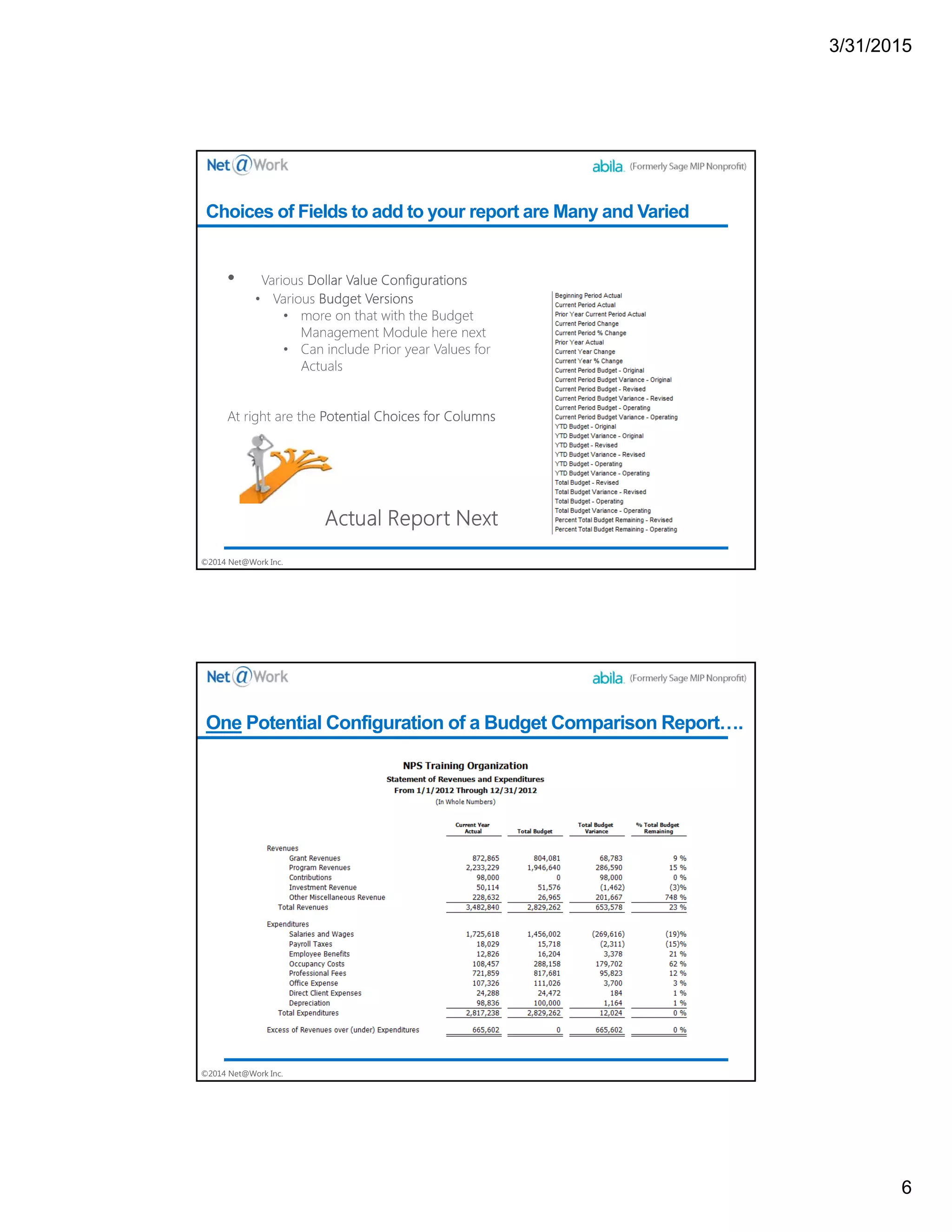
Choices of Fields to add to your report are Many and Varied
©2014 Net@Work Inc.
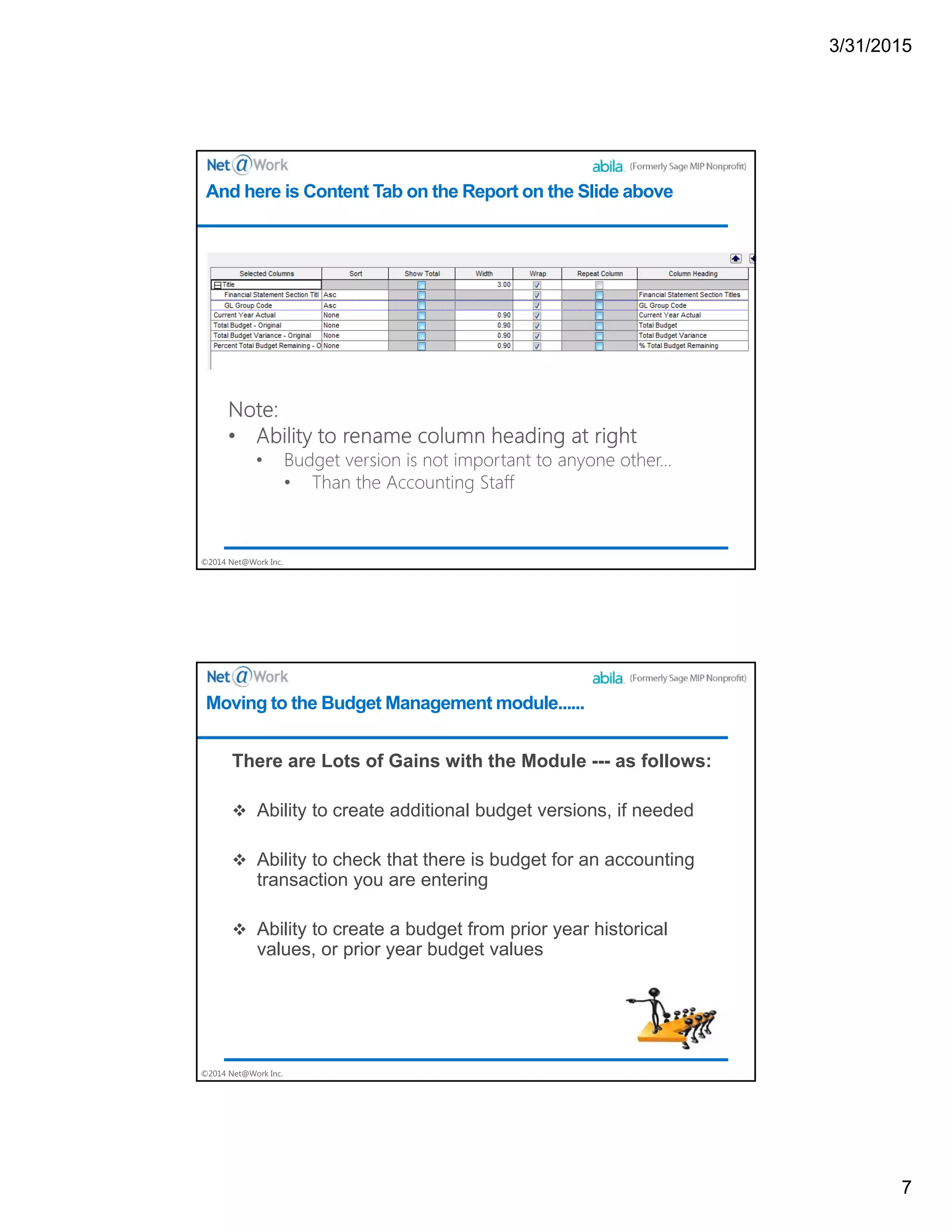
One Potential Configuration of a Budget Comparison Report….
3/31/2015
7
©2014 Net@Work Inc.
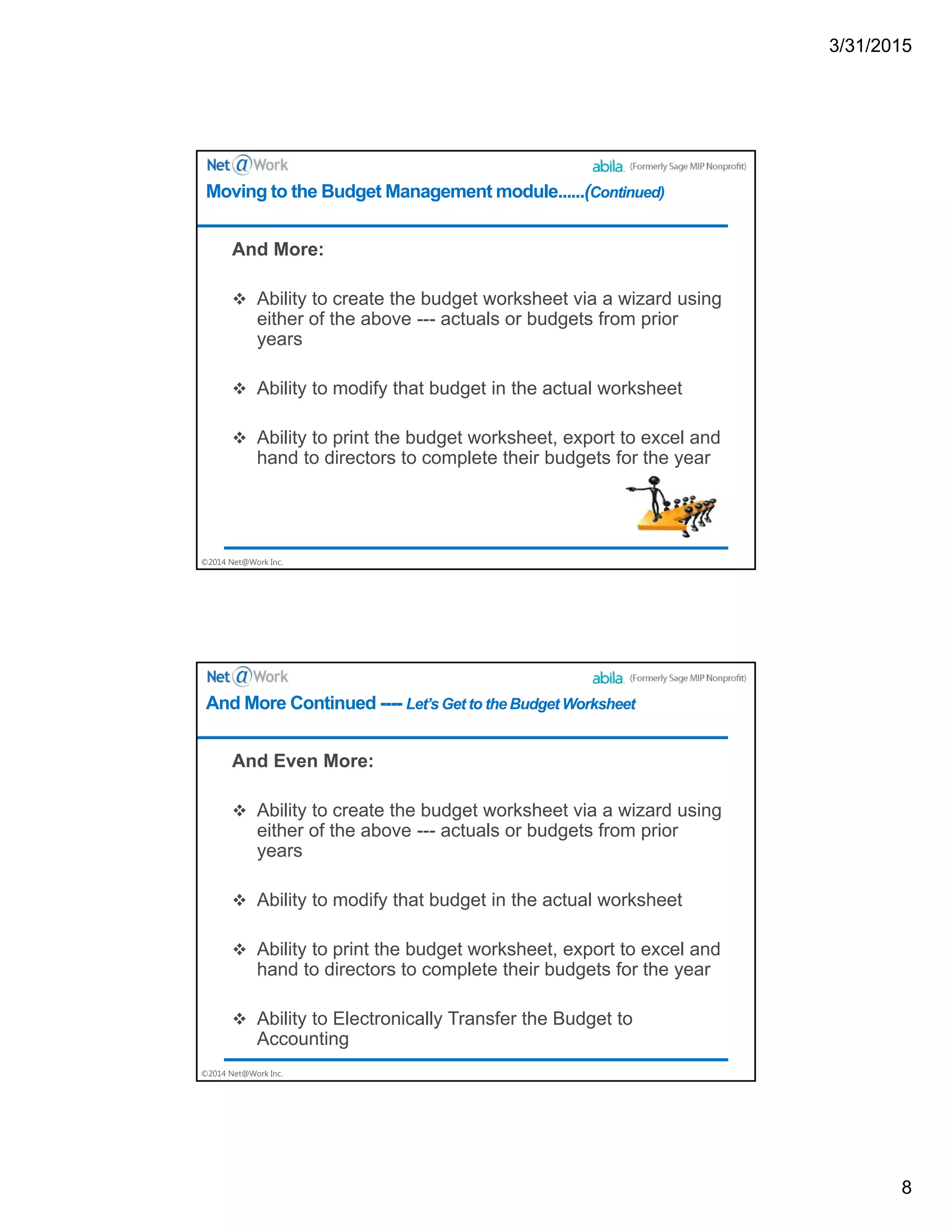
And here is Content Tab on the Report on the Slide above
©2014 Net@Work Inc.
There are Lots of Gains with the Module --- as follows:
 Ability to create additional budget versions, if needed
 Ability to check that there is budget for an accounting
transaction you are entering
 Ability to create a budget from prior year historical
values, or prior year budget values
Moving to the Budget Management module......
3/31/2015
8
©2014 Net@Work Inc.
And More:
 Ability to create the budget worksheet via a wizard using
either of the above --- actuals or budgets from prior
years
 Ability to modify that budget in the actual worksheet
 Ability to print the budget worksheet, export to excel and
hand to directors to complete their budgets for the year
Moving to the Budget Management module......(Continued)
©2014 Net@Work Inc.
And Even More:
 Ability to create the budget worksheet via a wizard using
either of the above --- actuals or budgets from prior
years
 Ability to modify that budget in the actual worksheet
 Ability to print the budget worksheet, export to excel and
hand to directors to complete their budgets for the year
 Ability to Electronically Transfer the Budget to
Accounting
And More Continued ---- Let’s Get to the Budget Worksheet
3/31/2015
9
©2014 Net@Work Inc.
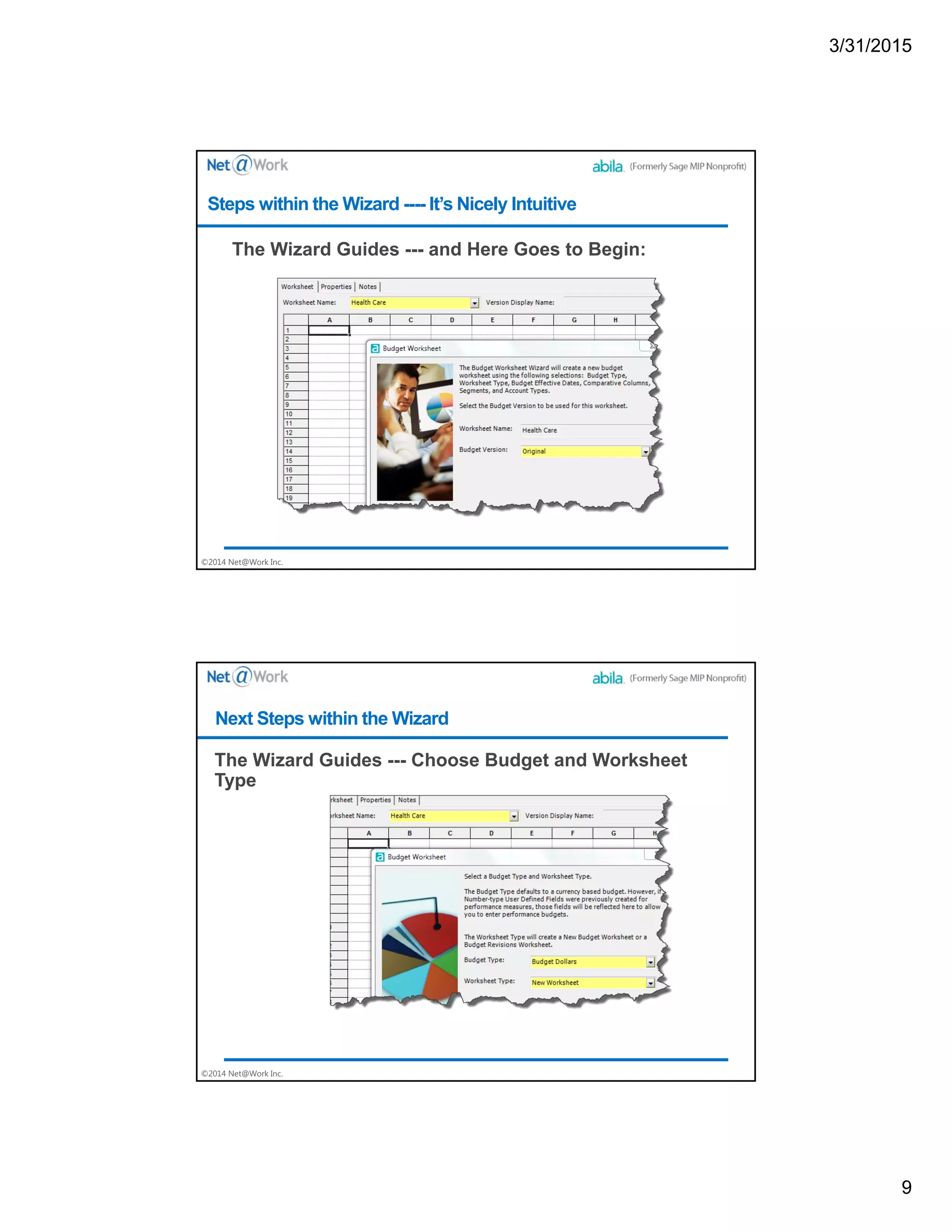
The Wizard Guides --- and Here Goes to Begin:
Steps within the Wizard ---- It’s Nicely Intuitive
©2014 Net@Work Inc.
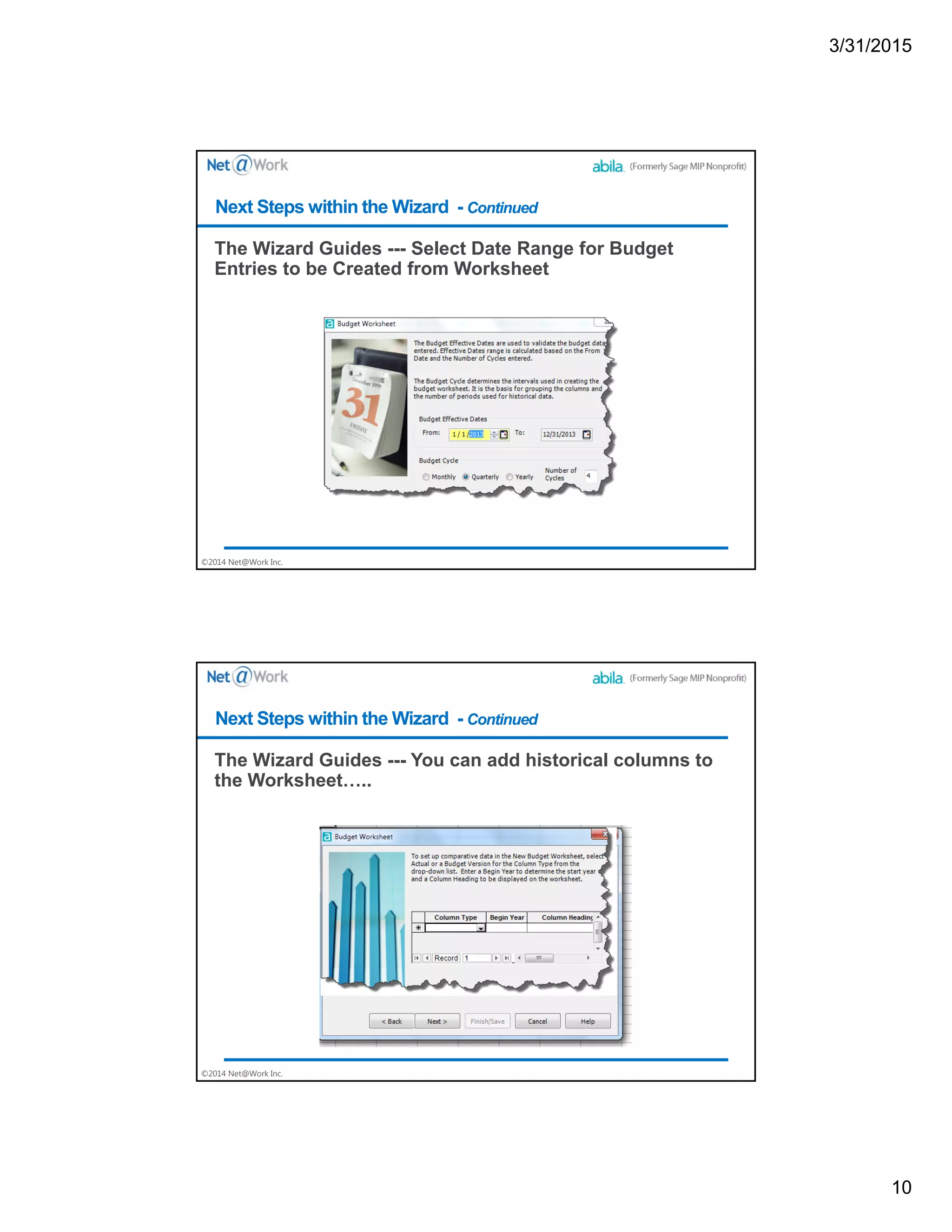
The Wizard Guides --- Choose Budget and Worksheet
Type
Next Steps within the Wizard
3/31/2015
10
©2014 Net@Work Inc.
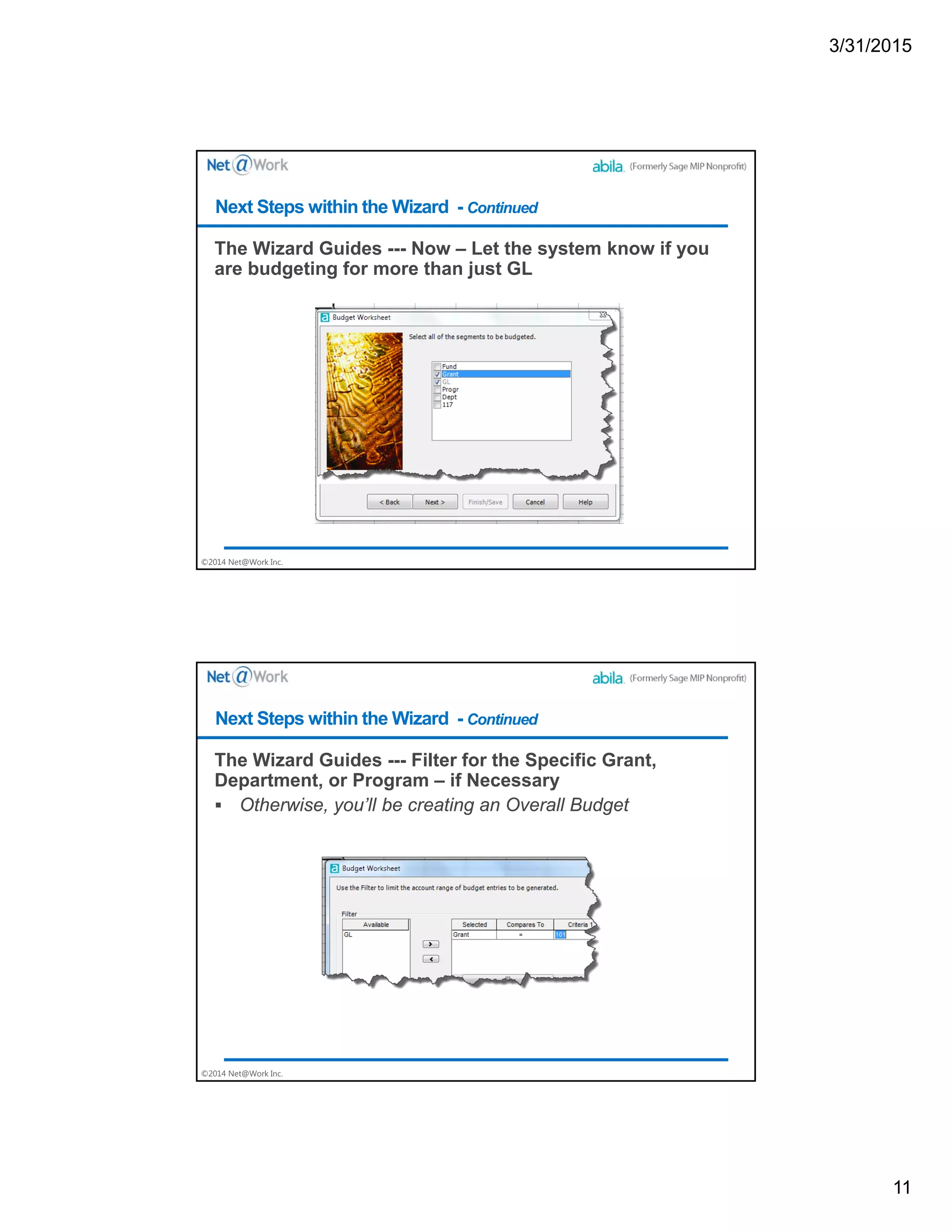
The Wizard Guides --- Select Date Range for Budget
Entries to be Created from Worksheet
Next Steps within the Wizard - Continued
©2014 Net@Work Inc.
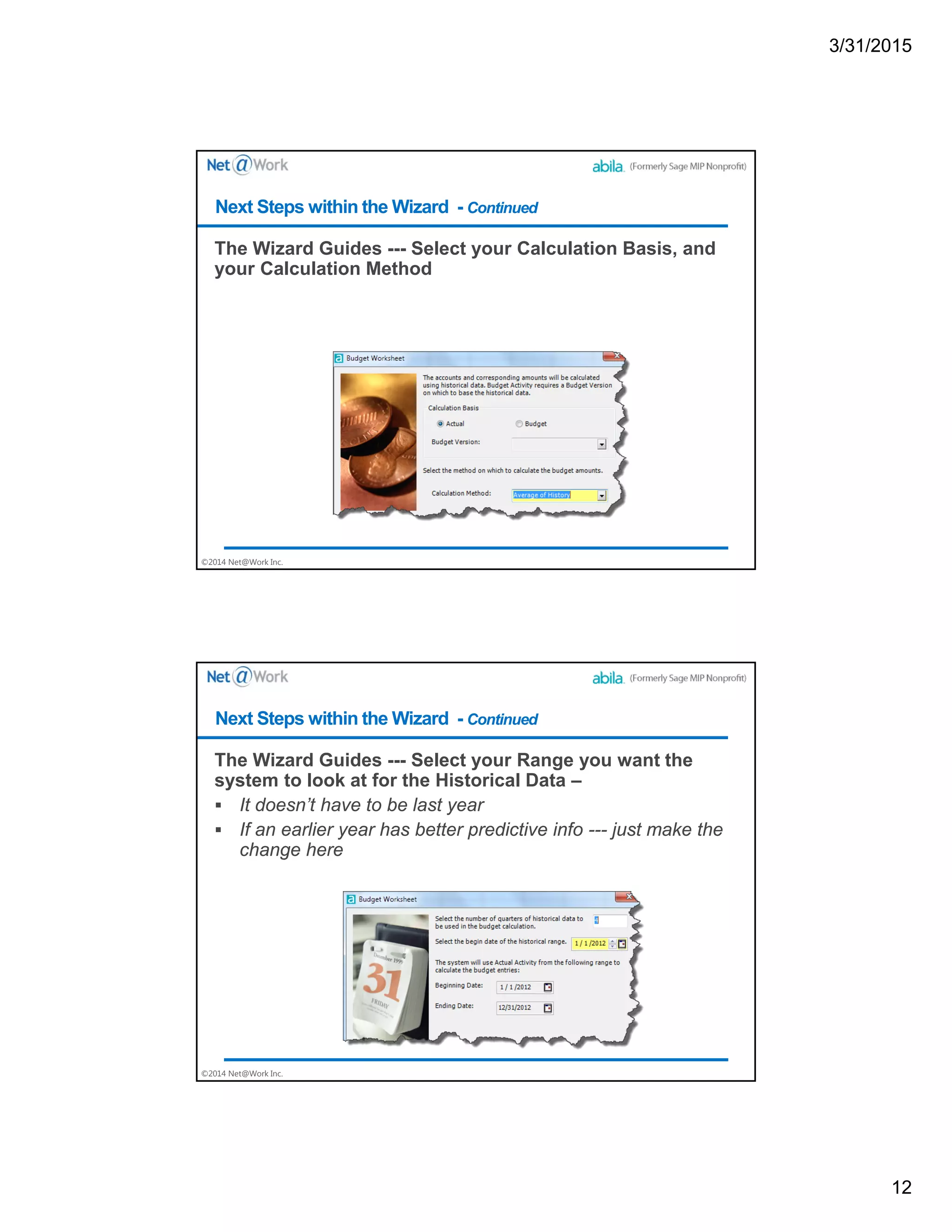
The Wizard Guides --- You can add historical columns to
the Worksheet…..
Next Steps within the Wizard - Continued
3/31/2015
11
©2014 Net@Work Inc.
The Wizard Guides --- Now – Let the system know if you
are budgeting for more than just GL
Next Steps within the Wizard - Continued
©2014 Net@Work Inc.
The Wizard Guides --- Filter for the Specific Grant,
Department, or Program – if Necessary
 Otherwise, you’ll be creating an Overall Budget
Next Steps within the Wizard - Continued
3/31/2015
12
©2014 Net@Work Inc.
The Wizard Guides --- Select your Calculation Basis, and
your Calculation Method
Next Steps within the Wizard - Continued
©2014 Net@Work Inc.
The Wizard Guides --- Select your Range you want the
system to look at for the Historical Data –
 It doesn’t have to be last year
 If an earlier year has better predictive info --- just make the
change here
Next Steps within the Wizard - Continued
3/31/2015
13
©2014 Net@Work Inc.
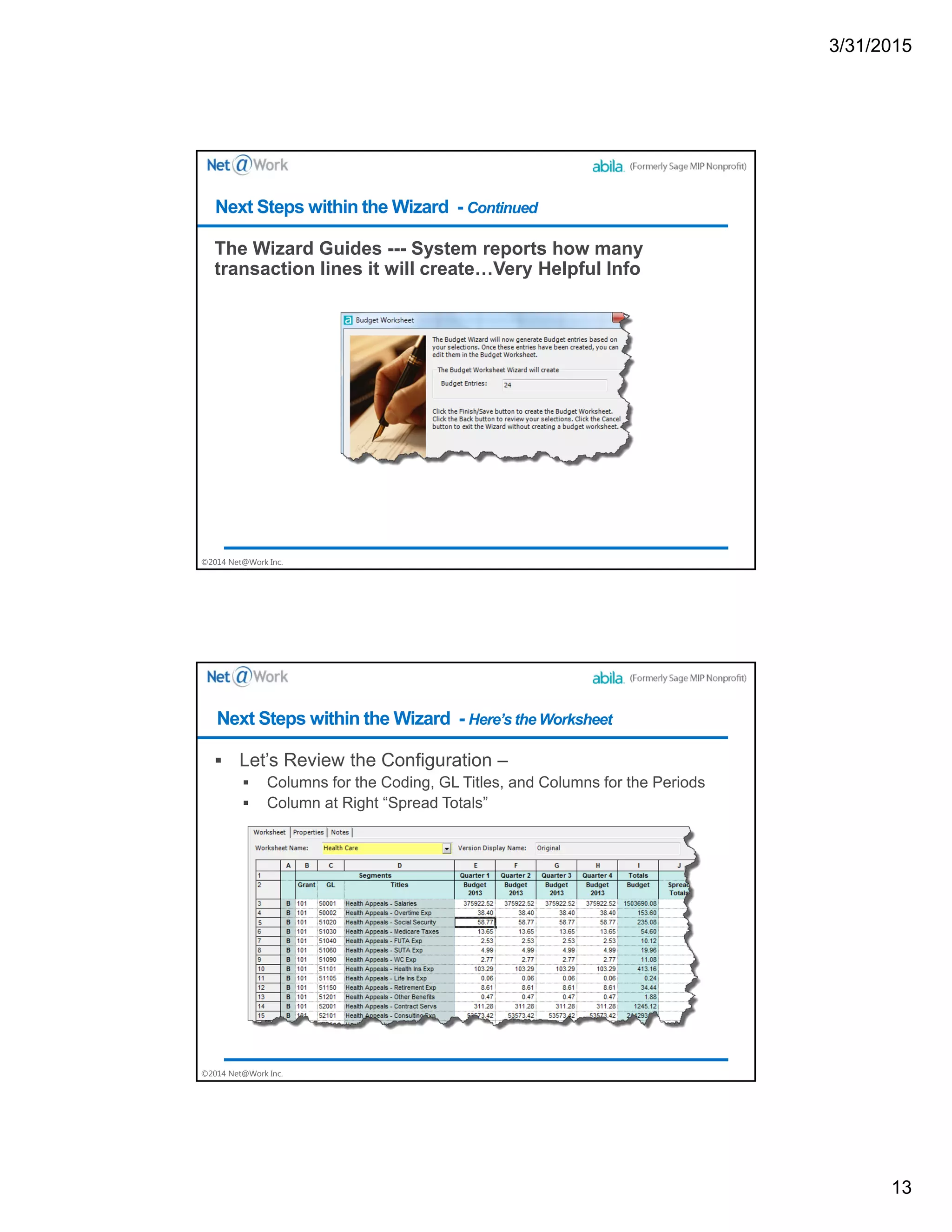
The Wizard Guides --- System reports how many
transaction lines it will create…Very Helpful Info
Next Steps within the Wizard - Continued
©2014 Net@Work Inc.
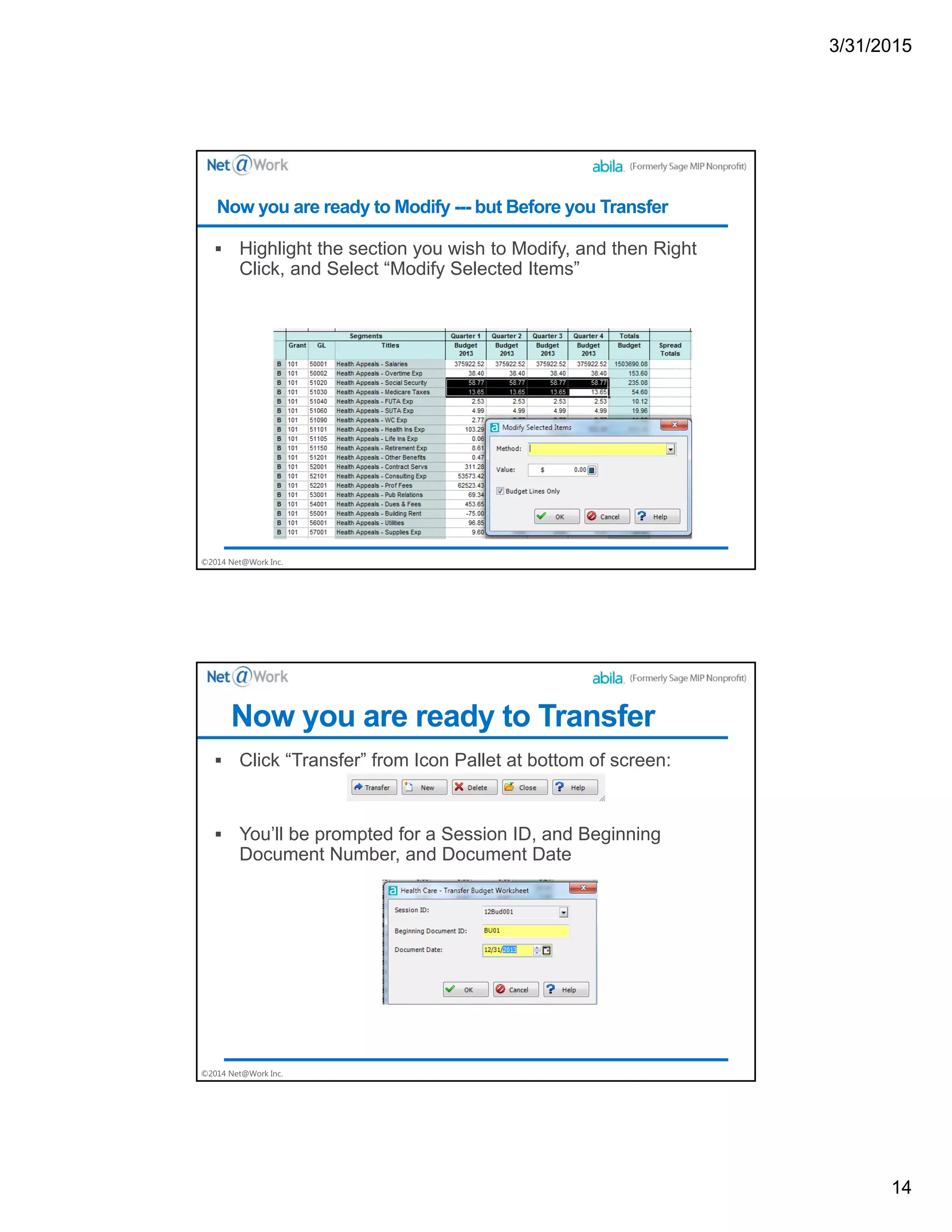
 Let’s Review the Configuration –
 Columns for the Coding, GL Titles, and Columns for the Periods
 Column at Right “Spread Totals”
Next Steps within the Wizard - Here’s the Worksheet
3/31/2015
14
©2014 Net@Work Inc.
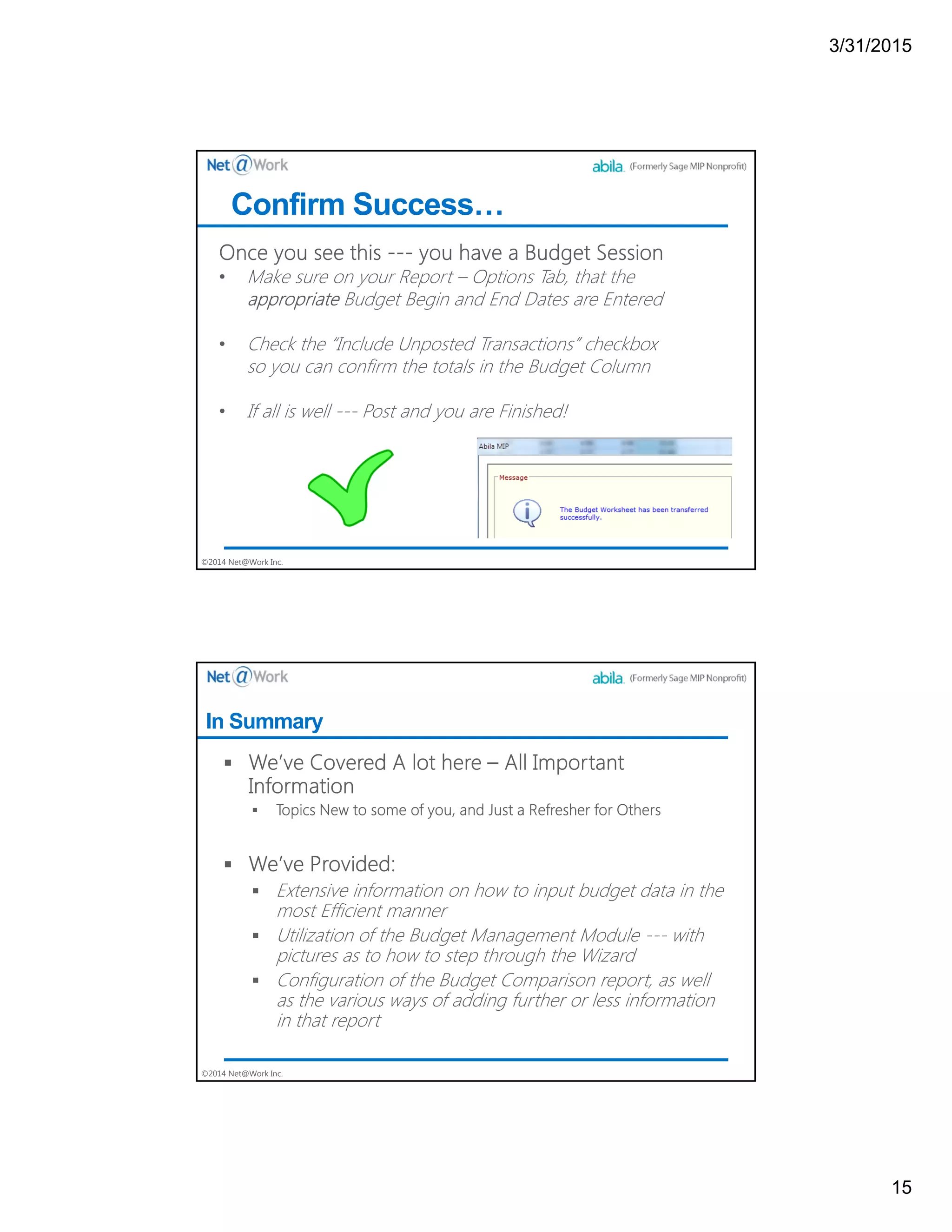
 Highlight the section you wish to Modify, and then Right
Click, and Select “Modify Selected Items”
Now you are ready to Modify --- but Before you Transfer
©2014 Net@Work Inc.
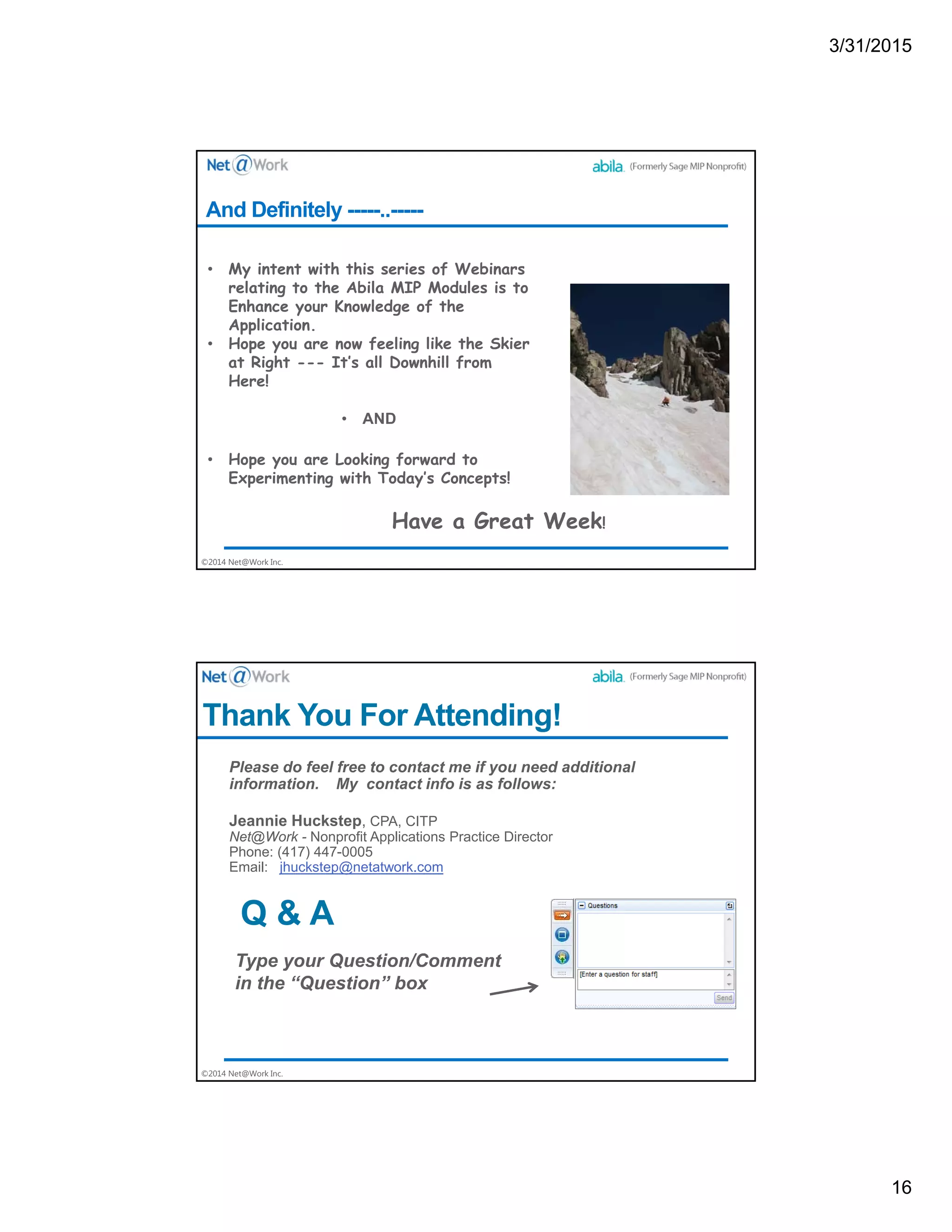
 Click “Transfer” from Icon Pallet at bottom of screen:
 You’ll be prompted for a Session ID, and Beginning
Document Number, and Document Date
Now you are ready to Transfer
3/31/2015
15
©2014 Net@Work Inc.
Confirm Success…
©2014 Net@Work Inc.
In Summary
3/31/2015
16
©2014 Net@Work Inc.
And Definitely -----..-----
©2014 Net@Work Inc.
Thank You For Attending!
Jeannie Huckstep, CPA, CITP
Net@Work - Nonprofit Applications Practice Director
Phone: (417) 447-0005
Email: jhuckstep@netatwork.com
Q & A

Abila MIP Budget Module

  • 1.
    3/31/2015 1 ©2014 Net@Work Inc. AbilaMIP Budgeting with MIP Webinar Start Time: 1:00 pm CT (2:00 pm ET) Webinar Audio: You can dial the telephone numbers located on your webinar panel, or listen in using your microphone or computer speakers. We will begin shortly. Technical Difficulties Call: (805) 617-7000 (Option 1) ©2014 Net@Work Inc. Today’s Presenter
  • 2.
    3/31/2015 2 ©2014 Net@Work Inc. WebinarDetails ©2014 Net@Work Inc. Solutions - Overview ERP/FundAccounting Implementations (Abila MIP Fund Accounting) CRM Implementations (SageCRM, Saleslogix,Act!) HRMS/Employer Implementations (SageHRMS) Web Development & eCommerce (Magento,Joomla) Mobile Application Development (Windows 8.1,Android,iOS) ECM Implementations (MicrosoftSharePoint,Office365, FileBound, Altec doc-link,Gradient GScan,PSIGENPSI:Capture) Business Intelligence, Analytics & Reporting IT Infrastructure & Managed Services (Office365, Virtualization, Windows/Server)
  • 3.
    3/31/2015 3 ©2014 Net@Work Inc. Today’sConversation – Budgets The Budget Management module appears to be a bit of a mystery to too many folks – • So – we need to concentrate some time on this one as well so that organizations can clearly see where they are against the budget throughout the year! • Simple budget entry and ultimate comparisons can be handled without the budget module --- complex budgeting needs the module. ©2014 Net@Work Inc. Here are the Areas of Concentration in the budgeting area Today • The business rules relating to budget entry • How to input and review in the most efficient and easy manner • Budget comparison report configuration • Budget Management, and impact (or need for) multiple budget version capabilities • Should I simply enter the data, or use the Budget Worksheet to create and transfer, with How To’s for Worksheet creation
  • 4.
    3/31/2015 4 ©2014 Net@Work Inc. FromSolely General Ledger?  Input your Budget via the following menu:  Transactions | Enter Budget  To check your data entry: Use Reports | Transaction Reports | Unposted Budget Transactions  Go through your normal validation processes  Then Post , or first look at your Budget Comparison Report with Unposted Entries included  Your Budget Comparison Reports are General Ledger Functions  Statement of Revenue and Expenditures  With Content Tab set to include whatever fields you wish What Budget Capabilities come from solely GL, and what from the Budget Management Module ©2014 Net@Work Inc. How is Data Entry Different for Budgets than for Financial Accounting Transactions?
  • 5.
    3/31/2015 5 ©2014 Net@Work Inc. OtherDifferences…. ©2014 Net@Work Inc. Now --- let’s look at the Budget Comparison Report….
  • 6.
    3/31/2015 6 ©2014 Net@Work Inc. Choicesof Fields to add to your report are Many and Varied ©2014 Net@Work Inc. One Potential Configuration of a Budget Comparison Report….
  • 7.
    3/31/2015 7 ©2014 Net@Work Inc. Andhere is Content Tab on the Report on the Slide above ©2014 Net@Work Inc. There are Lots of Gains with the Module --- as follows:  Ability to create additional budget versions, if needed  Ability to check that there is budget for an accounting transaction you are entering  Ability to create a budget from prior year historical values, or prior year budget values Moving to the Budget Management module......
  • 8.
    3/31/2015 8 ©2014 Net@Work Inc. AndMore:  Ability to create the budget worksheet via a wizard using either of the above --- actuals or budgets from prior years  Ability to modify that budget in the actual worksheet  Ability to print the budget worksheet, export to excel and hand to directors to complete their budgets for the year Moving to the Budget Management module......(Continued) ©2014 Net@Work Inc. And Even More:  Ability to create the budget worksheet via a wizard using either of the above --- actuals or budgets from prior years  Ability to modify that budget in the actual worksheet  Ability to print the budget worksheet, export to excel and hand to directors to complete their budgets for the year  Ability to Electronically Transfer the Budget to Accounting And More Continued ---- Let’s Get to the Budget Worksheet
  • 9.
    3/31/2015 9 ©2014 Net@Work Inc. TheWizard Guides --- and Here Goes to Begin: Steps within the Wizard ---- It’s Nicely Intuitive ©2014 Net@Work Inc. The Wizard Guides --- Choose Budget and Worksheet Type Next Steps within the Wizard
  • 10.
    3/31/2015 10 ©2014 Net@Work Inc. TheWizard Guides --- Select Date Range for Budget Entries to be Created from Worksheet Next Steps within the Wizard - Continued ©2014 Net@Work Inc. The Wizard Guides --- You can add historical columns to the Worksheet….. Next Steps within the Wizard - Continued
  • 11.
    3/31/2015 11 ©2014 Net@Work Inc. TheWizard Guides --- Now – Let the system know if you are budgeting for more than just GL Next Steps within the Wizard - Continued ©2014 Net@Work Inc. The Wizard Guides --- Filter for the Specific Grant, Department, or Program – if Necessary  Otherwise, you’ll be creating an Overall Budget Next Steps within the Wizard - Continued
  • 12.
    3/31/2015 12 ©2014 Net@Work Inc. TheWizard Guides --- Select your Calculation Basis, and your Calculation Method Next Steps within the Wizard - Continued ©2014 Net@Work Inc. The Wizard Guides --- Select your Range you want the system to look at for the Historical Data –  It doesn’t have to be last year  If an earlier year has better predictive info --- just make the change here Next Steps within the Wizard - Continued
  • 13.
    3/31/2015 13 ©2014 Net@Work Inc. TheWizard Guides --- System reports how many transaction lines it will create…Very Helpful Info Next Steps within the Wizard - Continued ©2014 Net@Work Inc.  Let’s Review the Configuration –  Columns for the Coding, GL Titles, and Columns for the Periods  Column at Right “Spread Totals” Next Steps within the Wizard - Here’s the Worksheet
  • 14.
    3/31/2015 14 ©2014 Net@Work Inc. Highlight the section you wish to Modify, and then Right Click, and Select “Modify Selected Items” Now you are ready to Modify --- but Before you Transfer ©2014 Net@Work Inc.  Click “Transfer” from Icon Pallet at bottom of screen:  You’ll be prompted for a Session ID, and Beginning Document Number, and Document Date Now you are ready to Transfer
  • 15.
    3/31/2015 15 ©2014 Net@Work Inc. ConfirmSuccess… ©2014 Net@Work Inc. In Summary
  • 16.
    3/31/2015 16 ©2014 Net@Work Inc. AndDefinitely -----..----- ©2014 Net@Work Inc. Thank You For Attending! Jeannie Huckstep, CPA, CITP Net@Work - Nonprofit Applications Practice Director Phone: (417) 447-0005 Email: jhuckstep@netatwork.com Q & A