SAP
FI-CO
ECC6
Prepared by
M.S.N.D.Prasad
Vijayawada
+91 9177648745/7207242947
msndurgaprasad@gmail.com
https://www.facebook.com/pages/Online-Tutorial-Point/302010406619928
GENERAL LEDGER
ACCOUNTING
with
CUSTOMIZATION
General Ledger Accounting
msndurgaprasd@gmail.com +91 91776 48745
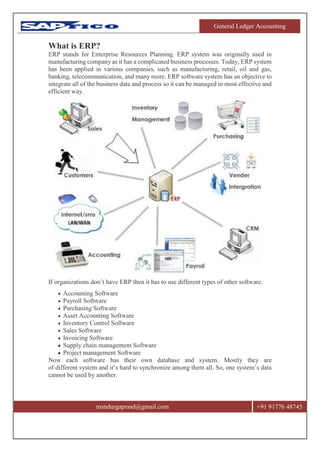
What is ERP?
ERP stands for Enterprise Resources Planning. ERP system was originally used in
manufacturing company as it has a complicated business processes. Today, ERP system
has been applied in various companies, such as manufacturing, retail, oil and gas,
banking, telecommunication, and many more. ERP software system has an objective to
integrate all of the business data and process so it can be managed in most effective and
efficient way.
If organizations don’t have ERP then it has to use different types of other software.
 Accounting Software
 Payroll Software
 Purchasing Software
 Asset Accounting Software
 Inventory Control Software
 Sales Software
 Invoicing Software
 Supply chain management Software
 Project management Software
Now each software has their own database and system. Mostly they are
of different system and it’s hard to synchronize among them all. So, one system’s data
cannot be used by another.
General Ledger Accounting
msndurgaprasd@gmail.com +91 91776 48745
ERP software integrates all the data from all the business departments and makes
assure data synchronization in all departments. Also this data can lead to another
process in another department.
What is SAP?
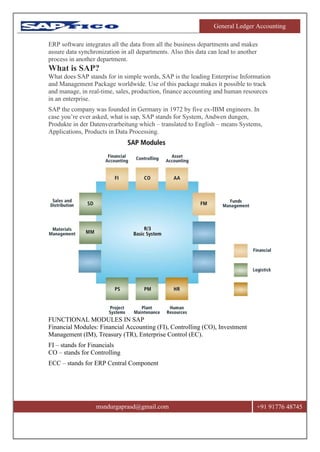
What does SAP stands for in simple words, SAP is the leading Enterprise Information
and Management Package worldwide. Use of this package makes it possible to track
and manage, in real-time, sales, production, finance accounting and human resources
in an enterprise.
SAP the company was founded in Germany in 1972 by five ex-IBM engineers. In
case you’re ever asked, what is sap, SAP stands for System, Andwen dungen,
Produkte in der Datenverarbeitung which – translated to English – means Systems,
Applications, Products in Data Processing.
FUNCTIONAL MODULES IN SAP
Financial Modules: Financial Accounting (FI), Controlling (CO), Investment
Management (IM), Treasury (TR), Enterprise Control (EC).
FI – stands for Financials
CO – stands for Controlling
ECC – stands for ERP Central Component
General Ledger Accounting
msndurgaprasd@gmail.com +91 91776 48745
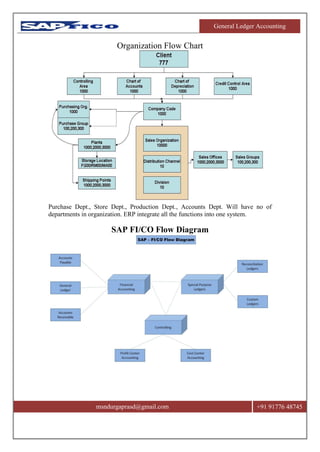
Organization Flow Chart
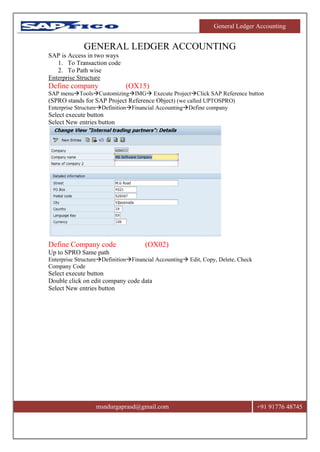
Purchase Dept., Store Dept., Production Dept., Accounts Dept. Will have no of
departments in organization. ERP integrate all the functions into one system.
SAP FI/CO Flow Diagram
General Ledger Accounting
msndurgaprasd@gmail.com +91 91776 48745
GENERAL LEDGER ACCOUNTING
SAP is Access in two ways
1. To Transaction code
2. To Path wise
Enterprise Structure
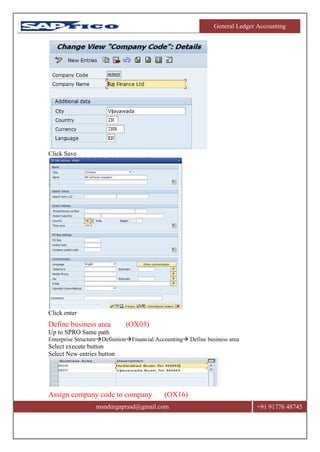
Define company (OX15)
SAP menuToolsCustomizingIMG Execute ProjectClick SAP Reference button
(SPRO stands for SAP Project Reference Object) (we called UPTOSPRO)
Enterprise StructureDefinitionFinancial AccountingDefine company
Select execute button
Select New entries button
Define Company code (OX02)
Up to SPRO Same path
Enterprise StructureDefinitionFinancial Accounting Edit, Copy, Delete, Check
Company Code
Select execute button
Double click on edit company code data
Select New entries button
General Ledger Accounting
msndurgaprasd@gmail.com +91 91776 48745
Click Save
Click enter
Define business area (OX03)
Up to SPRO Same path
Enterprise StructureDefinitionFinancial Accounting Define business area
Select execute button
Select New entries button
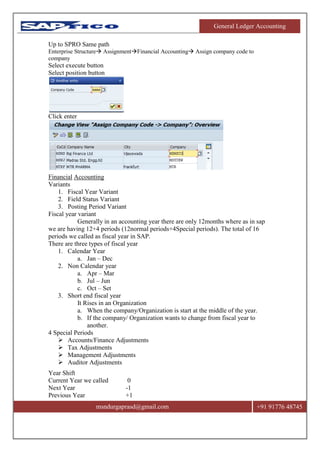
Assign company code to company (OX16)
General Ledger Accounting
msndurgaprasd@gmail.com +91 91776 48745
Up to SPRO Same path
Enterprise Structure AssignmentFinancial Accounting Assign company code to
company
Select execute button
Select position button
Click enter
Financial Accounting
Variants
1. Fiscal Year Variant
2. Field Status Variant
3. Posting Period Variant
Fiscal year variant
Generally in an accounting year there are only 12months where as in sap
we are having 12+4 periods (12normal periods+4Special periods). The total of 16
periods we called as fiscal year in SAP.
There are three types of fiscal year
1. Calendar Year
a. Jan – Dec
2. Non Calendar year
a. Apr – Mar
b. Jul – Jun
c. Oct – Set
3. Short end fiscal year
It Rises in an Organization
a. When the company/Organization is start at the middle of the year.
b. If the company/ Organization wants to change from fiscal year to
another.
4 Special Periods
 Accounts/Finance Adjustments
 Tax Adjustments
 Management Adjustments
 Auditor Adjustments
Year Shift
Current Year we called 0
Next Year -1
Previous Year +1
General Ledger Accounting
msndurgaprasd@gmail.com +91 91776 48745
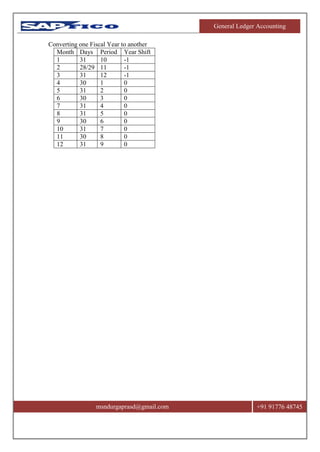
Converting one Fiscal Year to another
Month Days Period Year Shift
1 31 10 -1
2 28/29 11 -1
3 31 12 -1
4 30 1 0
5 31 2 0
6 30 3 0
7 31 4 0
8 31 5 0
9 30 6 0
10 31 7 0
11 30 8 0
12 31 9 0
General Ledger Accounting
msndurgaprasd@gmail.com +91 91776 48745
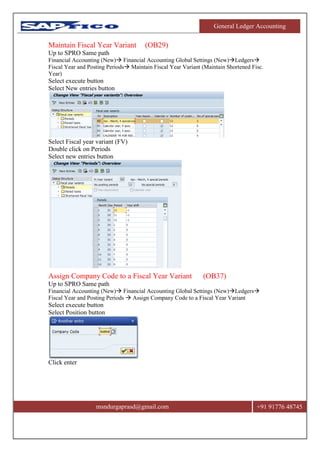
Maintain Fiscal Year Variant (OB29)
Up to SPRO Same path
Financial Accounting (New) Financial Accounting Global Settings (New)Ledgers
Fiscal Year and Posting Periods Maintain Fiscal Year Variant (Maintain Shortened Fisc.
Year)
Select execute button
Select New entries button
Select Fiscal year variant (FV)
Double click on Periods
Select new entries button
Assign Company Code to a Fiscal Year Variant (OB37)
Up to SPRO Same path
Financial Accounting (New) Financial Accounting Global Settings (New)Ledgers
Fiscal Year and Posting Periods  Assign Company Code to a Fiscal Year Variant
Select execute button
Select Position button
Click enter
General Ledger Accounting
msndurgaprasd@gmail.com +91 91776 48745
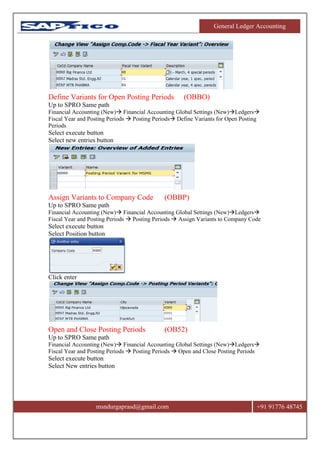
Define Variants for Open Posting Periods (OBBO)
Up to SPRO Same path
Financial Accounting (New) Financial Accounting Global Settings (New)Ledgers
Fiscal Year and Posting Periods  Posting Periods Define Variants for Open Posting
Periods
Select execute button
Select new entries button
Assign Variants to Company Code (OBBP)
Up to SPRO Same path
Financial Accounting (New) Financial Accounting Global Settings (New)Ledgers
Fiscal Year and Posting Periods  Posting Periods  Assign Variants to Company Code
Select execute button
Select Position button
Click enter
Open and Close Posting Periods (OB52)
Up to SPRO Same path
Financial Accounting (New) Financial Accounting Global Settings (New)Ledgers
Fiscal Year and Posting Periods  Posting Periods  Open and Close Posting Periods
Select execute button
Select New entries button
General Ledger Accounting
msndurgaprasd@gmail.com +91 91776 48745
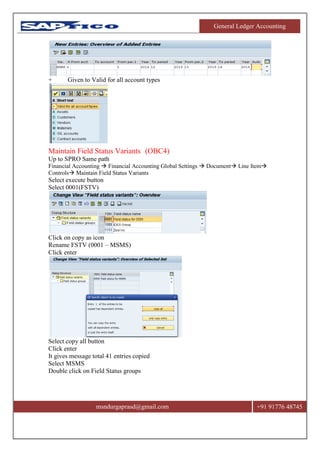
+ Given to Valid for all account types
Maintain Field Status Variants (OBC4)
Up to SPRO Same path
Financial Accounting  Financial Accounting Global Settings  Document Line Item
Controls Maintain Field Status Variants
Select execute button
Select 0001(FSTV)
Click on copy as icon
Rename FSTV (0001 – MSMS)
Click enter
Select copy all button
Click enter
It gives message total 41 entries copied
Select MSMS
Double click on Field Status groups
General Ledger Accounting
msndurgaprasd@gmail.com +91 91776 48745
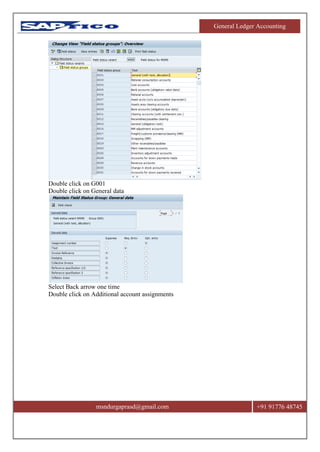
Double click on G001
Double click on General data
Select Back arrow one time
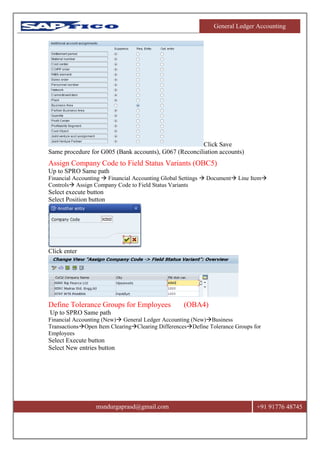
Double click on Additional account assignments
General Ledger Accounting
msndurgaprasd@gmail.com +91 91776 48745
Click Save
Same procedure for G005 (Bank accounts), G067 (Reconciliation accounts)
Assign Company Code to Field Status Variants (OBC5)
Up to SPRO Same path
Financial Accounting  Financial Accounting Global Settings  Document Line Item
Controls Assign Company Code to Field Status Variants
Select execute button
Select Position button
Click enter
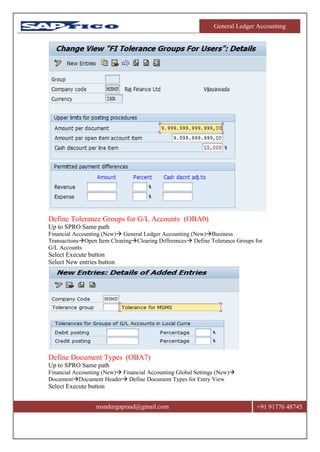
Define Tolerance Groups for Employees (OBA4)
Up to SPRO Same path
Financial Accounting (New) General Ledger Accounting (New)Business
TransactionsOpen Item ClearingClearing DifferencesDefine Tolerance Groups for
Employees
Select Execute button
Select New entries button
General Ledger Accounting
msndurgaprasd@gmail.com +91 91776 48745
Define Tolerance Groups for G/L Accounts (OBA0)
Up to SPRO Same path
Financial Accounting (New) General Ledger Accounting (New)Business
TransactionsOpen Item ClearingClearing Differences Define Tolerance Groups for
G/L Accounts
Select Execute button
Select New entries button
Define Document Types (OBA7)
Up to SPRO Same path
Financial Accounting (New) Financial Accounting Global Settings (New)
DocumentDocument Header Define Document Types for Entry View
Select Execute button
General Ledger Accounting
msndurgaprasd@gmail.com +91 91776 48745
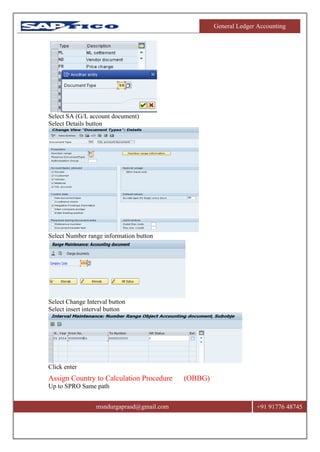
Select SA (G/L account document)
Select Details button
Select Number range information button
Select Change Interval button
Select insert interval button
Click enter
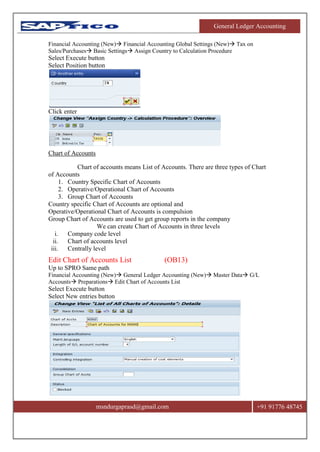
Assign Country to Calculation Procedure (OBBG)
Up to SPRO Same path
General Ledger Accounting
msndurgaprasd@gmail.com +91 91776 48745
Financial Accounting (New) Financial Accounting Global Settings (New) Tax on
Sales/Purchases Basic Settings Assign Country to Calculation Procedure
Select Execute button
Select Position button
Click enter
Chart of Accounts
Chart of accounts means List of Accounts. There are three types of Chart
of Accounts
1. Country Specific Chart of Accounts
2. Operative/Operational Chart of Accounts
3. Group Chart of Accounts
Country specific Chart of Accounts are optional and
Operative/Operational Chart of Accounts is compulsion
Group Chart of Accounts are used to get group reports in the company
We can create Chart of Accounts in three levels
i. Company code level
ii. Chart of accounts level
iii. Centrally level
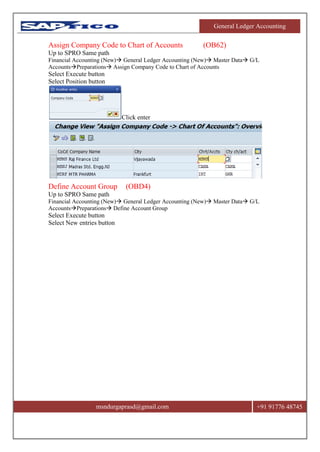
Edit Chart of Accounts List (OB13)
Up to SPRO Same path
Financial Accounting (New) General Ledger Accounting (New) Master Data G/L
Accounts Preparations Edit Chart of Accounts List
Select Execute button
Select New entries button
General Ledger Accounting
msndurgaprasd@gmail.com +91 91776 48745
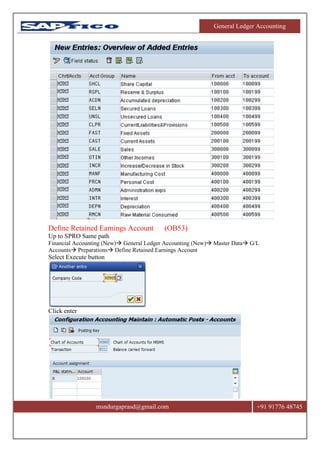
Assign Company Code to Chart of Accounts (OB62)
Up to SPRO Same path
Financial Accounting (New) General Ledger Accounting (New) Master Data G/L
AccountsPreparations Assign Company Code to Chart of Accounts
Select Execute button
Select Position button
Click enter
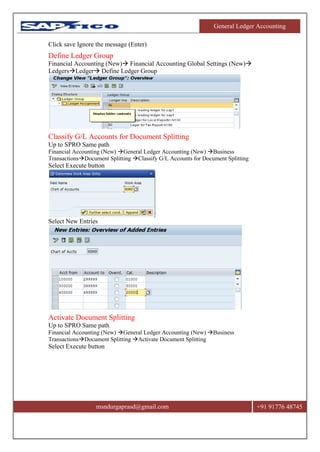
Define Account Group (OBD4)
Up to SPRO Same path
Financial Accounting (New) General Ledger Accounting (New) Master Data G/L
AccountsPreparations Define Account Group
Select Execute button
Select New entries button
General Ledger Accounting
msndurgaprasd@gmail.com +91 91776 48745
Define Retained Earnings Account (OB53)
Up to SPRO Same path
Financial Accounting (New) General Ledger Accounting (New) Master Data G/L
Accounts Preparations Define Retained Earnings Account
Select Execute button
Click enter
General Ledger Accounting
msndurgaprasd@gmail.com +91 91776 48745
Click save Ignore the message (Enter)
Define Ledger Group
Financial Accounting (New) Financial Accounting Global Settings (New)
LedgersLedger Define Ledger Group
Classify G/L Accounts for Document Splitting
Up to SPRO Same path
Financial Accounting (New) General Ledger Accounting (New) Business
TransactionsDocument Splitting Classify G/L Accounts for Document Splitting
Select Execute button
Select New Entries
Activate Document Splitting
Up to SPRO Same path
Financial Accounting (New) General Ledger Accounting (New) Business
TransactionsDocument Splitting Activate Document Splitting
Select Execute button
General Ledger Accounting
msndurgaprasd@gmail.com +91 91776 48745
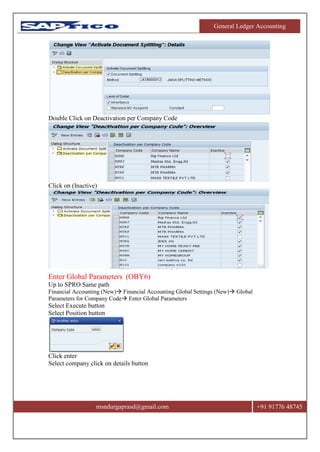
Double Click on Deactivation per Company Code
Click on (Inactive)
Enter Global Parameters (OBY6)
Up to SPRO Same path
Financial Accounting (New) Financial Accounting Global Settings (New) Global
Parameters for Company Code Enter Global Parameters
Select Execute button
Select Position button
Click enter
Select company click on details button
General Ledger Accounting
msndurgaprasd@gmail.com +91 91776 48745
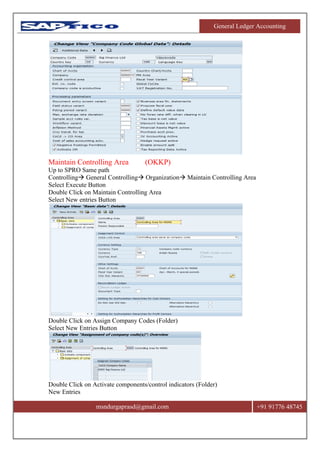
Maintain Controlling Area (OKKP)
Up to SPRO Same path
Controlling General Controlling Organization Maintain Controlling Area
Select Execute Button
Double Click on Maintain Controlling Area
Select New entries Button
Double Click on Assign Company Codes (Folder)
Select New Entries Button
Double Click on Activate components/control indicators (Folder)
New Entries
General Ledger Accounting
msndurgaprasd@gmail.com +91 91776 48745
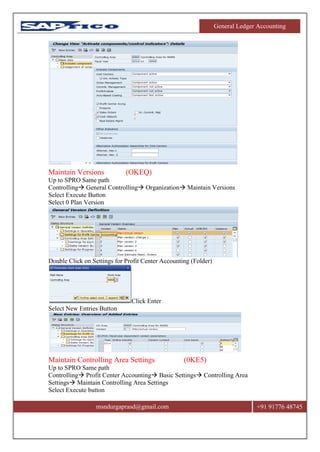
Maintain Versions (OKEQ)
Up to SPRO Same path
Controlling General Controlling Organization Maintain Versions
Select Execute Button
Select 0 Plan Version
Double Click on Settings for Profit Center Accounting (Folder)
Click Enter
Select New Entries Button
Maintain Controlling Area Settings (0KE5)
Up to SPRO Same path
Controlling Profit Center Accounting Basic Settings Controlling Area
Settings Maintain Controlling Area Settings
Select Execute button
General Ledger Accounting
msndurgaprasd@gmail.com +91 91776 48745
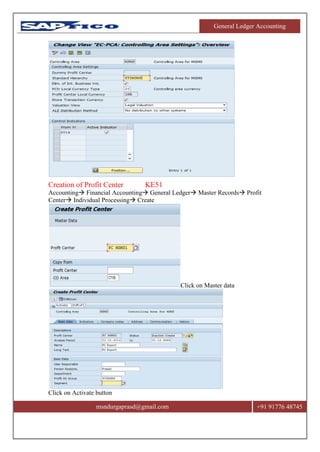
Creation of Profit Center KE51
Accounting Financial Accounting General Ledger Master Records Profit
Center Individual Processing Create
Click on Master data
Click on Activate button
General Ledger Accounting
msndurgaprasd@gmail.com +91 91776 48745
General Ledger Accounting
msndurgaprasd@gmail.com +91 91776 48745
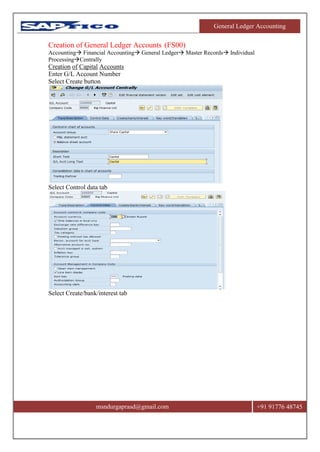
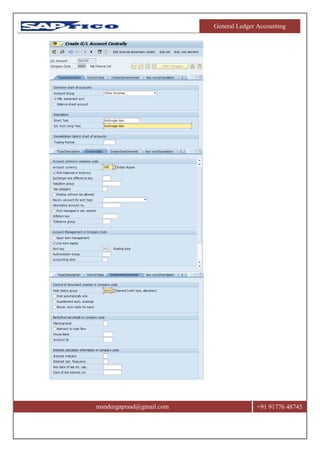
Creation of General Ledger Accounts (FS00)
Accounting Financial Accounting General Ledger Master Records Individual
ProcessingCentrally
Creation of Capital Accounts
Enter G/L Account Number
Select Create button
Select Control data tab
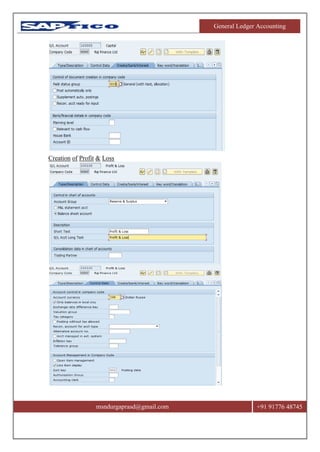
Select Create/bank/interest tab
General Ledger Accounting
msndurgaprasd@gmail.com +91 91776 48745
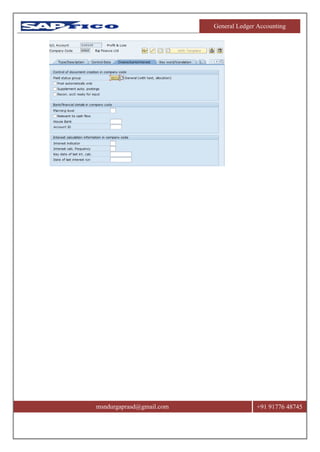
Creation of Profit & Loss
General Ledger Accounting
msndurgaprasd@gmail.com +91 91776 48745
General Ledger Accounting
msndurgaprasd@gmail.com +91 91776 48745
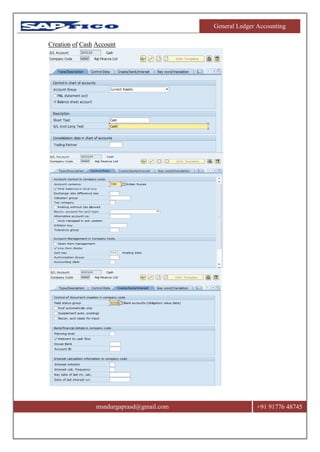
Creation of Cash Account
General Ledger Accounting
msndurgaprasd@gmail.com +91 91776 48745
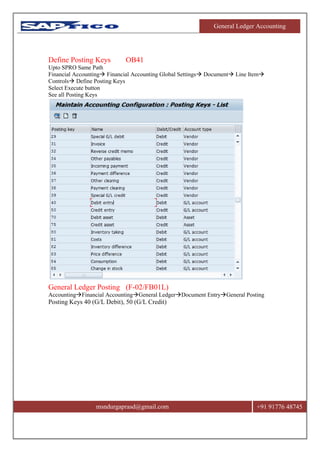
Define Posting Keys OB41
Upto SPRO Same Path
Financial Accounting Financial Accounting Global Settings Document Line Item
Controls Define Posting Keys
Select Execute button
See all Posting Keys
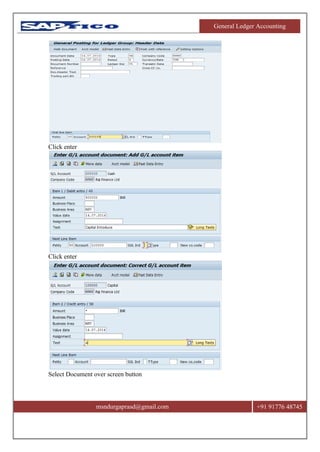
General Ledger Posting (F-02/FB01L)
AccountingFinancial AccountingGeneral LedgerDocument EntryGeneral Posting
Posting Keys 40 (G/L Debit), 50 (G/L Credit)
General Ledger Accounting
msndurgaprasd@gmail.com +91 91776 48745
Click enter
Click enter
Select Document over screen button
General Ledger Accounting
msndurgaprasd@gmail.com +91 91776 48745
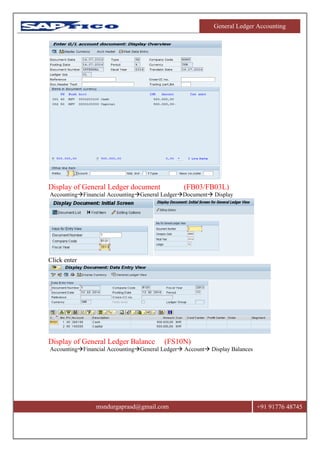
Display of General Ledger document (FB03/FB03L)
AccountingFinancial AccountingGeneral LedgerDocument Display
Click enter
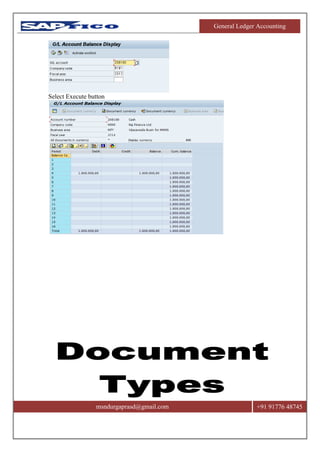
Display of General Ledger Balance (FS10N)
AccountingFinancial AccountingGeneral Ledger Account Display Balances
General Ledger Accounting
msndurgaprasd@gmail.com +91 91776 48745
Select Execute button
General Ledger Accounting
msndurgaprasd@gmail.com +91 91776 48745
PARKED DOCUMENTS
These documents are used mostly to get approval from the superior officers.
Eg:
We know that there are 3 levels employee in a company and the company has
rested some limits to the employees to post a document. If the exceed that limit they
has to get approval from the superior officers for that purpose used the parked
documents.
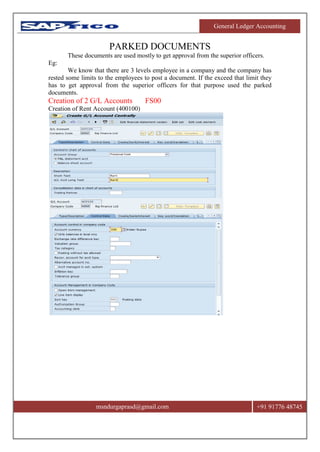
Creation of 2 G/L Accounts FS00
Creation of Rent Account (400100)
General Ledger Accounting
msndurgaprasd@gmail.com +91 91776 48745
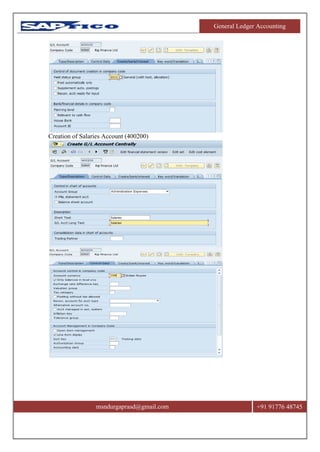
Creation of Salaries Account (400200)
General Ledger Accounting
msndurgaprasd@gmail.com +91 91776 48745
General Ledger Accounting
msndurgaprasd@gmail.com +91 91776 48745
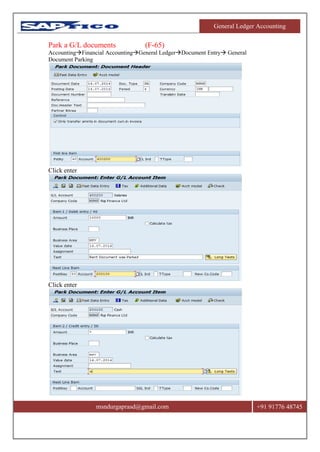
Park a G/L documents (F-65)
AccountingFinancial AccountingGeneral LedgerDocument Entry General
Document Parking
Click enter
Click enter
General Ledger Accounting
msndurgaprasd@gmail.com +91 91776 48745
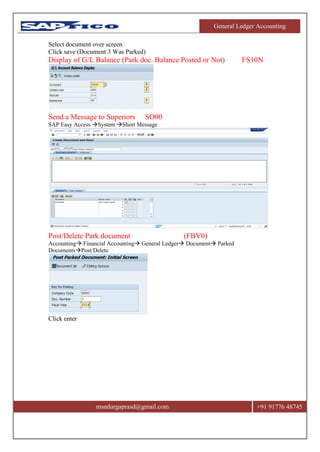
Select document over screen
Click save (Document 3 Was Parked)
Display of G/L Balance (Park doc. Balance Posted or Not) FS10N
Send a Message to Superiors SO00
SAP Easy Access System Short Message
Post/Delete Park document (FBV0)
Accounting Financial Accounting General Ledger Document Parked
DocumentsPost/Delete
Click enter
General Ledger Accounting
msndurgaprasd@gmail.com +91 91776 48745
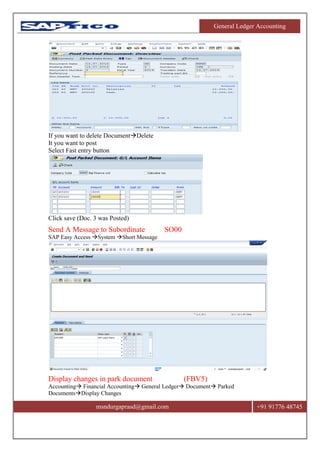
If you want to delete DocumentDelete
It you want to post
Select Fast entry button
Click save (Doc. 3 was Posted)
Send A Message to Subordinate SO00
SAP Easy Access System Short Message
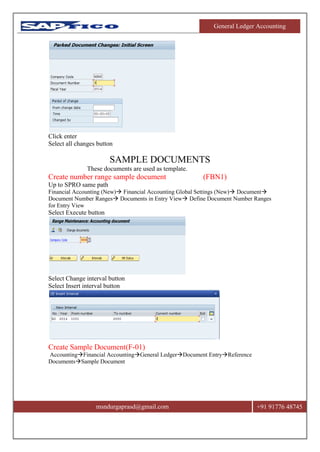
Display changes in park document (FBV5)
Accounting Financial Accounting General Ledger Document Parked
DocumentsDisplay Changes
General Ledger Accounting
msndurgaprasd@gmail.com +91 91776 48745
Click enter
Select all changes button
SAMPLE DOCUMENTS
These documents are used as template.
Create number range sample document (FBN1)
Up to SPRO same path
Financial Accounting (New) Financial Accounting Global Settings (New) Document
Document Number Ranges Documents in Entry View Define Document Number Ranges
for Entry View
Select Execute button
Select Change interval button
Select Insert interval button
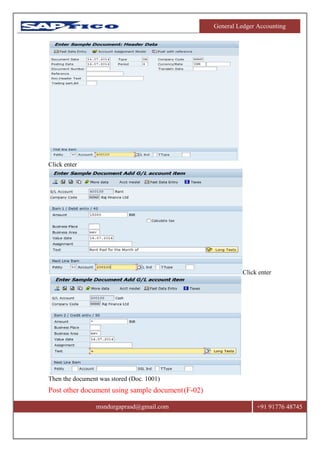
Create Sample Document(F-01)
AccountingFinancial AccountingGeneral LedgerDocument EntryReference
DocumentsSample Document
General Ledger Accounting
msndurgaprasd@gmail.com +91 91776 48745
Click enter
Click enter
Then the document was stored (Doc. 1001)
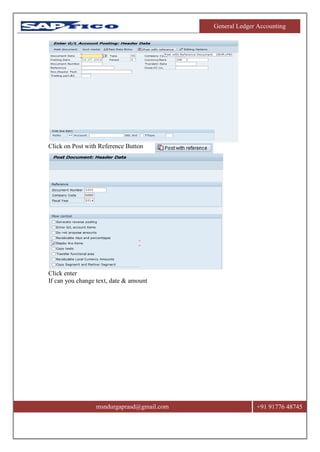
Post other document using sample document(F-02)
General Ledger Accounting
msndurgaprasd@gmail.com +91 91776 48745
Click on Post with Reference Button
Click enter
If can you change text, date & amount
General Ledger Accounting
msndurgaprasd@gmail.com +91 91776 48745
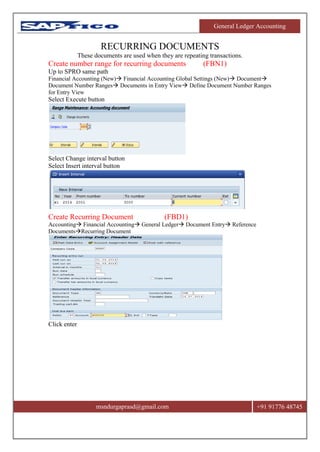
RECURRING DOCUMENTS
These documents are used when they are repeating transactions.
Create number range for recurring documents (FBN1)
Up to SPRO same path
Financial Accounting (New) Financial Accounting Global Settings (New) Document
Document Number Ranges Documents in Entry View Define Document Number Ranges
for Entry View
Select Execute button
Select Change interval button
Select Insert interval button
Create Recurring Document (FBD1)
Accounting Financial Accounting General Ledger Document Entry Reference
DocumentsRecurring Document
Click enter
General Ledger Accounting
msndurgaprasd@gmail.com +91 91776 48745
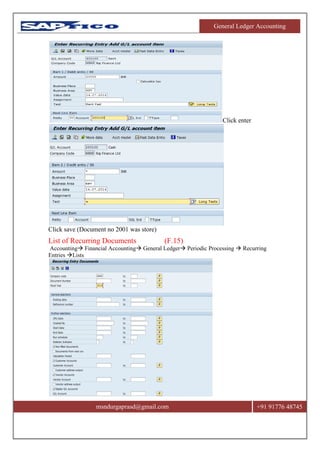
Click enter
Click save (Document no 2001 was store)
List of Recurring Documents (F.15)
Accounting Financial Accounting General Ledger Periodic Processing  Recurring
Entries Lists
General Ledger Accounting
msndurgaprasd@gmail.com +91 91776 48745
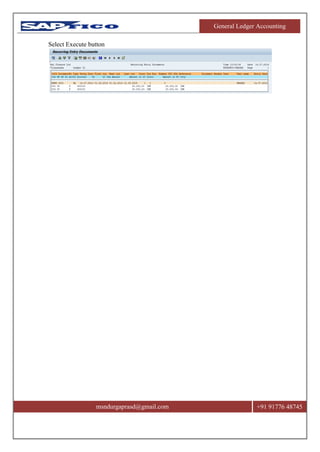
Select Execute button
General Ledger Accounting
msndurgaprasd@gmail.com +91 91776 48745
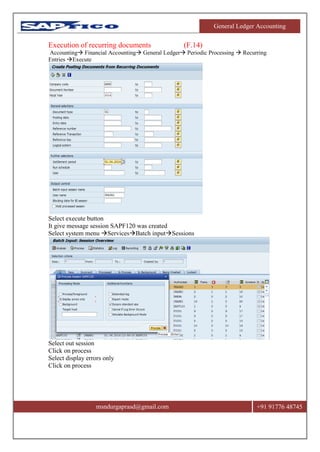
Execution of recurring documents (F.14)
Accounting Financial Accounting General Ledger Periodic Processing  Recurring
Entries Execute
Select execute button
It give message session SAPF120 was created
Select system menu ServicesBatch inputSessions
Select out session
Click on process
Select display errors only
Click on process
General Ledger Accounting
msndurgaprasd@gmail.com +91 91776 48745
HOLD DOCUMENTS
It is a temporary document. This is user for adjustment purpose or at the time of posting
we do not know either debit credit.
This document can be deleted there is no tracking for this document.
A. Loans to Directors
Create as hold document a once he gives money back delete the document.
B. Payment to a party –purpose of payment we don’t know
Cash balance = Account balance +/ Hold documents
Hold documents will not update records
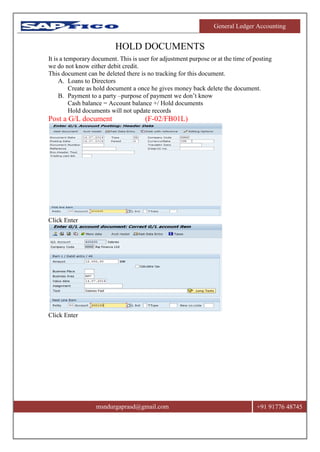
Post a G/L document (F-02/FB01L)
Click Enter
Click Enter
General Ledger Accounting
msndurgaprasd@gmail.com +91 91776 48745
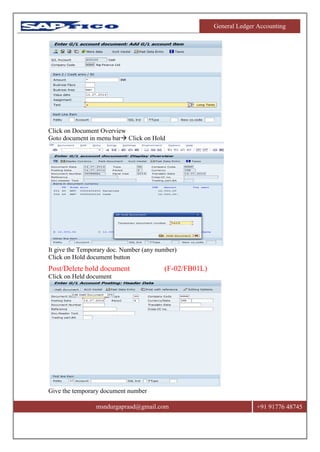
Click on Document Overview
Goto document in menu bar Click on Hold
It give the Temporary doc. Number (any number)
Click on Hold document button
Post/Delete hold document (F-02/FB01L)
Click on Held document
Give the temporary document number
General Ledger Accounting
msndurgaprasd@gmail.com +91 91776 48745
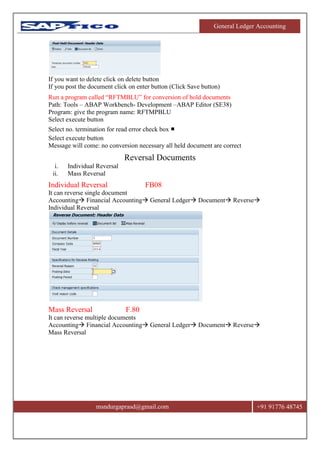
If you want to delete click on delete button
If you post the document click on enter button (Click Save button)
Run a program called “RFTMBLU” for conversion of hold documents
Path: Tools – ABAP Workbench- Development –ABAP Editor (SE38)
Program: give the program name: RFTMPBLU
Select execute button
Select no. termination for read error check box ■
Select execute button
Message will come: no conversion necessary all held document are correct
Reversal Documents
i. Individual Reversal
ii. Mass Reversal
Individual Reversal FB08
It can reverse single document
Accounting Financial Accounting General Ledger Document Reverse
Individual Reversal
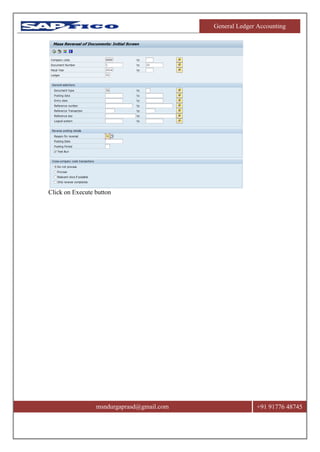
Mass Reversal F.80
It can reverse multiple documents
Accounting Financial Accounting General Ledger Document Reverse
Mass Reversal
General Ledger Accounting
msndurgaprasd@gmail.com +91 91776 48745
Click on Execute button
General Ledger Accounting
msndurgaprasd@gmail.com +91 91776 48745
General Ledger Accounting
msndurgaprasd@gmail.com +91 91776 48745
Month End Closing
Open Item Management
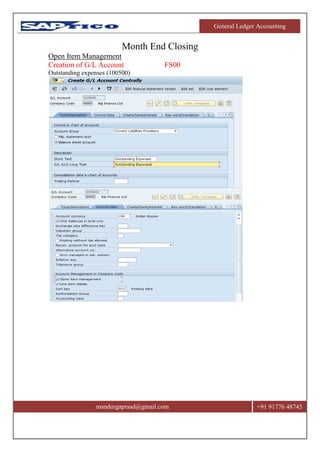
Creation of G/L Account FS00
Outstanding expenses (100500)
General Ledger Accounting
msndurgaprasd@gmail.com +91 91776 48745
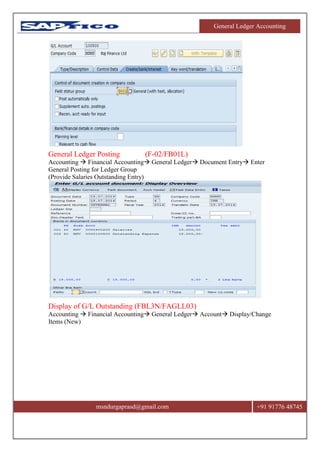
General Ledger Posting (F-02/FB01L)
Accounting  Financial Accounting General Ledger Document Entry Enter
General Posting for Ledger Group
(Provide Salaries Outstanding Entry)
Display of G/L Outstanding (FBL3N/FAGLL03)
Accounting  Financial Accounting General Ledger Account Display/Change
Items (New)
General Ledger Accounting
msndurgaprasd@gmail.com +91 91776 48745
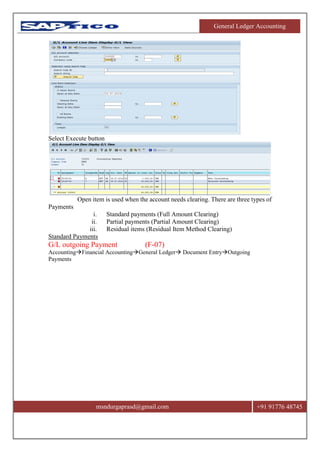
Select Execute button
Open item is used when the account needs clearing. There are three types of
Payments
i. Standard payments (Full Amount Clearing)
ii. Partial payments (Partial Amount Clearing)
iii. Residual items (Residual Item Method Clearing)
Standard Payments
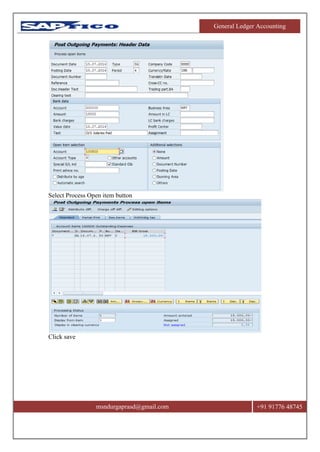
G/L outgoing Payment (F-07)
AccountingFinancial AccountingGeneral Ledger Document EntryOutgoing
Payments
General Ledger Accounting
msndurgaprasd@gmail.com +91 91776 48745
Select Process Open item button
Click save
General Ledger Accounting
msndurgaprasd@gmail.com +91 91776 48745
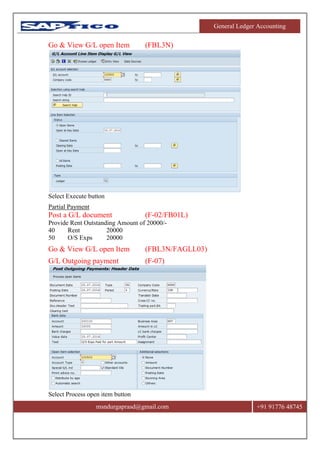
Go & View G/L open Item (FBL3N)
Select Execute button
Partial Payment
Post a G/L document (F-02/FB01L)
Provide Rent Outstanding Amount of 20000/-
40 Rent 20000
50 O/S Exps 20000
Go & View G/L open Item (FBL3N/FAGLL03)
G/L Outgoing payment (F-07)
Select Process open item button
General Ledger Accounting
msndurgaprasd@gmail.com +91 91776 48745
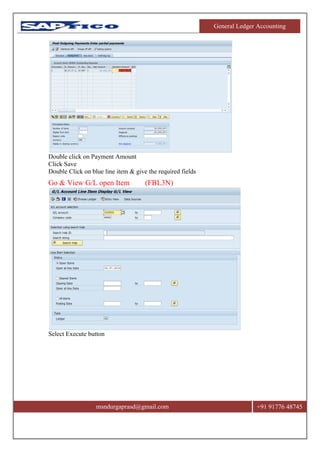
Double click on Payment Amount
Click Save
Double Click on blue line item & give the required fields
Go & View G/L open Item (FBL3N)
Select Execute button
General Ledger Accounting
msndurgaprasd@gmail.com +91 91776 48745
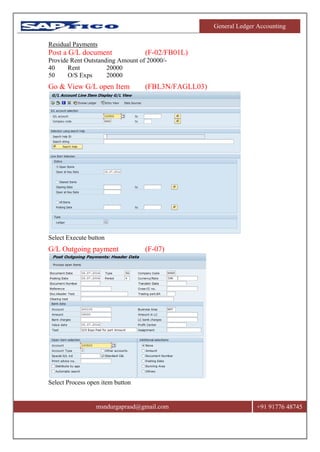
Residual Payments
Post a G/L document (F-02/FB01L)
Provide Rent Outstanding Amount of 20000/-
40 Rent 20000
50 O/S Exps 20000
Go & View G/L open Item (FBL3N/FAGLL03)
Select Execute button
G/L Outgoing payment (F-07)
Select Process open item button
General Ledger Accounting
msndurgaprasd@gmail.com +91 91776 48745
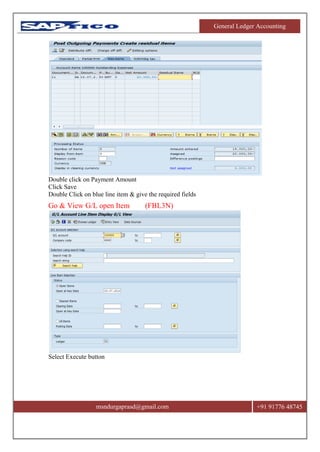
Double click on Payment Amount
Click Save
Double Click on blue line item & give the required fields
Go & View G/L open Item (FBL3N)
Select Execute button
General Ledger Accounting
msndurgaprasd@gmail.com +91 91776 48745
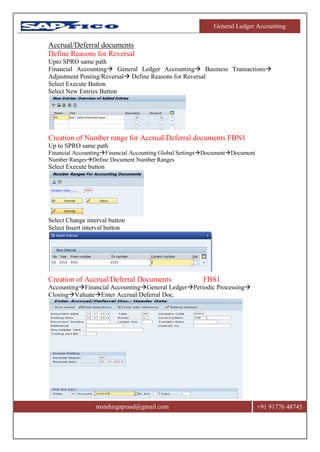
Accrual/Deferral documents
Define Reasons for Reversal
Upto SPRO same path
Financial Accounting General Ledger Accounting Business Transactions
Adjustment Posting/Reversal Define Reasons for Reversal
Select Execute Button
Select New Entries Button
Creation of Number range for Accrual/Deferral documents FBN1
Up to SPRO same path
Financial AccountingFinancial Accounting Global SettingsDocumentDocument
Number RangesDefine Document Number Ranges
Select Execute button
Select Change interval button
Select Insert interval button
Creation of Accrual/Deferral Documents FBS1
AccountingFinancial AccountingGeneral LedgerPeriodic Processing
ClosingValuateEnter Accrual/Deferral Doc.
General Ledger Accounting
msndurgaprasd@gmail.com +91 91776 48745
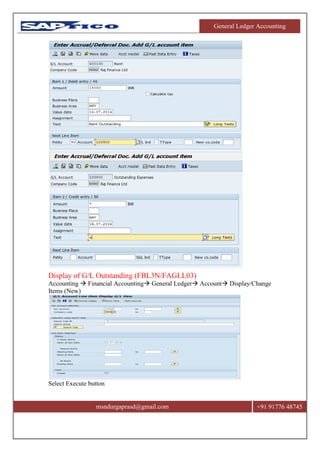
Display of G/L Outstanding (FBL3N/FAGLL03)
Accounting  Financial Accounting General Ledger Account Display/Change
Items (New)
Select Execute button
General Ledger Accounting
msndurgaprasd@gmail.com +91 91776 48745
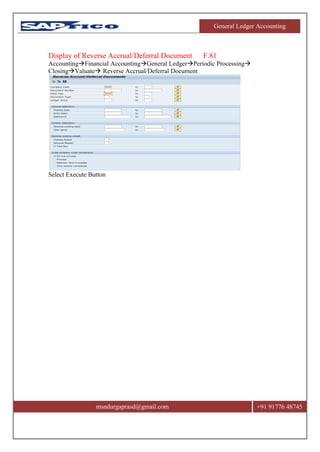
Display of Reverse Accrual/Deferral Document F.81
AccountingFinancial AccountingGeneral LedgerPeriodic Processing
ClosingValuate Reverse Accrual/Deferral Document
Select Execute Button
General Ledger Accounting
msndurgaprasd@gmail.com +91 91776 48745
General Ledger Accounting
msndurgaprasd@gmail.com +91 91776 48745
BANK INTEREST CALCULATION
Description Type Accounts
Balance Interest Calculation S G/L Accounts
Item Interest Calculation P Customers/Vendors
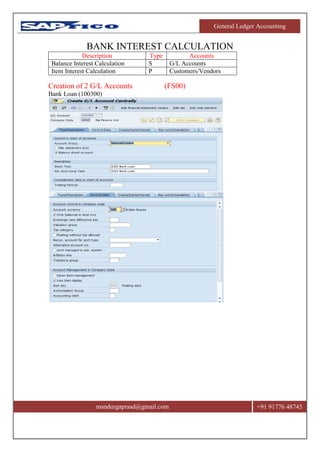
Creation of 2 G/L Accounts (FS00)
Bank Loan (100300)
General Ledger Accounting
msndurgaprasd@gmail.com +91 91776 48745
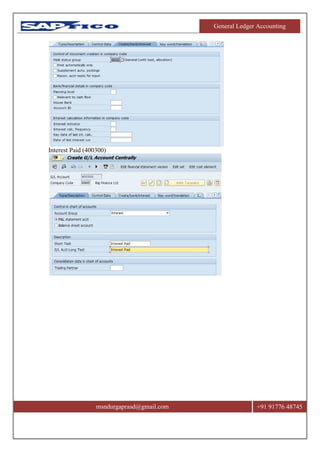
Interest Paid (400300)
General Ledger Accounting
msndurgaprasd@gmail.com +91 91776 48745
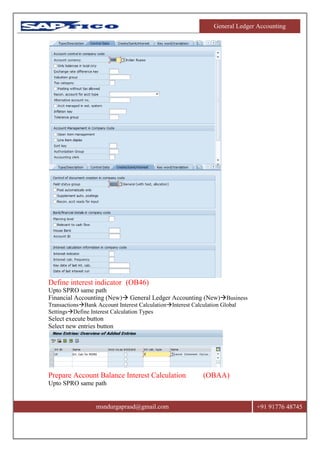
Define interest indicator (OB46)
Upto SPRO same path
Financial Accounting (New) General Ledger Accounting (New)Business
TransactionsBank Account Interest CalculationInterest Calculation Global
SettingsDefine Interest Calculation Types
Select execute button
Select new entries button
Prepare Account Balance Interest Calculation (OBAA)
Upto SPRO same path
General Ledger Accounting
msndurgaprasd@gmail.com +91 91776 48745
Financial Accounting (New) General Ledger Accounting (New)Business
TransactionsBank Account Interest CalculationInterest Calculation Global Settings
Prepare Account Balance Interest Calculation
Select execute button
Select new entries button
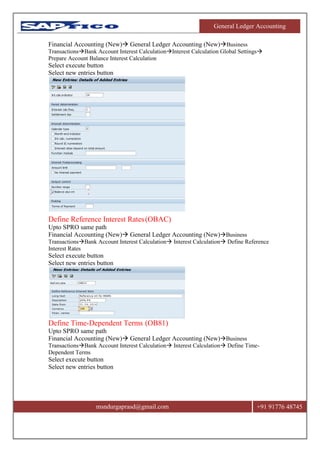
Define Reference Interest Rates(OBAC)
Upto SPRO same path
Financial Accounting (New) General Ledger Accounting (New)Business
TransactionsBank Account Interest Calculation Interest Calculation Define Reference
Interest Rates
Select execute button
Select new entries button
Define Time-Dependent Terms (OB81)
Upto SPRO same path
Financial Accounting (New) General Ledger Accounting (New)Business
TransactionsBank Account Interest Calculation Interest Calculation Define Time-
Dependent Terms
Select execute button
Select new entries button
General Ledger Accounting
msndurgaprasd@gmail.com +91 91776 48745
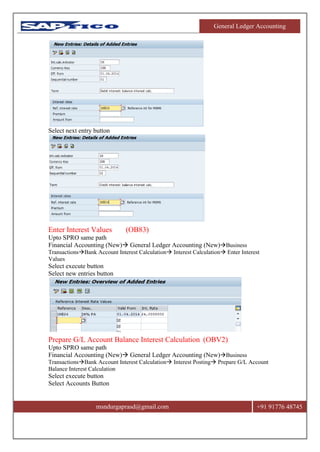
Select next entry button
Enter Interest Values (OB83)
Upto SPRO same path
Financial Accounting (New) General Ledger Accounting (New)Business
TransactionsBank Account Interest Calculation Interest Calculation Enter Interest
Values
Select execute button
Select new entries button
Prepare G/L Account Balance Interest Calculation (OBV2)
Upto SPRO same path
Financial Accounting (New) General Ledger Accounting (New)Business
TransactionsBank Account Interest Calculation Interest Posting Prepare G/L Account
Balance Interest Calculation
Select execute button
Select Accounts Button
General Ledger Accounting
msndurgaprasd@gmail.com +91 91776 48745
Click enter
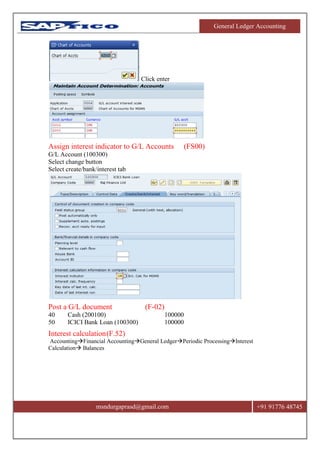
Assign interest indicator to G/L Accounts (FS00)
G/L Account (100300)
Select change button
Select create/bank/interest tab
Post a G/L document (F-02)
40 Cash (200100) 100000
50 ICICI Bank Loan (100300) 100000
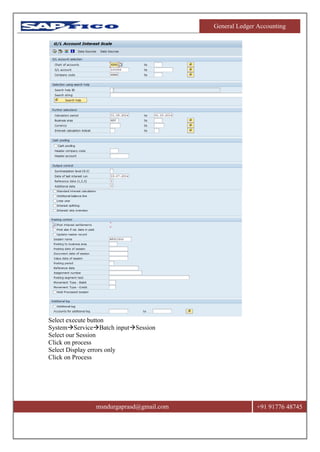
Interest calculation(F.52)
AccountingFinancial AccountingGeneral LedgerPeriodic ProcessingInterest
Calculation Balances
General Ledger Accounting
msndurgaprasd@gmail.com +91 91776 48745
Select execute button
SystemServiceBatch inputSession
Select our Session
Click on process
Select Display errors only
Click on Process
General Ledger Accounting
msndurgaprasd@gmail.com +91 91776 48745
General Ledger Accounting
msndurgaprasd@gmail.com +91 91776 48745
EXCHANGE RATES
M Average Exchange Rate
B Selling Exchange Rate
G Buying Exchange Rate
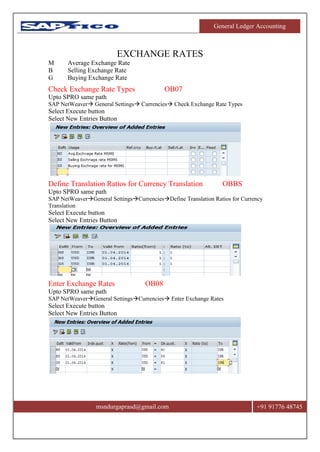
Check Exchange Rate Types OB07
Upto SPRO same path
SAP NetWeaver General Settings Currencies Check Exchange Rate Types
Select Execute button
Select New Entries Button
Define Translation Ratios for Currency Translation OBBS
Upto SPRO same path
SAP NetWeaverGeneral SettingsCurrenciesDefine Translation Ratios for Currency
Translation
Select Execute button
Select New Entries Button
Enter Exchange Rates OB08
Upto SPRO same path
SAP NetWeaverGeneral SettingsCurrencies Enter Exchange Rates
Select Execute button
Select New Entries Button
General Ledger Accounting
msndurgaprasd@gmail.com +91 91776 48745
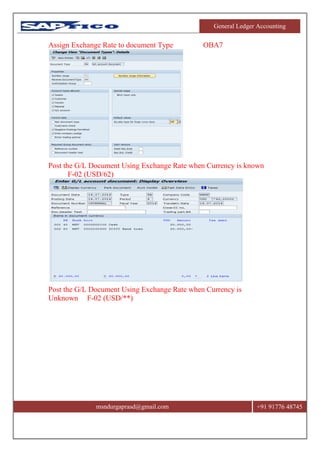
Assign Exchange Rate to document Type OBA7
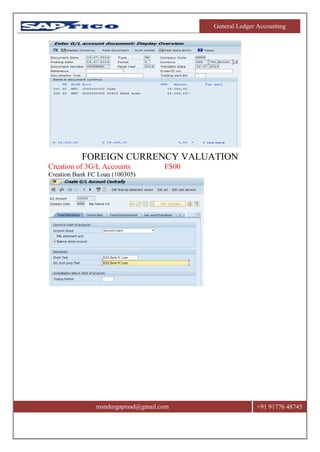
Post the G/L Document Using Exchange Rate when Currency is known
F-02 (USD/62)
Post the G/L Document Using Exchange Rate when Currency is
Unknown F-02 (USD/**)
General Ledger Accounting
msndurgaprasd@gmail.com +91 91776 48745
FOREIGN CURRENCY VALUATION
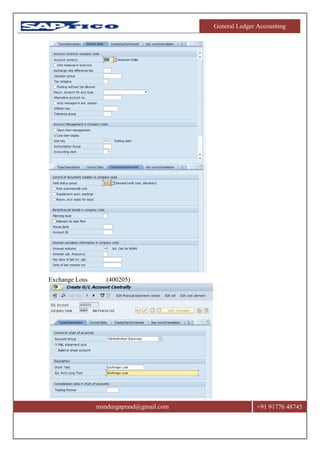
Creation of 3G/L Accounts FS00
Creation Bank FC Loan (100305)
General Ledger Accounting
msndurgaprasd@gmail.com +91 91776 48745
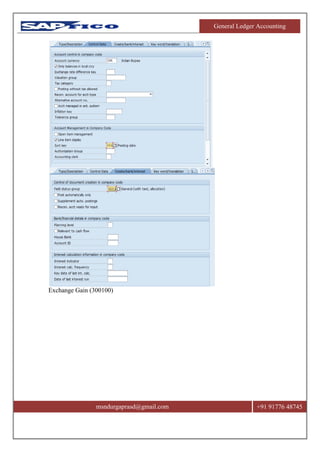
Exchange Loss (400205)
General Ledger Accounting
msndurgaprasd@gmail.com +91 91776 48745
Exchange Gain (300100)
General Ledger Accounting
msndurgaprasd@gmail.com +91 91776 48745
General Ledger Accounting
msndurgaprasd@gmail.com +91 91776 48745
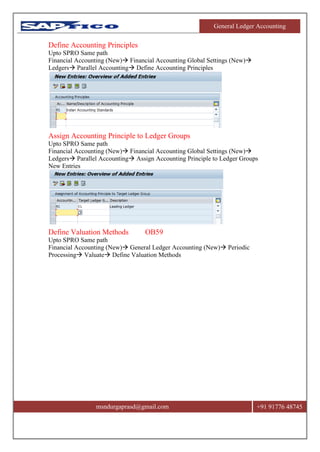
Define Accounting Principles
Upto SPRO Same path
Financial Accounting (New) Financial Accounting Global Settings (New)
Ledgers Parallel Accounting Define Accounting Principles
Assign Accounting Principle to Ledger Groups
Upto SPRO Same path
Financial Accounting (New) Financial Accounting Global Settings (New)
Ledgers Parallel Accounting Assign Accounting Principle to Ledger Groups
New Entries
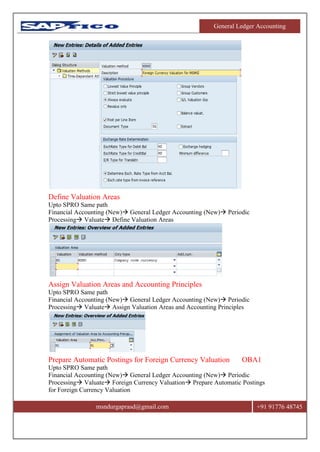
Define Valuation Methods OB59
Upto SPRO Same path
Financial Accounting (New) General Ledger Accounting (New) Periodic
Processing Valuate Define Valuation Methods
General Ledger Accounting
msndurgaprasd@gmail.com +91 91776 48745
Define Valuation Areas
Upto SPRO Same path
Financial Accounting (New) General Ledger Accounting (New) Periodic
Processing Valuate Define Valuation Areas
Assign Valuation Areas and Accounting Principles
Upto SPRO Same path
Financial Accounting (New) General Ledger Accounting (New) Periodic
Processing Valuate Assign Valuation Areas and Accounting Principles
Prepare Automatic Postings for Foreign Currency Valuation OBA1
Upto SPRO Same path
Financial Accounting (New) General Ledger Accounting (New) Periodic
Processing Valuate Foreign Currency Valuation Prepare Automatic Postings
for Foreign Currency Valuation
General Ledger Accounting
msndurgaprasd@gmail.com +91 91776 48745
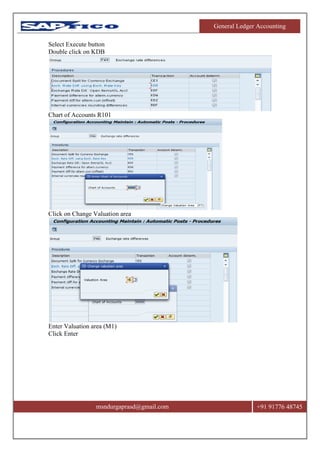
Select Execute button
Double click on KDB
Chart of Accounts R101
Click on Change Valuation area
Enter Valuation area (M1)
Click Enter
General Ledger Accounting
msndurgaprasd@gmail.com +91 91776 48745
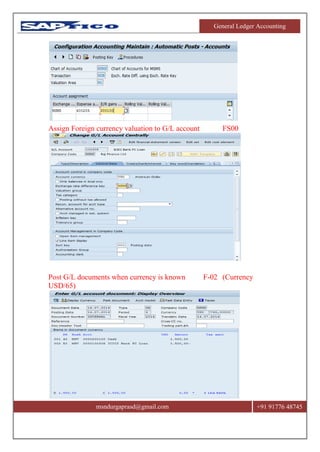
Assign Foreign currency valuation to G/L account FS00
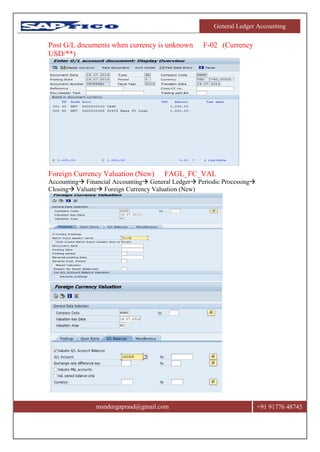
Post G/L documents when currency is known F-02 (Currency
USD/65)
General Ledger Accounting
msndurgaprasd@gmail.com +91 91776 48745
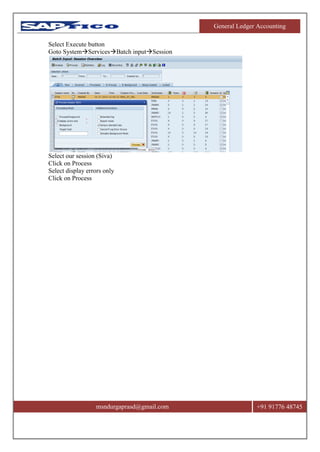
Post G/L documents when currency is unknown F-02 (Currency
USD/**)
Foreign Currency Valuation (New) FAGL_FC_VAL
Accounting Financial Accounting General Ledger Periodic Processing
Closing Valuate Foreign Currency Valuation (New)
General Ledger Accounting
msndurgaprasd@gmail.com +91 91776 48745
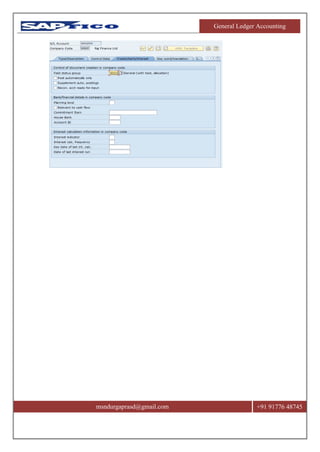
Select Execute button
Goto SystemServicesBatch inputSession
Select our session (Siva)
Click on Process
Select display errors only
Click on Process

Sap fico GL

  • 1.
  • 2.
    General Ledger Accounting msndurgaprasd@gmail.com+91 91776 48745 What is ERP? ERP stands for Enterprise Resources Planning. ERP system was originally used in manufacturing company as it has a complicated business processes. Today, ERP system has been applied in various companies, such as manufacturing, retail, oil and gas, banking, telecommunication, and many more. ERP software system has an objective to integrate all of the business data and process so it can be managed in most effective and efficient way. If organizations don’t have ERP then it has to use different types of other software.  Accounting Software  Payroll Software  Purchasing Software  Asset Accounting Software  Inventory Control Software  Sales Software  Invoicing Software  Supply chain management Software  Project management Software Now each software has their own database and system. Mostly they are of different system and it’s hard to synchronize among them all. So, one system’s data cannot be used by another.
  • 3.
    General Ledger Accounting msndurgaprasd@gmail.com+91 91776 48745 ERP software integrates all the data from all the business departments and makes assure data synchronization in all departments. Also this data can lead to another process in another department. What is SAP? What does SAP stands for in simple words, SAP is the leading Enterprise Information and Management Package worldwide. Use of this package makes it possible to track and manage, in real-time, sales, production, finance accounting and human resources in an enterprise. SAP the company was founded in Germany in 1972 by five ex-IBM engineers. In case you’re ever asked, what is sap, SAP stands for System, Andwen dungen, Produkte in der Datenverarbeitung which – translated to English – means Systems, Applications, Products in Data Processing. FUNCTIONAL MODULES IN SAP Financial Modules: Financial Accounting (FI), Controlling (CO), Investment Management (IM), Treasury (TR), Enterprise Control (EC). FI – stands for Financials CO – stands for Controlling ECC – stands for ERP Central Component
  • 4.
    General Ledger Accounting msndurgaprasd@gmail.com+91 91776 48745 Organization Flow Chart Purchase Dept., Store Dept., Production Dept., Accounts Dept. Will have no of departments in organization. ERP integrate all the functions into one system. SAP FI/CO Flow Diagram
  • 5.
    General Ledger Accounting msndurgaprasd@gmail.com+91 91776 48745 GENERAL LEDGER ACCOUNTING SAP is Access in two ways 1. To Transaction code 2. To Path wise Enterprise Structure Define company (OX15) SAP menuToolsCustomizingIMG Execute ProjectClick SAP Reference button (SPRO stands for SAP Project Reference Object) (we called UPTOSPRO) Enterprise StructureDefinitionFinancial AccountingDefine company Select execute button Select New entries button Define Company code (OX02) Up to SPRO Same path Enterprise StructureDefinitionFinancial Accounting Edit, Copy, Delete, Check Company Code Select execute button Double click on edit company code data Select New entries button
  • 6.
    General Ledger Accounting msndurgaprasd@gmail.com+91 91776 48745 Click Save Click enter Define business area (OX03) Up to SPRO Same path Enterprise StructureDefinitionFinancial Accounting Define business area Select execute button Select New entries button Assign company code to company (OX16)
  • 7.
    General Ledger Accounting msndurgaprasd@gmail.com+91 91776 48745 Up to SPRO Same path Enterprise Structure AssignmentFinancial Accounting Assign company code to company Select execute button Select position button Click enter Financial Accounting Variants 1. Fiscal Year Variant 2. Field Status Variant 3. Posting Period Variant Fiscal year variant Generally in an accounting year there are only 12months where as in sap we are having 12+4 periods (12normal periods+4Special periods). The total of 16 periods we called as fiscal year in SAP. There are three types of fiscal year 1. Calendar Year a. Jan – Dec 2. Non Calendar year a. Apr – Mar b. Jul – Jun c. Oct – Set 3. Short end fiscal year It Rises in an Organization a. When the company/Organization is start at the middle of the year. b. If the company/ Organization wants to change from fiscal year to another. 4 Special Periods  Accounts/Finance Adjustments  Tax Adjustments  Management Adjustments  Auditor Adjustments Year Shift Current Year we called 0 Next Year -1 Previous Year +1
  • 8.
    General Ledger Accounting msndurgaprasd@gmail.com+91 91776 48745 Converting one Fiscal Year to another Month Days Period Year Shift 1 31 10 -1 2 28/29 11 -1 3 31 12 -1 4 30 1 0 5 31 2 0 6 30 3 0 7 31 4 0 8 31 5 0 9 30 6 0 10 31 7 0 11 30 8 0 12 31 9 0
  • 9.
    General Ledger Accounting msndurgaprasd@gmail.com+91 91776 48745 Maintain Fiscal Year Variant (OB29) Up to SPRO Same path Financial Accounting (New) Financial Accounting Global Settings (New)Ledgers Fiscal Year and Posting Periods Maintain Fiscal Year Variant (Maintain Shortened Fisc. Year) Select execute button Select New entries button Select Fiscal year variant (FV) Double click on Periods Select new entries button Assign Company Code to a Fiscal Year Variant (OB37) Up to SPRO Same path Financial Accounting (New) Financial Accounting Global Settings (New)Ledgers Fiscal Year and Posting Periods  Assign Company Code to a Fiscal Year Variant Select execute button Select Position button Click enter
  • 10.
    General Ledger Accounting msndurgaprasd@gmail.com+91 91776 48745 Define Variants for Open Posting Periods (OBBO) Up to SPRO Same path Financial Accounting (New) Financial Accounting Global Settings (New)Ledgers Fiscal Year and Posting Periods  Posting Periods Define Variants for Open Posting Periods Select execute button Select new entries button Assign Variants to Company Code (OBBP) Up to SPRO Same path Financial Accounting (New) Financial Accounting Global Settings (New)Ledgers Fiscal Year and Posting Periods  Posting Periods  Assign Variants to Company Code Select execute button Select Position button Click enter Open and Close Posting Periods (OB52) Up to SPRO Same path Financial Accounting (New) Financial Accounting Global Settings (New)Ledgers Fiscal Year and Posting Periods  Posting Periods  Open and Close Posting Periods Select execute button Select New entries button
  • 11.
    General Ledger Accounting msndurgaprasd@gmail.com+91 91776 48745 + Given to Valid for all account types Maintain Field Status Variants (OBC4) Up to SPRO Same path Financial Accounting  Financial Accounting Global Settings  Document Line Item Controls Maintain Field Status Variants Select execute button Select 0001(FSTV) Click on copy as icon Rename FSTV (0001 – MSMS) Click enter Select copy all button Click enter It gives message total 41 entries copied Select MSMS Double click on Field Status groups
  • 12.
    General Ledger Accounting msndurgaprasd@gmail.com+91 91776 48745 Double click on G001 Double click on General data Select Back arrow one time Double click on Additional account assignments
  • 13.
    General Ledger Accounting msndurgaprasd@gmail.com+91 91776 48745 Click Save Same procedure for G005 (Bank accounts), G067 (Reconciliation accounts) Assign Company Code to Field Status Variants (OBC5) Up to SPRO Same path Financial Accounting  Financial Accounting Global Settings  Document Line Item Controls Assign Company Code to Field Status Variants Select execute button Select Position button Click enter Define Tolerance Groups for Employees (OBA4) Up to SPRO Same path Financial Accounting (New) General Ledger Accounting (New)Business TransactionsOpen Item ClearingClearing DifferencesDefine Tolerance Groups for Employees Select Execute button Select New entries button
  • 14.
    General Ledger Accounting msndurgaprasd@gmail.com+91 91776 48745 Define Tolerance Groups for G/L Accounts (OBA0) Up to SPRO Same path Financial Accounting (New) General Ledger Accounting (New)Business TransactionsOpen Item ClearingClearing Differences Define Tolerance Groups for G/L Accounts Select Execute button Select New entries button Define Document Types (OBA7) Up to SPRO Same path Financial Accounting (New) Financial Accounting Global Settings (New) DocumentDocument Header Define Document Types for Entry View Select Execute button
  • 15.
    General Ledger Accounting msndurgaprasd@gmail.com+91 91776 48745 Select SA (G/L account document) Select Details button Select Number range information button Select Change Interval button Select insert interval button Click enter Assign Country to Calculation Procedure (OBBG) Up to SPRO Same path
  • 16.
    General Ledger Accounting msndurgaprasd@gmail.com+91 91776 48745 Financial Accounting (New) Financial Accounting Global Settings (New) Tax on Sales/Purchases Basic Settings Assign Country to Calculation Procedure Select Execute button Select Position button Click enter Chart of Accounts Chart of accounts means List of Accounts. There are three types of Chart of Accounts 1. Country Specific Chart of Accounts 2. Operative/Operational Chart of Accounts 3. Group Chart of Accounts Country specific Chart of Accounts are optional and Operative/Operational Chart of Accounts is compulsion Group Chart of Accounts are used to get group reports in the company We can create Chart of Accounts in three levels i. Company code level ii. Chart of accounts level iii. Centrally level Edit Chart of Accounts List (OB13) Up to SPRO Same path Financial Accounting (New) General Ledger Accounting (New) Master Data G/L Accounts Preparations Edit Chart of Accounts List Select Execute button Select New entries button
  • 17.
    General Ledger Accounting msndurgaprasd@gmail.com+91 91776 48745 Assign Company Code to Chart of Accounts (OB62) Up to SPRO Same path Financial Accounting (New) General Ledger Accounting (New) Master Data G/L AccountsPreparations Assign Company Code to Chart of Accounts Select Execute button Select Position button Click enter Define Account Group (OBD4) Up to SPRO Same path Financial Accounting (New) General Ledger Accounting (New) Master Data G/L AccountsPreparations Define Account Group Select Execute button Select New entries button
  • 18.
    General Ledger Accounting msndurgaprasd@gmail.com+91 91776 48745 Define Retained Earnings Account (OB53) Up to SPRO Same path Financial Accounting (New) General Ledger Accounting (New) Master Data G/L Accounts Preparations Define Retained Earnings Account Select Execute button Click enter
  • 19.
    General Ledger Accounting msndurgaprasd@gmail.com+91 91776 48745 Click save Ignore the message (Enter) Define Ledger Group Financial Accounting (New) Financial Accounting Global Settings (New) LedgersLedger Define Ledger Group Classify G/L Accounts for Document Splitting Up to SPRO Same path Financial Accounting (New) General Ledger Accounting (New) Business TransactionsDocument Splitting Classify G/L Accounts for Document Splitting Select Execute button Select New Entries Activate Document Splitting Up to SPRO Same path Financial Accounting (New) General Ledger Accounting (New) Business TransactionsDocument Splitting Activate Document Splitting Select Execute button
  • 20.
    General Ledger Accounting msndurgaprasd@gmail.com+91 91776 48745 Double Click on Deactivation per Company Code Click on (Inactive) Enter Global Parameters (OBY6) Up to SPRO Same path Financial Accounting (New) Financial Accounting Global Settings (New) Global Parameters for Company Code Enter Global Parameters Select Execute button Select Position button Click enter Select company click on details button
  • 21.
    General Ledger Accounting msndurgaprasd@gmail.com+91 91776 48745 Maintain Controlling Area (OKKP) Up to SPRO Same path Controlling General Controlling Organization Maintain Controlling Area Select Execute Button Double Click on Maintain Controlling Area Select New entries Button Double Click on Assign Company Codes (Folder) Select New Entries Button Double Click on Activate components/control indicators (Folder) New Entries
  • 22.
    General Ledger Accounting msndurgaprasd@gmail.com+91 91776 48745 Maintain Versions (OKEQ) Up to SPRO Same path Controlling General Controlling Organization Maintain Versions Select Execute Button Select 0 Plan Version Double Click on Settings for Profit Center Accounting (Folder) Click Enter Select New Entries Button Maintain Controlling Area Settings (0KE5) Up to SPRO Same path Controlling Profit Center Accounting Basic Settings Controlling Area Settings Maintain Controlling Area Settings Select Execute button
  • 23.
    General Ledger Accounting msndurgaprasd@gmail.com+91 91776 48745 Creation of Profit Center KE51 Accounting Financial Accounting General Ledger Master Records Profit Center Individual Processing Create Click on Master data Click on Activate button
  • 24.
  • 25.
    General Ledger Accounting msndurgaprasd@gmail.com+91 91776 48745 Creation of General Ledger Accounts (FS00) Accounting Financial Accounting General Ledger Master Records Individual ProcessingCentrally Creation of Capital Accounts Enter G/L Account Number Select Create button Select Control data tab Select Create/bank/interest tab
  • 26.
    General Ledger Accounting msndurgaprasd@gmail.com+91 91776 48745 Creation of Profit & Loss
  • 27.
  • 28.
    General Ledger Accounting msndurgaprasd@gmail.com+91 91776 48745 Creation of Cash Account
  • 29.
    General Ledger Accounting msndurgaprasd@gmail.com+91 91776 48745 Define Posting Keys OB41 Upto SPRO Same Path Financial Accounting Financial Accounting Global Settings Document Line Item Controls Define Posting Keys Select Execute button See all Posting Keys General Ledger Posting (F-02/FB01L) AccountingFinancial AccountingGeneral LedgerDocument EntryGeneral Posting Posting Keys 40 (G/L Debit), 50 (G/L Credit)
  • 30.
    General Ledger Accounting msndurgaprasd@gmail.com+91 91776 48745 Click enter Click enter Select Document over screen button
  • 31.
    General Ledger Accounting msndurgaprasd@gmail.com+91 91776 48745 Display of General Ledger document (FB03/FB03L) AccountingFinancial AccountingGeneral LedgerDocument Display Click enter Display of General Ledger Balance (FS10N) AccountingFinancial AccountingGeneral Ledger Account Display Balances
  • 32.
    General Ledger Accounting msndurgaprasd@gmail.com+91 91776 48745 Select Execute button
  • 33.
    General Ledger Accounting msndurgaprasd@gmail.com+91 91776 48745 PARKED DOCUMENTS These documents are used mostly to get approval from the superior officers. Eg: We know that there are 3 levels employee in a company and the company has rested some limits to the employees to post a document. If the exceed that limit they has to get approval from the superior officers for that purpose used the parked documents. Creation of 2 G/L Accounts FS00 Creation of Rent Account (400100)
  • 34.
    General Ledger Accounting msndurgaprasd@gmail.com+91 91776 48745 Creation of Salaries Account (400200)
  • 35.
  • 36.
    General Ledger Accounting msndurgaprasd@gmail.com+91 91776 48745 Park a G/L documents (F-65) AccountingFinancial AccountingGeneral LedgerDocument Entry General Document Parking Click enter Click enter
  • 37.
    General Ledger Accounting msndurgaprasd@gmail.com+91 91776 48745 Select document over screen Click save (Document 3 Was Parked) Display of G/L Balance (Park doc. Balance Posted or Not) FS10N Send a Message to Superiors SO00 SAP Easy Access System Short Message Post/Delete Park document (FBV0) Accounting Financial Accounting General Ledger Document Parked DocumentsPost/Delete Click enter
  • 38.
    General Ledger Accounting msndurgaprasd@gmail.com+91 91776 48745 If you want to delete DocumentDelete It you want to post Select Fast entry button Click save (Doc. 3 was Posted) Send A Message to Subordinate SO00 SAP Easy Access System Short Message Display changes in park document (FBV5) Accounting Financial Accounting General Ledger Document Parked DocumentsDisplay Changes
  • 39.
    General Ledger Accounting msndurgaprasd@gmail.com+91 91776 48745 Click enter Select all changes button SAMPLE DOCUMENTS These documents are used as template. Create number range sample document (FBN1) Up to SPRO same path Financial Accounting (New) Financial Accounting Global Settings (New) Document Document Number Ranges Documents in Entry View Define Document Number Ranges for Entry View Select Execute button Select Change interval button Select Insert interval button Create Sample Document(F-01) AccountingFinancial AccountingGeneral LedgerDocument EntryReference DocumentsSample Document
  • 40.
    General Ledger Accounting msndurgaprasd@gmail.com+91 91776 48745 Click enter Click enter Then the document was stored (Doc. 1001) Post other document using sample document(F-02)
  • 41.
    General Ledger Accounting msndurgaprasd@gmail.com+91 91776 48745 Click on Post with Reference Button Click enter If can you change text, date & amount
  • 42.
    General Ledger Accounting msndurgaprasd@gmail.com+91 91776 48745 RECURRING DOCUMENTS These documents are used when they are repeating transactions. Create number range for recurring documents (FBN1) Up to SPRO same path Financial Accounting (New) Financial Accounting Global Settings (New) Document Document Number Ranges Documents in Entry View Define Document Number Ranges for Entry View Select Execute button Select Change interval button Select Insert interval button Create Recurring Document (FBD1) Accounting Financial Accounting General Ledger Document Entry Reference DocumentsRecurring Document Click enter
  • 43.
    General Ledger Accounting msndurgaprasd@gmail.com+91 91776 48745 Click enter Click save (Document no 2001 was store) List of Recurring Documents (F.15) Accounting Financial Accounting General Ledger Periodic Processing  Recurring Entries Lists
  • 44.
    General Ledger Accounting msndurgaprasd@gmail.com+91 91776 48745 Select Execute button
  • 45.
    General Ledger Accounting msndurgaprasd@gmail.com+91 91776 48745 Execution of recurring documents (F.14) Accounting Financial Accounting General Ledger Periodic Processing  Recurring Entries Execute Select execute button It give message session SAPF120 was created Select system menu ServicesBatch inputSessions Select out session Click on process Select display errors only Click on process
  • 46.
    General Ledger Accounting msndurgaprasd@gmail.com+91 91776 48745 HOLD DOCUMENTS It is a temporary document. This is user for adjustment purpose or at the time of posting we do not know either debit credit. This document can be deleted there is no tracking for this document. A. Loans to Directors Create as hold document a once he gives money back delete the document. B. Payment to a party –purpose of payment we don’t know Cash balance = Account balance +/ Hold documents Hold documents will not update records Post a G/L document (F-02/FB01L) Click Enter Click Enter
  • 47.
    General Ledger Accounting msndurgaprasd@gmail.com+91 91776 48745 Click on Document Overview Goto document in menu bar Click on Hold It give the Temporary doc. Number (any number) Click on Hold document button Post/Delete hold document (F-02/FB01L) Click on Held document Give the temporary document number
  • 48.
    General Ledger Accounting msndurgaprasd@gmail.com+91 91776 48745 If you want to delete click on delete button If you post the document click on enter button (Click Save button) Run a program called “RFTMBLU” for conversion of hold documents Path: Tools – ABAP Workbench- Development –ABAP Editor (SE38) Program: give the program name: RFTMPBLU Select execute button Select no. termination for read error check box ■ Select execute button Message will come: no conversion necessary all held document are correct Reversal Documents i. Individual Reversal ii. Mass Reversal Individual Reversal FB08 It can reverse single document Accounting Financial Accounting General Ledger Document Reverse Individual Reversal Mass Reversal F.80 It can reverse multiple documents Accounting Financial Accounting General Ledger Document Reverse Mass Reversal
  • 49.
    General Ledger Accounting msndurgaprasd@gmail.com+91 91776 48745 Click on Execute button
  • 50.
  • 51.
    General Ledger Accounting msndurgaprasd@gmail.com+91 91776 48745 Month End Closing Open Item Management Creation of G/L Account FS00 Outstanding expenses (100500)
  • 52.
    General Ledger Accounting msndurgaprasd@gmail.com+91 91776 48745 General Ledger Posting (F-02/FB01L) Accounting  Financial Accounting General Ledger Document Entry Enter General Posting for Ledger Group (Provide Salaries Outstanding Entry) Display of G/L Outstanding (FBL3N/FAGLL03) Accounting  Financial Accounting General Ledger Account Display/Change Items (New)
  • 53.
    General Ledger Accounting msndurgaprasd@gmail.com+91 91776 48745 Select Execute button Open item is used when the account needs clearing. There are three types of Payments i. Standard payments (Full Amount Clearing) ii. Partial payments (Partial Amount Clearing) iii. Residual items (Residual Item Method Clearing) Standard Payments G/L outgoing Payment (F-07) AccountingFinancial AccountingGeneral Ledger Document EntryOutgoing Payments
  • 54.
    General Ledger Accounting msndurgaprasd@gmail.com+91 91776 48745 Select Process Open item button Click save
  • 55.
    General Ledger Accounting msndurgaprasd@gmail.com+91 91776 48745 Go & View G/L open Item (FBL3N) Select Execute button Partial Payment Post a G/L document (F-02/FB01L) Provide Rent Outstanding Amount of 20000/- 40 Rent 20000 50 O/S Exps 20000 Go & View G/L open Item (FBL3N/FAGLL03) G/L Outgoing payment (F-07) Select Process open item button
  • 56.
    General Ledger Accounting msndurgaprasd@gmail.com+91 91776 48745 Double click on Payment Amount Click Save Double Click on blue line item & give the required fields Go & View G/L open Item (FBL3N) Select Execute button
  • 57.
    General Ledger Accounting msndurgaprasd@gmail.com+91 91776 48745 Residual Payments Post a G/L document (F-02/FB01L) Provide Rent Outstanding Amount of 20000/- 40 Rent 20000 50 O/S Exps 20000 Go & View G/L open Item (FBL3N/FAGLL03) Select Execute button G/L Outgoing payment (F-07) Select Process open item button
  • 58.
    General Ledger Accounting msndurgaprasd@gmail.com+91 91776 48745 Double click on Payment Amount Click Save Double Click on blue line item & give the required fields Go & View G/L open Item (FBL3N) Select Execute button
  • 59.
    General Ledger Accounting msndurgaprasd@gmail.com+91 91776 48745 Accrual/Deferral documents Define Reasons for Reversal Upto SPRO same path Financial Accounting General Ledger Accounting Business Transactions Adjustment Posting/Reversal Define Reasons for Reversal Select Execute Button Select New Entries Button Creation of Number range for Accrual/Deferral documents FBN1 Up to SPRO same path Financial AccountingFinancial Accounting Global SettingsDocumentDocument Number RangesDefine Document Number Ranges Select Execute button Select Change interval button Select Insert interval button Creation of Accrual/Deferral Documents FBS1 AccountingFinancial AccountingGeneral LedgerPeriodic Processing ClosingValuateEnter Accrual/Deferral Doc.
  • 60.
    General Ledger Accounting msndurgaprasd@gmail.com+91 91776 48745 Display of G/L Outstanding (FBL3N/FAGLL03) Accounting  Financial Accounting General Ledger Account Display/Change Items (New) Select Execute button
  • 61.
    General Ledger Accounting msndurgaprasd@gmail.com+91 91776 48745 Display of Reverse Accrual/Deferral Document F.81 AccountingFinancial AccountingGeneral LedgerPeriodic Processing ClosingValuate Reverse Accrual/Deferral Document Select Execute Button
  • 62.
  • 63.
    General Ledger Accounting msndurgaprasd@gmail.com+91 91776 48745 BANK INTEREST CALCULATION Description Type Accounts Balance Interest Calculation S G/L Accounts Item Interest Calculation P Customers/Vendors Creation of 2 G/L Accounts (FS00) Bank Loan (100300)
  • 64.
    General Ledger Accounting msndurgaprasd@gmail.com+91 91776 48745 Interest Paid (400300)
  • 65.
    General Ledger Accounting msndurgaprasd@gmail.com+91 91776 48745 Define interest indicator (OB46) Upto SPRO same path Financial Accounting (New) General Ledger Accounting (New)Business TransactionsBank Account Interest CalculationInterest Calculation Global SettingsDefine Interest Calculation Types Select execute button Select new entries button Prepare Account Balance Interest Calculation (OBAA) Upto SPRO same path
  • 66.
    General Ledger Accounting msndurgaprasd@gmail.com+91 91776 48745 Financial Accounting (New) General Ledger Accounting (New)Business TransactionsBank Account Interest CalculationInterest Calculation Global Settings Prepare Account Balance Interest Calculation Select execute button Select new entries button Define Reference Interest Rates(OBAC) Upto SPRO same path Financial Accounting (New) General Ledger Accounting (New)Business TransactionsBank Account Interest Calculation Interest Calculation Define Reference Interest Rates Select execute button Select new entries button Define Time-Dependent Terms (OB81) Upto SPRO same path Financial Accounting (New) General Ledger Accounting (New)Business TransactionsBank Account Interest Calculation Interest Calculation Define Time- Dependent Terms Select execute button Select new entries button
  • 67.
    General Ledger Accounting msndurgaprasd@gmail.com+91 91776 48745 Select next entry button Enter Interest Values (OB83) Upto SPRO same path Financial Accounting (New) General Ledger Accounting (New)Business TransactionsBank Account Interest Calculation Interest Calculation Enter Interest Values Select execute button Select new entries button Prepare G/L Account Balance Interest Calculation (OBV2) Upto SPRO same path Financial Accounting (New) General Ledger Accounting (New)Business TransactionsBank Account Interest Calculation Interest Posting Prepare G/L Account Balance Interest Calculation Select execute button Select Accounts Button
  • 68.
    General Ledger Accounting msndurgaprasd@gmail.com+91 91776 48745 Click enter Assign interest indicator to G/L Accounts (FS00) G/L Account (100300) Select change button Select create/bank/interest tab Post a G/L document (F-02) 40 Cash (200100) 100000 50 ICICI Bank Loan (100300) 100000 Interest calculation(F.52) AccountingFinancial AccountingGeneral LedgerPeriodic ProcessingInterest Calculation Balances
  • 69.
    General Ledger Accounting msndurgaprasd@gmail.com+91 91776 48745 Select execute button SystemServiceBatch inputSession Select our Session Click on process Select Display errors only Click on Process
  • 70.
  • 71.
    General Ledger Accounting msndurgaprasd@gmail.com+91 91776 48745 EXCHANGE RATES M Average Exchange Rate B Selling Exchange Rate G Buying Exchange Rate Check Exchange Rate Types OB07 Upto SPRO same path SAP NetWeaver General Settings Currencies Check Exchange Rate Types Select Execute button Select New Entries Button Define Translation Ratios for Currency Translation OBBS Upto SPRO same path SAP NetWeaverGeneral SettingsCurrenciesDefine Translation Ratios for Currency Translation Select Execute button Select New Entries Button Enter Exchange Rates OB08 Upto SPRO same path SAP NetWeaverGeneral SettingsCurrencies Enter Exchange Rates Select Execute button Select New Entries Button
  • 72.
    General Ledger Accounting msndurgaprasd@gmail.com+91 91776 48745 Assign Exchange Rate to document Type OBA7 Post the G/L Document Using Exchange Rate when Currency is known F-02 (USD/62) Post the G/L Document Using Exchange Rate when Currency is Unknown F-02 (USD/**)
  • 73.
    General Ledger Accounting msndurgaprasd@gmail.com+91 91776 48745 FOREIGN CURRENCY VALUATION Creation of 3G/L Accounts FS00 Creation Bank FC Loan (100305)
  • 74.
    General Ledger Accounting msndurgaprasd@gmail.com+91 91776 48745 Exchange Loss (400205)
  • 75.
    General Ledger Accounting msndurgaprasd@gmail.com+91 91776 48745 Exchange Gain (300100)
  • 76.
  • 77.
    General Ledger Accounting msndurgaprasd@gmail.com+91 91776 48745 Define Accounting Principles Upto SPRO Same path Financial Accounting (New) Financial Accounting Global Settings (New) Ledgers Parallel Accounting Define Accounting Principles Assign Accounting Principle to Ledger Groups Upto SPRO Same path Financial Accounting (New) Financial Accounting Global Settings (New) Ledgers Parallel Accounting Assign Accounting Principle to Ledger Groups New Entries Define Valuation Methods OB59 Upto SPRO Same path Financial Accounting (New) General Ledger Accounting (New) Periodic Processing Valuate Define Valuation Methods
  • 78.
    General Ledger Accounting msndurgaprasd@gmail.com+91 91776 48745 Define Valuation Areas Upto SPRO Same path Financial Accounting (New) General Ledger Accounting (New) Periodic Processing Valuate Define Valuation Areas Assign Valuation Areas and Accounting Principles Upto SPRO Same path Financial Accounting (New) General Ledger Accounting (New) Periodic Processing Valuate Assign Valuation Areas and Accounting Principles Prepare Automatic Postings for Foreign Currency Valuation OBA1 Upto SPRO Same path Financial Accounting (New) General Ledger Accounting (New) Periodic Processing Valuate Foreign Currency Valuation Prepare Automatic Postings for Foreign Currency Valuation
  • 79.
    General Ledger Accounting msndurgaprasd@gmail.com+91 91776 48745 Select Execute button Double click on KDB Chart of Accounts R101 Click on Change Valuation area Enter Valuation area (M1) Click Enter
  • 80.
    General Ledger Accounting msndurgaprasd@gmail.com+91 91776 48745 Assign Foreign currency valuation to G/L account FS00 Post G/L documents when currency is known F-02 (Currency USD/65)
  • 81.
    General Ledger Accounting msndurgaprasd@gmail.com+91 91776 48745 Post G/L documents when currency is unknown F-02 (Currency USD/**) Foreign Currency Valuation (New) FAGL_FC_VAL Accounting Financial Accounting General Ledger Periodic Processing Closing Valuate Foreign Currency Valuation (New)
  • 82.
    General Ledger Accounting msndurgaprasd@gmail.com+91 91776 48745 Select Execute button Goto SystemServicesBatch inputSession Select our session (Siva) Click on Process Select display errors only Click on Process