SQL Server
Reporting Services
Ahmed Rafik http://erpaxapta.blogspot.com
Agenda
• Terminology
• RS Architecture
• Reporting Services Features
• Report Creation Process
• Understanding Data Source
• Understanding Dataset
• Query Designer
• Report Layout
• Sorting
• Grouping
• Expression
• Reporting Parameters
Terminology
• RDL: Report Definition Language
XML-based Report Files (.rdl)
• Expression: custom code using keywords, ops,
values, or functions (i.e. field, code).
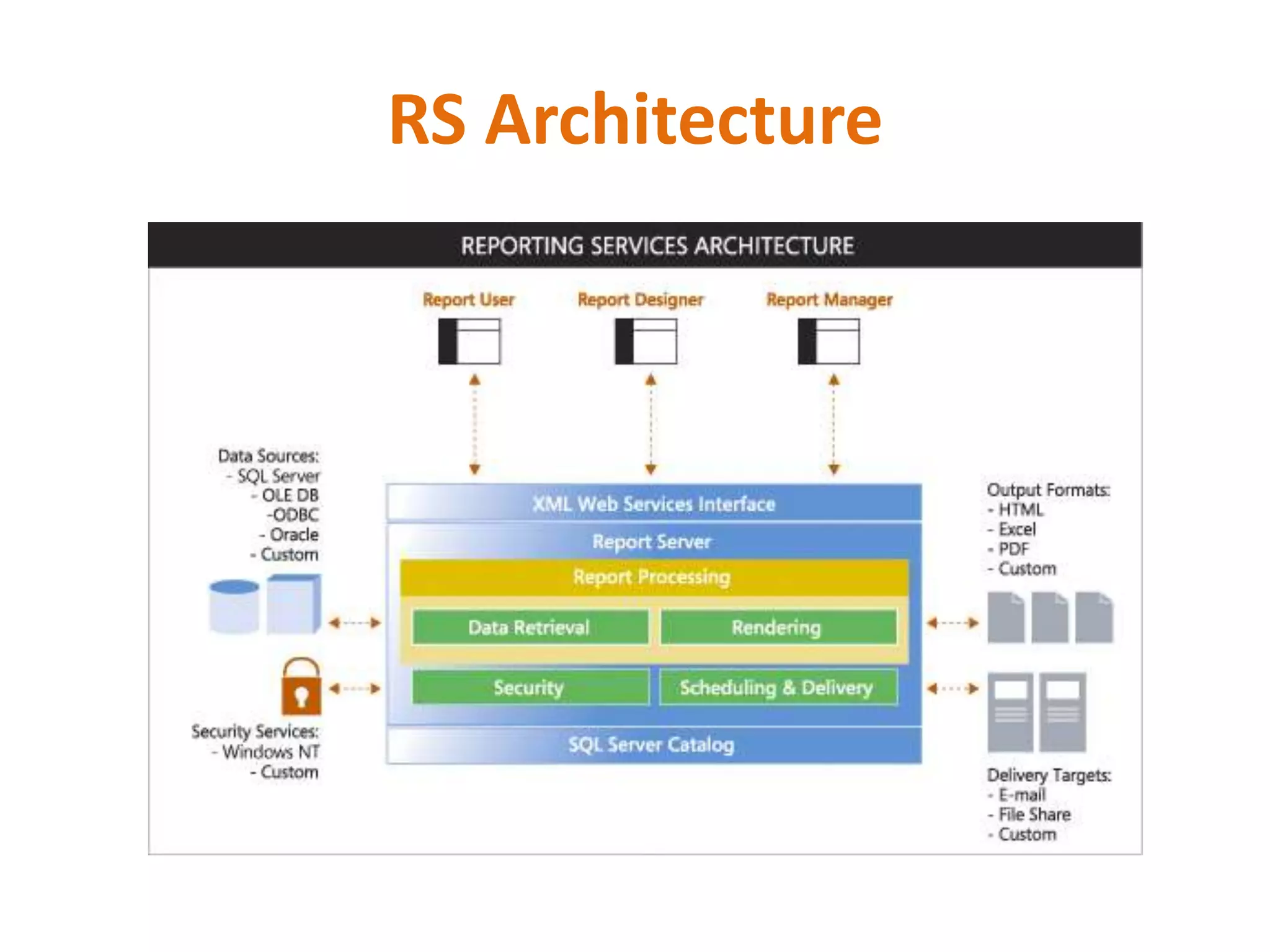
RS Architecture
Reporting Services Features
• Part of the SQL Server 2005 Platform
• Report Development
– Visual report design
– Business Intelligence Development Studio
– Report Features
• Grouping
• Sorting
• Filtering
• Drill-Down and Drill-Through
• Charting
Reporting Services Features
 Report Types
◦ Table
◦ Matrix
◦ Charts
 Report output:
◦ Report Viewer (web site)
◦ Page-based (HTML, TIFF, PDF)
◦ Application integration (Web / Windows Forms)
 Export Formats:
◦ Adobe PDF, XML, Microsoft Excel, CSV, TSV
◦ CSV
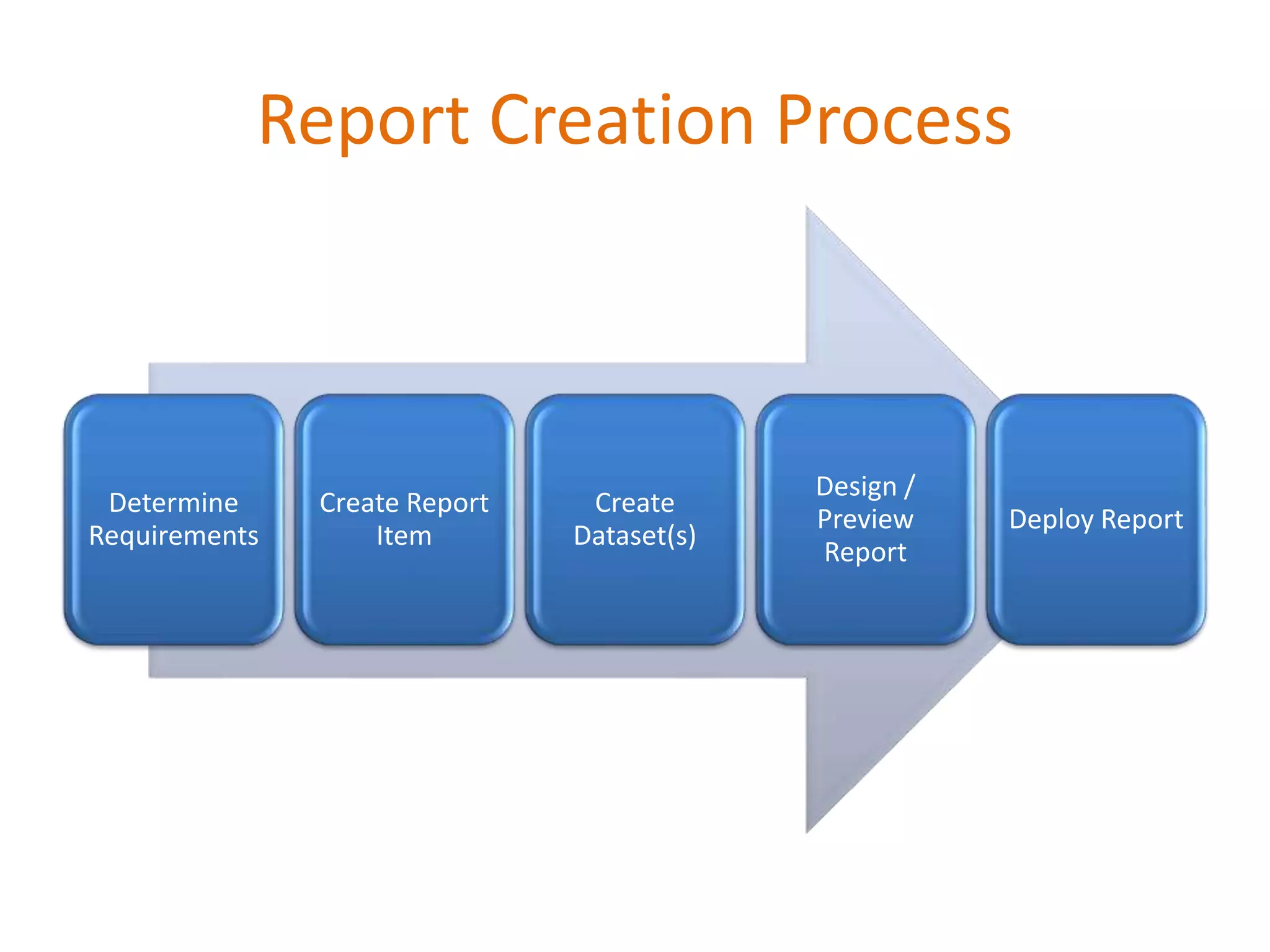
Determine
Requirements
Create Report
Item
Create
Dataset(s)
Design /
Preview
Report
Deploy Report
Report Creation Process
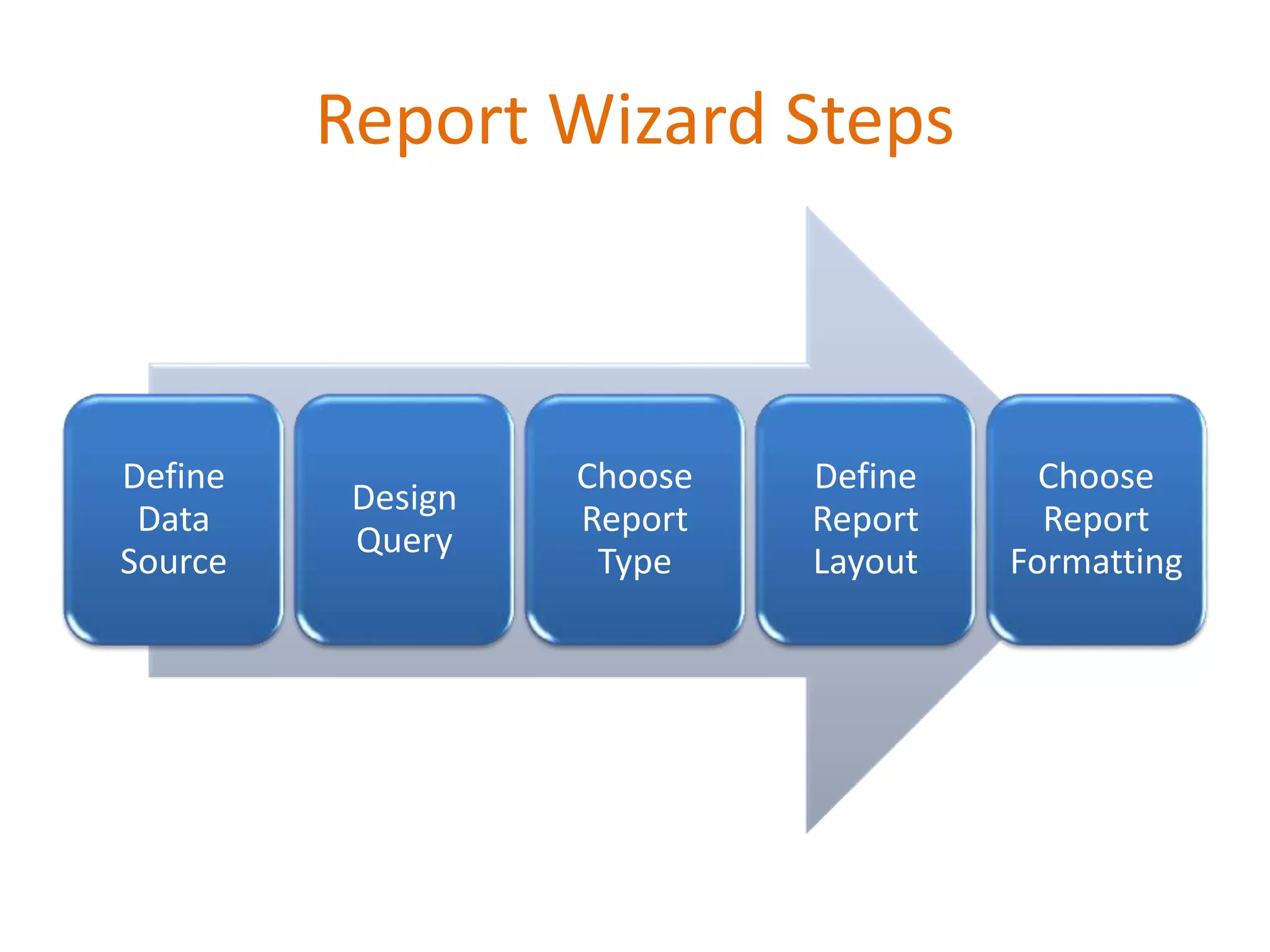
Using the Report Wizard
• Report Wizard Goals:
– Provides a quick way to create basic reports
– Defines a data connection and query
– Includes formatting and grouping options
– Creates a new RDL file
• Launching the Report Wizard:
– New Project  Report Server Project Wizard
– Add Item  Report Wizard
Report Wizard Steps
Define
Data
Source
Design
Query
Choose
Report
Type
Define
Report
Layout
Choose
Report
Formatting
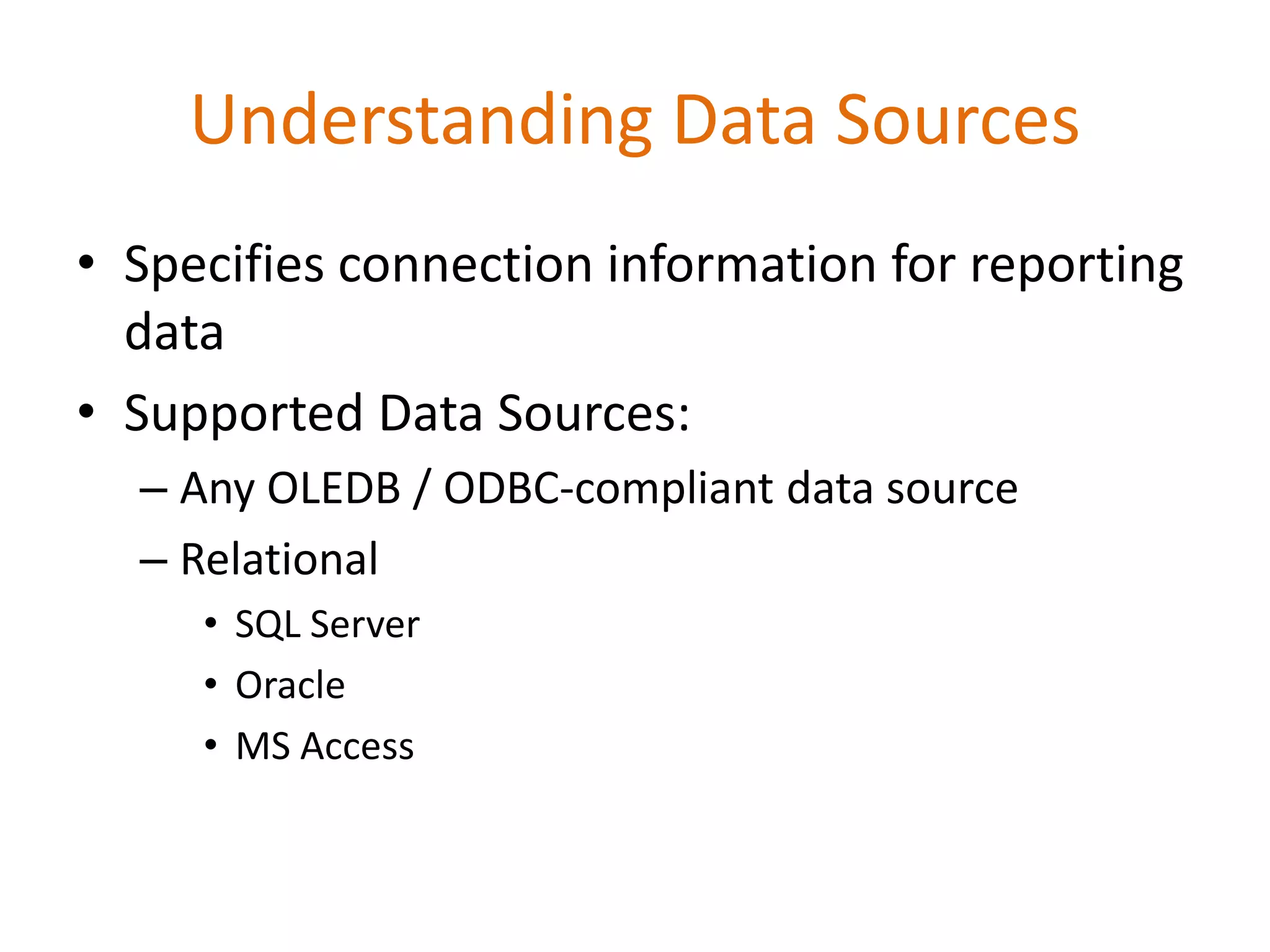
Understanding Data Sources
• Specifies connection information for reporting
data
• Supported Data Sources:
– Any OLEDB / ODBC-compliant data source
– Relational
• SQL Server
• Oracle
• MS Access
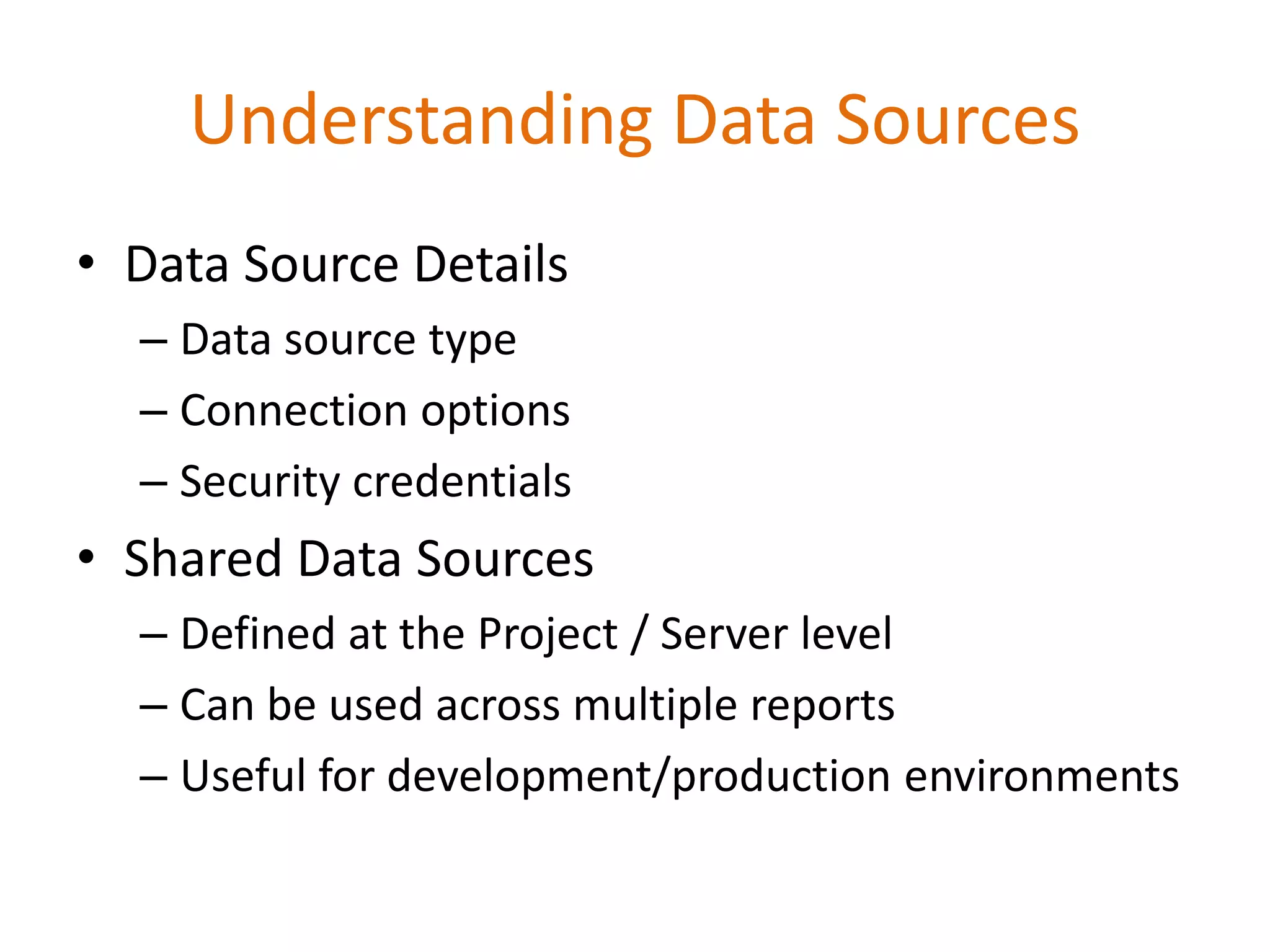
Understanding Data Sources
• Data Source Details
– Data source type
– Connection options
– Security credentials
• Shared Data Sources
– Defined at the Project / Server level
– Can be used across multiple reports
– Useful for development/production environments
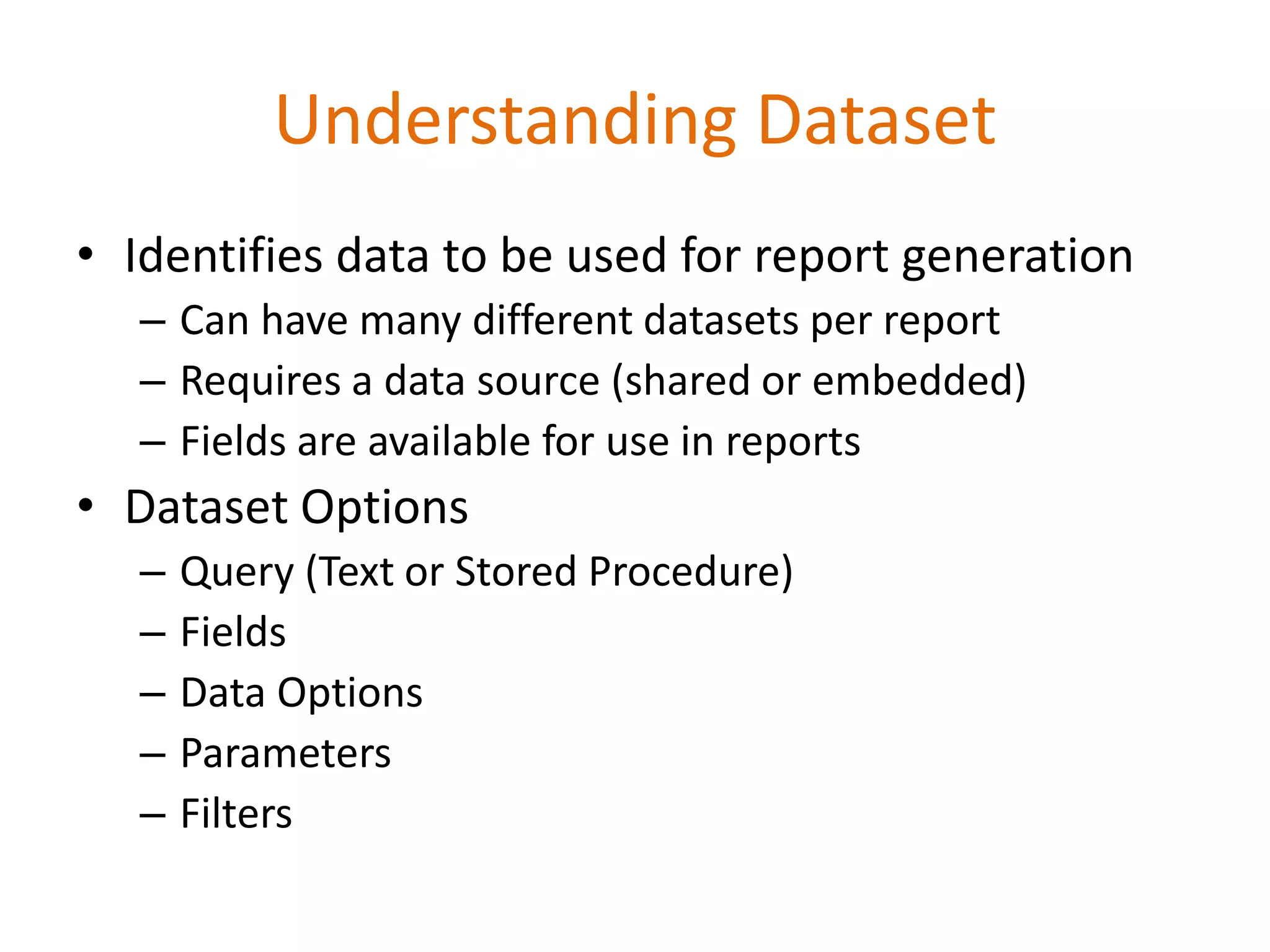
Understanding Dataset
• Identifies data to be used for report generation
– Can have many different datasets per report
– Requires a data source (shared or embedded)
– Fields are available for use in reports
• Dataset Options
– Query (Text or Stored Procedure)
– Fields
– Data Options
– Parameters
– Filters
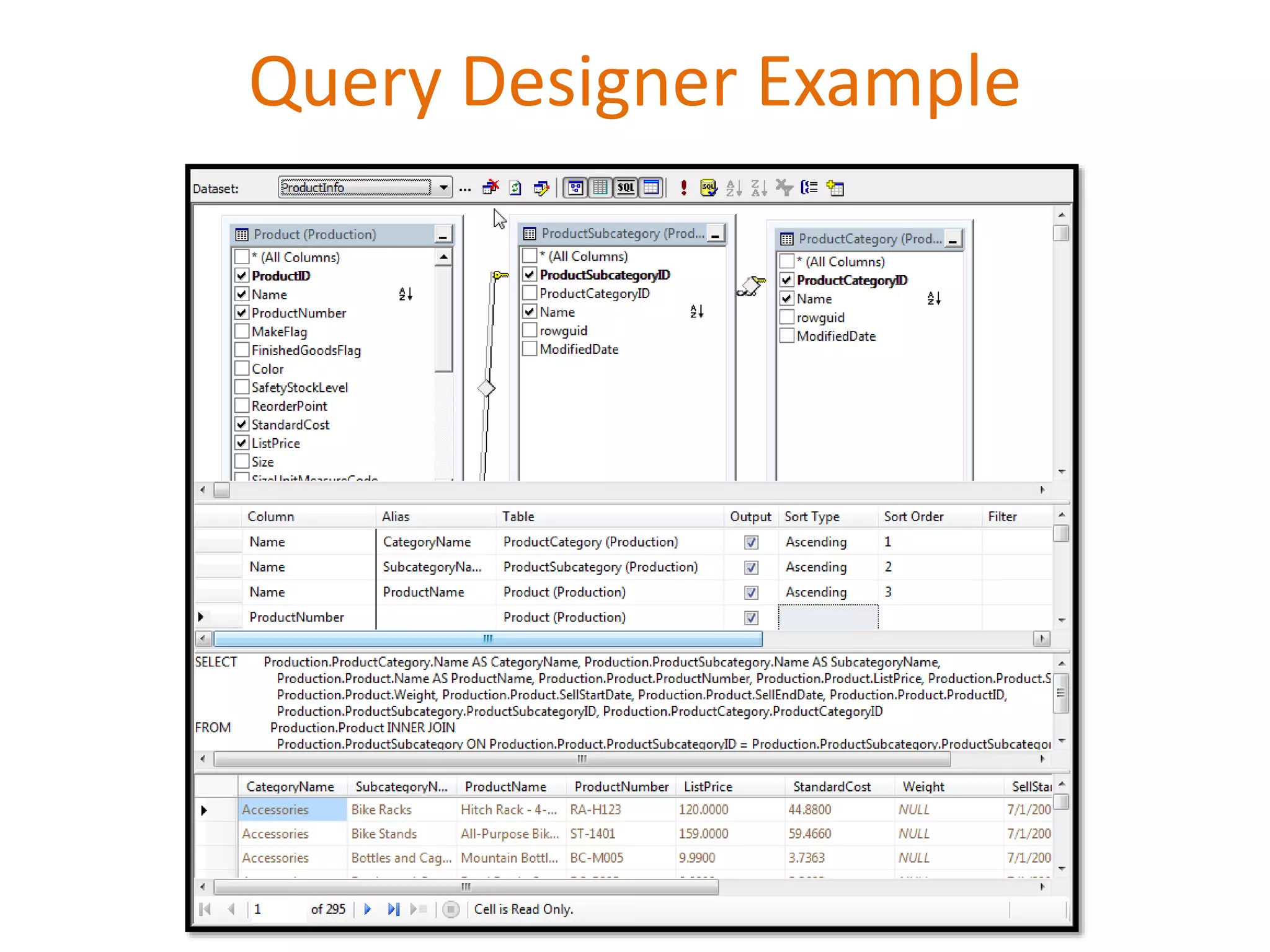
• Query Designer Features
– Visual creation of joins
– Can access tables, views, and functions
– Column names and aliases
– Query sorting and filtering options
– Query results
• Screen sections
– Diagram Pane
– Grid Pane
– SQL Pane
– Result Pane
Query Designer
Query Designer Example
Report Layout
• Report
– Page Header
– Page Footer
– Body (Report Area)
• Table Regions
– Header
– Detail
– Footer
• Groups
– Can specify page breaks
• Report Requirements:
– Show a list of all products by Category /
Subcategory
– Drill-down, sorting, and grouping are not required
• Report Components:
– Page Header
– Report Title
– Page Number
– Report Data (Table)
Report Layout: Demonstration
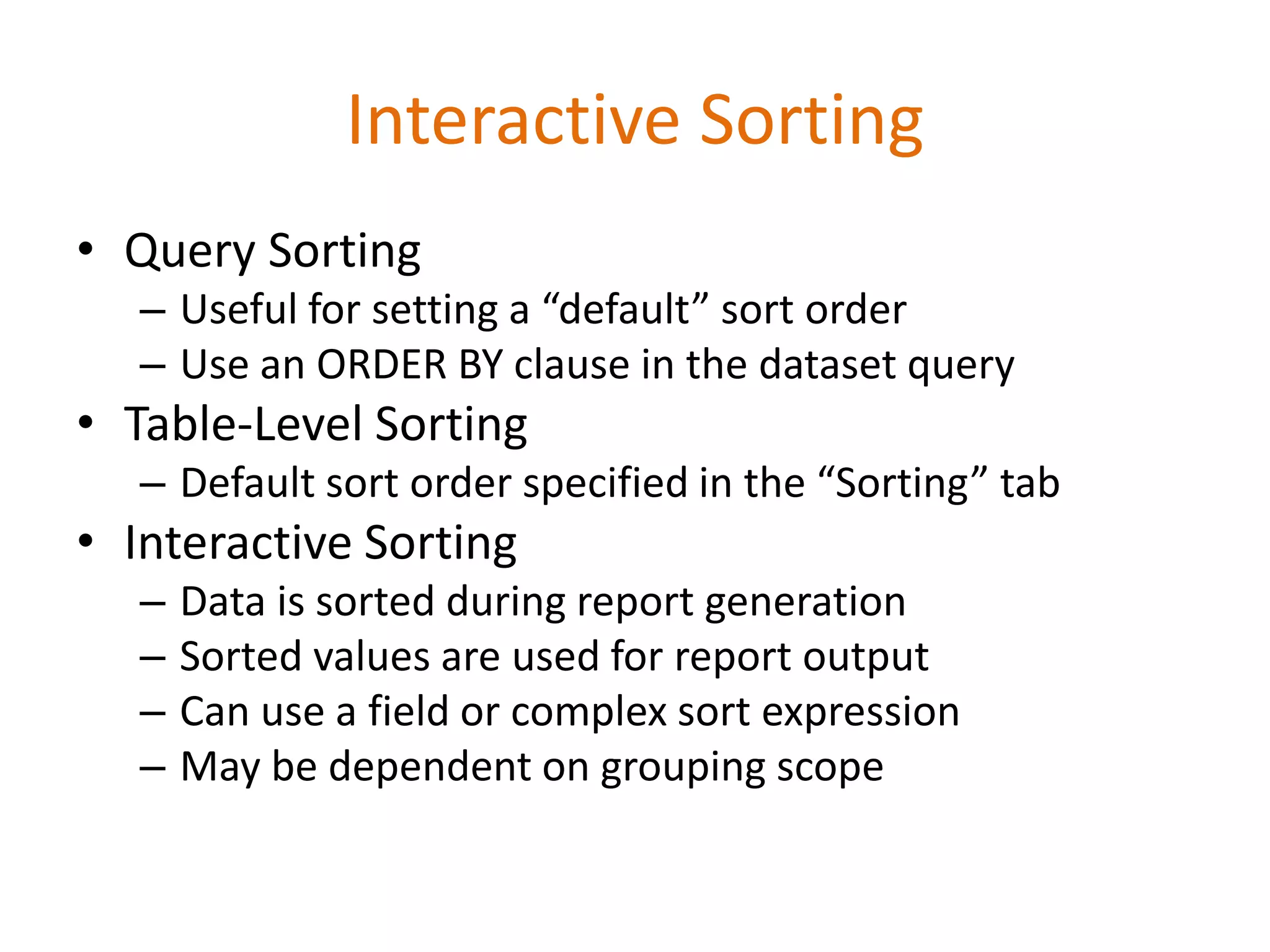
• Query Sorting
– Useful for setting a “default” sort order
– Use an ORDER BY clause in the dataset query
• Table-Level Sorting
– Default sort order specified in the “Sorting” tab
• Interactive Sorting
– Data is sorted during report generation
– Sorted values are used for report output
– Can use a field or complex sort expression
– May be dependent on grouping scope
Interactive Sorting
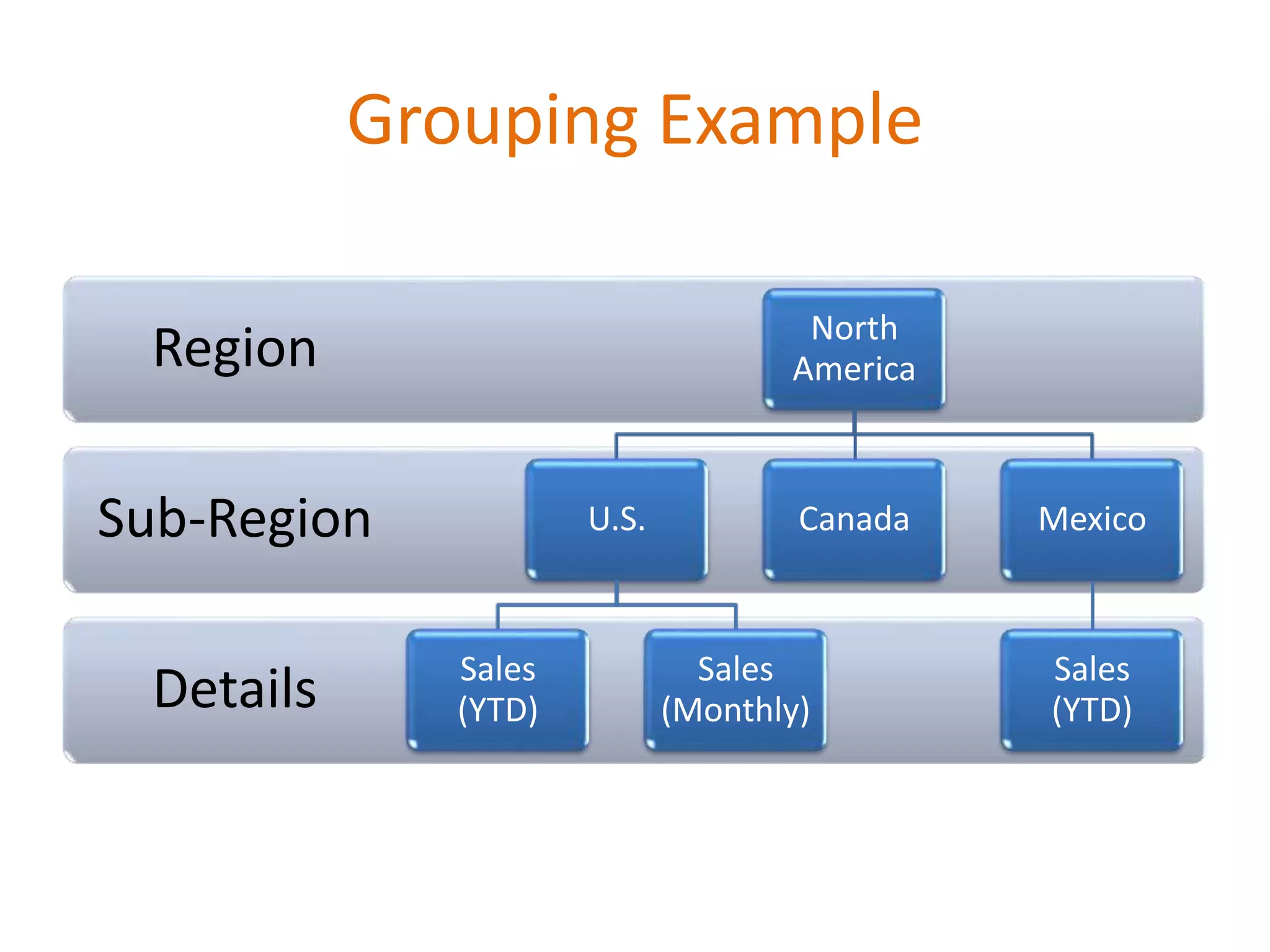
Details
Sub-Region
Region North
America
U.S.
Sales
(YTD)
Sales
(Monthly)
Canada Mexico
Sales
(YTD)
Grouping Example
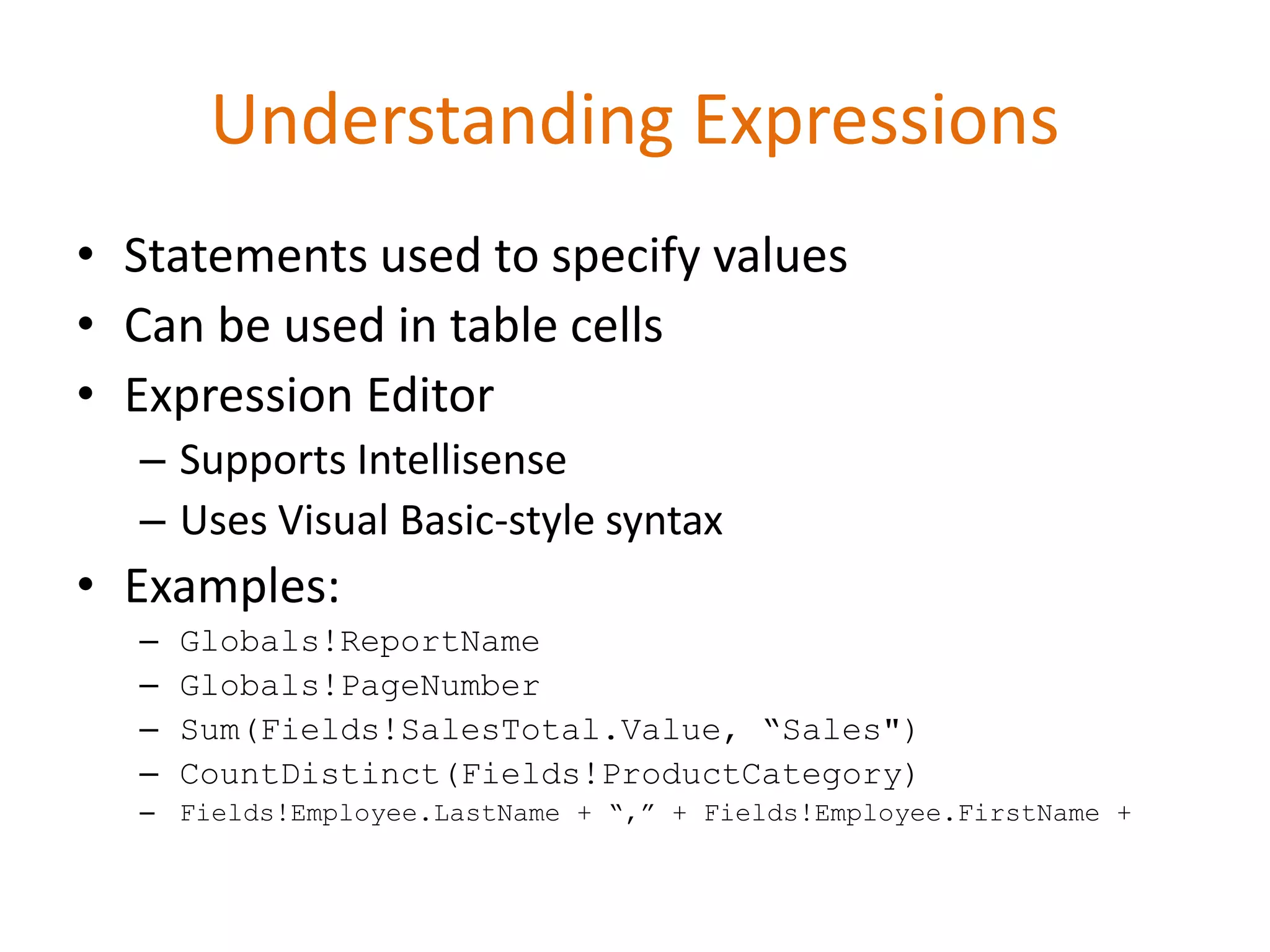
• Statements used to specify values
• Can be used in table cells
• Expression Editor
– Supports Intellisense
– Uses Visual Basic-style syntax
• Examples:
– Globals!ReportName
– Globals!PageNumber
– Sum(Fields!SalesTotal.Value, “Sales")
– CountDistinct(Fields!ProductCategory)
– Fields!Employee.LastName + “,” + Fields!Employee.FirstName +
Understanding Expressions
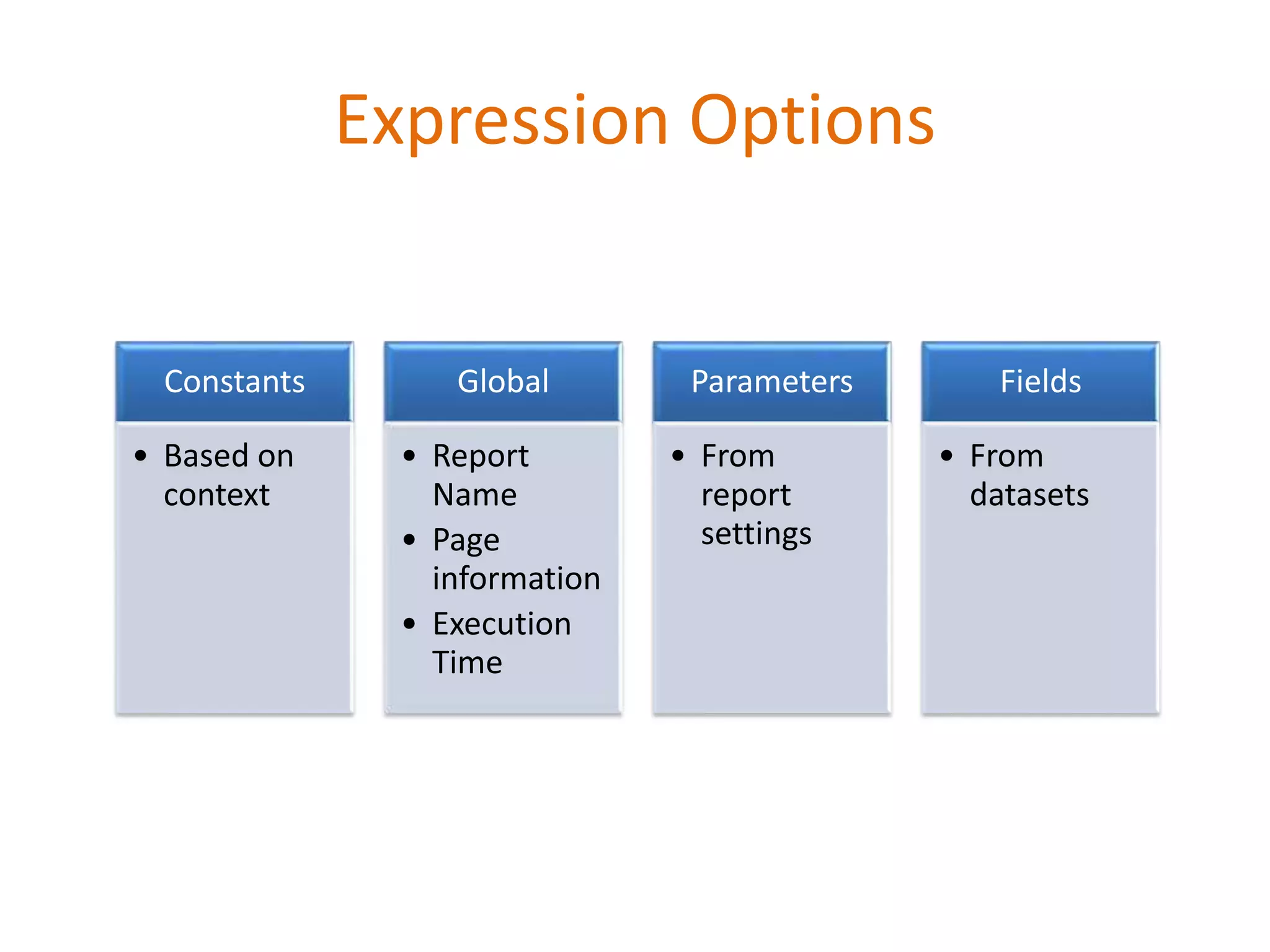
Expression Options
Constants
• Based on
context
Global
• Report
Name
• Page
information
• Execution
Time
Parameters
• From
report
settings
Fields
• From
datasets
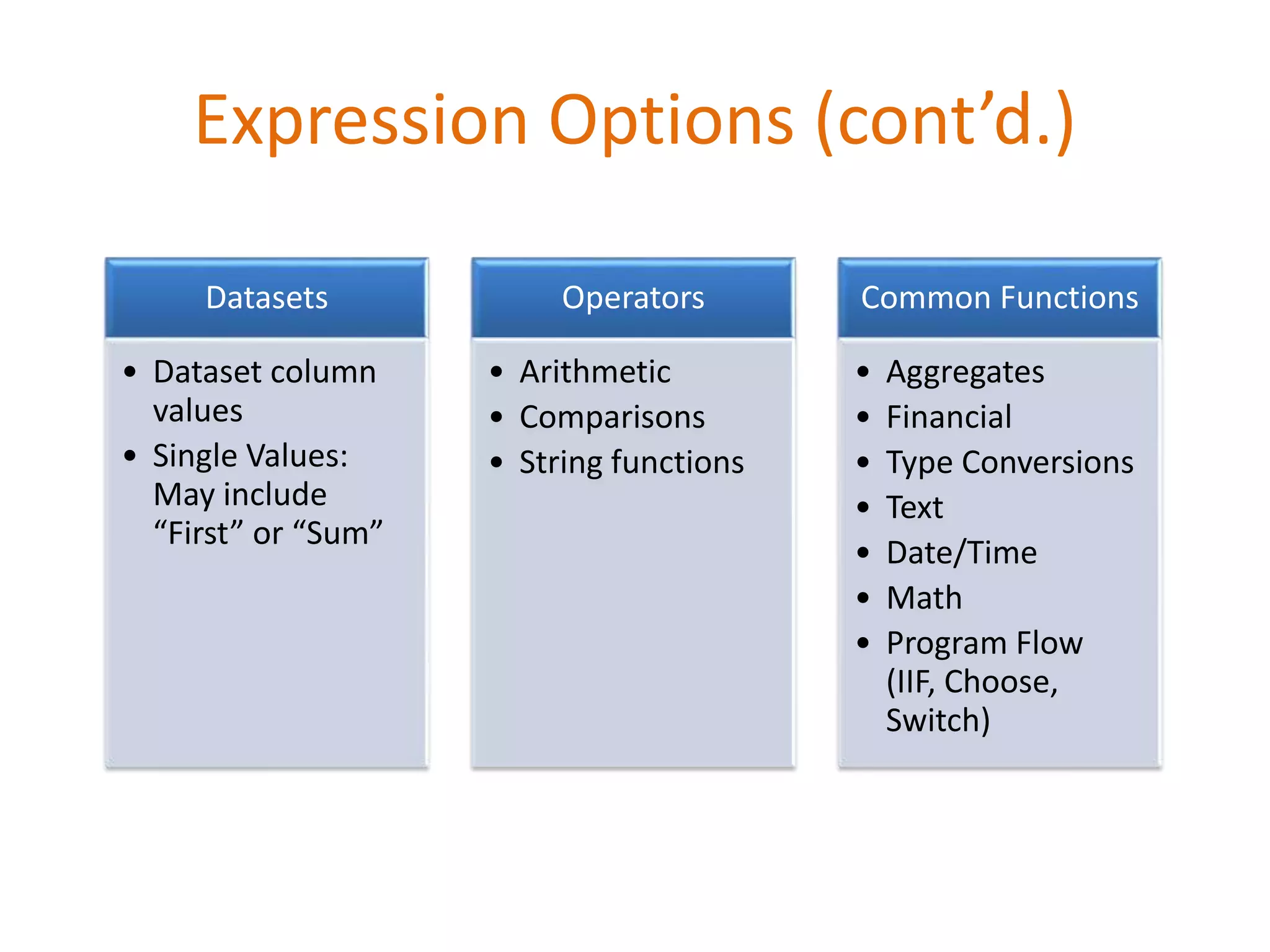
Expression Options (cont’d.)
Datasets
• Dataset column
values
• Single Values:
May include
“First” or “Sum”
Operators
• Arithmetic
• Comparisons
• String functions
Common Functions
• Aggregates
• Financial
• Type Conversions
• Text
• Date/Time
• Math
• Program Flow
(IIF, Choose,
Switch)
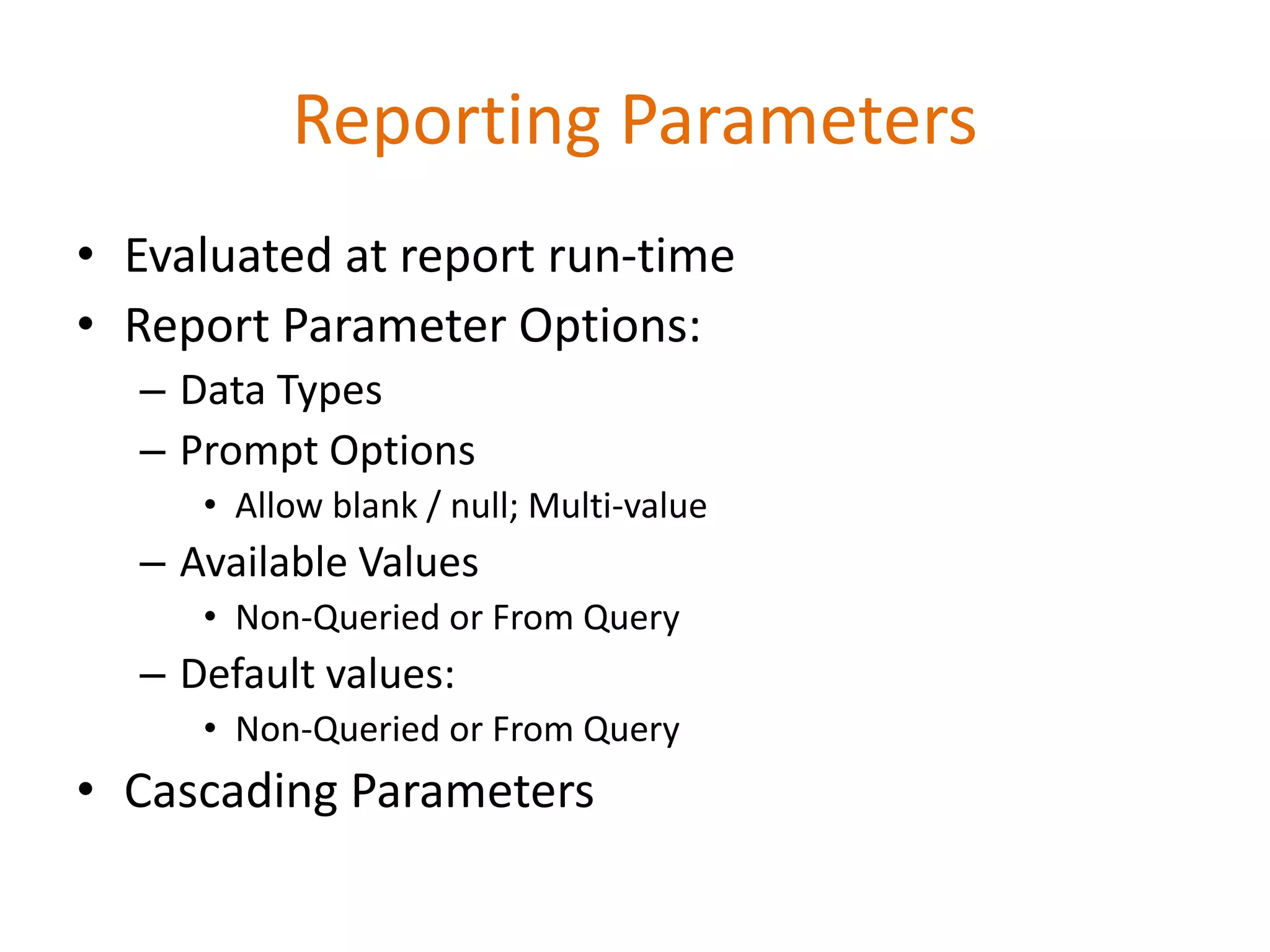
• Evaluated at report run-time
• Report Parameter Options:
– Data Types
– Prompt Options
• Allow blank / null; Multi-value
– Available Values
• Non-Queried or From Query
– Default values:
• Non-Queried or From Query
• Cascading Parameters
Reporting Parameters
Thanks…
Ahmed Rafik http://erpaxapta.blogspot.com

SQL Reporting service presentation

  • 1.
    SQL Server Reporting Services AhmedRafik http://erpaxapta.blogspot.com
  • 2.
    Agenda • Terminology • RSArchitecture • Reporting Services Features • Report Creation Process • Understanding Data Source • Understanding Dataset • Query Designer • Report Layout • Sorting • Grouping • Expression • Reporting Parameters
  • 3.
    Terminology • RDL: ReportDefinition Language XML-based Report Files (.rdl) • Expression: custom code using keywords, ops, values, or functions (i.e. field, code).
  • 4.
  • 5.
    Reporting Services Features •Part of the SQL Server 2005 Platform • Report Development – Visual report design – Business Intelligence Development Studio – Report Features • Grouping • Sorting • Filtering • Drill-Down and Drill-Through • Charting
  • 6.
    Reporting Services Features Report Types ◦ Table ◦ Matrix ◦ Charts  Report output: ◦ Report Viewer (web site) ◦ Page-based (HTML, TIFF, PDF) ◦ Application integration (Web / Windows Forms)  Export Formats: ◦ Adobe PDF, XML, Microsoft Excel, CSV, TSV ◦ CSV
  • 7.
  • 8.
    Using the ReportWizard • Report Wizard Goals: – Provides a quick way to create basic reports – Defines a data connection and query – Includes formatting and grouping options – Creates a new RDL file • Launching the Report Wizard: – New Project  Report Server Project Wizard – Add Item  Report Wizard
  • 9.
  • 10.
    Understanding Data Sources •Specifies connection information for reporting data • Supported Data Sources: – Any OLEDB / ODBC-compliant data source – Relational • SQL Server • Oracle • MS Access
  • 11.
    Understanding Data Sources •Data Source Details – Data source type – Connection options – Security credentials • Shared Data Sources – Defined at the Project / Server level – Can be used across multiple reports – Useful for development/production environments
  • 12.
    Understanding Dataset • Identifiesdata to be used for report generation – Can have many different datasets per report – Requires a data source (shared or embedded) – Fields are available for use in reports • Dataset Options – Query (Text or Stored Procedure) – Fields – Data Options – Parameters – Filters
  • 13.
    • Query DesignerFeatures – Visual creation of joins – Can access tables, views, and functions – Column names and aliases – Query sorting and filtering options – Query results • Screen sections – Diagram Pane – Grid Pane – SQL Pane – Result Pane Query Designer
  • 14.
  • 15.
    Report Layout • Report –Page Header – Page Footer – Body (Report Area) • Table Regions – Header – Detail – Footer • Groups – Can specify page breaks
  • 16.
    • Report Requirements: –Show a list of all products by Category / Subcategory – Drill-down, sorting, and grouping are not required • Report Components: – Page Header – Report Title – Page Number – Report Data (Table) Report Layout: Demonstration
  • 17.
    • Query Sorting –Useful for setting a “default” sort order – Use an ORDER BY clause in the dataset query • Table-Level Sorting – Default sort order specified in the “Sorting” tab • Interactive Sorting – Data is sorted during report generation – Sorted values are used for report output – Can use a field or complex sort expression – May be dependent on grouping scope Interactive Sorting
  • 18.
  • 19.
    • Statements usedto specify values • Can be used in table cells • Expression Editor – Supports Intellisense – Uses Visual Basic-style syntax • Examples: – Globals!ReportName – Globals!PageNumber – Sum(Fields!SalesTotal.Value, “Sales") – CountDistinct(Fields!ProductCategory) – Fields!Employee.LastName + “,” + Fields!Employee.FirstName + Understanding Expressions
  • 20.
    Expression Options Constants • Basedon context Global • Report Name • Page information • Execution Time Parameters • From report settings Fields • From datasets
  • 21.
    Expression Options (cont’d.) Datasets •Dataset column values • Single Values: May include “First” or “Sum” Operators • Arithmetic • Comparisons • String functions Common Functions • Aggregates • Financial • Type Conversions • Text • Date/Time • Math • Program Flow (IIF, Choose, Switch)
  • 22.
    • Evaluated atreport run-time • Report Parameter Options: – Data Types – Prompt Options • Allow blank / null; Multi-value – Available Values • Non-Queried or From Query – Default values: • Non-Queried or From Query • Cascading Parameters Reporting Parameters
  • 23.