Introduction to
Windows 8
BY: STEVE FRANTZIS
OWNER, SAGUARO PC TECH, LLC
What is Windows 8? What’s Different?

    Convergence Strategy to Unite PC’s,
     Laptops and Mobile Devices
    “Dual-Mode” Operating System:
     Traditional and “Modern” Interface
    Runs Traditional Desktop Programs and
     “Tablet/Phone-Style” Apps
What is Windows 8? What’s Different?

    Basically Windows 7 with an added
     Tablet-Style Screen
    Integrated with Cloud, Syncs Data and
     Personal Settings
    Consistent Interface Across Multiple
     PC’s and Mobile Devices
What is Windows 8? What’s Different?


What the Heck is That?
The “Modern” Interface or “Start Screen”
What is Windows 8? What’s Different?


The Traditional Desktop Interface is still there.
Like Windows 7, but with a few changes.
Installation
Upgrading
Initial Setup
SHOULD YOU UPGRADE YOUR PC OR
DO A CLEAN INSTALL?
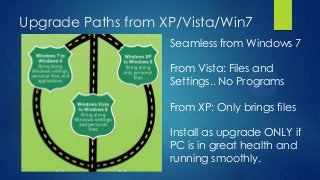
Upgrade Paths from XP/Vista/Win7
                    Seamless from Windows 7

                    From Vista: Files and
                    Settings.. No Programs

                    From XP: Only brings files

                    Install as upgrade ONLY if
                    PC is in great health and
                    running smoothly.
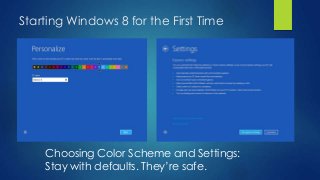
Starting Windows 8 for the First Time


    Choosing Color Scheme and Settings:
    Stay with defaults. They’re safe.
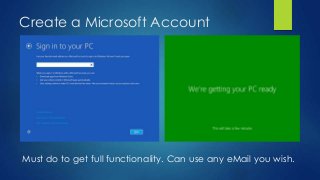
Create a Microsoft Account


Must do to get full functionality. Can use any eMail you wish.
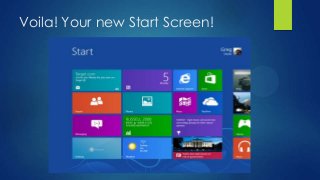
Voila! Your new Start Screen!
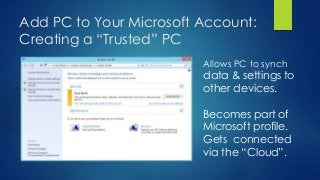
Add PC to Your Microsoft Account:
Creating a “Trusted” PC
                         Allows PC to synch
                         data & settings to
                         other devices.

                         Becomes part of
                         Microsoft profile.
                         Gets connected
                         via the “Cloud”.
Critical Usability Tips
THINGS THAT REALLY MAKE IT EASIER TO USE.


UNDO THE “BIG 2” BAD DESIGN ELEMENTS


DO THIS FIRST, ON DAY ONE!
Bring Back the Start Button/Menu
Install 3rd Party Start Button: Will Work Like Windows 7

• Can Choose to Boot to Desktop vs. Start Screen
• Lots of customization and personalization options

Best Two Apps Available:

Start 8: 30 day trial, then $5 (www.stardock.com)

Classic Shell: Free. (www.classicshell.net)
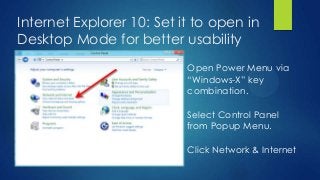
Internet Explorer 10: Set it to open in
Desktop Mode for better usability
                           Open Power Menu via
                           “Windows-X” key
                           combination.

                           Select Control Panel
                           from Popup Menu.

                           Click Network & Internet
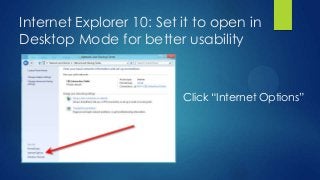
Internet Explorer 10: Set it to open in
Desktop Mode for better usability


                          Click “Internet Options”
Internet Explorer 10: Set it to open in
Desktop Mode for better usability
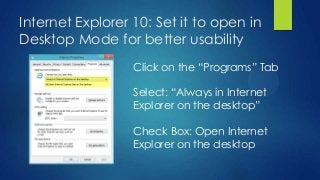
                  Click on the “Programs” Tab

                  Select: “Always in Internet
                  Explorer on the desktop”

                  Check Box: Open Internet
                  Explorer on the desktop
Features & Benefits for Business

Touchscreen Interface:
Can skip buying an iPad or Android tablet to do tasks
better suited for tablets. Lots of new products for this.


Networking:
Simplified the steps to guide you through
connecting to a public or a private network, and
enabling sharing of data or resources.
Features &Benefits for Business Use
Better security:
Built-in Antivirus/Antimalware with Windows Defender.
New Smart Screen monitors IE and all network traffic.

File History:
Constant backup, plus access to old versions of files.

SkyDrive integration:
Save files to the cloud and sync to your other PC’s,
tablets, etc. Share and Collaborate on Office Docs.
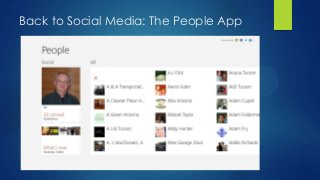
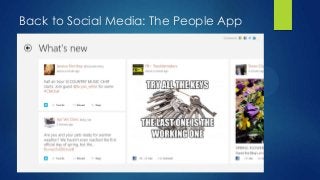
Back to Social Media: The People App
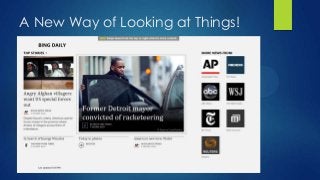
A New Way of Looking at Things!
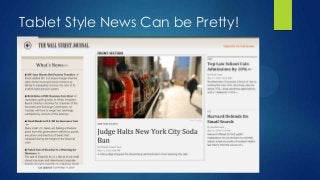
Tablet Style News Can be Pretty!
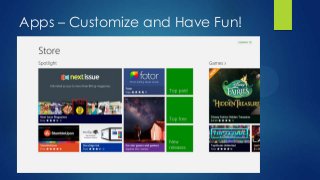
Apps – Customize and Have Fun!
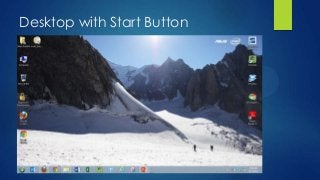
Desktop with Start Button
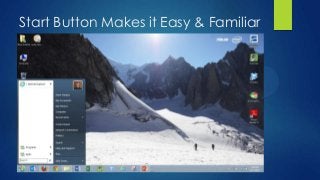
Start Button Makes it Easy & Familiar
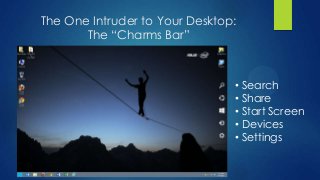
The One Intruder to Your Desktop:
       The “Charms Bar”


                                •   Search
                                •   Share
                                •   Start Screen
                                •   Devices
                                •   Settings
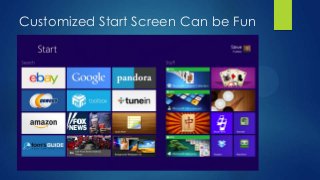
Customized Start Screen Can be Fun
The Way of the Future – No Going Back!

Demand for similar interfaces across devices.


Touch screens will improve and dominate.


Cloud storage & synching data becoming
standard, changing how people & businesses
operate.

Windows 8.0

  • 1.
    Introduction to Windows 8 BY:STEVE FRANTZIS OWNER, SAGUARO PC TECH, LLC
  • 2.
    What is Windows8? What’s Different?  Convergence Strategy to Unite PC’s, Laptops and Mobile Devices  “Dual-Mode” Operating System: Traditional and “Modern” Interface  Runs Traditional Desktop Programs and “Tablet/Phone-Style” Apps
  • 3.
    What is Windows8? What’s Different?  Basically Windows 7 with an added Tablet-Style Screen  Integrated with Cloud, Syncs Data and Personal Settings  Consistent Interface Across Multiple PC’s and Mobile Devices
  • 4.
    What is Windows8? What’s Different? What the Heck is That? The “Modern” Interface or “Start Screen”
  • 5.
    What is Windows8? What’s Different? The Traditional Desktop Interface is still there. Like Windows 7, but with a few changes.
  • 6.
    Installation Upgrading Initial Setup SHOULD YOUUPGRADE YOUR PC OR DO A CLEAN INSTALL?
  • 7.
    Upgrade Paths fromXP/Vista/Win7 Seamless from Windows 7 From Vista: Files and Settings.. No Programs From XP: Only brings files Install as upgrade ONLY if PC is in great health and running smoothly.
  • 8.
    Starting Windows 8for the First Time Choosing Color Scheme and Settings: Stay with defaults. They’re safe.
  • 9.
    Create a MicrosoftAccount Must do to get full functionality. Can use any eMail you wish.
  • 10.
    Voila! Your newStart Screen!
  • 11.
    Add PC toYour Microsoft Account: Creating a “Trusted” PC Allows PC to synch data & settings to other devices. Becomes part of Microsoft profile. Gets connected via the “Cloud”.
  • 12.
    Critical Usability Tips THINGSTHAT REALLY MAKE IT EASIER TO USE. UNDO THE “BIG 2” BAD DESIGN ELEMENTS DO THIS FIRST, ON DAY ONE!
  • 13.
    Bring Back theStart Button/Menu Install 3rd Party Start Button: Will Work Like Windows 7 • Can Choose to Boot to Desktop vs. Start Screen • Lots of customization and personalization options Best Two Apps Available: Start 8: 30 day trial, then $5 (www.stardock.com) Classic Shell: Free. (www.classicshell.net)
  • 14.
    Internet Explorer 10:Set it to open in Desktop Mode for better usability Open Power Menu via “Windows-X” key combination. Select Control Panel from Popup Menu. Click Network & Internet
  • 15.
    Internet Explorer 10:Set it to open in Desktop Mode for better usability Click “Internet Options”
  • 16.
    Internet Explorer 10:Set it to open in Desktop Mode for better usability Click on the “Programs” Tab Select: “Always in Internet Explorer on the desktop” Check Box: Open Internet Explorer on the desktop
  • 17.
    Features & Benefitsfor Business Touchscreen Interface: Can skip buying an iPad or Android tablet to do tasks better suited for tablets. Lots of new products for this. Networking: Simplified the steps to guide you through connecting to a public or a private network, and enabling sharing of data or resources.
  • 18.
    Features &Benefits forBusiness Use Better security: Built-in Antivirus/Antimalware with Windows Defender. New Smart Screen monitors IE and all network traffic. File History: Constant backup, plus access to old versions of files. SkyDrive integration: Save files to the cloud and sync to your other PC’s, tablets, etc. Share and Collaborate on Office Docs.
  • 19.
    Back to SocialMedia: The People App
  • 20.
    Back to SocialMedia: The People App
  • 21.
    A New Wayof Looking at Things!
  • 22.
    Tablet Style NewsCan be Pretty!
  • 23.
    Apps – Customizeand Have Fun!
  • 24.
  • 25.
    Start Button Makesit Easy & Familiar
  • 26.
    The One Intruderto Your Desktop: The “Charms Bar” • Search • Share • Start Screen • Devices • Settings
  • 27.
  • 28.
    The Way ofthe Future – No Going Back! Demand for similar interfaces across devices. Touch screens will improve and dominate. Cloud storage & synching data becoming standard, changing how people & businesses operate.

Editor's Notes

  • #3 New location, expansion of our services, Connie Ryan Cathy Lolwing,