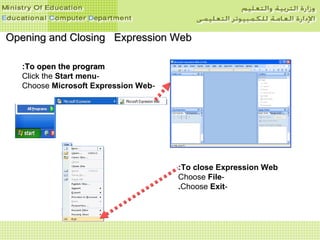
Opening and Closing Expression WebOpening and Closing Expression Web
To open the programTo open the program::
-Click the Start menu
-Choose Microsoft Expression Web
To close Expression Web:
-Choose File
-Choose Exit.
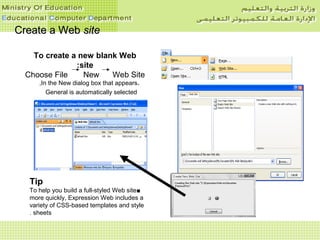
Create a WebCreate a Web sitesite
To create a new blank Web
site:
Choose File New Web Site
.In the New dialog box that appears,
General is automatically selected
Tip
■To help you build a full-styled Web site
more quickly, Expression Web includes a
variety of CSS-based templates and style
sheets.
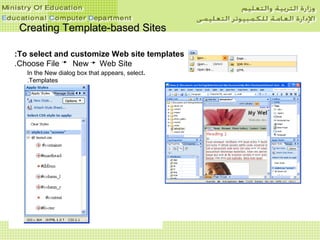
Creating Template-based SitesCreating Template-based Sites
To select and customize Web site templates:
Choose File New Web Site.
.In the New dialog box that appears, select
Templates.
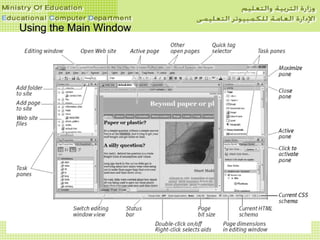
Using the Main WindowUsing the Main Window
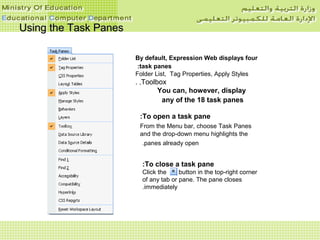
Using the Task PanesUsing the Task Panes
By default, Expression Web displays four
task panes:
Folder List, Tag Properties, Apply Styles
,Toolbox.
You can, however, display
any of the 18 task panes
To open a task pane:
From the Menu bar, choose Task Panes
and the drop-down menu highlights the
panes already open.
To close a task pane:
Click the button in the top-right corner
of any tab or pane. The pane closes
immediately.
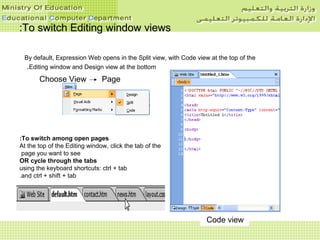
To switch Editing window viewsTo switch Editing window views::
By default, Expression Web opens in the Split view, with Code view at the top of the
Editing window and Design view at the bottom.
Split viewDesign viewCode view
Choose View Page
To switch among open pages:
At the top of the Editing window, click the tab of the
page you want to see
OR cycle through the tabs
using the keyboard shortcuts: ctrl + tab
and ctrl + shift + tab.
Working with pagesWorking with pages
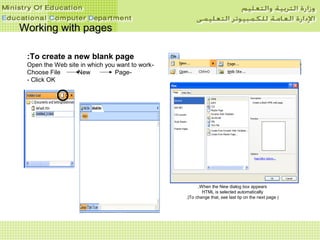
To create a new blank page:
-Open the Web site in which you want to work
-Choose File New Page
- Click OK
When the New dialog box appears,
HTML is selected automatically
)To change that, see last tip on the next page.(
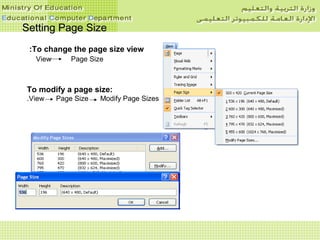
Setting Page SizeSetting Page Size
To change the page size view:
View Page Size
To modify a page size:
View Page Size Modify Page Sizes.
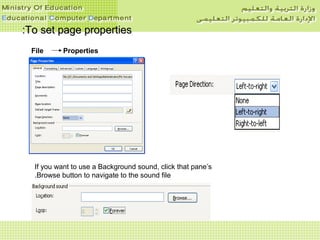
To set page propertiesTo set page properties::
File Properties
If you want to use a Background sound, click that pane’s
Browse button to navigate to the sound file.
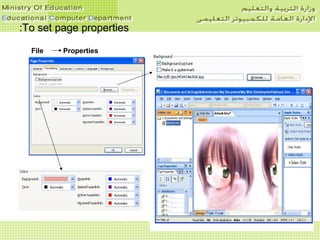
To set page propertiesTo set page properties::
File Properties
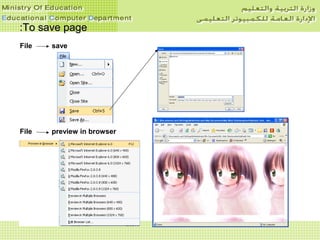
To save pageTo save page::
File save
File preview in browser
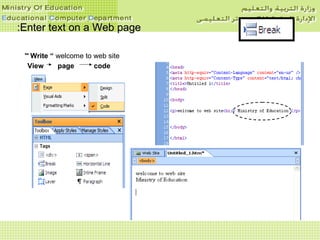
Enter text on a Web pageEnter text on a Web page::
Write “ welcome to web site”
View page code
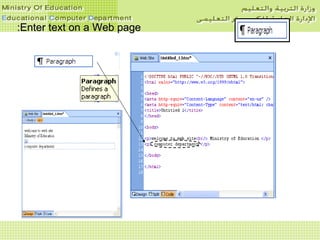
Enter text on a Web pageEnter text on a Web page::
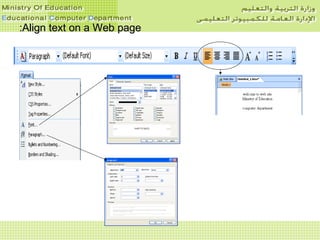
Align text on a Web pageAlign text on a Web page::
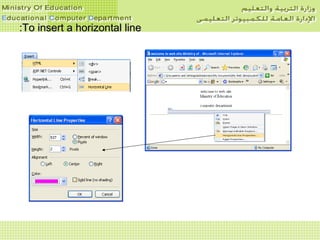
To insert a horizontal lineTo insert a horizontal line::
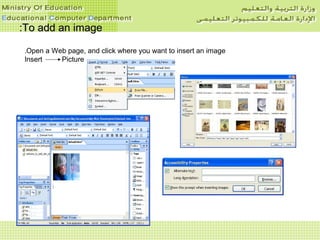
To add an imageTo add an image::
Open a Web page, and click where you want to insert an image.
Insert Picture
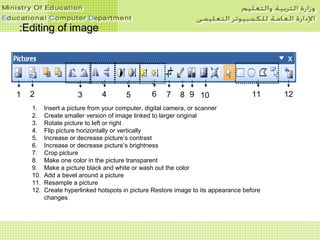
Editing of imageEditing of image::
1. Insert a picture from your computer, digital camera, or scanner
2. Create smaller version of image linked to larger original
3. Rotate picture to left or right
4. Flip picture horizontally or vertically
5. Increase or decrease picture’s contrast
6. Increase or decrease picture’s brightness
7. Crop picture
8. Make one color in the picture transparent
9. Make a picture black and white or wash out the color
10. Add a bevel around a picture
11. Resample a picture
12. Create hyperlinked hotspots in picture Restore image to its appearance before
changes
7 83 4 5 61 2 9 10 11 12
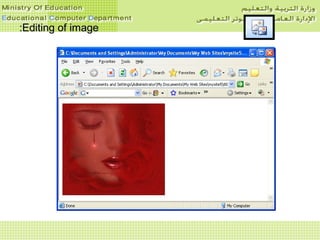
Editing of imageEditing of image::
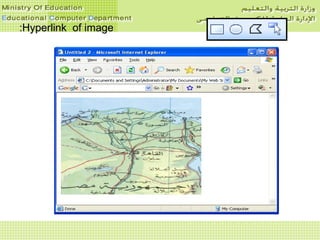
Hyperlink of imageHyperlink of image::
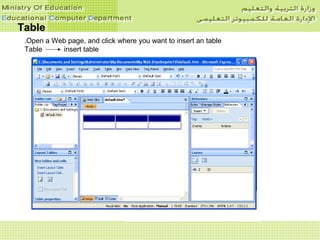
TableTable
Open a Web page, and click where you want to insert an table.
Table insert table
Adding interactiveAdding interactive
behaviorsbehaviors
Adding interactive behaviorsAdding interactive behaviors
Adding behavior to element
Adding an interactive button
Create a popup massage windows
Create a status bar image
Using jump menu
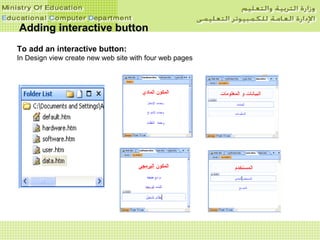
Adding interactive buttonAdding interactive button
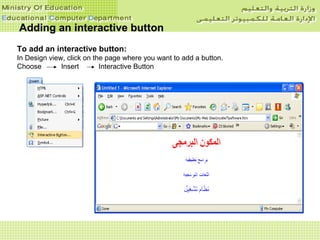
To add an interactive button:
In Design view create new web site with four web pages
To add an interactive button:
In Design view, click on the page where you want to add a button.
Choose Insert Interactive Button
Adding an interactive buttonAdding an interactive button
Adding behavior to elementAdding behavior to element
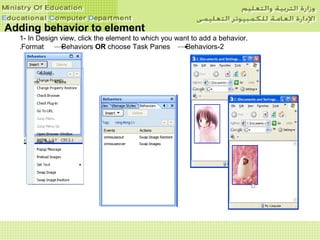
1- In Design view, click the element to which you want to add a behavior.
2-Format Behaviors OR choose Task Panes Behaviors.
Adding behavior to elementAdding behavior to element
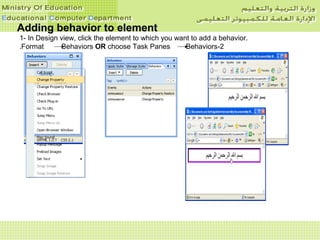
1- In Design view, click the element to which you want to add a behavior.
2-Format Behaviors OR choose Task Panes Behaviors.
Create a popup massage windowsCreate a popup massage windows
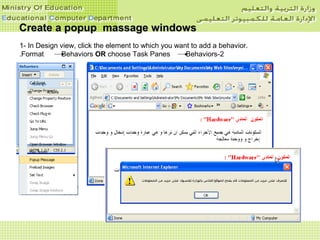
1- In Design view, click the element to which you want to add a behavior.
2-Format Behaviors OR choose Task Panes Behaviors.
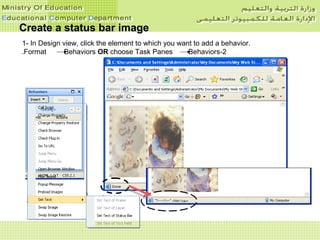
Create a status bar imageCreate a status bar image
1- In Design view, click the element to which you want to add a behavior.
2-Format Behaviors OR choose Task Panes Behaviors.
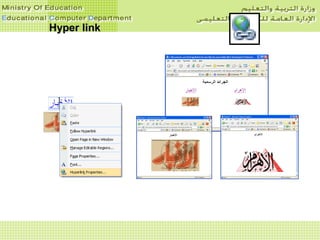
Hyper linkHyper link
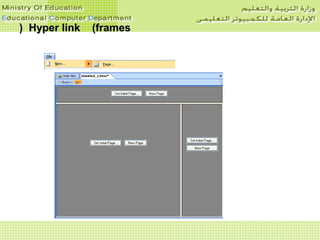
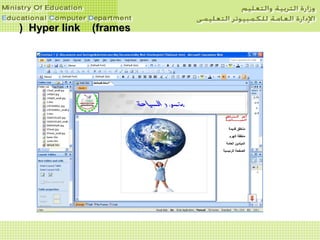
Hyper link (framesHyper link (frames((
‫قديمة‬ ‫مناطق‬
‫الهرم‬ ‫منطقة‬
‫العامة‬ ‫الميادين‬
‫الرئيسية‬ ‫الصفحة‬
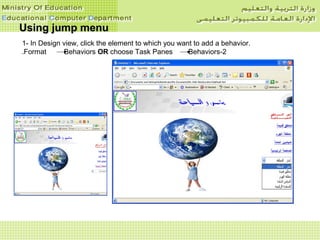
Using jump menuUsing jump menu
1- In Design view, click the element to which you want to add a behavior.
2-Format Behaviors OR choose Task Panes Behaviors.
Cascading Style SheetsCascading Style Sheets
• Cascading style sheets (CSS) give you control over the presentation of your
web pages. Using CSS, you can precisely position and set the appearance
of elements on a web page.
• A CSS can be external, internal, or inline, relative to a web page and a
web page can use one or more of these types of CSS simultaneously.
• In general, styles that are defined in an inline CSS take precedence over
those in an internal or external CSS, and styles in an internal CSS take
precedence over styles in an external CSS.
Inline CSSInline CSS
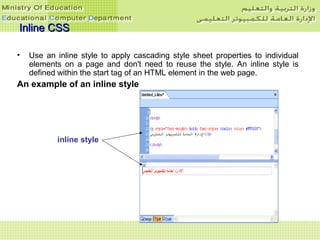
• Use an inline style to apply cascading style sheet properties to individual
elements on a page and don't need to reuse the style. An inline style is
defined within the start tag of an HTML element in the web page.
An example of an inline style
inline style
Internal CSSInternal CSS
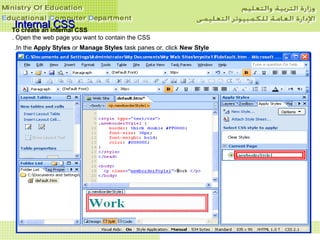
• Use an internal CSS, sometimes referred to as embedded CSS, when you
want to define styles only for the current web page and also when you want
to override the styles that are defined in an external CSS attached to the
current web page.
• An internal CSS is contained within the <head> tags of a web page.
Example of an internal style sheet
<style type="text/css">
.alert {
font-weight: bold;
color: #FF0000;
}
h1 {
font-size: 16pt;
font-family: Arial, Helvetica, sans-serif;
}
#headlines {
border-color: #000000;
border-width: thin;
border-style: solid;
}
</style>
To create an internal CSS
Open the web page you want to contain the CSS.
In the Apply Styles or Manage Styles task panes or, click New Style.
External CSSExternal CSS
• Use an external style sheet when you want to apply the same styles
consistently across some or all web pages in your website.
• By defining styles in one or more external style sheets and attaching
them to web pages, you can ensure your entire website has a
consistent appearance.
• If you decide to change a style, you need to make only one
change — in the external CSS — and the change is automatically
reflected in all web pages that reference that style and CSS.
• An external CSS is contained within a .css file Such as global.css.
• The syntax of an external CSS is the same as an internal CSS.
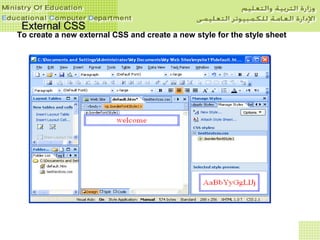
To create an external CSS
To create a new external CSS and create a new style for the style sheet
In the Apply Styles or Manage Styles task pane
or the Style toolbar click New Style , and then in the New Style dialog box, set the
Define in option to New style sheet.
External CSSExternal CSS

Webexpration2007 ii

  • 2.
    Opening and ClosingExpression WebOpening and Closing Expression Web To open the programTo open the program:: -Click the Start menu -Choose Microsoft Expression Web To close Expression Web: -Choose File -Choose Exit.
  • 3.
    Create a WebCreatea Web sitesite To create a new blank Web site: Choose File New Web Site .In the New dialog box that appears, General is automatically selected Tip ■To help you build a full-styled Web site more quickly, Expression Web includes a variety of CSS-based templates and style sheets.
  • 4.
    Creating Template-based SitesCreatingTemplate-based Sites To select and customize Web site templates: Choose File New Web Site. .In the New dialog box that appears, select Templates.
  • 5.
    Using the MainWindowUsing the Main Window
  • 6.
    Using the TaskPanesUsing the Task Panes By default, Expression Web displays four task panes: Folder List, Tag Properties, Apply Styles ,Toolbox. You can, however, display any of the 18 task panes To open a task pane: From the Menu bar, choose Task Panes and the drop-down menu highlights the panes already open. To close a task pane: Click the button in the top-right corner of any tab or pane. The pane closes immediately.
  • 7.
    To switch Editingwindow viewsTo switch Editing window views:: By default, Expression Web opens in the Split view, with Code view at the top of the Editing window and Design view at the bottom. Split viewDesign viewCode view Choose View Page To switch among open pages: At the top of the Editing window, click the tab of the page you want to see OR cycle through the tabs using the keyboard shortcuts: ctrl + tab and ctrl + shift + tab.
  • 8.
    Working with pagesWorkingwith pages To create a new blank page: -Open the Web site in which you want to work -Choose File New Page - Click OK When the New dialog box appears, HTML is selected automatically )To change that, see last tip on the next page.(
  • 9.
    Setting Page SizeSettingPage Size To change the page size view: View Page Size To modify a page size: View Page Size Modify Page Sizes.
  • 10.
    To set pagepropertiesTo set page properties:: File Properties If you want to use a Background sound, click that pane’s Browse button to navigate to the sound file.
  • 11.
    To set pagepropertiesTo set page properties:: File Properties
  • 12.
    To save pageTosave page:: File save File preview in browser
  • 13.
    Enter text ona Web pageEnter text on a Web page:: Write “ welcome to web site” View page code
  • 14.
    Enter text ona Web pageEnter text on a Web page::
  • 15.
    Align text ona Web pageAlign text on a Web page::
  • 16.
    To insert ahorizontal lineTo insert a horizontal line::
  • 17.
    To add animageTo add an image:: Open a Web page, and click where you want to insert an image. Insert Picture
  • 18.
    Editing of imageEditingof image:: 1. Insert a picture from your computer, digital camera, or scanner 2. Create smaller version of image linked to larger original 3. Rotate picture to left or right 4. Flip picture horizontally or vertically 5. Increase or decrease picture’s contrast 6. Increase or decrease picture’s brightness 7. Crop picture 8. Make one color in the picture transparent 9. Make a picture black and white or wash out the color 10. Add a bevel around a picture 11. Resample a picture 12. Create hyperlinked hotspots in picture Restore image to its appearance before changes 7 83 4 5 61 2 9 10 11 12
  • 19.
  • 20.
  • 21.
    TableTable Open a Webpage, and click where you want to insert an table. Table insert table
  • 22.
  • 23.
    Adding interactive behaviorsAddinginteractive behaviors Adding behavior to element Adding an interactive button Create a popup massage windows Create a status bar image Using jump menu
  • 24.
    Adding interactive buttonAddinginteractive button To add an interactive button: In Design view create new web site with four web pages
  • 25.
    To add aninteractive button: In Design view, click on the page where you want to add a button. Choose Insert Interactive Button Adding an interactive buttonAdding an interactive button
  • 26.
    Adding behavior toelementAdding behavior to element 1- In Design view, click the element to which you want to add a behavior. 2-Format Behaviors OR choose Task Panes Behaviors.
  • 27.
    Adding behavior toelementAdding behavior to element 1- In Design view, click the element to which you want to add a behavior. 2-Format Behaviors OR choose Task Panes Behaviors.
  • 28.
    Create a popupmassage windowsCreate a popup massage windows 1- In Design view, click the element to which you want to add a behavior. 2-Format Behaviors OR choose Task Panes Behaviors.
  • 29.
    Create a statusbar imageCreate a status bar image 1- In Design view, click the element to which you want to add a behavior. 2-Format Behaviors OR choose Task Panes Behaviors.
  • 30.
  • 31.
  • 32.
    Hyper link (framesHyperlink (frames(( ‫قديمة‬ ‫مناطق‬ ‫الهرم‬ ‫منطقة‬ ‫العامة‬ ‫الميادين‬ ‫الرئيسية‬ ‫الصفحة‬
  • 33.
    Using jump menuUsingjump menu 1- In Design view, click the element to which you want to add a behavior. 2-Format Behaviors OR choose Task Panes Behaviors.
  • 34.
  • 35.
    Cascading Style SheetsCascadingStyle Sheets • Cascading style sheets (CSS) give you control over the presentation of your web pages. Using CSS, you can precisely position and set the appearance of elements on a web page. • A CSS can be external, internal, or inline, relative to a web page and a web page can use one or more of these types of CSS simultaneously. • In general, styles that are defined in an inline CSS take precedence over those in an internal or external CSS, and styles in an internal CSS take precedence over styles in an external CSS.
  • 36.
    Inline CSSInline CSS •Use an inline style to apply cascading style sheet properties to individual elements on a page and don't need to reuse the style. An inline style is defined within the start tag of an HTML element in the web page. An example of an inline style inline style
  • 37.
    Internal CSSInternal CSS •Use an internal CSS, sometimes referred to as embedded CSS, when you want to define styles only for the current web page and also when you want to override the styles that are defined in an external CSS attached to the current web page. • An internal CSS is contained within the <head> tags of a web page. Example of an internal style sheet <style type="text/css"> .alert { font-weight: bold; color: #FF0000; } h1 { font-size: 16pt; font-family: Arial, Helvetica, sans-serif; } #headlines { border-color: #000000; border-width: thin; border-style: solid; } </style> To create an internal CSS Open the web page you want to contain the CSS. In the Apply Styles or Manage Styles task panes or, click New Style.
  • 38.
    External CSSExternal CSS •Use an external style sheet when you want to apply the same styles consistently across some or all web pages in your website. • By defining styles in one or more external style sheets and attaching them to web pages, you can ensure your entire website has a consistent appearance. • If you decide to change a style, you need to make only one change — in the external CSS — and the change is automatically reflected in all web pages that reference that style and CSS. • An external CSS is contained within a .css file Such as global.css. • The syntax of an external CSS is the same as an internal CSS.
  • 39.
    To create anexternal CSS To create a new external CSS and create a new style for the style sheet In the Apply Styles or Manage Styles task pane or the Style toolbar click New Style , and then in the New Style dialog box, set the Define in option to New style sheet. External CSSExternal CSS