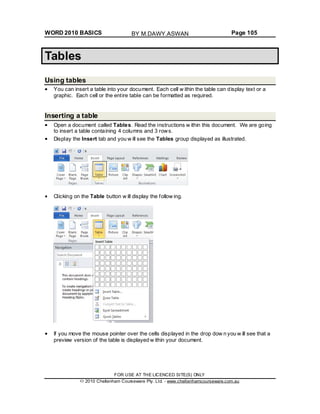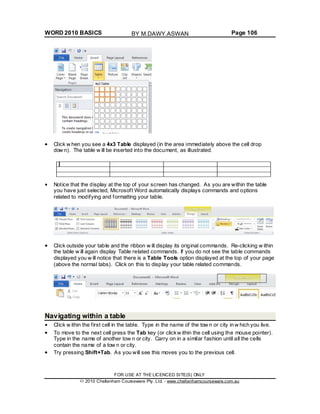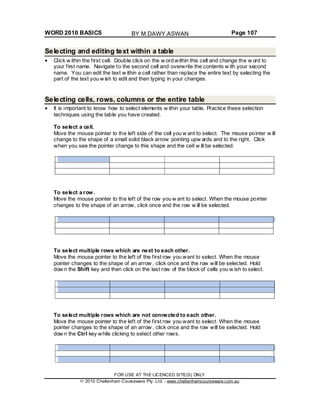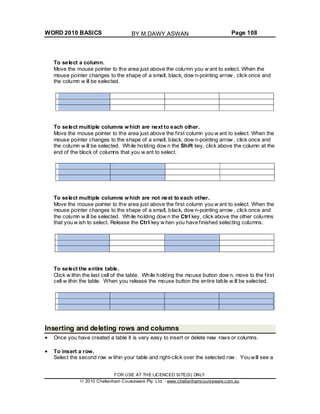
Word 2010
Basics
BY M.DAWY.ASWAN
WORD 2010 BASICS Page 2
© 2010 Cheltenham Courseware Pty. Ltd.
All trademarks acknowledged. E&OE.
No part of this document may be copied without written permission from Cheltenham Courseware unless produced
under the terms of a courseware site license agreement with Cheltenham Courseware.
All reasonable precautions have been taken in the preparation of this document, including both technical and non-
technical proof ing. Cheltenham Courseware and all staff assume no responsibility f or any errors or omissions. No
warranties are made, expressed or implied with regard to these notes. Cheltenham Courseware shall not be
responsible for any direct, incidental or consequential damages arisingf rom the use of any material contained in this
document. If y ouf ind any errors in these training modules, please inf orm Cheltenham Courseware. Whilst ev ery effort
is made to eradicate ty ping or technical mistakes, we apologize f or any errors y ou may detect. All courses are
updated on a regular basis, so your feedback is both valued by us and will help us to maintain the highest possible
standards.
Sample versions of courseware from Cheltenham Courseware.
(Normally supplied in Adobe Acrobat format): If the version of courseware that you arev iewing is marked as NOT
FOR TRAINING, SAMPLE, or similar, then it cannot be used as part of a training course, and is made available
purely f or content and style review. This is to giv ey ou the opportunity to prev iew our courseware, prior to making a
purchasing decision. Sample versions may not be re-sold to a third party.
For current license information
This document may only be used under the terms of the license agreement f rom Cheltenham Courseware.
Cheltenham Courseware reserves the right to alter the licensing conditions at any time, without prior notice. Please
see the site license agreement available at: www.cheltenhamcourseware.com.au/agreement
Contact Information
Australia / Asia Pacific / Europe (ex. UK / Ireland) / Rest of the World
Email: info@cheltenhamcourseware.com.au
Web: www.cheltenhamcourseware.com.au
USA / Canada
Email: info@cheltenhamcourseware.com
Web: www.cheltenhamcourseware.com
UK / Ireland
Email: info@cctglobal.com
Web: www.cctglobal.com
FOR USE AT THE LICENCED SITE(S) ONLY
2010 Cheltenham Courseware Pty. Ltd. - www.cheltenhamcourseware.com.au
BY M.DAWY.ASWAN
WORD 2010 BASICS Page 3
TUTOR SETUP INFORMATION.......................................................................................................... 7
THE MICROSOFT WORD 2010 SCREEN ........................................................................................... 8
STARTING MICROSOFT WORD 2010..................................................................................................... 8
THE MICROSOFT WORD 2010 SCREEN................................................................................................. 9
THE LEVELS OF COMMAND ORGANIZATION ........................................................................................... 10
THE FILE TAB ................................................................................................................................. 10
RIBBON TABS ................................................................................................................................. 11
MINIMIZING THE RIBBON ................................................................................................................... 12
SWITCHING BETWEEN TABS USING THE MOUSE WHEEL........................................................................... 12
GROUPS........................................................................................................................................ 13
DIALOG BOX LAUNCHER.................................................................................................................... 14
STARTING TO USE MICROSOFT WORD 2010................................................................................. 16
USING THE DEF AULT MICROSOFT WORD DOCUMENT ............................................................................. 16
SAVING MICROSOFT WORD DOCUMENTS ............................................................................................ 16
OPENING AND CLOSING DOCUMENTS .................................................................................................. 17
SAVE AS........................................................................................................................................ 18
CREATING A NEW DOCUMENT ............................................................................................................ 19
USING HELP WITHIN MICROSOFT WORD.............................................................................................. 19
ALT KEY HELP ................................................................................................................................. 25
CLOSING MICROSOFT WORD ............................................................................................................ 25
SAVING DOCUMENTS USING DIFFERENT FORMATS ................................................................................. 26
CREATING DOCUMENTS USING DIFFERENT TEMPLAT ES .......................................................................... 28
SWITCHING BETWEEN WORD VIEWS................................................................................................... 31
NAVIGATING THROUGH DOCUMENTS................................................................................................... 37
MANIPULATING TEXT..................................................................................................................... 40
SELECT, THEN FORMAT .................................................................................................................... 40
SELECTING TEXT ............................................................................................................................. 40
INSERTING, DELETING, UNDO AND REDO .............................................................................................. 41
INSERT AND OVERTYPE MODE............................................................................................................ 41
COPYING TEXT WITHIN A DOCUMENT ................................................................................................... 41
MOVING (CUTTING) TEXT WITHIN A DOCUMENT ..................................................................................... 42
THE CLIPBOARD ............................................................................................................................ 43
USING THE CLIPBOARD .................................................................................................................... 43
THE OFFICE CLIPBOARD................................................................................................................... 44
REMOVING ITEMS FROM THE OFFICE CLIPBOARD .................................................................................. 45
TEXT FORMATTING ........................................................................................................................ 47
WHAT IS TEXT FORMATTING? ............................................................................................................ 47
FONT TYPE..................................................................................................................................... 47
FONT SIZE...................................................................................................................................... 48
GROW FONT AND SHRINK FONT ICONS ............................................................................................... 49
FONT SIZE KEYBOARD SHORTCUT....................................................................................................... 49
BOLD, ITALIC OR UNDERLINE ............................................................................................................. 49
SUBSCRIPT AND SUPERSCRIPT .......................................................................................................... 50
CASE CHANGING ............................................................................................................................. 50
HIGHLIGHTING ................................................................................................................................ 51
FONT COLOR .................................................................................................................................. 52
COPYING TEXT FORMATTING ............................................................................................................. 53
REMOVING FORMATTING................................................................................................................... 53
USING ZOOM .................................................................................................................................. 54
FOR USE AT THE LICENCED SITE(S) ONLY
2010 Cheltenham Courseware Pty. Ltd. - www.cheltenhamcourseware.com.au
BY M.DAWY.ASWAN
WORD 2010 BASICS Page 4
INSERTING SPECIAL CHARACTERS AND SYMBOLS .................................................................................. 55
PARAGRAPH FORMATTING ........................................................................................................... 58
PARAGRAPH MARKS......................................................................................................................... 58
SOFT PARAGRAPH (LINE BREAK) MARKS .............................................................................................. 58
RECOMMENDED TECHNIQUES FOR ALIGNING AND INDENTING TEXT........................................................... 59
ALIGNING TEXT ............................................................................................................................... 59
INDENTING PARAGRAPHS .................................................................................................................. 59
APPLYING SINGLE OR DOUBLE LINE SPACING WITHIN PARAGRAPHS .......................................................... 61
APPLYING SPACING ABOVE OR BELOW PARAGRAPHS ............................................................................. 62
USING PARAGRAPH SPACING RATHER THAN USING THE RETURN KEY ....................................................... 63
APPLYING BULLETS TO A LIST ............................................................................................................ 63
APPLYING NUMBERING A LIST ............................................................................................................ 64
MODIFYING BULLET AND NUMBERING FORMATTING................................................................................ 65
REMOVING BULLET OR NUMBERING FORMATTING .................................................................................. 66
BORDERS AND SHADING............................................................................................................... 69
USING BORDERS AND SHADING .......................................................................................................... 69
ADDING A BORDER........................................................................................................................... 69
MODIFYING BORDERS ...................................................................................................................... 70
ADDING SHADING ............................................................................................................................ 72
MODIFYING YOUR SHADING ............................................................................................................... 73
APPLYING BORDERS TO SELECTED TEXT ............................................................................................. 74
FINDING AND REPLACING TEXT.................................................................................................... 75
USING FIND AND REPLACE................................................................................................................ 75
FINDING TEXT ................................................................................................................................. 75
REPLACING TEXT............................................................................................................................. 77
TABS............................................................................................................................................... 79
TAB STOPS..................................................................................................................................... 79
SETTING AND REMOVING TABS........................................................................................................... 79
VIEWING TAB MARKS USING THE SHOW/HIDE ICON ................................................................................ 84
STYLES........................................................................................................................................... 85
WHAT ARE STYLES? ........................................................................................................................ 85
APPLYING STYLES ........................................................................................................................... 85
STYLE SETS ................................................................................................................................... 86
PAGE FORMATTING ....................................................................................................................... 89
WHAT IS PAGE FORMATTING? ........................................................................................................... 89
PAGE ORIENTATION AND PAPER SIZE .................................................................................................. 89
CHANGING THE PAGE SIZE ................................................................................................................ 90
PAGE MARGINS ............................................................................................................................... 91
INSERTING PAGE BREAKS................................................................................................................. 93
DELETING PAGE BREAKS.................................................................................................................. 93
USE PAGE BREAKS RATHER THAN REPEATEDLY PRESSING THE RETURN KEY ............................................. 94
HEADERS AND FOOTERS................................................................................................................... 94
PAGE NUMBERING ........................................................................................................................... 97
HEADER AND FOOTER FIELDS ............................................................................................................ 98
EDITING TEXT WITHIN A HEADER OR FOOTER .......................................................................................100
COVER PAGES ...............................................................................................................................101
APPLYING AUTOMATIC HYPHENATION................................................................................................103
TABLES .........................................................................................................................................105
FOR USE AT THE LICENCED SITE(S) ONLY
2010 Cheltenham Courseware Pty. Ltd. - www.cheltenhamcourseware.com.au
BY M.DAWY.ASWAN
WORD 2010 BASICS Page 5
USING TABLES ...............................................................................................................................105
INSERTING A TABLE.........................................................................................................................105
NAVIGATING WITHIN A TABLE ............................................................................................................106
SELECTING AND EDITING TEXT WITHIN A TABLE ....................................................................................107
SELECTING CELLS, ROWS, COLUMNS OR THE ENTIRE TABLE...................................................................107
INSERTING AND DELETING ROWS AND COLUMNS ..................................................................................108
MODIFYING COLUMN WIDTH OR ROW HEIGHT.......................................................................................110
MODIFYING CELL BORDERS ..............................................................................................................111
ADDING SHADING TO CELLS..............................................................................................................112
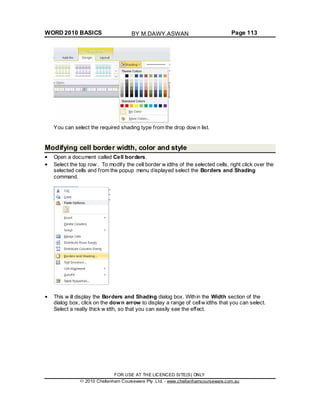
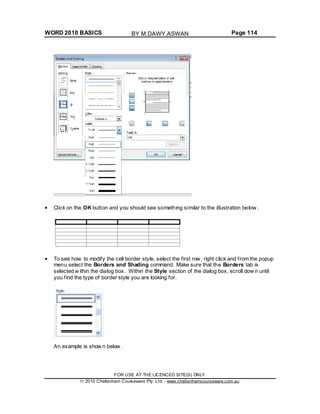
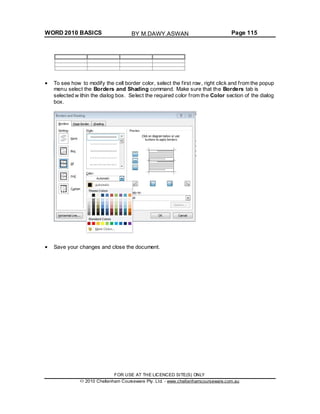
MODIFYING CELL BORDER WIDTH, COLOR AND STYLE............................................................................113
USING GRAPHICS WITHIN MICROSOFT WORD ............................................................................116
TYPES OF GRAPHICS THAT YOU CAN INSERT WITHIN WORD 2010...........................................................116
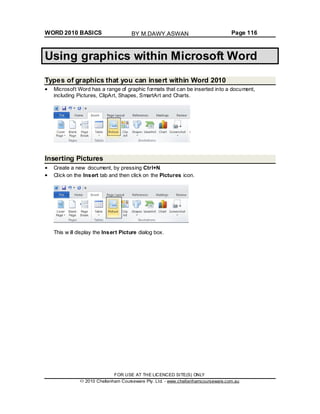
INSERTING PICTURES......................................................................................................................116
INSERTING CLIP ART.......................................................................................................................118
INSERTING SHAPES ........................................................................................................................120
INSERTING SMARTART....................................................................................................................121
INSERTING A CHART ........................................................................................................................124
INSERTING A SCREEN SHOT ..............................................................................................................127
SELECTING, RESIZING AND DELETING GRAPHICS ..................................................................................129
COPYING OR MOVING GRAPHICS .......................................................................................................130
MULTIPLE DOCUMENTS................................................................................................................131
MULTITASKING WITH WORD 2010.....................................................................................................131
SWITCHING BETWEEN OPEN DOCUMENTS ...........................................................................................131
TILING OR CASCADING DOCUMENTS ON YOUR SCREEN..........................................................................131
COMPARING DOCUMENTS SIDE BY SIDE ..............................................................................................132
COPYING OR MOVING SELECTED ITEMS BET WEEN DOCUMENTS ..............................................................132
MAIL MERGE.................................................................................................................................134
WHAT IS MAIL MERGING?.................................................................................................................134
STARTING THE MAIL MERGE WIZARD.................................................................................................134
MAIL MERGE WIZARD - STEP 1 OF 6 ‘SELECT DOCUMENT TYPE’.............................................................136
MAIL MERGE WIZARD - STEP 2 OF 6 ‘SELECT STARTING DOCUMENT’......................................................137
MAIL MERGE WIZARD - STEP 3 OF 6 ‘SELECT RECIPIENTS’ ....................................................................138
MAIL MERGE WIZARD - STEP 4 OF 6 ‘WRITE YOUR LETTER’...................................................................142
MAIL MERGE WIZARD - STEP 5 OF 6 PREVIEWING YOUR LETTERS ..........................................................144
MAIL MERGE WIZARD - STEP 6 OF 6 PRINTING OPTIONS ......................................................................144
CREATING A MAILING LIST TO BE USED WITHIN A MAIL MERGE .................................................................146
MERGING A MAILING LIST TO PRODUCE LABELS....................................................................................148
CUSTOMIZATION...........................................................................................................................158
CUSTOMIZING MICROSOFT WORD .....................................................................................................158
SETTING THE USER NAME ...............................................................................................................159
SETTING THE DEFAULT OPENING AND SAVING FOLDER ..........................................................................159
PROOFING AND PRINTING............................................................................................................161
THE IMPORTANCE OF PROOFING .......................................................................................................161
SPELL CHECKING A DOCUMENT .........................................................................................................161
ADDING WORDS TO THE BUILT-IN CUSTOM DICTIONAR Y .........................................................................161
REMOVING A WORD FROM THE SPELL CHECKING DICTIONARY.................................................................162
PRINTING OPTIONS .........................................................................................................................163
SELECTING A PRINTER ....................................................................................................................165
CHOOSING WHAT TO PRINT ..............................................................................................................166
SETTING THE NUMBER OF COPIES TO PRINT ........................................................................................166
FOR USE AT THE LICENCED SITE(S) ONLY
2010 Cheltenham Courseware Pty. Ltd. - www.cheltenhamcourseware.com.au
BY M.DAWY.ASWAN
WORD 2010 BASICS Page 6
SETTING THE PAGES PER SHEET .......................................................................................................167
PRINTING ONLY ODD OR EVEN PAGES ................................................................................................168
PREVIEWING AND PRINTING A DOCUMENT...........................................................................................170
FOR USE AT THE LICENCED SITE(S) ONLY
2010 Cheltenham Courseware Pty. Ltd. - www.cheltenhamcourseware.com.au
BY M.DAWY.ASWAN
WORD 2010 BASICS Page 7
Tutor Setup Information
Copy the sample files folder called Word 2010 Basics to the Documents folder.
At the end of the course, remove all files modified or created during the course, prior to re-
running the course.
At the end of the course, reset all program and operating system defaults that may have
been modified during the course, prior to re-running the course.
FOR USE AT THE LICENCED SITE(S) ONLY
2010 Cheltenham Courseware Pty. Ltd. - www.cheltenhamcourseware.com.au
BY M.DAWY.ASWAN
WORD 2010 BASICS Page 8
The Microsoft Word 2010 Screen
Starting Microsoft Word 2010
If necessary switch on your computer and if required enter the necessary logon and
passwords. To start Microsoft Word 2010 click on the Start icon, at the bottom left of your
screen.
You w ill see a popup menu displayed. Click on All programs
From the menu displayed and you can select Microsoft Office.
Finally select Microsoft Word 2010.
NOTE: These menu options may vary slightly from one computer to another, but w ith a little
hunting around you should be able to locate the Microsoft Word 2010 option.
Once you click on the Microsoft Word option this w ill load the Microsoft Word program from
your hard disk into memory. You can then start using the program.
FOR USE AT THE LICENCED SITE(S) ONLY
2010 Cheltenham Courseware Pty. Ltd. - www.cheltenhamcourseware.com.au
BY M.DAWY.ASWAN
WORD 2010 BASICS Page 9
The Microsoft Word 2010 screen
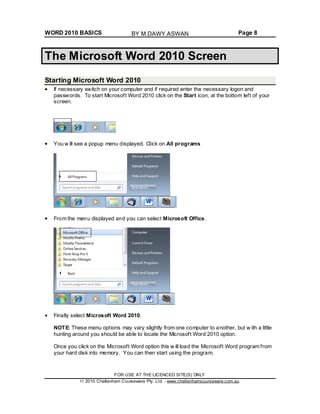
When the Microsoft Word 2010 program loads, your screen w ill look something like this.
TIP: If you have seen previous versions of Microsoft Word, such as Word 2003, you w ill
notice that at first glance the screen looks different from the w ay Microsoft Word used to
look. Don't panic how ever, you w ill find that in fact it is not all that different, and is in many
ways easier to use than older versions.
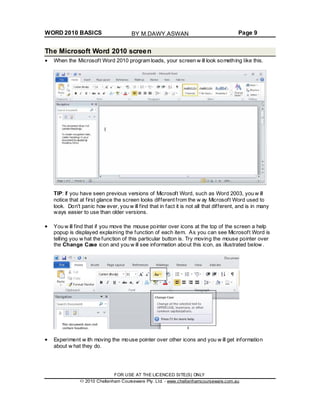
You w ill find that if you move the mouse pointer over icons at the top of the screen a help
popup is displayed explaining the function of each item. As you can see Microsoft Word is
telling you w hat the function of this particular button is. Try moving the mouse pointer over
the Change Case icon and you w ill see information about this icon, as illustrated below .
Experiment w ith moving the mouse pointer over other icons and you w ill get information
about w hat they do.
FOR USE AT THE LICENCED SITE(S) ONLY
2010 Cheltenham Courseware Pty. Ltd. - www.cheltenhamcourseware.com.au
BY M.DAWY.ASWAN
WORD 2010 BASICS Page 10
The levels of command organization
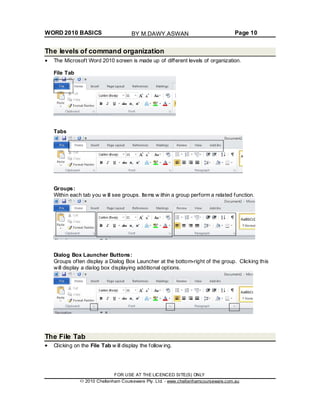
The Microsoft Word 2010 screen is made up of different levels of organization.
File Tab
Tabs
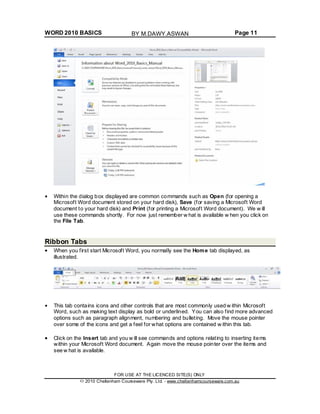
Groups:
Within each tab you w ill see groups. Items w ithin a group perform a related function.
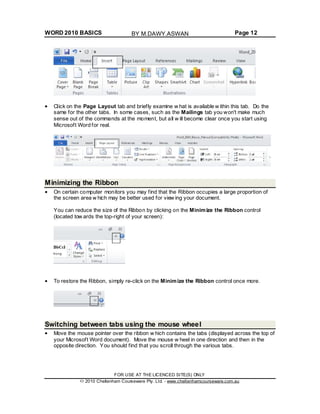
Dialog Box Launcher Buttons:
Groups often display a Dialog Box Launcher at the bottom-right of the group. Clicking this
will display a dialog box displaying additional options.
The File Tab
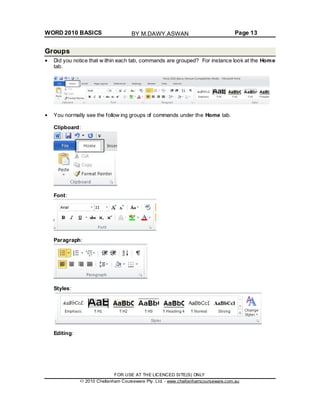
Clicking on the File Tab w ill display the follow ing.
FOR USE AT THE LICENCED SITE(S) ONLY
2010 Cheltenham Courseware Pty. Ltd. - www.cheltenhamcourseware.com.au
BY M.DAWY.ASWAN
WORD 2010 BASICS Page 11
Within the dialog box displayed are common commands such as Open (for opening a
Microsoft Word document stored on your hard disk), Save (for saving a Microsoft Word
document to your hard disk) and Print (for printing a Microsoft Word document). We w ill
use these commands shortly. For now just remember w hat is available w hen you click on
the File Tab.
Ribbon Tabs
When you first start Microsoft Word, you normally see the Home tab displayed, as
illustrated.
This tab contains icons and other controls that are most commonly used w ithin Microsoft
Word, such as making text display as bold or underlined. You can also find more advanced
options such as paragraph alignment, numbering and bulleting. Move the mouse pointer
over some of the icons and get a feel for what options are contained w ithin this tab.
Click on the Insert tab and you w ill see commands and options relating to inserting items
within your Microsoft Word document. Again move the mouse pointer over the items and
see w hat is available.
FOR USE AT THE LICENCED SITE(S) ONLY
2010 Cheltenham Courseware Pty. Ltd. - www.cheltenhamcourseware.com.au
BY M.DAWY.ASWAN
WORD 2010 BASICS Page 12
Click on the Page Layout tab and briefly examine w hat is available w ithin this tab. Do the
same for the other tabs. In some cases, such as the Mailings tab you won't make much
sense out of the commands at the moment, but all w ill become clear once you start using
Microsoft Word for real.
Minimizing the Ribbon
On certain computer monitors you may find that the Ribbon occupies a large proportion of
the screen area w hich may be better used for view ing your document.
You can reduce the size of the Ribbon by clicking on the Minimize the Ribbon control
(located tow ards the top-right of your screen):
To restore the Ribbon, simply re-click on the Minimize the Ribbon control once more.
Switching between tabs using the mouse wheel
Move the mouse pointer over the ribbon w hich contains the tabs (displayed across the top of
your Microsoft Word document). Move the mouse w heel in one direction and then in the
opposite direction. You should find that you scroll through the various tabs.
FOR USE AT THE LICENCED SITE(S) ONLY
2010 Cheltenham Courseware Pty. Ltd. - www.cheltenhamcourseware.com.au
BY M.DAWY.ASWAN
WORD 2010 BASICS Page 13
Groups
Did you notice that w ithin each tab, commands are grouped? For instance look at the Home
tab.
You normally see the follow ing groups of commands under the Home tab.
Clipboard:
Font:
Paragraph:
Styles:
Editing:
FOR USE AT THE LICENCED SITE(S) ONLY
2010 Cheltenham Courseware Pty. Ltd. - www.cheltenhamcourseware.com.au
BY M.DAWY.ASWAN
WORD 2010 BASICS Page 14
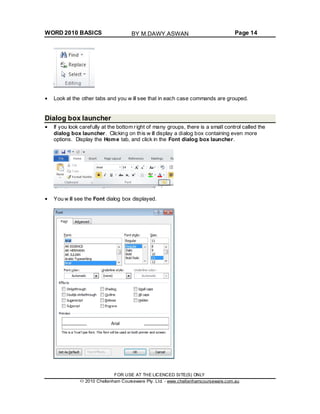
Look at the other tabs and you w ill see that in each case commands are grouped.
Dialog box launcher
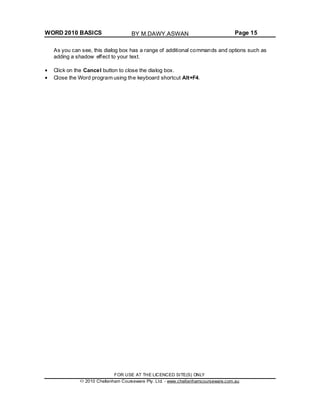
If you look carefully at the bottom right of many groups, there is a small control called the
dialog box launcher. Clicking on this w ill display a dialog box containing even more
options. Display the Home tab, and click in the Font dialog box launcher.
You w ill see the Font dialog box displayed.
FOR USE AT THE LICENCED SITE(S) ONLY
2010 Cheltenham Courseware Pty. Ltd. - www.cheltenhamcourseware.com.au
BY M.DAWY.ASWAN
WORD 2010 BASICS Page 15
As you can see, this dialog box has a range of additional commands and options such as
adding a shadow effect to your text.
Click on the Cancel button to close the dialog box.
Close the Word program using the keyboard shortcut Alt+F4.
FOR USE AT THE LICENCED SITE(S) ONLY
2010 Cheltenham Courseware Pty. Ltd. - www.cheltenhamcourseware.com.au
BY M.DAWY.ASWAN
WORD 2010 BASICS Page 16
Starting to Use Microsoft Word 2010
Using the default Microsoft Word document
Open the Microsoft Word program.
When you first start Microsoft Word, it automatically creates a new Microsoft Word
document for you. This is like a piece of blank paper on to w hich you can start typing.
Type your name. Press the Enter key a few times. As you can see this drops you down a
line each time you press the Enter key.
Type in the follow ing text.
There w ill be a meeting tomorrow at 11 am in room one to discuss the introduction of our
new range of products. Please can everyone attend and bring samples and details of
prices.
Saving Microsoft Word documents
You have typed in some text but this has not been saved. If your computer lost pow er now
then everything you have just typed in could be lost. Saving your Microsoft Word document
to disk means that the information w ill be safely stored as a file on your hard disk and then
at a later date you can reopen this file from your hard disk.
To save your file, click on the Save icon (tow ards the top-left of your screen)
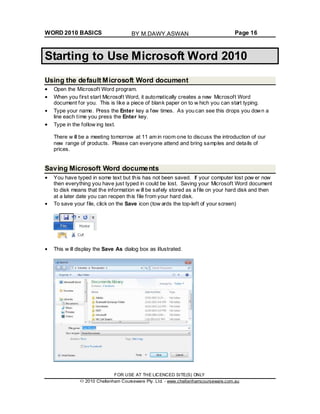
This w ill display the Save As dialog box as illustrated.
FOR USE AT THE LICENCED SITE(S) ONLY
2010 Cheltenham Courseware Pty. Ltd. - www.cheltenhamcourseware.com.au
BY M.DAWY.ASWAN
WORD 2010 BASICS Page 17
TIP: By default the Microsoft Word document w ill be saved into a folder called Documents.
By default Microsoft Word will attempt to create a file name taken from the text at the start of
the document.
Click on the Save button and the document w ill be saved to disk as a file using the file name
suggested by Microsoft Word (probably your name).
Opening and closing documents
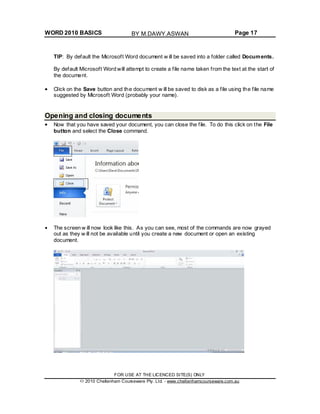
Now that you have saved your document, you can close the file. To do this click on the File
button and select the Close command.
The screen w ill now look like this. As you can see, most of the commands are now grayed
out as they w ill not be available until you create a new document or open an existing
document.
FOR USE AT THE LICENCED SITE(S) ONLY
2010 Cheltenham Courseware Pty. Ltd. - www.cheltenhamcourseware.com.au
BY M.DAWY.ASWAN
WORD 2010 BASICS Page 18
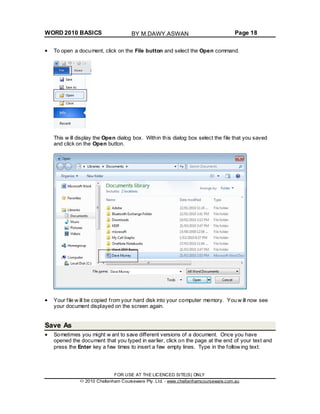
To open a document, click on the File button and select the Open command.
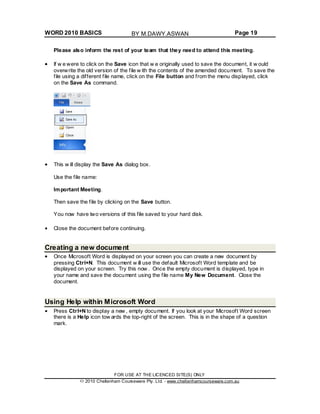
This w ill display the Open dialog box. Within this dialog box select the file that you saved
and click on the Open button.
Your file w ill be copied from your hard disk into your computer memory. You w ill now see
your document displayed on the screen again.
Save As
Sometimes you might w ant to save different versions of a document. Once you have
opened the document that you typed in earlier, click on the page at the end of your text and
press the Enter key a few times to insert a few empty lines. Type in the follow ing text:
FOR USE AT THE LICENCED SITE(S) ONLY
2010 Cheltenham Courseware Pty. Ltd. - www.cheltenhamcourseware.com.au
BY M.DAWY.ASWAN
WORD 2010 BASICS Page 19
Please also inform the rest of your team that they need to attend this meeting.
If w e were to click on the Save icon that w e originally used to save the document, it w ould
overwrite the old version of the file w ith the contents of the amended document. To save the
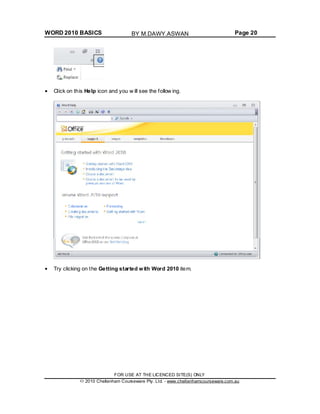
file using a different file name, click on the File button and from the menu displayed, click
on the Save As command.
This w ill display the Save As dialog box.
Use the file name:
Important Meeting.
Then save the file by clicking on the Save button.
You now have two versions of this file saved to your hard disk.
Close the document before continuing.
Creating a new document
Once Microsoft Word is displayed on your screen you can create a new document by
pressing Ctrl+N. This document w ill use the default Microsoft Word template and be
displayed on your screen. Try this now . Once the empty document is displayed, type in
your name and save the document using the file name My New Document. Close the
document.
Using Help within Microsoft Word
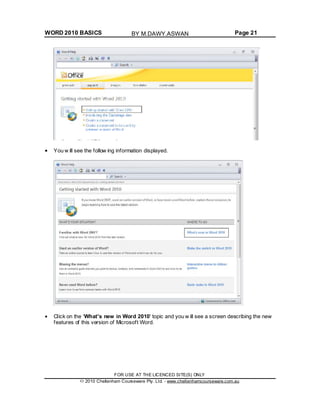
Press Ctrl+N to display a new , empty document. If you look at your Microsoft Word screen
there is a Help icon tow ards the top-right of the screen. This is in the shape of a question
mark.
FOR USE AT THE LICENCED SITE(S) ONLY
2010 Cheltenham Courseware Pty. Ltd. - www.cheltenhamcourseware.com.au
BY M.DAWY.ASWAN
WORD 2010 BASICS Page 20
Click on this Help icon and you w ill see the follow ing.
Try clicking on the Getting started with Word 2010 item.
FOR USE AT THE LICENCED SITE(S) ONLY
2010 Cheltenham Courseware Pty. Ltd. - www.cheltenhamcourseware.com.au
BY M.DAWY.ASWAN
WORD 2010 BASICS Page 21
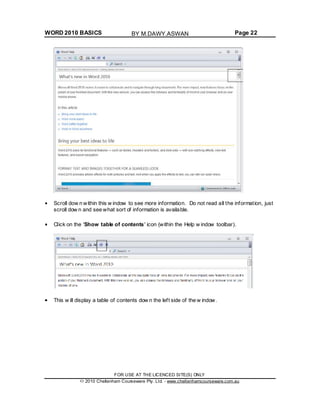
You w ill see the follow ing information displayed.
Click on the 'What's new in Word 2010' topic and you w ill see a screen describing the new
features of this version of Microsoft Word.
FOR USE AT THE LICENCED SITE(S) ONLY
2010 Cheltenham Courseware Pty. Ltd. - www.cheltenhamcourseware.com.au
BY M.DAWY.ASWAN
WORD 2010 BASICS Page 22
Scroll dow n within this w indow to see more information. Do not read all the information, just
scroll dow n and see what sort of information is available.
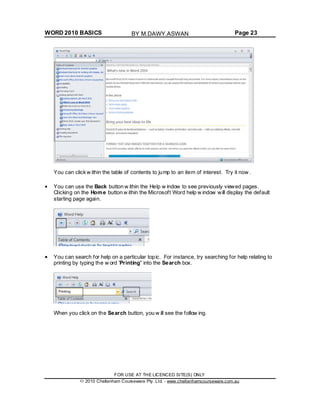
Click on the 'Show table of contents' icon (within the Help w indow toolbar).
This w ill display a table of contents dow n the left side of the w indow.
FOR USE AT THE LICENCED SITE(S) ONLY
2010 Cheltenham Courseware Pty. Ltd. - www.cheltenhamcourseware.com.au
BY M.DAWY.ASWAN
WORD 2010 BASICS Page 23
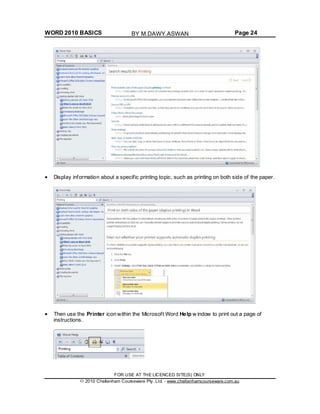
You can click w ithin the table of contents to jump to an item of interest. Try it now .
You can use the Back button w ithin the Help w indow to see previously viewed pages.
Clicking on the Home button w ithin the Microsoft Word help w indow will display the default
starting page again.
You can search for help on a particular topic. For instance, try searching for help relating to
printing by typing the w ord 'Printing' into the Search box.
When you click on the Search button, you w ill see the follow ing.
FOR USE AT THE LICENCED SITE(S) ONLY
2010 Cheltenham Courseware Pty. Ltd. - www.cheltenhamcourseware.com.au
BY M.DAWY.ASWAN
WORD 2010 BASICS Page 24
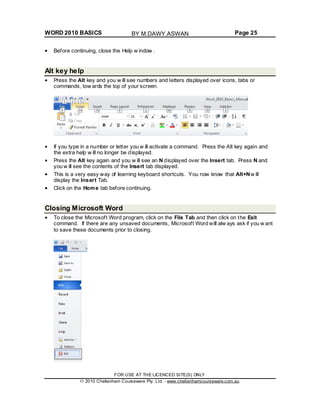
Display information about a specific printing topic, such as printing on both side of the paper.
Then use the Printer icon within the Microsoft Word Help w indow to print out a page of
instructions.
FOR USE AT THE LICENCED SITE(S) ONLY
2010 Cheltenham Courseware Pty. Ltd. - www.cheltenhamcourseware.com.au
BY M.DAWY.ASWAN
WORD 2010 BASICS Page 25
Before continuing, close the Help w indow .
Alt key help
Press the Alt key and you w ill see numbers and letters displayed over icons, tabs or
commands, tow ards the top of your screen.
If you type in a number or letter you w ill activate a command. Press the Alt key again and
the extra help w ill no longer be displayed.
Press the Alt key again and you w ill see an N displayed over the Insert tab. Press N and
you w ill see the contents of the Insert tab displayed.
This is a very easy way of learning keyboard shortcuts. You now know that Alt+Nw ill
display the Insert Tab.
Click on the Home tab before continuing.
Closing Microsoft Word
To close the Microsoft Word program, click on the File Tab and then click on the Exit
command. If there are any unsaved documents, Microsoft Word will alw ays ask if you w ant
to save these documents prior to closing.
FOR USE AT THE LICENCED SITE(S) ONLY
2010 Cheltenham Courseware Pty. Ltd. - www.cheltenhamcourseware.com.au
BY M.DAWY.ASWAN
WORD 2010 BASICS Page 26
TIP: The keyboard shortcut to close the Word program is Alt+F4.
You can also close Word by clicking on the Close icon, displayed at the top-right of the
Word w indow .
Close the w ord program
Saving documents using different formats
Normally you simply save a document as a standard Microsoft Word document. How ever
you can save your document in a range of different formats. It is important to realize that
Microsoft Word 2010 stores documents in a different type of file format than used by some
of the previous versions of Microsoft Word and you may have to save your documents in a
format that can be opened by people w ho are using an earlier version of Microsoft Word
such as Word 2003.
If necessary start Word.
Create a new document and type in the follow ing text.
This is a document created in Word 2010.
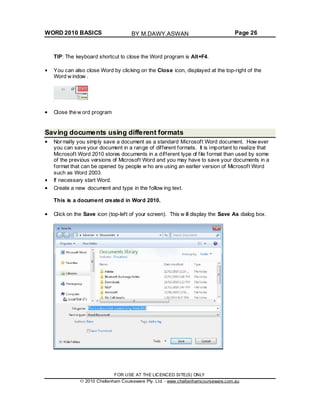
Click on the Save icon (top-left of your screen). This w ill display the Save As dialog box.
FOR USE AT THE LICENCED SITE(S) ONLY
2010 Cheltenham Courseware Pty. Ltd. - www.cheltenhamcourseware.com.au
BY M.DAWY.ASWAN
WORD 2010 BASICS Page 27
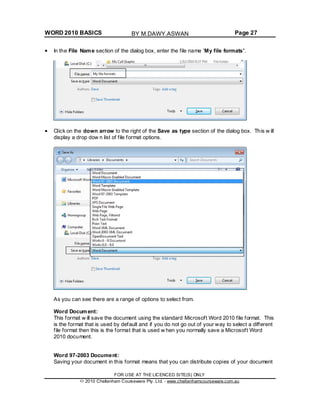
In the File Name section of the dialog box, enter the file name 'My file formats'.
Click on the down arrow to the right of the Save as type section of the dialog box. This w ill
display a drop dow n list of file format options.
As you can see there are a range of options to select from.
Word Document:
This format w ill save the document using the standard Microsoft Word 2010 file format. This
is the format that is used by default and if you do not go out of your way to select a different
file format then this is the format that is used w hen you normally save a Microsoft Word
2010 document.
Word 97-2003 Document:
Saving your document in this format means that you can distribute copies of your document
FOR USE AT THE LICENCED SITE(S) ONLY
2010 Cheltenham Courseware Pty. Ltd. - www.cheltenhamcourseware.com.au
BY M.DAWY.ASWAN
WORD 2010 BASICS Page 28
via disk or email to other people w ho are using earlier versions of Microsoft Word and they
should be able to read and edit the document w ithout problems. If you have used complex
formatting or some of the new advanced features w ithin your Microsoft Word 2010
document, some of the advanced formatting may be lost in the conversion process.
Plain Text:
Saving your document as a plain text file w ill remove all the formatting you have added to
your documents (such as bold, italics & underlining). It w ill also remove any pictures or
other features such as tables. Only plain text w ill be saved. Be very careful about using this
option.
Rich Text Format:
This is a generic w ord-processing file format. If you w anted to distribute the document to
someone using a totally different word-processing program from a different software
manufacturer, such as WordPerfect, then you may w ish to use this file format. Some
advanced formatting may be lost in the file conversion process. The file name extension w ill
change to become .RTF.
Template:
You normally save a document as a document file. You can how ever save a document as a
template. This means that you can create new documents in the future; based on the
templates you create.
There are quite a few other file format options but at this stage w e do not need to w orry
about them!
Experiment w ith saving your document in the file formats described above.
When you have finished experimenting, save your changes and close any open documents.
Close the Microsoft Word program.
Creating documents using different templates
Re-open the Microsoft Word program. By default the Word program opens and displays a
new , blank document, based on the default template. We w ill now investigate some of the
other templates available.
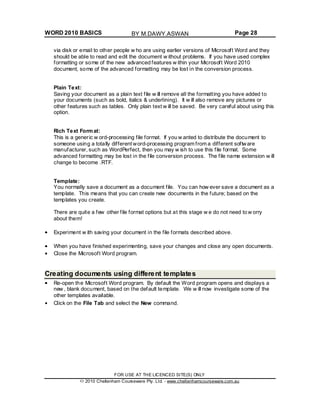
Click on the File Tab and select the New command.
FOR USE AT THE LICENCED SITE(S) ONLY
2010 Cheltenham Courseware Pty. Ltd. - www.cheltenhamcourseware.com.au
BY M.DAWY.ASWAN
WORD 2010 BASICS Page 29
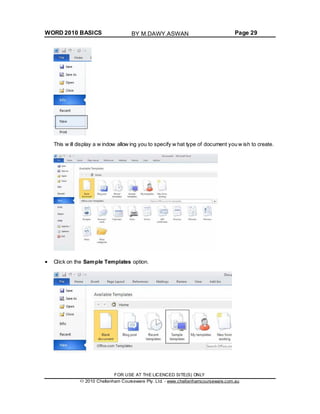
This w ill display a w indow allow ing you to specify w hat type of document you w ish to create.
Click on the Sample Templates option.
FOR USE AT THE LICENCED SITE(S) ONLY
2010 Cheltenham Courseware Pty. Ltd. - www.cheltenhamcourseware.com.au
BY M.DAWY.ASWAN
WORD 2010 BASICS Page 30
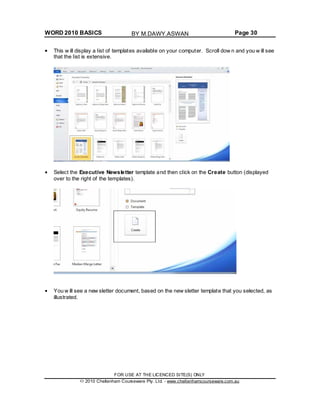
This w ill display a list of templates available on your computer. Scroll dow n and you w ill see
that the list is extensive.
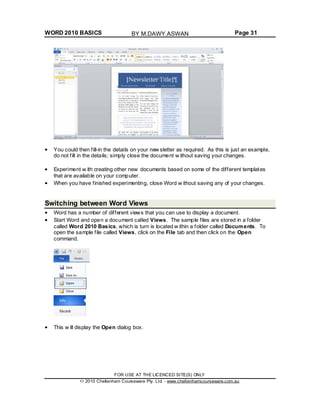
Select the Executive Newsletter template and then click on the Create button (displayed
over to the right of the templates).
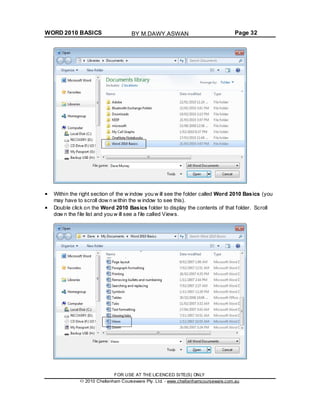
You w ill see a new sletter document, based on the new sletter template that you selected, as
illustrated.
FOR USE AT THE LICENCED SITE(S) ONLY
2010 Cheltenham Courseware Pty. Ltd. - www.cheltenhamcourseware.com.au
BY M.DAWY.ASWAN
WORD 2010 BASICS Page 31
You could then fill-in the details on your new sletter as required. As this is just an example,
do not fill in the details; simply close the document w ithout saving your changes.
Experiment w ith creating other new documents based on some of the different templates
that are available on your computer.
When you have finished experimenting, close Word w ithout saving any of your changes.
Switching between Word Views
Word has a number of different views that you can use to display a document.
Start Word and open a document called Views. The sample files are stored in a folder
called Word 2010 Basics, which is turn is located w ithin a folder called Documents. To
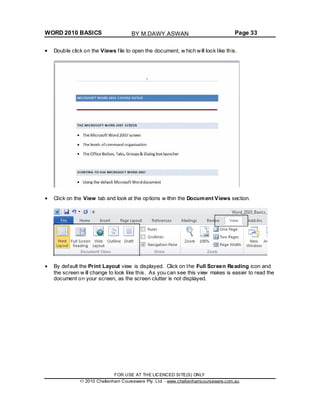
open the sample file called Views, click on the File tab and then click on the Open
command.
This w ill display the Open dialog box.
FOR USE AT THE LICENCED SITE(S) ONLY
2010 Cheltenham Courseware Pty. Ltd. - www.cheltenhamcourseware.com.au
BY M.DAWY.ASWAN
WORD 2010 BASICS Page 32
Within the right section of the w indow you w ill see the folder called Word 2010 Basics (you
may have to scroll dow n within the w indow to see this).
Double click on the Word 2010 Basics folder to display the contents of that folder. Scroll
dow n the file list and you w ill see a file called Views.
FOR USE AT THE LICENCED SITE(S) ONLY
2010 Cheltenham Courseware Pty. Ltd. - www.cheltenhamcourseware.com.au
BY M.DAWY.ASWAN
WORD 2010 BASICS Page 33
Double click on the Views file to open the document, w hich will look like this.
Click on the View tab and look at the options w ithin the Document Views section.
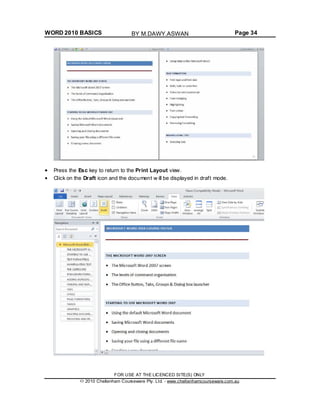
By default the Print Layout view is displayed. Click on the Full Screen Reading icon and
the screen w ill change to look like this. As you can see this view makes is easier to read the
document on your screen, as the screen clutter is not displayed.
FOR USE AT THE LICENCED SITE(S) ONLY
2010 Cheltenham Courseware Pty. Ltd. - www.cheltenhamcourseware.com.au
BY M.DAWY.ASWAN
WORD 2010 BASICS Page 34
Press the Esc key to return to the Print Layout view.
Click on the Draft icon and the document w ill be displayed in draft mode.
FOR USE AT THE LICENCED SITE(S) ONLY
2010 Cheltenham Courseware Pty. Ltd. - www.cheltenhamcourseware.com.au
BY M.DAWY.ASWAN
WORD 2010 BASICS Page 35
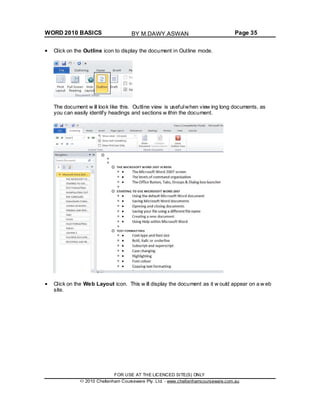
Click on the Outline icon to display the document in Outline mode.
The document w ill look like this. Outline view is usefulwhen view ing long documents, as
you can easily identify headings and sections w ithin the document.
Click on the Web Layout icon. This w ill display the document as it w ould appear on a w eb
site.
FOR USE AT THE LICENCED SITE(S) ONLY
2010 Cheltenham Courseware Pty. Ltd. - www.cheltenhamcourseware.com.au
BY M.DAWY.ASWAN
WORD 2010 BASICS Page 36
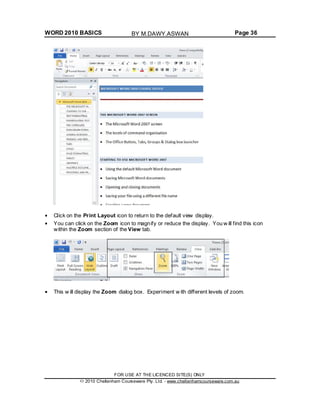
Click on the Print Layout icon to return to the default view display.
You can click on the Zoom icon to magnify or reduce the display. You w ill find this icon
within the Zoom section of the View tab.
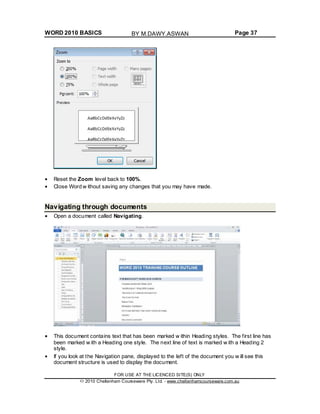
This w ill display the Zoom dialog box. Experiment w ith different levels of zoom.
FOR USE AT THE LICENCED SITE(S) ONLY
2010 Cheltenham Courseware Pty. Ltd. - www.cheltenhamcourseware.com.au
BY M.DAWY.ASWAN
WORD 2010 BASICS Page 37
Reset the Zoom level back to 100%.
Close Word w ithout saving any changes that you may have made.
Navigating through documents
Open a document called Navigating.
This document contains text that has been marked w ithin Heading styles. The first line has
been marked w ith a Heading one style. The next line of text is marked w ith a Heading 2
style.
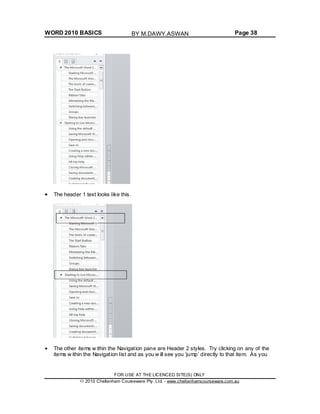
If you look at the Navigation pane, displayed to the left of the document you w ill see this
document structure is used to display the document.
FOR USE AT THE LICENCED SITE(S) ONLY
2010 Cheltenham Courseware Pty. Ltd. - www.cheltenhamcourseware.com.au
BY M.DAWY.ASWAN
WORD 2010 BASICS Page 38
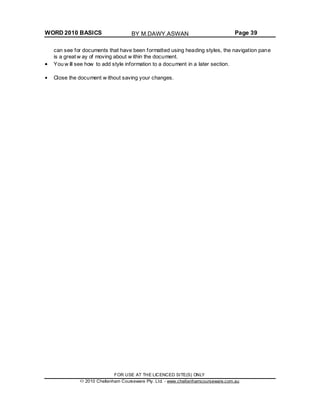
The header 1 text looks like this.
The other items w ithin the Navigation pane are Header 2 styles. Try clicking on any of the
items w ithin the Navigation list and as you w ill see you ‘jump’ directly to that item. As you
FOR USE AT THE LICENCED SITE(S) ONLY
2010 Cheltenham Courseware Pty. Ltd. - www.cheltenhamcourseware.com.au
BY M.DAWY.ASWAN
WORD 2010 BASICS Page 39
can see for documents that have been formatted using heading styles, the navigation pane
is a great w ay of moving about w ithin the document.
You w ill see how to add style information to a document in a later section.
Close the document w ithout saving your changes.
FOR USE AT THE LICENCED SITE(S) ONLY
2010 Cheltenham Courseware Pty. Ltd. - www.cheltenhamcourseware.com.au
BY M.DAWY.ASWAN
WORD 2010 BASICS Page 40
Manipulating Text
Select, then format
Remember the general rule w hen using Microsoft Window s or Windows Applications.
Normally you need to select an item first (so that Windows knows what you are interested
in), and then format it.
Selecting text
If necessary start the Word program.
Press Ctrl+O, w hich is the keyboard shortcut to open a document. This w ill display the
Open dialog box. Change to the Word 2010 Basics folder and double click on a file called
Editing to open that file.
Click once in the middle of a w ord w ithin your document. Press the Shift key dow n (and hold
it dow n). Press the Left arrow key or Right arrow key once. Then let go of the Shift key.
As you can see you have just selected a character.
Repeat the last operation using a different word, but this time press the arrow key a few
times. This allow s you to select more than one character.
Selecting a w ord is even easier. Double click on any w ord within the document. The w ord
is now selected.
Experiment w ith selecting to the beginning of a line. To do this click w ithin any line of text.
While keeping the Shift key pressed, press the Home key. Release the Shift key.
Experiment w ith selecting to the end of a line. To do this click w ithin any line of text. While
keeping the Shift key pressed, press the End key. Release the Shift key.
Experiment w ith selecting an entire line of text. To do this move the mouse pointer to the
left of the line w hich you w ish to select, until the mouse pointer changes from an I bar shape,
to an arrow shape pointing upw ards and to the right. You are now in the “Selection Bar”, a
special screen area. Click once w ith the mouse button to select the line.
Experiment w ith selecting a sentence. To do this, move the mouse pointer w ithin the
sentence w hich you w ish to select. Depress the CTRL key and then click w ithin the
sentence.
Experiment w ith selecting a paragraph. To do this triple click w ithin a paragraph.
Experiment w ith selecting the entire document. To do this press Ctrl+A.
FOR USE AT THE LICENCED SITE(S) ONLY
2010 Cheltenham Courseware Pty. Ltd. - www.cheltenhamcourseware.com.au
BY M.DAWY.ASWAN
WORD 2010 BASICS Page 41
Inserting, deleting, undo and redo
Click at the very start of the text w ithin the document and then press the Enter key tw ice.
This w ill add some space to the top of the document.
Type in your full name and then press the Enter key twice to insert some space.
Within the first paragraph click just before the w ord 'Windows'. Type in the w ord 'Microsoft'
and press the Spacebar. As you can see inserting a w ord w ithin a paragraph is easy.
Select your name at the top of the document and delete it, by pressing the Delete key.
Click on the Undo icon and undo this deletion. Your name reappears!
Click on the Redo icon. What happens?
Insert and overtype mode
You should know the difference betw een insert and overtype mode, w hen using the
keyboard. By default w hen you are editing a document the new text is inserted within the
existing text. In overtype mode new text w ill overwrite existing text; if you are not paying
attention you can lose data.
Click once betw een tw o words within the document and you w ill see that if you type in a new
word, it is inserted betw een the existing w ords. Click on the Undo icon to undo this.
In older versions of Microsoft Word pressing the INS (or Insert) key w ould enable overtype
mode typing. This had the effect of typing in a new word betw een existing w ords and
overwriting the existing text. The good news is that pressing the Insert key w hen using this
version of Microsoft Word has no effect.
Copying text within a document
Select the first paragraph. Press Ctrl+C. This copies the selected text into the Clipboard.
Click at the end of the document.
Press the Enter key to insert a space.
Press Ctrl+V. This pastes the text from the Clipboard to the current position of the 'Insertion
point'.
TIP: The 'Insertion Point' is indicated by the flashing, vertical cursor.
Click on the Undo icon to reverse this action.
FOR USE AT THE LICENCED SITE(S) ONLY
2010 Cheltenham Courseware Pty. Ltd. - www.cheltenhamcourseware.com.au
BY M.DAWY.ASWAN
WORD 2010 BASICS Page 42
Moving (cutting) text within a document
Select the first paragraph. Press Ctrl+X. This cuts (i.e. moves) the selected text onto the
Clipboard.
Click at the end of the document.
Press the Enter key to insert a space.
Press Ctrl+V. This pastes the text from the Clipboard to the current position of the Insertion
point.
Click on the Undo icon to reverse this action.
Save your changes and close the document.
FOR USE AT THE LICENCED SITE(S) ONLY
2010 Cheltenham Courseware Pty. Ltd. - www.cheltenhamcourseware.com.au
BY M.DAWY.ASWAN
WORD 2010 BASICS Page 43
The Clipboard
Using the Clipboard
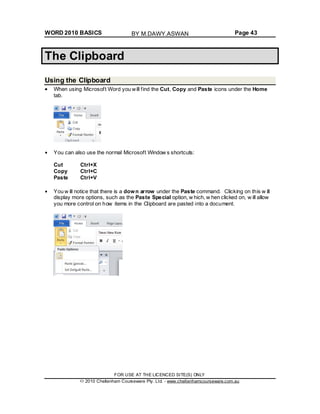
When using Microsoft Word you will find the Cut, Copy and Paste icons under the Home
tab.
You can also use the normal Microsoft Window s shortcuts:
Cut Ctrl+X
Copy Ctrl+C
Paste Ctrl+V
You w ill notice that there is a down arrow under the Paste command. Clicking on this w ill
display more options, such as the Paste Special option, w hich, w hen clicked on, w ill allow
you more control on how items in the Clipboard are pasted into a document.
FOR USE AT THE LICENCED SITE(S) ONLY
2010 Cheltenham Courseware Pty. Ltd. - www.cheltenhamcourseware.com.au
BY M.DAWY.ASWAN
WORD 2010 BASICS Page 44
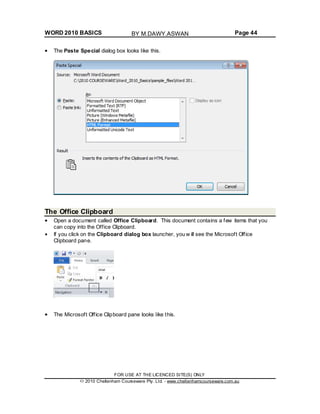
The Paste Special dialog box looks like this.
The Office Clipboard
Open a document called Office Clipboard. This document contains a few items that you
can copy into the Office Clipboard.
If you click on the Clipboard dialog box launcher, you w ill see the Microsoft Office
Clipboard pane.
The Microsoft Office Clipboard pane looks like this.
FOR USE AT THE LICENCED SITE(S) ONLY
2010 Cheltenham Courseware Pty. Ltd. - www.cheltenhamcourseware.com.au
BY M.DAWY.ASWAN
WORD 2010 BASICS Page 45
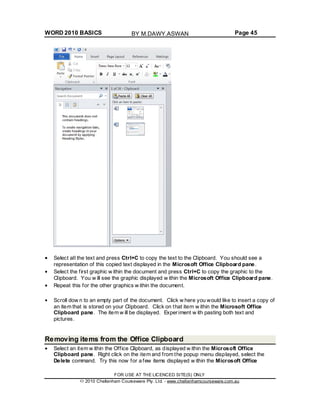
Select all the text and press Ctrl+C to copy the text to the Clipboard. You should see a
representation of this copied text displayed in the Microsoft Office Clipboard pane.
Select the first graphic w ithin the document and press Ctrl+C to copy the graphic to the
Clipboard. You w ill see the graphic displayed w ithin the Microsoft Office Clipboard pane.
Repeat this for the other graphics w ithin the document.
Scroll dow n to an empty part of the document. Click w here you would like to insert a copy of
an item that is stored on your Clipboard. Click on that item w ithin the Microsoft Office
Clipboard pane. The item w ill be displayed. Experiment w ith pasting both text and
pictures.
Removing items from the Office Clipboard
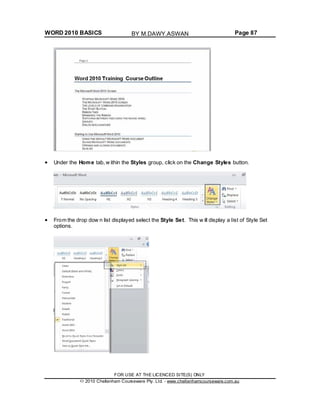
Select an item w ithin the Office Clipboard, as displayed w ithin the Microsoft Office
Clipboard pane. Right click on the item and from the popup menu displayed, select the
Delete command. Try this now for a few items displayed w ithin the Microsoft Office
FOR USE AT THE LICENCED SITE(S) ONLY
2010 Cheltenham Courseware Pty. Ltd. - www.cheltenhamcourseware.com.au
BY M.DAWY.ASWAN
WORD 2010 BASICS Page 46
Clipboard pane.
Save your changes and close the document.
FOR USE AT THE LICENCED SITE(S) ONLY
2010 Cheltenham Courseware Pty. Ltd. - www.cheltenhamcourseware.com.au
BY M.DAWY.ASWAN
WORD 2010 BASICS Page 47
Text Formatting
What is text formatting?
You can format a document at different levels w ithin Microsoft Word. The most basic level is
called text formatting. This relates to formatting characters and w ords within a document
and covers the font type, font size, font color and font attributes such as bold italic or
underlining.
Font type
Open a document called Text formatting.
By default Microsoft Word 2010 uses a font called Calibri.
Make sure that the Home tab is displayed.
Select the paragraph starting w ith the text FONT TYPE w ithin your document (by quickly
clicking three times w ithin the paragraph) and experiment w ith applying different font types.
To do this, make sure that the Home tab is selected, then click on the down arrow, to the
right of the text w ithin the Font control.
You w ill be able to select a different font from the drop dow n list supplied.
FOR USE AT THE LICENCED SITE(S) ONLY
2010 Cheltenham Courseware Pty. Ltd. - www.cheltenhamcourseware.com.au
BY M.DAWY.ASWAN
WORD 2010 BASICS Page 48
Experiment w ith formatting your paragraphs using different fonts. You can also experiment
with applying different font types to individual w ords or sentences.
TIP: This is just an exercise. In real life do not have lots of different fonts all mixed up w ithin
a document. It looks cheap and conveys a very bad visual impression!
Font size
The font size refers to the height of the text. Below 8 pt font size text is almost unreadable,
so try and use a font size that is easy to read on the screen and also easy to read when
printed.
Make sure that the Home tab is displayed. Select the paragraph starting w ith FONT SIZE.
Click on the down arrow to the right of the Font Size control.
This w ill display a drop dow n fromw hich you can select the required font size. Set the font
size to 20.
FOR USE AT THE LICENCED SITE(S) ONLY
2010 Cheltenham Courseware Pty. Ltd. - www.cheltenhamcourseware.com.au
BY M.DAWY.ASWAN
WORD 2010 BASICS Page 49
Grow Font and Shrink Font icons
Experiment w ith selecting text and then clicking on the Grow Font and Shrink Font icons.
Font size keyboard shortcut
Make sure that the paragraph starting w ith the text ‘FONT SIZE’ is selected. Press dow n
the Ctrl key and w hile keeping the Ctrl key pressed dow n, press the ‘closing square
brackets’ key ]. While keeping the Ctrl key pressed dow n, repeatedly press the ‘closing
square brackets’ key. As you can see, each time you press the ] key, the text gets bigger.
To make the selected text smaller, use the Ctrl+[ keys.
Bold, italic or underline
You can add emphasis to parts of your text by displaying them in Bold, Italic or Underlined,
or in a combination of these attributes. Select a w ord w ithin the paragraph relating to bold,
italic or underline.
TIP: To select a w ord, double click on the w ord.
To format the selected w ord as bold, italic or underlined, click on the icons displayed on the
Home tab.
TIP: You can combine these attributes by clicking on the Bold icon and then the Italic icon.
To remove this formatting from a w ord, Select the w ord and re-click on the Bold, Italic or
Underline icon.
Experiment w ith applying this formatting to w ords or entire paragraphs.
FOR USE AT THE LICENCED SITE(S) ONLY
2010 Cheltenham Courseware Pty. Ltd. - www.cheltenhamcourseware.com.au
BY M.DAWY.ASWAN
WORD 2010 BASICS Page 50
Subscript and superscript
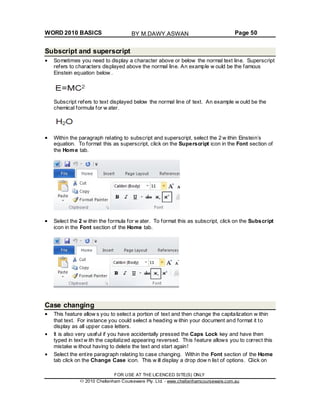
Sometimes you need to display a character above or below the normal text line. Superscript
refers to characters displayed above the normal line. An example w ould be the famous
Einstein equation below .
Subscript refers to text displayed below the normal line of text. An example w ould be the
chemical formula for w ater.
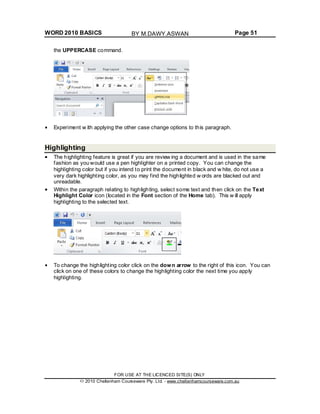
Within the paragraph relating to subscript and superscript, select the 2 w ithin Einstein’s
equation. To format this as superscript, click on the Superscript icon in the Font section of
the Home tab.
Select the 2 w ithin the formula for w ater. To format this as subscript, click on the Subscript
icon in the Font section of the Home tab.
Case changing
This feature allow s you to select a portion of text and then change the capitalization w ithin
that text. For instance you could select a heading w ithin your document and format it to
display as all upper case letters.
It is also very useful if you have accidentally pressed the Caps Lock key and have then
typed in text w ith the capitalized appearing reversed. This feature allows you to correct this
mistake w ithout having to delete the text and start again!
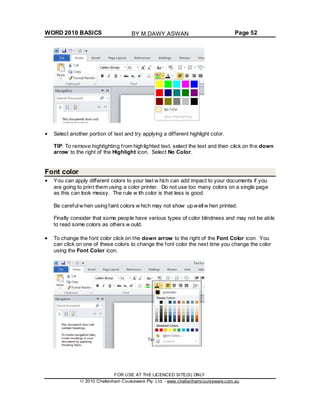
Select the entire paragraph relating to case changing. Within the Font section of the Home
tab click on the Change Case icon. This w ill display a drop dow n list of options. Click on
FOR USE AT THE LICENCED SITE(S) ONLY
2010 Cheltenham Courseware Pty. Ltd. - www.cheltenhamcourseware.com.au
BY M.DAWY.ASWAN
WORD 2010 BASICS Page 51
the UPPERCASE command.
Experiment w ith applying the other case change options to this paragraph.
Highlighting
The highlighting feature is great if you are review ing a document and is used in the same
fashion as you would use a pen highlighter on a printed copy. You can change the
highlighting color but if you intend to print the document in black and w hite, do not use a
very dark highlighting color, as you may find the highlighted w ords are blacked out and
unreadable.
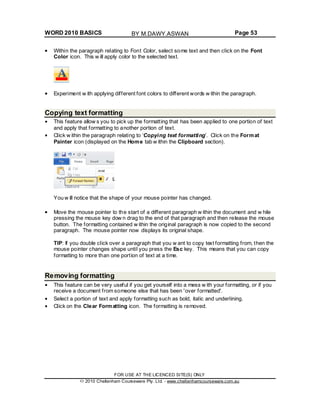
Within the paragraph relating to highlighting, select some text and then click on the Text
Highlight Color icon (located in the Font section of the Home tab). This w ill apply
highlighting to the selected text.
To change the highlighting color click on the down arrow to the right of this icon. You can
click on one of these colors to change the highlighting color the next time you apply
highlighting.
FOR USE AT THE LICENCED SITE(S) ONLY
2010 Cheltenham Courseware Pty. Ltd. - www.cheltenhamcourseware.com.au
BY M.DAWY.ASWAN
WORD 2010 BASICS Page 52
Select another portion of text and try applying a different highlight color.
TIP: To remove highlighting from highlighted text, select the text and then click on the down
arrow to the right of the Highlight icon. Select No Color.
Font color
You can apply different colors to your text w hich can add impact to your documents if you
are going to print them using a color printer. Do not use too many colors on a single page
as this can look messy. The rule w ith color is that less is good.
Be careful w hen using faint colors w hich may not show up well w hen printed.
Finally consider that some people have various types of color blindness and may not be able
to read some colors as others w ould.
To change the font color click on the down arrow to the right of the Font Color icon. You
can click on one of these colors to change the font color the next time you change the color
using the Font Color icon.
FOR USE AT THE LICENCED SITE(S) ONLY
2010 Cheltenham Courseware Pty. Ltd. - www.cheltenhamcourseware.com.au
BY M.DAWY.ASWAN
WORD 2010 BASICS Page 53
Within the paragraph relating to Font Color, select some text and then click on the Font
Color icon. This w ill apply color to the selected text.
Experiment w ith applying different font colors to different words w ithin the paragraph.
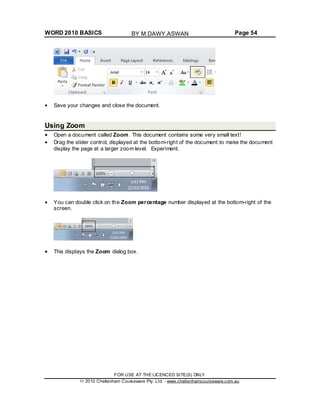
Copying text formatting
This feature allow s you to pick up the formatting that has been applied to one portion of text
and apply that formatting to another portion of text.
Click w ithin the paragraph relating to ‘Copying text formatting’. Click on the Format
Painter icon (displayed on the Home tab w ithin the Clipboard section).
You w ill notice that the shape of your mouse pointer has changed.
Move the mouse pointer to the start of a different paragraph w ithin the document and w hile
pressing the mouse key dow n drag to the end of that paragraph and then release the mouse
button. The formatting contained w ithin the original paragraph is now copied to the second
paragraph. The mouse pointer now displays its original shape.
TIP: If you double click over a paragraph that you w ant to copy text formatting from, then the
mouse pointer changes shape until you press the Esc key. This means that you can copy
formatting to more than one portion of text at a time.
Removing formatting
This feature can be very useful if you get yourself into a mess w ith your formatting, or if you
receive a document from someone else that has been 'over formatted'.
Select a portion of text and apply formatting such as bold, italic and underlining.
Click on the Clear Formatting icon. The formatting is removed.
FOR USE AT THE LICENCED SITE(S) ONLY
2010 Cheltenham Courseware Pty. Ltd. - www.cheltenhamcourseware.com.au
BY M.DAWY.ASWAN
WORD 2010 BASICS Page 54
Save your changes and close the document.
Using Zoom
Open a document called Zoom. This document contains some very small text!
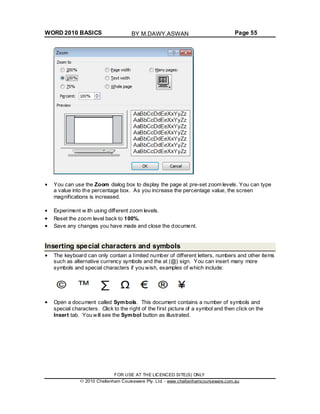
Drag the slider control, displayed at the bottom-right of the document to make the document
display the page at a larger zoom level. Experiment.
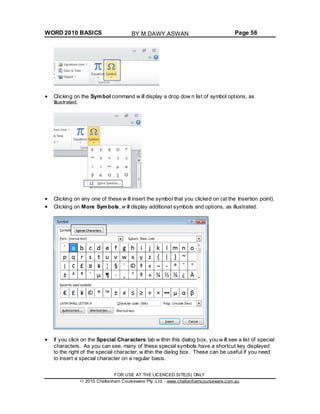
You can double click on the Zoom percentage number displayed at the bottom-right of the
screen.
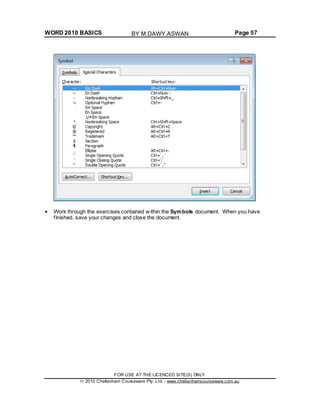
This displays the Zoom dialog box.
FOR USE AT THE LICENCED SITE(S) ONLY
2010 Cheltenham Courseware Pty. Ltd. - www.cheltenhamcourseware.com.au
BY M.DAWY.ASWAN
WORD 2010 BASICS Page 55
You can use the Zoom dialog box to display the page at pre-set zoom levels. You can type
a value into the percentage box. As you increase the percentage value, the screen
magnifications is increased.
Experiment w ith using different zoom levels.
Reset the zoom level back to 100%.
Save any changes you have made and close the document.
Inserting special characters and symbols
The keyboard can only contain a limited number of different letters, numbers and other items
such as alternative currency symbols and the at (@) sign. You can insert many more
symbols and special characters if you wish, examples of which include:
Open a document called Symbols. This document contains a number of symbols and
special characters. Click to the right of the first picture of a symbol and then click on the
Insert tab. You will see the Symbol button as illustrated.
FOR USE AT THE LICENCED SITE(S) ONLY
2010 Cheltenham Courseware Pty. Ltd. - www.cheltenhamcourseware.com.au
BY M.DAWY.ASWAN
WORD 2010 BASICS Page 56
Clicking on the Symbol command w ill display a drop dow n list of symbol options, as
illustrated.
Clicking on any one of these w ill insert the symbol that you clicked on (at the Insertion point).
Clicking on More Symbols, w ill display additional symbols and options, as illustrated.
If you click on the Special Characters tab w ithin this dialog box, you w ill see a list of special
characters. As you can see, many of these special symbols have a shortcut key displayed
to the right of the special character, w ithin the dialog box. These can be useful if you need
to insert a special character on a regular basis.
FOR USE AT THE LICENCED SITE(S) ONLY
2010 Cheltenham Courseware Pty. Ltd. - www.cheltenhamcourseware.com.au
BY M.DAWY.ASWAN
WORD 2010 BASICS Page 57
Work through the exercises contained w ithin the Symbols document. When you have
finished, save your changes and close the document.
FOR USE AT THE LICENCED SITE(S) ONLY
2010 Cheltenham Courseware Pty. Ltd. - www.cheltenhamcourseware.com.au
BY M.DAWY.ASWAN
WORD 2010 BASICS Page 58
Paragraph Formatting
Paragraph formatting includes items such as alignment and indenting as w ell as numbering
and bulleting of lists. If you click on the Home tab, you w ill see a paragraph section w ithin
the Ribbon.
TIP: To select a paragraph triple click within the paragraph.
Paragraph marks
To insert a paragraph mark, press the Enter key. This inserts a single paragraph mark.
Often you w ill insert tw o paragraph marks to end one paragraph and insert a space on the
screen before starting the next paragraph mark.
To remove a paragraph mark, click at the end of a paragraph and press the Del (Delete)
key.
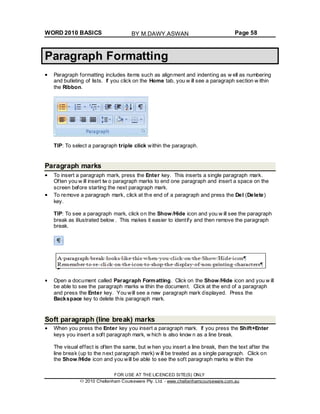
TIP: To see a paragraph mark, click on the Show /Hide icon and you w ill see the paragraph
break as illustrated below . This makes it easier to identify and then remove the paragraph
break.
Open a document called Paragraph Formatting. Click on the Show /Hide icon and you w ill
be able to see the paragraph marks w ithin the document. Click at the end of a paragraph
and press the Enter key. You will see a new paragraph mark displayed. Press the
Backspace key to delete this paragraph mark.
Soft paragraph (line break) marks
When you press the Enter key you insert a paragraph mark. If you press the Shift+Enter
keys you insert a soft paragraph mark, w hich is also know n as a line break.
The visual effect is often the same, but w hen you insert a line break, then the text after the
line break (up to the next paragraph mark) w ill be treated as a single paragraph. Click on
the Show /Hide icon and you will be able to see the soft paragraph marks w ithin the
FOR USE AT THE LICENCED SITE(S) ONLY
2010 Cheltenham Courseware Pty. Ltd. - www.cheltenhamcourseware.com.au
BY M.DAWY.ASWAN
WORD 2010 BASICS Page 59
document. Re-click on the icon and you w ill no longer see the soft paragraph marks.
To remove a soft paragraph mark, click at the end of a line break and press the Del (Delete)
key.
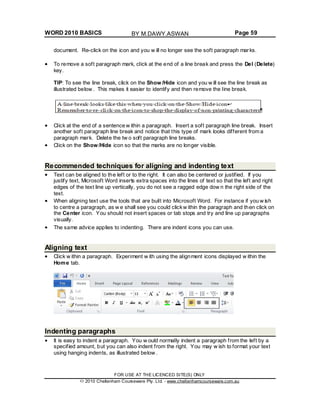
TIP: To see the line break, click on the Show /Hide icon and you w ill see the line break as
illustrated below . This makes it easier to identify and then remove the line break.
Click at the end of a sentence w ithin a paragraph. Insert a soft paragraph line break. Insert
another soft paragraph line break and notice that this type of mark looks different from a
paragraph mark. Delete the tw o soft paragraph line breaks.
Click on the Show /Hide icon so that the marks are no longer visible.
Recommended techniques for aligning and indenting text
Text can be aligned to the left or to the right. It can also be centered or justified. If you
justify text, Microsoft Word inserts extra spaces into the lines of text so that the left and right
edges of the text line up vertically, you do not see a ragged edge dow n the right side of the
text.
When aligning text use the tools that are built into Microsoft Word. For instance if you w ish
to centre a paragraph, as w e shall see you could clickw ithin the paragraph and then click on
the Center icon. You should not insert spaces or tab stops and try and line up paragraphs
visually.
The same advice applies to indenting. There are indent icons you can use.
Aligning text
Click w ithin a paragraph. Experiment w ith using the alignment icons displayed w ithin the
Home tab.
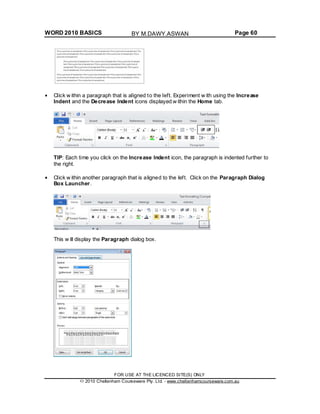
Indenting paragraphs
It is easy to indent a paragraph. You w ould normally indent a paragraph from the left by a
specified amount, but you can also indent from the right. You may w ish to format your text
using hanging indents, as illustrated below .
FOR USE AT THE LICENCED SITE(S) ONLY
2010 Cheltenham Courseware Pty. Ltd. - www.cheltenhamcourseware.com.au
BY M.DAWY.ASWAN
WORD 2010 BASICS Page 60
Click w ithin a paragraph that is aligned to the left. Experiment w ith using the Increase
Indent and the Decrease Indent icons displayed w ithin the Home tab.
TIP: Each time you click on the Increase Indent icon, the paragraph is indented further to
the right.
Click w ithin another paragraph that is aligned to the left. Click on the Paragraph Dialog
Box Launcher.
This w ill display the Paragraph dialog box.
FOR USE AT THE LICENCED SITE(S) ONLY
2010 Cheltenham Courseware Pty. Ltd. - www.cheltenhamcourseware.com.au
BY M.DAWY.ASWAN
WORD 2010 BASICS Page 61
You can use the dialog box to set exact left or right indents. Experiment w ith setting both
left and right indents for this paragraph.
Use the Undo icon to reverse these left and right indents. Click on the down arrow next to
the Special section of the dialog box. Select First Line.
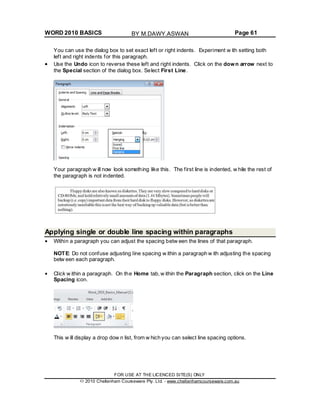
Your paragraph w ill now look something like this. The first line is indented, w hile the rest of
the paragraph is not indented.
Applying single or double line spacing within paragraphs
Within a paragraph you can adjust the spacing betw een the lines of that paragraph.
NOTE: Do not confuse adjusting line spacing w ithin a paragraph w ith adjusting the spacing
betw een each paragraph.
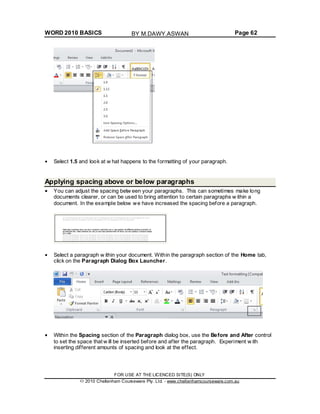
Click w ithin a paragraph. On the Home tab, w ithin the Paragraph section, click on the Line
Spacing icon.
This w ill display a drop dow n list, from w hich you can select line spacing options.
FOR USE AT THE LICENCED SITE(S) ONLY
2010 Cheltenham Courseware Pty. Ltd. - www.cheltenhamcourseware.com.au
BY M.DAWY.ASWAN
WORD 2010 BASICS Page 62
Select 1.5 and look at w hat happens to the formatting of your paragraph.
Applying spacing above or below paragraphs
You can adjust the spacing betw een your paragraphs. This can sometimes make long
documents clearer, or can be used to bring attention to certain paragraphs w ithin a
document. In the example below we have increased the spacing before a paragraph.
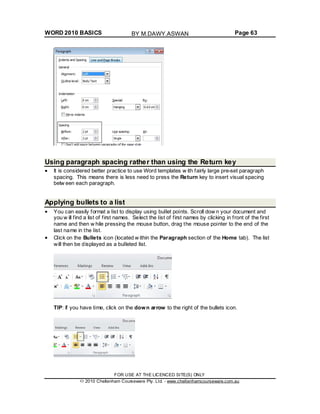
Select a paragraph w ithin your document. Within the paragraph section of the Home tab,
click on the Paragraph Dialog Box Launcher.
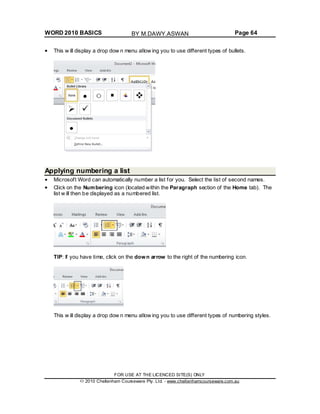
Within the Spacing section of the Paragraph dialog box, use the Before and After control
to set the space that w ill be inserted before and after the paragraph. Experiment w ith
inserting different amounts of spacing and look at the effect.
FOR USE AT THE LICENCED SITE(S) ONLY
2010 Cheltenham Courseware Pty. Ltd. - www.cheltenhamcourseware.com.au
BY M.DAWY.ASWAN
WORD 2010 BASICS Page 63
Using paragraph spacing rather than using the Return key
It is considered better practice to use Word templates w ith fairly large pre-set paragraph
spacing. This means there is less need to press the Return key to insert visual spacing
betw een each paragraph.
Applying bullets to a list
You can easily format a list to display using bullet points. Scroll dow n your document and
you w ill find a list of first names. Select the list of first names by clicking in front of the first
name and then w hile pressing the mouse button, drag the mouse pointer to the end of the
last name in the list.
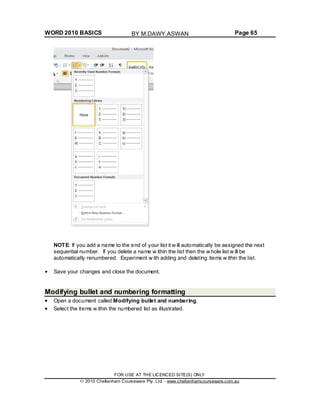
Click on the Bullets icon (located w ithin the Paragraph section of the Home tab). The list
will then be displayed as a bulleted list.
TIP: If you have time, click on the down arrow to the right of the bullets icon.
FOR USE AT THE LICENCED SITE(S) ONLY
2010 Cheltenham Courseware Pty. Ltd. - www.cheltenhamcourseware.com.au
BY M.DAWY.ASWAN
WORD 2010 BASICS Page 64
This w ill display a drop dow n menu allow ing you to use different types of bullets.
Applying numbering a list
Microsoft Word can automatically number a list for you. Select the list of second names.
Click on the Numbering icon (located within the Paragraph section of the Home tab). The
list w ill then be displayed as a numbered list.
TIP: If you have time, click on the down arrow to the right of the numbering icon.
This w ill display a drop dow n menu allow ing you to use different types of numbering styles.
FOR USE AT THE LICENCED SITE(S) ONLY
2010 Cheltenham Courseware Pty. Ltd. - www.cheltenhamcourseware.com.au
BY M.DAWY.ASWAN
WORD 2010 BASICS Page 65
NOTE: If you add a name to the end of your list it w ill automatically be assigned the next
sequential number. If you delete a name w ithin the list then the w hole list w ill be
automatically renumbered. Experiment w ith adding and deleting items w ithin the list.
Save your changes and close the document.
Modifying bullet and numbering formatting
Open a document called Modifying bullet and numbering.
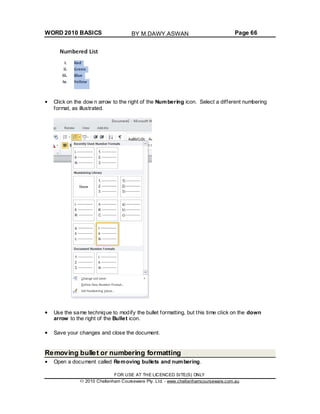
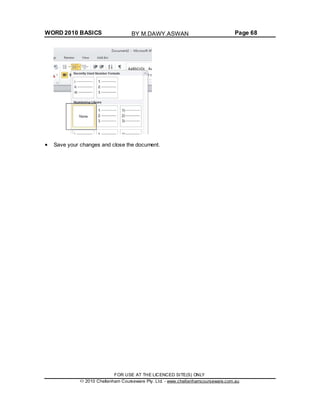
Select the items w ithin the numbered list as illustrated.
FOR USE AT THE LICENCED SITE(S) ONLY
2010 Cheltenham Courseware Pty. Ltd. - www.cheltenhamcourseware.com.au
BY M.DAWY.ASWAN
WORD 2010 BASICS Page 66
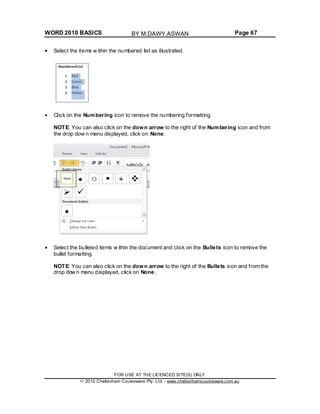
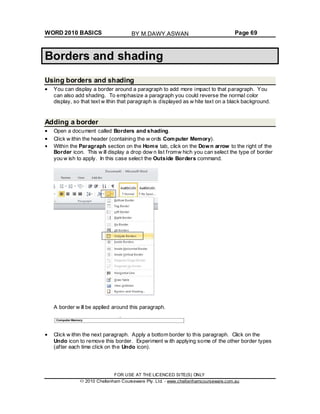
Click on the dow n arrow to the right of the Numbering icon. Select a different numbering
format, as illustrated.
Use the same technique to modify the bullet formatting, but this time click on the down
arrow to the right of the Bullet icon.
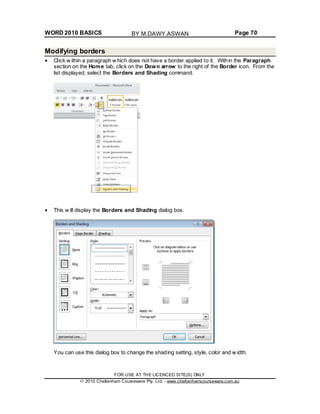
Save your changes and close the document.
Removing bullet or numbering formatting
Open a document called Removing bullets and numbering.
FOR USE AT THE LICENCED SITE(S) ONLY
2010 Cheltenham Courseware Pty. Ltd. - www.cheltenhamcourseware.com.au
BY M.DAWY.ASWAN
WORD 2010 BASICS Page 67
Select the items w ithin the numbered list as illustrated.
Click on the Numbering icon to remove the numbering formatting.
NOTE: You can also click on the down arrow to the right of the Numbering icon and from
the drop dow n menu displayed, click on None.
Select the bulleted items w ithin the document and click on the Bullets icon to remove the
bullet formatting.
NOTE: You can also click on the down arrow to the right of the Bullets icon and from the
drop dow n menu displayed, click on None.
FOR USE AT THE LICENCED SITE(S) ONLY
2010 Cheltenham Courseware Pty. Ltd. - www.cheltenhamcourseware.com.au
BY M.DAWY.ASWAN
WORD 2010 BASICS Page 68
Save your changes and close the document.
FOR USE AT THE LICENCED SITE(S) ONLY
2010 Cheltenham Courseware Pty. Ltd. - www.cheltenhamcourseware.com.au
BY M.DAWY.ASWAN
WORD 2010 BASICS Page 69
Borders and shading
Using borders and shading
You can display a border around a paragraph to add more impact to that paragraph. You
can also add shading. To emphasize a paragraph you could reverse the normal color
display, so that text w ithin that paragraph is displayed as w hite text on a black background.
Adding a border
Open a document called Borders and shading.
Click w ithin the header (containing the w ords Computer Memory).
Within the Paragraph section on the Home tab, click on the Down arrow to the right of the
Border icon. This w ill display a drop dow n list fromw hich you can select the type of border
you w ish to apply. In this case select the Outside Borders command.
A border w ill be applied around this paragraph.
Click w ithin the next paragraph. Apply a bottom border to this paragraph. Click on the
Undo icon to remove this border. Experiment w ith applying some of the other border types
(after each time click on the Undo icon).
FOR USE AT THE LICENCED SITE(S) ONLY
2010 Cheltenham Courseware Pty. Ltd. - www.cheltenhamcourseware.com.au
BY M.DAWY.ASWAN
WORD 2010 BASICS Page 70
Modifying borders
Click w ithin a paragraph w hich does not have a border applied to it. Within the Paragraph
section on the Home tab, click on the Down arrow to the right of the Border icon. From the
list displayed, select the Borders and Shading command.
This w ill display the Borders and Shading dialog box.
You can use this dialog box to change the shading setting, style, color and w idth.
FOR USE AT THE LICENCED SITE(S) ONLY
2010 Cheltenham Courseware Pty. Ltd. - www.cheltenhamcourseware.com.au
BY M.DAWY.ASWAN
WORD 2010 BASICS Page 71
From the Setting section of the dialog select the 3-D.
Use the Style section of the dialog to select a different border style.
Click on the down arrow to the right of the Color section to display a list of colors. Select a
color.
FOR USE AT THE LICENCED SITE(S) ONLY
2010 Cheltenham Courseware Pty. Ltd. - www.cheltenhamcourseware.com.au
BY M.DAWY.ASWAN
WORD 2010 BASICS Page 72
Click on the down arrow to the right of the Width section to display a list of w idths. Select a
width.
Click on the OK button to close the dialog box and apply the border.
Adding shading
Click w ithin a paragraph.
Within the Paragraph section on the Home tab, click on the Down arrow to the right of the
Shading icon. This w ill display a drop dow n list fromw hich you can select the color of the
shading you w ish to apply.
FOR USE AT THE LICENCED SITE(S) ONLY
2010 Cheltenham Courseware Pty. Ltd. - www.cheltenhamcourseware.com.au
BY M.DAWY.ASWAN
WORD 2010 BASICS Page 73
Click on the Undo button and apply a different color of shading.
TIP: Try applying Black shading.
As you are applying black shading to be used as a background for black text, you might
expect the text to become invisible (i.e. black text on a black background). In fact Microsoft
Word automatically reverses the text color in this case so that you see w hite text on a black
background.
Modifying your shading
Click w ithin a paragraph. Within the Paragraph section on the Home tab, click on the
Down arrow to the right of the Shading icon. From the list displayed, select the More
Colors command.
FOR USE AT THE LICENCED SITE(S) ONLY
2010 Cheltenham Courseware Pty. Ltd. - www.cheltenhamcourseware.com.au
BY M.DAWY.ASWAN
WORD 2010 BASICS Page 74
Select a color.
Click on the OK button
Applying borders to selected text
You can apply borders and shading to an entire paragraph. How ever if you select a word or
portion of text w ithin a paragraph, then you can apply border and shading to just the
selected text. Try experimenting w ith selecting w ords or sentences w ithin your document
and apply a border and shading effect.
Save your changes and close the document.
FOR USE AT THE LICENCED SITE(S) ONLY
2010 Cheltenham Courseware Pty. Ltd. - www.cheltenhamcourseware.com.au
BY M.DAWY.ASWAN
WORD 2010 BASICS Page 75
Finding and replacing text
Using Find and Replace
Sometimes documents can be very long and you may need to search that document for a
particular w ord or phrase. You can use the built-in search feature to do this for you. If you
need to find a particular w ord or phrase and replace this item w ith alternative text, then you
can use the search and replace feature.
WARNING: Using the search and replace feature sounds great, but you need to be careful.
I alw ays make a backup copy of a document before using this feature as it is very easy to
get it horribly w rong. Many w ords have w ithin them s maller w ords. The w ord WARNING for
instance has the w ords WAR and WARN w ithin it, and if you replaced the w ord WAR w ith
something else, then the first three letters of the word WARNING w ill also be replaced.
There are w ays to stop Microsoft Word from doing this, but you must be careful!
Finding text
Open a document called Searching and replacing.
Under the Home tab, w ithin the Editing group, click on the Find button.
Or use the keyboard shortcut Ctrl+F.
This w ill display the Find box.
FOR USE AT THE LICENCED SITE(S) ONLY
2010 Cheltenham Courseware Pty. Ltd. - www.cheltenhamcourseware.com.au
BY M.DAWY.ASWAN
WORD 2010 BASICS Page 76
Type in the text you w ish to search for, in this case type in the w ord Internet.
The first occurrence of the w ord Internet w ill be found and highlighted w ithin the document.
Click on the down arrow under the search box, which is called Next Search Result.
This w ill display the next occurrence of the w ord that you are searching for w ithin the
document. Keeping clicking on this dow n arrow to display more occurrences of the w ord
you are searching for.
FOR USE AT THE LICENCED SITE(S) ONLY
2010 Cheltenham Courseware Pty. Ltd. - www.cheltenhamcourseware.com.au
BY M.DAWY.ASWAN
WORD 2010 BASICS Page 77
Replacing text
Under the Home tab, w ithin the Editing group, click on the Replace button.
This w ill display the Find and Replace dialog box.
In this case w e will replace the text World Wide Web w ith WWW, as illustrated.
Click on the Find Next button. The next instance of the text w ill be selected. Click on the
Replace button. In the same w ay replace all instanced of the text World Wide Web with
WWW.
FOR USE AT THE LICENCED SITE(S) ONLY
2010 Cheltenham Courseware Pty. Ltd. - www.cheltenhamcourseware.com.au
BY M.DAWY.ASWAN
WORD 2010 BASICS Page 78
TIP: To display the Replace display box, press Ctrl+H.
Save your changes and close the document.
FOR USE AT THE LICENCED SITE(S) ONLY
2010 Cheltenham Courseware Pty. Ltd. - www.cheltenhamcourseware.com.au
BY M.DAWY.ASWAN
WORD 2010 BASICS Page 79
Tabs
Tab stops
In early versions of Microsoft Word, using 'Tab Stops' w as a vital method for formatting
particular items w ithin a Microsoft Word document. Tabs w ere commonly used for
displaying columns of data, w ith each column of data being separated from the next column
by a tab space.
As newer versions of Microsoft Word have been released over the years the use of tab
stops w ithin a document has lessened, as Microsoft Word w ill now automatically insert tab
spaces into document elements such as a ‘table of contents’. Microsoft Word 2010 also has
many pre-designed pages available to you such as customizable front pages w hich again
make the need to manually insert tab stops less important than it used to be in earlier
versions of Microsoft Word.
When you create a new , blank document, by default the Ruler does not contain tab stops.
Setting and removing tabs
Before manually inserting tabs stops, you should display the Microsoft Word Ruler. This
Ruler allow s you to easily insert tab stops. If the Ruler is not displayed click on the View
Ruler button (displayed at the top of your vertical scroll bar).
If clicking on this button removes the display of the Ruler, click on it again and the Ruler w ill
be displayed again across the top of your document.
FOR USE AT THE LICENCED SITE(S) ONLY
2010 Cheltenham Courseware Pty. Ltd. - www.cheltenhamcourseware.com.au
BY M.DAWY.ASWAN
WORD 2010 BASICS Page 80
You can set the tab type by repeatedly clicking the tab selector (displayed at the left edge of
the ruler) until it displays the required tab type.
You can click along the ruler at the location you w ish to insert the tab.
Tab types include:
Left Tab stop:
This sets the starting location of text w hich will display to the right as you type text into this
tab stop location.
Centre Tab stop:
This sets the position used for the middle of the text, w hich w ill centre on this tab stop as
you type in text.
Right Tab stop:
This sets the right end for your text and w hen you enter text at this tab stop it w ill move to
the left.
Decimal Tab stop:
This is used to align numbers around a decimal point.
FOR USE AT THE LICENCED SITE(S) ONLY
2010 Cheltenham Courseware Pty. Ltd. - www.cheltenhamcourseware.com.au
BY M.DAWY.ASWAN
WORD 2010 BASICS Page 81
Bar Tab stop:
This displays a vertical bar at the tab stop location.
NOTE: There are tw o more options, but these relate to indents rather than tab stops.
Indent First Line:
Click on this control and then click on the top part of the horizontal ruler w here you would
like the first line of that paragraph to begin.
Hanging Indent:
Click on this control then click the bottom half of the horizontal ruler w here you would like all
the lines after the first line of the paragraph to be indented to.
To move a Tab Stop left or right you can drag it using the mouse pointer (w ith the mouse
button pressed dow n when you are dragging the tab stop).
To delete a Tab Stop drag it off the Ruler (w ith the mouse button pressed dow n when you
are dragging the Tab Stop).
Open a document called Tabs.
Select the data w ithin the document as illustrated.
Click on the Ruler above the start of the text '2005 Sales', as illustrated.
FOR USE AT THE LICENCED SITE(S) ONLY
2010 Cheltenham Courseware Pty. Ltd. - www.cheltenhamcourseware.com.au
BY M.DAWY.ASWAN
WORD 2010 BASICS Page 82
Drag this tab stop to the right, as illustrated.
Click on the Ruler at the start of the text '2006 Sales' as illustrated.
FOR USE AT THE LICENCED SITE(S) ONLY
2010 Cheltenham Courseware Pty. Ltd. - www.cheltenhamcourseware.com.au
BY M.DAWY.ASWAN
WORD 2010 BASICS Page 83
Drag the tab stop to the right, so that the data now looks like this.
To change the tab type, double click on one of the tab stops on your Ruler and you w ill see
the Tabs dialog box. Experiment w ith changing the tab types of each of your Tab Stops and
check the effect of your changes.
FOR USE AT THE LICENCED SITE(S) ONLY
2010 Cheltenham Courseware Pty. Ltd. - www.cheltenhamcourseware.com.au
BY M.DAWY.ASWAN
WORD 2010 BASICS Page 84
Try deleting one of your tab stops by dragging it off the Ruler. Use the Undo key to reverse
this deletion.
When you have finished experimenting, save your changes and close the document.
Viewing tab marks using the Show/Hide icon
Open a document called Viewing tabs.
This document contains tabs but normally you cannot see them w ithin the document.
Click on the Show /Hide icon (contained w ithin the Paragraph section of the Home tab).
The tabs w ill be displayed as illustrated below .
Close the document.
FOR USE AT THE LICENCED SITE(S) ONLY
2010 Cheltenham Courseware Pty. Ltd. - www.cheltenhamcourseware.com.au
BY M.DAWY.ASWAN
WORD 2010 BASICS Page 85
Styles
What are styles?
Styles are a collection of formatting instructions that have a name and can be applied to
parts of your document to impose consistent formatting. An example w ould be header
styles which can be used to add an ordered structure to long documents.
Applying styles
Open a document called Applying styles.
Click w ithin the first line to w hich you w ish to apply a style.
Under the Home tab, click on the down arrow to the right of the Style box. The Style List
box w ill display Microsoft Word styles w hich can be applied to part of a document. Select the
Title style and it w ill be applied to the selected text.
FOR USE AT THE LICENCED SITE(S) ONLY
2010 Cheltenham Courseware Pty. Ltd. - www.cheltenhamcourseware.com.au
BY M.DAWY.ASWAN
WORD 2010 BASICS Page 86
Your document w ill now look like this.
Apply Header 1 and Header 2 styles as directed within your document, w hich should now
look like this.
If you have time, try experimenting w ith applying other styles to the body text.
Save your changes and close your document.
Style Sets
Open a file called Style Sets.
FOR USE AT THE LICENCED SITE(S) ONLY
2010 Cheltenham Courseware Pty. Ltd. - www.cheltenhamcourseware.com.au
BY M.DAWY.ASWAN
WORD 2010 BASICS Page 87
Under the Home tab, w ithin the Styles group, click on the Change Styles button.
From the drop dow n list displayed select the Style Set. This w ill display a list of Style Set
options.
FOR USE AT THE LICENCED SITE(S) ONLY
2010 Cheltenham Courseware Pty. Ltd. - www.cheltenhamcourseware.com.au
BY M.DAWY.ASWAN
WORD 2010 BASICS Page 88
Try clicking on a style set option, such as Modern. As you can see a complete set of new
styles are applied to the document.
Experiment w ith applying other Style Sets and then save your changes and close the
document.
FOR USE AT THE LICENCED SITE(S) ONLY
2010 Cheltenham Courseware Pty. Ltd. - www.cheltenhamcourseware.com.au
BY M.DAWY.ASWAN
WORD 2010 BASICS Page 89
Page Formatting
What is Page formatting?
Page formatting relates to formatting that normally affects the w hole page, such as page
orientation. The page is either Portrait or Landscape orientated. It also includes items
such as page size and margins.
Page orientation and paper size
Normally your Microsoft Word document w ill be displayed in Portrait page orientation, w hich
is like looking at a photograph, w here the long edge is the vertical line. You may change to
Landscape orientation for certain types of documents such as notices.
The physical size of the paper used w ithin printers varies from country to country. In the
United States the normal paper size is called 'Letter' size and the dimensions are measured
in inches. A ‘Letter’ sized paper is shorter but wider than ‘A4’ sized paper.
In Europe and many other places the paper size used w ithin computer printers is normally
called A4 sized paper. This may be measured in inches or centimeters (depending on the
country). A4 sized paper is longer and slightly narrow er than 'letter' sized paper.
Open a document called Page layout. Click on the Page Layout tab. Within the Page
Setup section click on the Orientation button. A drop dow n list allow s you to select either
Portrait or Landscape page orientation. Select Landscape.
Your document w ill now look something like this.
FOR USE AT THE LICENCED SITE(S) ONLY
2010 Cheltenham Courseware Pty. Ltd. - www.cheltenhamcourseware.com.au
BY M.DAWY.ASWAN
WORD 2010 BASICS Page 90
To see the effect better click on the View tab and click on the One Page button.
Reset the page orientation back to Portrait orientation.
Click on the View tab and click on the 100% button.
Changing the page size
Experiment w ith changing the page size. To do this click on the Page Layout tab and from
within the Page Setup section of the Ribbon, click on the Size icon, as illustrated.
FOR USE AT THE LICENCED SITE(S) ONLY
2010 Cheltenham Courseware Pty. Ltd. - www.cheltenhamcourseware.com.au
BY M.DAWY.ASWAN
WORD 2010 BASICS Page 91
You can click on an item w ithin the drop dow n list to change the page size.
Page margins
Your document has a top, bottom, left and right margin. This is the space betw een the edge
of your text and the edge of your page. Each margin may be increased or decreased. Be
careful not to decrease it too much or you may have problems printing the documents.
To modify your page margins, click on the Page Layout tab. From the Page Setup section,
click on the Margins button. A list of pre-set options is displayed, as illustrated.
FOR USE AT THE LICENCED SITE(S) ONLY
2010 Cheltenham Courseware Pty. Ltd. - www.cheltenhamcourseware.com.au
BY M.DAWY.ASWAN
WORD 2010 BASICS Page 92
Experiment w ith applying these different pre-set margin options.
To create your ow n custom margins, click on the Custom Margins command displayed at
the bottom of the Margins drop down list. This w ill display the Page Setup dialog box,
allow ing you to set exact values for the margins. Experiment w ith setting different margins
values.
Before continuing, reset the margins to the Microsoft Word default values by clicking on the
Margins button and selecting the Normal margin command.
FOR USE AT THE LICENCED SITE(S) ONLY
2010 Cheltenham Courseware Pty. Ltd. - www.cheltenhamcourseware.com.au
BY M.DAWY.ASWAN
WORD 2010 BASICS Page 93
Inserting Page Breaks
When you start typing into a document, the text normally starts at the top-left of the page
and as you type more w ords they are displayed on the line moving tow ards the right of the
page. When the w ords you are typing reach the right side of the screen they automatically
drop dow n to the next line. If you continue typing you eventually fill that page, at w hich point
Microsoft Word automatically moves on to the next page. These automatic page breaks that
are inserted by Microsoft Word are called 'soft' page breaks. Sometimes you w ish to force
Microsoft Word to leave a blank area displayed at the bottom of one page and the next text
to be displayed on a new page. To do this you need to insert a manual page break
(sometimes called a hard page break).
Insert a few page breaks into your document. To do this click at the point you w ish to insert
the page break and then press Ctrl+Enter.
Deleting Page Breaks
Normally you do not see the page break w ithin a document, only the effect of the page
break.
Click on the Home tab and fromw ithin the Paragraph group, click on the Show / Hide icon.
Any page breaks w ithin the document w ill now be displayed as illustrated below .
To remove a page break, click to the right of the page break and press the Backspace key.
FOR USE AT THE LICENCED SITE(S) ONLY
2010 Cheltenham Courseware Pty. Ltd. - www.cheltenhamcourseware.com.au
BY M.DAWY.ASWAN
WORD 2010 BASICS Page 94
Use page breaks rather than repeatedly pressing the Return key
If you w ish to insert a new page, alw ays use the ‘page break’ method. Never keep pressing
the Return key until Word skips to a new page.
Headers and footers
If you are planning to print a document, it is a good idea to add a footer or header to the
document, especially if it is a long document.
Click on the Insert tab and w ithin the Header and Footer group, click on the Header icon.
A drop dow n list is displayed. Select the Edit Header command.
The header area w ill be displayed on screen as illustrated.
FOR USE AT THE LICENCED SITE(S) ONLY
2010 Cheltenham Courseware Pty. Ltd. - www.cheltenhamcourseware.com.au
BY M.DAWY.ASWAN
WORD 2010 BASICS Page 95
Type in your header text. In this case type in your name.
If you look closely you w ill see that a special header and footer ribbon is displayed. This
ribbon displays related commands to enhance your header or footer.
Click on the Close Header and Footer icon.
You can see your header displayed at the top of your page.
To insert a footer, click on the Footer icon
FOR USE AT THE LICENCED SITE(S) ONLY
2010 Cheltenham Courseware Pty. Ltd. - www.cheltenhamcourseware.com.au
BY M.DAWY.ASWAN
WORD 2010 BASICS Page 96
Select the Edit Footer command.
Type in the follow ing text as your footer.
Draft copy only
FOR USE AT THE LICENCED SITE(S) ONLY
2010 Cheltenham Courseware Pty. Ltd. - www.cheltenhamcourseware.com.au
BY M.DAWY.ASWAN
WORD 2010 BASICS Page 97
Click on the Close Header and Footer icon.
Page numbering
You can insert automatic page numbering into a document header or footer. As this is
inserted as a field w hen you modify the number of pages w ithin the document the page
numbering is also updated on each page.
Click on the Insert tab and from the Header and Footer group click on the Header icon. A
drop dow n list is displayed, select the Edit Header command. You should see your name
displayed as the header.
Click just after your name and press the Tab key tw ice.
Click on the Page Number button.
From the drop dow n list displayed, select Current Position. From the sub-list displayed
select Plain Number.
FOR USE AT THE LICENCED SITE(S) ONLY
2010 Cheltenham Courseware Pty. Ltd. - www.cheltenhamcourseware.com.au
BY M.DAWY.ASWAN
WORD 2010 BASICS Page 98
The page number should be inserted into your document. Close the Header and Footer
ribbon.
Header and footer fields
Microsoft Word fields are easy to insert and can be automatically updated. For instance you
could insert the date w ithin the header of a document and arrange it so that each time you
reprinted the document, the current date w as displayed. This w ould mean that if you printed
the document each month, then the correct month w ould be displayed w ithin the header.
Click on the Insert tab, and from the Header and Footer section click on the Footer icon. A
drop dow n list is displayed, select the Edit Footer command. You should see your footer
text. Click at the end of the footer text. Press the Tab key tw ice.
Click on the Quick Parts button.
FOR USE AT THE LICENCED SITE(S) ONLY
2010 Cheltenham Courseware Pty. Ltd. - www.cheltenhamcourseware.com.au
BY M.DAWY.ASWAN
WORD 2010 BASICS Page 99
From the drop dow n list displayed select the Field command.
This w ill display the Field dialog box. This allows you insert a w ide range of fields. In this
case select Date, as illustrated.
Click on the OK button. Close the Header and Footer Ribbon and you w ill see your footer
displayed at the bottom of each page.
FOR USE AT THE LICENCED SITE(S) ONLY
2010 Cheltenham Courseware Pty. Ltd. - www.cheltenhamcourseware.com.au
BY M.DAWY.ASWAN
WORD 2010 BASICS Page 100
If you have time, have a brief look at some of the other fields that you can insert into your
header or footer.
The Filename field is particularly useful as if you insert this into a header or footer and then
save your document this field w ill record the file name. You w ill find w ith a little
experimentation that this field can also include the folder storage location on your hard disk.
Save your changes and close the document.
Editing text within a header or footer
Open a document called Editing headers and footers. This document has text in the
header and footer area. The header looks like this.
Double click over the header area and the screen w ill change, as illustrated, allow ing you to
edit the existing header text.
FOR USE AT THE LICENCED SITE(S) ONLY
2010 Cheltenham Courseware Pty. Ltd. - www.cheltenhamcourseware.com.au
BY M.DAWY.ASWAN
WORD 2010 BASICS Page 101
Change the text so that it displays your name. An example is illustrated below .
NOTE: To change the text, select the text that you w ish to replace and overtype with the
new text.
Scroll dow n to view the footer text. Edit this text as illustrated below .
Save your changes and close the document.
Cover pages
This feature w as introduced in Microsoft Word 2010. It inserts a professional looking front
cover page into your document.
FOR USE AT THE LICENCED SITE(S) ONLY
2010 Cheltenham Courseware Pty. Ltd. - www.cheltenhamcourseware.com.au
BY M.DAWY.ASWAN
WORD 2010 BASICS Page 102
Open a document called Cover page. Click at the start of the document. Click on the Insert
tab and then click on the Cover Page button (w ithin the Pages group).
This w ill display a drop dow n fromw hich you can select a cover page type. In this case
select the Mod type.
Once you select a cover page type you w ill see the follow ing.
FOR USE AT THE LICENCED SITE(S) ONLY
2010 Cheltenham Courseware Pty. Ltd. - www.cheltenhamcourseware.com.au
BY M.DAWY.ASWAN
WORD 2010 BASICS Page 103
Click on the [Type the document title] and then enter a title, such as 'About Computers'.
You can also insert a subtitle and abstract.
Click on the [Pick the date] control to insert today's date.
Scroll though the document to review your changes.
Save your changes and close the file.
Applying Automatic Hyphenation
If a w ord at the end of a line of text is too long to fit on that line Word 2010 w ill move that
word to the beginning of the next line rather than hyphenate it. If you w ish you can set up
Word to automatically hyphenate text. You can even control the length of the area at the
end of a line that w ill trigger automatic hyphenation, w hen required.
Open a document called Hyphenation. The document w ill look something like the
illustration below . You should see that hyphenation is not active.
Click on the Page Layout tab and from w ithin the Page Setup group, click on the
Hyphenation button. From the drop dow n displayed click on the Automatic command.
FOR USE AT THE LICENCED SITE(S) ONLY
2010 Cheltenham Courseware Pty. Ltd. - www.cheltenhamcourseware.com.au
BY M.DAWY.ASWAN
WORD 2010 BASICS Page 104
The document w ill now display hyphens at the end of some lines, as illustrated below .
Before continuing turn off automatic hyphenation by clicking on the Page Layout tab and
fromw ithin the Page Setup group, click on the Hyphenation button. From the drop dow n
displayed click on the None command, as illustrated below .
Close your document w ithout saving your changes.
FOR USE AT THE LICENCED SITE(S) ONLY
2010 Cheltenham Courseware Pty. Ltd. - www.cheltenhamcourseware.com.au
BY M.DAWY.ASWAN
WORD 2010 BASICS Page 105
Tables
Using tables
You can insert a table into your document. Each cell w ithin the table can display text or a
graphic. Each cell or the entire table can be formatted as required.
Inserting a table
Open a document called Tables. Read the instructions w ithin this document. We are going
to insert a table containing 4 columns and 3 rows.
Display the Insert tab and you w ill see the Tables group displayed as illustrated.
Clicking on the Table button w ill display the follow ing.
If you move the mouse pointer over the cells displayed in the drop dow n you w ill see that a
preview version of the table is displayed w ithin your document.
FOR USE AT THE LICENCED SITE(S) ONLY
2010 Cheltenham Courseware Pty. Ltd. - www.cheltenhamcourseware.com.au
BY M.DAWY.ASWAN
WORD 2010 BASICS Page 106
Click w hen you see a 4x3 Table displayed (in the area immediately above the cell drop
dow n). The table w ill be inserted into the document, as illustrated.
Notice that the display at the top of your screen has changed. As you are within the table
you have just selected, Microsoft Word automatically displays commands and options
related to modifying and formatting your table.
Click outside your table and the ribbon w ill display its original commands. Re-clicking w ithin
the table w ill again display Table related commands. If you do not see the table commands
displayed you w ill notice that there is a Table Tools option displayed at the top of your page
(above the normal tabs). Click on this to display your table related commands.
Navigating within a table
Click w ithin the first cell in the table. Type in the name of the tow n or city in w hich you live.
To move to the next cell press the Tab key (or clickw ithin the cell using the mouse pointer).
Type in the name of another tow n or city. Carry on in a similar fashion until all the cells
contain the name of a tow n or city.
Try pressing Shift+Tab. As you will see this moves you to the previous cell.
FOR USE AT THE LICENCED SITE(S) ONLY
2010 Cheltenham Courseware Pty. Ltd. - www.cheltenhamcourseware.com.au
BY M.DAWY.ASWAN
WORD 2010 BASICS Page 107
Selecting and editing text within a table
Click w ithin the first cell. Double click on the w ord within this cell and change the w ord to
your first name. Navigate to the second cell and overwrite the contents w ith your second
name. You can edit the text w ithin a cell rather than replace the entire text by selecting the
part of the text you w ish to edit and then typing in your changes.
Selecting cells, rows, columns or the entire table
It is important to know how to select elements w ithin your table. Practice these selection
techniques using the table you have created.
To select a cell.
Move the mouse pointer to the left side of the cell you w ant to select. The mouse pointer w ill
change to the shape of a small solid black arrow pointing upw ards and to the right. Click
when you see the pointer change to this shape and the cell w ill be selected.
To select a row .
Move the mouse pointer to the left of the row you w ant to select. When the mouse pointer
changes to the shape of an arrow, click once and the row w ill be selected.
To select multiple rows which are next to each other.
Move the mouse pointer to the left of the first row you want to select. When the mouse
pointer changes to the shape of an arrow , click once and the row will be selected. Hold
dow n the Shift key and then click on the last row of the block of cells you w ish to select.
To select multiple rows which are not connected to each other.
Move the mouse pointer to the left of the first row you want to select. When the mouse
pointer changes to the shape of an arrow , click once and the row will be selected. Hold
dow n the Ctrl key while clicking to select other rows.
FOR USE AT THE LICENCED SITE(S) ONLY
2010 Cheltenham Courseware Pty. Ltd. - www.cheltenhamcourseware.com.au
BY M.DAWY.ASWAN
WORD 2010 BASICS Page 108
To select a column.
Move the mouse pointer to the area just above the column you w ant to select. When the
mouse pointer changes to the shape of a small, black, dow n-pointing arrow , click once and
the column w ill be selected.
To select multiple columns which are next to each other.
Move the mouse pointer to the area just above the first column you w ant to select. When the
mouse pointer changes to the shape of a small, black, dow n-pointing arrow , click once and
the column w ill be selected. While holding dow n the Shift key, click above the column at the
end of the block of columns that you w ant to select.
To select multiple columns which are not next to each other.
Move the mouse pointer to the area just above the first column you w ant to select. When the
mouse pointer changes to the shape of a small, black, dow n-pointing arrow , click once and
the column w ill be selected. While holding dow n the Ctrl key, click above the other columns
that you w ish to select. Release the Ctrl key w hen you have finished selecting columns.
To select the entire table.
Click w ithin the last cell of the table. While holding the mouse button dow n, move to the first
cell w ithin the table. When you release the mouse button the entire table w ill be selected.
Inserting and deleting rows and columns
Once you have created a table it is very easy to insert or delete new rows or columns.
To insert a row.
Select the second row w ithin your table and right-click over the selected row . You will see a
FOR USE AT THE LICENCED SITE(S) ONLY
2010 Cheltenham Courseware Pty. Ltd. - www.cheltenhamcourseware.com.au
BY M.DAWY.ASWAN
WORD 2010 BASICS Page 109
popup menu displayed. Click on the Insert command and you w ill see a submenu displayed,
as illustrated. You can insert a row above or below the row you selected. In this case insert
a row below the selected row.
To delete a row.
Select the first row w ithin your table and right click over the selected row . From the popup
menu displayed select the Delete Rows command. Use the Undo icon (tow ards the top-left
of your screen) to undo this deletion.
To insert a column.
Select the second column w ithin your table and right-click over the selected column. You
will see a popup menu displayed. Click on the Insert command and you w ill see a submenu
displayed, as illustrated. You can insert a column to the left or to the right of the column you
selected. In this case insert a column to the right of the selected column.
To delete a column.
Select the second column w ithin your table and right click over the selected column. From
the popup menu displayed select the Delete Columns command. Use the Undo icon
(tow ards the top-left of your screen) to undo this deletion.
FOR USE AT THE LICENCED SITE(S) ONLY
2010 Cheltenham Courseware Pty. Ltd. - www.cheltenhamcourseware.com.au
BY M.DAWY.ASWAN
WORD 2010 BASICS Page 110
Modifying column width or row height
It is easy to reduce or increase row heights. You can also make columns w ider or narrower.
You can use 'drag and drop' techniques using the mouse or you can set exact heights or
widths using the Table Properties dialog box.
Using the mouse to adjust column width or row height.
Move the mouse pointer w ithin the table until it is over the vertical edge of one of the
columns. The shape of the mouse pointer changes to a shape made up of tw o small vertical
lines w ith arrows pointing out horizontally. When the mouse pointer changes, depress the
mouse button and move the mouse to the left or right as required. When you release the
mouse button the w idth of the column w ill be altered.
You can use the same technique to adjust the row height, but this time move the mouse
pointer to the horizontal edge of any row, and then drag and drop the edge as required.
Experiment w ith adjusting row heights and columns w idths using this method.
Adjusting column w idth or row height using exact measurements.
Select the row (or rows) that you w ish to change the height of. Right click over the selected
row(s) and from the popup menu displayed select the Table Properties command. This w ill
display the Table Properties dialog box. Select the Row tab w ithin this dialog box, as
illustrated.
Click on the Specify height check box. Use the Up or Down controls to set the exact row
height and then in the 'Row height is' section, select 'Exactly'.
NOTE: You can use the Previous Row and Next Row button to set each row in the table to
a different height as required. When you have finished click on the OK button to close the
dialog box.
You can set exact column w idths using the same method, but you need to select the
FOR USE AT THE LICENCED SITE(S) ONLY
2010 Cheltenham Courseware Pty. Ltd. - www.cheltenhamcourseware.com.au
BY M.DAWY.ASWAN
WORD 2010 BASICS Page 111
Column tab w ithin the dialog box. You can use the Previous Column and Next Column
buttons to adjust each column w idth w ithin the table.
Modifying the table w idth.
Right click on the table and from the popup menu displayed select the AutoFit command.
You can select options as required to automatically resize the table.
Modifying cell borders
Click w ithin the table. You w ill see the Table Tools tab displayed above the normal tabs.
Click on the Table Tools tab and you w ill see the follow ing tools displayed.
FOR USE AT THE LICENCED SITE(S) ONLY
2010 Cheltenham Courseware Pty. Ltd. - www.cheltenhamcourseware.com.au
BY M.DAWY.ASWAN
WORD 2010 BASICS Page 112
Select the cell, row (s) or column(s) that you w ish to adjust the border style of and then click
on the down arrow to the right of the Borders control (You w ill find this under the Design
tab).
You can select the required border type from the drop dow n list.
Adding shading to cells
Select the cell, row (s) or column(s) that you w ish to adjust the border style of and then click
on the down arrow to the right of the Shading control. (You will find this under the Design
tab).
FOR USE AT THE LICENCED SITE(S) ONLY
2010 Cheltenham Courseware Pty. Ltd. - www.cheltenhamcourseware.com.au
BY M.DAWY.ASWAN
WORD 2010 BASICS Page 113
You can select the required shading type from the drop dow n list.
Modifying cell border width, color and style
Open a document called Cell borders.
Select the top row . To modify the cell border w idths of the selected cells, right click over the
selected cells and from the popup menu displayed select the Borders and Shading
command.
This w ill display the Borders and Shading dialog box. Within the Width section of the
dialog box, click on the down arrow to display a range of cellw idths that you can select.
Select a really thick w idth, so that you can easily see the effect.
FOR USE AT THE LICENCED SITE(S) ONLY
2010 Cheltenham Courseware Pty. Ltd. - www.cheltenhamcourseware.com.au
BY M.DAWY.ASWAN
WORD 2010 BASICS Page 114
Click on the OK button and you should see something similar to the illustration below .
To see how to modify the cell border style, select the first row, right click and from the popup
menu select the Borders and Shading command. Make sure that the Borders tab is
selected w ithin the dialog box. Within the Style section of the dialog box, scroll dow n until
you find the type of border style you are looking for.
An example is show n below .
FOR USE AT THE LICENCED SITE(S) ONLY
2010 Cheltenham Courseware Pty. Ltd. - www.cheltenhamcourseware.com.au
BY M.DAWY.ASWAN
WORD 2010 BASICS Page 115
To see how to modify the cell border color, select the first row, right click and from the popup
menu select the Borders and Shading command. Make sure that the Borders tab is
selected w ithin the dialog box. Select the required color from the Color section of the dialog
box.
Save your changes and close the document.
FOR USE AT THE LICENCED SITE(S) ONLY
2010 Cheltenham Courseware Pty. Ltd. - www.cheltenhamcourseware.com.au
BY M.DAWY.ASWAN
WORD 2010 BASICS Page 116
Using graphics within Microsoft Word
Types of graphics that you can insert within Word 2010
Microsoft Word has a range of graphic formats that can be inserted into a document,
including Pictures, ClipArt, Shapes, SmartArt and Charts.
Inserting Pictures
Create a new document, by pressing Ctrl+N.
Click on the Insert tab and then click on the Pictures icon.
This w ill display the Insert Picture dialog box.
FOR USE AT THE LICENCED SITE(S) ONLY
2010 Cheltenham Courseware Pty. Ltd. - www.cheltenhamcourseware.com.au
BY M.DAWY.ASWAN
WORD 2010 BASICS Page 117
You should see a folder called 'Sample Pictures'. Double click on this folder to view the
contents, as illustrated. The sample pictures you see may be different from the ones
illustrated.
FOR USE AT THE LICENCED SITE(S) ONLY
2010 Cheltenham Courseware Pty. Ltd. - www.cheltenhamcourseware.com.au
BY M.DAWY.ASWAN
WORD 2010 BASICS Page 118
Select one of the pictures and then either double click on the selected picture or click on the
Insert button. This w ill insert the picture into your document.
Save the document as a file called Inserting Pictures. Close the document.
Inserting Clip Art
Create a new document, by pressing Ctrl+N.
Click on the Insert tab and then click on the Clip Art icon.
This w ill display the Clip Art pane dow n the right hand side of the screen.
FOR USE AT THE LICENCED SITE(S) ONLY
2010 Cheltenham Courseware Pty. Ltd. - www.cheltenhamcourseware.com.au
BY M.DAWY.ASWAN
WORD 2010 BASICS Page 119
Within the 'Search for' section type in a keyw ord that describes the type of clip art you are
looking for. In this case type in the w ord computer, and then click on the Go button. After a
short delay the clip art images w ill be displayed dow n the right side of your screen. You w ill
need to use the scroll bars to review all the images that are available.
To insert a Clip Art item all you have to do is to click on the thumbprint image. You can
insert as many clip art images as you like.
Save the document as a file called Inserting Clip Art. Close the document.
FOR USE AT THE LICENCED SITE(S) ONLY
2010 Cheltenham Courseware Pty. Ltd. - www.cheltenhamcourseware.com.au
BY M.DAWY.ASWAN
WORD 2010 BASICS Page 120
Inserting Shapes
Create a new document and save the document as a file called My Shapes. Click on the
Insert tab and then click on the Shapes icon.
This w ill display a drop dow n fromw hich you can select the shape you w ish to insert into
your document.
We w ill insert a right pointing arrow into our document. To do this click on the Right Arrow
shape.
FOR USE AT THE LICENCED SITE(S) ONLY
2010 Cheltenham Courseware Pty. Ltd. - www.cheltenhamcourseware.com.au
BY M.DAWY.ASWAN
WORD 2010 BASICS Page 121
You may not notice any change, but if you move the mouse pointer dow n over the white
space w ithin your document, you w ill notice that the mouse pointer has changed to the
shape of a small cross. Click (and hold the mouse button dow n). Move the mouse pointer
dow n diagonally across the page. You w ill see a preview outline of the arrow displayed.
Release the mouse button and you w ill see an arrow shape displayed on your page.
Save your changes and close the document.
Inserting SmartArt
Create a new document and save the document as a file called My SmartArt. Click on the
Insert tab and then click on the SmartArt icon.
You w ill see the Choose a SmartArt Graphic dialog box displayed.
FOR USE AT THE LICENCED SITE(S) ONLY
2010 Cheltenham Courseware Pty. Ltd. - www.cheltenhamcourseware.com.au
BY M.DAWY.ASWAN
WORD 2010 BASICS Page 122
Slow ly scroll dow n the list to view the amazing variety of SmartArt graphic shapes that are
available.
Scroll back up the list and select the Pyramid List graphic.
Click on the OK button.
FOR USE AT THE LICENCED SITE(S) ONLY
2010 Cheltenham Courseware Pty. Ltd. - www.cheltenhamcourseware.com.au
BY M.DAWY.ASWAN
WORD 2010 BASICS Page 123
You w ill see an area to the left called 'Type your text here'. Click on the first text section
and type the w ord 'one'. In a similar fashion type the w ords 'two' and 'three' into the other
text input sections.
Click on the Close icon.
FOR USE AT THE LICENCED SITE(S) ONLY
2010 Cheltenham Courseware Pty. Ltd. - www.cheltenhamcourseware.com.au
BY M.DAWY.ASWAN
WORD 2010 BASICS Page 124
Your page w ill now look like this.
Double click below the graphic and you w ill be able to type normally into the document.
Type in your name. Save your changes and close the document.
Inserting a chart
Create a new document and save the document as a file called My chart. Click on the
Insert tab and then click on the Chart icon.
This w ill display a dialog box from w hich you can select the type of chart you w ish to insert
into your document.
FOR USE AT THE LICENCED SITE(S) ONLY
2010 Cheltenham Courseware Pty. Ltd. - www.cheltenhamcourseware.com.au
BY M.DAWY.ASWAN
WORD 2010 BASICS Page 125
In this case use the default options, by clicking on the OK button. Your screen w ill now look
like this.
In the example show n, the Word document is displayed to the left, w hile a copy of Excel is
displayed to the right. If you w ish you can edit the text or data w ithin the Excel w orkbook.
FOR USE AT THE LICENCED SITE(S) ONLY
2010 Cheltenham Courseware Pty. Ltd. - www.cheltenhamcourseware.com.au
BY M.DAWY.ASWAN
WORD 2010 BASICS Page 126
Close the Excel w orkbook, by clicking on the Excel Close icon (top-right of the Excel
window). Your screen w ill then look like this.
If you have time you may like to experiment w ith applying different chart layouts or chart
styles, use the chart related icons in the Ribbon.
Also if you have time, try clicking on the Change Chart Type icon (w ithin the Type section
of the Design tab).
This w ill display Change Chart Type dialog box. Try changing the chart from a Column to
a Bar chart, as illustrated.
FOR USE AT THE LICENCED SITE(S) ONLY
2010 Cheltenham Courseware Pty. Ltd. - www.cheltenhamcourseware.com.au
BY M.DAWY.ASWAN
WORD 2010 BASICS Page 127
The chart w ill now look something like this.
Save your changes and close the document.
Inserting a screen shot
Open a document called Screen Shots.
Click on the Start button.
FOR USE AT THE LICENCED SITE(S) ONLY
2010 Cheltenham Courseware Pty. Ltd. - www.cheltenhamcourseware.com.au
BY M.DAWY.ASWAN
WORD 2010 BASICS Page 128
Click on the All Programs button.
Click on Accessories.
Click on WordPad. This w ill open the WordPad program w indow .
Sw itch to the Microsoft Word program (by pressing Alt+Tab).
You can now insert a screen shot of the WordPad program w indow into your Word
document. To do this click on the Insert tab, and w ithin the Illustrations group, click on the
Screenshot button.
You w ill see a small representation of the WordPad w indow displayed in the drop dow n list.
Click on the item in the list and you w ill see the screenshot displayed w ithin the Word
document.
FOR USE AT THE LICENCED SITE(S) ONLY
2010 Cheltenham Courseware Pty. Ltd. - www.cheltenhamcourseware.com.au
BY M.DAWY.ASWAN
WORD 2010 BASICS Page 129
Save your changes and close the document.
Selecting, resizing and deleting graphics
Selecting a graphic:
Open a document called Graphic objects. This document contains a number of different
types of graphic objects. Try clicking once on a graphic. Then click on another graphic. As
you can see, selecting a graphic is very simple.
Resizing a graphic:
Click on a graphic to select it. To resize the graphic and keep the height and w idth ratios the
same, move the mouse pointer to any corner, and w hile keeping the mouse button pressed
drag diagonally across the screen. When you release the mouse button the graphic w ill
resize.
If you w ish you can stretch the graphic either vertically or horizontally by dragging from the
centre of any edge.
Deleting a graphic:
Click on a graphic to select it. Press the Del key.
Save your changes and close the document.
FOR USE AT THE LICENCED SITE(S) ONLY
2010 Cheltenham Courseware Pty. Ltd. - www.cheltenhamcourseware.com.au
BY M.DAWY.ASWAN
WORD 2010 BASICS Page 130
Copying or moving graphics
You can copy or move a graphic using the Clipboard or using normal drag and drop
techniques.
Open a document called Copying and moving graphics.
Save the file as My Copying and moving graphics.
Copying a graphic using the Clipboard:
Select the second graphic in the document. Press the Ctrl+C keys to copy the graphic to
the Clipboard. Click tow ards the bottom of the document and press Ctrl+V to paste the
graphic to the insertion point.
Moving a graphic using the Clipboard:
Select the first graphic in the document. Press the Ctrl+X keys to move the graphic to the
Clipboard. Click tow ards the bottom of the document and press Ctrl+V to paste the graphic
to the insertion point.
Use the Undo icon to reverse the move and copy operations you have just performed.
Moving a graphic using drag and drop:
Select the first graphic in the document. Depress the left mouse button and w hile keeping
the button pressed, move the mouse pointer to the bottom of your document. When you
release the mouse button the graphic w ill have moved to the location that you dragged it to.
Copying a graphic using drag and drop:
Select the first graphic in the document. Depress the Ctrl key and while keeping it
depressed, depress the left mouse button and w hile keeping the button pressed, move the
mouse pointer to the bottom of your document. Release the mouse button and the Ctrl key
and the graphic w ill have been copied to the location that you dragged it to.
Save your changes and close the document.
FOR USE AT THE LICENCED SITE(S) ONLY
2010 Cheltenham Courseware Pty. Ltd. - www.cheltenhamcourseware.com.au
BY M.DAWY.ASWAN
WORD 2010 BASICS Page 131
Multiple documents
Multitasking with Word 2010
Microsoft Word is an application that runs on an Operating System called Microsoft
Window s. Windows is a multitasking operating system w hich means that you can run more
than one program at a time. It is important that you know how to move or copy text and
graphics from one document to another, or betw een Microsoft Word and a different program
such as Microsoft Excel (a spreadsheet program).
Switching between open documents
When you use Microsoft Word 2010 you can w ork on more than one document at a time.
You can use the Clipboard to copy selected text or a graphics from one document to
another.
Open a document called Multiple 1.
Open a second document called Multiple 2.
Open a third document called Multiple 3.
Press the Alt key and hold it dow n. Press the Tab key a few times. You w ill notice a popup
window that lets you move from document to document, each time you press the Tab key.
Release the Alt key and you w ill sw itch to the document selected in the popup w indow .
Practice this technique a few times if you have not used it before.
You can also use the Sw itch Windows icon to switch from one document to another. To
use this feature, click on the View tab and click on the Sw itch Windows tool (located w ithin
the Window group under the View tab). You w ill see a drop dow n list allow ing you to sw itch
to another open document w indow .
Tiling or cascading documents on your screen
You can arrange multiple documents on the screen. To do this right click over an empty part
of the Taskbar (at the bottom of your screen). You w ill see a popup menu displayed.
NOTE: If you see a different popup menu displayed this is because you may have
accidentally right-clicked over an icon w ithin the Taskbar, in w hich case try again, making
sure you click on an empty part of the Taskbar.
FOR USE AT THE LICENCED SITE(S) ONLY
2010 Cheltenham Courseware Pty. Ltd. - www.cheltenhamcourseware.com.au
BY M.DAWY.ASWAN
WORD 2010 BASICS Page 132
Experiment w ith selecting the commands Cascade windows, Show windows stacked,
and Show windows side by side.
Before continuing, use the Maximize icon (top-right of each document w indow), to maximize
each document w indow .
Comparing documents side by side
This feature allow s you to compare tw o versions of a document, side by side. Open a
document called Compare 1. Open a second document called Compare 2.
Sw itch to display the document called Compare 1.
Click on the View tab and click on the View Side by Side command (located w ithin the
Window section under the View tab).
This w ill display the tw o documents side by side. As you scroll dow n one document, the
other document also scrolls dow n the screen. Try scrolling through each document to
practice using this feature.
Close both documents before continuing.
Copying or moving selected items between documents
Copying a graphic between documents using the Clipboard:
Sw itch to the document called Multiple 1. Select the first graphic in the document. Press
the Ctrl+C keys to copy the graphic to the Clipboard. Sw itch to the document called
Multiple 2. Click tow ards the bottom of the document and press Ctrl+V to paste the graphic
to the insertion point. The graphic w ill be copied to this document.
Moving a graphic between documents using the Clipboard:
Sw itch to the document called Multiple 1. Select the first graphic in the document. Press
FOR USE AT THE LICENCED SITE(S) ONLY
2010 Cheltenham Courseware Pty. Ltd. - www.cheltenhamcourseware.com.au
BY M.DAWY.ASWAN
WORD 2010 BASICS Page 133
the Ctrl+X keys to move the graphic to the Clipboard. Sw itch to the document called
Multiple 2. Click tow ards the bottom of the document and press Ctrl+V to paste the graphic
to the insertion point. The graphic w ill be moved to this document.
Copying selected text between documents using the Clipboard:
Sw itch to the document called Multiple 1. Select the first paragraph in the document. Press
the Ctrl+C keys to copy the paragraph to the Clipboard. Sw itch to the document called
Multiple 2. Click tow ards the bottom of the document and press Ctrl+V to paste the
paragraph to the insertion point. The paragraph w ill be copied to this document.
Moving selected text between documents using the Clipboard:
Sw itch to the document called Multiple 1. Select the first paragraph in the document. Press
the Ctrl+X keys to move the paragraph to the Clipboard. Sw itch to the document called
Multiple 2. Click tow ards the bottom of the document and press Ctrl+V to paste the
paragraph to the insertion point. The paragraph w ill be moved to this document.
Save and close all open documents.
FOR USE AT THE LICENCED SITE(S) ONLY
2010 Cheltenham Courseware Pty. Ltd. - www.cheltenhamcourseware.com.au
BY M.DAWY.ASWAN
WORD 2010 BASICS Page 134
Mail Merge
What is mail merging?
The Mail Merge feature is used to insert variable data into a fixed format by combining tw o
files into one file. Tw o files need to be created before you can merge them, these are the
data file and the main document file. The variable information, such as names and
addresses, is stored in the data file ready to merge into the main document file. The
information, w hich remains constant and the field names are stored in the main document
file, w here each field name relates to a field name in the data file. The data in the tw o files is
merged as a series of personalized letters or envelopes.
Starting the Mail Merge Wizard
Open a document called Company Meeting.
FOR USE AT THE LICENCED SITE(S) ONLY
2010 Cheltenham Courseware Pty. Ltd. - www.cheltenhamcourseware.com.au
BY M.DAWY.ASWAN
WORD 2010 BASICS Page 135
This is typical of a general letter w hich can be individually addressed and mailed. In order to
mail merge this letter w e need to insert codes to tell Microsoft Word w here to insert items
such as the name and address of each person we are going to send this letter to. We also
need to tell Microsoft Word w hich list of names and addresses we are going to use and
where this list is stored.
To start the process, click on the Mailings tab.
Click on the Start Mail Merge button.
FOR USE AT THE LICENCED SITE(S) ONLY
2010 Cheltenham Courseware Pty. Ltd. - www.cheltenhamcourseware.com.au
BY M.DAWY.ASWAN
WORD 2010 BASICS Page 136
Mail Merge Wizard - Step 1 of 6 ‘Select document type’
From the drop dow n list displayed, select the Step by Step Mail Merge Wizard command.
You w ill see a panel displayed to the right of your document. In this case w e w ish to
produce a mail merged letter, so w e will use the Letters selection.
Click on the Letters button.
FOR USE AT THE LICENCED SITE(S) ONLY
2010 Cheltenham Courseware Pty. Ltd. - www.cheltenhamcourseware.com.au
BY M.DAWY.ASWAN
WORD 2010 BASICS Page 137
At the bottom right of the screen you have the option of clicking on ‘Next’ to take you to the
next page of the mail merge w izard.
Mail Merge Wizard - Step 2 of 6 ‘Select Starting document’
You w ill see the follow ing options displayed to the right of your document. In this case w e
will use the current document that is displayed on your screen.
FOR USE AT THE LICENCED SITE(S) ONLY
2010 Cheltenham Courseware Pty. Ltd. - www.cheltenhamcourseware.com.au
BY M.DAWY.ASWAN
WORD 2010 BASICS Page 138
Click on Next at the bottom right of your screen.
Mail Merge Wizard - Step 3 of 6 ‘Select recipients’
The next step of the w izard lets you determine w hich list of recipients w ill be used for the
mail merge process.
In this case w e will select the option Use an existing list.
Click on the Browse button. This w ill display the Select Data Source dialog box.
FOR USE AT THE LICENCED SITE(S) ONLY
2010 Cheltenham Courseware Pty. Ltd. - www.cheltenhamcourseware.com.au
BY M.DAWY.ASWAN
WORD 2010 BASICS Page 139
If necessary scroll upw ards within the w indow , so that you can see Libraries.
Double click on Documents.
You should see the Word 2010 Basics folder listed.
FOR USE AT THE LICENCED SITE(S) ONLY
2010 Cheltenham Courseware Pty. Ltd. - www.cheltenhamcourseware.com.au
BY M.DAWY.ASWAN
WORD 2010 BASICS Page 140
Double click on the Word 2010 Basics folder and you should see a file listed called Staff.
Double click on the file called Staff. This w ill display the File Conversion dialog box.
FOR USE AT THE LICENCED SITE(S) ONLY
2010 Cheltenham Courseware Pty. Ltd. - www.cheltenhamcourseware.com.au
BY M.DAWY.ASWAN
WORD 2010 BASICS Page 141
Click on the OK button w hich will display the Mail Merge Recipients dialog box.
Click on the OK button to continue.
Click on the Next option at the bottom right of the screen.
FOR USE AT THE LICENCED SITE(S) ONLY
2010 Cheltenham Courseware Pty. Ltd. - www.cheltenhamcourseware.com.au
BY M.DAWY.ASWAN
WORD 2010 BASICS Page 142
Mail Merge Wizard - Step 4 of 6 ‘Write your letter’
The follow ing options are displayed to the right of your document.
Click at the start of your document (w here w e want insert the codes relating to the person to
whom the letter is addressed).
Click on More items.
This w ill display the Insert Merge Field dialog box.
FOR USE AT THE LICENCED SITE(S) ONLY
2010 Cheltenham Courseware Pty. Ltd. - www.cheltenhamcourseware.com.au
BY M.DAWY.ASWAN
WORD 2010 BASICS Page 143
Make sure that Title is selected and then click on the Insert button. Click on the Close
button. Press the Space bar.
Click on the More items command. This w ill display the Insert Merge Field dialog box.
Make sure that Firstname is selected and then click on the Insert button. Click on the
Close button. Press the Space bar.
Click on the More items command. This w ill display the Insert Merge Field dialog box.
Make sure that Secondname is selected and then click on the Insert button. Click on the
Close button. Press the Enter key.
Click on the More items command. This w ill display the Insert Merge Field dialog box.
Make sure that Department is selected and then click on the Insert button. Click on the
Close button.
Your document should now contain the follow ing merge field codes.
Click on the Next option at the bottom right of the screen.
FOR USE AT THE LICENCED SITE(S) ONLY
2010 Cheltenham Courseware Pty. Ltd. - www.cheltenhamcourseware.com.au
BY M.DAWY.ASWAN
WORD 2010 BASICS Page 144
Mail Merge Wizard - Step 5 of 6 Previewing your letters
You w ill see the follow ing choices.
Click on the double arrow button to preview your letter. Click a few more times to preview
more letters.
Click on the Next button at the bottom-right of the screen to continue.
Mail Merge Wizard - Step 6 of 6 Printing Options
You w ill see the follow ing information displayed.
FOR USE AT THE LICENCED SITE(S) ONLY
2010 Cheltenham Courseware Pty. Ltd. - www.cheltenhamcourseware.com.au
BY M.DAWY.ASWAN
WORD 2010 BASICS Page 145
If you w ere to click on the Print option, you w ould see the Merge to Printer dialog box
which lets you select what to print.
In this case click on the Edit Individual letters option. You w ill see
the follow ing dialog box w hich lets you select what to merge.
Click on the OK button to merge all the print records.
A new document w ill be created containing your mail merged letters.
FOR USE AT THE LICENCED SITE(S) ONLY
2010 Cheltenham Courseware Pty. Ltd. - www.cheltenhamcourseware.com.au
BY M.DAWY.ASWAN
WORD 2010 BASICS Page 146
In real life you could check through this and print later. In this case to save paper w e w ill not
actually print this document. Scroll through the document to see if everything is as you
expected. Save the document as My First Mail Merge. Close the mail merged document.
Close the open document and save your changes.
Creating a mailing list to be used within a mail merge
In many cases when you perform a mail merge your mailing list w ill have been prepared and
formatted by someone else. If it is a mailing list to be sent out to business customers, it may
have been bought in from a company that specializes in providing business mailing lists.
There are rules for formatting a mailing list, so that w hen you perform a mail merge
Microsoft Word will recognize the format. The mailing list should have a header row at the
top of the list w hich describes the contents of each column. For instance a column may be
called First_name, and the next column called Second_name, and the next column could
be called Telephone_number and so on. It does not matter w hat you call each column, but
keep the name as short as possible and for maximum compatibility w ith other programs do
not use spaces in the description but use hyphens to join the w ords in a column description.
You can create a list w ithin a Microsoft Word document w ith each column of data being
separated by a tab, space or a comma. Alternatively you could create your data w ithin an
Excel w orksheet. Normally w hen you buy in a mailing list it is supplied in CSV (Comma-
Separated Values). A CSV file is a text file using commas to separate each column.
We shall now create a small mailing list in CSV format. Create a new document by pressing
Ctrl+N.
Type in the follow ing details, in each case separating one item of information from the next
by a comma. Press the Enter key at the end of each line.
FOR USE AT THE LICENCED SITE(S) ONLY
2010 Cheltenham Courseware Pty. Ltd. - www.cheltenhamcourseware.com.au
BY M.DAWY.ASWAN
WORD 2010 BASICS Page 147
NOTE: Do not press the Enter key at the end of the last line relating to Robert Menendez.
First-name, Second-name, Department
George, Radanovich, Marketing
Hilda, Solis, Sales
Dennis, Hastert, Marketing
Tom, DeLay, Production
Roy, Blunt, Sales
Tom, Feeney, Packaging
Mark, Kirk, Sales
Michael, Ferguson, Sales
Christopher, Cox, Production
Nancy, Pelosi, Marketing
Steny, Hoyer, Marketing
Robert, Menendez, Sales
Click on the Save icon, and the Save As dialog box w ill display the follow ing.
In the file name section use the name My-List.
Click on the down arrow in the Save as type section and select Plain text (you may have
to scroll dow n to see this option)
FOR USE AT THE LICENCED SITE(S) ONLY
2010 Cheltenham Courseware Pty. Ltd. - www.cheltenhamcourseware.com.au
BY M.DAWY.ASWAN
WORD 2010 BASICS Page 148
Save the file. You may see a w arning dialog box telling you that you are saving your file as
a text only file, if so confirm the save. You have just created your first file in CSV format.
Close your document.
Merging a mailing list to produce labels
When you are performing a mail merge to produce mail merged letters you can use
Window ed envelopes so that the address in your mail merged letters matches the w indow in
your w indowed envelopes. Alternately you may post your mail merged letters in non-
window ed envelopes in w hich case you will need to perform a separate mail merge to
produce sheets of labels, w ith each label displaying a different address. If you do this, be
very careful to match up the correct printed letters, w ith the correct printed labels!
Alternatively you may w ant to send out a standard marketing flyer to many addresses, in
which case you need to mail merge your mailing list to sheets of labels.
WARNING: You can buy sheets of labels for use in a printer. If you are using a laser printer
be sure that the labels you are intending to use are properly approved for use in a laser
printer. Inside a laser printer is much hotter than the inside of an inkjet printer and you may
find that if you use the wrong type of labels they curl up, or even worse, cause damage to
your laser printer!
To merge a mailing list to labels is very easy. Create a new blank document, by pressing
Ctrl+N. Click on the Mailings tab. Click on the Start Mail Merge button, and from the list
displayed select Labels.
The Label Options dialog box is displayed. First select the manufacturer of your labels.
FOR USE AT THE LICENCED SITE(S) ONLY
2010 Cheltenham Courseware Pty. Ltd. - www.cheltenhamcourseware.com.au
BY M.DAWY.ASWAN
WORD 2010 BASICS Page 149
Avery is a popular supplier of label sheets.
NOTE: Avery has different product codes for A4 sized sheets and US letter sized label
sheets. Be sure to select the correct category if you are using Avery labels.
In this case choose Avery as the manufacturer.
Once you have selected a manufacturer you need to select a Product Number. The
product number relates to the size of each individual label, how they are laid out on a sheet
and how many labels are contained w ithin each sheet. You w ill notice that as you select a
Product number, information about this label type is displayed in the Label Information
section.
Select an Address Label, the exact product number is not important as w e will not actually
be printing any labels in this exercise. Click on the OK button once you have made a
selection.
FOR USE AT THE LICENCED SITE(S) ONLY
2010 Cheltenham Courseware Pty. Ltd. - www.cheltenhamcourseware.com.au
BY M.DAWY.ASWAN
WORD 2010 BASICS Page 150
We have selected our label type, next w e need to select a mailing list that w ill be used to
print the labels. Click on the Select Recipients button and then click in Use Existing List.
The Select Data Source dialog box w ill be displayed.
You w ill need to navigate to the folder containing your sample files, w hich is in the Word
2010 Basics folder, under the Documents folder. To do this, if necessary scroll up the list
within the left section of the dialog box until you can see the Libraries displayed.
FOR USE AT THE LICENCED SITE(S) ONLY
2010 Cheltenham Courseware Pty. Ltd. - www.cheltenhamcourseware.com.au
BY M.DAWY.ASWAN
WORD 2010 BASICS Page 151
Double click on Libraries and your will see the Documents folder displayed to the right.
Double click on the Documents folder and you w ill see the Word 2010 Basics folder
displayed.
FOR USE AT THE LICENCED SITE(S) ONLY
2010 Cheltenham Courseware Pty. Ltd. - www.cheltenhamcourseware.com.au
BY M.DAWY.ASWAN
WORD 2010 BASICS Page 152
Double click on the Word 2010 Basics folder and select a Microsoft Word document called
Label data list.
FOR USE AT THE LICENCED SITE(S) ONLY
2010 Cheltenham Courseware Pty. Ltd. - www.cheltenhamcourseware.com.au
BY M.DAWY.ASWAN
WORD 2010 BASICS Page 153
Click on the Open button and you w ill see the follow ing:
The insertion point should be displayed at the start of the first line in the first label.
Move the mouse pointer over the Insert Merge Field button.
You w ill notice that this button consists of two parts. Click on the upper part of this button,
i.e. the part displaying as an icon.
This w ill display the Insert Merge Field dialog box displaying fields you can insert into the
document.
FOR USE AT THE LICENCED SITE(S) ONLY
2010 Cheltenham Courseware Pty. Ltd. - www.cheltenhamcourseware.com.au
BY M.DAWY.ASWAN
WORD 2010 BASICS Page 154
In this case click on the Cancel button.
If you click on the low er part of the button you w ill see a drop dow n list of merge fields.
You could use either method to insert your merge fields. In this example w e will use the
low er part of the button.
Click on Firstname from the drop dow n list.
Press the Spacebar and then insert the field name Secondname.
Press the Enter key to drop down to the next line and insert the field name Department.
Your page w ill now look like this.
FOR USE AT THE LICENCED SITE(S) ONLY
2010 Cheltenham Courseware Pty. Ltd. - www.cheltenhamcourseware.com.au
BY M.DAWY.ASWAN
WORD 2010 BASICS Page 155
Click on the Update Labels button.
Your screen w ill now look like this.
Click on the Finish & Merge button.
FOR USE AT THE LICENCED SITE(S) ONLY
2010 Cheltenham Courseware Pty. Ltd. - www.cheltenhamcourseware.com.au
BY M.DAWY.ASWAN
WORD 2010 BASICS Page 156
You w ill see a drop dow n list displayed.
If you simply w ished to print the merged labels you could click on the Print Document
command. You w ould see the Merge to Printer dialog box, allow ing some control of w hat
to print, as illustrated.
In this case w e will merge the data to a new document. To do this click on the Edit
Individual Documents command.
You w ill see the Merge to New Document dialog box.
FOR USE AT THE LICENCED SITE(S) ONLY
2010 Cheltenham Courseware Pty. Ltd. - www.cheltenhamcourseware.com.au
BY M.DAWY.ASWAN
WORD 2010 BASICS Page 157
Click on the OK button and the mailing list w ill be merged to create a new document w hich
can later be printed to sheets of labels, as illustrated.
You may print the merged document if you ask your tutor first (to make sure that the printer
is connected and contains labels).
Save and close all open files.
FOR USE AT THE LICENCED SITE(S) ONLY
2010 Cheltenham Courseware Pty. Ltd. - www.cheltenhamcourseware.com.au
BY M.DAWY.ASWAN
WORD 2010 BASICS Page 158
Customization
Customizing Microsoft Word
There are a range of options that you can set or customize w ithin Word. To view these
options, click on the File Tab and then click on the Options button, w hich is displayed at the
bottom-left of the list that is displayed.
The Word Options dialog box is displayed.
FOR USE AT THE LICENCED SITE(S) ONLY
2010 Cheltenham Courseware Pty. Ltd. - www.cheltenhamcourseware.com.au
BY M.DAWY.ASWAN
WORD 2010 BASICS Page 159
As you can see there are a number of items listed dow n the left side.
Setting the User Name
Within the General options is a section that allow s you to personalize your copy of Microsoft
Office. You can enter your name into the User name section. This information can be used
by the various Microsoft Office applications to automatically insert your details into
documents. Change this if necessary, so that it displays your details.
Setting the default opening and saving folder
Display the Save options w ithin the Word Options dialog box.
FOR USE AT THE LICENCED SITE(S) ONLY
2010 Cheltenham Courseware Pty. Ltd. - www.cheltenhamcourseware.com.au
BY M.DAWY.ASWAN
WORD 2010 BASICS Page 160
You can use the Default file location section of the dialog box to set the folder that by
default w ill be looked at w hen you open files w ithin Word. This folder w ill also be used as
the default folder location w hen saving new documents.
Click on the Browse button and set this default folder to the folder containing your sample
files (i.e. the Word 2010 Basics folder). Close the dialog box.
Click on the File Tab and then click on the Open icon.
You should see that by default files in your sample folder are displayed.
Create a new document and then click on the Save icon. You should see that by default the
file w ill be saved to the folder containing your sample files. Cancel the file saving and close
the new document that you have just created w ithout saving it.
If you have time investigate some of the other Word customization options.
FOR USE AT THE LICENCED SITE(S) ONLY
2010 Cheltenham Courseware Pty. Ltd. - www.cheltenhamcourseware.com.au
BY M.DAWY.ASWAN
WORD 2010 BASICS Page 161
Proofing and Printing
The importance of proofing
When you have finished w riting a letter alw ays read it through before printing. Change any
errors you find. Run the spell checker to find any spelling or grammatical errors. The
keyboard shortcut to run the spell checking program is F7.
Preview the document w ithin the Print Preview view. Does the text look balanced on the
page? Does everything else look correct?
Print out the document and read through it one more time. Often w hen you read a printed
document you see errors that you somehow missed w hen reading the document on the
screen.
Spell checking a document
Open a document called Printing.
Press F7 to start the spell checking program. Allow any changes that you think are
necessary and then close the spell checking program.
Adding words to the built-in custom dictionary
The spell checker w orks by comparing w ords contained w ithin your document w ith a list of
words contained w ithin a dictionary. Sometimes Microsoft Word w ill highlight a w ord it does
not recognize but this w ord may be a specialist w ord or a trademark w ord used w ithin your
particular business or organization. You can easily add w ords to the dictionary. Type in the
word cctglobal. Run the spell checker program (by pressing F7). You w ill see the Spelling
and Grammar dialog box displayed.
Click on the Add to Dictionary button. From now on when you use the spell checker, it w ill
recognize this w ord.
FOR USE AT THE LICENCED SITE(S) ONLY
2010 Cheltenham Courseware Pty. Ltd. - www.cheltenhamcourseware.com.au
BY M.DAWY.ASWAN
WORD 2010 BASICS Page 162
Save and close the document. Create a new document and type in the w ord cctglobal. Run
the spell checker and you should find that this w ord is no longer indicated as a potential
problem by the spell checking program.
Removing a word from the spell checking dictionary
Sometimes you may have accidentally added a w ord to the spelling dictionary, so it is
important that you know how to remove a w ord from the dictionary.
Click on the File Tab, and then click on Options. The Word Options dialog box is
displayed. Select the Proofing button (displayed dow n the left side of the dialog box).
Click on the Custom Dictionaries button. This w ill display the Custom Dictionaries dialog
box.
FOR USE AT THE LICENCED SITE(S) ONLY
2010 Cheltenham Courseware Pty. Ltd. - www.cheltenhamcourseware.com.au
BY M.DAWY.ASWAN
WORD 2010 BASICS Page 163
Click on the Edit Word List button, select the w ord you w ish to delete (in this case
cctglobal), and then click on the Delete button. Click on the OK button to close the dialog
box.
Close any open dialog boxes.
Printing options
You can choose from a variety of printing options. Click on the File tab and select the Print
button.
FOR USE AT THE LICENCED SITE(S) ONLY
2010 Cheltenham Courseware Pty. Ltd. - www.cheltenhamcourseware.com.au
BY M.DAWY.ASWAN
WORD 2010 BASICS Page 164
This displays printing options, as illustrated.
FOR USE AT THE LICENCED SITE(S) ONLY
2010 Cheltenham Courseware Pty. Ltd. - www.cheltenhamcourseware.com.au
BY M.DAWY.ASWAN
WORD 2010 BASICS Page 165
Selecting a printer
You may have more than one printer available that you can print to. Click on the down
arrow to the right of the Printer section to see w hat printers are available.
If you have more than one printer installed, you w ill see the list of available printers
displayed in a drop dow n list.
FOR USE AT THE LICENCED SITE(S) ONLY
2010 Cheltenham Courseware Pty. Ltd. - www.cheltenhamcourseware.com.au
BY M.DAWY.ASWAN
WORD 2010 BASICS Page 166
Choosing what to print
You can print the entire document, the current page or a range of pages.
Setting the number of copies to print
You can print multiple copies and choose to collate these.
FOR USE AT THE LICENCED SITE(S) ONLY
2010 Cheltenham Courseware Pty. Ltd. - www.cheltenhamcourseware.com.au
BY M.DAWY.ASWAN
WORD 2010 BASICS Page 167
Setting the pages per sheet
The zoom option allow s you to print multiple document pages on a single sheet of printed
paper. This facility may vary from one printer to another.
FOR USE AT THE LICENCED SITE(S) ONLY
2010 Cheltenham Courseware Pty. Ltd. - www.cheltenhamcourseware.com.au
BY M.DAWY.ASWAN
WORD 2010 BASICS Page 168
The available options are illustrated.
Printing only odd or even pages
Some printers are capable of printing on both sides of the paper. These are often called
‘duplex printers’. If you need to print on both sides of the paper but your printer only prints on
one side of the paper, you can try printing all the odd pages of your document, and after
turning the printed document upside-dow n w ithin your printer then print just the even pages.
NOTE: Laser printers are often very hot inside and may curl your paper so this may not
alw ays work and can cause paper jams.
To print just the odd or even pages of a document, click on the File Tab. A menu is
displayed. Click on the Print button.
FOR USE AT THE LICENCED SITE(S) ONLY
2010 Cheltenham Courseware Pty. Ltd. - www.cheltenhamcourseware.com.au
BY M.DAWY.ASWAN
WORD 2010 BASICS Page 169
Click on the dow n arrow to the right of the first setting option.
FOR USE AT THE LICENCED SITE(S) ONLY
2010 Cheltenham Courseware Pty. Ltd. - www.cheltenhamcourseware.com.au
BY M.DAWY.ASWAN
WORD 2010 BASICS Page 170
Select the Only Print Odd Pages or the Only Print Even Pages option.
Previewing and printing a document
Click on the File tab and click on the Print button. You w ill see a preview of the document
displayed in the right side of the w indow .
To print the document, simply click on the Print button.
FOR USE AT THE LICENCED SITE(S) ONLY
2010 Cheltenham Courseware Pty. Ltd. - www.cheltenhamcourseware.com.au
BY M.DAWY.ASWAN

Module 3 word2010

  • 1.
  • 2.
    WORD 2010 BASICSPage 2 © 2010 Cheltenham Courseware Pty. Ltd. All trademarks acknowledged. E&OE. No part of this document may be copied without written permission from Cheltenham Courseware unless produced under the terms of a courseware site license agreement with Cheltenham Courseware. All reasonable precautions have been taken in the preparation of this document, including both technical and non- technical proof ing. Cheltenham Courseware and all staff assume no responsibility f or any errors or omissions. No warranties are made, expressed or implied with regard to these notes. Cheltenham Courseware shall not be responsible for any direct, incidental or consequential damages arisingf rom the use of any material contained in this document. If y ouf ind any errors in these training modules, please inf orm Cheltenham Courseware. Whilst ev ery effort is made to eradicate ty ping or technical mistakes, we apologize f or any errors y ou may detect. All courses are updated on a regular basis, so your feedback is both valued by us and will help us to maintain the highest possible standards. Sample versions of courseware from Cheltenham Courseware. (Normally supplied in Adobe Acrobat format): If the version of courseware that you arev iewing is marked as NOT FOR TRAINING, SAMPLE, or similar, then it cannot be used as part of a training course, and is made available purely f or content and style review. This is to giv ey ou the opportunity to prev iew our courseware, prior to making a purchasing decision. Sample versions may not be re-sold to a third party. For current license information This document may only be used under the terms of the license agreement f rom Cheltenham Courseware. Cheltenham Courseware reserves the right to alter the licensing conditions at any time, without prior notice. Please see the site license agreement available at: www.cheltenhamcourseware.com.au/agreement Contact Information Australia / Asia Pacific / Europe (ex. UK / Ireland) / Rest of the World Email: info@cheltenhamcourseware.com.au Web: www.cheltenhamcourseware.com.au USA / Canada Email: info@cheltenhamcourseware.com Web: www.cheltenhamcourseware.com UK / Ireland Email: info@cctglobal.com Web: www.cctglobal.com FOR USE AT THE LICENCED SITE(S) ONLY 2010 Cheltenham Courseware Pty. Ltd. - www.cheltenhamcourseware.com.au BY M.DAWY.ASWAN
  • 3.
    WORD 2010 BASICSPage 3 TUTOR SETUP INFORMATION.......................................................................................................... 7 THE MICROSOFT WORD 2010 SCREEN ........................................................................................... 8 STARTING MICROSOFT WORD 2010..................................................................................................... 8 THE MICROSOFT WORD 2010 SCREEN................................................................................................. 9 THE LEVELS OF COMMAND ORGANIZATION ........................................................................................... 10 THE FILE TAB ................................................................................................................................. 10 RIBBON TABS ................................................................................................................................. 11 MINIMIZING THE RIBBON ................................................................................................................... 12 SWITCHING BETWEEN TABS USING THE MOUSE WHEEL........................................................................... 12 GROUPS........................................................................................................................................ 13 DIALOG BOX LAUNCHER.................................................................................................................... 14 STARTING TO USE MICROSOFT WORD 2010................................................................................. 16 USING THE DEF AULT MICROSOFT WORD DOCUMENT ............................................................................. 16 SAVING MICROSOFT WORD DOCUMENTS ............................................................................................ 16 OPENING AND CLOSING DOCUMENTS .................................................................................................. 17 SAVE AS........................................................................................................................................ 18 CREATING A NEW DOCUMENT ............................................................................................................ 19 USING HELP WITHIN MICROSOFT WORD.............................................................................................. 19 ALT KEY HELP ................................................................................................................................. 25 CLOSING MICROSOFT WORD ............................................................................................................ 25 SAVING DOCUMENTS USING DIFFERENT FORMATS ................................................................................. 26 CREATING DOCUMENTS USING DIFFERENT TEMPLAT ES .......................................................................... 28 SWITCHING BETWEEN WORD VIEWS................................................................................................... 31 NAVIGATING THROUGH DOCUMENTS................................................................................................... 37 MANIPULATING TEXT..................................................................................................................... 40 SELECT, THEN FORMAT .................................................................................................................... 40 SELECTING TEXT ............................................................................................................................. 40 INSERTING, DELETING, UNDO AND REDO .............................................................................................. 41 INSERT AND OVERTYPE MODE............................................................................................................ 41 COPYING TEXT WITHIN A DOCUMENT ................................................................................................... 41 MOVING (CUTTING) TEXT WITHIN A DOCUMENT ..................................................................................... 42 THE CLIPBOARD ............................................................................................................................ 43 USING THE CLIPBOARD .................................................................................................................... 43 THE OFFICE CLIPBOARD................................................................................................................... 44 REMOVING ITEMS FROM THE OFFICE CLIPBOARD .................................................................................. 45 TEXT FORMATTING ........................................................................................................................ 47 WHAT IS TEXT FORMATTING? ............................................................................................................ 47 FONT TYPE..................................................................................................................................... 47 FONT SIZE...................................................................................................................................... 48 GROW FONT AND SHRINK FONT ICONS ............................................................................................... 49 FONT SIZE KEYBOARD SHORTCUT....................................................................................................... 49 BOLD, ITALIC OR UNDERLINE ............................................................................................................. 49 SUBSCRIPT AND SUPERSCRIPT .......................................................................................................... 50 CASE CHANGING ............................................................................................................................. 50 HIGHLIGHTING ................................................................................................................................ 51 FONT COLOR .................................................................................................................................. 52 COPYING TEXT FORMATTING ............................................................................................................. 53 REMOVING FORMATTING................................................................................................................... 53 USING ZOOM .................................................................................................................................. 54 FOR USE AT THE LICENCED SITE(S) ONLY 2010 Cheltenham Courseware Pty. Ltd. - www.cheltenhamcourseware.com.au BY M.DAWY.ASWAN
  • 4.
    WORD 2010 BASICSPage 4 INSERTING SPECIAL CHARACTERS AND SYMBOLS .................................................................................. 55 PARAGRAPH FORMATTING ........................................................................................................... 58 PARAGRAPH MARKS......................................................................................................................... 58 SOFT PARAGRAPH (LINE BREAK) MARKS .............................................................................................. 58 RECOMMENDED TECHNIQUES FOR ALIGNING AND INDENTING TEXT........................................................... 59 ALIGNING TEXT ............................................................................................................................... 59 INDENTING PARAGRAPHS .................................................................................................................. 59 APPLYING SINGLE OR DOUBLE LINE SPACING WITHIN PARAGRAPHS .......................................................... 61 APPLYING SPACING ABOVE OR BELOW PARAGRAPHS ............................................................................. 62 USING PARAGRAPH SPACING RATHER THAN USING THE RETURN KEY ....................................................... 63 APPLYING BULLETS TO A LIST ............................................................................................................ 63 APPLYING NUMBERING A LIST ............................................................................................................ 64 MODIFYING BULLET AND NUMBERING FORMATTING................................................................................ 65 REMOVING BULLET OR NUMBERING FORMATTING .................................................................................. 66 BORDERS AND SHADING............................................................................................................... 69 USING BORDERS AND SHADING .......................................................................................................... 69 ADDING A BORDER........................................................................................................................... 69 MODIFYING BORDERS ...................................................................................................................... 70 ADDING SHADING ............................................................................................................................ 72 MODIFYING YOUR SHADING ............................................................................................................... 73 APPLYING BORDERS TO SELECTED TEXT ............................................................................................. 74 FINDING AND REPLACING TEXT.................................................................................................... 75 USING FIND AND REPLACE................................................................................................................ 75 FINDING TEXT ................................................................................................................................. 75 REPLACING TEXT............................................................................................................................. 77 TABS............................................................................................................................................... 79 TAB STOPS..................................................................................................................................... 79 SETTING AND REMOVING TABS........................................................................................................... 79 VIEWING TAB MARKS USING THE SHOW/HIDE ICON ................................................................................ 84 STYLES........................................................................................................................................... 85 WHAT ARE STYLES? ........................................................................................................................ 85 APPLYING STYLES ........................................................................................................................... 85 STYLE SETS ................................................................................................................................... 86 PAGE FORMATTING ....................................................................................................................... 89 WHAT IS PAGE FORMATTING? ........................................................................................................... 89 PAGE ORIENTATION AND PAPER SIZE .................................................................................................. 89 CHANGING THE PAGE SIZE ................................................................................................................ 90 PAGE MARGINS ............................................................................................................................... 91 INSERTING PAGE BREAKS................................................................................................................. 93 DELETING PAGE BREAKS.................................................................................................................. 93 USE PAGE BREAKS RATHER THAN REPEATEDLY PRESSING THE RETURN KEY ............................................. 94 HEADERS AND FOOTERS................................................................................................................... 94 PAGE NUMBERING ........................................................................................................................... 97 HEADER AND FOOTER FIELDS ............................................................................................................ 98 EDITING TEXT WITHIN A HEADER OR FOOTER .......................................................................................100 COVER PAGES ...............................................................................................................................101 APPLYING AUTOMATIC HYPHENATION................................................................................................103 TABLES .........................................................................................................................................105 FOR USE AT THE LICENCED SITE(S) ONLY 2010 Cheltenham Courseware Pty. Ltd. - www.cheltenhamcourseware.com.au BY M.DAWY.ASWAN
  • 5.
    WORD 2010 BASICSPage 5 USING TABLES ...............................................................................................................................105 INSERTING A TABLE.........................................................................................................................105 NAVIGATING WITHIN A TABLE ............................................................................................................106 SELECTING AND EDITING TEXT WITHIN A TABLE ....................................................................................107 SELECTING CELLS, ROWS, COLUMNS OR THE ENTIRE TABLE...................................................................107 INSERTING AND DELETING ROWS AND COLUMNS ..................................................................................108 MODIFYING COLUMN WIDTH OR ROW HEIGHT.......................................................................................110 MODIFYING CELL BORDERS ..............................................................................................................111 ADDING SHADING TO CELLS..............................................................................................................112 MODIFYING CELL BORDER WIDTH, COLOR AND STYLE............................................................................113 USING GRAPHICS WITHIN MICROSOFT WORD ............................................................................116 TYPES OF GRAPHICS THAT YOU CAN INSERT WITHIN WORD 2010...........................................................116 INSERTING PICTURES......................................................................................................................116 INSERTING CLIP ART.......................................................................................................................118 INSERTING SHAPES ........................................................................................................................120 INSERTING SMARTART....................................................................................................................121 INSERTING A CHART ........................................................................................................................124 INSERTING A SCREEN SHOT ..............................................................................................................127 SELECTING, RESIZING AND DELETING GRAPHICS ..................................................................................129 COPYING OR MOVING GRAPHICS .......................................................................................................130 MULTIPLE DOCUMENTS................................................................................................................131 MULTITASKING WITH WORD 2010.....................................................................................................131 SWITCHING BETWEEN OPEN DOCUMENTS ...........................................................................................131 TILING OR CASCADING DOCUMENTS ON YOUR SCREEN..........................................................................131 COMPARING DOCUMENTS SIDE BY SIDE ..............................................................................................132 COPYING OR MOVING SELECTED ITEMS BET WEEN DOCUMENTS ..............................................................132 MAIL MERGE.................................................................................................................................134 WHAT IS MAIL MERGING?.................................................................................................................134 STARTING THE MAIL MERGE WIZARD.................................................................................................134 MAIL MERGE WIZARD - STEP 1 OF 6 ‘SELECT DOCUMENT TYPE’.............................................................136 MAIL MERGE WIZARD - STEP 2 OF 6 ‘SELECT STARTING DOCUMENT’......................................................137 MAIL MERGE WIZARD - STEP 3 OF 6 ‘SELECT RECIPIENTS’ ....................................................................138 MAIL MERGE WIZARD - STEP 4 OF 6 ‘WRITE YOUR LETTER’...................................................................142 MAIL MERGE WIZARD - STEP 5 OF 6 PREVIEWING YOUR LETTERS ..........................................................144 MAIL MERGE WIZARD - STEP 6 OF 6 PRINTING OPTIONS ......................................................................144 CREATING A MAILING LIST TO BE USED WITHIN A MAIL MERGE .................................................................146 MERGING A MAILING LIST TO PRODUCE LABELS....................................................................................148 CUSTOMIZATION...........................................................................................................................158 CUSTOMIZING MICROSOFT WORD .....................................................................................................158 SETTING THE USER NAME ...............................................................................................................159 SETTING THE DEFAULT OPENING AND SAVING FOLDER ..........................................................................159 PROOFING AND PRINTING............................................................................................................161 THE IMPORTANCE OF PROOFING .......................................................................................................161 SPELL CHECKING A DOCUMENT .........................................................................................................161 ADDING WORDS TO THE BUILT-IN CUSTOM DICTIONAR Y .........................................................................161 REMOVING A WORD FROM THE SPELL CHECKING DICTIONARY.................................................................162 PRINTING OPTIONS .........................................................................................................................163 SELECTING A PRINTER ....................................................................................................................165 CHOOSING WHAT TO PRINT ..............................................................................................................166 SETTING THE NUMBER OF COPIES TO PRINT ........................................................................................166 FOR USE AT THE LICENCED SITE(S) ONLY 2010 Cheltenham Courseware Pty. Ltd. - www.cheltenhamcourseware.com.au BY M.DAWY.ASWAN
  • 6.
    WORD 2010 BASICSPage 6 SETTING THE PAGES PER SHEET .......................................................................................................167 PRINTING ONLY ODD OR EVEN PAGES ................................................................................................168 PREVIEWING AND PRINTING A DOCUMENT...........................................................................................170 FOR USE AT THE LICENCED SITE(S) ONLY 2010 Cheltenham Courseware Pty. Ltd. - www.cheltenhamcourseware.com.au BY M.DAWY.ASWAN
  • 7.
    WORD 2010 BASICSPage 7 Tutor Setup Information Copy the sample files folder called Word 2010 Basics to the Documents folder. At the end of the course, remove all files modified or created during the course, prior to re- running the course. At the end of the course, reset all program and operating system defaults that may have been modified during the course, prior to re-running the course. FOR USE AT THE LICENCED SITE(S) ONLY 2010 Cheltenham Courseware Pty. Ltd. - www.cheltenhamcourseware.com.au BY M.DAWY.ASWAN
  • 8.
    WORD 2010 BASICSPage 8 The Microsoft Word 2010 Screen Starting Microsoft Word 2010 If necessary switch on your computer and if required enter the necessary logon and passwords. To start Microsoft Word 2010 click on the Start icon, at the bottom left of your screen. You w ill see a popup menu displayed. Click on All programs From the menu displayed and you can select Microsoft Office. Finally select Microsoft Word 2010. NOTE: These menu options may vary slightly from one computer to another, but w ith a little hunting around you should be able to locate the Microsoft Word 2010 option. Once you click on the Microsoft Word option this w ill load the Microsoft Word program from your hard disk into memory. You can then start using the program. FOR USE AT THE LICENCED SITE(S) ONLY 2010 Cheltenham Courseware Pty. Ltd. - www.cheltenhamcourseware.com.au BY M.DAWY.ASWAN
  • 9.
    WORD 2010 BASICSPage 9 The Microsoft Word 2010 screen When the Microsoft Word 2010 program loads, your screen w ill look something like this. TIP: If you have seen previous versions of Microsoft Word, such as Word 2003, you w ill notice that at first glance the screen looks different from the w ay Microsoft Word used to look. Don't panic how ever, you w ill find that in fact it is not all that different, and is in many ways easier to use than older versions. You w ill find that if you move the mouse pointer over icons at the top of the screen a help popup is displayed explaining the function of each item. As you can see Microsoft Word is telling you w hat the function of this particular button is. Try moving the mouse pointer over the Change Case icon and you w ill see information about this icon, as illustrated below . Experiment w ith moving the mouse pointer over other icons and you w ill get information about w hat they do. FOR USE AT THE LICENCED SITE(S) ONLY 2010 Cheltenham Courseware Pty. Ltd. - www.cheltenhamcourseware.com.au BY M.DAWY.ASWAN
  • 10.
    WORD 2010 BASICSPage 10 The levels of command organization The Microsoft Word 2010 screen is made up of different levels of organization. File Tab Tabs Groups: Within each tab you w ill see groups. Items w ithin a group perform a related function. Dialog Box Launcher Buttons: Groups often display a Dialog Box Launcher at the bottom-right of the group. Clicking this will display a dialog box displaying additional options. The File Tab Clicking on the File Tab w ill display the follow ing. FOR USE AT THE LICENCED SITE(S) ONLY 2010 Cheltenham Courseware Pty. Ltd. - www.cheltenhamcourseware.com.au BY M.DAWY.ASWAN
  • 11.
    WORD 2010 BASICSPage 11 Within the dialog box displayed are common commands such as Open (for opening a Microsoft Word document stored on your hard disk), Save (for saving a Microsoft Word document to your hard disk) and Print (for printing a Microsoft Word document). We w ill use these commands shortly. For now just remember w hat is available w hen you click on the File Tab. Ribbon Tabs When you first start Microsoft Word, you normally see the Home tab displayed, as illustrated. This tab contains icons and other controls that are most commonly used w ithin Microsoft Word, such as making text display as bold or underlined. You can also find more advanced options such as paragraph alignment, numbering and bulleting. Move the mouse pointer over some of the icons and get a feel for what options are contained w ithin this tab. Click on the Insert tab and you w ill see commands and options relating to inserting items within your Microsoft Word document. Again move the mouse pointer over the items and see w hat is available. FOR USE AT THE LICENCED SITE(S) ONLY 2010 Cheltenham Courseware Pty. Ltd. - www.cheltenhamcourseware.com.au BY M.DAWY.ASWAN
  • 12.
    WORD 2010 BASICSPage 12 Click on the Page Layout tab and briefly examine w hat is available w ithin this tab. Do the same for the other tabs. In some cases, such as the Mailings tab you won't make much sense out of the commands at the moment, but all w ill become clear once you start using Microsoft Word for real. Minimizing the Ribbon On certain computer monitors you may find that the Ribbon occupies a large proportion of the screen area w hich may be better used for view ing your document. You can reduce the size of the Ribbon by clicking on the Minimize the Ribbon control (located tow ards the top-right of your screen): To restore the Ribbon, simply re-click on the Minimize the Ribbon control once more. Switching between tabs using the mouse wheel Move the mouse pointer over the ribbon w hich contains the tabs (displayed across the top of your Microsoft Word document). Move the mouse w heel in one direction and then in the opposite direction. You should find that you scroll through the various tabs. FOR USE AT THE LICENCED SITE(S) ONLY 2010 Cheltenham Courseware Pty. Ltd. - www.cheltenhamcourseware.com.au BY M.DAWY.ASWAN
  • 13.
    WORD 2010 BASICSPage 13 Groups Did you notice that w ithin each tab, commands are grouped? For instance look at the Home tab. You normally see the follow ing groups of commands under the Home tab. Clipboard: Font: Paragraph: Styles: Editing: FOR USE AT THE LICENCED SITE(S) ONLY 2010 Cheltenham Courseware Pty. Ltd. - www.cheltenhamcourseware.com.au BY M.DAWY.ASWAN
  • 14.
    WORD 2010 BASICSPage 14 Look at the other tabs and you w ill see that in each case commands are grouped. Dialog box launcher If you look carefully at the bottom right of many groups, there is a small control called the dialog box launcher. Clicking on this w ill display a dialog box containing even more options. Display the Home tab, and click in the Font dialog box launcher. You w ill see the Font dialog box displayed. FOR USE AT THE LICENCED SITE(S) ONLY 2010 Cheltenham Courseware Pty. Ltd. - www.cheltenhamcourseware.com.au BY M.DAWY.ASWAN
  • 15.
    WORD 2010 BASICSPage 15 As you can see, this dialog box has a range of additional commands and options such as adding a shadow effect to your text. Click on the Cancel button to close the dialog box. Close the Word program using the keyboard shortcut Alt+F4. FOR USE AT THE LICENCED SITE(S) ONLY 2010 Cheltenham Courseware Pty. Ltd. - www.cheltenhamcourseware.com.au BY M.DAWY.ASWAN
  • 16.
    WORD 2010 BASICSPage 16 Starting to Use Microsoft Word 2010 Using the default Microsoft Word document Open the Microsoft Word program. When you first start Microsoft Word, it automatically creates a new Microsoft Word document for you. This is like a piece of blank paper on to w hich you can start typing. Type your name. Press the Enter key a few times. As you can see this drops you down a line each time you press the Enter key. Type in the follow ing text. There w ill be a meeting tomorrow at 11 am in room one to discuss the introduction of our new range of products. Please can everyone attend and bring samples and details of prices. Saving Microsoft Word documents You have typed in some text but this has not been saved. If your computer lost pow er now then everything you have just typed in could be lost. Saving your Microsoft Word document to disk means that the information w ill be safely stored as a file on your hard disk and then at a later date you can reopen this file from your hard disk. To save your file, click on the Save icon (tow ards the top-left of your screen) This w ill display the Save As dialog box as illustrated. FOR USE AT THE LICENCED SITE(S) ONLY 2010 Cheltenham Courseware Pty. Ltd. - www.cheltenhamcourseware.com.au BY M.DAWY.ASWAN
  • 17.
    WORD 2010 BASICSPage 17 TIP: By default the Microsoft Word document w ill be saved into a folder called Documents. By default Microsoft Word will attempt to create a file name taken from the text at the start of the document. Click on the Save button and the document w ill be saved to disk as a file using the file name suggested by Microsoft Word (probably your name). Opening and closing documents Now that you have saved your document, you can close the file. To do this click on the File button and select the Close command. The screen w ill now look like this. As you can see, most of the commands are now grayed out as they w ill not be available until you create a new document or open an existing document. FOR USE AT THE LICENCED SITE(S) ONLY 2010 Cheltenham Courseware Pty. Ltd. - www.cheltenhamcourseware.com.au BY M.DAWY.ASWAN
  • 18.
    WORD 2010 BASICSPage 18 To open a document, click on the File button and select the Open command. This w ill display the Open dialog box. Within this dialog box select the file that you saved and click on the Open button. Your file w ill be copied from your hard disk into your computer memory. You w ill now see your document displayed on the screen again. Save As Sometimes you might w ant to save different versions of a document. Once you have opened the document that you typed in earlier, click on the page at the end of your text and press the Enter key a few times to insert a few empty lines. Type in the follow ing text: FOR USE AT THE LICENCED SITE(S) ONLY 2010 Cheltenham Courseware Pty. Ltd. - www.cheltenhamcourseware.com.au BY M.DAWY.ASWAN
  • 19.
    WORD 2010 BASICSPage 19 Please also inform the rest of your team that they need to attend this meeting. If w e were to click on the Save icon that w e originally used to save the document, it w ould overwrite the old version of the file w ith the contents of the amended document. To save the file using a different file name, click on the File button and from the menu displayed, click on the Save As command. This w ill display the Save As dialog box. Use the file name: Important Meeting. Then save the file by clicking on the Save button. You now have two versions of this file saved to your hard disk. Close the document before continuing. Creating a new document Once Microsoft Word is displayed on your screen you can create a new document by pressing Ctrl+N. This document w ill use the default Microsoft Word template and be displayed on your screen. Try this now . Once the empty document is displayed, type in your name and save the document using the file name My New Document. Close the document. Using Help within Microsoft Word Press Ctrl+N to display a new , empty document. If you look at your Microsoft Word screen there is a Help icon tow ards the top-right of the screen. This is in the shape of a question mark. FOR USE AT THE LICENCED SITE(S) ONLY 2010 Cheltenham Courseware Pty. Ltd. - www.cheltenhamcourseware.com.au BY M.DAWY.ASWAN
  • 20.
    WORD 2010 BASICSPage 20 Click on this Help icon and you w ill see the follow ing. Try clicking on the Getting started with Word 2010 item. FOR USE AT THE LICENCED SITE(S) ONLY 2010 Cheltenham Courseware Pty. Ltd. - www.cheltenhamcourseware.com.au BY M.DAWY.ASWAN
  • 21.
    WORD 2010 BASICSPage 21 You w ill see the follow ing information displayed. Click on the 'What's new in Word 2010' topic and you w ill see a screen describing the new features of this version of Microsoft Word. FOR USE AT THE LICENCED SITE(S) ONLY 2010 Cheltenham Courseware Pty. Ltd. - www.cheltenhamcourseware.com.au BY M.DAWY.ASWAN
  • 22.
    WORD 2010 BASICSPage 22 Scroll dow n within this w indow to see more information. Do not read all the information, just scroll dow n and see what sort of information is available. Click on the 'Show table of contents' icon (within the Help w indow toolbar). This w ill display a table of contents dow n the left side of the w indow. FOR USE AT THE LICENCED SITE(S) ONLY 2010 Cheltenham Courseware Pty. Ltd. - www.cheltenhamcourseware.com.au BY M.DAWY.ASWAN
  • 23.
    WORD 2010 BASICSPage 23 You can click w ithin the table of contents to jump to an item of interest. Try it now . You can use the Back button w ithin the Help w indow to see previously viewed pages. Clicking on the Home button w ithin the Microsoft Word help w indow will display the default starting page again. You can search for help on a particular topic. For instance, try searching for help relating to printing by typing the w ord 'Printing' into the Search box. When you click on the Search button, you w ill see the follow ing. FOR USE AT THE LICENCED SITE(S) ONLY 2010 Cheltenham Courseware Pty. Ltd. - www.cheltenhamcourseware.com.au BY M.DAWY.ASWAN
  • 24.
    WORD 2010 BASICSPage 24 Display information about a specific printing topic, such as printing on both side of the paper. Then use the Printer icon within the Microsoft Word Help w indow to print out a page of instructions. FOR USE AT THE LICENCED SITE(S) ONLY 2010 Cheltenham Courseware Pty. Ltd. - www.cheltenhamcourseware.com.au BY M.DAWY.ASWAN
  • 25.
    WORD 2010 BASICSPage 25 Before continuing, close the Help w indow . Alt key help Press the Alt key and you w ill see numbers and letters displayed over icons, tabs or commands, tow ards the top of your screen. If you type in a number or letter you w ill activate a command. Press the Alt key again and the extra help w ill no longer be displayed. Press the Alt key again and you w ill see an N displayed over the Insert tab. Press N and you w ill see the contents of the Insert tab displayed. This is a very easy way of learning keyboard shortcuts. You now know that Alt+Nw ill display the Insert Tab. Click on the Home tab before continuing. Closing Microsoft Word To close the Microsoft Word program, click on the File Tab and then click on the Exit command. If there are any unsaved documents, Microsoft Word will alw ays ask if you w ant to save these documents prior to closing. FOR USE AT THE LICENCED SITE(S) ONLY 2010 Cheltenham Courseware Pty. Ltd. - www.cheltenhamcourseware.com.au BY M.DAWY.ASWAN
  • 26.
    WORD 2010 BASICSPage 26 TIP: The keyboard shortcut to close the Word program is Alt+F4. You can also close Word by clicking on the Close icon, displayed at the top-right of the Word w indow . Close the w ord program Saving documents using different formats Normally you simply save a document as a standard Microsoft Word document. How ever you can save your document in a range of different formats. It is important to realize that Microsoft Word 2010 stores documents in a different type of file format than used by some of the previous versions of Microsoft Word and you may have to save your documents in a format that can be opened by people w ho are using an earlier version of Microsoft Word such as Word 2003. If necessary start Word. Create a new document and type in the follow ing text. This is a document created in Word 2010. Click on the Save icon (top-left of your screen). This w ill display the Save As dialog box. FOR USE AT THE LICENCED SITE(S) ONLY 2010 Cheltenham Courseware Pty. Ltd. - www.cheltenhamcourseware.com.au BY M.DAWY.ASWAN
  • 27.
    WORD 2010 BASICSPage 27 In the File Name section of the dialog box, enter the file name 'My file formats'. Click on the down arrow to the right of the Save as type section of the dialog box. This w ill display a drop dow n list of file format options. As you can see there are a range of options to select from. Word Document: This format w ill save the document using the standard Microsoft Word 2010 file format. This is the format that is used by default and if you do not go out of your way to select a different file format then this is the format that is used w hen you normally save a Microsoft Word 2010 document. Word 97-2003 Document: Saving your document in this format means that you can distribute copies of your document FOR USE AT THE LICENCED SITE(S) ONLY 2010 Cheltenham Courseware Pty. Ltd. - www.cheltenhamcourseware.com.au BY M.DAWY.ASWAN
  • 28.
    WORD 2010 BASICSPage 28 via disk or email to other people w ho are using earlier versions of Microsoft Word and they should be able to read and edit the document w ithout problems. If you have used complex formatting or some of the new advanced features w ithin your Microsoft Word 2010 document, some of the advanced formatting may be lost in the conversion process. Plain Text: Saving your document as a plain text file w ill remove all the formatting you have added to your documents (such as bold, italics & underlining). It w ill also remove any pictures or other features such as tables. Only plain text w ill be saved. Be very careful about using this option. Rich Text Format: This is a generic w ord-processing file format. If you w anted to distribute the document to someone using a totally different word-processing program from a different software manufacturer, such as WordPerfect, then you may w ish to use this file format. Some advanced formatting may be lost in the file conversion process. The file name extension w ill change to become .RTF. Template: You normally save a document as a document file. You can how ever save a document as a template. This means that you can create new documents in the future; based on the templates you create. There are quite a few other file format options but at this stage w e do not need to w orry about them! Experiment w ith saving your document in the file formats described above. When you have finished experimenting, save your changes and close any open documents. Close the Microsoft Word program. Creating documents using different templates Re-open the Microsoft Word program. By default the Word program opens and displays a new , blank document, based on the default template. We w ill now investigate some of the other templates available. Click on the File Tab and select the New command. FOR USE AT THE LICENCED SITE(S) ONLY 2010 Cheltenham Courseware Pty. Ltd. - www.cheltenhamcourseware.com.au BY M.DAWY.ASWAN
  • 29.
    WORD 2010 BASICSPage 29 This w ill display a w indow allow ing you to specify w hat type of document you w ish to create. Click on the Sample Templates option. FOR USE AT THE LICENCED SITE(S) ONLY 2010 Cheltenham Courseware Pty. Ltd. - www.cheltenhamcourseware.com.au BY M.DAWY.ASWAN
  • 30.
    WORD 2010 BASICSPage 30 This w ill display a list of templates available on your computer. Scroll dow n and you w ill see that the list is extensive. Select the Executive Newsletter template and then click on the Create button (displayed over to the right of the templates). You w ill see a new sletter document, based on the new sletter template that you selected, as illustrated. FOR USE AT THE LICENCED SITE(S) ONLY 2010 Cheltenham Courseware Pty. Ltd. - www.cheltenhamcourseware.com.au BY M.DAWY.ASWAN
  • 31.
    WORD 2010 BASICSPage 31 You could then fill-in the details on your new sletter as required. As this is just an example, do not fill in the details; simply close the document w ithout saving your changes. Experiment w ith creating other new documents based on some of the different templates that are available on your computer. When you have finished experimenting, close Word w ithout saving any of your changes. Switching between Word Views Word has a number of different views that you can use to display a document. Start Word and open a document called Views. The sample files are stored in a folder called Word 2010 Basics, which is turn is located w ithin a folder called Documents. To open the sample file called Views, click on the File tab and then click on the Open command. This w ill display the Open dialog box. FOR USE AT THE LICENCED SITE(S) ONLY 2010 Cheltenham Courseware Pty. Ltd. - www.cheltenhamcourseware.com.au BY M.DAWY.ASWAN
  • 32.
    WORD 2010 BASICSPage 32 Within the right section of the w indow you w ill see the folder called Word 2010 Basics (you may have to scroll dow n within the w indow to see this). Double click on the Word 2010 Basics folder to display the contents of that folder. Scroll dow n the file list and you w ill see a file called Views. FOR USE AT THE LICENCED SITE(S) ONLY 2010 Cheltenham Courseware Pty. Ltd. - www.cheltenhamcourseware.com.au BY M.DAWY.ASWAN
  • 33.
    WORD 2010 BASICSPage 33 Double click on the Views file to open the document, w hich will look like this. Click on the View tab and look at the options w ithin the Document Views section. By default the Print Layout view is displayed. Click on the Full Screen Reading icon and the screen w ill change to look like this. As you can see this view makes is easier to read the document on your screen, as the screen clutter is not displayed. FOR USE AT THE LICENCED SITE(S) ONLY 2010 Cheltenham Courseware Pty. Ltd. - www.cheltenhamcourseware.com.au BY M.DAWY.ASWAN
  • 34.
    WORD 2010 BASICSPage 34 Press the Esc key to return to the Print Layout view. Click on the Draft icon and the document w ill be displayed in draft mode. FOR USE AT THE LICENCED SITE(S) ONLY 2010 Cheltenham Courseware Pty. Ltd. - www.cheltenhamcourseware.com.au BY M.DAWY.ASWAN
  • 35.
    WORD 2010 BASICSPage 35 Click on the Outline icon to display the document in Outline mode. The document w ill look like this. Outline view is usefulwhen view ing long documents, as you can easily identify headings and sections w ithin the document. Click on the Web Layout icon. This w ill display the document as it w ould appear on a w eb site. FOR USE AT THE LICENCED SITE(S) ONLY 2010 Cheltenham Courseware Pty. Ltd. - www.cheltenhamcourseware.com.au BY M.DAWY.ASWAN
  • 36.
    WORD 2010 BASICSPage 36 Click on the Print Layout icon to return to the default view display. You can click on the Zoom icon to magnify or reduce the display. You w ill find this icon within the Zoom section of the View tab. This w ill display the Zoom dialog box. Experiment w ith different levels of zoom. FOR USE AT THE LICENCED SITE(S) ONLY 2010 Cheltenham Courseware Pty. Ltd. - www.cheltenhamcourseware.com.au BY M.DAWY.ASWAN
  • 37.
    WORD 2010 BASICSPage 37 Reset the Zoom level back to 100%. Close Word w ithout saving any changes that you may have made. Navigating through documents Open a document called Navigating. This document contains text that has been marked w ithin Heading styles. The first line has been marked w ith a Heading one style. The next line of text is marked w ith a Heading 2 style. If you look at the Navigation pane, displayed to the left of the document you w ill see this document structure is used to display the document. FOR USE AT THE LICENCED SITE(S) ONLY 2010 Cheltenham Courseware Pty. Ltd. - www.cheltenhamcourseware.com.au BY M.DAWY.ASWAN
  • 38.
    WORD 2010 BASICSPage 38 The header 1 text looks like this. The other items w ithin the Navigation pane are Header 2 styles. Try clicking on any of the items w ithin the Navigation list and as you w ill see you ‘jump’ directly to that item. As you FOR USE AT THE LICENCED SITE(S) ONLY 2010 Cheltenham Courseware Pty. Ltd. - www.cheltenhamcourseware.com.au BY M.DAWY.ASWAN
  • 39.
    WORD 2010 BASICSPage 39 can see for documents that have been formatted using heading styles, the navigation pane is a great w ay of moving about w ithin the document. You w ill see how to add style information to a document in a later section. Close the document w ithout saving your changes. FOR USE AT THE LICENCED SITE(S) ONLY 2010 Cheltenham Courseware Pty. Ltd. - www.cheltenhamcourseware.com.au BY M.DAWY.ASWAN
  • 40.
    WORD 2010 BASICSPage 40 Manipulating Text Select, then format Remember the general rule w hen using Microsoft Window s or Windows Applications. Normally you need to select an item first (so that Windows knows what you are interested in), and then format it. Selecting text If necessary start the Word program. Press Ctrl+O, w hich is the keyboard shortcut to open a document. This w ill display the Open dialog box. Change to the Word 2010 Basics folder and double click on a file called Editing to open that file. Click once in the middle of a w ord w ithin your document. Press the Shift key dow n (and hold it dow n). Press the Left arrow key or Right arrow key once. Then let go of the Shift key. As you can see you have just selected a character. Repeat the last operation using a different word, but this time press the arrow key a few times. This allow s you to select more than one character. Selecting a w ord is even easier. Double click on any w ord within the document. The w ord is now selected. Experiment w ith selecting to the beginning of a line. To do this click w ithin any line of text. While keeping the Shift key pressed, press the Home key. Release the Shift key. Experiment w ith selecting to the end of a line. To do this click w ithin any line of text. While keeping the Shift key pressed, press the End key. Release the Shift key. Experiment w ith selecting an entire line of text. To do this move the mouse pointer to the left of the line w hich you w ish to select, until the mouse pointer changes from an I bar shape, to an arrow shape pointing upw ards and to the right. You are now in the “Selection Bar”, a special screen area. Click once w ith the mouse button to select the line. Experiment w ith selecting a sentence. To do this, move the mouse pointer w ithin the sentence w hich you w ish to select. Depress the CTRL key and then click w ithin the sentence. Experiment w ith selecting a paragraph. To do this triple click w ithin a paragraph. Experiment w ith selecting the entire document. To do this press Ctrl+A. FOR USE AT THE LICENCED SITE(S) ONLY 2010 Cheltenham Courseware Pty. Ltd. - www.cheltenhamcourseware.com.au BY M.DAWY.ASWAN
  • 41.
    WORD 2010 BASICSPage 41 Inserting, deleting, undo and redo Click at the very start of the text w ithin the document and then press the Enter key tw ice. This w ill add some space to the top of the document. Type in your full name and then press the Enter key twice to insert some space. Within the first paragraph click just before the w ord 'Windows'. Type in the w ord 'Microsoft' and press the Spacebar. As you can see inserting a w ord w ithin a paragraph is easy. Select your name at the top of the document and delete it, by pressing the Delete key. Click on the Undo icon and undo this deletion. Your name reappears! Click on the Redo icon. What happens? Insert and overtype mode You should know the difference betw een insert and overtype mode, w hen using the keyboard. By default w hen you are editing a document the new text is inserted within the existing text. In overtype mode new text w ill overwrite existing text; if you are not paying attention you can lose data. Click once betw een tw o words within the document and you w ill see that if you type in a new word, it is inserted betw een the existing w ords. Click on the Undo icon to undo this. In older versions of Microsoft Word pressing the INS (or Insert) key w ould enable overtype mode typing. This had the effect of typing in a new word betw een existing w ords and overwriting the existing text. The good news is that pressing the Insert key w hen using this version of Microsoft Word has no effect. Copying text within a document Select the first paragraph. Press Ctrl+C. This copies the selected text into the Clipboard. Click at the end of the document. Press the Enter key to insert a space. Press Ctrl+V. This pastes the text from the Clipboard to the current position of the 'Insertion point'. TIP: The 'Insertion Point' is indicated by the flashing, vertical cursor. Click on the Undo icon to reverse this action. FOR USE AT THE LICENCED SITE(S) ONLY 2010 Cheltenham Courseware Pty. Ltd. - www.cheltenhamcourseware.com.au BY M.DAWY.ASWAN
  • 42.
    WORD 2010 BASICSPage 42 Moving (cutting) text within a document Select the first paragraph. Press Ctrl+X. This cuts (i.e. moves) the selected text onto the Clipboard. Click at the end of the document. Press the Enter key to insert a space. Press Ctrl+V. This pastes the text from the Clipboard to the current position of the Insertion point. Click on the Undo icon to reverse this action. Save your changes and close the document. FOR USE AT THE LICENCED SITE(S) ONLY 2010 Cheltenham Courseware Pty. Ltd. - www.cheltenhamcourseware.com.au BY M.DAWY.ASWAN
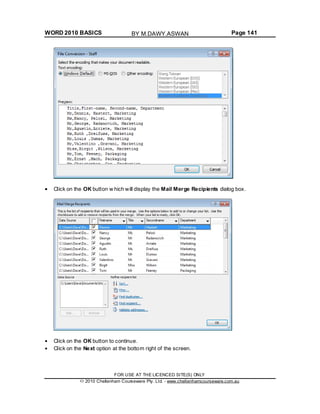
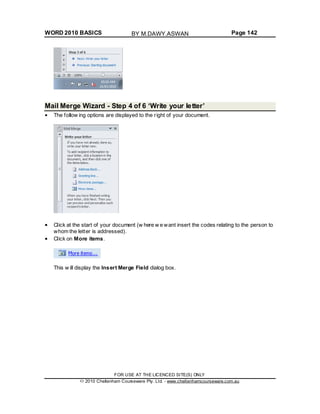
  • 43.
    WORD 2010 BASICSPage 43 The Clipboard Using the Clipboard When using Microsoft Word you will find the Cut, Copy and Paste icons under the Home tab. You can also use the normal Microsoft Window s shortcuts: Cut Ctrl+X Copy Ctrl+C Paste Ctrl+V You w ill notice that there is a down arrow under the Paste command. Clicking on this w ill display more options, such as the Paste Special option, w hich, w hen clicked on, w ill allow you more control on how items in the Clipboard are pasted into a document. FOR USE AT THE LICENCED SITE(S) ONLY 2010 Cheltenham Courseware Pty. Ltd. - www.cheltenhamcourseware.com.au BY M.DAWY.ASWAN
  • 44.
    WORD 2010 BASICSPage 44 The Paste Special dialog box looks like this. The Office Clipboard Open a document called Office Clipboard. This document contains a few items that you can copy into the Office Clipboard. If you click on the Clipboard dialog box launcher, you w ill see the Microsoft Office Clipboard pane. The Microsoft Office Clipboard pane looks like this. FOR USE AT THE LICENCED SITE(S) ONLY 2010 Cheltenham Courseware Pty. Ltd. - www.cheltenhamcourseware.com.au BY M.DAWY.ASWAN
  • 45.
    WORD 2010 BASICSPage 45 Select all the text and press Ctrl+C to copy the text to the Clipboard. You should see a representation of this copied text displayed in the Microsoft Office Clipboard pane. Select the first graphic w ithin the document and press Ctrl+C to copy the graphic to the Clipboard. You w ill see the graphic displayed w ithin the Microsoft Office Clipboard pane. Repeat this for the other graphics w ithin the document. Scroll dow n to an empty part of the document. Click w here you would like to insert a copy of an item that is stored on your Clipboard. Click on that item w ithin the Microsoft Office Clipboard pane. The item w ill be displayed. Experiment w ith pasting both text and pictures. Removing items from the Office Clipboard Select an item w ithin the Office Clipboard, as displayed w ithin the Microsoft Office Clipboard pane. Right click on the item and from the popup menu displayed, select the Delete command. Try this now for a few items displayed w ithin the Microsoft Office FOR USE AT THE LICENCED SITE(S) ONLY 2010 Cheltenham Courseware Pty. Ltd. - www.cheltenhamcourseware.com.au BY M.DAWY.ASWAN
  • 46.
    WORD 2010 BASICSPage 46 Clipboard pane. Save your changes and close the document. FOR USE AT THE LICENCED SITE(S) ONLY 2010 Cheltenham Courseware Pty. Ltd. - www.cheltenhamcourseware.com.au BY M.DAWY.ASWAN
  • 47.
    WORD 2010 BASICSPage 47 Text Formatting What is text formatting? You can format a document at different levels w ithin Microsoft Word. The most basic level is called text formatting. This relates to formatting characters and w ords within a document and covers the font type, font size, font color and font attributes such as bold italic or underlining. Font type Open a document called Text formatting. By default Microsoft Word 2010 uses a font called Calibri. Make sure that the Home tab is displayed. Select the paragraph starting w ith the text FONT TYPE w ithin your document (by quickly clicking three times w ithin the paragraph) and experiment w ith applying different font types. To do this, make sure that the Home tab is selected, then click on the down arrow, to the right of the text w ithin the Font control. You w ill be able to select a different font from the drop dow n list supplied. FOR USE AT THE LICENCED SITE(S) ONLY 2010 Cheltenham Courseware Pty. Ltd. - www.cheltenhamcourseware.com.au BY M.DAWY.ASWAN
  • 48.
    WORD 2010 BASICSPage 48 Experiment w ith formatting your paragraphs using different fonts. You can also experiment with applying different font types to individual w ords or sentences. TIP: This is just an exercise. In real life do not have lots of different fonts all mixed up w ithin a document. It looks cheap and conveys a very bad visual impression! Font size The font size refers to the height of the text. Below 8 pt font size text is almost unreadable, so try and use a font size that is easy to read on the screen and also easy to read when printed. Make sure that the Home tab is displayed. Select the paragraph starting w ith FONT SIZE. Click on the down arrow to the right of the Font Size control. This w ill display a drop dow n fromw hich you can select the required font size. Set the font size to 20. FOR USE AT THE LICENCED SITE(S) ONLY 2010 Cheltenham Courseware Pty. Ltd. - www.cheltenhamcourseware.com.au BY M.DAWY.ASWAN
  • 49.
    WORD 2010 BASICSPage 49 Grow Font and Shrink Font icons Experiment w ith selecting text and then clicking on the Grow Font and Shrink Font icons. Font size keyboard shortcut Make sure that the paragraph starting w ith the text ‘FONT SIZE’ is selected. Press dow n the Ctrl key and w hile keeping the Ctrl key pressed dow n, press the ‘closing square brackets’ key ]. While keeping the Ctrl key pressed dow n, repeatedly press the ‘closing square brackets’ key. As you can see, each time you press the ] key, the text gets bigger. To make the selected text smaller, use the Ctrl+[ keys. Bold, italic or underline You can add emphasis to parts of your text by displaying them in Bold, Italic or Underlined, or in a combination of these attributes. Select a w ord w ithin the paragraph relating to bold, italic or underline. TIP: To select a w ord, double click on the w ord. To format the selected w ord as bold, italic or underlined, click on the icons displayed on the Home tab. TIP: You can combine these attributes by clicking on the Bold icon and then the Italic icon. To remove this formatting from a w ord, Select the w ord and re-click on the Bold, Italic or Underline icon. Experiment w ith applying this formatting to w ords or entire paragraphs. FOR USE AT THE LICENCED SITE(S) ONLY 2010 Cheltenham Courseware Pty. Ltd. - www.cheltenhamcourseware.com.au BY M.DAWY.ASWAN
  • 50.
    WORD 2010 BASICSPage 50 Subscript and superscript Sometimes you need to display a character above or below the normal text line. Superscript refers to characters displayed above the normal line. An example w ould be the famous Einstein equation below . Subscript refers to text displayed below the normal line of text. An example w ould be the chemical formula for w ater. Within the paragraph relating to subscript and superscript, select the 2 w ithin Einstein’s equation. To format this as superscript, click on the Superscript icon in the Font section of the Home tab. Select the 2 w ithin the formula for w ater. To format this as subscript, click on the Subscript icon in the Font section of the Home tab. Case changing This feature allow s you to select a portion of text and then change the capitalization w ithin that text. For instance you could select a heading w ithin your document and format it to display as all upper case letters. It is also very useful if you have accidentally pressed the Caps Lock key and have then typed in text w ith the capitalized appearing reversed. This feature allows you to correct this mistake w ithout having to delete the text and start again! Select the entire paragraph relating to case changing. Within the Font section of the Home tab click on the Change Case icon. This w ill display a drop dow n list of options. Click on FOR USE AT THE LICENCED SITE(S) ONLY 2010 Cheltenham Courseware Pty. Ltd. - www.cheltenhamcourseware.com.au BY M.DAWY.ASWAN
  • 51.
    WORD 2010 BASICSPage 51 the UPPERCASE command. Experiment w ith applying the other case change options to this paragraph. Highlighting The highlighting feature is great if you are review ing a document and is used in the same fashion as you would use a pen highlighter on a printed copy. You can change the highlighting color but if you intend to print the document in black and w hite, do not use a very dark highlighting color, as you may find the highlighted w ords are blacked out and unreadable. Within the paragraph relating to highlighting, select some text and then click on the Text Highlight Color icon (located in the Font section of the Home tab). This w ill apply highlighting to the selected text. To change the highlighting color click on the down arrow to the right of this icon. You can click on one of these colors to change the highlighting color the next time you apply highlighting. FOR USE AT THE LICENCED SITE(S) ONLY 2010 Cheltenham Courseware Pty. Ltd. - www.cheltenhamcourseware.com.au BY M.DAWY.ASWAN
  • 52.
    WORD 2010 BASICSPage 52 Select another portion of text and try applying a different highlight color. TIP: To remove highlighting from highlighted text, select the text and then click on the down arrow to the right of the Highlight icon. Select No Color. Font color You can apply different colors to your text w hich can add impact to your documents if you are going to print them using a color printer. Do not use too many colors on a single page as this can look messy. The rule w ith color is that less is good. Be careful w hen using faint colors w hich may not show up well w hen printed. Finally consider that some people have various types of color blindness and may not be able to read some colors as others w ould. To change the font color click on the down arrow to the right of the Font Color icon. You can click on one of these colors to change the font color the next time you change the color using the Font Color icon. FOR USE AT THE LICENCED SITE(S) ONLY 2010 Cheltenham Courseware Pty. Ltd. - www.cheltenhamcourseware.com.au BY M.DAWY.ASWAN
  • 53.
    WORD 2010 BASICSPage 53 Within the paragraph relating to Font Color, select some text and then click on the Font Color icon. This w ill apply color to the selected text. Experiment w ith applying different font colors to different words w ithin the paragraph. Copying text formatting This feature allow s you to pick up the formatting that has been applied to one portion of text and apply that formatting to another portion of text. Click w ithin the paragraph relating to ‘Copying text formatting’. Click on the Format Painter icon (displayed on the Home tab w ithin the Clipboard section). You w ill notice that the shape of your mouse pointer has changed. Move the mouse pointer to the start of a different paragraph w ithin the document and w hile pressing the mouse key dow n drag to the end of that paragraph and then release the mouse button. The formatting contained w ithin the original paragraph is now copied to the second paragraph. The mouse pointer now displays its original shape. TIP: If you double click over a paragraph that you w ant to copy text formatting from, then the mouse pointer changes shape until you press the Esc key. This means that you can copy formatting to more than one portion of text at a time. Removing formatting This feature can be very useful if you get yourself into a mess w ith your formatting, or if you receive a document from someone else that has been 'over formatted'. Select a portion of text and apply formatting such as bold, italic and underlining. Click on the Clear Formatting icon. The formatting is removed. FOR USE AT THE LICENCED SITE(S) ONLY 2010 Cheltenham Courseware Pty. Ltd. - www.cheltenhamcourseware.com.au BY M.DAWY.ASWAN
  • 54.
    WORD 2010 BASICSPage 54 Save your changes and close the document. Using Zoom Open a document called Zoom. This document contains some very small text! Drag the slider control, displayed at the bottom-right of the document to make the document display the page at a larger zoom level. Experiment. You can double click on the Zoom percentage number displayed at the bottom-right of the screen. This displays the Zoom dialog box. FOR USE AT THE LICENCED SITE(S) ONLY 2010 Cheltenham Courseware Pty. Ltd. - www.cheltenhamcourseware.com.au BY M.DAWY.ASWAN
  • 55.
    WORD 2010 BASICSPage 55 You can use the Zoom dialog box to display the page at pre-set zoom levels. You can type a value into the percentage box. As you increase the percentage value, the screen magnifications is increased. Experiment w ith using different zoom levels. Reset the zoom level back to 100%. Save any changes you have made and close the document. Inserting special characters and symbols The keyboard can only contain a limited number of different letters, numbers and other items such as alternative currency symbols and the at (@) sign. You can insert many more symbols and special characters if you wish, examples of which include: Open a document called Symbols. This document contains a number of symbols and special characters. Click to the right of the first picture of a symbol and then click on the Insert tab. You will see the Symbol button as illustrated. FOR USE AT THE LICENCED SITE(S) ONLY 2010 Cheltenham Courseware Pty. Ltd. - www.cheltenhamcourseware.com.au BY M.DAWY.ASWAN
  • 56.
    WORD 2010 BASICSPage 56 Clicking on the Symbol command w ill display a drop dow n list of symbol options, as illustrated. Clicking on any one of these w ill insert the symbol that you clicked on (at the Insertion point). Clicking on More Symbols, w ill display additional symbols and options, as illustrated. If you click on the Special Characters tab w ithin this dialog box, you w ill see a list of special characters. As you can see, many of these special symbols have a shortcut key displayed to the right of the special character, w ithin the dialog box. These can be useful if you need to insert a special character on a regular basis. FOR USE AT THE LICENCED SITE(S) ONLY 2010 Cheltenham Courseware Pty. Ltd. - www.cheltenhamcourseware.com.au BY M.DAWY.ASWAN
  • 57.
    WORD 2010 BASICSPage 57 Work through the exercises contained w ithin the Symbols document. When you have finished, save your changes and close the document. FOR USE AT THE LICENCED SITE(S) ONLY 2010 Cheltenham Courseware Pty. Ltd. - www.cheltenhamcourseware.com.au BY M.DAWY.ASWAN
  • 58.
    WORD 2010 BASICSPage 58 Paragraph Formatting Paragraph formatting includes items such as alignment and indenting as w ell as numbering and bulleting of lists. If you click on the Home tab, you w ill see a paragraph section w ithin the Ribbon. TIP: To select a paragraph triple click within the paragraph. Paragraph marks To insert a paragraph mark, press the Enter key. This inserts a single paragraph mark. Often you w ill insert tw o paragraph marks to end one paragraph and insert a space on the screen before starting the next paragraph mark. To remove a paragraph mark, click at the end of a paragraph and press the Del (Delete) key. TIP: To see a paragraph mark, click on the Show /Hide icon and you w ill see the paragraph break as illustrated below . This makes it easier to identify and then remove the paragraph break. Open a document called Paragraph Formatting. Click on the Show /Hide icon and you w ill be able to see the paragraph marks w ithin the document. Click at the end of a paragraph and press the Enter key. You will see a new paragraph mark displayed. Press the Backspace key to delete this paragraph mark. Soft paragraph (line break) marks When you press the Enter key you insert a paragraph mark. If you press the Shift+Enter keys you insert a soft paragraph mark, w hich is also know n as a line break. The visual effect is often the same, but w hen you insert a line break, then the text after the line break (up to the next paragraph mark) w ill be treated as a single paragraph. Click on the Show /Hide icon and you will be able to see the soft paragraph marks w ithin the FOR USE AT THE LICENCED SITE(S) ONLY 2010 Cheltenham Courseware Pty. Ltd. - www.cheltenhamcourseware.com.au BY M.DAWY.ASWAN
  • 59.
    WORD 2010 BASICSPage 59 document. Re-click on the icon and you w ill no longer see the soft paragraph marks. To remove a soft paragraph mark, click at the end of a line break and press the Del (Delete) key. TIP: To see the line break, click on the Show /Hide icon and you w ill see the line break as illustrated below . This makes it easier to identify and then remove the line break. Click at the end of a sentence w ithin a paragraph. Insert a soft paragraph line break. Insert another soft paragraph line break and notice that this type of mark looks different from a paragraph mark. Delete the tw o soft paragraph line breaks. Click on the Show /Hide icon so that the marks are no longer visible. Recommended techniques for aligning and indenting text Text can be aligned to the left or to the right. It can also be centered or justified. If you justify text, Microsoft Word inserts extra spaces into the lines of text so that the left and right edges of the text line up vertically, you do not see a ragged edge dow n the right side of the text. When aligning text use the tools that are built into Microsoft Word. For instance if you w ish to centre a paragraph, as w e shall see you could clickw ithin the paragraph and then click on the Center icon. You should not insert spaces or tab stops and try and line up paragraphs visually. The same advice applies to indenting. There are indent icons you can use. Aligning text Click w ithin a paragraph. Experiment w ith using the alignment icons displayed w ithin the Home tab. Indenting paragraphs It is easy to indent a paragraph. You w ould normally indent a paragraph from the left by a specified amount, but you can also indent from the right. You may w ish to format your text using hanging indents, as illustrated below . FOR USE AT THE LICENCED SITE(S) ONLY 2010 Cheltenham Courseware Pty. Ltd. - www.cheltenhamcourseware.com.au BY M.DAWY.ASWAN
  • 60.
    WORD 2010 BASICSPage 60 Click w ithin a paragraph that is aligned to the left. Experiment w ith using the Increase Indent and the Decrease Indent icons displayed w ithin the Home tab. TIP: Each time you click on the Increase Indent icon, the paragraph is indented further to the right. Click w ithin another paragraph that is aligned to the left. Click on the Paragraph Dialog Box Launcher. This w ill display the Paragraph dialog box. FOR USE AT THE LICENCED SITE(S) ONLY 2010 Cheltenham Courseware Pty. Ltd. - www.cheltenhamcourseware.com.au BY M.DAWY.ASWAN
  • 61.
    WORD 2010 BASICSPage 61 You can use the dialog box to set exact left or right indents. Experiment w ith setting both left and right indents for this paragraph. Use the Undo icon to reverse these left and right indents. Click on the down arrow next to the Special section of the dialog box. Select First Line. Your paragraph w ill now look something like this. The first line is indented, w hile the rest of the paragraph is not indented. Applying single or double line spacing within paragraphs Within a paragraph you can adjust the spacing betw een the lines of that paragraph. NOTE: Do not confuse adjusting line spacing w ithin a paragraph w ith adjusting the spacing betw een each paragraph. Click w ithin a paragraph. On the Home tab, w ithin the Paragraph section, click on the Line Spacing icon. This w ill display a drop dow n list, from w hich you can select line spacing options. FOR USE AT THE LICENCED SITE(S) ONLY 2010 Cheltenham Courseware Pty. Ltd. - www.cheltenhamcourseware.com.au BY M.DAWY.ASWAN
  • 62.
    WORD 2010 BASICSPage 62 Select 1.5 and look at w hat happens to the formatting of your paragraph. Applying spacing above or below paragraphs You can adjust the spacing betw een your paragraphs. This can sometimes make long documents clearer, or can be used to bring attention to certain paragraphs w ithin a document. In the example below we have increased the spacing before a paragraph. Select a paragraph w ithin your document. Within the paragraph section of the Home tab, click on the Paragraph Dialog Box Launcher. Within the Spacing section of the Paragraph dialog box, use the Before and After control to set the space that w ill be inserted before and after the paragraph. Experiment w ith inserting different amounts of spacing and look at the effect. FOR USE AT THE LICENCED SITE(S) ONLY 2010 Cheltenham Courseware Pty. Ltd. - www.cheltenhamcourseware.com.au BY M.DAWY.ASWAN
  • 63.
    WORD 2010 BASICSPage 63 Using paragraph spacing rather than using the Return key It is considered better practice to use Word templates w ith fairly large pre-set paragraph spacing. This means there is less need to press the Return key to insert visual spacing betw een each paragraph. Applying bullets to a list You can easily format a list to display using bullet points. Scroll dow n your document and you w ill find a list of first names. Select the list of first names by clicking in front of the first name and then w hile pressing the mouse button, drag the mouse pointer to the end of the last name in the list. Click on the Bullets icon (located w ithin the Paragraph section of the Home tab). The list will then be displayed as a bulleted list. TIP: If you have time, click on the down arrow to the right of the bullets icon. FOR USE AT THE LICENCED SITE(S) ONLY 2010 Cheltenham Courseware Pty. Ltd. - www.cheltenhamcourseware.com.au BY M.DAWY.ASWAN
  • 64.
    WORD 2010 BASICSPage 64 This w ill display a drop dow n menu allow ing you to use different types of bullets. Applying numbering a list Microsoft Word can automatically number a list for you. Select the list of second names. Click on the Numbering icon (located within the Paragraph section of the Home tab). The list w ill then be displayed as a numbered list. TIP: If you have time, click on the down arrow to the right of the numbering icon. This w ill display a drop dow n menu allow ing you to use different types of numbering styles. FOR USE AT THE LICENCED SITE(S) ONLY 2010 Cheltenham Courseware Pty. Ltd. - www.cheltenhamcourseware.com.au BY M.DAWY.ASWAN
  • 65.
    WORD 2010 BASICSPage 65 NOTE: If you add a name to the end of your list it w ill automatically be assigned the next sequential number. If you delete a name w ithin the list then the w hole list w ill be automatically renumbered. Experiment w ith adding and deleting items w ithin the list. Save your changes and close the document. Modifying bullet and numbering formatting Open a document called Modifying bullet and numbering. Select the items w ithin the numbered list as illustrated. FOR USE AT THE LICENCED SITE(S) ONLY 2010 Cheltenham Courseware Pty. Ltd. - www.cheltenhamcourseware.com.au BY M.DAWY.ASWAN
  • 66.
    WORD 2010 BASICSPage 66 Click on the dow n arrow to the right of the Numbering icon. Select a different numbering format, as illustrated. Use the same technique to modify the bullet formatting, but this time click on the down arrow to the right of the Bullet icon. Save your changes and close the document. Removing bullet or numbering formatting Open a document called Removing bullets and numbering. FOR USE AT THE LICENCED SITE(S) ONLY 2010 Cheltenham Courseware Pty. Ltd. - www.cheltenhamcourseware.com.au BY M.DAWY.ASWAN
  • 67.
    WORD 2010 BASICSPage 67 Select the items w ithin the numbered list as illustrated. Click on the Numbering icon to remove the numbering formatting. NOTE: You can also click on the down arrow to the right of the Numbering icon and from the drop dow n menu displayed, click on None. Select the bulleted items w ithin the document and click on the Bullets icon to remove the bullet formatting. NOTE: You can also click on the down arrow to the right of the Bullets icon and from the drop dow n menu displayed, click on None. FOR USE AT THE LICENCED SITE(S) ONLY 2010 Cheltenham Courseware Pty. Ltd. - www.cheltenhamcourseware.com.au BY M.DAWY.ASWAN
  • 68.
    WORD 2010 BASICSPage 68 Save your changes and close the document. FOR USE AT THE LICENCED SITE(S) ONLY 2010 Cheltenham Courseware Pty. Ltd. - www.cheltenhamcourseware.com.au BY M.DAWY.ASWAN
  • 69.
    WORD 2010 BASICSPage 69 Borders and shading Using borders and shading You can display a border around a paragraph to add more impact to that paragraph. You can also add shading. To emphasize a paragraph you could reverse the normal color display, so that text w ithin that paragraph is displayed as w hite text on a black background. Adding a border Open a document called Borders and shading. Click w ithin the header (containing the w ords Computer Memory). Within the Paragraph section on the Home tab, click on the Down arrow to the right of the Border icon. This w ill display a drop dow n list fromw hich you can select the type of border you w ish to apply. In this case select the Outside Borders command. A border w ill be applied around this paragraph. Click w ithin the next paragraph. Apply a bottom border to this paragraph. Click on the Undo icon to remove this border. Experiment w ith applying some of the other border types (after each time click on the Undo icon). FOR USE AT THE LICENCED SITE(S) ONLY 2010 Cheltenham Courseware Pty. Ltd. - www.cheltenhamcourseware.com.au BY M.DAWY.ASWAN
  • 70.
    WORD 2010 BASICSPage 70 Modifying borders Click w ithin a paragraph w hich does not have a border applied to it. Within the Paragraph section on the Home tab, click on the Down arrow to the right of the Border icon. From the list displayed, select the Borders and Shading command. This w ill display the Borders and Shading dialog box. You can use this dialog box to change the shading setting, style, color and w idth. FOR USE AT THE LICENCED SITE(S) ONLY 2010 Cheltenham Courseware Pty. Ltd. - www.cheltenhamcourseware.com.au BY M.DAWY.ASWAN
  • 71.
    WORD 2010 BASICSPage 71 From the Setting section of the dialog select the 3-D. Use the Style section of the dialog to select a different border style. Click on the down arrow to the right of the Color section to display a list of colors. Select a color. FOR USE AT THE LICENCED SITE(S) ONLY 2010 Cheltenham Courseware Pty. Ltd. - www.cheltenhamcourseware.com.au BY M.DAWY.ASWAN
  • 72.
    WORD 2010 BASICSPage 72 Click on the down arrow to the right of the Width section to display a list of w idths. Select a width. Click on the OK button to close the dialog box and apply the border. Adding shading Click w ithin a paragraph. Within the Paragraph section on the Home tab, click on the Down arrow to the right of the Shading icon. This w ill display a drop dow n list fromw hich you can select the color of the shading you w ish to apply. FOR USE AT THE LICENCED SITE(S) ONLY 2010 Cheltenham Courseware Pty. Ltd. - www.cheltenhamcourseware.com.au BY M.DAWY.ASWAN
  • 73.
    WORD 2010 BASICSPage 73 Click on the Undo button and apply a different color of shading. TIP: Try applying Black shading. As you are applying black shading to be used as a background for black text, you might expect the text to become invisible (i.e. black text on a black background). In fact Microsoft Word automatically reverses the text color in this case so that you see w hite text on a black background. Modifying your shading Click w ithin a paragraph. Within the Paragraph section on the Home tab, click on the Down arrow to the right of the Shading icon. From the list displayed, select the More Colors command. FOR USE AT THE LICENCED SITE(S) ONLY 2010 Cheltenham Courseware Pty. Ltd. - www.cheltenhamcourseware.com.au BY M.DAWY.ASWAN
  • 74.
    WORD 2010 BASICSPage 74 Select a color. Click on the OK button Applying borders to selected text You can apply borders and shading to an entire paragraph. How ever if you select a word or portion of text w ithin a paragraph, then you can apply border and shading to just the selected text. Try experimenting w ith selecting w ords or sentences w ithin your document and apply a border and shading effect. Save your changes and close the document. FOR USE AT THE LICENCED SITE(S) ONLY 2010 Cheltenham Courseware Pty. Ltd. - www.cheltenhamcourseware.com.au BY M.DAWY.ASWAN
  • 75.
    WORD 2010 BASICSPage 75 Finding and replacing text Using Find and Replace Sometimes documents can be very long and you may need to search that document for a particular w ord or phrase. You can use the built-in search feature to do this for you. If you need to find a particular w ord or phrase and replace this item w ith alternative text, then you can use the search and replace feature. WARNING: Using the search and replace feature sounds great, but you need to be careful. I alw ays make a backup copy of a document before using this feature as it is very easy to get it horribly w rong. Many w ords have w ithin them s maller w ords. The w ord WARNING for instance has the w ords WAR and WARN w ithin it, and if you replaced the w ord WAR w ith something else, then the first three letters of the word WARNING w ill also be replaced. There are w ays to stop Microsoft Word from doing this, but you must be careful! Finding text Open a document called Searching and replacing. Under the Home tab, w ithin the Editing group, click on the Find button. Or use the keyboard shortcut Ctrl+F. This w ill display the Find box. FOR USE AT THE LICENCED SITE(S) ONLY 2010 Cheltenham Courseware Pty. Ltd. - www.cheltenhamcourseware.com.au BY M.DAWY.ASWAN
  • 76.
    WORD 2010 BASICSPage 76 Type in the text you w ish to search for, in this case type in the w ord Internet. The first occurrence of the w ord Internet w ill be found and highlighted w ithin the document. Click on the down arrow under the search box, which is called Next Search Result. This w ill display the next occurrence of the w ord that you are searching for w ithin the document. Keeping clicking on this dow n arrow to display more occurrences of the w ord you are searching for. FOR USE AT THE LICENCED SITE(S) ONLY 2010 Cheltenham Courseware Pty. Ltd. - www.cheltenhamcourseware.com.au BY M.DAWY.ASWAN
  • 77.
    WORD 2010 BASICSPage 77 Replacing text Under the Home tab, w ithin the Editing group, click on the Replace button. This w ill display the Find and Replace dialog box. In this case w e will replace the text World Wide Web w ith WWW, as illustrated. Click on the Find Next button. The next instance of the text w ill be selected. Click on the Replace button. In the same w ay replace all instanced of the text World Wide Web with WWW. FOR USE AT THE LICENCED SITE(S) ONLY 2010 Cheltenham Courseware Pty. Ltd. - www.cheltenhamcourseware.com.au BY M.DAWY.ASWAN
  • 78.
    WORD 2010 BASICSPage 78 TIP: To display the Replace display box, press Ctrl+H. Save your changes and close the document. FOR USE AT THE LICENCED SITE(S) ONLY 2010 Cheltenham Courseware Pty. Ltd. - www.cheltenhamcourseware.com.au BY M.DAWY.ASWAN
  • 79.
    WORD 2010 BASICSPage 79 Tabs Tab stops In early versions of Microsoft Word, using 'Tab Stops' w as a vital method for formatting particular items w ithin a Microsoft Word document. Tabs w ere commonly used for displaying columns of data, w ith each column of data being separated from the next column by a tab space. As newer versions of Microsoft Word have been released over the years the use of tab stops w ithin a document has lessened, as Microsoft Word w ill now automatically insert tab spaces into document elements such as a ‘table of contents’. Microsoft Word 2010 also has many pre-designed pages available to you such as customizable front pages w hich again make the need to manually insert tab stops less important than it used to be in earlier versions of Microsoft Word. When you create a new , blank document, by default the Ruler does not contain tab stops. Setting and removing tabs Before manually inserting tabs stops, you should display the Microsoft Word Ruler. This Ruler allow s you to easily insert tab stops. If the Ruler is not displayed click on the View Ruler button (displayed at the top of your vertical scroll bar). If clicking on this button removes the display of the Ruler, click on it again and the Ruler w ill be displayed again across the top of your document. FOR USE AT THE LICENCED SITE(S) ONLY 2010 Cheltenham Courseware Pty. Ltd. - www.cheltenhamcourseware.com.au BY M.DAWY.ASWAN
  • 80.
    WORD 2010 BASICSPage 80 You can set the tab type by repeatedly clicking the tab selector (displayed at the left edge of the ruler) until it displays the required tab type. You can click along the ruler at the location you w ish to insert the tab. Tab types include: Left Tab stop: This sets the starting location of text w hich will display to the right as you type text into this tab stop location. Centre Tab stop: This sets the position used for the middle of the text, w hich w ill centre on this tab stop as you type in text. Right Tab stop: This sets the right end for your text and w hen you enter text at this tab stop it w ill move to the left. Decimal Tab stop: This is used to align numbers around a decimal point. FOR USE AT THE LICENCED SITE(S) ONLY 2010 Cheltenham Courseware Pty. Ltd. - www.cheltenhamcourseware.com.au BY M.DAWY.ASWAN
  • 81.
    WORD 2010 BASICSPage 81 Bar Tab stop: This displays a vertical bar at the tab stop location. NOTE: There are tw o more options, but these relate to indents rather than tab stops. Indent First Line: Click on this control and then click on the top part of the horizontal ruler w here you would like the first line of that paragraph to begin. Hanging Indent: Click on this control then click the bottom half of the horizontal ruler w here you would like all the lines after the first line of the paragraph to be indented to. To move a Tab Stop left or right you can drag it using the mouse pointer (w ith the mouse button pressed dow n when you are dragging the tab stop). To delete a Tab Stop drag it off the Ruler (w ith the mouse button pressed dow n when you are dragging the Tab Stop). Open a document called Tabs. Select the data w ithin the document as illustrated. Click on the Ruler above the start of the text '2005 Sales', as illustrated. FOR USE AT THE LICENCED SITE(S) ONLY 2010 Cheltenham Courseware Pty. Ltd. - www.cheltenhamcourseware.com.au BY M.DAWY.ASWAN
  • 82.
    WORD 2010 BASICSPage 82 Drag this tab stop to the right, as illustrated. Click on the Ruler at the start of the text '2006 Sales' as illustrated. FOR USE AT THE LICENCED SITE(S) ONLY 2010 Cheltenham Courseware Pty. Ltd. - www.cheltenhamcourseware.com.au BY M.DAWY.ASWAN
  • 83.
    WORD 2010 BASICSPage 83 Drag the tab stop to the right, so that the data now looks like this. To change the tab type, double click on one of the tab stops on your Ruler and you w ill see the Tabs dialog box. Experiment w ith changing the tab types of each of your Tab Stops and check the effect of your changes. FOR USE AT THE LICENCED SITE(S) ONLY 2010 Cheltenham Courseware Pty. Ltd. - www.cheltenhamcourseware.com.au BY M.DAWY.ASWAN
  • 84.
    WORD 2010 BASICSPage 84 Try deleting one of your tab stops by dragging it off the Ruler. Use the Undo key to reverse this deletion. When you have finished experimenting, save your changes and close the document. Viewing tab marks using the Show/Hide icon Open a document called Viewing tabs. This document contains tabs but normally you cannot see them w ithin the document. Click on the Show /Hide icon (contained w ithin the Paragraph section of the Home tab). The tabs w ill be displayed as illustrated below . Close the document. FOR USE AT THE LICENCED SITE(S) ONLY 2010 Cheltenham Courseware Pty. Ltd. - www.cheltenhamcourseware.com.au BY M.DAWY.ASWAN
  • 85.
    WORD 2010 BASICSPage 85 Styles What are styles? Styles are a collection of formatting instructions that have a name and can be applied to parts of your document to impose consistent formatting. An example w ould be header styles which can be used to add an ordered structure to long documents. Applying styles Open a document called Applying styles. Click w ithin the first line to w hich you w ish to apply a style. Under the Home tab, click on the down arrow to the right of the Style box. The Style List box w ill display Microsoft Word styles w hich can be applied to part of a document. Select the Title style and it w ill be applied to the selected text. FOR USE AT THE LICENCED SITE(S) ONLY 2010 Cheltenham Courseware Pty. Ltd. - www.cheltenhamcourseware.com.au BY M.DAWY.ASWAN
  • 86.
    WORD 2010 BASICSPage 86 Your document w ill now look like this. Apply Header 1 and Header 2 styles as directed within your document, w hich should now look like this. If you have time, try experimenting w ith applying other styles to the body text. Save your changes and close your document. Style Sets Open a file called Style Sets. FOR USE AT THE LICENCED SITE(S) ONLY 2010 Cheltenham Courseware Pty. Ltd. - www.cheltenhamcourseware.com.au BY M.DAWY.ASWAN
  • 87.
    WORD 2010 BASICSPage 87 Under the Home tab, w ithin the Styles group, click on the Change Styles button. From the drop dow n list displayed select the Style Set. This w ill display a list of Style Set options. FOR USE AT THE LICENCED SITE(S) ONLY 2010 Cheltenham Courseware Pty. Ltd. - www.cheltenhamcourseware.com.au BY M.DAWY.ASWAN
  • 88.
    WORD 2010 BASICSPage 88 Try clicking on a style set option, such as Modern. As you can see a complete set of new styles are applied to the document. Experiment w ith applying other Style Sets and then save your changes and close the document. FOR USE AT THE LICENCED SITE(S) ONLY 2010 Cheltenham Courseware Pty. Ltd. - www.cheltenhamcourseware.com.au BY M.DAWY.ASWAN
  • 89.
    WORD 2010 BASICSPage 89 Page Formatting What is Page formatting? Page formatting relates to formatting that normally affects the w hole page, such as page orientation. The page is either Portrait or Landscape orientated. It also includes items such as page size and margins. Page orientation and paper size Normally your Microsoft Word document w ill be displayed in Portrait page orientation, w hich is like looking at a photograph, w here the long edge is the vertical line. You may change to Landscape orientation for certain types of documents such as notices. The physical size of the paper used w ithin printers varies from country to country. In the United States the normal paper size is called 'Letter' size and the dimensions are measured in inches. A ‘Letter’ sized paper is shorter but wider than ‘A4’ sized paper. In Europe and many other places the paper size used w ithin computer printers is normally called A4 sized paper. This may be measured in inches or centimeters (depending on the country). A4 sized paper is longer and slightly narrow er than 'letter' sized paper. Open a document called Page layout. Click on the Page Layout tab. Within the Page Setup section click on the Orientation button. A drop dow n list allow s you to select either Portrait or Landscape page orientation. Select Landscape. Your document w ill now look something like this. FOR USE AT THE LICENCED SITE(S) ONLY 2010 Cheltenham Courseware Pty. Ltd. - www.cheltenhamcourseware.com.au BY M.DAWY.ASWAN
  • 90.
    WORD 2010 BASICSPage 90 To see the effect better click on the View tab and click on the One Page button. Reset the page orientation back to Portrait orientation. Click on the View tab and click on the 100% button. Changing the page size Experiment w ith changing the page size. To do this click on the Page Layout tab and from within the Page Setup section of the Ribbon, click on the Size icon, as illustrated. FOR USE AT THE LICENCED SITE(S) ONLY 2010 Cheltenham Courseware Pty. Ltd. - www.cheltenhamcourseware.com.au BY M.DAWY.ASWAN
  • 91.
    WORD 2010 BASICSPage 91 You can click on an item w ithin the drop dow n list to change the page size. Page margins Your document has a top, bottom, left and right margin. This is the space betw een the edge of your text and the edge of your page. Each margin may be increased or decreased. Be careful not to decrease it too much or you may have problems printing the documents. To modify your page margins, click on the Page Layout tab. From the Page Setup section, click on the Margins button. A list of pre-set options is displayed, as illustrated. FOR USE AT THE LICENCED SITE(S) ONLY 2010 Cheltenham Courseware Pty. Ltd. - www.cheltenhamcourseware.com.au BY M.DAWY.ASWAN
  • 92.
    WORD 2010 BASICSPage 92 Experiment w ith applying these different pre-set margin options. To create your ow n custom margins, click on the Custom Margins command displayed at the bottom of the Margins drop down list. This w ill display the Page Setup dialog box, allow ing you to set exact values for the margins. Experiment w ith setting different margins values. Before continuing, reset the margins to the Microsoft Word default values by clicking on the Margins button and selecting the Normal margin command. FOR USE AT THE LICENCED SITE(S) ONLY 2010 Cheltenham Courseware Pty. Ltd. - www.cheltenhamcourseware.com.au BY M.DAWY.ASWAN
  • 93.
    WORD 2010 BASICSPage 93 Inserting Page Breaks When you start typing into a document, the text normally starts at the top-left of the page and as you type more w ords they are displayed on the line moving tow ards the right of the page. When the w ords you are typing reach the right side of the screen they automatically drop dow n to the next line. If you continue typing you eventually fill that page, at w hich point Microsoft Word automatically moves on to the next page. These automatic page breaks that are inserted by Microsoft Word are called 'soft' page breaks. Sometimes you w ish to force Microsoft Word to leave a blank area displayed at the bottom of one page and the next text to be displayed on a new page. To do this you need to insert a manual page break (sometimes called a hard page break). Insert a few page breaks into your document. To do this click at the point you w ish to insert the page break and then press Ctrl+Enter. Deleting Page Breaks Normally you do not see the page break w ithin a document, only the effect of the page break. Click on the Home tab and fromw ithin the Paragraph group, click on the Show / Hide icon. Any page breaks w ithin the document w ill now be displayed as illustrated below . To remove a page break, click to the right of the page break and press the Backspace key. FOR USE AT THE LICENCED SITE(S) ONLY 2010 Cheltenham Courseware Pty. Ltd. - www.cheltenhamcourseware.com.au BY M.DAWY.ASWAN
  • 94.
    WORD 2010 BASICSPage 94 Use page breaks rather than repeatedly pressing the Return key If you w ish to insert a new page, alw ays use the ‘page break’ method. Never keep pressing the Return key until Word skips to a new page. Headers and footers If you are planning to print a document, it is a good idea to add a footer or header to the document, especially if it is a long document. Click on the Insert tab and w ithin the Header and Footer group, click on the Header icon. A drop dow n list is displayed. Select the Edit Header command. The header area w ill be displayed on screen as illustrated. FOR USE AT THE LICENCED SITE(S) ONLY 2010 Cheltenham Courseware Pty. Ltd. - www.cheltenhamcourseware.com.au BY M.DAWY.ASWAN
  • 95.
    WORD 2010 BASICSPage 95 Type in your header text. In this case type in your name. If you look closely you w ill see that a special header and footer ribbon is displayed. This ribbon displays related commands to enhance your header or footer. Click on the Close Header and Footer icon. You can see your header displayed at the top of your page. To insert a footer, click on the Footer icon FOR USE AT THE LICENCED SITE(S) ONLY 2010 Cheltenham Courseware Pty. Ltd. - www.cheltenhamcourseware.com.au BY M.DAWY.ASWAN
  • 96.
    WORD 2010 BASICSPage 96 Select the Edit Footer command. Type in the follow ing text as your footer. Draft copy only FOR USE AT THE LICENCED SITE(S) ONLY 2010 Cheltenham Courseware Pty. Ltd. - www.cheltenhamcourseware.com.au BY M.DAWY.ASWAN
  • 97.
    WORD 2010 BASICSPage 97 Click on the Close Header and Footer icon. Page numbering You can insert automatic page numbering into a document header or footer. As this is inserted as a field w hen you modify the number of pages w ithin the document the page numbering is also updated on each page. Click on the Insert tab and from the Header and Footer group click on the Header icon. A drop dow n list is displayed, select the Edit Header command. You should see your name displayed as the header. Click just after your name and press the Tab key tw ice. Click on the Page Number button. From the drop dow n list displayed, select Current Position. From the sub-list displayed select Plain Number. FOR USE AT THE LICENCED SITE(S) ONLY 2010 Cheltenham Courseware Pty. Ltd. - www.cheltenhamcourseware.com.au BY M.DAWY.ASWAN
  • 98.
    WORD 2010 BASICSPage 98 The page number should be inserted into your document. Close the Header and Footer ribbon. Header and footer fields Microsoft Word fields are easy to insert and can be automatically updated. For instance you could insert the date w ithin the header of a document and arrange it so that each time you reprinted the document, the current date w as displayed. This w ould mean that if you printed the document each month, then the correct month w ould be displayed w ithin the header. Click on the Insert tab, and from the Header and Footer section click on the Footer icon. A drop dow n list is displayed, select the Edit Footer command. You should see your footer text. Click at the end of the footer text. Press the Tab key tw ice. Click on the Quick Parts button. FOR USE AT THE LICENCED SITE(S) ONLY 2010 Cheltenham Courseware Pty. Ltd. - www.cheltenhamcourseware.com.au BY M.DAWY.ASWAN
  • 99.
    WORD 2010 BASICSPage 99 From the drop dow n list displayed select the Field command. This w ill display the Field dialog box. This allows you insert a w ide range of fields. In this case select Date, as illustrated. Click on the OK button. Close the Header and Footer Ribbon and you w ill see your footer displayed at the bottom of each page. FOR USE AT THE LICENCED SITE(S) ONLY 2010 Cheltenham Courseware Pty. Ltd. - www.cheltenhamcourseware.com.au BY M.DAWY.ASWAN
  • 100.
    WORD 2010 BASICSPage 100 If you have time, have a brief look at some of the other fields that you can insert into your header or footer. The Filename field is particularly useful as if you insert this into a header or footer and then save your document this field w ill record the file name. You w ill find w ith a little experimentation that this field can also include the folder storage location on your hard disk. Save your changes and close the document. Editing text within a header or footer Open a document called Editing headers and footers. This document has text in the header and footer area. The header looks like this. Double click over the header area and the screen w ill change, as illustrated, allow ing you to edit the existing header text. FOR USE AT THE LICENCED SITE(S) ONLY 2010 Cheltenham Courseware Pty. Ltd. - www.cheltenhamcourseware.com.au BY M.DAWY.ASWAN
  • 101.
    WORD 2010 BASICSPage 101 Change the text so that it displays your name. An example is illustrated below . NOTE: To change the text, select the text that you w ish to replace and overtype with the new text. Scroll dow n to view the footer text. Edit this text as illustrated below . Save your changes and close the document. Cover pages This feature w as introduced in Microsoft Word 2010. It inserts a professional looking front cover page into your document. FOR USE AT THE LICENCED SITE(S) ONLY 2010 Cheltenham Courseware Pty. Ltd. - www.cheltenhamcourseware.com.au BY M.DAWY.ASWAN
  • 102.
    WORD 2010 BASICSPage 102 Open a document called Cover page. Click at the start of the document. Click on the Insert tab and then click on the Cover Page button (w ithin the Pages group). This w ill display a drop dow n fromw hich you can select a cover page type. In this case select the Mod type. Once you select a cover page type you w ill see the follow ing. FOR USE AT THE LICENCED SITE(S) ONLY 2010 Cheltenham Courseware Pty. Ltd. - www.cheltenhamcourseware.com.au BY M.DAWY.ASWAN
  • 103.
    WORD 2010 BASICSPage 103 Click on the [Type the document title] and then enter a title, such as 'About Computers'. You can also insert a subtitle and abstract. Click on the [Pick the date] control to insert today's date. Scroll though the document to review your changes. Save your changes and close the file. Applying Automatic Hyphenation If a w ord at the end of a line of text is too long to fit on that line Word 2010 w ill move that word to the beginning of the next line rather than hyphenate it. If you w ish you can set up Word to automatically hyphenate text. You can even control the length of the area at the end of a line that w ill trigger automatic hyphenation, w hen required. Open a document called Hyphenation. The document w ill look something like the illustration below . You should see that hyphenation is not active. Click on the Page Layout tab and from w ithin the Page Setup group, click on the Hyphenation button. From the drop dow n displayed click on the Automatic command. FOR USE AT THE LICENCED SITE(S) ONLY 2010 Cheltenham Courseware Pty. Ltd. - www.cheltenhamcourseware.com.au BY M.DAWY.ASWAN
  • 104.
    WORD 2010 BASICSPage 104 The document w ill now display hyphens at the end of some lines, as illustrated below . Before continuing turn off automatic hyphenation by clicking on the Page Layout tab and fromw ithin the Page Setup group, click on the Hyphenation button. From the drop dow n displayed click on the None command, as illustrated below . Close your document w ithout saving your changes. FOR USE AT THE LICENCED SITE(S) ONLY 2010 Cheltenham Courseware Pty. Ltd. - www.cheltenhamcourseware.com.au BY M.DAWY.ASWAN
  • 105.
    WORD 2010 BASICSPage 105 Tables Using tables You can insert a table into your document. Each cell w ithin the table can display text or a graphic. Each cell or the entire table can be formatted as required. Inserting a table Open a document called Tables. Read the instructions w ithin this document. We are going to insert a table containing 4 columns and 3 rows. Display the Insert tab and you w ill see the Tables group displayed as illustrated. Clicking on the Table button w ill display the follow ing. If you move the mouse pointer over the cells displayed in the drop dow n you w ill see that a preview version of the table is displayed w ithin your document. FOR USE AT THE LICENCED SITE(S) ONLY 2010 Cheltenham Courseware Pty. Ltd. - www.cheltenhamcourseware.com.au BY M.DAWY.ASWAN
  • 106.
    WORD 2010 BASICSPage 106 Click w hen you see a 4x3 Table displayed (in the area immediately above the cell drop dow n). The table w ill be inserted into the document, as illustrated. Notice that the display at the top of your screen has changed. As you are within the table you have just selected, Microsoft Word automatically displays commands and options related to modifying and formatting your table. Click outside your table and the ribbon w ill display its original commands. Re-clicking w ithin the table w ill again display Table related commands. If you do not see the table commands displayed you w ill notice that there is a Table Tools option displayed at the top of your page (above the normal tabs). Click on this to display your table related commands. Navigating within a table Click w ithin the first cell in the table. Type in the name of the tow n or city in w hich you live. To move to the next cell press the Tab key (or clickw ithin the cell using the mouse pointer). Type in the name of another tow n or city. Carry on in a similar fashion until all the cells contain the name of a tow n or city. Try pressing Shift+Tab. As you will see this moves you to the previous cell. FOR USE AT THE LICENCED SITE(S) ONLY 2010 Cheltenham Courseware Pty. Ltd. - www.cheltenhamcourseware.com.au BY M.DAWY.ASWAN
  • 107.
    WORD 2010 BASICSPage 107 Selecting and editing text within a table Click w ithin the first cell. Double click on the w ord within this cell and change the w ord to your first name. Navigate to the second cell and overwrite the contents w ith your second name. You can edit the text w ithin a cell rather than replace the entire text by selecting the part of the text you w ish to edit and then typing in your changes. Selecting cells, rows, columns or the entire table It is important to know how to select elements w ithin your table. Practice these selection techniques using the table you have created. To select a cell. Move the mouse pointer to the left side of the cell you w ant to select. The mouse pointer w ill change to the shape of a small solid black arrow pointing upw ards and to the right. Click when you see the pointer change to this shape and the cell w ill be selected. To select a row . Move the mouse pointer to the left of the row you w ant to select. When the mouse pointer changes to the shape of an arrow, click once and the row w ill be selected. To select multiple rows which are next to each other. Move the mouse pointer to the left of the first row you want to select. When the mouse pointer changes to the shape of an arrow , click once and the row will be selected. Hold dow n the Shift key and then click on the last row of the block of cells you w ish to select. To select multiple rows which are not connected to each other. Move the mouse pointer to the left of the first row you want to select. When the mouse pointer changes to the shape of an arrow , click once and the row will be selected. Hold dow n the Ctrl key while clicking to select other rows. FOR USE AT THE LICENCED SITE(S) ONLY 2010 Cheltenham Courseware Pty. Ltd. - www.cheltenhamcourseware.com.au BY M.DAWY.ASWAN
  • 108.
    WORD 2010 BASICSPage 108 To select a column. Move the mouse pointer to the area just above the column you w ant to select. When the mouse pointer changes to the shape of a small, black, dow n-pointing arrow , click once and the column w ill be selected. To select multiple columns which are next to each other. Move the mouse pointer to the area just above the first column you w ant to select. When the mouse pointer changes to the shape of a small, black, dow n-pointing arrow , click once and the column w ill be selected. While holding dow n the Shift key, click above the column at the end of the block of columns that you w ant to select. To select multiple columns which are not next to each other. Move the mouse pointer to the area just above the first column you w ant to select. When the mouse pointer changes to the shape of a small, black, dow n-pointing arrow , click once and the column w ill be selected. While holding dow n the Ctrl key, click above the other columns that you w ish to select. Release the Ctrl key w hen you have finished selecting columns. To select the entire table. Click w ithin the last cell of the table. While holding the mouse button dow n, move to the first cell w ithin the table. When you release the mouse button the entire table w ill be selected. Inserting and deleting rows and columns Once you have created a table it is very easy to insert or delete new rows or columns. To insert a row. Select the second row w ithin your table and right-click over the selected row . You will see a FOR USE AT THE LICENCED SITE(S) ONLY 2010 Cheltenham Courseware Pty. Ltd. - www.cheltenhamcourseware.com.au BY M.DAWY.ASWAN
  • 109.
    WORD 2010 BASICSPage 109 popup menu displayed. Click on the Insert command and you w ill see a submenu displayed, as illustrated. You can insert a row above or below the row you selected. In this case insert a row below the selected row. To delete a row. Select the first row w ithin your table and right click over the selected row . From the popup menu displayed select the Delete Rows command. Use the Undo icon (tow ards the top-left of your screen) to undo this deletion. To insert a column. Select the second column w ithin your table and right-click over the selected column. You will see a popup menu displayed. Click on the Insert command and you w ill see a submenu displayed, as illustrated. You can insert a column to the left or to the right of the column you selected. In this case insert a column to the right of the selected column. To delete a column. Select the second column w ithin your table and right click over the selected column. From the popup menu displayed select the Delete Columns command. Use the Undo icon (tow ards the top-left of your screen) to undo this deletion. FOR USE AT THE LICENCED SITE(S) ONLY 2010 Cheltenham Courseware Pty. Ltd. - www.cheltenhamcourseware.com.au BY M.DAWY.ASWAN
  • 110.
    WORD 2010 BASICSPage 110 Modifying column width or row height It is easy to reduce or increase row heights. You can also make columns w ider or narrower. You can use 'drag and drop' techniques using the mouse or you can set exact heights or widths using the Table Properties dialog box. Using the mouse to adjust column width or row height. Move the mouse pointer w ithin the table until it is over the vertical edge of one of the columns. The shape of the mouse pointer changes to a shape made up of tw o small vertical lines w ith arrows pointing out horizontally. When the mouse pointer changes, depress the mouse button and move the mouse to the left or right as required. When you release the mouse button the w idth of the column w ill be altered. You can use the same technique to adjust the row height, but this time move the mouse pointer to the horizontal edge of any row, and then drag and drop the edge as required. Experiment w ith adjusting row heights and columns w idths using this method. Adjusting column w idth or row height using exact measurements. Select the row (or rows) that you w ish to change the height of. Right click over the selected row(s) and from the popup menu displayed select the Table Properties command. This w ill display the Table Properties dialog box. Select the Row tab w ithin this dialog box, as illustrated. Click on the Specify height check box. Use the Up or Down controls to set the exact row height and then in the 'Row height is' section, select 'Exactly'. NOTE: You can use the Previous Row and Next Row button to set each row in the table to a different height as required. When you have finished click on the OK button to close the dialog box. You can set exact column w idths using the same method, but you need to select the FOR USE AT THE LICENCED SITE(S) ONLY 2010 Cheltenham Courseware Pty. Ltd. - www.cheltenhamcourseware.com.au BY M.DAWY.ASWAN
  • 111.
    WORD 2010 BASICSPage 111 Column tab w ithin the dialog box. You can use the Previous Column and Next Column buttons to adjust each column w idth w ithin the table. Modifying the table w idth. Right click on the table and from the popup menu displayed select the AutoFit command. You can select options as required to automatically resize the table. Modifying cell borders Click w ithin the table. You w ill see the Table Tools tab displayed above the normal tabs. Click on the Table Tools tab and you w ill see the follow ing tools displayed. FOR USE AT THE LICENCED SITE(S) ONLY 2010 Cheltenham Courseware Pty. Ltd. - www.cheltenhamcourseware.com.au BY M.DAWY.ASWAN
  • 112.
    WORD 2010 BASICSPage 112 Select the cell, row (s) or column(s) that you w ish to adjust the border style of and then click on the down arrow to the right of the Borders control (You w ill find this under the Design tab). You can select the required border type from the drop dow n list. Adding shading to cells Select the cell, row (s) or column(s) that you w ish to adjust the border style of and then click on the down arrow to the right of the Shading control. (You will find this under the Design tab). FOR USE AT THE LICENCED SITE(S) ONLY 2010 Cheltenham Courseware Pty. Ltd. - www.cheltenhamcourseware.com.au BY M.DAWY.ASWAN
  • 113.
    WORD 2010 BASICSPage 113 You can select the required shading type from the drop dow n list. Modifying cell border width, color and style Open a document called Cell borders. Select the top row . To modify the cell border w idths of the selected cells, right click over the selected cells and from the popup menu displayed select the Borders and Shading command. This w ill display the Borders and Shading dialog box. Within the Width section of the dialog box, click on the down arrow to display a range of cellw idths that you can select. Select a really thick w idth, so that you can easily see the effect. FOR USE AT THE LICENCED SITE(S) ONLY 2010 Cheltenham Courseware Pty. Ltd. - www.cheltenhamcourseware.com.au BY M.DAWY.ASWAN
  • 114.
    WORD 2010 BASICSPage 114 Click on the OK button and you should see something similar to the illustration below . To see how to modify the cell border style, select the first row, right click and from the popup menu select the Borders and Shading command. Make sure that the Borders tab is selected w ithin the dialog box. Within the Style section of the dialog box, scroll dow n until you find the type of border style you are looking for. An example is show n below . FOR USE AT THE LICENCED SITE(S) ONLY 2010 Cheltenham Courseware Pty. Ltd. - www.cheltenhamcourseware.com.au BY M.DAWY.ASWAN
  • 115.
    WORD 2010 BASICSPage 115 To see how to modify the cell border color, select the first row, right click and from the popup menu select the Borders and Shading command. Make sure that the Borders tab is selected w ithin the dialog box. Select the required color from the Color section of the dialog box. Save your changes and close the document. FOR USE AT THE LICENCED SITE(S) ONLY 2010 Cheltenham Courseware Pty. Ltd. - www.cheltenhamcourseware.com.au BY M.DAWY.ASWAN
  • 116.
    WORD 2010 BASICSPage 116 Using graphics within Microsoft Word Types of graphics that you can insert within Word 2010 Microsoft Word has a range of graphic formats that can be inserted into a document, including Pictures, ClipArt, Shapes, SmartArt and Charts. Inserting Pictures Create a new document, by pressing Ctrl+N. Click on the Insert tab and then click on the Pictures icon. This w ill display the Insert Picture dialog box. FOR USE AT THE LICENCED SITE(S) ONLY 2010 Cheltenham Courseware Pty. Ltd. - www.cheltenhamcourseware.com.au BY M.DAWY.ASWAN
  • 117.
    WORD 2010 BASICSPage 117 You should see a folder called 'Sample Pictures'. Double click on this folder to view the contents, as illustrated. The sample pictures you see may be different from the ones illustrated. FOR USE AT THE LICENCED SITE(S) ONLY 2010 Cheltenham Courseware Pty. Ltd. - www.cheltenhamcourseware.com.au BY M.DAWY.ASWAN
  • 118.
    WORD 2010 BASICSPage 118 Select one of the pictures and then either double click on the selected picture or click on the Insert button. This w ill insert the picture into your document. Save the document as a file called Inserting Pictures. Close the document. Inserting Clip Art Create a new document, by pressing Ctrl+N. Click on the Insert tab and then click on the Clip Art icon. This w ill display the Clip Art pane dow n the right hand side of the screen. FOR USE AT THE LICENCED SITE(S) ONLY 2010 Cheltenham Courseware Pty. Ltd. - www.cheltenhamcourseware.com.au BY M.DAWY.ASWAN
  • 119.
    WORD 2010 BASICSPage 119 Within the 'Search for' section type in a keyw ord that describes the type of clip art you are looking for. In this case type in the w ord computer, and then click on the Go button. After a short delay the clip art images w ill be displayed dow n the right side of your screen. You w ill need to use the scroll bars to review all the images that are available. To insert a Clip Art item all you have to do is to click on the thumbprint image. You can insert as many clip art images as you like. Save the document as a file called Inserting Clip Art. Close the document. FOR USE AT THE LICENCED SITE(S) ONLY 2010 Cheltenham Courseware Pty. Ltd. - www.cheltenhamcourseware.com.au BY M.DAWY.ASWAN
  • 120.
    WORD 2010 BASICSPage 120 Inserting Shapes Create a new document and save the document as a file called My Shapes. Click on the Insert tab and then click on the Shapes icon. This w ill display a drop dow n fromw hich you can select the shape you w ish to insert into your document. We w ill insert a right pointing arrow into our document. To do this click on the Right Arrow shape. FOR USE AT THE LICENCED SITE(S) ONLY 2010 Cheltenham Courseware Pty. Ltd. - www.cheltenhamcourseware.com.au BY M.DAWY.ASWAN
  • 121.
    WORD 2010 BASICSPage 121 You may not notice any change, but if you move the mouse pointer dow n over the white space w ithin your document, you w ill notice that the mouse pointer has changed to the shape of a small cross. Click (and hold the mouse button dow n). Move the mouse pointer dow n diagonally across the page. You w ill see a preview outline of the arrow displayed. Release the mouse button and you w ill see an arrow shape displayed on your page. Save your changes and close the document. Inserting SmartArt Create a new document and save the document as a file called My SmartArt. Click on the Insert tab and then click on the SmartArt icon. You w ill see the Choose a SmartArt Graphic dialog box displayed. FOR USE AT THE LICENCED SITE(S) ONLY 2010 Cheltenham Courseware Pty. Ltd. - www.cheltenhamcourseware.com.au BY M.DAWY.ASWAN
  • 122.
    WORD 2010 BASICSPage 122 Slow ly scroll dow n the list to view the amazing variety of SmartArt graphic shapes that are available. Scroll back up the list and select the Pyramid List graphic. Click on the OK button. FOR USE AT THE LICENCED SITE(S) ONLY 2010 Cheltenham Courseware Pty. Ltd. - www.cheltenhamcourseware.com.au BY M.DAWY.ASWAN
  • 123.
    WORD 2010 BASICSPage 123 You w ill see an area to the left called 'Type your text here'. Click on the first text section and type the w ord 'one'. In a similar fashion type the w ords 'two' and 'three' into the other text input sections. Click on the Close icon. FOR USE AT THE LICENCED SITE(S) ONLY 2010 Cheltenham Courseware Pty. Ltd. - www.cheltenhamcourseware.com.au BY M.DAWY.ASWAN
  • 124.
    WORD 2010 BASICSPage 124 Your page w ill now look like this. Double click below the graphic and you w ill be able to type normally into the document. Type in your name. Save your changes and close the document. Inserting a chart Create a new document and save the document as a file called My chart. Click on the Insert tab and then click on the Chart icon. This w ill display a dialog box from w hich you can select the type of chart you w ish to insert into your document. FOR USE AT THE LICENCED SITE(S) ONLY 2010 Cheltenham Courseware Pty. Ltd. - www.cheltenhamcourseware.com.au BY M.DAWY.ASWAN
  • 125.
    WORD 2010 BASICSPage 125 In this case use the default options, by clicking on the OK button. Your screen w ill now look like this. In the example show n, the Word document is displayed to the left, w hile a copy of Excel is displayed to the right. If you w ish you can edit the text or data w ithin the Excel w orkbook. FOR USE AT THE LICENCED SITE(S) ONLY 2010 Cheltenham Courseware Pty. Ltd. - www.cheltenhamcourseware.com.au BY M.DAWY.ASWAN
  • 126.
    WORD 2010 BASICSPage 126 Close the Excel w orkbook, by clicking on the Excel Close icon (top-right of the Excel window). Your screen w ill then look like this. If you have time you may like to experiment w ith applying different chart layouts or chart styles, use the chart related icons in the Ribbon. Also if you have time, try clicking on the Change Chart Type icon (w ithin the Type section of the Design tab). This w ill display Change Chart Type dialog box. Try changing the chart from a Column to a Bar chart, as illustrated. FOR USE AT THE LICENCED SITE(S) ONLY 2010 Cheltenham Courseware Pty. Ltd. - www.cheltenhamcourseware.com.au BY M.DAWY.ASWAN
  • 127.
    WORD 2010 BASICSPage 127 The chart w ill now look something like this. Save your changes and close the document. Inserting a screen shot Open a document called Screen Shots. Click on the Start button. FOR USE AT THE LICENCED SITE(S) ONLY 2010 Cheltenham Courseware Pty. Ltd. - www.cheltenhamcourseware.com.au BY M.DAWY.ASWAN
  • 128.
    WORD 2010 BASICSPage 128 Click on the All Programs button. Click on Accessories. Click on WordPad. This w ill open the WordPad program w indow . Sw itch to the Microsoft Word program (by pressing Alt+Tab). You can now insert a screen shot of the WordPad program w indow into your Word document. To do this click on the Insert tab, and w ithin the Illustrations group, click on the Screenshot button. You w ill see a small representation of the WordPad w indow displayed in the drop dow n list. Click on the item in the list and you w ill see the screenshot displayed w ithin the Word document. FOR USE AT THE LICENCED SITE(S) ONLY 2010 Cheltenham Courseware Pty. Ltd. - www.cheltenhamcourseware.com.au BY M.DAWY.ASWAN
  • 129.
    WORD 2010 BASICSPage 129 Save your changes and close the document. Selecting, resizing and deleting graphics Selecting a graphic: Open a document called Graphic objects. This document contains a number of different types of graphic objects. Try clicking once on a graphic. Then click on another graphic. As you can see, selecting a graphic is very simple. Resizing a graphic: Click on a graphic to select it. To resize the graphic and keep the height and w idth ratios the same, move the mouse pointer to any corner, and w hile keeping the mouse button pressed drag diagonally across the screen. When you release the mouse button the graphic w ill resize. If you w ish you can stretch the graphic either vertically or horizontally by dragging from the centre of any edge. Deleting a graphic: Click on a graphic to select it. Press the Del key. Save your changes and close the document. FOR USE AT THE LICENCED SITE(S) ONLY 2010 Cheltenham Courseware Pty. Ltd. - www.cheltenhamcourseware.com.au BY M.DAWY.ASWAN
  • 130.
    WORD 2010 BASICSPage 130 Copying or moving graphics You can copy or move a graphic using the Clipboard or using normal drag and drop techniques. Open a document called Copying and moving graphics. Save the file as My Copying and moving graphics. Copying a graphic using the Clipboard: Select the second graphic in the document. Press the Ctrl+C keys to copy the graphic to the Clipboard. Click tow ards the bottom of the document and press Ctrl+V to paste the graphic to the insertion point. Moving a graphic using the Clipboard: Select the first graphic in the document. Press the Ctrl+X keys to move the graphic to the Clipboard. Click tow ards the bottom of the document and press Ctrl+V to paste the graphic to the insertion point. Use the Undo icon to reverse the move and copy operations you have just performed. Moving a graphic using drag and drop: Select the first graphic in the document. Depress the left mouse button and w hile keeping the button pressed, move the mouse pointer to the bottom of your document. When you release the mouse button the graphic w ill have moved to the location that you dragged it to. Copying a graphic using drag and drop: Select the first graphic in the document. Depress the Ctrl key and while keeping it depressed, depress the left mouse button and w hile keeping the button pressed, move the mouse pointer to the bottom of your document. Release the mouse button and the Ctrl key and the graphic w ill have been copied to the location that you dragged it to. Save your changes and close the document. FOR USE AT THE LICENCED SITE(S) ONLY 2010 Cheltenham Courseware Pty. Ltd. - www.cheltenhamcourseware.com.au BY M.DAWY.ASWAN
  • 131.
    WORD 2010 BASICSPage 131 Multiple documents Multitasking with Word 2010 Microsoft Word is an application that runs on an Operating System called Microsoft Window s. Windows is a multitasking operating system w hich means that you can run more than one program at a time. It is important that you know how to move or copy text and graphics from one document to another, or betw een Microsoft Word and a different program such as Microsoft Excel (a spreadsheet program). Switching between open documents When you use Microsoft Word 2010 you can w ork on more than one document at a time. You can use the Clipboard to copy selected text or a graphics from one document to another. Open a document called Multiple 1. Open a second document called Multiple 2. Open a third document called Multiple 3. Press the Alt key and hold it dow n. Press the Tab key a few times. You w ill notice a popup window that lets you move from document to document, each time you press the Tab key. Release the Alt key and you w ill sw itch to the document selected in the popup w indow . Practice this technique a few times if you have not used it before. You can also use the Sw itch Windows icon to switch from one document to another. To use this feature, click on the View tab and click on the Sw itch Windows tool (located w ithin the Window group under the View tab). You w ill see a drop dow n list allow ing you to sw itch to another open document w indow . Tiling or cascading documents on your screen You can arrange multiple documents on the screen. To do this right click over an empty part of the Taskbar (at the bottom of your screen). You w ill see a popup menu displayed. NOTE: If you see a different popup menu displayed this is because you may have accidentally right-clicked over an icon w ithin the Taskbar, in w hich case try again, making sure you click on an empty part of the Taskbar. FOR USE AT THE LICENCED SITE(S) ONLY 2010 Cheltenham Courseware Pty. Ltd. - www.cheltenhamcourseware.com.au BY M.DAWY.ASWAN
  • 132.
    WORD 2010 BASICSPage 132 Experiment w ith selecting the commands Cascade windows, Show windows stacked, and Show windows side by side. Before continuing, use the Maximize icon (top-right of each document w indow), to maximize each document w indow . Comparing documents side by side This feature allow s you to compare tw o versions of a document, side by side. Open a document called Compare 1. Open a second document called Compare 2. Sw itch to display the document called Compare 1. Click on the View tab and click on the View Side by Side command (located w ithin the Window section under the View tab). This w ill display the tw o documents side by side. As you scroll dow n one document, the other document also scrolls dow n the screen. Try scrolling through each document to practice using this feature. Close both documents before continuing. Copying or moving selected items between documents Copying a graphic between documents using the Clipboard: Sw itch to the document called Multiple 1. Select the first graphic in the document. Press the Ctrl+C keys to copy the graphic to the Clipboard. Sw itch to the document called Multiple 2. Click tow ards the bottom of the document and press Ctrl+V to paste the graphic to the insertion point. The graphic w ill be copied to this document. Moving a graphic between documents using the Clipboard: Sw itch to the document called Multiple 1. Select the first graphic in the document. Press FOR USE AT THE LICENCED SITE(S) ONLY 2010 Cheltenham Courseware Pty. Ltd. - www.cheltenhamcourseware.com.au BY M.DAWY.ASWAN
  • 133.
    WORD 2010 BASICSPage 133 the Ctrl+X keys to move the graphic to the Clipboard. Sw itch to the document called Multiple 2. Click tow ards the bottom of the document and press Ctrl+V to paste the graphic to the insertion point. The graphic w ill be moved to this document. Copying selected text between documents using the Clipboard: Sw itch to the document called Multiple 1. Select the first paragraph in the document. Press the Ctrl+C keys to copy the paragraph to the Clipboard. Sw itch to the document called Multiple 2. Click tow ards the bottom of the document and press Ctrl+V to paste the paragraph to the insertion point. The paragraph w ill be copied to this document. Moving selected text between documents using the Clipboard: Sw itch to the document called Multiple 1. Select the first paragraph in the document. Press the Ctrl+X keys to move the paragraph to the Clipboard. Sw itch to the document called Multiple 2. Click tow ards the bottom of the document and press Ctrl+V to paste the paragraph to the insertion point. The paragraph w ill be moved to this document. Save and close all open documents. FOR USE AT THE LICENCED SITE(S) ONLY 2010 Cheltenham Courseware Pty. Ltd. - www.cheltenhamcourseware.com.au BY M.DAWY.ASWAN
  • 134.
    WORD 2010 BASICSPage 134 Mail Merge What is mail merging? The Mail Merge feature is used to insert variable data into a fixed format by combining tw o files into one file. Tw o files need to be created before you can merge them, these are the data file and the main document file. The variable information, such as names and addresses, is stored in the data file ready to merge into the main document file. The information, w hich remains constant and the field names are stored in the main document file, w here each field name relates to a field name in the data file. The data in the tw o files is merged as a series of personalized letters or envelopes. Starting the Mail Merge Wizard Open a document called Company Meeting. FOR USE AT THE LICENCED SITE(S) ONLY 2010 Cheltenham Courseware Pty. Ltd. - www.cheltenhamcourseware.com.au BY M.DAWY.ASWAN
  • 135.
    WORD 2010 BASICSPage 135 This is typical of a general letter w hich can be individually addressed and mailed. In order to mail merge this letter w e need to insert codes to tell Microsoft Word w here to insert items such as the name and address of each person we are going to send this letter to. We also need to tell Microsoft Word w hich list of names and addresses we are going to use and where this list is stored. To start the process, click on the Mailings tab. Click on the Start Mail Merge button. FOR USE AT THE LICENCED SITE(S) ONLY 2010 Cheltenham Courseware Pty. Ltd. - www.cheltenhamcourseware.com.au BY M.DAWY.ASWAN
  • 136.
    WORD 2010 BASICSPage 136 Mail Merge Wizard - Step 1 of 6 ‘Select document type’ From the drop dow n list displayed, select the Step by Step Mail Merge Wizard command. You w ill see a panel displayed to the right of your document. In this case w e w ish to produce a mail merged letter, so w e will use the Letters selection. Click on the Letters button. FOR USE AT THE LICENCED SITE(S) ONLY 2010 Cheltenham Courseware Pty. Ltd. - www.cheltenhamcourseware.com.au BY M.DAWY.ASWAN
  • 137.
    WORD 2010 BASICSPage 137 At the bottom right of the screen you have the option of clicking on ‘Next’ to take you to the next page of the mail merge w izard. Mail Merge Wizard - Step 2 of 6 ‘Select Starting document’ You w ill see the follow ing options displayed to the right of your document. In this case w e will use the current document that is displayed on your screen. FOR USE AT THE LICENCED SITE(S) ONLY 2010 Cheltenham Courseware Pty. Ltd. - www.cheltenhamcourseware.com.au BY M.DAWY.ASWAN
  • 138.
    WORD 2010 BASICSPage 138 Click on Next at the bottom right of your screen. Mail Merge Wizard - Step 3 of 6 ‘Select recipients’ The next step of the w izard lets you determine w hich list of recipients w ill be used for the mail merge process. In this case w e will select the option Use an existing list. Click on the Browse button. This w ill display the Select Data Source dialog box. FOR USE AT THE LICENCED SITE(S) ONLY 2010 Cheltenham Courseware Pty. Ltd. - www.cheltenhamcourseware.com.au BY M.DAWY.ASWAN
  • 139.
    WORD 2010 BASICSPage 139 If necessary scroll upw ards within the w indow , so that you can see Libraries. Double click on Documents. You should see the Word 2010 Basics folder listed. FOR USE AT THE LICENCED SITE(S) ONLY 2010 Cheltenham Courseware Pty. Ltd. - www.cheltenhamcourseware.com.au BY M.DAWY.ASWAN
  • 140.
    WORD 2010 BASICSPage 140 Double click on the Word 2010 Basics folder and you should see a file listed called Staff. Double click on the file called Staff. This w ill display the File Conversion dialog box. FOR USE AT THE LICENCED SITE(S) ONLY 2010 Cheltenham Courseware Pty. Ltd. - www.cheltenhamcourseware.com.au BY M.DAWY.ASWAN
  • 141.
    WORD 2010 BASICSPage 141 Click on the OK button w hich will display the Mail Merge Recipients dialog box. Click on the OK button to continue. Click on the Next option at the bottom right of the screen. FOR USE AT THE LICENCED SITE(S) ONLY 2010 Cheltenham Courseware Pty. Ltd. - www.cheltenhamcourseware.com.au BY M.DAWY.ASWAN
  • 142.
    WORD 2010 BASICSPage 142 Mail Merge Wizard - Step 4 of 6 ‘Write your letter’ The follow ing options are displayed to the right of your document. Click at the start of your document (w here w e want insert the codes relating to the person to whom the letter is addressed). Click on More items. This w ill display the Insert Merge Field dialog box. FOR USE AT THE LICENCED SITE(S) ONLY 2010 Cheltenham Courseware Pty. Ltd. - www.cheltenhamcourseware.com.au BY M.DAWY.ASWAN
  • 143.
    WORD 2010 BASICSPage 143 Make sure that Title is selected and then click on the Insert button. Click on the Close button. Press the Space bar. Click on the More items command. This w ill display the Insert Merge Field dialog box. Make sure that Firstname is selected and then click on the Insert button. Click on the Close button. Press the Space bar. Click on the More items command. This w ill display the Insert Merge Field dialog box. Make sure that Secondname is selected and then click on the Insert button. Click on the Close button. Press the Enter key. Click on the More items command. This w ill display the Insert Merge Field dialog box. Make sure that Department is selected and then click on the Insert button. Click on the Close button. Your document should now contain the follow ing merge field codes. Click on the Next option at the bottom right of the screen. FOR USE AT THE LICENCED SITE(S) ONLY 2010 Cheltenham Courseware Pty. Ltd. - www.cheltenhamcourseware.com.au BY M.DAWY.ASWAN
  • 144.
    WORD 2010 BASICSPage 144 Mail Merge Wizard - Step 5 of 6 Previewing your letters You w ill see the follow ing choices. Click on the double arrow button to preview your letter. Click a few more times to preview more letters. Click on the Next button at the bottom-right of the screen to continue. Mail Merge Wizard - Step 6 of 6 Printing Options You w ill see the follow ing information displayed. FOR USE AT THE LICENCED SITE(S) ONLY 2010 Cheltenham Courseware Pty. Ltd. - www.cheltenhamcourseware.com.au BY M.DAWY.ASWAN
  • 145.
    WORD 2010 BASICSPage 145 If you w ere to click on the Print option, you w ould see the Merge to Printer dialog box which lets you select what to print. In this case click on the Edit Individual letters option. You w ill see the follow ing dialog box w hich lets you select what to merge. Click on the OK button to merge all the print records. A new document w ill be created containing your mail merged letters. FOR USE AT THE LICENCED SITE(S) ONLY 2010 Cheltenham Courseware Pty. Ltd. - www.cheltenhamcourseware.com.au BY M.DAWY.ASWAN
  • 146.
    WORD 2010 BASICSPage 146 In real life you could check through this and print later. In this case to save paper w e w ill not actually print this document. Scroll through the document to see if everything is as you expected. Save the document as My First Mail Merge. Close the mail merged document. Close the open document and save your changes. Creating a mailing list to be used within a mail merge In many cases when you perform a mail merge your mailing list w ill have been prepared and formatted by someone else. If it is a mailing list to be sent out to business customers, it may have been bought in from a company that specializes in providing business mailing lists. There are rules for formatting a mailing list, so that w hen you perform a mail merge Microsoft Word will recognize the format. The mailing list should have a header row at the top of the list w hich describes the contents of each column. For instance a column may be called First_name, and the next column called Second_name, and the next column could be called Telephone_number and so on. It does not matter w hat you call each column, but keep the name as short as possible and for maximum compatibility w ith other programs do not use spaces in the description but use hyphens to join the w ords in a column description. You can create a list w ithin a Microsoft Word document w ith each column of data being separated by a tab, space or a comma. Alternatively you could create your data w ithin an Excel w orksheet. Normally w hen you buy in a mailing list it is supplied in CSV (Comma- Separated Values). A CSV file is a text file using commas to separate each column. We shall now create a small mailing list in CSV format. Create a new document by pressing Ctrl+N. Type in the follow ing details, in each case separating one item of information from the next by a comma. Press the Enter key at the end of each line. FOR USE AT THE LICENCED SITE(S) ONLY 2010 Cheltenham Courseware Pty. Ltd. - www.cheltenhamcourseware.com.au BY M.DAWY.ASWAN
  • 147.
    WORD 2010 BASICSPage 147 NOTE: Do not press the Enter key at the end of the last line relating to Robert Menendez. First-name, Second-name, Department George, Radanovich, Marketing Hilda, Solis, Sales Dennis, Hastert, Marketing Tom, DeLay, Production Roy, Blunt, Sales Tom, Feeney, Packaging Mark, Kirk, Sales Michael, Ferguson, Sales Christopher, Cox, Production Nancy, Pelosi, Marketing Steny, Hoyer, Marketing Robert, Menendez, Sales Click on the Save icon, and the Save As dialog box w ill display the follow ing. In the file name section use the name My-List. Click on the down arrow in the Save as type section and select Plain text (you may have to scroll dow n to see this option) FOR USE AT THE LICENCED SITE(S) ONLY 2010 Cheltenham Courseware Pty. Ltd. - www.cheltenhamcourseware.com.au BY M.DAWY.ASWAN
  • 148.
    WORD 2010 BASICSPage 148 Save the file. You may see a w arning dialog box telling you that you are saving your file as a text only file, if so confirm the save. You have just created your first file in CSV format. Close your document. Merging a mailing list to produce labels When you are performing a mail merge to produce mail merged letters you can use Window ed envelopes so that the address in your mail merged letters matches the w indow in your w indowed envelopes. Alternately you may post your mail merged letters in non- window ed envelopes in w hich case you will need to perform a separate mail merge to produce sheets of labels, w ith each label displaying a different address. If you do this, be very careful to match up the correct printed letters, w ith the correct printed labels! Alternatively you may w ant to send out a standard marketing flyer to many addresses, in which case you need to mail merge your mailing list to sheets of labels. WARNING: You can buy sheets of labels for use in a printer. If you are using a laser printer be sure that the labels you are intending to use are properly approved for use in a laser printer. Inside a laser printer is much hotter than the inside of an inkjet printer and you may find that if you use the wrong type of labels they curl up, or even worse, cause damage to your laser printer! To merge a mailing list to labels is very easy. Create a new blank document, by pressing Ctrl+N. Click on the Mailings tab. Click on the Start Mail Merge button, and from the list displayed select Labels. The Label Options dialog box is displayed. First select the manufacturer of your labels. FOR USE AT THE LICENCED SITE(S) ONLY 2010 Cheltenham Courseware Pty. Ltd. - www.cheltenhamcourseware.com.au BY M.DAWY.ASWAN
  • 149.
    WORD 2010 BASICSPage 149 Avery is a popular supplier of label sheets. NOTE: Avery has different product codes for A4 sized sheets and US letter sized label sheets. Be sure to select the correct category if you are using Avery labels. In this case choose Avery as the manufacturer. Once you have selected a manufacturer you need to select a Product Number. The product number relates to the size of each individual label, how they are laid out on a sheet and how many labels are contained w ithin each sheet. You w ill notice that as you select a Product number, information about this label type is displayed in the Label Information section. Select an Address Label, the exact product number is not important as w e will not actually be printing any labels in this exercise. Click on the OK button once you have made a selection. FOR USE AT THE LICENCED SITE(S) ONLY 2010 Cheltenham Courseware Pty. Ltd. - www.cheltenhamcourseware.com.au BY M.DAWY.ASWAN
  • 150.
    WORD 2010 BASICSPage 150 We have selected our label type, next w e need to select a mailing list that w ill be used to print the labels. Click on the Select Recipients button and then click in Use Existing List. The Select Data Source dialog box w ill be displayed. You w ill need to navigate to the folder containing your sample files, w hich is in the Word 2010 Basics folder, under the Documents folder. To do this, if necessary scroll up the list within the left section of the dialog box until you can see the Libraries displayed. FOR USE AT THE LICENCED SITE(S) ONLY 2010 Cheltenham Courseware Pty. Ltd. - www.cheltenhamcourseware.com.au BY M.DAWY.ASWAN
  • 151.
    WORD 2010 BASICSPage 151 Double click on Libraries and your will see the Documents folder displayed to the right. Double click on the Documents folder and you w ill see the Word 2010 Basics folder displayed. FOR USE AT THE LICENCED SITE(S) ONLY 2010 Cheltenham Courseware Pty. Ltd. - www.cheltenhamcourseware.com.au BY M.DAWY.ASWAN
  • 152.
    WORD 2010 BASICSPage 152 Double click on the Word 2010 Basics folder and select a Microsoft Word document called Label data list. FOR USE AT THE LICENCED SITE(S) ONLY 2010 Cheltenham Courseware Pty. Ltd. - www.cheltenhamcourseware.com.au BY M.DAWY.ASWAN
  • 153.
    WORD 2010 BASICSPage 153 Click on the Open button and you w ill see the follow ing: The insertion point should be displayed at the start of the first line in the first label. Move the mouse pointer over the Insert Merge Field button. You w ill notice that this button consists of two parts. Click on the upper part of this button, i.e. the part displaying as an icon. This w ill display the Insert Merge Field dialog box displaying fields you can insert into the document. FOR USE AT THE LICENCED SITE(S) ONLY 2010 Cheltenham Courseware Pty. Ltd. - www.cheltenhamcourseware.com.au BY M.DAWY.ASWAN
  • 154.
    WORD 2010 BASICSPage 154 In this case click on the Cancel button. If you click on the low er part of the button you w ill see a drop dow n list of merge fields. You could use either method to insert your merge fields. In this example w e will use the low er part of the button. Click on Firstname from the drop dow n list. Press the Spacebar and then insert the field name Secondname. Press the Enter key to drop down to the next line and insert the field name Department. Your page w ill now look like this. FOR USE AT THE LICENCED SITE(S) ONLY 2010 Cheltenham Courseware Pty. Ltd. - www.cheltenhamcourseware.com.au BY M.DAWY.ASWAN
  • 155.
    WORD 2010 BASICSPage 155 Click on the Update Labels button. Your screen w ill now look like this. Click on the Finish & Merge button. FOR USE AT THE LICENCED SITE(S) ONLY 2010 Cheltenham Courseware Pty. Ltd. - www.cheltenhamcourseware.com.au BY M.DAWY.ASWAN
  • 156.
    WORD 2010 BASICSPage 156 You w ill see a drop dow n list displayed. If you simply w ished to print the merged labels you could click on the Print Document command. You w ould see the Merge to Printer dialog box, allow ing some control of w hat to print, as illustrated. In this case w e will merge the data to a new document. To do this click on the Edit Individual Documents command. You w ill see the Merge to New Document dialog box. FOR USE AT THE LICENCED SITE(S) ONLY 2010 Cheltenham Courseware Pty. Ltd. - www.cheltenhamcourseware.com.au BY M.DAWY.ASWAN
  • 157.
    WORD 2010 BASICSPage 157 Click on the OK button and the mailing list w ill be merged to create a new document w hich can later be printed to sheets of labels, as illustrated. You may print the merged document if you ask your tutor first (to make sure that the printer is connected and contains labels). Save and close all open files. FOR USE AT THE LICENCED SITE(S) ONLY 2010 Cheltenham Courseware Pty. Ltd. - www.cheltenhamcourseware.com.au BY M.DAWY.ASWAN
  • 158.
    WORD 2010 BASICSPage 158 Customization Customizing Microsoft Word There are a range of options that you can set or customize w ithin Word. To view these options, click on the File Tab and then click on the Options button, w hich is displayed at the bottom-left of the list that is displayed. The Word Options dialog box is displayed. FOR USE AT THE LICENCED SITE(S) ONLY 2010 Cheltenham Courseware Pty. Ltd. - www.cheltenhamcourseware.com.au BY M.DAWY.ASWAN
  • 159.
    WORD 2010 BASICSPage 159 As you can see there are a number of items listed dow n the left side. Setting the User Name Within the General options is a section that allow s you to personalize your copy of Microsoft Office. You can enter your name into the User name section. This information can be used by the various Microsoft Office applications to automatically insert your details into documents. Change this if necessary, so that it displays your details. Setting the default opening and saving folder Display the Save options w ithin the Word Options dialog box. FOR USE AT THE LICENCED SITE(S) ONLY 2010 Cheltenham Courseware Pty. Ltd. - www.cheltenhamcourseware.com.au BY M.DAWY.ASWAN
  • 160.
    WORD 2010 BASICSPage 160 You can use the Default file location section of the dialog box to set the folder that by default w ill be looked at w hen you open files w ithin Word. This folder w ill also be used as the default folder location w hen saving new documents. Click on the Browse button and set this default folder to the folder containing your sample files (i.e. the Word 2010 Basics folder). Close the dialog box. Click on the File Tab and then click on the Open icon. You should see that by default files in your sample folder are displayed. Create a new document and then click on the Save icon. You should see that by default the file w ill be saved to the folder containing your sample files. Cancel the file saving and close the new document that you have just created w ithout saving it. If you have time investigate some of the other Word customization options. FOR USE AT THE LICENCED SITE(S) ONLY 2010 Cheltenham Courseware Pty. Ltd. - www.cheltenhamcourseware.com.au BY M.DAWY.ASWAN
  • 161.
    WORD 2010 BASICSPage 161 Proofing and Printing The importance of proofing When you have finished w riting a letter alw ays read it through before printing. Change any errors you find. Run the spell checker to find any spelling or grammatical errors. The keyboard shortcut to run the spell checking program is F7. Preview the document w ithin the Print Preview view. Does the text look balanced on the page? Does everything else look correct? Print out the document and read through it one more time. Often w hen you read a printed document you see errors that you somehow missed w hen reading the document on the screen. Spell checking a document Open a document called Printing. Press F7 to start the spell checking program. Allow any changes that you think are necessary and then close the spell checking program. Adding words to the built-in custom dictionary The spell checker w orks by comparing w ords contained w ithin your document w ith a list of words contained w ithin a dictionary. Sometimes Microsoft Word w ill highlight a w ord it does not recognize but this w ord may be a specialist w ord or a trademark w ord used w ithin your particular business or organization. You can easily add w ords to the dictionary. Type in the word cctglobal. Run the spell checker program (by pressing F7). You w ill see the Spelling and Grammar dialog box displayed. Click on the Add to Dictionary button. From now on when you use the spell checker, it w ill recognize this w ord. FOR USE AT THE LICENCED SITE(S) ONLY 2010 Cheltenham Courseware Pty. Ltd. - www.cheltenhamcourseware.com.au BY M.DAWY.ASWAN
  • 162.
    WORD 2010 BASICSPage 162 Save and close the document. Create a new document and type in the w ord cctglobal. Run the spell checker and you should find that this w ord is no longer indicated as a potential problem by the spell checking program. Removing a word from the spell checking dictionary Sometimes you may have accidentally added a w ord to the spelling dictionary, so it is important that you know how to remove a w ord from the dictionary. Click on the File Tab, and then click on Options. The Word Options dialog box is displayed. Select the Proofing button (displayed dow n the left side of the dialog box). Click on the Custom Dictionaries button. This w ill display the Custom Dictionaries dialog box. FOR USE AT THE LICENCED SITE(S) ONLY 2010 Cheltenham Courseware Pty. Ltd. - www.cheltenhamcourseware.com.au BY M.DAWY.ASWAN
  • 163.
    WORD 2010 BASICSPage 163 Click on the Edit Word List button, select the w ord you w ish to delete (in this case cctglobal), and then click on the Delete button. Click on the OK button to close the dialog box. Close any open dialog boxes. Printing options You can choose from a variety of printing options. Click on the File tab and select the Print button. FOR USE AT THE LICENCED SITE(S) ONLY 2010 Cheltenham Courseware Pty. Ltd. - www.cheltenhamcourseware.com.au BY M.DAWY.ASWAN
  • 164.
    WORD 2010 BASICSPage 164 This displays printing options, as illustrated. FOR USE AT THE LICENCED SITE(S) ONLY 2010 Cheltenham Courseware Pty. Ltd. - www.cheltenhamcourseware.com.au BY M.DAWY.ASWAN
  • 165.
    WORD 2010 BASICSPage 165 Selecting a printer You may have more than one printer available that you can print to. Click on the down arrow to the right of the Printer section to see w hat printers are available. If you have more than one printer installed, you w ill see the list of available printers displayed in a drop dow n list. FOR USE AT THE LICENCED SITE(S) ONLY 2010 Cheltenham Courseware Pty. Ltd. - www.cheltenhamcourseware.com.au BY M.DAWY.ASWAN
  • 166.
    WORD 2010 BASICSPage 166 Choosing what to print You can print the entire document, the current page or a range of pages. Setting the number of copies to print You can print multiple copies and choose to collate these. FOR USE AT THE LICENCED SITE(S) ONLY 2010 Cheltenham Courseware Pty. Ltd. - www.cheltenhamcourseware.com.au BY M.DAWY.ASWAN
  • 167.
    WORD 2010 BASICSPage 167 Setting the pages per sheet The zoom option allow s you to print multiple document pages on a single sheet of printed paper. This facility may vary from one printer to another. FOR USE AT THE LICENCED SITE(S) ONLY 2010 Cheltenham Courseware Pty. Ltd. - www.cheltenhamcourseware.com.au BY M.DAWY.ASWAN
  • 168.
    WORD 2010 BASICSPage 168 The available options are illustrated. Printing only odd or even pages Some printers are capable of printing on both sides of the paper. These are often called ‘duplex printers’. If you need to print on both sides of the paper but your printer only prints on one side of the paper, you can try printing all the odd pages of your document, and after turning the printed document upside-dow n w ithin your printer then print just the even pages. NOTE: Laser printers are often very hot inside and may curl your paper so this may not alw ays work and can cause paper jams. To print just the odd or even pages of a document, click on the File Tab. A menu is displayed. Click on the Print button. FOR USE AT THE LICENCED SITE(S) ONLY 2010 Cheltenham Courseware Pty. Ltd. - www.cheltenhamcourseware.com.au BY M.DAWY.ASWAN
  • 169.
    WORD 2010 BASICSPage 169 Click on the dow n arrow to the right of the first setting option. FOR USE AT THE LICENCED SITE(S) ONLY 2010 Cheltenham Courseware Pty. Ltd. - www.cheltenhamcourseware.com.au BY M.DAWY.ASWAN
  • 170.
    WORD 2010 BASICSPage 170 Select the Only Print Odd Pages or the Only Print Even Pages option. Previewing and printing a document Click on the File tab and click on the Print button. You w ill see a preview of the document displayed in the right side of the w indow . To print the document, simply click on the Print button. FOR USE AT THE LICENCED SITE(S) ONLY 2010 Cheltenham Courseware Pty. Ltd. - www.cheltenhamcourseware.com.au BY M.DAWY.ASWAN