
A Quick Tour
about Dreamweaver…
 • Owned by Adobe
 • Current version is Dreamweaver CS6
 • HTML editor
 • WYSIWYG editor "what you see is what you
     get"
      • Content during editing appears very similar
        to the final product (wikipedia definition)


10/17/2012      ITWP1000 Basic Web Programming        2
Dreamweaver…the launch
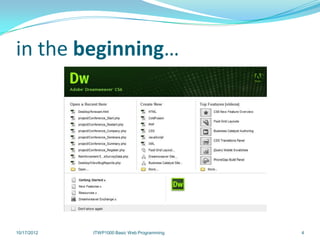
  • When you first launch Dreamweaver you
      see a menu with a lot of choices:
       • Create new documents
         • Choose from basic HTML, PHP, ASP,
           JavaScript, CSS, etc.
       • Top Features (videos)
       • Open Recent documents

10/17/2012     ITWP1000 Basic Web Programming   3
in the beginning…


10/17/2012   ITWP1000 Basic Web Programming   4
the basic layout
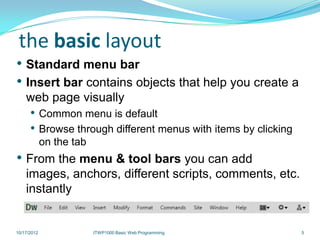
• Standard menu bar
• Insert bar contains objects that help you create a
    web page visually
      • Common menu is default
      • Browse through different menus with items by clicking
             on the tab
• From the menu & tool bars you can add
    images, anchors, different scripts, comments, etc.
    instantly


10/17/2012                ITWP1000 Basic Web Programming        5
the basic layout
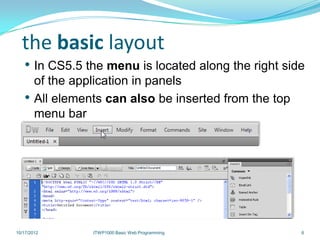
   • In CS5.5 the menu is located along the right side
        of the application in panels
   •    All elements can also be inserted from the top
        menu bar


10/17/2012        ITWP1000 Basic Web Programming         6
the basic layout
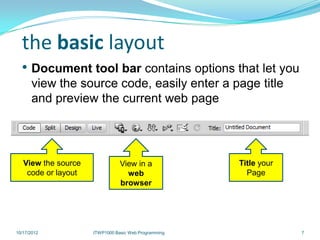
  • Document tool bar contains options that let you
      view the source code, easily enter a page title
      and preview the current web page


   View the source              View in a             Title your
    code or layout                web                   Page
                                browser


10/17/2012           ITWP1000 Basic Web Programming                7
the basic layout
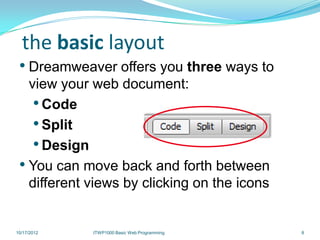
 • Dreamweaver offers you three ways to
   view your web document:
    • Code
    • Split
    • Design
 • You can move back and forth between
   different views by clicking on the icons


10/17/2012   ITWP1000 Basic Web Programming   8
the basic layout
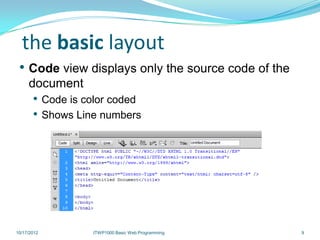
 • Code view displays only the source code of the
     document
       • Code is color coded
       • Shows Line numbers


10/17/2012        ITWP1000 Basic Web Programming    9
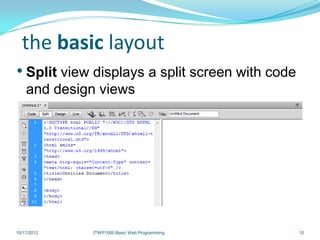
the basic layout
• Split view displays a split screen with code
    and design views


10/17/2012   ITWP1000 Basic Web Programming      10
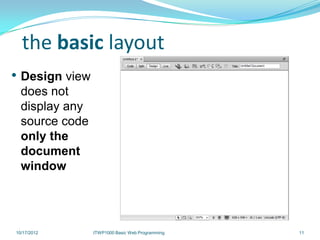
the basic layout
• Design view
  does not
  display any
  source code
  only the
  document
  window


10/17/2012      ITWP1000 Basic Web Programming   11
the basic layout
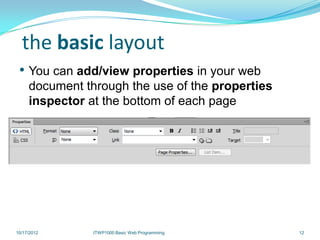
 • You can add/view properties in your web
     document through the use of the properties
     inspector at the bottom of each page


10/17/2012      ITWP1000 Basic Web Programming    12
the basic layout
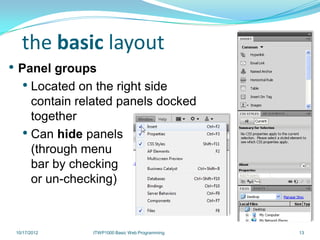
• Panel groups
   • Located on the right side
     contain related panels docked
     together
   • Can hide panels
     (through menu
     bar by checking
     or un-checking)


 10/17/2012     ITWP1000 Basic Web Programming   13
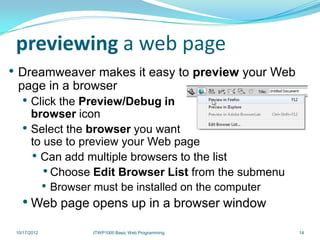
previewing a web page
• Dreamweaver makes it easy to preview your Web
 page in a browser
   • Click the Preview/Debug in
       browser icon
   •   Select the browser you want
       to use to preview your Web page
       • Can add multiple browsers to the list
          • Choose Edit Browser List from the submenu
         • Browser must be installed on the computer
   • Web page opens up in a browser window
 10/17/2012       ITWP1000 Basic Web Programming        14
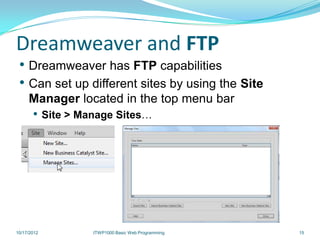
Dreamweaver and FTP
 • Dreamweaver has FTP capabilities
 • Can set up different sites by using the Site
     Manager located in the top menu bar
       • Site > Manage Sites…


10/17/2012        ITWP1000 Basic Web Programming   15
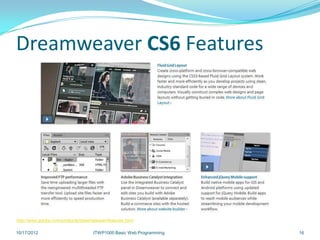
Dreamweaver CS6 Features


http://www.adobe.com/products/dreamweaver/features.html

10/17/2012                          ITWP1000 Basic Web Programming   16
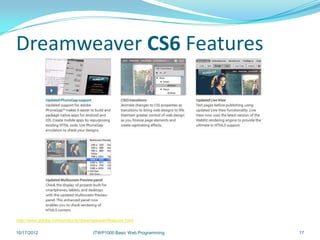
Dreamweaver CS6 Features


http://www.adobe.com/products/dreamweaver/features.html

10/17/2012                          ITWP1000 Basic Web Programming   17
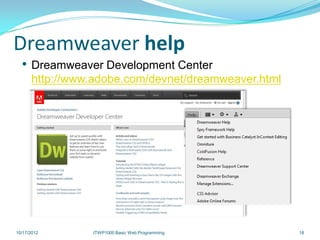
Dreamweaver help
  • Dreamweaver Development Center
      http://www.adobe.com/devnet/dreamweaver.html


10/17/2012      ITWP1000 Basic Web Programming       18
Visit Dreamweaver online…


10/17/2012   ITWP1000 Basic Web Programming   19

Dreamweaver

  • 1.
  • 2.
    about Dreamweaver… •Owned by Adobe • Current version is Dreamweaver CS6 • HTML editor • WYSIWYG editor "what you see is what you get" • Content during editing appears very similar to the final product (wikipedia definition) 10/17/2012 ITWP1000 Basic Web Programming 2
  • 3.
    Dreamweaver…the launch • When you first launch Dreamweaver you see a menu with a lot of choices: • Create new documents • Choose from basic HTML, PHP, ASP, JavaScript, CSS, etc. • Top Features (videos) • Open Recent documents 10/17/2012 ITWP1000 Basic Web Programming 3
  • 4.
    in the beginning… 10/17/2012 ITWP1000 Basic Web Programming 4
  • 5.
    the basic layout •Standard menu bar • Insert bar contains objects that help you create a web page visually • Common menu is default • Browse through different menus with items by clicking on the tab • From the menu & tool bars you can add images, anchors, different scripts, comments, etc. instantly 10/17/2012 ITWP1000 Basic Web Programming 5
  • 6.
    the basic layout • In CS5.5 the menu is located along the right side of the application in panels • All elements can also be inserted from the top menu bar 10/17/2012 ITWP1000 Basic Web Programming 6
  • 7.
    the basic layout • Document tool bar contains options that let you view the source code, easily enter a page title and preview the current web page View the source View in a Title your code or layout web Page browser 10/17/2012 ITWP1000 Basic Web Programming 7
  • 8.
    the basic layout • Dreamweaver offers you three ways to view your web document: • Code • Split • Design • You can move back and forth between different views by clicking on the icons 10/17/2012 ITWP1000 Basic Web Programming 8
  • 9.
    the basic layout • Code view displays only the source code of the document • Code is color coded • Shows Line numbers 10/17/2012 ITWP1000 Basic Web Programming 9
  • 10.
    the basic layout •Split view displays a split screen with code and design views 10/17/2012 ITWP1000 Basic Web Programming 10
  • 11.
    the basic layout •Design view does not display any source code only the document window 10/17/2012 ITWP1000 Basic Web Programming 11
  • 12.
    the basic layout • You can add/view properties in your web document through the use of the properties inspector at the bottom of each page 10/17/2012 ITWP1000 Basic Web Programming 12
  • 13.
    the basic layout •Panel groups • Located on the right side contain related panels docked together • Can hide panels (through menu bar by checking or un-checking) 10/17/2012 ITWP1000 Basic Web Programming 13
  • 14.
    previewing a webpage • Dreamweaver makes it easy to preview your Web page in a browser • Click the Preview/Debug in browser icon • Select the browser you want to use to preview your Web page • Can add multiple browsers to the list • Choose Edit Browser List from the submenu • Browser must be installed on the computer • Web page opens up in a browser window 10/17/2012 ITWP1000 Basic Web Programming 14
  • 15.
    Dreamweaver and FTP • Dreamweaver has FTP capabilities • Can set up different sites by using the Site Manager located in the top menu bar • Site > Manage Sites… 10/17/2012 ITWP1000 Basic Web Programming 15
  • 16.
  • 17.
  • 18.
    Dreamweaver help • Dreamweaver Development Center http://www.adobe.com/devnet/dreamweaver.html 10/17/2012 ITWP1000 Basic Web Programming 18
  • 19.
    Visit Dreamweaver online… 10/17/2012 ITWP1000 Basic Web Programming 19