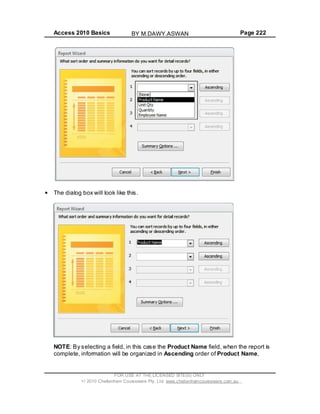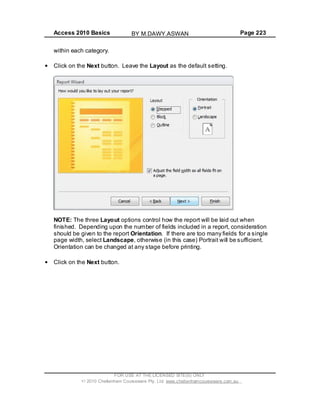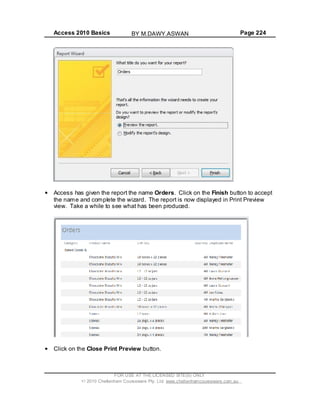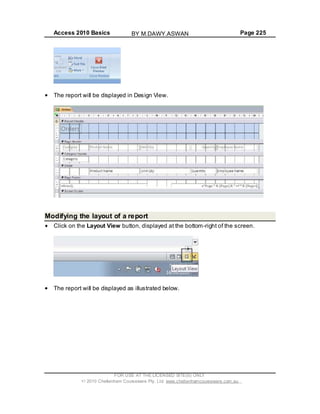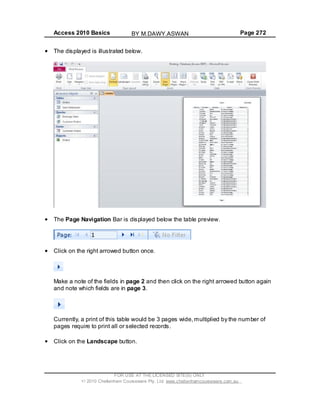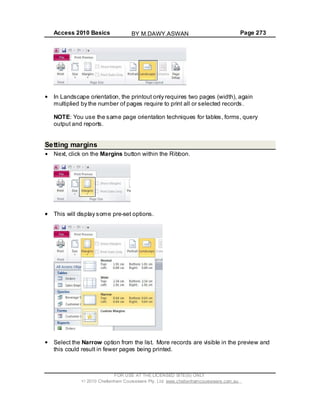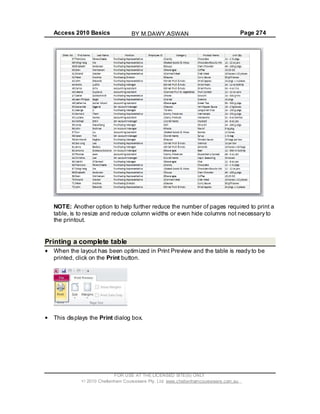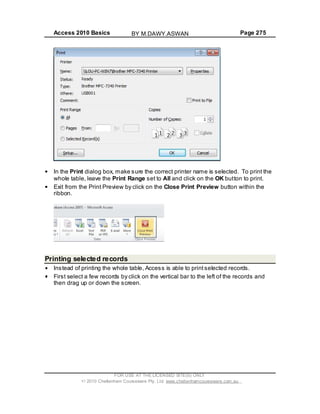

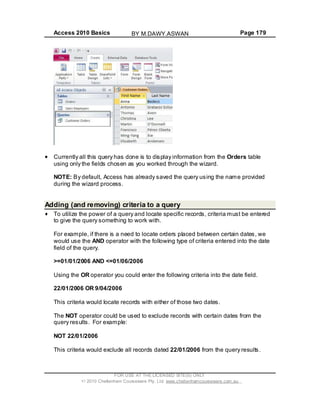
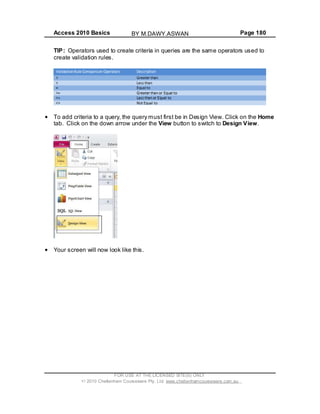
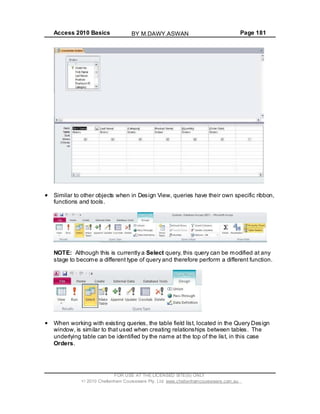
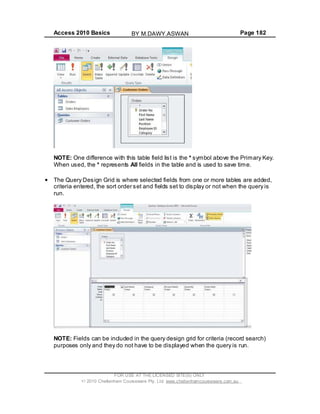
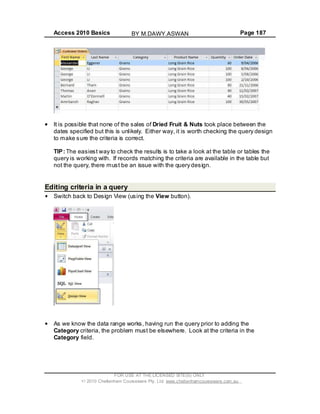
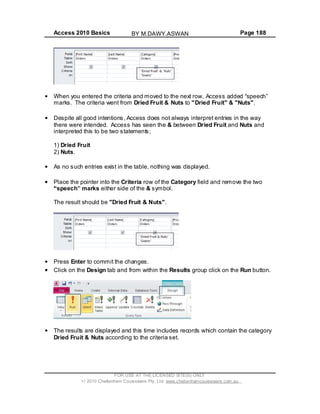
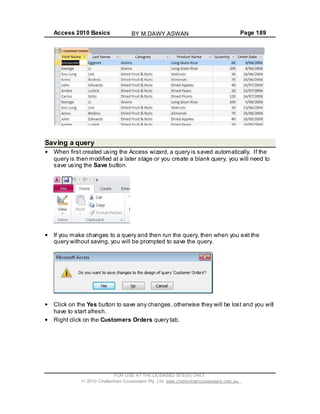
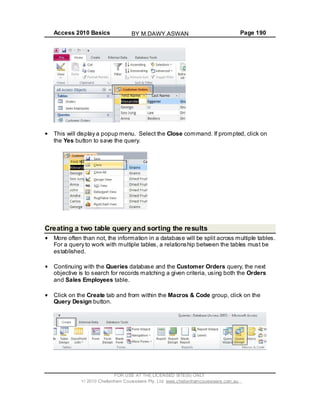
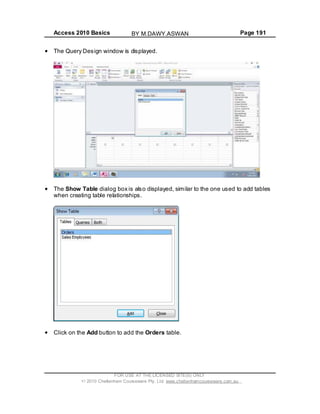
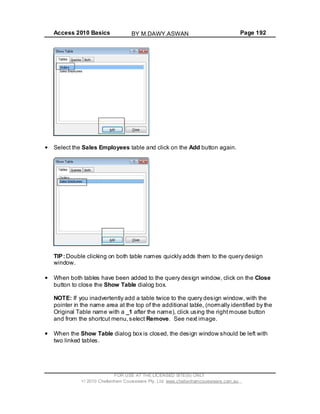
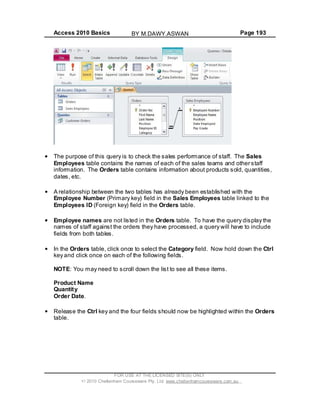
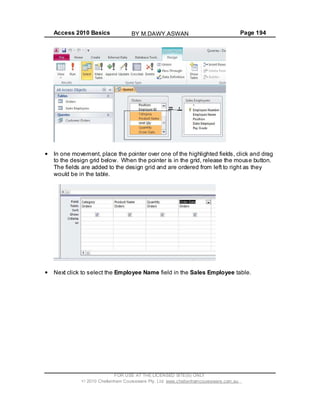
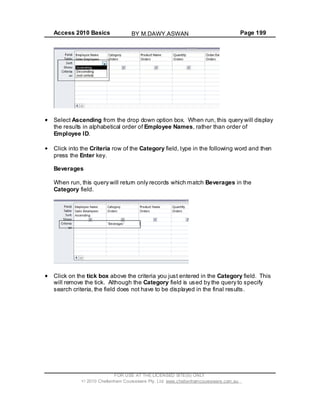
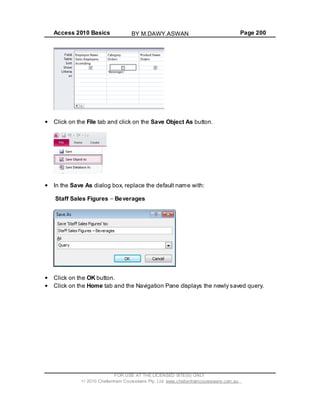
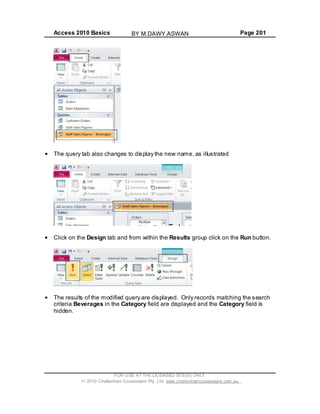
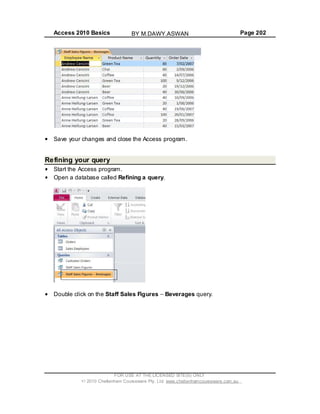
Access 2010
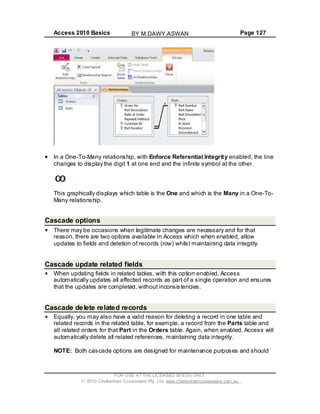
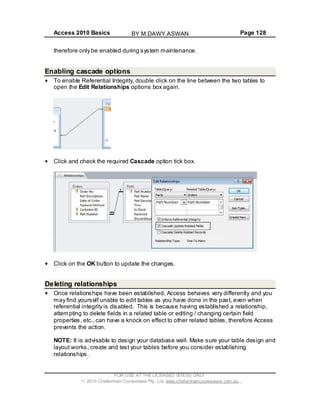
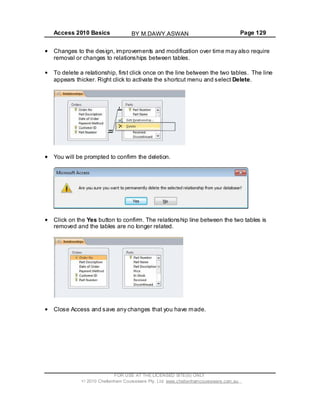
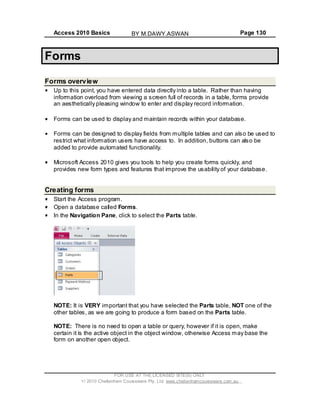
Basics
BY M.DAWY.ASWAN
Access 2010 Basics Page 2
© 2010 Cheltenham Courseware Pty. Ltd.
All trademarks acknowledged. E&OE.
No part of this document may be copied without written permission from Cheltenham Courseware unless produced
under the terms of a courseware site license agreement with Cheltenham Courseware.
All reasonable precautions have been taken in the preparation of this document, including both technical and non-
technical proof ing. Cheltenham Courseware and all staff assume no responsibility f or any errors or omissions. No
warranties are made, expressed or implied with regard to these notes. Cheltenham Courseware shall not be
responsible for any direct, incidental or consequential damages arisingf rom the use of any material contained in this
document. If y ouf ind any errors in these training modules, please inf orm Cheltenham Courseware. Whilst ev ery effort
is made to eradicate ty ping or technical mistakes, we apologize f or any errors y ou may detect. All courses are
updated on a regular basis, so your feedback is both valued by us and will help us to maintain the highest possible
standards.
Sample versions of courseware from Cheltenham Courseware
(Normally supplied in Adobe Acrobat format): If the version of courseware that you arev iewing is marked as NOT
FOR TRAINING, SAMPLE, or similar, then it cannot be used as part of a training course, and is made available
purely f or content and style review. This is to giv ey ou the opportunity to prev iew our courseware, prior to making a
purchasing decision. Sample versions may not be re-sold to a third party.
For current license information
This document may only be used under the terms of the license agreement f rom Cheltenham Courseware.
Cheltenham Courseware reserves the right to alter the licensing conditions at any time, without prior notice. Please
see the site license agreement available at: www.cheltenhamcourseware.com.au/agreement
Contact Information
Australia / Asia Pacific / Europe (ex. UK / Ireland) / Rest of the World
Email: info@cheltenhamcourseware.com.au
Web: www.cheltenhamcourseware.com.au
USA / Canada
Email: info@cheltenhamcourseware.com
Web: www.cheltenhamcourseware.com
UK / Ireland
Email: info@cctglobal.com
Web: www.cctglobal.com
FOR USE AT THE LICENSED SITE(S) ONLY
2010 Cheltenham Courseware Pty. Ltd. www.cheltenhamcourseware.com.au
BY M.DAWY.ASWAN
Access 2010 Basics Page 3
TUTOR SETUP INFORMATION.......................................................................................................... 7
DATABASE CONCEPTS.................................................................................................................... 8
WHAT IS A DATABASE?....................................................................................................................... 8
DATABASE EXAMPLES ....................................................................................................................... 8
WHAT IS A RELATIONAL DATABASE? ..................................................................................................... 8
WHAT IS A TABLE? ............................................................................................................................ 8
WHAT IS A RECORD (ROW)?................................................................................................................ 9
WHAT IS A FIELD (COLUMN)?............................................................................................................... 9
WHAT IS DATA? .............................................................................................................................. 10
THE DIFFERENCE BETWEEN DATA AND INFORMATION ............................................................................. 10
DATA TYPES................................................................................................................................... 10
COMMON USES OF LARGE-SCALE DATABASES ...................................................................................... 11
KEEPING DATA DISCRETE ................................................................................................................. 11
EACH FIELD SHOULD CONTAIN ONLY ONE ITEM ..................................................................................... 11
DATABASE DESIGNERS, DATABASE ADMINISTRATORS AND DAT ABASE USERS............................................. 11
OPENING A DATABASE & SECURITY ISSUES ............................................................................... 13
OPENING A DAT ABASE WITHIN YOUR SAMPLES FOLDER.......................................................................... 13
TRUSTED LOCATIONS USING THE TRUST CENTRE.............................................................................. 16
SETTING THE DEFAULT FOLDER LOCATION WITHIN ACCESS .................................................................... 21
CLOSING THE ACCESS PROGRAM ...................................................................................................... 25
TABLES, FIELDS AND FIELD TYPES.............................................................................................. 26
CREATING A NEW BLANK DATABASE ................................................................................................... 26
ADDING FIELDS AND SETTING THE FIELD TYPE ...................................................................................... 29
ABOUT ACCESS DATA TYPES............................................................................................................ 33
CLOSING AND NAMING A TABLE.......................................................................................................... 34
TABLE NAVIGATION & MODIFICATION .......................................................................................... 36
OPENING A TABLE WITHIN A DATABASE ............................................................................................... 36
SWITCHING BETWEEN DATASH EET VIEW AND DESIGN VIEW ................................................................ 37
ADDING RECORDS TO A TABLE........................................................................................................... 39
SAVING CHANGES MADE TO A TABLE................................................................................................... 43
NAVIGATING THROUGH RECORDS WITHIN A TABLE................................................................................. 43
ADJUSTING COLUMN WIDTH .............................................................................................................. 45
AUTOMATICALLY RESIZING A COLUMN WIDTH TO F IT CONTENTS............................................................... 45
MOVING A COLUMN TO REARRANGE THE COLUMN ORDER....................................................................... 46
FIELD PROPERTIES........................................................................................................................ 48
FIELD PROPERTIES ......................................................................................................................... 48
INPUT MASKS................................................................................................................................. 60
VALIDATING NUMBER S..................................................................................................................... 63
VALIDATING DATES ......................................................................................................................... 66
DATA ENTRY REQUIR ED / NOT REQUIRED........................................................................................... 69
FIELD PROPERTIES REFERENCE MATERIALS..................................................................................... 72
FIELD PROPERTIES LOGICAL OPER ATORS ........................................................................................ 73
FIELD PROPERTIES VALIDATION RULE EXAMPLES.............................................................................. 73
FIELD PROPERTIES GENERAL......................................................................................................... 73
FIELD PROPERTIES FORMAT .......................................................................................................... 74
FIELD PROPERTIES INPUT MASK CHARACTERS ................................................................................. 75
FIELD PROPERTIES INPUT MASK EXAMPLES ..................................................................................... 75
MANIPULATING TABLES & RECORDS ........................................................................................... 76
FOR USE AT THE LICENSED SITE(S) ONLY
2010 Cheltenham Courseware Pty. Ltd. www.cheltenhamcourseware.com.au
BY M.DAWY.ASWAN
Access 2010 Basics Page 4
RENAMING A T ABLE ......................................................................................................................... 76
EDITING DATA WITHIN A RECORD........................................................................................................ 77
DELETING DATA WITHIN A R ECORD ..................................................................................................... 79
USING THE UNDO COMMAND ............................................................................................................. 80
DELETING A SINGLE RECORD............................................................................................................. 81
DELETING MULTIPLE RECORDS .......................................................................................................... 82
USING SAVE AS TO BACK UP THE DATABASE USING A DIFFERENT FILE NAME.............................................. 83
DELETING A TABLE .......................................................................................................................... 85
PRIMARY KEYS AND INDEXING..................................................................................................... 86
DEFINING A PRIMARY KEY ................................................................................................................ 86
INDEXING - REFERENCE NOTES......................................................................................................... 88
CREATING A SINGLE-FIELD INDEX....................................................................................................... 90
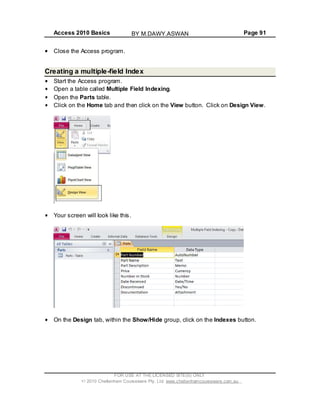
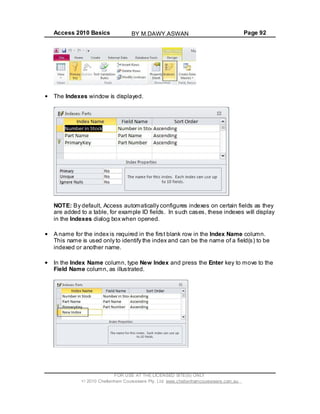
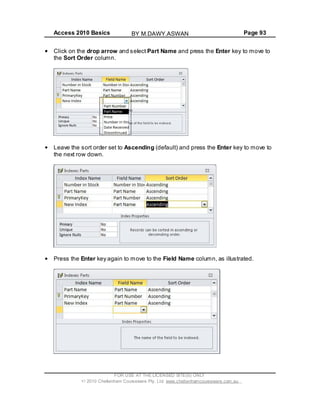
CREATING A MULTIPLE-FIELD INDEX ................................................................................................... 91
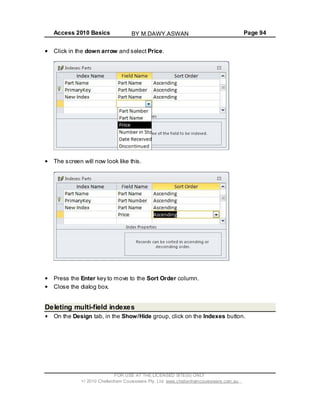
DELETING MULTI-FIELD INDEXES ........................................................................................................ 94
FILTERING ...................................................................................................................................... 96
TEXT FILTERS ................................................................................................................................ 96
APPLYING A SINGLE FILTER ............................................................................................................... 96
CLEARING A SINGLE FILTER ..............................................................................................................101
CREATING MULTIPLE FILTERS ...........................................................................................................102
CLEARING MULTIPLE FILT ERS ...........................................................................................................108
SORTING .......................................................................................................................................110
SORTING RECORDS A-Z .................................................................................................................110
SORTING RECORDS Z-A ..................................................................................................................112
REMOVING A SORT .........................................................................................................................112
SORTING ON MULTIPLE FIELDS .........................................................................................................112
SEARCHING...................................................................................................................................117
SEARCHING THROUGH RECORDS......................................................................................................117
RELATIONSHIPS............................................................................................................................120
TABLE RELATIONSHIPS....................................................................................................................120
ONE-TO-MANY RELATIONSHIP ..........................................................................................................120
MANY-TO-MANY RELATIONSHIP ........................................................................................................121
ONE-TO-ONE RELATIONSHIPS...........................................................................................................121
CREATING RELATIONSHIPS BETWEEN TABLES .....................................................................................122
ABOUT REFERENTIAL INTEGRITY ......................................................................................................125
ENABLING REFERENTIAL INTEGRITY ..................................................................................................126
CASCADE OPTIONS.........................................................................................................................127
CASCADE UPD ATE RELATED FIELDS...................................................................................................127
CASCADE DELETE RELATED RECORDS ...............................................................................................127
ENABLING CASCADE OPT IONS ..........................................................................................................128
DELETING RELATIONSHIPS...............................................................................................................128
FORMS...........................................................................................................................................130
FORMS OVERVIEW..........................................................................................................................130
CREATING FORMS ..........................................................................................................................130
MODIFYING FORMS.........................................................................................................................131
MODIFYING A FORM TITLE ................................................................................................................138
CHANGING A FORM LOGO ................................................................................................................139
MODIFYING A FORM LABEL ...............................................................................................................140
SAVING A FORM .............................................................................................................................142
FORM VIEW ..................................................................................................................................143
FOR USE AT THE LICENSED SITE(S) ONLY
2010 Cheltenham Courseware Pty. Ltd. www.cheltenhamcourseware.com.au
BY M.DAWY.ASWAN
Access 2010 Basics Page 5
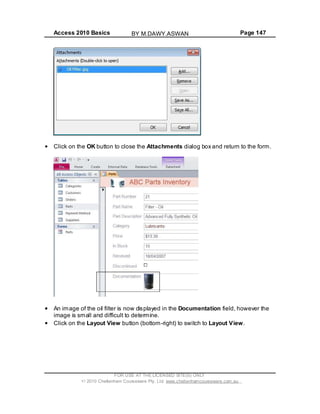
ADDING AND FORMATTING ATTACHMENTS ..........................................................................................144
MODIFYING DATA WITHIN RECORDS...................................................................................................151
DELETING RECORDS USING A FORM ..................................................................................................153
ADDING RECORDS USING A FORM .....................................................................................................155
ADDING OR DELETING TEXT IN A RECORD USING A FORM .......................................................................157
CLOSING FORMS............................................................................................................................157
OPENING FORMS ...........................................................................................................................158
DELETING A FORM ..........................................................................................................................158
FILTERING A FORM .........................................................................................................................159
REMOVING A FILTER FROM A FORM....................................................................................................163
INSERTING AND MODIFYING A FORM HEADER .......................................................................................164
INSERTING AND MODIFYING A FORM FOOTER .......................................................................................168
QUERIES........................................................................................................................................172
WHAT ARE QUERIES? .....................................................................................................................172
CREATING A QUERY........................................................................................................................173
ADDING (AND REMOVING) CRITERIA TO A QUERY..................................................................................179
RUNNING A QUERY .........................................................................................................................183
EDITING CRITERIA IN A QUERY ..........................................................................................................187
SAVING A QUERY ...........................................................................................................................189
CREATING A TWO TABLE QUERY AND SORTING THE RESULT S .................................................................190
REFINING YOUR QUERY...................................................................................................................202
WHAT ARE WILDCARDS?.................................................................................................................208
DELETING A QU ERY ........................................................................................................................209
HIDING AND UN-HIDING FIELDS WITHIN A QUERY ..................................................................................210
REPORTS.......................................................................................................................................213
WHAT ARE REPORTS? ....................................................................................................................213
CREATING A SIMPLE REPORT............................................................................................................213
USING THE REPORT WIZARD ...........................................................................................................216
MODIFYING THE LAYOUT OF A REPORT...............................................................................................225
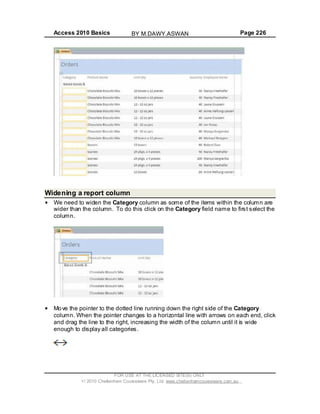
WIDENING A REPORT COLUMN..........................................................................................................226
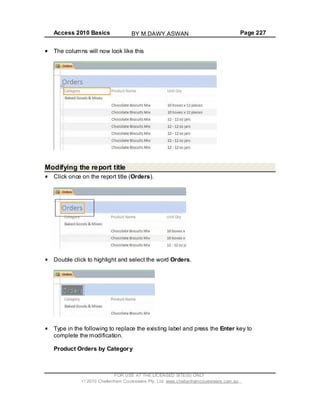
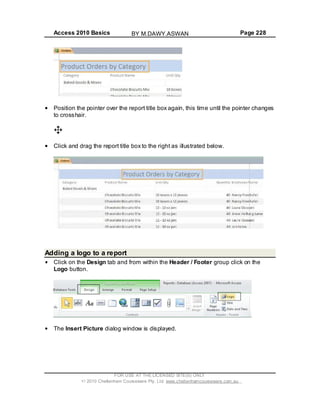
MODIFYING THE REPORT TITLE .........................................................................................................227
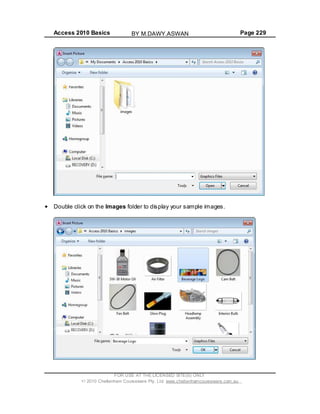
ADDING A LOGO TO A REPORT ..........................................................................................................228
FORMATTING A FORM USING THEMES ................................................................................................231
MODIFYING FIELD NAMES WITHIN A REPORT ........................................................................................232
INSERTING AND FORMATTING THE DATE & TIME ...................................................................................233
ADDING EXISTING FIELDS T O A REPORT..............................................................................................234
RESIZING R EPORTS FOR PRINTING ....................................................................................................236
TOTALS........................................................................................................................................237
CLOSING A REPORT........................................................................................................................241
DELETING A REPORT ......................................................................................................................241
EXPORTING...................................................................................................................................242
WHAT DOES EXPORTING DATA MEAN? ...............................................................................................242
WHAT IS A SPREAD SH EET FORMAT? .................................................................................................242
WHAT IS TEXT ONLY AND CSV FORMAT?............................................................................................242
WHAT IS A PDF FILE?.....................................................................................................................242
WHAT IS AN XML FILE?...................................................................................................................243
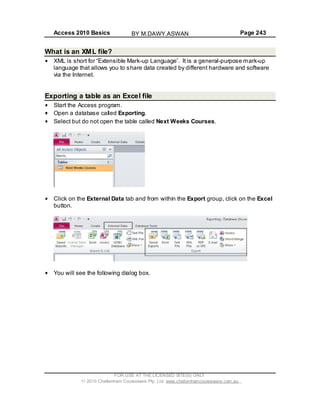
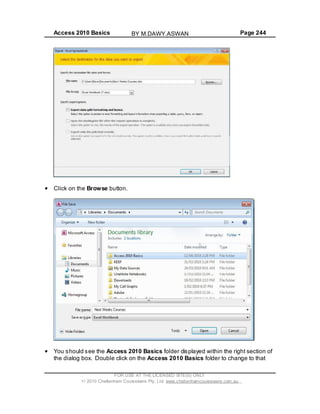
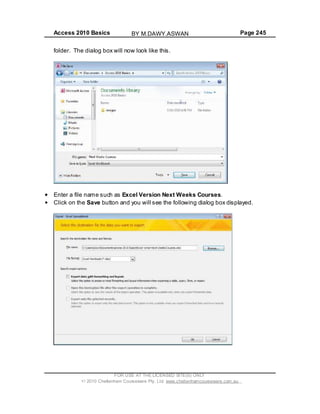
EXPORTING A TABLE AS AN EXCEL FILE..............................................................................................243
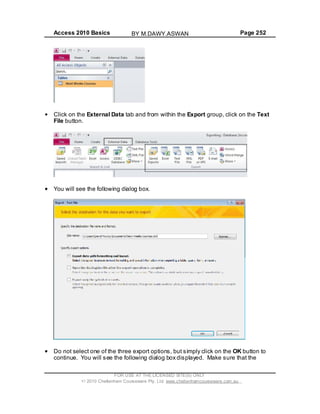
EXPORTING A TABLE AS A TEXT FILE (KEEPING DATA FORMAT & LAYOUT) .................................................247
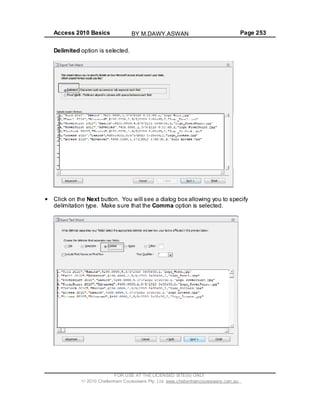
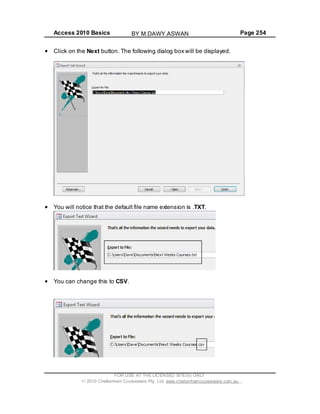
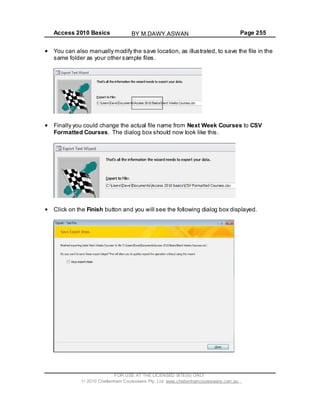
EXPORTING A TABLE AS A TEXT CSV FORMATTED FILE .........................................................................251
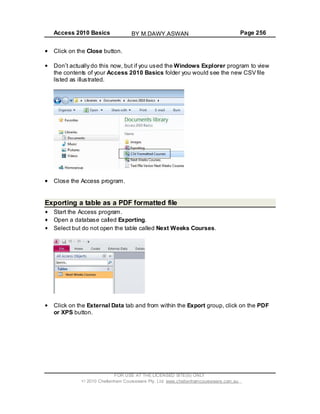
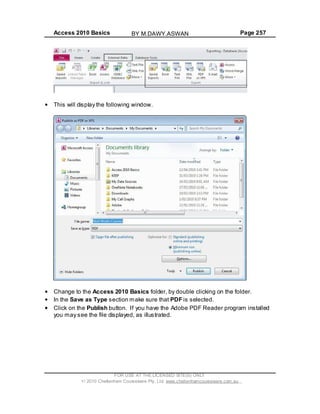
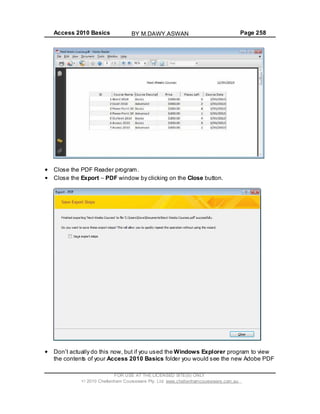
EXPORTING A TABLE AS A PDF FORMATTED FILE .................................................................................256
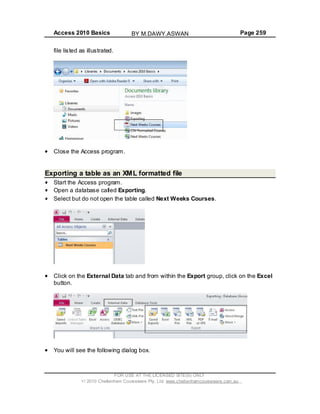
EXPORTING A TABLE AS AN XML FORMATTED FILE...............................................................................259
PRINTING.......................................................................................................................................264
FOR USE AT THE LICENSED SITE(S) ONLY
2010 Cheltenham Courseware Pty. Ltd. www.cheltenhamcourseware.com.au
BY M.DAWY.ASWAN
Access 2010 Basics Page 6
CONSIDERATIONS BEFORE PRINTING .................................................................................................264
PRINT PREVIEWING ........................................................................................................................264
WHICH ORIENTATION, PORTRAIT OR LANDSCAPE? ...............................................................................270
ADJUSTING LAYOUT IN PRINT PREVIEW..............................................................................................270
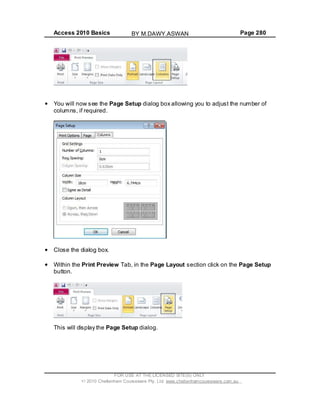
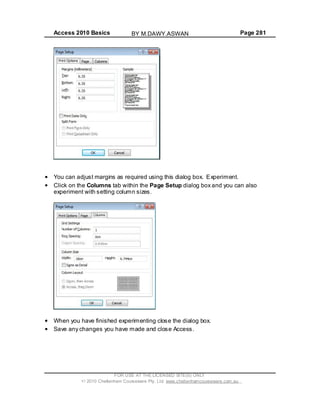
SETTING MARGINS .........................................................................................................................273
PRINTING A COMPLETE TABLE ..........................................................................................................274
PRINTING SELECTED RECORDS.........................................................................................................275
PRINTING A QUERY OR REPORTS ......................................................................................................277
PRINTING FORMS...........................................................................................................................277
REFERENCE: THE ACCESS 2010 INTERFACE ..............................................................................282
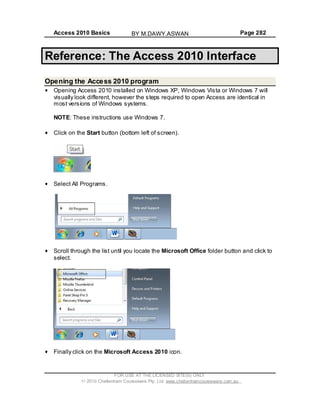
OPENING THE ACCESS 2010 PROGRAM .............................................................................................282
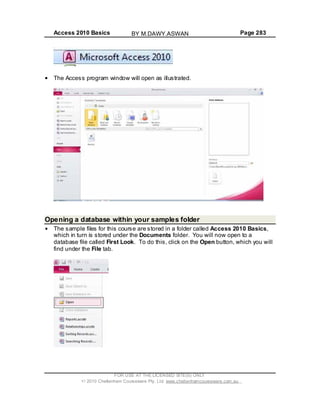
OPENING A DAT ABASE WITHIN YOUR SAMPLES FOLDER.........................................................................283
OPENING A TABLE ..........................................................................................................................285
THE RIBBON (TOOLBAR) .................................................................................................................285
RIBBON TABS ................................................................................................................................286
GROUPS.......................................................................................................................................286
DIALOG BOX LAUNCHER ..................................................................................................................287
NAVIGATING - QUICK KEYS (SHORTCUT KEYS).....................................................................................287
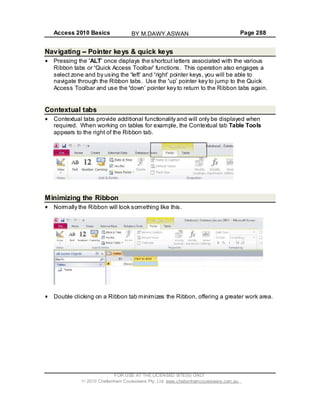
NAVIGATING POINTER KEYS & QUICK KEYS ......................................................................................288
CONTEXTUAL T ABS.........................................................................................................................288
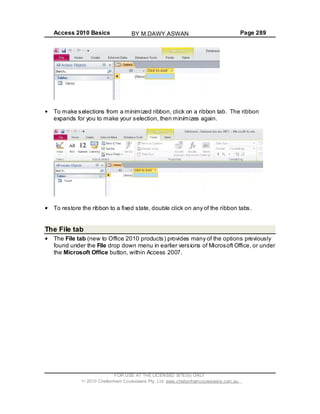
MINIMIZING THE RIBBON..................................................................................................................288
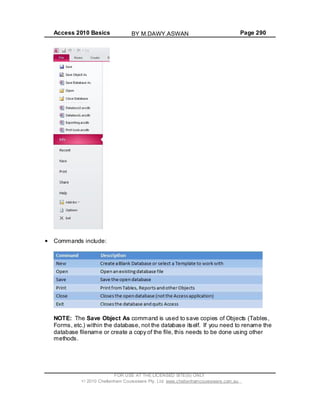
THE FILE TAB ................................................................................................................................289
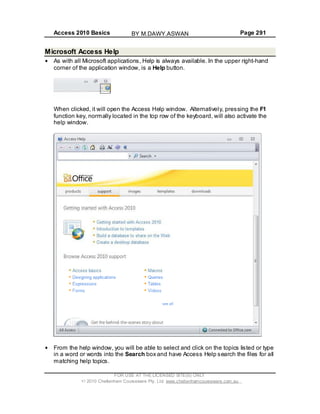
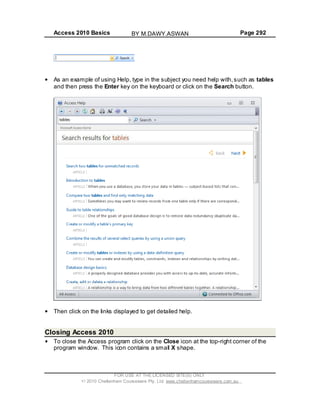
MICROSOFT ACCESS HELP..............................................................................................................291
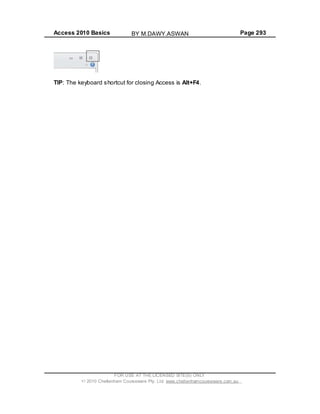
CLOSING ACCESS 2010..................................................................................................................292
FOR USE AT THE LICENSED SITE(S) ONLY
2010 Cheltenham Courseware Pty. Ltd. www.cheltenhamcourseware.com.au
BY M.DAWY.ASWAN
Access 2010 Basics Page 7
Tutor Setup Information
Copy the sample files folder, called Access 2010 Basics to the Documents folder
on the PC.
At the end of the course, remove all files modified or created during the course, prior
to re-running the course.
At the end of the course, reset all program and operating system defaults thatmay
have been modified during the course, prior to re-running the course.
FOR USE AT THE LICENSED SITE(S) ONLY
2010 Cheltenham Courseware Pty. Ltd. www.cheltenhamcourseware.com.au
BY M.DAWY.ASWAN
Access 2010 Basics Page 8
Database Concepts
What is a database?
A database is defined as an organized collection of data (information).
In raw form, a sheet of paper divided into columns and rows or a table in Microsoft
Word or Excel would previously have been considered a simple database. Single
table databases are very limited in their uses and would not be considered as a
business solution.
These days, a database is defined as a collection of objects, such as tables, forms,
queries and reports. A database will be able to store data in a structured manner
across multiple tables, use queries to locate specific information according to given
criteria, produce detailed (on-screen or printed) reports, perform calculations and
much more.
Database Examples
Databases are used to group and format data and then extract information from that
data. Examples of databases usages include:
- A phone directory
- Criminal databases used by the police to keep track of known criminals
- Patient records are kept on a database within the health system
- Tax details are kept on a government database
What is a relational database?
Unlike a single table database, a relational database is able to store and manipulate
data across multiple tables.
By utilizing multiple tables, a relational database reduces unnecessary duplication of
data. For example, when using a large database to store customer information,
including addresses, it is likely many individuals will live in the same street and share
other common parts of the address. Rather than storing the same street name,
county, state, etc., over and over, this information can be stored in a separate
table. As each new customer is added to the database, only the unique house
number needs to be recorded.
What is a table?
Tables are used to store the data in a structured and organized format. As
previously mentioned, tables are similar to those of Word and Excel, in that they
contain rows (records) and columns (fields).
FOR USE AT THE LICENSED SITE(S) ONLY
2010 Cheltenham Courseware Pty. Ltd. www.cheltenhamcourseware.com.au
BY M.DAWY.ASWAN
Access 2010 Basics Page 9
What is a record (row)?
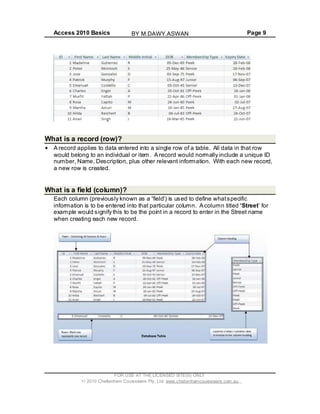
A record applies to data entered into a single row of a table. All data in that row
would belong to an individual or item. A record would normally include a unique ID
number, Name, Description, plus other relevant information. With each new record,
a new row is created.
What is a field (column)?
Each column (previously known as a field ) is used to define whatspecific
information is to be entered into that particular column. A column titled Street for
example would signify this to be the point in a record to enter in the Street name
when creating each new record.
FOR USE AT THE LICENSED SITE(S) ONLY
2010 Cheltenham Courseware Pty. Ltd. www.cheltenhamcourseware.com.au
BY M.DAWY.ASWAN
Access 2010 Basics Page 10
What is data?
Data is the information entered into tables within the database. Databases are used
daily by large corporations, small businesses and individuals, often without people
realizing they are using a database. Even something as simple as entering contact
details into the Contact or Address Book section of an email program such as
Microsoft Outlook / Outlook Express, involves entering data into a database.
Data entered will generally be alphabetical (names / addresses) or numerical (Dates
/ Currency), however Access is also able to store other forms of data, such as links
to websites, documents created in other packages (OLE) as well as file attachments
(files & images).
Data can be entered into the database manually, via the keyboard, imported from or
linked to external sources or even collected through email.
The difference between data and information
Data:
- Facts, statistics used for reference or analysis.
- Numbers, characters,symbols, images etc., which can be processed by a
computer
- Data must be interpreted, by a human or machine, to derive meaning
Information:
- Information is interpreted data
- Data that has been processed to produce meaning.
Data types
Data types define what type of data will be entered into each field (column) in a
table. If however the data type is set to a currency or date Data Type , numeric data
entered will automatically format to the appropriate currency or data/time format.
There are a number of specific reasons for selecting the correct data types when
creating Tables within a database. Setting a Date Data Type for example will
format and store all entries in the manner configured. This in turn means that
queries created to locate information according to a Date criteria will have
consistent data to work with. In the same way, Numeric data must be of a numeric
type, otherwise query searches, reports and calculations will fail to provide the
desired information.
NOTE: Field Properties must also be configured to format the appropriate currency
symbol, date format and to limit the data entry to specific characters, symbols and
spacing.
FOR USE AT THE LICENSED SITE(S) ONLY
2010 Cheltenham Courseware Pty. Ltd. www.cheltenhamcourseware.com.au
BY M.DAWY.ASWAN
Access 2010 Basics Page 11
Common uses of large-scale databases
These include:
Airline booking systems:
These systems maintain a database of all the seats on all the available flight,
allowing passengers to be quickly booked onto fights to their destination.
Government records:
Governments all over to world rely on multiple large databases in order to function.
Tax records, criminal records and social security all require sophisticated database
systems.
Bank account records:
Banks require extremely reliable databases in order to keep track of all their
customer account & log transactions.
Hospital patient details:
Medical records are being moved onto a database system. This system should
allow your medical history to be instantly available wherever you require treatment.
Keeping data discrete
A database can have many tables. A table should only contain records related to a
particular subject. For example you may have a table called customers containing
information about your customers with a separate table called orders. You can then
link the tables by creating a relationship, connecting each customer with their
associated orders.
Each field should contain only one item
Each field should contain the smallest data element. For instance if you are storing
a persons name, use one field for the first name and another field for the second
name. This means that at a later date you could manipulate the data to sort by the
second name. For the same reason split the details of an address into as many
smaller parts as possible so that later you could search by state/region , by post
code/zip code or even by country if you are maintaining an international list.
Database designers, database administrators and database users
Different groups of people design,maintain and use large scale databases.
Database designers:
These are highly skilled database professionals with an in-depth knowledge of
FOR USE AT THE LICENSED SITE(S) ONLY
2010 Cheltenham Courseware Pty. Ltd. www.cheltenhamcourseware.com.au
BY M.DAWY.ASWAN
Access 2010 Basics Page 12
exactly how the database works, including its overall function and details of the
programming.
Database administrators:
This group administer the day to day operation of the database and make sure that
the data is kept secure. These provide technical backup to users of the database.
They provide access to specific data for appropriate users. In the event of a
computer crash the database administrator will be responsible for restoring normal
computer operations.
Database Users:
The users are responsible for routine, day to day data entry, data maintenance and
information retrieval.
FOR USE AT THE LICENSED SITE(S) ONLY
2010 Cheltenham Courseware Pty. Ltd. www.cheltenhamcourseware.com.au
BY M.DAWY.ASWAN
Access 2010 Basics Page 13
Opening a Database & Security Issues
Opening a database within your samples folder
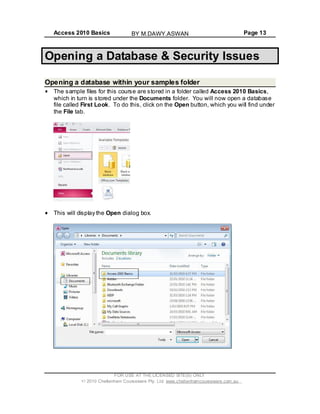
The sample files for this course are stored in a folder called Access 2010 Basics,
which in turn is stored under the Documents folder. You will now open a database
file called First Look. To do this, click on the Open button, which you will find under
the File tab.
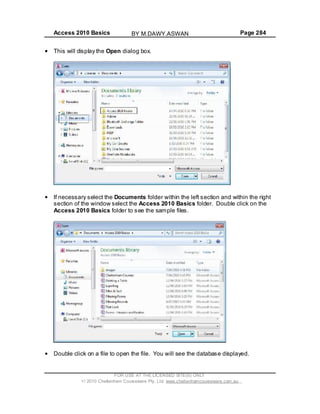
This will display the Open dialog box.
FOR USE AT THE LICENSED SITE(S) ONLY
2010 Cheltenham Courseware Pty. Ltd. www.cheltenhamcourseware.com.au
BY M.DAWY.ASWAN
Access 2010 Basics Page 14
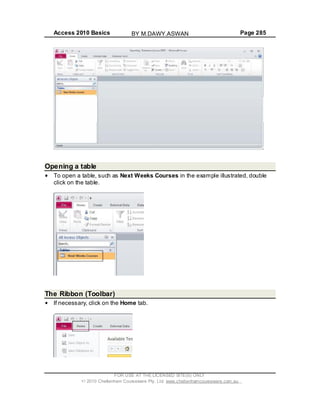
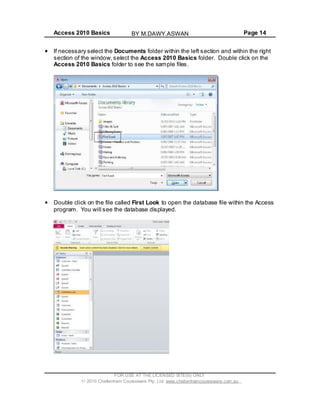
If necessary select the Documents folder within the left section and within the right
section of the window,select the Access 2010 Basics folder. Double click on the
Access 2010 Basics folder to see the sample files.
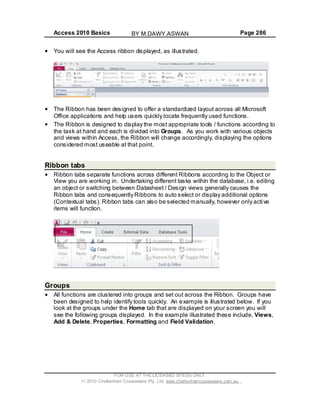
Double click on the file called First Look to open the database file within the Access
program. You will see the database displayed.
FOR USE AT THE LICENSED SITE(S) ONLY
2010 Cheltenham Courseware Pty. Ltd. www.cheltenhamcourseware.com.au
BY M.DAWY.ASWAN
Access 2010 Basics Page 15
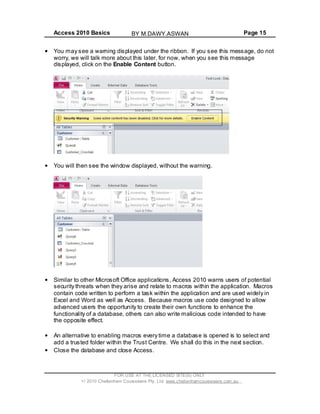
You may see a warning displayed under the ribbon. If you see this message, do not
worry, we will talk more about this later, for now, when you see this message
displayed, click on the Enable Content button.
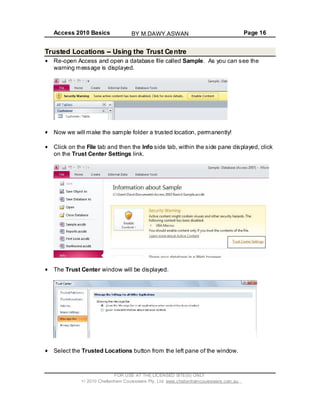
You will then see the window displayed, without the warning.
Similar to other Microsoft Office applications, Access 2010 warns users of potential
security threats when they arise and relate to macros within the application. Macros
contain code written to perform a task within the application and are used widely in
Excel and Word as well as Access. Because macros use code designed to allow
advanced users the opportunity to create their own functions to enhance the
functionality of a database, others can also write malicious code intended to have
the opposite effect.
An alternative to enabling macros every time a database is opened is to select and
add a trusted folder within the Trust Centre. We shall do this in the next section.
Close the database and close Access.
FOR USE AT THE LICENSED SITE(S) ONLY
2010 Cheltenham Courseware Pty. Ltd. www.cheltenhamcourseware.com.au
BY M.DAWY.ASWAN
Access 2010 Basics Page 16
Trusted Locations Using the Trust Centre
Re-open Access and open a database file called Sample. As you can see the
warning message is displayed.
Now we will make the sample folder a trusted location, permanently!
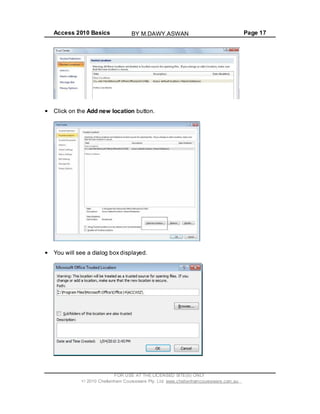
Click on the File tab and then the Info side tab, within the side pane displayed, click
on the Trust Center Settings link.
The Trust Center window will be displayed.
Select the Trusted Locations button from the left pane of the window.
FOR USE AT THE LICENSED SITE(S) ONLY
2010 Cheltenham Courseware Pty. Ltd. www.cheltenhamcourseware.com.au
BY M.DAWY.ASWAN
Access 2010 Basics Page 17
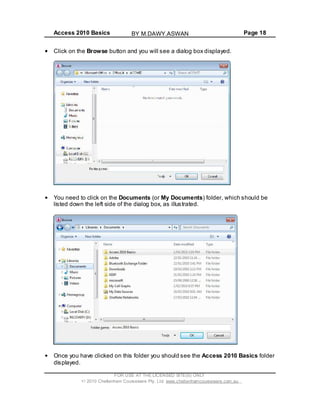
Click on the Add new location button.
You will see a dialog box displayed.
FOR USE AT THE LICENSED SITE(S) ONLY
2010 Cheltenham Courseware Pty. Ltd. www.cheltenhamcourseware.com.au
BY M.DAWY.ASWAN
Access 2010 Basics Page 18
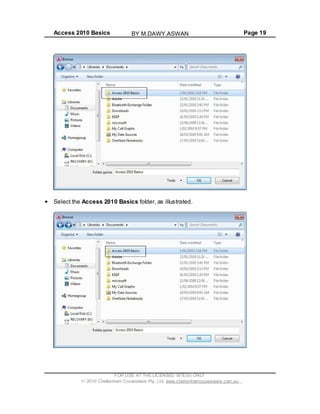
Click on the Browse button and you will see a dialog box displayed.
You need to click on the Documents (or My Documents) folder, which should be
listed down the left side of the dialog box, as illustrated.
Once you have clicked on this folder you should see the Access 2010 Basics folder
displayed.
FOR USE AT THE LICENSED SITE(S) ONLY
2010 Cheltenham Courseware Pty. Ltd. www.cheltenhamcourseware.com.au
BY M.DAWY.ASWAN
Access 2010 Basics Page 19
Select the Access 2010 Basics folder, as illustrated.
FOR USE AT THE LICENSED SITE(S) ONLY
2010 Cheltenham Courseware Pty. Ltd. www.cheltenhamcourseware.com.au
BY M.DAWY.ASWAN
Access 2010 Basics Page 20
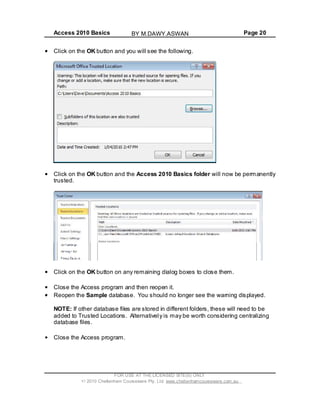
Click on the OK button and you will see the following.
Click on the OK button and the Access 2010 Basics folder will now be permanently
trusted.
Click on the OK button on any remaining dialog boxes to close them.
Close the Access program and then reopen it.
Reopen the Sample database. You should no longer see the warning displayed.
NOTE: If other database files are stored in different folders, these will need to be
added to Trusted Locations. Alternatively is may be worth considering centralizing
database files.
Close the Access program.
FOR USE AT THE LICENSED SITE(S) ONLY
2010 Cheltenham Courseware Pty. Ltd. www.cheltenhamcourseware.com.au
BY M.DAWY.ASWAN
Access 2010 Basics Page 21
Setting the default folder location within Access
We can set a default folder for opening files within Access. This means that when
you display the Open dialog box, it always displays files in the folder that you set as
default.
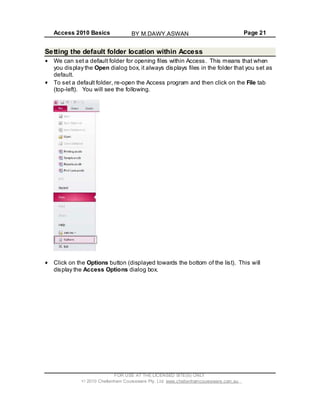
To set a default folder, re-open the Access program and then click on the File tab
(top-left). You will see the following.
Click on the Options button (displayed towards the bottom of the list). This will
display the Access Options dialog box.
FOR USE AT THE LICENSED SITE(S) ONLY
2010 Cheltenham Courseware Pty. Ltd. www.cheltenhamcourseware.com.au
BY M.DAWY.ASWAN
Access 2010 Basics Page 22
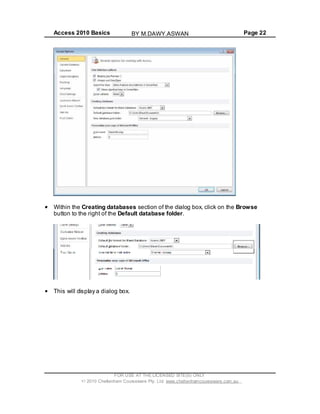
Within the Creating databases section of the dialog box, click on the Browse
button to the right of the Default database folder.
This will display a dialog box.
FOR USE AT THE LICENSED SITE(S) ONLY
2010 Cheltenham Courseware Pty. Ltd. www.cheltenhamcourseware.com.au
BY M.DAWY.ASWAN
Access 2010 Basics Page 23
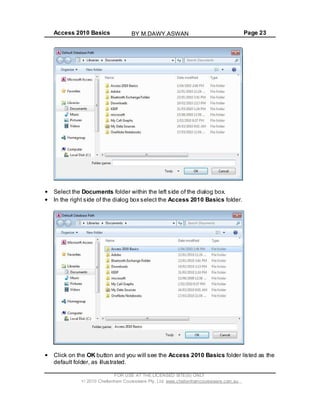
Select the Documents folder within the left side of the dialog box.
In the right side of the dialog box select the Access 2010 Basics folder.
Click on the OK button and you will see the Access 2010 Basics folder listed as the
default folder, as illustrated.
FOR USE AT THE LICENSED SITE(S) ONLY
2010 Cheltenham Courseware Pty. Ltd. www.cheltenhamcourseware.com.au
BY M.DAWY.ASWAN
Access 2010 Basics Page 24
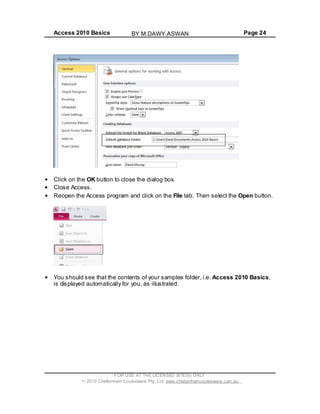
Click on the OK button to close the dialog box.
Close Access.
Reopen the Access program and click on the File tab. Then select the Open button.
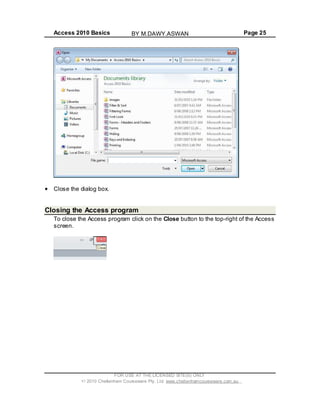
You should see that the contents of your samples folder, i.e. Access 2010 Basics,
is displayed automatically for you, as illustrated.
FOR USE AT THE LICENSED SITE(S) ONLY
2010 Cheltenham Courseware Pty. Ltd. www.cheltenhamcourseware.com.au
BY M.DAWY.ASWAN
Access 2010 Basics Page 25
Close the dialog box.
Closing the Access program
To close the Access program click on the Close button to the top-right of the Access
screen.
FOR USE AT THE LICENSED SITE(S) ONLY
2010 Cheltenham Courseware Pty. Ltd. www.cheltenhamcourseware.com.au
BY M.DAWY.ASWAN
Access 2010 Basics Page 26
Tables, Fields and Field Types
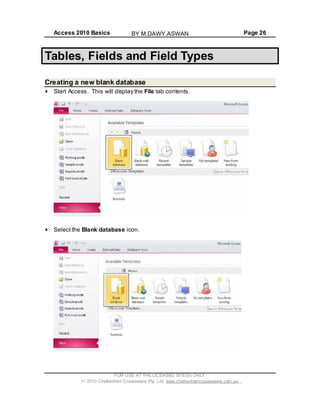
Creating a new blank database
Start Access. This will display the File tab contents.
Select the Blank database icon.
FOR USE AT THE LICENSED SITE(S) ONLY
2010 Cheltenham Courseware Pty. Ltd. www.cheltenhamcourseware.com.au
BY M.DAWY.ASWAN
Access 2010 Basics Page 27
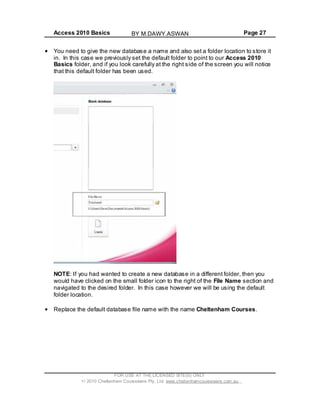
You need to give the new database a name and also set a folder location to store it
in. In this case we previously set the default folder to point to our Access 2010
Basics folder, and if you look carefully at the right side of the screen you will notice
that this default folder has been used.
NOTE: If you had wanted to create a new database in a different folder, then you
would have clicked on the small folder icon to the right of the File Name section and
navigated to the desired folder. In this case however we will be using the default
folder location.
Replace the default database file name with the name Cheltenham Courses.
FOR USE AT THE LICENSED SITE(S) ONLY
2010 Cheltenham Courseware Pty. Ltd. www.cheltenhamcourseware.com.au
BY M.DAWY.ASWAN
Access 2010 Basics Page 28
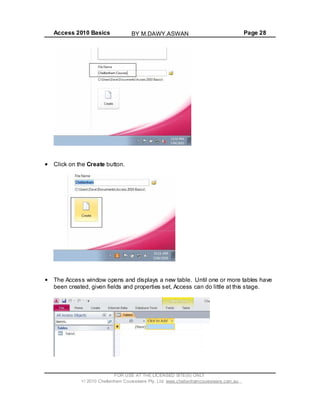
Click on the Create button.
The Access window opens and displays a new table. Until one or more tables have
been created, given fields and properties set, Access can do little at this stage.
FOR USE AT THE LICENSED SITE(S) ONLY
2010 Cheltenham Courseware Pty. Ltd. www.cheltenhamcourseware.com.au
BY M.DAWY.ASWAN
Access 2010 Basics Page 29
Adding fields and setting the field type
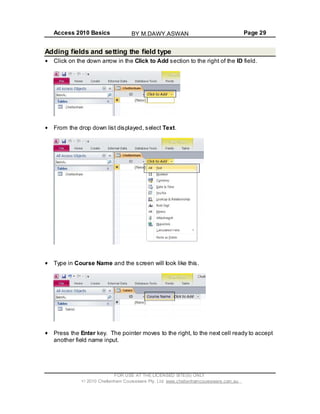
Click on the down arrow in the Click to Add section to the right of the ID field.
From the drop down list displayed, select Text.
Type in Course Name and the screen will look like this.
Press the Enter key. The pointer moves to the right, to the next cell ready to accept
another field name input.
FOR USE AT THE LICENSED SITE(S) ONLY
2010 Cheltenham Courseware Pty. Ltd. www.cheltenhamcourseware.com.au
BY M.DAWY.ASWAN
Access 2010 Basics Page 30
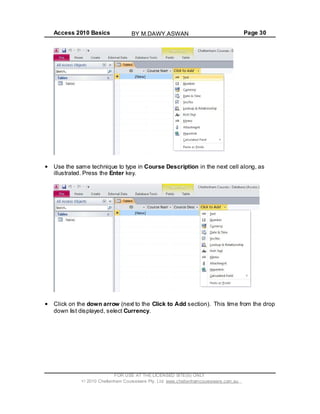
Use the same technique to type in Course Description in the next cell along, as
illustrated. Press the Enter key.
Click on the down arrow (next to the Click to Add section). This time from the drop
down list displayed, select Currency.
FOR USE AT THE LICENSED SITE(S) ONLY
2010 Cheltenham Courseware Pty. Ltd. www.cheltenhamcourseware.com.au
BY M.DAWY.ASWAN
Access 2010 Basics Page 31
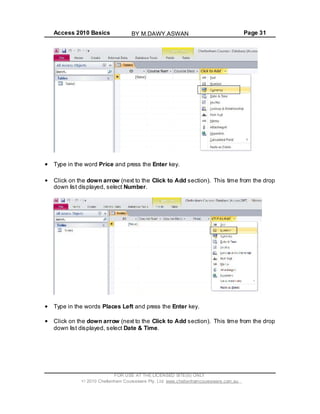
Type in the word Price and press the Enter key.
Click on the down arrow (next to the Click to Add section). This time from the drop
down list displayed, select Number.
Type in the words Places Left and press the Enter key.
Click on the down arrow (next to the Click to Add section). This time from the drop
down list displayed, select Date & Time.
FOR USE AT THE LICENSED SITE(S) ONLY
2010 Cheltenham Courseware Pty. Ltd. www.cheltenhamcourseware.com.au
BY M.DAWY.ASWAN
Access 2010 Basics Page 32
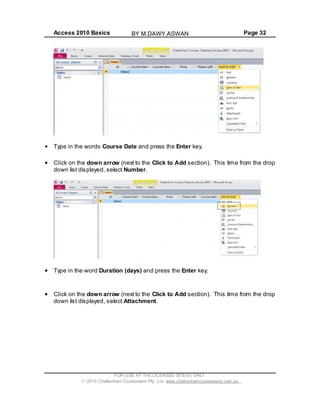
Type in the words Course Date and press the Enter key.
Click on the down arrow (next to the Click to Add section). This time from the drop
down list displayed, select Number.
Type in the word Duration (days) and press the Enter key.
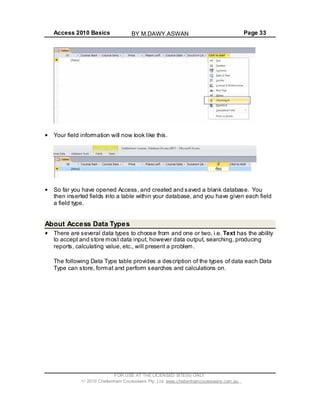
Click on the down arrow (next to the Click to Add section). This time from the drop
down list displayed, select Attachment.
FOR USE AT THE LICENSED SITE(S) ONLY
2010 Cheltenham Courseware Pty. Ltd. www.cheltenhamcourseware.com.au
BY M.DAWY.ASWAN
Access 2010 Basics Page 33
Your field information will now look like this.
So far you have opened Access, and created and saved a blank database. You
then inserted fields into a table within your database, and you have given each field
a field type.
About Access Data Types
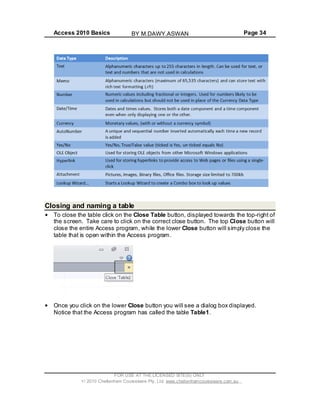
There are several data types to choose from and one or two, i.e. Text has the ability
to accept and store most data input, however data output, searching, producing
reports, calculating value, etc., will present a problem.
The following Data Type table provides a description of the types of data each Data
Type can store, format and perform searches and calculations on.
FOR USE AT THE LICENSED SITE(S) ONLY
2010 Cheltenham Courseware Pty. Ltd. www.cheltenhamcourseware.com.au
BY M.DAWY.ASWAN
Access 2010 Basics Page 34
Closing and naming a table
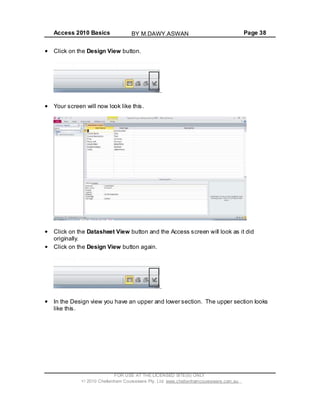
To close the table click on the Close Table button, displayed towards the top-right of
the screen. Take care to click on the correct close button. The top Close button will
close the entire Access program, while the lower Close button will simply close the
table that is open within the Access program.
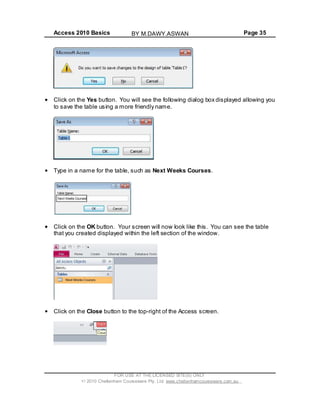
Once you click on the lower Close button you will see a dialog box displayed.
Notice that the Access program has called the table Table1.
FOR USE AT THE LICENSED SITE(S) ONLY
2010 Cheltenham Courseware Pty. Ltd. www.cheltenhamcourseware.com.au
BY M.DAWY.ASWAN
Access 2010 Basics Page 35
Click on the Yes button. You will see the following dialog box displayed allowing you
to save the table using a more friendly name.
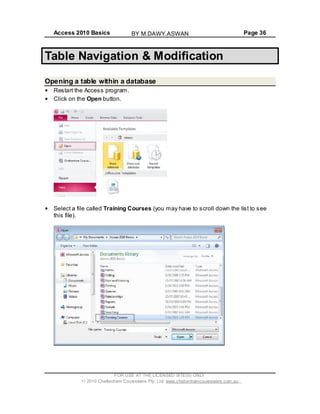
Type in a name for the table, such as Next Weeks Courses.
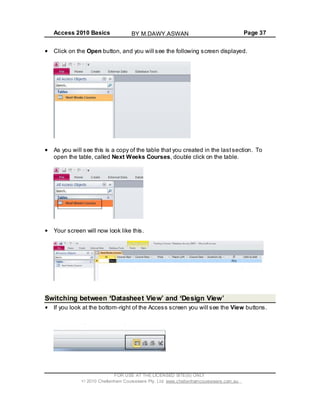
Click on the OK button. Your screen will now look like this. You can see the table
that you created displayed within the left section of the window.
Click on the Close button to the top-right of the Access screen.
FOR USE AT THE LICENSED SITE(S) ONLY
2010 Cheltenham Courseware Pty. Ltd. www.cheltenhamcourseware.com.au
BY M.DAWY.ASWAN
Access 2010 Basics Page 36
Table Navigation & Modification
Opening a table within a database
Restart the Access program.
Click on the Open button.
Select a file called Training Courses (you may have to scroll down the list to see
this file).
FOR USE AT THE LICENSED SITE(S) ONLY
2010 Cheltenham Courseware Pty. Ltd. www.cheltenhamcourseware.com.au
BY M.DAWY.ASWAN
Access 2010 Basics Page 37
Click on the Open button, and you will see the following screen displayed.
As you will see this is a copy of the table that you created in the lastsection. To
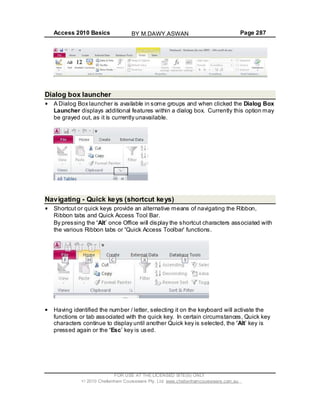
open the table, called Next Weeks Courses, double click on the table.
Your screen will now look like this.
Switching between Datasheet View and Design View
If you look at the bottom-right of the Access screen you will see the View buttons.
FOR USE AT THE LICENSED SITE(S) ONLY
2010 Cheltenham Courseware Pty. Ltd. www.cheltenhamcourseware.com.au
BY M.DAWY.ASWAN
Access 2010 Basics Page 38
Click on the Design View button.
.
Your screen will now look like this.
Click on the Datasheet View button and the Access screen will look as it did
originally.
Click on the Design View button again.
.
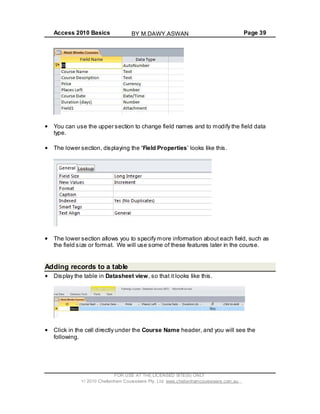
In the Design view you have an upper and lower section. The upper section looks
like this.
FOR USE AT THE LICENSED SITE(S) ONLY
2010 Cheltenham Courseware Pty. Ltd. www.cheltenhamcourseware.com.au
BY M.DAWY.ASWAN
Access 2010 Basics Page 39
You can use the upper section to change field names and to modify the field data
type.
The lower section, displaying the Field Properties looks like this.
The lower section allows you to specify more information about each field, such as
the field size or format. We will use some of these features later in the course.
Adding records to a table
Display the table in Datasheet view, so that it looks like this.
Click in the cell directly under the Course Name header, and you will see the
following.
FOR USE AT THE LICENSED SITE(S) ONLY
2010 Cheltenham Courseware Pty. Ltd. www.cheltenhamcourseware.com.au
BY M.DAWY.ASWAN
Access 2010 Basics Page 40
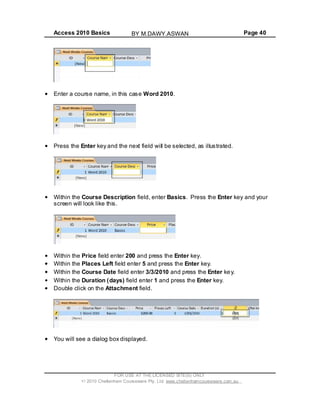
Enter a course name, in this case Word 2010.
Press the Enter key and the next field will be selected, as illustrated.
Within the Course Description field, enter Basics. Press the Enter key and your
screen will look like this.
Within the Price field enter 200 and press the Enter key.
Within the Places Left field enter 5 and press the Enter key.
Within the Course Date field enter 3/3/2010 and press the Enter key.
Within the Duration (days) field enter 1 and press the Enter key.
Double click on the Attachment field.
You will see a dialog box displayed.
FOR USE AT THE LICENSED SITE(S) ONLY
2010 Cheltenham Courseware Pty. Ltd. www.cheltenhamcourseware.com.au
BY M.DAWY.ASWAN
Access 2010 Basics Page 41
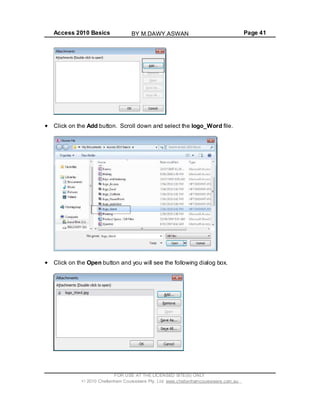
Click on the Add button. Scroll down and select the logo_Word file.
Click on the Open button and you will see the following dialog box.
FOR USE AT THE LICENSED SITE(S) ONLY
2010 Cheltenham Courseware Pty. Ltd. www.cheltenhamcourseware.com.au
BY M.DAWY.ASWAN
Access 2010 Basics Page 42
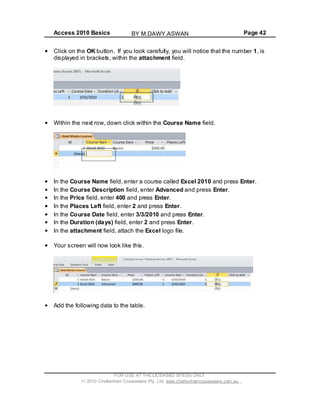
Click on the OK button. If you look carefully, you will notice that the number 1, is
displayed in brackets, within the attachment field.
Within the next row, down click within the Course Name field.
In the Course Name field, enter a course called Excel 2010 and press Enter.
In the Course Description field, enter Advanced and press Enter.
In the Price field, enter 400 and press Enter.
In the Places Left field, enter 2 and press Enter.
In the Course Date field, enter 3/3/2010 and press Enter.
In the Duration (days) field, enter 2 and press Enter.
In the attachment field, attach the Excel logo file.
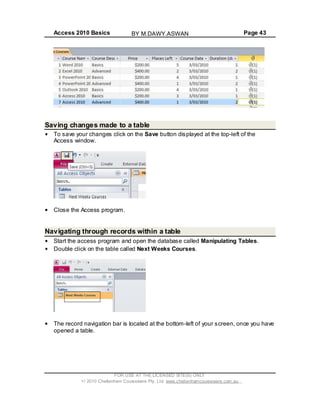
Your screen will now look like this.
Add the following data to the table.
FOR USE AT THE LICENSED SITE(S) ONLY
2010 Cheltenham Courseware Pty. Ltd. www.cheltenhamcourseware.com.au
BY M.DAWY.ASWAN
Access 2010 Basics Page 43
Saving changes made to a table
To save your changes click on the Save button displayed at the top-left of the
Access window.
Close the Access program.
Navigating through records within a table
Start the access program and open the database called Manipulating Tables.
Double click on the table called Next Weeks Courses.
The record navigation bar is located at the bottom-left of your screen, once you have
opened a table.
FOR USE AT THE LICENSED SITE(S) ONLY
2010 Cheltenham Courseware Pty. Ltd. www.cheltenhamcourseware.com.au
BY M.DAWY.ASWAN
Access 2010 Basics Page 44
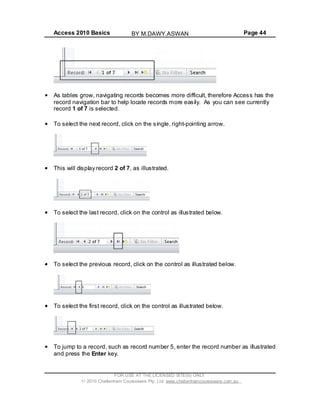
As tables grow, navigating records becomes more difficult, therefore Access has the
record navigation bar to help locate records more easily. As you can see currently
record 1 of 7 is selected.
To select the next record, click on the single, right-pointing arrow.
This will display record 2 of 7, as illustrated.
To select the last record, click on the control as illustrated below.
To select the previous record, click on the control as illustrated below.
To select the first record, click on the control as illustrated below.
To jump to a record, such as record number 5, enter the record number as illustrated
and press the Enter key.
FOR USE AT THE LICENSED SITE(S) ONLY
2010 Cheltenham Courseware Pty. Ltd. www.cheltenhamcourseware.com.au
BY M.DAWY.ASWAN
Access 2010 Basics Page 45
Adjusting column width
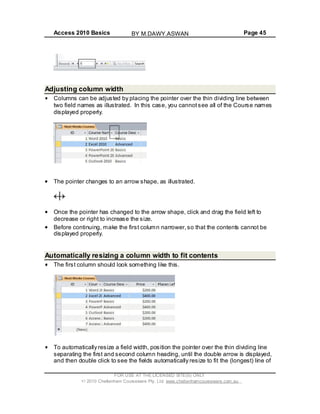
Columns can be adjusted by placing the pointer over the thin dividing line between
two field names as illustrated. In this case, you cannotsee all of the Course names
displayed properly.
The pointer changes to an arrow shape, as illustrated.
Once the pointer has changed to the arrow shape, click and drag the field left to
decrease or right to increase the size.
Before continuing, make the first column narrower,so that the contents cannot be
displayed properly.
Automatically resizing a column width to fit contents
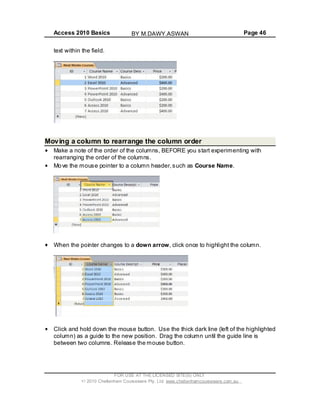
The first column should look something like this.
To automatically resize a field width, position the pointer over the thin dividing line
separating the first and second column heading, until the double arrow is displayed,
and then double click to see the fields automatically resize to fit the (longest) line of
FOR USE AT THE LICENSED SITE(S) ONLY
2010 Cheltenham Courseware Pty. Ltd. www.cheltenhamcourseware.com.au
BY M.DAWY.ASWAN
Access 2010 Basics Page 46
text within the field.
Moving a column to rearrange the column order
Make a note of the order of the columns, BEFORE you start experimenting with
rearranging the order of the columns.
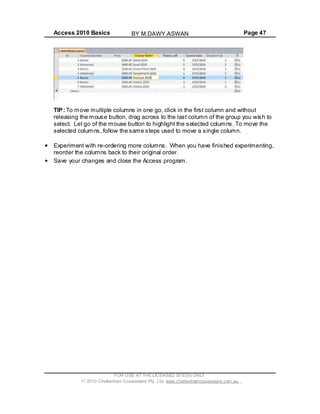
Move the mouse pointer to a column header,such as Course Name.
When the pointer changes to a down arrow, click once to highlight the column.
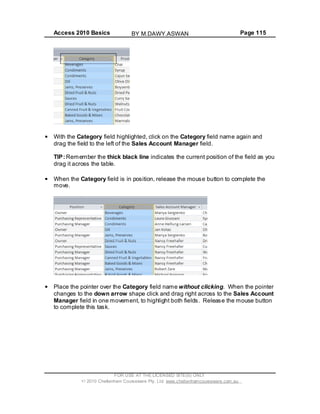
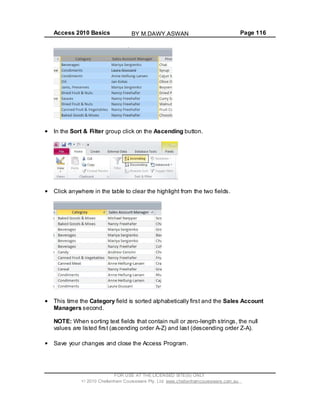
Click and hold down the mouse button. Use the thick dark line (left of the highlighted
column) as a guide to the new position. Drag the column until the guide line is
between two columns. Release the mouse button.
FOR USE AT THE LICENSED SITE(S) ONLY
2010 Cheltenham Courseware Pty. Ltd. www.cheltenhamcourseware.com.au
BY M.DAWY.ASWAN
Access 2010 Basics Page 47
TIP: To move multiple columns in one go, click in the first column and without
releasing the mouse button, drag across to the last column of the group you wish to
select. Let go of the mouse button to highlight the selected columns. To move the
selected columns, follow the same steps used to move a single column.
Experiment with re-ordering more columns. When you have finished experimenting,
reorder the columns back to their original order.
Save your changes and close the Access program.
FOR USE AT THE LICENSED SITE(S) ONLY
2010 Cheltenham Courseware Pty. Ltd. www.cheltenhamcourseware.com.au
BY M.DAWY.ASWAN
Access 2010 Basics Page 48
Field Properties
Field Properties
Field Properties amongst other things, control how information is displayed, specifies
default values and prevents incorrect data entry. Options available will depend upon
the data type of each field.
Open access and open the Field Properties database.
Open the table called Next Weeks Courses.
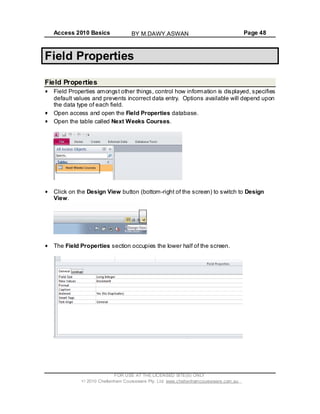
Click on the Design View button (bottom-right of the screen) to switch to Design
View.
The Field Properties section occupies the lower half of the screen.
FOR USE AT THE LICENSED SITE(S) ONLY
2010 Cheltenham Courseware Pty. Ltd. www.cheltenhamcourseware.com.au
BY M.DAWY.ASWAN
Access 2010 Basics Page 49
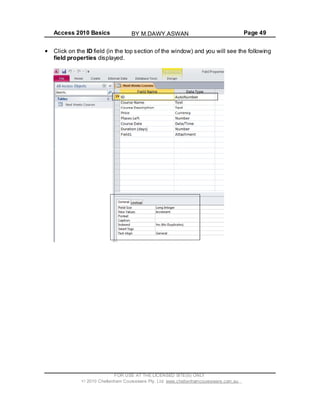
Click on the ID field (in the top section of the window) and you will see the following
field properties displayed.
FOR USE AT THE LICENSED SITE(S) ONLY
2010 Cheltenham Courseware Pty. Ltd. www.cheltenhamcourseware.com.au
BY M.DAWY.ASWAN
Access 2010 Basics Page 50
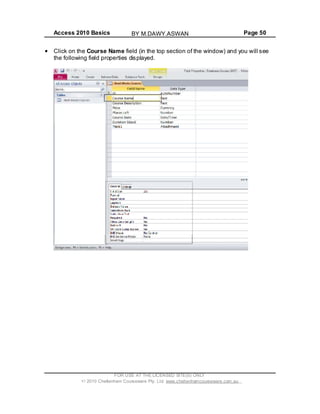
Click on the Course Name field (in the top section of the window) and you will see
the following field properties displayed.
FOR USE AT THE LICENSED SITE(S) ONLY
2010 Cheltenham Courseware Pty. Ltd. www.cheltenhamcourseware.com.au
BY M.DAWY.ASWAN
Access 2010 Basics Page 51
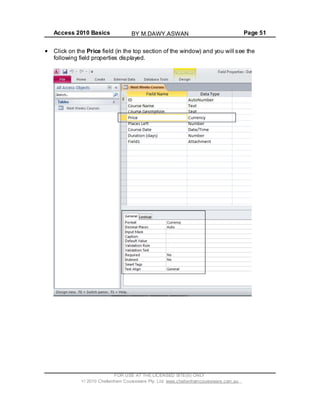
Click on the Price field (in the top section of the window) and you will see the
following field properties displayed.
FOR USE AT THE LICENSED SITE(S) ONLY
2010 Cheltenham Courseware Pty. Ltd. www.cheltenhamcourseware.com.au
BY M.DAWY.ASWAN
Access 2010 Basics Page 52
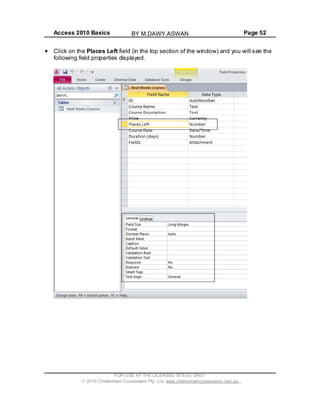
Click on the Places Left field (in the top section of the window) and you will see the
following field properties displayed.
FOR USE AT THE LICENSED SITE(S) ONLY
2010 Cheltenham Courseware Pty. Ltd. www.cheltenhamcourseware.com.au
BY M.DAWY.ASWAN
Access 2010 Basics Page 53
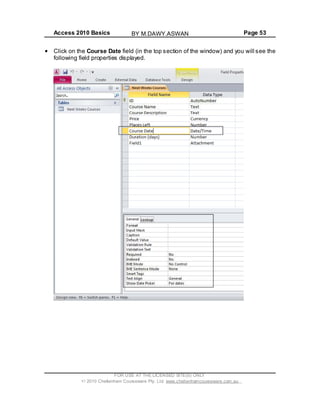
Click on the Course Date field (in the top section of the window) and you will see the
following field properties displayed.
FOR USE AT THE LICENSED SITE(S) ONLY
2010 Cheltenham Courseware Pty. Ltd. www.cheltenhamcourseware.com.au
BY M.DAWY.ASWAN
Access 2010 Basics Page 54
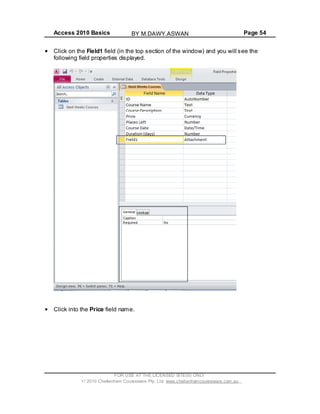
Click on the Field1 field (in the top section of the window) and you will see the
following field properties displayed.
Click into the Price field name.
FOR USE AT THE LICENSED SITE(S) ONLY
2010 Cheltenham Courseware Pty. Ltd. www.cheltenhamcourseware.com.au
BY M.DAWY.ASWAN
Access 2010 Basics Page 55
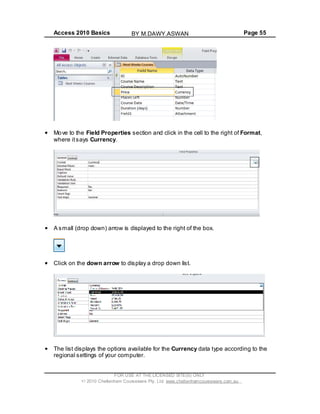
Move to the Field Properties section and click in the cell to the right of Format,
where itsays Currency.
A small (drop down) arrow is displayed to the right of the box.
Click on the down arrow to display a drop down list.
The list displays the options available for the Currency data type according to the
regional settings of your computer.
FOR USE AT THE LICENSED SITE(S) ONLY
2010 Cheltenham Courseware Pty. Ltd. www.cheltenhamcourseware.com.au
BY M.DAWY.ASWAN
Access 2010 Basics Page 56
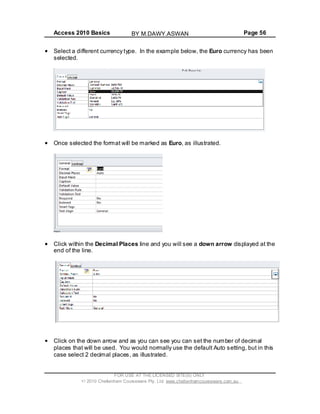
Select a different currency type. In the example below, the Euro currency has been
selected.
Once selected the format will be marked as Euro, as illustrated.
Click within the Decimal Places line and you will see a down arrow displayed at the
end of the line.
Click on the down arrow and as you can see you can set the number of decimal
places that will be used. You would normally use the default Auto setting, but in this
case select 2 decimal places, as illustrated.
FOR USE AT THE LICENSED SITE(S) ONLY
2010 Cheltenham Courseware Pty. Ltd. www.cheltenhamcourseware.com.au
BY M.DAWY.ASWAN
Access 2010 Basics Page 57
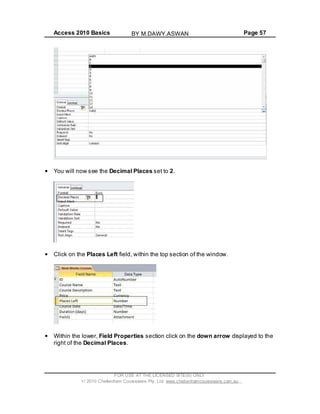
You will now see the Decimal Places set to 2.
Click on the Places Left field, within the top section of the window.
Within the lower, Field Properties section click on the down arrow displayed to the
right of the Decimal Places.
FOR USE AT THE LICENSED SITE(S) ONLY
2010 Cheltenham Courseware Pty. Ltd. www.cheltenhamcourseware.com.au
BY M.DAWY.ASWAN
Access 2010 Basics Page 58
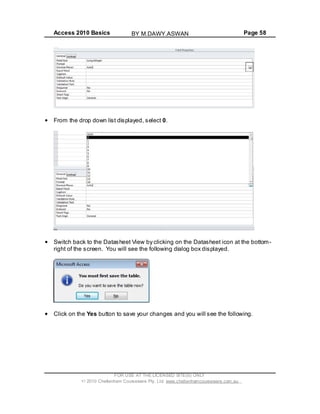
From the drop down list displayed, select 0.
Switch back to the Datasheet View by clicking on the Datasheet icon at the bottom-
right of the screen. You will see the following dialog box displayed.
Click on the Yes button to save your changes and you will see the following.
FOR USE AT THE LICENSED SITE(S) ONLY
2010 Cheltenham Courseware Pty. Ltd. www.cheltenhamcourseware.com.au
BY M.DAWY.ASWAN
Access 2010 Basics Page 59
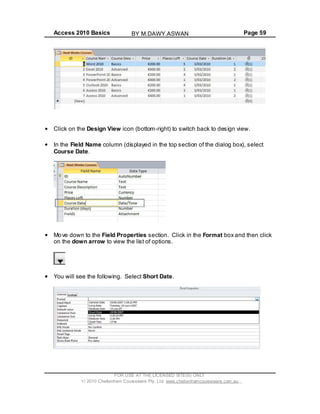
Click on the Design View icon (bottom-right) to switch back to design view.
In the Field Name column (displayed in the top section of the dialog box), select
Course Date.
Move down to the Field Properties section. Click in the Format box and then click
on the down arrow to view the list of options.
You will see the following. Select Short Date.
FOR USE AT THE LICENSED SITE(S) ONLY
2010 Cheltenham Courseware Pty. Ltd. www.cheltenhamcourseware.com.au
BY M.DAWY.ASWAN
Access 2010 Basics Page 60
NOTE: Access stores full date and time information, even when for example; the
format is set to display only the Short Date.
Input Masks
Input Masks are used to restrict how data is entered. By forcing users of the
database to only enter data in a fixed format this greatly reduces the chances of data
input errors.
NOTE: Input Masks only work with Text and Date data types.
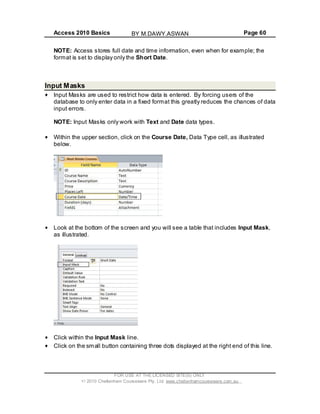
Within the upper section, click on the Course Date, Data Type cell, as illustrated
below.
Look at the bottom of the screen and you will see a table that includes Input Mask,
as illustrated.
Click within the Input Mask line.
Click on the small button containing three dots displayed at the right end of this line.
FOR USE AT THE LICENSED SITE(S) ONLY
2010 Cheltenham Courseware Pty. Ltd. www.cheltenhamcourseware.com.au
BY M.DAWY.ASWAN
Access 2010 Basics Page 61
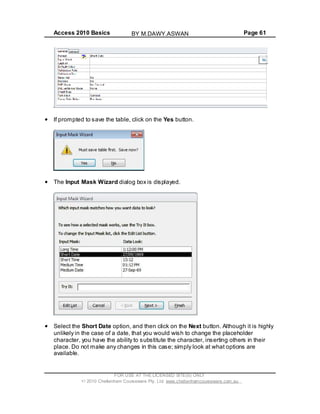
If prompted to save the table, click on the Yes button.
The Input Mask Wizard dialog box is displayed.
Select the Short Date option, and then click on the Next button. Although it is highly
unlikely in the case of a date, that you would wish to change the placeholder
character, you have the ability to substitute the character, inserting others in their
place. Do not make any changes in this case; simply look at what options are
available.
FOR USE AT THE LICENSED SITE(S) ONLY
2010 Cheltenham Courseware Pty. Ltd. www.cheltenhamcourseware.com.au
BY M.DAWY.ASWAN
Access 2010 Basics Page 62
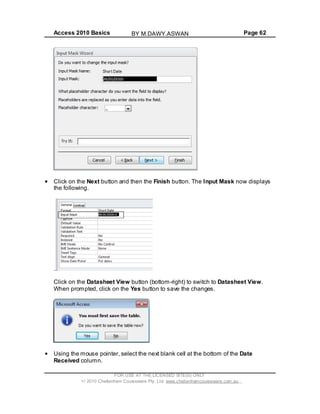
Click on the Next button and then the Finish button. The Input Mask now displays
the following.
Click on the Datasheet View button (bottom-right) to switch to Datasheet View.
When prompted, click on the Yes button to save the changes.
Using the mouse pointer, select the next blank cell at the bottom of the Date
Received column.
FOR USE AT THE LICENSED SITE(S) ONLY
2010 Cheltenham Courseware Pty. Ltd. www.cheltenhamcourseware.com.au
BY M.DAWY.ASWAN
Access 2010 Basics Page 63
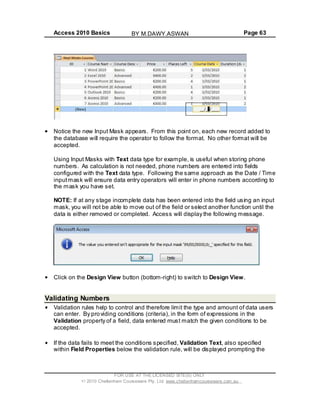
Notice the new Input Mask appears. From this point on, each new record added to
the database will require the operator to follow the format. No other format will be
accepted.
Using Input Masks with Text data type for example, is useful when storing phone
numbers. As calculation is not needed, phone numbers are entered into fields
configured with the Text data type. Following the same approach as the Date / Time
inputmask will ensure data entry operators will enter in phone numbers according to
the mask you have set.
NOTE: If at any stage incomplete data has been entered into the field using an input
mask, you will not be able to move out of the field or select another function until the
data is either removed or completed. Access will display the following message.
Click on the Design View button (bottom-right) to switch to Design View.
Validating Numbers
Validation rules help to control and therefore limit the type and amount of data users
can enter. By providing conditions (criteria), in the form of expressions in the
Validation property of a field, data entered must match the given conditions to be
accepted.
If the data fails to meet the conditions specified, Validation Text, also specified
within Field Properties below the validation rule, will be displayed prompting the
FOR USE AT THE LICENSED SITE(S) ONLY
2010 Cheltenham Courseware Pty. Ltd. www.cheltenhamcourseware.com.au
BY M.DAWY.ASWAN
Access 2010 Basics Page 64
user of the conditions required to meet data entry requirements.
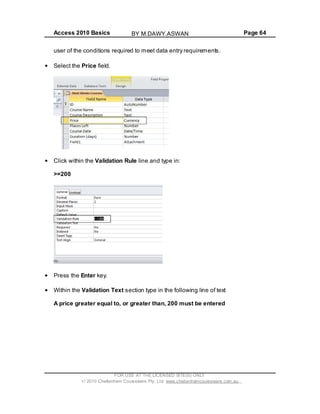
Select the Price field.
Click within the Validation Rule line and type in:
>=200
Press the Enter key.
Within the Validation Text section type in the following line of text
A price greater equal to, or greater than, 200 must be entered
FOR USE AT THE LICENSED SITE(S) ONLY
2010 Cheltenham Courseware Pty. Ltd. www.cheltenhamcourseware.com.au
BY M.DAWY.ASWAN
Access 2010 Basics Page 65
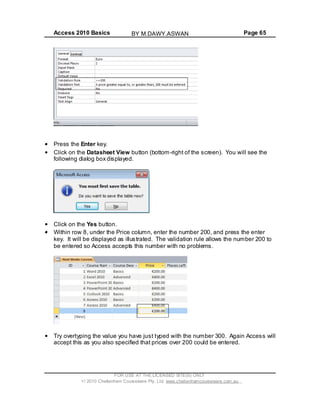
Press the Enter key.
Click on the Datasheet View button (bottom-right of the screen). You will see the
following dialog box displayed.
Click on the Yes button.
Within row 8, under the Price column, enter the number 200, and press the enter
key. It will be displayed as illustrated. The validation rule allows the number 200 to
be entered so Access accepts this number with no problems.
Try overtyping the value you have just typed with the number 300. Again Access will
accept this as you also specified that prices over 200 could be entered.
FOR USE AT THE LICENSED SITE(S) ONLY
2010 Cheltenham Courseware Pty. Ltd. www.cheltenhamcourseware.com.au
BY M.DAWY.ASWAN
Access 2010 Basics Page 66
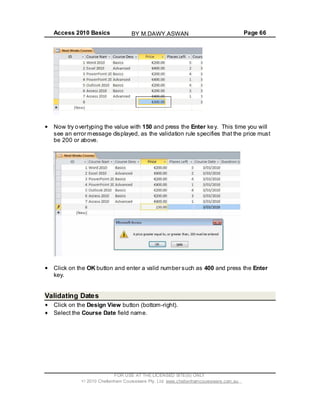
Now try overtyping the value with 150 and press the Enter key. This time you will
see an error message displayed, as the validation rule specifies that the price must
be 200 or above.
Click on the OK button and enter a valid number such as 400 and press the Enter
key.
Validating Dates
Click on the Design View button (bottom-right).
Select the Course Date field name.
FOR USE AT THE LICENSED SITE(S) ONLY
2010 Cheltenham Courseware Pty. Ltd. www.cheltenhamcourseware.com.au
BY M.DAWY.ASWAN
Access 2010 Basics Page 67
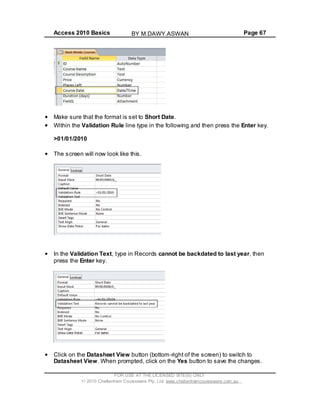
Make sure that the format is set to Short Date.
Within the Validation Rule line type in the following and then press the Enter key.
>01/01/2010
The screen will now look like this.
In the Validation Text, type in Records cannot be backdated to last year, then
press the Enter key.
Click on the Datasheet View button (bottom-right of the screen) to switch to
Datasheet View. When prompted, click on the Yes button to save the changes.
FOR USE AT THE LICENSED SITE(S) ONLY
2010 Cheltenham Courseware Pty. Ltd. www.cheltenhamcourseware.com.au
BY M.DAWY.ASWAN
Access 2010 Basics Page 68
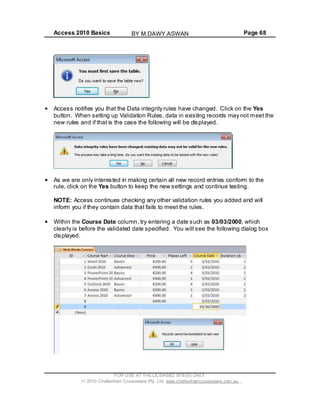
Access notifies you that the Data integrity rules have changed. Click on the Yes
button. When setting up Validation Rules, data in existing records may not meet the
new rules and if that is the case the following will be displayed.
As we are only interested in making certain all new record entries conform to the
rule, click on the Yes button to keep the new settings and continue testing.
NOTE: Access continues checking any other validation rules you added and will
inform you if they contain data that fails to meet the rules.
Within the Course Date column, try entering a date such as 03/03/2000, which
clearly is before the validated date specified. You will see the following dialog box
displayed.
FOR USE AT THE LICENSED SITE(S) ONLY
2010 Cheltenham Courseware Pty. Ltd. www.cheltenhamcourseware.com.au
BY M.DAWY.ASWAN
Access 2010 Basics Page 69
Click on the OK button and overtype the invalid date with a valid date, i.e. after
01/01/2010, which will fulfill the validation criteria.
Data Entry Required / Not Required
A validation rule ensures that data entered into a field meets the rules; however it
does not require data to be entered into a field. You can use the Required option to
force a user to enter data into a particular field.
Click on the Design View button (bottom-right) and if required save any changes
that you have made.
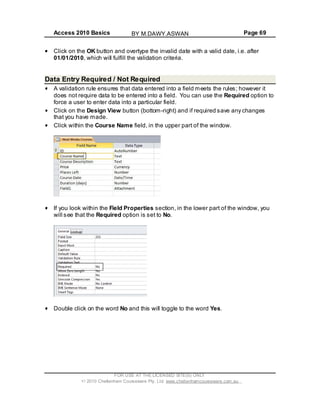
Click within the Course Name field, in the upper part of the window.
If you look within the Field Properties section, in the lower part of the window, you
will see that the Required option is set to No.
Double click on the word No and this will toggle to the word Yes.
FOR USE AT THE LICENSED SITE(S) ONLY
2010 Cheltenham Courseware Pty. Ltd. www.cheltenhamcourseware.com.au
BY M.DAWY.ASWAN
Access 2010 Basics Page 70
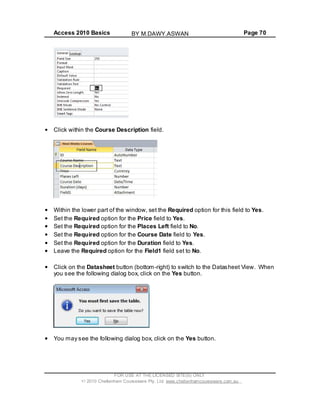
Click within the Course Description field.
Within the lower part of the window, set the Required option for this field to Yes.
Set the Required option for the Price field to Yes.
Set the Required option for the Places Left field to No.
Set the Required option for the Course Date field to Yes.
Set the Required option for the Duration field to Yes.
Leave the Required option for the Field1 field set to No.
Click on the Datasheet button (bottom-right) to switch to the Datasheet View. When
you see the following dialog box, click on the Yes button.
You may see the following dialog box, click on the Yes button.
FOR USE AT THE LICENSED SITE(S) ONLY
2010 Cheltenham Courseware Pty. Ltd. www.cheltenhamcourseware.com.au
BY M.DAWY.ASWAN
Access 2010 Basics Page 71
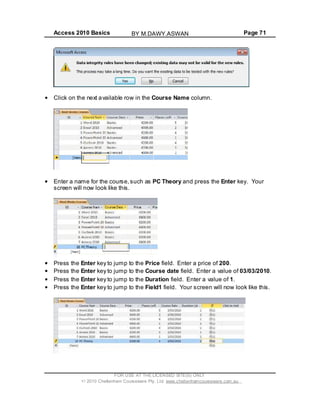
Click on the next available row in the Course Name column.
Enter a name for the course,such as PC Theory and press the Enter key. Your
screen will now look like this.
Press the Enter key to jump to the Price field. Enter a price of 200.
Press the Enter key to jump to the Course date field. Enter a value of 03/03/2010.
Press the Enter key to jump to the Duration field. Enter a value of 1.
Press the Enter key to jump to the Field1 field. Your screen will now look like this.
FOR USE AT THE LICENSED SITE(S) ONLY
2010 Cheltenham Courseware Pty. Ltd. www.cheltenhamcourseware.com.au
BY M.DAWY.ASWAN
Access 2010 Basics Page 72
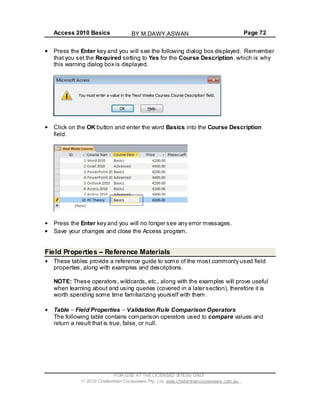
Press the Enter key and you will see the following dialog box displayed. Remember
that you set the Required setting to Yes for the Course Description, which is why
this warning dialog box is displayed.
Click on the OK button and enter the word Basics into the Course Description
field.
Press the Enter key and you will no longer see any error messages.
Save your changes and close the Access program.
Field Properties Reference Materials
These tables provide a reference guide to some of the most commonly used field
properties, along with examples and descriptions.
NOTE: These operators, wildcards, etc., along with the examples will prove useful
when learning about and using queries (covered in a later section), therefore it is
worth spending some time familiarizing yourself with them.
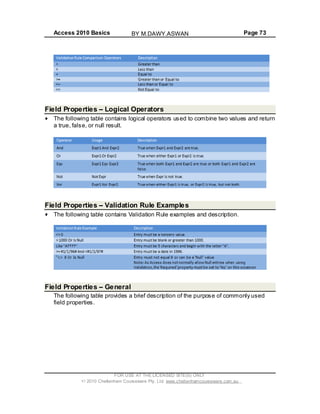
Table Field Properties Validation Rule Comparison Operators
The following table contains comparison operators used to compare values and
return a result that is true, false, or null.
FOR USE AT THE LICENSED SITE(S) ONLY
2010 Cheltenham Courseware Pty. Ltd. www.cheltenhamcourseware.com.au
BY M.DAWY.ASWAN
Access 2010 Basics Page 73
Field Properties Logical Operators
The following table contains logical operators used to combine two values and return
a true, false, or null result.
Field Properties Validation Rule Examples
The following table contains Validation Rule examples and description.
Field Properties General
The following table provides a brief description of the purpose of commonly used
field properties.
FOR USE AT THE LICENSED SITE(S) ONLY
2010 Cheltenham Courseware Pty. Ltd. www.cheltenhamcourseware.com.au
BY M.DAWY.ASWAN
Access 2010 Basics Page 74
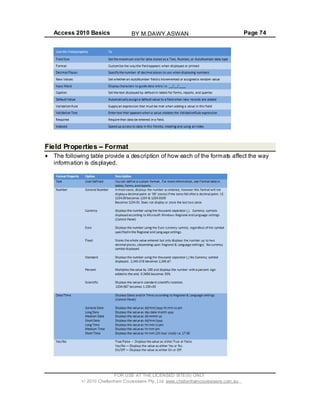
Field Properties Format
The following table provide a description of how each of the formats affect the way
information is displayed.
FOR USE AT THE LICENSED SITE(S) ONLY
2010 Cheltenham Courseware Pty. Ltd. www.cheltenhamcourseware.com.au
BY M.DAWY.ASWAN
Access 2010 Basics Page 75
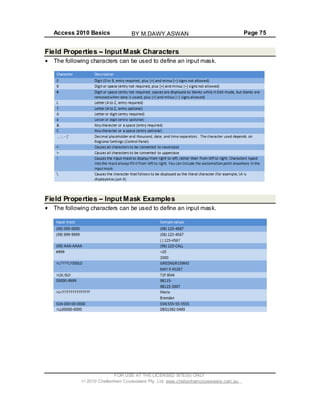
Field Properties Input Mask Characters
The following characters can be used to define an input mask.
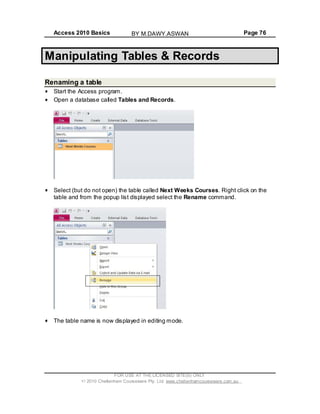
Field Properties Input Mask Examples
The following characters can be used to define an input mask.
FOR USE AT THE LICENSED SITE(S) ONLY
2010 Cheltenham Courseware Pty. Ltd. www.cheltenhamcourseware.com.au
BY M.DAWY.ASWAN
Access 2010 Basics Page 76
Manipulating Tables & Records
Renaming a table
Start the Access program.
Open a database called Tables and Records.
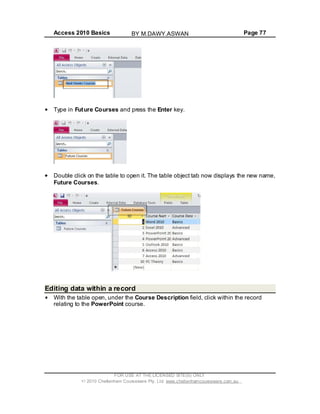
Select (but do not open) the table called Next Weeks Courses. Right click on the
table and from the popup list displayed select the Rename command.
The table name is now displayed in editing mode.
FOR USE AT THE LICENSED SITE(S) ONLY
2010 Cheltenham Courseware Pty. Ltd. www.cheltenhamcourseware.com.au
BY M.DAWY.ASWAN
Access 2010 Basics Page 77
Type in Future Courses and press the Enter key.
Double click on the table to open it. The table object tab now displays the new name,
Future Courses.
Editing data within a record
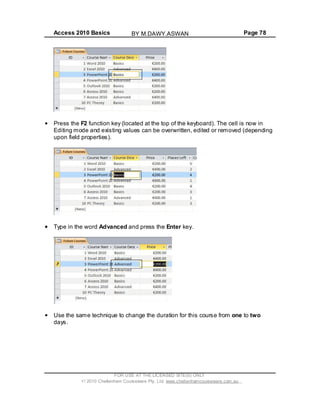
With the table open, under the Course Description field, click within the record
relating to the PowerPoint course.
FOR USE AT THE LICENSED SITE(S) ONLY
2010 Cheltenham Courseware Pty. Ltd. www.cheltenhamcourseware.com.au
BY M.DAWY.ASWAN
Access 2010 Basics Page 78
Press the F2 function key (located at the top of the keyboard). The cell is now in
Editing mode and existing values can be overwritten, edited or removed (depending
upon field properties).
Type in the word Advanced and press the Enter key.
Use the same technique to change the duration for this course from one to two
days.
FOR USE AT THE LICENSED SITE(S) ONLY
2010 Cheltenham Courseware Pty. Ltd. www.cheltenhamcourseware.com.au
BY M.DAWY.ASWAN
Access 2010 Basics Page 79
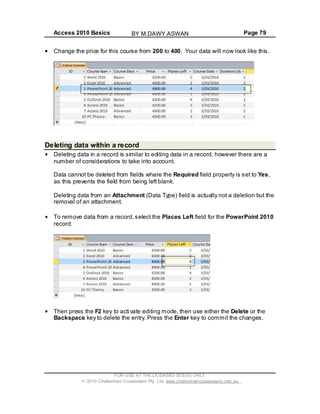
Change the price for this course from 200 to 400. Your data will now look like this.
Deleting data within a record
Deleting data in a record is similar to editing data in a record; however there are a
number of considerations to take into account.
Data cannot be deleted from fields where the Required field property is set to Yes,
as this prevents the field from being left blank.
Deleting data from an Attachment (Data Type) field is actually not a deletion but the
removal of an attachment.
To remove data from a record,select the Places Left field for the PowerPoint 2010
record.
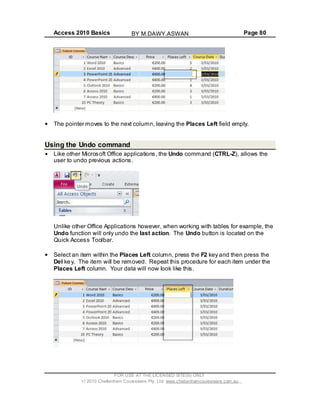
Then press the F2 key to activate editing mode, then use either the Delete or the
Backspace key to delete the entry. Press the Enter key to commit the changes.
FOR USE AT THE LICENSED SITE(S) ONLY
2010 Cheltenham Courseware Pty. Ltd. www.cheltenhamcourseware.com.au
BY M.DAWY.ASWAN
Access 2010 Basics Page 80
The pointer moves to the next column, leaving the Places Left field empty.
Using the Undo command
Like other Microsoft Office applications, the Undo command (CTRL-Z), allows the
user to undo previous actions.
Unlike other Office Applications however, when working with tables for example, the
Undo function will only undo the last action. The Undo button is located on the
Quick Access Toolbar.
Select an item within the Places Left column, press the F2 key and then press the
Del key. The item will be removed. Repeat this procedure for each item under the
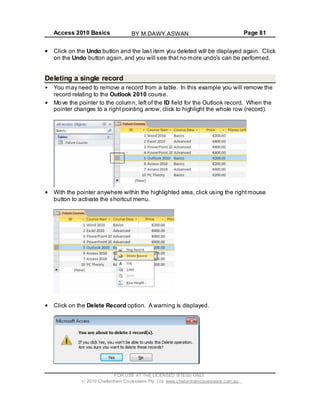
Places Left column. Your data will now look like this.
FOR USE AT THE LICENSED SITE(S) ONLY
2010 Cheltenham Courseware Pty. Ltd. www.cheltenhamcourseware.com.au
BY M.DAWY.ASWAN
Access 2010 Basics Page 81
Click on the Undo button and the last item you deleted will be displayed again. Click
on the Undo button again, and you will see that no more undos can be performed.
Deleting a single record
You may need to remove a record from a table. In this example you will remove the
record relating to the Outlook 2010 course.
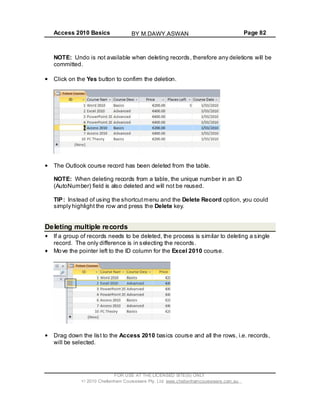
Move the pointer to the column, left of the ID field for the Outlook record. When the
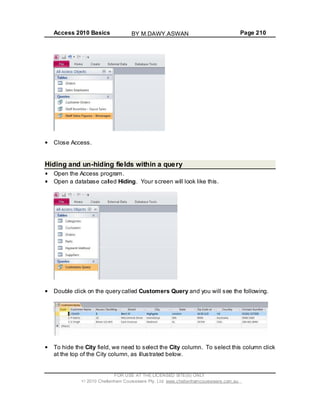
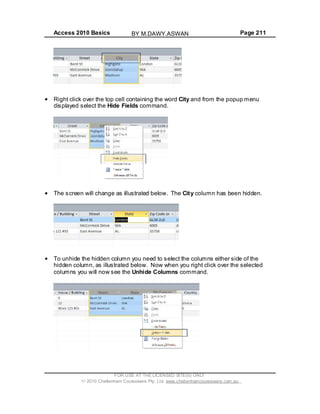
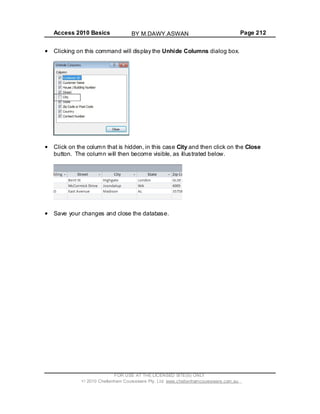
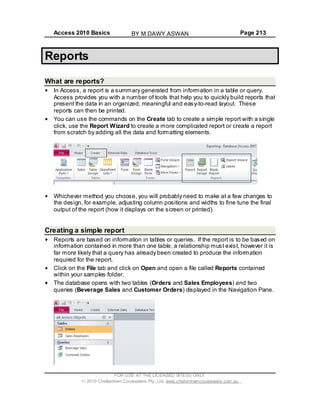
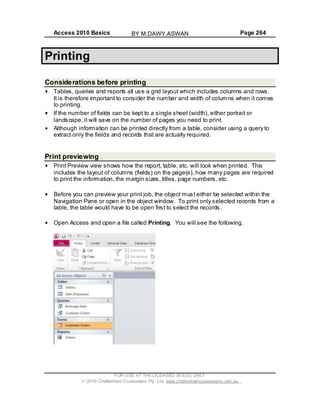
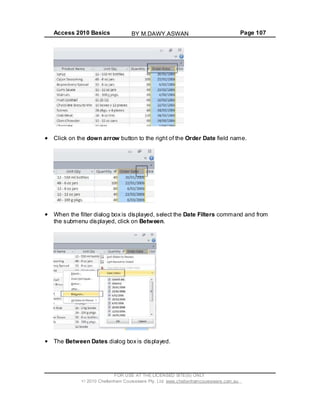
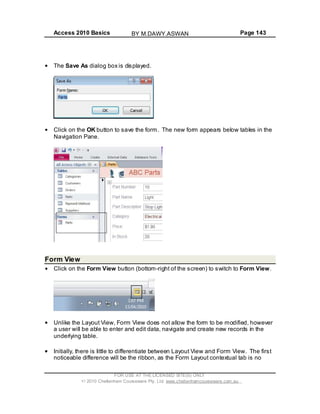
pointer changes to a right pointing arrow, click to highlight the whole row (record).
With the pointer anywhere within the highlighted area, click using the rightmouse
button to activate the shortcut menu.
Click on the Delete Record option. A warning is displayed.
FOR USE AT THE LICENSED SITE(S) ONLY
2010 Cheltenham Courseware Pty. Ltd. www.cheltenhamcourseware.com.au
BY M.DAWY.ASWAN
Access 2010 Basics Page 82
NOTE: Undo is not available when deleting records, therefore any deletions will be
committed.
Click on the Yes button to confirm the deletion.
The Outlook course record has been deleted from the table.
NOTE: When deleting records from a table, the unique number in an ID
(AutoNumber) field is also deleted and will not be reused.
TIP: Instead of using the shortcutmenu and the Delete Record option, you could
simply highlight the row and press the Delete key.
Deleting multiple records
If a group of records needs to be deleted, the process is similar to deleting a single
record. The only difference is in selecting the records.
Move the pointer left to the ID column for the Excel 2010 course.
Drag down the list to the Access 2010 basics course and all the rows, i.e. records,
will be selected.
FOR USE AT THE LICENSED SITE(S) ONLY
2010 Cheltenham Courseware Pty. Ltd. www.cheltenhamcourseware.com.au
BY M.DAWY.ASWAN
Access 2010 Basics Page 83
Press the Del key and you will see a warning dialog box.
Click on the Yes button to delete the selected records. Your data will now look like
this.
TIP: Records can also be highlighted by clicking on the first record, moving to the
last, then whilst holding down the Shift key, select the last record to highlight all
records between and including the first and last records.
Using Save As to back up the database using a different file name
Click on the File tab and select the Save Database As option.
FOR USE AT THE LICENSED SITE(S) ONLY
2010 Cheltenham Courseware Pty. Ltd. www.cheltenhamcourseware.com.au
BY M.DAWY.ASWAN
Access 2010 Basics Page 84
You may see a dialog box asking you to close all open objects. If you see this dialog
box click on the Yes button.
The Save As dialog box will be displayed.
Enter a new name for the database, such as Backup Tables and Records.
FOR USE AT THE LICENSED SITE(S) ONLY
2010 Cheltenham Courseware Pty. Ltd. www.cheltenhamcourseware.com.au
BY M.DAWY.ASWAN
Access 2010 Basics Page 85
Click on the Save button to save the database under the new name.
Deleting a table
Open a database called Deleting a Table. This database contains three tables.
Select the table that you wish to delete, such as New Courses.
Press the Del key and you will see a warning dialog box.
Click on the Yes button and the table will be deleted.
TIP: To delete a table from a database, the table must be closed.
Close the Access program.
FOR USE AT THE LICENSED SITE(S) ONLY
2010 Cheltenham Courseware Pty. Ltd. www.cheltenhamcourseware.com.au
BY M.DAWY.ASWAN
Access 2010 Basics Page 86
Primary Keys and Indexing
Defining a Primary Key
A primary key is used as a unique identifier for each record in a database table and
is essential when working with relational tables.
To be effective, a primary key cannot have duplicate entries and must be set on a
field generating a unique identifier. When creating a new table Access automatically
adds the ID field with an AutoNumber data type. By default the ID field is also the
primary key.
Other fields suitable to be set as a primary key are for example passport, social
security and driving licence numbers, military identification, tax, workplace or
personal identification numbers, unique to each individual.
NOTE: A primary key field can never be empty.
Access also uses primary keys to index tables.
Start the Access program.
Open a database called Keys and indexing.
Open the Parts table.
Switch to the Design View, by clicking on the Design View button (bottom-right).
FOR USE AT THE LICENSED SITE(S) ONLY
2010 Cheltenham Courseware Pty. Ltd. www.cheltenhamcourseware.com.au
BY M.DAWY.ASWAN
Access 2010 Basics Page 87
The Primary Key symbol identifies the Part Number field as being the primary key.
NOTE: The Primary Key button is also shown in the Tools group on the Ribbon.
To use another field as the primary key, select the Part Name field.
Click on the Design tab.
Click on the Primary Key button on the Ribbon. The Primary Key symbol is now
displayed beside the Part Name field.
FOR USE AT THE LICENSED SITE(S) ONLY
2010 Cheltenham Courseware Pty. Ltd. www.cheltenhamcourseware.com.au
BY M.DAWY.ASWAN
Access 2010 Basics Page 88
NOTE: The Part Name field however is not a suitable data type to become a
primary key, as data within this field is unlikely to be unique.
When working with related tables, the Primary Key field in one table is generally the
(foreign key) field used to create the relationship with another table.
NOTE: Depending upon the data type a field is set to, more than one field can be
highlighted and set as a primary key, although only one displays the Primary Key
symbol.
MAKE SURE YOU DO THIS: Reset the Primary Key back to the Part Number, field
before continuing, as illustrated below.
Indexing - Reference Notes
Access uses indexes much like the Table of Contents at the beginning of this
course, to help locate and sort information quickly. An index stores the location of
records based on the field or fields that you choose to index. After Access obtains
the location from the index, it can then retrieve the data by moving directly to the
correct location.
As mentioned earlier, by default, Access sets the Primary key as the Index within a
table; however indexing can be set on other fields, especially fields used frequently
in searches.
NOTE: Although indexing may speed up searches, it can also slow the process of
updating data within tables. Also, you cannot index OLE objects or attachment
fields.
FOR USE AT THE LICENSED SITE(S) ONLY
2010 Cheltenham Courseware Pty. Ltd. www.cheltenhamcourseware.com.au
BY M.DAWY.ASWAN
Access 2010 Basics Page 89
As a guide, consider indexing a field if all of the following conditions are met:
- The field's data type is Text, Memo, Number, Date/Time,
AutoNumber, Currency, Yes/No or Hyperlink.
- You anticipate searching for values stored in the field.
- You anticipate sorting values in the field.
- You anticipate storing many different values in the field. If many of the values in the
field are the same, the index might not significantly speed up queries.
Indexing can also be set for multiple fields. If you are likely to perform searches on
two or more fields within a single query, it makes sense to create a multiple-field
index on both fields.
NOTE: You can include up to 10 and set the order of fields in a multiple-field index.
When you sort a table using a multiple-field index, Access first sorts by the first field
defined for the index. If there are records with duplicate values in the first field,
Access then sorts using the second field defined for the multiple-field index.
Before creating an index, decide whether you want to create a single-field index or a
multiple-field index.
You create an index on a single field by setting the Indexed property.
The following table lists the possible settings for the Indexed property.
NOTE: By setting the Index property to No Duplicates, Access prevents any new
value which matches an existing value from being entered into the field. For
example, indexing the ID field in a table and setting it to Yes (No Duplicates)
prevents duplicate numbers being entered and therefore the values in the field
remain unique.
FOR USE AT THE LICENSED SITE(S) ONLY
2010 Cheltenham Courseware Pty. Ltd. www.cheltenhamcourseware.com.au
BY M.DAWY.ASWAN
Access 2010 Basics Page 90
Creating a single-field Index
For the purpose of this exercise, we will assume that the Part Name field in the
Parts table will be subject to many searches; therefore it would be worthwhile
indexing this field to speed up searches.
Click on the Part Name field.
Move down to the General tab within the Field Properties section.
If you look at the Indexed properties, you will see that it is set to No.
Double click on the word No and it will toggle to the word Yes. The Field
Properties section will now look like this.
Press Ctrl-S to save your changes.
FOR USE AT THE LICENSED SITE(S) ONLY
2010 Cheltenham Courseware Pty. Ltd. www.cheltenhamcourseware.com.au
BY M.DAWY.ASWAN
Access 2010 Basics Page 91
Close the Access program.
Creating a multiple-field Index
Start the Access program.
Open a table called Multiple Field Indexing.
Open the Parts table.
Click on the Home tab and then click on the View button. Click on Design View.
Your screen will look like this.
On the Design tab, within the Show/Hide group, click on the Indexes button.
FOR USE AT THE LICENSED SITE(S) ONLY
2010 Cheltenham Courseware Pty. Ltd. www.cheltenhamcourseware.com.au
BY M.DAWY.ASWAN
Access 2010 Basics Page 92
The Indexes window is displayed.
NOTE: By default, Access automatically configures indexes on certain fields as they
are added to a table, for example ID fields. In such cases, these indexes will display
in the Indexes dialog box when opened.
A name for the index is required in the first blank row in the Index Name column.
This name is used only to identify the index and can be the name of a field(s) to be
indexed or another name.
In the Index Name column, type New Index and press the Enter key to move to the
Field Name column, as illustrated.
FOR USE AT THE LICENSED SITE(S) ONLY
2010 Cheltenham Courseware Pty. Ltd. www.cheltenhamcourseware.com.au
BY M.DAWY.ASWAN
Access 2010 Basics Page 93
Click on the drop arrow and select Part Name and press the Enter key to move to
the Sort Order column.
Leave the sort order set to Ascending (default) and press the Enter key to move to
the next row down.
Press the Enter key again to move to the Field Name column, as illustrated.
FOR USE AT THE LICENSED SITE(S) ONLY
2010 Cheltenham Courseware Pty. Ltd. www.cheltenhamcourseware.com.au
BY M.DAWY.ASWAN
Access 2010 Basics Page 94
Click in the down arrow and select Price.
The screen will now look like this.
Press the Enter key to move to the Sort Order column.
Close the dialog box.
Deleting multi-field indexes
On the Design tab, in the Show/Hide group, click on the Indexes button.
FOR USE AT THE LICENSED SITE(S) ONLY
2010 Cheltenham Courseware Pty. Ltd. www.cheltenhamcourseware.com.au
BY M.DAWY.ASWAN
Access 2010 Basics Page 95
Click in the left most column to highlight the row as shown below.
Press the Delete key on the keyboard.
NOTE: To delete multiple rows in one go, click and drag in the left most column to
select the required rows before pressing the Delete key.
Close the dialog box.
Close Access and save any changes that you have made.
FOR USE AT THE LICENSED SITE(S) ONLY
2010 Cheltenham Courseware Pty. Ltd. www.cheltenhamcourseware.com.au
BY M.DAWY.ASWAN
Access 2010 Basics Page 96
Filtering
Text Filters
Text Filters provide a means to find one or more specific records in table, form or
print specific records in a report, table, or query.
By using criteria in a filter, you effectively display only those records matching the
criteria. Records not matching the criteria disappear from view, hence the term
filter . For example if you only want to display records that fall between the first day
of a month and the last day of a month, you can apply a filter, specifying the oldest
date and the newest and only records matching the criteria remain visible in the
table
Filters remain in place until they are removed or until the object is closed.
More than one filter may be active at one time, although only one filter per field is
possible. Setting a new filter on a field will effectively remove the previous filter for
that field before applying the new filter.
Applying a single filter
A single filter is one that is applied to a single field, using the quick filter options
made available in Access 2010.
Open the Access program.
Open a database called Filtering Records. You will see the following.
Double click to open the Orders table.
FOR USE AT THE LICENSED SITE(S) ONLY
2010 Cheltenham Courseware Pty. Ltd. www.cheltenhamcourseware.com.au
BY M.DAWY.ASWAN
Access 2010 Basics Page 97
To apply a single filter click at the top of the Position column to select the whole
column.
Click on the Home tab, within the Sort & Filter group click on the Filter button.
FOR USE AT THE LICENSED SITE(S) ONLY
2010 Cheltenham Courseware Pty. Ltd. www.cheltenhamcourseware.com.au
BY M.DAWY.ASWAN
Access 2010 Basics Page 98
The Filter drop down is displayed.
.
This drop down menu is divided by lines, into three sections, however only the
second and third areas of the dialog box apply to filtering. For now, ignore the A-Z
sort section as this will be covered elsewhere.
In the lower section of the dialog, you will notice a group of tick boxes. These tick
boxes represent all the available (unique) job titles entered into the Positions field.
At the top of the tick box group is a tick box labeled (Select All).
Click on the (Select All) tick box to un-tick all boxes.
FOR USE AT THE LICENSED SITE(S) ONLY
2010 Cheltenham Courseware Pty. Ltd. www.cheltenhamcourseware.com.au
BY M.DAWY.ASWAN
Access 2010 Basics Page 99
To locate all records for those who are an Owner, click on the Owner tick box.
Click on the OK button. Six records are displayed with Owner in the Positions field.
FOR USE AT THE LICENSED SITE(S) ONLY
2010 Cheltenham Courseware Pty. Ltd. www.cheltenhamcourseware.com.au
BY M.DAWY.ASWAN
Access 2010 Basics Page 100
A button is displayed to the right of the field name of any field which has a filter
applied.
Click on the Home tab and within the Sort & Filter group, the Toggle Filter button
is now active.
Toggle Filter effectively turns the filter on and off, switching between the filtered
view and normal view (unfiltered).
The Filtered button (at the bottom of the window) which was previously grayed out
is now active in the record navigation bar at the bottom of the table.
The Filtered button works in exactly the same way as a Toggle Filter button in the
Sort & Filter group in the ribbon.
Click on the Filtered button once. The table is temporarily unfiltered and all records
are visible.
Click on the Unfiltered button to revert back to the filtered view.
FOR USE AT THE LICENSED SITE(S) ONLY
2010 Cheltenham Courseware Pty. Ltd. www.cheltenhamcourseware.com.au
BY M.DAWY.ASWAN
Access 2010 Basics Page 101
Clearing a single filter
To clear a filter that you applied click at the top of the Position column to select the
column.
Click on the Home tab and within the Sort & Filter group, click on the Filter button.
The Filter dialog box is displayed.
NOTE: Only when a filter is in use, will the Clear filter from Position option be
available in the list, otherwise the option will be grayed out.
Select the Clear filter from Position option from the list to remove the filter.
All the records will now be displayed again.
FOR USE AT THE LICENSED SITE(S) ONLY
2010 Cheltenham Courseware Pty. Ltd. www.cheltenhamcourseware.com.au
BY M.DAWY.ASWAN
Access 2010 Basics Page 102
Creating multiple filters
Using a filter on one field helps reduce the list of records to those that meet the
criteria set, however there may be occasions when you want to be even more
specific about the records you wish to display. This can be accomplished by setting
different filters across multiple fields.
NOTE: Only one filter can be specified per field, however multiple criteria can be
included in one filter.
To set filters on multiple fields, you simply follow the steps used for creating a simple
filter and repeat the process across additional fields. The only subtle difference is in
the process of clearing multiple field filters, covered later in this section.
With the Orders table open, click on the double left pointing arrow button, top right
of the Navigation Pane to minimize the pane.
NOTE: Minimizing the navigation pane provides more viewing space when working
with database object.
FOR USE AT THE LICENSED SITE(S) ONLY
2010 Cheltenham Courseware Pty. Ltd. www.cheltenhamcourseware.com.au
BY M.DAWY.ASWAN
Access 2010 Basics Page 103
Click at the top of the Position field name to highlight the column.
Click on the down arrow button to the right of the Position field name.
In the dialog box click on the Text Filters command and from the submenu
displayed, click on Begins With.
FOR USE AT THE LICENSED SITE(S) ONLY
2010 Cheltenham Courseware Pty. Ltd. www.cheltenhamcourseware.com.au
BY M.DAWY.ASWAN
Access 2010 Basics Page 104
NOTE: Text Filters are custom filters that allow you to specify criteria without having
to use operators such as <, >, =, etc
The Custom Filter dialog box is displayed.
Click into the box and type in Purchasing.
Click on the OK button.
Only records matching the criteria, beginning with the word Purchasing in the
Position field remain displayed.
FOR USE AT THE LICENSED SITE(S) ONLY
2010 Cheltenham Courseware Pty. Ltd. www.cheltenhamcourseware.com.au
BY M.DAWY.ASWAN
Access 2010 Basics Page 105
Click at the top of the Quantity field column.
NOTE: If you do not see this field, you may have the scroll to the right.
Click on the down arrow button to the right of the Quantity field name.
When the Filter dialog box is displayed, click on the Number Filters command and
from the sub menu displayed, click on Greater Than.
FOR USE AT THE LICENSED SITE(S) ONLY
2010 Cheltenham Courseware Pty. Ltd. www.cheltenhamcourseware.com.au
BY M.DAWY.ASWAN
Access 2010 Basics Page 106
The Custom Filter dialog box is displayed.
NOTE: Although the title in the Number filter list was
Greater Than
the dialog box states Quantity is greater than or equal to therefore when you
enter in a value of 40 for example, the filter will display records with values of 40 and
above.
Click into the box and type in 40.
Click on the OK button. Only records matching a Position beginning with the word
Purchase and a Quantity greater than or equal to 40 remain displayed.
Position the pointer at the top of the Order Date field.
NOTE: You may have to scroll to the right to view this field.
FOR USE AT THE LICENSED SITE(S) ONLY
2010 Cheltenham Courseware Pty. Ltd. www.cheltenhamcourseware.com.au
BY M.DAWY.ASWAN
Access 2010 Basics Page 107
Click on the down arrow button to the right of the Order Date field name.
When the filter dialog box is displayed, select the Date Filters command and from
the submenu displayed, click on Between.
The Between Dates dialog box is displayed.
FOR USE AT THE LICENSED SITE(S) ONLY
2010 Cheltenham Courseware Pty. Ltd. www.cheltenhamcourseware.com.au
BY M.DAWY.ASWAN
Access 2010 Basics Page 108
Into the Oldest section, type in 01-03-2006.
Into the Newest section type in 31-03-2006.
Click on the OK button. Now the number of records matching the three filters is
reduced even further.
Clearing multiple filters
Although it is possible to clear each filter, one at a time by following the steps used
to clear a single filter; it is also possible to clear all filters at once.
Click on the Home tab and within the Sort & Filter group, click on the Advanced
button. From the list displayed, select Clear All Filters option. The filters will be
removed and all records will once again be displayed.
FOR USE AT THE LICENSED SITE(S) ONLY
2010 Cheltenham Courseware Pty. Ltd. www.cheltenhamcourseware.com.au
BY M.DAWY.ASWAN
Access 2010 Basics Page 109
Click on the button, as illustrated below to re-expand the side pane.
Close Access and save any changes you have made.
FOR USE AT THE LICENSED SITE(S) ONLY
2010 Cheltenham Courseware Pty. Ltd. www.cheltenhamcourseware.com.au
BY M.DAWY.ASWAN
Access 2010 Basics Page 110
Sorting
Sorting Records A-Z
Start the Access program.
Open a database called Sorting Records.
Sorting arranges the data within a table into alphabetical or numerical order,making
it more effective and easier to use. Data is easier to find when we know it is sorted
in some order, for example, even a simple computerized address book is sorted
alphabetically from A Z and calendars are sorted by date order.
NOTE: A table, query, form, or report can be sorted on one or more fields, with the
exception of attachments or OLE data type fields.
Double click on the Orders table to open the table.
To sort a single field, such as the Product Name field, click on the down arrow on
the field name header.
FOR USE AT THE LICENSED SITE(S) ONLY
2010 Cheltenham Courseware Pty. Ltd. www.cheltenhamcourseware.com.au
BY M.DAWY.ASWAN
Access 2010 Basics Page 111
From the drop down list displayed, select Sort A to Z.
The data will be sorted by Product Name, as illustrated.
FOR USE AT THE LICENSED SITE(S) ONLY
2010 Cheltenham Courseware Pty. Ltd. www.cheltenhamcourseware.com.au
BY M.DAWY.ASWAN
Access 2010 Basics Page 112
Sorting records Z-A
To sort in reverse order, repeat the process and select Sort Z to A.
Removing a sort
To remove a sort, click on the Remove Sort button in the Sort & Filter group. The
table returns to the default sort order.
Sorting on multiple fields
In the table below, the Sales Account Manager and the Category fields are side by
side, with the Sales Account Manager field to the left of the Category field. This
positioning is relevant when using a sort on multiple fields in a table, as the left most
field in the select group of fields, takes priority over the fields to the right.
A sort is needed to organize the Sales Account Managers into alphabetical order
first, then sort the Category field so that categories within that field are alphabetical
according to each Sales Account Manager, as seen in the image below.
FOR USE AT THE LICENSED SITE(S) ONLY
2010 Cheltenham Courseware Pty. Ltd. www.cheltenhamcourseware.com.au
BY M.DAWY.ASWAN
Access 2010 Basics Page 113
Place the pointer over the Sales Account Manager field name (at the top of the
column) without clicking. When the pointer changes to the down arrow shape,
click and drag (right) across to the Category field in one movement, to highlight both
fields. Release the mouse button to complete this task. The two columns will be
highlighted, as illustrated.
Within the Home tab, in the Sort & Filter group, click on the Ascending button.
FOR USE AT THE LICENSED SITE(S) ONLY
2010 Cheltenham Courseware Pty. Ltd. www.cheltenhamcourseware.com.au
BY M.DAWY.ASWAN
Access 2010 Basics Page 114
Click anywhere in the table to clear the highlighting from the two fields. The fields
are sorted in the order you expected.
To demonstrate how the position of fields can impact the results of a sort, first
remove the sort. To remove a sort, click on the Remove Sort button in the Sort &
Filter group.
Move the pointer to the Category field name (at the top of the column) and when the
pointer changes to the down arrow shape click to highlight the column. Release the
mouse button to complete this task.
FOR USE AT THE LICENSED SITE(S) ONLY
2010 Cheltenham Courseware Pty. Ltd. www.cheltenhamcourseware.com.au
BY M.DAWY.ASWAN
Access 2010 Basics Page 115
With the Category field highlighted, click on the Category field name again and
drag the field to the left of the Sales Account Manager field.
TIP: Remember the thick black line indicates the current position of the field as you
drag it across the table.
When the Category field is in position, release the mouse button to complete the
move.
Place the pointer over the Category field name without clicking. When the pointer
changes to the down arrow shape click and drag right across to the Sales Account
Manager field in one movement, to highlight both fields. Release the mouse button
to complete this task.
FOR USE AT THE LICENSED SITE(S) ONLY
2010 Cheltenham Courseware Pty. Ltd. www.cheltenhamcourseware.com.au
BY M.DAWY.ASWAN
Access 2010 Basics Page 116
In the Sort & Filter group click on the Ascending button.
Click anywhere in the table to clear the highlight from the two fields.
This time the Category field is sorted alphabetically first and the Sales Account
Managers second.
NOTE: When sorting text fields that contain null or zero-length strings, the null
values are listed first (ascending order A-Z) and last (descending order Z-A).
Save your changes and close the Access Program.
FOR USE AT THE LICENSED SITE(S) ONLY
2010 Cheltenham Courseware Pty. Ltd. www.cheltenhamcourseware.com.au
BY M.DAWY.ASWAN
Access 2010 Basics Page 117
Searching
Searching through records
Start the Access program.
Open a database called Searching Records.
Open the Orders table, so that your data looks like this.
Press Ctrl+F to display the Find and Replace dialog box.
FOR USE AT THE LICENSED SITE(S) ONLY
2010 Cheltenham Courseware Pty. Ltd. www.cheltenhamcourseware.com.au
BY M.DAWY.ASWAN
Access 2010 Basics Page 118
You can use this dialog box to find a specific word. To do this, enter a word into the
Find What section of the dialog box. In this example, enter Rodman
You can also set where you wish to search. Click on the down arrow next to the
Look In section of the dialog box, and from the drop down list displayed, select
Current Document.
Click on the Find Next button. You will see the first instance of the word highlighted,
as illustrated below.
FOR USE AT THE LICENSED SITE(S) ONLY
2010 Cheltenham Courseware Pty. Ltd. www.cheltenhamcourseware.com.au
BY M.DAWY.ASWAN
Access 2010 Basics Page 119
NOTE: Re-clicking on the Find Next button will find more instances of the word
within the table. In this case the word only occurs once.
You can also search for a number. Try searching the number 40. You should find
multiple instances of this number within the table. Make sure that the Look In
section of the dialog box is set to look at the Current Document (i.e. Orders), not
just the active column.
You can also search for a phrase rather than a single word. Try searching for Autier
Miconi. Make sure that the Look In section of the dialog box is set to look at the
Current Document (i.e. Orders), not just the active column.
You can also search for a date within a table. Try searching for 7/04/2006.
Save your changes and close the Access program.
FOR USE AT THE LICENSED SITE(S) ONLY
2010 Cheltenham Courseware Pty. Ltd. www.cheltenhamcourseware.com.au
BY M.DAWY.ASWAN
Access 2010 Basics Page 120
Relationships
Table relationships
Good database design suggests data is organized across multiple tables, as to store
data in one single table would;
1) Result in vast amounts of duplicated data and
2) Quickly become unmanageable.
Relationships are used to create a link between two or more tables within a
database. When a link is established and with the use of other objects within the
database, data can be entered into or viewed from one or more tables at the same
time, without the need to close one table and open another.
The most common relationships between tables are:
One-Many
Many-Many
One-One
A relationship is built by matching a unique field within one table with a field within
another table.
One-to-many relationship
Consider a Parts sales database that includes a Customers table and an Orders
table. A customer can place any number of orders. It follows that for any customer
represented in the Customers table, there can be many orders represented in the
Orders table. The relationship between the Customers table and the Orders table
is therefore a one-to-many relationship.
To establish a one-to-many relationship between tables, it is necessary to take the
Primary Key (normally the ID field) of the one side of the relationship, (in this case
the Customer table) and add it as an additional field within the many side (Orders)
table.
TIP: This requires you to add a new (Customers ID) field to the Orders table and
set the data type. As the AutoNumber field can only be used once in a table, the
Number data type is used. Notice the Customer ID field is included in the Orders
table, shown in the following image.
FOR USE AT THE LICENSED SITE(S) ONLY
2010 Cheltenham Courseware Pty. Ltd. www.cheltenhamcourseware.com.au
BY M.DAWY.ASWAN
Access 2010 Basics Page 121
NOTE: When using the name of a primary key field to create a field in another table
and thereby a link, the new field is often referred to as a Foreign key.
Many-to-many relationship
Consider the relationship between a Parts (Product) table and an Orders table. A
single order might include more than one product. On the other hand, a single
product can appear on many orders. For each record in the Orders table therefore,
there can be many records in the Products table.
In addition, for each record in the Parts table, there can be many records in the
Orders table. This type of relationship is called a many-to-many relationship
because, for any product, there can be many orders and, for any order, there can be
many products.
A many-to-many relationship, is actually achieved by creating two one-to-many
relationships, using a third table, often referred to as a Junction. The Primary key
from both the Parts and Orders tables are added to the third table (junction) thereby
effectively creating two one-to-many relationships.
NOTE: In many circles, a many-to-many relationship between your tables is not
considered ideal and consideration should be given to the design, possibly breaking
data across additional tables to avoid the necessity for many-to-many relationships.
One-to-one relationships
In a one-to-one relationship, each record in the first table can have only one
matching record in the second table, and each record in the second table can have
only one matching record in the first table. This type of relationship is not common
because, most often, the information related in this way is stored in the same table.
One example of a one-to-one relationship might be to transfer sensitive data to
another table and isolate it for security reasons.
NOTE: Both tables mustshare a common field but not necessarily a Primary key
FOR USE AT THE LICENSED SITE(S) ONLY
2010 Cheltenham Courseware Pty. Ltd. www.cheltenhamcourseware.com.au
BY M.DAWY.ASWAN
Access 2010 Basics Page 122
field.
Creating relationships between tables
Before a relationship can be created, a database must contain two or more tables
upon which a relationship can be formed.
Start Access and open a database called Relationships from your Access 2010
Basics folder. You will notice the Orders and Parts tables in the navigation pane.
Double click on the Orders table to open it. Take a moment to look at the fields in
the table. As you might expect, you will find the Orders No field (primary key) and
several others, including a Part Number field from the Parts table (foreign primary
key).
To create a relationship between tables, the tables must be closed. Click on the
Close button to close the Orders table (and if open, the Parts table too).
FOR USE AT THE LICENSED SITE(S) ONLY
2010 Cheltenham Courseware Pty. Ltd. www.cheltenhamcourseware.com.au
BY M.DAWY.ASWAN
Access 2010 Basics Page 123
You should now see this.
Click on the Database Tools tab and from within the Relationships group, click on
the Relationships button.
You will see the following displayed on your screen.
FOR USE AT THE LICENSED SITE(S) ONLY
2010 Cheltenham Courseware Pty. Ltd. www.cheltenhamcourseware.com.au
BY M.DAWY.ASWAN
Access 2010 Basics Page 124
Using the mouse pointer, select the Part Number field from the Parts table.
Drag across to the corresponding Part Number field in the Orders table. The Edit
Relationships options box is displayed.
Click on the Create button to establish the relationship and close the Edit
Relationships options box. There is now a link shown graphically as a line between
the two tables.
FOR USE AT THE LICENSED SITE(S) ONLY
2010 Cheltenham Courseware Pty. Ltd. www.cheltenhamcourseware.com.au
BY M.DAWY.ASWAN
Access 2010 Basics Page 125
About Referential integrity
Good database design suggests dividing information into many subject-based tables
to minimize data redundancy. Relationships are then used to bring the data back
together by placing common fields into related tables.
To bring data back together, Access uses the value in the "many" table to look up
the corresponding value in the "one" table.
Suppose you have a one-to-many relationship between Parts and Orders and you
want to delete a Part (Item). If the Part you want to delete has orders in the Orders
table, those orders will become "orphans" when you delete the Parts record.
The orders will still contain a Part ID, but the record (Parent) that it references no
longer exists. Referential integrity is designed to prevent this situation occurring and
keep references in sync so that this kind of situation never occurs.
Referential integrity by default is not enabled and therefore has to be enabled either
during the creation of relationships or when editing relationships. When enabled,
Access will reject any operation that violates referential integrity for that particular
relationship.
Access rejects updates that change the target of a reference or deletions that
remove the target of a reference. In other words, if you attempt to delete an
individual part from the Parts table that has been referenced in the Orders table
(included in an order), Access will prevent this from happening.
FOR USE AT THE LICENSED SITE(S) ONLY
2010 Cheltenham Courseware Pty. Ltd. www.cheltenhamcourseware.com.au
BY M.DAWY.ASWAN
Access 2010 Basics Page 126
Enabling Referential Integrity
Double click on the line between the two tables to open the Edit Relationships
options box again.
NOTE: If you miss the line when clicking, you will open a blank Edit Relationships
options box. Close the box and try again.
Click and check the Enforce Referential Integrity check box. Also notice how the
cascade options are now available for selection.
Warning: The appropriate cascade option should only be checked during
maintenance periods when legitimate changes need to be made to the database.
The Relationship Type: section shows this will be a One-To-Many relationship.
Click on the OK button to establish the relationship.
FOR USE AT THE LICENSED SITE(S) ONLY
2010 Cheltenham Courseware Pty. Ltd. www.cheltenhamcourseware.com.au
BY M.DAWY.ASWAN
Access 2010 Basics Page 127
In a One-To-Many relationship, with Enforce Referential Integrity enabled, the line
changes to display the digit 1 at one end and the infinite symbol at the other.
This graphically displays which table is the One and which is the Many in a One-To-
Many relationship.
Cascade options
There may be occasions when legitimate changes are necessary and for that
reason, there are two options available in Access which when enabled, allow
updates to fields and deletion of records (row) whilst maintaining data integrity.
Cascade update related fields
When updating fields in related tables, with this option enabled, Access
automatically updates all affected records as part of a single operation and ensures
that the updates are completed, without inconsistencies.
Cascade delete related records
Equally, you may also have a valid reason for deleting a record in one table and
related records in the related table, for example, a record from the Parts table and
all related orders for that Part in the Orders table. Again, when enabled, Access will
automatically delete all related references, maintaining data integrity.
NOTE: Both cascade options are designed for maintenance purposes and should
FOR USE AT THE LICENSED SITE(S) ONLY
2010 Cheltenham Courseware Pty. Ltd. www.cheltenhamcourseware.com.au
BY M.DAWY.ASWAN
Access 2010 Basics Page 128
therefore only be enabled during system maintenance.
Enabling cascade options
To enable Referential Integrity, double click on the line between the two tables to
open the Edit Relationships options box again.
Click and check the required Cascade option tick box.
Click on the OK button to update the changes.
Deleting relationships
Once relationships have been established, Access behaves very differently and you
may find yourself unable to edit tables as you have done in the past, even when
referential integrity is disabled. This is because having established a relationship,
attempting to delete fields in a related table or editing / changing certain field
properties, etc., can have a knock on effect to other related tables, therefore Access
prevents the action.
NOTE: It is advisable to design your database well. Make sure your table design and
layout works, create and test your tables before you consider establishing
relationships.
FOR USE AT THE LICENSED SITE(S) ONLY
2010 Cheltenham Courseware Pty. Ltd. www.cheltenhamcourseware.com.au
BY M.DAWY.ASWAN
Access 2010 Basics Page 129
Changes to the design, improvements and modification over time may also require
removal or changes to relationships between tables.
To delete a relationship, first click once on the line between the two tables. The line
appears thicker. Right click to activate the shortcut menu and select Delete.
You will be prompted to confirm the deletion.
Click on the Yes button to confirm. The relationship line between the two tables is
removed and the tables are no longer related.
Close Access and save any changes that you have made.
FOR USE AT THE LICENSED SITE(S) ONLY
2010 Cheltenham Courseware Pty. Ltd. www.cheltenhamcourseware.com.au
BY M.DAWY.ASWAN
Access 2010 Basics Page 130
Forms
Forms overview
Up to this point, you have entered data directly into a table. Rather than having
information overload from viewing a screen full of records in a table, forms provide
an aesthetically pleasing window to enter and display record information.
Forms can be used to display and maintain records within your database.
Forms can be designed to display fields from multiple tables and can also be used to
restrict what information users have access to. In addition, buttons can also be
added to provide automated functionality.
Microsoft Access 2010 gives you tools to help you create forms quickly, and
provides new form types and features that improve the usability of your database.
Creating forms
Start the Access program.
Open a database called Forms.
In the Navigation Pane, click to select the Parts table.
NOTE: It is VERY important that you have selected the Parts table, NOT one of the
other tables, as we are going to produce a form based on the Parts table.
NOTE: There is no need to open a table or query, however if it is open, make
certain it is the active object in the object window, otherwise Access may base the
form on another open object.
FOR USE AT THE LICENSED SITE(S) ONLY
2010 Cheltenham Courseware Pty. Ltd. www.cheltenhamcourseware.com.au
BY M.DAWY.ASWAN
Access 2010 Basics Page 131
Click on the Create tab and from within the Forms group, click on the Form button.
You will see the following, which displays all the fields within the Parts table.
Modifying forms
Make sure the newly created form is still in Layout View. If necessary, click on the
Layout View button at the bottom-right of the screen.
.
Click on the Design tab and within the Themes group, click on the Themes button.
FOR USE AT THE LICENSED SITE(S) ONLY
2010 Cheltenham Courseware Pty. Ltd. www.cheltenhamcourseware.com.au
BY M.DAWY.ASWAN
Access 2010 Basics Page 132
You will see a drop down list of available styles. Select the Clarity style.
The form changes to match the setting of the style chosen.
FOR USE AT THE LICENSED SITE(S) ONLY
2010 Cheltenham Courseware Pty. Ltd. www.cheltenhamcourseware.com.au
BY M.DAWY.ASWAN
Access 2010 Basics Page 133
NOTE: You can select differentstyles until you find one suitable. The final color is
not set until the form is saved and can be modified again at a later time.
Although the boxes are no longer visible around each data field in the form, they do
still exist.
Click on the Price field, i.e. select the number 1.80, not the text label. Your screen
will look like this.
NOTE: Text labels (such as the word Price) are used to indicate the purpose of the
data fields in a Form. Labels are simply text in text boxes and can be modified, for
example the Attached Docs label could be edited to show Attachments instead.
The Price field in the Parts table is formatted as Fixed, not Number and therefore
there is no currency symbol.
Click on the Format tab, and within the Number group, click on the Apply Currency
Format button.
FOR USE AT THE LICENSED SITE(S) ONLY
2010 Cheltenham Courseware Pty. Ltd. www.cheltenhamcourseware.com.au
BY M.DAWY.ASWAN
Access 2010 Basics Page 134
All entries in the Price field within the form will now show a currency symbol
preceding the value. The underlying table however remains unchanged.
NOTE: The actual currency symbol depends upon the Region and Language
settings in the Windows Control Panel.
Click on the Supp ID field, (i.e. click on the box containing the number 2) as
illustrated below.
FOR USE AT THE LICENSED SITE(S) ONLY
2010 Cheltenham Courseware Pty. Ltd. www.cheltenhamcourseware.com.au
BY M.DAWY.ASWAN
Access 2010 Basics Page 135
The Supp ID field is a foreign key field from another table and used to establish a
relationship between the Supplier and the Parts tables. There is no reason for
users to see this field in the table therefore it can be removed from the form.
With the field box highlighted press the Del key to remove the field. Your screen will
now look like this.
FOR USE AT THE LICENSED SITE(S) ONLY
2010 Cheltenham Courseware Pty. Ltd. www.cheltenhamcourseware.com.au
BY M.DAWY.ASWAN
Access 2010 Basics Page 136
NOTE: Deleting fields in a form has no impact on the table, which remains
unchanged.
The Part Name and Description fields each occupy double line spacing and these
need to be adjusted. The double spacing is illustrated below.
Select the Part Name field first (i.e. click to select the box containing the word
Light), move the pointer to the bottom line of the box, until the pointer changes to a
double arrow.
Click and drag the line up to reduce the box height, similar to that of the Category,
Price, In Stock.
Repeat the same steps, this time selecting the Part Description field.
Select the Part Number field.
FOR USE AT THE LICENSED SITE(S) ONLY
2010 Cheltenham Courseware Pty. Ltd. www.cheltenhamcourseware.com.au
BY M.DAWY.ASWAN
Access 2010 Basics Page 137
We can easily move fields within a form. To try this, place the pointer in the middle
of the highlighted field (i.e. the Part Number field), until the pointer changes to a
(crosshair) pointer.
Click and drag the Part Number field down the form and position below the
Attached Docs field.
Click on the Undo button to undo the move and return the Part Number field back
to its original position.
FOR USE AT THE LICENSED SITE(S) ONLY
2010 Cheltenham Courseware Pty. Ltd. www.cheltenhamcourseware.com.au
BY M.DAWY.ASWAN
Access 2010 Basics Page 138
Modifying a form title
When created, Access added a text label to the top of the form using the name of
the table (Parts) the form was based on.
Click on the Parts label. A box outline appears around Parts as illustrated below.
Double click on the Parts label again to select and highlight it.
Type in ABC Parts Inventory and press the Enter key.
FOR USE AT THE LICENSED SITE(S) ONLY
2010 Cheltenham Courseware Pty. Ltd. www.cheltenhamcourseware.com.au
BY M.DAWY.ASWAN
Access 2010 Basics Page 139
Changing a form logo
Next, click once on the logo to select it. An outline box appears around the logo.
Click on the Design tab and from within the Header / Footer group click on the
Logo button.
The Insert Picture dialog box is displayed.
FOR USE AT THE LICENSED SITE(S) ONLY
2010 Cheltenham Courseware Pty. Ltd. www.cheltenhamcourseware.com.au
BY M.DAWY.ASWAN
Access 2010 Basics Page 140
Double click on the Images folder and you will see a selection of pictures.
Select an image file called Motor Parts.
Click on the OK button and the logo will be displayed as illustrated below.
Modifying a form label
Click on the Attached Docs label to select the label.
NOTE: Make sure that you click on the label NOT the field which is next to the label.
Look closely at the illustration below.
FOR USE AT THE LICENSED SITE(S) ONLY
2010 Cheltenham Courseware Pty. Ltd. www.cheltenhamcourseware.com.au
BY M.DAWY.ASWAN
Access 2010 Basics Page 141
Click once again within the label box outline.
FOR USE AT THE LICENSED SITE(S) ONLY
2010 Cheltenham Courseware Pty. Ltd. www.cheltenhamcourseware.com.au
BY M.DAWY.ASWAN
Access 2010 Basics Page 142
The outline changes to show a thin outline box which indicates you are now in text
edit mode. Place the mouse pointer at one end of the label, then in one motion, click
and drag to highlight both words.
Type in the word Documentation, then press the Enter key to commit the change.
Saving a form
Press Ctrl-S or click on the Save icon to save the form.
FOR USE AT THE LICENSED SITE(S) ONLY
2010 Cheltenham Courseware Pty. Ltd. www.cheltenhamcourseware.com.au
BY M.DAWY.ASWAN
Access 2010 Basics Page 143
The Save As dialog box is displayed.
Click on the OK button to save the form. The new form appears below tables in the
Navigation Pane.
Form View
Click on the Form View button (bottom-right of the screen) to switch to Form View.
Unlike the Layout View, Form View does not allow the form to be modified, however
a user will be able to enter and edit data, navigate and create new records in the
underlying table.
Initially, there is little to differentiate between Layout View and Form View. The first
noticeable difference will be the ribbon, as the Form Layout contextual tab is no
FOR USE AT THE LICENSED SITE(S) ONLY
2010 Cheltenham Courseware Pty. Ltd. www.cheltenhamcourseware.com.au
BY M.DAWY.ASWAN
Access 2010 Basics Page 144
longer available. Clicking into the field text boxes also no longer activates the border
around the data input area; instead double clicking will highlight the data.
Adding and formatting attachments
Use the record navigation bar (at the bottom of your screen) to move from one
record to the next and see how the data within the form changes with each record.
Use the record navigation bar to locate and display record 6.
NOTE: Although this is record number 6, the Part Number is 21. Record navigation
FOR USE AT THE LICENSED SITE(S) ONLY
2010 Cheltenham Courseware Pty. Ltd. www.cheltenhamcourseware.com.au
BY M.DAWY.ASWAN
Access 2010 Basics Page 145
relates to the number of record in the table, not to the unique numbers assigned to
each record.
Click once in the Documentation field box. An outline box appears around the
Attachments box and a control options toolbar appears just above the attachments
box.
Click on the paperclip button.
FOR USE AT THE LICENSED SITE(S) ONLY
2010 Cheltenham Courseware Pty. Ltd. www.cheltenhamcourseware.com.au
BY M.DAWY.ASWAN
Access 2010 Basics Page 146
The Attachments dialog box is displayed.
Click on the Add button and locate an image file named Oil Filter, which is located
in the Images folder under your sample files folder.
Double click on the Oil Filter image file to add it as an attachment.
FOR USE AT THE LICENSED SITE(S) ONLY
2010 Cheltenham Courseware Pty. Ltd. www.cheltenhamcourseware.com.au
BY M.DAWY.ASWAN
Access 2010 Basics Page 147
Click on the OK button to close the Attachments dialog box and return to the form.
An image of the oil filter is now displayed in the Documentation field, however the
image is small and difficult to determine.
Click on the Layout View button (bottom-right) to switch to Layout View.
FOR USE AT THE LICENSED SITE(S) ONLY
2010 Cheltenham Courseware Pty. Ltd. www.cheltenhamcourseware.com.au
BY M.DAWY.ASWAN
Access 2010 Basics Page 148
Move the mouse pointer to the bottom edge of the Documentation field box and
position until the pointer changes to a double headed arrow.
Using the mouse pointer, click and drag the bottom of the field box downwards so
that the screen resembles the illustration below, then release the mouse button.
Click on the Form View button (bottom-right) to switch back to Form View.
Double click within the Documentation field. The Attachments dialog box will be
displayed.
FOR USE AT THE LICENSED SITE(S) ONLY
2010 Cheltenham Courseware Pty. Ltd. www.cheltenhamcourseware.com.au
BY M.DAWY.ASWAN
Access 2010 Basics Page 149
Click on the Add button and select a Word document file named Product Specs
Oil Filter, located in the Access 2010 Basics folder.
NOTE: You will have to move up a folder level, as you are currently viewing the
Images folder, which is located under the Access 2010 Basics folder.
Double click on the file to add it as an attachment.
FOR USE AT THE LICENSED SITE(S) ONLY
2010 Cheltenham Courseware Pty. Ltd. www.cheltenhamcourseware.com.au
BY M.DAWY.ASWAN
Access 2010 Basics Page 150
Click on the OK button to close the Attachments dialog box and return to the form.
The image of the oil filter is still displayed in the Documentation field.
NOTE: When file attachments are added to a field, the first image file added will be
the image displayed by default for the record. If documents are attached to a field
without an image, a button, representing the application used to create or open the
document, i.e. Microsoft Word will be displayed.
When two or more attachments have been added to a field, the arrow controls
provide a means of viewing them.
FOR USE AT THE LICENSED SITE(S) ONLY
2010 Cheltenham Courseware Pty. Ltd. www.cheltenhamcourseware.com.au
BY M.DAWY.ASWAN
Access 2010 Basics Page 151
Click once in the Documentation field to activate the control options toolbar.
Click on the right arrow button within the toolbar.
TIP: The attachment navigation arrows are most useful when viewing multiple image
attachments.
When active, click on the left arrow button to navigate backwards through the list of
available files.
NOTE: If you had wanted to open and view the attached document, you could have
double clicked to view the document.
Modifying data within records
Using the record navigation bar locate record 7.
FOR USE AT THE LICENSED SITE(S) ONLY
2010 Cheltenham Courseware Pty. Ltd. www.cheltenhamcourseware.com.au
BY M.DAWY.ASWAN
Access 2010 Basics Page 152
The following data will be displayed.
Let us assume after checking your stock, it emerges that in fact there are only 34 of
these lights in stock, not 39, therefore the record needs to be edited and updated
with this new information.
Double click on the In Stock field to highlight the value.
FOR USE AT THE LICENSED SITE(S) ONLY
2010 Cheltenham Courseware Pty. Ltd. www.cheltenhamcourseware.com.au
BY M.DAWY.ASWAN
Access 2010 Basics Page 153
Type 34 and press the Enter key.
NOTE: The value has been updated and committed to the Parts table.
Deleting records using a form
Using the record navigation bar locate record 9, which is to be removed from the
table.
The data will look like this.
FOR USE AT THE LICENSED SITE(S) ONLY
2010 Cheltenham Courseware Pty. Ltd. www.cheltenhamcourseware.com.au
BY M.DAWY.ASWAN
Access 2010 Basics Page 154
At the top-left of each record in a form there is a bar with a single right pointing arrow
at the top of the bar.
When clicked, the bar changes to show the whole record is selected. By doing this,
you can delete an entire record in one go. Click anywhere on the bar to select the
record. The bar changes to look like this.
FOR USE AT THE LICENSED SITE(S) ONLY
2010 Cheltenham Courseware Pty. Ltd. www.cheltenhamcourseware.com.au
BY M.DAWY.ASWAN
Access 2010 Basics Page 155
Press the Del. Access displays a warning requesting confirmation of deletion.
NOTE: The record which is about to be deleted has disappeared and the Record
Navigation bar displays one less record.
Click on the Yes button to confirm deletion.
Adding records using a form
Click on the New Record button on the record navigation bar (displayed at the
bottom-left of your screen).
FOR USE AT THE LICENSED SITE(S) ONLY
2010 Cheltenham Courseware Pty. Ltd. www.cheltenhamcourseware.com.au
BY M.DAWY.ASWAN
Access 2010 Basics Page 156
A new blank record will be displayed.
Enter the following information to complete the new record, pressing the Tab or the
Enter key to move from one field to the next.
NOTE: Leave the last two items blank.
Part Name Alternator
Part Description 12v 60amp Alternator
Category Electrical - Power
Price 220.50
In Stock 3
Received 28/06/2007
Discontinued
Documentation
Your screen will now look like this.
FOR USE AT THE LICENSED SITE(S) ONLY
2010 Cheltenham Courseware Pty. Ltd. www.cheltenhamcourseware.com.au
BY M.DAWY.ASWAN
Access 2010 Basics Page 157
Press Enter once more to move to the next new record and save the record you just
completed.
Adding or deleting text in a record using a form
You can delete any existing data within a record. For instance delete the 12v
60amp text. Click on the Undo button to restore the deleted text.
You can easily add to existing text. Change the Part Name text from Alternator to
Power Alternator. Click on the Undo button to remove the additional text.
Closing forms
To close a form, click on the Close button at the top right of the form window.
You will see a dialog box asking if you want to save your changes. Click on the Yes
button.
FOR USE AT THE LICENSED SITE(S) ONLY
2010 Cheltenham Courseware Pty. Ltd. www.cheltenhamcourseware.com.au
BY M.DAWY.ASWAN
Access 2010 Basics Page 158
Opening forms
To open a form, locate and double click on the form name in the Navigation Pane.
Deleting a form
If you opened the form, close it now. Deleting a form is similar to deleting a table or
any other object in the database. Before an object in this case a form can be
deleted, the objectmust be closed.
Locate the form in the Navigation Pane.
FOR USE AT THE LICENSED SITE(S) ONLY
2010 Cheltenham Courseware Pty. Ltd. www.cheltenhamcourseware.com.au
BY M.DAWY.ASWAN
Access 2010 Basics Page 159
Click once to highlight the Parts form name and then press the Del key. Access
displays a warning dialog box, requesting confirmation of deletion.
Click on the Yes button to confirm deletion. You will no longer see the form, as
illustrated below.
Close the Access program.
Filtering a form
Start the Access program.
Open a database called Filtering Forms.
FOR USE AT THE LICENSED SITE(S) ONLY
2010 Cheltenham Courseware Pty. Ltd. www.cheltenhamcourseware.com.au
BY M.DAWY.ASWAN
Access 2010 Basics Page 160
Open the Customer Orders form (by double clicking on it).
Your screen will look like this.
FOR USE AT THE LICENSED SITE(S) ONLY
2010 Cheltenham Courseware Pty. Ltd. www.cheltenhamcourseware.com.au
BY M.DAWY.ASWAN
Access 2010 Basics Page 161
If you click on the Next Record arrow button (towards the bottom-left) a few times
you will see that there are a number of records relating to the Beverages category.
Display a record where the Category, displays the word Beverages.
Click within the Category section of the form (i.e. click over Beverages).
FOR USE AT THE LICENSED SITE(S) ONLY
2010 Cheltenham Courseware Pty. Ltd. www.cheltenhamcourseware.com.au
BY M.DAWY.ASWAN
Access 2010 Basics Page 162
Click on the Home tab and then click on the Filter button within the Ribbon.
This will display the following.
Click within the Beverages check box to remove the tick.
FOR USE AT THE LICENSED SITE(S) ONLY
2010 Cheltenham Courseware Pty. Ltd. www.cheltenhamcourseware.com.au
BY M.DAWY.ASWAN
Access 2010 Basics Page 163
Click on the OK button. If you now click on the Next Record button a few times you
will not see any items relating to the Beverages category, as you have filtered the
form not to show them.
Removing a filter from a form
Right click over the Category box (i.e. over Sauces in the example shown below).
FOR USE AT THE LICENSED SITE(S) ONLY
2010 Cheltenham Courseware Pty. Ltd. www.cheltenhamcourseware.com.au
BY M.DAWY.ASWAN
Access 2010 Basics Page 164
From the popup menu displayed, select the Clear filter from Category command.
The Beverages category will now be displayed again.
Save your changes and close Access.
Inserting and modifying a form header
Start the Access program.
Open a database called Forms - Headers and Footers. You will see the following.
Double click on the Parts Form to open it. Your screen will now look like this.
FOR USE AT THE LICENSED SITE(S) ONLY
2010 Cheltenham Courseware Pty. Ltd. www.cheltenhamcourseware.com.au
BY M.DAWY.ASWAN
Access 2010 Basics Page 165
Switch to Design View. To do this, click on the Home tab and then click on the
down arrow under (or next to) the View button.
From the drop down list displayed, select Design View.
FOR USE AT THE LICENSED SITE(S) ONLY
2010 Cheltenham Courseware Pty. Ltd. www.cheltenhamcourseware.com.au
BY M.DAWY.ASWAN
Access 2010 Basics Page 166
Your screen will now look like this. Notice there is a Form Header section at the
top of the form.
Double click on the existing form header called Parts to select it, as illustrated.
Enter a new header, in this case Current Parts List, as illustrated below.
FOR USE AT THE LICENSED SITE(S) ONLY
2010 Cheltenham Courseware Pty. Ltd. www.cheltenhamcourseware.com.au
BY M.DAWY.ASWAN
Access 2010 Basics Page 167
Switch back to Form View.
You will see the following.
If you use the Next Record control towards the bottom-left of the screen, you will
see that the form header is always displayed.
FOR USE AT THE LICENSED SITE(S) ONLY
2010 Cheltenham Courseware Pty. Ltd. www.cheltenhamcourseware.com.au
BY M.DAWY.ASWAN
Access 2010 Basics Page 168
Switch back to Design View.
Insert the word The in front of the existing header.
Switch to Form View and you will see the following.
Inserting and modifying a form footer
Switch to Design View. If necessary scroll down until you see the Form Footer
area.
FOR USE AT THE LICENSED SITE(S) ONLY
2010 Cheltenham Courseware Pty. Ltd. www.cheltenhamcourseware.com.au
BY M.DAWY.ASWAN
Access 2010 Basics Page 169
Click on the Design tab and then click on the Label button (within the Controls
group).
Move the mouse pointer down to the area under the words Form Footer . Press the
mouse button and while keeping it pressed move diagonally to create a text box as
illustrated below.
FOR USE AT THE LICENSED SITE(S) ONLY
2010 Cheltenham Courseware Pty. Ltd. www.cheltenhamcourseware.com.au
BY M.DAWY.ASWAN
Access 2010 Basics Page 170
Release the mouse button and type the words Created by <your name>, as
illustrated below.
Select the text that you have just typed in.
Click on the Format tab and use the text formatting controls to make the text more
visible.
FOR USE AT THE LICENSED SITE(S) ONLY
2010 Cheltenham Courseware Pty. Ltd. www.cheltenhamcourseware.com.au
BY M.DAWY.ASWAN
Access 2010 Basics Page 171
An example is illustrated below.
Switch to Form View. Move between different records to verify that the form footer
is visible for different records.
NOTE: If you wanted to modify the form footer, you would use the same technique
used for modifying form headers.
Save your changes and close the database.
Close the Access program.
FOR USE AT THE LICENSED SITE(S) ONLY
2010 Cheltenham Courseware Pty. Ltd. www.cheltenhamcourseware.com.au
BY M.DAWY.ASWAN
Access 2010 Basics Page 172
Queries
What are queries?
Using a query is similar to filtering and sorting tables but much more powerful.
Unlike filters, multiple criteria can be used in one or more fields to be highly specific
about the information you wish to extract from a table.
Queries are used to extract and analyze data within one or more tables.
Queries can be saved, edited and reused. They provide output for use by other
database objects,such a forms and reports.
Queries are also capable of working with data across multiple tables.
Different queries are designed to perform different functions, for example an update
query searches for and updates field information in one or more tables, whilst a
delete query searches for and deletes records from one or more tables.
An update query is similar to the Find & Replace function found in most Microsoft
applications, only more advanced. For example, if telephone area codes change to
accommodate an increasing population, an update query might be created to find all
existing area codes affected by the change and at the same time, replace the old
area code with a new area code.
NOTE: Update queries cannot create new records, only update existing records.
A select query is used to search for and display data according to the specified
criteria. This data can then be viewed as a table, in a form created specifically on
the query or as a report.
A delete query is used when you need to remove entire records (rows) from a table.
Delete queries, by default, remove all of the data in each field, along with the unique
key field, (normally the primary key field) When the query is run, it removes the
entire record (row) from the table.
Before creating a delete query, you would create a select query first to ensure it
returns the records that you want to delete. This way you are able to test the query
first, rather than inadvertently deleting the wrong records. Only when the select
query is tested and returns the correct results, would you convert the query to a
delete query.
FOR USE AT THE LICENSED SITE(S) ONLY
2010 Cheltenham Courseware Pty. Ltd. www.cheltenhamcourseware.com.au
BY M.DAWY.ASWAN
Access 2010 Basics Page 173
An append query, is used when you want to extract information (records) from one
or more tables and append (add) it to one or more tables. Normally the tables would
reside in the same database however other database can also be used.
A make table query retrieves data from one or more tables, and then loads the
result set into a new table. That new table can reside in the database that you have
open, or you can create it in another database.
As with all objects, Access provides a Wizard tool to help create different types of
queries or blank queries that can be configured from scratch.
NOTE: Tables do not have to be open or selected to create a query.
Creating a query
Start the Access program.
Open a file called Queries. The database opens with two tables (Orders and Sales
Employees) displayed in the Navigation Pane.
Click on the Create tab and from within the Macros & Code group click on the
Query Wizard button.
The New Query dialog box is displayed.
FOR USE AT THE LICENSED SITE(S) ONLY
2010 Cheltenham Courseware Pty. Ltd. www.cheltenhamcourseware.com.au
BY M.DAWY.ASWAN
Access 2010 Basics Page 174
With the Simple Query Wizard selected, click on the OK button. The Simple
Query Wizard dialog opens.
Use the down arrow in the upper part of the dialog box to select the table or query
you intend working with, in this case select Table: Orders.
FOR USE AT THE LICENSED SITE(S) ONLY
2010 Cheltenham Courseware Pty. Ltd. www.cheltenhamcourseware.com.au
BY M.DAWY.ASWAN
Access 2010 Basics Page 175
In the lower part of the dialog box are two field selection boxes, Available Fields
and Selected Fields.
Available Fields can be added to the Selected Fields box by first highlighting the
field and then clicking on the right pointing arrow button.
Or you could double click on a field within the Available Fields list.
Alternatively, clicking on the button below adds all fields to the Selected Fields box.
FOR USE AT THE LICENSED SITE(S) ONLY
2010 Cheltenham Courseware Pty. Ltd. www.cheltenhamcourseware.com.au
BY M.DAWY.ASWAN
Access 2010 Basics Page 176
NOTE: When fields are displayed in the Selected Fields box, this button will
remove all fields.
This button removes a single highlighted field.
Add the following fields:
First Name
Last Name
Category
Product Name
Quantity
Order Date.
Click on the Next button.
FOR USE AT THE LICENSED SITE(S) ONLY
2010 Cheltenham Courseware Pty. Ltd. www.cheltenhamcourseware.com.au
BY M.DAWY.ASWAN
Access 2010 Basics Page 177
Click on the Next button.
At this point you can accept the default name provided by Access or type your own.
Highlight the Query Name and type in Customer Orders, as illustrated.
FOR USE AT THE LICENSED SITE(S) ONLY
2010 Cheltenham Courseware Pty. Ltd. www.cheltenhamcourseware.com.au
BY M.DAWY.ASWAN
Access 2010 Basics Page 178
Click on the Finish button. The Customer Orders query displays the result in table
form.
The new query can be seen as a new object in the Navigation Pane.
FOR USE AT THE LICENSED SITE(S) ONLY
2010 Cheltenham Courseware Pty. Ltd. www.cheltenhamcourseware.com.au
BY M.DAWY.ASWAN
Access 2010 Basics Page 179
Currently all this query has done is to display information from the Orders table
using only the fields chosen as you worked through the wizard.
NOTE: By default, Access has already saved the query using the name provided
during the wizard process.
Adding (and removing) criteria to a query
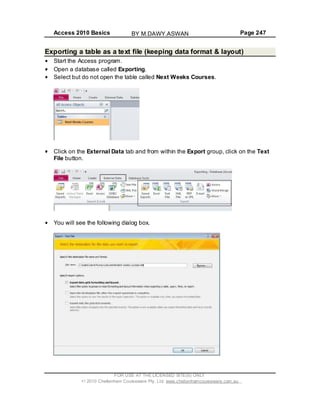
To utilize the power of a query and locate specific records, criteria must be entered
to give the query something to work with.
For example, if there is a need to locate orders placed between certain dates, we
would use the AND operator with the following type of criteria entered into the date
field of the query.
>=01/01/2006 AND <=01/06/2006
Using the OR operator you could enter the following criteria into the date field.
22/01/2006 OR 9/04/2006
This criteria would locate records with either of those two dates.
The NOT operator could be used to exclude records with certain dates from the
query results. For example:
NOT 22/01/2006
This criteria would exclude all records dated 22/01/2006 from the query results.
FOR USE AT THE LICENSED SITE(S) ONLY
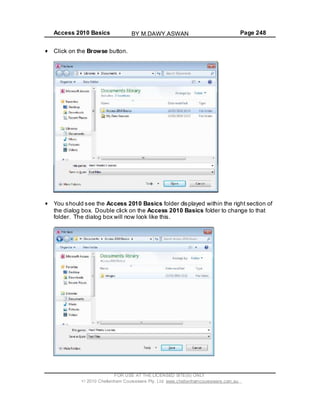
2010 Cheltenham Courseware Pty. Ltd. www.cheltenhamcourseware.com.au
BY M.DAWY.ASWAN
Access 2010 Basics Page 180
TIP: Operators used to create criteria in queries are the same operators used to
create validation rules.
To add criteria to a query, the query must first be in Design View. Click on the Home
tab. Click on the down arrow under the View button to switch to Design View.
Your screen will now look like this.
FOR USE AT THE LICENSED SITE(S) ONLY
2010 Cheltenham Courseware Pty. Ltd. www.cheltenhamcourseware.com.au
BY M.DAWY.ASWAN
Access 2010 Basics Page 181
Similar to other objects when in Design View, queries have their own specific ribbon,
functions and tools.
NOTE: Although this is currently a Select query, this query can be modified at any
stage to become a different type of query and therefore perform a different function.
When working with existing queries, the table field list, located in the Query Design
window, is similar to that used when creating relationships between tables. The
underlying table can be identified by the name at the top of the list, in this case
Orders.
FOR USE AT THE LICENSED SITE(S) ONLY
2010 Cheltenham Courseware Pty. Ltd. www.cheltenhamcourseware.com.au
BY M.DAWY.ASWAN
Access 2010 Basics Page 182
NOTE: One difference with this table field list is the * symbol above the Primary Key.
When used, the * represents All fields in the table and is used to save time.
The Query Design Grid is where selected fields from one or more tables are added,
criteria entered, the sort order set and fields set to display or not when the query is
run.
NOTE: Fields can be included in the query design grid for criteria (record search)
purposes only and they do not have to be displayed when the query is run.
FOR USE AT THE LICENSED SITE(S) ONLY
2010 Cheltenham Courseware Pty. Ltd. www.cheltenhamcourseware.com.au
BY M.DAWY.ASWAN
Access 2010 Basics Page 183
Place the mouse pointer in the Criteria row under the Order Date field in the query
design grid and type the following.
>=1/06/2006 AND <=31/05/2007
Press the Enter key or use the keyboard cursor key to move to another cell in the
grid.
Notice how the criteria entered changes. Access places hash symbols either side of
the dates to signify this value as a date.
NOTE: You may have to widen the column to see this clearly.
NOTE: Don t do this now, but if you wanted to remove this criteria, you would simply
select it in Design View and then press the Del key to delete it.
Running a query
When all the necessary fields, criteria,sort parameters, etc., have been entered into
a query and it is ready to be tested or used, you will need to run the query.
FOR USE AT THE LICENSED SITE(S) ONLY
2010 Cheltenham Courseware Pty. Ltd. www.cheltenhamcourseware.com.au
BY M.DAWY.ASWAN
Access 2010 Basics Page 184
As an example, when you run a select query, you are giving the query a command
to look at its parameters, go and search the table or tables for records matching the
criteria and produce a list of those records.
Click on the Design tab and from within the Results group click on the Run button.
The results of the query are displayed in table form, as illustrated.
Look at the data within the Order Date column and you should see that all the dates
displayed are within the range specified by the query criteria.
In the Navigation Pane, click once on the Customer Orders query to select it.
FOR USE AT THE LICENSED SITE(S) ONLY
2010 Cheltenham Courseware Pty. Ltd. www.cheltenhamcourseware.com.au
BY M.DAWY.ASWAN
Access 2010 Basics Page 185
Click on the Design View button to return to Design View.
Next we want to narrow down the search to purchases made for products which fall
under the Dried Fruit & Nuts and Grains categories, between the date criteria
previously set.
Place the mouse pointer into the Criteria row of the query design grid in the
Category field. Type in the following.
Dried Fruit & Nuts.
FOR USE AT THE LICENSED SITE(S) ONLY
2010 Cheltenham Courseware Pty. Ltd. www.cheltenhamcourseware.com.au
BY M.DAWY.ASWAN
Access 2010 Basics Page 186
Use the keyboard down arrow pointer key or mouse to move down to the row below
(the or row) in the same field (Category).
Type in the following and press the Enter key.
Grains
NOTE: This time Access encloses the text with Speech marks to set the data type
to search for as text.
When run, the query will now search for any records between the date range
specified which contain either Dried Fruit & Nuts or Grains.
Click on the Design tab and from within the Results group click on the Run button.
When the results are displayed however they are not what we might have expected.
There are no records listing Dried Fruit & Nuts.
FOR USE AT THE LICENSED SITE(S) ONLY
2010 Cheltenham Courseware Pty. Ltd. www.cheltenhamcourseware.com.au
BY M.DAWY.ASWAN
Access 2010 Basics Page 187
It is possible that none of the sales of Dried Fruit & Nuts took place between the
dates specified but this is unlikely. Either way, it is worth checking the query design
to make sure the criteria is correct.
TIP: The easiest way to check the results is to take a look at the table or tables the
query is working with. If records matching the criteria are available in the table but
not the query, there must be an issue with the query design.
Editing criteria in a query
Switch back to Design View (using the View button).
As we know the data range works, having run the query prior to adding the
Category criteria, the problem must be elsewhere. Look at the criteria in the
Category field.
FOR USE AT THE LICENSED SITE(S) ONLY
2010 Cheltenham Courseware Pty. Ltd. www.cheltenhamcourseware.com.au
BY M.DAWY.ASWAN
Access 2010 Basics Page 188
When you entered the criteria and moved to the next row, Access added speech
marks. The criteria went from Dried Fruit & Nuts to "Dried Fruit" & "Nuts".
Despite all good intentions, Access does not always interpret entries in the way
there were intended. Access has seen the & between Dried Fruit and Nuts and
interpreted this to be two statements;
1) Dried Fruit
2) Nuts.
As no such entries exist in the table, nothing was displayed.
Place the pointer into the Criteria row of the Category field and remove the two
speech marks either side of the & symbol.
The result should be "Dried Fruit & Nuts".
Press Enter to commit the changes.
Click on the Design tab and from within the Results group click on the Run button.
The results are displayed and this time includes records which contain the category
Dried Fruit & Nuts according to the criteria set.
FOR USE AT THE LICENSED SITE(S) ONLY
2010 Cheltenham Courseware Pty. Ltd. www.cheltenhamcourseware.com.au
BY M.DAWY.ASWAN
Access 2010 Basics Page 189
Saving a query
When first created using the Access wizard, a query is saved automatically. If the
query is then modified at a later stage or you create a blank query, you will need to
save using the Save button.
If you make changes to a query and then run the query, then when you exit the
query without saving, you will be prompted to save the query.
Click on the Yes button to save any changes, otherwise they will be lost and you will
have to start afresh.
Right click on the Customers Orders query tab.
FOR USE AT THE LICENSED SITE(S) ONLY
2010 Cheltenham Courseware Pty. Ltd. www.cheltenhamcourseware.com.au
BY M.DAWY.ASWAN
Access 2010 Basics Page 190
This will display a popup menu. Select the Close command. If prompted, click on
the Yes button to save the query.
Creating a two table query and sorting the results
More often than not, the information in a database will be split across multiple tables.
For a query to work with multiple tables, a relationship between the tables must be
established.
Continuing with the Queries database and the Customer Orders query, the next
objective is to search for records matching a given criteria, using both the Orders
and Sales Employees table.
Click on the Create tab and from within the Macros & Code group, click on the
Query Design button.
FOR USE AT THE LICENSED SITE(S) ONLY
2010 Cheltenham Courseware Pty. Ltd. www.cheltenhamcourseware.com.au
BY M.DAWY.ASWAN
Access 2010 Basics Page 191
The Query Design window is displayed.
The Show Table dialog box is also displayed, similar to the one used to add tables
when creating table relationships.
Click on the Add button to add the Orders table.
FOR USE AT THE LICENSED SITE(S) ONLY
2010 Cheltenham Courseware Pty. Ltd. www.cheltenhamcourseware.com.au
BY M.DAWY.ASWAN
Access 2010 Basics Page 192
Select the Sales Employees table and click on the Add button again.
TIP: Double clicking on both table names quickly adds them to the query design
window.
When both tables have been added to the query design window, click on the Close
button to close the Show Table dialog box.
NOTE: If you inadvertently add a table twice to the query design window, with the
pointer in the name area at the top of the additional table, (normally identified by the
Original Table name with a _1 after the name), click using the rightmouse button
and from the shortcut menu,select Remove. See next image.
When the Show Table dialog box is closed, the design window should be left with
two linked tables.
FOR USE AT THE LICENSED SITE(S) ONLY
2010 Cheltenham Courseware Pty. Ltd. www.cheltenhamcourseware.com.au
BY M.DAWY.ASWAN
Access 2010 Basics Page 193
The purpose of this query is to check the sales performance of staff. The Sales
Employees table contains the names of each of the sales teams and other staff
information. The Orders table contains information about products sold, quantities,
dates, etc.
A relationship between the two tables has already been established with the
Employee Number (Primary key) field in the Sales Employees table linked to the
Employees ID (Foreign key) field in the Orders table.
Employee names are not listed in the Orders table. To have the query display the
names of staff against the orders they have processed, a query will have to include
fields from both tables.
In the Orders table, click once to select the Category field. Now hold down the Ctrl
key and click once on each of the following fields.
NOTE: You may need to scroll down the list to see all these items.
Product Name
Quantity
Order Date.
Release the Ctrl key and the four fields should now be highlighted within the Orders
table.
FOR USE AT THE LICENSED SITE(S) ONLY
2010 Cheltenham Courseware Pty. Ltd. www.cheltenhamcourseware.com.au
BY M.DAWY.ASWAN
Access 2010 Basics Page 194
In one movement, place the pointer over one of the highlighted fields, click and drag
to the design grid below. When the pointer is in the grid, release the mouse button.
The fields are added to the design grid and are ordered from left to right as they
would be in the table.
Next click to select the Employee Name field in the Sales Employee table.
FOR USE AT THE LICENSED SITE(S) ONLY
2010 Cheltenham Courseware Pty. Ltd. www.cheltenhamcourseware.com.au
BY M.DAWY.ASWAN
Access 2010 Basics Page 195
Click and drag the Employee Name field down and to the next blank column to the
right of the Order Date field.
With the pointer correctly positioned, release the mouse button to add the field.
NOTE: The table row of the query design grid displays the names of the tables used
in this query.
Click on the Save button.
When prompted to name the query, type in Staff Sales Figures.
FOR USE AT THE LICENSED SITE(S) ONLY
2010 Cheltenham Courseware Pty. Ltd. www.cheltenhamcourseware.com.au
BY M.DAWY.ASWAN
Access 2010 Basics Page 196
Click on the OK button to name and save the query.
Click on the Design tab and within the Results group click on the Run button.
The query displays a table containing a list of all the sales staff and the orders
placed with each member ofstaff. At this time the table is arranged in order of
Employee ID, the primary key field, even though this field was not included in the
query design.
Switch to Design View by clicking on the View button.
FOR USE AT THE LICENSED SITE(S) ONLY
2010 Cheltenham Courseware Pty. Ltd. www.cheltenhamcourseware.com.au
BY M.DAWY.ASWAN
Access 2010 Basics Page 197
Move the mouse pointer to just above the Employee Name field name (within the
lower section of the screen) where there is a thin grey line and until the pointer
changes to a down arrow shape.
With the down arrow shape as the pointer, click to highlight the Employee Name
field.
Move the pointer once more to just above the Employee Name field name where
there is a thin line and until the pointer this time changes to an arrow shape.
FOR USE AT THE LICENSED SITE(S) ONLY
2010 Cheltenham Courseware Pty. Ltd. www.cheltenhamcourseware.com.au
BY M.DAWY.ASWAN
Access 2010 Basics Page 198
In one movement, click and drag the field to the left of the Category field, then
release the mouse button.
NOTE: As always, Access provides a thick black guideline to highlight the current
position of the moving field before release. The Employee Name field should now
be on the left side of the query design grid.
Using the pointer, click in the Sort row under the Sales Employees field. Then click
on the down arrow displayed in this cell.
FOR USE AT THE LICENSED SITE(S) ONLY
2010 Cheltenham Courseware Pty. Ltd. www.cheltenhamcourseware.com.au
BY M.DAWY.ASWAN
Access 2010 Basics Page 199
Select Ascending from the drop down option box. When run, this query will display
the results in alphabetical order of Employee Names, rather than order of
Employee ID.
Click into the Criteria row of the Category field, type in the following word and then
press the Enter key.
Beverages
When run, this query will return only records which match Beverages in the
Category field.
Click on the tick box above the criteria you just entered in the Category field. This
will remove the tick. Although the Category field is used by the query to specify
search criteria, the field does not have to be displayed in the final results.
FOR USE AT THE LICENSED SITE(S) ONLY
2010 Cheltenham Courseware Pty. Ltd. www.cheltenhamcourseware.com.au
BY M.DAWY.ASWAN
Access 2010 Basics Page 200
Click on the File tab and click on the Save Object As button.
In the Save As dialog box, replace the default name with:
Staff Sales Figures Beverages
Click on the OK button.
Click on the Home tab and the Navigation Pane displays the newly saved query.
FOR USE AT THE LICENSED SITE(S) ONLY
2010 Cheltenham Courseware Pty. Ltd. www.cheltenhamcourseware.com.au
BY M.DAWY.ASWAN
Access 2010 Basics Page 201
The query tab also changes to display the new name, as illustrated
Click on the Design tab and from within the Results group click on the Run button.
The results of the modified query are displayed. Only records matching the search
criteria Beverages in the Category field are displayed and the Category field is
hidden.
FOR USE AT THE LICENSED SITE(S) ONLY
2010 Cheltenham Courseware Pty. Ltd. www.cheltenhamcourseware.com.au
BY M.DAWY.ASWAN
Access 2010 Basics Page 202
Save your changes and close the Access program.
Refining your query
Start the Access program.
Open a database called Refining a query.
Double click on the Staff Sales Figures Beverages query.
FOR USE AT THE LICENSED SITE(S) ONLY
2010 Cheltenham Courseware Pty. Ltd. www.cheltenhamcourseware.com.au
BY M.DAWY.ASWAN
Access 2010 Basics Page 203
What if there was a bonus incentive for staff who sold more than 40 items of any
Sauce products since 01/01/2007. Also Nancy Freehafer has left the company;
therefore we want to exclude her from the search.
You can use and modify an existing query; however the query should be given a
new name and saved before changes go ahead.
Click on the File tab and click on the Save Object As button.
In the Save As dialog box, replace the default name with:
Staff Incentive Sauce Sales.
Click on the OK button.
FOR USE AT THE LICENSED SITE(S) ONLY
2010 Cheltenham Courseware Pty. Ltd. www.cheltenhamcourseware.com.au
BY M.DAWY.ASWAN
Access 2010 Basics Page 204
Click on the Home tab and the Navigation Pane displays the newly saved query.
The query tab also changes to display the new name.
Click on the Home tab, click on the View button and then click on Design View.
FOR USE AT THE LICENSED SITE(S) ONLY
2010 Cheltenham Courseware Pty. Ltd. www.cheltenhamcourseware.com.au
BY M.DAWY.ASWAN
Access 2010 Basics Page 205
Move the pointer to just above the Category field name where there is a thin grey
line and until the pointer changes to a down arrow shape. With the down arrow
shape as the pointer, click to highlight the Category field.
With the field highlighted, press the Delete key on the keyboard to delete the field
from the grid.
Click within the Criteria row of the Employee Name field and type:
<>Nancy Freehafer
Then press the Enter key.
FOR USE AT THE LICENSED SITE(S) ONLY
2010 Cheltenham Courseware Pty. Ltd. www.cheltenhamcourseware.com.au
BY M.DAWY.ASWAN
Access 2010 Basics Page 206
Click into the Criteria row of the Product Name field and type:
Like *Sauce*
Then press the Enter key.
NOTE: Wildcards such as the * can be used to signify, in this case for example, that
the word Sauce can appear anywhere in the Product Name description.
Click into the Criteria row of the Quantity field and type the following and press the
Enter key.
>40
Click into the Criteria row of the Order Date field and type
>=01/01/2007
FOR USE AT THE LICENSED SITE(S) ONLY
2010 Cheltenham Courseware Pty. Ltd. www.cheltenhamcourseware.com.au
BY M.DAWY.ASWAN
Access 2010 Basics Page 207
and press the Enter key.
Click on the Save button in the Quick Access toolbar to save the changes to the new
query.
Click on the Design tab and from within the Results group click on the Run button.
Your screen will now look like this.
Right click on the Staff Incentive Sauce Sales query tab and from the popup
menu displayed select the Close command.
FOR USE AT THE LICENSED SITE(S) ONLY
2010 Cheltenham Courseware Pty. Ltd. www.cheltenhamcourseware.com.au
BY M.DAWY.ASWAN
Access 2010 Basics Page 208
Close the Access program.
What are Wildcards?
Wildcards are special characters that you can use within a query to specify or
exclude certain characters. If you examine the charts below, they should become
more understandable.
Wildcard Function Examples
% Matches multiple characters within a
string at the start or finish of a character
string.
wh% would find:
when
what
which
It would not find:
awhile
watch
water
_ Matches a single alphabetic character
within a string
B_ll would find:
bull
ball
bell
It would not find:
Bail
[ ] Matches any single character defined
within the brackets.
B[ae]ll would find:
ball
bell
FOR USE AT THE LICENSED SITE(S) ONLY
2010 Cheltenham Courseware Pty. Ltd. www.cheltenhamcourseware.com.au
BY M.DAWY.ASWAN
Access 2010 Basics Page 209
It would not find:
bill
^ Matches any character not defined within
the brackets.
b[^ae]ll would find:
bill
bull
It would not find:
ball
bell
- Matches any one of a range of characters
defined within the brackets, which must
be defined in ascending order, i.e. A to Z
and not Z to A.
z[a-c]z would find:
xaz
xbz
xcz
Deleting a query
In the Navigation Pane, click once to highlight the Staff Sales Figures query.
Press the Delete key on the keyboard. Access displays a warning dialog box.
Click on the Yes button to continue and delete the query. The screen will now look
like this
FOR USE AT THE LICENSED SITE(S) ONLY
2010 Cheltenham Courseware Pty. Ltd. www.cheltenhamcourseware.com.au
BY M.DAWY.ASWAN
Access 2010 Basics Page 210
Close Access.
Hiding and un-hiding fields within a query
Open the Access program.
Open a database called Hiding. Your screen will look like this.
Double click on the query called Customers Query and you will see the following.
To hide the City field, we need to select the City column. To select this column click
at the top of the City column, as illustrated below.
FOR USE AT THE LICENSED SITE(S) ONLY
2010 Cheltenham Courseware Pty. Ltd. www.cheltenhamcourseware.com.au
BY M.DAWY.ASWAN
Access 2010 Basics Page 211
Right click over the top cell containing the word City and from the popup menu
displayed select the Hide Fields command.
The screen will change as illustrated below. The City column has been hidden.
To unhide the hidden column you need to select the columns either side of the
hidden column, as illustrated below. Now when you right click over the selected
columns you will now see the Unhide Columns command.
FOR USE AT THE LICENSED SITE(S) ONLY
2010 Cheltenham Courseware Pty. Ltd. www.cheltenhamcourseware.com.au
BY M.DAWY.ASWAN
Access 2010 Basics Page 212
Clicking on this command will display the Unhide Columns dialog box.
Click on the column that is hidden, in this case City and then click on the Close
button. The column will then become visible, as illustrated below.
Save your changes and close the database.
FOR USE AT THE LICENSED SITE(S) ONLY
2010 Cheltenham Courseware Pty. Ltd. www.cheltenhamcourseware.com.au
BY M.DAWY.ASWAN
Access 2010 Basics Page 213
Reports
What are reports?
In Access, a report is a summary generated from information in a table or query.
Access provides you with a number of tools that help you to quickly build reports that
present the data in an organized, meaningful and easy-to-read layout. These
reports can then be printed.
You can use the commands on the Create tab to create a simple report with a single
click, use the Report Wizard to create a more complicated report or create a report
from scratch by adding all the data and formatting elements.
Whichever method you choose, you will probably need to make at a few changes to
the design, for example, adjusting column positions and widths to fine tune the final
output of the report (how it displays on the screen or printed).
Creating a simple report
Reports are based on information in tables or queries. If the report is to be based on
information contained in more than one table, a relationship must exist, however it is
far more likely that a query has already been created to produce the information
required for the report.
Click on the File tab and click on Open and open a file called Reports contained
within your samples folder.
The database opens with two tables (Orders and Sales Employees) and two
queries (Beverage Sales and Customer Orders) displayed in the Navigation Pane.
FOR USE AT THE LICENSED SITE(S) ONLY
2010 Cheltenham Courseware Pty. Ltd. www.cheltenhamcourseware.com.au
BY M.DAWY.ASWAN
Access 2010 Basics Page 214
In the Navigation Pane, click once on the Beverage Sales query to highlight the
query, but do not open it.
Click on the Create tab and from within the Reports group, click on the Report
button.
A report based on the Beverage Sales query is displayed on your screen.
The simple report is displayed for any modifications thatmay be required. Editing
and modifying a report is similar to editing a form. The title, field text labels and logo
images can all be resized, moved or deleted as necessary. Even the style can be
FOR USE AT THE LICENSED SITE(S) ONLY
2010 Cheltenham Courseware Pty. Ltd. www.cheltenhamcourseware.com.au
BY M.DAWY.ASWAN
Access 2010 Basics Page 215
altered at the click of a button using the pre-set styles in the AutoFormat group.
Simple reports are notsaved until you either click on the Save button in the Quick
Access toolbar or attempt to close the report, at which point Access will prompt you
to save the report.
Click on the Save button.
The Save As dialog box is displayed.
Click on the OK button. The new report is displayed in the Navigation Pane.
FOR USE AT THE LICENSED SITE(S) ONLY
2010 Cheltenham Courseware Pty. Ltd. www.cheltenhamcourseware.com.au
BY M.DAWY.ASWAN
Access 2010 Basics Page 216
Click on the Close button towards the top right of the report window, to close the
report.
Using the Report Wizard
Click on the Create tab and from within the Reports group click on the Report
Wizard button.
First fields from one or more table must be selected. Click on the Tables/Queries
dropdown list and select the Table: Orders.
The dialog box will now look like this.
FOR USE AT THE LICENSED SITE(S) ONLY
2010 Cheltenham Courseware Pty. Ltd. www.cheltenhamcourseware.com.au
BY M.DAWY.ASWAN
Access 2010 Basics Page 217
From the Available Fields, double click each of the follow fields:
Category
Product Name
Unit Qty
Quantity
Click on the Tables/Queries drop down list and select the Table: Sales
Employees.
FOR USE AT THE LICENSED SITE(S) ONLY
2010 Cheltenham Courseware Pty. Ltd. www.cheltenhamcourseware.com.au
BY M.DAWY.ASWAN
Access 2010 Basics Page 218
The dialog box will now look like this.
From the Available Fields, double click on the Employee Name field.
FOR USE AT THE LICENSED SITE(S) ONLY
2010 Cheltenham Courseware Pty. Ltd. www.cheltenhamcourseware.com.au
BY M.DAWY.ASWAN
Access 2010 Basics Page 219
NOTE: The report will now use information from the Orders table and also from the
Sales Employees table.
Click on the Next button.
FOR USE AT THE LICENSED SITE(S) ONLY
2010 Cheltenham Courseware Pty. Ltd. www.cheltenhamcourseware.com.au
BY M.DAWY.ASWAN
Access 2010 Basics Page 220
Leave the default by Orders selected.
NOTE: When the report is complete, because by Orders is selected, information will
be grouped according to a field or fields in the Orders table. This field or fields will
be selected in the next section of the wizard. For example, the ideal field to use to
group information in the report is the Category field. If by Sales Employees was
selected instead, the employees names would take priority in the report and
products would be grouped under each employee.
Click on the Next button.
NOTE: When the report is complete, you will see that the report is broken down into
Categories first, then Products, Quantities, Dates and finally Employees.
Select Category, and then click on the right arrowed button to add the grouping
level.
The dialog box will now look like this.
FOR USE AT THE LICENSED SITE(S) ONLY
2010 Cheltenham Courseware Pty. Ltd. www.cheltenhamcourseware.com.au
BY M.DAWY.ASWAN
Access 2010 Basics Page 221
Click on the Next button.
In the Sort Order dialog box, click on the drop down arrow and select Product
Name.
FOR USE AT THE LICENSED SITE(S) ONLY
2010 Cheltenham Courseware Pty. Ltd. www.cheltenhamcourseware.com.au
BY M.DAWY.ASWAN
Access 2010 Basics Page 222
The dialog box will look like this.
NOTE: By selecting a field, in this case the Product Name field, when the report is
complete, information will be organized in Ascending order of Product Name,
FOR USE AT THE LICENSED SITE(S) ONLY
2010 Cheltenham Courseware Pty. Ltd. www.cheltenhamcourseware.com.au
BY M.DAWY.ASWAN
Access 2010 Basics Page 223
within each category.
Click on the Next button. Leave the Layout as the default setting.
NOTE: The three Layout options control how the report will be laid out when
finished. Depending upon the number of fields included in a report, consideration
should be given to the report Orientation. If there are too many fields for a single
page width, select Landscape, otherwise (in this case) Portrait will be sufficient.
Orientation can be changed at any stage before printing.
Click on the Next button.
FOR USE AT THE LICENSED SITE(S) ONLY
2010 Cheltenham Courseware Pty. Ltd. www.cheltenhamcourseware.com.au
BY M.DAWY.ASWAN
Access 2010 Basics Page 224
Access has given the report the name Orders. Click on the Finish button to accept
the name and complete the wizard. The report is now displayed in Print Preview
view. Take a while to see what has been produced.
Click on the Close Print Preview button.
FOR USE AT THE LICENSED SITE(S) ONLY
2010 Cheltenham Courseware Pty. Ltd. www.cheltenhamcourseware.com.au
BY M.DAWY.ASWAN
Access 2010 Basics Page 225
The report will be displayed in Design View.
Modifying the layout of a report
Click on the Layout View button, displayed at the bottom-right of the screen.
The report will be displayed as illustrated below.
FOR USE AT THE LICENSED SITE(S) ONLY
2010 Cheltenham Courseware Pty. Ltd. www.cheltenhamcourseware.com.au
BY M.DAWY.ASWAN
Access 2010 Basics Page 226
Widening a report column
We need to widen the Category column as some of the items within the column are
wider than the column. To do this click on the Category field name to first select the
column.
Move the pointer to the dotted line running down the right side of the Category
column. When the pointer changes to a horizontal line with arrows on each end, click
and drag the line to the right, increasing the width of the column until it is wide
enough to display all categories.
FOR USE AT THE LICENSED SITE(S) ONLY
2010 Cheltenham Courseware Pty. Ltd. www.cheltenhamcourseware.com.au
BY M.DAWY.ASWAN
Access 2010 Basics Page 227
The columns will now look like this
Modifying the report title
Click once on the report title (Orders).
Double click to highlight and select the word Orders.
Type in the following to replace the existing label and press the Enter key to
complete the modification.
Product Orders by Category
FOR USE AT THE LICENSED SITE(S) ONLY
2010 Cheltenham Courseware Pty. Ltd. www.cheltenhamcourseware.com.au
BY M.DAWY.ASWAN
Access 2010 Basics Page 228
Position the pointer over the report title box again, this time until the pointer changes
to crosshair.
Click and drag the report title box to the right as illustrated below.
Adding a logo to a report
Click on the Design tab and from within the Header / Footer group click on the
Logo button.
The Insert Picture dialog window is displayed.
FOR USE AT THE LICENSED SITE(S) ONLY
2010 Cheltenham Courseware Pty. Ltd. www.cheltenhamcourseware.com.au
BY M.DAWY.ASWAN
Access 2010 Basics Page 229
Double click on the Images folder to display your sample images.
FOR USE AT THE LICENSED SITE(S) ONLY
2010 Cheltenham Courseware Pty. Ltd. www.cheltenhamcourseware.com.au
BY M.DAWY.ASWAN
Access 2010 Basics Page 230
Double click on the Beverage Logo file to add the image to the report.
The new image is too small. Position the pointer over the right edge of the logo box
until the pointer displays an arrow.
Click and drag the right side of the box to the right (expand size). Expand the box a
small amount and let go of the mouse button.
As the box expands, the image increases in size. Keep expanding the box until the
image fits in the box from top to bottom.
With the logo resized, position the pointer over the report title box again, this time
until the pointer changes to crosshair.
Click and drag the title box to the left until there is a small gap between the title and
the new logo, as illustrated below.
FOR USE AT THE LICENSED SITE(S) ONLY
2010 Cheltenham Courseware Pty. Ltd. www.cheltenhamcourseware.com.au
BY M.DAWY.ASWAN
Access 2010 Basics Page 231
Formatting a form using themes
Click on the Design tab and within the Themes group, click on the Themes button.
A drop down theme menu will be displayed. As you move the mouse pointer over
each theme the format will preview the theme formatting.
Click on any one of the themes and the theme will be applied to the form.
FOR USE AT THE LICENSED SITE(S) ONLY
2010 Cheltenham Courseware Pty. Ltd. www.cheltenhamcourseware.com.au
BY M.DAWY.ASWAN
Access 2010 Basics Page 232
Modifying field names within a report
Click on the Product Name field title.
Double click on the word Name and press the Del key.
Press the Enter key. The column will now be called Product, rather than Product
Name.
FOR USE AT THE LICENSED SITE(S) ONLY
2010 Cheltenham Courseware Pty. Ltd. www.cheltenhamcourseware.com.au
BY M.DAWY.ASWAN
Access 2010 Basics Page 233
Inserting and formatting the date & time
Within the Design tab you will see the Header / Footer group. Click on the Date
and Time button.
The Date and Time dialog box is displayed.
Click on the OK button.
FOR USE AT THE LICENSED SITE(S) ONLY
2010 Cheltenham Courseware Pty. Ltd. www.cheltenhamcourseware.com.au
BY M.DAWY.ASWAN
Access 2010 Basics Page 234
The date and time are inserted into the top (header) section of the report to the right
of the report title but are very hard to read as they are displayed using a dark
colored font, on a dark background.
NOTE: The date and time are inserted separately; therefore each will require
individual modification.
Click once on the date to select it.
Within the Home tab you will see the Text Formatting group.
Use the normal font formatting techniques to make the date display using bold. Also
increase the font size and maybe use a different font type.
Repeat the steps to modify the time.
Adding existing fields to a report
Click on the Design tab, and within the Tools group, click on the Add Existing
Fields button.
FOR USE AT THE LICENSED SITE(S) ONLY
2010 Cheltenham Courseware Pty. Ltd. www.cheltenhamcourseware.com.au
BY M.DAWY.ASWAN
Access 2010 Basics Page 235
The Field List opens (to the right of your form) and displays the tables within the
database and the available fields.
Click within the Employee Name column.
In the Fields List, double click on the Position field to add it to the report.
The new field will be displayed as illustrated.
FOR USE AT THE LICENSED SITE(S) ONLY
2010 Cheltenham Courseware Pty. Ltd. www.cheltenhamcourseware.com.au
BY M.DAWY.ASWAN
Access 2010 Basics Page 236
NOTE: When adding fields to an existing report, the new field is added to the right of
whichever field (column) is selected. For example, if the Employee Name was
selected, the Position field would have been inserted to the right of Employee
Name.
Click on the Close button to close the Field List.
Resizing reports for printing
With the field list closed and the Unit Qty field added to the report, it is possible that
you may to see a dotted line running down and through the field displayed at the
extreme left of the report.
FOR USE AT THE LICENSED SITE(S) ONLY
2010 Cheltenham Courseware Pty. Ltd. www.cheltenhamcourseware.com.au
BY M.DAWY.ASWAN
Access 2010 Basics Page 237
NOTE: This line represents print guidelines (margins) and in this case, indicates that
part of the field will fall outside of the printing area. If printed, the report would be
two pages wide, instead of one.
The fields need to be resized to fit within the dotted line.
Click in each of the field name at the top of each column and one by one, use the
normal drag and drop techniques to resize each column so that you will be able to
print on a single page.
Save and changes you have made and close the Access program.
Totals
Start Access.
Open a database called Totals.
Double click on a report called Orders.
FOR USE AT THE LICENSED SITE(S) ONLY
2010 Cheltenham Courseware Pty. Ltd. www.cheltenhamcourseware.com.au
BY M.DAWY.ASWAN
Access 2010 Basics Page 238
The screen will look like this.
The report is to include the total number of items sold and the number of sales in
each category.
Click on the Product field name.
FOR USE AT THE LICENSED SITE(S) ONLY
2010 Cheltenham Courseware Pty. Ltd. www.cheltenhamcourseware.com.au
BY M.DAWY.ASWAN
Access 2010 Basics Page 239
Click on the Totals button, located under the Design tab within the Grouping &
Tools group
From the drop down list displayed, select Count Records.
.
Click on the Quantity field name.
Click on the Totals button, located under the Design tab within the Grouping &
Tools group
From the list displayed select the Sum command.
FOR USE AT THE LICENSED SITE(S) ONLY
2010 Cheltenham Courseware Pty. Ltd. www.cheltenhamcourseware.com.au
BY M.DAWY.ASWAN
Access 2010 Basics Page 240
.
Below each group (category) a value is displayed in both the Product Name and
Quantity columns.
On the last page of the report, grand totals of all groups are also displayed.
NOTE: The format of the totals can be modified by selecting them first, then from the
Font group in the Home ribbon tab, selecting a different size, font or simply making
them bold.
FOR USE AT THE LICENSED SITE(S) ONLY
2010 Cheltenham Courseware Pty. Ltd. www.cheltenhamcourseware.com.au
BY M.DAWY.ASWAN
Access 2010 Basics Page 241
Closing a report
Right click on the Orders report tab. Select the Close command from the list
displayed, to close the report.
Deleting a report
In the Navigation Pane, click once on the Beverage Sales report to highlight.
Press the Delete key to delete the report. Access prompts for confirmation.
Click on the Yes button. The report is deleted from the database.
FOR USE AT THE LICENSED SITE(S) ONLY
2010 Cheltenham Courseware Pty. Ltd. www.cheltenhamcourseware.com.au
BY M.DAWY.ASWAN
Access 2010 Basics Page 242
Exporting
What does exporting data mean?
When you save data you save it to disk in the same file format used by the
application, in this case Microsoft Access. Exporting data means saving the data in
a different format. For instance we could save our database in a spread sheet
format (such as Microsoft Excel format), or as text or in XML format.
It is important to note that you cannot use the Access Save As command to save
the database in an alternative format such as an Excel workbook, text file or XML
file. You need to export the file.
What is a spread sheet format?
The file is actually stored as a workbook and each workbook can contain many
worksheets (which contains the tables of data). A typically example is Microsoft
Excel.
What is text only and CSV format?
As the name implies, if you export a database in text only format, then only text will
be saved. You will lose all formatting and other non-text information.
A common text format is called a CSV format. This is short for Comma Separated
Vales. A CSV file maintains the record and field database structure by inserting a
comma after each field within the file. You could then import the CSV formatted files
into a database or spread sheet and it would be able to delimit, i.e. separate, the
rows and columns to correctly display the basic data. CSV files will not retain any
formatting or other non-text related information.
What is a PDF file?
The Adobe Acrobat PDF file format is useful because if you save your objects as
PDF files these can be viewed by other people who may not have access to the
Access program. The PDF files can also be displayed within web sites or attached
to emails and send to colleges.
The Adobe Acrobat Reader program is required to view PDF formatted files and is
available as a free download from the Adobe web site.
FOR USE AT THE LICENSED SITE(S) ONLY
2010 Cheltenham Courseware Pty. Ltd. www.cheltenhamcourseware.com.au
BY M.DAWY.ASWAN
Access 2010 Basics Page 243
What is an XML file?
XML is short for Extensible Mark-up Language . It is a general-purpose mark-up
language that allows you to share data created by different hardware and software
via the Internet.
Exporting a table as an Excel file
Start the Access program.
Open a database called Exporting.
Select but do not open the table called Next Weeks Courses.
Click on the External Data tab and from within the Export group, click on the Excel
button.
You will see the following dialog box.
FOR USE AT THE LICENSED SITE(S) ONLY
2010 Cheltenham Courseware Pty. Ltd. www.cheltenhamcourseware.com.au
BY M.DAWY.ASWAN
Access 2010 Basics Page 244
Click on the Browse button.
You should see the Access 2010 Basics folder displayed within the right section of
the dialog box. Double click on the Access 2010 Basics folder to change to that
FOR USE AT THE LICENSED SITE(S) ONLY
2010 Cheltenham Courseware Pty. Ltd. www.cheltenhamcourseware.com.au
BY M.DAWY.ASWAN
Access 2010 Basics Page 245
folder. The dialog box will now look like this.
Enter a file name such as Excel Version Next Weeks Courses.
Click on the Save button and you will see the following dialog box displayed.
FOR USE AT THE LICENSED SITE(S) ONLY
2010 Cheltenham Courseware Pty. Ltd. www.cheltenhamcourseware.com.au
BY M.DAWY.ASWAN
Access 2010 Basics Page 246
FOR USE AT THE LICENSED SITE(S) ONLY
2010 Cheltenham Courseware Pty. Ltd. www.cheltenhamcourseware.com.au
Click on the OK button to save the database table in an Excel file format. You will
see a final dialog box displayed, click on the Close button to close the dialog box.
Don t actually do this
the c
now, but if you used the Windows Explorer program to view
ontents of your Access 2010 Basics folder you would see the new Excel file
listed as illustrated.
Close the Access program.
BY M.DAWY.ASWAN
Access 2010 Basics Page 247
FOR USE AT THE LICENSED SITE(S) ONLY
2010 Cheltenham Courseware Pty. Ltd. www.cheltenhamcourseware.com.au
Exporting a table as a text file (keeping data format & layout)
Start the Access program.
Open a database called Exporting.
Select but do not open the table called Next Weeks Courses.
Click on the External Data tab and from within the Export group, click on the Text
File button.
You will see the following dialog box.
BY M.DAWY.ASWAN
Access 2010 Basics Page 248
FOR USE AT THE LICENSED SITE(S) ONLY
2010 Cheltenham Courseware Pty. Ltd. www.cheltenhamcourseware.com.au
Click on the Browse button.
You should see the Access 2010 Basics fold
the dial
er displayed within the right section of
og box. Double click on the Access 2010 Basics folder to change to that
folder. The dialog box will now look like this.
BY M.DAWY.ASWAN
Access 2010 Basics Page 249
FOR USE AT THE LICENSED SITE(S) ONLY
2010 Cheltenham Courseware Pty. Ltd. www.cheltenhamcourseware.com.au
Enter a file name such as Text File Version Next Weeks Courses.
Click on the
d
Save button to export the table to a text file. You will see the following
ialog box.
Select the first option which will keep the column structure intact.
Click on the OK button and you will see the following dialog box displayed.
BY M.DAWY.ASWAN
Access 2010 Basics Page 250
Use the default encoding option and click on the OK button. The following dialog
box will be displayed.
Click on the Close button.
Don t actually do this now, but if you used the Windows Explorer program to view
the contents of your Access 2010 Basics folder you would see the new Excel file
listed as illustrated.
FOR USE AT THE LICENSED SITE(S) ONLY
2010 Cheltenham Courseware Pty. Ltd. www.cheltenhamcourseware.com.au
BY M.DAWY.ASWAN
Access 2010 Basics Page 251
If you were to open the file to a text only editing program, such as Notepad, the data
would look like this.
NOTE: This format is NOT what many programs will expect when importing data
from Access. Normally you would save to a text file in CSV format.
Close the Access program.
Exporting a table as a text CSV formatted file
Start the Access program.
Open a database called Exporting.
Select but do not open the table called Next Weeks Courses.
FOR USE AT THE LICENSED SITE(S) ONLY
2010 Cheltenham Courseware Pty. Ltd. www.cheltenhamcourseware.com.au
BY M.DAWY.ASWAN
Access 2010 Basics Page 252
Click on the External Data tab and from within the Export group, click on the Text
File button.
You will see the following dialog box.
Do not select one of the three export options, but simply click on the OK button to
continue. You will see the following dialog box displayed. Make sure that the
FOR USE AT THE LICENSED SITE(S) ONLY
2010 Cheltenham Courseware Pty. Ltd. www.cheltenhamcourseware.com.au
BY M.DAWY.ASWAN
Access 2010 Basics Page 253
Delimited option is selected.
Click on the Next button. You will see a dialog box allowing you to specify
delimitation type. Make sure that the Comma option is selected.
FOR USE AT THE LICENSED SITE(S) ONLY
2010 Cheltenham Courseware Pty. Ltd. www.cheltenhamcourseware.com.au
BY M.DAWY.ASWAN
Access 2010 Basics Page 254
Click on the Next button. The following dialog box will be displayed.
You will notice that the default file name extension is .TXT.
You can change this to CSV.
FOR USE AT THE LICENSED SITE(S) ONLY
2010 Cheltenham Courseware Pty. Ltd. www.cheltenhamcourseware.com.au
BY M.DAWY.ASWAN
Access 2010 Basics Page 255
You can also manually modify the save location, as illustrated, to save the file in the
same folder as your other sample files.
Finally you could change the actual file name from Next Week Courses to CSV
Formatted Courses. The dialog box should now look like this.
Click on the Finish button and you will see the following dialog box displayed.
FOR USE AT THE LICENSED SITE(S) ONLY
2010 Cheltenham Courseware Pty. Ltd. www.cheltenhamcourseware.com.au
BY M.DAWY.ASWAN
Access 2010 Basics Page 256
Click on the Close button.
Don t actually do this now, but if you used the Windows Explorer program to view
the contents of your Access 2010 Basics folder you would see the new CSV file
listed as illustrated.
Close the Access program.
Exporting a table as a PDF formatted file
Start the Access program.
Open a database called Exporting.
Select but do not open the table called Next Weeks Courses.
Click on the External Data tab and from within the Export group, click on the PDF
or XPS button.
FOR USE AT THE LICENSED SITE(S) ONLY
2010 Cheltenham Courseware Pty. Ltd. www.cheltenhamcourseware.com.au
BY M.DAWY.ASWAN
Access 2010 Basics Page 257
This will display the following window.
Change to the Access 2010 Basics folder, by double clicking on the folder.
In the Save as Type section make sure that PDF is selected.
Click on the Publish button. If you have the Adobe PDF Reader program installed
you may see the file displayed, as illustrated.
FOR USE AT THE LICENSED SITE(S) ONLY
2010 Cheltenham Courseware Pty. Ltd. www.cheltenhamcourseware.com.au
BY M.DAWY.ASWAN
Access 2010 Basics Page 258
Close the PDF Reader program.
Close the Export PDF window by clicking on the Close button.
Don t actually do this now, but if you used the Windows Explorer program to view
the contents of your Access 2010 Basics folder you would see the new Adobe PDF
FOR USE AT THE LICENSED SITE(S) ONLY
2010 Cheltenham Courseware Pty. Ltd. www.cheltenhamcourseware.com.au
BY M.DAWY.ASWAN
Access 2010 Basics Page 259
file listed as illustrated.
Close the Access program.
Exporting a table as an XML formatted file
Start the Access program.
Open a database called Exporting.
Select but do not open the table called Next Weeks Courses.
Click on the External Data tab and from within the Export group, click on the Excel
button.
You will see the following dialog box.
FOR USE AT THE LICENSED SITE(S) ONLY
2010 Cheltenham Courseware Pty. Ltd. www.cheltenhamcourseware.com.au
BY M.DAWY.ASWAN
Access 2010 Basics Page 260
Click on the Browse button.
FOR USE AT THE LICENSED SITE(S) ONLY
2010 Cheltenham Courseware Pty. Ltd. www.cheltenhamcourseware.com.au
BY M.DAWY.ASWAN
Access 2010 Basics Page 261
You should see the Access 2010 Basics folder displayed within the right section of
the dialog box. Double click on the Access 2010 Basics folder to change to that
folder. The dialog box will now look like this.
Click on the Save button and you will see the following dialog box displayed.
FOR USE AT THE LICENSED SITE(S) ONLY
2010 Cheltenham Courseware Pty. Ltd. www.cheltenhamcourseware.com.au
BY M.DAWY.ASWAN
Access 2010 Basics Page 262
Click on the OK button and you will see the following dialog box.
Click on the OK button. You will see a final dialog box displayed, click on the Close
button to close the dialog box.
Click on the Close button.
Don t actually do this now, but if you used the Windows Explorer program to view
the contents of your Access 2010 Basics folder you would see the new XML file
listed as illustrated.
FOR USE AT THE LICENSED SITE(S) ONLY
2010 Cheltenham Courseware Pty. Ltd. www.cheltenhamcourseware.com.au
BY M.DAWY.ASWAN
Access 2010 Basics Page 263
Close the Access program.
FOR USE AT THE LICENSED SITE(S) ONLY
2010 Cheltenham Courseware Pty. Ltd. www.cheltenhamcourseware.com.au
BY M.DAWY.ASWAN
Access 2010 Basics Page 264
Printing
Considerations before printing
Tables, queries and reports all use a grid layout which includes columns and rows.
It is therefore important to consider the number and width of columns when it comes
to printing.
If the number of fields can be kept to a single sheet (width), either portrait or
landscape, it will save on the number of pages you need to print.
Although information can be printed directly from a table, consider using a query to
extract only the fields and records that are actually required.
Print previewing
Print Preview view shows how the report, table, etc. will look when printed. This
includes the layout of columns (fields) on the page(s), how many pages are required
to print the information, the margin sizes, titles, page numbers, etc.
Before you can preview your print job, the object must either be selected within the
Navigation Pane or open in the object window. To print only selected records from a
table, the table would have to be open first to select the records.
Open Access and open a file called Printing. You will see the following.
FOR USE AT THE LICENSED SITE(S) ONLY
2010 Cheltenham Courseware Pty. Ltd. www.cheltenhamcourseware.com.au
BY M.DAWY.ASWAN
Access 2010 Basics Page 265
Double click on the Orders report to open it, as illustrated.
To use Print Preview, click on the File tab and from the drop down list displayed,
click on the Print button. Click on the Print Preview button.
FOR USE AT THE LICENSED SITE(S) ONLY
2010 Cheltenham Courseware Pty. Ltd. www.cheltenhamcourseware.com.au
BY M.DAWY.ASWAN
Access 2010 Basics Page 266
The screen will now look like this.
A previously unseen Print Preview ribbon appears, offering you the most common
tools required to adjust and modify the layout of you object to achieve the best
printing results.
A Page Navigation Bar, similar to the Record Navigation Bar used in tables,
queries and forms can be seen at the bottom-left of the object window.
When you first run Print Preview, the document displayed may appear unreadable.
By placing the pointer over the document, the pointer changes to a magnifying glass.
One click will zoom in to make the document readable and another click zooms out
again.
FOR USE AT THE LICENSED SITE(S) ONLY
2010 Cheltenham Courseware Pty. Ltd. www.cheltenhamcourseware.com.au
BY M.DAWY.ASWAN
Access 2010 Basics Page 267
The Zoom group also offers further tools to enhance the focus and view of the
document when working within Print Preview.
The Zoom button offers zoom pre-sets in percentages and the three pages per view
options offer the chance to preview multiple pages at once. This is useful when you
are more interested in the layout than the actual data content.
FOR USE AT THE LICENSED SITE(S) ONLY
2010 Cheltenham Courseware Pty. Ltd. www.cheltenhamcourseware.com.au
BY M.DAWY.ASWAN
Access 2010 Basics Page 268
In the Page Layout group the buttons control page size and page orientation, as
well as margin sizes.
Clicking on the Page Size button displays a dialog box listing common International
pages sizes.
FOR USE AT THE LICENSED SITE(S) ONLY
2010 Cheltenham Courseware Pty. Ltd. www.cheltenhamcourseware.com.au
BY M.DAWY.ASWAN
Access 2010 Basics Page 269
By default, Access previews pages in portrait orientation. If you are unsure which
orientation you are viewing, look at the Layout group in the ribbon. Whichever of
the two orientation buttons is active, i.e. brightly shaded, indicates the current page
orientation.
When the Portrait button is selected and active, the page orientation is Portrait
The page will look like this.
When the Landscape button is selected and active. The page orientation is
Landscape. The screen will look like this.
FOR USE AT THE LICENSED SITE(S) ONLY
2010 Cheltenham Courseware Pty. Ltd. www.cheltenhamcourseware.com.au
BY M.DAWY.ASWAN
Access 2010 Basics Page 270
Close the Access program and save any changes you may have made.
Which orientation, portrait or landscape?
When printing portrait pages, the advantage, assuming the report is only one page
wide, is that more records can be printed per page, resulting in less pages being
printed.
Landscape orientation on the other hand is useful when the table, report, etc. has
more fields (columns) than a portrait page can accommodate.
NOTE: When columns overflow the first page, a second page is used, in effect
creating a two page wide printout. If those who the printouts are intended for are to
make good use of the printouts, reports, etc., it is recommended that the printouts be
kept to a manageable size.
Adjusting layout in Print Preview
Start the Access program.
Open the database called Printing.
Double click on Orders in the Navigation Pane to open the Orders table.
FOR USE AT THE LICENSED SITE(S) ONLY
2010 Cheltenham Courseware Pty. Ltd. www.cheltenhamcourseware.com.au
BY M.DAWY.ASWAN
Access 2010 Basics Page 271
Click on the File tab and then click on the Print button. Click on the Print Preview
button.
FOR USE AT THE LICENSED SITE(S) ONLY
2010 Cheltenham Courseware Pty. Ltd. www.cheltenhamcourseware.com.au
BY M.DAWY.ASWAN
Access 2010 Basics Page 272
The displayed is illustrated below.
The Page Navigation Bar is displayed below the table preview.
Click on the right arrowed button once.
Make a note of the fields in page 2 and then click on the right arrowed button again
and note which fields are in page 3.
Currently, a print of this table would be 3 pages wide,multiplied by the number of
pages require to print all or selected records.
Click on the Landscape button.
FOR USE AT THE LICENSED SITE(S) ONLY
2010 Cheltenham Courseware Pty. Ltd. www.cheltenhamcourseware.com.au
BY M.DAWY.ASWAN
Access 2010 Basics Page 273
In Landscape orientation, the printout only requires two pages (width), again
multiplied by the number of pages require to print all or selected records.
NOTE: You use the same page orientation techniques for tables, forms, query
output and reports.
Setting margins
Next, click on the Margins button within the Ribbon.
This will display some pre-set options.
Select the Narrow option from the list. More records are visible in the preview and
this could result in fewer pages being printed.
FOR USE AT THE LICENSED SITE(S) ONLY
2010 Cheltenham Courseware Pty. Ltd. www.cheltenhamcourseware.com.au
BY M.DAWY.ASWAN
Access 2010 Basics Page 274
NOTE: Another option to help further reduce the number of pages required to print a
table, is to resize and reduce column widths or even hide columns not necessary to
the printout.
Printing a complete table
When the layout has been optimized in Print Preview and the table is ready to be
printed, click on the Print button.
This displays the Print dialog box.
FOR USE AT THE LICENSED SITE(S) ONLY
2010 Cheltenham Courseware Pty. Ltd. www.cheltenhamcourseware.com.au
BY M.DAWY.ASWAN
Access 2010 Basics Page 275
In the Print dialog box, make sure the correct printer name is selected. To print the
whole table, leave the Print Range set to All and click on the OK button to print.
Exit from the Print Preview by click on the Close Print Preview button within the
ribbon.
Printing selected records
Instead of printing the whole table, Access is able to printselected records.
First select a few records by click on the vertical bar to the left of the records and
then drag up or down the screen.
FOR USE AT THE LICENSED SITE(S) ONLY
2010 Cheltenham Courseware Pty. Ltd. www.cheltenhamcourseware.com.au
BY M.DAWY.ASWAN
Access 2010 Basics Page 276
Click on the File tab and then click on the Print button.
This will display the Print dialog box. Click on the Selected Record(s) button.
FOR USE AT THE LICENSED SITE(S) ONLY
2010 Cheltenham Courseware Pty. Ltd. www.cheltenhamcourseware.com.au
BY M.DAWY.ASWAN
Access 2010 Basics Page 277
If you click on the OK button only the selected records will be printed.
Close the table.
Printing a query or reports
Follow the same steps used when printing tables. Reports have the obvious
advantage over tables and queries, in that reports are specifically designed to be
printed, therefore a report layout can be modified even before previewing.
Printing forms
In Access, it is possible to print from a form, in the same way as you would from a
table. The only difference is in the layout of the data.
Open the Customer Orders form, by double clicking on Customer Orders as
illustrated below.
NOTE: Be careful to open the Customer Orders form, NOT the Customer Orders
query
FOR USE AT THE LICENSED SITE(S) ONLY
2010 Cheltenham Courseware Pty. Ltd. www.cheltenhamcourseware.com.au
BY M.DAWY.ASWAN
Access 2010 Basics Page 278
This will display the Customers Order form as illustrated below.
With the form open, click on the File tab and then click on the print button. Click on
the Print Preview button.
FOR USE AT THE LICENSED SITE(S) ONLY
2010 Cheltenham Courseware Pty. Ltd. www.cheltenhamcourseware.com.au
BY M.DAWY.ASWAN
Access 2010 Basics Page 279
In Print Preview, the layout of data on the page is similar to that of the form itself.
If the form column spills over into a second page, click on the Columns button in the
Page Layout group.
FOR USE AT THE LICENSED SITE(S) ONLY
2010 Cheltenham Courseware Pty. Ltd. www.cheltenhamcourseware.com.au
BY M.DAWY.ASWAN
Access 2010 Basics Page 280
You will now see the Page Setup dialog box allowing you to adjust the number of
columns, if required.
Close the dialog box.
Within the Print Preview Tab, in the Page Layout section click on the Page Setup
button.
This will display the Page Setup dialog.
FOR USE AT THE LICENSED SITE(S) ONLY
2010 Cheltenham Courseware Pty. Ltd. www.cheltenhamcourseware.com.au
BY M.DAWY.ASWAN
Access 2010 Basics Page 281
You can adjust margins as required using this dialog box. Experiment.
Click on the Columns tab within the Page Setup dialog box and you can also
experiment with setting column sizes.
When you have finished experimenting close the dialog box.
Save any changes you have made and close Access.
FOR USE AT THE LICENSED SITE(S) ONLY
2010 Cheltenham Courseware Pty. Ltd. www.cheltenhamcourseware.com.au
BY M.DAWY.ASWAN
Access 2010 Basics Page 282
Reference: The Access 2010 Interface
Opening the Access 2010 program
Opening Access 2010 installed on Windows XP, Windows Vista or Windows 7 will
visually look different, however the steps required to open Access are identical in
most versions of Windows systems.
NOTE: These instructions use Windows 7.
Click on the Start button (bottom left of screen).
Select All Programs.
Scroll through the list until you locate the Microsoft Office folder button and click to
select.
Finally click on the Microsoft Access 2010 icon.
FOR USE AT THE LICENSED SITE(S) ONLY
2010 Cheltenham Courseware Pty. Ltd. www.cheltenhamcourseware.com.au
BY M.DAWY.ASWAN
Access 2010 Basics Page 283
The Access program window will open as illustrated.
Opening a database within your samples folder
The sample files for this course are stored in a folder called Access 2010 Basics,
which in turn is stored under the Documents folder. You will now open to a
database file called First Look. To do this, click on the Open button, which you will
find under the File tab.
FOR USE AT THE LICENSED SITE(S) ONLY
2010 Cheltenham Courseware Pty. Ltd. www.cheltenhamcourseware.com.au
BY M.DAWY.ASWAN
Access 2010 Basics Page 284
This will display the Open dialog box.
If necessary select the Documents folder within the left section and within the right
section of the window select the Access 2010 Basics folder. Double click on the
Access 2010 Basics folder to see the sample files.
Double click on a file to open the file. You will see the database displayed.
FOR USE AT THE LICENSED SITE(S) ONLY
2010 Cheltenham Courseware Pty. Ltd. www.cheltenhamcourseware.com.au
BY M.DAWY.ASWAN
Access 2010 Basics Page 285
Opening a table
To open a table, such as Next Weeks Courses in the example illustrated, double
click on the table.
The Ribbon (Toolbar)
If necessary, click on the Home tab.
FOR USE AT THE LICENSED SITE(S) ONLY
2010 Cheltenham Courseware Pty. Ltd. www.cheltenhamcourseware.com.au
BY M.DAWY.ASWAN
Access 2010 Basics Page 286
You will see the Access ribbon displayed, as illustrated.
The Ribbon has been designed to offer a standardized layout across all Microsoft
Office applications and help users quickly locate frequently used functions.
The Ribbon is designed to display the most appropriate tools / functions according to
the task at hand and each is divided into Groups. As you work with various objects
and views within Access, the Ribbon will change accordingly, displaying the options
considered most useable at that point.
Ribbon tabs
Ribbon tabs separate functions across different Ribbons according to the Object or
View you are working in. Undertaking different tasks within the database, i.e. editing
an object or switching between Datasheet / Design views generally causes the
Ribbon tabs and consequently Ribbons to auto select or display additional options
(Contextual tabs). Ribbon tabs can also be selected manually, however only active
items will function.
Groups
All functions are clustered into groups and set out across the Ribbon. Groups have
been designed to help identify tools quickly. An example is illustrated below. If you
look at the groups under the Home tab that are displayed on your screen you will
see the following groups displayed. In the example illustrated these include, Views,
Add & Delete, Properties, Formatting and Field Validation.
FOR USE AT THE LICENSED SITE(S) ONLY
2010 Cheltenham Courseware Pty. Ltd. www.cheltenhamcourseware.com.au
BY M.DAWY.ASWAN
Access 2010 Basics Page 287
Dialog box launcher
A Dialog Box launcher is available in some groups and when clicked the Dialog Box
Launcher displays additional features within a dialog box. Currently this option may
be grayed out, as it is currently unavailable.
Navigating - Quick keys (shortcut keys)
Shortcut or quick keys provide an alternative means of navigating the Ribbon,
Ribbon tabs and Quick Access Tool Bar.
By pressing the Alt once Office will display the shortcut characters associated with
the various Ribbon tabs or Quick Access Toolbar functions.
Having identified the number / letter, selecting it on the keyboard will activate the
functions or tab associated with the quick key. In certain circumstances, Quick key
characters continue to display until another Quick key is selected, the Alt key is
pressed again or the Esc key is used.
FOR USE AT THE LICENSED SITE(S) ONLY
2010 Cheltenham Courseware Pty. Ltd. www.cheltenhamcourseware.com.au
BY M.DAWY.ASWAN
Access 2010 Basics Page 288
Navigating Pointer keys & quick keys
Pressing the ALT once displays the shortcut letters associated with the various
Ribbon tabs or Quick Access Toolbar functions. This operation also engages a
select zone and by using the left and right pointer keys, you will be able to
navigate through the Ribbon tabs. Use the up pointer key to jump to the Quick
Access Toolbar and use the down pointer key to return to the Ribbon tabs again.
Contextual tabs
Contextual tabs provide additional functionality and will only be displayed when
required. When working on tables for example, the Contextual tab Table Tools
appears to the right of the Ribbon tab.
Minimizing the Ribbon
Normally the Ribbon will look something like this.
Double clicking on a Ribbon tab minimizes the Ribbon, offering a greater work area.
FOR USE AT THE LICENSED SITE(S) ONLY
2010 Cheltenham Courseware Pty. Ltd. www.cheltenhamcourseware.com.au
BY M.DAWY.ASWAN
Access 2010 Basics Page 289
To make selections from a minimized ribbon, click on a ribbon tab. The ribbon
expands for you to make your selection, then minimizes again.
To restore the ribbon to a fixed state, double click on any of the ribbon tabs.
The File tab
The File tab (new to Office 2010 products) provides many of the options previously
found under the File drop down menu in earlier versions of Microsoft Office, or under
the Microsoft Office button, within Access 2007.
FOR USE AT THE LICENSED SITE(S) ONLY
2010 Cheltenham Courseware Pty. Ltd. www.cheltenhamcourseware.com.au
BY M.DAWY.ASWAN
Access 2010 Basics Page 290
Commands include:
NOTE: The Save Object As command is used to save copies of Objects (Tables,
Forms, etc.) within the database, not the database itself. If you need to rename the
database filename or create a copy of the file, this needs to be done using other
methods.
FOR USE AT THE LICENSED SITE(S) ONLY
2010 Cheltenham Courseware Pty. Ltd. www.cheltenhamcourseware.com.au
BY M.DAWY.ASWAN
Access 2010 Basics Page 291
Microsoft Access Help
As with all Microsoft applications, Help is always available. In the upper right-hand
corner of the application window, is a Help button.
When clicked, it will open the Access Help window. Alternatively, pressing the F1
function key, normally located in the top row of the keyboard, will also activate the
help window.
From the help window, you will be able to select and click on the topics listed or type
in a word or words into the Search box and have Access Help search the files for all
matching help topics.
FOR USE AT THE LICENSED SITE(S) ONLY
2010 Cheltenham Courseware Pty. Ltd. www.cheltenhamcourseware.com.au
BY M.DAWY.ASWAN
Access 2010 Basics Page 292
As an example of using Help, type in the subject you need help with,such as tables
and then press the Enter key on the keyboard or click on the Search button.
Then click on the links displayed to get detailed help.
Closing Access 2010
To close the Access program click on the Close icon at the top-right corner of the
program window. This icon contains a small X shape.
FOR USE AT THE LICENSED SITE(S) ONLY
2010 Cheltenham Courseware Pty. Ltd. www.cheltenhamcourseware.com.au
BY M.DAWY.ASWAN
Access 2010 Basics Page 293
TIP: The keyboard shortcut for closing Access is Alt+F4.
FOR USE AT THE LICENSED SITE(S) ONLY
2010 Cheltenham Courseware Pty. Ltd. www.cheltenhamcourseware.com.au
BY M.DAWY.ASWAN

Module 5 access2010

  • 1.
  • 2.
    Access 2010 BasicsPage 2 © 2010 Cheltenham Courseware Pty. Ltd. All trademarks acknowledged. E&OE. No part of this document may be copied without written permission from Cheltenham Courseware unless produced under the terms of a courseware site license agreement with Cheltenham Courseware. All reasonable precautions have been taken in the preparation of this document, including both technical and non- technical proof ing. Cheltenham Courseware and all staff assume no responsibility f or any errors or omissions. No warranties are made, expressed or implied with regard to these notes. Cheltenham Courseware shall not be responsible for any direct, incidental or consequential damages arisingf rom the use of any material contained in this document. If y ouf ind any errors in these training modules, please inf orm Cheltenham Courseware. Whilst ev ery effort is made to eradicate ty ping or technical mistakes, we apologize f or any errors y ou may detect. All courses are updated on a regular basis, so your feedback is both valued by us and will help us to maintain the highest possible standards. Sample versions of courseware from Cheltenham Courseware (Normally supplied in Adobe Acrobat format): If the version of courseware that you arev iewing is marked as NOT FOR TRAINING, SAMPLE, or similar, then it cannot be used as part of a training course, and is made available purely f or content and style review. This is to giv ey ou the opportunity to prev iew our courseware, prior to making a purchasing decision. Sample versions may not be re-sold to a third party. For current license information This document may only be used under the terms of the license agreement f rom Cheltenham Courseware. Cheltenham Courseware reserves the right to alter the licensing conditions at any time, without prior notice. Please see the site license agreement available at: www.cheltenhamcourseware.com.au/agreement Contact Information Australia / Asia Pacific / Europe (ex. UK / Ireland) / Rest of the World Email: info@cheltenhamcourseware.com.au Web: www.cheltenhamcourseware.com.au USA / Canada Email: info@cheltenhamcourseware.com Web: www.cheltenhamcourseware.com UK / Ireland Email: info@cctglobal.com Web: www.cctglobal.com FOR USE AT THE LICENSED SITE(S) ONLY 2010 Cheltenham Courseware Pty. Ltd. www.cheltenhamcourseware.com.au BY M.DAWY.ASWAN
  • 3.
    Access 2010 BasicsPage 3 TUTOR SETUP INFORMATION.......................................................................................................... 7 DATABASE CONCEPTS.................................................................................................................... 8 WHAT IS A DATABASE?....................................................................................................................... 8 DATABASE EXAMPLES ....................................................................................................................... 8 WHAT IS A RELATIONAL DATABASE? ..................................................................................................... 8 WHAT IS A TABLE? ............................................................................................................................ 8 WHAT IS A RECORD (ROW)?................................................................................................................ 9 WHAT IS A FIELD (COLUMN)?............................................................................................................... 9 WHAT IS DATA? .............................................................................................................................. 10 THE DIFFERENCE BETWEEN DATA AND INFORMATION ............................................................................. 10 DATA TYPES................................................................................................................................... 10 COMMON USES OF LARGE-SCALE DATABASES ...................................................................................... 11 KEEPING DATA DISCRETE ................................................................................................................. 11 EACH FIELD SHOULD CONTAIN ONLY ONE ITEM ..................................................................................... 11 DATABASE DESIGNERS, DATABASE ADMINISTRATORS AND DAT ABASE USERS............................................. 11 OPENING A DATABASE & SECURITY ISSUES ............................................................................... 13 OPENING A DAT ABASE WITHIN YOUR SAMPLES FOLDER.......................................................................... 13 TRUSTED LOCATIONS USING THE TRUST CENTRE.............................................................................. 16 SETTING THE DEFAULT FOLDER LOCATION WITHIN ACCESS .................................................................... 21 CLOSING THE ACCESS PROGRAM ...................................................................................................... 25 TABLES, FIELDS AND FIELD TYPES.............................................................................................. 26 CREATING A NEW BLANK DATABASE ................................................................................................... 26 ADDING FIELDS AND SETTING THE FIELD TYPE ...................................................................................... 29 ABOUT ACCESS DATA TYPES............................................................................................................ 33 CLOSING AND NAMING A TABLE.......................................................................................................... 34 TABLE NAVIGATION & MODIFICATION .......................................................................................... 36 OPENING A TABLE WITHIN A DATABASE ............................................................................................... 36 SWITCHING BETWEEN DATASH EET VIEW AND DESIGN VIEW ................................................................ 37 ADDING RECORDS TO A TABLE........................................................................................................... 39 SAVING CHANGES MADE TO A TABLE................................................................................................... 43 NAVIGATING THROUGH RECORDS WITHIN A TABLE................................................................................. 43 ADJUSTING COLUMN WIDTH .............................................................................................................. 45 AUTOMATICALLY RESIZING A COLUMN WIDTH TO F IT CONTENTS............................................................... 45 MOVING A COLUMN TO REARRANGE THE COLUMN ORDER....................................................................... 46 FIELD PROPERTIES........................................................................................................................ 48 FIELD PROPERTIES ......................................................................................................................... 48 INPUT MASKS................................................................................................................................. 60 VALIDATING NUMBER S..................................................................................................................... 63 VALIDATING DATES ......................................................................................................................... 66 DATA ENTRY REQUIR ED / NOT REQUIRED........................................................................................... 69 FIELD PROPERTIES REFERENCE MATERIALS..................................................................................... 72 FIELD PROPERTIES LOGICAL OPER ATORS ........................................................................................ 73 FIELD PROPERTIES VALIDATION RULE EXAMPLES.............................................................................. 73 FIELD PROPERTIES GENERAL......................................................................................................... 73 FIELD PROPERTIES FORMAT .......................................................................................................... 74 FIELD PROPERTIES INPUT MASK CHARACTERS ................................................................................. 75 FIELD PROPERTIES INPUT MASK EXAMPLES ..................................................................................... 75 MANIPULATING TABLES & RECORDS ........................................................................................... 76 FOR USE AT THE LICENSED SITE(S) ONLY 2010 Cheltenham Courseware Pty. Ltd. www.cheltenhamcourseware.com.au BY M.DAWY.ASWAN
  • 4.
    Access 2010 BasicsPage 4 RENAMING A T ABLE ......................................................................................................................... 76 EDITING DATA WITHIN A RECORD........................................................................................................ 77 DELETING DATA WITHIN A R ECORD ..................................................................................................... 79 USING THE UNDO COMMAND ............................................................................................................. 80 DELETING A SINGLE RECORD............................................................................................................. 81 DELETING MULTIPLE RECORDS .......................................................................................................... 82 USING SAVE AS TO BACK UP THE DATABASE USING A DIFFERENT FILE NAME.............................................. 83 DELETING A TABLE .......................................................................................................................... 85 PRIMARY KEYS AND INDEXING..................................................................................................... 86 DEFINING A PRIMARY KEY ................................................................................................................ 86 INDEXING - REFERENCE NOTES......................................................................................................... 88 CREATING A SINGLE-FIELD INDEX....................................................................................................... 90 CREATING A MULTIPLE-FIELD INDEX ................................................................................................... 91 DELETING MULTI-FIELD INDEXES ........................................................................................................ 94 FILTERING ...................................................................................................................................... 96 TEXT FILTERS ................................................................................................................................ 96 APPLYING A SINGLE FILTER ............................................................................................................... 96 CLEARING A SINGLE FILTER ..............................................................................................................101 CREATING MULTIPLE FILTERS ...........................................................................................................102 CLEARING MULTIPLE FILT ERS ...........................................................................................................108 SORTING .......................................................................................................................................110 SORTING RECORDS A-Z .................................................................................................................110 SORTING RECORDS Z-A ..................................................................................................................112 REMOVING A SORT .........................................................................................................................112 SORTING ON MULTIPLE FIELDS .........................................................................................................112 SEARCHING...................................................................................................................................117 SEARCHING THROUGH RECORDS......................................................................................................117 RELATIONSHIPS............................................................................................................................120 TABLE RELATIONSHIPS....................................................................................................................120 ONE-TO-MANY RELATIONSHIP ..........................................................................................................120 MANY-TO-MANY RELATIONSHIP ........................................................................................................121 ONE-TO-ONE RELATIONSHIPS...........................................................................................................121 CREATING RELATIONSHIPS BETWEEN TABLES .....................................................................................122 ABOUT REFERENTIAL INTEGRITY ......................................................................................................125 ENABLING REFERENTIAL INTEGRITY ..................................................................................................126 CASCADE OPTIONS.........................................................................................................................127 CASCADE UPD ATE RELATED FIELDS...................................................................................................127 CASCADE DELETE RELATED RECORDS ...............................................................................................127 ENABLING CASCADE OPT IONS ..........................................................................................................128 DELETING RELATIONSHIPS...............................................................................................................128 FORMS...........................................................................................................................................130 FORMS OVERVIEW..........................................................................................................................130 CREATING FORMS ..........................................................................................................................130 MODIFYING FORMS.........................................................................................................................131 MODIFYING A FORM TITLE ................................................................................................................138 CHANGING A FORM LOGO ................................................................................................................139 MODIFYING A FORM LABEL ...............................................................................................................140 SAVING A FORM .............................................................................................................................142 FORM VIEW ..................................................................................................................................143 FOR USE AT THE LICENSED SITE(S) ONLY 2010 Cheltenham Courseware Pty. Ltd. www.cheltenhamcourseware.com.au BY M.DAWY.ASWAN
  • 5.
    Access 2010 BasicsPage 5 ADDING AND FORMATTING ATTACHMENTS ..........................................................................................144 MODIFYING DATA WITHIN RECORDS...................................................................................................151 DELETING RECORDS USING A FORM ..................................................................................................153 ADDING RECORDS USING A FORM .....................................................................................................155 ADDING OR DELETING TEXT IN A RECORD USING A FORM .......................................................................157 CLOSING FORMS............................................................................................................................157 OPENING FORMS ...........................................................................................................................158 DELETING A FORM ..........................................................................................................................158 FILTERING A FORM .........................................................................................................................159 REMOVING A FILTER FROM A FORM....................................................................................................163 INSERTING AND MODIFYING A FORM HEADER .......................................................................................164 INSERTING AND MODIFYING A FORM FOOTER .......................................................................................168 QUERIES........................................................................................................................................172 WHAT ARE QUERIES? .....................................................................................................................172 CREATING A QUERY........................................................................................................................173 ADDING (AND REMOVING) CRITERIA TO A QUERY..................................................................................179 RUNNING A QUERY .........................................................................................................................183 EDITING CRITERIA IN A QUERY ..........................................................................................................187 SAVING A QUERY ...........................................................................................................................189 CREATING A TWO TABLE QUERY AND SORTING THE RESULT S .................................................................190 REFINING YOUR QUERY...................................................................................................................202 WHAT ARE WILDCARDS?.................................................................................................................208 DELETING A QU ERY ........................................................................................................................209 HIDING AND UN-HIDING FIELDS WITHIN A QUERY ..................................................................................210 REPORTS.......................................................................................................................................213 WHAT ARE REPORTS? ....................................................................................................................213 CREATING A SIMPLE REPORT............................................................................................................213 USING THE REPORT WIZARD ...........................................................................................................216 MODIFYING THE LAYOUT OF A REPORT...............................................................................................225 WIDENING A REPORT COLUMN..........................................................................................................226 MODIFYING THE REPORT TITLE .........................................................................................................227 ADDING A LOGO TO A REPORT ..........................................................................................................228 FORMATTING A FORM USING THEMES ................................................................................................231 MODIFYING FIELD NAMES WITHIN A REPORT ........................................................................................232 INSERTING AND FORMATTING THE DATE & TIME ...................................................................................233 ADDING EXISTING FIELDS T O A REPORT..............................................................................................234 RESIZING R EPORTS FOR PRINTING ....................................................................................................236 TOTALS........................................................................................................................................237 CLOSING A REPORT........................................................................................................................241 DELETING A REPORT ......................................................................................................................241 EXPORTING...................................................................................................................................242 WHAT DOES EXPORTING DATA MEAN? ...............................................................................................242 WHAT IS A SPREAD SH EET FORMAT? .................................................................................................242 WHAT IS TEXT ONLY AND CSV FORMAT?............................................................................................242 WHAT IS A PDF FILE?.....................................................................................................................242 WHAT IS AN XML FILE?...................................................................................................................243 EXPORTING A TABLE AS AN EXCEL FILE..............................................................................................243 EXPORTING A TABLE AS A TEXT FILE (KEEPING DATA FORMAT & LAYOUT) .................................................247 EXPORTING A TABLE AS A TEXT CSV FORMATTED FILE .........................................................................251 EXPORTING A TABLE AS A PDF FORMATTED FILE .................................................................................256 EXPORTING A TABLE AS AN XML FORMATTED FILE...............................................................................259 PRINTING.......................................................................................................................................264 FOR USE AT THE LICENSED SITE(S) ONLY 2010 Cheltenham Courseware Pty. Ltd. www.cheltenhamcourseware.com.au BY M.DAWY.ASWAN
  • 6.
    Access 2010 BasicsPage 6 CONSIDERATIONS BEFORE PRINTING .................................................................................................264 PRINT PREVIEWING ........................................................................................................................264 WHICH ORIENTATION, PORTRAIT OR LANDSCAPE? ...............................................................................270 ADJUSTING LAYOUT IN PRINT PREVIEW..............................................................................................270 SETTING MARGINS .........................................................................................................................273 PRINTING A COMPLETE TABLE ..........................................................................................................274 PRINTING SELECTED RECORDS.........................................................................................................275 PRINTING A QUERY OR REPORTS ......................................................................................................277 PRINTING FORMS...........................................................................................................................277 REFERENCE: THE ACCESS 2010 INTERFACE ..............................................................................282 OPENING THE ACCESS 2010 PROGRAM .............................................................................................282 OPENING A DAT ABASE WITHIN YOUR SAMPLES FOLDER.........................................................................283 OPENING A TABLE ..........................................................................................................................285 THE RIBBON (TOOLBAR) .................................................................................................................285 RIBBON TABS ................................................................................................................................286 GROUPS.......................................................................................................................................286 DIALOG BOX LAUNCHER ..................................................................................................................287 NAVIGATING - QUICK KEYS (SHORTCUT KEYS).....................................................................................287 NAVIGATING POINTER KEYS & QUICK KEYS ......................................................................................288 CONTEXTUAL T ABS.........................................................................................................................288 MINIMIZING THE RIBBON..................................................................................................................288 THE FILE TAB ................................................................................................................................289 MICROSOFT ACCESS HELP..............................................................................................................291 CLOSING ACCESS 2010..................................................................................................................292 FOR USE AT THE LICENSED SITE(S) ONLY 2010 Cheltenham Courseware Pty. Ltd. www.cheltenhamcourseware.com.au BY M.DAWY.ASWAN
  • 7.
    Access 2010 BasicsPage 7 Tutor Setup Information Copy the sample files folder, called Access 2010 Basics to the Documents folder on the PC. At the end of the course, remove all files modified or created during the course, prior to re-running the course. At the end of the course, reset all program and operating system defaults thatmay have been modified during the course, prior to re-running the course. FOR USE AT THE LICENSED SITE(S) ONLY 2010 Cheltenham Courseware Pty. Ltd. www.cheltenhamcourseware.com.au BY M.DAWY.ASWAN
  • 8.
    Access 2010 BasicsPage 8 Database Concepts What is a database? A database is defined as an organized collection of data (information). In raw form, a sheet of paper divided into columns and rows or a table in Microsoft Word or Excel would previously have been considered a simple database. Single table databases are very limited in their uses and would not be considered as a business solution. These days, a database is defined as a collection of objects, such as tables, forms, queries and reports. A database will be able to store data in a structured manner across multiple tables, use queries to locate specific information according to given criteria, produce detailed (on-screen or printed) reports, perform calculations and much more. Database Examples Databases are used to group and format data and then extract information from that data. Examples of databases usages include: - A phone directory - Criminal databases used by the police to keep track of known criminals - Patient records are kept on a database within the health system - Tax details are kept on a government database What is a relational database? Unlike a single table database, a relational database is able to store and manipulate data across multiple tables. By utilizing multiple tables, a relational database reduces unnecessary duplication of data. For example, when using a large database to store customer information, including addresses, it is likely many individuals will live in the same street and share other common parts of the address. Rather than storing the same street name, county, state, etc., over and over, this information can be stored in a separate table. As each new customer is added to the database, only the unique house number needs to be recorded. What is a table? Tables are used to store the data in a structured and organized format. As previously mentioned, tables are similar to those of Word and Excel, in that they contain rows (records) and columns (fields). FOR USE AT THE LICENSED SITE(S) ONLY 2010 Cheltenham Courseware Pty. Ltd. www.cheltenhamcourseware.com.au BY M.DAWY.ASWAN
  • 9.
    Access 2010 BasicsPage 9 What is a record (row)? A record applies to data entered into a single row of a table. All data in that row would belong to an individual or item. A record would normally include a unique ID number, Name, Description, plus other relevant information. With each new record, a new row is created. What is a field (column)? Each column (previously known as a field ) is used to define whatspecific information is to be entered into that particular column. A column titled Street for example would signify this to be the point in a record to enter in the Street name when creating each new record. FOR USE AT THE LICENSED SITE(S) ONLY 2010 Cheltenham Courseware Pty. Ltd. www.cheltenhamcourseware.com.au BY M.DAWY.ASWAN
  • 10.
    Access 2010 BasicsPage 10 What is data? Data is the information entered into tables within the database. Databases are used daily by large corporations, small businesses and individuals, often without people realizing they are using a database. Even something as simple as entering contact details into the Contact or Address Book section of an email program such as Microsoft Outlook / Outlook Express, involves entering data into a database. Data entered will generally be alphabetical (names / addresses) or numerical (Dates / Currency), however Access is also able to store other forms of data, such as links to websites, documents created in other packages (OLE) as well as file attachments (files & images). Data can be entered into the database manually, via the keyboard, imported from or linked to external sources or even collected through email. The difference between data and information Data: - Facts, statistics used for reference or analysis. - Numbers, characters,symbols, images etc., which can be processed by a computer - Data must be interpreted, by a human or machine, to derive meaning Information: - Information is interpreted data - Data that has been processed to produce meaning. Data types Data types define what type of data will be entered into each field (column) in a table. If however the data type is set to a currency or date Data Type , numeric data entered will automatically format to the appropriate currency or data/time format. There are a number of specific reasons for selecting the correct data types when creating Tables within a database. Setting a Date Data Type for example will format and store all entries in the manner configured. This in turn means that queries created to locate information according to a Date criteria will have consistent data to work with. In the same way, Numeric data must be of a numeric type, otherwise query searches, reports and calculations will fail to provide the desired information. NOTE: Field Properties must also be configured to format the appropriate currency symbol, date format and to limit the data entry to specific characters, symbols and spacing. FOR USE AT THE LICENSED SITE(S) ONLY 2010 Cheltenham Courseware Pty. Ltd. www.cheltenhamcourseware.com.au BY M.DAWY.ASWAN
  • 11.
    Access 2010 BasicsPage 11 Common uses of large-scale databases These include: Airline booking systems: These systems maintain a database of all the seats on all the available flight, allowing passengers to be quickly booked onto fights to their destination. Government records: Governments all over to world rely on multiple large databases in order to function. Tax records, criminal records and social security all require sophisticated database systems. Bank account records: Banks require extremely reliable databases in order to keep track of all their customer account & log transactions. Hospital patient details: Medical records are being moved onto a database system. This system should allow your medical history to be instantly available wherever you require treatment. Keeping data discrete A database can have many tables. A table should only contain records related to a particular subject. For example you may have a table called customers containing information about your customers with a separate table called orders. You can then link the tables by creating a relationship, connecting each customer with their associated orders. Each field should contain only one item Each field should contain the smallest data element. For instance if you are storing a persons name, use one field for the first name and another field for the second name. This means that at a later date you could manipulate the data to sort by the second name. For the same reason split the details of an address into as many smaller parts as possible so that later you could search by state/region , by post code/zip code or even by country if you are maintaining an international list. Database designers, database administrators and database users Different groups of people design,maintain and use large scale databases. Database designers: These are highly skilled database professionals with an in-depth knowledge of FOR USE AT THE LICENSED SITE(S) ONLY 2010 Cheltenham Courseware Pty. Ltd. www.cheltenhamcourseware.com.au BY M.DAWY.ASWAN
  • 12.
    Access 2010 BasicsPage 12 exactly how the database works, including its overall function and details of the programming. Database administrators: This group administer the day to day operation of the database and make sure that the data is kept secure. These provide technical backup to users of the database. They provide access to specific data for appropriate users. In the event of a computer crash the database administrator will be responsible for restoring normal computer operations. Database Users: The users are responsible for routine, day to day data entry, data maintenance and information retrieval. FOR USE AT THE LICENSED SITE(S) ONLY 2010 Cheltenham Courseware Pty. Ltd. www.cheltenhamcourseware.com.au BY M.DAWY.ASWAN
  • 13.
    Access 2010 BasicsPage 13 Opening a Database & Security Issues Opening a database within your samples folder The sample files for this course are stored in a folder called Access 2010 Basics, which in turn is stored under the Documents folder. You will now open a database file called First Look. To do this, click on the Open button, which you will find under the File tab. This will display the Open dialog box. FOR USE AT THE LICENSED SITE(S) ONLY 2010 Cheltenham Courseware Pty. Ltd. www.cheltenhamcourseware.com.au BY M.DAWY.ASWAN
  • 14.
    Access 2010 BasicsPage 14 If necessary select the Documents folder within the left section and within the right section of the window,select the Access 2010 Basics folder. Double click on the Access 2010 Basics folder to see the sample files. Double click on the file called First Look to open the database file within the Access program. You will see the database displayed. FOR USE AT THE LICENSED SITE(S) ONLY 2010 Cheltenham Courseware Pty. Ltd. www.cheltenhamcourseware.com.au BY M.DAWY.ASWAN
  • 15.
    Access 2010 BasicsPage 15 You may see a warning displayed under the ribbon. If you see this message, do not worry, we will talk more about this later, for now, when you see this message displayed, click on the Enable Content button. You will then see the window displayed, without the warning. Similar to other Microsoft Office applications, Access 2010 warns users of potential security threats when they arise and relate to macros within the application. Macros contain code written to perform a task within the application and are used widely in Excel and Word as well as Access. Because macros use code designed to allow advanced users the opportunity to create their own functions to enhance the functionality of a database, others can also write malicious code intended to have the opposite effect. An alternative to enabling macros every time a database is opened is to select and add a trusted folder within the Trust Centre. We shall do this in the next section. Close the database and close Access. FOR USE AT THE LICENSED SITE(S) ONLY 2010 Cheltenham Courseware Pty. Ltd. www.cheltenhamcourseware.com.au BY M.DAWY.ASWAN
  • 16.
    Access 2010 BasicsPage 16 Trusted Locations Using the Trust Centre Re-open Access and open a database file called Sample. As you can see the warning message is displayed. Now we will make the sample folder a trusted location, permanently! Click on the File tab and then the Info side tab, within the side pane displayed, click on the Trust Center Settings link. The Trust Center window will be displayed. Select the Trusted Locations button from the left pane of the window. FOR USE AT THE LICENSED SITE(S) ONLY 2010 Cheltenham Courseware Pty. Ltd. www.cheltenhamcourseware.com.au BY M.DAWY.ASWAN
  • 17.
    Access 2010 BasicsPage 17 Click on the Add new location button. You will see a dialog box displayed. FOR USE AT THE LICENSED SITE(S) ONLY 2010 Cheltenham Courseware Pty. Ltd. www.cheltenhamcourseware.com.au BY M.DAWY.ASWAN
  • 18.
    Access 2010 BasicsPage 18 Click on the Browse button and you will see a dialog box displayed. You need to click on the Documents (or My Documents) folder, which should be listed down the left side of the dialog box, as illustrated. Once you have clicked on this folder you should see the Access 2010 Basics folder displayed. FOR USE AT THE LICENSED SITE(S) ONLY 2010 Cheltenham Courseware Pty. Ltd. www.cheltenhamcourseware.com.au BY M.DAWY.ASWAN
  • 19.
    Access 2010 BasicsPage 19 Select the Access 2010 Basics folder, as illustrated. FOR USE AT THE LICENSED SITE(S) ONLY 2010 Cheltenham Courseware Pty. Ltd. www.cheltenhamcourseware.com.au BY M.DAWY.ASWAN
  • 20.
    Access 2010 BasicsPage 20 Click on the OK button and you will see the following. Click on the OK button and the Access 2010 Basics folder will now be permanently trusted. Click on the OK button on any remaining dialog boxes to close them. Close the Access program and then reopen it. Reopen the Sample database. You should no longer see the warning displayed. NOTE: If other database files are stored in different folders, these will need to be added to Trusted Locations. Alternatively is may be worth considering centralizing database files. Close the Access program. FOR USE AT THE LICENSED SITE(S) ONLY 2010 Cheltenham Courseware Pty. Ltd. www.cheltenhamcourseware.com.au BY M.DAWY.ASWAN
  • 21.
    Access 2010 BasicsPage 21 Setting the default folder location within Access We can set a default folder for opening files within Access. This means that when you display the Open dialog box, it always displays files in the folder that you set as default. To set a default folder, re-open the Access program and then click on the File tab (top-left). You will see the following. Click on the Options button (displayed towards the bottom of the list). This will display the Access Options dialog box. FOR USE AT THE LICENSED SITE(S) ONLY 2010 Cheltenham Courseware Pty. Ltd. www.cheltenhamcourseware.com.au BY M.DAWY.ASWAN
  • 22.
    Access 2010 BasicsPage 22 Within the Creating databases section of the dialog box, click on the Browse button to the right of the Default database folder. This will display a dialog box. FOR USE AT THE LICENSED SITE(S) ONLY 2010 Cheltenham Courseware Pty. Ltd. www.cheltenhamcourseware.com.au BY M.DAWY.ASWAN
  • 23.
    Access 2010 BasicsPage 23 Select the Documents folder within the left side of the dialog box. In the right side of the dialog box select the Access 2010 Basics folder. Click on the OK button and you will see the Access 2010 Basics folder listed as the default folder, as illustrated. FOR USE AT THE LICENSED SITE(S) ONLY 2010 Cheltenham Courseware Pty. Ltd. www.cheltenhamcourseware.com.au BY M.DAWY.ASWAN
  • 24.
    Access 2010 BasicsPage 24 Click on the OK button to close the dialog box. Close Access. Reopen the Access program and click on the File tab. Then select the Open button. You should see that the contents of your samples folder, i.e. Access 2010 Basics, is displayed automatically for you, as illustrated. FOR USE AT THE LICENSED SITE(S) ONLY 2010 Cheltenham Courseware Pty. Ltd. www.cheltenhamcourseware.com.au BY M.DAWY.ASWAN
  • 25.
    Access 2010 BasicsPage 25 Close the dialog box. Closing the Access program To close the Access program click on the Close button to the top-right of the Access screen. FOR USE AT THE LICENSED SITE(S) ONLY 2010 Cheltenham Courseware Pty. Ltd. www.cheltenhamcourseware.com.au BY M.DAWY.ASWAN
  • 26.
    Access 2010 BasicsPage 26 Tables, Fields and Field Types Creating a new blank database Start Access. This will display the File tab contents. Select the Blank database icon. FOR USE AT THE LICENSED SITE(S) ONLY 2010 Cheltenham Courseware Pty. Ltd. www.cheltenhamcourseware.com.au BY M.DAWY.ASWAN
  • 27.
    Access 2010 BasicsPage 27 You need to give the new database a name and also set a folder location to store it in. In this case we previously set the default folder to point to our Access 2010 Basics folder, and if you look carefully at the right side of the screen you will notice that this default folder has been used. NOTE: If you had wanted to create a new database in a different folder, then you would have clicked on the small folder icon to the right of the File Name section and navigated to the desired folder. In this case however we will be using the default folder location. Replace the default database file name with the name Cheltenham Courses. FOR USE AT THE LICENSED SITE(S) ONLY 2010 Cheltenham Courseware Pty. Ltd. www.cheltenhamcourseware.com.au BY M.DAWY.ASWAN
  • 28.
    Access 2010 BasicsPage 28 Click on the Create button. The Access window opens and displays a new table. Until one or more tables have been created, given fields and properties set, Access can do little at this stage. FOR USE AT THE LICENSED SITE(S) ONLY 2010 Cheltenham Courseware Pty. Ltd. www.cheltenhamcourseware.com.au BY M.DAWY.ASWAN
  • 29.
    Access 2010 BasicsPage 29 Adding fields and setting the field type Click on the down arrow in the Click to Add section to the right of the ID field. From the drop down list displayed, select Text. Type in Course Name and the screen will look like this. Press the Enter key. The pointer moves to the right, to the next cell ready to accept another field name input. FOR USE AT THE LICENSED SITE(S) ONLY 2010 Cheltenham Courseware Pty. Ltd. www.cheltenhamcourseware.com.au BY M.DAWY.ASWAN
  • 30.
    Access 2010 BasicsPage 30 Use the same technique to type in Course Description in the next cell along, as illustrated. Press the Enter key. Click on the down arrow (next to the Click to Add section). This time from the drop down list displayed, select Currency. FOR USE AT THE LICENSED SITE(S) ONLY 2010 Cheltenham Courseware Pty. Ltd. www.cheltenhamcourseware.com.au BY M.DAWY.ASWAN
  • 31.
    Access 2010 BasicsPage 31 Type in the word Price and press the Enter key. Click on the down arrow (next to the Click to Add section). This time from the drop down list displayed, select Number. Type in the words Places Left and press the Enter key. Click on the down arrow (next to the Click to Add section). This time from the drop down list displayed, select Date & Time. FOR USE AT THE LICENSED SITE(S) ONLY 2010 Cheltenham Courseware Pty. Ltd. www.cheltenhamcourseware.com.au BY M.DAWY.ASWAN
  • 32.
    Access 2010 BasicsPage 32 Type in the words Course Date and press the Enter key. Click on the down arrow (next to the Click to Add section). This time from the drop down list displayed, select Number. Type in the word Duration (days) and press the Enter key. Click on the down arrow (next to the Click to Add section). This time from the drop down list displayed, select Attachment. FOR USE AT THE LICENSED SITE(S) ONLY 2010 Cheltenham Courseware Pty. Ltd. www.cheltenhamcourseware.com.au BY M.DAWY.ASWAN
  • 33.
    Access 2010 BasicsPage 33 Your field information will now look like this. So far you have opened Access, and created and saved a blank database. You then inserted fields into a table within your database, and you have given each field a field type. About Access Data Types There are several data types to choose from and one or two, i.e. Text has the ability to accept and store most data input, however data output, searching, producing reports, calculating value, etc., will present a problem. The following Data Type table provides a description of the types of data each Data Type can store, format and perform searches and calculations on. FOR USE AT THE LICENSED SITE(S) ONLY 2010 Cheltenham Courseware Pty. Ltd. www.cheltenhamcourseware.com.au BY M.DAWY.ASWAN
  • 34.
    Access 2010 BasicsPage 34 Closing and naming a table To close the table click on the Close Table button, displayed towards the top-right of the screen. Take care to click on the correct close button. The top Close button will close the entire Access program, while the lower Close button will simply close the table that is open within the Access program. Once you click on the lower Close button you will see a dialog box displayed. Notice that the Access program has called the table Table1. FOR USE AT THE LICENSED SITE(S) ONLY 2010 Cheltenham Courseware Pty. Ltd. www.cheltenhamcourseware.com.au BY M.DAWY.ASWAN
  • 35.
    Access 2010 BasicsPage 35 Click on the Yes button. You will see the following dialog box displayed allowing you to save the table using a more friendly name. Type in a name for the table, such as Next Weeks Courses. Click on the OK button. Your screen will now look like this. You can see the table that you created displayed within the left section of the window. Click on the Close button to the top-right of the Access screen. FOR USE AT THE LICENSED SITE(S) ONLY 2010 Cheltenham Courseware Pty. Ltd. www.cheltenhamcourseware.com.au BY M.DAWY.ASWAN
  • 36.
    Access 2010 BasicsPage 36 Table Navigation & Modification Opening a table within a database Restart the Access program. Click on the Open button. Select a file called Training Courses (you may have to scroll down the list to see this file). FOR USE AT THE LICENSED SITE(S) ONLY 2010 Cheltenham Courseware Pty. Ltd. www.cheltenhamcourseware.com.au BY M.DAWY.ASWAN
  • 37.
    Access 2010 BasicsPage 37 Click on the Open button, and you will see the following screen displayed. As you will see this is a copy of the table that you created in the lastsection. To open the table, called Next Weeks Courses, double click on the table. Your screen will now look like this. Switching between Datasheet View and Design View If you look at the bottom-right of the Access screen you will see the View buttons. FOR USE AT THE LICENSED SITE(S) ONLY 2010 Cheltenham Courseware Pty. Ltd. www.cheltenhamcourseware.com.au BY M.DAWY.ASWAN
  • 38.
    Access 2010 BasicsPage 38 Click on the Design View button. . Your screen will now look like this. Click on the Datasheet View button and the Access screen will look as it did originally. Click on the Design View button again. . In the Design view you have an upper and lower section. The upper section looks like this. FOR USE AT THE LICENSED SITE(S) ONLY 2010 Cheltenham Courseware Pty. Ltd. www.cheltenhamcourseware.com.au BY M.DAWY.ASWAN
  • 39.
    Access 2010 BasicsPage 39 You can use the upper section to change field names and to modify the field data type. The lower section, displaying the Field Properties looks like this. The lower section allows you to specify more information about each field, such as the field size or format. We will use some of these features later in the course. Adding records to a table Display the table in Datasheet view, so that it looks like this. Click in the cell directly under the Course Name header, and you will see the following. FOR USE AT THE LICENSED SITE(S) ONLY 2010 Cheltenham Courseware Pty. Ltd. www.cheltenhamcourseware.com.au BY M.DAWY.ASWAN
  • 40.
    Access 2010 BasicsPage 40 Enter a course name, in this case Word 2010. Press the Enter key and the next field will be selected, as illustrated. Within the Course Description field, enter Basics. Press the Enter key and your screen will look like this. Within the Price field enter 200 and press the Enter key. Within the Places Left field enter 5 and press the Enter key. Within the Course Date field enter 3/3/2010 and press the Enter key. Within the Duration (days) field enter 1 and press the Enter key. Double click on the Attachment field. You will see a dialog box displayed. FOR USE AT THE LICENSED SITE(S) ONLY 2010 Cheltenham Courseware Pty. Ltd. www.cheltenhamcourseware.com.au BY M.DAWY.ASWAN
  • 41.
    Access 2010 BasicsPage 41 Click on the Add button. Scroll down and select the logo_Word file. Click on the Open button and you will see the following dialog box. FOR USE AT THE LICENSED SITE(S) ONLY 2010 Cheltenham Courseware Pty. Ltd. www.cheltenhamcourseware.com.au BY M.DAWY.ASWAN
  • 42.
    Access 2010 BasicsPage 42 Click on the OK button. If you look carefully, you will notice that the number 1, is displayed in brackets, within the attachment field. Within the next row, down click within the Course Name field. In the Course Name field, enter a course called Excel 2010 and press Enter. In the Course Description field, enter Advanced and press Enter. In the Price field, enter 400 and press Enter. In the Places Left field, enter 2 and press Enter. In the Course Date field, enter 3/3/2010 and press Enter. In the Duration (days) field, enter 2 and press Enter. In the attachment field, attach the Excel logo file. Your screen will now look like this. Add the following data to the table. FOR USE AT THE LICENSED SITE(S) ONLY 2010 Cheltenham Courseware Pty. Ltd. www.cheltenhamcourseware.com.au BY M.DAWY.ASWAN
  • 43.
    Access 2010 BasicsPage 43 Saving changes made to a table To save your changes click on the Save button displayed at the top-left of the Access window. Close the Access program. Navigating through records within a table Start the access program and open the database called Manipulating Tables. Double click on the table called Next Weeks Courses. The record navigation bar is located at the bottom-left of your screen, once you have opened a table. FOR USE AT THE LICENSED SITE(S) ONLY 2010 Cheltenham Courseware Pty. Ltd. www.cheltenhamcourseware.com.au BY M.DAWY.ASWAN
  • 44.
    Access 2010 BasicsPage 44 As tables grow, navigating records becomes more difficult, therefore Access has the record navigation bar to help locate records more easily. As you can see currently record 1 of 7 is selected. To select the next record, click on the single, right-pointing arrow. This will display record 2 of 7, as illustrated. To select the last record, click on the control as illustrated below. To select the previous record, click on the control as illustrated below. To select the first record, click on the control as illustrated below. To jump to a record, such as record number 5, enter the record number as illustrated and press the Enter key. FOR USE AT THE LICENSED SITE(S) ONLY 2010 Cheltenham Courseware Pty. Ltd. www.cheltenhamcourseware.com.au BY M.DAWY.ASWAN
  • 45.
    Access 2010 BasicsPage 45 Adjusting column width Columns can be adjusted by placing the pointer over the thin dividing line between two field names as illustrated. In this case, you cannotsee all of the Course names displayed properly. The pointer changes to an arrow shape, as illustrated. Once the pointer has changed to the arrow shape, click and drag the field left to decrease or right to increase the size. Before continuing, make the first column narrower,so that the contents cannot be displayed properly. Automatically resizing a column width to fit contents The first column should look something like this. To automatically resize a field width, position the pointer over the thin dividing line separating the first and second column heading, until the double arrow is displayed, and then double click to see the fields automatically resize to fit the (longest) line of FOR USE AT THE LICENSED SITE(S) ONLY 2010 Cheltenham Courseware Pty. Ltd. www.cheltenhamcourseware.com.au BY M.DAWY.ASWAN
  • 46.
    Access 2010 BasicsPage 46 text within the field. Moving a column to rearrange the column order Make a note of the order of the columns, BEFORE you start experimenting with rearranging the order of the columns. Move the mouse pointer to a column header,such as Course Name. When the pointer changes to a down arrow, click once to highlight the column. Click and hold down the mouse button. Use the thick dark line (left of the highlighted column) as a guide to the new position. Drag the column until the guide line is between two columns. Release the mouse button. FOR USE AT THE LICENSED SITE(S) ONLY 2010 Cheltenham Courseware Pty. Ltd. www.cheltenhamcourseware.com.au BY M.DAWY.ASWAN
  • 47.
    Access 2010 BasicsPage 47 TIP: To move multiple columns in one go, click in the first column and without releasing the mouse button, drag across to the last column of the group you wish to select. Let go of the mouse button to highlight the selected columns. To move the selected columns, follow the same steps used to move a single column. Experiment with re-ordering more columns. When you have finished experimenting, reorder the columns back to their original order. Save your changes and close the Access program. FOR USE AT THE LICENSED SITE(S) ONLY 2010 Cheltenham Courseware Pty. Ltd. www.cheltenhamcourseware.com.au BY M.DAWY.ASWAN
  • 48.
    Access 2010 BasicsPage 48 Field Properties Field Properties Field Properties amongst other things, control how information is displayed, specifies default values and prevents incorrect data entry. Options available will depend upon the data type of each field. Open access and open the Field Properties database. Open the table called Next Weeks Courses. Click on the Design View button (bottom-right of the screen) to switch to Design View. The Field Properties section occupies the lower half of the screen. FOR USE AT THE LICENSED SITE(S) ONLY 2010 Cheltenham Courseware Pty. Ltd. www.cheltenhamcourseware.com.au BY M.DAWY.ASWAN
  • 49.
    Access 2010 BasicsPage 49 Click on the ID field (in the top section of the window) and you will see the following field properties displayed. FOR USE AT THE LICENSED SITE(S) ONLY 2010 Cheltenham Courseware Pty. Ltd. www.cheltenhamcourseware.com.au BY M.DAWY.ASWAN
  • 50.
    Access 2010 BasicsPage 50 Click on the Course Name field (in the top section of the window) and you will see the following field properties displayed. FOR USE AT THE LICENSED SITE(S) ONLY 2010 Cheltenham Courseware Pty. Ltd. www.cheltenhamcourseware.com.au BY M.DAWY.ASWAN
  • 51.
    Access 2010 BasicsPage 51 Click on the Price field (in the top section of the window) and you will see the following field properties displayed. FOR USE AT THE LICENSED SITE(S) ONLY 2010 Cheltenham Courseware Pty. Ltd. www.cheltenhamcourseware.com.au BY M.DAWY.ASWAN
  • 52.
    Access 2010 BasicsPage 52 Click on the Places Left field (in the top section of the window) and you will see the following field properties displayed. FOR USE AT THE LICENSED SITE(S) ONLY 2010 Cheltenham Courseware Pty. Ltd. www.cheltenhamcourseware.com.au BY M.DAWY.ASWAN
  • 53.
    Access 2010 BasicsPage 53 Click on the Course Date field (in the top section of the window) and you will see the following field properties displayed. FOR USE AT THE LICENSED SITE(S) ONLY 2010 Cheltenham Courseware Pty. Ltd. www.cheltenhamcourseware.com.au BY M.DAWY.ASWAN
  • 54.
    Access 2010 BasicsPage 54 Click on the Field1 field (in the top section of the window) and you will see the following field properties displayed. Click into the Price field name. FOR USE AT THE LICENSED SITE(S) ONLY 2010 Cheltenham Courseware Pty. Ltd. www.cheltenhamcourseware.com.au BY M.DAWY.ASWAN
  • 55.
    Access 2010 BasicsPage 55 Move to the Field Properties section and click in the cell to the right of Format, where itsays Currency. A small (drop down) arrow is displayed to the right of the box. Click on the down arrow to display a drop down list. The list displays the options available for the Currency data type according to the regional settings of your computer. FOR USE AT THE LICENSED SITE(S) ONLY 2010 Cheltenham Courseware Pty. Ltd. www.cheltenhamcourseware.com.au BY M.DAWY.ASWAN
  • 56.
    Access 2010 BasicsPage 56 Select a different currency type. In the example below, the Euro currency has been selected. Once selected the format will be marked as Euro, as illustrated. Click within the Decimal Places line and you will see a down arrow displayed at the end of the line. Click on the down arrow and as you can see you can set the number of decimal places that will be used. You would normally use the default Auto setting, but in this case select 2 decimal places, as illustrated. FOR USE AT THE LICENSED SITE(S) ONLY 2010 Cheltenham Courseware Pty. Ltd. www.cheltenhamcourseware.com.au BY M.DAWY.ASWAN
  • 57.
    Access 2010 BasicsPage 57 You will now see the Decimal Places set to 2. Click on the Places Left field, within the top section of the window. Within the lower, Field Properties section click on the down arrow displayed to the right of the Decimal Places. FOR USE AT THE LICENSED SITE(S) ONLY 2010 Cheltenham Courseware Pty. Ltd. www.cheltenhamcourseware.com.au BY M.DAWY.ASWAN
  • 58.
    Access 2010 BasicsPage 58 From the drop down list displayed, select 0. Switch back to the Datasheet View by clicking on the Datasheet icon at the bottom- right of the screen. You will see the following dialog box displayed. Click on the Yes button to save your changes and you will see the following. FOR USE AT THE LICENSED SITE(S) ONLY 2010 Cheltenham Courseware Pty. Ltd. www.cheltenhamcourseware.com.au BY M.DAWY.ASWAN
  • 59.
    Access 2010 BasicsPage 59 Click on the Design View icon (bottom-right) to switch back to design view. In the Field Name column (displayed in the top section of the dialog box), select Course Date. Move down to the Field Properties section. Click in the Format box and then click on the down arrow to view the list of options. You will see the following. Select Short Date. FOR USE AT THE LICENSED SITE(S) ONLY 2010 Cheltenham Courseware Pty. Ltd. www.cheltenhamcourseware.com.au BY M.DAWY.ASWAN
  • 60.
    Access 2010 BasicsPage 60 NOTE: Access stores full date and time information, even when for example; the format is set to display only the Short Date. Input Masks Input Masks are used to restrict how data is entered. By forcing users of the database to only enter data in a fixed format this greatly reduces the chances of data input errors. NOTE: Input Masks only work with Text and Date data types. Within the upper section, click on the Course Date, Data Type cell, as illustrated below. Look at the bottom of the screen and you will see a table that includes Input Mask, as illustrated. Click within the Input Mask line. Click on the small button containing three dots displayed at the right end of this line. FOR USE AT THE LICENSED SITE(S) ONLY 2010 Cheltenham Courseware Pty. Ltd. www.cheltenhamcourseware.com.au BY M.DAWY.ASWAN
  • 61.
    Access 2010 BasicsPage 61 If prompted to save the table, click on the Yes button. The Input Mask Wizard dialog box is displayed. Select the Short Date option, and then click on the Next button. Although it is highly unlikely in the case of a date, that you would wish to change the placeholder character, you have the ability to substitute the character, inserting others in their place. Do not make any changes in this case; simply look at what options are available. FOR USE AT THE LICENSED SITE(S) ONLY 2010 Cheltenham Courseware Pty. Ltd. www.cheltenhamcourseware.com.au BY M.DAWY.ASWAN
  • 62.
    Access 2010 BasicsPage 62 Click on the Next button and then the Finish button. The Input Mask now displays the following. Click on the Datasheet View button (bottom-right) to switch to Datasheet View. When prompted, click on the Yes button to save the changes. Using the mouse pointer, select the next blank cell at the bottom of the Date Received column. FOR USE AT THE LICENSED SITE(S) ONLY 2010 Cheltenham Courseware Pty. Ltd. www.cheltenhamcourseware.com.au BY M.DAWY.ASWAN
  • 63.
    Access 2010 BasicsPage 63 Notice the new Input Mask appears. From this point on, each new record added to the database will require the operator to follow the format. No other format will be accepted. Using Input Masks with Text data type for example, is useful when storing phone numbers. As calculation is not needed, phone numbers are entered into fields configured with the Text data type. Following the same approach as the Date / Time inputmask will ensure data entry operators will enter in phone numbers according to the mask you have set. NOTE: If at any stage incomplete data has been entered into the field using an input mask, you will not be able to move out of the field or select another function until the data is either removed or completed. Access will display the following message. Click on the Design View button (bottom-right) to switch to Design View. Validating Numbers Validation rules help to control and therefore limit the type and amount of data users can enter. By providing conditions (criteria), in the form of expressions in the Validation property of a field, data entered must match the given conditions to be accepted. If the data fails to meet the conditions specified, Validation Text, also specified within Field Properties below the validation rule, will be displayed prompting the FOR USE AT THE LICENSED SITE(S) ONLY 2010 Cheltenham Courseware Pty. Ltd. www.cheltenhamcourseware.com.au BY M.DAWY.ASWAN
  • 64.
    Access 2010 BasicsPage 64 user of the conditions required to meet data entry requirements. Select the Price field. Click within the Validation Rule line and type in: >=200 Press the Enter key. Within the Validation Text section type in the following line of text A price greater equal to, or greater than, 200 must be entered FOR USE AT THE LICENSED SITE(S) ONLY 2010 Cheltenham Courseware Pty. Ltd. www.cheltenhamcourseware.com.au BY M.DAWY.ASWAN
  • 65.
    Access 2010 BasicsPage 65 Press the Enter key. Click on the Datasheet View button (bottom-right of the screen). You will see the following dialog box displayed. Click on the Yes button. Within row 8, under the Price column, enter the number 200, and press the enter key. It will be displayed as illustrated. The validation rule allows the number 200 to be entered so Access accepts this number with no problems. Try overtyping the value you have just typed with the number 300. Again Access will accept this as you also specified that prices over 200 could be entered. FOR USE AT THE LICENSED SITE(S) ONLY 2010 Cheltenham Courseware Pty. Ltd. www.cheltenhamcourseware.com.au BY M.DAWY.ASWAN
  • 66.
    Access 2010 BasicsPage 66 Now try overtyping the value with 150 and press the Enter key. This time you will see an error message displayed, as the validation rule specifies that the price must be 200 or above. Click on the OK button and enter a valid number such as 400 and press the Enter key. Validating Dates Click on the Design View button (bottom-right). Select the Course Date field name. FOR USE AT THE LICENSED SITE(S) ONLY 2010 Cheltenham Courseware Pty. Ltd. www.cheltenhamcourseware.com.au BY M.DAWY.ASWAN
  • 67.
    Access 2010 BasicsPage 67 Make sure that the format is set to Short Date. Within the Validation Rule line type in the following and then press the Enter key. >01/01/2010 The screen will now look like this. In the Validation Text, type in Records cannot be backdated to last year, then press the Enter key. Click on the Datasheet View button (bottom-right of the screen) to switch to Datasheet View. When prompted, click on the Yes button to save the changes. FOR USE AT THE LICENSED SITE(S) ONLY 2010 Cheltenham Courseware Pty. Ltd. www.cheltenhamcourseware.com.au BY M.DAWY.ASWAN
  • 68.
    Access 2010 BasicsPage 68 Access notifies you that the Data integrity rules have changed. Click on the Yes button. When setting up Validation Rules, data in existing records may not meet the new rules and if that is the case the following will be displayed. As we are only interested in making certain all new record entries conform to the rule, click on the Yes button to keep the new settings and continue testing. NOTE: Access continues checking any other validation rules you added and will inform you if they contain data that fails to meet the rules. Within the Course Date column, try entering a date such as 03/03/2000, which clearly is before the validated date specified. You will see the following dialog box displayed. FOR USE AT THE LICENSED SITE(S) ONLY 2010 Cheltenham Courseware Pty. Ltd. www.cheltenhamcourseware.com.au BY M.DAWY.ASWAN
  • 69.
    Access 2010 BasicsPage 69 Click on the OK button and overtype the invalid date with a valid date, i.e. after 01/01/2010, which will fulfill the validation criteria. Data Entry Required / Not Required A validation rule ensures that data entered into a field meets the rules; however it does not require data to be entered into a field. You can use the Required option to force a user to enter data into a particular field. Click on the Design View button (bottom-right) and if required save any changes that you have made. Click within the Course Name field, in the upper part of the window. If you look within the Field Properties section, in the lower part of the window, you will see that the Required option is set to No. Double click on the word No and this will toggle to the word Yes. FOR USE AT THE LICENSED SITE(S) ONLY 2010 Cheltenham Courseware Pty. Ltd. www.cheltenhamcourseware.com.au BY M.DAWY.ASWAN
  • 70.
    Access 2010 BasicsPage 70 Click within the Course Description field. Within the lower part of the window, set the Required option for this field to Yes. Set the Required option for the Price field to Yes. Set the Required option for the Places Left field to No. Set the Required option for the Course Date field to Yes. Set the Required option for the Duration field to Yes. Leave the Required option for the Field1 field set to No. Click on the Datasheet button (bottom-right) to switch to the Datasheet View. When you see the following dialog box, click on the Yes button. You may see the following dialog box, click on the Yes button. FOR USE AT THE LICENSED SITE(S) ONLY 2010 Cheltenham Courseware Pty. Ltd. www.cheltenhamcourseware.com.au BY M.DAWY.ASWAN
  • 71.
    Access 2010 BasicsPage 71 Click on the next available row in the Course Name column. Enter a name for the course,such as PC Theory and press the Enter key. Your screen will now look like this. Press the Enter key to jump to the Price field. Enter a price of 200. Press the Enter key to jump to the Course date field. Enter a value of 03/03/2010. Press the Enter key to jump to the Duration field. Enter a value of 1. Press the Enter key to jump to the Field1 field. Your screen will now look like this. FOR USE AT THE LICENSED SITE(S) ONLY 2010 Cheltenham Courseware Pty. Ltd. www.cheltenhamcourseware.com.au BY M.DAWY.ASWAN
  • 72.
    Access 2010 BasicsPage 72 Press the Enter key and you will see the following dialog box displayed. Remember that you set the Required setting to Yes for the Course Description, which is why this warning dialog box is displayed. Click on the OK button and enter the word Basics into the Course Description field. Press the Enter key and you will no longer see any error messages. Save your changes and close the Access program. Field Properties Reference Materials These tables provide a reference guide to some of the most commonly used field properties, along with examples and descriptions. NOTE: These operators, wildcards, etc., along with the examples will prove useful when learning about and using queries (covered in a later section), therefore it is worth spending some time familiarizing yourself with them. Table Field Properties Validation Rule Comparison Operators The following table contains comparison operators used to compare values and return a result that is true, false, or null. FOR USE AT THE LICENSED SITE(S) ONLY 2010 Cheltenham Courseware Pty. Ltd. www.cheltenhamcourseware.com.au BY M.DAWY.ASWAN
  • 73.
    Access 2010 BasicsPage 73 Field Properties Logical Operators The following table contains logical operators used to combine two values and return a true, false, or null result. Field Properties Validation Rule Examples The following table contains Validation Rule examples and description. Field Properties General The following table provides a brief description of the purpose of commonly used field properties. FOR USE AT THE LICENSED SITE(S) ONLY 2010 Cheltenham Courseware Pty. Ltd. www.cheltenhamcourseware.com.au BY M.DAWY.ASWAN
  • 74.
    Access 2010 BasicsPage 74 Field Properties Format The following table provide a description of how each of the formats affect the way information is displayed. FOR USE AT THE LICENSED SITE(S) ONLY 2010 Cheltenham Courseware Pty. Ltd. www.cheltenhamcourseware.com.au BY M.DAWY.ASWAN
  • 75.
    Access 2010 BasicsPage 75 Field Properties Input Mask Characters The following characters can be used to define an input mask. Field Properties Input Mask Examples The following characters can be used to define an input mask. FOR USE AT THE LICENSED SITE(S) ONLY 2010 Cheltenham Courseware Pty. Ltd. www.cheltenhamcourseware.com.au BY M.DAWY.ASWAN
  • 76.
    Access 2010 BasicsPage 76 Manipulating Tables & Records Renaming a table Start the Access program. Open a database called Tables and Records. Select (but do not open) the table called Next Weeks Courses. Right click on the table and from the popup list displayed select the Rename command. The table name is now displayed in editing mode. FOR USE AT THE LICENSED SITE(S) ONLY 2010 Cheltenham Courseware Pty. Ltd. www.cheltenhamcourseware.com.au BY M.DAWY.ASWAN
  • 77.
    Access 2010 BasicsPage 77 Type in Future Courses and press the Enter key. Double click on the table to open it. The table object tab now displays the new name, Future Courses. Editing data within a record With the table open, under the Course Description field, click within the record relating to the PowerPoint course. FOR USE AT THE LICENSED SITE(S) ONLY 2010 Cheltenham Courseware Pty. Ltd. www.cheltenhamcourseware.com.au BY M.DAWY.ASWAN
  • 78.
    Access 2010 BasicsPage 78 Press the F2 function key (located at the top of the keyboard). The cell is now in Editing mode and existing values can be overwritten, edited or removed (depending upon field properties). Type in the word Advanced and press the Enter key. Use the same technique to change the duration for this course from one to two days. FOR USE AT THE LICENSED SITE(S) ONLY 2010 Cheltenham Courseware Pty. Ltd. www.cheltenhamcourseware.com.au BY M.DAWY.ASWAN
  • 79.
    Access 2010 BasicsPage 79 Change the price for this course from 200 to 400. Your data will now look like this. Deleting data within a record Deleting data in a record is similar to editing data in a record; however there are a number of considerations to take into account. Data cannot be deleted from fields where the Required field property is set to Yes, as this prevents the field from being left blank. Deleting data from an Attachment (Data Type) field is actually not a deletion but the removal of an attachment. To remove data from a record,select the Places Left field for the PowerPoint 2010 record. Then press the F2 key to activate editing mode, then use either the Delete or the Backspace key to delete the entry. Press the Enter key to commit the changes. FOR USE AT THE LICENSED SITE(S) ONLY 2010 Cheltenham Courseware Pty. Ltd. www.cheltenhamcourseware.com.au BY M.DAWY.ASWAN
  • 80.
    Access 2010 BasicsPage 80 The pointer moves to the next column, leaving the Places Left field empty. Using the Undo command Like other Microsoft Office applications, the Undo command (CTRL-Z), allows the user to undo previous actions. Unlike other Office Applications however, when working with tables for example, the Undo function will only undo the last action. The Undo button is located on the Quick Access Toolbar. Select an item within the Places Left column, press the F2 key and then press the Del key. The item will be removed. Repeat this procedure for each item under the Places Left column. Your data will now look like this. FOR USE AT THE LICENSED SITE(S) ONLY 2010 Cheltenham Courseware Pty. Ltd. www.cheltenhamcourseware.com.au BY M.DAWY.ASWAN
  • 81.
    Access 2010 BasicsPage 81 Click on the Undo button and the last item you deleted will be displayed again. Click on the Undo button again, and you will see that no more undos can be performed. Deleting a single record You may need to remove a record from a table. In this example you will remove the record relating to the Outlook 2010 course. Move the pointer to the column, left of the ID field for the Outlook record. When the pointer changes to a right pointing arrow, click to highlight the whole row (record). With the pointer anywhere within the highlighted area, click using the rightmouse button to activate the shortcut menu. Click on the Delete Record option. A warning is displayed. FOR USE AT THE LICENSED SITE(S) ONLY 2010 Cheltenham Courseware Pty. Ltd. www.cheltenhamcourseware.com.au BY M.DAWY.ASWAN
  • 82.
    Access 2010 BasicsPage 82 NOTE: Undo is not available when deleting records, therefore any deletions will be committed. Click on the Yes button to confirm the deletion. The Outlook course record has been deleted from the table. NOTE: When deleting records from a table, the unique number in an ID (AutoNumber) field is also deleted and will not be reused. TIP: Instead of using the shortcutmenu and the Delete Record option, you could simply highlight the row and press the Delete key. Deleting multiple records If a group of records needs to be deleted, the process is similar to deleting a single record. The only difference is in selecting the records. Move the pointer left to the ID column for the Excel 2010 course. Drag down the list to the Access 2010 basics course and all the rows, i.e. records, will be selected. FOR USE AT THE LICENSED SITE(S) ONLY 2010 Cheltenham Courseware Pty. Ltd. www.cheltenhamcourseware.com.au BY M.DAWY.ASWAN
  • 83.
    Access 2010 BasicsPage 83 Press the Del key and you will see a warning dialog box. Click on the Yes button to delete the selected records. Your data will now look like this. TIP: Records can also be highlighted by clicking on the first record, moving to the last, then whilst holding down the Shift key, select the last record to highlight all records between and including the first and last records. Using Save As to back up the database using a different file name Click on the File tab and select the Save Database As option. FOR USE AT THE LICENSED SITE(S) ONLY 2010 Cheltenham Courseware Pty. Ltd. www.cheltenhamcourseware.com.au BY M.DAWY.ASWAN
  • 84.
    Access 2010 BasicsPage 84 You may see a dialog box asking you to close all open objects. If you see this dialog box click on the Yes button. The Save As dialog box will be displayed. Enter a new name for the database, such as Backup Tables and Records. FOR USE AT THE LICENSED SITE(S) ONLY 2010 Cheltenham Courseware Pty. Ltd. www.cheltenhamcourseware.com.au BY M.DAWY.ASWAN
  • 85.
    Access 2010 BasicsPage 85 Click on the Save button to save the database under the new name. Deleting a table Open a database called Deleting a Table. This database contains three tables. Select the table that you wish to delete, such as New Courses. Press the Del key and you will see a warning dialog box. Click on the Yes button and the table will be deleted. TIP: To delete a table from a database, the table must be closed. Close the Access program. FOR USE AT THE LICENSED SITE(S) ONLY 2010 Cheltenham Courseware Pty. Ltd. www.cheltenhamcourseware.com.au BY M.DAWY.ASWAN
  • 86.
    Access 2010 BasicsPage 86 Primary Keys and Indexing Defining a Primary Key A primary key is used as a unique identifier for each record in a database table and is essential when working with relational tables. To be effective, a primary key cannot have duplicate entries and must be set on a field generating a unique identifier. When creating a new table Access automatically adds the ID field with an AutoNumber data type. By default the ID field is also the primary key. Other fields suitable to be set as a primary key are for example passport, social security and driving licence numbers, military identification, tax, workplace or personal identification numbers, unique to each individual. NOTE: A primary key field can never be empty. Access also uses primary keys to index tables. Start the Access program. Open a database called Keys and indexing. Open the Parts table. Switch to the Design View, by clicking on the Design View button (bottom-right). FOR USE AT THE LICENSED SITE(S) ONLY 2010 Cheltenham Courseware Pty. Ltd. www.cheltenhamcourseware.com.au BY M.DAWY.ASWAN
  • 87.
    Access 2010 BasicsPage 87 The Primary Key symbol identifies the Part Number field as being the primary key. NOTE: The Primary Key button is also shown in the Tools group on the Ribbon. To use another field as the primary key, select the Part Name field. Click on the Design tab. Click on the Primary Key button on the Ribbon. The Primary Key symbol is now displayed beside the Part Name field. FOR USE AT THE LICENSED SITE(S) ONLY 2010 Cheltenham Courseware Pty. Ltd. www.cheltenhamcourseware.com.au BY M.DAWY.ASWAN
  • 88.
    Access 2010 BasicsPage 88 NOTE: The Part Name field however is not a suitable data type to become a primary key, as data within this field is unlikely to be unique. When working with related tables, the Primary Key field in one table is generally the (foreign key) field used to create the relationship with another table. NOTE: Depending upon the data type a field is set to, more than one field can be highlighted and set as a primary key, although only one displays the Primary Key symbol. MAKE SURE YOU DO THIS: Reset the Primary Key back to the Part Number, field before continuing, as illustrated below. Indexing - Reference Notes Access uses indexes much like the Table of Contents at the beginning of this course, to help locate and sort information quickly. An index stores the location of records based on the field or fields that you choose to index. After Access obtains the location from the index, it can then retrieve the data by moving directly to the correct location. As mentioned earlier, by default, Access sets the Primary key as the Index within a table; however indexing can be set on other fields, especially fields used frequently in searches. NOTE: Although indexing may speed up searches, it can also slow the process of updating data within tables. Also, you cannot index OLE objects or attachment fields. FOR USE AT THE LICENSED SITE(S) ONLY 2010 Cheltenham Courseware Pty. Ltd. www.cheltenhamcourseware.com.au BY M.DAWY.ASWAN
  • 89.
    Access 2010 BasicsPage 89 As a guide, consider indexing a field if all of the following conditions are met: - The field's data type is Text, Memo, Number, Date/Time, AutoNumber, Currency, Yes/No or Hyperlink. - You anticipate searching for values stored in the field. - You anticipate sorting values in the field. - You anticipate storing many different values in the field. If many of the values in the field are the same, the index might not significantly speed up queries. Indexing can also be set for multiple fields. If you are likely to perform searches on two or more fields within a single query, it makes sense to create a multiple-field index on both fields. NOTE: You can include up to 10 and set the order of fields in a multiple-field index. When you sort a table using a multiple-field index, Access first sorts by the first field defined for the index. If there are records with duplicate values in the first field, Access then sorts using the second field defined for the multiple-field index. Before creating an index, decide whether you want to create a single-field index or a multiple-field index. You create an index on a single field by setting the Indexed property. The following table lists the possible settings for the Indexed property. NOTE: By setting the Index property to No Duplicates, Access prevents any new value which matches an existing value from being entered into the field. For example, indexing the ID field in a table and setting it to Yes (No Duplicates) prevents duplicate numbers being entered and therefore the values in the field remain unique. FOR USE AT THE LICENSED SITE(S) ONLY 2010 Cheltenham Courseware Pty. Ltd. www.cheltenhamcourseware.com.au BY M.DAWY.ASWAN
  • 90.
    Access 2010 BasicsPage 90 Creating a single-field Index For the purpose of this exercise, we will assume that the Part Name field in the Parts table will be subject to many searches; therefore it would be worthwhile indexing this field to speed up searches. Click on the Part Name field. Move down to the General tab within the Field Properties section. If you look at the Indexed properties, you will see that it is set to No. Double click on the word No and it will toggle to the word Yes. The Field Properties section will now look like this. Press Ctrl-S to save your changes. FOR USE AT THE LICENSED SITE(S) ONLY 2010 Cheltenham Courseware Pty. Ltd. www.cheltenhamcourseware.com.au BY M.DAWY.ASWAN
  • 91.
    Access 2010 BasicsPage 91 Close the Access program. Creating a multiple-field Index Start the Access program. Open a table called Multiple Field Indexing. Open the Parts table. Click on the Home tab and then click on the View button. Click on Design View. Your screen will look like this. On the Design tab, within the Show/Hide group, click on the Indexes button. FOR USE AT THE LICENSED SITE(S) ONLY 2010 Cheltenham Courseware Pty. Ltd. www.cheltenhamcourseware.com.au BY M.DAWY.ASWAN
  • 92.
    Access 2010 BasicsPage 92 The Indexes window is displayed. NOTE: By default, Access automatically configures indexes on certain fields as they are added to a table, for example ID fields. In such cases, these indexes will display in the Indexes dialog box when opened. A name for the index is required in the first blank row in the Index Name column. This name is used only to identify the index and can be the name of a field(s) to be indexed or another name. In the Index Name column, type New Index and press the Enter key to move to the Field Name column, as illustrated. FOR USE AT THE LICENSED SITE(S) ONLY 2010 Cheltenham Courseware Pty. Ltd. www.cheltenhamcourseware.com.au BY M.DAWY.ASWAN
  • 93.
    Access 2010 BasicsPage 93 Click on the drop arrow and select Part Name and press the Enter key to move to the Sort Order column. Leave the sort order set to Ascending (default) and press the Enter key to move to the next row down. Press the Enter key again to move to the Field Name column, as illustrated. FOR USE AT THE LICENSED SITE(S) ONLY 2010 Cheltenham Courseware Pty. Ltd. www.cheltenhamcourseware.com.au BY M.DAWY.ASWAN
  • 94.
    Access 2010 BasicsPage 94 Click in the down arrow and select Price. The screen will now look like this. Press the Enter key to move to the Sort Order column. Close the dialog box. Deleting multi-field indexes On the Design tab, in the Show/Hide group, click on the Indexes button. FOR USE AT THE LICENSED SITE(S) ONLY 2010 Cheltenham Courseware Pty. Ltd. www.cheltenhamcourseware.com.au BY M.DAWY.ASWAN
  • 95.
    Access 2010 BasicsPage 95 Click in the left most column to highlight the row as shown below. Press the Delete key on the keyboard. NOTE: To delete multiple rows in one go, click and drag in the left most column to select the required rows before pressing the Delete key. Close the dialog box. Close Access and save any changes that you have made. FOR USE AT THE LICENSED SITE(S) ONLY 2010 Cheltenham Courseware Pty. Ltd. www.cheltenhamcourseware.com.au BY M.DAWY.ASWAN
  • 96.
    Access 2010 BasicsPage 96 Filtering Text Filters Text Filters provide a means to find one or more specific records in table, form or print specific records in a report, table, or query. By using criteria in a filter, you effectively display only those records matching the criteria. Records not matching the criteria disappear from view, hence the term filter . For example if you only want to display records that fall between the first day of a month and the last day of a month, you can apply a filter, specifying the oldest date and the newest and only records matching the criteria remain visible in the table Filters remain in place until they are removed or until the object is closed. More than one filter may be active at one time, although only one filter per field is possible. Setting a new filter on a field will effectively remove the previous filter for that field before applying the new filter. Applying a single filter A single filter is one that is applied to a single field, using the quick filter options made available in Access 2010. Open the Access program. Open a database called Filtering Records. You will see the following. Double click to open the Orders table. FOR USE AT THE LICENSED SITE(S) ONLY 2010 Cheltenham Courseware Pty. Ltd. www.cheltenhamcourseware.com.au BY M.DAWY.ASWAN
  • 97.
    Access 2010 BasicsPage 97 To apply a single filter click at the top of the Position column to select the whole column. Click on the Home tab, within the Sort & Filter group click on the Filter button. FOR USE AT THE LICENSED SITE(S) ONLY 2010 Cheltenham Courseware Pty. Ltd. www.cheltenhamcourseware.com.au BY M.DAWY.ASWAN
  • 98.
    Access 2010 BasicsPage 98 The Filter drop down is displayed. . This drop down menu is divided by lines, into three sections, however only the second and third areas of the dialog box apply to filtering. For now, ignore the A-Z sort section as this will be covered elsewhere. In the lower section of the dialog, you will notice a group of tick boxes. These tick boxes represent all the available (unique) job titles entered into the Positions field. At the top of the tick box group is a tick box labeled (Select All). Click on the (Select All) tick box to un-tick all boxes. FOR USE AT THE LICENSED SITE(S) ONLY 2010 Cheltenham Courseware Pty. Ltd. www.cheltenhamcourseware.com.au BY M.DAWY.ASWAN
  • 99.
    Access 2010 BasicsPage 99 To locate all records for those who are an Owner, click on the Owner tick box. Click on the OK button. Six records are displayed with Owner in the Positions field. FOR USE AT THE LICENSED SITE(S) ONLY 2010 Cheltenham Courseware Pty. Ltd. www.cheltenhamcourseware.com.au BY M.DAWY.ASWAN
  • 100.
    Access 2010 BasicsPage 100 A button is displayed to the right of the field name of any field which has a filter applied. Click on the Home tab and within the Sort & Filter group, the Toggle Filter button is now active. Toggle Filter effectively turns the filter on and off, switching between the filtered view and normal view (unfiltered). The Filtered button (at the bottom of the window) which was previously grayed out is now active in the record navigation bar at the bottom of the table. The Filtered button works in exactly the same way as a Toggle Filter button in the Sort & Filter group in the ribbon. Click on the Filtered button once. The table is temporarily unfiltered and all records are visible. Click on the Unfiltered button to revert back to the filtered view. FOR USE AT THE LICENSED SITE(S) ONLY 2010 Cheltenham Courseware Pty. Ltd. www.cheltenhamcourseware.com.au BY M.DAWY.ASWAN
  • 101.
    Access 2010 BasicsPage 101 Clearing a single filter To clear a filter that you applied click at the top of the Position column to select the column. Click on the Home tab and within the Sort & Filter group, click on the Filter button. The Filter dialog box is displayed. NOTE: Only when a filter is in use, will the Clear filter from Position option be available in the list, otherwise the option will be grayed out. Select the Clear filter from Position option from the list to remove the filter. All the records will now be displayed again. FOR USE AT THE LICENSED SITE(S) ONLY 2010 Cheltenham Courseware Pty. Ltd. www.cheltenhamcourseware.com.au BY M.DAWY.ASWAN
  • 102.
    Access 2010 BasicsPage 102 Creating multiple filters Using a filter on one field helps reduce the list of records to those that meet the criteria set, however there may be occasions when you want to be even more specific about the records you wish to display. This can be accomplished by setting different filters across multiple fields. NOTE: Only one filter can be specified per field, however multiple criteria can be included in one filter. To set filters on multiple fields, you simply follow the steps used for creating a simple filter and repeat the process across additional fields. The only subtle difference is in the process of clearing multiple field filters, covered later in this section. With the Orders table open, click on the double left pointing arrow button, top right of the Navigation Pane to minimize the pane. NOTE: Minimizing the navigation pane provides more viewing space when working with database object. FOR USE AT THE LICENSED SITE(S) ONLY 2010 Cheltenham Courseware Pty. Ltd. www.cheltenhamcourseware.com.au BY M.DAWY.ASWAN
  • 103.
    Access 2010 BasicsPage 103 Click at the top of the Position field name to highlight the column. Click on the down arrow button to the right of the Position field name. In the dialog box click on the Text Filters command and from the submenu displayed, click on Begins With. FOR USE AT THE LICENSED SITE(S) ONLY 2010 Cheltenham Courseware Pty. Ltd. www.cheltenhamcourseware.com.au BY M.DAWY.ASWAN
  • 104.
    Access 2010 BasicsPage 104 NOTE: Text Filters are custom filters that allow you to specify criteria without having to use operators such as <, >, =, etc The Custom Filter dialog box is displayed. Click into the box and type in Purchasing. Click on the OK button. Only records matching the criteria, beginning with the word Purchasing in the Position field remain displayed. FOR USE AT THE LICENSED SITE(S) ONLY 2010 Cheltenham Courseware Pty. Ltd. www.cheltenhamcourseware.com.au BY M.DAWY.ASWAN
  • 105.
    Access 2010 BasicsPage 105 Click at the top of the Quantity field column. NOTE: If you do not see this field, you may have the scroll to the right. Click on the down arrow button to the right of the Quantity field name. When the Filter dialog box is displayed, click on the Number Filters command and from the sub menu displayed, click on Greater Than. FOR USE AT THE LICENSED SITE(S) ONLY 2010 Cheltenham Courseware Pty. Ltd. www.cheltenhamcourseware.com.au BY M.DAWY.ASWAN
  • 106.
    Access 2010 BasicsPage 106 The Custom Filter dialog box is displayed. NOTE: Although the title in the Number filter list was Greater Than the dialog box states Quantity is greater than or equal to therefore when you enter in a value of 40 for example, the filter will display records with values of 40 and above. Click into the box and type in 40. Click on the OK button. Only records matching a Position beginning with the word Purchase and a Quantity greater than or equal to 40 remain displayed. Position the pointer at the top of the Order Date field. NOTE: You may have to scroll to the right to view this field. FOR USE AT THE LICENSED SITE(S) ONLY 2010 Cheltenham Courseware Pty. Ltd. www.cheltenhamcourseware.com.au BY M.DAWY.ASWAN
  • 107.
    Access 2010 BasicsPage 107 Click on the down arrow button to the right of the Order Date field name. When the filter dialog box is displayed, select the Date Filters command and from the submenu displayed, click on Between. The Between Dates dialog box is displayed. FOR USE AT THE LICENSED SITE(S) ONLY 2010 Cheltenham Courseware Pty. Ltd. www.cheltenhamcourseware.com.au BY M.DAWY.ASWAN
  • 108.
    Access 2010 BasicsPage 108 Into the Oldest section, type in 01-03-2006. Into the Newest section type in 31-03-2006. Click on the OK button. Now the number of records matching the three filters is reduced even further. Clearing multiple filters Although it is possible to clear each filter, one at a time by following the steps used to clear a single filter; it is also possible to clear all filters at once. Click on the Home tab and within the Sort & Filter group, click on the Advanced button. From the list displayed, select Clear All Filters option. The filters will be removed and all records will once again be displayed. FOR USE AT THE LICENSED SITE(S) ONLY 2010 Cheltenham Courseware Pty. Ltd. www.cheltenhamcourseware.com.au BY M.DAWY.ASWAN
  • 109.
    Access 2010 BasicsPage 109 Click on the button, as illustrated below to re-expand the side pane. Close Access and save any changes you have made. FOR USE AT THE LICENSED SITE(S) ONLY 2010 Cheltenham Courseware Pty. Ltd. www.cheltenhamcourseware.com.au BY M.DAWY.ASWAN
  • 110.
    Access 2010 BasicsPage 110 Sorting Sorting Records A-Z Start the Access program. Open a database called Sorting Records. Sorting arranges the data within a table into alphabetical or numerical order,making it more effective and easier to use. Data is easier to find when we know it is sorted in some order, for example, even a simple computerized address book is sorted alphabetically from A Z and calendars are sorted by date order. NOTE: A table, query, form, or report can be sorted on one or more fields, with the exception of attachments or OLE data type fields. Double click on the Orders table to open the table. To sort a single field, such as the Product Name field, click on the down arrow on the field name header. FOR USE AT THE LICENSED SITE(S) ONLY 2010 Cheltenham Courseware Pty. Ltd. www.cheltenhamcourseware.com.au BY M.DAWY.ASWAN
  • 111.
    Access 2010 BasicsPage 111 From the drop down list displayed, select Sort A to Z. The data will be sorted by Product Name, as illustrated. FOR USE AT THE LICENSED SITE(S) ONLY 2010 Cheltenham Courseware Pty. Ltd. www.cheltenhamcourseware.com.au BY M.DAWY.ASWAN
  • 112.
    Access 2010 BasicsPage 112 Sorting records Z-A To sort in reverse order, repeat the process and select Sort Z to A. Removing a sort To remove a sort, click on the Remove Sort button in the Sort & Filter group. The table returns to the default sort order. Sorting on multiple fields In the table below, the Sales Account Manager and the Category fields are side by side, with the Sales Account Manager field to the left of the Category field. This positioning is relevant when using a sort on multiple fields in a table, as the left most field in the select group of fields, takes priority over the fields to the right. A sort is needed to organize the Sales Account Managers into alphabetical order first, then sort the Category field so that categories within that field are alphabetical according to each Sales Account Manager, as seen in the image below. FOR USE AT THE LICENSED SITE(S) ONLY 2010 Cheltenham Courseware Pty. Ltd. www.cheltenhamcourseware.com.au BY M.DAWY.ASWAN
  • 113.
    Access 2010 BasicsPage 113 Place the pointer over the Sales Account Manager field name (at the top of the column) without clicking. When the pointer changes to the down arrow shape, click and drag (right) across to the Category field in one movement, to highlight both fields. Release the mouse button to complete this task. The two columns will be highlighted, as illustrated. Within the Home tab, in the Sort & Filter group, click on the Ascending button. FOR USE AT THE LICENSED SITE(S) ONLY 2010 Cheltenham Courseware Pty. Ltd. www.cheltenhamcourseware.com.au BY M.DAWY.ASWAN
  • 114.
    Access 2010 BasicsPage 114 Click anywhere in the table to clear the highlighting from the two fields. The fields are sorted in the order you expected. To demonstrate how the position of fields can impact the results of a sort, first remove the sort. To remove a sort, click on the Remove Sort button in the Sort & Filter group. Move the pointer to the Category field name (at the top of the column) and when the pointer changes to the down arrow shape click to highlight the column. Release the mouse button to complete this task. FOR USE AT THE LICENSED SITE(S) ONLY 2010 Cheltenham Courseware Pty. Ltd. www.cheltenhamcourseware.com.au BY M.DAWY.ASWAN
  • 115.
    Access 2010 BasicsPage 115 With the Category field highlighted, click on the Category field name again and drag the field to the left of the Sales Account Manager field. TIP: Remember the thick black line indicates the current position of the field as you drag it across the table. When the Category field is in position, release the mouse button to complete the move. Place the pointer over the Category field name without clicking. When the pointer changes to the down arrow shape click and drag right across to the Sales Account Manager field in one movement, to highlight both fields. Release the mouse button to complete this task. FOR USE AT THE LICENSED SITE(S) ONLY 2010 Cheltenham Courseware Pty. Ltd. www.cheltenhamcourseware.com.au BY M.DAWY.ASWAN
  • 116.
    Access 2010 BasicsPage 116 In the Sort & Filter group click on the Ascending button. Click anywhere in the table to clear the highlight from the two fields. This time the Category field is sorted alphabetically first and the Sales Account Managers second. NOTE: When sorting text fields that contain null or zero-length strings, the null values are listed first (ascending order A-Z) and last (descending order Z-A). Save your changes and close the Access Program. FOR USE AT THE LICENSED SITE(S) ONLY 2010 Cheltenham Courseware Pty. Ltd. www.cheltenhamcourseware.com.au BY M.DAWY.ASWAN
  • 117.
    Access 2010 BasicsPage 117 Searching Searching through records Start the Access program. Open a database called Searching Records. Open the Orders table, so that your data looks like this. Press Ctrl+F to display the Find and Replace dialog box. FOR USE AT THE LICENSED SITE(S) ONLY 2010 Cheltenham Courseware Pty. Ltd. www.cheltenhamcourseware.com.au BY M.DAWY.ASWAN
  • 118.
    Access 2010 BasicsPage 118 You can use this dialog box to find a specific word. To do this, enter a word into the Find What section of the dialog box. In this example, enter Rodman You can also set where you wish to search. Click on the down arrow next to the Look In section of the dialog box, and from the drop down list displayed, select Current Document. Click on the Find Next button. You will see the first instance of the word highlighted, as illustrated below. FOR USE AT THE LICENSED SITE(S) ONLY 2010 Cheltenham Courseware Pty. Ltd. www.cheltenhamcourseware.com.au BY M.DAWY.ASWAN
  • 119.
    Access 2010 BasicsPage 119 NOTE: Re-clicking on the Find Next button will find more instances of the word within the table. In this case the word only occurs once. You can also search for a number. Try searching the number 40. You should find multiple instances of this number within the table. Make sure that the Look In section of the dialog box is set to look at the Current Document (i.e. Orders), not just the active column. You can also search for a phrase rather than a single word. Try searching for Autier Miconi. Make sure that the Look In section of the dialog box is set to look at the Current Document (i.e. Orders), not just the active column. You can also search for a date within a table. Try searching for 7/04/2006. Save your changes and close the Access program. FOR USE AT THE LICENSED SITE(S) ONLY 2010 Cheltenham Courseware Pty. Ltd. www.cheltenhamcourseware.com.au BY M.DAWY.ASWAN
  • 120.
    Access 2010 BasicsPage 120 Relationships Table relationships Good database design suggests data is organized across multiple tables, as to store data in one single table would; 1) Result in vast amounts of duplicated data and 2) Quickly become unmanageable. Relationships are used to create a link between two or more tables within a database. When a link is established and with the use of other objects within the database, data can be entered into or viewed from one or more tables at the same time, without the need to close one table and open another. The most common relationships between tables are: One-Many Many-Many One-One A relationship is built by matching a unique field within one table with a field within another table. One-to-many relationship Consider a Parts sales database that includes a Customers table and an Orders table. A customer can place any number of orders. It follows that for any customer represented in the Customers table, there can be many orders represented in the Orders table. The relationship between the Customers table and the Orders table is therefore a one-to-many relationship. To establish a one-to-many relationship between tables, it is necessary to take the Primary Key (normally the ID field) of the one side of the relationship, (in this case the Customer table) and add it as an additional field within the many side (Orders) table. TIP: This requires you to add a new (Customers ID) field to the Orders table and set the data type. As the AutoNumber field can only be used once in a table, the Number data type is used. Notice the Customer ID field is included in the Orders table, shown in the following image. FOR USE AT THE LICENSED SITE(S) ONLY 2010 Cheltenham Courseware Pty. Ltd. www.cheltenhamcourseware.com.au BY M.DAWY.ASWAN
  • 121.
    Access 2010 BasicsPage 121 NOTE: When using the name of a primary key field to create a field in another table and thereby a link, the new field is often referred to as a Foreign key. Many-to-many relationship Consider the relationship between a Parts (Product) table and an Orders table. A single order might include more than one product. On the other hand, a single product can appear on many orders. For each record in the Orders table therefore, there can be many records in the Products table. In addition, for each record in the Parts table, there can be many records in the Orders table. This type of relationship is called a many-to-many relationship because, for any product, there can be many orders and, for any order, there can be many products. A many-to-many relationship, is actually achieved by creating two one-to-many relationships, using a third table, often referred to as a Junction. The Primary key from both the Parts and Orders tables are added to the third table (junction) thereby effectively creating two one-to-many relationships. NOTE: In many circles, a many-to-many relationship between your tables is not considered ideal and consideration should be given to the design, possibly breaking data across additional tables to avoid the necessity for many-to-many relationships. One-to-one relationships In a one-to-one relationship, each record in the first table can have only one matching record in the second table, and each record in the second table can have only one matching record in the first table. This type of relationship is not common because, most often, the information related in this way is stored in the same table. One example of a one-to-one relationship might be to transfer sensitive data to another table and isolate it for security reasons. NOTE: Both tables mustshare a common field but not necessarily a Primary key FOR USE AT THE LICENSED SITE(S) ONLY 2010 Cheltenham Courseware Pty. Ltd. www.cheltenhamcourseware.com.au BY M.DAWY.ASWAN
  • 122.
    Access 2010 BasicsPage 122 field. Creating relationships between tables Before a relationship can be created, a database must contain two or more tables upon which a relationship can be formed. Start Access and open a database called Relationships from your Access 2010 Basics folder. You will notice the Orders and Parts tables in the navigation pane. Double click on the Orders table to open it. Take a moment to look at the fields in the table. As you might expect, you will find the Orders No field (primary key) and several others, including a Part Number field from the Parts table (foreign primary key). To create a relationship between tables, the tables must be closed. Click on the Close button to close the Orders table (and if open, the Parts table too). FOR USE AT THE LICENSED SITE(S) ONLY 2010 Cheltenham Courseware Pty. Ltd. www.cheltenhamcourseware.com.au BY M.DAWY.ASWAN
  • 123.
    Access 2010 BasicsPage 123 You should now see this. Click on the Database Tools tab and from within the Relationships group, click on the Relationships button. You will see the following displayed on your screen. FOR USE AT THE LICENSED SITE(S) ONLY 2010 Cheltenham Courseware Pty. Ltd. www.cheltenhamcourseware.com.au BY M.DAWY.ASWAN
  • 124.
    Access 2010 BasicsPage 124 Using the mouse pointer, select the Part Number field from the Parts table. Drag across to the corresponding Part Number field in the Orders table. The Edit Relationships options box is displayed. Click on the Create button to establish the relationship and close the Edit Relationships options box. There is now a link shown graphically as a line between the two tables. FOR USE AT THE LICENSED SITE(S) ONLY 2010 Cheltenham Courseware Pty. Ltd. www.cheltenhamcourseware.com.au BY M.DAWY.ASWAN
  • 125.
    Access 2010 BasicsPage 125 About Referential integrity Good database design suggests dividing information into many subject-based tables to minimize data redundancy. Relationships are then used to bring the data back together by placing common fields into related tables. To bring data back together, Access uses the value in the "many" table to look up the corresponding value in the "one" table. Suppose you have a one-to-many relationship between Parts and Orders and you want to delete a Part (Item). If the Part you want to delete has orders in the Orders table, those orders will become "orphans" when you delete the Parts record. The orders will still contain a Part ID, but the record (Parent) that it references no longer exists. Referential integrity is designed to prevent this situation occurring and keep references in sync so that this kind of situation never occurs. Referential integrity by default is not enabled and therefore has to be enabled either during the creation of relationships or when editing relationships. When enabled, Access will reject any operation that violates referential integrity for that particular relationship. Access rejects updates that change the target of a reference or deletions that remove the target of a reference. In other words, if you attempt to delete an individual part from the Parts table that has been referenced in the Orders table (included in an order), Access will prevent this from happening. FOR USE AT THE LICENSED SITE(S) ONLY 2010 Cheltenham Courseware Pty. Ltd. www.cheltenhamcourseware.com.au BY M.DAWY.ASWAN
  • 126.
    Access 2010 BasicsPage 126 Enabling Referential Integrity Double click on the line between the two tables to open the Edit Relationships options box again. NOTE: If you miss the line when clicking, you will open a blank Edit Relationships options box. Close the box and try again. Click and check the Enforce Referential Integrity check box. Also notice how the cascade options are now available for selection. Warning: The appropriate cascade option should only be checked during maintenance periods when legitimate changes need to be made to the database. The Relationship Type: section shows this will be a One-To-Many relationship. Click on the OK button to establish the relationship. FOR USE AT THE LICENSED SITE(S) ONLY 2010 Cheltenham Courseware Pty. Ltd. www.cheltenhamcourseware.com.au BY M.DAWY.ASWAN
  • 127.
    Access 2010 BasicsPage 127 In a One-To-Many relationship, with Enforce Referential Integrity enabled, the line changes to display the digit 1 at one end and the infinite symbol at the other. This graphically displays which table is the One and which is the Many in a One-To- Many relationship. Cascade options There may be occasions when legitimate changes are necessary and for that reason, there are two options available in Access which when enabled, allow updates to fields and deletion of records (row) whilst maintaining data integrity. Cascade update related fields When updating fields in related tables, with this option enabled, Access automatically updates all affected records as part of a single operation and ensures that the updates are completed, without inconsistencies. Cascade delete related records Equally, you may also have a valid reason for deleting a record in one table and related records in the related table, for example, a record from the Parts table and all related orders for that Part in the Orders table. Again, when enabled, Access will automatically delete all related references, maintaining data integrity. NOTE: Both cascade options are designed for maintenance purposes and should FOR USE AT THE LICENSED SITE(S) ONLY 2010 Cheltenham Courseware Pty. Ltd. www.cheltenhamcourseware.com.au BY M.DAWY.ASWAN
  • 128.
    Access 2010 BasicsPage 128 therefore only be enabled during system maintenance. Enabling cascade options To enable Referential Integrity, double click on the line between the two tables to open the Edit Relationships options box again. Click and check the required Cascade option tick box. Click on the OK button to update the changes. Deleting relationships Once relationships have been established, Access behaves very differently and you may find yourself unable to edit tables as you have done in the past, even when referential integrity is disabled. This is because having established a relationship, attempting to delete fields in a related table or editing / changing certain field properties, etc., can have a knock on effect to other related tables, therefore Access prevents the action. NOTE: It is advisable to design your database well. Make sure your table design and layout works, create and test your tables before you consider establishing relationships. FOR USE AT THE LICENSED SITE(S) ONLY 2010 Cheltenham Courseware Pty. Ltd. www.cheltenhamcourseware.com.au BY M.DAWY.ASWAN
  • 129.
    Access 2010 BasicsPage 129 Changes to the design, improvements and modification over time may also require removal or changes to relationships between tables. To delete a relationship, first click once on the line between the two tables. The line appears thicker. Right click to activate the shortcut menu and select Delete. You will be prompted to confirm the deletion. Click on the Yes button to confirm. The relationship line between the two tables is removed and the tables are no longer related. Close Access and save any changes that you have made. FOR USE AT THE LICENSED SITE(S) ONLY 2010 Cheltenham Courseware Pty. Ltd. www.cheltenhamcourseware.com.au BY M.DAWY.ASWAN
  • 130.
    Access 2010 BasicsPage 130 Forms Forms overview Up to this point, you have entered data directly into a table. Rather than having information overload from viewing a screen full of records in a table, forms provide an aesthetically pleasing window to enter and display record information. Forms can be used to display and maintain records within your database. Forms can be designed to display fields from multiple tables and can also be used to restrict what information users have access to. In addition, buttons can also be added to provide automated functionality. Microsoft Access 2010 gives you tools to help you create forms quickly, and provides new form types and features that improve the usability of your database. Creating forms Start the Access program. Open a database called Forms. In the Navigation Pane, click to select the Parts table. NOTE: It is VERY important that you have selected the Parts table, NOT one of the other tables, as we are going to produce a form based on the Parts table. NOTE: There is no need to open a table or query, however if it is open, make certain it is the active object in the object window, otherwise Access may base the form on another open object. FOR USE AT THE LICENSED SITE(S) ONLY 2010 Cheltenham Courseware Pty. Ltd. www.cheltenhamcourseware.com.au BY M.DAWY.ASWAN
  • 131.
    Access 2010 BasicsPage 131 Click on the Create tab and from within the Forms group, click on the Form button. You will see the following, which displays all the fields within the Parts table. Modifying forms Make sure the newly created form is still in Layout View. If necessary, click on the Layout View button at the bottom-right of the screen. . Click on the Design tab and within the Themes group, click on the Themes button. FOR USE AT THE LICENSED SITE(S) ONLY 2010 Cheltenham Courseware Pty. Ltd. www.cheltenhamcourseware.com.au BY M.DAWY.ASWAN
  • 132.
    Access 2010 BasicsPage 132 You will see a drop down list of available styles. Select the Clarity style. The form changes to match the setting of the style chosen. FOR USE AT THE LICENSED SITE(S) ONLY 2010 Cheltenham Courseware Pty. Ltd. www.cheltenhamcourseware.com.au BY M.DAWY.ASWAN
  • 133.
    Access 2010 BasicsPage 133 NOTE: You can select differentstyles until you find one suitable. The final color is not set until the form is saved and can be modified again at a later time. Although the boxes are no longer visible around each data field in the form, they do still exist. Click on the Price field, i.e. select the number 1.80, not the text label. Your screen will look like this. NOTE: Text labels (such as the word Price) are used to indicate the purpose of the data fields in a Form. Labels are simply text in text boxes and can be modified, for example the Attached Docs label could be edited to show Attachments instead. The Price field in the Parts table is formatted as Fixed, not Number and therefore there is no currency symbol. Click on the Format tab, and within the Number group, click on the Apply Currency Format button. FOR USE AT THE LICENSED SITE(S) ONLY 2010 Cheltenham Courseware Pty. Ltd. www.cheltenhamcourseware.com.au BY M.DAWY.ASWAN
  • 134.
    Access 2010 BasicsPage 134 All entries in the Price field within the form will now show a currency symbol preceding the value. The underlying table however remains unchanged. NOTE: The actual currency symbol depends upon the Region and Language settings in the Windows Control Panel. Click on the Supp ID field, (i.e. click on the box containing the number 2) as illustrated below. FOR USE AT THE LICENSED SITE(S) ONLY 2010 Cheltenham Courseware Pty. Ltd. www.cheltenhamcourseware.com.au BY M.DAWY.ASWAN
  • 135.
    Access 2010 BasicsPage 135 The Supp ID field is a foreign key field from another table and used to establish a relationship between the Supplier and the Parts tables. There is no reason for users to see this field in the table therefore it can be removed from the form. With the field box highlighted press the Del key to remove the field. Your screen will now look like this. FOR USE AT THE LICENSED SITE(S) ONLY 2010 Cheltenham Courseware Pty. Ltd. www.cheltenhamcourseware.com.au BY M.DAWY.ASWAN
  • 136.
    Access 2010 BasicsPage 136 NOTE: Deleting fields in a form has no impact on the table, which remains unchanged. The Part Name and Description fields each occupy double line spacing and these need to be adjusted. The double spacing is illustrated below. Select the Part Name field first (i.e. click to select the box containing the word Light), move the pointer to the bottom line of the box, until the pointer changes to a double arrow. Click and drag the line up to reduce the box height, similar to that of the Category, Price, In Stock. Repeat the same steps, this time selecting the Part Description field. Select the Part Number field. FOR USE AT THE LICENSED SITE(S) ONLY 2010 Cheltenham Courseware Pty. Ltd. www.cheltenhamcourseware.com.au BY M.DAWY.ASWAN
  • 137.
    Access 2010 BasicsPage 137 We can easily move fields within a form. To try this, place the pointer in the middle of the highlighted field (i.e. the Part Number field), until the pointer changes to a (crosshair) pointer. Click and drag the Part Number field down the form and position below the Attached Docs field. Click on the Undo button to undo the move and return the Part Number field back to its original position. FOR USE AT THE LICENSED SITE(S) ONLY 2010 Cheltenham Courseware Pty. Ltd. www.cheltenhamcourseware.com.au BY M.DAWY.ASWAN
  • 138.
    Access 2010 BasicsPage 138 Modifying a form title When created, Access added a text label to the top of the form using the name of the table (Parts) the form was based on. Click on the Parts label. A box outline appears around Parts as illustrated below. Double click on the Parts label again to select and highlight it. Type in ABC Parts Inventory and press the Enter key. FOR USE AT THE LICENSED SITE(S) ONLY 2010 Cheltenham Courseware Pty. Ltd. www.cheltenhamcourseware.com.au BY M.DAWY.ASWAN
  • 139.
    Access 2010 BasicsPage 139 Changing a form logo Next, click once on the logo to select it. An outline box appears around the logo. Click on the Design tab and from within the Header / Footer group click on the Logo button. The Insert Picture dialog box is displayed. FOR USE AT THE LICENSED SITE(S) ONLY 2010 Cheltenham Courseware Pty. Ltd. www.cheltenhamcourseware.com.au BY M.DAWY.ASWAN
  • 140.
    Access 2010 BasicsPage 140 Double click on the Images folder and you will see a selection of pictures. Select an image file called Motor Parts. Click on the OK button and the logo will be displayed as illustrated below. Modifying a form label Click on the Attached Docs label to select the label. NOTE: Make sure that you click on the label NOT the field which is next to the label. Look closely at the illustration below. FOR USE AT THE LICENSED SITE(S) ONLY 2010 Cheltenham Courseware Pty. Ltd. www.cheltenhamcourseware.com.au BY M.DAWY.ASWAN
  • 141.
    Access 2010 BasicsPage 141 Click once again within the label box outline. FOR USE AT THE LICENSED SITE(S) ONLY 2010 Cheltenham Courseware Pty. Ltd. www.cheltenhamcourseware.com.au BY M.DAWY.ASWAN
  • 142.
    Access 2010 BasicsPage 142 The outline changes to show a thin outline box which indicates you are now in text edit mode. Place the mouse pointer at one end of the label, then in one motion, click and drag to highlight both words. Type in the word Documentation, then press the Enter key to commit the change. Saving a form Press Ctrl-S or click on the Save icon to save the form. FOR USE AT THE LICENSED SITE(S) ONLY 2010 Cheltenham Courseware Pty. Ltd. www.cheltenhamcourseware.com.au BY M.DAWY.ASWAN
  • 143.
    Access 2010 BasicsPage 143 The Save As dialog box is displayed. Click on the OK button to save the form. The new form appears below tables in the Navigation Pane. Form View Click on the Form View button (bottom-right of the screen) to switch to Form View. Unlike the Layout View, Form View does not allow the form to be modified, however a user will be able to enter and edit data, navigate and create new records in the underlying table. Initially, there is little to differentiate between Layout View and Form View. The first noticeable difference will be the ribbon, as the Form Layout contextual tab is no FOR USE AT THE LICENSED SITE(S) ONLY 2010 Cheltenham Courseware Pty. Ltd. www.cheltenhamcourseware.com.au BY M.DAWY.ASWAN
  • 144.
    Access 2010 BasicsPage 144 longer available. Clicking into the field text boxes also no longer activates the border around the data input area; instead double clicking will highlight the data. Adding and formatting attachments Use the record navigation bar (at the bottom of your screen) to move from one record to the next and see how the data within the form changes with each record. Use the record navigation bar to locate and display record 6. NOTE: Although this is record number 6, the Part Number is 21. Record navigation FOR USE AT THE LICENSED SITE(S) ONLY 2010 Cheltenham Courseware Pty. Ltd. www.cheltenhamcourseware.com.au BY M.DAWY.ASWAN
  • 145.
    Access 2010 BasicsPage 145 relates to the number of record in the table, not to the unique numbers assigned to each record. Click once in the Documentation field box. An outline box appears around the Attachments box and a control options toolbar appears just above the attachments box. Click on the paperclip button. FOR USE AT THE LICENSED SITE(S) ONLY 2010 Cheltenham Courseware Pty. Ltd. www.cheltenhamcourseware.com.au BY M.DAWY.ASWAN
  • 146.
    Access 2010 BasicsPage 146 The Attachments dialog box is displayed. Click on the Add button and locate an image file named Oil Filter, which is located in the Images folder under your sample files folder. Double click on the Oil Filter image file to add it as an attachment. FOR USE AT THE LICENSED SITE(S) ONLY 2010 Cheltenham Courseware Pty. Ltd. www.cheltenhamcourseware.com.au BY M.DAWY.ASWAN
  • 147.
    Access 2010 BasicsPage 147 Click on the OK button to close the Attachments dialog box and return to the form. An image of the oil filter is now displayed in the Documentation field, however the image is small and difficult to determine. Click on the Layout View button (bottom-right) to switch to Layout View. FOR USE AT THE LICENSED SITE(S) ONLY 2010 Cheltenham Courseware Pty. Ltd. www.cheltenhamcourseware.com.au BY M.DAWY.ASWAN
  • 148.
    Access 2010 BasicsPage 148 Move the mouse pointer to the bottom edge of the Documentation field box and position until the pointer changes to a double headed arrow. Using the mouse pointer, click and drag the bottom of the field box downwards so that the screen resembles the illustration below, then release the mouse button. Click on the Form View button (bottom-right) to switch back to Form View. Double click within the Documentation field. The Attachments dialog box will be displayed. FOR USE AT THE LICENSED SITE(S) ONLY 2010 Cheltenham Courseware Pty. Ltd. www.cheltenhamcourseware.com.au BY M.DAWY.ASWAN
  • 149.
    Access 2010 BasicsPage 149 Click on the Add button and select a Word document file named Product Specs Oil Filter, located in the Access 2010 Basics folder. NOTE: You will have to move up a folder level, as you are currently viewing the Images folder, which is located under the Access 2010 Basics folder. Double click on the file to add it as an attachment. FOR USE AT THE LICENSED SITE(S) ONLY 2010 Cheltenham Courseware Pty. Ltd. www.cheltenhamcourseware.com.au BY M.DAWY.ASWAN
  • 150.
    Access 2010 BasicsPage 150 Click on the OK button to close the Attachments dialog box and return to the form. The image of the oil filter is still displayed in the Documentation field. NOTE: When file attachments are added to a field, the first image file added will be the image displayed by default for the record. If documents are attached to a field without an image, a button, representing the application used to create or open the document, i.e. Microsoft Word will be displayed. When two or more attachments have been added to a field, the arrow controls provide a means of viewing them. FOR USE AT THE LICENSED SITE(S) ONLY 2010 Cheltenham Courseware Pty. Ltd. www.cheltenhamcourseware.com.au BY M.DAWY.ASWAN
  • 151.
    Access 2010 BasicsPage 151 Click once in the Documentation field to activate the control options toolbar. Click on the right arrow button within the toolbar. TIP: The attachment navigation arrows are most useful when viewing multiple image attachments. When active, click on the left arrow button to navigate backwards through the list of available files. NOTE: If you had wanted to open and view the attached document, you could have double clicked to view the document. Modifying data within records Using the record navigation bar locate record 7. FOR USE AT THE LICENSED SITE(S) ONLY 2010 Cheltenham Courseware Pty. Ltd. www.cheltenhamcourseware.com.au BY M.DAWY.ASWAN
  • 152.
    Access 2010 BasicsPage 152 The following data will be displayed. Let us assume after checking your stock, it emerges that in fact there are only 34 of these lights in stock, not 39, therefore the record needs to be edited and updated with this new information. Double click on the In Stock field to highlight the value. FOR USE AT THE LICENSED SITE(S) ONLY 2010 Cheltenham Courseware Pty. Ltd. www.cheltenhamcourseware.com.au BY M.DAWY.ASWAN
  • 153.
    Access 2010 BasicsPage 153 Type 34 and press the Enter key. NOTE: The value has been updated and committed to the Parts table. Deleting records using a form Using the record navigation bar locate record 9, which is to be removed from the table. The data will look like this. FOR USE AT THE LICENSED SITE(S) ONLY 2010 Cheltenham Courseware Pty. Ltd. www.cheltenhamcourseware.com.au BY M.DAWY.ASWAN
  • 154.
    Access 2010 BasicsPage 154 At the top-left of each record in a form there is a bar with a single right pointing arrow at the top of the bar. When clicked, the bar changes to show the whole record is selected. By doing this, you can delete an entire record in one go. Click anywhere on the bar to select the record. The bar changes to look like this. FOR USE AT THE LICENSED SITE(S) ONLY 2010 Cheltenham Courseware Pty. Ltd. www.cheltenhamcourseware.com.au BY M.DAWY.ASWAN
  • 155.
    Access 2010 BasicsPage 155 Press the Del. Access displays a warning requesting confirmation of deletion. NOTE: The record which is about to be deleted has disappeared and the Record Navigation bar displays one less record. Click on the Yes button to confirm deletion. Adding records using a form Click on the New Record button on the record navigation bar (displayed at the bottom-left of your screen). FOR USE AT THE LICENSED SITE(S) ONLY 2010 Cheltenham Courseware Pty. Ltd. www.cheltenhamcourseware.com.au BY M.DAWY.ASWAN
  • 156.
    Access 2010 BasicsPage 156 A new blank record will be displayed. Enter the following information to complete the new record, pressing the Tab or the Enter key to move from one field to the next. NOTE: Leave the last two items blank. Part Name Alternator Part Description 12v 60amp Alternator Category Electrical - Power Price 220.50 In Stock 3 Received 28/06/2007 Discontinued Documentation Your screen will now look like this. FOR USE AT THE LICENSED SITE(S) ONLY 2010 Cheltenham Courseware Pty. Ltd. www.cheltenhamcourseware.com.au BY M.DAWY.ASWAN
  • 157.
    Access 2010 BasicsPage 157 Press Enter once more to move to the next new record and save the record you just completed. Adding or deleting text in a record using a form You can delete any existing data within a record. For instance delete the 12v 60amp text. Click on the Undo button to restore the deleted text. You can easily add to existing text. Change the Part Name text from Alternator to Power Alternator. Click on the Undo button to remove the additional text. Closing forms To close a form, click on the Close button at the top right of the form window. You will see a dialog box asking if you want to save your changes. Click on the Yes button. FOR USE AT THE LICENSED SITE(S) ONLY 2010 Cheltenham Courseware Pty. Ltd. www.cheltenhamcourseware.com.au BY M.DAWY.ASWAN
  • 158.
    Access 2010 BasicsPage 158 Opening forms To open a form, locate and double click on the form name in the Navigation Pane. Deleting a form If you opened the form, close it now. Deleting a form is similar to deleting a table or any other object in the database. Before an object in this case a form can be deleted, the objectmust be closed. Locate the form in the Navigation Pane. FOR USE AT THE LICENSED SITE(S) ONLY 2010 Cheltenham Courseware Pty. Ltd. www.cheltenhamcourseware.com.au BY M.DAWY.ASWAN
  • 159.
    Access 2010 BasicsPage 159 Click once to highlight the Parts form name and then press the Del key. Access displays a warning dialog box, requesting confirmation of deletion. Click on the Yes button to confirm deletion. You will no longer see the form, as illustrated below. Close the Access program. Filtering a form Start the Access program. Open a database called Filtering Forms. FOR USE AT THE LICENSED SITE(S) ONLY 2010 Cheltenham Courseware Pty. Ltd. www.cheltenhamcourseware.com.au BY M.DAWY.ASWAN
  • 160.
    Access 2010 BasicsPage 160 Open the Customer Orders form (by double clicking on it). Your screen will look like this. FOR USE AT THE LICENSED SITE(S) ONLY 2010 Cheltenham Courseware Pty. Ltd. www.cheltenhamcourseware.com.au BY M.DAWY.ASWAN
  • 161.
    Access 2010 BasicsPage 161 If you click on the Next Record arrow button (towards the bottom-left) a few times you will see that there are a number of records relating to the Beverages category. Display a record where the Category, displays the word Beverages. Click within the Category section of the form (i.e. click over Beverages). FOR USE AT THE LICENSED SITE(S) ONLY 2010 Cheltenham Courseware Pty. Ltd. www.cheltenhamcourseware.com.au BY M.DAWY.ASWAN
  • 162.
    Access 2010 BasicsPage 162 Click on the Home tab and then click on the Filter button within the Ribbon. This will display the following. Click within the Beverages check box to remove the tick. FOR USE AT THE LICENSED SITE(S) ONLY 2010 Cheltenham Courseware Pty. Ltd. www.cheltenhamcourseware.com.au BY M.DAWY.ASWAN
  • 163.
    Access 2010 BasicsPage 163 Click on the OK button. If you now click on the Next Record button a few times you will not see any items relating to the Beverages category, as you have filtered the form not to show them. Removing a filter from a form Right click over the Category box (i.e. over Sauces in the example shown below). FOR USE AT THE LICENSED SITE(S) ONLY 2010 Cheltenham Courseware Pty. Ltd. www.cheltenhamcourseware.com.au BY M.DAWY.ASWAN
  • 164.
    Access 2010 BasicsPage 164 From the popup menu displayed, select the Clear filter from Category command. The Beverages category will now be displayed again. Save your changes and close Access. Inserting and modifying a form header Start the Access program. Open a database called Forms - Headers and Footers. You will see the following. Double click on the Parts Form to open it. Your screen will now look like this. FOR USE AT THE LICENSED SITE(S) ONLY 2010 Cheltenham Courseware Pty. Ltd. www.cheltenhamcourseware.com.au BY M.DAWY.ASWAN
  • 165.
    Access 2010 BasicsPage 165 Switch to Design View. To do this, click on the Home tab and then click on the down arrow under (or next to) the View button. From the drop down list displayed, select Design View. FOR USE AT THE LICENSED SITE(S) ONLY 2010 Cheltenham Courseware Pty. Ltd. www.cheltenhamcourseware.com.au BY M.DAWY.ASWAN
  • 166.
    Access 2010 BasicsPage 166 Your screen will now look like this. Notice there is a Form Header section at the top of the form. Double click on the existing form header called Parts to select it, as illustrated. Enter a new header, in this case Current Parts List, as illustrated below. FOR USE AT THE LICENSED SITE(S) ONLY 2010 Cheltenham Courseware Pty. Ltd. www.cheltenhamcourseware.com.au BY M.DAWY.ASWAN
  • 167.
    Access 2010 BasicsPage 167 Switch back to Form View. You will see the following. If you use the Next Record control towards the bottom-left of the screen, you will see that the form header is always displayed. FOR USE AT THE LICENSED SITE(S) ONLY 2010 Cheltenham Courseware Pty. Ltd. www.cheltenhamcourseware.com.au BY M.DAWY.ASWAN
  • 168.
    Access 2010 BasicsPage 168 Switch back to Design View. Insert the word The in front of the existing header. Switch to Form View and you will see the following. Inserting and modifying a form footer Switch to Design View. If necessary scroll down until you see the Form Footer area. FOR USE AT THE LICENSED SITE(S) ONLY 2010 Cheltenham Courseware Pty. Ltd. www.cheltenhamcourseware.com.au BY M.DAWY.ASWAN
  • 169.
    Access 2010 BasicsPage 169 Click on the Design tab and then click on the Label button (within the Controls group). Move the mouse pointer down to the area under the words Form Footer . Press the mouse button and while keeping it pressed move diagonally to create a text box as illustrated below. FOR USE AT THE LICENSED SITE(S) ONLY 2010 Cheltenham Courseware Pty. Ltd. www.cheltenhamcourseware.com.au BY M.DAWY.ASWAN
  • 170.
    Access 2010 BasicsPage 170 Release the mouse button and type the words Created by <your name>, as illustrated below. Select the text that you have just typed in. Click on the Format tab and use the text formatting controls to make the text more visible. FOR USE AT THE LICENSED SITE(S) ONLY 2010 Cheltenham Courseware Pty. Ltd. www.cheltenhamcourseware.com.au BY M.DAWY.ASWAN
  • 171.
    Access 2010 BasicsPage 171 An example is illustrated below. Switch to Form View. Move between different records to verify that the form footer is visible for different records. NOTE: If you wanted to modify the form footer, you would use the same technique used for modifying form headers. Save your changes and close the database. Close the Access program. FOR USE AT THE LICENSED SITE(S) ONLY 2010 Cheltenham Courseware Pty. Ltd. www.cheltenhamcourseware.com.au BY M.DAWY.ASWAN
  • 172.
    Access 2010 BasicsPage 172 Queries What are queries? Using a query is similar to filtering and sorting tables but much more powerful. Unlike filters, multiple criteria can be used in one or more fields to be highly specific about the information you wish to extract from a table. Queries are used to extract and analyze data within one or more tables. Queries can be saved, edited and reused. They provide output for use by other database objects,such a forms and reports. Queries are also capable of working with data across multiple tables. Different queries are designed to perform different functions, for example an update query searches for and updates field information in one or more tables, whilst a delete query searches for and deletes records from one or more tables. An update query is similar to the Find & Replace function found in most Microsoft applications, only more advanced. For example, if telephone area codes change to accommodate an increasing population, an update query might be created to find all existing area codes affected by the change and at the same time, replace the old area code with a new area code. NOTE: Update queries cannot create new records, only update existing records. A select query is used to search for and display data according to the specified criteria. This data can then be viewed as a table, in a form created specifically on the query or as a report. A delete query is used when you need to remove entire records (rows) from a table. Delete queries, by default, remove all of the data in each field, along with the unique key field, (normally the primary key field) When the query is run, it removes the entire record (row) from the table. Before creating a delete query, you would create a select query first to ensure it returns the records that you want to delete. This way you are able to test the query first, rather than inadvertently deleting the wrong records. Only when the select query is tested and returns the correct results, would you convert the query to a delete query. FOR USE AT THE LICENSED SITE(S) ONLY 2010 Cheltenham Courseware Pty. Ltd. www.cheltenhamcourseware.com.au BY M.DAWY.ASWAN
  • 173.
    Access 2010 BasicsPage 173 An append query, is used when you want to extract information (records) from one or more tables and append (add) it to one or more tables. Normally the tables would reside in the same database however other database can also be used. A make table query retrieves data from one or more tables, and then loads the result set into a new table. That new table can reside in the database that you have open, or you can create it in another database. As with all objects, Access provides a Wizard tool to help create different types of queries or blank queries that can be configured from scratch. NOTE: Tables do not have to be open or selected to create a query. Creating a query Start the Access program. Open a file called Queries. The database opens with two tables (Orders and Sales Employees) displayed in the Navigation Pane. Click on the Create tab and from within the Macros & Code group click on the Query Wizard button. The New Query dialog box is displayed. FOR USE AT THE LICENSED SITE(S) ONLY 2010 Cheltenham Courseware Pty. Ltd. www.cheltenhamcourseware.com.au BY M.DAWY.ASWAN
  • 174.
    Access 2010 BasicsPage 174 With the Simple Query Wizard selected, click on the OK button. The Simple Query Wizard dialog opens. Use the down arrow in the upper part of the dialog box to select the table or query you intend working with, in this case select Table: Orders. FOR USE AT THE LICENSED SITE(S) ONLY 2010 Cheltenham Courseware Pty. Ltd. www.cheltenhamcourseware.com.au BY M.DAWY.ASWAN
  • 175.
    Access 2010 BasicsPage 175 In the lower part of the dialog box are two field selection boxes, Available Fields and Selected Fields. Available Fields can be added to the Selected Fields box by first highlighting the field and then clicking on the right pointing arrow button. Or you could double click on a field within the Available Fields list. Alternatively, clicking on the button below adds all fields to the Selected Fields box. FOR USE AT THE LICENSED SITE(S) ONLY 2010 Cheltenham Courseware Pty. Ltd. www.cheltenhamcourseware.com.au BY M.DAWY.ASWAN
  • 176.
    Access 2010 BasicsPage 176 NOTE: When fields are displayed in the Selected Fields box, this button will remove all fields. This button removes a single highlighted field. Add the following fields: First Name Last Name Category Product Name Quantity Order Date. Click on the Next button. FOR USE AT THE LICENSED SITE(S) ONLY 2010 Cheltenham Courseware Pty. Ltd. www.cheltenhamcourseware.com.au BY M.DAWY.ASWAN
  • 177.
    Access 2010 BasicsPage 177 Click on the Next button. At this point you can accept the default name provided by Access or type your own. Highlight the Query Name and type in Customer Orders, as illustrated. FOR USE AT THE LICENSED SITE(S) ONLY 2010 Cheltenham Courseware Pty. Ltd. www.cheltenhamcourseware.com.au BY M.DAWY.ASWAN
  • 178.
    Access 2010 BasicsPage 178 Click on the Finish button. The Customer Orders query displays the result in table form. The new query can be seen as a new object in the Navigation Pane. FOR USE AT THE LICENSED SITE(S) ONLY 2010 Cheltenham Courseware Pty. Ltd. www.cheltenhamcourseware.com.au BY M.DAWY.ASWAN
  • 179.
    Access 2010 BasicsPage 179 Currently all this query has done is to display information from the Orders table using only the fields chosen as you worked through the wizard. NOTE: By default, Access has already saved the query using the name provided during the wizard process. Adding (and removing) criteria to a query To utilize the power of a query and locate specific records, criteria must be entered to give the query something to work with. For example, if there is a need to locate orders placed between certain dates, we would use the AND operator with the following type of criteria entered into the date field of the query. >=01/01/2006 AND <=01/06/2006 Using the OR operator you could enter the following criteria into the date field. 22/01/2006 OR 9/04/2006 This criteria would locate records with either of those two dates. The NOT operator could be used to exclude records with certain dates from the query results. For example: NOT 22/01/2006 This criteria would exclude all records dated 22/01/2006 from the query results. FOR USE AT THE LICENSED SITE(S) ONLY 2010 Cheltenham Courseware Pty. Ltd. www.cheltenhamcourseware.com.au BY M.DAWY.ASWAN
  • 180.
    Access 2010 BasicsPage 180 TIP: Operators used to create criteria in queries are the same operators used to create validation rules. To add criteria to a query, the query must first be in Design View. Click on the Home tab. Click on the down arrow under the View button to switch to Design View. Your screen will now look like this. FOR USE AT THE LICENSED SITE(S) ONLY 2010 Cheltenham Courseware Pty. Ltd. www.cheltenhamcourseware.com.au BY M.DAWY.ASWAN
  • 181.
    Access 2010 BasicsPage 181 Similar to other objects when in Design View, queries have their own specific ribbon, functions and tools. NOTE: Although this is currently a Select query, this query can be modified at any stage to become a different type of query and therefore perform a different function. When working with existing queries, the table field list, located in the Query Design window, is similar to that used when creating relationships between tables. The underlying table can be identified by the name at the top of the list, in this case Orders. FOR USE AT THE LICENSED SITE(S) ONLY 2010 Cheltenham Courseware Pty. Ltd. www.cheltenhamcourseware.com.au BY M.DAWY.ASWAN
  • 182.
    Access 2010 BasicsPage 182 NOTE: One difference with this table field list is the * symbol above the Primary Key. When used, the * represents All fields in the table and is used to save time. The Query Design Grid is where selected fields from one or more tables are added, criteria entered, the sort order set and fields set to display or not when the query is run. NOTE: Fields can be included in the query design grid for criteria (record search) purposes only and they do not have to be displayed when the query is run. FOR USE AT THE LICENSED SITE(S) ONLY 2010 Cheltenham Courseware Pty. Ltd. www.cheltenhamcourseware.com.au BY M.DAWY.ASWAN
  • 183.
    Access 2010 BasicsPage 183 Place the mouse pointer in the Criteria row under the Order Date field in the query design grid and type the following. >=1/06/2006 AND <=31/05/2007 Press the Enter key or use the keyboard cursor key to move to another cell in the grid. Notice how the criteria entered changes. Access places hash symbols either side of the dates to signify this value as a date. NOTE: You may have to widen the column to see this clearly. NOTE: Don t do this now, but if you wanted to remove this criteria, you would simply select it in Design View and then press the Del key to delete it. Running a query When all the necessary fields, criteria,sort parameters, etc., have been entered into a query and it is ready to be tested or used, you will need to run the query. FOR USE AT THE LICENSED SITE(S) ONLY 2010 Cheltenham Courseware Pty. Ltd. www.cheltenhamcourseware.com.au BY M.DAWY.ASWAN
  • 184.
    Access 2010 BasicsPage 184 As an example, when you run a select query, you are giving the query a command to look at its parameters, go and search the table or tables for records matching the criteria and produce a list of those records. Click on the Design tab and from within the Results group click on the Run button. The results of the query are displayed in table form, as illustrated. Look at the data within the Order Date column and you should see that all the dates displayed are within the range specified by the query criteria. In the Navigation Pane, click once on the Customer Orders query to select it. FOR USE AT THE LICENSED SITE(S) ONLY 2010 Cheltenham Courseware Pty. Ltd. www.cheltenhamcourseware.com.au BY M.DAWY.ASWAN
  • 185.
    Access 2010 BasicsPage 185 Click on the Design View button to return to Design View. Next we want to narrow down the search to purchases made for products which fall under the Dried Fruit & Nuts and Grains categories, between the date criteria previously set. Place the mouse pointer into the Criteria row of the query design grid in the Category field. Type in the following. Dried Fruit & Nuts. FOR USE AT THE LICENSED SITE(S) ONLY 2010 Cheltenham Courseware Pty. Ltd. www.cheltenhamcourseware.com.au BY M.DAWY.ASWAN
  • 186.
    Access 2010 BasicsPage 186 Use the keyboard down arrow pointer key or mouse to move down to the row below (the or row) in the same field (Category). Type in the following and press the Enter key. Grains NOTE: This time Access encloses the text with Speech marks to set the data type to search for as text. When run, the query will now search for any records between the date range specified which contain either Dried Fruit & Nuts or Grains. Click on the Design tab and from within the Results group click on the Run button. When the results are displayed however they are not what we might have expected. There are no records listing Dried Fruit & Nuts. FOR USE AT THE LICENSED SITE(S) ONLY 2010 Cheltenham Courseware Pty. Ltd. www.cheltenhamcourseware.com.au BY M.DAWY.ASWAN
  • 187.
    Access 2010 BasicsPage 187 It is possible that none of the sales of Dried Fruit & Nuts took place between the dates specified but this is unlikely. Either way, it is worth checking the query design to make sure the criteria is correct. TIP: The easiest way to check the results is to take a look at the table or tables the query is working with. If records matching the criteria are available in the table but not the query, there must be an issue with the query design. Editing criteria in a query Switch back to Design View (using the View button). As we know the data range works, having run the query prior to adding the Category criteria, the problem must be elsewhere. Look at the criteria in the Category field. FOR USE AT THE LICENSED SITE(S) ONLY 2010 Cheltenham Courseware Pty. Ltd. www.cheltenhamcourseware.com.au BY M.DAWY.ASWAN
  • 188.
    Access 2010 BasicsPage 188 When you entered the criteria and moved to the next row, Access added speech marks. The criteria went from Dried Fruit & Nuts to "Dried Fruit" & "Nuts". Despite all good intentions, Access does not always interpret entries in the way there were intended. Access has seen the & between Dried Fruit and Nuts and interpreted this to be two statements; 1) Dried Fruit 2) Nuts. As no such entries exist in the table, nothing was displayed. Place the pointer into the Criteria row of the Category field and remove the two speech marks either side of the & symbol. The result should be "Dried Fruit & Nuts". Press Enter to commit the changes. Click on the Design tab and from within the Results group click on the Run button. The results are displayed and this time includes records which contain the category Dried Fruit & Nuts according to the criteria set. FOR USE AT THE LICENSED SITE(S) ONLY 2010 Cheltenham Courseware Pty. Ltd. www.cheltenhamcourseware.com.au BY M.DAWY.ASWAN
  • 189.
    Access 2010 BasicsPage 189 Saving a query When first created using the Access wizard, a query is saved automatically. If the query is then modified at a later stage or you create a blank query, you will need to save using the Save button. If you make changes to a query and then run the query, then when you exit the query without saving, you will be prompted to save the query. Click on the Yes button to save any changes, otherwise they will be lost and you will have to start afresh. Right click on the Customers Orders query tab. FOR USE AT THE LICENSED SITE(S) ONLY 2010 Cheltenham Courseware Pty. Ltd. www.cheltenhamcourseware.com.au BY M.DAWY.ASWAN
  • 190.
    Access 2010 BasicsPage 190 This will display a popup menu. Select the Close command. If prompted, click on the Yes button to save the query. Creating a two table query and sorting the results More often than not, the information in a database will be split across multiple tables. For a query to work with multiple tables, a relationship between the tables must be established. Continuing with the Queries database and the Customer Orders query, the next objective is to search for records matching a given criteria, using both the Orders and Sales Employees table. Click on the Create tab and from within the Macros & Code group, click on the Query Design button. FOR USE AT THE LICENSED SITE(S) ONLY 2010 Cheltenham Courseware Pty. Ltd. www.cheltenhamcourseware.com.au BY M.DAWY.ASWAN
  • 191.
    Access 2010 BasicsPage 191 The Query Design window is displayed. The Show Table dialog box is also displayed, similar to the one used to add tables when creating table relationships. Click on the Add button to add the Orders table. FOR USE AT THE LICENSED SITE(S) ONLY 2010 Cheltenham Courseware Pty. Ltd. www.cheltenhamcourseware.com.au BY M.DAWY.ASWAN
  • 192.
    Access 2010 BasicsPage 192 Select the Sales Employees table and click on the Add button again. TIP: Double clicking on both table names quickly adds them to the query design window. When both tables have been added to the query design window, click on the Close button to close the Show Table dialog box. NOTE: If you inadvertently add a table twice to the query design window, with the pointer in the name area at the top of the additional table, (normally identified by the Original Table name with a _1 after the name), click using the rightmouse button and from the shortcut menu,select Remove. See next image. When the Show Table dialog box is closed, the design window should be left with two linked tables. FOR USE AT THE LICENSED SITE(S) ONLY 2010 Cheltenham Courseware Pty. Ltd. www.cheltenhamcourseware.com.au BY M.DAWY.ASWAN
  • 193.
    Access 2010 BasicsPage 193 The purpose of this query is to check the sales performance of staff. The Sales Employees table contains the names of each of the sales teams and other staff information. The Orders table contains information about products sold, quantities, dates, etc. A relationship between the two tables has already been established with the Employee Number (Primary key) field in the Sales Employees table linked to the Employees ID (Foreign key) field in the Orders table. Employee names are not listed in the Orders table. To have the query display the names of staff against the orders they have processed, a query will have to include fields from both tables. In the Orders table, click once to select the Category field. Now hold down the Ctrl key and click once on each of the following fields. NOTE: You may need to scroll down the list to see all these items. Product Name Quantity Order Date. Release the Ctrl key and the four fields should now be highlighted within the Orders table. FOR USE AT THE LICENSED SITE(S) ONLY 2010 Cheltenham Courseware Pty. Ltd. www.cheltenhamcourseware.com.au BY M.DAWY.ASWAN
  • 194.
    Access 2010 BasicsPage 194 In one movement, place the pointer over one of the highlighted fields, click and drag to the design grid below. When the pointer is in the grid, release the mouse button. The fields are added to the design grid and are ordered from left to right as they would be in the table. Next click to select the Employee Name field in the Sales Employee table. FOR USE AT THE LICENSED SITE(S) ONLY 2010 Cheltenham Courseware Pty. Ltd. www.cheltenhamcourseware.com.au BY M.DAWY.ASWAN
  • 195.
    Access 2010 BasicsPage 195 Click and drag the Employee Name field down and to the next blank column to the right of the Order Date field. With the pointer correctly positioned, release the mouse button to add the field. NOTE: The table row of the query design grid displays the names of the tables used in this query. Click on the Save button. When prompted to name the query, type in Staff Sales Figures. FOR USE AT THE LICENSED SITE(S) ONLY 2010 Cheltenham Courseware Pty. Ltd. www.cheltenhamcourseware.com.au BY M.DAWY.ASWAN
  • 196.
    Access 2010 BasicsPage 196 Click on the OK button to name and save the query. Click on the Design tab and within the Results group click on the Run button. The query displays a table containing a list of all the sales staff and the orders placed with each member ofstaff. At this time the table is arranged in order of Employee ID, the primary key field, even though this field was not included in the query design. Switch to Design View by clicking on the View button. FOR USE AT THE LICENSED SITE(S) ONLY 2010 Cheltenham Courseware Pty. Ltd. www.cheltenhamcourseware.com.au BY M.DAWY.ASWAN
  • 197.
    Access 2010 BasicsPage 197 Move the mouse pointer to just above the Employee Name field name (within the lower section of the screen) where there is a thin grey line and until the pointer changes to a down arrow shape. With the down arrow shape as the pointer, click to highlight the Employee Name field. Move the pointer once more to just above the Employee Name field name where there is a thin line and until the pointer this time changes to an arrow shape. FOR USE AT THE LICENSED SITE(S) ONLY 2010 Cheltenham Courseware Pty. Ltd. www.cheltenhamcourseware.com.au BY M.DAWY.ASWAN
  • 198.
    Access 2010 BasicsPage 198 In one movement, click and drag the field to the left of the Category field, then release the mouse button. NOTE: As always, Access provides a thick black guideline to highlight the current position of the moving field before release. The Employee Name field should now be on the left side of the query design grid. Using the pointer, click in the Sort row under the Sales Employees field. Then click on the down arrow displayed in this cell. FOR USE AT THE LICENSED SITE(S) ONLY 2010 Cheltenham Courseware Pty. Ltd. www.cheltenhamcourseware.com.au BY M.DAWY.ASWAN
  • 199.
    Access 2010 BasicsPage 199 Select Ascending from the drop down option box. When run, this query will display the results in alphabetical order of Employee Names, rather than order of Employee ID. Click into the Criteria row of the Category field, type in the following word and then press the Enter key. Beverages When run, this query will return only records which match Beverages in the Category field. Click on the tick box above the criteria you just entered in the Category field. This will remove the tick. Although the Category field is used by the query to specify search criteria, the field does not have to be displayed in the final results. FOR USE AT THE LICENSED SITE(S) ONLY 2010 Cheltenham Courseware Pty. Ltd. www.cheltenhamcourseware.com.au BY M.DAWY.ASWAN
  • 200.
    Access 2010 BasicsPage 200 Click on the File tab and click on the Save Object As button. In the Save As dialog box, replace the default name with: Staff Sales Figures Beverages Click on the OK button. Click on the Home tab and the Navigation Pane displays the newly saved query. FOR USE AT THE LICENSED SITE(S) ONLY 2010 Cheltenham Courseware Pty. Ltd. www.cheltenhamcourseware.com.au BY M.DAWY.ASWAN
  • 201.
    Access 2010 BasicsPage 201 The query tab also changes to display the new name, as illustrated Click on the Design tab and from within the Results group click on the Run button. The results of the modified query are displayed. Only records matching the search criteria Beverages in the Category field are displayed and the Category field is hidden. FOR USE AT THE LICENSED SITE(S) ONLY 2010 Cheltenham Courseware Pty. Ltd. www.cheltenhamcourseware.com.au BY M.DAWY.ASWAN
  • 202.
    Access 2010 BasicsPage 202 Save your changes and close the Access program. Refining your query Start the Access program. Open a database called Refining a query. Double click on the Staff Sales Figures Beverages query. FOR USE AT THE LICENSED SITE(S) ONLY 2010 Cheltenham Courseware Pty. Ltd. www.cheltenhamcourseware.com.au BY M.DAWY.ASWAN
  • 203.
    Access 2010 BasicsPage 203 What if there was a bonus incentive for staff who sold more than 40 items of any Sauce products since 01/01/2007. Also Nancy Freehafer has left the company; therefore we want to exclude her from the search. You can use and modify an existing query; however the query should be given a new name and saved before changes go ahead. Click on the File tab and click on the Save Object As button. In the Save As dialog box, replace the default name with: Staff Incentive Sauce Sales. Click on the OK button. FOR USE AT THE LICENSED SITE(S) ONLY 2010 Cheltenham Courseware Pty. Ltd. www.cheltenhamcourseware.com.au BY M.DAWY.ASWAN
  • 204.
    Access 2010 BasicsPage 204 Click on the Home tab and the Navigation Pane displays the newly saved query. The query tab also changes to display the new name. Click on the Home tab, click on the View button and then click on Design View. FOR USE AT THE LICENSED SITE(S) ONLY 2010 Cheltenham Courseware Pty. Ltd. www.cheltenhamcourseware.com.au BY M.DAWY.ASWAN
  • 205.
    Access 2010 BasicsPage 205 Move the pointer to just above the Category field name where there is a thin grey line and until the pointer changes to a down arrow shape. With the down arrow shape as the pointer, click to highlight the Category field. With the field highlighted, press the Delete key on the keyboard to delete the field from the grid. Click within the Criteria row of the Employee Name field and type: <>Nancy Freehafer Then press the Enter key. FOR USE AT THE LICENSED SITE(S) ONLY 2010 Cheltenham Courseware Pty. Ltd. www.cheltenhamcourseware.com.au BY M.DAWY.ASWAN
  • 206.
    Access 2010 BasicsPage 206 Click into the Criteria row of the Product Name field and type: Like *Sauce* Then press the Enter key. NOTE: Wildcards such as the * can be used to signify, in this case for example, that the word Sauce can appear anywhere in the Product Name description. Click into the Criteria row of the Quantity field and type the following and press the Enter key. >40 Click into the Criteria row of the Order Date field and type >=01/01/2007 FOR USE AT THE LICENSED SITE(S) ONLY 2010 Cheltenham Courseware Pty. Ltd. www.cheltenhamcourseware.com.au BY M.DAWY.ASWAN
  • 207.
    Access 2010 BasicsPage 207 and press the Enter key. Click on the Save button in the Quick Access toolbar to save the changes to the new query. Click on the Design tab and from within the Results group click on the Run button. Your screen will now look like this. Right click on the Staff Incentive Sauce Sales query tab and from the popup menu displayed select the Close command. FOR USE AT THE LICENSED SITE(S) ONLY 2010 Cheltenham Courseware Pty. Ltd. www.cheltenhamcourseware.com.au BY M.DAWY.ASWAN
  • 208.
    Access 2010 BasicsPage 208 Close the Access program. What are Wildcards? Wildcards are special characters that you can use within a query to specify or exclude certain characters. If you examine the charts below, they should become more understandable. Wildcard Function Examples % Matches multiple characters within a string at the start or finish of a character string. wh% would find: when what which It would not find: awhile watch water _ Matches a single alphabetic character within a string B_ll would find: bull ball bell It would not find: Bail [ ] Matches any single character defined within the brackets. B[ae]ll would find: ball bell FOR USE AT THE LICENSED SITE(S) ONLY 2010 Cheltenham Courseware Pty. Ltd. www.cheltenhamcourseware.com.au BY M.DAWY.ASWAN
  • 209.
    Access 2010 BasicsPage 209 It would not find: bill ^ Matches any character not defined within the brackets. b[^ae]ll would find: bill bull It would not find: ball bell - Matches any one of a range of characters defined within the brackets, which must be defined in ascending order, i.e. A to Z and not Z to A. z[a-c]z would find: xaz xbz xcz Deleting a query In the Navigation Pane, click once to highlight the Staff Sales Figures query. Press the Delete key on the keyboard. Access displays a warning dialog box. Click on the Yes button to continue and delete the query. The screen will now look like this FOR USE AT THE LICENSED SITE(S) ONLY 2010 Cheltenham Courseware Pty. Ltd. www.cheltenhamcourseware.com.au BY M.DAWY.ASWAN
  • 210.
    Access 2010 BasicsPage 210 Close Access. Hiding and un-hiding fields within a query Open the Access program. Open a database called Hiding. Your screen will look like this. Double click on the query called Customers Query and you will see the following. To hide the City field, we need to select the City column. To select this column click at the top of the City column, as illustrated below. FOR USE AT THE LICENSED SITE(S) ONLY 2010 Cheltenham Courseware Pty. Ltd. www.cheltenhamcourseware.com.au BY M.DAWY.ASWAN
  • 211.
    Access 2010 BasicsPage 211 Right click over the top cell containing the word City and from the popup menu displayed select the Hide Fields command. The screen will change as illustrated below. The City column has been hidden. To unhide the hidden column you need to select the columns either side of the hidden column, as illustrated below. Now when you right click over the selected columns you will now see the Unhide Columns command. FOR USE AT THE LICENSED SITE(S) ONLY 2010 Cheltenham Courseware Pty. Ltd. www.cheltenhamcourseware.com.au BY M.DAWY.ASWAN
  • 212.
    Access 2010 BasicsPage 212 Clicking on this command will display the Unhide Columns dialog box. Click on the column that is hidden, in this case City and then click on the Close button. The column will then become visible, as illustrated below. Save your changes and close the database. FOR USE AT THE LICENSED SITE(S) ONLY 2010 Cheltenham Courseware Pty. Ltd. www.cheltenhamcourseware.com.au BY M.DAWY.ASWAN
  • 213.
    Access 2010 BasicsPage 213 Reports What are reports? In Access, a report is a summary generated from information in a table or query. Access provides you with a number of tools that help you to quickly build reports that present the data in an organized, meaningful and easy-to-read layout. These reports can then be printed. You can use the commands on the Create tab to create a simple report with a single click, use the Report Wizard to create a more complicated report or create a report from scratch by adding all the data and formatting elements. Whichever method you choose, you will probably need to make at a few changes to the design, for example, adjusting column positions and widths to fine tune the final output of the report (how it displays on the screen or printed). Creating a simple report Reports are based on information in tables or queries. If the report is to be based on information contained in more than one table, a relationship must exist, however it is far more likely that a query has already been created to produce the information required for the report. Click on the File tab and click on Open and open a file called Reports contained within your samples folder. The database opens with two tables (Orders and Sales Employees) and two queries (Beverage Sales and Customer Orders) displayed in the Navigation Pane. FOR USE AT THE LICENSED SITE(S) ONLY 2010 Cheltenham Courseware Pty. Ltd. www.cheltenhamcourseware.com.au BY M.DAWY.ASWAN
  • 214.
    Access 2010 BasicsPage 214 In the Navigation Pane, click once on the Beverage Sales query to highlight the query, but do not open it. Click on the Create tab and from within the Reports group, click on the Report button. A report based on the Beverage Sales query is displayed on your screen. The simple report is displayed for any modifications thatmay be required. Editing and modifying a report is similar to editing a form. The title, field text labels and logo images can all be resized, moved or deleted as necessary. Even the style can be FOR USE AT THE LICENSED SITE(S) ONLY 2010 Cheltenham Courseware Pty. Ltd. www.cheltenhamcourseware.com.au BY M.DAWY.ASWAN
  • 215.
    Access 2010 BasicsPage 215 altered at the click of a button using the pre-set styles in the AutoFormat group. Simple reports are notsaved until you either click on the Save button in the Quick Access toolbar or attempt to close the report, at which point Access will prompt you to save the report. Click on the Save button. The Save As dialog box is displayed. Click on the OK button. The new report is displayed in the Navigation Pane. FOR USE AT THE LICENSED SITE(S) ONLY 2010 Cheltenham Courseware Pty. Ltd. www.cheltenhamcourseware.com.au BY M.DAWY.ASWAN
  • 216.
    Access 2010 BasicsPage 216 Click on the Close button towards the top right of the report window, to close the report. Using the Report Wizard Click on the Create tab and from within the Reports group click on the Report Wizard button. First fields from one or more table must be selected. Click on the Tables/Queries dropdown list and select the Table: Orders. The dialog box will now look like this. FOR USE AT THE LICENSED SITE(S) ONLY 2010 Cheltenham Courseware Pty. Ltd. www.cheltenhamcourseware.com.au BY M.DAWY.ASWAN
  • 217.
    Access 2010 BasicsPage 217 From the Available Fields, double click each of the follow fields: Category Product Name Unit Qty Quantity Click on the Tables/Queries drop down list and select the Table: Sales Employees. FOR USE AT THE LICENSED SITE(S) ONLY 2010 Cheltenham Courseware Pty. Ltd. www.cheltenhamcourseware.com.au BY M.DAWY.ASWAN
  • 218.
    Access 2010 BasicsPage 218 The dialog box will now look like this. From the Available Fields, double click on the Employee Name field. FOR USE AT THE LICENSED SITE(S) ONLY 2010 Cheltenham Courseware Pty. Ltd. www.cheltenhamcourseware.com.au BY M.DAWY.ASWAN
  • 219.
    Access 2010 BasicsPage 219 NOTE: The report will now use information from the Orders table and also from the Sales Employees table. Click on the Next button. FOR USE AT THE LICENSED SITE(S) ONLY 2010 Cheltenham Courseware Pty. Ltd. www.cheltenhamcourseware.com.au BY M.DAWY.ASWAN
  • 220.
    Access 2010 BasicsPage 220 Leave the default by Orders selected. NOTE: When the report is complete, because by Orders is selected, information will be grouped according to a field or fields in the Orders table. This field or fields will be selected in the next section of the wizard. For example, the ideal field to use to group information in the report is the Category field. If by Sales Employees was selected instead, the employees names would take priority in the report and products would be grouped under each employee. Click on the Next button. NOTE: When the report is complete, you will see that the report is broken down into Categories first, then Products, Quantities, Dates and finally Employees. Select Category, and then click on the right arrowed button to add the grouping level. The dialog box will now look like this. FOR USE AT THE LICENSED SITE(S) ONLY 2010 Cheltenham Courseware Pty. Ltd. www.cheltenhamcourseware.com.au BY M.DAWY.ASWAN
  • 221.
    Access 2010 BasicsPage 221 Click on the Next button. In the Sort Order dialog box, click on the drop down arrow and select Product Name. FOR USE AT THE LICENSED SITE(S) ONLY 2010 Cheltenham Courseware Pty. Ltd. www.cheltenhamcourseware.com.au BY M.DAWY.ASWAN
  • 222.
    Access 2010 BasicsPage 222 The dialog box will look like this. NOTE: By selecting a field, in this case the Product Name field, when the report is complete, information will be organized in Ascending order of Product Name, FOR USE AT THE LICENSED SITE(S) ONLY 2010 Cheltenham Courseware Pty. Ltd. www.cheltenhamcourseware.com.au BY M.DAWY.ASWAN
  • 223.
    Access 2010 BasicsPage 223 within each category. Click on the Next button. Leave the Layout as the default setting. NOTE: The three Layout options control how the report will be laid out when finished. Depending upon the number of fields included in a report, consideration should be given to the report Orientation. If there are too many fields for a single page width, select Landscape, otherwise (in this case) Portrait will be sufficient. Orientation can be changed at any stage before printing. Click on the Next button. FOR USE AT THE LICENSED SITE(S) ONLY 2010 Cheltenham Courseware Pty. Ltd. www.cheltenhamcourseware.com.au BY M.DAWY.ASWAN
  • 224.
    Access 2010 BasicsPage 224 Access has given the report the name Orders. Click on the Finish button to accept the name and complete the wizard. The report is now displayed in Print Preview view. Take a while to see what has been produced. Click on the Close Print Preview button. FOR USE AT THE LICENSED SITE(S) ONLY 2010 Cheltenham Courseware Pty. Ltd. www.cheltenhamcourseware.com.au BY M.DAWY.ASWAN
  • 225.
    Access 2010 BasicsPage 225 The report will be displayed in Design View. Modifying the layout of a report Click on the Layout View button, displayed at the bottom-right of the screen. The report will be displayed as illustrated below. FOR USE AT THE LICENSED SITE(S) ONLY 2010 Cheltenham Courseware Pty. Ltd. www.cheltenhamcourseware.com.au BY M.DAWY.ASWAN
  • 226.
    Access 2010 BasicsPage 226 Widening a report column We need to widen the Category column as some of the items within the column are wider than the column. To do this click on the Category field name to first select the column. Move the pointer to the dotted line running down the right side of the Category column. When the pointer changes to a horizontal line with arrows on each end, click and drag the line to the right, increasing the width of the column until it is wide enough to display all categories. FOR USE AT THE LICENSED SITE(S) ONLY 2010 Cheltenham Courseware Pty. Ltd. www.cheltenhamcourseware.com.au BY M.DAWY.ASWAN
  • 227.
    Access 2010 BasicsPage 227 The columns will now look like this Modifying the report title Click once on the report title (Orders). Double click to highlight and select the word Orders. Type in the following to replace the existing label and press the Enter key to complete the modification. Product Orders by Category FOR USE AT THE LICENSED SITE(S) ONLY 2010 Cheltenham Courseware Pty. Ltd. www.cheltenhamcourseware.com.au BY M.DAWY.ASWAN
  • 228.
    Access 2010 BasicsPage 228 Position the pointer over the report title box again, this time until the pointer changes to crosshair. Click and drag the report title box to the right as illustrated below. Adding a logo to a report Click on the Design tab and from within the Header / Footer group click on the Logo button. The Insert Picture dialog window is displayed. FOR USE AT THE LICENSED SITE(S) ONLY 2010 Cheltenham Courseware Pty. Ltd. www.cheltenhamcourseware.com.au BY M.DAWY.ASWAN
  • 229.
    Access 2010 BasicsPage 229 Double click on the Images folder to display your sample images. FOR USE AT THE LICENSED SITE(S) ONLY 2010 Cheltenham Courseware Pty. Ltd. www.cheltenhamcourseware.com.au BY M.DAWY.ASWAN
  • 230.
    Access 2010 BasicsPage 230 Double click on the Beverage Logo file to add the image to the report. The new image is too small. Position the pointer over the right edge of the logo box until the pointer displays an arrow. Click and drag the right side of the box to the right (expand size). Expand the box a small amount and let go of the mouse button. As the box expands, the image increases in size. Keep expanding the box until the image fits in the box from top to bottom. With the logo resized, position the pointer over the report title box again, this time until the pointer changes to crosshair. Click and drag the title box to the left until there is a small gap between the title and the new logo, as illustrated below. FOR USE AT THE LICENSED SITE(S) ONLY 2010 Cheltenham Courseware Pty. Ltd. www.cheltenhamcourseware.com.au BY M.DAWY.ASWAN
  • 231.
    Access 2010 BasicsPage 231 Formatting a form using themes Click on the Design tab and within the Themes group, click on the Themes button. A drop down theme menu will be displayed. As you move the mouse pointer over each theme the format will preview the theme formatting. Click on any one of the themes and the theme will be applied to the form. FOR USE AT THE LICENSED SITE(S) ONLY 2010 Cheltenham Courseware Pty. Ltd. www.cheltenhamcourseware.com.au BY M.DAWY.ASWAN
  • 232.
    Access 2010 BasicsPage 232 Modifying field names within a report Click on the Product Name field title. Double click on the word Name and press the Del key. Press the Enter key. The column will now be called Product, rather than Product Name. FOR USE AT THE LICENSED SITE(S) ONLY 2010 Cheltenham Courseware Pty. Ltd. www.cheltenhamcourseware.com.au BY M.DAWY.ASWAN
  • 233.
    Access 2010 BasicsPage 233 Inserting and formatting the date & time Within the Design tab you will see the Header / Footer group. Click on the Date and Time button. The Date and Time dialog box is displayed. Click on the OK button. FOR USE AT THE LICENSED SITE(S) ONLY 2010 Cheltenham Courseware Pty. Ltd. www.cheltenhamcourseware.com.au BY M.DAWY.ASWAN
  • 234.
    Access 2010 BasicsPage 234 The date and time are inserted into the top (header) section of the report to the right of the report title but are very hard to read as they are displayed using a dark colored font, on a dark background. NOTE: The date and time are inserted separately; therefore each will require individual modification. Click once on the date to select it. Within the Home tab you will see the Text Formatting group. Use the normal font formatting techniques to make the date display using bold. Also increase the font size and maybe use a different font type. Repeat the steps to modify the time. Adding existing fields to a report Click on the Design tab, and within the Tools group, click on the Add Existing Fields button. FOR USE AT THE LICENSED SITE(S) ONLY 2010 Cheltenham Courseware Pty. Ltd. www.cheltenhamcourseware.com.au BY M.DAWY.ASWAN
  • 235.
    Access 2010 BasicsPage 235 The Field List opens (to the right of your form) and displays the tables within the database and the available fields. Click within the Employee Name column. In the Fields List, double click on the Position field to add it to the report. The new field will be displayed as illustrated. FOR USE AT THE LICENSED SITE(S) ONLY 2010 Cheltenham Courseware Pty. Ltd. www.cheltenhamcourseware.com.au BY M.DAWY.ASWAN
  • 236.
    Access 2010 BasicsPage 236 NOTE: When adding fields to an existing report, the new field is added to the right of whichever field (column) is selected. For example, if the Employee Name was selected, the Position field would have been inserted to the right of Employee Name. Click on the Close button to close the Field List. Resizing reports for printing With the field list closed and the Unit Qty field added to the report, it is possible that you may to see a dotted line running down and through the field displayed at the extreme left of the report. FOR USE AT THE LICENSED SITE(S) ONLY 2010 Cheltenham Courseware Pty. Ltd. www.cheltenhamcourseware.com.au BY M.DAWY.ASWAN
  • 237.
    Access 2010 BasicsPage 237 NOTE: This line represents print guidelines (margins) and in this case, indicates that part of the field will fall outside of the printing area. If printed, the report would be two pages wide, instead of one. The fields need to be resized to fit within the dotted line. Click in each of the field name at the top of each column and one by one, use the normal drag and drop techniques to resize each column so that you will be able to print on a single page. Save and changes you have made and close the Access program. Totals Start Access. Open a database called Totals. Double click on a report called Orders. FOR USE AT THE LICENSED SITE(S) ONLY 2010 Cheltenham Courseware Pty. Ltd. www.cheltenhamcourseware.com.au BY M.DAWY.ASWAN
  • 238.
    Access 2010 BasicsPage 238 The screen will look like this. The report is to include the total number of items sold and the number of sales in each category. Click on the Product field name. FOR USE AT THE LICENSED SITE(S) ONLY 2010 Cheltenham Courseware Pty. Ltd. www.cheltenhamcourseware.com.au BY M.DAWY.ASWAN
  • 239.
    Access 2010 BasicsPage 239 Click on the Totals button, located under the Design tab within the Grouping & Tools group From the drop down list displayed, select Count Records. . Click on the Quantity field name. Click on the Totals button, located under the Design tab within the Grouping & Tools group From the list displayed select the Sum command. FOR USE AT THE LICENSED SITE(S) ONLY 2010 Cheltenham Courseware Pty. Ltd. www.cheltenhamcourseware.com.au BY M.DAWY.ASWAN
  • 240.
    Access 2010 BasicsPage 240 . Below each group (category) a value is displayed in both the Product Name and Quantity columns. On the last page of the report, grand totals of all groups are also displayed. NOTE: The format of the totals can be modified by selecting them first, then from the Font group in the Home ribbon tab, selecting a different size, font or simply making them bold. FOR USE AT THE LICENSED SITE(S) ONLY 2010 Cheltenham Courseware Pty. Ltd. www.cheltenhamcourseware.com.au BY M.DAWY.ASWAN
  • 241.
    Access 2010 BasicsPage 241 Closing a report Right click on the Orders report tab. Select the Close command from the list displayed, to close the report. Deleting a report In the Navigation Pane, click once on the Beverage Sales report to highlight. Press the Delete key to delete the report. Access prompts for confirmation. Click on the Yes button. The report is deleted from the database. FOR USE AT THE LICENSED SITE(S) ONLY 2010 Cheltenham Courseware Pty. Ltd. www.cheltenhamcourseware.com.au BY M.DAWY.ASWAN
  • 242.
    Access 2010 BasicsPage 242 Exporting What does exporting data mean? When you save data you save it to disk in the same file format used by the application, in this case Microsoft Access. Exporting data means saving the data in a different format. For instance we could save our database in a spread sheet format (such as Microsoft Excel format), or as text or in XML format. It is important to note that you cannot use the Access Save As command to save the database in an alternative format such as an Excel workbook, text file or XML file. You need to export the file. What is a spread sheet format? The file is actually stored as a workbook and each workbook can contain many worksheets (which contains the tables of data). A typically example is Microsoft Excel. What is text only and CSV format? As the name implies, if you export a database in text only format, then only text will be saved. You will lose all formatting and other non-text information. A common text format is called a CSV format. This is short for Comma Separated Vales. A CSV file maintains the record and field database structure by inserting a comma after each field within the file. You could then import the CSV formatted files into a database or spread sheet and it would be able to delimit, i.e. separate, the rows and columns to correctly display the basic data. CSV files will not retain any formatting or other non-text related information. What is a PDF file? The Adobe Acrobat PDF file format is useful because if you save your objects as PDF files these can be viewed by other people who may not have access to the Access program. The PDF files can also be displayed within web sites or attached to emails and send to colleges. The Adobe Acrobat Reader program is required to view PDF formatted files and is available as a free download from the Adobe web site. FOR USE AT THE LICENSED SITE(S) ONLY 2010 Cheltenham Courseware Pty. Ltd. www.cheltenhamcourseware.com.au BY M.DAWY.ASWAN
  • 243.
    Access 2010 BasicsPage 243 What is an XML file? XML is short for Extensible Mark-up Language . It is a general-purpose mark-up language that allows you to share data created by different hardware and software via the Internet. Exporting a table as an Excel file Start the Access program. Open a database called Exporting. Select but do not open the table called Next Weeks Courses. Click on the External Data tab and from within the Export group, click on the Excel button. You will see the following dialog box. FOR USE AT THE LICENSED SITE(S) ONLY 2010 Cheltenham Courseware Pty. Ltd. www.cheltenhamcourseware.com.au BY M.DAWY.ASWAN
  • 244.
    Access 2010 BasicsPage 244 Click on the Browse button. You should see the Access 2010 Basics folder displayed within the right section of the dialog box. Double click on the Access 2010 Basics folder to change to that FOR USE AT THE LICENSED SITE(S) ONLY 2010 Cheltenham Courseware Pty. Ltd. www.cheltenhamcourseware.com.au BY M.DAWY.ASWAN
  • 245.
    Access 2010 BasicsPage 245 folder. The dialog box will now look like this. Enter a file name such as Excel Version Next Weeks Courses. Click on the Save button and you will see the following dialog box displayed. FOR USE AT THE LICENSED SITE(S) ONLY 2010 Cheltenham Courseware Pty. Ltd. www.cheltenhamcourseware.com.au BY M.DAWY.ASWAN
  • 246.
    Access 2010 BasicsPage 246 FOR USE AT THE LICENSED SITE(S) ONLY 2010 Cheltenham Courseware Pty. Ltd. www.cheltenhamcourseware.com.au Click on the OK button to save the database table in an Excel file format. You will see a final dialog box displayed, click on the Close button to close the dialog box. Don t actually do this the c now, but if you used the Windows Explorer program to view ontents of your Access 2010 Basics folder you would see the new Excel file listed as illustrated. Close the Access program. BY M.DAWY.ASWAN
  • 247.
    Access 2010 BasicsPage 247 FOR USE AT THE LICENSED SITE(S) ONLY 2010 Cheltenham Courseware Pty. Ltd. www.cheltenhamcourseware.com.au Exporting a table as a text file (keeping data format & layout) Start the Access program. Open a database called Exporting. Select but do not open the table called Next Weeks Courses. Click on the External Data tab and from within the Export group, click on the Text File button. You will see the following dialog box. BY M.DAWY.ASWAN
  • 248.
    Access 2010 BasicsPage 248 FOR USE AT THE LICENSED SITE(S) ONLY 2010 Cheltenham Courseware Pty. Ltd. www.cheltenhamcourseware.com.au Click on the Browse button. You should see the Access 2010 Basics fold the dial er displayed within the right section of og box. Double click on the Access 2010 Basics folder to change to that folder. The dialog box will now look like this. BY M.DAWY.ASWAN
  • 249.
    Access 2010 BasicsPage 249 FOR USE AT THE LICENSED SITE(S) ONLY 2010 Cheltenham Courseware Pty. Ltd. www.cheltenhamcourseware.com.au Enter a file name such as Text File Version Next Weeks Courses. Click on the d Save button to export the table to a text file. You will see the following ialog box. Select the first option which will keep the column structure intact. Click on the OK button and you will see the following dialog box displayed. BY M.DAWY.ASWAN
  • 250.
    Access 2010 BasicsPage 250 Use the default encoding option and click on the OK button. The following dialog box will be displayed. Click on the Close button. Don t actually do this now, but if you used the Windows Explorer program to view the contents of your Access 2010 Basics folder you would see the new Excel file listed as illustrated. FOR USE AT THE LICENSED SITE(S) ONLY 2010 Cheltenham Courseware Pty. Ltd. www.cheltenhamcourseware.com.au BY M.DAWY.ASWAN
  • 251.
    Access 2010 BasicsPage 251 If you were to open the file to a text only editing program, such as Notepad, the data would look like this. NOTE: This format is NOT what many programs will expect when importing data from Access. Normally you would save to a text file in CSV format. Close the Access program. Exporting a table as a text CSV formatted file Start the Access program. Open a database called Exporting. Select but do not open the table called Next Weeks Courses. FOR USE AT THE LICENSED SITE(S) ONLY 2010 Cheltenham Courseware Pty. Ltd. www.cheltenhamcourseware.com.au BY M.DAWY.ASWAN
  • 252.
    Access 2010 BasicsPage 252 Click on the External Data tab and from within the Export group, click on the Text File button. You will see the following dialog box. Do not select one of the three export options, but simply click on the OK button to continue. You will see the following dialog box displayed. Make sure that the FOR USE AT THE LICENSED SITE(S) ONLY 2010 Cheltenham Courseware Pty. Ltd. www.cheltenhamcourseware.com.au BY M.DAWY.ASWAN
  • 253.
    Access 2010 BasicsPage 253 Delimited option is selected. Click on the Next button. You will see a dialog box allowing you to specify delimitation type. Make sure that the Comma option is selected. FOR USE AT THE LICENSED SITE(S) ONLY 2010 Cheltenham Courseware Pty. Ltd. www.cheltenhamcourseware.com.au BY M.DAWY.ASWAN
  • 254.
    Access 2010 BasicsPage 254 Click on the Next button. The following dialog box will be displayed. You will notice that the default file name extension is .TXT. You can change this to CSV. FOR USE AT THE LICENSED SITE(S) ONLY 2010 Cheltenham Courseware Pty. Ltd. www.cheltenhamcourseware.com.au BY M.DAWY.ASWAN
  • 255.
    Access 2010 BasicsPage 255 You can also manually modify the save location, as illustrated, to save the file in the same folder as your other sample files. Finally you could change the actual file name from Next Week Courses to CSV Formatted Courses. The dialog box should now look like this. Click on the Finish button and you will see the following dialog box displayed. FOR USE AT THE LICENSED SITE(S) ONLY 2010 Cheltenham Courseware Pty. Ltd. www.cheltenhamcourseware.com.au BY M.DAWY.ASWAN
  • 256.
    Access 2010 BasicsPage 256 Click on the Close button. Don t actually do this now, but if you used the Windows Explorer program to view the contents of your Access 2010 Basics folder you would see the new CSV file listed as illustrated. Close the Access program. Exporting a table as a PDF formatted file Start the Access program. Open a database called Exporting. Select but do not open the table called Next Weeks Courses. Click on the External Data tab and from within the Export group, click on the PDF or XPS button. FOR USE AT THE LICENSED SITE(S) ONLY 2010 Cheltenham Courseware Pty. Ltd. www.cheltenhamcourseware.com.au BY M.DAWY.ASWAN
  • 257.
    Access 2010 BasicsPage 257 This will display the following window. Change to the Access 2010 Basics folder, by double clicking on the folder. In the Save as Type section make sure that PDF is selected. Click on the Publish button. If you have the Adobe PDF Reader program installed you may see the file displayed, as illustrated. FOR USE AT THE LICENSED SITE(S) ONLY 2010 Cheltenham Courseware Pty. Ltd. www.cheltenhamcourseware.com.au BY M.DAWY.ASWAN
  • 258.
    Access 2010 BasicsPage 258 Close the PDF Reader program. Close the Export PDF window by clicking on the Close button. Don t actually do this now, but if you used the Windows Explorer program to view the contents of your Access 2010 Basics folder you would see the new Adobe PDF FOR USE AT THE LICENSED SITE(S) ONLY 2010 Cheltenham Courseware Pty. Ltd. www.cheltenhamcourseware.com.au BY M.DAWY.ASWAN
  • 259.
    Access 2010 BasicsPage 259 file listed as illustrated. Close the Access program. Exporting a table as an XML formatted file Start the Access program. Open a database called Exporting. Select but do not open the table called Next Weeks Courses. Click on the External Data tab and from within the Export group, click on the Excel button. You will see the following dialog box. FOR USE AT THE LICENSED SITE(S) ONLY 2010 Cheltenham Courseware Pty. Ltd. www.cheltenhamcourseware.com.au BY M.DAWY.ASWAN
  • 260.
    Access 2010 BasicsPage 260 Click on the Browse button. FOR USE AT THE LICENSED SITE(S) ONLY 2010 Cheltenham Courseware Pty. Ltd. www.cheltenhamcourseware.com.au BY M.DAWY.ASWAN
  • 261.
    Access 2010 BasicsPage 261 You should see the Access 2010 Basics folder displayed within the right section of the dialog box. Double click on the Access 2010 Basics folder to change to that folder. The dialog box will now look like this. Click on the Save button and you will see the following dialog box displayed. FOR USE AT THE LICENSED SITE(S) ONLY 2010 Cheltenham Courseware Pty. Ltd. www.cheltenhamcourseware.com.au BY M.DAWY.ASWAN
  • 262.
    Access 2010 BasicsPage 262 Click on the OK button and you will see the following dialog box. Click on the OK button. You will see a final dialog box displayed, click on the Close button to close the dialog box. Click on the Close button. Don t actually do this now, but if you used the Windows Explorer program to view the contents of your Access 2010 Basics folder you would see the new XML file listed as illustrated. FOR USE AT THE LICENSED SITE(S) ONLY 2010 Cheltenham Courseware Pty. Ltd. www.cheltenhamcourseware.com.au BY M.DAWY.ASWAN
  • 263.
    Access 2010 BasicsPage 263 Close the Access program. FOR USE AT THE LICENSED SITE(S) ONLY 2010 Cheltenham Courseware Pty. Ltd. www.cheltenhamcourseware.com.au BY M.DAWY.ASWAN
  • 264.
    Access 2010 BasicsPage 264 Printing Considerations before printing Tables, queries and reports all use a grid layout which includes columns and rows. It is therefore important to consider the number and width of columns when it comes to printing. If the number of fields can be kept to a single sheet (width), either portrait or landscape, it will save on the number of pages you need to print. Although information can be printed directly from a table, consider using a query to extract only the fields and records that are actually required. Print previewing Print Preview view shows how the report, table, etc. will look when printed. This includes the layout of columns (fields) on the page(s), how many pages are required to print the information, the margin sizes, titles, page numbers, etc. Before you can preview your print job, the object must either be selected within the Navigation Pane or open in the object window. To print only selected records from a table, the table would have to be open first to select the records. Open Access and open a file called Printing. You will see the following. FOR USE AT THE LICENSED SITE(S) ONLY 2010 Cheltenham Courseware Pty. Ltd. www.cheltenhamcourseware.com.au BY M.DAWY.ASWAN
  • 265.
    Access 2010 BasicsPage 265 Double click on the Orders report to open it, as illustrated. To use Print Preview, click on the File tab and from the drop down list displayed, click on the Print button. Click on the Print Preview button. FOR USE AT THE LICENSED SITE(S) ONLY 2010 Cheltenham Courseware Pty. Ltd. www.cheltenhamcourseware.com.au BY M.DAWY.ASWAN
  • 266.
    Access 2010 BasicsPage 266 The screen will now look like this. A previously unseen Print Preview ribbon appears, offering you the most common tools required to adjust and modify the layout of you object to achieve the best printing results. A Page Navigation Bar, similar to the Record Navigation Bar used in tables, queries and forms can be seen at the bottom-left of the object window. When you first run Print Preview, the document displayed may appear unreadable. By placing the pointer over the document, the pointer changes to a magnifying glass. One click will zoom in to make the document readable and another click zooms out again. FOR USE AT THE LICENSED SITE(S) ONLY 2010 Cheltenham Courseware Pty. Ltd. www.cheltenhamcourseware.com.au BY M.DAWY.ASWAN
  • 267.
    Access 2010 BasicsPage 267 The Zoom group also offers further tools to enhance the focus and view of the document when working within Print Preview. The Zoom button offers zoom pre-sets in percentages and the three pages per view options offer the chance to preview multiple pages at once. This is useful when you are more interested in the layout than the actual data content. FOR USE AT THE LICENSED SITE(S) ONLY 2010 Cheltenham Courseware Pty. Ltd. www.cheltenhamcourseware.com.au BY M.DAWY.ASWAN
  • 268.
    Access 2010 BasicsPage 268 In the Page Layout group the buttons control page size and page orientation, as well as margin sizes. Clicking on the Page Size button displays a dialog box listing common International pages sizes. FOR USE AT THE LICENSED SITE(S) ONLY 2010 Cheltenham Courseware Pty. Ltd. www.cheltenhamcourseware.com.au BY M.DAWY.ASWAN
  • 269.
    Access 2010 BasicsPage 269 By default, Access previews pages in portrait orientation. If you are unsure which orientation you are viewing, look at the Layout group in the ribbon. Whichever of the two orientation buttons is active, i.e. brightly shaded, indicates the current page orientation. When the Portrait button is selected and active, the page orientation is Portrait The page will look like this. When the Landscape button is selected and active. The page orientation is Landscape. The screen will look like this. FOR USE AT THE LICENSED SITE(S) ONLY 2010 Cheltenham Courseware Pty. Ltd. www.cheltenhamcourseware.com.au BY M.DAWY.ASWAN
  • 270.
    Access 2010 BasicsPage 270 Close the Access program and save any changes you may have made. Which orientation, portrait or landscape? When printing portrait pages, the advantage, assuming the report is only one page wide, is that more records can be printed per page, resulting in less pages being printed. Landscape orientation on the other hand is useful when the table, report, etc. has more fields (columns) than a portrait page can accommodate. NOTE: When columns overflow the first page, a second page is used, in effect creating a two page wide printout. If those who the printouts are intended for are to make good use of the printouts, reports, etc., it is recommended that the printouts be kept to a manageable size. Adjusting layout in Print Preview Start the Access program. Open the database called Printing. Double click on Orders in the Navigation Pane to open the Orders table. FOR USE AT THE LICENSED SITE(S) ONLY 2010 Cheltenham Courseware Pty. Ltd. www.cheltenhamcourseware.com.au BY M.DAWY.ASWAN
  • 271.
    Access 2010 BasicsPage 271 Click on the File tab and then click on the Print button. Click on the Print Preview button. FOR USE AT THE LICENSED SITE(S) ONLY 2010 Cheltenham Courseware Pty. Ltd. www.cheltenhamcourseware.com.au BY M.DAWY.ASWAN
  • 272.
    Access 2010 BasicsPage 272 The displayed is illustrated below. The Page Navigation Bar is displayed below the table preview. Click on the right arrowed button once. Make a note of the fields in page 2 and then click on the right arrowed button again and note which fields are in page 3. Currently, a print of this table would be 3 pages wide,multiplied by the number of pages require to print all or selected records. Click on the Landscape button. FOR USE AT THE LICENSED SITE(S) ONLY 2010 Cheltenham Courseware Pty. Ltd. www.cheltenhamcourseware.com.au BY M.DAWY.ASWAN
  • 273.
    Access 2010 BasicsPage 273 In Landscape orientation, the printout only requires two pages (width), again multiplied by the number of pages require to print all or selected records. NOTE: You use the same page orientation techniques for tables, forms, query output and reports. Setting margins Next, click on the Margins button within the Ribbon. This will display some pre-set options. Select the Narrow option from the list. More records are visible in the preview and this could result in fewer pages being printed. FOR USE AT THE LICENSED SITE(S) ONLY 2010 Cheltenham Courseware Pty. Ltd. www.cheltenhamcourseware.com.au BY M.DAWY.ASWAN
  • 274.
    Access 2010 BasicsPage 274 NOTE: Another option to help further reduce the number of pages required to print a table, is to resize and reduce column widths or even hide columns not necessary to the printout. Printing a complete table When the layout has been optimized in Print Preview and the table is ready to be printed, click on the Print button. This displays the Print dialog box. FOR USE AT THE LICENSED SITE(S) ONLY 2010 Cheltenham Courseware Pty. Ltd. www.cheltenhamcourseware.com.au BY M.DAWY.ASWAN
  • 275.
    Access 2010 BasicsPage 275 In the Print dialog box, make sure the correct printer name is selected. To print the whole table, leave the Print Range set to All and click on the OK button to print. Exit from the Print Preview by click on the Close Print Preview button within the ribbon. Printing selected records Instead of printing the whole table, Access is able to printselected records. First select a few records by click on the vertical bar to the left of the records and then drag up or down the screen. FOR USE AT THE LICENSED SITE(S) ONLY 2010 Cheltenham Courseware Pty. Ltd. www.cheltenhamcourseware.com.au BY M.DAWY.ASWAN
  • 276.
    Access 2010 BasicsPage 276 Click on the File tab and then click on the Print button. This will display the Print dialog box. Click on the Selected Record(s) button. FOR USE AT THE LICENSED SITE(S) ONLY 2010 Cheltenham Courseware Pty. Ltd. www.cheltenhamcourseware.com.au BY M.DAWY.ASWAN
  • 277.
    Access 2010 BasicsPage 277 If you click on the OK button only the selected records will be printed. Close the table. Printing a query or reports Follow the same steps used when printing tables. Reports have the obvious advantage over tables and queries, in that reports are specifically designed to be printed, therefore a report layout can be modified even before previewing. Printing forms In Access, it is possible to print from a form, in the same way as you would from a table. The only difference is in the layout of the data. Open the Customer Orders form, by double clicking on Customer Orders as illustrated below. NOTE: Be careful to open the Customer Orders form, NOT the Customer Orders query FOR USE AT THE LICENSED SITE(S) ONLY 2010 Cheltenham Courseware Pty. Ltd. www.cheltenhamcourseware.com.au BY M.DAWY.ASWAN
  • 278.
    Access 2010 BasicsPage 278 This will display the Customers Order form as illustrated below. With the form open, click on the File tab and then click on the print button. Click on the Print Preview button. FOR USE AT THE LICENSED SITE(S) ONLY 2010 Cheltenham Courseware Pty. Ltd. www.cheltenhamcourseware.com.au BY M.DAWY.ASWAN
  • 279.
    Access 2010 BasicsPage 279 In Print Preview, the layout of data on the page is similar to that of the form itself. If the form column spills over into a second page, click on the Columns button in the Page Layout group. FOR USE AT THE LICENSED SITE(S) ONLY 2010 Cheltenham Courseware Pty. Ltd. www.cheltenhamcourseware.com.au BY M.DAWY.ASWAN
  • 280.
    Access 2010 BasicsPage 280 You will now see the Page Setup dialog box allowing you to adjust the number of columns, if required. Close the dialog box. Within the Print Preview Tab, in the Page Layout section click on the Page Setup button. This will display the Page Setup dialog. FOR USE AT THE LICENSED SITE(S) ONLY 2010 Cheltenham Courseware Pty. Ltd. www.cheltenhamcourseware.com.au BY M.DAWY.ASWAN
  • 281.
    Access 2010 BasicsPage 281 You can adjust margins as required using this dialog box. Experiment. Click on the Columns tab within the Page Setup dialog box and you can also experiment with setting column sizes. When you have finished experimenting close the dialog box. Save any changes you have made and close Access. FOR USE AT THE LICENSED SITE(S) ONLY 2010 Cheltenham Courseware Pty. Ltd. www.cheltenhamcourseware.com.au BY M.DAWY.ASWAN
  • 282.
    Access 2010 BasicsPage 282 Reference: The Access 2010 Interface Opening the Access 2010 program Opening Access 2010 installed on Windows XP, Windows Vista or Windows 7 will visually look different, however the steps required to open Access are identical in most versions of Windows systems. NOTE: These instructions use Windows 7. Click on the Start button (bottom left of screen). Select All Programs. Scroll through the list until you locate the Microsoft Office folder button and click to select. Finally click on the Microsoft Access 2010 icon. FOR USE AT THE LICENSED SITE(S) ONLY 2010 Cheltenham Courseware Pty. Ltd. www.cheltenhamcourseware.com.au BY M.DAWY.ASWAN
  • 283.
    Access 2010 BasicsPage 283 The Access program window will open as illustrated. Opening a database within your samples folder The sample files for this course are stored in a folder called Access 2010 Basics, which in turn is stored under the Documents folder. You will now open to a database file called First Look. To do this, click on the Open button, which you will find under the File tab. FOR USE AT THE LICENSED SITE(S) ONLY 2010 Cheltenham Courseware Pty. Ltd. www.cheltenhamcourseware.com.au BY M.DAWY.ASWAN
  • 284.
    Access 2010 BasicsPage 284 This will display the Open dialog box. If necessary select the Documents folder within the left section and within the right section of the window select the Access 2010 Basics folder. Double click on the Access 2010 Basics folder to see the sample files. Double click on a file to open the file. You will see the database displayed. FOR USE AT THE LICENSED SITE(S) ONLY 2010 Cheltenham Courseware Pty. Ltd. www.cheltenhamcourseware.com.au BY M.DAWY.ASWAN
  • 285.
    Access 2010 BasicsPage 285 Opening a table To open a table, such as Next Weeks Courses in the example illustrated, double click on the table. The Ribbon (Toolbar) If necessary, click on the Home tab. FOR USE AT THE LICENSED SITE(S) ONLY 2010 Cheltenham Courseware Pty. Ltd. www.cheltenhamcourseware.com.au BY M.DAWY.ASWAN
  • 286.
    Access 2010 BasicsPage 286 You will see the Access ribbon displayed, as illustrated. The Ribbon has been designed to offer a standardized layout across all Microsoft Office applications and help users quickly locate frequently used functions. The Ribbon is designed to display the most appropriate tools / functions according to the task at hand and each is divided into Groups. As you work with various objects and views within Access, the Ribbon will change accordingly, displaying the options considered most useable at that point. Ribbon tabs Ribbon tabs separate functions across different Ribbons according to the Object or View you are working in. Undertaking different tasks within the database, i.e. editing an object or switching between Datasheet / Design views generally causes the Ribbon tabs and consequently Ribbons to auto select or display additional options (Contextual tabs). Ribbon tabs can also be selected manually, however only active items will function. Groups All functions are clustered into groups and set out across the Ribbon. Groups have been designed to help identify tools quickly. An example is illustrated below. If you look at the groups under the Home tab that are displayed on your screen you will see the following groups displayed. In the example illustrated these include, Views, Add & Delete, Properties, Formatting and Field Validation. FOR USE AT THE LICENSED SITE(S) ONLY 2010 Cheltenham Courseware Pty. Ltd. www.cheltenhamcourseware.com.au BY M.DAWY.ASWAN
  • 287.
    Access 2010 BasicsPage 287 Dialog box launcher A Dialog Box launcher is available in some groups and when clicked the Dialog Box Launcher displays additional features within a dialog box. Currently this option may be grayed out, as it is currently unavailable. Navigating - Quick keys (shortcut keys) Shortcut or quick keys provide an alternative means of navigating the Ribbon, Ribbon tabs and Quick Access Tool Bar. By pressing the Alt once Office will display the shortcut characters associated with the various Ribbon tabs or Quick Access Toolbar functions. Having identified the number / letter, selecting it on the keyboard will activate the functions or tab associated with the quick key. In certain circumstances, Quick key characters continue to display until another Quick key is selected, the Alt key is pressed again or the Esc key is used. FOR USE AT THE LICENSED SITE(S) ONLY 2010 Cheltenham Courseware Pty. Ltd. www.cheltenhamcourseware.com.au BY M.DAWY.ASWAN
  • 288.
    Access 2010 BasicsPage 288 Navigating Pointer keys & quick keys Pressing the ALT once displays the shortcut letters associated with the various Ribbon tabs or Quick Access Toolbar functions. This operation also engages a select zone and by using the left and right pointer keys, you will be able to navigate through the Ribbon tabs. Use the up pointer key to jump to the Quick Access Toolbar and use the down pointer key to return to the Ribbon tabs again. Contextual tabs Contextual tabs provide additional functionality and will only be displayed when required. When working on tables for example, the Contextual tab Table Tools appears to the right of the Ribbon tab. Minimizing the Ribbon Normally the Ribbon will look something like this. Double clicking on a Ribbon tab minimizes the Ribbon, offering a greater work area. FOR USE AT THE LICENSED SITE(S) ONLY 2010 Cheltenham Courseware Pty. Ltd. www.cheltenhamcourseware.com.au BY M.DAWY.ASWAN
  • 289.
    Access 2010 BasicsPage 289 To make selections from a minimized ribbon, click on a ribbon tab. The ribbon expands for you to make your selection, then minimizes again. To restore the ribbon to a fixed state, double click on any of the ribbon tabs. The File tab The File tab (new to Office 2010 products) provides many of the options previously found under the File drop down menu in earlier versions of Microsoft Office, or under the Microsoft Office button, within Access 2007. FOR USE AT THE LICENSED SITE(S) ONLY 2010 Cheltenham Courseware Pty. Ltd. www.cheltenhamcourseware.com.au BY M.DAWY.ASWAN
  • 290.
    Access 2010 BasicsPage 290 Commands include: NOTE: The Save Object As command is used to save copies of Objects (Tables, Forms, etc.) within the database, not the database itself. If you need to rename the database filename or create a copy of the file, this needs to be done using other methods. FOR USE AT THE LICENSED SITE(S) ONLY 2010 Cheltenham Courseware Pty. Ltd. www.cheltenhamcourseware.com.au BY M.DAWY.ASWAN
  • 291.
    Access 2010 BasicsPage 291 Microsoft Access Help As with all Microsoft applications, Help is always available. In the upper right-hand corner of the application window, is a Help button. When clicked, it will open the Access Help window. Alternatively, pressing the F1 function key, normally located in the top row of the keyboard, will also activate the help window. From the help window, you will be able to select and click on the topics listed or type in a word or words into the Search box and have Access Help search the files for all matching help topics. FOR USE AT THE LICENSED SITE(S) ONLY 2010 Cheltenham Courseware Pty. Ltd. www.cheltenhamcourseware.com.au BY M.DAWY.ASWAN
  • 292.
    Access 2010 BasicsPage 292 As an example of using Help, type in the subject you need help with,such as tables and then press the Enter key on the keyboard or click on the Search button. Then click on the links displayed to get detailed help. Closing Access 2010 To close the Access program click on the Close icon at the top-right corner of the program window. This icon contains a small X shape. FOR USE AT THE LICENSED SITE(S) ONLY 2010 Cheltenham Courseware Pty. Ltd. www.cheltenhamcourseware.com.au BY M.DAWY.ASWAN
  • 293.
    Access 2010 BasicsPage 293 TIP: The keyboard shortcut for closing Access is Alt+F4. FOR USE AT THE LICENSED SITE(S) ONLY 2010 Cheltenham Courseware Pty. Ltd. www.cheltenhamcourseware.com.au BY M.DAWY.ASWAN