This presentation refers to the use of Blackboard as a
Virtual Classroom. Virtual Classrooms are more than a
place to store resources,
it is a place for
students to interact and
collaborate with
each other, respond to stimulus
and reflect on their learning.
Motivation is a key component to effective learning
within an online learning environment.
Often students may be alone in front of the computer
rather than in a classroom with a teacher prompting
them to stay on task or the encouragement of
surrounding classmates.
A successful strategy to increase motivation and
engagement is by providing an interesting, attractive
and challenging environment (Holmes and Gardner,
2006). This can be achieved by providing visual images,
videos, podcasts, diagrams, learning objects,
communication tools and easy navigation. A
motivational environment can also be created by
delivering constructive, meaningful feedback and
recognising student achievement.
Holmes, B. and Gardner, J. (2006). E-learning Design: Concepts and Considerations in B. Holmes, and J. Gardner (Ed.), E-learning : concepts and
practice (pp.90-112).London: Sage.
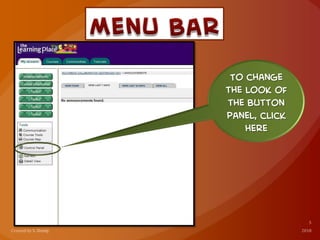
To change
the look of
the button
panel, click
here
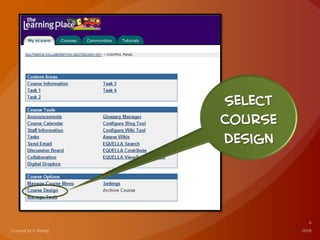
Select
Course
Design
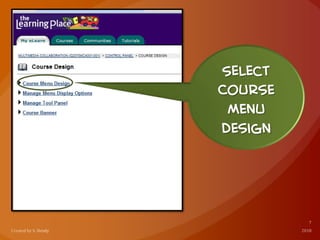
Select
Course
Menu
Design
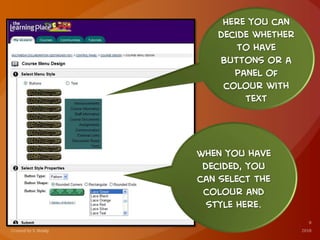
Here you can
decide whether
to have
buttons or a
panel of
colour with
text
When you have
decided, you
can select the
colour and
style here.
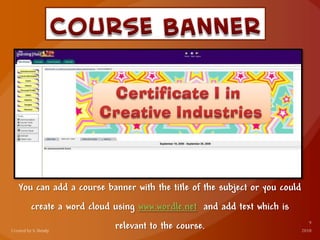
You can add a course banner with the title of the subject or you could
create a word cloud using www.wordle.net and add text which is
relevant to the course.
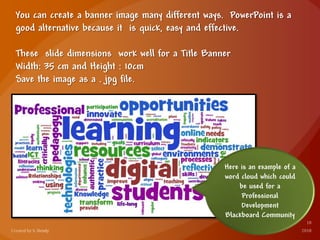
You can create a banner image many different ways. PowerPoint is a
good alternative because it is quick, easy and effective.
These slide dimensions work well for a Title Banner
Width: 35 cm and Height : 10cm
Save the image as a . jpg file.
Here is an example of a
word cloud which could
be used for a
Professional
Development
Blackboard Community
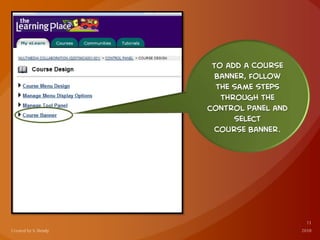
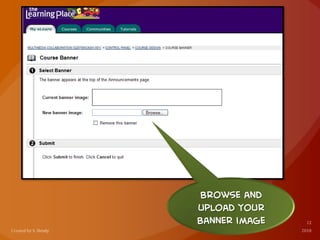
To add a Course
Banner, follow
the same steps
through the
control panel and
select
Course Banner.
Browse and
upload your
Banner image
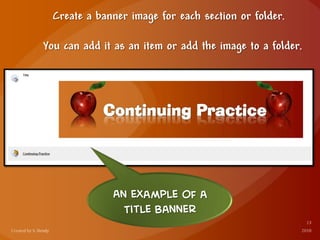
Create a banner image for each section or folder.
You can add it as an item or add the image to a folder.
An example of a
Title Banner
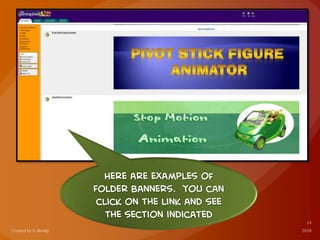
Here are examples of
Folder Banners. you can
click on the link and see
the section indicated
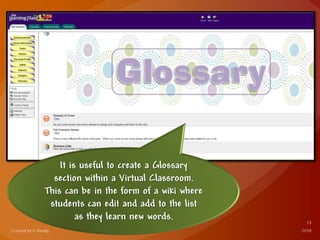
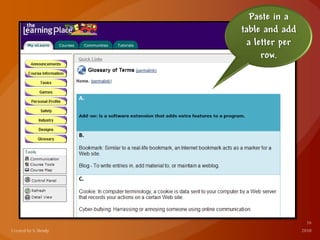
It is useful to create a Glossary

section within a Virtual Classroom.
This can be in the form of a wiki where
students can edit and add to the list
as they learn new words.
Paste in a
table and add
a letter per
row.
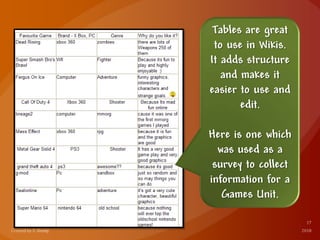
Tables are great
to use in Wikis.
It adds structure
and makes it
easier to use and
edit.
Here is one which
was used as a
survey to collect
information for a
Games Unit.
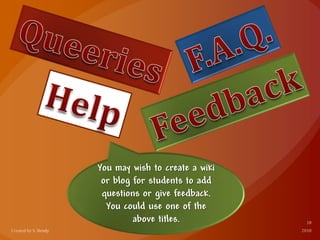
You may wish to create a wiki
or blog for students to add
questions or give feedback.
You could use one of the
above titles.
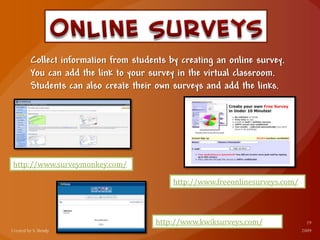
Collect information from students by creating an online survey.
You can add the link to your survey in the virtual classroom.
Students can also create their own surveys and add the links.
http://www.surveymonkey.com/
http://www.freeonlinesurveys.com/
http://www.kwiksurveys.com/
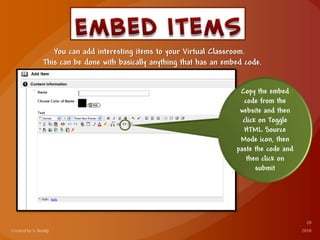
You can add interesting items to your Virtual Classroom.
This can be done with basically anything that has an embed code.
Copy the embed
code from the
website and then
click on Toggle
HTML Source
Mode icon, then
paste the code and
then click on
submit
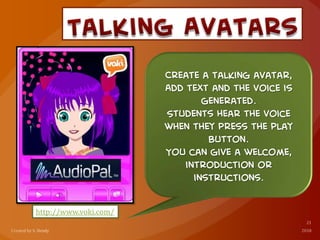
http://www.voki.com/
Create a talking avatar,
Add text and the voice is
generated.
Students hear the voice
when they press the play
button.
You can give a welcome,
introduction or
instructions.
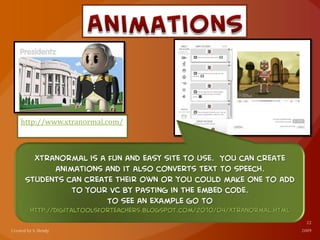
http://www.xtranormal.com/
Xtranormal is a fun and easy site to use. You can create
animations and it also converts text to speech.
Students can create their own or you could make one to add
to your VC by pasting in the embed code.
To see an example go to
http://digitaltoolsforteachers.blogspot.com/2010/04/xtranormal.html
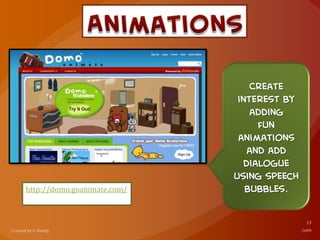
http://domo.goanimate.com/
Create
interest by
adding
fun
animations
and add
dialogue
using speech
bubbles.
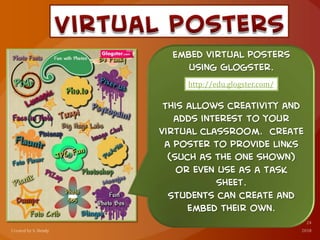
Embed virtual posters
using Glogster.
This allows creativity and
adds interest to your
virtual classroom. create
a poster to provide links
(such as the one shown)
or even use as a task
sheet.
Students can create and
embed their own.
http://edu.glogster.com/
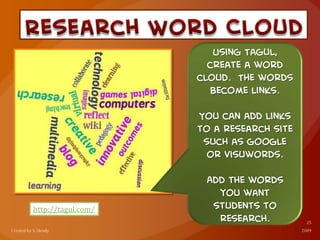
http://tagul.com/
Using Tagul,
create a word
cloud. The words
become links.
You can add links
to a research site
such as google
or visuwords.
Add the words
you want
students to
research.
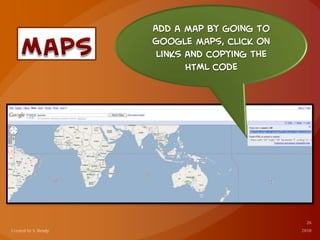
Add a map by going to
Google maps, click on
Links and copying the
HTML code
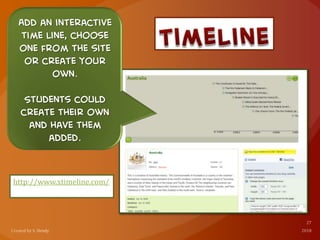
http://www.xtimeline.com/
Add an interactive
time line, choose
one from the site
or create your
own.
Students could
create their own
and have them
added.
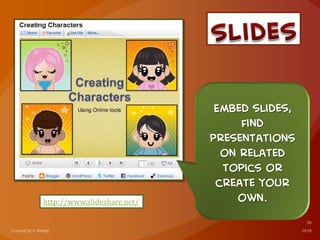
http://www.slideshare.net/
Embed slides,
find
presentations
on related
topics or
create your
own.
http://prezi.com/
Add interest by
adding a prezi.
Search for
one or create
your own.
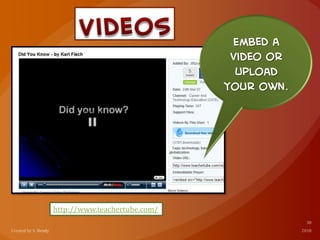
http://www.teachertube.com/
Embed a
video or
upload
your own.
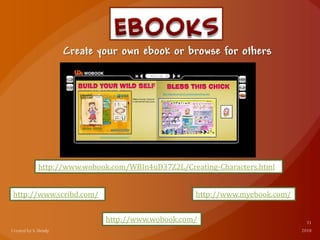
Create your own ebook or browse for others
http://www.scribd.com/ http://www.myebook.com/
http://www.wobook.com/
http://www.wobook.com/WBIn4uD37Z2L/Creating-Characters.html
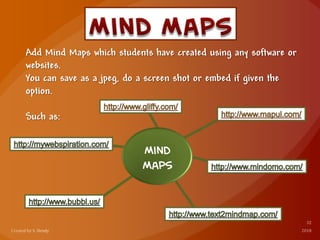
Add Mind Maps which students have created using any software or
websites.
You can save as a jpeg, do a screen shot or embed if given the
option.
Such as:
Mind
Maps
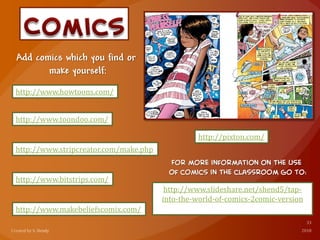
Add comics which you find or
make yourself:
http://www.howtoons.com/
http://www.makebeliefscomix.com/
http://www.stripcreator.com/make.php
http://www.bitstrips.com/
http://pixton.com/
http://www.toondoo.com/
http://www.slideshare.net/shend5/tap-
into-the-world-of-comics-2comic-version
For more information on the use
of comics in the classroom go to:
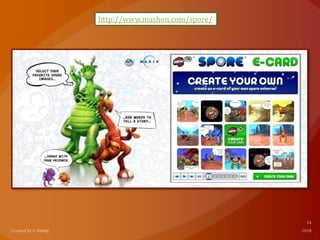
http://www.mashon.com/spore/
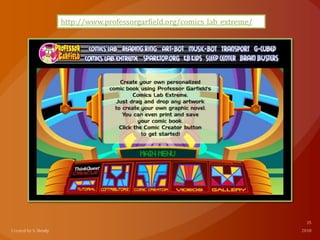
http://www.professorgarfield.org/comics_lab_extreme/
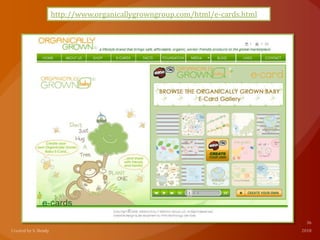
http://www.organicallygrowngroup.com/html/e-cards.html
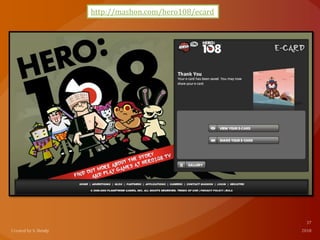
http://mashon.com/hero108/ecard
http://www.picapp.com/
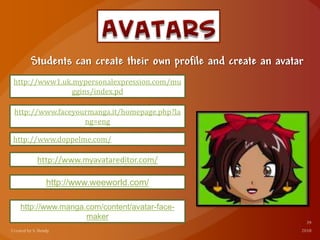
Students can create their own profile and create an avatar
http://www1.uk.mypersonalexpression.com/mu
ggins/index.pd
http://www.faceyourmanga.it/homepage.php?la
ng=eng
http://www.doppelme.com/
http://www.myavatareditor.com/
http://www.weeworld.com/
http://www.manga.com/content/avatar-face-
maker

Ways To Jazz Up A Virtual Classroom

  • 2.
    This presentation refersto the use of Blackboard as a Virtual Classroom. Virtual Classrooms are more than a place to store resources, it is a place for students to interact and collaborate with each other, respond to stimulus and reflect on their learning.
  • 3.
    Motivation is akey component to effective learning within an online learning environment. Often students may be alone in front of the computer rather than in a classroom with a teacher prompting them to stay on task or the encouragement of surrounding classmates.
  • 4.
    A successful strategyto increase motivation and engagement is by providing an interesting, attractive and challenging environment (Holmes and Gardner, 2006). This can be achieved by providing visual images, videos, podcasts, diagrams, learning objects, communication tools and easy navigation. A motivational environment can also be created by delivering constructive, meaningful feedback and recognising student achievement. Holmes, B. and Gardner, J. (2006). E-learning Design: Concepts and Considerations in B. Holmes, and J. Gardner (Ed.), E-learning : concepts and practice (pp.90-112).London: Sage.
  • 5.
    To change the lookof the button panel, click here
  • 6.
  • 7.
  • 8.
    Here you can decidewhether to have buttons or a panel of colour with text When you have decided, you can select the colour and style here.
  • 9.
    You can adda course banner with the title of the subject or you could create a word cloud using www.wordle.net and add text which is relevant to the course.
  • 10.
    You can createa banner image many different ways. PowerPoint is a good alternative because it is quick, easy and effective. These slide dimensions work well for a Title Banner Width: 35 cm and Height : 10cm Save the image as a . jpg file. Here is an example of a word cloud which could be used for a Professional Development Blackboard Community
  • 11.
    To add aCourse Banner, follow the same steps through the control panel and select Course Banner.
  • 12.
  • 13.
    Create a bannerimage for each section or folder. You can add it as an item or add the image to a folder. An example of a Title Banner
  • 14.
    Here are examplesof Folder Banners. you can click on the link and see the section indicated
  • 15.
    It is usefulto create a Glossary section within a Virtual Classroom. This can be in the form of a wiki where students can edit and add to the list as they learn new words.
  • 16.
    Paste in a tableand add a letter per row.
  • 17.
    Tables are great touse in Wikis. It adds structure and makes it easier to use and edit. Here is one which was used as a survey to collect information for a Games Unit.
  • 18.
    You may wishto create a wiki or blog for students to add questions or give feedback. You could use one of the above titles.
  • 19.
    Collect information fromstudents by creating an online survey. You can add the link to your survey in the virtual classroom. Students can also create their own surveys and add the links. http://www.surveymonkey.com/ http://www.freeonlinesurveys.com/ http://www.kwiksurveys.com/
  • 20.
    You can addinteresting items to your Virtual Classroom. This can be done with basically anything that has an embed code. Copy the embed code from the website and then click on Toggle HTML Source Mode icon, then paste the code and then click on submit
  • 21.
    http://www.voki.com/ Create a talkingavatar, Add text and the voice is generated. Students hear the voice when they press the play button. You can give a welcome, introduction or instructions.
  • 22.
    http://www.xtranormal.com/ Xtranormal is afun and easy site to use. You can create animations and it also converts text to speech. Students can create their own or you could make one to add to your VC by pasting in the embed code. To see an example go to http://digitaltoolsforteachers.blogspot.com/2010/04/xtranormal.html
  • 23.
  • 24.
    Embed virtual posters usingGlogster. This allows creativity and adds interest to your virtual classroom. create a poster to provide links (such as the one shown) or even use as a task sheet. Students can create and embed their own. http://edu.glogster.com/
  • 25.
    http://tagul.com/ Using Tagul, create aword cloud. The words become links. You can add links to a research site such as google or visuwords. Add the words you want students to research.
  • 26.
    Add a mapby going to Google maps, click on Links and copying the HTML code
  • 27.
    http://www.xtimeline.com/ Add an interactive timeline, choose one from the site or create your own. Students could create their own and have them added.
  • 28.
  • 29.
    http://prezi.com/ Add interest by addinga prezi. Search for one or create your own.
  • 30.
  • 31.
    Create your ownebook or browse for others http://www.scribd.com/ http://www.myebook.com/ http://www.wobook.com/ http://www.wobook.com/WBIn4uD37Z2L/Creating-Characters.html
  • 32.
    Add Mind Mapswhich students have created using any software or websites. You can save as a jpeg, do a screen shot or embed if given the option. Such as: Mind Maps
  • 33.
    Add comics whichyou find or make yourself: http://www.howtoons.com/ http://www.makebeliefscomix.com/ http://www.stripcreator.com/make.php http://www.bitstrips.com/ http://pixton.com/ http://www.toondoo.com/ http://www.slideshare.net/shend5/tap- into-the-world-of-comics-2comic-version For more information on the use of comics in the classroom go to:
  • 34.
  • 35.
  • 36.
  • 37.
  • 38.
  • 39.
    Students can createtheir own profile and create an avatar http://www1.uk.mypersonalexpression.com/mu ggins/index.pd http://www.faceyourmanga.it/homepage.php?la ng=eng http://www.doppelme.com/ http://www.myavatareditor.com/ http://www.weeworld.com/ http://www.manga.com/content/avatar-face- maker