
Virtual classroom:
BigBlueButton
Dr Helen Dixon
Digital Learning Team
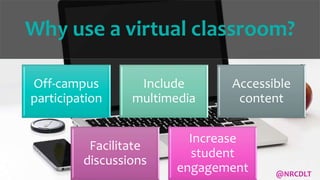
Why use a virtual classroom?
Off-campus
participation
Include
multimedia
Accessible
content
Facilitate
discussions
Increase
student
engagement @NRCDLT
Why use a virtual classroom?
67% of 18 year olds
think that all learning
will be carried out
online within 20 years.
(Jisc 2016)
@NRCDLT
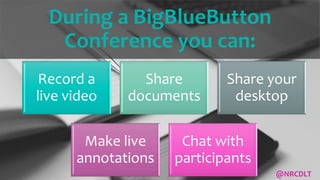
During a BigBlueButton
Conference you can:
Record a
live video
Share
documents
Share your
desktop
Make live
annotations
Chat with
participants
@NRCDLT
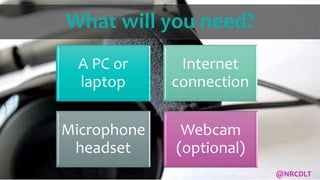
What will you need?
A PC or
laptop
Internet
connection
Microphone
headset
Webcam
(optional)
@NRCDLT
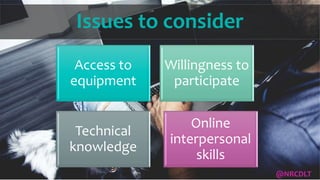
Issues to consider
Access to
equipment
Willingness to
participate
Technical
knowledge
Online
interpersonal
skills
@NRCDLT
Getting started
Creating a video conference
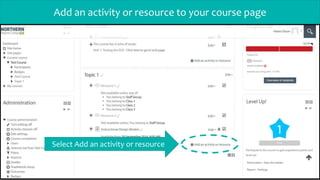
Add an activity or resource to your course page
Select Add an activity or resource
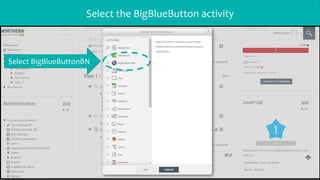
Select the BigBlueButton activity
Select BigBlueButtonBN
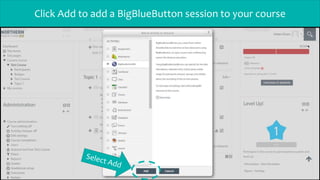
Click Add to add a BigBlueButton session to your course
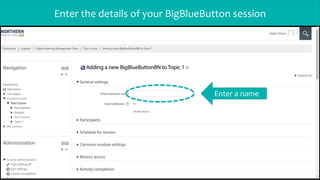
Enter the details of your BigBlueButton session
Enter a name
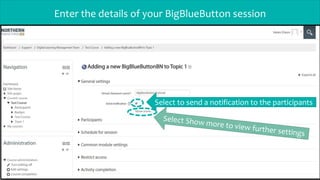
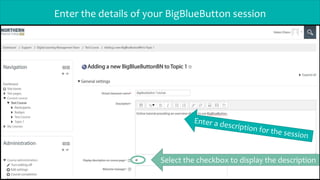
Enter the details of your BigBlueButton session
Select to send a notification to the participants
Enter the details of your BigBlueButton session
Select the checkbox to display the description
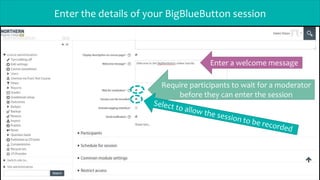
Enter the details of your BigBlueButton session
Require participants to wait for a moderator
before they can enter the session
Enter a welcome message
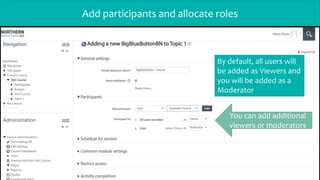
Add participants and allocate roles
You can add additional
viewers or moderators
By default, all users will
be added as Viewers and
you will be added as a
Moderator
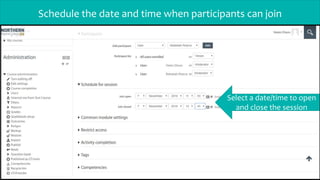
Schedule the date and time when participants can join
Select a date/time to open
and close the session
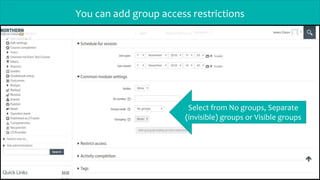
You can add group access restrictions
Select from No groups, Separate
(invisible) groups or Visible groups
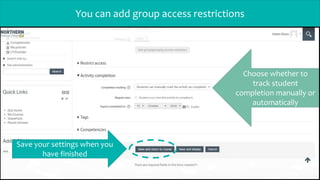
You can add group access restrictions
Choose whether to
track student
completion manually or
automatically
Save your settings when you
have finished
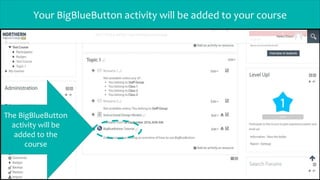
Your BigBlueButton activity will be added to your course
The BigBlueButton
activity will be
added to the
course
Teaching online
Joining a video conference
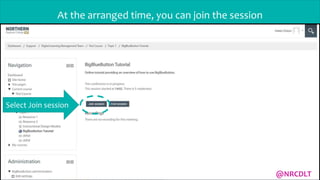
At the arranged time, you can join the session
Select Join session
@NRCDLT
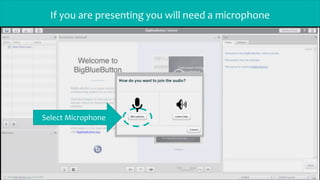
If you are presenting you will need a microphone
Select Microphone
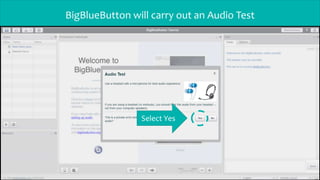
BigBlueButton will carry out an Audio Test
Select Yes
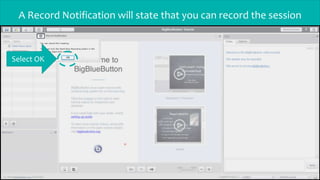
A Record Notification will state that you can record the session
Select OK
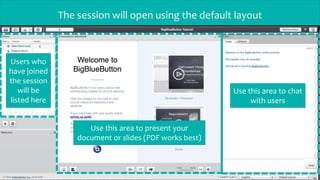
The session will open using the default layout
Users who
have joined
the session
will be
listed here
Use this area to present your
document or slides (PDF works best)
Use this area to chat
with users
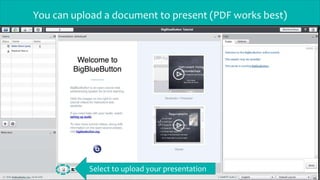
You can upload a document to present (PDF works best)
Select to upload your presentation
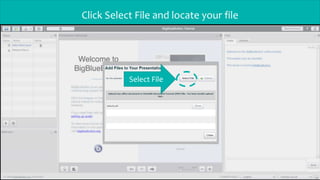
Click Select File and locate your file
Select File
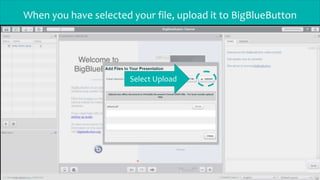
When you have selected your file, upload it to BigBlueButton
Select Upload
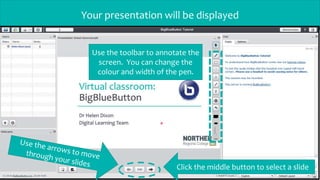
Your presentation will be displayed
Use the toolbar to annotate the
screen. You can change the
colour and width of the pen.
Click the middle button to select a slide
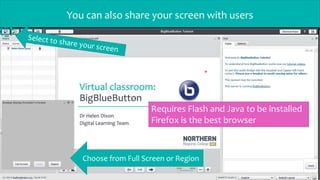
You can also share your screen with users
Choose from Full Screen or Region
Requires Flash and Java to be installed
Firefox is the best browser
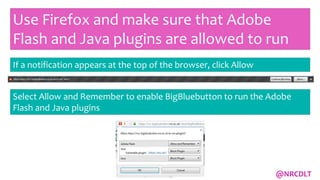
Use Firefox and make sure that Adobe
Flash and Java plugins are allowed to run
If a notification appears at the top of the browser, click Allow
Select Allow and Remember to enable BigBluebutton to run the Adobe
Flash and Java plugins
@NRCDLT
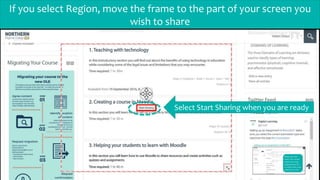
If you select Region, move the frame to the part of your screen you
wish to share
Select Start Sharing when you are ready
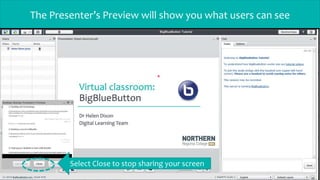
The Presenter’s Preview will show you what users can see
Select Close to stop sharing your screen
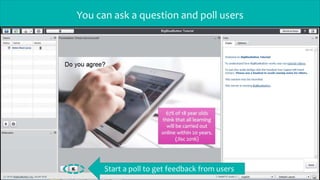
You can ask a question and poll users
Start a poll to get feedback from users
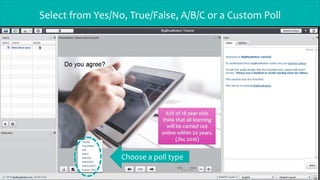
Select from Yes/No, True/False, A/B/C or a Custom Poll
Choose a poll type
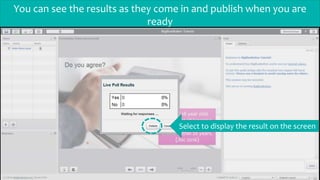
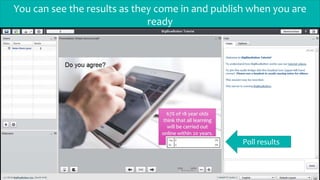
You can see the results as they come in and publish when you are
ready
Select to display the result on the screen
You can see the results as they come in and publish when you are
ready
Poll results
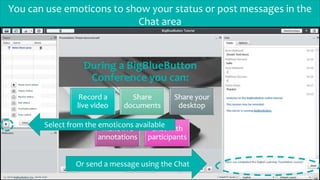
You can use emoticons to show your status or post messages in the
Chat area
Select from the emoticons available
Or send a message using the Chat
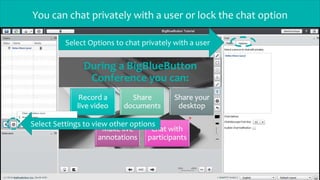
You can chat privately with a user or lock the chat option
Select Settings to view other options
Select Options to chat privately with a user
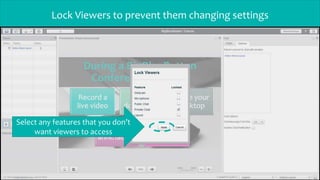
Lock Viewers to prevent them changing settings
Select any features that you don’t
want viewers to access
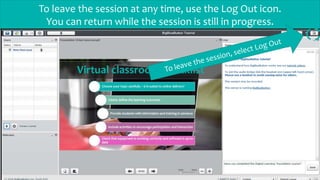
To leave the session at any time, use the Log Out icon.
You can return while the session is still in progress.
Select any features that you don’t want
viewers to access
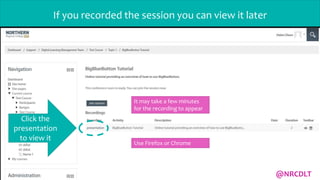
If you recorded the session you can view it later
Click the
presentation
to view it
It may take a few minutes
for the recording to appear
Use Firefox or Chrome
@NRCDLT
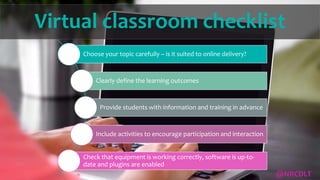
Virtual classroom checklist
Choose your topic carefully – is it suited to online delivery?
Clearly define the learning outcomes
Provide students with information and training in advance
Include activities to encourage participation and interaction
Check that equipment is working correctly, software is up-to-
date and plugins are enabled
@NRCDLT
More BigBlueButton Videos
Exploring the Virtual Classroom: What Students Need to
Know and Teachers Should Consider
Use of Synchronous Virtual Classrooms: Why, Who and How?
Further resources
@NRCDLT

Virtual classroom

  • 1.
    Virtual classroom: BigBlueButton Dr HelenDixon Digital Learning Team
  • 2.
    Why use avirtual classroom? Off-campus participation Include multimedia Accessible content Facilitate discussions Increase student engagement @NRCDLT
  • 3.
    Why use avirtual classroom? 67% of 18 year olds think that all learning will be carried out online within 20 years. (Jisc 2016) @NRCDLT
  • 4.
    During a BigBlueButton Conferenceyou can: Record a live video Share documents Share your desktop Make live annotations Chat with participants @NRCDLT
  • 5.
    What will youneed? A PC or laptop Internet connection Microphone headset Webcam (optional) @NRCDLT
  • 6.
    Issues to consider Accessto equipment Willingness to participate Technical knowledge Online interpersonal skills @NRCDLT
  • 7.
  • 8.
    Add an activityor resource to your course page Select Add an activity or resource
  • 9.
    Select the BigBlueButtonactivity Select BigBlueButtonBN
  • 10.
    Click Add toadd a BigBlueButton session to your course
  • 11.
    Enter the detailsof your BigBlueButton session Enter a name
  • 12.
    Enter the detailsof your BigBlueButton session Select to send a notification to the participants
  • 13.
    Enter the detailsof your BigBlueButton session Select the checkbox to display the description
  • 14.
    Enter the detailsof your BigBlueButton session Require participants to wait for a moderator before they can enter the session Enter a welcome message
  • 15.
    Add participants andallocate roles You can add additional viewers or moderators By default, all users will be added as Viewers and you will be added as a Moderator
  • 16.
    Schedule the dateand time when participants can join Select a date/time to open and close the session
  • 17.
    You can addgroup access restrictions Select from No groups, Separate (invisible) groups or Visible groups
  • 18.
    You can addgroup access restrictions Choose whether to track student completion manually or automatically Save your settings when you have finished
  • 19.
    Your BigBlueButton activitywill be added to your course The BigBlueButton activity will be added to the course
  • 20.
    Teaching online Joining avideo conference
  • 21.
    At the arrangedtime, you can join the session Select Join session @NRCDLT
  • 22.
    If you arepresenting you will need a microphone Select Microphone
  • 23.
    BigBlueButton will carryout an Audio Test Select Yes
  • 24.
    A Record Notificationwill state that you can record the session Select OK
  • 25.
    The session willopen using the default layout Users who have joined the session will be listed here Use this area to present your document or slides (PDF works best) Use this area to chat with users
  • 26.
    You can uploada document to present (PDF works best) Select to upload your presentation
  • 27.
    Click Select Fileand locate your file Select File
  • 28.
    When you haveselected your file, upload it to BigBlueButton Select Upload
  • 29.
    Your presentation willbe displayed Use the toolbar to annotate the screen. You can change the colour and width of the pen. Click the middle button to select a slide
  • 30.
    You can alsoshare your screen with users Choose from Full Screen or Region Requires Flash and Java to be installed Firefox is the best browser
  • 31.
    Use Firefox andmake sure that Adobe Flash and Java plugins are allowed to run If a notification appears at the top of the browser, click Allow Select Allow and Remember to enable BigBluebutton to run the Adobe Flash and Java plugins @NRCDLT
  • 32.
    If you selectRegion, move the frame to the part of your screen you wish to share Select Start Sharing when you are ready
  • 33.
    The Presenter’s Previewwill show you what users can see Select Close to stop sharing your screen
  • 34.
    You can aska question and poll users Start a poll to get feedback from users
  • 35.
    Select from Yes/No,True/False, A/B/C or a Custom Poll Choose a poll type
  • 36.
    You can seethe results as they come in and publish when you are ready Select to display the result on the screen
  • 37.
    You can seethe results as they come in and publish when you are ready Poll results
  • 38.
    You can useemoticons to show your status or post messages in the Chat area Select from the emoticons available Or send a message using the Chat
  • 39.
    You can chatprivately with a user or lock the chat option Select Settings to view other options Select Options to chat privately with a user
  • 40.
    Lock Viewers toprevent them changing settings Select any features that you don’t want viewers to access
  • 41.
    To leave thesession at any time, use the Log Out icon. You can return while the session is still in progress. Select any features that you don’t want viewers to access
  • 42.
    If you recordedthe session you can view it later Click the presentation to view it It may take a few minutes for the recording to appear Use Firefox or Chrome @NRCDLT
  • 43.
    Virtual classroom checklist Chooseyour topic carefully – is it suited to online delivery? Clearly define the learning outcomes Provide students with information and training in advance Include activities to encourage participation and interaction Check that equipment is working correctly, software is up-to- date and plugins are enabled @NRCDLT
  • 44.
    More BigBlueButton Videos Exploringthe Virtual Classroom: What Students Need to Know and Teachers Should Consider Use of Synchronous Virtual Classrooms: Why, Who and How? Further resources @NRCDLT