Video-Editing Techniques Guilford County Sci Vis V204.03
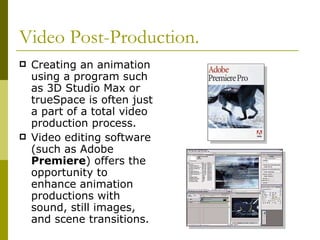
Video Post-Production. Creating an animation using a program such as 3D Studio Max or trueSpace is often just a part of a total video production process. Video editing software (such as Adobe  Premiere ) offers the opportunity to enhance animation productions with sound, still images, and scene transitions.
Video Post-Production. The addition of  sound  can add realism and interest to a video production. Titles and single images (static or scrolling) provide additional information.
Digital Versus Analog  Analog  (linear) devices  record light and sound as  continuously changing electrical signals described by a continuous change of voltage.  Digital recordings are composed of a series of specific, discrete values which are recorded and manipulated as bits of information, which can be accessed or modified one bit at the time or in selected groups of bits.
Digital  media is stored in a  format that a computer can read and process directly. Digital cameras, scanners, and digital audio recorders can be used to save images and sound in a format that can be recognized by computer programs. Digital media may come from images created or sound recorded directly by computer programs.  Digital Versus Analog
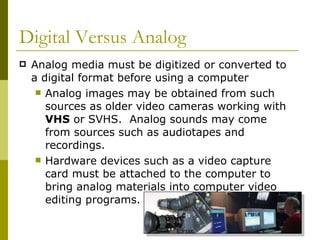
Digital Versus Analog  Analog media must be digitized or converted to a digital format before using a computer Analog images may be obtained from such sources as older video cameras working with  VHS  or SVHS.  Analog sounds may come from sources such as audiotapes and recordings. Hardware devices such as a video capture card must be attached to the computer to bring analog materials into computer video editing programs.
Sufficient computer resources are needed for  digital  video editing. Fast processors needed to process the video. Additional  RAM  beyond customary requirements is needed.  Digital Versus Analog
Digital Versus Analog  Very large  hard drives  are needed. Few minutes of footage require vast amounts of storage. Video cards should be capable of working with 24-bit color depth displays. Large  monitors are better due to the need to work with numerous software displays.
Specifying Project Settings Selecting settings can be a complex task requiring an understanding of input resources and output goals.  The ability to make good decisions regarding capture, edit, and output settings require an understanding of topics such as frame rates, compression, and audio.  Numerous books can help but  Experience  is still a really good teacher.
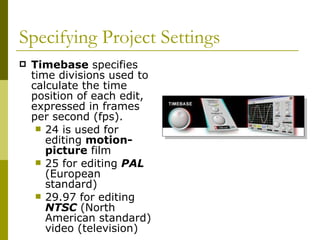
Specifying Project Settings Timebase  specifies time divisions used to calculate the time position of each edit, expressed in frames per second (fps). 24 is used for editing  motion-picture  film 25 for editing  PAL   (European standard) 29.97 for editing  NTSC   (North American standard) video (television)
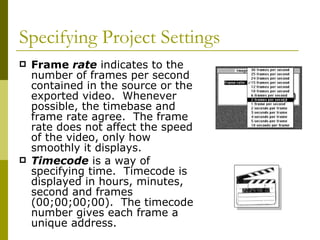
Specifying Project Settings Frame  rate  indicates to the number of frames per second contained in the source or the exported video.  Whenever possible, the timebase and frame rate agree.  The frame rate does not affect the speed of the video, only how smoothly it displays. Timecode  is a way of specifying time.  Timecode is displayed in hours, minutes, second and frames (00;00;00;00).  The timecode number gives each frame a unique address.
Specifying Project Settings Frame   size  specifies the dimensions (in pixels) for frames.  Choose the frame size that matches your source video. Common frames sizes include:  640 x 480–standard for  low -end video cards 720 x 486–standard-resolution  professional  video 720 x 480 –DV  standard 720 x 576– PAL  video standard (Used in Europe.)
Specifying Project Settings Aspect ratio  is the ratio of width to height of the video display.  Pixel aspect ratio  is the ratio for a pixel while the  frame aspect ratio  is the width to  height  relationship for an image.  4:3 is the standard for conventional television and  analog  video. 16:9 is the  motion  picture standard. Distortion can occur when a source image has a different pixel aspect ratio from the one used by your display monitor.  Some  software  may correct for the distortion .
CODECs  (compressor/decompressor) specify the compression system used for reducing the size of digital files.  Digital video and audio files are very large and must be reduced for use on anything other than powerful computer systems.  Some common CODECS include systems for QuickTime or Windows. Specifying Project Settings
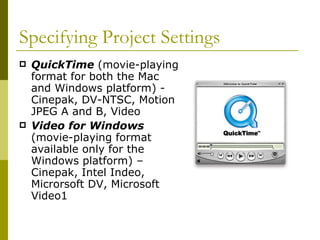
QuickTime   (movie-playing format for both the Mac and Windows platform) - Cinepak, DV-NTSC, Motion JPEG A and B, Video Video for Windows  (movie-playing format available only for the Windows platform) – Cinepak, Intel Indeo, Microrsoft DV, Microsoft Video1 Specifying Project Settings
Specifying Project Settings Color  bit depth  is the number of colors to be included.  The more colors that you choose to work with, the larger the file size and in turn, the more computer resources required. 8-bit color (256 colors) might be used for displays on the  Web. 24-bit color ( millions  of colors) produces the best image quality. 32-bit color (millions of colors) allows the use of an  alpha  channel .
Specifying Project Settings Audio  bit depth  is the number of bits used to describe the audio sample. 8-bit mono is similar to  FM  radio 16-bit is similar to  CD  audio Audio   interleave  specifies how often audio information is inserted among the video frames.
Audio  compression  reduces file size and is needed when you plan to export very large audio files to CD-ROMs or the Internet.  Audio formats include  WAV , MP3, and MIDI files. MIDI files do not include vocals.  MPEG  files can also include audio. Specifying Project Settings
The Editing Process Visual and audio source media are referred to as  clips ,  which is a film industry metaphor referring to short segments of a film project.  Clips may be either computer-generated or  live -action images or sounds that may last from a few frames to several minutes. Bins  are used store and organize clips in a small screen space.  Bin is another film industry metaphor, which is where editors hung strips of film until added to the total production.
Premiere UI
Editing Tools  Opening and viewing clips Images must be in a format that the video editing software can recognize such as an  avi  (for animation),  wav  (for sound), or  jpg  (for still image) before it can be imported.  Many software programs provide both a  “source”  window and a separate “program” window where the entire production can be monitored. Sound  clips may be displayed as a waveform where sounds are shown as spikes in a graph.
Editing Tools  Playback  controls  are a part of most viewing windows.  Play, Stop, Frame back, frame forward are typical of window commands. The  Timeline  helps cue the user as to the relative position and duration of a particular clip (or frame) within the program by graphically showing the clips as colored bars whose length is an indication of the duration.  As clip positions are moved along the timeline, their position within the program is changed.
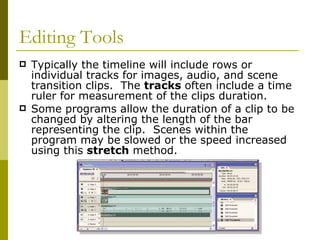
Editing Tools  Typically the timeline will include rows or individual tracks for images, audio, and scene transition clips.  The  tracks  often include a time ruler for measurement of the clips duration. Some programs allow the duration of a clip to be changed by altering the length of the bar representing the clip.  Scenes within the program may be slowed or the speed increased using this  stretch  method.
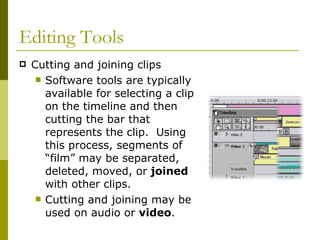
Editing Tools Cutting and joining clips Software tools are typically available for selecting a clip on the timeline and then cutting the bar that represents the clip.  Using this process, segments of “film” may be separated, deleted, moved, or  joined  with other clips. Cutting and joining may be used on audio or  video .
Editing Tools Transitions  allow you to make a gradual or interesting change from one clip to another by using special effects. Transitions might include  dissolve , page peels, slides, and stretches. The number and types of transitions available depend upon the software you are using.  Audio   mixing  is the process of making adjustments to sound clips.
Editing Tools Title  clips  Alpha channel allows you  superimpose  the title  Title  rolls  allow text to move from the bottom of the screen to beyond the top used for credits.
Editing Tools A  title  crawl  moves the text horizontally across the screen.  News bulletins along the bottom of the television are an example of this type of effect. Text and graphics may be created in other programs and inserted.  Video editing programs are usually limited in their ability to create and manipulate text and graphics.
Editing Tools By using layering techniques, adjusting opacity, and creating transparency,  composite  clips can be created.  Bluescreen ( greenscreen ) and track hierarchy allow background scenes to be overlaid and image editing to occur. Keying  makes only certain parts of a clip transparent which can then be filled with other images (clips on the lower tracks of the timeline.)
Creating Output Output may be to videotape for display on a television or to a digital file for display through a  computer  output device.  Output may be put into other presentation programs such as  PowerPoint.
Creating Output Export goals will determine the output settings that you choose. Does the production need to operate on  Windows  and/or Mac platforms? What  software  will be used to play your production? What image  quality  is required? How  big  can the file size be? Will the production be displayed on the Web?
Creating Output Common digital outputs Audio Video Interleave  ( avi ) – for use on Windows only computers, good for short digital movies. QuickTime  – a cross platform Apple format that is popular for Web video. RealVideo  – RealNetworks streaming video is an extremely popular format. Video editing programs may be exported to other multimedia programs (such as  Macromedia Director  or  Authorware ) for addition editing or integration with other materials such as  Flash  programs.

Video editing

  • 1.
    Video-Editing Techniques GuilfordCounty Sci Vis V204.03
  • 2.
    Video Post-Production. Creatingan animation using a program such as 3D Studio Max or trueSpace is often just a part of a total video production process. Video editing software (such as Adobe Premiere ) offers the opportunity to enhance animation productions with sound, still images, and scene transitions.
  • 3.
    Video Post-Production. Theaddition of sound can add realism and interest to a video production. Titles and single images (static or scrolling) provide additional information.
  • 4.
    Digital Versus Analog Analog (linear) devices record light and sound as continuously changing electrical signals described by a continuous change of voltage. Digital recordings are composed of a series of specific, discrete values which are recorded and manipulated as bits of information, which can be accessed or modified one bit at the time or in selected groups of bits.
  • 5.
    Digital mediais stored in a format that a computer can read and process directly. Digital cameras, scanners, and digital audio recorders can be used to save images and sound in a format that can be recognized by computer programs. Digital media may come from images created or sound recorded directly by computer programs. Digital Versus Analog
  • 6.
    Digital Versus Analog Analog media must be digitized or converted to a digital format before using a computer Analog images may be obtained from such sources as older video cameras working with VHS or SVHS. Analog sounds may come from sources such as audiotapes and recordings. Hardware devices such as a video capture card must be attached to the computer to bring analog materials into computer video editing programs.
  • 7.
    Sufficient computer resourcesare needed for digital video editing. Fast processors needed to process the video. Additional RAM beyond customary requirements is needed. Digital Versus Analog
  • 8.
    Digital Versus Analog Very large hard drives are needed. Few minutes of footage require vast amounts of storage. Video cards should be capable of working with 24-bit color depth displays. Large monitors are better due to the need to work with numerous software displays.
  • 9.
    Specifying Project SettingsSelecting settings can be a complex task requiring an understanding of input resources and output goals. The ability to make good decisions regarding capture, edit, and output settings require an understanding of topics such as frame rates, compression, and audio. Numerous books can help but Experience is still a really good teacher.
  • 10.
    Specifying Project SettingsTimebase specifies time divisions used to calculate the time position of each edit, expressed in frames per second (fps). 24 is used for editing motion-picture film 25 for editing PAL (European standard) 29.97 for editing NTSC (North American standard) video (television)
  • 11.
    Specifying Project SettingsFrame rate indicates to the number of frames per second contained in the source or the exported video. Whenever possible, the timebase and frame rate agree. The frame rate does not affect the speed of the video, only how smoothly it displays. Timecode is a way of specifying time. Timecode is displayed in hours, minutes, second and frames (00;00;00;00). The timecode number gives each frame a unique address.
  • 12.
    Specifying Project SettingsFrame size specifies the dimensions (in pixels) for frames. Choose the frame size that matches your source video. Common frames sizes include: 640 x 480–standard for low -end video cards 720 x 486–standard-resolution professional video 720 x 480 –DV standard 720 x 576– PAL video standard (Used in Europe.)
  • 13.
    Specifying Project SettingsAspect ratio is the ratio of width to height of the video display. Pixel aspect ratio is the ratio for a pixel while the frame aspect ratio is the width to height relationship for an image. 4:3 is the standard for conventional television and analog video. 16:9 is the motion picture standard. Distortion can occur when a source image has a different pixel aspect ratio from the one used by your display monitor. Some software may correct for the distortion .
  • 14.
    CODECs (compressor/decompressor)specify the compression system used for reducing the size of digital files. Digital video and audio files are very large and must be reduced for use on anything other than powerful computer systems. Some common CODECS include systems for QuickTime or Windows. Specifying Project Settings
  • 15.
    QuickTime (movie-playing format for both the Mac and Windows platform) - Cinepak, DV-NTSC, Motion JPEG A and B, Video Video for Windows (movie-playing format available only for the Windows platform) – Cinepak, Intel Indeo, Microrsoft DV, Microsoft Video1 Specifying Project Settings
  • 16.
    Specifying Project SettingsColor bit depth is the number of colors to be included. The more colors that you choose to work with, the larger the file size and in turn, the more computer resources required. 8-bit color (256 colors) might be used for displays on the Web. 24-bit color ( millions of colors) produces the best image quality. 32-bit color (millions of colors) allows the use of an alpha channel .
  • 17.
    Specifying Project SettingsAudio bit depth is the number of bits used to describe the audio sample. 8-bit mono is similar to FM radio 16-bit is similar to CD audio Audio interleave specifies how often audio information is inserted among the video frames.
  • 18.
    Audio compression reduces file size and is needed when you plan to export very large audio files to CD-ROMs or the Internet. Audio formats include WAV , MP3, and MIDI files. MIDI files do not include vocals. MPEG files can also include audio. Specifying Project Settings
  • 19.
    The Editing ProcessVisual and audio source media are referred to as clips , which is a film industry metaphor referring to short segments of a film project. Clips may be either computer-generated or live -action images or sounds that may last from a few frames to several minutes. Bins are used store and organize clips in a small screen space. Bin is another film industry metaphor, which is where editors hung strips of film until added to the total production.
  • 20.
  • 21.
    Editing Tools Opening and viewing clips Images must be in a format that the video editing software can recognize such as an avi (for animation), wav (for sound), or jpg (for still image) before it can be imported. Many software programs provide both a “source” window and a separate “program” window where the entire production can be monitored. Sound clips may be displayed as a waveform where sounds are shown as spikes in a graph.
  • 22.
    Editing Tools Playback controls are a part of most viewing windows. Play, Stop, Frame back, frame forward are typical of window commands. The Timeline helps cue the user as to the relative position and duration of a particular clip (or frame) within the program by graphically showing the clips as colored bars whose length is an indication of the duration. As clip positions are moved along the timeline, their position within the program is changed.
  • 23.
    Editing Tools Typically the timeline will include rows or individual tracks for images, audio, and scene transition clips. The tracks often include a time ruler for measurement of the clips duration. Some programs allow the duration of a clip to be changed by altering the length of the bar representing the clip. Scenes within the program may be slowed or the speed increased using this stretch method.
  • 24.
    Editing Tools Cuttingand joining clips Software tools are typically available for selecting a clip on the timeline and then cutting the bar that represents the clip. Using this process, segments of “film” may be separated, deleted, moved, or joined with other clips. Cutting and joining may be used on audio or video .
  • 25.
    Editing Tools Transitions allow you to make a gradual or interesting change from one clip to another by using special effects. Transitions might include dissolve , page peels, slides, and stretches. The number and types of transitions available depend upon the software you are using. Audio mixing is the process of making adjustments to sound clips.
  • 26.
    Editing Tools Title clips Alpha channel allows you superimpose the title Title rolls allow text to move from the bottom of the screen to beyond the top used for credits.
  • 27.
    Editing Tools A title crawl moves the text horizontally across the screen. News bulletins along the bottom of the television are an example of this type of effect. Text and graphics may be created in other programs and inserted. Video editing programs are usually limited in their ability to create and manipulate text and graphics.
  • 28.
    Editing Tools Byusing layering techniques, adjusting opacity, and creating transparency, composite clips can be created. Bluescreen ( greenscreen ) and track hierarchy allow background scenes to be overlaid and image editing to occur. Keying makes only certain parts of a clip transparent which can then be filled with other images (clips on the lower tracks of the timeline.)
  • 29.
    Creating Output Outputmay be to videotape for display on a television or to a digital file for display through a computer output device. Output may be put into other presentation programs such as PowerPoint.
  • 30.
    Creating Output Exportgoals will determine the output settings that you choose. Does the production need to operate on Windows and/or Mac platforms? What software will be used to play your production? What image quality is required? How big can the file size be? Will the production be displayed on the Web?
  • 31.
    Creating Output Commondigital outputs Audio Video Interleave ( avi ) – for use on Windows only computers, good for short digital movies. QuickTime – a cross platform Apple format that is popular for Web video. RealVideo – RealNetworks streaming video is an extremely popular format. Video editing programs may be exported to other multimedia programs (such as Macromedia Director or Authorware ) for addition editing or integration with other materials such as Flash programs.