Git & version control
What is version control?
●   A way to:
    –   Keep a log of all the changes made to your scripts
        & data
    –   Synchronize all the copies of your scripts in all
        your computers
    –   Be able to go back to previous working versions
Version control - example
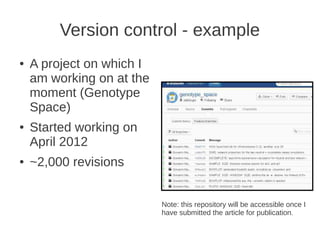
●   A project on which I
    am working on at the
    moment (Genotype
    Space)
●   Started working on
    April 2012
●   ~2,000 revisions
Version control – how does it work?
●   Every time I make significant changes to a
    script, or get new results, I save a new
    “revision”
●   Each revision is associated to a description,
    and a date
Example log
Advantages of version control
●   What was the version of my scripts when I
    generated the results included in the paper, 2
    years ago?
Advantages of version control
●   What was the version of my scripts when I
    generated the results included in the paper, 2
    years ago?
●   I've accidentally removed a portion of my
    code. Can I go back?
Advantages of version control
●   What was the version of my scripts when I
    generated the results included in the paper, 2
    years ago?
●   I've accidentally removed a portion of my
    code. Can I go back?
●   I've found a folder containing scripts and
    results. Are the scripts updated to the latest
    version?
Git and Version control
●   A popular software for version control is “git”
●   Used for the Linux kernel
●   Adopted by http://github.com, popular hosting
    website for open source projects
How to get git?
●   http://git-scm.com/
●   Linux: apt-get install git
How to get git?
●   http://git-scm.com/
●   Linux: apt-get install git
●   Windows, Mac, Linux: you can install
    “tortoise-hg”, an
    –   http://tortoisehg.bitbucket.org/
Definition: the repository
●   The repository is the folder where all the
    scripts (and eventually results) of a project are
    stored
Example of repository: bedtools
Examples of repository: github
Example of repository: database
            lecture
How to create a repository
           (on your computer)
●   Connect to evopcompute
●   Create a folder
●   “cd” to it
●   Type git init
git init
●   The command git init creates a new repository
    in the current folder
●   All the files and subfolder will be included in
    the repo (although you will have to add them
    manually)
git clone
●   Alternatively, you can “clone” an existing
    repository
●   git clone <url-to-repository>
git add
●   Let's add a new file to the repository
●   First, let's create a file:
    –   gedit README.txt
●   Now, let's tell git to track it:
    –   git add README.txt
Effects of git add
●   The command git add tells git that you want to
    keep track of all the changes of that file
git commit
●   Let's save our first revision:
    –   git commit README.txt -m “DOCS: added a
        readme”
git commit
●   Let's save our first revision:
    –   git commit README.txt -m “DOCS: added a
        readme”
●   Explanation:
    –   git commit → create a new commit
    –   README.txt → the new commit refers only to the
        file README.txt
    –   -m “....” → description of the commit
git log
●   Let's see our new commit:
    –   git log
Let's modify our file: git diff
●   The command git diff tells you all the changes
    made since the last commit
●   Let's modify our README.txt file, and see how
    the changes are tracked
    –   echo “new line after first commit” > README.txt
    –   git diff
Let's make more commits
–   echo “new line after first commit” > README.txt
–   git diff
–   git commit -m “DOCS: added a new line”
–   echo “another new line after first commit” >
    README.txt
–   git commit -m “DOCS: added another new line”
–   git log
git revert
●   If we don't like some new changes, we can
    revert them:
    –   git log
    –   git revert <id of the revision>
Syncronyzing a repository with
           github / bitbucket
●   A common practice is to have multiple copies
    of your code, stored in different places
●   Github and bitbucket are two free hosting
    services for code
●   Bitbucket offers unlimited space hosting, so
    you can keep a backup of your code there
How to synchronize your repo with
             github
●   Create an account at http://github.com
●   Follow the instructions on setting up a ssh key
    –   https://help.github.com/articles/set-up-git
    –   https://help.github.com/articles/generating-ssh-key
        s
●   Create a new repository from the web
    interface
git pull & push
●   gt clone → download a repository from
    github/bitbucket, for the first time
●   git pull → download the latest changes from
    your repository (e.g. github/bitbucket), and
    update the code on your computer
●   git push → upload all the latest changes to the
    remote repo
Git pull & push – best practices
●   Always download the latest changes (git pull)
    before uploading new ones (git push)
●   Otherwise, you will have some version
    conflicts
●   Never force a git push
How to collaborate on
             github/bitbucket
●   Let's imagine we want to contribute to
    biopython:
How to collaborate on
               github/bitbucket
●   To contribute to a open source repository on
    github/bitbucket, we will have to:
    –   “fork” the repository using the web interface
    –   Make changes to our forked repository
    –   Send a “pull request” to the original repository
        once ready
Fork repository
Forked Repository
Contributing to biopython
  map of repositories
   Official BioPython repo        Fork of BioPython on your
   on github.com             FORK account on github.com


                              PULL
                              REQUEST
                                                    CLONE

                                   Local copy of your
                                   BioPython fork, on your
                                   computer
Contributing to biopython
●   Make your changes on your local computer,
    and upload them to your forked repository on
    github
●   When your changes are ready for biopython,
    do a “Pull request”
Contributing to biopython
Pull Request
Pull Request
Version control - resume
●   Version control is a good practice to keep a
    log of all the changes in your code
●   Many bioinformatics tools are developed
    under version control
Having fun with stats
(my Genotype Space project)
Having fun with stats
(my Genotype Space project)


              ᄎ

Version control

  • 1.
  • 2.
    What is versioncontrol? ● A way to: – Keep a log of all the changes made to your scripts & data – Synchronize all the copies of your scripts in all your computers – Be able to go back to previous working versions
  • 3.
    Version control -example ● A project on which I am working on at the moment (Genotype Space) ● Started working on April 2012 ● ~2,000 revisions
  • 4.
    Version control –how does it work? ● Every time I make significant changes to a script, or get new results, I save a new “revision” ● Each revision is associated to a description, and a date
  • 5.
  • 6.
    Advantages of versioncontrol ● What was the version of my scripts when I generated the results included in the paper, 2 years ago?
  • 7.
    Advantages of versioncontrol ● What was the version of my scripts when I generated the results included in the paper, 2 years ago? ● I've accidentally removed a portion of my code. Can I go back?
  • 8.
    Advantages of versioncontrol ● What was the version of my scripts when I generated the results included in the paper, 2 years ago? ● I've accidentally removed a portion of my code. Can I go back? ● I've found a folder containing scripts and results. Are the scripts updated to the latest version?
  • 9.
    Git and Versioncontrol ● A popular software for version control is “git” ● Used for the Linux kernel ● Adopted by http://github.com, popular hosting website for open source projects
  • 10.
    How to getgit? ● http://git-scm.com/ ● Linux: apt-get install git
  • 11.
    How to getgit? ● http://git-scm.com/ ● Linux: apt-get install git ● Windows, Mac, Linux: you can install “tortoise-hg”, an – http://tortoisehg.bitbucket.org/
  • 12.
    Definition: the repository ● The repository is the folder where all the scripts (and eventually results) of a project are stored
  • 13.
  • 14.
  • 15.
    Example of repository:database lecture
  • 16.
    How to createa repository (on your computer) ● Connect to evopcompute ● Create a folder ● “cd” to it ● Type git init
  • 17.
    git init ● The command git init creates a new repository in the current folder ● All the files and subfolder will be included in the repo (although you will have to add them manually)
  • 18.
    git clone ● Alternatively, you can “clone” an existing repository ● git clone <url-to-repository>
  • 19.
    git add ● Let's add a new file to the repository ● First, let's create a file: – gedit README.txt ● Now, let's tell git to track it: – git add README.txt
  • 20.
    Effects of gitadd ● The command git add tells git that you want to keep track of all the changes of that file
  • 21.
    git commit ● Let's save our first revision: – git commit README.txt -m “DOCS: added a readme”
  • 22.
    git commit ● Let's save our first revision: – git commit README.txt -m “DOCS: added a readme” ● Explanation: – git commit → create a new commit – README.txt → the new commit refers only to the file README.txt – -m “....” → description of the commit
  • 23.
    git log ● Let's see our new commit: – git log
  • 24.
    Let's modify ourfile: git diff ● The command git diff tells you all the changes made since the last commit ● Let's modify our README.txt file, and see how the changes are tracked – echo “new line after first commit” > README.txt – git diff
  • 25.
    Let's make morecommits – echo “new line after first commit” > README.txt – git diff – git commit -m “DOCS: added a new line” – echo “another new line after first commit” > README.txt – git commit -m “DOCS: added another new line” – git log
  • 26.
    git revert ● If we don't like some new changes, we can revert them: – git log – git revert <id of the revision>
  • 27.
    Syncronyzing a repositorywith github / bitbucket ● A common practice is to have multiple copies of your code, stored in different places ● Github and bitbucket are two free hosting services for code ● Bitbucket offers unlimited space hosting, so you can keep a backup of your code there
  • 28.
    How to synchronizeyour repo with github ● Create an account at http://github.com ● Follow the instructions on setting up a ssh key – https://help.github.com/articles/set-up-git – https://help.github.com/articles/generating-ssh-key s ● Create a new repository from the web interface
  • 29.
    git pull &push ● gt clone → download a repository from github/bitbucket, for the first time ● git pull → download the latest changes from your repository (e.g. github/bitbucket), and update the code on your computer ● git push → upload all the latest changes to the remote repo
  • 30.
    Git pull &push – best practices ● Always download the latest changes (git pull) before uploading new ones (git push) ● Otherwise, you will have some version conflicts ● Never force a git push
  • 31.
    How to collaborateon github/bitbucket ● Let's imagine we want to contribute to biopython:
  • 32.
    How to collaborateon github/bitbucket ● To contribute to a open source repository on github/bitbucket, we will have to: – “fork” the repository using the web interface – Make changes to our forked repository – Send a “pull request” to the original repository once ready
  • 33.
  • 34.
  • 35.
    Contributing to biopython map of repositories Official BioPython repo Fork of BioPython on your on github.com FORK account on github.com PULL REQUEST CLONE Local copy of your BioPython fork, on your computer
  • 36.
    Contributing to biopython ● Make your changes on your local computer, and upload them to your forked repository on github ● When your changes are ready for biopython, do a “Pull request”
  • 37.
  • 38.
  • 39.
  • 40.
    Version control -resume ● Version control is a good practice to keep a log of all the changes in your code ● Many bioinformatics tools are developed under version control
  • 41.
    Having fun withstats (my Genotype Space project)
  • 42.
    Having fun withstats (my Genotype Space project) ᄎ