Hg and version control for bioinformatics
                  2
What you will learn from this talk
●   Graphical interfaces to hg repos
●   Working with a remote copy of the repo on
    bitbucket
●   Working together with other people
Graphical interfaces to hg
●   In the last talk we saw hg as a command line
    tool
●   However there are many graphical interfaces to
    it
    ●   Learning all the hg commands may be silly
    ●   Complex repositories may be difficult to navigate
        without the help of a graphical interface
tortoiseHG
●   TortoiseHG is a multi-platform graphical
    interface that integrates with your file manager
●   Once installed, it:
    ●   adds a few voices in the right-click menu on a file or
        folder
    ●   install a tool called repository explorer
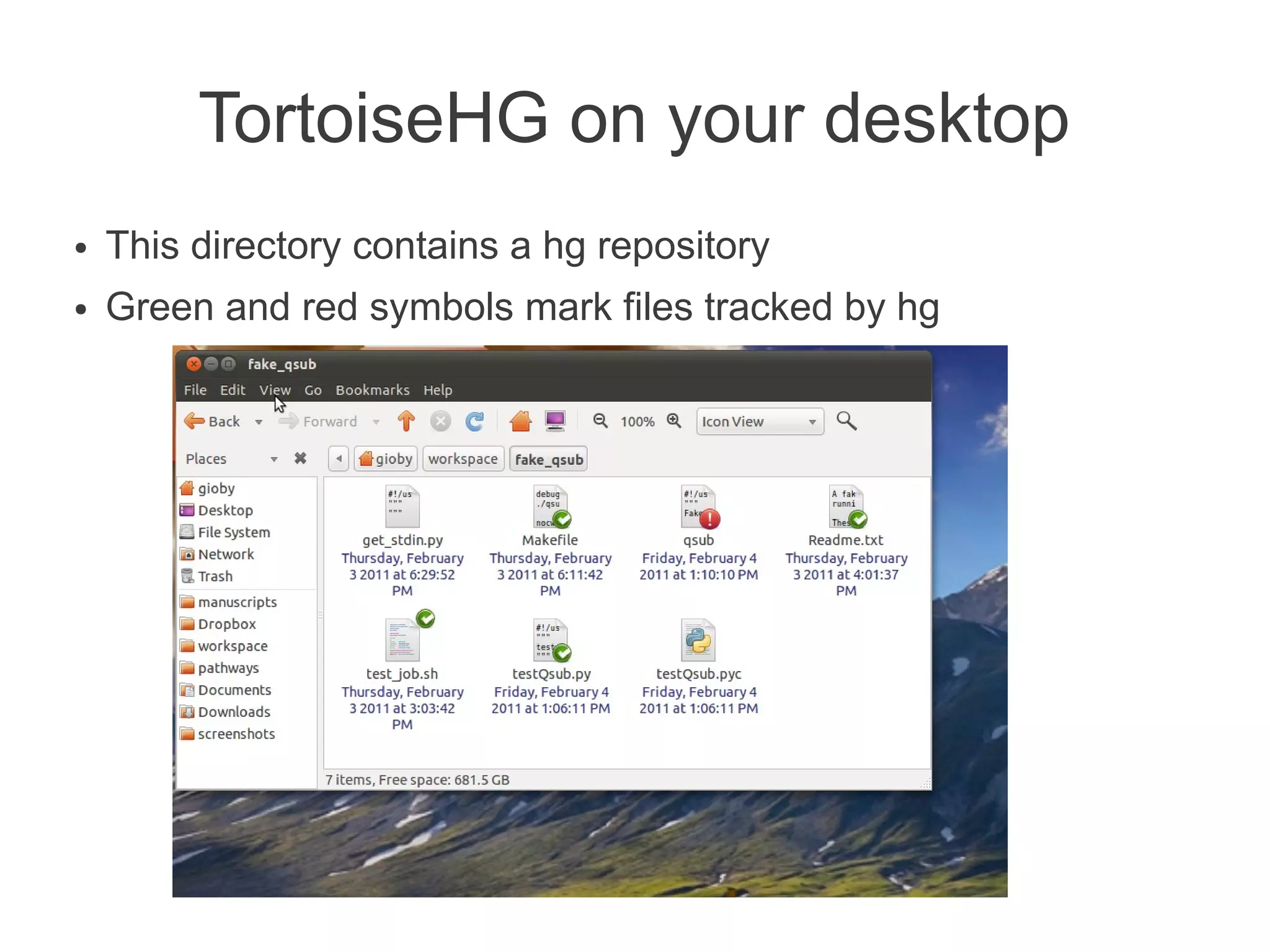
TortoiseHG on your desktop
●   This directory contains a hg repository
●   Green and red symbols mark files tracked by hg
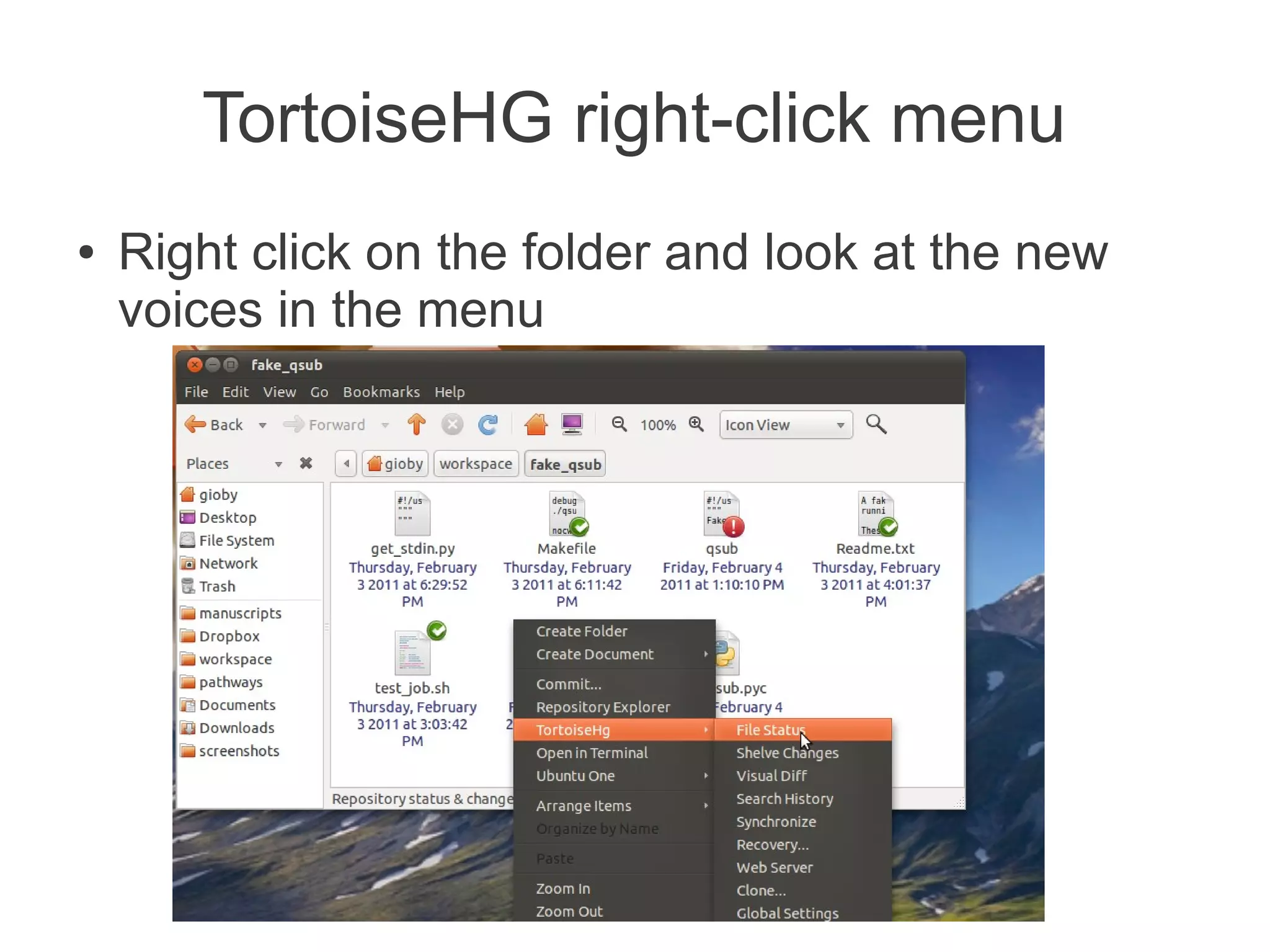
TortoiseHG right-click menu
●   Right click on the folder and look at the new
    voices in the menu
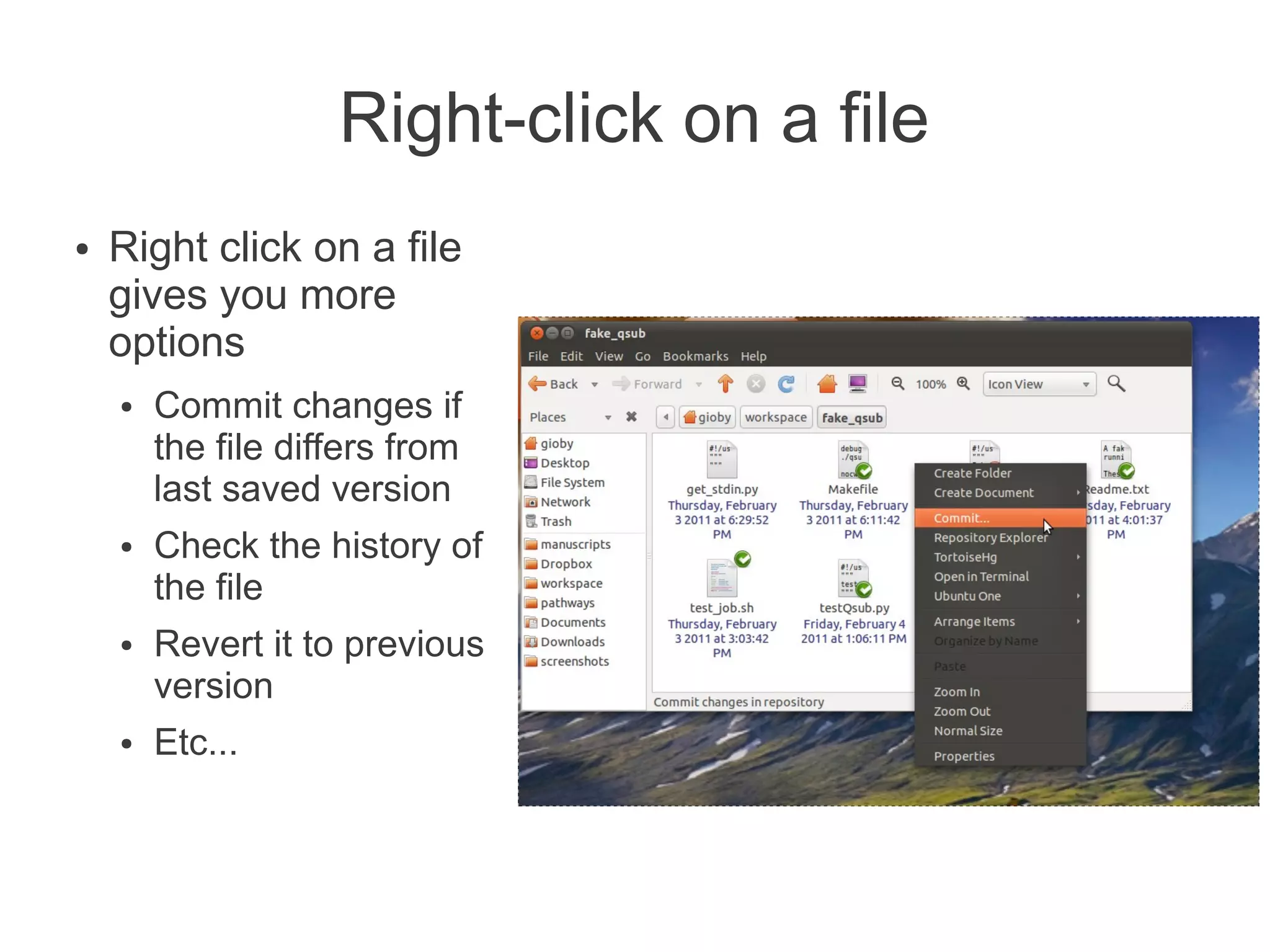
Right-click on a file
●   Right click on a file
    gives you more
    options
    ●   Commit changes if
        the file differs from
        last saved version
    ●   Check the history of
        the file
    ●   Revert it to previous
        version
    ●   Etc...
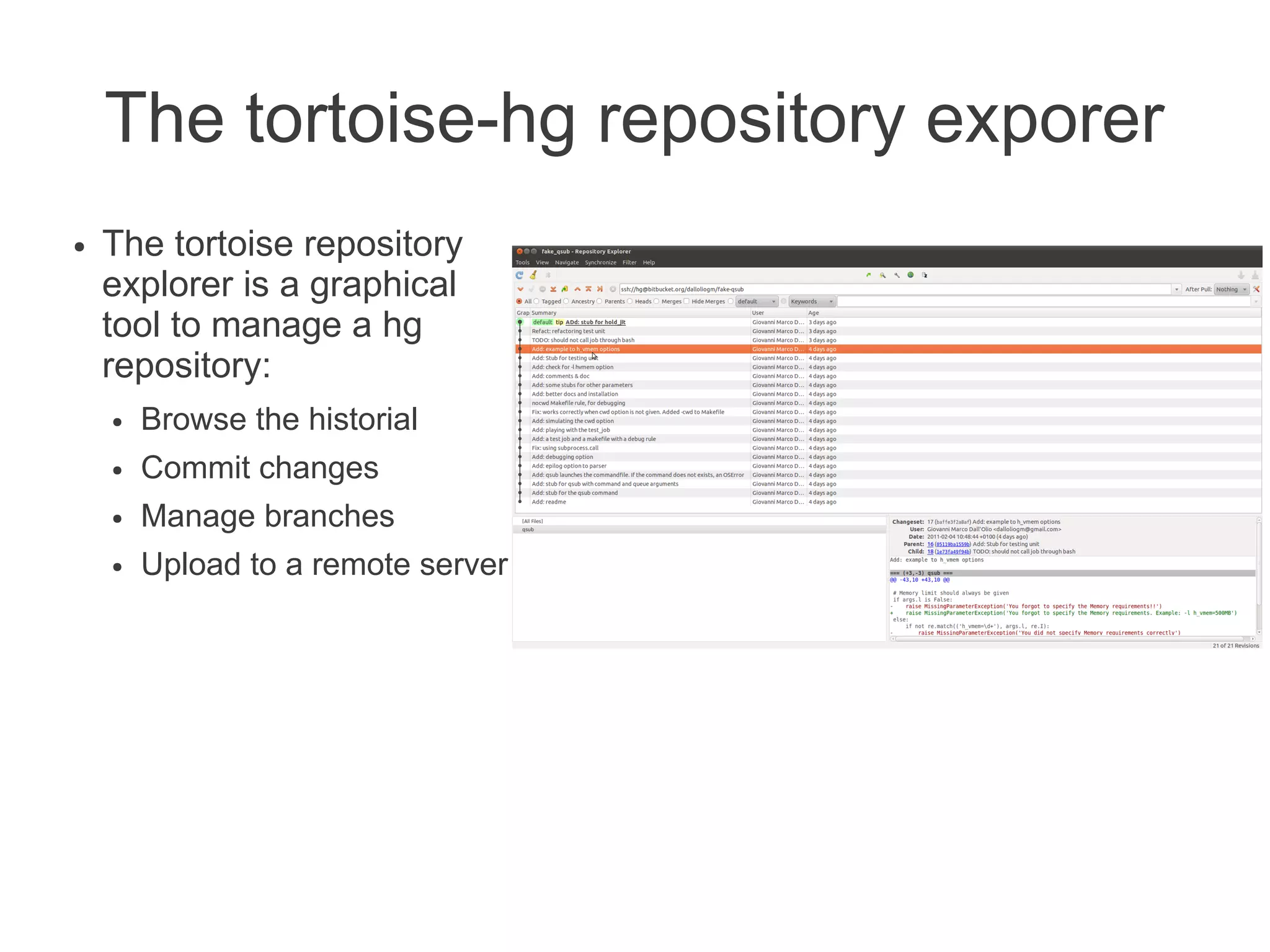
The tortoise-hg repository exporer
●   The tortoise repository
    explorer is a graphical
    tool to manage a hg
    repository:
    ●   Browse the historial
    ●   Commit changes
    ●   Manage branches
    ●   Upload to a remote server
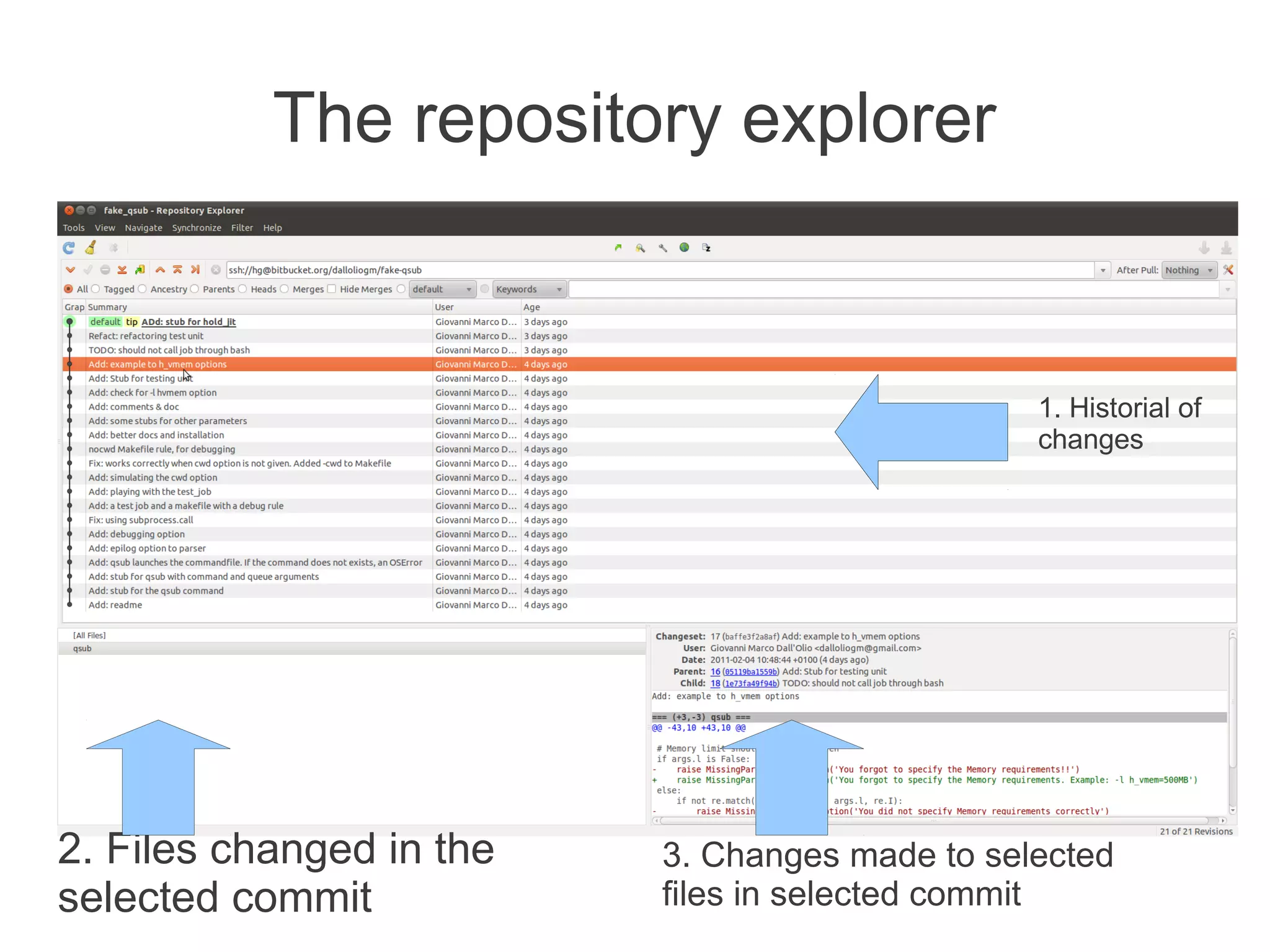
The repository explorer


                                                1. Historial of
                                                changes


2. Files changed in the   3. Changes made to selected
selected commit           files in selected commit
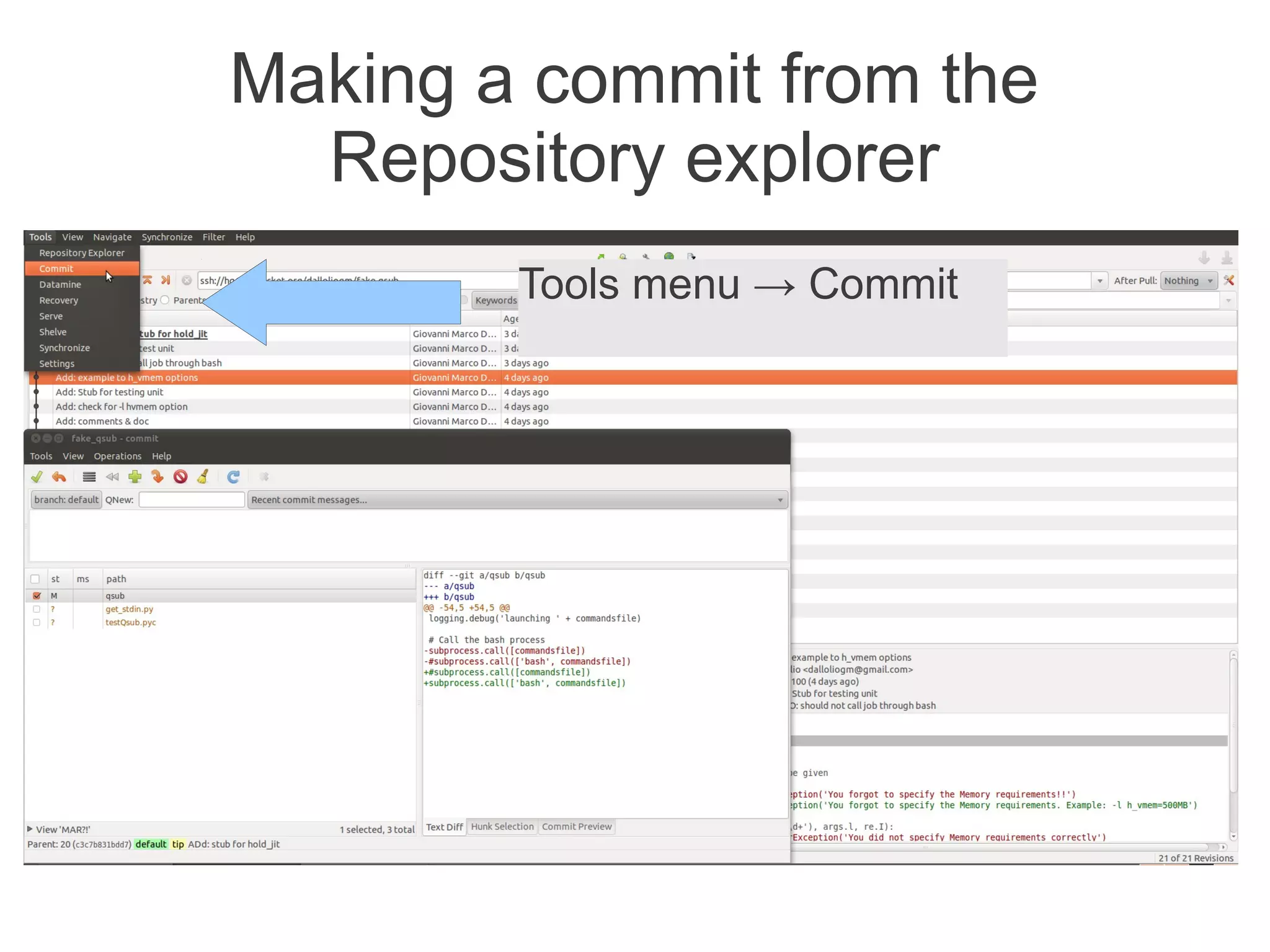
Making a commit from the
  Repository explorer
        Tools menu → Commit
Setting up a repository
      on bitbucket
Having a copy of your repository on
        a remote location
●   In the real world, people always keep a copy of
    their repository on a remote server
●   Advantages:
    ●   backups
    ●   Can access the code from anywhere
●   The smartest thing is to use a free code hosting
    service (github, bitbucket, etc..)
Code hosting services
●   There are many ~free code hosting services:
    ●   Bitbucket (hg)
    ●   Github, Gitorious (git)
    ●   Launchpad (bzr)
    ●   Sourceforge (svn, various)
●   Bitbucket has fairly good conditions for our case:
    ●   Unlimited private and public repositories
    ●   Unlimited disk space
    ●   Only limit is: 5 collaborators max per account
Register a free account
     on bitbucket


 http://bitbucket.org
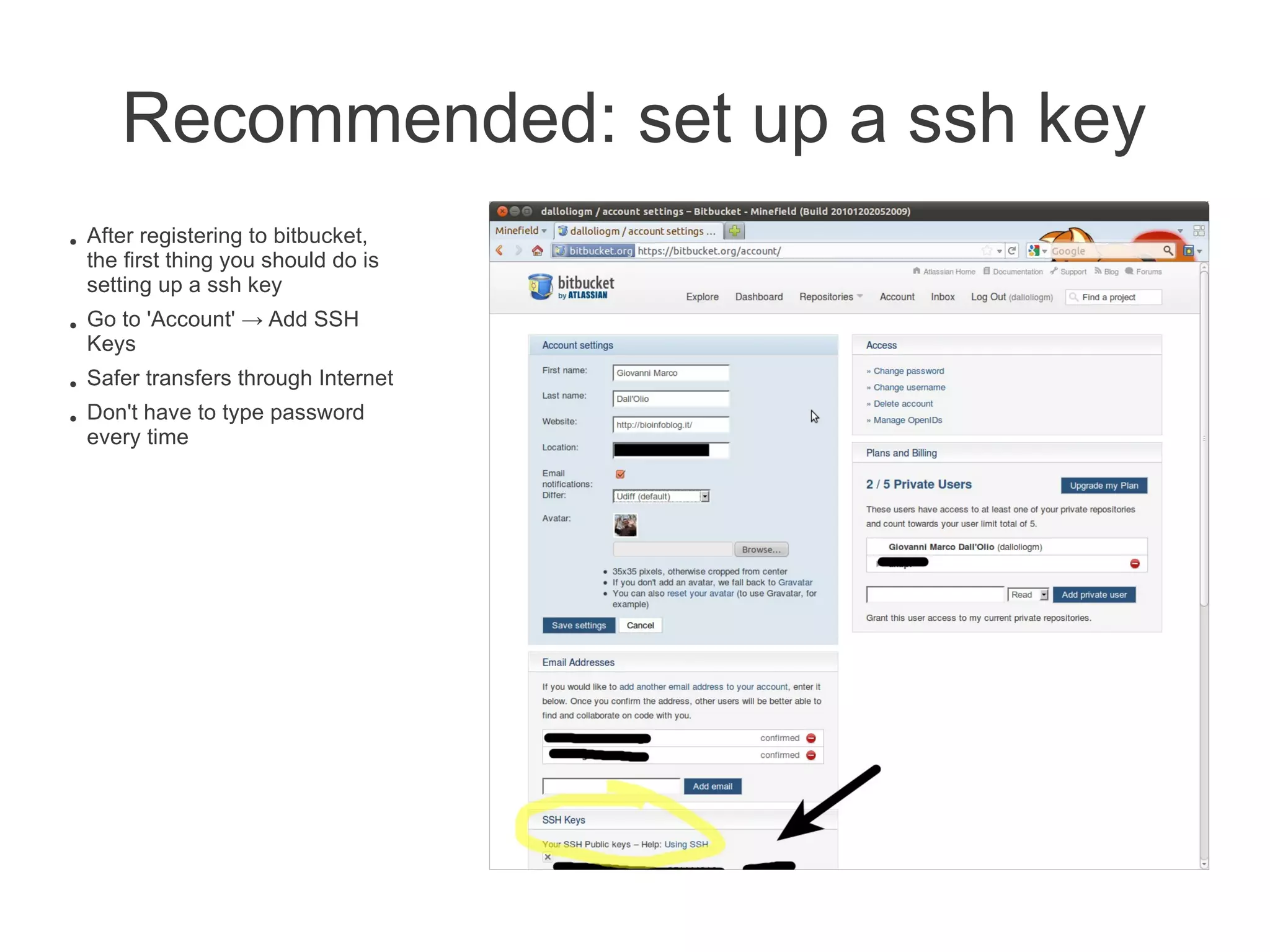
Recommended: set up a ssh key
●   After registering to bitbucket,
    the first thing you should do is
    setting up a ssh key
●   Go to 'Account' → Add SSH
    Keys
●   Safer transfers through Internet
●   Don't have to type password
    every time
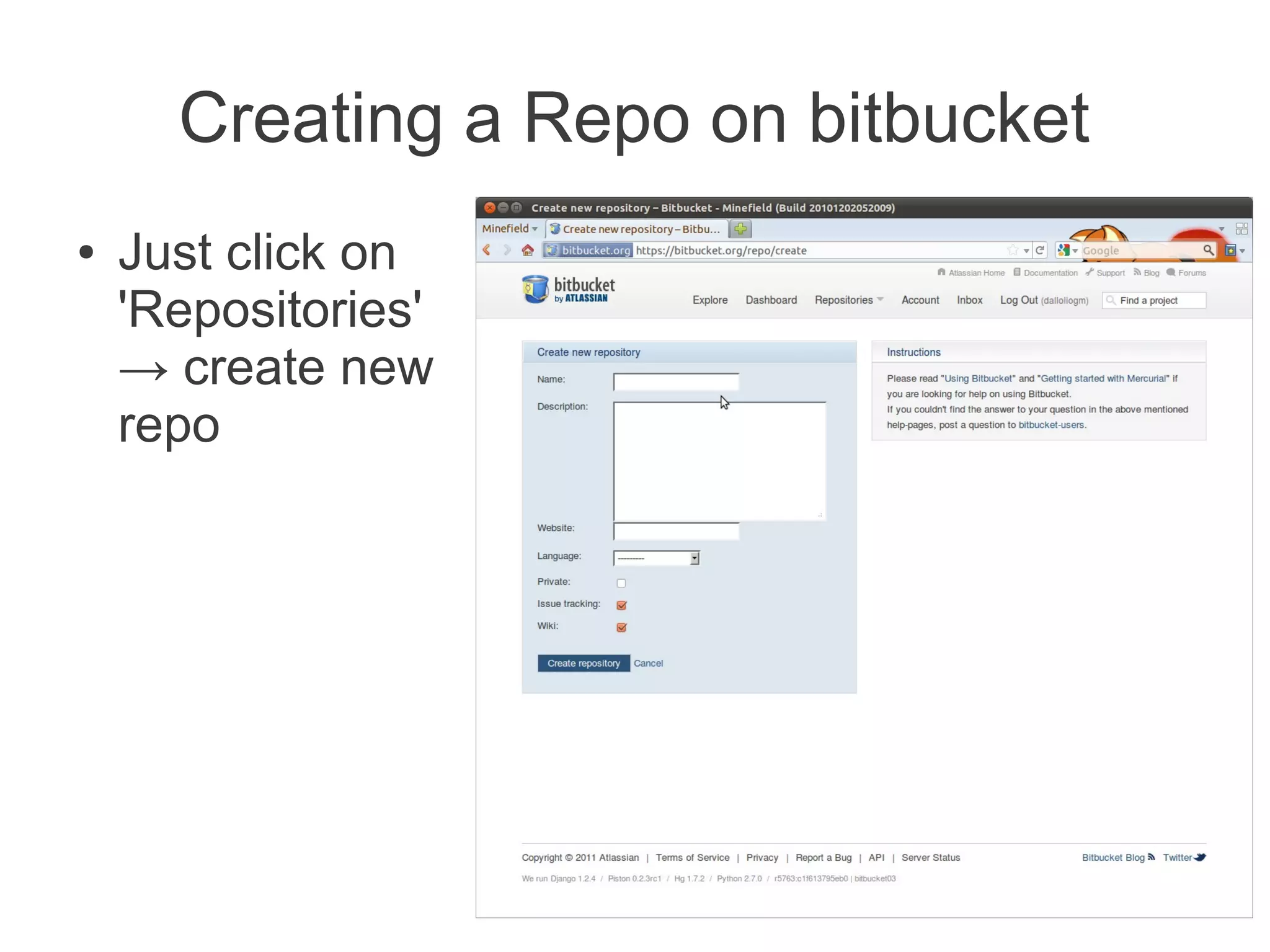
Creating a Repo on bitbucket
●   Just click on
    'Repositories'
    → create new
    repo
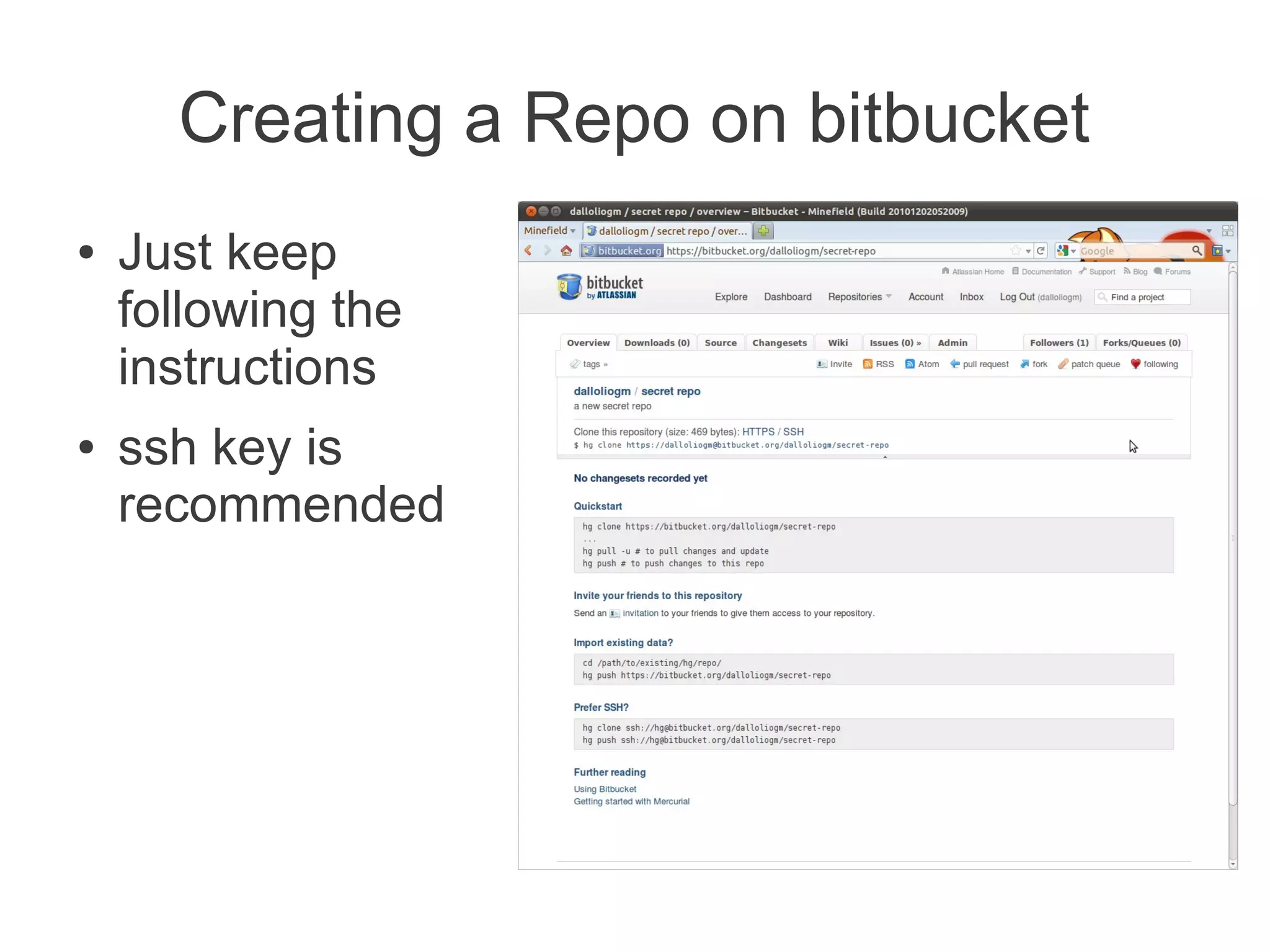
Creating a Repo on bitbucket
●   Just keep
    following the
    instructions
●   ssh key is
    recommended
Cloning a repo
●   After creating a repository on bitbucket, it will give you an url
    that you can use to download the repo on your computer.
●   Example:
        https://bitbucket.org/dalloliogm/secret-repo
        ssh://bitbucket.org/dalloliogm/secret-repo
●   Just use the hg clone command:
        hg clone ssh://bitbucket.org/dalloliogm/secret-repo
●   You can also clone a repository created by someone else
    ●   (or clone your repository on another computer/directory)
Synchronizing an existing repo with
            bitbucket
●   What happens if you have created your
    repository in local before creating it on
    bitbucket?
●   No problem, follow the instructions and you can
    synchronize them
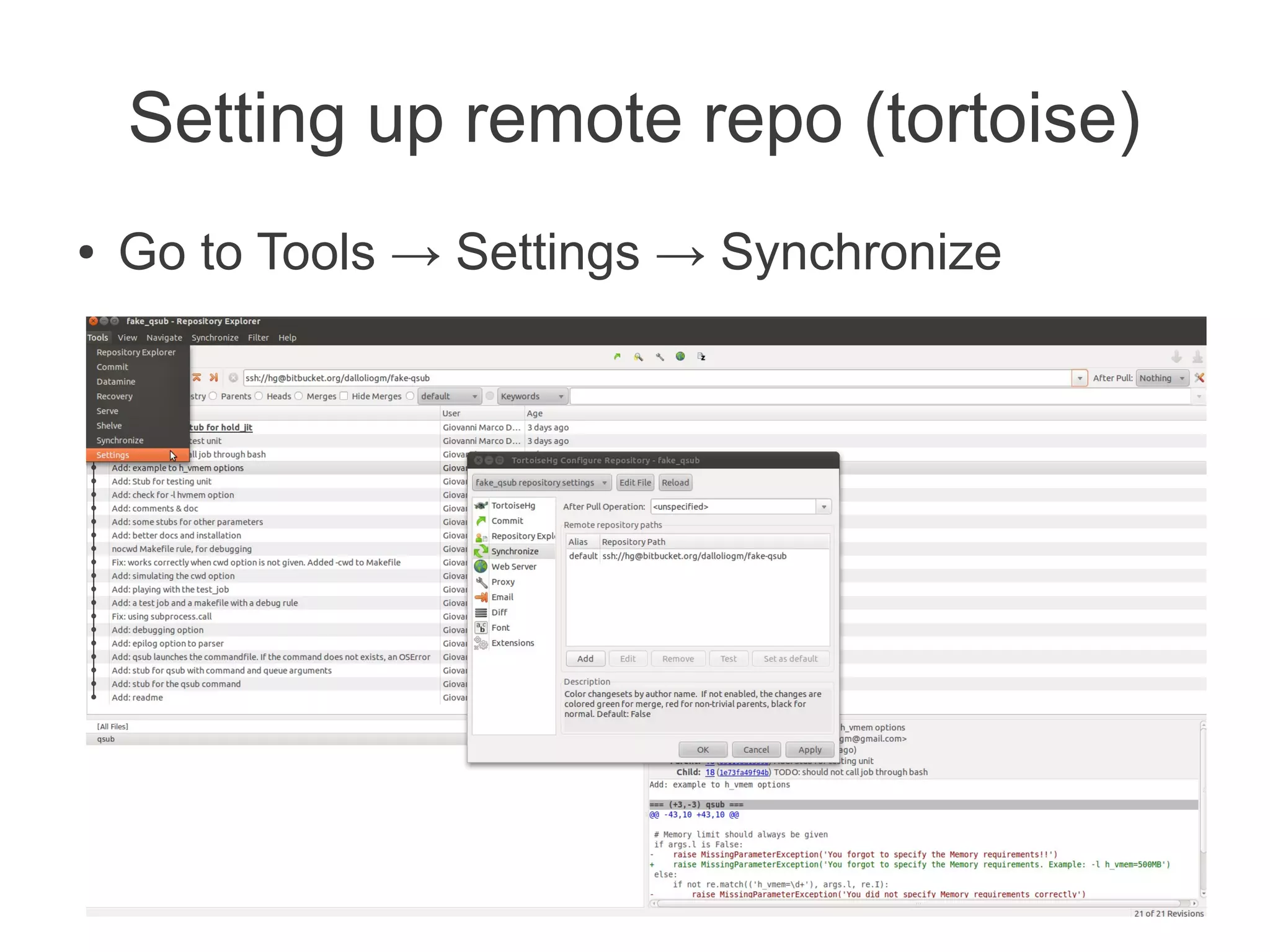
Setting up remote repo (tortoise)
●   Go to Tools → Settings → Synchronize
Setting up remote repo (manually)
●   Open the .hg/hgrc file inside the repo main
    directory
●   Add the following:
    [paths]
    default = ssh://bitbucket.org/dalloliogm/secret-repo
Working with remote repos
Now, let's get serious!
●   You have successfully set up a remote copy of
    your code on bitbucket
●   Let's see how it works
Hg – working with remote repos
●   hg clone → get a copy of an existing repo (only
    once)
●   hg pull → get the list of changes from the latest
    version on the remote repository
●   hg update → apply the changes from the latest
    pulled version to the current working directory
●   hg merge → merge conflicting versions
●   hg push → push the local changes to the remote
    repository
Hg clone
●   This command creates a copy of a repository
    on your computer
    ●   For example, a copy of a repository on bitbucket
●   Launch it only once per repository
Hg pull & update
●   Hg pull gets the list of changes made to the remote
    repository since the last time you cloned/pulled it
    ●   It checks whether one of your colleagues has updated a
        new version to the remote repo
●   These changes are not applied automatically to the
    current working directory;
    ●   You have to do a hg update after a hg pull to update your
        local files
    ●   hg pull -u → pulls & updates
Hg push
●   The hg push command sends the changes you
    have made in local to the remote server
●   The command fails if other people have pushed
    other changes before you
    ●   You always have to make a pull&update (and
        merge) before doing a push
    ●   More on this later
Exercise
●   Try to use bitbucket as a repository for your
    own script
●   Commit your versions in local, and push them
    to bitbucket as a backup copy
●   You can clone (and later pull&update) the repo
    on your computer at home
Hg for our pipeline
Applying hg to our pipeline
●   Someone should initialize a repo on the root
    directory (only once)
●   Add, commit, document
●   Push a copy of the repo on bitbucket
●   Everybody will clone the repo from there, and
    pull/push changes from there
What to include in the repo
●   Code, documentation
●   We may create another repository for results
    and parameters
●   For each set of results, we should be able to
    know which version of the scripts and which
    parameters have been used
Executing the pipeline on the cluster
●   Connect to the cluster
●   Hg pull & update from bitbucket (to get the
    latest code)
●   Test to verify whether it works correctly on the
    cluster?
●   Execute the pipeline
Proposal: code reviews
●   One person may be in charge of writing the
    core pipeline
●   Other people can clone the repository and
    improve it (code review)
●   So we will work on the same code, and
    hopefully make it better
Collective code ownership
●   In the perfect group, nobody is 'the only author'
    of a script
●   Code is just a medium :-)
●   A single script written by two persons is much
    better than two redundant scripts
The daily pull
●   Every day, the first thing you should do is a hg
    pull & update to get the latest version of the
    code
●   Make your changes in local and commit them.
●   When you are ready, pull&update again to align
    your code to the remote copy, then push to
    bitbucket
●   Beware of conflicting changes..
Merging and conflicts
●   What happens when two people work on the
    same code on different computers?
    ●   Two different versions of the code will exist
●   How to merge them?
    ●   Ask me :-)
    ●   Never force the push (hg push -f) – you will delete
        other people's work
    ●   Always do a hg pull&update before a push;
        eventually use hg merge to integrate other people's
        changes
Making changes to the pipeline
●   Get the latest copy of the pipeline from
    bitbucket (pull&update)
●   Make changes, commit
●   pull&update, push to bitbucket
●   Connect to cluster, pull&update, execute
    pipeline

Hg for bioinformatics, second part

  • 1.
    Hg and versioncontrol for bioinformatics 2
  • 2.
    What you willlearn from this talk ● Graphical interfaces to hg repos ● Working with a remote copy of the repo on bitbucket ● Working together with other people
  • 3.
  • 4.
    Graphical interfaces tohg ● In the last talk we saw hg as a command line tool ● However there are many graphical interfaces to it ● Learning all the hg commands may be silly ● Complex repositories may be difficult to navigate without the help of a graphical interface
  • 5.
    tortoiseHG ● TortoiseHG is a multi-platform graphical interface that integrates with your file manager ● Once installed, it: ● adds a few voices in the right-click menu on a file or folder ● install a tool called repository explorer
  • 6.
    TortoiseHG on yourdesktop ● This directory contains a hg repository ● Green and red symbols mark files tracked by hg
  • 7.
    TortoiseHG right-click menu ● Right click on the folder and look at the new voices in the menu
  • 8.
    Right-click on afile ● Right click on a file gives you more options ● Commit changes if the file differs from last saved version ● Check the history of the file ● Revert it to previous version ● Etc...
  • 9.
    The tortoise-hg repositoryexporer ● The tortoise repository explorer is a graphical tool to manage a hg repository: ● Browse the historial ● Commit changes ● Manage branches ● Upload to a remote server
  • 10.
    The repository explorer 1. Historial of changes 2. Files changed in the 3. Changes made to selected selected commit files in selected commit
  • 11.
    Making a commitfrom the Repository explorer Tools menu → Commit
  • 12.
    Setting up arepository on bitbucket
  • 13.
    Having a copyof your repository on a remote location ● In the real world, people always keep a copy of their repository on a remote server ● Advantages: ● backups ● Can access the code from anywhere ● The smartest thing is to use a free code hosting service (github, bitbucket, etc..)
  • 14.
    Code hosting services ● There are many ~free code hosting services: ● Bitbucket (hg) ● Github, Gitorious (git) ● Launchpad (bzr) ● Sourceforge (svn, various) ● Bitbucket has fairly good conditions for our case: ● Unlimited private and public repositories ● Unlimited disk space ● Only limit is: 5 collaborators max per account
  • 15.
    Register a freeaccount on bitbucket http://bitbucket.org
  • 16.
    Recommended: set upa ssh key ● After registering to bitbucket, the first thing you should do is setting up a ssh key ● Go to 'Account' → Add SSH Keys ● Safer transfers through Internet ● Don't have to type password every time
  • 17.
    Creating a Repoon bitbucket ● Just click on 'Repositories' → create new repo
  • 18.
    Creating a Repoon bitbucket ● Just keep following the instructions ● ssh key is recommended
  • 19.
    Cloning a repo ● After creating a repository on bitbucket, it will give you an url that you can use to download the repo on your computer. ● Example: https://bitbucket.org/dalloliogm/secret-repo ssh://bitbucket.org/dalloliogm/secret-repo ● Just use the hg clone command: hg clone ssh://bitbucket.org/dalloliogm/secret-repo ● You can also clone a repository created by someone else ● (or clone your repository on another computer/directory)
  • 20.
    Synchronizing an existingrepo with bitbucket ● What happens if you have created your repository in local before creating it on bitbucket? ● No problem, follow the instructions and you can synchronize them
  • 21.
    Setting up remoterepo (tortoise) ● Go to Tools → Settings → Synchronize
  • 22.
    Setting up remoterepo (manually) ● Open the .hg/hgrc file inside the repo main directory ● Add the following: [paths] default = ssh://bitbucket.org/dalloliogm/secret-repo
  • 23.
  • 24.
    Now, let's getserious! ● You have successfully set up a remote copy of your code on bitbucket ● Let's see how it works
  • 25.
    Hg – workingwith remote repos ● hg clone → get a copy of an existing repo (only once) ● hg pull → get the list of changes from the latest version on the remote repository ● hg update → apply the changes from the latest pulled version to the current working directory ● hg merge → merge conflicting versions ● hg push → push the local changes to the remote repository
  • 26.
    Hg clone ● This command creates a copy of a repository on your computer ● For example, a copy of a repository on bitbucket ● Launch it only once per repository
  • 27.
    Hg pull &update ● Hg pull gets the list of changes made to the remote repository since the last time you cloned/pulled it ● It checks whether one of your colleagues has updated a new version to the remote repo ● These changes are not applied automatically to the current working directory; ● You have to do a hg update after a hg pull to update your local files ● hg pull -u → pulls & updates
  • 28.
    Hg push ● The hg push command sends the changes you have made in local to the remote server ● The command fails if other people have pushed other changes before you ● You always have to make a pull&update (and merge) before doing a push ● More on this later
  • 29.
    Exercise ● Try to use bitbucket as a repository for your own script ● Commit your versions in local, and push them to bitbucket as a backup copy ● You can clone (and later pull&update) the repo on your computer at home
  • 30.
    Hg for ourpipeline
  • 31.
    Applying hg toour pipeline ● Someone should initialize a repo on the root directory (only once) ● Add, commit, document ● Push a copy of the repo on bitbucket ● Everybody will clone the repo from there, and pull/push changes from there
  • 32.
    What to includein the repo ● Code, documentation ● We may create another repository for results and parameters ● For each set of results, we should be able to know which version of the scripts and which parameters have been used
  • 33.
    Executing the pipelineon the cluster ● Connect to the cluster ● Hg pull & update from bitbucket (to get the latest code) ● Test to verify whether it works correctly on the cluster? ● Execute the pipeline
  • 34.
    Proposal: code reviews ● One person may be in charge of writing the core pipeline ● Other people can clone the repository and improve it (code review) ● So we will work on the same code, and hopefully make it better
  • 35.
    Collective code ownership ● In the perfect group, nobody is 'the only author' of a script ● Code is just a medium :-) ● A single script written by two persons is much better than two redundant scripts
  • 36.
    The daily pull ● Every day, the first thing you should do is a hg pull & update to get the latest version of the code ● Make your changes in local and commit them. ● When you are ready, pull&update again to align your code to the remote copy, then push to bitbucket ● Beware of conflicting changes..
  • 37.
    Merging and conflicts ● What happens when two people work on the same code on different computers? ● Two different versions of the code will exist ● How to merge them? ● Ask me :-) ● Never force the push (hg push -f) – you will delete other people's work ● Always do a hg pull&update before a push; eventually use hg merge to integrate other people's changes
  • 38.
    Making changes tothe pipeline ● Get the latest copy of the pipeline from bitbucket (pull&update) ● Make changes, commit ● pull&update, push to bitbucket ● Connect to cluster, pull&update, execute pipeline