Training session
Prepared by : Wafa Yahyaoui
Presented by : Tewfik Ghariani
What is Git ?
Git is version control software, which means it manages
changes to a project without overwriting any part of that
project. And it’s not going away anytime soon, particularly
since Torvalds and his fellow kernel developers employ Git to
help develop the core kernel for Linux.
Why use something like Git ?
Say you and a coworker are both updating pages on the
same website. You make your changes, save them, and
upload them back to the website. So far, so good. The
problem comes when your coworker is working on the same
page as you at the same time. One of you is about to have
your work overwritten and erased.
A version control application like Git keeps that from
happening. You and your coworker can each upload your
revisions to the same page, and Git will save two copies.
Later, you can merge your changes together without losing
any work along the way. You can even revert to an earlier
version at any time, because Git keeps a “snapshot” of every
change ever made.
Let’s start with Git !
● Install Git : sudo apt-get install git
● Configure git : git config
○ Short for “configure,” this is most useful when you’re setting up Git for the first time.
git config --global user.name "Your Name Here"
git config --global user.email "your_email@youremail.com"
● To initialize a Git repository : git init
○ Initializes a new Git repository. Until you run this command inside a repository or directory, it’s
just a regular folder. Only after you input this does it accept further Git commands.
● Forgot a command? : git help
○ Type this into the command line to bring up the 21 most common git commands. You
can also be more specific and type “git help init” or another term to figure out how to use
and configure a specific git command.
● Checking the Status : git status
○ Check the status of your repository. See which files are inside it, which changes still need to
be committed, and which branch of the repository you’re currently working on.
● Adding : git add <file name>
○ This does not add new files to your repository. Instead, it brings new files to Git’s attention.
After you add files, they’re included in Git’s “snapshots” of the repository.
● Committing : git commit -m “comment”
○ Git’s most important command. After you make any sort of change, you input this in order to
take a “snapshot” of the repository. Usually it goes git commit -m “Message here.” The -m
indicates that the following section of the command should be read as a message.
● History : git log
○ Think of Git's log as a journal that remembers all the changes we've committed so far, in the
order we committed them
● Branches : git branch “name of the branch”
○ Working with multiple collaborators and want to make changes on your own? This command
will let you build a new branch, or timeline of commits, of changes and file additions that are
completely your own. Your title goes after the command. If you wanted a new branch called
“cats,” you’d type git branch cats.
● Navigate from one branch to another : git checkout “name
of the branch”
○ git checkout: Literally allows you to “check out” a repository that you are not currently inside.
This is a navigational command that lets you move to the repository you want to check. You
can use this command as git checkout master to look at the master branch, or git checkout
cats to look at another branch.
● Merge branches : git merge “name of the branch”
○ When you’re done working on a branch, you can merge your changes back to the master
branch, which is visible to all collaborators. git merge branch1 would take all the changes you
made to the Branch1 branch and add them to the master.
● Remove a branch : git branch -d “ branch name”
Remote Repositories
Remote repositories are versions of your project that are hosted on the Internet or
network somewhere. You can have several of them, each of which generally is
either read-only or read/write for you. Collaborating with others involves managing
these remote repositories and pushing and pulling data to and from them when
you need to share work. Managing remote repositories includes knowing how to
add remote repositories, remove remotes that are no longer valid, manage various
remote branches and define them as being tracked or not, and more.
The main remote repository is usually called “Origin”.
GITLAB what is it ?
GitLab is an online Git repository manager. It is a great way to manage git
repositories on a centralized server. GitLab gives you complete control over your
repositories or projects and allows you to decide whether they are public or private
for free .
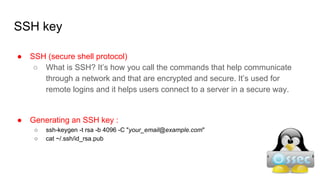
SSH key
● SSH (secure shell protocol)
○ What is SSH? It’s how you call the commands that help communicate
through a network and that are encrypted and secure. It’s used for
remote logins and it helps users connect to a server in a secure way.
● Generating an SSH key :
○ ssh-keygen -t rsa -b 4096 -C "your_email@example.com"
○ cat ~/.ssh/id_rsa.pub
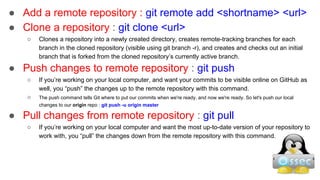
● Add a remote repository : git remote add <shortname> <url>
● Clone a repository : git clone <url>
○ Clones a repository into a newly created directory, creates remote-tracking branches for each
branch in the cloned repository (visible using git branch -r), and creates and checks out an initial
branch that is forked from the cloned repository’s currently active branch.
● Push changes to remote repository : git push
○ If you’re working on your local computer, and want your commits to be visible online on GitHub as
well, you “push” the changes up to the remote repository with this command.
○ The push command tells Git where to put our commits when we're ready, and now we're ready. So let's push our local
changes to our origin repo : git push -u origin master
● Pull changes from remote repository : git pull
○ If you’re working on your local computer and want the most up-to-date version of your repository to
work with, you “pull” the changes down from the remote repository with this command.
● update your remote-tracking:git fetch
○ You can do a git fetch at any time to update your remote-tracking branches under
refs/remotes/<remote>/.
● git revert
● git rebase
● git grep
● git besect
● git ignore
● ……..

Formation git

  • 1.
    Training session Prepared by: Wafa Yahyaoui Presented by : Tewfik Ghariani
  • 2.
    What is Git? Git is version control software, which means it manages changes to a project without overwriting any part of that project. And it’s not going away anytime soon, particularly since Torvalds and his fellow kernel developers employ Git to help develop the core kernel for Linux.
  • 3.
    Why use somethinglike Git ? Say you and a coworker are both updating pages on the same website. You make your changes, save them, and upload them back to the website. So far, so good. The problem comes when your coworker is working on the same page as you at the same time. One of you is about to have your work overwritten and erased.
  • 4.
    A version controlapplication like Git keeps that from happening. You and your coworker can each upload your revisions to the same page, and Git will save two copies. Later, you can merge your changes together without losing any work along the way. You can even revert to an earlier version at any time, because Git keeps a “snapshot” of every change ever made.
  • 5.
    Let’s start withGit ! ● Install Git : sudo apt-get install git ● Configure git : git config ○ Short for “configure,” this is most useful when you’re setting up Git for the first time. git config --global user.name "Your Name Here" git config --global user.email "your_email@youremail.com" ● To initialize a Git repository : git init ○ Initializes a new Git repository. Until you run this command inside a repository or directory, it’s just a regular folder. Only after you input this does it accept further Git commands. ● Forgot a command? : git help ○ Type this into the command line to bring up the 21 most common git commands. You can also be more specific and type “git help init” or another term to figure out how to use and configure a specific git command.
  • 6.
    ● Checking theStatus : git status ○ Check the status of your repository. See which files are inside it, which changes still need to be committed, and which branch of the repository you’re currently working on. ● Adding : git add <file name> ○ This does not add new files to your repository. Instead, it brings new files to Git’s attention. After you add files, they’re included in Git’s “snapshots” of the repository. ● Committing : git commit -m “comment” ○ Git’s most important command. After you make any sort of change, you input this in order to take a “snapshot” of the repository. Usually it goes git commit -m “Message here.” The -m indicates that the following section of the command should be read as a message.
  • 7.
    ● History :git log ○ Think of Git's log as a journal that remembers all the changes we've committed so far, in the order we committed them ● Branches : git branch “name of the branch” ○ Working with multiple collaborators and want to make changes on your own? This command will let you build a new branch, or timeline of commits, of changes and file additions that are completely your own. Your title goes after the command. If you wanted a new branch called “cats,” you’d type git branch cats. ● Navigate from one branch to another : git checkout “name of the branch” ○ git checkout: Literally allows you to “check out” a repository that you are not currently inside. This is a navigational command that lets you move to the repository you want to check. You can use this command as git checkout master to look at the master branch, or git checkout cats to look at another branch.
  • 8.
    ● Merge branches: git merge “name of the branch” ○ When you’re done working on a branch, you can merge your changes back to the master branch, which is visible to all collaborators. git merge branch1 would take all the changes you made to the Branch1 branch and add them to the master. ● Remove a branch : git branch -d “ branch name”
  • 9.
    Remote Repositories Remote repositoriesare versions of your project that are hosted on the Internet or network somewhere. You can have several of them, each of which generally is either read-only or read/write for you. Collaborating with others involves managing these remote repositories and pushing and pulling data to and from them when you need to share work. Managing remote repositories includes knowing how to add remote repositories, remove remotes that are no longer valid, manage various remote branches and define them as being tracked or not, and more. The main remote repository is usually called “Origin”.
  • 10.
    GITLAB what isit ? GitLab is an online Git repository manager. It is a great way to manage git repositories on a centralized server. GitLab gives you complete control over your repositories or projects and allows you to decide whether they are public or private for free .
  • 11.
    SSH key ● SSH(secure shell protocol) ○ What is SSH? It’s how you call the commands that help communicate through a network and that are encrypted and secure. It’s used for remote logins and it helps users connect to a server in a secure way. ● Generating an SSH key : ○ ssh-keygen -t rsa -b 4096 -C "your_email@example.com" ○ cat ~/.ssh/id_rsa.pub
  • 12.
    ● Add aremote repository : git remote add <shortname> <url> ● Clone a repository : git clone <url> ○ Clones a repository into a newly created directory, creates remote-tracking branches for each branch in the cloned repository (visible using git branch -r), and creates and checks out an initial branch that is forked from the cloned repository’s currently active branch. ● Push changes to remote repository : git push ○ If you’re working on your local computer, and want your commits to be visible online on GitHub as well, you “push” the changes up to the remote repository with this command. ○ The push command tells Git where to put our commits when we're ready, and now we're ready. So let's push our local changes to our origin repo : git push -u origin master ● Pull changes from remote repository : git pull ○ If you’re working on your local computer and want the most up-to-date version of your repository to work with, you “pull” the changes down from the remote repository with this command.
  • 13.
    ● update yourremote-tracking:git fetch ○ You can do a git fetch at any time to update your remote-tracking branches under refs/remotes/<remote>/.
  • 14.
    ● git revert ●git rebase ● git grep ● git besect ● git ignore ● ……..