
Git
Agenda
 What is VCS?
 Where does Git comes from?
 Why is Git gaining popularity
 Why you should care
 Git for geeks
 Novice gitians
 GitLab – The git laboratory
What is VCS?
Mechanism to keep track your files and folders
Collaborate your work with fellow developers
Track of who did what and when
Backup
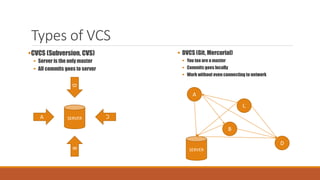
Types of VCS
CVCS (Subversion, CVS)
 Server is the only master
 All commits goes to server
 DVCS (Git, Mercurial)
 You too are a master
 Commits goes locally
 Work without even connecting to network
SERVERA
B
C
D
SERVER
A
C
B
D
A bit more on DVCS
 Your local machine is also like a server master repository
 No need of internet connectivity to use version control
 Committing changes will commit to your local repository
 No need to bang on server for history of changes or compares
 Insanely fast as most of things you do happens on local machine
 Effortless creation of branches
 Push code to remote (server) when you connect to network
 Fetch code from remote when you connect to network to make your code sync with fellow members
changes
Where does Git comes from?
Created by Linus Torvalds for managing Linux kernel back in 2005
Open source in nature (that’s obvious isn’t it?)
Why is Git gaining popularity
Designed for speed and efficiency
Insanely fast because of distribute local nature
Local nature makes creating branch process effortless
Much better that competing tools
Your best friend against
 Accidental deletes
 Remembering what is changed, when and WHY?
 Hard drive blow ups
The local nature of Git makes it possible to coalesce a series of changes (local commits) into a
single commit on the remote branch
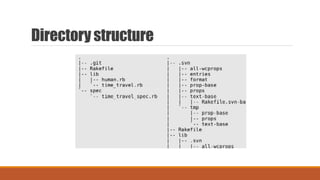
Directorystructure
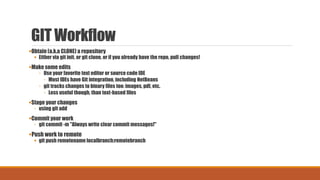
GIT Workflow
Obtain (a.k.a CLONE) a repository
 Either via git init, or git clone, or if you already have the repo, pull changes!
Make some edits
◦ Use your favorite text editor or source code IDE
◦ Most IDEs have Git integration, including NetBeans
◦ git tracks changes to binary files too: images, pdf, etc.
◦ Less useful though, than text-based files
Stage your changes
◦ using git add
Commit your work
◦ git commit -m "Always write clear commit messages!"
Push work to remote
 git push remotename localbranch:remotebranch
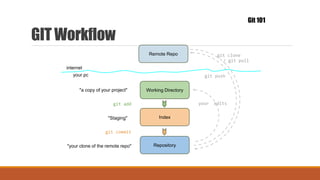
GIT Workflow
Git 101
Remote Repo
Working Directory
Index
Repository
"Staging"
"a copy of your project"
git add
git commit
git push
/ git pull
internet
your pc
"your clone of the remote repo"
your edits
git clone
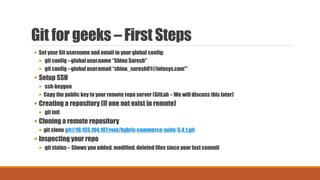
Git for geeks – First Steps
 Set your Git username and email to your global config:
 git config --global user.name “Shinu Suresh"
 git config --global user.email “shinu_suresh01@infosys.com"*
 Setup SSH
 ssh-keygen
 Copy the public key to your remote repo server (GitLab – We will discuss this later)
 Creating a repository (If one not exist in remote)
 git init
 Cloning a remote repository
 git clone git@10.155.104.107:root/hybris-commerce-suite-5.4.1.git
 Inspecting your repo
 git status – Shows you added, modified, deleted files since your last commit
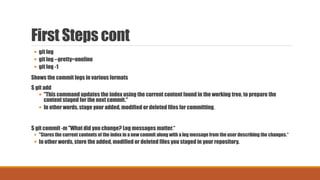
First Steps cont
 git log
 git log --pretty=oneline
 git log -1
Shows the commit logs in various formats
$ git add
 "This command updates the index using the current content found in the working tree, to prepare the
content staged for the next commit."
 In other words, stage your added, modified or deleted files for committing.
$ git commit -m "What did you change? Log messages matter.“
 "Stores the current contents of the index in a new commit along with a log message from the user describing the changes.“
 In other words, store the added, modified or deleted files you staged in your repository.
First Steps cont
 git push origin master
Pushing to the remote repository (from where you have cloned) branch (refspec) named master
REMEMBER:
 If you never commit, you have no history.
 If you never push, you have no offsite backup.
As a rule of thumb, commit every hour, push every day.
 There is no reason not to commit after every "logical stopping-point" and push when a good
section of work is complete, unit tests pass, etc.
After you push, your colleagues can pull changes down from the origin repository to their
local working repository.
First Steps cont
 git pull origin master (short way is git pull)
Pulling someone else changes from remote repo to your local repo
 "Incorporates changes from a remote repository into the current branch. In its default mode, git
pull is shorthand for git fetch followed by git merge FETCH_HEAD."
 In other words, retrieve changes made to the remote repo and merge them into your local repo,
updating your working copy to match.
First Steps cont
 git fetch origin master (Short way is git fetch)
 Only fetches changes from remote branch. Changes wont be merged to your working code base.
You have to do the merge manually
 Fetches the changes from remote branch (master) and put it inside origin/master
 git merge origin/master
 Will merge the changes fetched from remote repo to your local working directory
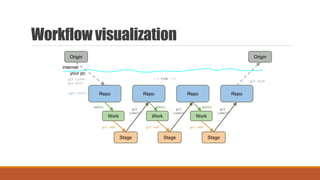
Workflow visualization
edits
git add git add git add
edits edits
git
commit
git
commit
git
commit
Repo
Work
Stage
Repo
Work
Stage
Repo
Work
Stage
Repo
--> time -->
Origin
git clone
git pull
Origin
git push
(git init)
internet
your pc
First Steps cont - Branching
 Why branches?
 Try out an idea - experiment
 Isolate work units - keep unfinished work separate
 Work on long-running topics - come back to things later
 Share your work in progress with others without altering the code in production or in
development (remote feature branches)
 Why is it so important?
 Branches are created in local and are pushed to remote
 Branch creation is effortless and faster
First Steps cont - Branching
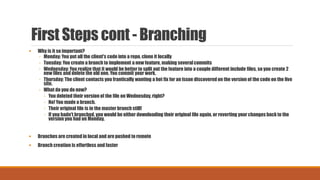
 Why is it so important?
◦ Monday: You put all the client's code into a repo, clone it locally
◦ Tuesday: You create a branch to implement a new feature, making severalcommits
◦ Wednesday: You realize that it would be better to split out the feature into a couple different include files, so you create 2
new files and delete the old one. You commit your work.
◦ Thursday: The client contacts you frantically wanting a hot fix for an issue discovered on the version of the code on the live
site.
◦ What do you do now?
◦ You deleted their version of the file on Wednesday, right?
◦ No! You made a branch.
◦ Their original file is in the master branch still!
◦ If you hadn't branched, you would be either downloading their original file again, or reverting your changes back to the
version you had on Monday.
 Branches are created in local and are pushed to remote
 Branch creation is effortless and faster
First Steps cont - Branching
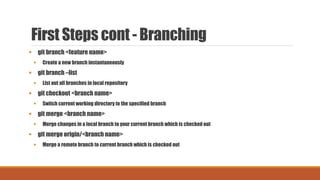
 git branch <feature name>
 Create a new branch instantaneously
 git branch –list
 List out all branches in local repository
 git checkout <branch name>
 Switch current working directory to the specified branch
 git merge <branch name>
 Merge changes in a local branch to your current branch which is checked out
 git merge origin/<branch name>
 Merge a remote branch to current branch which is checked out
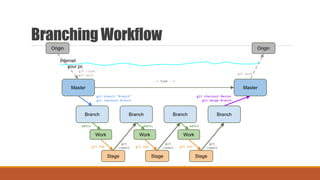
Branching Workflow
git branch "Branch"
git checkout Branch
git checkout Master
git merge Branch
edits
git add git add git add
edits edits
git
commit
git
commit
git
commit
Master
Branch
Work
Stage
Branch
Work
Stage
Branch
Work
Stage
Master
Branch
--> time -->
Origin
git clone
git pull
Origin
git push
internet
your pc
Branching – Best Practices
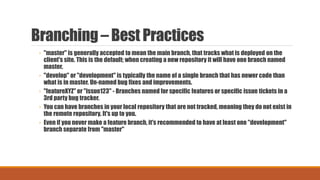
◦ "master" is generally accepted to mean the main branch, that tracks what is deployed on the
client's site. This is the default; when creating a new repository it will have one branch named
master.
◦ "develop" or "development" is typically the name of a single branch that has newer code than
what is in master. Un-named bug fixes and improvements.
◦ "featureXYZ" or "issue123" - Branches named for specific features or specific issue tickets in a
3rd party bug tracker.
◦ You can have branches in your local repository that are not tracked, meaning they do not exist in
the remote repository. It's up to you.
◦ Even if you never make a feature branch, it's recommended to have at least one "development"
branch separate from "master"
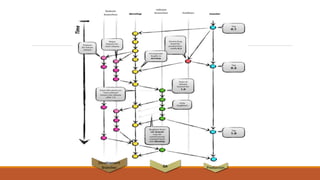
QA
Development
Branches Production
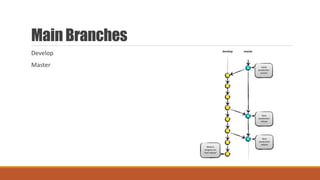
Main Branches
Develop
Master
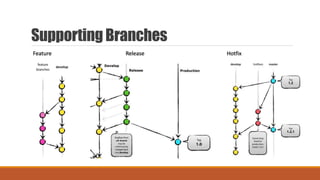
SupportingBranches
Feature Release Hotfix
Branch Naming
Feature – Anything except master, develop, release-*, hotfix-*
Eg:- Qas, Autosuggest, ScrollableProducts etc
Release – Release-*
Eg:- Release-v1.0.0 (Follow semver), Release-Woody, Release-CheckoutV2 etc
For more information on semver - http://semver.org/
Hotfix – Hotfix-*
Eg:- Hotfix-v1.0.0-PLPIssue, Hotfix-1.0-JIRA-1928 etc
Tag
Eg:- Tag-v1.0.0 (Following semver), Tag-Woody etc
Novice gitians
 Eclipse – Egit plugin
 Atlassian SourceTree
Tortoise GIT
Git Extensions
GitEye
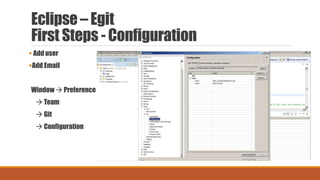
Eclipse – Egit
First Steps - Configuration
 Add user
Add Email
Window  Preference
 Team
 Git
 Configuration
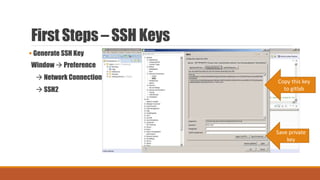
First Steps – SSH Keys
 Generate SSH Key
Window  Preference
 Network Connections
 SSH2
Save private
key
Copy this key
to gitlab
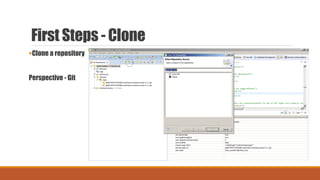
First Steps - Clone
Clone a repository
Perspective - Git
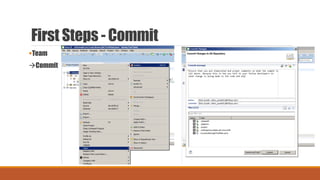
First Steps - Commit
Team
Commit
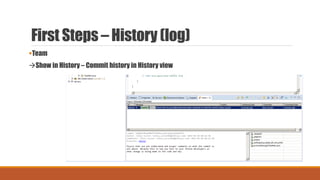
First Steps – History (log)
Team
Show in History – Commit history in History view
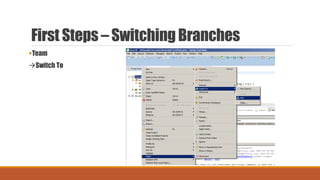
First Steps – SwitchingBranches
Team
Switch To
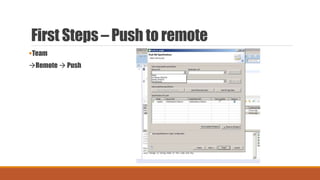
First Steps – Push to remote
Team
Remote  Push
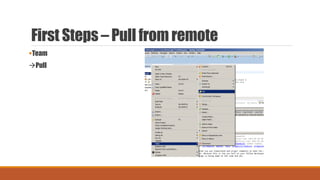
First Steps – Pull from remote
Team
Pull
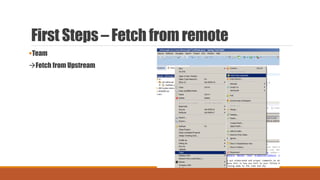
First Steps – Fetch from remote
Team
Fetch from Upstream
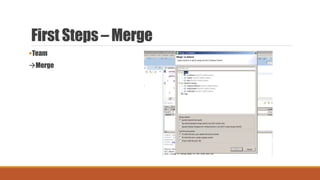
First Steps – Merge
Team
Merge
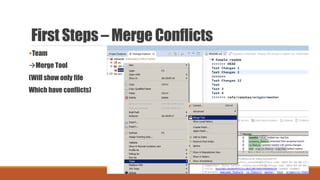
First Steps – Merge Conflicts
Team
Merge Tool
(Will show only file
Which have conflicts)
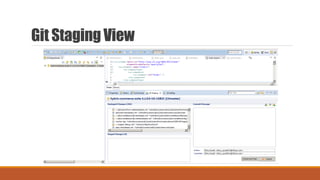
Git Staging View
GitLab
Opensource Git dashboard like GitHub
Activity Stream
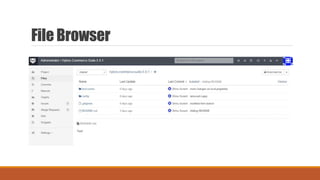
File browser
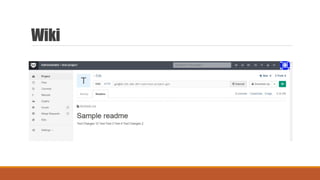
Integrated wiki
Powerful Code review workflow
Issue Management
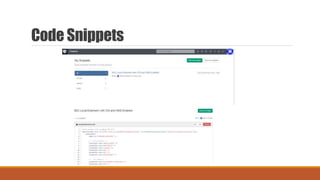
Code snippets
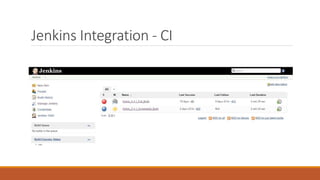
Web hooks (For CI integrations)
Workflow
Clone Project
Create branch with your feature
Write code, Commit changes
Push branch to GitLab
Review code on commit page
Create a merge request
Your team lead will review the code & merge it to the main branch
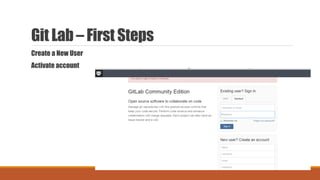
Git Lab – First Steps
Create a New User
Activate account
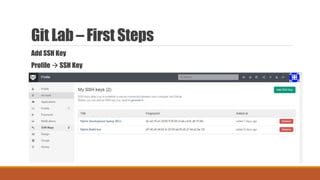
Git Lab – First Steps
Add SSH Key
Profile  SSH Key
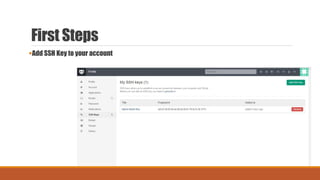
First Steps
Add SSH Key to your account
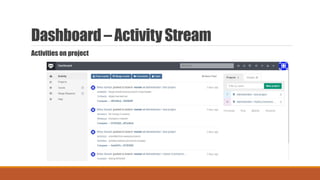
Dashboard – ActivityStream
Activities on project
File Browser
Wiki
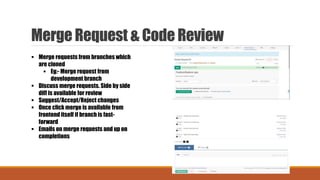
Merge Request & Code Review
 Merge requests from branches which
are cloned
 Eg:- Merge request from
development branch
 Discuss merge requests. Side by side
diff is available for review
 Suggest/Accept/Reject changes
 Once click merge is available from
frontend itself if branch is fast-
forward
 Emails on merge requests and up on
completions
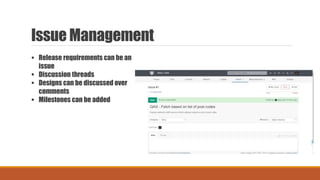
Issue Management
 Release requirements can be an
issue
 Discussion threads
 Designs can be discussed over
comments
 Milestones can be added
Code Snippets
Jenkins Integration - CI
References
https://www.atlassian.com/git/tutorials/
https://try.github.io/levels/1/challenges/1
http://git-scm.com/docs/gittutorial
Eclipse Plugin tutorial
http://www.vogella.com/tutorials/EclipseGit/article.html

Git

  • 1.
  • 2.
    Agenda  What isVCS?  Where does Git comes from?  Why is Git gaining popularity  Why you should care  Git for geeks  Novice gitians  GitLab – The git laboratory
  • 3.
    What is VCS? Mechanismto keep track your files and folders Collaborate your work with fellow developers Track of who did what and when Backup
  • 4.
    Types of VCS CVCS(Subversion, CVS)  Server is the only master  All commits goes to server  DVCS (Git, Mercurial)  You too are a master  Commits goes locally  Work without even connecting to network SERVERA B C D SERVER A C B D
  • 5.
    A bit moreon DVCS  Your local machine is also like a server master repository  No need of internet connectivity to use version control  Committing changes will commit to your local repository  No need to bang on server for history of changes or compares  Insanely fast as most of things you do happens on local machine  Effortless creation of branches  Push code to remote (server) when you connect to network  Fetch code from remote when you connect to network to make your code sync with fellow members changes
  • 6.
    Where does Gitcomes from? Created by Linus Torvalds for managing Linux kernel back in 2005 Open source in nature (that’s obvious isn’t it?)
  • 7.
    Why is Gitgaining popularity Designed for speed and efficiency Insanely fast because of distribute local nature Local nature makes creating branch process effortless Much better that competing tools Your best friend against  Accidental deletes  Remembering what is changed, when and WHY?  Hard drive blow ups The local nature of Git makes it possible to coalesce a series of changes (local commits) into a single commit on the remote branch
  • 8.
  • 9.
    GIT Workflow Obtain (a.k.aCLONE) a repository  Either via git init, or git clone, or if you already have the repo, pull changes! Make some edits ◦ Use your favorite text editor or source code IDE ◦ Most IDEs have Git integration, including NetBeans ◦ git tracks changes to binary files too: images, pdf, etc. ◦ Less useful though, than text-based files Stage your changes ◦ using git add Commit your work ◦ git commit -m "Always write clear commit messages!" Push work to remote  git push remotename localbranch:remotebranch
  • 10.
    GIT Workflow Git 101 RemoteRepo Working Directory Index Repository "Staging" "a copy of your project" git add git commit git push / git pull internet your pc "your clone of the remote repo" your edits git clone
  • 11.
    Git for geeks– First Steps  Set your Git username and email to your global config:  git config --global user.name “Shinu Suresh"  git config --global user.email “shinu_suresh01@infosys.com"*  Setup SSH  ssh-keygen  Copy the public key to your remote repo server (GitLab – We will discuss this later)  Creating a repository (If one not exist in remote)  git init  Cloning a remote repository  git clone git@10.155.104.107:root/hybris-commerce-suite-5.4.1.git  Inspecting your repo  git status – Shows you added, modified, deleted files since your last commit
  • 12.
    First Steps cont git log  git log --pretty=oneline  git log -1 Shows the commit logs in various formats $ git add  "This command updates the index using the current content found in the working tree, to prepare the content staged for the next commit."  In other words, stage your added, modified or deleted files for committing. $ git commit -m "What did you change? Log messages matter.“  "Stores the current contents of the index in a new commit along with a log message from the user describing the changes.“  In other words, store the added, modified or deleted files you staged in your repository.
  • 13.
    First Steps cont git push origin master Pushing to the remote repository (from where you have cloned) branch (refspec) named master REMEMBER:  If you never commit, you have no history.  If you never push, you have no offsite backup. As a rule of thumb, commit every hour, push every day.  There is no reason not to commit after every "logical stopping-point" and push when a good section of work is complete, unit tests pass, etc. After you push, your colleagues can pull changes down from the origin repository to their local working repository.
  • 14.
    First Steps cont git pull origin master (short way is git pull) Pulling someone else changes from remote repo to your local repo  "Incorporates changes from a remote repository into the current branch. In its default mode, git pull is shorthand for git fetch followed by git merge FETCH_HEAD."  In other words, retrieve changes made to the remote repo and merge them into your local repo, updating your working copy to match.
  • 15.
    First Steps cont git fetch origin master (Short way is git fetch)  Only fetches changes from remote branch. Changes wont be merged to your working code base. You have to do the merge manually  Fetches the changes from remote branch (master) and put it inside origin/master  git merge origin/master  Will merge the changes fetched from remote repo to your local working directory
  • 16.
    Workflow visualization edits git addgit add git add edits edits git commit git commit git commit Repo Work Stage Repo Work Stage Repo Work Stage Repo --> time --> Origin git clone git pull Origin git push (git init) internet your pc
  • 17.
    First Steps cont- Branching  Why branches?  Try out an idea - experiment  Isolate work units - keep unfinished work separate  Work on long-running topics - come back to things later  Share your work in progress with others without altering the code in production or in development (remote feature branches)  Why is it so important?  Branches are created in local and are pushed to remote  Branch creation is effortless and faster
  • 18.
    First Steps cont- Branching  Why is it so important? ◦ Monday: You put all the client's code into a repo, clone it locally ◦ Tuesday: You create a branch to implement a new feature, making severalcommits ◦ Wednesday: You realize that it would be better to split out the feature into a couple different include files, so you create 2 new files and delete the old one. You commit your work. ◦ Thursday: The client contacts you frantically wanting a hot fix for an issue discovered on the version of the code on the live site. ◦ What do you do now? ◦ You deleted their version of the file on Wednesday, right? ◦ No! You made a branch. ◦ Their original file is in the master branch still! ◦ If you hadn't branched, you would be either downloading their original file again, or reverting your changes back to the version you had on Monday.  Branches are created in local and are pushed to remote  Branch creation is effortless and faster
  • 19.
    First Steps cont- Branching  git branch <feature name>  Create a new branch instantaneously  git branch –list  List out all branches in local repository  git checkout <branch name>  Switch current working directory to the specified branch  git merge <branch name>  Merge changes in a local branch to your current branch which is checked out  git merge origin/<branch name>  Merge a remote branch to current branch which is checked out
  • 20.
    Branching Workflow git branch"Branch" git checkout Branch git checkout Master git merge Branch edits git add git add git add edits edits git commit git commit git commit Master Branch Work Stage Branch Work Stage Branch Work Stage Master Branch --> time --> Origin git clone git pull Origin git push internet your pc
  • 21.
    Branching – BestPractices ◦ "master" is generally accepted to mean the main branch, that tracks what is deployed on the client's site. This is the default; when creating a new repository it will have one branch named master. ◦ "develop" or "development" is typically the name of a single branch that has newer code than what is in master. Un-named bug fixes and improvements. ◦ "featureXYZ" or "issue123" - Branches named for specific features or specific issue tickets in a 3rd party bug tracker. ◦ You can have branches in your local repository that are not tracked, meaning they do not exist in the remote repository. It's up to you. ◦ Even if you never make a feature branch, it's recommended to have at least one "development" branch separate from "master"
  • 22.
  • 23.
  • 24.
  • 25.
    Branch Naming Feature –Anything except master, develop, release-*, hotfix-* Eg:- Qas, Autosuggest, ScrollableProducts etc Release – Release-* Eg:- Release-v1.0.0 (Follow semver), Release-Woody, Release-CheckoutV2 etc For more information on semver - http://semver.org/ Hotfix – Hotfix-* Eg:- Hotfix-v1.0.0-PLPIssue, Hotfix-1.0-JIRA-1928 etc Tag Eg:- Tag-v1.0.0 (Following semver), Tag-Woody etc
  • 26.
    Novice gitians  Eclipse– Egit plugin  Atlassian SourceTree Tortoise GIT Git Extensions GitEye
  • 27.
    Eclipse – Egit FirstSteps - Configuration  Add user Add Email Window  Preference  Team  Git  Configuration
  • 28.
    First Steps –SSH Keys  Generate SSH Key Window  Preference  Network Connections  SSH2 Save private key Copy this key to gitlab
  • 29.
    First Steps -Clone Clone a repository Perspective - Git
  • 30.
    First Steps -Commit Team Commit
  • 31.
    First Steps –History (log) Team Show in History – Commit history in History view
  • 32.
    First Steps –SwitchingBranches Team Switch To
  • 33.
    First Steps –Push to remote Team Remote  Push
  • 34.
    First Steps –Pull from remote Team Pull
  • 35.
    First Steps –Fetch from remote Team Fetch from Upstream
  • 36.
    First Steps –Merge Team Merge
  • 37.
    First Steps –Merge Conflicts Team Merge Tool (Will show only file Which have conflicts)
  • 38.
  • 39.
    GitLab Opensource Git dashboardlike GitHub Activity Stream File browser Integrated wiki Powerful Code review workflow Issue Management Code snippets Web hooks (For CI integrations)
  • 40.
    Workflow Clone Project Create branchwith your feature Write code, Commit changes Push branch to GitLab Review code on commit page Create a merge request Your team lead will review the code & merge it to the main branch
  • 41.
    Git Lab –First Steps Create a New User Activate account
  • 42.
    Git Lab –First Steps Add SSH Key Profile  SSH Key
  • 43.
    First Steps Add SSHKey to your account
  • 44.
  • 45.
  • 46.
  • 47.
    Merge Request &Code Review  Merge requests from branches which are cloned  Eg:- Merge request from development branch  Discuss merge requests. Side by side diff is available for review  Suggest/Accept/Reject changes  Once click merge is available from frontend itself if branch is fast- forward  Emails on merge requests and up on completions
  • 48.
    Issue Management  Releaserequirements can be an issue  Discussion threads  Designs can be discussed over comments  Milestones can be added
  • 49.
  • 50.
  • 51.