UV Visible Spectroscopy – How to use
UV vis. Spectrophotometer
Mr. Sagar Kishor Savale
[Department of Pharmaceutics]
avengersagar16@gmail.com
2015-2016
Department of Pharmacy (Pharmaceutics) | Sagar savale
03/06/2016 sagar savale 1
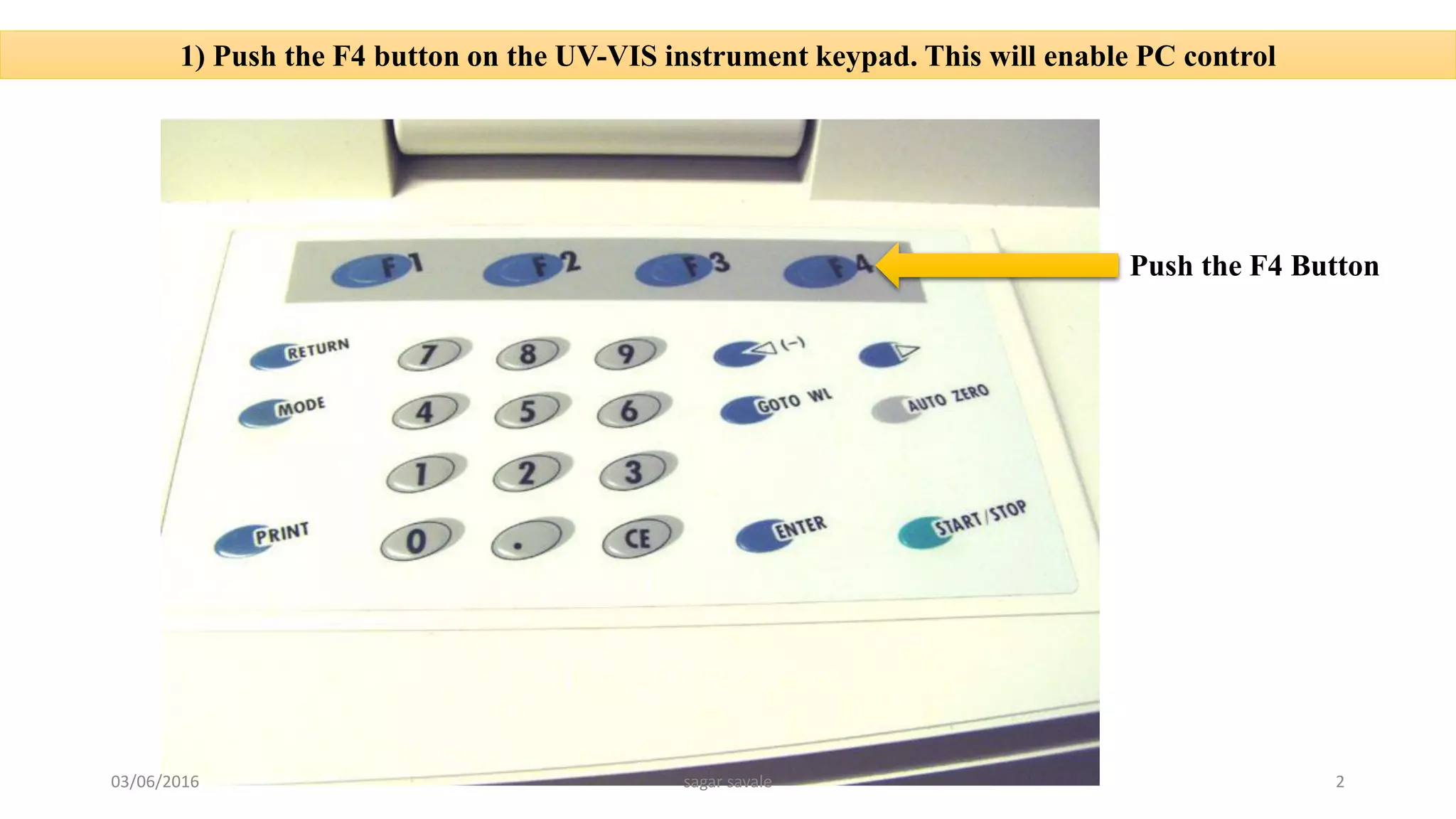
1) Push the F4 button on the UV-VIS instrument keypad. This will enable PC control
Push the F4 Button
03/06/2016 sagar savale 2
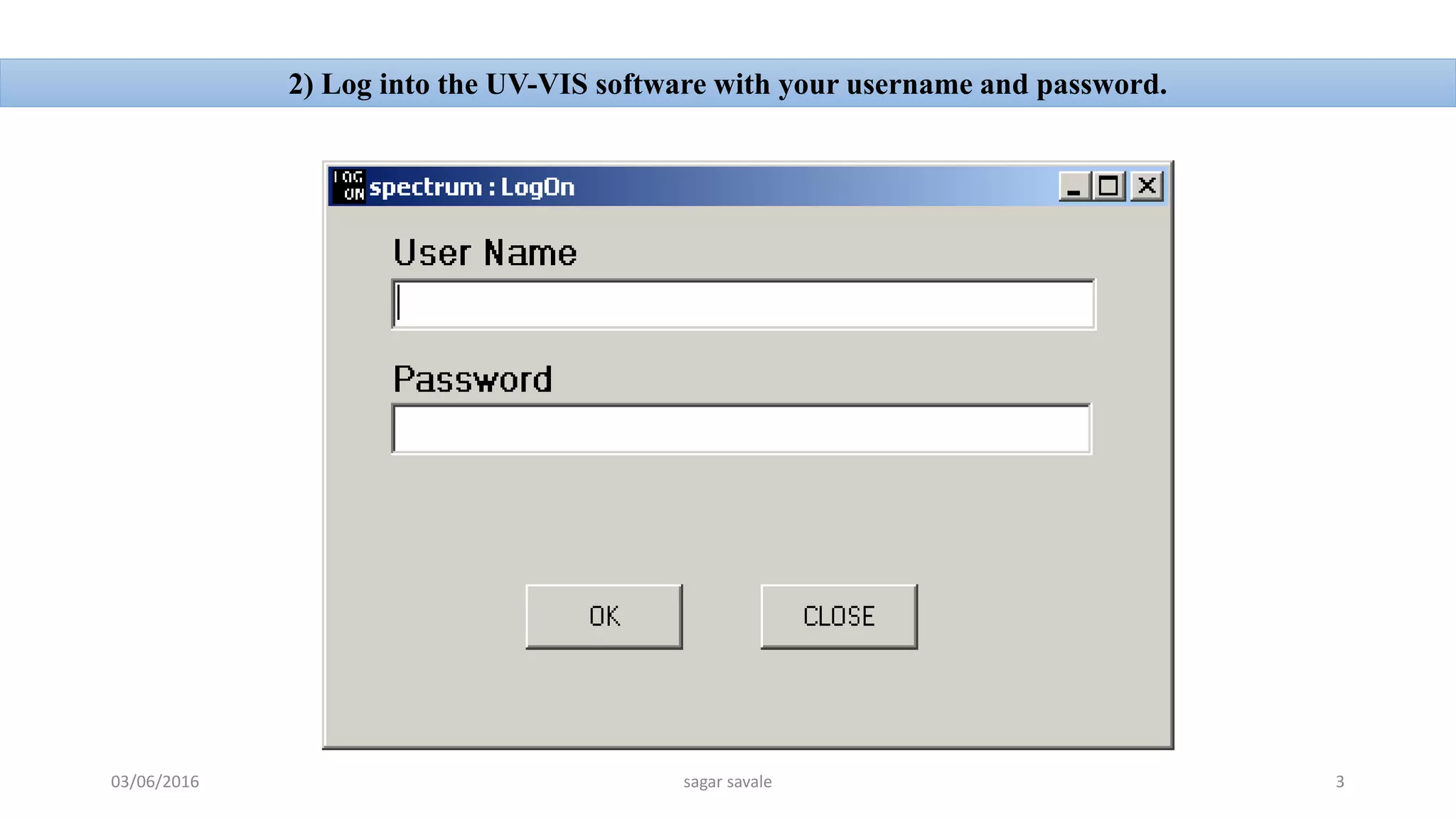
2) Log into the UV-VIS software with your username and password.
03/06/2016 sagar savale 3
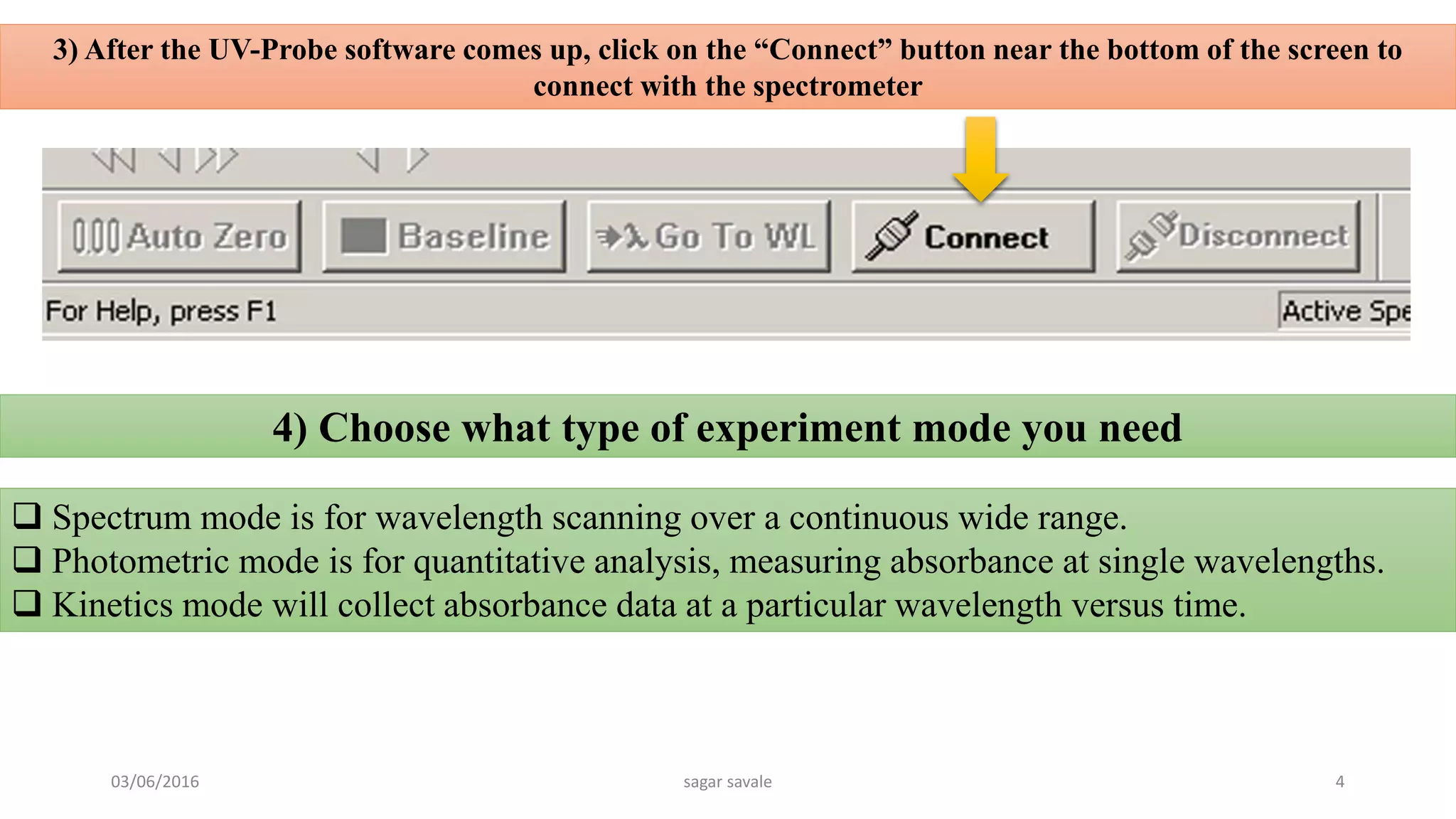
3) After the UV-Probe software comes up, click on the “Connect” button near the bottom of the screen to
connect with the spectrometer
 Spectrum mode is for wavelength scanning over a continuous wide range.
 Photometric mode is for quantitative analysis, measuring absorbance at single wavelengths.
 Kinetics mode will collect absorbance data at a particular wavelength versus time.
4) Choose what type of experiment mode you need
03/06/2016 sagar savale 4
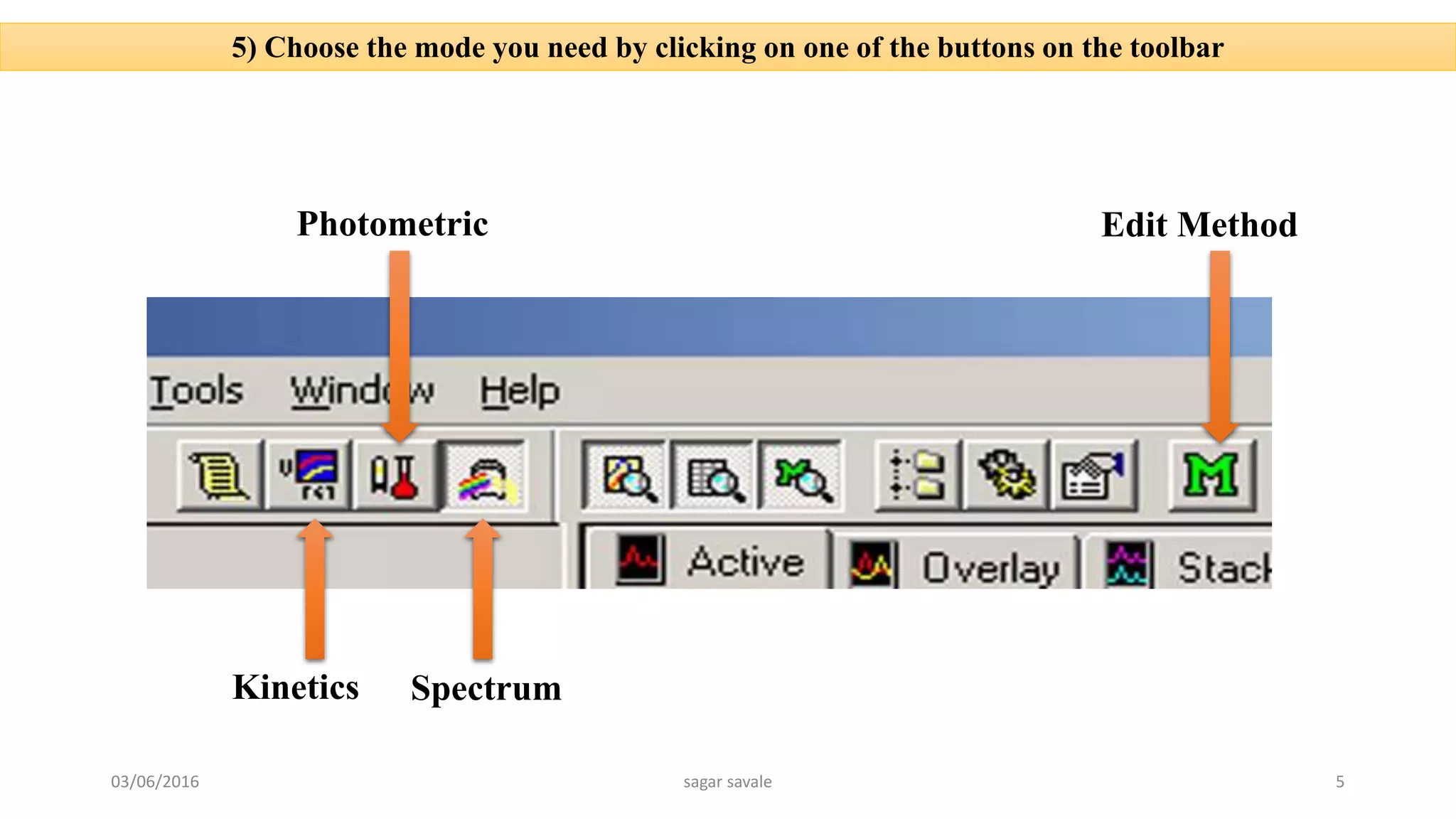
5) Choose the mode you need by clicking on one of the buttons on the toolbar
Photometric Edit Method
Kinetics Spectrum
03/06/2016 sagar savale 5
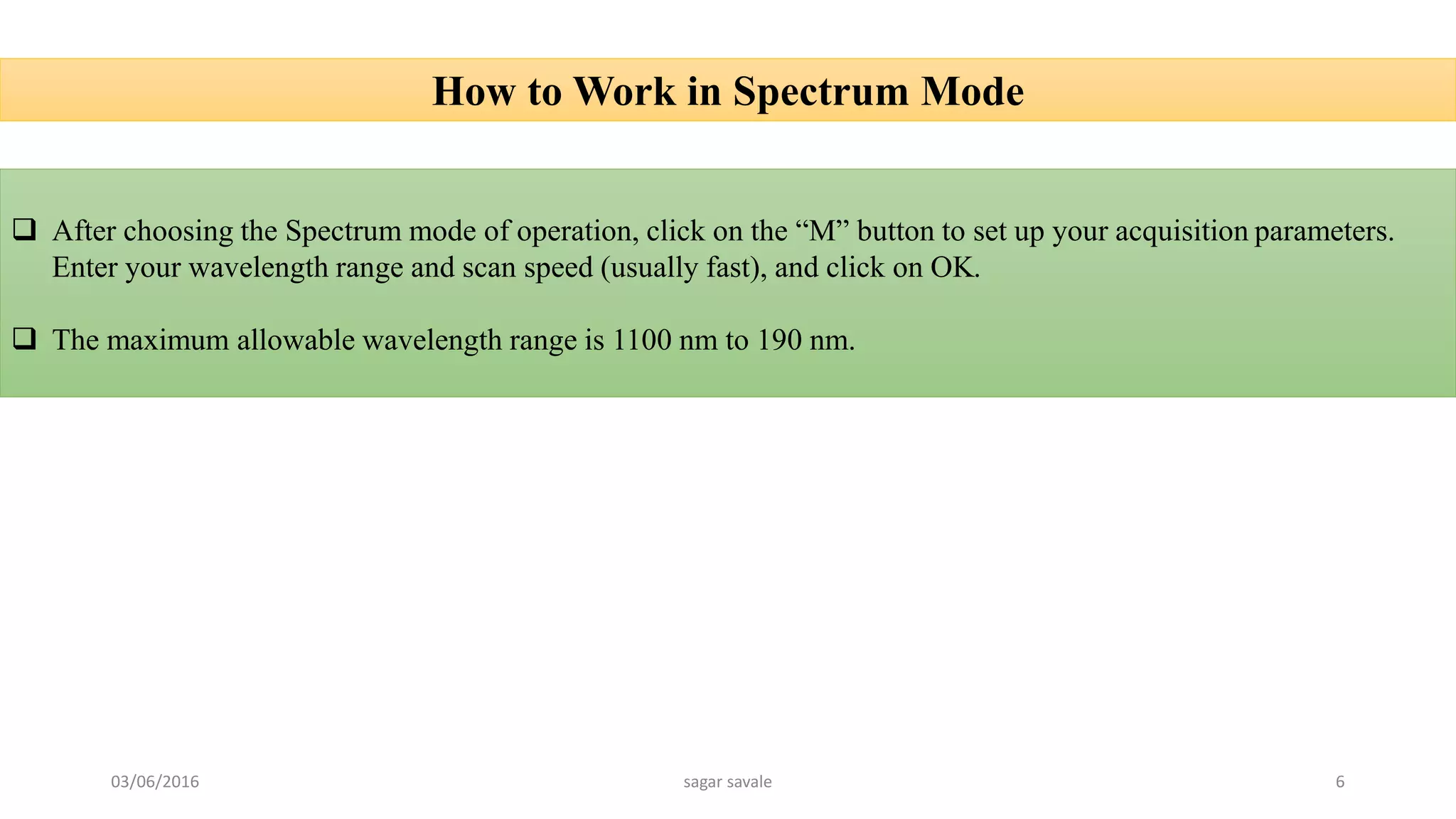
How to Work in Spectrum Mode
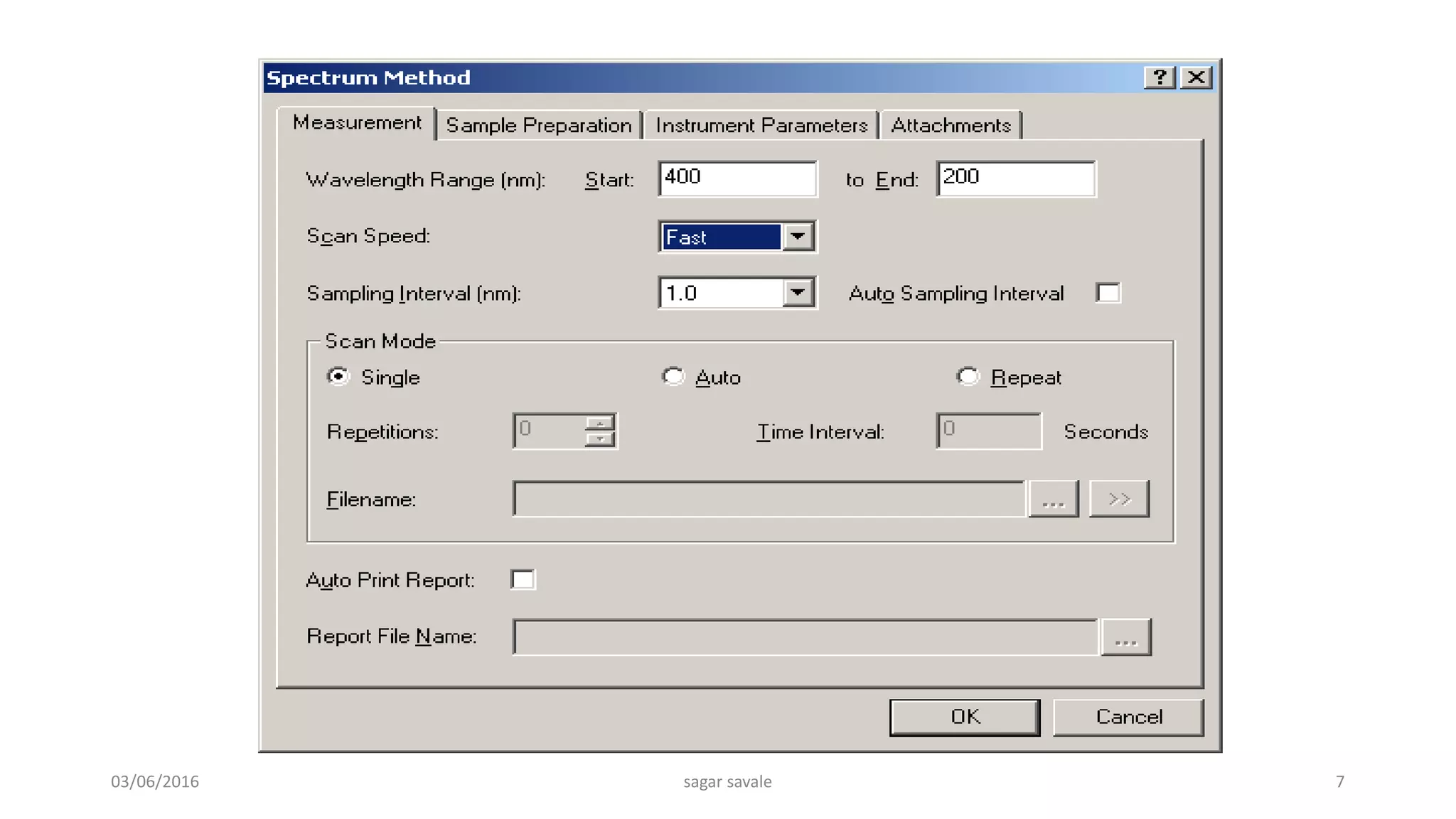
 After choosing the Spectrum mode of operation, click on the “M” button to set up your acquisition parameters.
Enter your wavelength range and scan speed (usually fast), and click on OK.
 The maximum allowable wavelength range is 1100 nm to 190 nm.
03/06/2016 sagar savale 6
03/06/2016 sagar savale 7
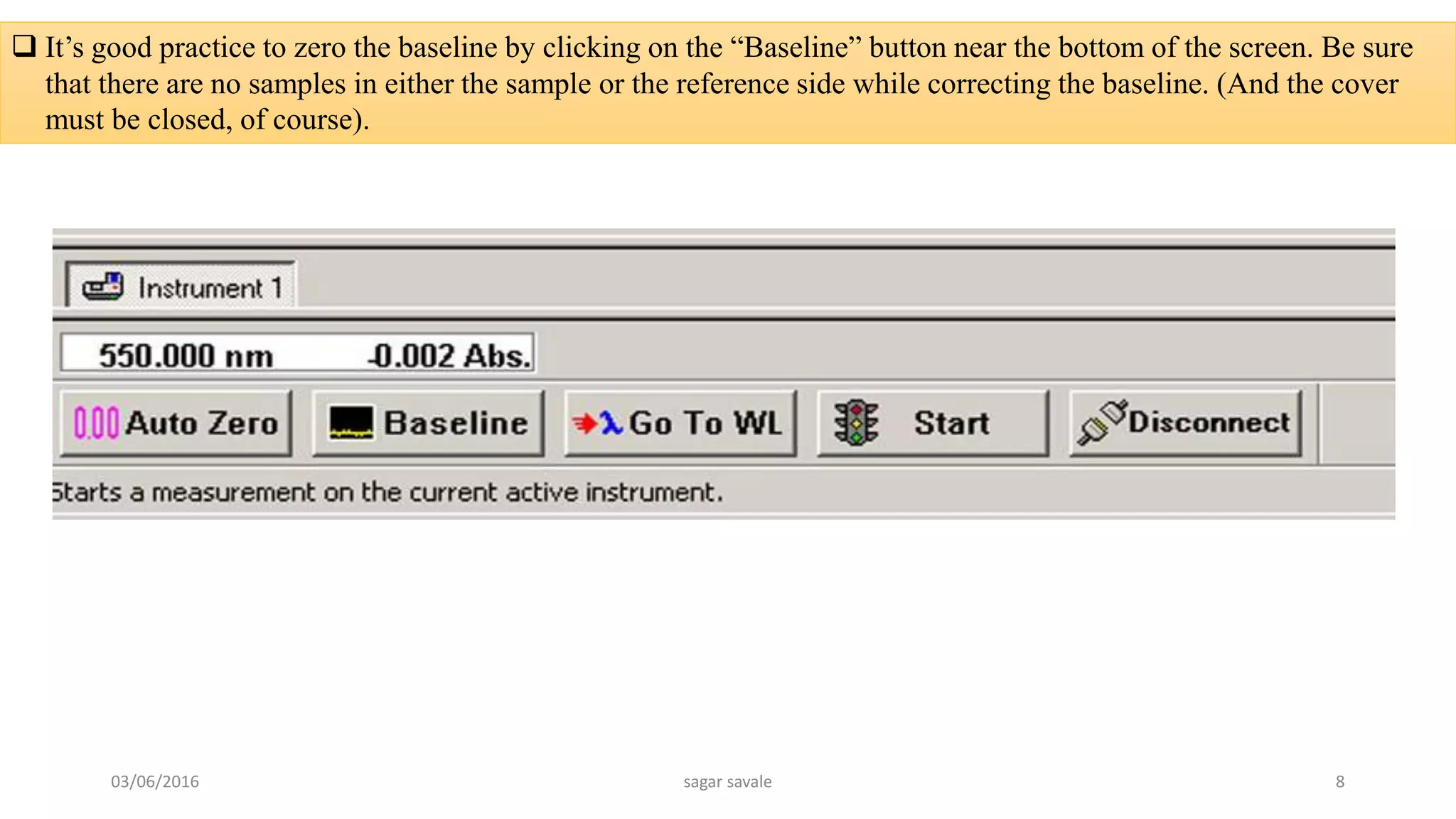
 It’s good practice to zero the baseline by clicking on the “Baseline” button near the bottom of the screen. Be sure
that there are no samples in either the sample or the reference side while correcting the baseline. (And the cover
must be closed, of course).
03/06/2016 sagar savale 8
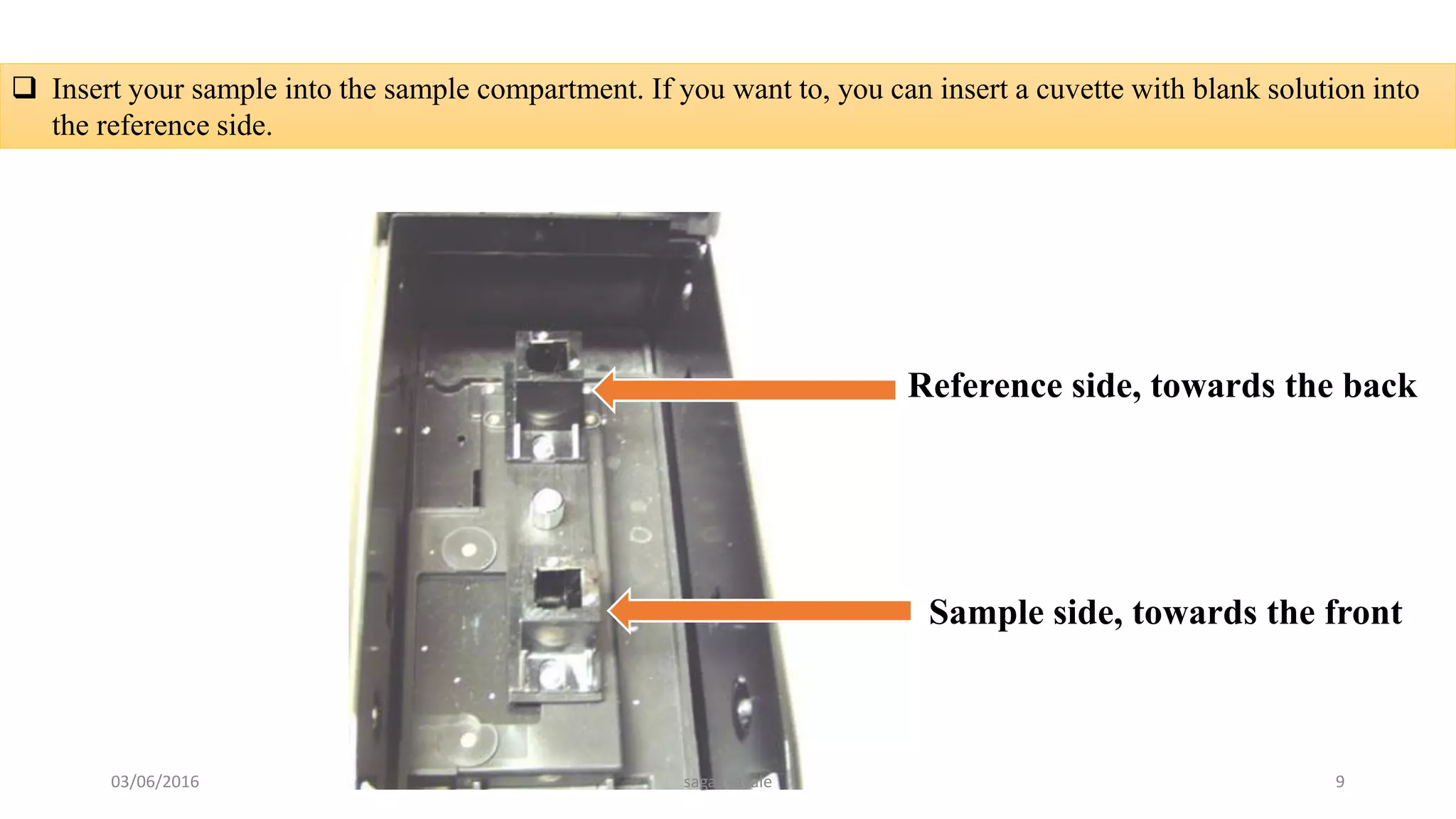
 Insert your sample into the sample compartment. If you want to, you can insert a cuvette with blank solution into
the reference side.
Reference side, towards the back
Sample side, towards the front
03/06/2016 sagar savale 9
 Click on Start to start collecting the spectrum.
Please Note:
 After your spectrum has been collected, the program will prompt you for a filename. However, this does not
automatically save your spectrum to disk! You must then do a “File, Save As” in order to permanently save the
spectrum to a disk file.
 To change the appearance of your spectrum, such as the display limits, or the background color, right-click the
mouse on the spectrum graph, and left-click on Customize…
Please Note:
 If your peaks of interest are greater than 2 absorbance units, you should dilute the sample, and then re-run it.
03/06/2016 sagar savale 10
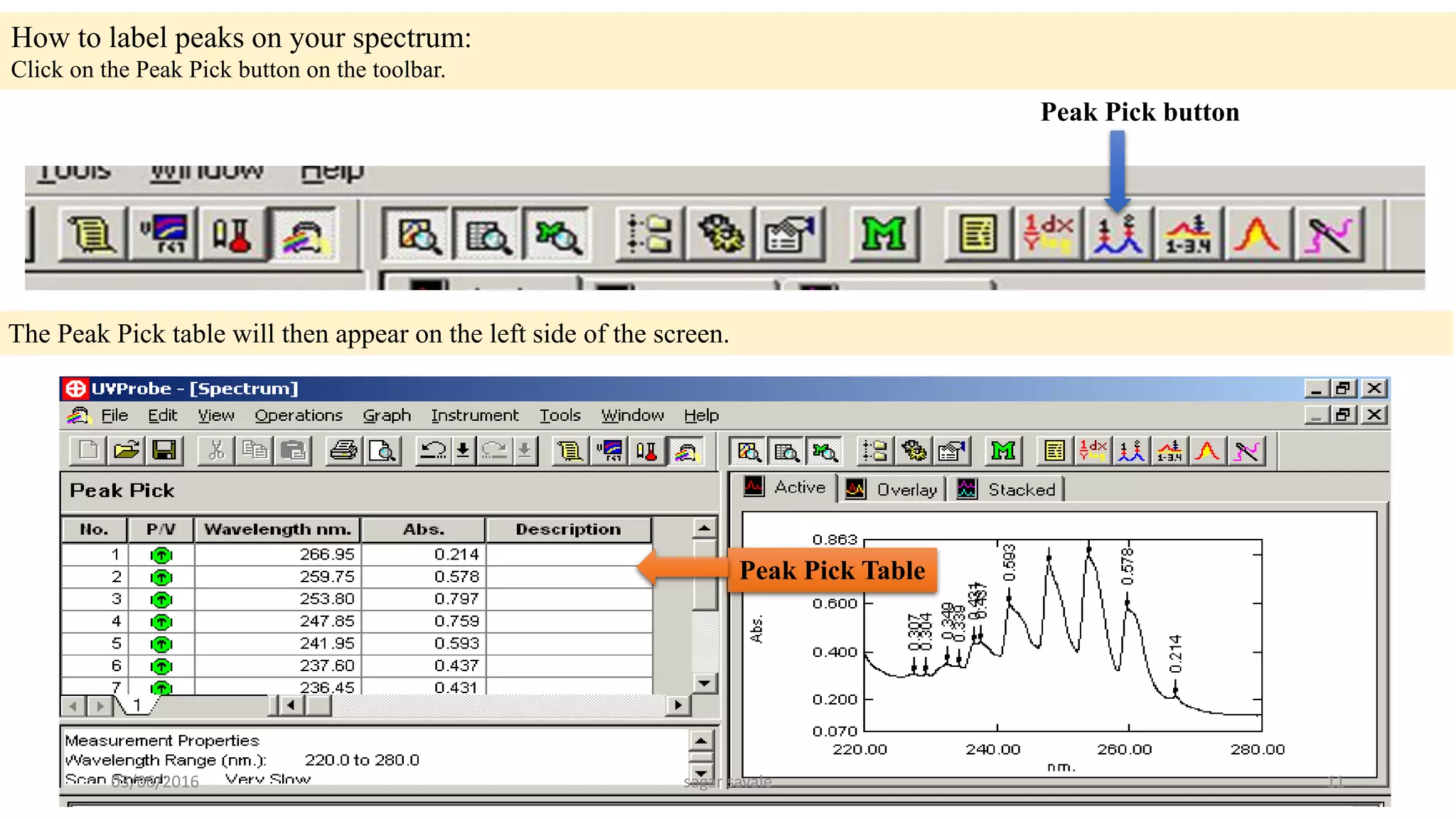
How to label peaks on your spectrum:
Click on the Peak Pick button on the toolbar.
Peak Pick button
The Peak Pick table will then appear on the left side of the screen.
Peak Pick Table
03/06/2016 sagar savale 11
 Right-click the mouse on the Peak Pick table, and left-click on Properties.
 You can then change parameters, such as the threshold for labelling peaks, and whether the graph is labelled with
the peak table number or the actual absorbance value, and whether peaks or valleys are labelled.
 After you have set up the Peak Pick table the way that you want, click on the Peak Pick table to make it the active
window. Then click on File, Print Preview. The report generator will show you how the printout will appear. If it
looks ok, then click on Print.
Please Note:
 If the spectrum graph is selected as the active window, you will get a different looking report than if the peak table
is selected as the active window, prior to clicking on Print Preview.
03/06/2016 sagar savale 12
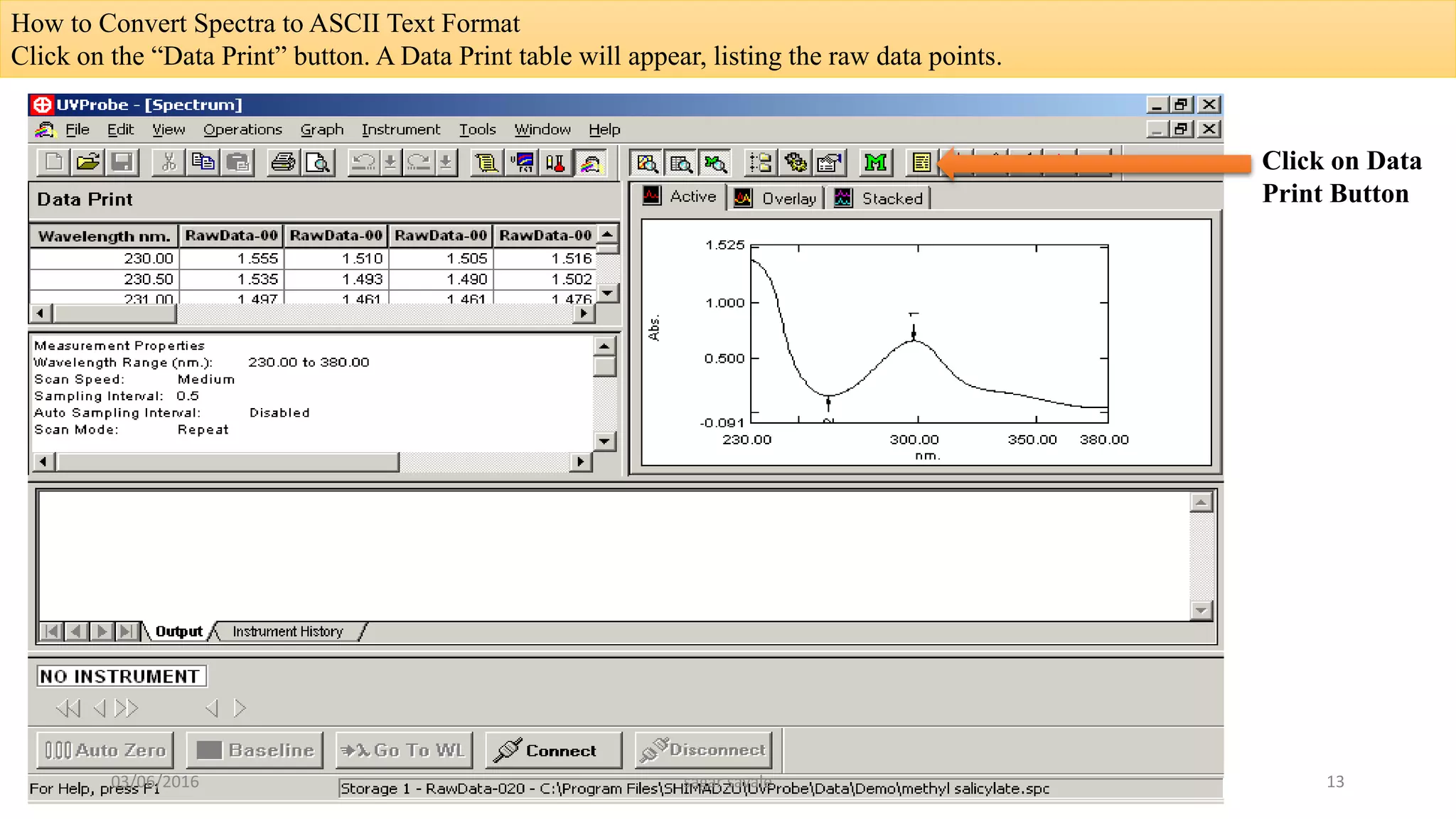
How to Convert Spectra to ASCII Text Format
Click on the “Data Print” button. A Data Print table will appear, listing the raw data points.
Click on Data
Print Button
03/06/2016 sagar savale 13
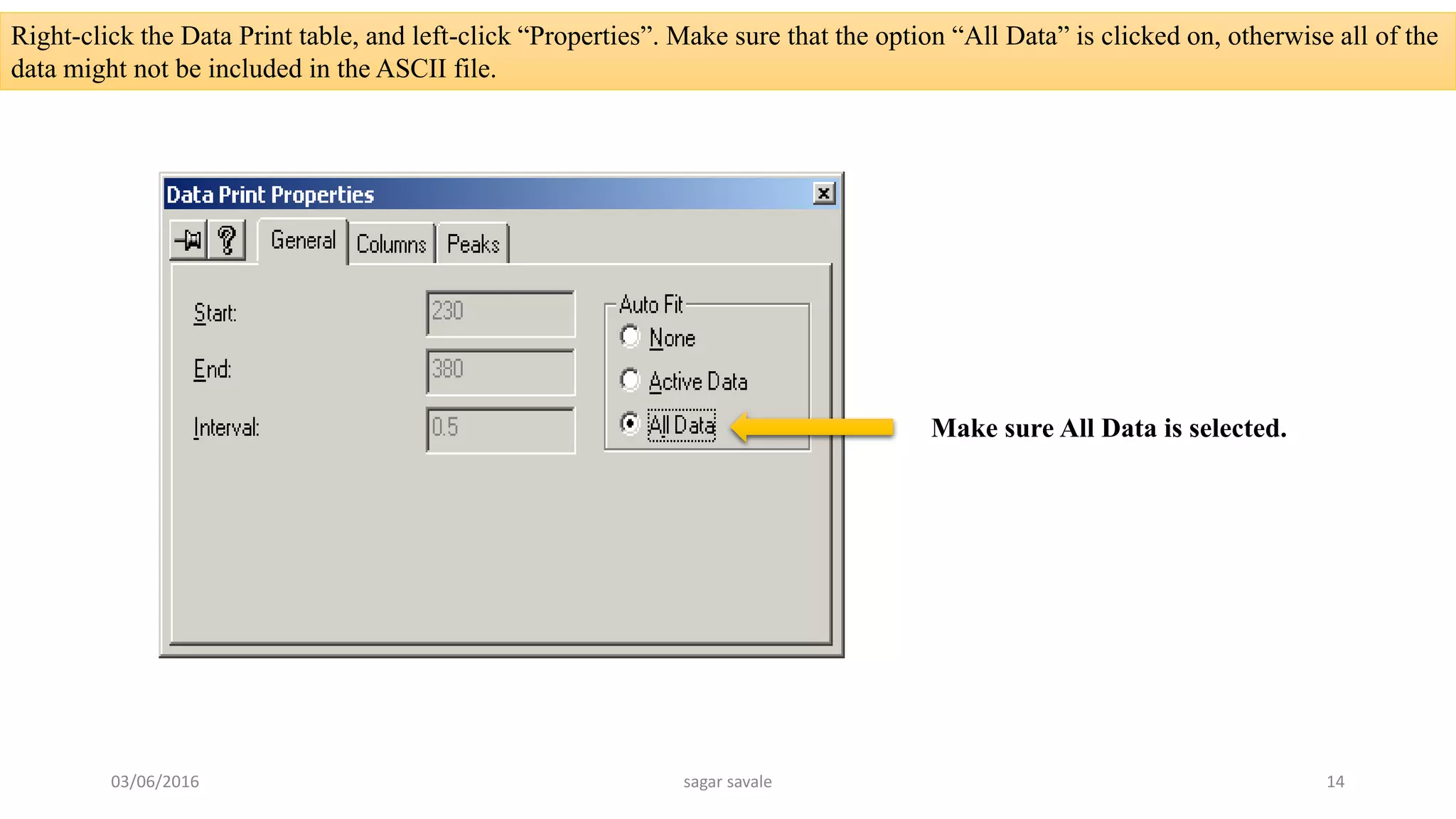
Right-click the Data Print table, and left-click “Properties”. Make sure that the option “All Data” is clicked on, otherwise all of the
data might not be included in the ASCII file.
Make sure All Data is selected.
03/06/2016 sagar savale 14
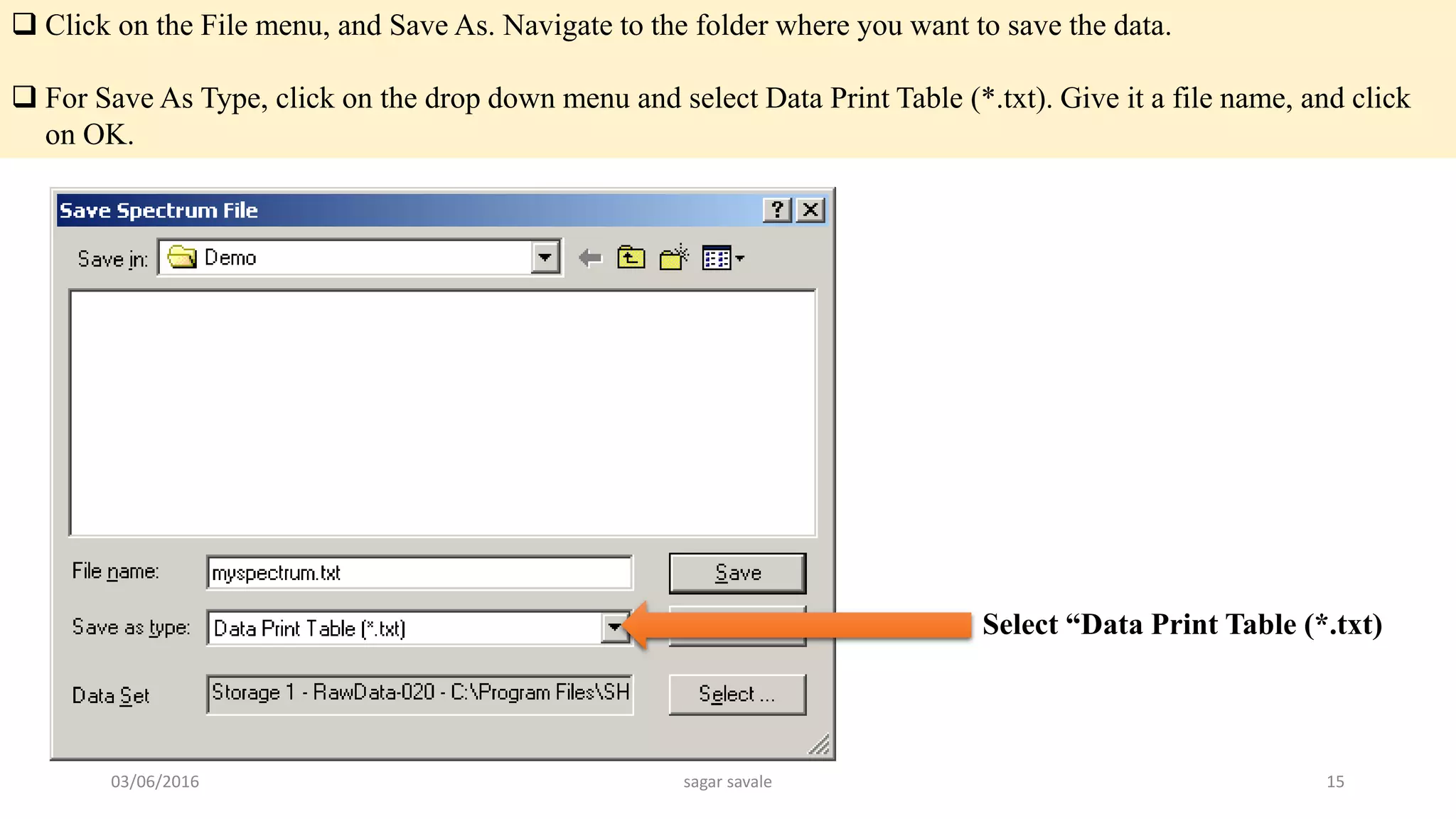
 Click on the File menu, and Save As. Navigate to the folder where you want to save the data.
 For Save As Type, click on the drop down menu and select Data Print Table (*.txt). Give it a file name, and click
on OK.
Select “Data Print Table (*.txt)
03/06/2016 sagar savale 15
How to Shut Down the Instrument When You Are Finished
Be sure to save all of your data.
Then click on the Disconnect button near the bottom of the screen.
Exit from the UV-Probe software.
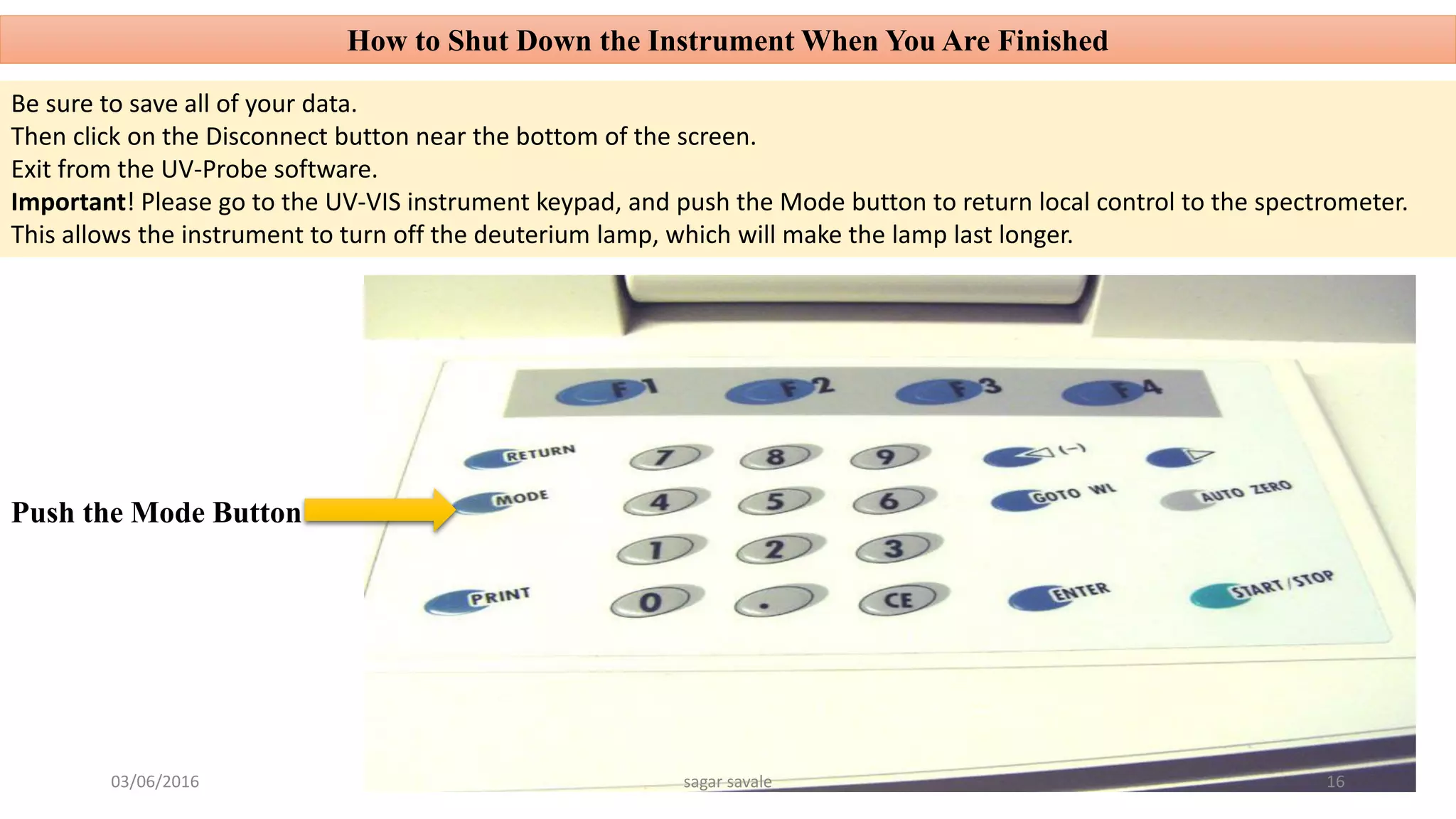
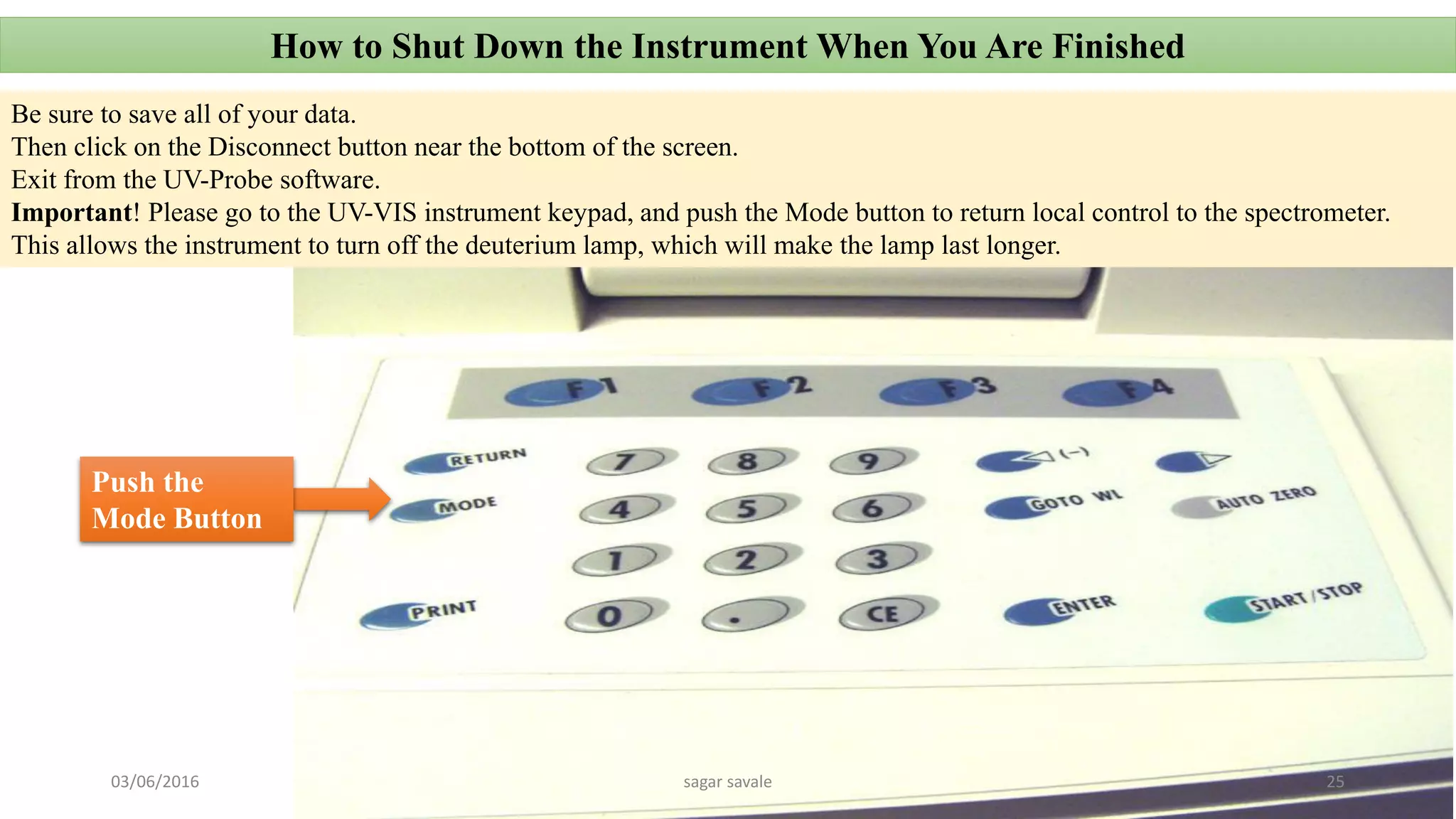
Important! Please go to the UV-VIS instrument keypad, and push the Mode button to return local control to the spectrometer.
This allows the instrument to turn off the deuterium lamp, which will make the lamp last longer.
Push the Mode Button
03/06/2016 sagar savale 16
How to Work in Photometric Mode
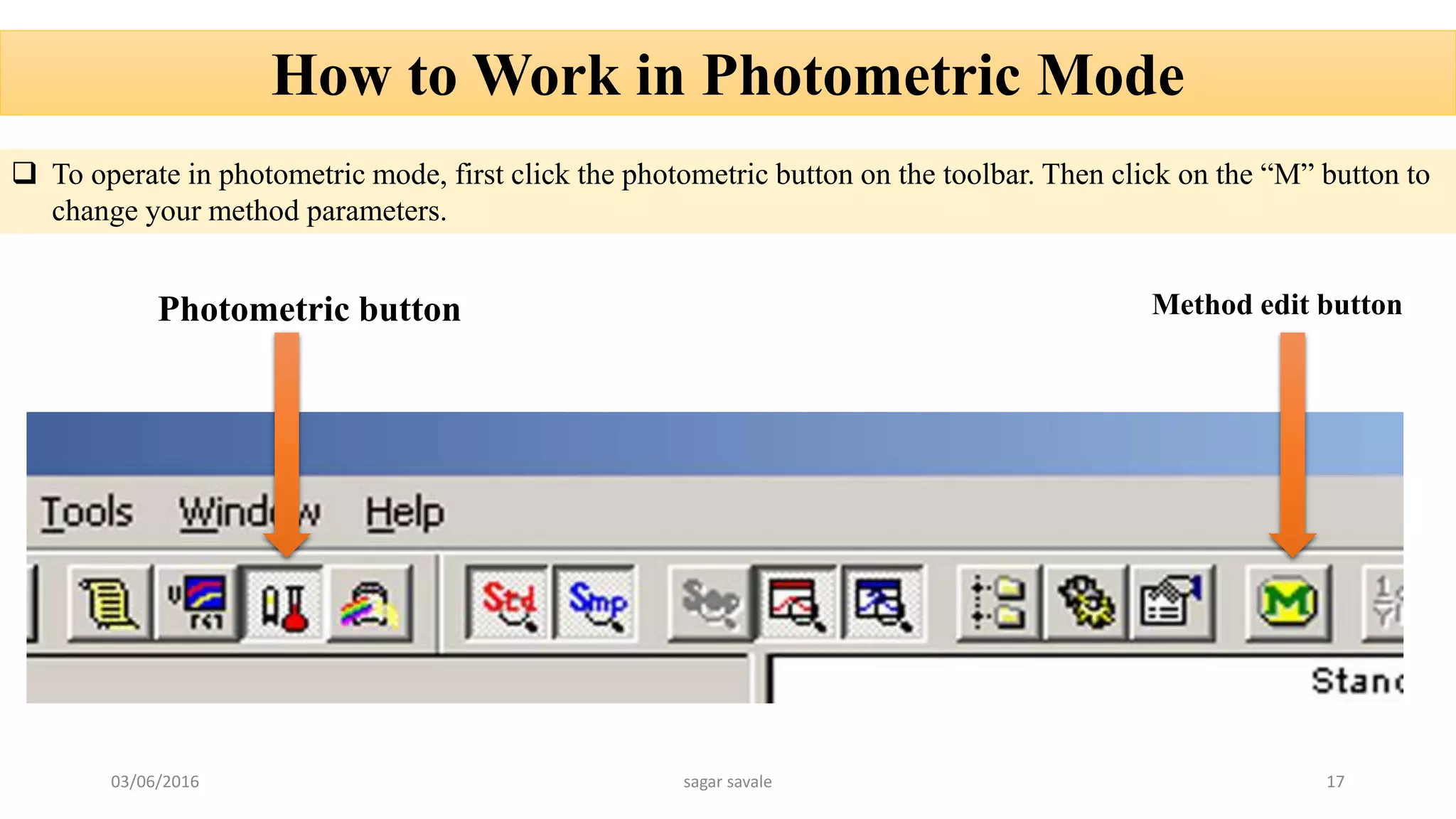
 To operate in photometric mode, first click the photometric button on the toolbar. Then click on the “M” button to
change your method parameters.
Photometric button Method edit button
03/06/2016 sagar savale 17
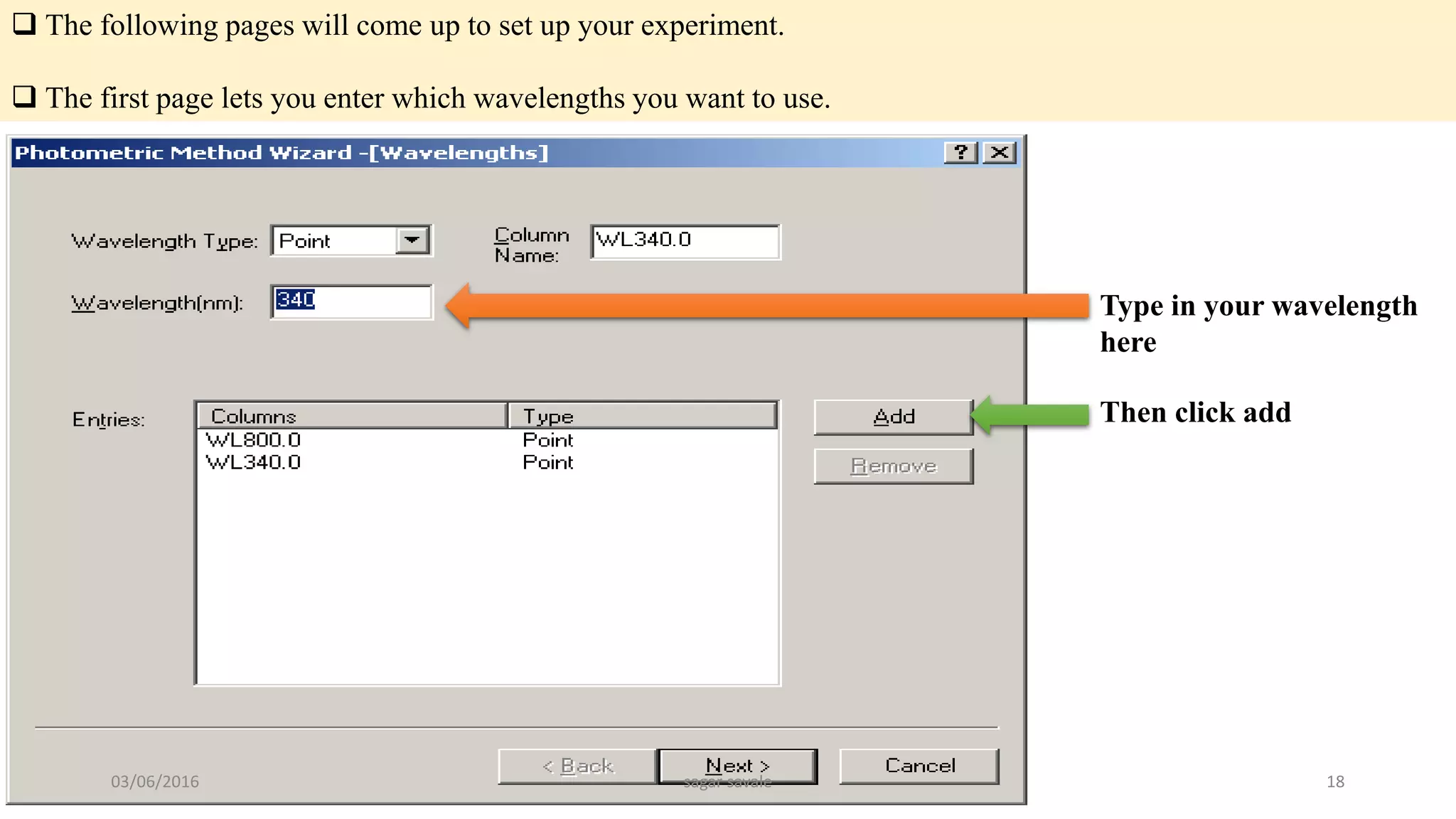
 The following pages will come up to set up your experiment.
 The first page lets you enter which wavelengths you want to use.
Type in your wavelength
here
Then click add
03/06/2016 sagar savale 18
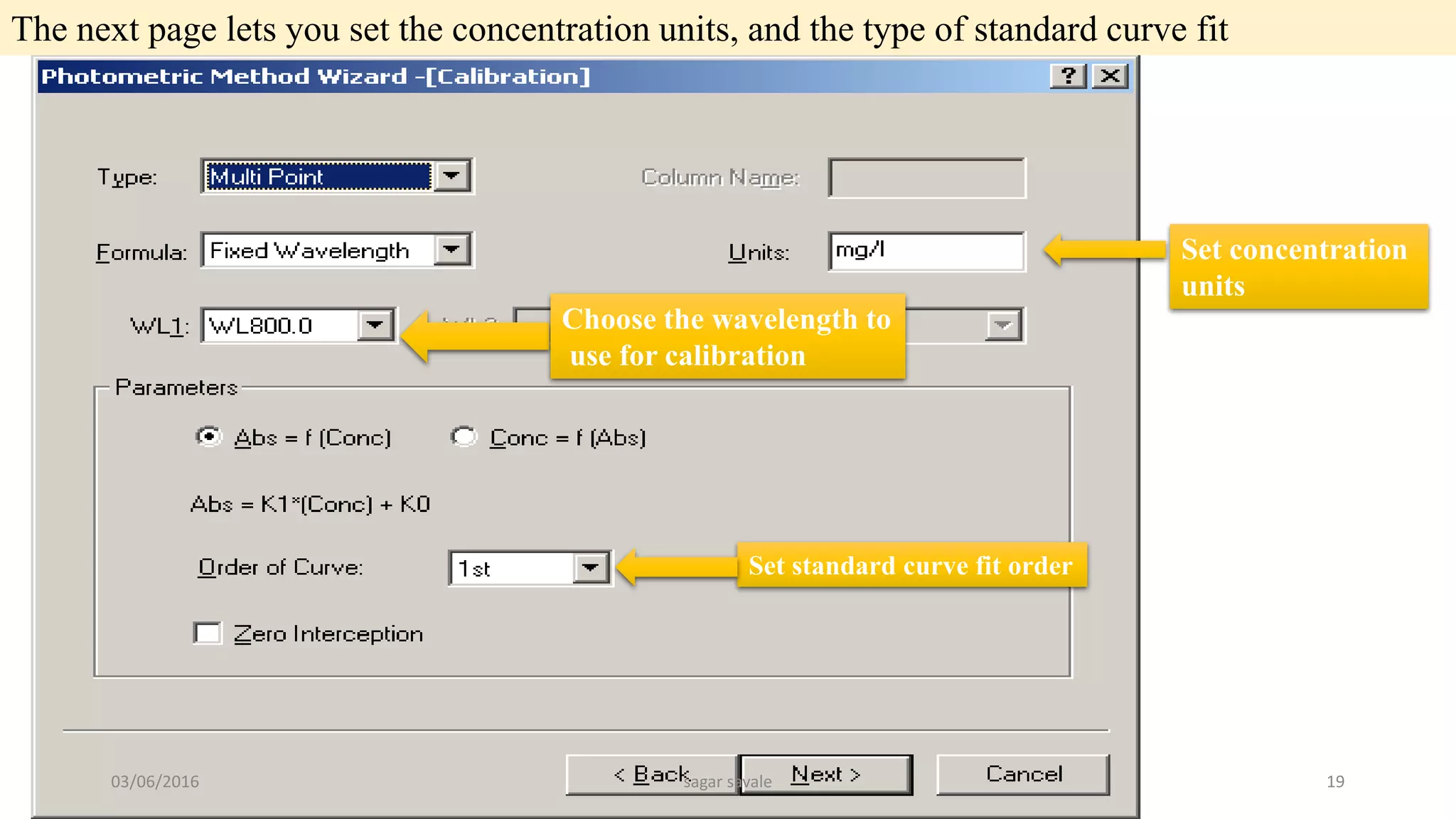
The next page lets you set the concentration units, and the type of standard curve fit
Set concentration
units
Choose the wavelength to
use for calibration
Set standard curve fit order
03/06/2016 sagar savale 19
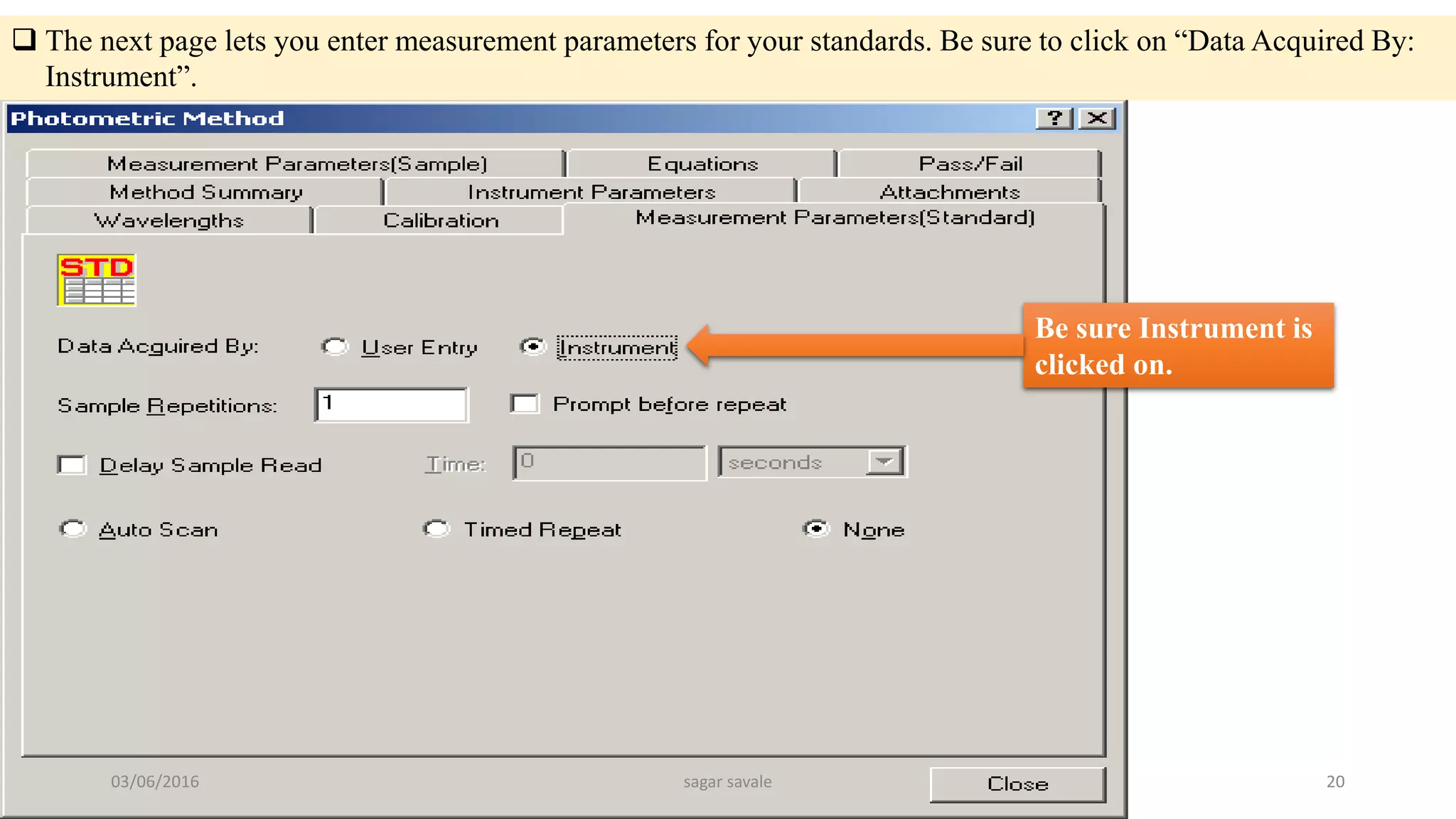
 The next page lets you enter measurement parameters for your standards. Be sure to click on “Data Acquired By:
Instrument”.
Be sure Instrument is
clicked on.
03/06/2016 sagar savale 20
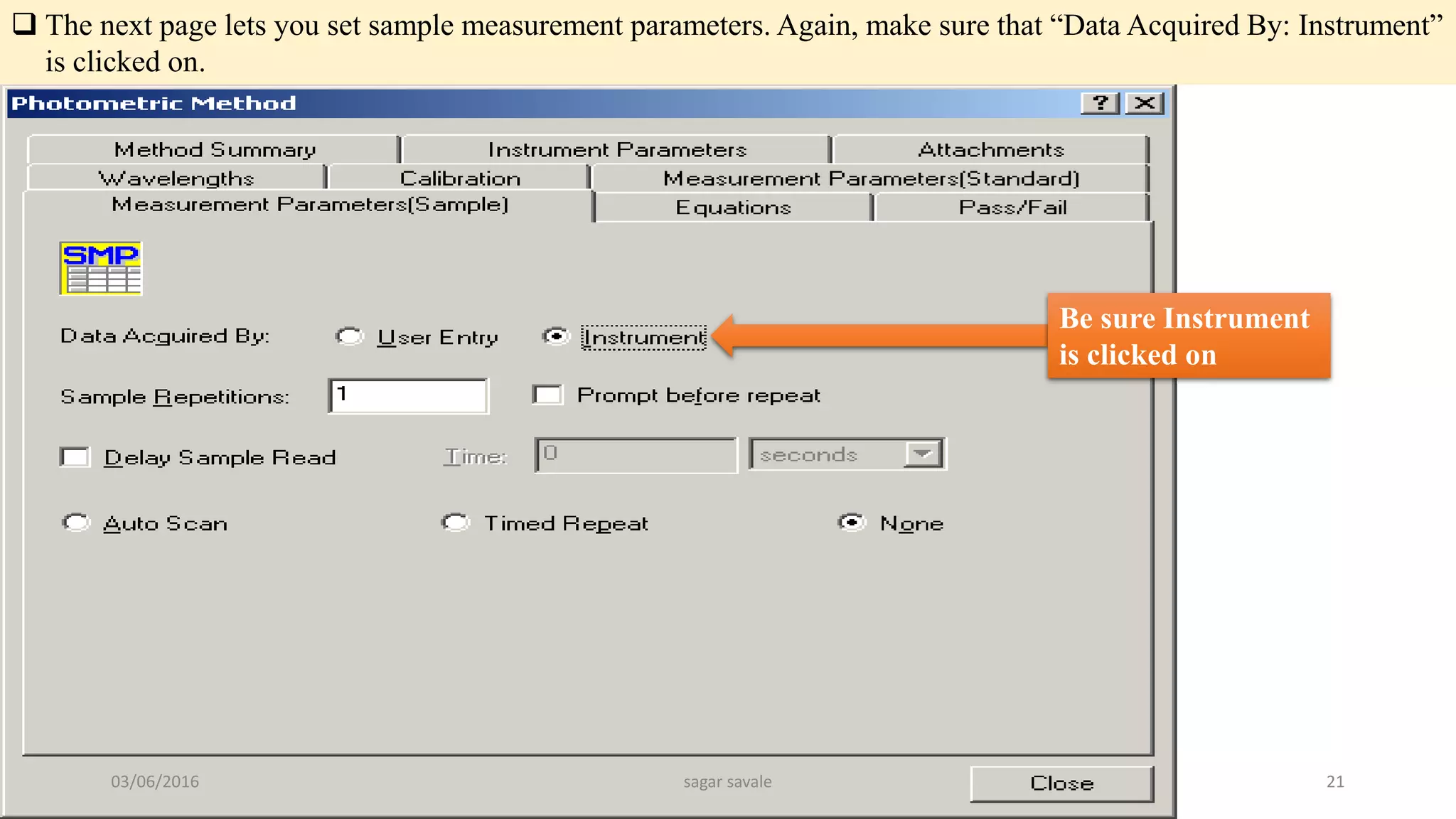
 The next page lets you set sample measurement parameters. Again, make sure that “Data Acquired By: Instrument”
is clicked on.
Be sure Instrument
is clicked on
03/06/2016 sagar savale 21
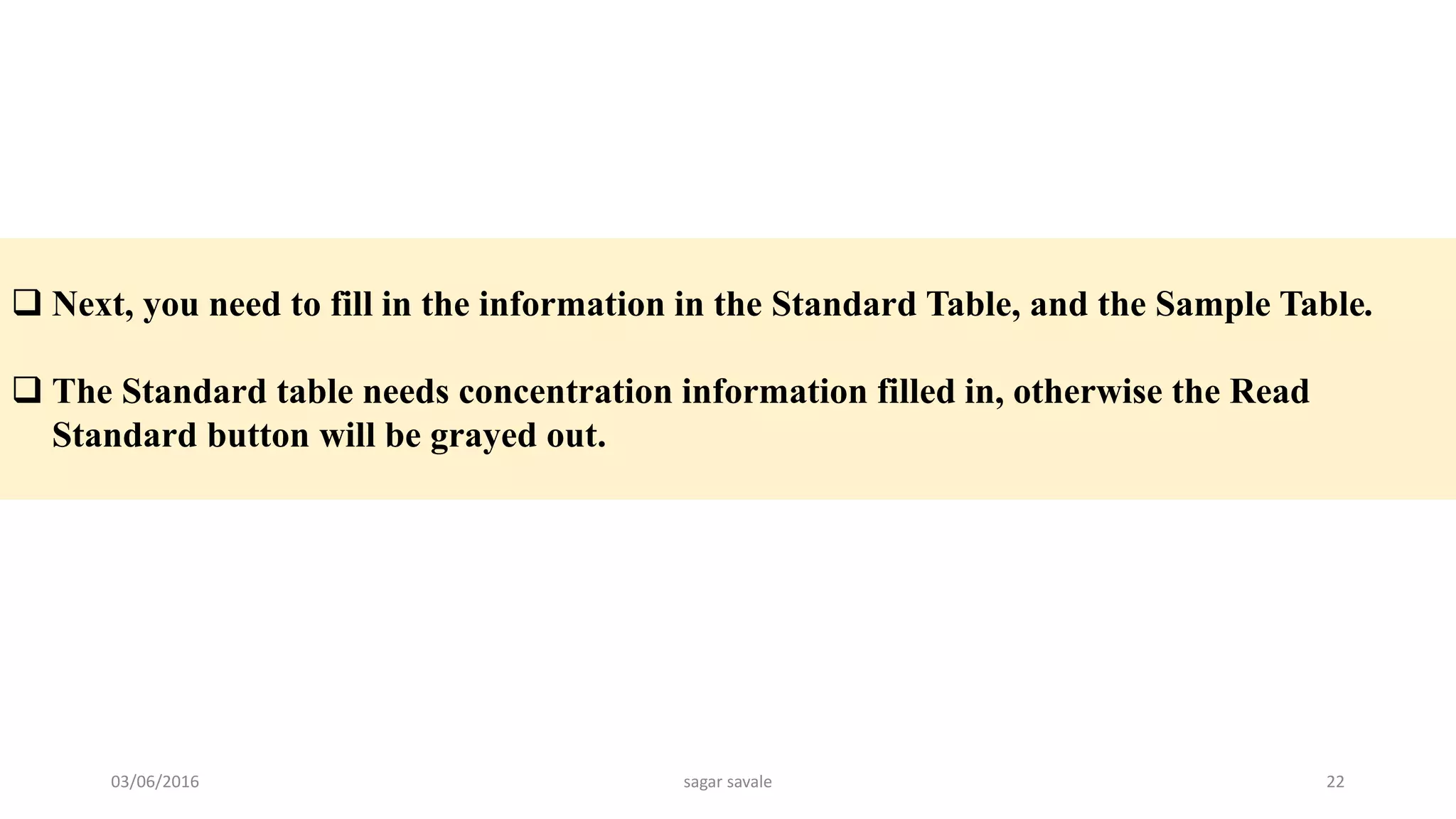
 Next, you need to fill in the information in the Standard Table, and the Sample Table.
 The Standard table needs concentration information filled in, otherwise the Read
Standard button will be grayed out.
03/06/2016 sagar savale 22
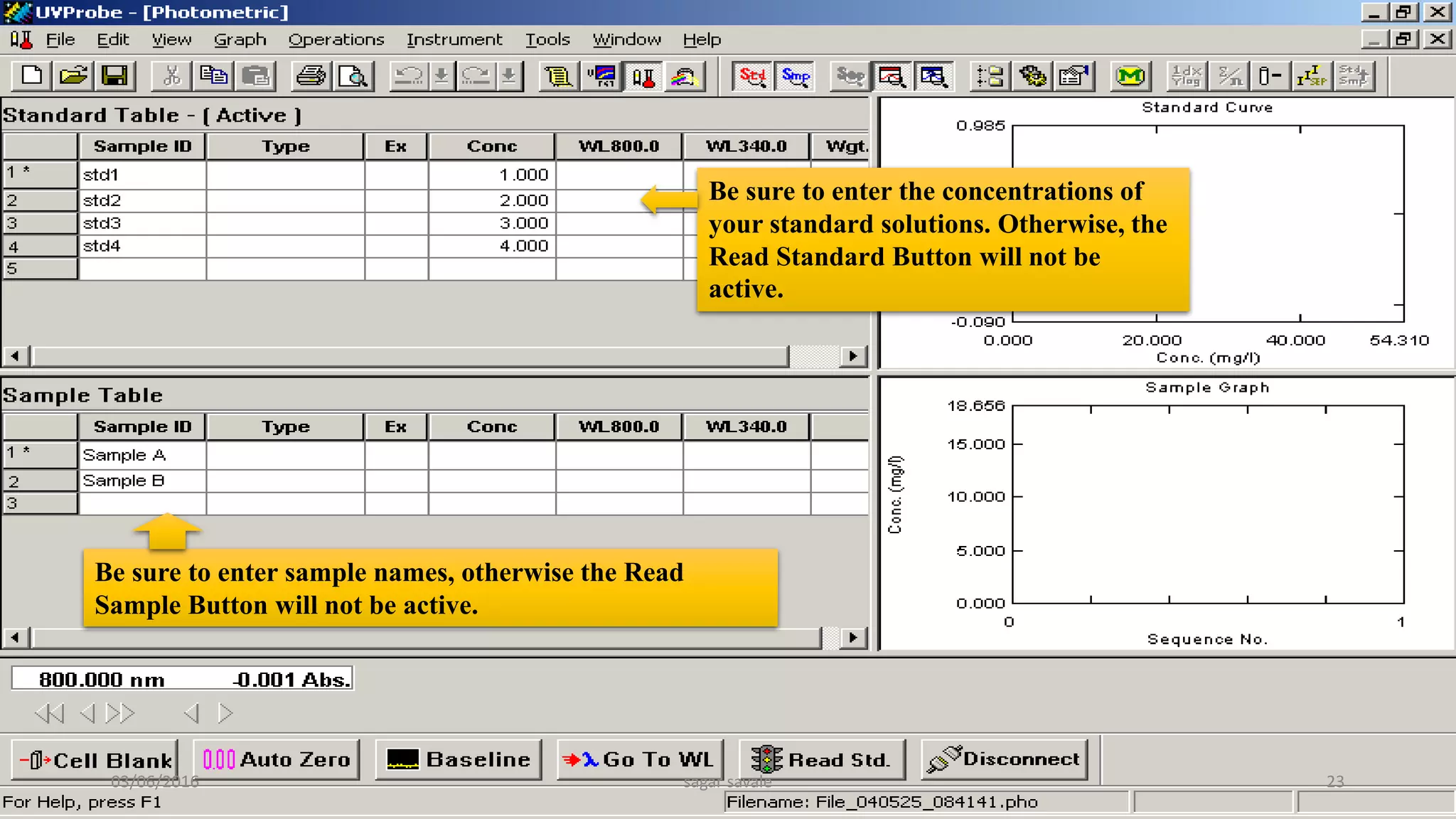
Be sure to enter the concentrations of
your standard solutions. Otherwise, the
Read Standard Button will not be
active.
Be sure to enter sample names, otherwise the Read
Sample Button will not be active.
03/06/2016 sagar savale 23
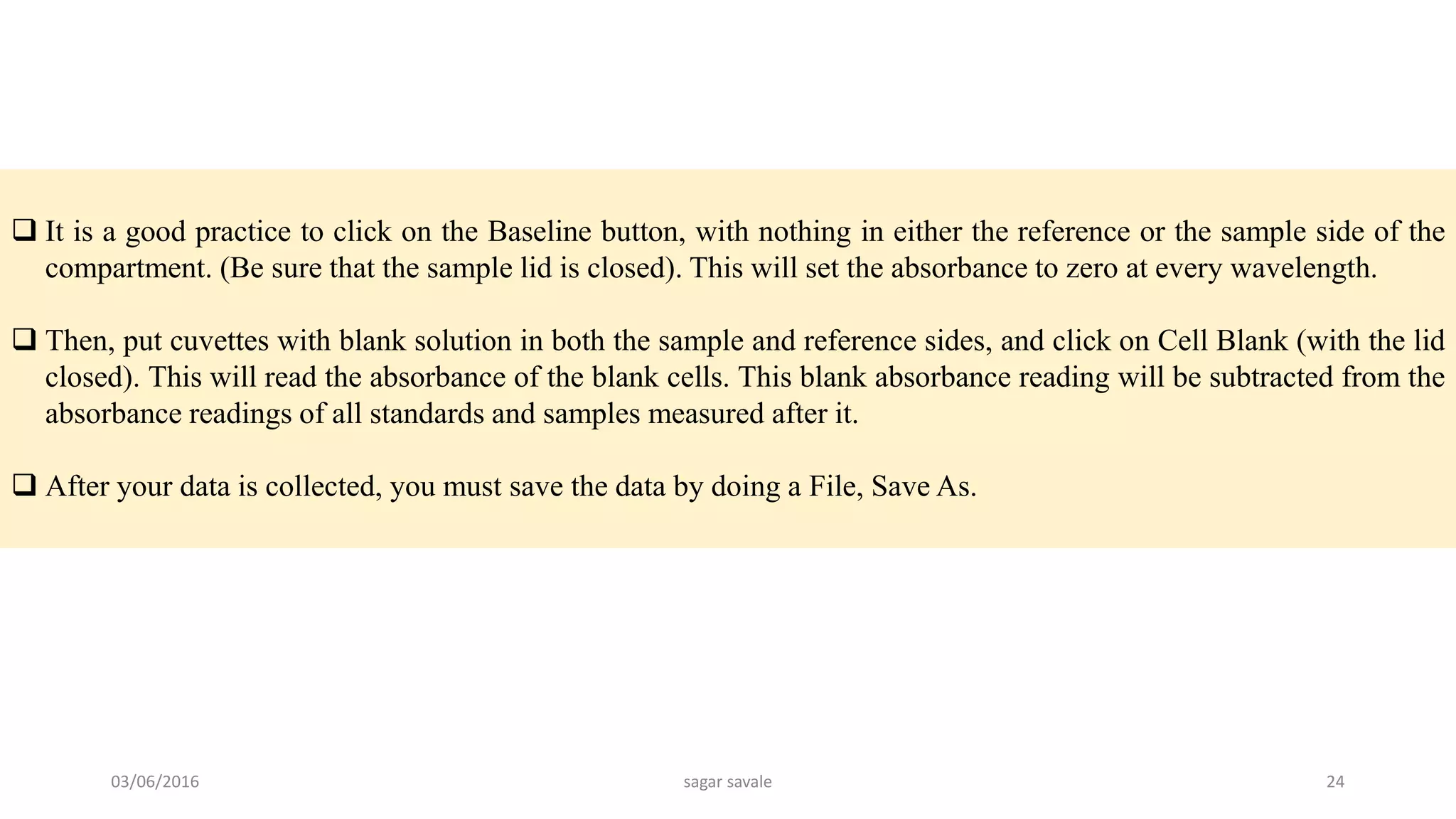
 It is a good practice to click on the Baseline button, with nothing in either the reference or the sample side of the
compartment. (Be sure that the sample lid is closed). This will set the absorbance to zero at every wavelength.
 Then, put cuvettes with blank solution in both the sample and reference sides, and click on Cell Blank (with the lid
closed). This will read the absorbance of the blank cells. This blank absorbance reading will be subtracted from the
absorbance readings of all standards and samples measured after it.
 After your data is collected, you must save the data by doing a File, Save As.
03/06/2016 sagar savale 24
How to Shut Down the Instrument When You Are Finished
Be sure to save all of your data.
Then click on the Disconnect button near the bottom of the screen.
Exit from the UV-Probe software.
Important! Please go to the UV-VIS instrument keypad, and push the Mode button to return local control to the spectrometer.
This allows the instrument to turn off the deuterium lamp, which will make the lamp last longer.
Push the
Mode Button
03/06/2016 sagar savale 25
03/06/2016 sagar savale 26

UV visible Spectroscoy - How to used UV Spectrophotometer

  • 1.
    UV Visible Spectroscopy– How to use UV vis. Spectrophotometer Mr. Sagar Kishor Savale [Department of Pharmaceutics] avengersagar16@gmail.com 2015-2016 Department of Pharmacy (Pharmaceutics) | Sagar savale 03/06/2016 sagar savale 1
  • 2.
    1) Push theF4 button on the UV-VIS instrument keypad. This will enable PC control Push the F4 Button 03/06/2016 sagar savale 2
  • 3.
    2) Log intothe UV-VIS software with your username and password. 03/06/2016 sagar savale 3
  • 4.
    3) After theUV-Probe software comes up, click on the “Connect” button near the bottom of the screen to connect with the spectrometer  Spectrum mode is for wavelength scanning over a continuous wide range.  Photometric mode is for quantitative analysis, measuring absorbance at single wavelengths.  Kinetics mode will collect absorbance data at a particular wavelength versus time. 4) Choose what type of experiment mode you need 03/06/2016 sagar savale 4
  • 5.
    5) Choose themode you need by clicking on one of the buttons on the toolbar Photometric Edit Method Kinetics Spectrum 03/06/2016 sagar savale 5
  • 6.
    How to Workin Spectrum Mode  After choosing the Spectrum mode of operation, click on the “M” button to set up your acquisition parameters. Enter your wavelength range and scan speed (usually fast), and click on OK.  The maximum allowable wavelength range is 1100 nm to 190 nm. 03/06/2016 sagar savale 6
  • 7.
  • 8.
     It’s goodpractice to zero the baseline by clicking on the “Baseline” button near the bottom of the screen. Be sure that there are no samples in either the sample or the reference side while correcting the baseline. (And the cover must be closed, of course). 03/06/2016 sagar savale 8
  • 9.
     Insert yoursample into the sample compartment. If you want to, you can insert a cuvette with blank solution into the reference side. Reference side, towards the back Sample side, towards the front 03/06/2016 sagar savale 9
  • 10.
     Click onStart to start collecting the spectrum. Please Note:  After your spectrum has been collected, the program will prompt you for a filename. However, this does not automatically save your spectrum to disk! You must then do a “File, Save As” in order to permanently save the spectrum to a disk file.  To change the appearance of your spectrum, such as the display limits, or the background color, right-click the mouse on the spectrum graph, and left-click on Customize… Please Note:  If your peaks of interest are greater than 2 absorbance units, you should dilute the sample, and then re-run it. 03/06/2016 sagar savale 10
  • 11.
    How to labelpeaks on your spectrum: Click on the Peak Pick button on the toolbar. Peak Pick button The Peak Pick table will then appear on the left side of the screen. Peak Pick Table 03/06/2016 sagar savale 11
  • 12.
     Right-click themouse on the Peak Pick table, and left-click on Properties.  You can then change parameters, such as the threshold for labelling peaks, and whether the graph is labelled with the peak table number or the actual absorbance value, and whether peaks or valleys are labelled.  After you have set up the Peak Pick table the way that you want, click on the Peak Pick table to make it the active window. Then click on File, Print Preview. The report generator will show you how the printout will appear. If it looks ok, then click on Print. Please Note:  If the spectrum graph is selected as the active window, you will get a different looking report than if the peak table is selected as the active window, prior to clicking on Print Preview. 03/06/2016 sagar savale 12
  • 13.
    How to ConvertSpectra to ASCII Text Format Click on the “Data Print” button. A Data Print table will appear, listing the raw data points. Click on Data Print Button 03/06/2016 sagar savale 13
  • 14.
    Right-click the DataPrint table, and left-click “Properties”. Make sure that the option “All Data” is clicked on, otherwise all of the data might not be included in the ASCII file. Make sure All Data is selected. 03/06/2016 sagar savale 14
  • 15.
     Click onthe File menu, and Save As. Navigate to the folder where you want to save the data.  For Save As Type, click on the drop down menu and select Data Print Table (*.txt). Give it a file name, and click on OK. Select “Data Print Table (*.txt) 03/06/2016 sagar savale 15
  • 16.
    How to ShutDown the Instrument When You Are Finished Be sure to save all of your data. Then click on the Disconnect button near the bottom of the screen. Exit from the UV-Probe software. Important! Please go to the UV-VIS instrument keypad, and push the Mode button to return local control to the spectrometer. This allows the instrument to turn off the deuterium lamp, which will make the lamp last longer. Push the Mode Button 03/06/2016 sagar savale 16
  • 17.
    How to Workin Photometric Mode  To operate in photometric mode, first click the photometric button on the toolbar. Then click on the “M” button to change your method parameters. Photometric button Method edit button 03/06/2016 sagar savale 17
  • 18.
     The followingpages will come up to set up your experiment.  The first page lets you enter which wavelengths you want to use. Type in your wavelength here Then click add 03/06/2016 sagar savale 18
  • 19.
    The next pagelets you set the concentration units, and the type of standard curve fit Set concentration units Choose the wavelength to use for calibration Set standard curve fit order 03/06/2016 sagar savale 19
  • 20.
     The nextpage lets you enter measurement parameters for your standards. Be sure to click on “Data Acquired By: Instrument”. Be sure Instrument is clicked on. 03/06/2016 sagar savale 20
  • 21.
     The nextpage lets you set sample measurement parameters. Again, make sure that “Data Acquired By: Instrument” is clicked on. Be sure Instrument is clicked on 03/06/2016 sagar savale 21
  • 22.
     Next, youneed to fill in the information in the Standard Table, and the Sample Table.  The Standard table needs concentration information filled in, otherwise the Read Standard button will be grayed out. 03/06/2016 sagar savale 22
  • 23.
    Be sure toenter the concentrations of your standard solutions. Otherwise, the Read Standard Button will not be active. Be sure to enter sample names, otherwise the Read Sample Button will not be active. 03/06/2016 sagar savale 23
  • 24.
     It isa good practice to click on the Baseline button, with nothing in either the reference or the sample side of the compartment. (Be sure that the sample lid is closed). This will set the absorbance to zero at every wavelength.  Then, put cuvettes with blank solution in both the sample and reference sides, and click on Cell Blank (with the lid closed). This will read the absorbance of the blank cells. This blank absorbance reading will be subtracted from the absorbance readings of all standards and samples measured after it.  After your data is collected, you must save the data by doing a File, Save As. 03/06/2016 sagar savale 24
  • 25.
    How to ShutDown the Instrument When You Are Finished Be sure to save all of your data. Then click on the Disconnect button near the bottom of the screen. Exit from the UV-Probe software. Important! Please go to the UV-VIS instrument keypad, and push the Mode button to return local control to the spectrometer. This allows the instrument to turn off the deuterium lamp, which will make the lamp last longer. Push the Mode Button 03/06/2016 sagar savale 25
  • 26.