
2009 copyright Leslie Munday University
Working With Properties And Styles
Requirements Discipline
Leslie Munday 2009
Precursor
 In order to understand the material in this
course, you should have a working
knowledge of Microsoft Word.
11/5/2019 2
Leslie Munday 2009
Overview
 In this lesson you will learn :
 the purpose of an artifact’s properties.
 how to set the value of a property.
 how to use a property.
 how to create a custom property.
 how to use styles to format a paragraph.
 how to use styles to format individual words.
 how to use styles to format several blocks of
text.
 how to use styles to delete text from a
document.
11/5/2019 3
Leslie Munday 2009
Working With Properties
 Properties are the attributes of an artifact; for
example, a Word document.
 Document text that may be re-used in several
different places in a document can be defined as a
property.
 If that text ever changes during the lifecycle of the
project, the property is updated and the text is
changed throughout the document.
 A document from another project or application may
be re-used by simply changing the appropriate
property values.
 Any way we can eliminate duplication in our work is
good.
11/5/2019 4
Leslie Munday 2009
Setting A Property
 Open the document in MS Word.
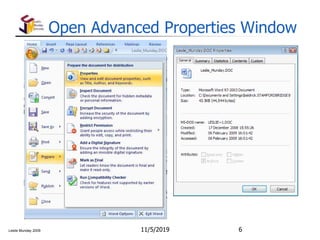
 Open the properties by clicking the Office Button,
and selecting ‘Prepare->Properties’.
 In the pane that appears, click on ‘Document
Properties->Advanced Properties’.
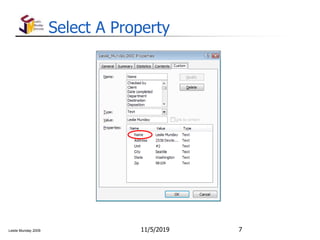
 In pop-up window that appears, select the
‘Custom’ tab.
 Select the property whose value is to be changed.
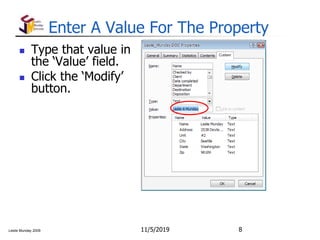
 Type the value into the ‘Value’ field and select
‘Modify’.
11/5/2019 5
Leslie Munday 2009
Open Advanced Properties Window
11/5/2019 6
Leslie Munday 2009
Select A Property
11/5/2019 7
Leslie Munday 2009
Enter A Value For The Property
11/5/2019 8
 Type that value in
the ‘Value’ field.
 Click the ‘Modify’
button.
Leslie Munday 2009
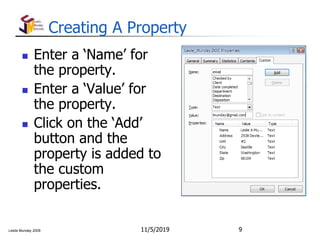
Creating A Property
 Enter a ‘Name’ for
the property.
 Enter a ‘Value’ for
the property.
 Click on the ‘Add’
button and the
property is added to
the custom
properties.
11/5/2019 9
Leslie Munday 2009
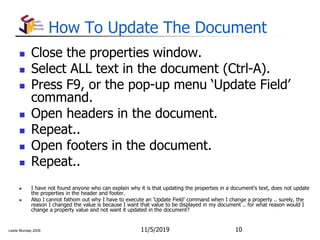
How To Update The Document
 Close the properties window.
 Select ALL text in the document (Ctrl-A).
 Press F9, or the pop-up menu ‘Update Field’
command.
 Open headers in the document.
 Repeat..
 Open footers in the document.
 Repeat..
 I have not found anyone who can explain why it is that updating the properties in a document’s text, does not update
the properties in the header and footer.
 Also I cannot fathom out why I have to execute an ‘Update Field’ command when I change a property .. surely, the
reason I changed the value is because I want that value to be displayed in my document .. for what reason would I
change a property value and not want it updated in the document?
11/5/2019 10
Leslie Munday 2009
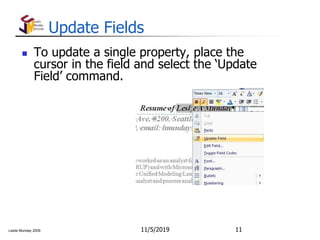
Update Fields
11/5/2019 11
 To update a single property, place the
cursor in the field and select the ‘Update
Field’ command.
Leslie Munday 2009
How Do I Use A Property
 Place the cursor at the position where you
want the text to appear.
 From the ‘Insert’ tab select the ‘Quick Parts-
>Field’ command.
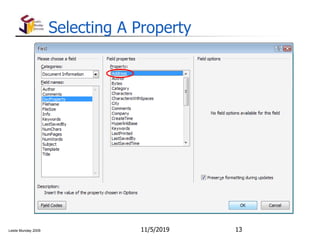
 When the field pop-up window appears select
the ‘Document Information’ category and
then the ‘DocProperty’ Field Name.
 The document properties are displayed.
 Select the property to be entered into the
document body and press ‘Ok’.
11/5/2019 12
Leslie Munday 2009
Selecting A Property
11/5/2019 13
Leslie Munday 2009
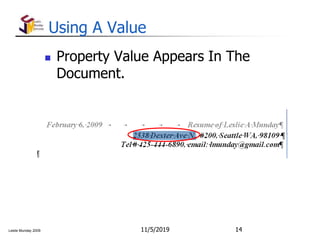
Using A Value
 Property Value Appears In The
Document.
11/5/2019 14
Leslie Munday 2009
When To Use Properties
 Whenever information is repeated inside a
document.
 In the headers and footers of the
document.
 Anywhere that you think it would be
appropriate to enter any of these values in
the document.
11/5/2019 15
Leslie Munday 2009
Exercise
 Open the AUC document template.
 Set a value for the ‘Application’ property.
 Update the document to reflect the application
name.
 Find an appropriate place to use the
application name in the document.
 Insert the Application name as a property.
 Update the document.
11/5/2019 16
Leslie Munday 2009
Working With Styles
 Styles are used to format the text in a Word document.
 From Microsoft’s Developer Network web site. The reasons for using styles in
a template are:
 Consistency—When you use styles to format your templates, documents
having the same function will have a similar, familiar appearance, and will
be easier for the reader to understand.
 Easier to Modify—If you use styles in your template consistently, you
only need to update a given style once if you want to change the
characteristics of all text formatted in that style.
 Efficiency—You can create a style once, and then apply it to any section
in the documents based upon the template without having to format each
document individually.
 Faster Navigation—Using styles lets you quickly move to different
sections in a document using the Document Map feature and the vertical
scrollbar's tips.
 Bottom line—Use of any direct formatting in a document
template is a very bad idea. It will cause the users of your
templates (and, if there is any justice in the world, you)
headaches.
11/5/2019 17
Leslie Munday 2009
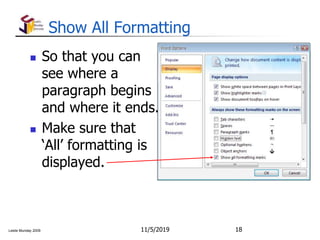
Show All Formatting
 So that you can
see where a
paragraph begins
and where it ends.
 Make sure that
‘All’ formatting is
displayed.
11/5/2019 18
Leslie Munday 2009
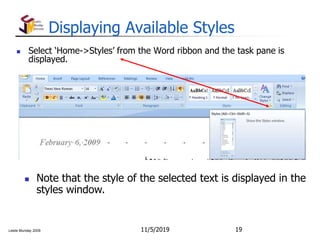
Displaying Available Styles
 Select ‘Home->Styles’ from the Word ribbon and the task pane is
displayed.
11/5/2019 19
 Note that the style of the selected text is displayed in the
styles window.
Leslie Munday 2009
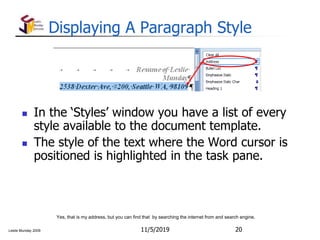
Displaying A Paragraph Style
 In the ‘Styles’ window you have a list of every
style available to the document template.
 The style of the text where the Word cursor is
positioned is highlighted in the task pane.
11/5/2019 20
Yes, that is my address, but you can find that by searching the internet from and search engine.
Leslie Munday 2009
Ways That Styles May Be Used
 Styles are useful for many different reasons;
these are just some:
 changing the style of a single paragraph,
 changing the formatting of an assigned style,
 changing all occurrences of a style within a
document to a different style,
 removing all text of a single style from a
document.
11/5/2019 21
Leslie Munday 2009
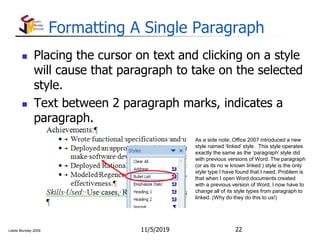
Formatting A Single Paragraph
 Placing the cursor on text and clicking on a style
will cause that paragraph to take on the selected
style.
 Text between 2 paragraph marks, indicates a
paragraph.
11/5/2019 22
As a side note; Office 2007 introduced a new
style named ‘linked’ style . This style operates
exactly the same as the ‘paragraph’ style did
with previous versions of Word. The paragraph
(or as its no w known linked ) style is the only
style type I have found that I need. Problem is
that when I open Word documents created
with a previous version of Word, I now have to
change all of its style types from paragraph to
linked. (Why do they do this to us!)
Leslie Munday 2009
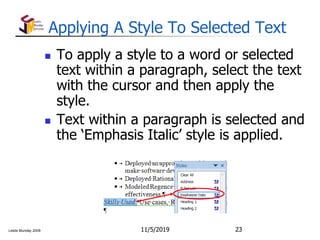
Applying A Style To Selected Text
 To apply a style to a word or selected
text within a paragraph, select the text
with the cursor and then apply the
style.
 Text within a paragraph is selected and
the ‘Emphasis Italic’ style is applied.
11/5/2019 23
Leslie Munday 2009
Changing Style Of All Paragraphs
 For some reason the text in your document has
the wrong style applied:
 Place the Word cursor on a piece of text with the
incorrect style, the style name is selected in the styles
pane.
 Place the mouse cursor to the right of the style name
and click on the ‘Select all X instances’ command.
 All text with the incorrect style is now selected, so
simply locate the correct style in the task pane and
apply it.
11/5/2019 24
Leslie Munday 2009
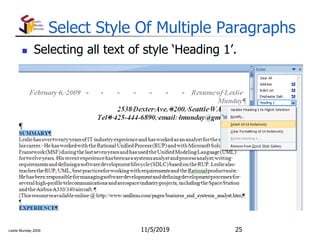
Select Style Of Multiple Paragraphs
 Selecting all text of style ‘Heading 1’.
11/5/2019 25
Leslie Munday 2009
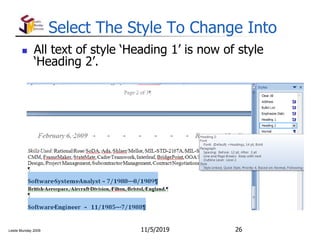
Select The Style To Change Into
11/5/2019 26
 All text of style ‘Heading 1’ is now of style
‘Heading 2’.
Leslie Munday 2009
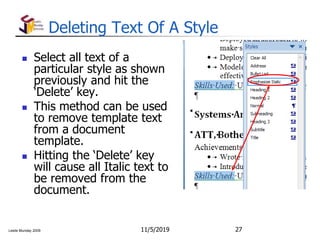
Deleting Text Of A Style
 Select all text of a
particular style as shown
previously and hit the
‘Delete’ key.
 This method can be used
to remove template text
from a document
template.
 Hitting the ‘Delete’ key
will cause all Italic text to
be removed from the
document.
11/5/2019 27
Leslie Munday 2009
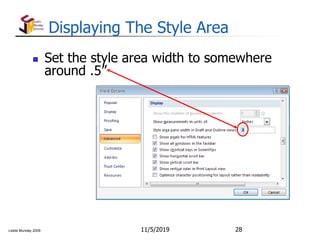
Displaying The Style Area
 Set the style area width to somewhere
around .5”
11/5/2019 28
Leslie Munday 2009
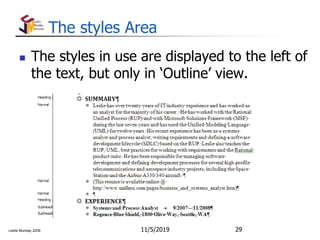
The styles Area
 The styles in use are displayed to the left of
the text, but only in ‘Outline’ view.
11/5/2019 29
Leslie Munday 2009
Tips For Using Styles
 The styles implementation in MS Word is not
perfect:
 If a paragraph refuses to change appropriately after clicking
on a style, click on the ‘Clear Formatting’ style first and then
select the correct style.
 To nest a list of bullets within a bullet list, use the ‘Increase
Indent’ command. The style remains the same.
 To add another level of numbering to the number list style,
use the ‘Increase Indent’ command.
 When changing the style of text within a table, select the
text and apply the ‘Clear Formatting’ command, then apply
the correct style.
 If there are styles in the style pane that you do not use, click
on the ‘Manage Styles’ button at the bottom of the styles
pane, when the ‘Manage Styles’ window appears, click the
‘Recommendations’ tab, locate the style in the list of styles,
click it and click the ‘Hide’ button.
11/5/2019 30
Leslie Munday 2009
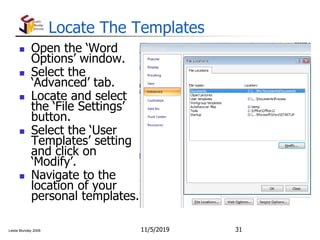
Locate The Templates
 Open the ‘Word
Options’ window.
 Select the
‘Advanced’ tab.
 Locate and select
the ‘File Settings’
button.
 Select the ‘User
Templates’ setting
and click on
‘Modify’.
 Navigate to the
location of your
personal templates.
11/5/2019 31
Leslie Munday 2009
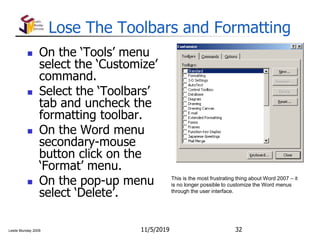
Lose The Toolbars and Formatting
 On the ‘Tools’ menu
select the ‘Customize’
command.
 Select the ‘Toolbars’
tab and uncheck the
formatting toolbar.
 On the Word menu
secondary-mouse
button click on the
‘Format’ menu.
 On the pop-up menu
select ‘Delete’.
11/5/2019 32
This is the most frustrating thing about Word 2007 – it
is no longer possible to customize the Word menus
through the user interface.
Leslie Munday 2009
Demo
 Demonstrate changing the style of:
 a paragraph,
 a word,
 a single character,
 all paragraphs of a single style,
 and then deleting template text.
11/5/2019 33
Leslie Munday 2009
Exercise
 Download the AUC template from my website, and save it
your personal Word templates directory.
 Point Word to the directory where you saved the
template.
 Select the ‘New’ command and when prompted selected
‘My Templates’.
 Select the AUC template from the list of templates.
 Remove all template text from the template.
 Fill out the basic flow for a use case that allows you to
make a withdrawal from an ATM.
 Apply the ‘Use Case Step’ style to the steps in the basic
flow.
 Whenever the word ‘Card’ appears in the use case, use
styles to make the word appear emphasized in Bold type.
11/5/2019 34
Leslie Munday 2009
Summary
 In this lesson you learnt:
 to format a paragraph,
 to format individual words,
 to format several blocks of text,
 to delete text from a document,
 how to use the styles task pane,
 the advantage using properties,
 how to set the value of a property,
 how to create a custom property,
 how to display a property value.
11/5/2019 35
Leslie Munday 2009
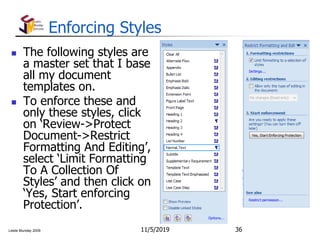
Enforcing Styles
 The following styles are
a master set that I base
all my document
templates on.
 To enforce these and
only these styles, click
on ‘Review->Protect
Document->Restrict
Formatting And Editing’,
select ‘Limit Formatting
To A Collection Of
Styles’ and then click on
‘Yes, Start enforcing
Protection’.
11/5/2019 36
Leslie Munday 2009
Style Types
 Alternate Flow – used to identify the title of an alternate flow in a use case.
 Appendix – the title of an appendix page to the document.
 Bullet List – used to create a bullet list.
 Emphasis Bold – makes the selected text bold.
 Emphasis Italic - makes the selected text italic.
 Extension Point – used to identify the title of an alternate flow in a use case.
 Figure Label Text – used to give a figure a title.
 Front Page – used on the front page of the document.
 Heading 1,2,3,4 – used to number headings in the document.
 Normal, Text – the default for all text in the document.
 Subtitle – used to add an un-numbered heading to the document.
 Supplementary Requirement – identifies supplementary requirements in a
document.
 Template Text – normal blue text that is for guideline and should be removed
from the document.
 Template Text Emphasized – bold blue text that should be removed from
the document.
 Use Case – identifies a use case title.
 Use Case Step – identifies any step in the use case flow.
11/5/2019 37

Using Styles and Properties with MS Word

  • 1.
    2009 copyright LeslieMunday University Working With Properties And Styles Requirements Discipline
  • 2.
    Leslie Munday 2009 Precursor In order to understand the material in this course, you should have a working knowledge of Microsoft Word. 11/5/2019 2
  • 3.
    Leslie Munday 2009 Overview In this lesson you will learn :  the purpose of an artifact’s properties.  how to set the value of a property.  how to use a property.  how to create a custom property.  how to use styles to format a paragraph.  how to use styles to format individual words.  how to use styles to format several blocks of text.  how to use styles to delete text from a document. 11/5/2019 3
  • 4.
    Leslie Munday 2009 WorkingWith Properties  Properties are the attributes of an artifact; for example, a Word document.  Document text that may be re-used in several different places in a document can be defined as a property.  If that text ever changes during the lifecycle of the project, the property is updated and the text is changed throughout the document.  A document from another project or application may be re-used by simply changing the appropriate property values.  Any way we can eliminate duplication in our work is good. 11/5/2019 4
  • 5.
    Leslie Munday 2009 SettingA Property  Open the document in MS Word.  Open the properties by clicking the Office Button, and selecting ‘Prepare->Properties’.  In the pane that appears, click on ‘Document Properties->Advanced Properties’.  In pop-up window that appears, select the ‘Custom’ tab.  Select the property whose value is to be changed.  Type the value into the ‘Value’ field and select ‘Modify’. 11/5/2019 5
  • 6.
    Leslie Munday 2009 OpenAdvanced Properties Window 11/5/2019 6
  • 7.
    Leslie Munday 2009 SelectA Property 11/5/2019 7
  • 8.
    Leslie Munday 2009 EnterA Value For The Property 11/5/2019 8  Type that value in the ‘Value’ field.  Click the ‘Modify’ button.
  • 9.
    Leslie Munday 2009 CreatingA Property  Enter a ‘Name’ for the property.  Enter a ‘Value’ for the property.  Click on the ‘Add’ button and the property is added to the custom properties. 11/5/2019 9
  • 10.
    Leslie Munday 2009 HowTo Update The Document  Close the properties window.  Select ALL text in the document (Ctrl-A).  Press F9, or the pop-up menu ‘Update Field’ command.  Open headers in the document.  Repeat..  Open footers in the document.  Repeat..  I have not found anyone who can explain why it is that updating the properties in a document’s text, does not update the properties in the header and footer.  Also I cannot fathom out why I have to execute an ‘Update Field’ command when I change a property .. surely, the reason I changed the value is because I want that value to be displayed in my document .. for what reason would I change a property value and not want it updated in the document? 11/5/2019 10
  • 11.
    Leslie Munday 2009 UpdateFields 11/5/2019 11  To update a single property, place the cursor in the field and select the ‘Update Field’ command.
  • 12.
    Leslie Munday 2009 HowDo I Use A Property  Place the cursor at the position where you want the text to appear.  From the ‘Insert’ tab select the ‘Quick Parts- >Field’ command.  When the field pop-up window appears select the ‘Document Information’ category and then the ‘DocProperty’ Field Name.  The document properties are displayed.  Select the property to be entered into the document body and press ‘Ok’. 11/5/2019 12
  • 13.
    Leslie Munday 2009 SelectingA Property 11/5/2019 13
  • 14.
    Leslie Munday 2009 UsingA Value  Property Value Appears In The Document. 11/5/2019 14
  • 15.
    Leslie Munday 2009 WhenTo Use Properties  Whenever information is repeated inside a document.  In the headers and footers of the document.  Anywhere that you think it would be appropriate to enter any of these values in the document. 11/5/2019 15
  • 16.
    Leslie Munday 2009 Exercise Open the AUC document template.  Set a value for the ‘Application’ property.  Update the document to reflect the application name.  Find an appropriate place to use the application name in the document.  Insert the Application name as a property.  Update the document. 11/5/2019 16
  • 17.
    Leslie Munday 2009 WorkingWith Styles  Styles are used to format the text in a Word document.  From Microsoft’s Developer Network web site. The reasons for using styles in a template are:  Consistency—When you use styles to format your templates, documents having the same function will have a similar, familiar appearance, and will be easier for the reader to understand.  Easier to Modify—If you use styles in your template consistently, you only need to update a given style once if you want to change the characteristics of all text formatted in that style.  Efficiency—You can create a style once, and then apply it to any section in the documents based upon the template without having to format each document individually.  Faster Navigation—Using styles lets you quickly move to different sections in a document using the Document Map feature and the vertical scrollbar's tips.  Bottom line—Use of any direct formatting in a document template is a very bad idea. It will cause the users of your templates (and, if there is any justice in the world, you) headaches. 11/5/2019 17
  • 18.
    Leslie Munday 2009 ShowAll Formatting  So that you can see where a paragraph begins and where it ends.  Make sure that ‘All’ formatting is displayed. 11/5/2019 18
  • 19.
    Leslie Munday 2009 DisplayingAvailable Styles  Select ‘Home->Styles’ from the Word ribbon and the task pane is displayed. 11/5/2019 19  Note that the style of the selected text is displayed in the styles window.
  • 20.
    Leslie Munday 2009 DisplayingA Paragraph Style  In the ‘Styles’ window you have a list of every style available to the document template.  The style of the text where the Word cursor is positioned is highlighted in the task pane. 11/5/2019 20 Yes, that is my address, but you can find that by searching the internet from and search engine.
  • 21.
    Leslie Munday 2009 WaysThat Styles May Be Used  Styles are useful for many different reasons; these are just some:  changing the style of a single paragraph,  changing the formatting of an assigned style,  changing all occurrences of a style within a document to a different style,  removing all text of a single style from a document. 11/5/2019 21
  • 22.
    Leslie Munday 2009 FormattingA Single Paragraph  Placing the cursor on text and clicking on a style will cause that paragraph to take on the selected style.  Text between 2 paragraph marks, indicates a paragraph. 11/5/2019 22 As a side note; Office 2007 introduced a new style named ‘linked’ style . This style operates exactly the same as the ‘paragraph’ style did with previous versions of Word. The paragraph (or as its no w known linked ) style is the only style type I have found that I need. Problem is that when I open Word documents created with a previous version of Word, I now have to change all of its style types from paragraph to linked. (Why do they do this to us!)
  • 23.
    Leslie Munday 2009 ApplyingA Style To Selected Text  To apply a style to a word or selected text within a paragraph, select the text with the cursor and then apply the style.  Text within a paragraph is selected and the ‘Emphasis Italic’ style is applied. 11/5/2019 23
  • 24.
    Leslie Munday 2009 ChangingStyle Of All Paragraphs  For some reason the text in your document has the wrong style applied:  Place the Word cursor on a piece of text with the incorrect style, the style name is selected in the styles pane.  Place the mouse cursor to the right of the style name and click on the ‘Select all X instances’ command.  All text with the incorrect style is now selected, so simply locate the correct style in the task pane and apply it. 11/5/2019 24
  • 25.
    Leslie Munday 2009 SelectStyle Of Multiple Paragraphs  Selecting all text of style ‘Heading 1’. 11/5/2019 25
  • 26.
    Leslie Munday 2009 SelectThe Style To Change Into 11/5/2019 26  All text of style ‘Heading 1’ is now of style ‘Heading 2’.
  • 27.
    Leslie Munday 2009 DeletingText Of A Style  Select all text of a particular style as shown previously and hit the ‘Delete’ key.  This method can be used to remove template text from a document template.  Hitting the ‘Delete’ key will cause all Italic text to be removed from the document. 11/5/2019 27
  • 28.
    Leslie Munday 2009 DisplayingThe Style Area  Set the style area width to somewhere around .5” 11/5/2019 28
  • 29.
    Leslie Munday 2009 Thestyles Area  The styles in use are displayed to the left of the text, but only in ‘Outline’ view. 11/5/2019 29
  • 30.
    Leslie Munday 2009 TipsFor Using Styles  The styles implementation in MS Word is not perfect:  If a paragraph refuses to change appropriately after clicking on a style, click on the ‘Clear Formatting’ style first and then select the correct style.  To nest a list of bullets within a bullet list, use the ‘Increase Indent’ command. The style remains the same.  To add another level of numbering to the number list style, use the ‘Increase Indent’ command.  When changing the style of text within a table, select the text and apply the ‘Clear Formatting’ command, then apply the correct style.  If there are styles in the style pane that you do not use, click on the ‘Manage Styles’ button at the bottom of the styles pane, when the ‘Manage Styles’ window appears, click the ‘Recommendations’ tab, locate the style in the list of styles, click it and click the ‘Hide’ button. 11/5/2019 30
  • 31.
    Leslie Munday 2009 LocateThe Templates  Open the ‘Word Options’ window.  Select the ‘Advanced’ tab.  Locate and select the ‘File Settings’ button.  Select the ‘User Templates’ setting and click on ‘Modify’.  Navigate to the location of your personal templates. 11/5/2019 31
  • 32.
    Leslie Munday 2009 LoseThe Toolbars and Formatting  On the ‘Tools’ menu select the ‘Customize’ command.  Select the ‘Toolbars’ tab and uncheck the formatting toolbar.  On the Word menu secondary-mouse button click on the ‘Format’ menu.  On the pop-up menu select ‘Delete’. 11/5/2019 32 This is the most frustrating thing about Word 2007 – it is no longer possible to customize the Word menus through the user interface.
  • 33.
    Leslie Munday 2009 Demo Demonstrate changing the style of:  a paragraph,  a word,  a single character,  all paragraphs of a single style,  and then deleting template text. 11/5/2019 33
  • 34.
    Leslie Munday 2009 Exercise Download the AUC template from my website, and save it your personal Word templates directory.  Point Word to the directory where you saved the template.  Select the ‘New’ command and when prompted selected ‘My Templates’.  Select the AUC template from the list of templates.  Remove all template text from the template.  Fill out the basic flow for a use case that allows you to make a withdrawal from an ATM.  Apply the ‘Use Case Step’ style to the steps in the basic flow.  Whenever the word ‘Card’ appears in the use case, use styles to make the word appear emphasized in Bold type. 11/5/2019 34
  • 35.
    Leslie Munday 2009 Summary In this lesson you learnt:  to format a paragraph,  to format individual words,  to format several blocks of text,  to delete text from a document,  how to use the styles task pane,  the advantage using properties,  how to set the value of a property,  how to create a custom property,  how to display a property value. 11/5/2019 35
  • 36.
    Leslie Munday 2009 EnforcingStyles  The following styles are a master set that I base all my document templates on.  To enforce these and only these styles, click on ‘Review->Protect Document->Restrict Formatting And Editing’, select ‘Limit Formatting To A Collection Of Styles’ and then click on ‘Yes, Start enforcing Protection’. 11/5/2019 36
  • 37.
    Leslie Munday 2009 StyleTypes  Alternate Flow – used to identify the title of an alternate flow in a use case.  Appendix – the title of an appendix page to the document.  Bullet List – used to create a bullet list.  Emphasis Bold – makes the selected text bold.  Emphasis Italic - makes the selected text italic.  Extension Point – used to identify the title of an alternate flow in a use case.  Figure Label Text – used to give a figure a title.  Front Page – used on the front page of the document.  Heading 1,2,3,4 – used to number headings in the document.  Normal, Text – the default for all text in the document.  Subtitle – used to add an un-numbered heading to the document.  Supplementary Requirement – identifies supplementary requirements in a document.  Template Text – normal blue text that is for guideline and should be removed from the document.  Template Text Emphasized – bold blue text that should be removed from the document.  Use Case – identifies a use case title.  Use Case Step – identifies any step in the use case flow. 11/5/2019 37