Lesson 10 Audio Editing Digital Video BASICS Schaefermeyer
Objectives Understand audio principles Add audio tracks to a Timeline Resynchronize audio and video Import audio from a CD Add an in and an out point to audio files Add an audio clip to the Timeline Schaefermeyer Digital Video BASICS
Objectives (continued) Adjust audio levels Add keyframes to an audio track Add audio transitions Fade audio in and out Schaefermeyer Digital Video BASICS
Vocabulary Audio levels Audio sweetening Audio synchronization Keyframes Schaefermeyer Digital Video BASICS
Introduction Schaefermeyer Digital Video BASICS  In a big budget Hollywood movie, lots of people are assigned to make sure they get the audio right. It is hard to get good audio during post-production if you do not record good audio during production. Give the audio priority during post-production.
Understanding Audio Principles Multiple audio tracks allow you to work on each part individually without affecting the other parts. Audio sweetening adds the final touches to any video you make. Music can help create a mood for the film. Sound effects draw the audience into the experience and make it real. Schaefermeyer Digital Video BASICS
Working with Final Cut Express If you record audio when you shot your video, the audio is captured at the same time. The audio is then added to the Timeline when you add the video. The audio automatically is added to tracks one and two. The default sequence settings in FCE include two video tracks and four audio tracks (two for dialog and two for music). Schaefermeyer Digital Video BASICS
Working with Final Cut Express  Adding Audio Track to the Timeline It is easier to work with the default four audio tracks and add new tracks only when absolutely necessary. On the Timeline, the green Audible button allows you to hear what is in the track. If you click it, the button turns gray and the track is muted. Source buttons allow you to decide which Timeline tracks the audio (or video) will go into. By default, the left Source channel will go into track A1, the right Resource channel will go into track A2.  Schaefermeyer Digital Video BASICS
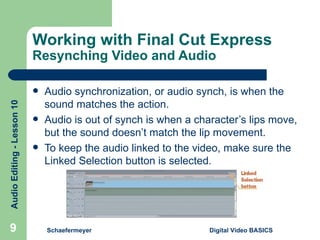
Working with Final Cut Express  Resynching Video and Audio Audio synchronization, or audio synch, is when the sound matches the action. Audio is out of synch is when a character’s lips move, but the sound doesn’t match the lip movement. To keep the audio linked to the video, make sure the Linked Selection button is selected. Schaefermeyer Digital Video BASICS
Working with Final Cut Express  Import an Audio File From a CD Music from a CD does not need rendering in FCE, while an mp3 or similar type of file needs rendering before you can work with it . Schaefermeyer Digital Video BASICS
Working with Final Cut Express  Adding Audio In and Out Points Schaefermeyer Digital Video BASICS  Sometimes you don’t want to add the entire audio clip to the Timeline window. You can create an in and out point and add the clip to the Timeline window. Mark In button  Mark Out button
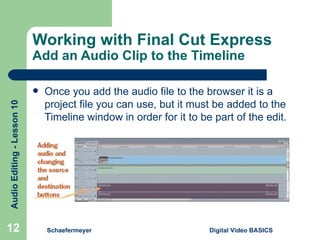
Working with Final Cut Express Add an Audio Clip to the Timeline Once you add the audio file to the browser it is a project file you can use, but it must be added to the Timeline window in order for it to be part of the edit. Schaefermeyer Digital Video BASICS
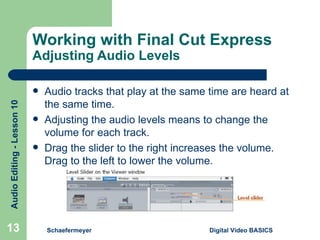
Working with Final Cut Express Adjusting Audio Levels Audio tracks that play at the same time are heard at the same time. Adjusting the audio levels means to change the volume for each track. Drag the slider to the right increases the volume. Drag to the left to lower the volume. Schaefermeyer Digital Video BASICS
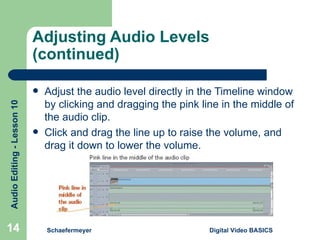
Adjusting Audio Levels (continued) Adjust the audio level directly in the Timeline window by clicking and dragging the pink line in the middle of the audio clip. Click and drag the line up to raise the volume, and drag it down to lower the volume. Schaefermeyer Digital Video BASICS
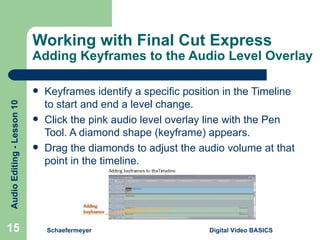
Working with Final Cut Express Adding Keyframes to the Audio Level Overlay Keyframes identify a specific position in the Timeline to start and end a level change. Click the pink audio level overlay line with the Pen Tool. A diamond shape (keyframe) appears. Drag the diamonds to adjust the audio volume at that point in the timeline. Schaefermeyer Digital Video BASICS
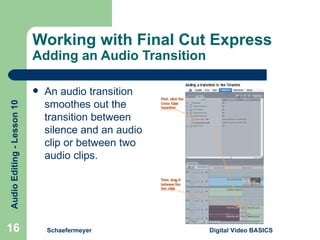
Working with Final Cut Express Adding an Audio Transition An audio transition smoothes out the transition between silence and an audio clip or between two audio clips. Schaefermeyer Digital Video BASICS
Working in Adobe Premiere Elements:  Importing Audio Schaefermeyer Digital Video BASICS  Some downloaded music from iTunes or another online music source cannot be played back in Premiere Elements. Music from a CD will need to be ripped using ripping software such as Windows Media Player. Remember to respect copyright.
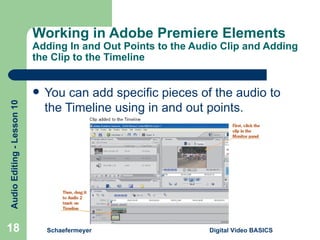
Working in Adobe Premiere Elements  Adding In and Out Points to the Audio Clip and Adding the Clip to the Timeline You can add specific pieces of the audio to the Timeline using in and out points. Schaefermeyer Digital Video BASICS
Working in Adobe Premiere Elements  Adjusting the Volume From the Timeline Schaefermeyer Digital Video BASICS  Audio with two tracks is imported into a single audio track. Audio in more than one channel allows you to work with one channel at a time. You cannot adjust anything in an audio clip until the clip is added to the Timeline window.
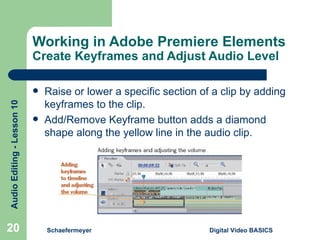
Working in Adobe Premiere Elements  Create Keyframes and Adjust Audio Level Schaefermeyer Digital Video BASICS  Raise or lower a specific section of a clip by adding keyframes to the clip. Add/Remove Keyframe button adds a diamond shape along the yellow line in the audio clip.
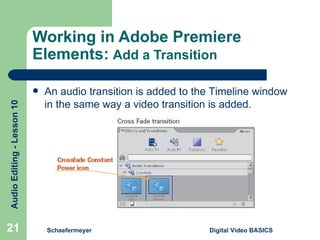
Working in Adobe Premiere Elements:   Add a Transition Schaefermeyer Digital Video BASICS  An audio transition is added to the Timeline window in the same way a video transition is added.
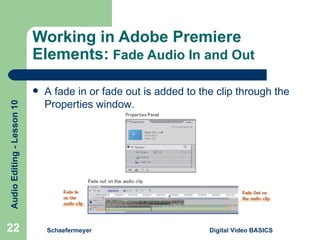
Working in Adobe Premiere Elements:   Fade Audio In and Out Schaefermeyer Digital Video BASICS  A fade in or fade out is added to the clip through the Properties window.
Summary Finished audio includes dialog, music, and special effects. It is possible to work with each audio element by loading each one into an audio track so each can be worked with separately. You can add additional audio tracks to a Timeline in order to add the separate audio elements. Audio files can be imported into Final Cut Express and Adobe Premiere Elements. The audio level of audio clips can be adjusted in order to make the audio volume louder or softer. Levels can be adjusted for the entire clip, or adjusted for only segments of the clip. Schaefermeyer Digital Video BASICS
Summary (continued) Sections of the clip can be adjusted by the use of keyframes. Transitions can be used to smooth the change between audio clips. Audio also can fade in and fade out. An audio fade in and fade out is a normal transition in Final Cut, but is added through the properties window in Premiere Elements. Schaefermeyer Digital Video BASICS

Unit 3 Lesson 10

  • 1.
    Lesson 10 AudioEditing Digital Video BASICS Schaefermeyer
  • 2.
    Objectives Understand audioprinciples Add audio tracks to a Timeline Resynchronize audio and video Import audio from a CD Add an in and an out point to audio files Add an audio clip to the Timeline Schaefermeyer Digital Video BASICS
  • 3.
    Objectives (continued) Adjustaudio levels Add keyframes to an audio track Add audio transitions Fade audio in and out Schaefermeyer Digital Video BASICS
  • 4.
    Vocabulary Audio levelsAudio sweetening Audio synchronization Keyframes Schaefermeyer Digital Video BASICS
  • 5.
    Introduction Schaefermeyer DigitalVideo BASICS In a big budget Hollywood movie, lots of people are assigned to make sure they get the audio right. It is hard to get good audio during post-production if you do not record good audio during production. Give the audio priority during post-production.
  • 6.
    Understanding Audio PrinciplesMultiple audio tracks allow you to work on each part individually without affecting the other parts. Audio sweetening adds the final touches to any video you make. Music can help create a mood for the film. Sound effects draw the audience into the experience and make it real. Schaefermeyer Digital Video BASICS
  • 7.
    Working with FinalCut Express If you record audio when you shot your video, the audio is captured at the same time. The audio is then added to the Timeline when you add the video. The audio automatically is added to tracks one and two. The default sequence settings in FCE include two video tracks and four audio tracks (two for dialog and two for music). Schaefermeyer Digital Video BASICS
  • 8.
    Working with FinalCut Express Adding Audio Track to the Timeline It is easier to work with the default four audio tracks and add new tracks only when absolutely necessary. On the Timeline, the green Audible button allows you to hear what is in the track. If you click it, the button turns gray and the track is muted. Source buttons allow you to decide which Timeline tracks the audio (or video) will go into. By default, the left Source channel will go into track A1, the right Resource channel will go into track A2. Schaefermeyer Digital Video BASICS
  • 9.
    Working with FinalCut Express Resynching Video and Audio Audio synchronization, or audio synch, is when the sound matches the action. Audio is out of synch is when a character’s lips move, but the sound doesn’t match the lip movement. To keep the audio linked to the video, make sure the Linked Selection button is selected. Schaefermeyer Digital Video BASICS
  • 10.
    Working with FinalCut Express Import an Audio File From a CD Music from a CD does not need rendering in FCE, while an mp3 or similar type of file needs rendering before you can work with it . Schaefermeyer Digital Video BASICS
  • 11.
    Working with FinalCut Express Adding Audio In and Out Points Schaefermeyer Digital Video BASICS Sometimes you don’t want to add the entire audio clip to the Timeline window. You can create an in and out point and add the clip to the Timeline window. Mark In button Mark Out button
  • 12.
    Working with FinalCut Express Add an Audio Clip to the Timeline Once you add the audio file to the browser it is a project file you can use, but it must be added to the Timeline window in order for it to be part of the edit. Schaefermeyer Digital Video BASICS
  • 13.
    Working with FinalCut Express Adjusting Audio Levels Audio tracks that play at the same time are heard at the same time. Adjusting the audio levels means to change the volume for each track. Drag the slider to the right increases the volume. Drag to the left to lower the volume. Schaefermeyer Digital Video BASICS
  • 14.
    Adjusting Audio Levels(continued) Adjust the audio level directly in the Timeline window by clicking and dragging the pink line in the middle of the audio clip. Click and drag the line up to raise the volume, and drag it down to lower the volume. Schaefermeyer Digital Video BASICS
  • 15.
    Working with FinalCut Express Adding Keyframes to the Audio Level Overlay Keyframes identify a specific position in the Timeline to start and end a level change. Click the pink audio level overlay line with the Pen Tool. A diamond shape (keyframe) appears. Drag the diamonds to adjust the audio volume at that point in the timeline. Schaefermeyer Digital Video BASICS
  • 16.
    Working with FinalCut Express Adding an Audio Transition An audio transition smoothes out the transition between silence and an audio clip or between two audio clips. Schaefermeyer Digital Video BASICS
  • 17.
    Working in AdobePremiere Elements: Importing Audio Schaefermeyer Digital Video BASICS Some downloaded music from iTunes or another online music source cannot be played back in Premiere Elements. Music from a CD will need to be ripped using ripping software such as Windows Media Player. Remember to respect copyright.
  • 18.
    Working in AdobePremiere Elements Adding In and Out Points to the Audio Clip and Adding the Clip to the Timeline You can add specific pieces of the audio to the Timeline using in and out points. Schaefermeyer Digital Video BASICS
  • 19.
    Working in AdobePremiere Elements Adjusting the Volume From the Timeline Schaefermeyer Digital Video BASICS Audio with two tracks is imported into a single audio track. Audio in more than one channel allows you to work with one channel at a time. You cannot adjust anything in an audio clip until the clip is added to the Timeline window.
  • 20.
    Working in AdobePremiere Elements Create Keyframes and Adjust Audio Level Schaefermeyer Digital Video BASICS Raise or lower a specific section of a clip by adding keyframes to the clip. Add/Remove Keyframe button adds a diamond shape along the yellow line in the audio clip.
  • 21.
    Working in AdobePremiere Elements: Add a Transition Schaefermeyer Digital Video BASICS An audio transition is added to the Timeline window in the same way a video transition is added.
  • 22.
    Working in AdobePremiere Elements: Fade Audio In and Out Schaefermeyer Digital Video BASICS A fade in or fade out is added to the clip through the Properties window.
  • 23.
    Summary Finished audioincludes dialog, music, and special effects. It is possible to work with each audio element by loading each one into an audio track so each can be worked with separately. You can add additional audio tracks to a Timeline in order to add the separate audio elements. Audio files can be imported into Final Cut Express and Adobe Premiere Elements. The audio level of audio clips can be adjusted in order to make the audio volume louder or softer. Levels can be adjusted for the entire clip, or adjusted for only segments of the clip. Schaefermeyer Digital Video BASICS
  • 24.
    Summary (continued) Sectionsof the clip can be adjusted by the use of keyframes. Transitions can be used to smooth the change between audio clips. Audio also can fade in and fade out. An audio fade in and fade out is a normal transition in Final Cut, but is added through the properties window in Premiere Elements. Schaefermeyer Digital Video BASICS