Editing plurality trailer on final
            cut pro
Basic editing
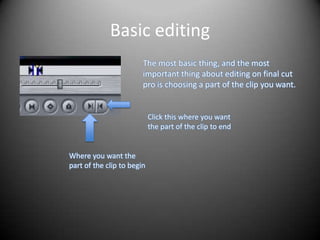
                        The most basic thing, and the most
                        important thing about editing on final cut
                        pro is choosing a part of the clip you want.


                            Click this where you want
                            the part of the clip to end


Where you want the
part of the clip to begin
Video transitions
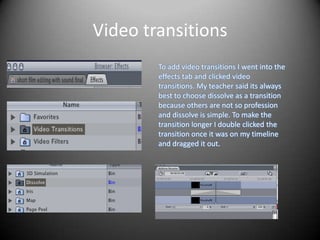
        To add video transitions I went into the
        effects tab and clicked video
        transitions. My teacher said its always
        best to choose dissolve as a transition
        because others are not so profession
        and dissolve is simple. To make the
        transition longer I double clicked the
        transition once it was on my timeline
        and dragged it out.
Audio transitions
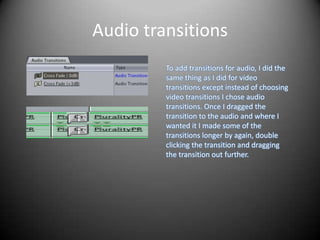
         To add transitions for audio, I did the
         same thing as I did for video
         transitions except instead of choosing
         video transitions I chose audio
         transitions. Once I dragged the
         transition to the audio and where I
         wanted it I made some of the
         transitions longer by again, double
         clicking the transition and dragging
         the transition out further.
Audio peaking
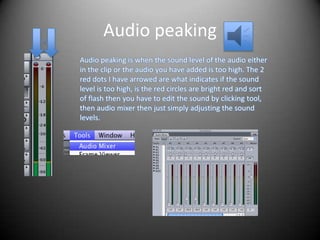
Audio peaking is when the sound level of the audio either
in the clip or the audio you have added is too high. The 2
red dots I have arrowed are what indicates if the sound
level is too high, is the red circles are bright red and sort
of flash then you have to edit the sound by clicking tool,
then audio mixer then just simply adjusting the sound
levels.
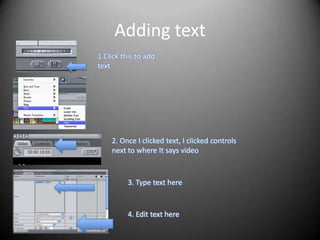
Adding text
1.Click this to add
text


    2. Once I clicked text, I clicked controls
    next to where It says video


          3. Type text here


          4. Edit text here

Editing plurality

  • 1.
    Editing plurality traileron final cut pro
  • 2.
    Basic editing The most basic thing, and the most important thing about editing on final cut pro is choosing a part of the clip you want. Click this where you want the part of the clip to end Where you want the part of the clip to begin
  • 3.
    Video transitions To add video transitions I went into the effects tab and clicked video transitions. My teacher said its always best to choose dissolve as a transition because others are not so profession and dissolve is simple. To make the transition longer I double clicked the transition once it was on my timeline and dragged it out.
  • 4.
    Audio transitions To add transitions for audio, I did the same thing as I did for video transitions except instead of choosing video transitions I chose audio transitions. Once I dragged the transition to the audio and where I wanted it I made some of the transitions longer by again, double clicking the transition and dragging the transition out further.
  • 5.
    Audio peaking Audio peakingis when the sound level of the audio either in the clip or the audio you have added is too high. The 2 red dots I have arrowed are what indicates if the sound level is too high, is the red circles are bright red and sort of flash then you have to edit the sound by clicking tool, then audio mixer then just simply adjusting the sound levels.
  • 6.
    Adding text 1.Click thisto add text 2. Once I clicked text, I clicked controls next to where It says video 3. Type text here 4. Edit text here