Ubuntu Usability Test Report Bentley University: Human Factors in Information Design HF750: Usability Testing & Assessment December 15, 2008  Dan Fitek, Don Goetz, Karen Gosciminski, Sunil Muniraju, Allison Yale
Six individuals participated in a usability test of Ubuntu version 8.04.1, a free, open-source operating system.  The test aimed to assess Ubuntu’s usability and identify barriers that might hinder Windows’ users from converting.  Participants commented on Ubuntu while performing six tasks and completed a questionnaire afterward about their experiences. Participants completed some tasks with relative ease (reorganizing files, using the word processing application). However, participants struggled to complete other tasks (connecting to a wireless network, changing the screen resolution).  A couple of participants reported interest in using Ubuntu, others hesitated to abandon their current Windows operating system and voiced concerns about application incompatibility and leaving their comfort zone. This report presents summarizes, the project’s goals, our usability test methodology, and our findings and associated recommendations. Executive summary
Test Methodology
A free, open source operating system.  The most popular free Linux-based operating system available.* Ubuntu (pronounced "oo-BOON-too“) is a Zulu word meaning “'Humanity to others,” or “I am what I am because of who we all are.” The Ubuntu distribution brings the spirit of Ubuntu to the software world.  Philosophy: “Every computer user should have the freedom to download, run, copy, distribute, study, share, change and improve their software for any purpose, without paying licensing fees. “ Ubuntu version 8.04.1 * http://www.desktoplinux.com/articles/AT5816278551.html
Canonical, Ubuntu’s commercial sponsor: Provides paid support for businesses using Ubuntu.  Wants to increase the number of Ubuntu users to increase revenue. Each Ubuntu developer and user:  Benefits as the number of users increases because open-source developers will be more interested in donating their time to improve Ubuntu and write software that runs on it. Makers of inexpensive PC’s: Benefit significantly if mainstream computer users are satisified using Ubuntu – computers can be discounted by up to $200 if they do not include the Windows Operating System. Stakeholders & goals
Assess the usability of the Ubuntu operating system.  Identify strengths and opportunities for improvement. Collect test participants’ feedback on their desire to use Ubuntu in the future. Identify the barriers to conversion to Ubuntu from Windows. Suggest ways in which Ubuntu developers can improve Ubuntu’s ease of use and ultimately increase the system’s user base. Test goals
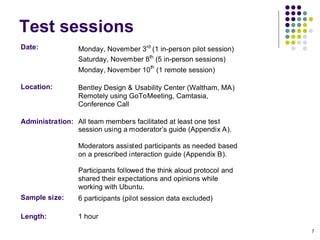
Test sessions
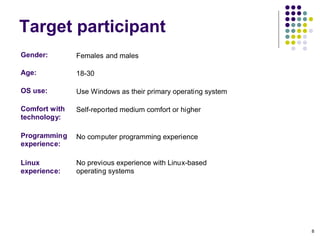
Target participant
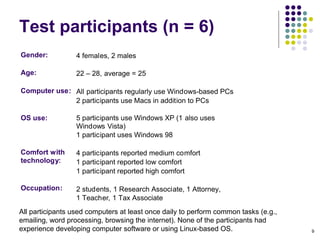
Test participants (n = 6)‏ All participants used computers at least once daily to perform common tasks (e.g., emailing, word processing, browsing the internet). None of the participants had experience developing computer software or using Linux-based OS.
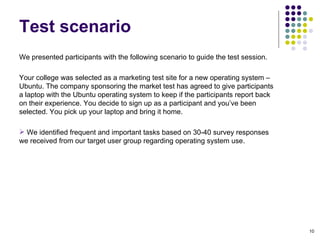
We presented participants with the following scenario to guide the test session. Your college was selected as a marketing test site for a new operating system – Ubuntu. The company sponsoring the market test has agreed to give participants a laptop with the Ubuntu operating system to keep if the participants report back on their experience. You decide to sign up as a participant and you’ve been selected. You pick up your laptop and bring it home. We identified frequent and important tasks based on 30-40 survey responses we received from our target user group regarding operating system use. Test scenario
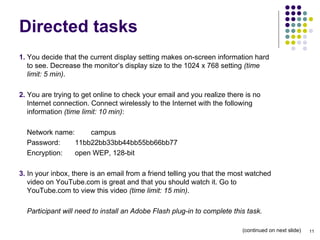
Directed tasks 1.  You decide that the current display setting makes on-screen information hard to see. Decrease the monitor’s display size to the 1024 x 768 setting  (time limit: 5 min) . 2.  You are trying to get online to check your email and you realize there is no Internet connection. Connect wirelessly to the Internet with the following information  (time limit: 10 min) : Network name:  campus Password:  11bb22bb33bb44bb55bb66bb77 Encryption:  open WEP, 128-bit 3.  In your inbox, there is an email from a friend telling you that the most watched video on YouTube.com is great and that you should watch it. Go to YouTube.com to view this video  (time limit: 15 min) . Participant will need to install an Adobe Flash plug-in to complete this task. (continued on next slide)‏
Directed tasks  (continued)‏ 4.  You recently took a trip home to visit family for the holidays and you took some pictures. Three of the pictures are on the desktop. Create a new folder called ‘Family’ in an appropriate place to store the pictures. Move them off of the desktop and into this folder  (time limit: 5 min) . 5.  Earlier, you downloaded a few songs to the  Music  folder. Play one of these songs  (time limit: 10 min).  Participant will need to download a codec to complete this task. 6.  Your grandmother sent you a batch of homemade cookies for your birthday and since you have terrible handwriting and your grandmother has poor vision, you want to type up a “thank you” letter in 20-point font. Type the following letter and save it onto the hard drive so that you can print it out later  (time limit: 7 min).  Dear Grandma, Thank you very much for the delicious cookies. I can’t wait to see you next  month for dinner!  Love, Pat
Participants provided basic information about their background and computer experience via a pre-test questionnaire (see Appendix C). During each task, we collected the following data directly into a Microsoft Excel spreadsheet:  Participants’ path while navigating through the operating system Participants’ comments Observations Any assistance the moderator provided Task time Participants’ ease of use rating (1 = poor, 5 = excellent)‏ After completing the directed tasks, participants provided feedback on Ubuntu by completing a post-test questionnaire (see Appendix D). Data collection
We reviewed all quantitative and qualitative task data. Specifically, we:  Tallied the number of participants who: Completed the task successfully within the predetermined time limit. Required assistance to complete the task. Calculated average task times. Reviewed participants’ anecdotal comments and notetaker observations to identify what might have hindered task completion. Reviewed responses to post-test questionnaires to:  Understand why participants would or would not use  Ubuntu as a primary or secondary OS. Calculate the average of various post-test ratings. Data analysis
Task Data
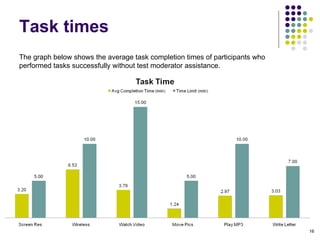
Task times The graph below shows the average task completion times of participants who performed tasks successfully without test moderator assistance.
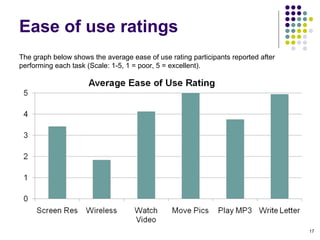
Ease of use ratings The graph below shows the average ease of use rating participants reported after performing each task (Scale: 1-5, 1 = poor, 5 = excellent).
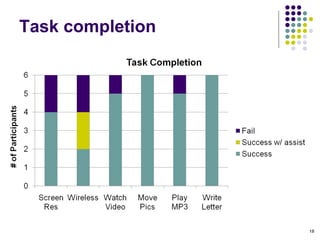
Task completion
Findings
Summary There were certain tasks which participants had no problems performing. There are some aspects of the Ubuntu operating system that could be improved. Many of the usability issues described in this report fall within a couple overall themes. The menu item labels and organization are very developer-centric. To  increase the system’s usability, design the user interface with the user in mind. Given that the Linux and open-source philosophy may be at odds with this recommendation, try to strike a balance between developers’ needs and those of users. Controls and settings do not directly support common user tasks as effectively as possible. This became particularly evident as participants attempted to establish a wireless connection (Task 2). From a system’s perspective, it is a matter of changing a network setting. However, the user is focused on his/her goal of connecting to the Internet and surfing the web. The system should be designed to support this goal from beginning to end. As it stands, the task is designed from a functional perspective and users are required to determine exactly which system changes they need to make in order to accomplish their goal.
Strengths These are some of the words Ubuntu developers use to describe Ubuntu*: “ Desktop simplicity,”  “Just Works,” “Quick and easy updates” Ubuntu comes with a complete office productivity suite – an open source equivalent to Microsoft Office – called OpenOffice. The application is similar to Office and most participants were able to access and use the application. Participants commented it was very similar to the previous office application they had used. A few participants were also able to easily identify that they could save their documents in Microsoft Office file formats – this helps users working with multiple operating systems. * http://www.ubuntu.com/products/WhatIsUbuntu/desktopedition
Strengths  (continued)‏ Ubuntu file system management: Creating folders Moving files across folders Organizing folders The basic file management options on Ubuntu is very simple and easy. All participants were able to go through these tasks without any issues. Participants said that these options were similar to those in Windows operating systems and that they did not have to do anything differently. Participants understood that  Applications ,  Places ,  System  on the task bar were menu items. Participants quickly learned which items were located in the  Places  menu (e.g., music files and photos). They knew to click on these menus to view the sub menu items. Participants were also comfortable with the various icons in the system tray including the network icon, updates icon, etc.
The next group of slides describes some of the usability issues participants encountered while performing tasks with Ubuntu. To help the Ubuntu developer community address and prioritize our findings, we provide a brief recommendation and assign one of the following priority levels.  We considered the problem’s severity, frequency of occurrence during the test, and potential affect on the business goals when assessing each issue:  High : Something that prevented successful task completion or that caused significant user frustration or significant errors. Medium : Something that interfered with task completion or led to user frustration. Fixing this should improve user productivity or operating system acceptance. Low :   Something that was a minor annoyance or resulted in minor delays in task completion. Typically considered a cosmetic or preference issue. Severity rating scale
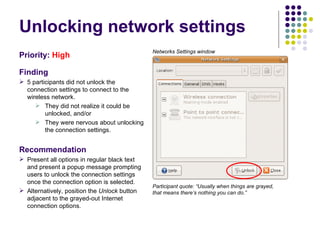
Unlocking network settings Priority:   High Finding 5 participants did not unlock the connection settings to connect to the wireless network.  They did not realize it could be unlocked, and/or They were nervous about unlocking the connection settings. Recommendation Present all options in regular black text and present a popup message prompting users to unlock the connection settings once the connection option is selected. Alternatively, position the  Unlock  button adjacent to the grayed-out Internet connection options. Participant quote: “Usually when things are grayed, that means there’s nothing you can do.”  Networks Settings window
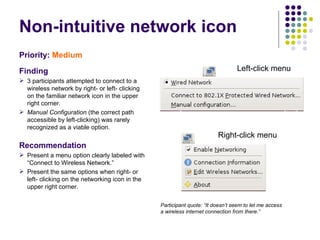
Non-intuitive network icon Priority:   Medium Finding 3 participants attempted to connect to a wireless network by right- or left- clicking on the familiar network icon in the upper right corner.  Manual Configuration  (the correct path accessible by left-clicking) was rarely recognized as a viable option. Recommendation Present a menu option clearly labeled with “Connect to Wireless Network.” Present the same options when right- or left- clicking on the networking icon in the upper right corner.  Participant quote: “It doesn’t seem to let me access a wireless internet connection from there.”  Left-click menu Right-click menu
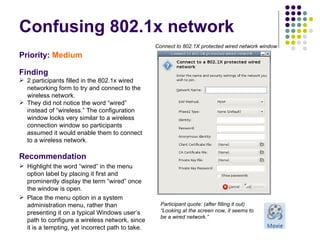
Confusing 802.1x network Priority:  Medium   Finding 2 participants filled in the 802.1x wired networking form to try and connect to the wireless network.  They did not notice the word “wired” instead of “wireless.” The configuration window looks very similar to a wireless connection window so participants assumed it would enable them to connect to a wireless network. Recommendation Highlight the word “wired” in the menu option label by placing it first and prominently display the term “wired” once the window is open. Place the menu option in a system administration menu, rather than presenting it on a typical Windows user’s path to configure a wireless network, since it is a tempting, yet incorrect path to take. Participant quote: (after filling it out) “Looking at the screen now, it seems to be a wired network.” Connect to 802.1X protected wired network window
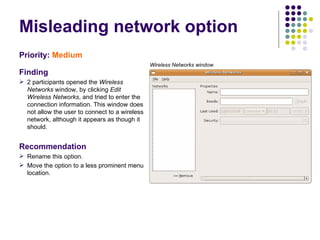
Misleading network option  Priority:   Medium   Finding 2 participants opened the  Wireless Networks  window, by clicking  Edit Wireless Networks , and tried to enter the connection information. This window does not allow the user to connect to a wireless network, although it appears as though it should. Recommendation Rename this option. Move the option to a less prominent menu location. Wireless Networks window
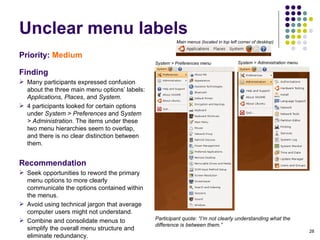
Unclear menu labels Priority:   Medium Finding Many participants expressed confusion about the three main menu options’ labels:  Applications, Places , and  System.  4 participants looked for certain options under  System > Preferences  and S ystem > Administration . The items under these two menu hierarchies seem to overlap, and there is no clear distinction between them. Recommendation Seek opportunities to reword the primary menu options to more clearly communicate the options contained within the menus.  Avoid using technical jargon that average computer users might not understand. Combine and consolidate menus to simplify the overall menu structure and eliminate redundancy. Participant quote: “I’m not clearly understanding what the difference is between them.” Main menus (located in top left corner of desktop)‏ System > Preferences menu System > Administration menu
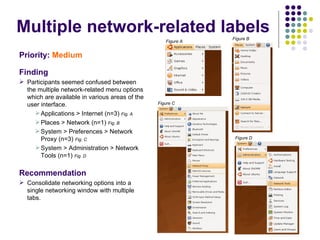
Multiple network-related labels Priority:   Medium Finding Participants seemed confused between the multiple network-related menu options which are available in various areas of the user interface.  Applications > Internet (n=3)  Fig. A Places > Network (n=1)  Fig. B System > Preferences > Network Proxy (n=3)  Fig. C System > Administration > Network Tools (n=1)  Fig. D Recommendation Consolidate networking options into a single networking window with multiple tabs. Figure A Figure B Figure C Figure D
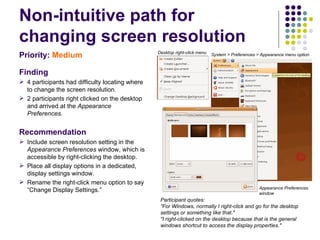
Non-intuitive path for changing screen resolution Priority:   Medium Finding 4 participants had difficulty locating where to change the screen resolution .  2 participants right clicked on the desktop and arrived at the  Appearance Preferences .  Recommendation Include screen resolution setting in the  Appearance Preferences  window, which is accessible by right-clicking the desktop. Place all display options in a dedicated, display settings window. Rename the right-click menu option to say “Change Display Settings.” Appearance Preferences window Participant quotes:  “For Windows, normally I right-click and go for the desktop settings or something like that."  "I right-clicked on the desktop because that is the general windows shortcut to access the display properties." Desktop right-click menu System > Preferences > Appearance menu option
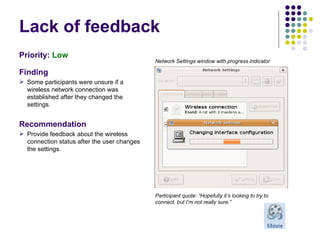
Lack of feedback Priority:  Low   Finding Some participants were unsure if a wireless network connection was established after they changed the settings. Recommendation Provide feedback about the wireless connection status after the user changes the settings. Participant quote: “Hopefully it’s looking to try to connect, but I’m not really sure.” Network Settings window with progress indicator
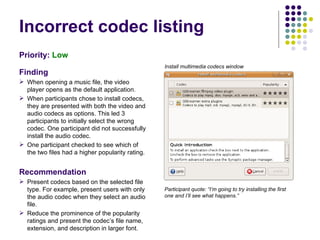
Incorrect codec listing Priority:   Low Finding When opening a music file, the video player opens as the default application.  When participants chose to install codecs, they are presented with both the video and audio codecs as options. This led 3 participants to initially select the wrong codec. One participant did not successfully install the audio codec. One participant checked to see which of the two files had a higher popularity rating. Recommendation Present codecs based on the selected file type. For example, present users with only the audio codec when they select an audio file. Reduce the prominence of the popularity ratings and present the codec’s file name, extension, and description in larger font. Participant quote: “I’m going to try installing the first one and I’ll see what happens.” Install multimedia codecs window
Participant Feedback
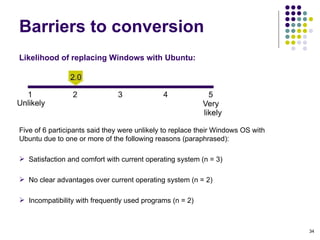
Likelihood of replacing Windows with Ubuntu:    Five of 6 participants said they were unlikely to replace their Windows OS with Ubuntu due to one or more of the following reasons (paraphrased): Satisfaction and comfort with current operating system (n = 3)‏ No clear advantages over current operating system (n = 2)‏ Incompatibility with frequently used programs (n = 2)‏ Barriers to conversion
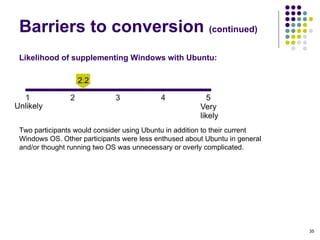
Likelihood of supplementing Windows with Ubuntu:   Two participants would consider using Ubuntu in addition to their current Windows OS. Other participants were less enthused about Ubuntu in general and/or thought running two OS was unnecessary or overly complicated. Barriers to conversion  (continued)‏
Added functionality that is not available in Windows operating systems If it was more a widely used and accepted system Increased availability Increased knowledge of how to convert a computer to Ubuntu and which  files and applications would translate easily to a Linux-based OS If it was more stable than Windows XP but it presented a similar (i.e., familiar) graphical user interface One participant was unsure what would increase her interest in using Ubuntu. What would increase interest* * Paraphrased participant comments
Provide a comprehensive user’s manual Add a “quick launch” – type menu so users can acces frequently used programs without navigating menus  (included in Ubuntu’s top menu bar)‏ Add a centralized, primary navigation button (e.g., Windows’ Start menu)‏ Design its functionality to mimic Windows XP functionality The remaining two participants considered Ubuntu to be sufficiently easy to use. Suggestions for improvement* * Paraphrased participant comments
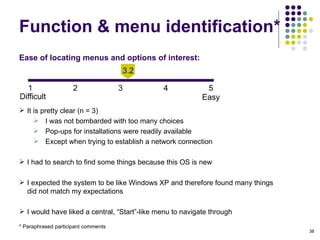
Ease of locating menus and options of interest:    It is pretty clear (n = 3)‏ I was not bombarded with too many choices Pop-ups for installations were readily available Except when trying to establish a network connection I had to search to find some things because this OS is new I expected the system to be like Windows XP and therefore found many things did not match my expectations I would have liked a central, “Start”-like menu to navigate through Function & menu identification* * Paraphrased participant comments
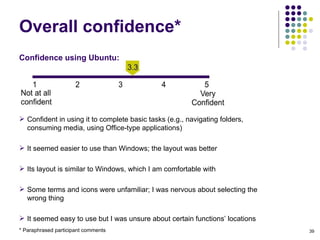
Confidence using Ubuntu:      Confident in using it to complete basic tasks (e.g., navigating folders, consuming media, using Office-type applications)‏ It seemed easier to use than Windows; the layout was better Its layout is similar to Windows, which I am comfortable with Some terms and icons were unfamiliar; I was nervous about selecting the wrong thing It seemed easy to use but I was unsure about certain functions’ locations Overall confidence* * Paraphrased participant comments

Ubuntu Usability Test Report

  • 1.
    Ubuntu Usability TestReport Bentley University: Human Factors in Information Design HF750: Usability Testing & Assessment December 15, 2008 Dan Fitek, Don Goetz, Karen Gosciminski, Sunil Muniraju, Allison Yale
  • 2.
    Six individuals participatedin a usability test of Ubuntu version 8.04.1, a free, open-source operating system. The test aimed to assess Ubuntu’s usability and identify barriers that might hinder Windows’ users from converting. Participants commented on Ubuntu while performing six tasks and completed a questionnaire afterward about their experiences. Participants completed some tasks with relative ease (reorganizing files, using the word processing application). However, participants struggled to complete other tasks (connecting to a wireless network, changing the screen resolution). A couple of participants reported interest in using Ubuntu, others hesitated to abandon their current Windows operating system and voiced concerns about application incompatibility and leaving their comfort zone. This report presents summarizes, the project’s goals, our usability test methodology, and our findings and associated recommendations. Executive summary
  • 3.
  • 4.
    A free, opensource operating system. The most popular free Linux-based operating system available.* Ubuntu (pronounced "oo-BOON-too“) is a Zulu word meaning “'Humanity to others,” or “I am what I am because of who we all are.” The Ubuntu distribution brings the spirit of Ubuntu to the software world. Philosophy: “Every computer user should have the freedom to download, run, copy, distribute, study, share, change and improve their software for any purpose, without paying licensing fees. “ Ubuntu version 8.04.1 * http://www.desktoplinux.com/articles/AT5816278551.html
  • 5.
    Canonical, Ubuntu’s commercialsponsor: Provides paid support for businesses using Ubuntu. Wants to increase the number of Ubuntu users to increase revenue. Each Ubuntu developer and user: Benefits as the number of users increases because open-source developers will be more interested in donating their time to improve Ubuntu and write software that runs on it. Makers of inexpensive PC’s: Benefit significantly if mainstream computer users are satisified using Ubuntu – computers can be discounted by up to $200 if they do not include the Windows Operating System. Stakeholders & goals
  • 6.
    Assess the usabilityof the Ubuntu operating system. Identify strengths and opportunities for improvement. Collect test participants’ feedback on their desire to use Ubuntu in the future. Identify the barriers to conversion to Ubuntu from Windows. Suggest ways in which Ubuntu developers can improve Ubuntu’s ease of use and ultimately increase the system’s user base. Test goals
  • 7.
  • 8.
  • 9.
    Test participants (n= 6)‏ All participants used computers at least once daily to perform common tasks (e.g., emailing, word processing, browsing the internet). None of the participants had experience developing computer software or using Linux-based OS.
  • 10.
    We presented participantswith the following scenario to guide the test session. Your college was selected as a marketing test site for a new operating system – Ubuntu. The company sponsoring the market test has agreed to give participants a laptop with the Ubuntu operating system to keep if the participants report back on their experience. You decide to sign up as a participant and you’ve been selected. You pick up your laptop and bring it home. We identified frequent and important tasks based on 30-40 survey responses we received from our target user group regarding operating system use. Test scenario
  • 11.
    Directed tasks 1. You decide that the current display setting makes on-screen information hard to see. Decrease the monitor’s display size to the 1024 x 768 setting (time limit: 5 min) . 2. You are trying to get online to check your email and you realize there is no Internet connection. Connect wirelessly to the Internet with the following information (time limit: 10 min) : Network name: campus Password: 11bb22bb33bb44bb55bb66bb77 Encryption: open WEP, 128-bit 3. In your inbox, there is an email from a friend telling you that the most watched video on YouTube.com is great and that you should watch it. Go to YouTube.com to view this video (time limit: 15 min) . Participant will need to install an Adobe Flash plug-in to complete this task. (continued on next slide)‏
  • 12.
    Directed tasks (continued)‏ 4. You recently took a trip home to visit family for the holidays and you took some pictures. Three of the pictures are on the desktop. Create a new folder called ‘Family’ in an appropriate place to store the pictures. Move them off of the desktop and into this folder (time limit: 5 min) . 5. Earlier, you downloaded a few songs to the Music folder. Play one of these songs (time limit: 10 min). Participant will need to download a codec to complete this task. 6. Your grandmother sent you a batch of homemade cookies for your birthday and since you have terrible handwriting and your grandmother has poor vision, you want to type up a “thank you” letter in 20-point font. Type the following letter and save it onto the hard drive so that you can print it out later (time limit: 7 min). Dear Grandma, Thank you very much for the delicious cookies. I can’t wait to see you next month for dinner! Love, Pat
  • 13.
    Participants provided basicinformation about their background and computer experience via a pre-test questionnaire (see Appendix C). During each task, we collected the following data directly into a Microsoft Excel spreadsheet: Participants’ path while navigating through the operating system Participants’ comments Observations Any assistance the moderator provided Task time Participants’ ease of use rating (1 = poor, 5 = excellent)‏ After completing the directed tasks, participants provided feedback on Ubuntu by completing a post-test questionnaire (see Appendix D). Data collection
  • 14.
    We reviewed allquantitative and qualitative task data. Specifically, we: Tallied the number of participants who: Completed the task successfully within the predetermined time limit. Required assistance to complete the task. Calculated average task times. Reviewed participants’ anecdotal comments and notetaker observations to identify what might have hindered task completion. Reviewed responses to post-test questionnaires to: Understand why participants would or would not use Ubuntu as a primary or secondary OS. Calculate the average of various post-test ratings. Data analysis
  • 15.
  • 16.
    Task times Thegraph below shows the average task completion times of participants who performed tasks successfully without test moderator assistance.
  • 17.
    Ease of useratings The graph below shows the average ease of use rating participants reported after performing each task (Scale: 1-5, 1 = poor, 5 = excellent).
  • 18.
  • 19.
  • 20.
    Summary There werecertain tasks which participants had no problems performing. There are some aspects of the Ubuntu operating system that could be improved. Many of the usability issues described in this report fall within a couple overall themes. The menu item labels and organization are very developer-centric. To increase the system’s usability, design the user interface with the user in mind. Given that the Linux and open-source philosophy may be at odds with this recommendation, try to strike a balance between developers’ needs and those of users. Controls and settings do not directly support common user tasks as effectively as possible. This became particularly evident as participants attempted to establish a wireless connection (Task 2). From a system’s perspective, it is a matter of changing a network setting. However, the user is focused on his/her goal of connecting to the Internet and surfing the web. The system should be designed to support this goal from beginning to end. As it stands, the task is designed from a functional perspective and users are required to determine exactly which system changes they need to make in order to accomplish their goal.
  • 21.
    Strengths These aresome of the words Ubuntu developers use to describe Ubuntu*: “ Desktop simplicity,” “Just Works,” “Quick and easy updates” Ubuntu comes with a complete office productivity suite – an open source equivalent to Microsoft Office – called OpenOffice. The application is similar to Office and most participants were able to access and use the application. Participants commented it was very similar to the previous office application they had used. A few participants were also able to easily identify that they could save their documents in Microsoft Office file formats – this helps users working with multiple operating systems. * http://www.ubuntu.com/products/WhatIsUbuntu/desktopedition
  • 22.
    Strengths (continued)‏Ubuntu file system management: Creating folders Moving files across folders Organizing folders The basic file management options on Ubuntu is very simple and easy. All participants were able to go through these tasks without any issues. Participants said that these options were similar to those in Windows operating systems and that they did not have to do anything differently. Participants understood that Applications , Places , System on the task bar were menu items. Participants quickly learned which items were located in the Places menu (e.g., music files and photos). They knew to click on these menus to view the sub menu items. Participants were also comfortable with the various icons in the system tray including the network icon, updates icon, etc.
  • 23.
    The next groupof slides describes some of the usability issues participants encountered while performing tasks with Ubuntu. To help the Ubuntu developer community address and prioritize our findings, we provide a brief recommendation and assign one of the following priority levels. We considered the problem’s severity, frequency of occurrence during the test, and potential affect on the business goals when assessing each issue: High : Something that prevented successful task completion or that caused significant user frustration or significant errors. Medium : Something that interfered with task completion or led to user frustration. Fixing this should improve user productivity or operating system acceptance. Low : Something that was a minor annoyance or resulted in minor delays in task completion. Typically considered a cosmetic or preference issue. Severity rating scale
  • 24.
    Unlocking network settingsPriority: High Finding 5 participants did not unlock the connection settings to connect to the wireless network. They did not realize it could be unlocked, and/or They were nervous about unlocking the connection settings. Recommendation Present all options in regular black text and present a popup message prompting users to unlock the connection settings once the connection option is selected. Alternatively, position the Unlock button adjacent to the grayed-out Internet connection options. Participant quote: “Usually when things are grayed, that means there’s nothing you can do.” Networks Settings window
  • 25.
    Non-intuitive network iconPriority: Medium Finding 3 participants attempted to connect to a wireless network by right- or left- clicking on the familiar network icon in the upper right corner. Manual Configuration (the correct path accessible by left-clicking) was rarely recognized as a viable option. Recommendation Present a menu option clearly labeled with “Connect to Wireless Network.” Present the same options when right- or left- clicking on the networking icon in the upper right corner. Participant quote: “It doesn’t seem to let me access a wireless internet connection from there.” Left-click menu Right-click menu
  • 26.
    Confusing 802.1x networkPriority: Medium Finding 2 participants filled in the 802.1x wired networking form to try and connect to the wireless network. They did not notice the word “wired” instead of “wireless.” The configuration window looks very similar to a wireless connection window so participants assumed it would enable them to connect to a wireless network. Recommendation Highlight the word “wired” in the menu option label by placing it first and prominently display the term “wired” once the window is open. Place the menu option in a system administration menu, rather than presenting it on a typical Windows user’s path to configure a wireless network, since it is a tempting, yet incorrect path to take. Participant quote: (after filling it out) “Looking at the screen now, it seems to be a wired network.” Connect to 802.1X protected wired network window
  • 27.
    Misleading network option Priority: Medium Finding 2 participants opened the Wireless Networks window, by clicking Edit Wireless Networks , and tried to enter the connection information. This window does not allow the user to connect to a wireless network, although it appears as though it should. Recommendation Rename this option. Move the option to a less prominent menu location. Wireless Networks window
  • 28.
    Unclear menu labelsPriority: Medium Finding Many participants expressed confusion about the three main menu options’ labels: Applications, Places , and System. 4 participants looked for certain options under System > Preferences and S ystem > Administration . The items under these two menu hierarchies seem to overlap, and there is no clear distinction between them. Recommendation Seek opportunities to reword the primary menu options to more clearly communicate the options contained within the menus. Avoid using technical jargon that average computer users might not understand. Combine and consolidate menus to simplify the overall menu structure and eliminate redundancy. Participant quote: “I’m not clearly understanding what the difference is between them.” Main menus (located in top left corner of desktop)‏ System > Preferences menu System > Administration menu
  • 29.
    Multiple network-related labelsPriority: Medium Finding Participants seemed confused between the multiple network-related menu options which are available in various areas of the user interface. Applications > Internet (n=3) Fig. A Places > Network (n=1) Fig. B System > Preferences > Network Proxy (n=3) Fig. C System > Administration > Network Tools (n=1) Fig. D Recommendation Consolidate networking options into a single networking window with multiple tabs. Figure A Figure B Figure C Figure D
  • 30.
    Non-intuitive path forchanging screen resolution Priority: Medium Finding 4 participants had difficulty locating where to change the screen resolution . 2 participants right clicked on the desktop and arrived at the Appearance Preferences . Recommendation Include screen resolution setting in the Appearance Preferences window, which is accessible by right-clicking the desktop. Place all display options in a dedicated, display settings window. Rename the right-click menu option to say “Change Display Settings.” Appearance Preferences window Participant quotes: “For Windows, normally I right-click and go for the desktop settings or something like that." "I right-clicked on the desktop because that is the general windows shortcut to access the display properties." Desktop right-click menu System > Preferences > Appearance menu option
  • 31.
    Lack of feedbackPriority: Low Finding Some participants were unsure if a wireless network connection was established after they changed the settings. Recommendation Provide feedback about the wireless connection status after the user changes the settings. Participant quote: “Hopefully it’s looking to try to connect, but I’m not really sure.” Network Settings window with progress indicator
  • 32.
    Incorrect codec listingPriority: Low Finding When opening a music file, the video player opens as the default application. When participants chose to install codecs, they are presented with both the video and audio codecs as options. This led 3 participants to initially select the wrong codec. One participant did not successfully install the audio codec. One participant checked to see which of the two files had a higher popularity rating. Recommendation Present codecs based on the selected file type. For example, present users with only the audio codec when they select an audio file. Reduce the prominence of the popularity ratings and present the codec’s file name, extension, and description in larger font. Participant quote: “I’m going to try installing the first one and I’ll see what happens.” Install multimedia codecs window
  • 33.
  • 34.
    Likelihood of replacingWindows with Ubuntu: Five of 6 participants said they were unlikely to replace their Windows OS with Ubuntu due to one or more of the following reasons (paraphrased): Satisfaction and comfort with current operating system (n = 3)‏ No clear advantages over current operating system (n = 2)‏ Incompatibility with frequently used programs (n = 2)‏ Barriers to conversion
  • 35.
    Likelihood of supplementingWindows with Ubuntu: Two participants would consider using Ubuntu in addition to their current Windows OS. Other participants were less enthused about Ubuntu in general and/or thought running two OS was unnecessary or overly complicated. Barriers to conversion (continued)‏
  • 36.
    Added functionality thatis not available in Windows operating systems If it was more a widely used and accepted system Increased availability Increased knowledge of how to convert a computer to Ubuntu and which files and applications would translate easily to a Linux-based OS If it was more stable than Windows XP but it presented a similar (i.e., familiar) graphical user interface One participant was unsure what would increase her interest in using Ubuntu. What would increase interest* * Paraphrased participant comments
  • 37.
    Provide a comprehensiveuser’s manual Add a “quick launch” – type menu so users can acces frequently used programs without navigating menus (included in Ubuntu’s top menu bar)‏ Add a centralized, primary navigation button (e.g., Windows’ Start menu)‏ Design its functionality to mimic Windows XP functionality The remaining two participants considered Ubuntu to be sufficiently easy to use. Suggestions for improvement* * Paraphrased participant comments
  • 38.
    Ease of locatingmenus and options of interest: It is pretty clear (n = 3)‏ I was not bombarded with too many choices Pop-ups for installations were readily available Except when trying to establish a network connection I had to search to find some things because this OS is new I expected the system to be like Windows XP and therefore found many things did not match my expectations I would have liked a central, “Start”-like menu to navigate through Function & menu identification* * Paraphrased participant comments
  • 39.
    Confidence using Ubuntu: Confident in using it to complete basic tasks (e.g., navigating folders, consuming media, using Office-type applications)‏ It seemed easier to use than Windows; the layout was better Its layout is similar to Windows, which I am comfortable with Some terms and icons were unfamiliar; I was nervous about selecting the wrong thing It seemed easy to use but I was unsure about certain functions’ locations Overall confidence* * Paraphrased participant comments