Creating Forms
Tutorial VI
HTML files or part of files made to be
filled in by viewer / reader for the purpose of
submitting information to the form’s
originator.
HTML Forms
CGI ( Common Gateway Interface) Script
is any program or set of commands
running on the Web server that receives
data from the Web page and then acts
on that data to perform a certain task.
Elements of Forms:
Input boxes – for text and
numerical entries
Radio buttons – also called
option buttons, to select a single
option from a predefined list
Selection lists – for long lists of
options, usually in a drop-down
list box
Check boxes – to specify an
item as either being present or
absent
Text areas – for extended
entries that might include several
lines of text
Submit and Reset buttons – to
either submit the form to the CGI
script or to reset the form to its
original state
CGI script can be written in variety of
computer languages such as the
following:
AppleScript
C / C++
Perl
The UNIX shell
TCL
Visual Basic
JavaScript
Syntax of Form:
<FORM Properties>
Form elements and layout tags
</FORM>
Working with Input Boxes
Input Box – is a single-line box into
which the user can enter text or
numbers.
Syntax:
<INPUT TYPE = Option NAME = Text>
where option is the type of input field, and Text is
the name assigned to the input field.
Example
<INPUT NAME=Country>
Setting a Default Value for an Input
Box
<INPUT SIZE = “value”>
where value is the default text or number that will
appear in the field.
Example
<INPUT NAME=Address SIZE=50>
Creating a Password field
<INPUT TYPE = PASSWORD>
Password Field – is identical to an
input box except that the
characters typed by the user are
displayed as bullets or asterisks.
CREATING A SELECTION LIST
To create a selection list, use the
following set of HTML tags:
<SELECT NAME = Text>
<OPTION> Option 1
<OPTION> Option 2
<OPTION> Option 3
.
.
</SELECT>
Where the NAME property is the field name of the
selection list, and each <OPTION> tag represents
an entry in the list.
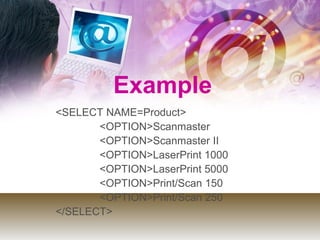
<SELECT NAME=Product>
<OPTION>Scanmaster
<OPTION>Scanmaster II
<OPTION>LaserPrint 1000
<OPTION>LaserPrint 5000
<OPTION>Print/Scan 150
<OPTION>Print/Scan 250
</SELECT>
Example
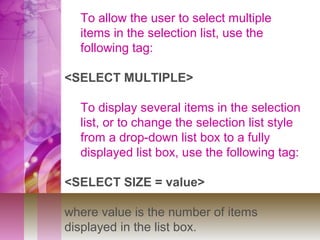
To allow the user to select multiple
items in the selection list, use the
following tag:
<SELECT MULTIPLE>
To display several items in the selection
list, or to change the selection list style
from a drop-down list box to a fully
displayed list box, use the following tag:
<SELECT SIZE = value>
where value is the number of items
displayed in the list box.
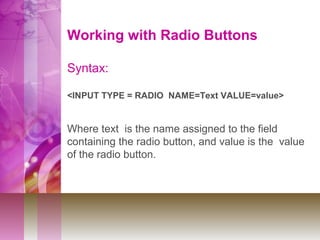
Working with Radio Buttons
Syntax:
<INPUT TYPE = RADIO NAME=Text VALUE=value>
Where text is the name assigned to the field
containing the radio button, and value is the value
of the radio button.
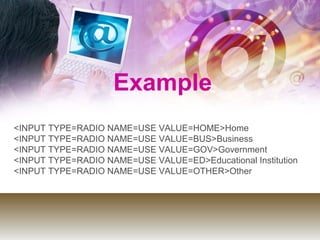
Example
<INPUT TYPE=RADIO NAME=USE VALUE=HOME>Home
<INPUT TYPE=RADIO NAME=USE VALUE=BUS>Business
<INPUT TYPE=RADIO NAME=USE VALUE=GOV>Government
<INPUT TYPE=RADIO NAME=USE VALUE=ED>Educational Institution
<INPUT TYPE=RADIO NAME=USE VALUE=OTHER>Other
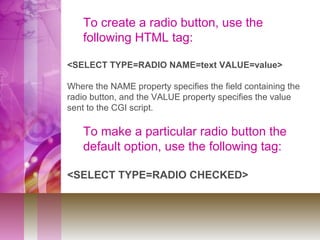
To create a radio button, use the
following HTML tag:
<SELECT TYPE=RADIO NAME=text VALUE=value>
Where the NAME property specifies the field containing the
radio button, and the VALUE property specifies the value
sent to the CGI script.
To make a particular radio button the
default option, use the following tag:
<SELECT TYPE=RADIO CHECKED>
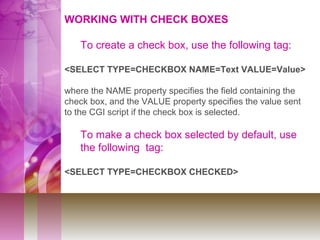
WORKING WITH CHECK BOXES
To create a check box, use the following tag:
<SELECT TYPE=CHECKBOX NAME=Text VALUE=Value>
where the NAME property specifies the field containing the
check box, and the VALUE property specifies the value sent
to the CGI script if the check box is selected.
To make a check box selected by default, use
the following tag:
<SELECT TYPE=CHECKBOX CHECKED>
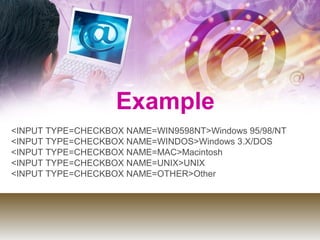
Example
<INPUT TYPE=CHECKBOX NAME=WIN9598NT>Windows 95/98/NT
<INPUT TYPE=CHECKBOX NAME=WINDOS>Windows 3.X/DOS
<INPUT TYPE=CHECKBOX NAME=MAC>Macintosh
<INPUT TYPE=CHECKBOX NAME=UNIX>UNIX
<INPUT TYPE=CHECKBOX NAME=OTHER>Other
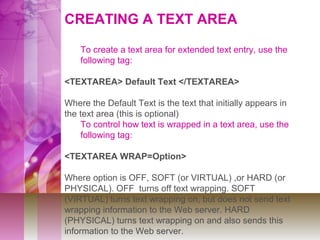
CREATING A TEXT AREA
To create a text area for extended text entry, use the
following tag:
<TEXTAREA> Default Text </TEXTAREA>
Where the Default Text is the text that initially appears in
the text area (this is optional)
To control how text is wrapped in a text area, use the
following tag:
<TEXTAREA WRAP=Option>
Where option is OFF, SOFT (or VIRTUAL) ,or HARD (or
PHYSICAL). OFF turns off text wrapping. SOFT
(VIRTUAL) turns text wrapping on, but does not send text
wrapping information to the Web server. HARD
(PHYSICAL) turns text wrapping on and also sends this
information to the Web server.
Example
<TEXTAREA ROWS=3 NAME=COMMENTS>Enter comments here
</TEXTAREA>
Fin

Tut 06 (forms)

  • 1.
  • 2.
    HTML files orpart of files made to be filled in by viewer / reader for the purpose of submitting information to the form’s originator. HTML Forms
  • 3.
    CGI ( CommonGateway Interface) Script is any program or set of commands running on the Web server that receives data from the Web page and then acts on that data to perform a certain task.
  • 4.
    Elements of Forms: Inputboxes – for text and numerical entries Radio buttons – also called option buttons, to select a single option from a predefined list Selection lists – for long lists of options, usually in a drop-down list box
  • 5.
    Check boxes –to specify an item as either being present or absent Text areas – for extended entries that might include several lines of text Submit and Reset buttons – to either submit the form to the CGI script or to reset the form to its original state
  • 6.
    CGI script canbe written in variety of computer languages such as the following: AppleScript C / C++ Perl The UNIX shell TCL Visual Basic JavaScript
  • 7.
    Syntax of Form: <FORMProperties> Form elements and layout tags </FORM>
  • 8.
    Working with InputBoxes Input Box – is a single-line box into which the user can enter text or numbers. Syntax: <INPUT TYPE = Option NAME = Text> where option is the type of input field, and Text is the name assigned to the input field.
  • 9.
  • 10.
    Setting a DefaultValue for an Input Box <INPUT SIZE = “value”> where value is the default text or number that will appear in the field.
  • 11.
  • 12.
    Creating a Passwordfield <INPUT TYPE = PASSWORD> Password Field – is identical to an input box except that the characters typed by the user are displayed as bullets or asterisks.
  • 13.
    CREATING A SELECTIONLIST To create a selection list, use the following set of HTML tags: <SELECT NAME = Text> <OPTION> Option 1 <OPTION> Option 2 <OPTION> Option 3 . . </SELECT> Where the NAME property is the field name of the selection list, and each <OPTION> tag represents an entry in the list.
  • 14.
    <SELECT NAME=Product> <OPTION>Scanmaster <OPTION>Scanmaster II <OPTION>LaserPrint1000 <OPTION>LaserPrint 5000 <OPTION>Print/Scan 150 <OPTION>Print/Scan 250 </SELECT> Example
  • 15.
    To allow theuser to select multiple items in the selection list, use the following tag: <SELECT MULTIPLE> To display several items in the selection list, or to change the selection list style from a drop-down list box to a fully displayed list box, use the following tag: <SELECT SIZE = value> where value is the number of items displayed in the list box.
  • 16.
    Working with RadioButtons Syntax: <INPUT TYPE = RADIO NAME=Text VALUE=value> Where text is the name assigned to the field containing the radio button, and value is the value of the radio button.
  • 17.
    Example <INPUT TYPE=RADIO NAME=USEVALUE=HOME>Home <INPUT TYPE=RADIO NAME=USE VALUE=BUS>Business <INPUT TYPE=RADIO NAME=USE VALUE=GOV>Government <INPUT TYPE=RADIO NAME=USE VALUE=ED>Educational Institution <INPUT TYPE=RADIO NAME=USE VALUE=OTHER>Other
  • 18.
    To create aradio button, use the following HTML tag: <SELECT TYPE=RADIO NAME=text VALUE=value> Where the NAME property specifies the field containing the radio button, and the VALUE property specifies the value sent to the CGI script. To make a particular radio button the default option, use the following tag: <SELECT TYPE=RADIO CHECKED>
  • 19.
    WORKING WITH CHECKBOXES To create a check box, use the following tag: <SELECT TYPE=CHECKBOX NAME=Text VALUE=Value> where the NAME property specifies the field containing the check box, and the VALUE property specifies the value sent to the CGI script if the check box is selected. To make a check box selected by default, use the following tag: <SELECT TYPE=CHECKBOX CHECKED>
  • 20.
    Example <INPUT TYPE=CHECKBOX NAME=WIN9598NT>Windows95/98/NT <INPUT TYPE=CHECKBOX NAME=WINDOS>Windows 3.X/DOS <INPUT TYPE=CHECKBOX NAME=MAC>Macintosh <INPUT TYPE=CHECKBOX NAME=UNIX>UNIX <INPUT TYPE=CHECKBOX NAME=OTHER>Other
  • 21.
    CREATING A TEXTAREA To create a text area for extended text entry, use the following tag: <TEXTAREA> Default Text </TEXTAREA> Where the Default Text is the text that initially appears in the text area (this is optional) To control how text is wrapped in a text area, use the following tag: <TEXTAREA WRAP=Option> Where option is OFF, SOFT (or VIRTUAL) ,or HARD (or PHYSICAL). OFF turns off text wrapping. SOFT (VIRTUAL) turns text wrapping on, but does not send text wrapping information to the Web server. HARD (PHYSICAL) turns text wrapping on and also sends this information to the Web server.
  • 22.
  • 23.