Swipe
Tableau - Histogram
Tableau
A histogram represents the frequencies of values
of a variable bucketed into ranges.
Histogram is similar to bar chart but it groups the
values into continuous ranges.
Each bar in histogram represents the height of the
number of values present in that range.
Tableau creates a histogram by taking one
measure.
It creates an additional bin field for the measure
used in creating a histogram.
Tableau - Histogram
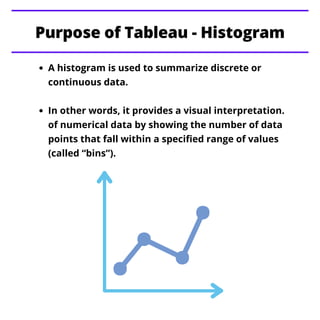
A histogram is used to summarize discrete or
continuous data.
In other words, it provides a visual interpretation.
of numerical data by showing the number of data
points that fall within a specified range of values
(called “bins”).
Purpose of Tableau - Histogram
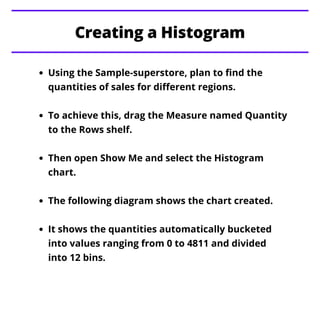
Using the Sample-superstore, plan to find the
quantities of sales for different regions.
To achieve this, drag the Measure named Quantity
to the Rows shelf.
Then open Show Me and select the Histogram
chart.
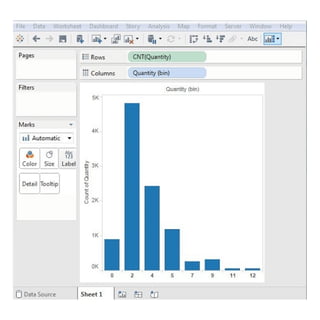
The following diagram shows the chart created.
It shows the quantities automatically bucketed
into values ranging from 0 to 4811 and divided
into 12 bins.
Creating a Histogram
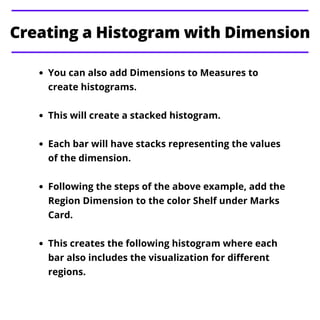
You can also add Dimensions to Measures to
create histograms.
This will create a stacked histogram.
Each bar will have stacks representing the values
of the dimension.
Following the steps of the above example, add the
Region Dimension to the color Shelf under Marks
Card.
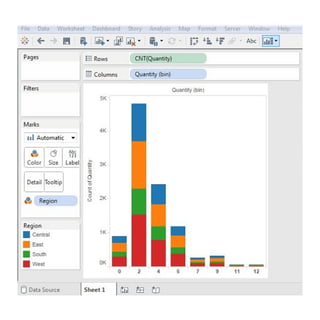
This creates the following histogram where each
bar also includes the visualization for different
regions.
Creating a Histogram with Dimension
Tableau - Histogram
Tableau - Motion Charts
Tableau - Waterfall Charts
Stay Tuned with
Topics for next Post

Tableau histogram

  • 1.
  • 2.
    A histogram representsthe frequencies of values of a variable bucketed into ranges. Histogram is similar to bar chart but it groups the values into continuous ranges. Each bar in histogram represents the height of the number of values present in that range. Tableau creates a histogram by taking one measure. It creates an additional bin field for the measure used in creating a histogram. Tableau - Histogram
  • 3.
    A histogram isused to summarize discrete or continuous data. In other words, it provides a visual interpretation. of numerical data by showing the number of data points that fall within a specified range of values (called “bins”). Purpose of Tableau - Histogram
  • 4.
    Using the Sample-superstore,plan to find the quantities of sales for different regions. To achieve this, drag the Measure named Quantity to the Rows shelf. Then open Show Me and select the Histogram chart. The following diagram shows the chart created. It shows the quantities automatically bucketed into values ranging from 0 to 4811 and divided into 12 bins. Creating a Histogram
  • 6.
    You can alsoadd Dimensions to Measures to create histograms. This will create a stacked histogram. Each bar will have stacks representing the values of the dimension. Following the steps of the above example, add the Region Dimension to the color Shelf under Marks Card. This creates the following histogram where each bar also includes the visualization for different regions. Creating a Histogram with Dimension
  • 8.
    Tableau - Histogram Tableau- Motion Charts Tableau - Waterfall Charts Stay Tuned with Topics for next Post