Standard Methods
of Input
This lesson includes the following sections:
 The Keyboard
 The Mouse
 Variants of the Mouse
• The Standard Keyboard Layout
• Ergonomic Keyboards
• How a Keyboard Works
The Keyboard
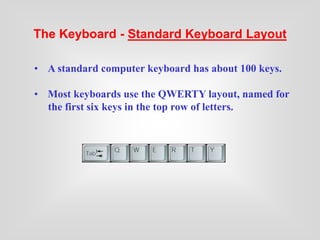
• A standard computer keyboard has about 100 keys.
• Most keyboards use the QWERTY layout, named for
the first six keys in the top row of letters.
The Keyboard - Standard Keyboard Layout
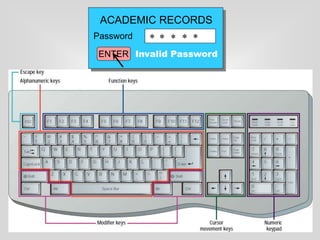
5. Cursor-movement keys
4. Modifier keys
3. Function keys
2. Numeric keypad
1. Alphanumeric keys
Most keyboards have keys arranged in five groups:
The Keyboard - Standard Keyboard Layout
ACADEMIC RECORDS
Password
ENTER Invalid Password
* * * * *
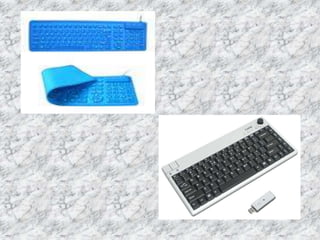
• Long periods of keyboard use can cause injuries.
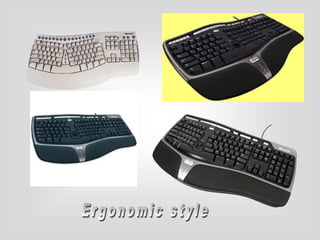
• An ergonomically correct keyboard can help you
avoid injuries.
• You also can avoid injuries by adopting correct
keyboarding practices.
The Keyboard - Ergonomic Keyboards
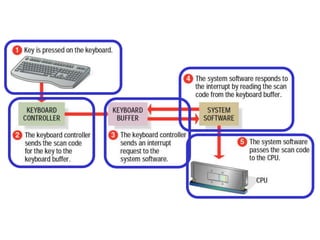
• The keyboard controller detects the keystroke.
• The controller places a scan code in the keyboard
buffer, indicating which key was pressed.
• The keyboard sends the computer an interrupt
request, telling the CPU to accept the keystroke.
When you press a key:
The Keyboard - How a Keyboard Works
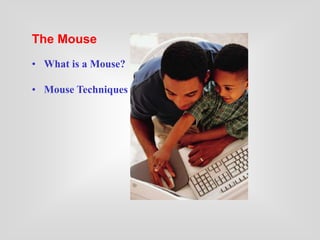
The Mouse
• What is a Mouse?
• Mouse Techniques
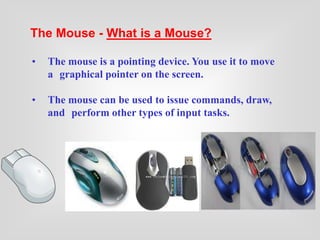
The Mouse - What is a Mouse?
• The mouse is a pointing device. You use it to move
a graphical pointer on the screen.
• The mouse can be used to issue commands, draw,
and perform other types of input tasks.
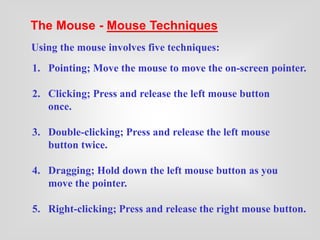
The Mouse - Mouse Techniques
1. Pointing; Move the mouse to move the on-screen pointer.
2. Clicking; Press and release the left mouse button
once.
3. Double-clicking; Press and release the left mouse
button twice.
4. Dragging; Hold down the left mouse button as you
move the pointer.
5. Right-clicking; Press and release the right mouse button.
Using the mouse involves five techniques:
Variants of the Mouse
• Trackballs
• Trackpads
• Integrated Pointed Devices
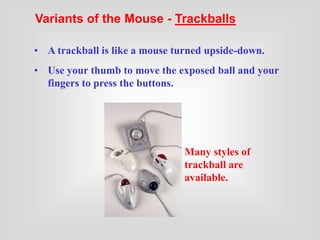
Variants of the Mouse - Trackballs
• A trackball is like a mouse turned upside-down.
• Use your thumb to move the exposed ball and your
fingers to press the buttons.
Many styles of
trackball are
available.
Variants of the Mouse - Trackpads
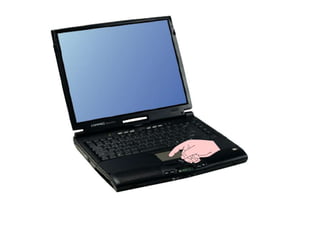
• A trackpad is a touch-sensitive pad that provides the
same functionality as a mouse.
• To use a trackpad, you glide your finger across its
surface.
• Trackpads provide a set of buttons that function like
mouse buttons.
Variants of the Mouse-
Integrated Pointing Devices
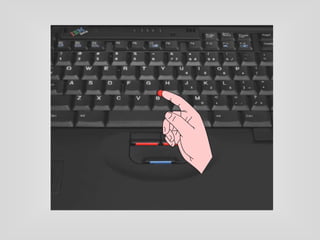
• An integrated pointing device is a small joystick built
into the keyboard.
• To use an integrated pointing device, you move the
joystick.
• These devices provide a set of buttons that function
like mouse buttons
lesson Review
• Identify the five key groups on a standard computer
keyboard.
• Describe the purpose of a mouse and the role it plays
in computing.
• Identify the five essential techniques for using a
mouse.
• Identify three common variants of the mouse.

Standard methods of input

  • 1.
  • 2.
    This lesson includesthe following sections:  The Keyboard  The Mouse  Variants of the Mouse
  • 3.
    • The StandardKeyboard Layout • Ergonomic Keyboards • How a Keyboard Works The Keyboard
  • 4.
    • A standardcomputer keyboard has about 100 keys. • Most keyboards use the QWERTY layout, named for the first six keys in the top row of letters. The Keyboard - Standard Keyboard Layout
  • 5.
    5. Cursor-movement keys 4.Modifier keys 3. Function keys 2. Numeric keypad 1. Alphanumeric keys Most keyboards have keys arranged in five groups: The Keyboard - Standard Keyboard Layout
  • 6.
  • 7.
    • Long periodsof keyboard use can cause injuries. • An ergonomically correct keyboard can help you avoid injuries. • You also can avoid injuries by adopting correct keyboarding practices. The Keyboard - Ergonomic Keyboards
  • 9.
    • The keyboardcontroller detects the keystroke. • The controller places a scan code in the keyboard buffer, indicating which key was pressed. • The keyboard sends the computer an interrupt request, telling the CPU to accept the keystroke. When you press a key: The Keyboard - How a Keyboard Works
  • 12.
    The Mouse • Whatis a Mouse? • Mouse Techniques
  • 13.
    The Mouse -What is a Mouse? • The mouse is a pointing device. You use it to move a graphical pointer on the screen. • The mouse can be used to issue commands, draw, and perform other types of input tasks.
  • 14.
    The Mouse -Mouse Techniques 1. Pointing; Move the mouse to move the on-screen pointer. 2. Clicking; Press and release the left mouse button once. 3. Double-clicking; Press and release the left mouse button twice. 4. Dragging; Hold down the left mouse button as you move the pointer. 5. Right-clicking; Press and release the right mouse button. Using the mouse involves five techniques:
  • 15.
    Variants of theMouse • Trackballs • Trackpads • Integrated Pointed Devices
  • 16.
    Variants of theMouse - Trackballs • A trackball is like a mouse turned upside-down. • Use your thumb to move the exposed ball and your fingers to press the buttons. Many styles of trackball are available.
  • 17.
    Variants of theMouse - Trackpads • A trackpad is a touch-sensitive pad that provides the same functionality as a mouse. • To use a trackpad, you glide your finger across its surface. • Trackpads provide a set of buttons that function like mouse buttons.
  • 19.
    Variants of theMouse- Integrated Pointing Devices • An integrated pointing device is a small joystick built into the keyboard. • To use an integrated pointing device, you move the joystick. • These devices provide a set of buttons that function like mouse buttons
  • 21.
    lesson Review • Identifythe five key groups on a standard computer keyboard. • Describe the purpose of a mouse and the role it plays in computing. • Identify the five essential techniques for using a mouse. • Identify three common variants of the mouse.