Input Devices
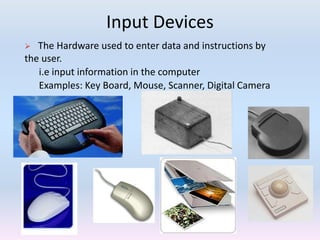
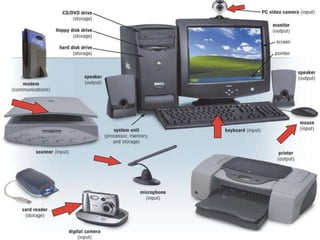
 The Hardware used to enter data and instructions by
the user.
i.e input information in the computer
Examples: Key Board, Mouse, Scanner, Digital Camera
KEYBOARD
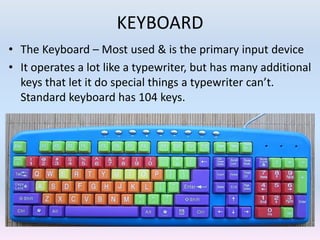
• The Keyboard – Most used & is the primary input device
• It operates a lot like a typewriter, but has many additional
keys that let it do special things a typewriter can’t.
Standard keyboard has 104 keys.
KEYBOARD
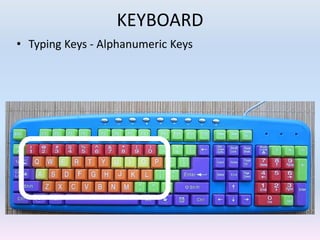
• Typing Keys - Alphanumeric Keys
KEYBOARD
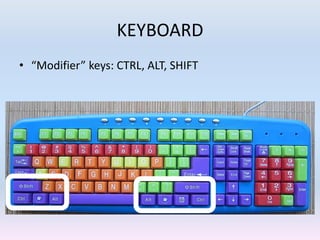
• “Modifier” keys: CTRL, ALT, SHIFT
KEYBOARD
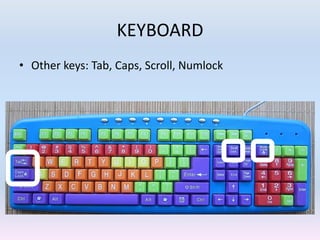
• Other keys: Tab, Caps, Scroll, Numlock
KEYBOARD
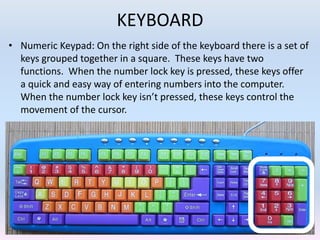
• Numeric Keypad: On the right side of the keyboard there is a set of
keys grouped together in a square. These keys have two
functions. When the number lock key is pressed, these keys offer
a quick and easy way of entering numbers into the computer.
When the number lock key isn’t pressed, these keys control the
movement of the cursor.
KEYBOARD
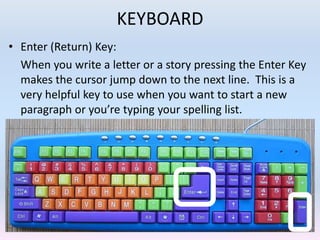
• Enter (Return) Key:
When you write a letter or a story pressing the Enter Key
makes the cursor jump down to the next line. This is a
very helpful key to use when you want to start a new
paragraph or you’re typing your spelling list.
• I
KEYBOARD
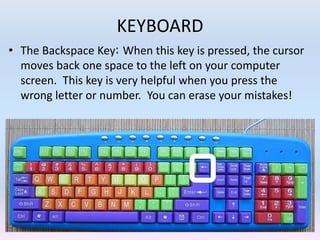
• The Backspace Key: When this key is pressed, the cursor
moves back one space to the left on your computer
screen. This key is very helpful when you press the
wrong letter or number. You can erase your mistakes!
KEYBOARD
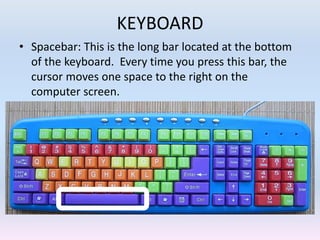
• Spacebar: This is the long bar located at the bottom
of the keyboard. Every time you press this bar, the
cursor moves one space to the right on the
computer screen.
KEYBOARD
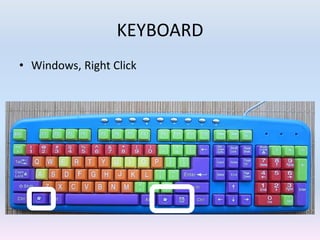
• Windows, Right Click
KEYBOARD
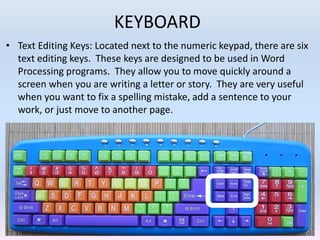
• Text Editing Keys: Located next to the numeric keypad, there are six
text editing keys. These keys are designed to be used in Word
Processing programs. They allow you to move quickly around a
screen when you are writing a letter or story. They are very useful
when you want to fix a spelling mistake, add a sentence to your
work, or just move to another page.
KEYBOARD
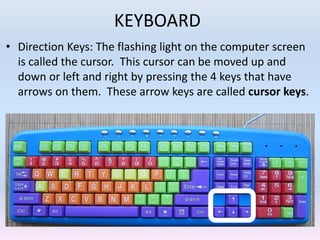
• Direction Keys: The flashing light on the computer screen
is called the cursor. This cursor can be moved up and
down or left and right by pressing the 4 keys that have
arrows on them. These arrow keys are called cursor keys.
KEYBOARD
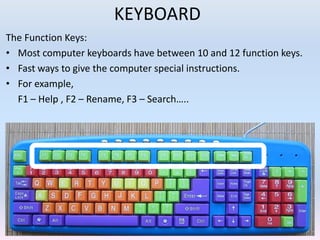
The Function Keys:
• Most computer keyboards have between 10 and 12 function keys.
• Fast ways to give the computer special instructions.
• For example,
F1 – Help , F2 – Rename, F3 – Search…..
KEYBOARD
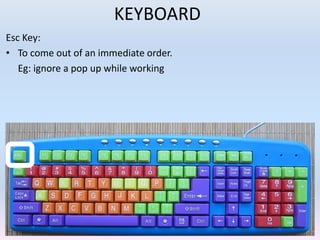
Esc Key:
• To come out of an immediate order.
Eg: ignore a pop up while working
The Mouse
Nope, it’s not a rodent!
• It’s another input device. It’s called a mouse because of it’s
shape and the way the cable attaching it to the computer looks
a bit like a tail. It is invented by scientist Douglas Engelbart
using piece of wood.
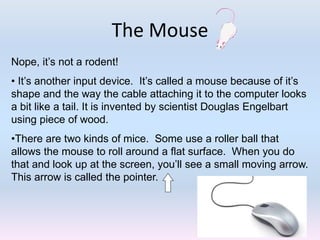
•There are two kinds of mice. Some use a roller ball that
allows the mouse to roll around a flat surface. When you do
that and look up at the screen, you’ll see a small moving arrow.
This arrow is called the pointer.
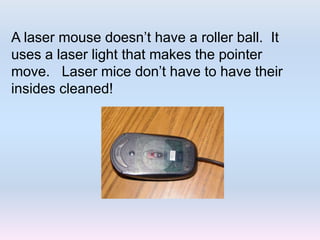
A laser mouse doesn’t have a roller ball. It
uses a laser light that makes the pointer
move. Laser mice don’t have to have their
insides cleaned!
MOUSE
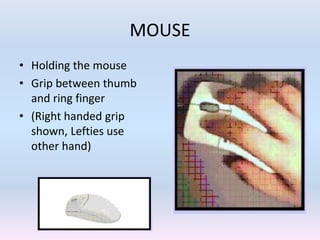
• Holding the mouse
• Grip between thumb
and ring finger
• (Right handed grip
shown, Lefties use
other hand)
MOUSE
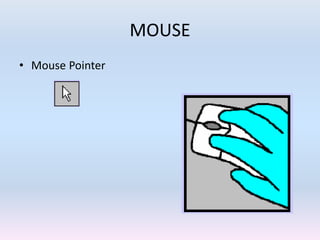
• Mouse Pointer
MOUSE
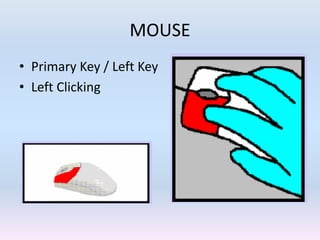
• Primary Key / Left Key
• Left Clicking
MOUSE
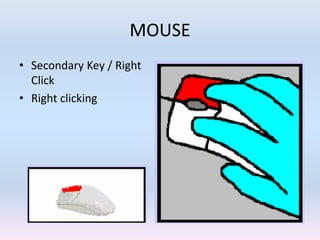
• Secondary Key / Right
Click
• Right clicking
MOUSE
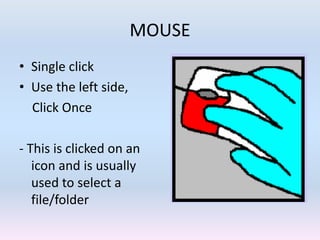
• Single click
• Use the left side,
Click Once
- This is clicked on an
icon and is usually
used to select a
file/folder
MOUSE
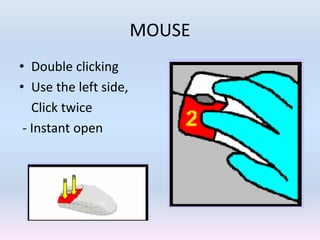
• Double clicking
• Use the left side,
Click twice
- Instant open
MOUSE
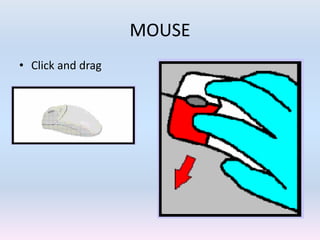
• Click and drag
MOUSE
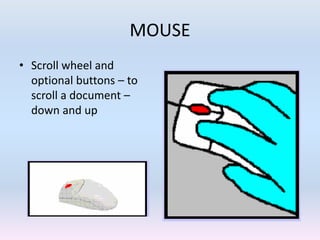
• Scroll wheel and
optional buttons – to
scroll a document –
down and up
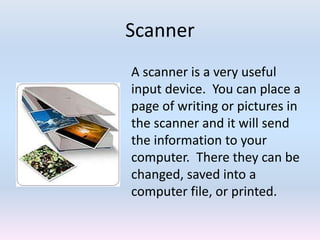
Scanner
A scanner is a very useful
input device. You can place a
page of writing or pictures in
the scanner and it will send
the information to your
computer. There they can be
changed, saved into a
computer file, or printed.
Other Input Devices
Touch Screen – use of fingers / Pointers
Optical Character Reader – Scanned image to text
Magnetic Ink Character Reader (MICR) – Cheques
printed with magnetic inks
Bar Code Reader – Light & Dark lines
Optical Mark-Reader (OMR) – Answer sheets
Voice Input – Mic+software
Thank You

05. input devices computer

  • 1.
    Input Devices  TheHardware used to enter data and instructions by the user. i.e input information in the computer Examples: Key Board, Mouse, Scanner, Digital Camera
  • 3.
    KEYBOARD • The Keyboard– Most used & is the primary input device • It operates a lot like a typewriter, but has many additional keys that let it do special things a typewriter can’t. Standard keyboard has 104 keys.
  • 4.
    KEYBOARD • Typing Keys- Alphanumeric Keys
  • 5.
  • 6.
    KEYBOARD • Other keys:Tab, Caps, Scroll, Numlock
  • 7.
    KEYBOARD • Numeric Keypad:On the right side of the keyboard there is a set of keys grouped together in a square. These keys have two functions. When the number lock key is pressed, these keys offer a quick and easy way of entering numbers into the computer. When the number lock key isn’t pressed, these keys control the movement of the cursor.
  • 8.
    KEYBOARD • Enter (Return)Key: When you write a letter or a story pressing the Enter Key makes the cursor jump down to the next line. This is a very helpful key to use when you want to start a new paragraph or you’re typing your spelling list. • I
  • 9.
    KEYBOARD • The BackspaceKey: When this key is pressed, the cursor moves back one space to the left on your computer screen. This key is very helpful when you press the wrong letter or number. You can erase your mistakes!
  • 10.
    KEYBOARD • Spacebar: Thisis the long bar located at the bottom of the keyboard. Every time you press this bar, the cursor moves one space to the right on the computer screen.
  • 11.
  • 12.
    KEYBOARD • Text EditingKeys: Located next to the numeric keypad, there are six text editing keys. These keys are designed to be used in Word Processing programs. They allow you to move quickly around a screen when you are writing a letter or story. They are very useful when you want to fix a spelling mistake, add a sentence to your work, or just move to another page.
  • 13.
    KEYBOARD • Direction Keys:The flashing light on the computer screen is called the cursor. This cursor can be moved up and down or left and right by pressing the 4 keys that have arrows on them. These arrow keys are called cursor keys.
  • 14.
    KEYBOARD The Function Keys: •Most computer keyboards have between 10 and 12 function keys. • Fast ways to give the computer special instructions. • For example, F1 – Help , F2 – Rename, F3 – Search…..
  • 15.
    KEYBOARD Esc Key: • Tocome out of an immediate order. Eg: ignore a pop up while working
  • 16.
    The Mouse Nope, it’snot a rodent! • It’s another input device. It’s called a mouse because of it’s shape and the way the cable attaching it to the computer looks a bit like a tail. It is invented by scientist Douglas Engelbart using piece of wood. •There are two kinds of mice. Some use a roller ball that allows the mouse to roll around a flat surface. When you do that and look up at the screen, you’ll see a small moving arrow. This arrow is called the pointer.
  • 17.
    A laser mousedoesn’t have a roller ball. It uses a laser light that makes the pointer move. Laser mice don’t have to have their insides cleaned!
  • 18.
    MOUSE • Holding themouse • Grip between thumb and ring finger • (Right handed grip shown, Lefties use other hand)
  • 19.
  • 20.
    MOUSE • Primary Key/ Left Key • Left Clicking
  • 21.
    MOUSE • Secondary Key/ Right Click • Right clicking
  • 22.
    MOUSE • Single click •Use the left side, Click Once - This is clicked on an icon and is usually used to select a file/folder
  • 23.
    MOUSE • Double clicking •Use the left side, Click twice - Instant open
  • 24.
  • 25.
    MOUSE • Scroll wheeland optional buttons – to scroll a document – down and up
  • 26.
    Scanner A scanner isa very useful input device. You can place a page of writing or pictures in the scanner and it will send the information to your computer. There they can be changed, saved into a computer file, or printed.
  • 27.
    Other Input Devices TouchScreen – use of fingers / Pointers Optical Character Reader – Scanned image to text Magnetic Ink Character Reader (MICR) – Cheques printed with magnetic inks Bar Code Reader – Light & Dark lines Optical Mark-Reader (OMR) – Answer sheets Voice Input – Mic+software
  • 28.