













What SharePoint Admins
need to know about SQL
Presented by:
JD Wade, Lead SharePoint Consultant
Horizons Consulting

Mail: jd.wade@hrizns.com
Blog: http://wadingthrough.com
LinkedIn: http://linkedin.com/in/jdwade
Twitter: @JDWade
Agenda
• SQL Primer
• Build a Good Foundation

• Keep It Running Well
• Performance Considerations
• The Kitchen Sink

• Remote BLOB Storage
• Availability and Disaster Recovery
• Access Services
SQL Primer
•
•
•
•
•
•
•

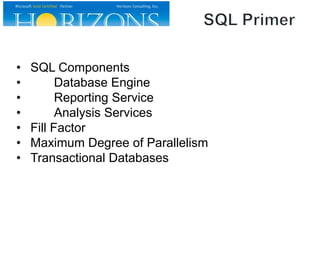
SQL Components
Database Engine
Reporting Service
Analysis Services
Fill Factor
Maximum Degree of Parallelism
Transactional Databases
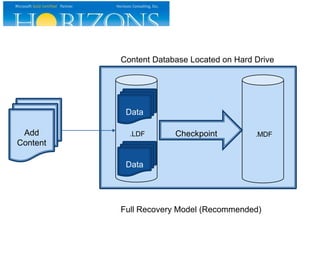
Content Database Located on Hard Drive

Data
Add
Content

.LDF

Checkpoint

.MDF

Data

Full Recovery Model (Recommended)
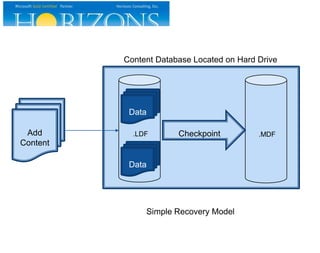
Content Database Located on Hard Drive

Data
Add
Content

.LDF

Checkpoint

Data

Simple Recovery Model

.MDF
Build a Good
Foundation
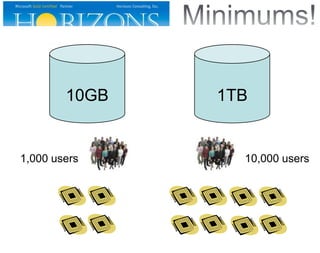
10GB

1,000 users

1TB

10,000 users
<10GB

10GB-1TB

1-2TB

8GB

16GB

32GB

2-5TB

5-16TB

64GB

>64GB
Client/Public

HOSTS

SharePoint/Database
SQLIO
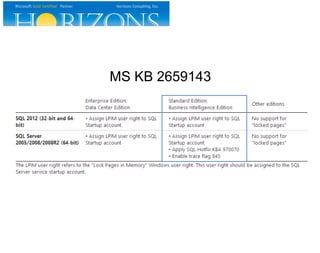
MS KB 2659143
TempDB
TempDB
Data
1GB

TempDB
Data
1GB
4GB

TempDB
Data
1GB

Content
16GB

TempDB
Data
1GB

TempDB
Log
1GB
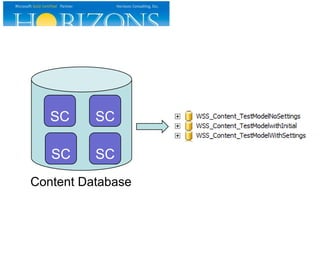
Prod_ConfigDB
Prod_ContentDB_Portal

Prod_ContentDB_WebSite
Prod_ServApp_ManagedMetadata
Prod_ServApp_SearchAdmin
Prod_App_NintexWorkflow
Keeping It
Running Well
SC

SC

SC

SC

Content Database
SC

SC

SC

SC

Content Database
SC

Content Database
100GB
SC

Content Database
200GB
SC

Content Database
2TB
SC

Content Database
16TB
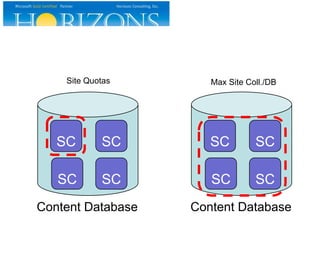
Site Quotas

Max Site Coll./DB

SC

SC

SC

SC

SC

SC

SC

SC

Content Database

Content Database
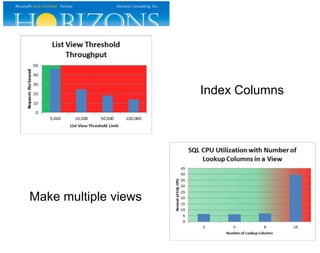
Index Columns

Make multiple views
Performance
Considerations
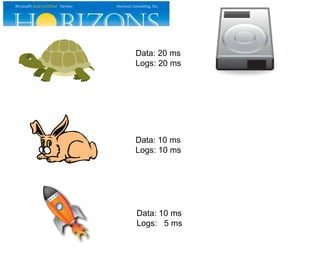
Data: 20 ms
Logs: 20 ms

Data: 10 ms
Logs: 10 ms

Data: 10 ms
Logs: 5 ms
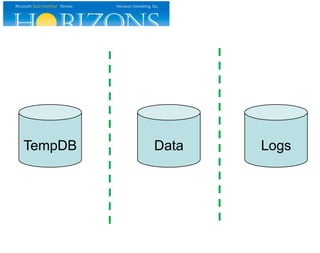
TempDB

Data

Logs
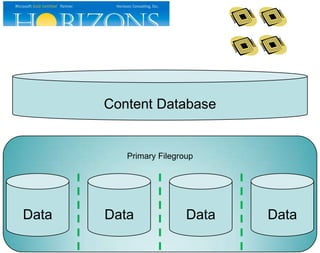
Content Database

Primary Filegroup

Data

Data

Data

Data
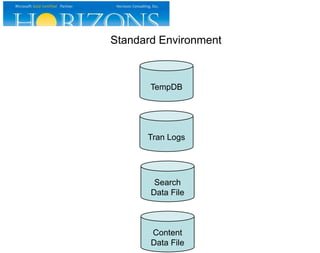
Standard Environment

TempDB

Tran Logs

Search
Data File

Content
Data File
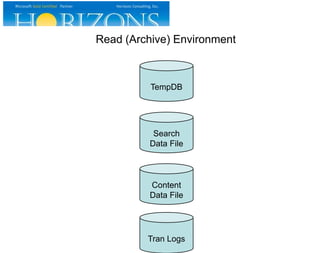
Read (Archive) Environment

TempDB

Search
Data File

Content
Data File

Tran Logs
The Kitchen
Sink
Thanks to our
Sponsors!!!
​

​

​

​

​

​

​

​

​

​

​

​

​

​

​
Q&A
http://wadinghthrough.com/presentations
http://www.hrizns.com
http://twitter.com/jdwade
Notes
SharePoint Primer
• Why are database changes not supported?
• Single data platform for all workloads
• Change for one may adversely affect another
• Upgrade and Servicing expects solid DB contract
• App logic is heavily dependent on DB specifics
• App enforces constraints and integrity!
• http://support.microsoft.com/kb/841057
• SharePoint manages its own name value pair (NVP)
indexes
• There are four types of databases in a SharePoint farm
• Config
• Content
• Service Application
• Third-party/BI applications
• Over 20 databases in a standard SharePoint farm
installation
• Database types and descriptions
http://technet.microsoft.com/en-us/library/cc678868.aspx
Server Setup
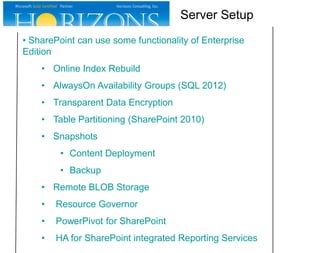
• SharePoint can use some functionality of Enterprise
Edition
• Online Index Rebuild
• AlwaysOn Availability Groups (SQL 2012)
• Transparent Data Encryption
• Table Partitioning (SharePoint 2010)
• Snapshots
• Content Deployment
• Backup
• Remote BLOB Storage
•

Resource Governor

•

PowerPivot for SharePoint

•

HA for SharePoint integrated Reporting Services
Server Setup
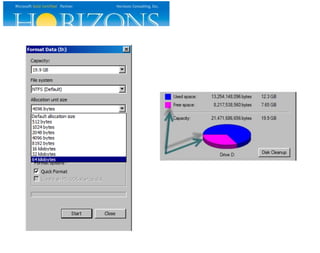
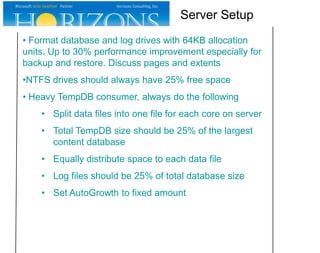
• Format database and log drives with 64KB allocation
units. Up to 30% performance improvement especially for
backup and restore. Discuss pages and extents
•NTFS drives should always have 25% free space
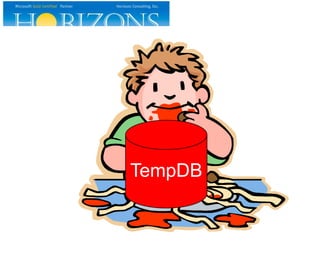
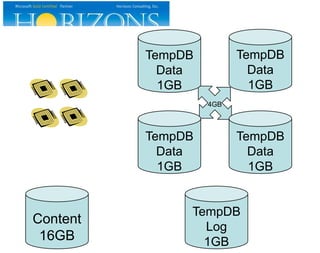
• Heavy TempDB consumer, always do the following
• Split data files into one file for each core on server
• Total TempDB size should be 25% of the largest
content database
• Equally distribute space to each data file
• Log files should be 25% of total database size
• Set AutoGrowth to fixed amount
Server Setup
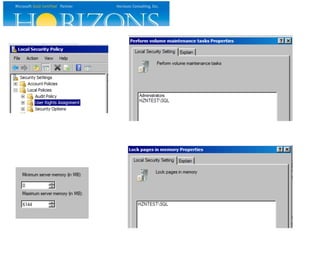
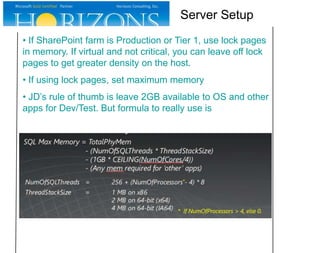
• If SharePoint farm is Production or Tier 1, use lock pages
in memory. If virtual and not critical, you can leave off lock
pages to get greater density on the host.
• If using lock pages, set maximum memory
• JD’s rule of thumb is leave 2GB available to OS and other
apps for Dev/Test. But formula to really use is
Server Setup
• Ensure SQL service account has Perform Volume
Maintenance rights
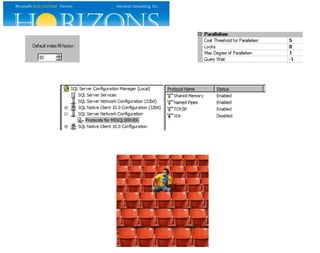
• Set MAXDOP to 1
• SharePoint should be in its own instance
• Set Fill Factor to 80
• Set at Instance level, not at database
• Memory guidelines
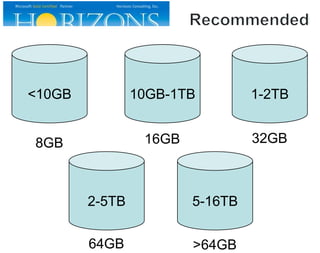
• Up to about 10GB of content: 8 GB
• 10GB – 1TB: 16 GB
• 1TB – 2TB: 32 GB
• 2TB – 5TB: 64 GB

• Above 5TB: over 64GB can improve caching speed
Server Setup
• Server core minimum requirements
• Up to 10GB content or below 1,000 users: 4 cores
• Up to 1TB content or up to 10,000 users: 8 cores
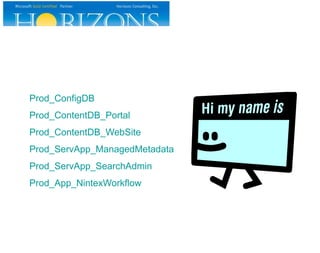
• Work with SharePoint Admins to create a database
naming scheme. Here are some examples:
• Prod_ConfigDB
• Prod_ContentDB_Portal
• Prod_ContentDB_WebSite
• Prod_ServApp_ManagedMetadata
• Prod_App_NintexWorkflow
• Manually deploy service apps, use AutoSPInstaller or
pre-create databases to get rid of GUIDs in database
names
• http://technet.microsoft.com/en-us/library/cc262869(v=office.14).aspx
Server Setup
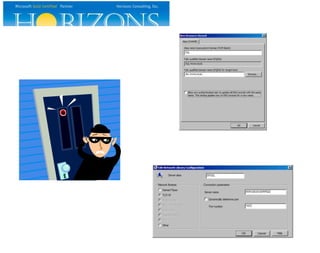
• Recommend the SharePoint Admin use SQL aliases.
DNS CNAMES are OK. But with an alias, you can specify
the port number which improves performance and they are
usually easier to change.
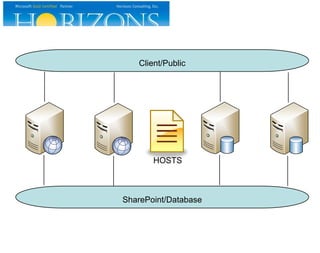
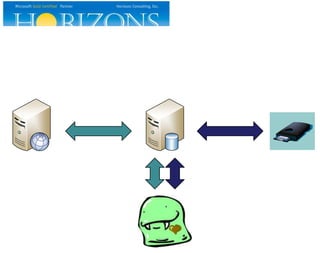
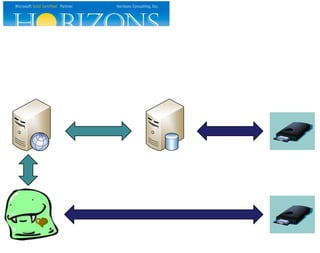
• Recommended to use dual networks on SharePoint
servers. One NIC is client facing and other NIC is database
facing.
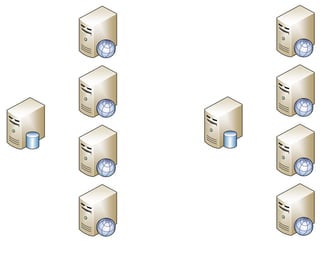
• If more than four web servers, use a second SQL server.
SharePoint loves connections.
Database Management
• SharePoint ignores the model database. Either manage
manually or setup scripted maintenance plan for
autogrowth settings. Set autogrow to a fixed size, not
percentage. Set fixed size based on expected total
database size.
• Don’t rely on autogrow, Work with SP admins to pre-grow
for expected use. Size databases appropriately
• Autogrow should be just the insurance policy. Work with
SharePoint administrator to appropriately size content
databases

• They can limit site collection size by using a “site
quota”
• They can limit the number of site collections in a
content databases using the “Maximum Site”
settings on the content database.
• Don’t forget about recycle bins (SC, site, and inside
SC)
Database Management
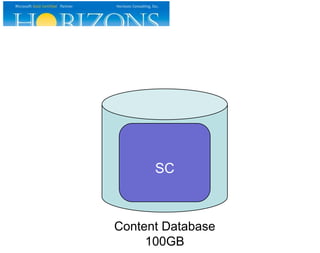
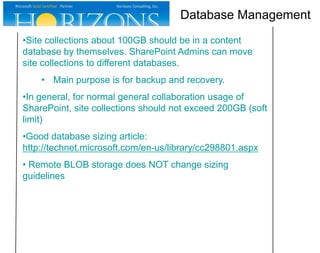
•Site collections about 100GB should be in a content
database by themselves. SharePoint Admins can move
site collections to different databases.
• Main purpose is for backup and recovery.
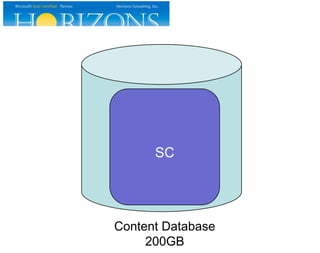
•In general, for normal general collaboration usage of
SharePoint, site collections should not exceed 200GB (soft
limit)
•Good database sizing article:
http://technet.microsoft.com/en-us/library/cc298801.aspx

• Remote BLOB storage does NOT change sizing
guidelines
Database Management
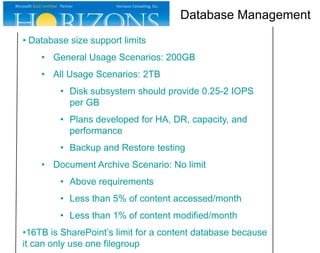
• Database size support limits
• General Usage Scenarios: 200GB
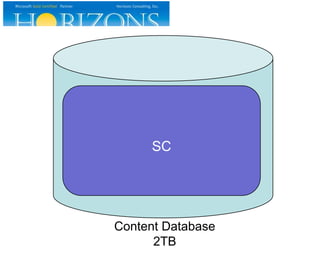
• All Usage Scenarios: 2TB
• Disk subsystem should provide 0.25-2 IOPS
per GB
• Plans developed for HA, DR, capacity, and
performance
• Backup and Restore testing

• Document Archive Scenario: No limit
• Above requirements
• Less than 5% of content accessed/month
• Less than 1% of content modified/month
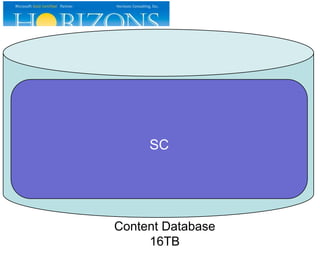
•16TB is SharePoint’s limit for a content database because
it can only use one filegroup
Database Management
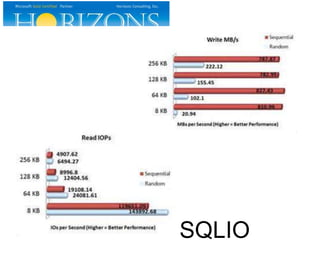
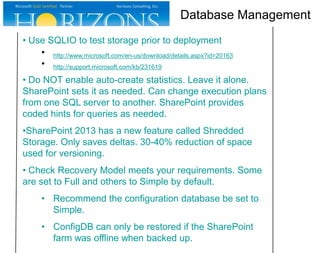
• Use SQLIO to test storage prior to deployment
• http://www.microsoft.com/en-us/download/details.aspx?id=20163
• http://support.microsoft.com/kb/231619
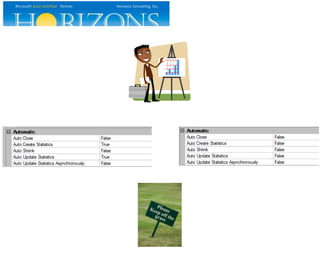
• Do NOT enable auto-create statistics. Leave it alone.
SharePoint sets it as needed. Can change execution plans
from one SQL server to another. SharePoint provides
coded hints for queries as needed.
•SharePoint 2013 has a new feature called Shredded
Storage. Only saves deltas. 30-40% reduction of space
used for versioning.
• Check Recovery Model meets your requirements. Some
are set to Full and others to Simple by default.
• Recommend the configuration database be set to
Simple.
• ConfigDB can only be restored if the SharePoint
farm was offline when backed up.
Operations and
Performance
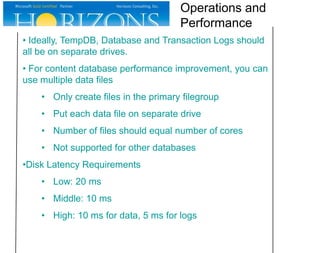
• Ideally, TempDB, Database and Transaction Logs should
all be on separate drives.
• For content database performance improvement, you can
use multiple data files
• Only create files in the primary filegroup
• Put each data file on separate drive
• Number of files should equal number of cores
• Not supported for other databases

•Disk Latency Requirements
• Low: 20 ms
• Middle: 10 ms
• High: 10 ms for data, 5 ms for logs
Operations and
Performance
•If performance improvements are needed for databases,
in a standard environments, this is the order of priority
• TempDB data and logs files
• Database transaction logs
• Search data files
• Content database data files
•For primary read (archive) environments, the order is
• TempDB data and logs files
• Search data files
• Content database data files
• Database transaction logs
Operations and
Performance
• SharePoint manages index fragmentation normally
through SharePoint Health Analyzer rules. See white paper
in References for best discussion of index fragmentation.
Some databases are not monitored or sometimes manual
intervention is needed.
• Schedule regular DBCC checks
• DBCC repair with data loss is NOT supported
•Maintain farm account as DBO for moves/restores
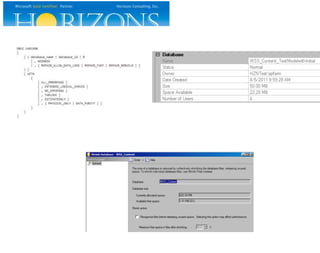
• Normally, don’t shrink databases except when bulk
changes have been made
•So here is what you need to chat with your SharePoint
admin about never changing
•

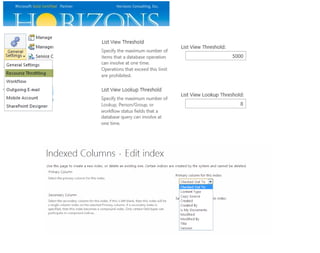
Changing certain SharePoint thresholds will start
SQL doing table locks rather than row locks.

• Use indexed columns instead
Availability and
Disaster Recovery
• Supported options for HA and DR in SharePoint
• Clustering
• Synchronous Mirroring (SharePoint is mirror aware)
• Synchronous AlwaysOn AG

• Asynchronous Mirroring
(some database types only)
• Asynchronous AlwaysOn AG
(some database types only)

• Log Shipping (some database types only)
• Supported HA/DR options for SP databases
http://technet.microsoft.com/en-us/library/jj841106.aspx

• SharePoint does not support the use of SQL transactional
replication or merge replication
Availability and
Disaster Recovery
•When evaluating HA/DR options, remember
• Web server to database response time must be
less than 1ms
• Network needs to support 1 gigabyte per second
bandwidth
Availability and
Disaster Recovery
• Remote BLOB storage
•

Does not change storage limits

•

Requires SQL Enterprise

•

Helps to lower costs because cheaper storage can be
used to store large, read intensive BLOBs

•

Uses either filestream or third-party provider

•

Microsoft filestream provider does not support
• Encryption of BLOBs
• Using data compression

•

Use when you many large BLOBs (over 256KB) for readintensive or read-only access.

•

Savings on lower cost storage should outweigh increased
IT operations complexity

•

Third party options have much more flexibility and can
allow BLOBs greater than 2TB but at a cost

•

20ms response time for first byte requirement

SPS Kansas City: What SharePoint Admin need to know about SQL

  • 1.
    What SharePoint Admins needto know about SQL Presented by: JD Wade, Lead SharePoint Consultant Horizons Consulting Mail: jd.wade@hrizns.com Blog: http://wadingthrough.com LinkedIn: http://linkedin.com/in/jdwade Twitter: @JDWade
  • 2.
    Agenda • SQL Primer •Build a Good Foundation • Keep It Running Well • Performance Considerations • The Kitchen Sink • Remote BLOB Storage • Availability and Disaster Recovery • Access Services
  • 3.
  • 4.
    • • • • • • • SQL Components Database Engine ReportingService Analysis Services Fill Factor Maximum Degree of Parallelism Transactional Databases
  • 5.
    Content Database Locatedon Hard Drive Data Add Content .LDF Checkpoint .MDF Data Full Recovery Model (Recommended)
  • 6.
    Content Database Locatedon Hard Drive Data Add Content .LDF Checkpoint Data Simple Recovery Model .MDF
  • 7.
  • 8.
  • 9.
  • 10.
  • 12.
  • 14.
  • 18.
  • 19.
  • 22.
  • 26.
  • 27.
  • 28.
  • 29.
  • 30.
  • 31.
  • 32.
  • 33.
    Site Quotas Max SiteColl./DB SC SC SC SC SC SC SC SC Content Database Content Database
  • 38.
  • 39.
  • 40.
    Data: 20 ms Logs:20 ms Data: 10 ms Logs: 10 ms Data: 10 ms Logs: 5 ms
  • 41.
  • 42.
  • 43.
  • 44.
    Read (Archive) Environment TempDB Search DataFile Content Data File Tran Logs
  • 45.
  • 51.
  • 52.
  • 53.
  • 54.
    SharePoint Primer • Whyare database changes not supported? • Single data platform for all workloads • Change for one may adversely affect another • Upgrade and Servicing expects solid DB contract • App logic is heavily dependent on DB specifics • App enforces constraints and integrity! • http://support.microsoft.com/kb/841057 • SharePoint manages its own name value pair (NVP) indexes • There are four types of databases in a SharePoint farm • Config • Content • Service Application • Third-party/BI applications • Over 20 databases in a standard SharePoint farm installation • Database types and descriptions http://technet.microsoft.com/en-us/library/cc678868.aspx
  • 55.
    Server Setup • SharePointcan use some functionality of Enterprise Edition • Online Index Rebuild • AlwaysOn Availability Groups (SQL 2012) • Transparent Data Encryption • Table Partitioning (SharePoint 2010) • Snapshots • Content Deployment • Backup • Remote BLOB Storage • Resource Governor • PowerPivot for SharePoint • HA for SharePoint integrated Reporting Services
  • 56.
    Server Setup • Formatdatabase and log drives with 64KB allocation units. Up to 30% performance improvement especially for backup and restore. Discuss pages and extents •NTFS drives should always have 25% free space • Heavy TempDB consumer, always do the following • Split data files into one file for each core on server • Total TempDB size should be 25% of the largest content database • Equally distribute space to each data file • Log files should be 25% of total database size • Set AutoGrowth to fixed amount
  • 57.
    Server Setup • IfSharePoint farm is Production or Tier 1, use lock pages in memory. If virtual and not critical, you can leave off lock pages to get greater density on the host. • If using lock pages, set maximum memory • JD’s rule of thumb is leave 2GB available to OS and other apps for Dev/Test. But formula to really use is
  • 58.
    Server Setup • EnsureSQL service account has Perform Volume Maintenance rights • Set MAXDOP to 1 • SharePoint should be in its own instance • Set Fill Factor to 80 • Set at Instance level, not at database • Memory guidelines • Up to about 10GB of content: 8 GB • 10GB – 1TB: 16 GB • 1TB – 2TB: 32 GB • 2TB – 5TB: 64 GB • Above 5TB: over 64GB can improve caching speed
  • 59.
    Server Setup • Servercore minimum requirements • Up to 10GB content or below 1,000 users: 4 cores • Up to 1TB content or up to 10,000 users: 8 cores • Work with SharePoint Admins to create a database naming scheme. Here are some examples: • Prod_ConfigDB • Prod_ContentDB_Portal • Prod_ContentDB_WebSite • Prod_ServApp_ManagedMetadata • Prod_App_NintexWorkflow • Manually deploy service apps, use AutoSPInstaller or pre-create databases to get rid of GUIDs in database names • http://technet.microsoft.com/en-us/library/cc262869(v=office.14).aspx
  • 60.
    Server Setup • Recommendthe SharePoint Admin use SQL aliases. DNS CNAMES are OK. But with an alias, you can specify the port number which improves performance and they are usually easier to change. • Recommended to use dual networks on SharePoint servers. One NIC is client facing and other NIC is database facing. • If more than four web servers, use a second SQL server. SharePoint loves connections.
  • 61.
    Database Management • SharePointignores the model database. Either manage manually or setup scripted maintenance plan for autogrowth settings. Set autogrow to a fixed size, not percentage. Set fixed size based on expected total database size. • Don’t rely on autogrow, Work with SP admins to pre-grow for expected use. Size databases appropriately • Autogrow should be just the insurance policy. Work with SharePoint administrator to appropriately size content databases • They can limit site collection size by using a “site quota” • They can limit the number of site collections in a content databases using the “Maximum Site” settings on the content database. • Don’t forget about recycle bins (SC, site, and inside SC)
  • 62.
    Database Management •Site collectionsabout 100GB should be in a content database by themselves. SharePoint Admins can move site collections to different databases. • Main purpose is for backup and recovery. •In general, for normal general collaboration usage of SharePoint, site collections should not exceed 200GB (soft limit) •Good database sizing article: http://technet.microsoft.com/en-us/library/cc298801.aspx • Remote BLOB storage does NOT change sizing guidelines
  • 63.
    Database Management • Databasesize support limits • General Usage Scenarios: 200GB • All Usage Scenarios: 2TB • Disk subsystem should provide 0.25-2 IOPS per GB • Plans developed for HA, DR, capacity, and performance • Backup and Restore testing • Document Archive Scenario: No limit • Above requirements • Less than 5% of content accessed/month • Less than 1% of content modified/month •16TB is SharePoint’s limit for a content database because it can only use one filegroup
  • 64.
    Database Management • UseSQLIO to test storage prior to deployment • http://www.microsoft.com/en-us/download/details.aspx?id=20163 • http://support.microsoft.com/kb/231619 • Do NOT enable auto-create statistics. Leave it alone. SharePoint sets it as needed. Can change execution plans from one SQL server to another. SharePoint provides coded hints for queries as needed. •SharePoint 2013 has a new feature called Shredded Storage. Only saves deltas. 30-40% reduction of space used for versioning. • Check Recovery Model meets your requirements. Some are set to Full and others to Simple by default. • Recommend the configuration database be set to Simple. • ConfigDB can only be restored if the SharePoint farm was offline when backed up.
  • 65.
    Operations and Performance • Ideally,TempDB, Database and Transaction Logs should all be on separate drives. • For content database performance improvement, you can use multiple data files • Only create files in the primary filegroup • Put each data file on separate drive • Number of files should equal number of cores • Not supported for other databases •Disk Latency Requirements • Low: 20 ms • Middle: 10 ms • High: 10 ms for data, 5 ms for logs
  • 66.
    Operations and Performance •If performanceimprovements are needed for databases, in a standard environments, this is the order of priority • TempDB data and logs files • Database transaction logs • Search data files • Content database data files •For primary read (archive) environments, the order is • TempDB data and logs files • Search data files • Content database data files • Database transaction logs
  • 67.
    Operations and Performance • SharePointmanages index fragmentation normally through SharePoint Health Analyzer rules. See white paper in References for best discussion of index fragmentation. Some databases are not monitored or sometimes manual intervention is needed. • Schedule regular DBCC checks • DBCC repair with data loss is NOT supported •Maintain farm account as DBO for moves/restores • Normally, don’t shrink databases except when bulk changes have been made •So here is what you need to chat with your SharePoint admin about never changing • Changing certain SharePoint thresholds will start SQL doing table locks rather than row locks. • Use indexed columns instead
  • 68.
    Availability and Disaster Recovery •Supported options for HA and DR in SharePoint • Clustering • Synchronous Mirroring (SharePoint is mirror aware) • Synchronous AlwaysOn AG • Asynchronous Mirroring (some database types only) • Asynchronous AlwaysOn AG (some database types only) • Log Shipping (some database types only) • Supported HA/DR options for SP databases http://technet.microsoft.com/en-us/library/jj841106.aspx • SharePoint does not support the use of SQL transactional replication or merge replication
  • 69.
    Availability and Disaster Recovery •Whenevaluating HA/DR options, remember • Web server to database response time must be less than 1ms • Network needs to support 1 gigabyte per second bandwidth
  • 70.
    Availability and Disaster Recovery •Remote BLOB storage • Does not change storage limits • Requires SQL Enterprise • Helps to lower costs because cheaper storage can be used to store large, read intensive BLOBs • Uses either filestream or third-party provider • Microsoft filestream provider does not support • Encryption of BLOBs • Using data compression • Use when you many large BLOBs (over 256KB) for readintensive or read-only access. • Savings on lower cost storage should outweigh increased IT operations complexity • Third party options have much more flexibility and can allow BLOBs greater than 2TB but at a cost • 20ms response time for first byte requirement