SQL Server and SharePoint - Best
Practices
Steffen Krause
Snr. Technical Solution Prof. – Data Platform
Microsoft Germany
http://blogs.technet.com/steffenk
Agenda
•
•
•
•

Introduction
SharePoint Architecture
SharePoint Design
SQL Server Best Practices
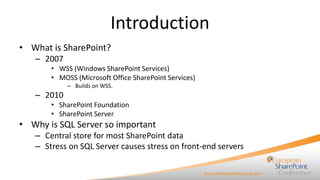
Introduction
• What is SharePoint?
– 2007
• WSS (Windows SharePoint Services)
• MOSS (Microsoft Office SharePoint Services)
– Builds on WSS.

– 2010
• SharePoint Foundation
• SharePoint Server

• Why is SQL Server so important
– Central store for most SharePoint data
– Stress on SQL Server causes stress on front-end servers
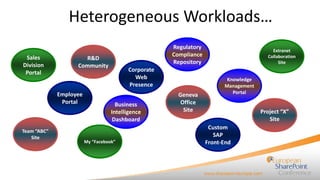
Heterogeneous Workloads…
Sales
Division
Portal

R&D
Community

Employee
Portal

Team “ABC”
Site

Regulatory
Compliance
Repository

Corporate
Web
Presence
Business
Intelligence
Dashboard

My “Facebook”

Geneva
Office
Site

Extranet
Collaboration
Site

Knowledge
Management
Portal

Project “X”
Site
Custom
SAP
Front-End
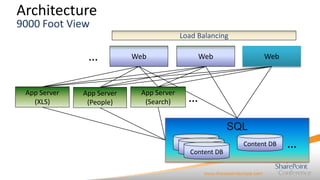
Architecture
9000 Foot View

Load Balancing

…
App Server
(XLS)

App Server
(People)

Web

App Server
(Search)

Web

Web

…
SQL
Content DB
Content DB
Content DB

Content DB

…
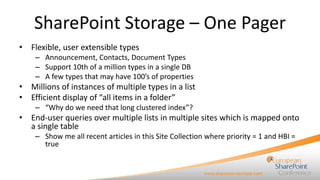
SharePoint Storage – One Pager
• Flexible, user extensible types
– Announcement, Contacts, Document Types
– Support 10th of a million types in a single DB
– A few types that may have 100’s of properties

• Millions of instances of multiple types in a list
• Efficient display of “all items in a folder”
– “Why do we need that long clustered index”?

• End-user queries over multiple lists in multiple sites which is mapped onto
a single table
– Show me all recent articles in this Site Collection where priority = 1 and HBI =
true
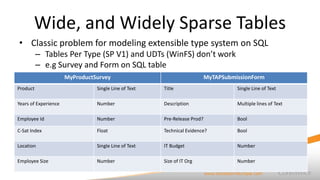
Wide, and Widely Sparse Tables
• Classic problem for modeling extensible type system on SQL
– Tables Per Type (SP V1) and UDTs (WinFS) don’t work
– e.g Survey and Form on SQL table
MyProductSurvey

MyTAPSubmissionForm

Product

Single Line of Text

Title

Single Line of Text

Years of Experience

Number

Description

Multiple lines of Text

Employee Id

Number

Pre-Release Prod?

Bool

C-Sat Index

Float

Technical Evidence?

Bool

Location

Single Line of Text

IT Budget

Number

Employee Size

Number

Size of IT Org

Number
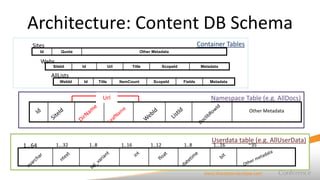
Architecture: Content DB Schema
Container Tables

Sites
Id

Quota

Other Metadata

Webs
SiteId

Id

Url

Title

ScopeId

Metadata

AllLists
WebId

Id

Title

ItemCount

ScopeId

Fields

Metadata

Namespace Table (e.g. AllDocs)

Url

Other Metadata

1…64

1...32

1..8

1..16

1..12

1..8

Userdata table (e.g. AllUserData)
1…16

~35
SharePoint Wraps a Record Into
Multiple Rows

• Morgan Stanley InfoPath integration case-study
– # of properties 430
– # of ints > 90
– # of floats > 70

• Design Choices
– Widen the wide table arbitrarily OR
– Wrap the rows so we pay penalty only for wide types

• Resolution
– Wrap rows 
SharePoint Maintains Its Own Index
• Multiple types in the same table makes SQL indexing untenable
TypeId

Ntext

Int

Int

Float

Ntext

Int

ProdSrv

MOSS

5

181870

78.9

Tokyo

90

TapForm

HR Project

•

•

500,000

nvarchar

Bool

Bool

A LoB integration
project for our HR
Site

Yes

No

Design Challenges
• How do I put a SQL index for a given property in all instances of a given
type?
• Do you suggest 1000’s of index on a table?
Resolution - Maintain Name-Value pairs
and SQL index NVP table
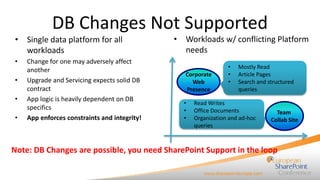
DB Changes Not Supported
• Single data platform for all
workloads
•
•
•
•

Change for one may adversely affect
another
Upgrade and Servicing expects solid DB
contract
App logic is heavily dependent on DB
specifics
App enforces constraints and integrity!

• Workloads w/ conflicting Platform
needs
Corporate
Web
Presence
•
•
•

•
•
•

Mostly Read
Article Pages
Search and structured
queries

Read Writes
Office Documents
Organization and ad-hoc
queries

Team
Collab Site

Note: DB Changes are possible, you need SharePoint Support in the loop
•
•
•
•
•
•

SharePoint Databases
The Basics

No access to DBs except thru SharePoint!
Exception: Logging DB in 2010
Separate servers for SharePoint and SQL
SQL Server: 64 bit with lots of RAM
Gigabit Ethernet between SQL Server and frontend servers
High availability:
– Cluster or mirroring for local HA
• Mirroring directly supported in 2010 admin UI

– Mirroring for redundant data centers
Data Scale Improvements – 2010 style
•

Enabling new deployment scenarios in 2010
Examples:
– 100 Million Items per Search Index (1 Billion with Fast 2010)
– Tens of Millions of Documents/Items in a single List
– View/Query 5000 items at a time

•

Many recommendations/limits stay the same
– Site Collections per WebApp (150,000)
– Site Collections per Content DB (50,000)
– Content DB Size (100 GB)

The Product has its limits!
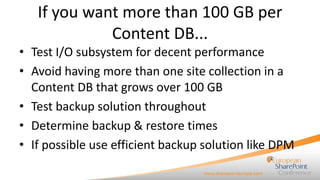
If you want more than 100 GB per
Content DB...
• Test I/O subsystem for decent performance
• Avoid having more than one site collection in a
Content DB that grows over 100 GB
• Test backup solution throughout
• Determine backup & restore times
• If possible use efficient backup solution like DPM
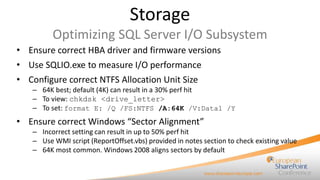
Storage
Optimizing SQL Server I/O Subsystem
• Ensure correct HBA driver and firmware versions
• Use SQLIO.exe to measure I/O performance
• Configure correct NTFS Allocation Unit Size
– 64K best; default (4K) can result in a 30% perf hit
– To view: chkdsk <drive_letter>
– To set: format E: /Q /FS:NTFS /A:64K /V:Data1 /Y

• Ensure correct Windows “Sector Alignment”
– Incorrect setting can result in up to 50% perf hit
– Use WMI script (ReportOffset.vbs) provided in notes section to check existing value
– 64K most common. Windows 2008 aligns sectors by default
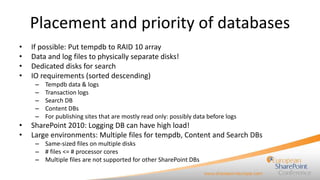
Placement and priority of databases
•
•
•
•

If possible: Put tempdb to RAID 10 array
Data and log files to physically separate disks!
Dedicated disks for search
IO requirements (sorted descending)
–
–
–
–
–

•
•

Tempdb data & logs
Transaction logs
Search DB
Content DBs
For publishing sites that are mostly read only: possibly data before logs

SharePoint 2010: Logging DB can have high load!
Large environments: Multiple files for tempdb, Content and Search DBs
– Same-sized files on multiple disks
– # files <= # processor cores
– Multiple files are not supported for other SharePoint DBs
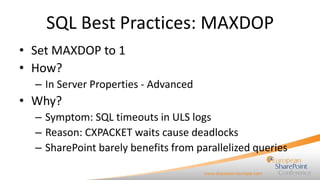
SQL Best Practices: MAXDOP
• Set MAXDOP to 1
• How?
– In Server Properties - Advanced

• Why?
– Symptom: SQL timeouts in ULS logs
– Reason: CXPACKET waits cause deadlocks
– SharePoint barely benefits from parallelized queries
SQL Best Practices: Memory
• Set Max Server Memory to appropriate value
• How?
– Recommended setting:
Physical RAM – Memory for OS/apps –
((MaxWorkerThreads * StackSize) + DefaultReservationSize)
• MaxWorkerThreads = 256 + (NumOfSchedulers-4) *8
• StackSize = 1MB on x86, 2 MB on x64, 4 MB on IA64

– In Server Properties – Memory

• Why?
– In some circumstances, SQL Server does not leave enough memory for
Windows
SQL Best Practices: Statistics
• Make sure that SQL statistics are up to date
• How?
– Make sure the Health Analyzer Rule (under Performance) is
enabled
– If you still have very long query execution time problems, run
UPDATE STATISTICS with FULLSCAN
– Make sure AUTO_CREATE_STATISTICS and
AUTO_UPDATE_STATISTICS are off

• Why?
– Up to date SQL statistics are required for the query optimizer
SQL Best Practices: Index Fragmentation
• Make sure indexes are defragmented
• How?
– Make sure the Index fragmentation Health Jobs are enabled
• Databases used by SharePoint have fragmented indices (SharePoint
Foundation 2010)
• One or more Search crawl databases have fragmented indices
(SharePoint Server 2010)
• One or more Search property databases have fragmented indices
(SharePoint Server 2010)

• Why?
– Index fragmentation costs lots of CPU and memory and slows IO
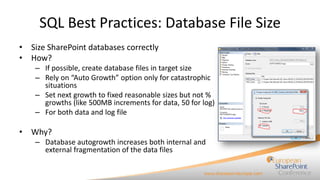
SQL Best Practices: Database File Size
• Size SharePoint databases correctly
• How?
– If possible, create database files in target size
– Rely on “Auto Growth” option only for catastrophic
situations
– Set next growth to fixed reasonable sizes but not %
growths (like 500MB increments for data, 50 for log)
– For both data and log file

• Why?
– Database autogrowth increases both internal and
external fragmentation of the data files
Database sizing and options
• Create Content DBs in projected target size!
– Create in Management Studio or T-SQL, then add to SharePoint
– Options
•
•
•
•
•
•
•
•

Projected size for data and log files
Data and log files to physically separate disks
Useful size for autogrow
Autogrow on
Collation: Latin1_General_CI_AS_KS_WS
Recovery model
Fulltext index off
Page Verify Checksum

– Script here:
http://sharepointusergroup.corasworks.net/HOU/Lists/Speakers%20List/Attac
hments/17/SharePointScalabilityWhitepaper.pdf
Demo
Creating Content DBs
SQL Best Practices: Recovery models
• Recovery model
– Full, if:
• The backup strategy includes frequent log backups (often: hourly)
• High availability like log shipping or mirroring will be used

– Otherwise: Use recovery model Simple to save IOs and
simplify management

• Alter model DB to reflect selection
– So new Content DBs are created with the correct option(s)
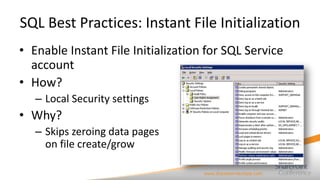
SQL Best Practices: Instant File Initialization
• Enable Instant File Initialization for SQL Service
account
• How?
– Local Security settings

• Why?
– Skips zeroing data pages
on file create/grow
SQL Best Practices: Avoid TempDB contention
• Increase the number of TempDB data files
– Configure tempdb with ¼ to ½ the number of data files as CPU cores (max of
8)

• How?
–
–
–
–

Properties of tempdb
Also size tempdb accordingly (ca. 25% of largest DB in total)
Only data files! Stick with 1 log file
Also place tempdb on fast disks

• Why?
– If you see lots of PAGELATCH waits in sys.dm_os_waiting_tasks
– Contention for writing to a single page in tempdb
Configuration
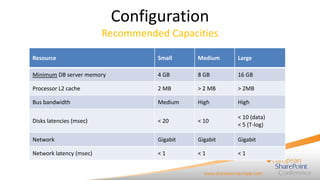
Recommended Capacities
Resource

Small

Medium

Large

Minimum DB server memory

4 GB

8 GB

16 GB

Processor L2 cache

2 MB

> 2 MB

> 2MB

Bus bandwidth

Medium

High

High

Disks latencies (msec)

< 20

< 10

< 10 (data)
< 5 (T-log)

Network

Gigabit

Gigabit

Gigabit

Network latency (msec)

<1

<1

<1
Configuration
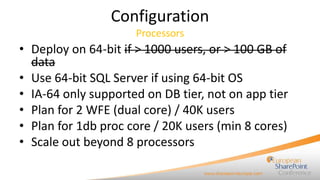
Processors

• Deploy on 64-bit if > 1000 users, or > 100 GB of
data
• Use 64-bit SQL Server if using 64-bit OS
• IA-64 only supported on DB tier, not on app tier
• Plan for 2 WFE (dual core) / 40K users
• Plan for 1db proc core / 20K users (min 8 cores)
• Scale out beyond 8 processors
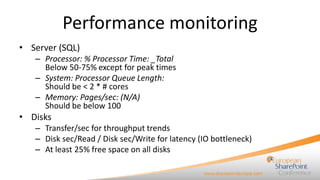
Performance monitoring
• Server (SQL)
– Processor: % Processor Time: _Total
Below 50-75% except for peak times
– System: Processor Queue Length:
Should be < 2 * # cores
– Memory: Pages/sec: (N/A)
Should be below 100

• Disks
– Transfer/sec for throughput trends
– Disk sec/Read / Disk sec/Write for latency (IO bottleneck)
– At least 25% free space on all disks
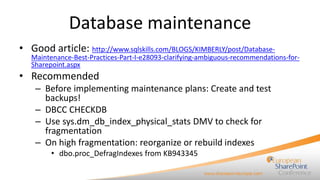
Database maintenance
• Good article: http://www.sqlskills.com/BLOGS/KIMBERLY/post/Database-

Maintenance-Best-Practices-Part-I-e28093-clarifying-ambiguous-recommendations-forSharepoint.aspx

• Recommended
– Before implementing maintenance plans: Create and test
backups!
– DBCC CHECKDB
– Use sys.dm_db_index_physical_stats DMV to check for
fragmentation
– On high fragmentation: reorganize or rebuild indexes
• dbo.proc_DefragIndexes from KB943345
Database maintenance
• Not recommended
– Drop & recreate indexes
– Database maintenance during business hours
– Update Statistics – done automatically
• Except as described before

– Shrink databases if not absolutely necessary
• If so: Do it right, do not use DBCC SHRINKDB
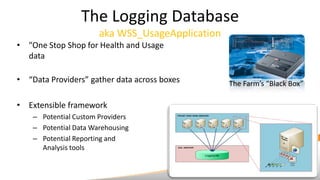
The Logging Database
aka WSS_UsageApplication
• "One Stop Shop for Health and Usage
data
• “Data Providers” gather data across boxes
• Extensible framework
– Potential Custom Providers
– Potential Data Warehousing
– Potential Reporting and
Analysis tools

The Farm’s “Black Box”
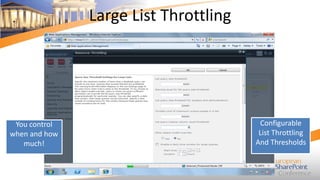
Large List Throttling

You control
when and how
much!

Configurable
List Throttling
And Thresholds
For more info
• Webcasts
– http://www.microsoft.com/germany/technet/webcasts

• Blog Steffen Krause
– http://blogs.technet.com/steffenk

• SQL Server/SharePoint Whitepaper
– http://technet.microsoft.com/de-de/library/cc263261.aspx (no Shrink in
maintenance plan!!!)
– http://technet.microsoft.com/en-us/library/cc262731.aspx

• Defragmenting databases
– http://support.microsoft.com/kb/943345/

SQL Server and SharePoint - Best Practices presented by Steffen Krause, Microsoft

  • 1.
    SQL Server andSharePoint - Best Practices Steffen Krause Snr. Technical Solution Prof. – Data Platform Microsoft Germany http://blogs.technet.com/steffenk
  • 2.
  • 3.
    Introduction • What isSharePoint? – 2007 • WSS (Windows SharePoint Services) • MOSS (Microsoft Office SharePoint Services) – Builds on WSS. – 2010 • SharePoint Foundation • SharePoint Server • Why is SQL Server so important – Central store for most SharePoint data – Stress on SQL Server causes stress on front-end servers
  • 4.
    Heterogeneous Workloads… Sales Division Portal R&D Community Employee Portal Team “ABC” Site Regulatory Compliance Repository Corporate Web Presence Business Intelligence Dashboard My“Facebook” Geneva Office Site Extranet Collaboration Site Knowledge Management Portal Project “X” Site Custom SAP Front-End
  • 5.
    Architecture 9000 Foot View LoadBalancing … App Server (XLS) App Server (People) Web App Server (Search) Web Web … SQL Content DB Content DB Content DB Content DB …
  • 6.
    SharePoint Storage –One Pager • Flexible, user extensible types – Announcement, Contacts, Document Types – Support 10th of a million types in a single DB – A few types that may have 100’s of properties • Millions of instances of multiple types in a list • Efficient display of “all items in a folder” – “Why do we need that long clustered index”? • End-user queries over multiple lists in multiple sites which is mapped onto a single table – Show me all recent articles in this Site Collection where priority = 1 and HBI = true
  • 7.
    Wide, and WidelySparse Tables • Classic problem for modeling extensible type system on SQL – Tables Per Type (SP V1) and UDTs (WinFS) don’t work – e.g Survey and Form on SQL table MyProductSurvey MyTAPSubmissionForm Product Single Line of Text Title Single Line of Text Years of Experience Number Description Multiple lines of Text Employee Id Number Pre-Release Prod? Bool C-Sat Index Float Technical Evidence? Bool Location Single Line of Text IT Budget Number Employee Size Number Size of IT Org Number
  • 8.
    Architecture: Content DBSchema Container Tables Sites Id Quota Other Metadata Webs SiteId Id Url Title ScopeId Metadata AllLists WebId Id Title ItemCount ScopeId Fields Metadata Namespace Table (e.g. AllDocs) Url Other Metadata 1…64 1...32 1..8 1..16 1..12 1..8 Userdata table (e.g. AllUserData) 1…16 ~35
  • 9.
    SharePoint Wraps aRecord Into Multiple Rows • Morgan Stanley InfoPath integration case-study – # of properties 430 – # of ints > 90 – # of floats > 70 • Design Choices – Widen the wide table arbitrarily OR – Wrap the rows so we pay penalty only for wide types • Resolution – Wrap rows 
  • 10.
    SharePoint Maintains ItsOwn Index • Multiple types in the same table makes SQL indexing untenable TypeId Ntext Int Int Float Ntext Int ProdSrv MOSS 5 181870 78.9 Tokyo 90 TapForm HR Project • • 500,000 nvarchar Bool Bool A LoB integration project for our HR Site Yes No Design Challenges • How do I put a SQL index for a given property in all instances of a given type? • Do you suggest 1000’s of index on a table? Resolution - Maintain Name-Value pairs and SQL index NVP table
  • 11.
    DB Changes NotSupported • Single data platform for all workloads • • • • Change for one may adversely affect another Upgrade and Servicing expects solid DB contract App logic is heavily dependent on DB specifics App enforces constraints and integrity! • Workloads w/ conflicting Platform needs Corporate Web Presence • • • • • • Mostly Read Article Pages Search and structured queries Read Writes Office Documents Organization and ad-hoc queries Team Collab Site Note: DB Changes are possible, you need SharePoint Support in the loop
  • 12.
    • • • • • • SharePoint Databases The Basics Noaccess to DBs except thru SharePoint! Exception: Logging DB in 2010 Separate servers for SharePoint and SQL SQL Server: 64 bit with lots of RAM Gigabit Ethernet between SQL Server and frontend servers High availability: – Cluster or mirroring for local HA • Mirroring directly supported in 2010 admin UI – Mirroring for redundant data centers
  • 13.
    Data Scale Improvements– 2010 style • Enabling new deployment scenarios in 2010 Examples: – 100 Million Items per Search Index (1 Billion with Fast 2010) – Tens of Millions of Documents/Items in a single List – View/Query 5000 items at a time • Many recommendations/limits stay the same – Site Collections per WebApp (150,000) – Site Collections per Content DB (50,000) – Content DB Size (100 GB) The Product has its limits!
  • 14.
    If you wantmore than 100 GB per Content DB... • Test I/O subsystem for decent performance • Avoid having more than one site collection in a Content DB that grows over 100 GB • Test backup solution throughout • Determine backup & restore times • If possible use efficient backup solution like DPM
  • 15.
    Storage Optimizing SQL ServerI/O Subsystem • Ensure correct HBA driver and firmware versions • Use SQLIO.exe to measure I/O performance • Configure correct NTFS Allocation Unit Size – 64K best; default (4K) can result in a 30% perf hit – To view: chkdsk <drive_letter> – To set: format E: /Q /FS:NTFS /A:64K /V:Data1 /Y • Ensure correct Windows “Sector Alignment” – Incorrect setting can result in up to 50% perf hit – Use WMI script (ReportOffset.vbs) provided in notes section to check existing value – 64K most common. Windows 2008 aligns sectors by default
  • 16.
    Placement and priorityof databases • • • • If possible: Put tempdb to RAID 10 array Data and log files to physically separate disks! Dedicated disks for search IO requirements (sorted descending) – – – – – • • Tempdb data & logs Transaction logs Search DB Content DBs For publishing sites that are mostly read only: possibly data before logs SharePoint 2010: Logging DB can have high load! Large environments: Multiple files for tempdb, Content and Search DBs – Same-sized files on multiple disks – # files <= # processor cores – Multiple files are not supported for other SharePoint DBs
  • 17.
    SQL Best Practices:MAXDOP • Set MAXDOP to 1 • How? – In Server Properties - Advanced • Why? – Symptom: SQL timeouts in ULS logs – Reason: CXPACKET waits cause deadlocks – SharePoint barely benefits from parallelized queries
  • 18.
    SQL Best Practices:Memory • Set Max Server Memory to appropriate value • How? – Recommended setting: Physical RAM – Memory for OS/apps – ((MaxWorkerThreads * StackSize) + DefaultReservationSize) • MaxWorkerThreads = 256 + (NumOfSchedulers-4) *8 • StackSize = 1MB on x86, 2 MB on x64, 4 MB on IA64 – In Server Properties – Memory • Why? – In some circumstances, SQL Server does not leave enough memory for Windows
  • 19.
    SQL Best Practices:Statistics • Make sure that SQL statistics are up to date • How? – Make sure the Health Analyzer Rule (under Performance) is enabled – If you still have very long query execution time problems, run UPDATE STATISTICS with FULLSCAN – Make sure AUTO_CREATE_STATISTICS and AUTO_UPDATE_STATISTICS are off • Why? – Up to date SQL statistics are required for the query optimizer
  • 20.
    SQL Best Practices:Index Fragmentation • Make sure indexes are defragmented • How? – Make sure the Index fragmentation Health Jobs are enabled • Databases used by SharePoint have fragmented indices (SharePoint Foundation 2010) • One or more Search crawl databases have fragmented indices (SharePoint Server 2010) • One or more Search property databases have fragmented indices (SharePoint Server 2010) • Why? – Index fragmentation costs lots of CPU and memory and slows IO
  • 21.
    SQL Best Practices:Database File Size • Size SharePoint databases correctly • How? – If possible, create database files in target size – Rely on “Auto Growth” option only for catastrophic situations – Set next growth to fixed reasonable sizes but not % growths (like 500MB increments for data, 50 for log) – For both data and log file • Why? – Database autogrowth increases both internal and external fragmentation of the data files
  • 22.
    Database sizing andoptions • Create Content DBs in projected target size! – Create in Management Studio or T-SQL, then add to SharePoint – Options • • • • • • • • Projected size for data and log files Data and log files to physically separate disks Useful size for autogrow Autogrow on Collation: Latin1_General_CI_AS_KS_WS Recovery model Fulltext index off Page Verify Checksum – Script here: http://sharepointusergroup.corasworks.net/HOU/Lists/Speakers%20List/Attac hments/17/SharePointScalabilityWhitepaper.pdf
  • 23.
  • 24.
    SQL Best Practices:Recovery models • Recovery model – Full, if: • The backup strategy includes frequent log backups (often: hourly) • High availability like log shipping or mirroring will be used – Otherwise: Use recovery model Simple to save IOs and simplify management • Alter model DB to reflect selection – So new Content DBs are created with the correct option(s)
  • 25.
    SQL Best Practices:Instant File Initialization • Enable Instant File Initialization for SQL Service account • How? – Local Security settings • Why? – Skips zeroing data pages on file create/grow
  • 26.
    SQL Best Practices:Avoid TempDB contention • Increase the number of TempDB data files – Configure tempdb with ¼ to ½ the number of data files as CPU cores (max of 8) • How? – – – – Properties of tempdb Also size tempdb accordingly (ca. 25% of largest DB in total) Only data files! Stick with 1 log file Also place tempdb on fast disks • Why? – If you see lots of PAGELATCH waits in sys.dm_os_waiting_tasks – Contention for writing to a single page in tempdb
  • 27.
    Configuration Recommended Capacities Resource Small Medium Large Minimum DBserver memory 4 GB 8 GB 16 GB Processor L2 cache 2 MB > 2 MB > 2MB Bus bandwidth Medium High High Disks latencies (msec) < 20 < 10 < 10 (data) < 5 (T-log) Network Gigabit Gigabit Gigabit Network latency (msec) <1 <1 <1
  • 28.
    Configuration Processors • Deploy on64-bit if > 1000 users, or > 100 GB of data • Use 64-bit SQL Server if using 64-bit OS • IA-64 only supported on DB tier, not on app tier • Plan for 2 WFE (dual core) / 40K users • Plan for 1db proc core / 20K users (min 8 cores) • Scale out beyond 8 processors
  • 29.
    Performance monitoring • Server(SQL) – Processor: % Processor Time: _Total Below 50-75% except for peak times – System: Processor Queue Length: Should be < 2 * # cores – Memory: Pages/sec: (N/A) Should be below 100 • Disks – Transfer/sec for throughput trends – Disk sec/Read / Disk sec/Write for latency (IO bottleneck) – At least 25% free space on all disks
  • 30.
    Database maintenance • Goodarticle: http://www.sqlskills.com/BLOGS/KIMBERLY/post/Database- Maintenance-Best-Practices-Part-I-e28093-clarifying-ambiguous-recommendations-forSharepoint.aspx • Recommended – Before implementing maintenance plans: Create and test backups! – DBCC CHECKDB – Use sys.dm_db_index_physical_stats DMV to check for fragmentation – On high fragmentation: reorganize or rebuild indexes • dbo.proc_DefragIndexes from KB943345
  • 31.
    Database maintenance • Notrecommended – Drop & recreate indexes – Database maintenance during business hours – Update Statistics – done automatically • Except as described before – Shrink databases if not absolutely necessary • If so: Do it right, do not use DBCC SHRINKDB
  • 32.
    The Logging Database akaWSS_UsageApplication • "One Stop Shop for Health and Usage data • “Data Providers” gather data across boxes • Extensible framework – Potential Custom Providers – Potential Data Warehousing – Potential Reporting and Analysis tools The Farm’s “Black Box”
  • 33.
    Large List Throttling Youcontrol when and how much! Configurable List Throttling And Thresholds
  • 34.
    For more info •Webcasts – http://www.microsoft.com/germany/technet/webcasts • Blog Steffen Krause – http://blogs.technet.com/steffenk • SQL Server/SharePoint Whitepaper – http://technet.microsoft.com/de-de/library/cc263261.aspx (no Shrink in maintenance plan!!!) – http://technet.microsoft.com/en-us/library/cc262731.aspx • Defragmenting databases – http://support.microsoft.com/kb/943345/